FreeNAS Box v2: Airflow Design

Designing the system airflow for thermal management is a huge consideration for the FreeNAS box design. The two fans in the system have been oriented for easy inspection first and then the airflow was designed second to work with natural convection flow. Lacking skills to use sophisticated thermal modeling and analysis tools, this design is mostly based on intuition.

Working as a network attached storage device is not a very computationally intensive task. Plus the CPU has its own fan, so thermal control of the processor is not a primary concern. The power supply also has its own fan, which I assume can take care of itself.

That leaves the hard drives as the primary thermal concern. Lacking their own cooling fans, the airflow design of the case will put them first in line to receive the coolest air. This meant placing them right at the intake. The v1 intake was on the bottom, so that’s where the drives were. The v2 intake air from the side, and again that’s where the drives were placed.

After the intake air has met the hard drive, the warmer bits should flow up and over the top of the hard drive, carried by convection towards exhaust. The cooler bits should head towards the rest of the case, helping to cool the motherboard and the CPU.

The motherboard and the CPU is in its own chamber. Cold air comes in the bottom and sides of this chamber and the top of this chamber has holes to send its warmest air into the power supply fan for exhaust.

If this proves to be inadequate cooling for the motherboard, we have the option of cutting an air intake hole directly in the front door panel of the case.  The CPU fan can then pull in cool air from the outside. This will reduce the amount of air drawn in past the hard drives, though, so I wanted to see how well it works before I start cutting holes.


FreeNASv2 Thermal Flow 2

FreeNAS Box v2: Additional Goals

We’ve just established all the problems exposed by the v1 prototype that we want to address for v2. In addition to those issues, we also want v2 to cover a few things that are no fault of the v1 prototype.

First one is relatively obvious: actually build a complete and usable case. I knew I was trying new ideas in v1 and that something will go wrong, so it wasn’t really complete. Even if everything went right (I knew it wouldn’t) I would have had to build a v2. For one example, I didn’t bother to design an access door.

We then have a few separate items that relate to improving space efficiency.

When I placed v1 on the shelf where I expected to keep my FreeNAS box, it wasted a few inches between the back and the wall due to the angle of the power cable. I want to rearrange things so that the back of the box can sit flat against the wall.

Cooling path in v1 started with air intakes on the bottom of the case. This was part of the tribute to the Apple PowerMac G4 cube, but functionally unnecessary while consuming vertical space.

Also contributing to the vertical space consumption was pointing all the ports downwards, like the PowerMac G4 cube. This made the ports difficult to access. It would be good to align the direction of all the plugs, so power and network cables can be in parallel.

Out of all the requirements listed here and in the previous post, the greatest impact was the “make sure all fans are visible for easy verification they are spinning” goal. It meant rearranging the components so both fans face forward. This made for an interesting design challenge as it is against common convention of computer case design. Once I got that set up, the configuration was then further refined in Fusion 360 to satisfy all the remaining requirements until we have this: my FreeNAS Box v2.

FreeNASv2

FreeNAS Box v1 Problems

FreeNAS Box v1 was a good learning project for acrylic construction. Here are the issues with v1 I want to address for the next version.

  1. Non-orthogonal joints: The laser cutter only cuts right angle edges. v1 had a few joints that were impossible to cement because the edges didn’t align at right angles.
  2. Tab and slot construction: To help align joints, I designed v1 with tabs to fit into slots I had also cut into their mating surfaces. While this made the box easy to build, it destroyed durability of the end product. The sharp corners of the slots are where acrylic starts cracking under stress. I had known about the dangers of sharp internal corners, but I thought acrylic cement would bond everything together eliminating the weak point. This idea has now been proven false.

    FreeNAS1_Cracks
    Stress cracks that started at corners of slots.
  3. Unappealing tangle of wires: The v1 box design placed all of the wires up front, which turned out to look pretty ugly, and all the components (hard drives and the motherboard) were hidden under the mess.

    FreeNASv1
    Yes, there’s a computer under the tangle of wires.
  4. Difficult access to components: Besides looking bad, the mess of wires up front also blocks access to everything else. It would be difficult to perform maintenance such as replacing drives if they fail.
  5. Cooling fans vulnerable to jamming: The wiring paths were such that, if some wires should misbehave and bend slightly out of position, they would impinge upon the blades of cooling fans stopping them from turning.

    FreeNASv1_Flaw
    Several wires in this bundle poked into the fan grill where it does not belong.
  6. Cooling fans are out of sight: Compounding the problem of blocked fans is the fact that despite the clear acrylic exterior, it was not easy to notice the fans were blocked.

I had to physically build FreeNAS Box v1 before I knew known any of the above are problems. Some I had thought about and didn’t think would be a problem, the others I just hadn’t thought about at all.

ROS Tutorial: Logging and Diagnostics

rosorg-logo1One of the primary motivations behind the Robot Operating System is helping robot creators avoid reinvent the wheel for every project. From my history of hobbyist robots, where I did build the software stack from the ground up every time, I was very happy to see the logging and diagnostics tools built into ROS.
No robot ever does everything right the first time. When things go wrong, the builder needs to figure out why. When the software stack is written from scratch, it means all the debugging tools will need to be written as well. Which means constantly asking the question: Should we build the tool? Will building it tell us what we need? Will it help solve the problem at hand? In end, will the work be worth the time investment?

When the robot system components are integrated in a ROS graph, that question goes away because ROS has the tools already at hand. There is a visualization tool (rqt_graph) to see which components are talking to each other. There is a tool that can record the messages and play them back. (rosbag) So on and so forth. The robot builder won’t have to reinvent any of these wheels.

These tools certainly looks promising and sounds great on paper, but I won’t know for sure until I build a project and try using these tools to debug my problem. I have high hopes but I’m also no stranger to things looking better on paper than in reality.

Final amusing note: The general ROS configuration diagnostic app is named WTF. (roswtf) I’m sure there’s a G-rated name for this thing (“Where’s The Failure” tool?) but we know the truth…


ROS Tutorial: C++ vs. Python Comparison

rosorg-logo1When it came to walking through writing actual code to build nodes in a ROS (Robot Operating System) network, the tutorial offered the reader the option to write the nodes in either C++ or in Python. I went through it in Python the first time around, then for curiosity’s sake, I looked over the C++ version for comparison.

The first glance was horrifying: Where the Python ‘talker’ sample was a small code listing with 20 lines of code, the C++ counterpart was sprawled over 100 lines of code. But a second glance quickly dispelled the impression: most of the lines in the C++ sample are comments explaining what’s going on. Comments are good! When counting the actual executable lines of code, the two samples are roughly similar in size, which surprised me as I expected the C++ version to have a lot more overhead as typical of a lower-level language.

A little reading of the comments and the tutorial page found the explanation: a lot of the tedious book-keeping that raw C++ programs have to contend with have been taken care of by Boost code libraries. This is how the C++ version of the demo ended up almost as concise as the Python version.

I still intend to continue my ROS education in Python, because I still think that’s an interesting way for me to train my Python programming muscles. But it’s nice to know that if I should ever need to do ROS coding in C++, I can get help to keep the complexities under control.

Historically I’ve been skeptical of C++ libraries – they are really wonderful when things work as designed, but when things go wrong things the code quickly become very difficult to debug. This may or may not be true for C++ code using Boost libraries, I’ll find out if I go there.

One trivial detail: the Python ‘talker’ sent out the current time but the C++ version just sent out a counted integer. Looking at the documentation of the ROS libraries, it looks like the time utility used by the Python version has a straightforward counterpart in the C++ library. Why wasn’t it used in the C++ tutorial to match the Python tutorial? It may just be simple oversight, but I wonder if there’s a more interesting story behind the scenes.

Getting Started on ROS: C++ or Python?

rosorg-logo1One of the items on my longtime to-do list is to investigate at least one of the publicly available robotics frameworks. Every robot project I’ve participated in so far has been a ground-up affair, everything built from scratch. At my simple hobbyist level I haven’t experienced a whole lot of tedious repetition across robots, but I definitely got far enough to see it looming on the horizon. My last robot (many years ago) was built around a very compact PC laptop as its brain, which made the project very powerful but also very expensive for its day. Today, I can get that kind of power in an inexpensive Raspberry Pi. Which happens to be one of the platforms supported by the Robot Operating System. So this is where I’m going to start.

I’m barely into the beginner tutorials but I see enough to appreciate what they have, and also to start having questions. I like the fact modules communicate over commodity network transports (TCP or UDP) and the master negotiation procedures are built around XML-RPC. It does add overhead but it’s the kind of overhead that allows a great deal of flexibility. But it is also a vulnerable security exposure. I haven’t seen anything talking about best practices to deal with rogue nodes on a ROS network but I hope that is coming up soon.

When the tutorial starts talking about writing code to create ROS nodes, it offers an option for the reader: write in C++, or write in Python? The prudent thing for me to do is to stick to C++, a language I know, while I learn ROS. If I go with Python I’ll be learning the programming language on top of learning the ROS framework.

Today I’m in a ‘chasing shiny objects’ kind of mood, so I’ll start down the Python path. Whether this turns out to be a wise or foolish choice is yet to be seen. Either way, it’ll be documented in upcoming posts!


Gigabyte Z270N-WiFi and its F1 Firmware

When I embarked on the Luggable PC project, the primary goal was to build a computer using components I already had on hand. This translated into the requirement to accommodate full-sized desktop PC components. Now that I’ve used it for a while and started to like carrying my full-time computer around, I’m building up for an upgrade. This time, instead of building a chassis around components I already had, I will buy smaller components with the intent of assembling a new luggable chassis.

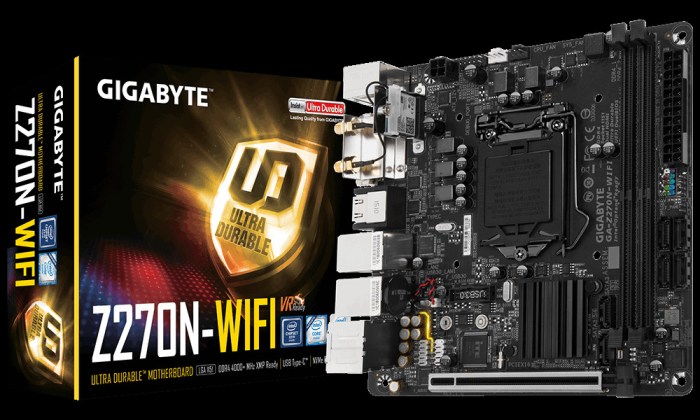
First up: The motherboard. Out of all the commodity form factors, the best balance of small size, computation power, and reasonable price is the Mini-ITX form factor. I’ve already worked with a few boards of that form factor, but none with leading edge components. This changes with the purchase of a Gigabyte Z270N-WiFi.

GigabyteZ270N-WiFi
Image by Gigabyte

The specifications of the motherboard looked great on paper. In additional to the small Mini-ITX form factor, the features important to my project are:

  • Support for Intel’s latest Kaby Lake generation of processors
  • M.2 slot for SSD
  • PCIe x16 slot for full-power GPU
  • Wireless networking

Factors that were not critical, but used as tie-breakers against its competition:

  • Dual-port Intel gigabit wired Ethernet
  • 6 SATA ports
  • USB-C port
  • Bluetooth

Looks great on paper! Sadly in reality the motherboard made a very poor first impression due to the onboard firmware. It was heavy on flashy looks and light on usefulness. I ran into many problems with basic functionality.

Example 1: The USB mouse support was useless: I could move the cursor around with the mouse, but clicking has no effect.

Example 2: Upon startup, it shows a full-screen Gigabyte logo (basically an advertisement) that I find annoying. If I select the firmware option to disable the logo, the motherboard no longer boots: I have to reset the firmware settings via jumper to get back to square 1. This was such an unexpected thing that it took three resets before I determined it was the logo setting that caused the problem.

So the “F1” version of the motherboard firmware was a disaster. Fortunately by the time I bought the board, Gigabyte has released updates and is currently on “F4”. Upgrading allowed me to disable the Gigabyte advertisement and still have a functional computer, in addition to addressing other functional annoyances.

This motherboard was clearly pushed out the door with incomplete firmware and the expectation on users to upgrade. I now have a good motherboard, but there’s a sour taste in my mouth from the bad out-of-box experience.

Plastic Bottle Upcycling with TrussFab

csm_chair_FEA-nolable-02_ea4ad9b60f
Image from TrussFab.

A perpetual limitation of 3D printing is the print volume of the 3D printer. Any creations larger than that volume must necessarily consist of multiple pieces joined together in some way. My Luggable PC project is built from 3D printed pieces (each piece limited in size by the print volume) mounted on a skeleton of aluminum extrusions.

Aluminum extrusions are quite economical for the precision and flexibility they offer, but such capabilities aren’t always necessary for a project. Less expensive construction materials are available offering varying levels of construction flexibility, strength, and precision depending on the specific requirements of the project.

For the researchers behind TrussFab, they chose to utilize the ubiquitous plastic beverage bottle as structural component. Mass produced to exact specifications, the overall size is predictable and topped by a bottle cap mechanism necessarily precise to seal the contents of the bottle. And best of all, empty bottles that have successfully served their primary mission of beverage delivery are easily available at quantity.

These bottles are very strong in specific ways but quite weak in others. TrussFab leverages their strength and avoids their weakness by building them into truss structures. The software calculates the geometry required at the joints of the trusses and generates STL files for them to be 3D printed. The results are human-scale structures with the arbitrary shape flexibility of 3D printing made possible within the (relatively) tiny volume of a 3D printer.

Presented recently at ACM CHI’17 (Association for Computing Machinery, conference for Computer-Human Interaction 2017) the biggest frustration with TrussFab is that the software is not yet generally available for hobbyists to play with. In the meantime, their project page has links to a few generated structures on Thingiverse and a YouTube video.


Internal Fixture for Acrylic Box

Continuing my self-examination for assumptions that might be holding me back, I started thinking about the fact that all the fixtures I’ve built so far for the box exercise are external to the box. This seemed like an obvious approach – tools are almost always outside of the object that the tools are working on.

But while working with various fixtures, I’ve occasionally wished for something inside the box to brace against. At various points I thought about building an internal component to mate against the external fixture, but for one reason or another that hasn’t happened. So let’s try that now.

Internal Fixture


It turned out far more successfully than I had expected. When the fixture is on the outside of the box, my hands performing assembly had to work inside the tight internal volume. But when the fixture sits inside, my hands have far more freedom to move around outside and everything is easier to do. The assembly of a test box with this fixture was far smoother than any of the test box assemblies built with previous fixtures.

Since it worked so well, I went digging into the pile of scrap acrylic and cut panels for more boxes. While putting together these boxes by hand, I thought about how I’d automate the various tasks involved. The good news is that the fixture is no longer the biggest blocker, other aspects of box assembly now demand some problem-solving time.

Task #1: Peeling the protective paper backing off the laser-cut pieces of acrylic. At the moment this is a very tedious task that demands strong fingernails and luck. If we want to make a production line of a laser-cut acrylic product, we need a solution.

Task #2: Dispensing Weld-On 16 acrylic cement. Acrylic cements like Weld-On 4, with low viscosity and flows like water, have been outlawed by the South Coast Air Quality Management District government agency. So any dream of production will have to figure out how to work with the legal but far more viscous Weld-On 16. Applying by hand resulted in inconsistent beads of cement and aesthetically ugly joints.

Acrylic Box with External Frame

I took a pause from experimenting with fixtures for building a simple acrylic box, but it’s time to revisit the topic. While thinking about the external frames I had built, I started re-examining all the basic assumptions I had held during those experiments.

One assumption was that I must design the fixture to stay clear of the joints, lest I accidentally bond the fixture to the box with a bit of overflowing glue. So I started thinking what it might mean if i intentionally wanted to bond the box to its fixture. The result is the “exoframe box’, a box with an external support frame that also functions as the construction fixture for the box during assembly. This prototype led to the following observations:

Exoframe Box

Advantage:

It is stronger. Once everything is glued together, the external frame greatly increases the strength of the box. This either allows a box to handle a greater load compared to an equivalent frame-less box, or allow the box to be constructed of thinner acrylic.

It allows non-square profiles. The external frame in this prototype is rectangular, but there’s no reason why it has to be. The external frame can add contours to meet functional or artistic requirements. Say, make a network data storage computer look like an elephant, as a play on the urban legend that elephants never forget.

It lights up very nicely. The external frame adds a lot of edges and corners, which add light paths to any LED lighting in the acrylic construction. A quick test with an LED confirmed that the “bling factor” went up dramatically.

Disadvantage:

It took quite a bit of effort to keep the kerf compensation math straight. It probably shouldn’t count, though, as I assume I’ll eventually figure out a way to have the computer deal with the kerf compensation math for me instead of keeping it straight in my head.

Increased complexity in assembly since we have 9 interlocking pieces instead of 5. Somewhat mitigated by the fact that the external frame assisted in alignment of the box internal pieces, just like fixtures are supposed to, but overall a box with external frame is still much less friendly to automation than a plain box.

Water Damaged Nexus 5X Screen

The water-damaged Nexus 5X is somewhat functional again after cleaning off the swimming pool water chemicals, but suffers from a severe battery drain turning precious power into heat. This makes the phone unusable as a phone: it can only last an hour or two on battery, and being so hard on the battery raises worry of battery failure. Not “is the battery going to be flat?” kind, the really bad “is it going to burst into flames?” kind of worry. Before I put the phone aside (with battery disconnected) one final post about the screen assembly.

The screen is in bad shape even if the rest of the phone had fully recovered. The screen is legible and the touchscreen still works, but there are a lot of visually distracting marks left by liquid intrusion.

Liquid Screen.jpg

The big blotches in the center act like a bits of liquid still trapped in a gap. The size of the blotch changes depending on the pressure on the screen. I hope it evaporates in time, though I’m sure it’ll leave even more marks as it does. In contrast, the diagonal streaks do not respond to pressure and are likely residue left by drying liquid.

The obvious answer is to separate the touch digitizer layer from the display panel so I could clean the gap in between them. Unfortunately, even though the Nexus 5X is relatively easy to repair, this specific part is not repair-friendly. There are no more fasteners to access – the front of the phone, including the touch digitizer and the screen, appear to be a single bonded assembly.

Replacement assemblies are available online for $50-$60 dollars, which is a significant percentage of the $200-$250 asking price of a refurbished Nexus 5X. Even if the rest of the phone had recovered, I would have thought long and hard about spending that much money just for cosmetic concerns on a backup phone. And given the battery issue, the decision is clear to just leave it as is.