Building With Acrylic: Kerf Compensation

After learning my 3D printer’s inability to hold dimensional tolerance, I went back to practicing building with acrylic. Laser cutter kerf may be annoying but it is at least consistent. Now that I know my choice is between a consistent kerf or an inconsistent extrusion width, I choose to deal with consistency.

A bit of Google confirms laser cutter kerf compensation is a fairly common problem people have sought to deal with. What’s less common are actual practicable solutions for designing 3D structures intended to be built up from laser-cut pieces of acrylic. While 2D work on a laser cutter is common, construction for 3D structures appears to be less so.

A laser cutter workflow usually ends in a series of vector graphics commands. Common formats are DXF, DWG, SVG, and PDF. All are good for describing lines, but they only describe where to cut. They don’t contain information on which side of the line is the desired output. So while it is possible for an automated script to offset all lines, it doesn’t know which direction is “inside” vs “outside” in order to perform the proper offset for kerf compensation calculation.

The CAD software (Fusion 360) knows this information, so I thought it’s an obvious place for such mechanism to exist. Google knew of people who have devised some very clever workarounds to make it happen, but not an actual feature in the CAD software itself. Before I started using other people’s workarounds, I thought I’d try to do it manually first, adding to the kerf amount to the dimensions of individual components to CAD.

The result was very encouraging, the laser cut pieces came out at the desired dimensions and pieces fit together with their edges well aligned. This validated my manual process but added mystery. What I did was tedious for a human, simple for a computer, but for some reason the software doesn’t do it. Perhaps I will find out why as I continue learning about laser-cut acrylic construction.

Successful kerf


3D Printed Acrylic Fixture

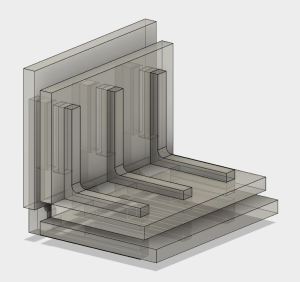
3D Printed Acrylic Fixture CADSince my last fixture project was foiled by laser cutter kerf, I thought I’d try 3D printing the next fixture to avoid laser cutter kerf spoiling my fixture accuracy.

I started with the same idea as the previous project – just put two pieces together in a right angle joint. This time I put a hinge in the fixture. The idea is that the work pieces can be put in place separately (with acrylic cement already applied to joint surfaces) and then I rotate about the hinge to bring the pieces together.

I could have stopped there, but a single joint doesn’t do anything. If I’m using up acrylic, I prefer building something that can be nominally useful. So the ambition grew to building a little box: 5 pieces (four identical for sides and one for bottom) joined together by simple right angle joints. This is only a small box, just big enough to be useful for things like holding little screws, nuts, and washers. It seemed a suitable baby step since most of the projects I have in mind for acrylic (starting with the FreeNAS enclosure) basically boil down to acrylic boxes as well. So the fixture was designed in CAD, then multiplied to create three additional copies at right angles to each other, to create my box building fixture.

3D Printed Acrylic FixtureThe end result demonstrated that, even though a 3D printer does not have cutter kerf to compensate for, it introduces other errors in the system. Maybe expensive industrial 3D printers would have enough accuracy to make this fixture work, but my little hobbyist level printer definitely did not. The corners of the box did not mate together as precisely as it did in my mind. The gaps are too wide and uneven for acrylic cement to bridge.

After this experiment, I decided I should go back to laser cutting and learn how to compensate for kerf and/or design around it.


Simple Acrylic Fixture Foiled By Kerf

CornerFixtureThe current goal is learning how to join pieces of acrylic without introducing tabs that weaken the acrylic pieces. I started simple: a simple corner join between two small pieces, and a fixture to help me do it.

Initially I thought that I should make the fixture out of something other than acrylic. This way, if the acrylic cement should seep into unfortunate locations, my fixture is not stuck to the work piece.

Then I realized if I wanted to make good looking joints, wayward glue would still be unacceptable in the result anyway. So for extra challenge I built the fixture out of spare scrap pieces of acrylic. It’s all part of the exercise: if it fails and I end up bonding my work piece to my fixture, learn what went wrong and incorporate into the next exercise.

Acrylic or not, the fixture needs to be designed so it stays clear from the features being joined. At least far enough that capillary action won’t wick the cement into places it shouldn’t go. I find this a pretty new and interesting constraint to designing geometry. Adding a lot of extra little slots and gaps to make sure no part of the fixture contacts the joint.

The fixture was successful at keeping the cement from wicking into places it shouldn’t be. The glue joint looked clear and beautiful, unmarred by wayward glue. But it had a pronounced lip. What went wrong?

I debugged my fixture’s flaw to the cutting laser’s kerf. The gap in my thinking is literally the gap cut by the width of the laser beam. This is something I neglected to account for when designing the geometry of the part, and it throws off the alignment of the work pieces in this particular fixture. Not by a whole lot – the caliper says less than 0.1mm – but enough to make the joint misalignment detectable by touch.

Acrylic Joint Evaluation

Acrylic JointBefore diving into building FreeNAS box #2, I thought I’d take a pause and take a closer look at the acrylic construction results of experiment #1. This is purely about learning to build structures from acrylic – independent from the positive or negative aspects of the project as a computer enclosure.

Since laser cutting acrylic is a fairly popular construction technique, there is a wealth of information on the internet. (To be taken with the usual grain of salt.) After getting some first-hand experience I now have context to better understand the information people have shared online. My favorite single page so far is on Makezine. After reading some of these again (with better understanding due to the new experience) I re-evaluated my design and decided my corners are bad.

For the corners of the enclosure, I had designed tongues for one panel to fit into another. On the upside, this helped with aligning pieces for assembly. On the downside, it made the design more complex to draw up and arrange. And even when well joined with acrylic cement, it is an visually unsightly interruption in the clean clear joint.

Even worse, this has introduced stress points that would otherwise not been there. As I recently learned building the Luggable Frame #1, a sharp internal corner laser cut into acrylic concentrates stress from surrounding components and is liable to start cracking from the point of the corner. Each of these tongues introduced two new stress points in each of the two sheets.

Since the only real upside here is making construction easier, I’ve decided this is not the way to build with acrylic. I should keep the edges for corners joints smooth and clear, free of these tongues, and figure out other ways to keep the pieces aligned during construction.

I’ll spend some time and effort to improve my acrylic joints before proceeding to build FreeNAS box prototype #2.


Vacuum Table – Spoilboard and Gasket

Now that we have a baseline on the vacuum table performance, time to start performing modifications to see what happens.

The easiest thing to reduce air resistance is to remove layers – we don’t strictly need the spoilboard in this setup, so it is removed. We then added some rubber gaskets to improve the seal between the plenum and the fixture, which should reduce air leaking past that particular junction.

8 Plenum Gasket Fixture small
Spoil board removed, gasket added – 25 inches

These modifications did not drop the vacuum of an empty fixture – in fact vacuum was boosted by 2 inches to 25. This implied having the spoilboard in the setup was letting a lot of air slip around the fixture. Removing it was a good call.

9 Plenum Gasket Fixture Blanks small
Adding work pieces increased to 26 inches.

When the work pieces are in place, the vacuum went up another inch to 26 inches. Less air is leaking past the work pieces, and they are now held by about one inch of mercury (roughly half a pound per square inch.)

We haven’t put any effort into improving the sealing between the work pieces and the fixture. How much gain can we realistically expect from the effort? In order to get a rough estimate of how much more we might gain, we draped a plastic sheet over the fixture.

10 Plenum Gasket Fixture Sheet small
Replacing work pieces with a plastic sheet boosted to 27.5 inches.

Looks like we have about 1.5 inches of mercury we can gain from better workpiece-to-fixture sealing.

This is a promising start, as this tells us we’re in reach of a decently high level of vacuum for work-holding. We now need to put some effort into the other side – improve the path for the vacuum to reach the work pieces and hold them in place.

More improvements to come!

Vacuum Table – Baseline Measurements

The CNC router at Tux-Lab has been under-utilized partly due to its under-performing vacuum table. It has a poor track record on an existing project, and we want to understand why (and hopefully fix the problem) before doing more projects on the CNC router.

To narrow down the cause, we will record the pump’s vacuum gauge reading at various configurations. We use a phone to take a picture identifying the vacuum configuration. We then hold that picture up next to the gauge and take a picture of the phone and the gauge together.

Establish the bounds

First, we get the upper bound: once the pump is up and running, close all the zone valves. The reading – nearly 30 inches of mercury – confirms the pump itself and the majority of the vacuum piping is in good working order.

2 Zone Valves small
Maximum vacuum – nearly 30 inches, good!

The lower bound is obtained by opening all zone valves and place nothing on the spoilboard. When in working configuration, the vacuum will never be weaker than this 7.5 inch reading.

6 Spoilboard small
Minimum vacuum – roughly 7.5 inches.

Most of the tests confirmed that the vacuum setup itself appears to be in good working order. We only started seeing problematic numbers once we started involving the spoilboard and the project fixture. Good news since these are the easiest pieces to fix.

4 Spoilboard Fixture small
Fixture without work pieces – just under 23 inches.

Past runs of the existing project has been done with the fixture mounted on the spoilboard. The vacuum reading of this configuration is surprisingly high at a hair under 23 inches. Indicating a lot of air resistance despite being carved from low density fiberboard.

We then added the work piece blanks on top of the fixture and measured again.

5 Spoilboard Fixture Blanks small
Fixture with work pieces – just over 23 inches.

The vacuum barely changed, to just a hair over 23 inches. This is a problem: it tells us the air can easily find a path around the work pieces so very little of atmospheric pressure is applied to hold pieces in place.

Now the objective is to modify the setup to (1) reduce the vacuum reading of an empty fixture and also (2) increase the vacuum reading of the populated fixture.

Increasing difference between these two readings should increase the holding power.

Mini-ITX Server Box

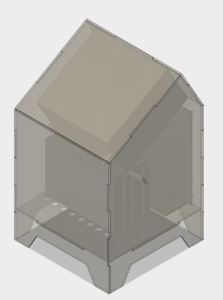
Mini-ITX Server CADTux-Lab had components on hand for a completely fan-less bare-bones Mini-ITX system. A small board with a passively-cooled CPU, a small 12V DC to ATX DC power supply that didn’t need a fan, and a solid state drive for storage. All it needed was a simple basic box to keep everything in – which made it an ideal learning project as a follow-on to FreeNAS box V1. (Well, it can be argued that this simple box should have come first… but that wasn’t the order things ended up being.)

This time there was no design challenge with hard drive placement or power supply fan clearance. Just a simple box with two sets of holes so convection will pull cold air from the bottom and let hot air out the top. The back plate had opening for the standard ITX motherboard port plate, plus two holes: One for the 12V DC power input, and the other for a momentary-on power switch.Mini-ITX Server

The result was an upgrade from its previous placement, which was the bare circuit board sitting on top of a cardboard box. Now it has some minimal protection against accidents like an errant dropped paperclip shorting things out.

This machine is now set up with the Xen hypervisor and ready to run the server-side code of whatever future projects arise at Tux-Lab, as long as that code can run in a Xen virtual machine.

See World(s) Online

NASALogoOne of the longest tenure items on my “To-Do” exploration is to get the hang of the Google Earth API and learn how to create a web app around it. This was very exciting web technology when Google seemed to be moving Google Earth from a standalone application to a web-based solution. Unfortunately its web architecture was based around browser plug-ins which eventually lead to its death.

It made sense for Google Earth functionality to be folded into Google Maps, but that seemed to be a slow process of assimilation. It never occurred to me that there are other alternatives out there until I stumbled across a talk about NASA’s World Wind project. (A hands-on activity, too, with a sample project to play with.) The “Web World Wind” component of the project is a WebGL library for geo-spatial applications, which makes me excited about its potential for fun projects.

The Java edition of World Wind has (or at least used to) have functionality beyond our planet Earth. There were ways to have it display data sets from our moon or from Mars. Sadly the web edition has yet to pick up that functionality.

JPL does currently expose a lot of Mars information in a web-browser accessible form on the Mars Trek site. According to the speaker of my talk, it was not built on World Wind. He believes it was built on Cesium, another WebGL library for global data visualization.

I thought there was only Google Earth, and now I know there are at least two other alternatives. Happiness.

The speaker of the talk is currently working in the JPL Ops Lab on the OnSight project, helping planetary scientists collaborate on Mars research using Microsoft’s Hololens for virtual presence on Mars. That sounds like an awesome job.

FreeNAS Box V1 Prototype

FreeNASv1With the concept designed, it’s time to head over to Tux-Lab to build it!

To be honest, it was not fully designed for use as a computer case. Since this was my first effort designing for acrylic construction I expected to run into some amateur mistakes very quickly. As a result I had left some known design issues open to be resolved in future prototypes. One example: I had not designed any kind of door or hinge. The prototype panels are mostly glued together, except for the front panel which is held in place by tape.

Aesthetically, I am pleased with how the clear acrylic looked though I am not pleased at how much of a rat’s nest the power supply cables became. Taming wires is a perpetual challenge. I now understand why Apple enclosed all the ugly guts of the G4 cube in shiny aluminum shell inside the clear acrylic shell.

Other than the messy computer wires, the clear acrylic does hint at the illusion of a computer floating in mid air. I’m pretty happy with that, but it’s not enough to offset the tangle of wires. Next prototype will either have good cable management (takes effort) or have some dark colored acrylic to hide the interior (much easier.)

The cooling functionality worked as designed: the intake air is drawn from the bottom, past the two hard drives keeping them cool, and out the top.

Similarly, the designed goals of tilted-PSU (power supply unit) space optimization was successful, as did the gentler turn demanded of the wires. However, there was an unforeseen deal-breaker of an issue.

Uh-oh!

FreeNASv1_FlawOn the back side of the tilted-PSU, we see that the tilt has pressed the bottom of the PSU up against the wire bundle at the top of the motherboard. The tight quarters mean individual wires of the bundle tried to relieve the crowding by moving into the space for the PSU fan preventing it from turning. Since the PSU fan is the primary air-mover for this enclosure, a stopped fan is obviously not acceptable.

Other notes

Space utilization efficiency has room for improvement. Some of this was caused by the desire to emulate the Apple G4 cube and have a square footprint. (20 cm squared!) The squareness was completely unnecessary and future iteration will likely have a rectangular footprint for space efficiency.

There was uncertainty about how well 3mm acrylic can hold the weight of the power supply unit. It proved to be surprisingly capable once the two top sheets reinforced each other at right angle.

Amateur Hour: A laser cutter only cuts vertically. There was no way to cut a 30 or 60 degree edge for the tilted PSU section! For this learning exercise, the cornered edges are simply left open and unattached.

The angled PSU was a novel idea to solve specific problems, but it caused new ones and also unsuitable for laser cut acrylic construction. That was a fun experiment, but we’ll have to leave the angled PSU concept behind for the next prototype.

FreeNAS Box V1 Design

FreeNASv1_CADOnce the components are gathered, we start thinking about designing an enclosure for them. The tool of choice is the Tux-Lab laser cutter. The material of choice is acrylic sheet. The objective of the exercise is to learn how to build with acrylic and ideally create something novel and unique.

Since my mind is already on acrylic, it was a short jump to think about the Apple Power Mac G4 Cube. A landmark of industrial design. Obviously what I make won’t be as pretty, but it’ll be my homage to the cube. Here are the two main design considerations in my FreeNAS experiment #1.

Hard Drive Cooling

Heightwise
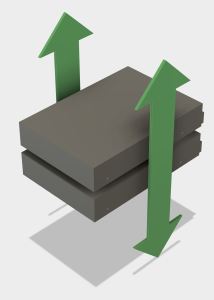
Airflow along the sides has small surface area.
Lengthwise
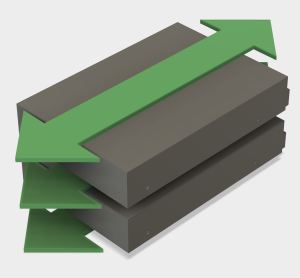
Airflow lengthwise has large surface area, but will be obstructed by data and power cables.


Crosswise
Airflow crosswise has large surface area and will not be obstructed by data and power cables.

Since the goal is for low power, low noise, and small size, I didn’t want to add any fans. The small fan on the processor and the large fan in the power supply will take care of their respective components. That leaves the two hard drives without their own cooling, so the enclosure will have to utilize airflow created by the power supply fan.

We desire the maximum cooling surface area that presents the fewest obstructions to the air stream. And we want to work with (instead of against) natural convection forces. Evaluating the possibilities, the best choice is to align cross-wise airflow to be vertical by sitting the hard drives on their long sides.

Power Supply Spacing

PSU UprightFollowing the lead of the G4 Cube, air intake will be on the bottom and the power supply (with its fan) will sit at the top to work alongside natural convection and exhaust hot air.PSU Tilted

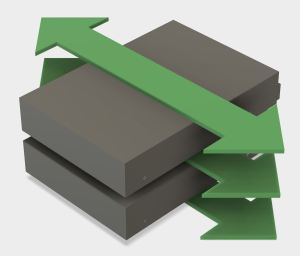
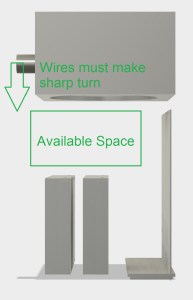
With the power supply sitting at the top, and the hard drives sitting on their sides against the bottom, that leaves a fairly large piece of unused space. The wires protruding from the power supply is also a concern. We either have to force those wires to make sharp downward turns to reach the system components, or we have to increase the depth of the enclosure to give the wires room.

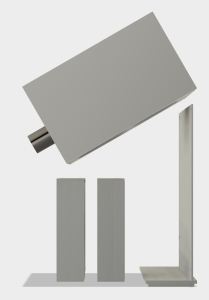
Our experiment #1 tilts the power supply downward 30 degrees to utilize the available space to relieve the wire spacing issue.

Will these ideas work? Let’s build it and find out…


Components for FreeNAS Project

I wanted to play with FreeNAS without spending a lot of money to build the computer to run it. In fact, I would prefer not spending any money at all. This is a lot like how the Luggable PC project started: figuring out the most interesting thing I can do with computer parts I already had on hand.

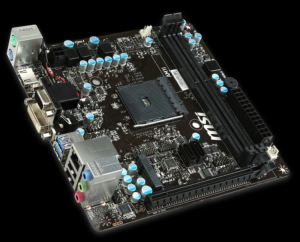
AM1IThe brains of the system will be a Mini-ITX board, the MSI AM1I. I got this board a few years ago, along with its AMD Athlon 5350 processor while they were on sale at Fry’s Electronics together as a bundle. This pair has participated in many experiments and projects since. It was visible in some early Luggable PC project pictures, mostly of the January 2016 “Easel Frame” phase. And now, it will play host to the FreeNAS project.

The storage will be provided by two Seagate 2TB hard drives. These drives were part of my Windows Home Server and had been gathering dust ever since the server was decommissioned. They will now re-enlist to serve as storage for the home network.

The power will be provided by an ATX power supply that I’ve relegated to standby/ backup status. In its old age it has started to develop some coil whine. While it has not yet become a functional issue, the noise is unpleasant coming from a computer on my desk. Which makes it the ideal candidate for powering a NAS box stored someplace out of the way, probably out of sight, and best of all, out of hearing range.

I could throw all these pieces into a commercially available case, and call the physical setup done and turning this FreeNAS project into a strictly software learning exercise. But where’s the fun in that?

When I said I wanted to build a FreeNAS box I meant that literally: I want to build the physical box to enclose the above components.

My FreeNAS Project Begins

FreeNAS LogoRecently I lost access to my Amazon Drive for approximately 72 hours. There was no data loss, merely interrupted access, but it highlighted the fact that cloud-based storage can disappear on me just like any other kind of storage. This experience moved a back-burner project up to the front burner: adding NAS (Network Attached Storage) to my home network to supplement the (relatively) small SSDs in my computers.

I used to have a Windows Home Server on my home network, which presented network storage as part of its feature set. Sadly for me Microsoft had abandoned that product line, so I decommissioned my machine with no network-based replacement. I moved back to straightforward USB hard drives at home to supplement my cloud-based storage.

Since I’m not entirely sure a 24×7 network-accessible storage would be useful enough for me to justify the electric bill, I didn’t want to go out and spend several hundreds of dollars on a Drobo or similar commercially-available NAS. I also wanted to learn more about this part of the computing world. Drobo (& friends) are designed to be super easy to use, set-and-forget computing appliances. I wanted to see a little bit more under the hood and get a better feel of the nuts-and-bolts.

A desire for lower up-front cost and an interest in seeing the guts… sounds like time for an open source software solution! And like most open source solutions, there are several different projects, some with multiple forks, all proclaiming to be the best solution to the problem.

I decided to try FreeNAS as a starting point. The code base has been around a while (though supposedly extensively rewritten recently) and it is currently funded by iXsystems who makes money by selling storage solution for businesses. (Basically hardware specifically built to run FreeNAS.) So the product has some history, and has a funding source to help make sure it has a future. Both are good things.

Sounds promising, so let’s build a FreeNAS Box!

Luggable Frame Experiment #2

Catleap2The second iteration of the luggable frame experiment addressed the failings of the first version by relying less on acrylic and more on aluminum. The first iteration was a good experiment to see if acrylic was strong enough for the work. Once V1 conclusively proved the weaknesses, it’s time to fall back to the known quantity.

The following changes were made for version 2:

Extrusion upgrade: In the interest of greater rigidity, the extrusions themselves were upgraded from Misumi HFS3 (15mm x 15mm cross section) to HFS5 (20mm x 20mm). The smaller extrusions seemed to be doing the job but they did exhibit some flex. And we had HFS5 conveniently on hand so let’s use it!

Connection upgrade: In V1 the extrusion T-joint at the base of the frame was held together by the side pieces of acrylic. Though it seemed to work, V2 went with a stronger solution by using metal connectors for the joint. (Misumi HBLFSNF5).

Handle upgrade: The V1 handles were part of the acrylic assembly. With the reduction in acrylic usage, there wasn’t enough left to carry the load of the whole frame. So the handle became another aluminum extrusion.

Catleap2-RearPC tray upgrade: This was the first acrylic thing that failed in V1. The PC is now held in place by aluminum structure instead of an acrylic cutout which makes it quite secure. Three of the extrusion right-angle connectors were re-purposed as “claws” to keep the PC case in place.

Catleap2-SideVESA mount upgrade: The worrisome flex in the Catleap monitor enclosure was traced down to the metal threads inside the Catleap enclosure that were longer than the thickness of the enclosure plastic. This meant when the mounting screws fully engaged, there was still a bit of space between the VESA mount plate and the monitor’s rear surface, allowing movement. A spacer plate was added to fill that gap. Now the VESA mounting plate on the frame is fully pressed against the monitor’s rear surface, greatly reducing the flex.

All this additional structure added up to a very secure frame for carrying around the Yamakasi Catleap monitor with the HP Z220 computer. Unfortunately it also added weight which was a concern even before the frame came into the picture. The heft means this is probably the end of the line for the Catleap + Z220 experiments. Frame V2 will serve as a perfectly good workstation albeit not a very portable one.

The idea of building a Luggable PC around a commercially available monitor will continue, with the focus shifting to using smaller and lighter components.

Fusion 360 Foundational Concepts Tutorial

foundational-concepts-iconI went back into Autodesk’s Fusion 360 learning resources for a refresher and to set myself up to learn the Fusion 360 CAM modules. The last time I went through the tutorials, I had skipped the CAM functionality because I had no machine tools and were not likely to get time on anybody else’s machinery. Now that I might be able to access Tux-Lab fabrication machinery, I wanted to make sure I won’t break the machine from doing anything stupid in Fusion 360.

Before I got to CAM, though, the “Foundational Concepts” section caught my attention. I either didn’t see it the last time or it made no impression on me at the time. I went through the set of short videos and they were surprisingly informative. Most tutorials for Fusion 360 (and most other software packages in general) are happy to tell users how to accomplish their tasks. This is a slightly different twist – the foundation concepts talk about why Fusion 360 is the way it is. About how they tried to restructure a CAD package for the cloud-based future, about how they restructured the workflow to take advantage of today’s level of computation power at our fingertips, so on and so forth.

I come from a software engineering background and I’m all too aware of the fact that the end user typically has no idea what the software developer had intended as they built the piece of software. It can be argued that the end user doesn’t need to know anything about the intent if the software is sufficiently well-designed. But for something complex like a CAD package, I believe there is value in learning the motivation behind the design.

And even if the user doesn’t need to know, sometimes the user is curious and wants to know. I appreciate the Fusion 360 user education team for putting this information out there available for those who want to know.

Luggable Frame Experiment #1

Catleap1The dimensions for my Luggable PC project were determined by the components within. The width and height, specifically, were dictated by the LCD screen module. Even though I made the CAD files public for anybody to build their own Luggable PC, in practical terms only people with the exact same LCD module would be able to use the files without modification.

A friend who saw the Luggable PC was interested in generalizing the concept and create a frame for lugging a (not disassembled) screen alongside its (also not disassembled) PC. Relative to my project, it would be easier to build and less specialized to the components within, with a trade-off in larger size and heavier weight.

I thought it was a great idea to explore and joined in the experiment. We each came up with a design, and we built both of them at Tux-Lab to see how the ideas translated into reality.

This blog post is a brief summary of my first experiment.

The Components

The monitor is an Yamakasi Catleap monitor, built around a 27″ IPS panel with 2560×1440 resolution. The specific dimensions don’t really matter, as it will be mounted via the standard 75mm VESA pattern on the back. Any large monitor with 75mm VESA pattern would fit as-is, and only minor modifications would be necessary to accommodate monitors with a different mounting pattern.

The PC is a HP Z220, small form factor PC from the HP business line available with a range of components to trade off processing power against price. For the purposes of this experiment, the important details are its height of 331mm and depth of 100mm. Thought not a standardized dimension, many small form factor PCs are roughly the same size.

The Construction

The core of the frame are built from 15mm aluminum extrusions (Misumi HFS3) for strength and the remainder of the frame are made from 6mm laser-cut acrylic fastened to the extrusions via M3 nuts and bolts.

Making the panels from laser-cut acrylic has the advantage of simpler modifications. Many of the critical dimensions in my Luggable PC 3D CAD file has the problem that, when changed, they trigger cascading changes that need to be reconciled. When designing for the 2D tool path of laser laser cutting, it is easier to keep modifications in mind so that a change in one sheet does not cascade to other sheets.

Example #1: The frame has a 331mm x 100mm hole to fit the Z200 case. This can be adjusted to fit any other SFF frame without cascading changes to other components.

Example #2: The monitor mount pattern can be changed, and the mount position can be moved up or down to adjust elevation of the monitor.

The Result

CompleteI had never designed for laser cutting before and was happy for the chance to do something on the Tux-Lab laser cutter. I knew that, having little experience with the material, my first few designs will have some amateurish flaws. So this frame #1 was fairly minimalist just to see what happens.

I didn’t have a good grasp how many fasteners I would need to hold everything together. I laser-cut roughly double the number of fastener positions than what I think I would need, as it is easier to have more options rather than less. For the assembly I only installed fasteners in every other hole.

The screen mount was surprisingly successful. We questioned whether 6mm acrylic would be suitable for holding up the Catleap monitor by its 75mm VESA mounts. When we found some worrisome flex, the suspicion went immediately to the 6mm acrylic but it turned out the Catleap monitor enclosure was the source of the flex.

When attempting to install the PC, we found that the case itself would fit just fine but the rubber feet attached to the side of the case did not. I added cutouts in the CAD file but it seemed wasteful to cut entirely new pieces of acrylic just for the little feet cutouts. For purposes of experimentation, a Dremel tool was used to cut gaps to clear the rubber feet.

After the frame was assembled with the screen and the PC, we started plugging in all the cables and wires and I realized I had forgotten to account for the cables. There’s no good place to coil up the excess so they kind of dangle and stand ready to catch on something inconvenient.

The entire assembly was built in a tiny fraction of the time of my Luggable PC and included a much larger monitor with a much higher resolution. The trade off was almost doubling of the weight. The handle, part of the acrylic assembly, appeared to be sufficient to manage the weight.

I carried it across Tux-Lab and quickly encountered the first failure.

The Failure

Lesson of the Day: Sharp internal corners are bad.

My amateur mistake was cutting a sharply cornered rectangle to hold the PC. The sharp corners concentrated the physical load of the PC into a small point in the 6mm acrylic, which protested the poor design by breaking apart.

The next experiment will incorporate this lesson.

Build, fail, learn, iterate, repeat.

Broken


My First Cloud Storage Failure

Amazon_Drive_logoI count myself as a skeptic of the new cloud-based world. When I first learned of DropBox I wasn’t willing to trust it with my data. When I read about the frustration of people whose data are still trapped on MegaUpload,  I felt vindicated.

But the tide of progress moved forward and now we have many cloud-based storage providers with enough of a track record for me to dip my toes in the water. Starting in January 2016 I started using cloud-based storage for my personal needs, spreading my files across Microsoft OneDrive, Google Drive, and Amazon Drive.

That’s not to say I trust cloud-based storage yet. I still maintain my regimen of home offline backups on removable hard drives. And for the files that I feel are important, I duplicate storage across at least two of the cloud storage providers.

Almost a year and a half in, I admit I see a lot of benefit. I’ve become a lot less dependent on a specific computer as much of my files are accessible from any computer with an internet connection. I can pick up work where I left off on another computer. I can refresh and reformat a computer with far less worry I’ll destroy any irreplaceable data.

And then there are the wacky outliers. When I wanted to obtain a library card, one required proof of local residency is an utility bill. I was able to pull out my phone and retrieve a recent electric bill thanks to cloud storage.

But just like physical spinning hard drives, a failure is only a matter of time. And tonight, after almost 18 months of flawless cloud storage performance, we have our first winner. Or more accurately, our first loser. Tonight I was not able to access my files on Amazon Drive. I get the “Loading” spinner that never goes away.

The underlying Amazon storage infrastructure seems ok. (AWS S3 status is green across the board.) This must be a failure in their consumer-level storage offering, which will probably get fixed soon.

In the meantime, they have one annoyed customer.

Fusion 360 vs. Onshape: Raspberry Pi

raspberry-pi-logoAnd now for something completely silly: let’s look at how our two competing hobbyist-friendly CAD offerings fare on the hobbyist-friendly single-board computer, the Raspberry Pi.

(Spoiler: both failed.)

Raspberry Pi

I have on hand the Raspberry Pi 3 Model B. Featuring a far more powerful CPU than the original Pi which finally made the platform usable for basic computing tasks.

When the Raspberry Pi foundation updated its Raspbian operating system with PIXEL, they switched the default web browser from Epiphany to Chromium, the open-source fork of Google’s Chrome browser. Bringing in a mainstream HTML engine resulted in far superior compatibility with a wider range of web sites, supporting many of the latest web standards, including WebGL which is what we’ll be playing with today.

Autodesk Fusion 360

Fusion 360 is a native desktop application compiled for Windows and MacOS, so we obviously couldn’t run that on the Pi. However, there is a web component: Fusion 360 projects can be shared on the Autodesk 360 collaboration service. From there, the CAD model can be viewed in a web browser via WebGL on non-Windows/MacOS platforms.

While such files can be viewed on a desktop machine running Ubuntu and Chromium, a Raspberry Pi 3 running Chromium is not up to the task. Only about half of the menu bar and navigation controls are rendered correctly, and in the area of the screen where the actual model data should be, we get only a few nonsensical rectangles.

Onshape

Before this experiment I had occasionally worked on my Onshape projects on my desktop running Ubuntu and Chromium, so I had thought the web-based Onshape would have an advantage in Raspberry Pi Chromium. It did, just not usefully so.

In contrast to A360’s partial menu UI rendering, all of Onshape’s menu UI elements rendered correctly. Unfortunately, the actual CAD model is absent in the Raspberry Pi Chromium environment as well. We get the “Loading…” circle and it was never replaced by the CAD model.

Conclusion

Sorry, everyone, you can’t build a web-based CAD workstation with a $35 Raspberry Pi 3.

You can, however, use these WebGL sites as a stress test of the Raspberry Pi. I had three different ways of powering my Pi and this experiment proved enlightening.

  1. A Belkin-branded 12V to 5V USB power adapter: This one delivered good steady voltage at light load, but when the workload spiked to 100% the voltage dropped low enough for the Pi to brown out and reset.
  2. A cheap Harbor Freight 12V to 5V USB adapter: This one never delivered good voltage. Even at light load, the Pi would occasionally flash the low-voltage warning icon, but never low enough to trigger a reboot. When the workload spiked to 100%, the voltage is still poor but also never dropped enough to trigger a reset. Hurray for consistent mediocrity!
  3. An wall outlet AC to 5V DC power unit (specifically advertised to support the Raspberry Pi) worked as advertised – no low-voltage warnings and no resets.

Static Web Site Hosting with Amazon S3 and Route 53

aws_logoWeb application frameworks have the current spotlight, which is why I started learning Ruby on Rails to get an idea what the fuss was about. But a big framework isn’t always the right tool for the job. Sometimes it’s just a set of static files to be served upon request. No server-side smarts necessary.
This was where I found myself when I wanted to put up a little web site to document my #rxbb8 project. I just wanted to document the design & build process, and I already had registered the domain rxbb8.com. The HTML content was simple enough to create directly in a text editor and styled with CSS from the Materialize library.

After I got a basic 1.0 version of my hand-crafted site, I uploaded the HTML (and associated images) to an Amazon S3 bucket. It only takes a few clicks to allow files in a S3 bucket to be web-accessible via a long cumbersome URL on Amazon AWS domain http://rxbb8.com.s3-website-us-west-2.amazonaws.com. Since I wanted this content to be accessible via the rxbb8.com domain I already registered, I started reading up on the AWS service named in geek-humor style as Route 53.

Route 53 is designed to handle the challenges of huge web properties, distributing workload across many computers in many regions. (No single computer could handled all global traffic for, say, netflix.com.) The challenge for a novice like myself is to figure out how to pull out just the one tool I need from this huge complex Swiss army knife.

Fortunately this usage case is popular enough for Amazon to have written a dedicated developer guide for it. Unfortunately, the page doesn’t have all the details. The writer helpfully points the reader to other reference articles, but those pages revert back to talking about complex deployments and again it takes effort to distill the simple basics out of the big feature list.

If you get distracted or lost, stay focused on this Cliff Notes version:

  1. Go into Route 53 dashboard, create a Hosted Zone for the domain.
  2. In that Hosted Zone, AWS has created two record sets by default. One of them is the NS type, write down the name servers listed.
  3. Go to your domain registrar and tell them to point name servers for the domain to the AWS name servers listed in step 2.
  4. Create S3 storage bucket for the site, enable static website hosting.
  5. Create a new Record Set in the Route 53 Hosted Zone. Select “Alias” to “Yes” and point alias target to the S3 storage bucket in step 4.

Repeat #4 and #5 for each sub-domain that needs to be hosted. (The AWS documentation created example.com and repeated 4-5 for www.example.com.)

And then… wait.

The update in step 3 needs time to propagate to name servers across the internet. My registrar said it may take up to 24 hours. In my case, I started getting intermittent results within 2 hours, but it took more than 12 hours before everything stabilized to the new settings.

But it was worth the effort to see version 1.0 of my created-from-scratch static web site up and running on my domain! And since it’s such a small and simple site with little traffic, it will cost me only a few pennies per month to host in this manner.


OpenSCAD for Motion Visualization

Now that I’ve climbed the initial learning curve for OpenSCAD, it’s time to start working towards my goal for doing this: I want to visualize arbitrary motion between components as a rough draft to see how things move in virtual space.

This is not an unique capability in CAD packages. Both Fusion 360 and Onshape have ability to define object hierarchies and visualize their motion. However, they are both focused on the assemblies that have been mechanically defined in CAD. If I wanted to visualize a  hinge-like motion between two objects, I first need to build that hinge in CAD or the software would “helpfully” tell me I’m trying to perform an impossible motion in my design.

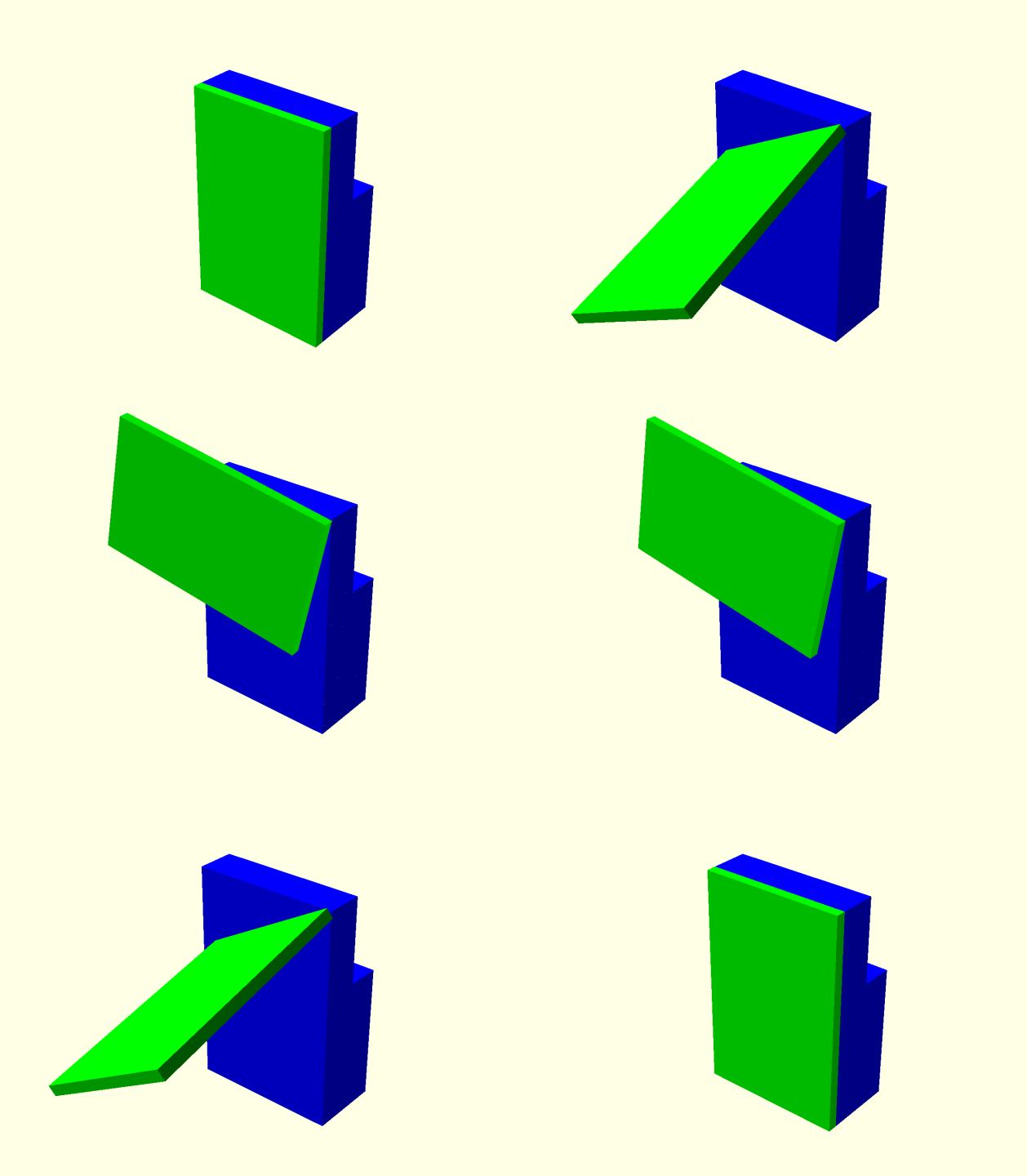
In contrast, OpenSCAD does not care. I can place a rotate() operation anywhere I want and it won’t care if there’s no hinge in the design. It is happy to let me rotate about an arbitrary point in 3D space with no hardware around it. This makes OpenSCAD ideal for trying out how wild ideas would (or would not) work in virtual space, before getting down to the nitty-gritty about how to build the mechanisms to implement those wild ideas.

This means some cool-looking ideas would turn out to be impossible to implement, but that’s OK. I wanted something with a lot more freedom than I can get in the CAD packages that limit what I can do for (in their view) my own protection.

But that’s still in the future. For now I’m still climbing the learning curve of moving objects around in OpenSCAD in a way that ties into the built-in animation capability and generating animated GIF to illustrate concepts.

As a learning exercise, I’ve re-implemented the motion of the Luggable PC hinge. Thanks to OpenSCAD flexibility, I didn’t have to spend time building the hinge before I move it!

lug3

Hello OpenSCAD! You remind me of an old friend…

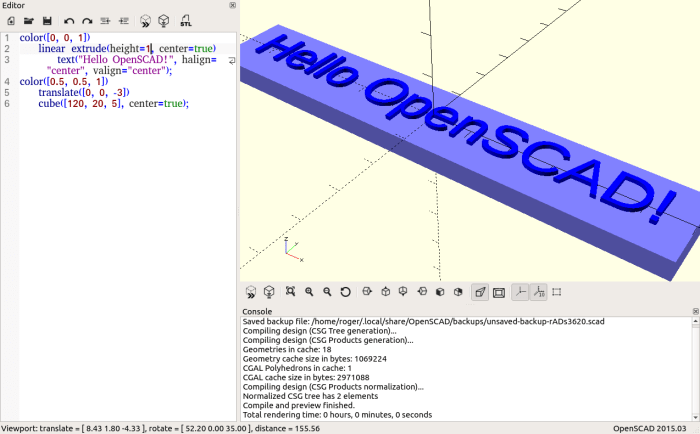
HelloOpenSCADOpenSCAD is a very popular 3D modeling tool in the 3D printing community. Many of the projects available to print on Thingiverse were generated from OpenSCAD. This is most obvious when authors uploaded their .scad files for sharing with the community, but also visible as a core pillar of the “customizable things” section. The customization capability is made possible by variables the author made adjustable in OpenSCAD.

I started designing for 3D printing with the GUI CAD tools, Onshape and Fusion360, so the text-based approach of OpenSCAD seemed strange and foreign at first glance. The official OpenSCAD web site documentation pointed to several tutorials. Not knowing the comparative advantage of one versus another, I just clicked on the first in the list How to use OpenSCAD. It linked to several other tutorials, the most notable one being Know only 10 things to be dangerous in OpenSCAD as having the most compact words-to-content ratio.

I had initially approached it as “Boy it’s going to be hard to completely change my thinking” but as I got along in the tutorial I realized things didn’t feel as foreign as I thought it might be. Digging through musty memories, I realized I had encountered this type of 3D modeling (CSG or Constructive Solid Geometry) before many years ago in the form of POV-Ray. Back in the days when a 20-megahertz 386 was a pretty speedy CPU, and the floating point processor wasn’t a standard part of every PC. I had to upgrade my computer with the purchase of a 387 math co-processor in order to render my POV-Ray projects at a reasonable speed.

Editing CSG files for rendering in POV-Ray was my first exposure to 3D computer graphics, and I chose it because it was free. I couldn’t afford GUI graphics software (the flagship at the time was Autodesk 3D Studio) so I started with the basics and I learned a lot that way. In time, I might appreciate the straightforward simplicity of OpenSCAD in the same way.