Compass Web App Project Gets Own Repository

Once I got Three.js and Magnetometer API up and running within the context of an Angular web app, I was satisfied this project is actually going to work. Justifying a move out from my collection of NodeJS tests and into its own repository. Another reason for moving into its own repository is that I wanted to make it easy to use angular-cli-ghpages to deploy my Angular app to GitHub pages. Where it will be served over HTTPS, a requirement for using sensor API from a web app.

Previously, I would execute such moves with a simple file copy, but that destroys my GitHub commit history. Not such a huge loss for small experiments like this one, but preserving history may be important in the future so I thought this is a good opportunity to practice. GitHub documentation has a page to address my scenario: Splitting a subfolder out into a new repository. It points us to a non-GitHub utility git-filter-repo which is a large Python script for manipulating git repositories in various ways, in this case isolating a particular directory and trimming the rest. I still had to manually move everything from a /compass/ subdirectory into the root, but that’s a minor change and git could recognize the files were renamed and not modified.

The move was seamless except for one detail: there is a conflict between local development and GitHub Pages deployment in its index.html. For GitHub Pages, I needed a line <base href="/compass/"> but for local development I needed <base href="/">. Otherwise the app fails to load because it is trying to load resources from the wrong paths resulting in HTTP404 Not Found errors. To make them consistent, I can tell my local development server to serve files under the compass subdirectory as well so I can use <base href="/compass/"> everywhere.

ng serve --serve-path compass

I don’t recall this being a problem in my “Tour of Heroes” tutorial. What did I miss? I believe using --serve-path is merely a workaround without understanding the root cause, but that’s good enough for today. It was more important that GitHub Pages is up and running and I could test across different browsers.


Source code for this project is publicly available on GitHub

Magnetometer Service as RxJS Practice

I’m still struggling to master CSS, but at least I got far enough to put everything I want on screen roughly where I want them, even after the user resizes their window. Spacing and proportion of my layout is still not ideal, but it’s good enough to proceed to the next step: piping data from W3C Generic Sensor API for Magnetometer into my Angular app. My initial experiment was a much simpler affair where I could freely use global variables and functions, but that approach would not scale to my future ambition to execute larger web app projects.

Installation

The Magnetometer API is exposed by the browser and not a code library, so I didn’t need to “npm install” any code. However, as it is not a part of core browser API, I do need to install W3C Generic Sensor API type definition for the TypeScript compiler. This information is only used at development time.

npm install --save-dev @types/w3c-generic-sensor

After this, TypeScript compiler still complains that it can’t find type information for Magnetometer. After a brief search I found I also need to edit tsconfig.app.json and add w3c-generic-sensor to “types” array under “compilerOptions”.

  "compilerOptions": {
    "types": [
      "w3c-generic-sensor",
    ]
  },

That handles what I had to do, but I’m ignorant as to why I had to do it. I didn’t have to do the same for @types/three when I installed Three.js, why was this different?

Practicing Both RxJS and Service Creation

I’ll need a mechanism to communicate magnetometer data when it is available. When the data is not available, I want to be able to differentiate between reasons why that data is not available. Either the software API is unable to connect to a hardware sensor, or the software API is not supported at all. The standard Angular architectural choice for such a role is to package it up as a service. Furthermore, magnetometer data is an ongoing stream of data, which makes it a perfect practice exercise for using RxJS in my magnetometer service. It will distribute magnetometer data as a Subject (multicast Observable) to all app components that subscribe to it.

Placeholder Data

Once I had it up and running, I realized everything is perfectly setup for me to generate placeholder data when real magnetometer data is not available. Client code for my magnetometer data service doesn’t have to change anything to receive placeholder data. In practice, this lets me test and polish the rest of my app without requiring that I run it on a phone with real magnetometer hardware.

State and Status Subjects

Happy with how this first use turned out, I converted more of my magnetometer service to use RxJS. The current state of the service (initialized, starting the API, connecting to magnetometer hardware, etc) was originally just a publicly accessible property, which is how I’ve always written such code in the past. But if any clients want to be notified as soon as the state changes, they either have to poll state or I have to write code to register & trigger callbacks which I rarely put in the effort to do. Now with RxJS in my toolbox, I can use a Behavior Subject to communicate changes in my service state, making it trivial to expose. And finally, I frequently send stuff to console.log() to communicate status messages, and I converted that to a Behavior Subject as well so I can put that data onscreen. This is extra valuable once my app is running on phone hardware, as I can’t (easily) see that debug console output.

RxJS Appreciation

After a very confused introduction to RxJS and a frustrating climb up the learning curve, I’m glad to finally see some payoff for my investment in study time. I’m not yet ready to call myself a fan of RxJS, but I feel I have enough confidence to wield this tool for solving problems. This story is to be continued!

With a successful Angular service distributing data via RxJS, I think this “rewrite magnetometer test in Angular” is actually going to happen. Good enough for it to move into its own code repository.

[UPDATE: After learning more about Angular and what’s new in Angular v16, everything Idescribed in this post has been converted to Angular Signals.]


Source code for this project is publicly available on GitHub

Angular Component Dynamic Resizing

Learning to work within Angular framework, I had to figure out how to get my content onscreen at the location and size I wanted. (Close enough, at least.) But that’s just the start. What happens when the user resizes the window? That opens a separate can of worms. In my RGB332 color picker web app, the color picker is the only thing onscreen. This global scope meant I could listen to Window resize event, but listening to window-level event isn’t necessarily going to work for solving a local element-level problem.

So how does an Angular component listen to an event? I found several approaches.

It’s not clear what tradeoffs are involved using Renderer versus EventManager. In both cases, we can listen to events on an object that’s not necessarily our component. Perhaps some elements are valid for one API versus another? Perhaps there’s a prioritization I need to worry about? If I only care about listening to events that apply to my own specific component, things can be slightly easier:

  • @HostListener decorator allows us to attach a component method as the listener callback to an event on a component’s host object. It’s not as limited as it appears at first glance, as events like “window:resize” apparently propagates through the tree so our handler will fire even though it’s not on the Window object.

In all of the above cases, we’re listening on a global event (window.resize) to solve a local problem (react to my element’s change in size.) I was glad to see that web standards evolved to give us a local tool for solving this local problem:

  • ResizeObserver is not something supported by core Angular infrastructure. I could write the code to interact with it myself, but someone has written an Angular module for ResizeObserver. This is part of a larger “Web APIs for Angular” project with several other modules with similar goals: give an “Angular-y” way to leverage standardized APIs.

I tried this new shiny first, but my callback function didn’t fire when I resized the window. I’m not sure if the problem was the API, the Angular module, my usage of it, or that my scenario not lining up with the intended use case. With so many unknowns, I backed off for now. Maybe I’ll revisit this later.

Falling back to @HostListener, I could react to “window.resize” and that callback did fire when I resized the window. However, clientWidth/clientHeight size information is unreliable and my Three.js object is not the right size to fill its parent <DIV>. I deduced that when “window:resize” fired, we have yet to run through full page layout.

With that setback, I fell back to an even cruder method: upon every call to my animation frame callback, I check the <DIV> clientWidth/clientHeight and resize my Three.js renderer if it’s different from existing values. This feels inelegant but it’ll have to do until I have a better understanding of how ResizeObserver (or an alternative standardized local scope mechanism) works.

But that can wait, I have lots to learn with what I have on hand. Starting with RxJS and magnetometer.


Source code for this project is publicly available on GitHub

Angular Component Layout Sizing

For my first attempt at getting Three.js running inside an Angular web app, the target element’s width and height were hard coded to a number of pixels to make things easier. But if I want to make a more polished app, I need to make this element fit properly within an overall application layout. Layout is one of the things Angular defers to standard CSS. Translating layouts I have in my mind to CSS has been an ongoing challenge for me to master so this project will be another practice opportunity.

Right now, I’m using a <DIV> in my markup to host a canvas object generated by Three.js renderer. Once my Angular component has been laid out, I need to get the size of that <DIV> and communicate it to Three.js. A little experimentation with CSS-related properties indicated my <DIV> object’s clientWidth and clientHeight were best fit for the job.

Using clientWidth was straightforward, but clientHeight started out at zero. This is because during layout, the display engine looked at my <DIV> and saw it had no content. The canvas isn’t added until after initial layout in AfterViewInit hook of Angular component lifecycle. I have to create CSS to block out space for this <DIV> during layout despite lack of content at the time. My first effort was to declare a height using “vh” unit (Viewport Height) to stake my claim on a fraction of the screen, but that is not flexible for general layout. A better answer came later with Flexbox. By putting “display: flex;” on my <DIV> parent, and “flex-grow:1” on the <DIV> itself, I declared that this Three.js canvas should be given all available remaining space. That accomplished my goal and felt like a more generally applicable solution. A reference I found useful during this adventure was the Flexbox guide from CSS-Tricks.com.

It’s still not perfect, though. It is quite possible Flexbox was not the right tool for the job, but I needed this practice to learn a baseline from which I can compare with another tool such as CSS Grid. And of course, getting a layout up on screen is literally just the beginning: what happens when the user resizes their window? Dynamically reacting to resize is its own adventure.


Source code for this project is publicly available on GitHub

Angular + Three.js Hello World

I decided to rewrite my magnetometer test app as an Angular web app. Ideally, I would end up with something more polished. But that is a secondary goal. The primary goal is to use it as a practice exercise for building web apps with Angular. Because there are definitely some adjustments to make when I can’t just use global variables and functions for everything.

My first task is to learn how to use Three.js 3D rendering library from within an Angular web app. I know this is doable from others who have written up their experience, I only have to follow their lead.

Installation

The first step is obvious: install Three.js library itself into my project.

npm install --save three

Now my Angular app could import objects from Three, but it would fail TypeScript compilation because the compiler doesn’t have type information. For that, a separate library needs to be installed. This is only used at development time, so I save it as a development-only dependency.

npm install --save-dev @types/three

HTML DOM Access via @ViewChild

Once installed I could create an Angular component using Three.js. Inside that component I could use most of the code from Three.js introduction “Creating a Scene“. One line I could not use directly is:

document.body.appendChild( renderer.domElement );

Because now I can’t just jam something to the end of my HTML document’s <BODY> element. I need to stay within the bounds of my Angular component. To do so, I name an element in my component template HTML file where I want my Three.js canvas to reside.

[...Component template HTML...]

  <div #threejstarget></div>

[...Component template HTML...]

In the TypeScript code file, I can obtain a reference to this element with the @ViewChild decorator.

  @ViewChild('threejstarget') targetdiv!: ElementRef;

Why the “!” suffix? If we declared the variable “targetdiv” by itself, TypeScript compiler would complain that we risk using a variable that may be null or undefined instead of its declared type. This is because TypeScript compiler doesn’t know @ViewChild will handle that initialization. We use an exclamation mark (!) suffix to silence this specific check on this specific variable without having to turn on the (generally useful) null/undefined checks in TypeScript.

(On the “To-Do” list: come back later and better understand how @ViewChild relates to similar directives @ViewChildren, @ContentChild, and @ContentChildren.)

Wait until AfterViewInit

But there are limits to @ViewChild power. Our ElementRef still starts null when our component is initialized. @ViewChild could not give us a reference until the component template view has been created. So we have to wait until the AfterViewInit stage of Angular component lifecycle before adding Three.js render canvas into our component view tree.

  ngAfterViewInit() : void {
    this.targetdiv.nativeElement.appendChild( this.renderer.domElement );
  }

An alternative approach is to have <CANVAS> inside our component template, and attach our renderer to that canvas instead of appending a canvas created by renderer.domElement. I don’t yet understand the relevant tradeoffs between these two approaches.

Animation Callback and JavaScript ‘this

At this point I had a Three.js object onscreen, but it did not animate even though my requestAnimationFrame() callback function was being called. A bit of debugging pointed to my mistaken understanding of how JavaScript handles an object’s “this” reference. My animation callback was getting called in a context where it was missing a “this” reference back to my Angular component, and thus unable to advance the animation sequence.

requestAnimationFrame(this.renderNeedle);

One resolution to this issue (JavaScript is very flexible, there are many other ways) is to declare a callback that has an appropriate “this” reference saved within it for use.

requestAnimationFrame((timestamp)=>this.renderNeedle(timestamp));

That’s a fairly trivial problem and it was my own fault. There are lots more to learn about animating and Angular from others online, like this writeup about an animated counter.

Increase Size Budget

After that work I had a small Three.js animated object in my Angular application. When I run “ng build” at that point, I would see a warning:

Warning: bundle initial exceeded maximum budget. Budget 500.00 kB was not met by 167.17 kB with a total of 667.17 kB.

An empty Angular application already weighs in at over 200kB. Once we have Three.js in the deployment bundle, that figure ballooned by over 400kB and exceeded the default warning threshold of 500kB. This is a sizable increase, but thanks to optimization tools in the Angular build pipeline, this is actually far smaller than my simple test app. My test app itself may be tiny, but it downloaded the entire Three.js module from a CDN (content distribution network) and that file three.module.js is over a megabyte (~1171kB) in size. By that logic this is the better of two options, we just have to adjust the maximumWarning threshold in angular.json accordingly.

My first draft used a fixed-size <DIV> as my Three.js target, which is easy but wouldn’t be responsive to different browser situations. For that I need to learn how to use CSS layout for my target <DIV>


Source code for this project is publicly available on GitHub

Compass Web App for Angular Practice

I’ve wanted to learn web development for years and one of my problems was that I lacked the dedication and focus to build my skill before I got distracted by something else. This is a problem because web development world moves so fast that, by the time I returned, the landscape has drastically changed with something new and shiny to attract my attention. When I window-shopped Polymer/Lit, I was about to start the cycle again. But then I decided to back off for a few reasons.

First and most obvious is that I didn’t yet know enough to fully leverage the advantages of web components in general, and Polymer/Lit in particular. They enable small lightweight fast web apps but only if the developer knows how to create a build pipeline to actually make it happen. I have yet to learn how to build optimization stages like tree-shaking and minimization. Without these tools, my projects would end up downloading far larger files intended for developer readability (comments, meaningful variable names, etc.) and include components I don’t use. Doing so would defeat the intent of building something small lightweight.

That is closely related to the next factor: Angular framework has a ready setup of all of those things I have yet to master. Using Angular command line tools to build a new project boilerplate comes with a build pipeline that minimizes download size. I wasn’t terribly impressed by my first test run of this pipeline, but since I don’t yet know enough to setup my own, I definitely lack the skill to analyze why and certainly don’t yet know enough to do better.

And finally, I have already invested some time into learning Angular. There may be some “sunk cost fallacy” involved here but I’ve decided I should get basic proficiency with one framework just so I have a baseline to compare against other frameworks. If I redirect focus to Polymer/Lit, I really don’t know enough to understand its strengths and weaknesses against Angular or any other framework. How would I know if it lived up to “small lightweight fast” if I have nothing to compare it against?

Hence my next project is to redo my magnetometer web app using Angular framework. Such a simple app wouldn’t need all the power of Angular, but I wanted a simple practice run while things are still fresh in my mind. I thought about converting my AS7341 sensor web app into an Angular app, but those files must be hosted on an ESP32 which has limited space. (Part of the task would be converting to use ESPAsyncWebServer which supports GZip-compressed files.) In comparison, a magnetometer app would be hosted via GitHub pages (due to https:// requirement of sensor API) and would not have such a hard size constraint. Simpler deployment tipped the scales here, so I am going with a compass app starting with putting Three.js in an Angular boilerplate app.


Source code for this project is publicly available on GitHub

Window Shopping Polymer and Lit

While poking around with browser magnetometer API on Chrome for Android, one of my references was a “Sensor Info” app published by Intel. I was focused on the magnetometer API itself at first, but I mentally noted to come back later to look at the rest of the web app. Now I’m returning for another look, because “Sensor Info” has the visual style of Google’s Material Design and it was far smaller than an Angular project with Angular Material. I wanted to know how it was done.

The easier part of the answer is Material Web, a collection of web components released by Google for web developers to bring Material Design into their applications. “Sensor Info” imported just Button and Icon, unpacked size weighing in at several tens of kilobytes each. Reading the repository README is not terribly confidence inspiring… technically Material Web has yet to reach version 1.0 maturity even though Material Design has moved on to their third iteration. Not sure what’s going on there.

Beyond visual glitz, the “Sensor Info” application was built with both Polymer and Lit. (sensors-app.js declares a SensorsApp class which derives from LitElement, and import a lot of stuff from @polymer) This confused me because I had thought Lit was a successor to Polymer. As I understand it, the Polymer team plans no further work after version 3 and has taken the lessons learned to start from scratch with Lit. Here’s somebody’s compare-and-contrast writeup I got via Reddit. Now I see “Sensor Info” has references to both projects and, not knowing either Polymor or Lit, I don’t think I’ll have much luck deciphering where one ends and another begins. Not a good place for a beginner to start.

I know both are built on the evolving (stabilizing?) web components standard, and both promise to be far simpler and lightweight than frameworks like Angular or React. I like that premise, but such lightweight “non-opinionated” design also means a beginner is left without guidance. “Do whatever you want” is a great freedom but not helpful when a beginner has no idea what they want yet.

One example is the process of taking the set of web components in use and packaging them together for web app publishing. They expect the developer to use a tool like webpack, but there is no affinity to webpack. A developer can choose to use any other tool. Great, but I hadn’t figured out webpack myself nor any alternatives, so this particular freedom was not useful. I got briefly excited when I saw that there are “Starter Kits” already packaged with tooling that are not required (remember, non-opiniated!) but are convenient for starting out. Maybe there’s a sample webpack.config.js! Sadly, I looked over the TypeScript starter kit and found no mention of webpack or similar tool. Darn. I guess I’ll have to revisit this topic sometime after I learn webpack.

Mermaid.js for Diagrams in GitHub Markdown

This blog is a project diary, where I write down not just the final result, but all the distractions and outright wrong turns taken on the way. I write a much shorter summary (with less noise) for my projects in the README file of their associated GitHub repository. As much as I appreciate markdown, it’s just text and I have to fire up something else for drawings, diagrams, and illustrations. This becomes its own maintenance headache. It’d be nice to have tools built into GitHub markup for such things.

It turns out, I’m not the only one who thought so. I started by looking for a diagram tool to generate images I can link to my README files, preferably one that I might be able to embed into my own web app projects. From there I found Mermaid.js which looked very promising for future project integration. But that’s not the best part: Mermaid.js already have their fans, including people at GitHub. About a year ago, GitHub added support for Mermaid.js charts within their markdown variant, no graphic editor or separate image upload required.

I found more information on how to use this on GitHub documentation site, where I saw Mermaid is one of several supported tools. I have yet to need math formulas or geographic mapping in my markdown, but I have to come back to take a closer look into STL support.

As my first Mermaid test to dip my toes into this pool, I added a little diagram to illustrate the sequence of events in my AS7341 spectral color sensor visualization web app. I started with one of the sample diagrams on their live online editor and edited to convey my information. I then copied that Mermaid markup into my GitHub README.md file, and the diagram is now part of my project documentation there. Everything went through smoothly just as expected and no issues were encountered. Very nice! I’m glad I found this tool and I foresee adding a lot of Mermaid.js diagrams to my project README in the future. Even if I never end up integrating Mermaid.js into my own web app projects.

Webpack First Look Did Not Go Well

I’ve used Three.js in two projects so far to handle 3D graphics, but I’ve been referencing it as a monolithic everything bundle. Three.js documentation told me there was a better way:

When installing from npm, you’ll almost always use some sort of bundling tool to combine all of the packages your project requires into a single JavaScript file. While any modern JavaScript bundler can be used with three.js, the most popular choice is webpack.

— Three.js Installation Guide

In my magnetometer test project, I tried to bring in webpack to optimize three.js but aborted after getting disoriented. Now I’m going to sit down and read through its documentation to get a better feel of what it’s all about. Here are my notes from a first look as a beginner.

I have a minor criticism about their home page. The first link is to their “Getting Started” guide, the second link is to their “Concepts” section. I followed the first link to “Getting Started”, which is the first page in their “Guides” section. I got to the end of that first page and saw “Next” link is about Asset Management, the next guide page. Each guide page linked to the next. I quickly got into guide pages who used acronym or terminology that had not yet been explained. Later I realized this was because the terminology was covered in the “Concepts” section. In hindsight I should not have clicked “Next” at the end of “Getting Started” guide. I should have gone back to “Concepts” to learn the lingo, before reading the rest of the guides.

Reading through the guides, I quickly understood that webpack is a very JavaScript-centric system built by people who think JavaScript first. I wanted to learn how to use webpack to integrate my JavaScript code and my HTML markup, but these guide pages didn’t seem to cover my use scenario. Starting right off the bat with the Getting Started guide, they used code to build their markup:

   const element = document.createElement('div');
   element.innerHTML = _.join(['Hello', 'webpack'], ' ');
   document.body.appendChild(element);

Wow. Was that really necessary? What about people who wanted to, you know, write HTML in HTML?

    <body><div>Hello webpack</div></body>

Is that considered quaint and old fashioned nowadays? I didn’t find anything in “Guides” or “Concepts” discussing such integration. I had thought the section on “HtmlWebpackPlugin” would have my answer, but it’s actually a chunk of JavaScript code that erased my index.html (destroying my markup) with a bare-bones index.html that loads the generated JavaScript bundles and have no markup. How does my own markup figure in this picture? Perhaps the documentation authors felt it was too obvious to write down, but I certainly don’t understand how to do it. I feel like an old man yelling at a cloud “tell me how to use my HTML!”

I had thought putting my HTML into the output directory was a basic task, but I failed. And I was dismayed to see “Concepts” and “Guides” pages got deeper and more esoteric from there. I understand webpack is very powerful and can solve many problems with modularizing JavaScript code, but it also requires a certain mindset that I have yet to acquire. Webpack’s bare bones generated index.html looks very similar to the generated index.html of an Angular app (which uses both HTML and webpack) so there must be a way to do this. I just don’t know it yet.

Until I learn what’s going on, for the near future I will use webpack only indirectly: it is already configured and running as part of Angular web app framework’s command line tools suite. I plan to do a few Angular projects to become more familiar with it. And now that I’ve read through webpack concepts, I should recognize pieces of Angular workflow as “Aha, they used webpack to do that.”

Fun with Magnetic Field Viewing Film

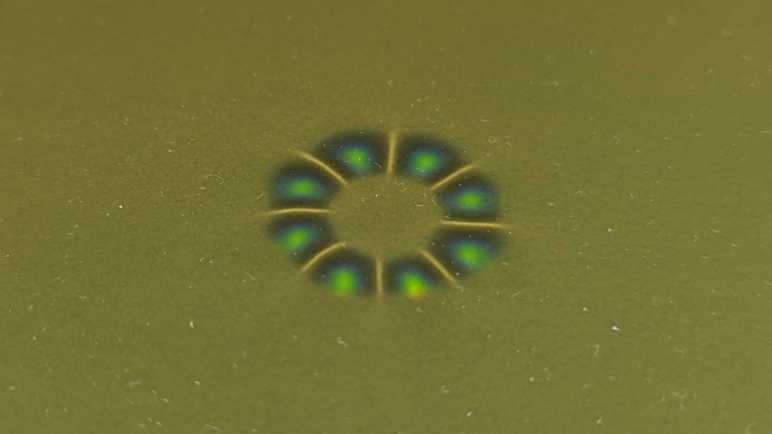
It was fun to visualize magnetic field with an array of retired Android phones. It was, admittedly, a gross underutilization of hardware power. It was more a technical exercise than anything else. There are much cheaper ways to visualize magnetic fields. I learned from iron filings in school way back when, but that got extremely messy. Ferrofluid in a vial of mineral oil is usually much neater, unless the vial leaks. I decided to try another option: magnetic field viewing films.

Generally speaking, such films are a very thin layer of oil sandwiched between top and bottom sheets, suspending magnetic particles within. The cheap ones look like they just use fine iron particles, and we see the field among slightly different shades of gray caused by different orientation of uniformly colored particles. I decided to pay a few extra bucks and go a little fancier. Films like the unit I bought (*) have much higher visual contrast.

As far as I can tell, the particles used in these films present different colors depending on orientation of magnetic field. When the field is perpendicular to the film, as when one of the magnet poles, the film shows green. When the field is parallel, we see yellow. Orientation between those two extremes show different colors within that spectrum. When there’s no magnetic field nearby, we see a muddy yellow-green.

Playing with a Hall switch earlier, I established that this hard drive magnet has one pole on one half and another pole on the other half. Putting the same magnet under this viewing film confirms those findings, and it also confirms this film doesn’t differentiate between north or south poles: they both show as green.

This was the simplest scenario: a small disc salvaged from an iPad cover shows a single pole on the flat face.

Similarly simple is the magnet I salvaged from a Microsoft Arc Touch Mouse.

This unexpected complex field was generated by a magnet I salvaged from a food thermometer. I doubt this pattern was intentional, as it does nothing to enhance its mission of keeping the food thermometer stuck to the side of my refrigerator. I assume this complex pattern was an accidental result of whatever-was-cheapest magnetization process.

The flat shape of this film was a hinderance when viewing the magnetic field of this evaporator fan rotor, getting in the way of the rotor shaft. The rotor is magnetized so each quarter is a magnetic pole. It’s difficult to interpret from a static picture, but moving the rotor around under the film and seeing it move interactively makes the relationship more visible. It is also higher resolution and responds faster than an array of phones.

This disc was one of two that came from a 1998 Toyota Camry’s stock tape deck head unit. I don’t know exactly where it came from because I didn’t perform this particular teardown.

We can see it laid out on the tabletop in this picture, bottom row center next to the white nylon gears.

And finally, the motor that set me on this quest for magnetic viewing film: the rotor from a broken microwave turntable motor. Actually looking at the plastic hub color, I think this is the broken rotor that got replaced by the teardown rotor sometime later.

And since I’m on the topic, I dug up its corresponding coil from that turntable motor teardown. Curious if I would see a magnetic field, I connected it to my benchtop DC power supply and slowly increased the voltage. I could only get up to 36V DC and didn’t notice anything. This coil was designed for 120V AC, so I wasn’t terribly surprised. I’ll have to return to this experiment when I can safely apply higher voltage to this coil.


(*) Disclosure: As an Amazon Associate I earn from qualifying purchases.

Array of Android Magnetometers

Curious about magnetometers, I wrote a small web app that used a Chrome preview feature that allowed me to access three-axis magnetometer hardware integrated into many Android phones. I showed that three-dimension data in the form of a virtual compass needle and had fun seeing it react to holding magnets near my phone.

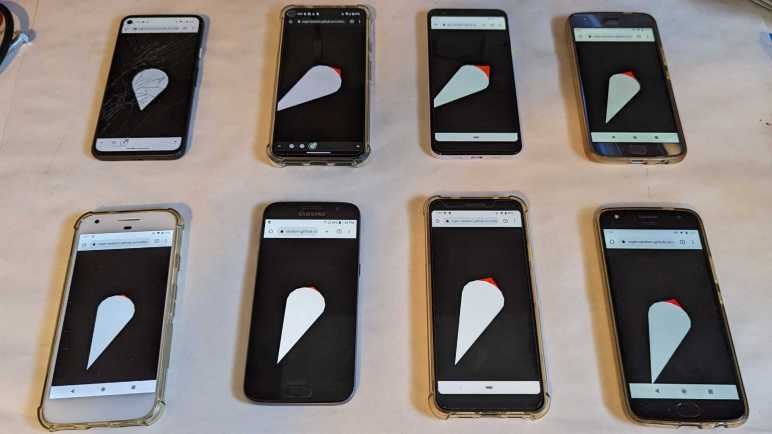
Then for more fun, I ran my web app on more phones! I pulled out my entire stockpile of retired Android phones. This is a collection of my own retired phones and those retired by my friends for one reason or another. (I ask my friends for them after they moved on to new phones.) It’s a collection of cracked screens, flaky touch input, exhausted batteries, and other reasons why people decide to get a new phone. I found the subset that could boot up and run my web app. I had to go to “chrome://flags” on all of them to activate the preview feature, of course, but I believe that was still less onerous than if I had written a native Android app. To install my own native app, I would have to put the phone into developer mode and sideload my app via USB, which would have been a more complex procedure.

First round of this experiment with seven running old phones exposed some problems, immediately visible by the fact these virtual compass needles were pointing in wildly different directions. They should all be aligned to Earth’s magnetic field! Tracking down various ideas, I found two made the biggest difference:

  1. The values given to web apps were apparently “calibrated” values, but the calibration routine has not yet been run. This is something that happens behind the scenes. All I had to do was to pick up each phone and do the figure-8 twirl. My app continued running while this was occurring and, once I set the phone back down, my virtual compass needle pointed in a different direction than it had a minute earlier.
  2. The phones needed to be spaced further apart. Obvious in hindsight: there are a few strong magnets inside a phone for their speakers and possibly other peripherals. While each phone might have properly isolated their magnetometer from their own magnets, they aren’t necessarily isolated from another phone sitting nearby.

Things look better on the second round of this experiment. After taking account for those two factors and waking up an eighth phone to join the fun. They still don’t completely agree but at least they all point in the same general direction. And when I wave a strong magnet through the air, all of those virtual needles react and point to my magnet. It was more fun than I had expected, even if it was ridiculously underutilizing the capabilities of these old phones and not anywhere near the best tool for the job. If the goal was to visualize magnetic fields, we have far easier and cheaper ways to do it. Like using a sheet of magnetic field viewing film.


My exploratory project is publicly availble on GitHub to run on your own Android phone (or phones)

Visualizing Magnetometer Data with Three.js

I’m happy that my simple exploratory web app was able to obtain data from my phone’s integrated magnetometer. I recognize there are some downsides to how easy it was, but right now I’m happy I can move forward. Ten times a second (10Hz is the maximum supported update rate) my callback receives x, y, and z values in addition to auxiliary data like a timestamp. That’s great, but the underlying meaning is not very intuitive for me to grasp. What I want next is a visualization of that three-axis magnetometer data.

I turned to the JavaScript 3D graphics library Three.js. The last time I used Three.js was to visualize the RGB332 color space, using a 2D projection to help me make sense of data along three dimensions of color: a cylinder representing HSV color space and a rectangular solid representing RGB. Now I want to visualize a single vector in three-dimensional space representing the local magnetic field as reported by my phone’s magnetometer. I was a little intimidated by the math for calculation 3D transforms. I tried to make my RGB332 color app transition between HSV and RGB color space but it never looked right because I didn’t understand the 3D transform math.

Fortunately, this time I didn’t have to do any of my own math at all. Three.js has a built-in function that accepts the x, y, and z components of a target coordinate and calculates the rotation required to have a 3D project look at that point. My responsibility is to create an object that will convey this information. I chose to follow the precedence of an analog compass which is built out of a small magnetic needle. Shaped like a narrow diamond with one half painted red and the other half painted white. For this 3D visualization I created a shape out of two cones, one red and one white. When this shape looks at the magnetometer vector, it functions very similarly to the sliver of magnet inside a compass.

As a precaution, I added a check for WebGL before firing up Three.js code. I was pretty confident any Android Chrome that supported the magnetometer API would support WebGL as well, but it was good practice to confirm.

One thing I’m not doing (but should) is to account for screen orientation. Chrome developers have added a feature to automatically adjust for screen orientation but right now I’m just going to deactivate auto-rotate on my phone (or… phones!)


Source code for my exploratory project is publicly available on GitHub

Magnetometer API Privacy Concerns

Many Android phones have an integrated magnetometer available to native apps. Chrome browser for Android also makes that capability available to web apps, but right now it is hidden by default as a feature preview. Once I enabled that feature, I was able to follow some sample code online and quickly obtain access to magnetometer data in my own web app. That was so easy! Why was it blocked by default?

Apparently, the answer (or at least a part of it) was that it was too easy. Making magnetometer and other hardware sensor data freely available to web apps would feed into hardware-based browser fingerprinting. Even though magnetometer data by itself might be innocuous, it could be combined with other seemingly-innocent data to uniquely identify users thereby piercing privacy protections. This is bad, and purportedly why Apple has so far declined to support sensor APIs.

That article was in 2020, though, and the web moves fast. When I read up on magnetometer API on MDN (Mozilla Developer Network) I encountered an entire section on obtaining user permission to read hardware sensor data. Since I didn’t have to do any of that for my own test app to obtain magnetometer data, I guess this requirement is only present in Mozilla’s own Firefox browser. Or perhaps it was merely a proposal hoping to satisfy Apple’s official objection to supporting sensor API.

I found no mention of Mozilla’s permission management framework in the official magnetometer API specification. There’s a “Security and Privacy Considerations” section but it’s pretty thin and I don’t see how it would address fingerprinting concerns. For what it’s worth, “limiting maximum sample frequency” was listed as a potential mitigation, and Chrome 111 only allows up to 10Hz.

Today users like myself have to explicitly activate this experimental feature. And at the top of “chrome://flags” page where we do so, there’s an explicit warning that enabling experimental features could compromise privacy. In theory, people opting-in to magnetometer today is aware of potential abuse, but that risk has to be addressed before it’s rolled out to everyone. In the meantime, I have opted in and I’m going to have some fun.

Magnetometer API in Android Chrome Browser

I became curious about magnetometers and was deep into shopping for a prototype breakout board when I remembered I already had some on hand. The bad news is that they’re buried inside mobile devices, the good news is that they’re already connected to all the supporting circuitry they need. Accessing them is then “merely” a software task.

Android app developers can access magnetometer values via position sensor APIs. It’s possible to query everything from raw uncalibrated values to device orientation information computed from calibrated magnetometer data fused with other sensor data. Apple iOS app developers have the Core Motion library from which they can obtain similar information.

But I prefer not to develop a native mobile app because of all the overhead involved. For Android, I would have to install Android Studio (a multi-gigabyte download) and put my device into Developer Mode which hampers its ability to run certain security-focused tasks. For iOS I would have to install Xcode, which is at least as big of a hassle, and I’m not sure what I’d have to do on an iOS device. (Installing TestFlight is part of the picture, but I don’t know the whole picture.)

Looking for an alternative: What if I could access sensor data from something with lower overhead, like a small web app? Checking on the ever-omniscient caniuse.com, I found that a magnetometer API does exist. However, it is not (yet?) standardized and hidden behind an optional flag that the user has to explicitly enable. I typed chrome://flags into my address bar and found the “Generic Sensor Extra Classes” option to switch from “Default” to “Enable”. After making this change, the associated caniuse.com magnetometer test turned from red to green.

One annoyance of working with magnetometer on Android is that I have to work against an actual device. While Chrome developer tools has an area for injecting sensor data into web apps under test, it does not (yet?) include ability to emulate magnetometer data. And looking over Android Studio documentation, I found settings to emulate sensors like an accelerometer but no mention of magnetometer either.

Looking online for some sample code, I found small code snippets in Google Chrome Developer’s blog about the Sensor API. Lots of useful reference on that page but I wanted a complete web app to look at. I found what I was looking for in a “Sensor Info” web app published from Intel’s GitHub account. (This was a surprising source, pretty far from Intel’s main moneymaker of CPUs. What is their interest in this field? Sadly, that corporate strategic answer is not to be found in this app. I choose to be happy that it exists.) Launching the app, clicking “+” allowed me to add the magnetometer sensor and start seeing data stream through. After looking through this Intel web app’s source code repository, I wrote my own minimalist test app streaming magnetometer data. Success! I’m glad it was this easy, but perhaps that was too easy?


Source code for this exploratory project is publicly available on GitHub

Magnetometer Quick Look

Learning about Hall effect switches & sensors led to curiosity about more detailed detection of magnetic fields. It’s always neat to visualize something we could not see with our eyes. Hall sensors detect magnetic field along a single axis at a single point in space. What if we can expand beyond those limits to see more? Enter magnetometers.

I thank our cell phones for high volume magnetometer production, as a desire for better on-device mapping led to magnetometer integration: sensitive magnetometers can detect our planet’s magnetic field to act as a digital compass to better show a map on our phones. Since a phone is not always laid flat, these are usually three-axis magnetometers that give us a direction as well as magnitude for the detected magnetic field.

But that’s still limited to a single point in space. What if we want to see the field across an area, or a volume? I started dreaming of a project where I build a large array of magnetometers and plot their readings, but I quickly bogged down in details that made it clear I would lose interest and abandon such a project before I could bring it to completion.

Fortunately, other people have played with this idea as well. My friend Emily pointed me to Ted Yapo’s “3D Magnetic Field Scanner” project which mounted a magnetometer to a 3D printer’s print head carriage. Issuing G-code motion commands to the 3D printer control board, this allowed precise positioning of the sensor within accessible print volume of the 3D printer. The results can then be plotted out for a magnetic field visualization. This is a great idea, and it only needs a single sensor! The downside is that such a scheme only works for magnetic fields that stay still while the magnetometer is moved all around it. I wouldn’t be able to measure, say, the fields generated by an electric motor’s coils as it is running. But it is still a fun and more easily accessible way to see the magnetic world.

I started window shopping magnetometer breakout boards from Adafruit, who has an entire section in their store dedicated to such devices. Product #5579 is built around the MMC5603 chip, whose sensitivity is designed for reading the Earth’s magnetic field. For non-compass scenarios, such sensitivity would quickly become saturated near a magnet. Adafruit recommended product #4366 built around the TLV493D chip for use with strong magnets.

I thought it would be interesting to connect one of these sensors to an ESP8266 and display its results on a phone web interface, the way I did for the AS7341 spectral color sensor. I was almost an hour into this line of thought before I realized I was being silly: why buy a magnetometer to connect to an ESP8266 to serve its readings over HTTP to display in a phone browser interface? My Android phone has a magnetometer in it already.

Hall Effect Sensors Quick Look

Learning about brushless direct current (BLDC) motors, I keep coming across Hall-effect sensors in different contexts. It was one of the things in common between a pair of cooling fans: one from a computer and another from a refrigerator.

Many systems with BLDC motors can run “sensorless” without a Hall sensor but I hadn’t known how that was possible. I’ve learned they depend on an electromagnetic effect (“back EMF”) that only comes into play once the motor is turning. To start from a stop, sensorless BLDC motors depend on an open-loop control system “running blind”. But if the motor behaves differently from what that open-loop control expected, startup sequence fails. This explains the problem that got me interested in BLDC control! From that, I conclude a sensor of some sort is required for reliable BLDC motor startup when motor parameters are unknown and/or the motor is under unpredictable physical load.

Time to finally sit down an learn more about Hall effect sensors! As usual I start with Wikipedia for general background, then moving on to product listings and datasheets. Most of what I’ve found can be more accurately called Hall effect switches. They report a digital (on/off) response to their designed magnetic parameters. Some of them look for magnetic north, some look for magnetic south, others look for a change in magnetic field rather than a specific value. Some are designed to pick up weak fields of distant magnets, others are designed for close contact with a rare earth magnet’s strong field. Sensors designed to detect things like a laptop lid closing don’t need to be fast, but sensors designed for machinery (like inside a brushless motor!) need high response rates. All of these potential parameters multiply out to hundreds or thousands of different product listings on an electronic component supplier website like Digi-Key.

With a bit of general background, I dug up a pair of small Hall effect sensor breakout boards (*) in my collection of parts. The actual sensor has “44E” printed on it, from there I found datasheets telling me it is a digital switch that grounds the output pin when it sees one pole of a magnet. If it sees the other pole, or if there is no magnet in range at all, the output pin is left floating. Which pole? Um… good question. Either I’m misunderstanding the nomenclature, someone made a mistake in one of these conflicting datasheets, or maybe manufacturers of “44E” Hall switches aren’t consistent in which pole triggers pulling down the output pin.

Fortunately, the answer doesn’t matter for me right now. This breakout board was intended for use with microcontrollers like Arduino projects, and it also has an onboard LED to indicate its output status. This is good enough for me to start. I connected the 5V to center pin, ground to pin labeled “-“, and left the “S” pin unconnected. The onboard LED illuminated when I held it up against one pole. When held up against the opposite pole, or when there’s no magnet nearby, the LED stays dark.

I also knew there was a Hall sensor integrated into an ESP32. This one is not just an on/off switch, it can be connected to one of ESP32’s ADC channels to return an analog value. Sounds interesting! But ESP32 forums report the sensor is only marginally useful on the type of ESP32 development board I use. The ESP32 chip itself is packed tightly alongside other chips, under a metal RF shield, resulting in a very noisy magnetic environment.

Looking more into similar standalone sensors, I learned some keywords. To get more data about a nearby magnet, I might want an “analog” sensor that detects a range of values instead of on/off relative to some threshold. Preferably the detected output value changes in “linear” response to magnetic field, and to tell the difference between either pole or no magnet at all I’d want a “bipolar” sensor. Searching on Digi-Key for these parameters and sorted by lowest cost found the TI DRV5053: analog bipolar hall effect sensors with linear output. Available in six different levels of sensitivity and two different packages. And of course, there are other companies offering similar products with their own product lines.

They might be fun to play with, but they only detect magnet field strength at a single point along a single axis. What if I wanted to detect magnetic fields along more than one axis? That thought led me to magnetometers.


(*) Disclosure: As an Amazon Associate I earn from qualifying purchases.

Brushless Motors with Two(?) Phases

During teardowns, I usually keep any motors I come across, even if I have no idea how I’d use them. Recently I got a pair of hard drive motors spinning again, a good step forward in my quest to better understand brushless direct current (BLDC) motors. I’ve also learned enough to spot some differences between motors. Those that I’ve successfully spun up are three-phase motors, with three sets of coils energized 120 degrees out of phase with each other to turn the rotor. But not all of the motors I’ve disassembled fit this description.

There’s a class of motors with only two sets of coils. Based on what I know of three-phase brushless motors, that would imply two sets of coils are 180 degrees out of phase. A naive implementation would have no control over which direction the rotor would spin, but I’ve found these in cooling fans, where the direction of spin is critical, so there must be more to this story. (If it doesn’t matter which direction the motor spins, we only need a single coil.)

What I’ve observed so far is that a Hall-effect sensor is an important part of this mystery, because I looked up this control chip found inside a computer cooling fan and read it had an integrated Hall sensor.

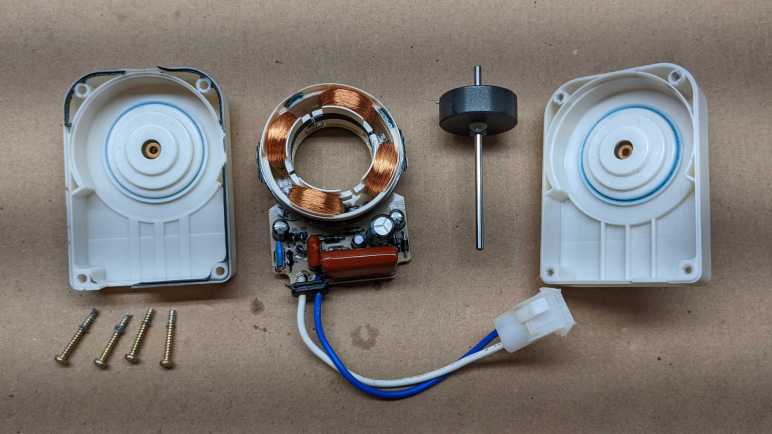
A Hall sensor is also part of this refrigerator evaporator fan motor control circuit.

Searching online for an explanation of how these motors worked, I found this thread “How do single phase BLDC motors start in proper direction?” on Electronics StackExchange. I don’t fully understand the explanation yet, but I do understand these motors aren’t as symmetric as they look. A slight asymmetry allows enforcing the correct turn direction. The hall sensor adds a bit of cost, but I guess it is cheaper than additional coils.

Even better, that thread included a link to Electric Drive Fundamentals on Electropaedia. This page gives an overview of fundamental electromagnetic principles that underpin all electric motors. I knew some of these, but not all of them, and certainly not enough to work through the mathematical formulas. But I hope studying this page will help me better understand the motors I find as I take things apart.

Independent of building an understanding of electromagnetic fundamentals, I also want to better understand Hall sensors critical to running certain motors.

Two Hard Drive Motors on BLHeli_S Controller

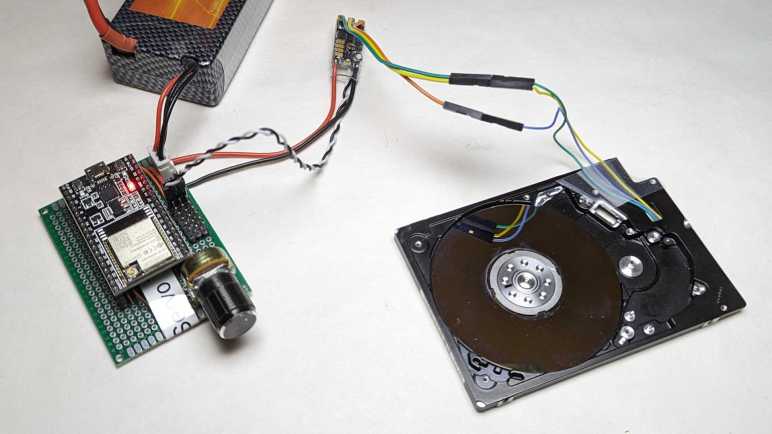
I bought some brushless motor controllers meant for multirotor aircraft: A four-pack intended for quadcoptor drones. But instead of running a motor turning a propeller, I started with a small motor salvaged from a laptop optical drive. (CD or DVD I no longer remember.) It spun up with gusto, and I watched the motor control signals under an oscilloscope. That was interesting, and I shall continue these experiments with more of my teardown detritus: computer hard drive motors.

2.5″ Laptop Hard Drive

This hard drive was the performance bottleneck in a Windows 8 era tablet/laptop convertible. The computer was barely usable with modern software until this drive was replaced with an SSD. Once taken out of use, I took it apart to see all the intricate mechanical engineering necessary to pack hard drive mechanicals into 5mm of thickness. The detail important today are these three pads on the back, where its original control board made electrical contact with the spindle motor.

They are now an ideal place for soldering some wires.

This motor is roughly the same size as CD/DVD motor. But because I never figured out how to remove the hard drive platter, there is significantly more inertia. This probably contributed to the inconsistent startup behavior I saw. Sometimes the drone motor controller could not spin up the motor, it would just twitch a few times and give up. I have to drop PWM control signal back down to zero throttle and try again. Something (maybe the platter inertia, maybe something else) is outside the target zone of the drive controller’s spin-up sequence. This has been a recurring issue and my motivation to learn more about brushless motors.

Side note: This motor seemed to have a curious affinity for the “correct” orientation. I had thought brushless motors didn’t care much which direction they spun, but when I spun the platter by hand (without power) it would coast for several seconds in the correct orientation but stop almost immediately if I spun it backwards. There’s a chance this is just my wrist, applying more power in one direction versus another, or there might be something else. It might be fun to sit down and get scientific about this later.

3.5″ Desktop Hard Drive

I then switched out the 2.5″ laptop hard drive motor for a 3.5″ desktop computer hard drive motor. This isn’t the WD800 I took apart recently, but another desktop drive I took apart even further back.

I dug it out of my pile because it already had wires soldered to the motor from a previous experiment trying to use the motor as a generator. The data storage platters had been removed from this hard drive so I expected less problems here, but I was wrong. It was actually more finicky on startup and, even if it starts up, never spins up very fast. If I try turning up the speed control signal beyond a certain (relatively slow) point, the coil energizing sequence falls out of sync with the rotor which jerkily comes to a halt.

I was surprised at that observation, because this motor is closest size-wise to the brushless outrunner motors I’ve seen driving propellers. There must be one or more important differences between this 3.5″ hard drive motor and motors used for multirotor aircraft. I’m adding this to a list of observations I hope I can come back to measure and articulate those important differences. Lots to learn still, but at least I know enough now to notice something’s very different with brushless motors built from even fewer wires and coils.

CD/DVD Motor on BLHeli_S Controller Under Oscilloscope

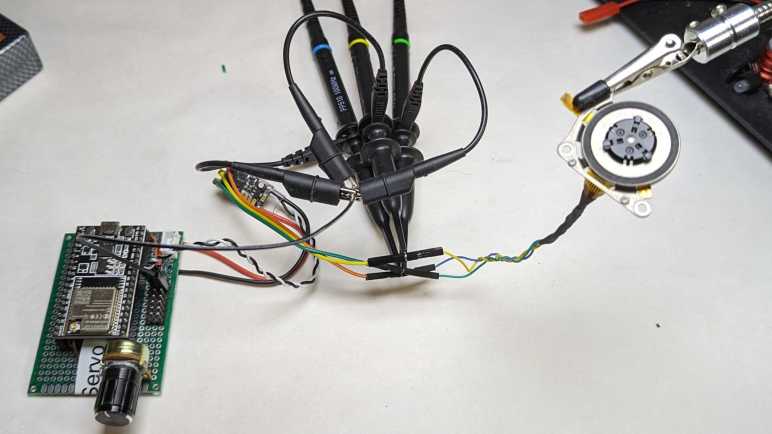
I dug up a brushless motor salvaged from a laptop optical drive and wired it up so I could connect it to a cheap brushless motor controller running BLHeli_S firmware. This firmware supports multiple control protocols, but I’ll be sending classic RC servo control pulses generated by an ESP32 I had programmed to be a simple servo tester.

I saw what looked like a WS2812-style RGB LED on the motor controller circuit board and was disappointed when I didn’t see it light up at all. I had expected to see different colors indicating operating status. Instead, the firmware communicates status by pulsing the motor coils to create a buzzing tone. I found an explanation of these beeps on this Drones StackExchange thread titled “When I power up my flight controller and ESC’s, I hear a series of beeps. What do all of the beeps mean?” The answer says the normal sequence is:

  • Powered-Up: A set of three short tones, each higher pitch than the previous.
  • Throttle signal detected (arming sequence start): One longer low pitch tone.
  • Zero throttle detected (arming sequence end): One longer high pitch tone.

(The author of that answer claimed this information came from BLHeli_S manual, but the current edition I read had no such information I could find. Was it removed? If so, why?)

Once the “arming sequence end” tone ends, I could increase my throttle PWM setting to spin up the little motor. It spins up quite enthusiastically! It responded exactly as expected, speeding up and slowing down in response to change in motor control PWM signal.

Oscilloscope Time

Once I verified the setup worked, I added my oscilloscope probes to the mix. I wanted to see what the motor power waveforms looked like, and how it compares against what I saw from an old Western Digital hard drive.

That might be a bit jumbled, so here are the phases separately. We can see they are in a sequence, one after another. They all peak at battery power level, and there’s a transition period between peaks. The transitions don’t look as smooth as the Western Digital controller and I don’t have a center wye tap to compare voltage levels against.

Next experiment: try the same controller with different motors.

Prepare Salvaged CD/DVD Motor for Test

Using a brushed DC motors is easy: apply voltage, watch motor shaft turn. I’m exploring brushless DC motors and even the cheapest controller from Amazon had features that I hadn’t even known existed. It is far more sophisticated than a DC motor driver (DRV8833) I explored earlier. To make it actually turn a motor, I’ll start simple with the smallest brushless motor I found in my pile of salvaged hardware.

This is a small brushless motor in the spindle of a CD or DVD drive. Based on the fact it is only a few millimeters thick, it was probably salvaged from a laptop optical drive. Lots of wires visible in the pale-yellow ribbon cable. I will need to probe them looking for a set of three or four wires, with a tiny bit of resistance between them, that would indicate coils for the brushless motor.

I probed the set of four contacts closest to the motor, but found no electrical connection between them.

This set of four wires looked promising. They ended abruptly, as if I had cut them off from a larger piece of pale yellow flexible printed circuit. (FPC) I guess the rest of that circuit didn’t look interesting to keep and what they were have been lost to history. I used sandpaper to uncover the copper traces within this cut-off segment. This work was for naught: no electrical connections here either.

This left the large connector of many wires. I noticed the five conductors in the middle are wider than the rest. Each of those led to two contact points on the connector. I started with those and found likely candidates in three of the five wide wires. I’m not sure what the other two were… perhaps power and ground for some other circuit? Whatever they were, I hope they aren’t relevant to my current experiment.

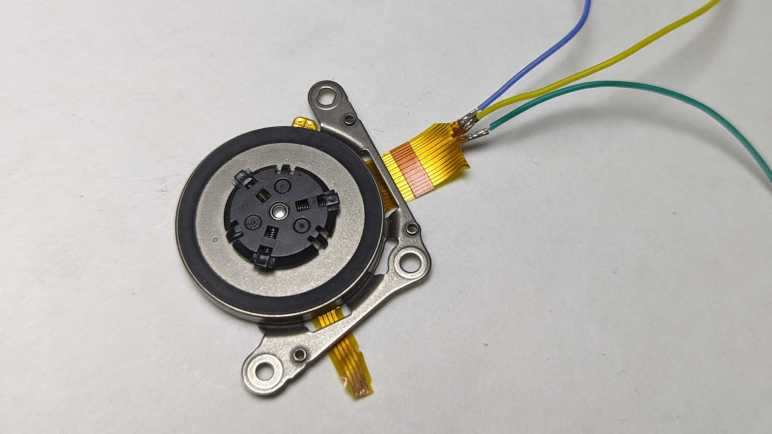
I soldered thin (30 gauge *) wires to each of those points. Using an old AA battery as ~1V source, energizing any two of these wires would result in the motor holding a position. Motor coils confirmed!

A bit of careful cutting and heat-shrink tubing isolated these wires from each other.

Resulting in a motor that I can connect to my brushless motor controller running BLHeli_S firmware.


(*) Disclosure: As an Amazon Associate I earn from qualifying purchases.