When I embarked on the Luggable PC project, the primary goal was to build a computer using components I already had on hand. This translated into the requirement to accommodate full-sized desktop PC components. Now that I’ve used it for a while and started to like carrying my full-time computer around, I’m building up for an upgrade. This time, instead of building a chassis around components I already had, I will buy smaller components with the intent of assembling a new luggable chassis.
First up: The motherboard. Out of all the commodity form factors, the best balance of small size, computation power, and reasonable price is the Mini-ITX form factor. I’ve already worked with a few boards of that form factor, but none with leading edge components. This changes with the purchase of a Gigabyte Z270N-WiFi.
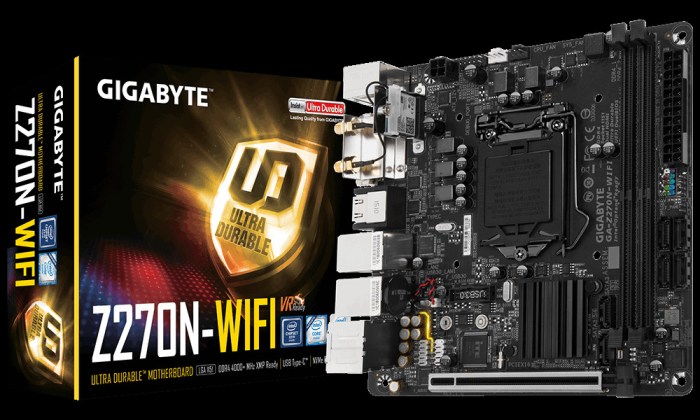
The specifications of the motherboard looked great on paper. In additional to the small Mini-ITX form factor, the features important to my project are:
- Support for Intel’s latest Kaby Lake generation of processors
- M.2 slot for SSD
- PCIe x16 slot for full-power GPU
- Wireless networking
Factors that were not critical, but used as tie-breakers against its competition:
- Dual-port Intel gigabit wired Ethernet
- 6 SATA ports
- USB-C port
- Bluetooth
Looks great on paper! Sadly in reality the motherboard made a very poor first impression due to the onboard firmware. It was heavy on flashy looks and light on usefulness. I ran into many problems with basic functionality.
Example 1: The USB mouse support was useless: I could move the cursor around with the mouse, but clicking has no effect.
Example 2: Upon startup, it shows a full-screen Gigabyte logo (basically an advertisement) that I find annoying. If I select the firmware option to disable the logo, the motherboard no longer boots: I have to reset the firmware settings via jumper to get back to square 1. This was such an unexpected thing that it took three resets before I determined it was the logo setting that caused the problem.
So the “F1” version of the motherboard firmware was a disaster. Fortunately by the time I bought the board, Gigabyte has released updates and is currently on “F4”. Upgrading allowed me to disable the Gigabyte advertisement and still have a functional computer, in addition to addressing other functional annoyances.
This motherboard was clearly pushed out the door with incomplete firmware and the expectation on users to upgrade. I now have a good motherboard, but there’s a sour taste in my mouth from the bad out-of-box experience.
 And now for something completely silly: let’s look at how our two competing hobbyist-friendly CAD offerings fare on the hobbyist-friendly single-board computer, the Raspberry Pi.
 New Screwdriver