Reboot After Network Watchdog Timer Fires

My Dell Inspiron 7577 is not happy running Proxmox VE. For reason I don’t yet understand, its onboard Ethernet would quit at unpredictable times. [UPDATE: Network connectivity stabilized after installing Proxmox VE kernel update from 6.2.16-15-pve to 6.2.16-18-pve. The hack described in this post is no longer necessary.] Running dmesg to see error messages logged on the system, I searched online and found a few Linux kernel flags to try as potential workarounds. None of them have helped keep the system online. So now I’m falling back to an ugly hack: rebooting the system after it falls offline.

My first session stayed online for 36 hours, so my first attempt at this workaround was to reboot the system once a day in the middle of the night. That wasn’t good enough because it frequently failed much sooner than 24 hours. The worst case I’ve observed so far was about 90 minutes. Unless I wanted to reboot every half hour or something ridiculous, I need to react to system state and not a timer.

In the Proxmox forum thread I read, one of the members said they wrote a script to ping Google at regular intervals and reboot the system if that should fail. I started thinking about doing the same for myself but wanted to narrow down the variables. I don’t want to my machine to reboot if there’s been a network hiccup at a Google datacenter, or my ISP, or even when I’m rebooting my router. This is a local issue and I want to focus my scope locally.

So instead of running ping I decided to base my decision off of what I’ve found so far. I don’t know why the Ethernet networking stack fails, but when it does, I know a network watchdog timer fires and logs message into the system. Reading about this system, I learned it is called a journal and can be accessed and queried using the command line tool journalctl. Reading about its options, I wrote a small shell script I named /root/watch_watchdog.sh:

#!/usr/bin/bash
if /usr/bin/journalctl --boot --grep="NETDEV WATCHDOG"
then
  /usr/sbin/reboot
fi

Every executable (bash, journalctl, and reboot) are specified with full paths because I had problems with context of bash scripts executed as cron jobs. My workaround, which I decided was also good security practice, is to fully qualify each binary file.

The --boot parameter restricts the query to the current running system boot, ignoring messages from before the most recent reboot.

The --grep="NETDEV WATCHDOG" parameter looks for the network watchdog error message. I thought to restrict it to exactly the message I saw: "kernel: NETDEV WATCHDOG: enp59s0 (r8169): transmit queue 0 timed out" but using that whole string returned no entries. Maybe the symbols (the colon? the parentheses?) caused a problem. Backing off, I found just "NETDEV" is too broad because there are other networking messages in the log. Just "WATCHDOG" is also too broad given unrelated watchdogs on the system. Using "NETDEV WATCHDOG" is fine so far, but I may need to make it more specific later if that’s still too broad.

The most important part of this is the exit code for journalctl. It would be nonzero if messages are found from the query, and zero if no entries are found. This exit code is used by the "if" statement to decide whether to reboot the system.

Once the shell script file in place and made executable with chmod +x /root/watch_watchdog.sh, I could add it to the cron jobs table by running crontab -e. I started by running this script once an hour on the top of the hour.

0 * * * * /root/watch_watchdog.sh

But then I thought: what’s the downside to running it more frequently? I couldn’t think of anything, so I expanded to running once every five minutes. (I learned the pattern syntax from Crontab guru.) If I learn a reason not to run this so often, I will reduce the frequency.

*/5 * * * * /root/watch_watchdog.sh

This ensured network outages due to Realtek Ethernet issue are no longer than five minutes in length. This is a vast improvement over what I had until now, which is waiting until I noticed the 7577 had dropped off the network (which may take hours), pulling it off the shelf, log in locally, and type “reboot”. Now this script will do it within five minutes of watchdog timer message. It’s a really ugly hack, but it’s something I can do today. Fixing this issue properly requires a lot more knowledge about Realtek network drivers, and that knowledge seemed to be spread across multiple drivers.


Featured image created by Microsoft Bing Image Creator powered by DALL-E 3 with prompt “Cartoon drawing of a black laptop computer showing a crying face on screen and holding a network cable

Configuring Laptop for Proxmox VE

I’m migrating my light-duty server duties from my Dell Latitude E6230 to my Dell Inspiron 7577. When I started playing with KVM hypervisor on the E6230, I installed Ubuntu Desktop instead of server for two reasons: I didn’t know how to deal with the laptop screen, and I didn’t know how to work with KVM via the command line. But the experience allowed me to learn things I will incorporate into my 7577 configuration.

Dealing with the Screen

By default, Proxmox VE would leave a simple text prompt on screen, which is fine because most server hardware don’t even have screens attached. On a laptop, keeping the screen on wastes power and probably cause long-term damage as well. I found an answer on Proxmox forums:

  • Edit /etc/default/grub to add “consoleblank=30” (30 is timeout in seconds) to GRUB_CMDLINE_LINUX if an entry already existed. If not, add a single line GRUB_CMDLINE_LINUX="consoleblank=30"
  • Run update-grub to apply this configuration.
  • Reboot

Another default behavior: when closing the laptop lid, the laptop goes to sleep. I don’t want this behavior when I’m using it as mini-server. I was surprised to learn the technique I found for Ubuntu Desktop would also work for server edition as well: edit /etc/systemd/logind.conf and change HandleLidSwitch to ignore.

Making the two above changes turn off my laptop screen after the set number of seconds of inactivity, and leaves the computer running when the lid is closed.

Dealing with KVM

KVM is a big piece of software with lots of knobs. I was intimidated by the thought of learning all command line options and switches on my own. So, for my earlier experiment, I ran Virtual Machine Manager on Ubuntu Desktop edition to keep my settings straight. I’ve learned bits and pieces of interacting with KVM via its virsh command line tool, but I have yet to get comfortable enough with it to use command line as the default interface.

Fortunately, many others felt similarly and there are other ways to work with a KVM hypervisor. My personal data storage solution TrueNAS has moved from a FreeBSD-based system (now named TrueNAS CORE) to a Linux-based system (a parallel sibling product called TrueNAS SCALE). TrueNAS SCALE included virtual machine capability with KVM hypervisor which looked pretty good. After a quick evaluation session, I decided I preferred working with KVM using Proxmox VE, a whole operating system built on top of Debian/Ubuntu dedicated to the job. Hosting virtual machines with the KVM hypervisor and tools to monitor and manage those virtual machines. Instead of Virtual Machine Manager’s UI running on Ubuntu Desktop, both TrueNAS SCALE and Proxmox VE expose their UI as a browser-based interface accessible over the network.

I liked the idea of doing everything on a single server running TrueNAS SCALE, and may eventually move in that direction. But there is something to be said of keeping two isolated machines. I need my TrueNAS SCALE machine to be absolutely reliable, an appliance I can leave running its job of data storage. It can be argued it’s a good idea to use a different machine for more experimental things like ESPHome and Home Assistant Operating System. Besides, unlike normal people, I have plenty of PC hardware sitting around. Put some of them to work!

Updating Ubuntu Battery Status (upower)

A laptop computer running Ubuntu has a battery icon in the upper-right corner depicting its battery’s status. Whether it is charging and if not, the state of charge. Fine for majority of normal use, but what if I want that information programmatically? Since it’s Linux, I knew not only was it possible, but there would also be multiple ways to do it. A web search brought me to UPower. Its official website is quite sparse, and the official documentation written for people who are already knowledgeable about Linux hardware management. For a more beginner-friendly introduction I needed the Wikipedia overview.

There is a command-line utility for querying upower information, and we can get started with upower --help.

Usage:
  upower [OPTION…] UPower tool

Help Options:
  -h, --help           Show help options

Application Options:
  -e, --enumerate      Enumerate objects paths for devices
  -d, --dump           Dump all parameters for all objects
  -w, --wakeups        Get the wakeup data
  -m, --monitor        Monitor activity from the power daemon
  --monitor-detail     Monitor with detail
  -i, --show-info      Show information about object path
  -v, --version        Print version of client and daemon

Seeing “Enumerate” as the top of the non-alphabetized list told me that should be where I start. Running upower --enumerate returned the following on my laptop. (Your hardware will differ.)

/org/freedesktop/UPower/devices/line_power_AC
/org/freedesktop/UPower/devices/battery_BAT0
/org/freedesktop/UPower/devices/DisplayDevice

One of these three items has “battery” in its name, so that’s where I could query for information with upower -i /org/freedesktop/UPower/devices/battery_BAT0.

  native-path:          BAT0
  vendor:               DP-SDI56
  model:                DELL YJNKK18
  serial:               1
  power supply:         yes
  updated:              Mon 04 Sep 2023 11:28:38 AM PDT (119 seconds ago)
  has history:          yes
  has statistics:       yes
  battery
    present:             yes
    rechargeable:        yes
    state:               pending-charge
    warning-level:       none
    energy:              50.949 Wh
    energy-empty:        0 Wh
    energy-full:         53.9238 Wh
    energy-full-design:  57.72 Wh
    energy-rate:         0.0111 W
    voltage:             9.871 V
    charge-cycles:       N/A
    percentage:          94%
    capacity:            93.4231%
    technology:          lithium-ion
    icon-name:          'battery-full-charging-symbolic'

That should be all the information I need to inform many different project ideas, but there are two problems:

  1. I still want the information from my code rather than running the command line. Yes, I can probably write code to run the command line and parse its output, but there is a more elegant method.
  2. The information is updated once every few minutes. This should be frequent enough most of the time, but sometimes we need more up-to-date information. For example, if I want to write a piece of code to watch for the rapid and precipitous voltage drop that happens when a battery is nearly empty. We may only have a few seconds to react before the machine shuts down, so I would want to dynamically increase the polling frequency when the time is near.

I didn’t see a upower command line option to refresh information, so I went searching further and found the answer to both problems in this thread “Get battery status to update more often or on AC power/wake” on AskUbuntu. I learned there is a way to request status refresh via a Linux system mechanism called D-Bus. Communicating via D-Bus is much more elegant (and potentially less of a security risk) than executing command-line tools. The forum thread answer is in the form of “run this code” but I wanted to follow along step-by-step in Python interactive prompt.

>>> import dbus
>>> bus = dbus.SystemBus()
>>> enum_proxy = bus.get_object('org.freedesktop.UPower','/org/freedesktop/UPower')
>>> enum_method = enum_proxy.get_dbus_method('EnumerateDevices','org.freedesktop.UPower')
>>> enum_method()
dbus.Array([dbus.ObjectPath('/org/freedesktop/UPower/devices/line_power_AC'), dbus.ObjectPath('/org/freedesktop/UPower/devices/battery_BAT0')], signature=dbus.Signature('o'))
>>> devices = enum_method()
>>> devices[0]
dbus.ObjectPath('/org/freedesktop/UPower/devices/line_power_AC')
>>> str(devices[0])
'/org/freedesktop/UPower/devices/line_power_AC'
>>> str(devices[1])
'/org/freedesktop/UPower/devices/battery_BAT0'
>>> batt_path = str(devices[1])
>>> batt_proxy = bus.get_object('org.freedesktop.UPower',batt_path)
>>> batt_method = batt_proxy.get_dbus_method('Refresh','org.freedesktop.UPower.Device')
>>> batt_method()

I understood those lines to perform the following tasks:

  1. Gain access to D-Bus from my Python code
  2. Get the object representing UPower globally.
  3. Enumerate devices under UPower control. EnumerateDevices is one of the methods listed on the corresponding UPower documentation page.
  4. One of the enumerated devices had a “battery” in its name.
  5. Convert that name to a string. I don’t understand why this was necessary, I would have expected the UPower D-Bus API should understand the objects it sent out itself.
  6. Get an UPower object again, but this time with the battery path so we’re retrieving an UPower object representing the battery specifically.
  7. From that object, get a handle to the “Refresh” method. Refresh is one of the methods listed on the corresponding UPower.Device documentation page.
  8. Calling that handle will trigger a refresh. The call itself wouldn’t return any data, but the next query for battery statistics (either via upower command line tool or via the GetStatistics D-Bus method) will return updated data.

Window Shopping Cool Retro Term

I experimented with building a faux VFD effect on modern screens. Just a quick prototype without a lot of polish. Certainly not nearly as much as some other projects out there putting a retro look on modern screens. One of those I’ve been impressed with is cool-retro-term. (Mentioned as almost an aside in this Hackaday article about a mini PDP-11 project.) I installed it on my Ubuntu machine and was very amused to see a window pop up looking like an old school amber CRT computer monitor.

The amber color looks perfect, and the text received a coordinate transform to make the text area look like a curved surface. Not visible in a screenshot are bits of randomness added to the coordinate transform emulating the fact CRT pixels aren’t as precisely located as LCD pixels. There is also a slight visual flicker effect simulating CRT vertical refresh.

The detail I found most impressive is the fact effects aren’t limited to the “glass” area: there is even a slight reflection of text on the “bezel” area!

So how was all this done? Poking around the GitHub repository I think this was written using Qt native UI framework. Qt was something I had ambition to learn, but I’ve put more time into learning web development because of all the free online resources out there. I see a lot of files with the *.qml extension, indicating this is a newer way to create Qt interfaces: QML markup versus API calls from code. Looking around for something that looks like the core of emulating imperfect CRTs, the most promising candidate for a starting point is the file ShaderTerminal.qml. I see mentions of CRT visual attributes like static noise, curvature, flickering, and more.

It should be possible to make an online browser version of this effect. If the vertex shaders in cool-retro-term are too complex for WebGL, it should be possible to port them to WebGPU. Turning that theory into practice would require me to actually get proficient with WebGPU, and learn enough Qt to understand all the nuts and bolts of how cool-retro-term works so I can translate them. Given my to-do list of project ideas, this is unlikely to rise to the top unless some other motivation surfaces.

Notes on Automating Ubuntu Updates

I grew up when computers were major purchases with four digits in the dollar sign. As technology advanced, perfectly capable laptops can be found for three digits. That was a major psychological barrier in my mind, and now I have another adjustment to make: today we can get a full-fledged PC (new/used) for well under a hundred bucks. Affordable enough that we can set up these general-purpose machines for a single specialized role and left alone.

I’ve had a few Raspberry Pi around the house running specialized tasks like OctoPi and TrueNAS replication target, and I’ve always known that I’ve been slacking off on keeping those systems updated. Security researchers and malicious actors are in a never-ending game to one-up each other and it’s important to keep up with security updates. The good news is that Ubuntu distributions come with an automated update mechanism called unattended-upgrades, so many security patches are automatically applied. However, its default settings only cover critical security updates, and sometimes they need a system reboot before taking effect. This is because Ubuntu chose default behavior to ensure they are least disruptive to actively used computers.

But what about task-specific machines that sees infrequent user logins? We can configure unattended-upgrades to be more aggressive. I went searching for more information and found a lot of coverage on this topic. I chose to start with this very old and frequently viewed AskUbuntu thread “How do I enable automatic updates?” The top two answer links lead to “AutomaticSecurityUpdates” page on help.ubuntu.com, and to “Automatic updates” on Ubuntu Server package management documentation. Browsing beyond official Ubuntu resources, I found “How to Install & Configure Unattended-Upgrades on Ubuntu 20.04” on LinuxCapable.com to be a pretty good overview.

For my specific situation, the highlights are:

  • Configuration file is at /etc/apt/apt.conf.d/50unattended-upgrades
  • Look at the Allowed-Origins entry up top. The line that ends with “-security” is active (as expected) and the line that ends with “-updates” is not. Uncomment that line to automatically pick up all updates, not just critical security fixes.
  • In order to pick up fixes that require a reboot, let unattended-upgrades reboot the machine as needed via “Unattended-Upgrade::Automatic-Reboot” to “true“.
  • (Optional) For computers that sleep most of the day, we may need to add an entry in root cron job table (sudo crontab -e) to run /usr/bin/unattended-upgrade at a specified time within the machine’s waking time window.
  • (Optional) There are several lines about automatically cleaning up unused packages and dependencies. Setting them to “true” will reduce chances of filling our disk.
  • Log files are written to directory /var/log/unattended-upgrades

Linux Shell Control of Sleep and Wake

I’ve extracted the 3.5″ SATA HDD from a Seagate Backup+ Hub external USB hard drive and installed it internally into a desktop PC tower case. I configured the PC as a TrueNAS replication target so it will keep a backup copy of data stored on my TrueNAS array. I couldn’t figure how to make it “take over” or “continue” the existing replication set on this disk created from Raspberry Pi, so I created an entirely new ZFS dataset instead. It’s a backup anyway and I have plenty of space.

But replication only happens once a day for a few minutes, and I didn’t want to keep the PC running around the clock. I automated my Raspberry Pi’s power supply via Home Assistant. That complexity was unnecessary for a modern PC as they include low-power sleep mode capability missing from (default) Raspberry Pi. I just need to figure out how to access that capability from the command line, and I found an answer with rtcwake and crontab.

rtcwake

There are many power-saving sleep modes available in the PC ecosystem, not all of which runs seamlessly under Linux as they each require some level of hardware and/or software driver support. Running rtcwake --list-modes is supposed to show what’s applicable to a piece of hardware. However, I found that even though “disk” (hibernate to disk) is listed, my attempt to use it merely caused the system to become unresponsive without going to sleep. (I had to reset the system.) I then tried “mem” (suspend system, keep power only to memory) and that seemed to work as expected. Your mileage will vary depending on hardware. I can tell my computer to sleep until 11:55PM with:

sudo rtcwake --mode mem --date 23:55

hwclock

The command above allowed me to put the computer to sleep, and schedule wake for five minutes before midnight. On my machine, it displayed the target time and went to sleep. But the listed target time was not 23:55! I thought I did something wrong, but after a bit of poking around I realized I didn’t. I wanted 23:55 my local time, and Ubuntu had set up my PC’s internal hardware clock to UTC time zone. The listed target time is in relative to UTC time of hardware clock. To set our current local time zone we run timedatectl. To see current hardware clock we can run this command:

sudo hwclock --show --verbose

I wasn’t surprised that putting the computer to sleep required “sudo” privileges, but I was surprised to see that hwclock needed that privilege as well. Why is reading the hardware clock important to protect? I don’t know. Sure, I can understand setting the clock may require privileges, but reading? timedatectl didn’t require sudo privileges to read. So hwclock‘s requirement was a surprise.

ssh

Another consequence of running rtcwake from a ssh session is that a sleep computer would leave my ssh prompt hanging. It will eventually time out with “broken pipe” but if I want to hurry that along, there’s a special key sequence to terminate a ssh session immediately: Press the <Enter> key, then type ~. (tilde symbol followed by period.)

crontab

But I didn’t really want to run the command manually, anyway. I want to automate that part as well. In order to schedule a job to execute that command at a specific time and interval, I added this command to the cron jobs table. Since I need root privileges to run rtcwake, I had to add this line to root user’s table with “sudo crontab -e“:

10 0 * * * rtcwake --mode mem --date 23:55

The first number is minutes, the next number hours. “10 0” means to run this command ten minutes after midnight, which should be long enough for TrueNAS replication to complete. The three asterisks mean every day of the month, every month, every day of the week. So “10 0 * * *” translates to “ten minutes after midnight every day” putting this PC to sleep until five minutes before midnight. I chose five minutes as it should be more than long enough for the machine to become visible on the network for TrueNAS replication. When this all works as intended (there have been hiccups I haven’t diagnosed yet) this PC, which usually sits unused, would wake up for only fifteen minutes a day instead of wasting power around the clock.

Notes from ZFS Adventures for TrueNAS Replication

My collection of old small SSDs played a game of musical chairs to free up a drive for my TrueNAS replication machine, the process of which was an opportunity for hands-on time with some Linux disk administration tools. Now that I have my system drive up and running on Ubuntu Server 22.04 LTS, it’s time to wade into the land of ZFS again. It’s been long enough that I had to refer to documentation to rediscover what I need to do, so I’m taking down these notes for if when I need to do it again.

Installation

ZFS tools are not installed by default on Ubuntu 22.04. There seems to be two separate packages for ZFS. I don’t understand the tradeoffs between those two options, I chose to sudo apt install zfsutils-linux because that’s what Ubuntu’s ZFS tutorial used.

Creation

Since my drive was already setup to be a replication storage drive, I didn’t have to create a new ZFS pool from scratch. If I did, though, here are the steps (excerpts from the Ubuntu tutorial linked above):

  • Either “fdisk -l” or “lsblk” to list all the storage devices attached to the machine.
  • Find the target device name (example: /dev/sdb) and choose a pool name (example: myzfs)
  • “zpool create myzfs /dev/sdb” would create a new storage pool with a single device. Many ZFS advantages require multiple disks, but for TrueNAS replication I just output to a single drive.

Once a pool exists, we need to create our first dataset on that pool.

  • “zfs create myzfs/myset” to create a dataset “myset” on pool “myzfs”
  • Optional: “zfs set compress=lz4 myzfs/mydataset” to enable LZ4 compression on specified dataset.

Maintenance

  • “zpool scrub myzfs” to check integrity of data on disk. With a single drive it wouldn’t be possible to automatically repair any errors, but at least we would know that problems exist.
  • “zpool export myzfs” is the closest thing I found to “ejecting” a ZFS pool. Ideally, we do this before we move a pool to another machine.
  • “zpool import myzfs” brings an existing ZFS pool onto the system. Ideally this pool had been “export”-ed from the previous machine, but as I found out when my USB enclosure died, this was not strictly required. I was able to import it into my new replication machine. (I don’t know what risks I took when I failed to export.)
  • “zfs list -t snapshot” to show all ZFS snapshots on record.

TrueNAS Replication

The big unknown for me is figuring out permissions for a non-root replication user. So far, I’ve only had luck doing this on root account of the replication target, which is bad for many reasons. But every time I tried to use a non-root account, replication fails with error umount: only root can use "--types" option

  • On TrueNAS: System/SSH Keypairs. “Add” to generate a new pair of private/public key. Copy the public key.
  • On replication target: add that public key to /root/.ssh/authorized_keys
  • On TrueNAS: System/SSH Connections. “Add” to create a new connection. Enter a name and IP address, and select the keypair generated earlier. Click “Discover Remote Host Key” which is our first test to see if SSH is setup correctly.
  • On TrueNAS: Tasks/Replication Tasks. “Add” to create a replication job using the newly created SSH connection to push replication data to the zfs dataset we just created.

Monitor Disk Activity

The problem with an automated task going directly to root is that I couldn’t tell what (if anything) was happening. There are several Linux tools to monitor disk activity. I first tried “iotop” but unhappy with the fact it required admin privileges and that is not considered a bug. (“Please stop opening bugs on this.”) Looking for an alternative, I found this list and decided dstat was the best fit for my needs. It is not installed on Ubuntu Server by default, but I could run sudo apt install pcp to install, followed by dstat -cd --disk-util --disk-tps to see activity level of all disks.

Notes on Linux Disk Tools

I am setting up an old PC as a TrueNAS replication target to back up data on my drive array. Fitting a modern SSD into the box was only part of the challenge, I need an SSD to put in it. This is a problem easily solved with money because I don’t need a big system drive for this task, and we live in an era of 256GB SSDs on sale for under $20.(*) But where’s the fun in that? I already have some old and small SSDs, I just need to do a bit of musical chairs to free one up.

These small drives are running various machines in my hoard of old PC hardware. 64-bit capable machines run Ubuntu LTS and 32-bit only hardware running Raspberry Pi Desktop. Historically they were quite… disposable, in the sense that I usually wipe the system and start fresh whenever I want to repurpose them. This time is different: one of these is currently a print server, turning my old Canon imageCLASS D550 laser printer into a network-connected printer. Getting Canon’s Linux driver up and running on this old printer was a miserable experience. Canon has since updated imageCLASS D550 Linux driver so things might be better now, but I didn’t want to risk repeating that experience. Instead of wiping a disk and starting fresh, I took this as an opportunity to learn and practice Linux disk administration tools.

Clonezilla

My first attempt tried using Clonezilla Live to move my print server from one drive to another. This failed with errors that scrolled by too fast for me to read. I rediscovered the “Scroll Lock” key on my keyboard to pause text scrolling so I could read the errors: partition table information was expected by one stage of the tool but was missing from a file created by an earlier stage of the tool. I have no idea how to resolve that. Time to try something else.

dd

I decided it was long overdue for me to learn and practice using the Linux disk tool dd. My primary reference is Arch Linux Wiki page for dd. It’s a powerful tool with many options, but I didn’t need anything fancy for my introduction. I just wanted to directly copy from one drive to another (larger) drive. To list all of my install storage drives, I knew about fdisk -l but this time I also learned of lsblk which doesn’t require entering the root password before listing all block storage device names and their capacities. Once I figured out the name of the source (/dev/sdc) and the destination (/dev/sde) I could perform a direct copy:

sudo dd if=/dev/sdc of=/dev/sde bs=512K status=progress

The “bs” parameter is “block size” and apparently the ideal value varies depending on hardware capabilities. But it defaults to 512 bytes for historical reasons and that’s apparently far too small for modern hardware. I bumped it up several orders of magnitude to 512 kilobytes without really understanding the tradeoffs involved. “status=progress” prints the occasional status report so I know the process is ongoing, as it can take some time to complete.

gparted

After the successful copy, I wanted to extend the partition so my print server can take advantage of new space. Resizing the partition with Ubuntu’s “disks” app failed with an error message “Unable to satisfy all constraints on the partition.” Fortunately, gparted had no such complaints, and my print server was back up and running with more elbow room.

Back to dd

Before I erase the smaller drive, though, I thought I would try making a disk image backup of it. If Canon driver installation were painless, I would not have bothered. In case of SSD failure, I would replace the drive and reinstall Ubuntu and set up a new print server. But Canon driver installation was painful, and I wanted an image to restore if needed. I went about looking for how to create a disk image and in the Linux world of “everything is a file” I was not too surprised to find it’s a matter of using a file name (~/canonserver.img) instead of device name (/dev/sde) for dd output.

sudo dd if=/dev/sdc of=~/canonserver.img bs=512K status=progress

gzip and xz

But that raw disk image file is rather large, exactly the size of the source drive. (80GB in my case) To compress this data, Arch Linux Wiki page on dd had examples of how to pipe dd output into gzip for compression. Following those direction worked fine, but I noticed Ubuntu’s “disks” app recognized img.xz natively as a compressed disk image file format and not img.gzip. Looking into that xz suffix, I learned xz was a different compression tool analogous to gzip, and I could generate my own img.xz image by piping dd output into xz, which in turn emits its output into a file, with the following command:

sudo dd if=/dev/sdc bs=512K status=progress | xz --compress -9 --block-size=100MiB -T4 > ~/canonserver.img.xz

I used xz parameters “-9” for maximum compression. “-T4” means spinning up four threads to work in parallel, as I was running this on a quad-core processor. “–block-size=100MiB” is how big of a chunk of data each thread receives to work.

A spinning-platter HDD was used as a test output and verified a restoration of this compressed image worked. Now I need to move this file to my TrueNAS array for backup, kind of bringing the project full circle. At 20GB, it is far smaller than the raw 80GB file but still nontrivial to move.

gio

I tried to mount my TrueNAS SMB shares as CIFS but kept running into errors. It would mount and I could read files, I just couldn’t write any. After several failures I started looking for an alternative and found gio.

gio mount --anonymous "smb://servername/sharename"
gio copy --progress ~/canonserver.img.xz "smb://servername/sharename/canonserver.img.xz"

OK, that worked, but what did I just use? This name “gio” is far too generic. My first search hit was a “Cross-Platform GUI for Go” which is definitely wrong. My second hit “Gnome Input/Output” might be correct or at least related. As a beginner this is all very fuzzy, perhaps it’ll get better with practice. For today I have an operating system disk up and running so I can work on my ZFS data storage drive.

Notes on Codecademy “Learn Bash Scripting”

After a frustrating time with Codecademy’s “Learn Sass” practice projects, I poked around the course catalog for something quick and easy to go through. I saw the “Learn Bash Scripting” course which had just a one-hour estimate for time commitment. Less than an hour later, I can say it met expectations: it was quick and easy covering a few basic things, leaving plenty more for me to learn on my own if I wanted to.

Technically speaking I’ve already been making shell scripts to automate a few repetitive tasks, but they have all just been lists of commands I would have typed at the command line. Maybe an echo or two to emit text, but no more. If I had needed to automate something that required decision-making logic, I used to go to something like Python. Which works but rather heavyweight if all I wanted was, say, a single if statement in reaction to a single user input. I could have done that with a shell script.

And after taking this course, I know how. One of the first things we saw was if/then/else/fi. There is a limited set of logical operators available, along with warnings that spaces are consequential. (One extra space or one missing space become syntax errors.) Getting user input from a read is straightforward, though parsing the resulting string and error-handling weren’t covered. We also got to see loop commands for, until, and while. What we did not cover in this course were how to define functions to be called elsewhere in the script in order to reduce repetition. That was the only thing I wished the course covered. If I wanted to do anything more sophisticated that the above, I would likely go to Python as I used to do.

The practice project associated with this course was touted as a “build script” but it’s not a makefile, just a series of copy commands interspersed with a bit of logic. I was a little annoyed it assumed we knew command line tools not covered in class, like head and read, but I’ve learned about them now and I could add them to my command-line toolbox.

Ubuntu Phased Package Update

I’m old enough to remember a time when it was a point of pride when a computer system can stay online for long periods of time (sometimes years) without crashing. It was regarded as one of the differentiations between desktop and server-class hardware to justify their significant price gap. Nowadays, a computer with years-long uptime is considered a liability: it certainly has not been updated with the latest security patches. Microsoft has a regular Patch Tuesday to roll out fixes, Apple rolls out their fixes on a less regular schedule, and Linux distributions are constantly releasing updates. For my computers running Ubuntu, running “sudo apt update” followed by “sudo apt upgrade” then “sudo reboot” is a regular maintenance task.

Recently (within the past few months) I started noticing a new behavior in my Ubuntu 22.04 installations: “sudo apt upgrade” no longer automatically installs all available updates, with a subset listed as “The following packages have been kept back”. I first saw this message before, and at that time it meant there were version conflicts somewhere in the system. This was a recurring headache with Nvidia drivers in past years, but that has been (mostly) resolved. Also, if this were caused by conflicts, explicitly upgrading the package would list its dependencies. But when I explicitly upgrade a kept-back package, it installed without further complaint. What’s going on?

$ sudo apt upgrade
Reading package lists... Done
Building dependency tree... Done
Reading state information... Done
Calculating upgrade... Done
Try Ubuntu Pro beta with a free personal subscription on up to 5 machines.
Learn more at https://ubuntu.com/pro
The following packages have been kept back:
  distro-info-data gnome-shell gnome-shell-common tzdata
The following packages will be upgraded:
  gir1.2-mutter-10 libmutter-10-0 libntfs-3g89 libpython3.10 libpython3.10-minimal libpython3.10-stdlib mutter-common ntfs-3g python3.10 python3.10-minimal
10 upgraded, 0 newly installed, 0 to remove and 4 not upgraded.
7 standard LTS security updates
Need to get 1,519 kB/9,444 kB of archives.
After this operation, 5,120 B disk space will be freed.
Do you want to continue? [Y/n]

A web search on “The following packages have been kept back” found lots of ways this message might come up. Some old problems going way back. But since this symptom may be caused by a large number of different causes, we can’t just blindly try every possible fix. We also need some way to validate the cause so we can apply the right fix. I found several different potential causes, and none of the validations applied, so I kept looking until I found this AskUbuntu thread suggesting I am seeing the effect of a phased rollout. In other words: this is not a bug, it is a feature!

When an update is rolled out, sometimes the developers find out too late a problem has escaped their testing. Rolling an update out to everyone at once also means such problems hit everyone at once. Phased update rollout tries to mitigate the damage of such problems: when an update is released, it is only rolled out to a subset of applicable systems. If those rollouts go well, the following phase will distribute the update to more systems, repeating until it is available to everyone. But sometimes somebody wants to skip the wait and install the new thing before their turn in a phased rollout, so they are allowed to “sudo apt upgrade” a package explicitly without error.

So back to the problem validation step: how would we know if a package is kept back due to phased rollout? We can pull up the “apt-cache policy” associated with a package and look for a “phased” percentage associated with the latest version. If so, that means the update is in the middle of a phased rollout. If the updated package is important to us, we can explicitly upgrade now. But if it is not, we can just wait for the phases to include us and be installed in a future “sudo apt upgrade” run.

$ apt-cache policy tzdata
tzdata:
  Installed: 2022e-0ubuntu0.22.04.0
  Candidate: 2022f-0ubuntu0.22.04.0
  Version table:
     2022f-0ubuntu0.22.04.0 500 (phased 10%)
        500 http://us.archive.ubuntu.com/ubuntu jammy-updates/main amd64 Packages
        500 http://us.archive.ubuntu.com/ubuntu jammy-updates/main i386 Packages
        500 http://security.ubuntu.com/ubuntu jammy-security/main amd64 Packages
        500 http://security.ubuntu.com/ubuntu jammy-security/main i386 Packages
 *** 2022e-0ubuntu0.22.04.0 100
        100 /var/lib/dpkg/status
     2022a-0ubuntu1 500
        500 http://us.archive.ubuntu.com/ubuntu jammy/main amd64 Packages
        500 http://us.archive.ubuntu.com/ubuntu jammy/main i386 Packages

Disable Sleep on a Laptop Acting as Server

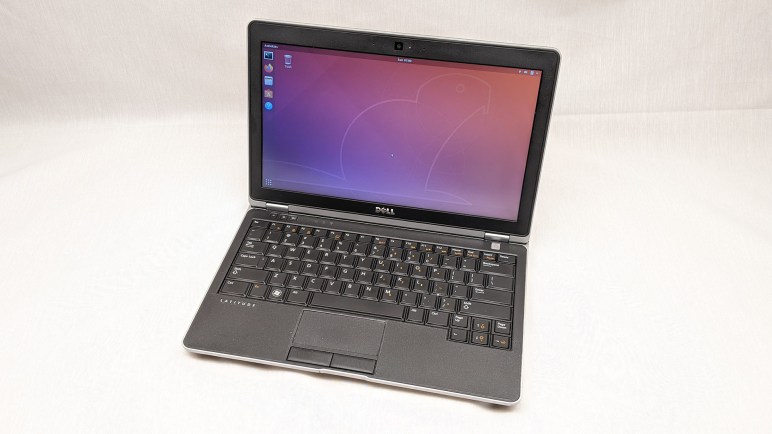
I’ve played with different ways to install and run Home Assistant. At the moment my home instance is running as a virtual machine inside KVM hypervisor. The physical machine is a refurbished Dell Latitude E6230 running Ubuntu Desktop 22.04. Even though it will be running as a server, I installed the desktop edition for access to tools like Virtual Machine Manager. But there’s a downside to installing the desktop edition for server use: I did not want battery-saving features like suspend and sleep.

When I chose to use an old laptop like a server, I had thought its built-in battery would be useful in case of power failure. But I hadn’t tested that hypothesis until now. Roughly twenty minutes after I unplugged the laptop, it went to sleep. D’oh! The machine still reported 95% of battery capacity, but I couldn’t use that capacity as backup power.

The Ubuntu “Settings” user interface was disappointingly useless for this purpose, with no obvious ability to disable sleep when on battery power. Generally speaking, the revamped “Settings” of Ubuntu 22 has been cleaned up and now has fewer settings cluttering up all those menus. I could see this as a well-meaning effort to make Ubuntu less intimidating to beginners, but right now it’s annoying because I can’t do what I want. To the web search engines!

Looking for command-line tools to change Ubuntu power saving settings brought me to many pages with outdated information that no longer applied to Ubuntu 22. My path to success started with this forum thread on Linux.org. It pointed to this page on linux-tips.us. It has a lot of ads, but it also had applicable information: systemd targets. The page listed four potentially applicable targets:

  • suspend.target
  • sleep.target
  • hibernate.target
  • hybrid-sleep.target

Using “systemctl status” I could check which of those were triggered when my laptop went to sleep.

$ systemctl status suspend.target
○ suspend.target - Suspend
     Loaded: loaded (/lib/systemd/system/suspend.target; static)
     Active: inactive (dead)
       Docs: man:systemd.special(7)

Jul 21 22:58:32 dellhost systemd[1]: Reached target Suspend.
Jul 21 22:58:32 dellhost systemd[1]: Stopped target Suspend.
$ systemctl status sleep.target
○ sleep.target
     Loaded: masked (Reason: Unit sleep.target is masked.)
     Active: inactive (dead) since Thu 2022-07-21 22:58:32 PDT; 11h ago

Jul 21 22:54:41 dellhost systemd[1]: Reached target Sleep.
Jul 21 22:58:32 dellhost systemd[1]: Stopped target Sleep.
$ systemctl status hibernate.target
○ hibernate.target - System Hibernation
     Loaded: loaded (/lib/systemd/system/hibernate.target; static)
     Active: inactive (dead)
       Docs: man:systemd.special(7)
$ systemctl status hybrid-sleep.target
○ hybrid-sleep.target - Hybrid Suspend+Hibernate
     Loaded: loaded (/lib/systemd/system/hybrid-sleep.target; static)
     Active: inactive (dead)
       Docs: man:systemd.special(7)

Looks like my laptop reached the “Sleep” then “Suspend” targets, so I’ll disable those two.

$ sudo systemctl mask sleep.target
Created symlink /etc/systemd/system/sleep.target → /dev/null.
$ sudo systemctl mask suspend.target
Created symlink /etc/systemd/system/suspend.target → /dev/null.

After they were masked, the laptop was willing to use most of its battery capacity instead of just a tiny sliver. This should be good for several hours, but what happens after that? When the battery is almost empty, I want the computer to go into hibernation instead of dying unpredictably and possibly in a bad state. This is why I left hibernation.target alone, but I wanted to do more for battery health. I didn’t want to drain the battery all the way to near-empty, and this thread on AskUbuntu led me to /etc/UPower/UPower.conf which dictates what battery levels will trigger hibernation. I raised the levels so the battery shouldn’t be drained much past 15%.

# Defaults:
# PercentageLow=20
# PercentageCritical=5
# PercentageAction=2
PercentageLow=25
PercentageCritical=20
PercentageAction=15

The UPower service needs to be restarted to pick up those changes.

$ sudo systemctl restart upower.service

Alas, that did not have the effect I hoped it would. Leaving the cord unplugged, the battery dropped straight past 15% and did not go into hibernation. The percentage dropped faster and faster as it went lower, too. Indication that the battery is not in great shape, or at least mismatched with what its management system thought it should be doing.

$ upower -i /org/freedesktop/UPower/devices/battery_BAT0
  native-path:          BAT0
  vendor:               DP-SDI56
  model:                DELL YJNKK18
  serial:               1
  power supply:         yes
  updated:              Fri 22 Jul 2022 03:31:00 PM PDT (9 seconds ago)
  has history:          yes
  has statistics:       yes
  battery
    present:             yes
    rechargeable:        yes
    state:               discharging
    warning-level:       action
    energy:              3.2079 Wh
    energy-empty:        0 Wh
    energy-full:         59.607 Wh
    energy-full-design:  57.72 Wh
    energy-rate:         10.1565 W
    voltage:             9.826 V
    charge-cycles:       N/A
    time to empty:       19.0 minutes
    percentage:          5%
    capacity:            100%
    technology:          lithium-ion
    icon-name:          'battery-caution-symbolic'

I kept it unplugged until it dropped to 2%, at which point the default PercentageAction behavior of PowerOff should have occurred. It did not, so I gave up on this round of testing and plugged the laptop back into its power cord. I’ll have to come back later to figure out why this didn’t work but, hey, at least this old thing was able to run 5 hours and 15 minutes on battery.

And finally: this laptop will be left plugged in most of the time, so it would be nice to limit charging to no more than 80% of capacity to reduce battery wear. I’m OK with 20% reduction in battery runtime. I’m mostly concerned about brief blinks of power of a few minutes. A power failure of 4 hours instead of 5 makes little difference. I have seen “battery charge limit” as an option in the BIOS settings of my newer Dell laptops, but not this old laptop. And unfortunately, it does not appear possible to accomplish this strictly in Ubuntu software without hardware support. That thread did describe an intriguing option, however: dig into the cable to pull out Dell power supply communication wire and hook it up to a switch. When that wire is connected, everything should work as it does today. But when disconnected, some Dell laptops will run on AC power but not charge its battery. I could rig up some sort of external hardware to keep battery level around 75-80%. That would also be a project for another day.

Ubuntu and ROS on Raspberry Pi

Since I just discovered that I can replace Ubunto with lighter-weight Raspbian on old 32-bit PCs, I thought it would be a good time to quickly jot down some notes about going the other way: replacing Raspbian with Ubuntu on Raspberry Pi.

When I started building Sawppy in early 2018, I was already thinking ahead to turning Sawppy from a remote-controlled toy to an autonomous robot. Which meant a quick survey to the state of ROS. At the time, ROS Kinetic was the latest LTS release, targeted for Ubuntu 16.

Unfortunately the official release of Ubuntu 16 did not include an armhf build suitable for running on a Raspberry Pi. Some people would build their own ROS from source code to make it run on Raspbian, I took one attempt and the build errors took more time to understand and resolve than I wanted to spend. I then chose the less difficult path of finding a derived released of Ubuntu 16 that ran on the platform: Ubuntu Mate 16. An afternoon’s worth of testing verified basic ROS Kinetic capability, and I set it aside for revisiting later.

Later on in 2018, Ubuntu 18 was released, followed by ROS Melodic matching that platform. By then support for running Debian (& deriviatives) on armhf had migrated to Ubuntu, and they released both the snap-based Ubuntu Core and Ubuntu ‘classic’ for Raspberry Pi. These are minimalist server images, but desktop UI components can be installed if needed. Information to do so can be found on Ubuntu wiki but obviously UI is not a priority when I’m looking at robot brains. Besides, if I wanted an UI, Ubuntu Mate 18 is still available as well. For Ubuntu 20 released this year, the same choices continue to be offered, which should match well with ROS Noetic.

I don’t know how relevant this is yet for ROS on a Raspberry Pi, but I noticed not only are 32-bit armhf binaries available, so are 64-bit arm64 binaries. Raspberry Pi 3 and 4 have CPU capable of running arm64 code, but Raspbian has remained 32-bit for compatibility with existing Pi software and with low-end devices like the Raspberry Pi Zero incapable of arm64. More than just an ability to address more memory, moving to arm64 instruction set was also a chance to break from some inconvenient bits of architectural legacy which in turn allowed better arm64 performance. Though the performances increase are minor as applied to a Raspberry Pi, ROS releases include precompiled arm64 binaries so the biggest barrier to entry has already been removed and might be worth a look.

[UPDATE I found a good reason to go for arm64: ROS2]