Tiny Step on RxJS Learning Curve

I learned a lot from reading Angular’s Developer Guide to Testing, one of which is that I have a significant weak spot in my Angular understanding: how and when to use RxJS for asynchronous operations. Not just for testing, but also for writing Angular application code. On my first run through “Tour of Heroes” tutorial, RxJS was a black box I didn’t understand at all. On my second run, I understood the tutorial enough to understand specific uses of RxJS from context, but my understanding did not extend to the rest of that library. I certainly don’t know how to employ RxJS for my own tasks. It’s time to buckle down and read official RxJS documentation.

This was quite a chore. It appears RxJS official documentation was written by its development team for an audience that already knows what it does and why they would want it. It started with “RxJS is a library for composing asynchronous and event-based programs by using observable sequences” and jargon gets thicker from there. (Interspersed with words like “just” and “simply” which this beginner found ridiculous.) There was no “Getting Started” section. The next-best candidate section “Installation” is full of material telling existing users how to migrate breaking changes, not an introduction to new users.

The good news is that, as of this writing, RxJS is still under active development. Today’s stable release 7.8.0 has a timestamp only a few weeks old. (December 15th, 2022.) I was concerned about that, because RxJS was a solution for JavaScript asynchronous programming before JavaScript evolved to have its own asynchronous constructs like async/await. It doesn’t map cleanly to Promises and conversion is a bit of a mess. But RxJS still does things that standard JavaScript doesn’t do, so there are still scenarios where RxJS would be the right tool for the job. It’ll take more learning before I recognize those scenarios.


Observable: RxJS foundation class. One thing that demystified a lot was rewriting an analogy using plain JavaScript. Seeing something familiar and understandable (with my very recent JavaScript education) gave me a starting point to try understanding the rest of the page. Unhelpfully this was at the bottom of the page.

Observer: It took a while for me to understand observer where my code fits into the system and I can use as little or as much of it as I need for a scenario. It can be a single callback for receiving data (“next”) but I can also register optional callbacks to be notified of problems (“error”) or when there’s no more data (“complete”).

Operator: Documentation said this is the powerful part of RxJS, but didn’t really explain why or how we would leverage that power. This is also where marble diagrams were explained, something that bewildered me when Angular testing discussed marble testing. The overview of available operators is a disappointing list of just names. Each name is a link to their reference page without any additional context. I’d have to click the link and read each one. I would love a reference where each link has an 1-2 sentence summary, but no luck here.

Subject: These are Observable that multicasts to more than one Observer. Up until this point I hadn’t known a basic Observable only broadcast to a single Observer! This critical information should have been covered earlier.

Scheduler: No usage examples or scenarios were given so I have no idea when I should care about choosing a different RxJS scheduler. I see the “How to do X”, but not “Why you want to do X.”


I’m sure everything in official RxJS documentation is technically correct but the information lacks context. Or more precisely, I don’t think they were even trying to provide context for readers who are unaware. Perhaps there are resources to help RxJS beginners elsewhere on the internet?

Notes on Angular Developer Guide to Testing

Once my Angular development container could run tests in Chrome using headless mode, I could see actual test failures. Since “Tour of Heroes” tutorial did not touch test files at all, these failing tests were untouched boilerplate tests. For the most part they just test to see if a component instance could be created within the test harness, there were no further updates to test “Tour of Heroes” functionality. Components that couldn’t be created in a test harness obviously led to abysmal code coverage numbers.

=============================== Coverage summary ===============================
Statements   : 18.75% ( 15/80 )
Branches     : 0% ( 0/8 )
Functions    : 6.38% ( 3/47 )
Lines        : 16.21% ( 12/74 )
================================================================================

Since I am just getting started, there were a lot of (1) copy error message (2) search on that message (3) read hits on StackOverflow (4) repeat. Component creation failure mainly revolved around fixing up “imports” or declarations” sections to calling TestBed.configureTestingModule(). After I got component startup sorted out, code coverage numbers looked a lot better.

=============================== Coverage summary ===============================
Statements   : 61.25% ( 49/80 )
Branches     : 0% ( 0/8 )
Functions    : 53.19% ( 25/47 )
Lines        : 62.16% ( 46/74 )
================================================================================

But that was a lot of copy/pasting from StackOverflow with little understanding of what happened. And even though tests registered as passing, there were still error messages shown on console output. I need to learn more, so I started reading the “Testing” section of Angular Developer guides. It seems to assume I know Jasmine and Karma, which I don’t. I plan to skim the first pass for a partial understanding, then maybe dedicate some time to learning Jasmine/Karma, then come back again. Here are some notes from my first pass:

Valuable Live Examples

Just like the “Understanding Angular” section, pages in “Developer Guides” very frequently have a link to a project that we can load up and examine either by downloading code for our own machine or fire it up within our browser connected to a StackBlitz virtual machine. Having functional code is always great and mitigates many documentation issues. One code snippet in “Testing Services” documentation called a function I couldn’t find any information about, looking at the live code I figured out it was something strictly within the demo project. (async-observable-helpers.ts)

Scattered Older Content

I see occasional signs of outdated content. Some examples: (1) API TestBed.get() was deprecated from Angular 9 but still pops up here and there. (2) Occasional mentions of “Tour of Heroes” that doesn’t match the tutorial I just completed a second time. Either they were snippets from an older version of the tutorial, or the example was modified for illustration purposes. (3) Standard boilerplate code listed in “Basics of Testing Components” do not match what today’s tools generate.

Having illustrative code examples fall out of date reminded us to keep in mind that some of their associated information might be out of date as well.

Component Testing Scenarios

The longest page (by far) in this section is “Component Testing Scenarios.” I think it is the goldmine. A list of how we might want to test our Angular components and tools to go about them. It puts a lot of Angular testing tools (which have their own section) in context of problems they were created to solve. As a beginner I don’t quite understand why I might want to do these things, but here’s the reference if I want to do them.

Almost a quarter of this very long page is dedicated to “Component with async service”. (Which makes this one section longer than most other pages in “Angular Developer Guides – Testing”) RxJS is used by Angular a lot in the realm of asynchronous behavior, so I need to learn more about that. Not just to test, but to build Angular in general. I expect things will make sense after getting a better grasp of RxJS terminology like “marble testing“. I thought the best place to start would be RxJS official documentation. (I was wrong.)

Running Angular Unit Tests (ng test) in VSCode Dev Container

I knew web development frameworks like Angular proclaim to offer a full package, but it’s always enlightening to find out what “full” does and doesn’t mean in each context. I had expected Angular to have its own layout engine and was mildly surprised (but also delighted) to learn the official recommendation is to use standard CSS, migrating off Angular-specific interim solutions.

Another area I knew Angular offered is a packaged set of testing tools: a combination of generic JavaScript testing tools and Angular-specific components already set up to work together as a part of Angular application boilerplate. We can kick off a test pass by running “ng test” and when I did so, I saw the following error message:

✔ Browser application bundle generation complete.
28 02 2023 09:17:22.259:WARN [karma]: No captured browser, open http://localhost:9876/
28 02 2023 09:17:22.271:INFO [karma-server]: Karma v6.4.1 server started at http://localhost:9876/
28 02 2023 09:17:22.272:INFO [launcher]: Launching browsers Chrome with concurrency unlimited
28 02 2023 09:17:22.277:INFO [launcher]: Starting browser Chrome
28 02 2023 09:17:22.279:ERROR [launcher]: No binary for Chrome browser on your platform.
  Please, set "CHROME_BIN" env variable.

Test runner Karma looked for Chrome browser and didn’t find it. This is because I’m running my Angular development environment inside a VSCode Dev Container, and this isolated environment couldn’t access the Chrome browser on my Windows 11 development desktop. It needs its own installation of Chrome browser and be configured to run in headless mode. (Which is itself undergoing an update but that’s not important right now.)

From these directions I installed Chrome in the container via command line.

sudo apt update
wget https://dl.google.com/linux/direct/google-chrome-stable_current_amd64.deb
sudo apt install ./google-chrome-stable_current_amd64.deb

Then Karma needs to be configured to run Chrome in headless mode. However, default Angular app boilerplate did not include karma.conf.js file which we need to edit. We need to tell Angular to create one:

ng generate config karma

Now we can edit the newly created file karma.conf.js following directions from here. Inside the call to config.set(), we need to define a custom launcher called “ChromeHeadless” then use that launcher in the browsers array. The results will look something like the following:

module.exports = function (config) {
  config.set({
    customLaunchers: {
      ChromeHeadless: {
        base: 'Chrome',
        flags: [
          '--no-sandbox',
          '--disable-gpu',
          '--headless',
          '--remote-debugging-port=9222'
        ]
      }
    },
    basePath: '',
    frameworks: ['jasmine', '@angular-devkit/build-angular'],
    plugins: [
@@ -33,7 +44,7 @@ module.exports = function (config) {
      ]
    },
    reporters: ['progress', 'kjhtml'],
    browsers: ['ChromeHeadless'],
    restartOnFileChange: true
  });
};

With these changes I can run “ng test” inside my dev container without any errors about running Chrome browser. Now I have an entirely different set of errors about object creation!


Appendix: Error Messages

Here are error messages I saw during this process, in order to help people to find these instructions by searching for the error message they saw.

Immediately after installing Chrome, running “ng test” will try launching Chrome but not in headless mode which will show these errors:

✔ Browser application bundle generation complete.
28 02 2023 17:50:43.190:WARN [karma]: No captured browser, open http://localhost:9876/
28 02 2023 17:50:43.202:INFO [karma-server]: Karma v6.4.1 server started at http://localhost:9876/
28 02 2023 17:50:43.202:INFO [launcher]: Launching browsers Chrome with concurrency unlimited
28 02 2023 17:50:43.205:INFO [launcher]: Starting browser Chrome
28 02 2023 17:50:43.271:ERROR [launcher]: Cannot start Chrome
        Failed to move to new namespace: PID namespaces supported, Network namespace supported, but failed: errno = Operation not permitted
[0228/175043.258978:ERROR:file_io_posix.cc(144)] open /sys/devices/system/cpu/cpu0/cpufreq/scaling_cur_freq: No such file or directory (2)
[0228/175043.259031:ERROR:file_io_posix.cc(144)] open /sys/devices/system/cpu/cpu0/cpufreq/scaling_max_freq: No such file or directory (2)

28 02 2023 17:50:43.271:ERROR [launcher]: Chrome stdout: 
28 02 2023 17:50:43.272:ERROR [launcher]: Chrome stderr: Failed to move to new namespace: PID namespaces supported, Network namespace supported, 
but failed: errno = Operation not permitted                                                                                                      [0228/175043.258978:ERROR:file_io_posix.cc(144)] open /sys/devices/system/cpu/cpu0/cpufreq/scaling_cur_freq: No such file or directory (2)
[0228/175043.259031:ERROR:file_io_posix.cc(144)] open /sys/devices/system/cpu/cpu0/cpufreq/scaling_max_freq: No such file or directory (2)

This has nothing to do with Karma because if I run Chrome directly from the command line, I see the same errors:

$ google-chrome
Failed to move to new namespace: PID namespaces supported, Network namespace supported, but failed: errno = Operation not permitted
[0228/175538.625191:ERROR:file_io_posix.cc(144)] open /sys/devices/system/cpu/cpu0/cpufreq/scaling_cur_freq: No such file or directory (2)
[0228/175538.625244:ERROR:file_io_posix.cc(144)] open /sys/devices/system/cpu/cpu0/cpufreq/scaling_max_freq: No such file or directory (2)
Trace/breakpoint trap

Running Chrome with just the “headless” flag is not enough.

$ google-chrome --headless
Failed to move to new namespace: PID namespaces supported, Network namespace supported, but failed: errno = Operation not permitted
[0228/175545.785551:ERROR:file_io_posix.cc(144)] open /sys/devices/system/cpu/cpu0/cpufreq/scaling_cur_freq: No such file or directory (2)
[0228/175545.785607:ERROR:file_io_posix.cc(144)] open /sys/devices/system/cpu/cpu0/cpufreq/scaling_max_freq: No such file or directory (2)
[0228/175545.787163:ERROR:directory_reader_posix.cc(42)] opendir /tmp/Crashpad/attachments/9114d20a-6c9e-451e-be47-353fb54f28be: No such file or 
directory (2)                                                                                                                                    Trace/breakpoint trap

We have to disable sandbox to get further, though that’s not the full solution yet either.

$ google-chrome --headless --no-sandbox
[0228/175551.357814:ERROR:bus.cc(399)] Failed to connect to the bus: Failed to connect to socket /run/dbus/system_bus_socket: No such file or dir
ectory                                                                                                                                           [0228/175551.361002:ERROR:bus.cc(399)] Failed to connect to the bus: Failed to connect to socket /run/dbus/system_bus_socket: No such file or dir
ectory                                                                                                                                           [0228/175551.361035:ERROR:bus.cc(399)] Failed to connect to the bus: Failed to connect to socket /run/dbus/system_bus_socket: No such file or dir
ectory                                                                                                                                           [0228/175551.365695:WARNING:bluez_dbus_manager.cc(247)] Floss manager not present, cannot set Floss enable/disable.

We also have to disable the GPU. Once done as per Karma configuration above, things will finally run inside a Dev Container.

Hello Angular Layout

Using the Angular Material component library gave me some great looking controls, but adding the library into my app increased its size by more than I had anticipated. It’s a good thing Angular Material is an optional component, so I don’t have to use it for space-constrained projects. Something else not core to Angular framework is page layout. I thought it might be part of Angular Material, but I found nothing there, either.

Looking around online for some kind of page layout component for Angular apps, I found something called “Angular Flex Layout” which, like Angular Material, is an optional component. It sounds like the component had always provided a bridge across the gap between the potential capabilities of CSS and the actual capabilities of CSS in shipping browsers. Several years ago, that gap was quite large! But now it appears the gap is small enough for Angular Flex Layout to ride off into the sunset.

I found more details on Angular team blog post “Modern CSS in Angular: Layouts, which confirmed they intend for modern CSS (flexbox and grid got specific callouts) to handle most of what people formerly needed “Angular Flex layout” for. This blog post claimed to be the first in a series of helping people adopt modern standardized CSS for layout instead of using libraries like Angular Flex Layout, but I haven’t seen any additional installments posted. I’ll stay tuned hoping to learn more in the future.

For needs beyond modern CSS, that blog post pointed to layout-related features within Angular’s Component Development Kit (CDK). I read over some introductory pages and didn’t comprehend very much. I hope that after I become more familiar with CSS and Angular, I can articulate the gap CDK Layout fulfills.

And finally, that blog post also mentions using Tailwind CSS in Angular apps, but without further information. I know nothing about Tailwind and very little about Angular and CSS. At the moment I have no idea what tradeoffs are involved in using that library. I’ll stick that on my “To Do” list at the bottom. Right now I have a higher priority item on my list: get a handle on Angular unit testing.

Angular Material Impact on Download Size

I was interested in using Angular Material component library because I thought it would help me build web apps that look better than my usual efforts. My introductory experience with it was very promising and I think it’ll deliver on design aesthetics. The project was also an experiment to see other parts of Angular in action. On the topic of download size, the result was not as good.

One aspect of using Angular that sounded appealing was that it came with an already-configured build pipeline so I didn’t have to build my own. Starting from tools like TypeScript compiler, through to tools like Webpack. It is a multi-stage process to go from source code to a compact package delivered by our web server. It performs optimizations like “tree-shaking” for removing unused code, and “minification” which removed comments, whitespaces, everything nonessential. Ideally this meant the final package would have only what we absolutely need and no more. In practice, I’m not so sure.

After finishing the “Tour of Heroes” tutorial and playing with a bit of CSS, but before I converted over to using Angular Material, my application’s raw download size was a little over 309 kilobytes.

✔ Browser application bundle generation complete.
✔ Copying assets complete.
✔ Index html generation complete.

Initial Chunk Files           | Names         |  Raw Size | Estimated Transfer Size
main.e962da6362f99387.js      | main          | 274.74 kB |                71.19 kB
polyfills.716cc9a230a87077.js | polyfills     |  33.11 kB |                10.70 kB
runtime.6e50dac17b84e715.js   | runtime       | 922 bytes |               517 bytes
styles.19b697cb6d7ac4c1.css   | styles        | 477 bytes |               172 bytes

                              | Initial Total | 309.22 kB |                82.56 kB

After I installed Angular Material with “ng add @angular/material” but before I actually explicitly imported any components, the final bundle size grew by over 50% to 479 kilobytes:

✔ Browser application bundle generation complete.
✔ Copying assets complete.
✔ Index html generation complete.

Initial Chunk Files           | Names         |  Raw Size | Estimated Transfer Size
main.7c4c0522a82c6f83.js      | main          | 338.94 kB |                87.07 kB
styles.4aae9080591fb05a.css   | styles        | 106.13 kB |                 9.64 kB
polyfills.716cc9a230a87077.js | polyfills     |  33.11 kB |                10.70 kB
runtime.6e50dac17b84e715.js   | runtime       | 922 bytes |               517 bytes

                              | Initial Total | 479.08 kB |               107.92 kB

This was disappointing. As far as I know I haven’t actually used anything of Angular Material, yet I had already picked up 170 kilobytes of stuff that the automated optimization tools could not avoid. And even worse, this was completely opaque to me. I don’t know of any way to break down where those 170kB came from, nor what I could try to optimize them.

As I started actually importing and using components from Angular Material, my bundle size grew as expected. I had hoped maybe those 170 kilobytes were majority of core shared code and each additional module would add only minimal size, but this was definitely not the case. My freshman effort at Angular Material conversion added the following modules.

import { MatAutocompleteModule } from '@angular/material/autocomplete';
import { MatButtonModule } from '@angular/material/button';
import { MatIconModule } from '@angular/material/icon';
import { MatInputModule } from '@angular/material/input';
import { MatListModule } from '@angular/material/list';
import { MatToolbarModule } from '@angular/material/toolbar';

And by doing so, I picked up almost 300 additional kilobytes for a total of 776 kilobytes.

✔ Browser application bundle generation complete.
✔ Copying assets complete.
✔ Index html generation complete.

Initial Chunk Files           | Names         |  Raw Size | Estimated Transfer Size
main.dc2316f7fe149792.js      | main          | 636.43 kB |               134.91 kB
styles.7a21ac1018e81662.css   | styles        | 105.66 kB |                 9.52 kB
polyfills.716cc9a230a87077.js | polyfills     |  33.11 kB |                10.70 kB
runtime.6e50dac17b84e715.js   | runtime       | 922 bytes |               517 bytes

                              | Initial Total | 776.11 kB |               155.63 kB

Warning: bundle initial exceeded maximum budget. Budget 500.00 kB was not met by 276.11 kB with a total of 776.11 kB.

Final line of this output is a warning from Angular’s build-time bundle size budget watcher, which is half of a good feature. It’s great that it informed me I exceeded size budget, but I don’t understand what exactly contributed to that total and I certainly don’t know what I could do about it. Well, I guess there’s “Don’t use Angular Material” but I hope for something finer-grained than that.

Does this matter? It depends on the context. If I’m writing an app for my own use on my home network, a few hundred kilobytes are insignificant. If I’m writing something to run on my phone via mobile data, such data usage would be notable but not necessarily a deal breaker. If I’m creating a browser app from ESP32, there’s only 4MB of flash memory to serve such files and a few hundred kilobytes could sink the entire project.

It’s just like any other tool: there are right places to use it, and there are wrong places to use it. This applies to Angular itself, to Angular Material component library, and whatever I use for layout. Because for both good and ill, layout is not an intrinsic part of Angular framework.

Hello Angular Material

I made some small layout and styling changes to Angular Framework’s “Tour of Heroes” tutorial app. It looked a little better to me, but those changes didn’t stick around for long. They were merely a HTML/CSS warmup exercise and quickly replaced by the next activity: converting the app to use Angular Material component library.

While I don’t necessarily agree with everything in Google’s Material Design, for better or worse Google’s reach meant most users would already be familiar with them. The option to utilize Angular Material component library was, in fact, the main motivation for me to learn Angular. Now that I’m finally at this point, I eagerly opened up their Getting Started page and got to work. The instructions were fine and putting the library to use was about as easy as I can reasonably ask for. There were two items of note:

Import

This was taught right up front on “Displaying a component” section of Getting Started page, but I didn’t grasp its significance at first. Each Angular Material component is packaged in a module that we have to import before use, making every component (and associated overhead) an opt-in decision. This is not illustrated by their live examples on Stackblitz, because those examples imported everything. I wasted time trying to sort out exactly what was important until I figured out that they tell you in the “API” section of each component’s documentation. Example: the first line of Material Button API page is:

import {MatButtonModule} from '@angular/material/button';

And Reload

After importing the module as per API documentation, I could use that component, but it didn’t look right. Most of the behaviors were there, but appearance-wise it didn’t look quite right. Style bits were missing here and there, the most visible aspect was that I didn’t see any theme colors. We’re supposed to be able to select from “Primary”, “Accent” or “Warn” colors but the control looked plain despite setting color to one of those options.

Hunting on answers from Stack Overflow found a lot of information about defining and using custom themes, which I don’t care about (yet). But buried among custom theming information was my answer: after importing a component, the development server launched by the “ng serve” command would only pick up partial functionality. There was nothing wrong with my code. To pick up everything, including theme colors, I had to stop the running instance of “ng serve” and launch it again.

Looks Great! But…

Getting this far meant I could fold several Angular Material controls into my “Tour of Heroes” app. Using Angular Material controls meant I could delete a lot of CSS associated with custom styling of the tutorial. Utilizing this component library in my own projects should mean less fussing with CSS for styling. This is a great benefit as I don’t consider myself any good at user interface design. But this ease has a tradeoff in larger download size.


Code for this project is publicly available on GitHub

First CSS Exercise with Angular “Tour of Heroes” Tutorial

Running through Angular framework’s “Tour of Heroes” tutorial a second time was good for me. I learned a lot of web development between my first and second runs, helping me understand and retain a lot more information this time around. I’m still short of what I’d call “proficient”, though. In the interest of getting more practice, I will continue my personal Angular learning plan. The main focus of “Tour of Heros” was Angular framework, so it had only minimal attention paid to styling. So my next step is to play with styling this tutorial app.

The main objective is to exercise “think in CSS” portions of my brain. As a computer user it’s not hard for me to think of web interfaces that I enjoyed and didn’t enjoy using. Now I want to develop an ability to articulate my experience in terms of how I can implement them in CSS. This will start out very slow and rough, with many visits to MDN documentation for reference. I expect to get faster at it with practice and practice starts small. This first round will make only minor changes to CSS and almost no changes to HTML at all.

It’s not necessary for results of this first round to be good in an objective sense, but it’s important for the layout to be mine. Pick out small things I didn’t like and verify I can fix it to my liking.

  • Tutorial CSS used Cambria (a serif font) mixed in with majority of non-serif fonts. I felt those styles clashed for no good reason and that was the easiest place to start.
  • I thought the diagnostics message section at the bottom took up too much space and wasn’t distinct enough from the rest of the app. My change packed the “Clear Messages” button on the same horizontal line as the header, removing a lot of whitespace around both. I also changed the diagnostic message text themselves to a monospaced font. This may sound hypocritical because I just removed some serif font usage because they clashed, but in this case a style clash is a feature and not a bug. I always mentally associate monospaced typefaces with technical data, and I wanted it to stand out.
  • Dashboard component had a search box for hero names, and I thought that was not distinct enough from the rest of the dashboard. I gave it a subtly darker background to visually differentiate it from the rest of the dashboard, and I centered the component horizontally because Yahoo, Google, etc. all taught me to expect a search text box to be centered on screen.
  • Similar to how I packed “Clear messages” into the same horizontal space as the message display area header, I packed “Dashboard” and “Heroes” navigation buttons into the same topmost horizontal space as the application header at the top of the screen.
  • In the “Dashboard” view, we have a text box for search at the bottom. In the “Heroes” view, we have a text box for adding a new hero at the top. I didn’t like that ordering because I want to review existing data before I add a hero. I moved “add hero” control to the bottom, which also made it consistent with dashboard search.
  • And finally, in the individual hero view, I again added a CSS flexbox to pack buttons together for a more compact layout.

I preferred how the resulting app looked, and I thought it was a good simple warmup round before I dip my toes into more serious UI styling.


Code for this project is publicly available on GitHub.

Angular “Tour of Heroes” Tutorial Round 2

I’m glad I skimmed through “Understanding Angular” documentation section before going through “Tour of Heroes” tutorial for the second time. Combined with my improved understanding of web development, this time I actually understood everything covered in the tutorial. The best example are Angular directives, which were mysterious black boxes the first time around. I copied them straight from tutorial text without much comprehension of what they did. This time around, I mostly understood how they dictated Angular behavior. I also understood that some of what I see are shorthand versions and, if I get too lost, I can go look for their expanded-out full versions which are more explicit in their actions.

I Know Where Things Go Now

One memory I had of my first run of “Tour of Heroes” were a few steps where the instruction was to copy a snippet of code into a specific file. However, they didn’t say where in the file. The first time as a beginner, I didn’t even understand enough to know where a code snippet should fit. This time around, I never felt that way. When a code snippet is presented, I understood the context where it should be inserted. This was a very satisfying feeling! Once I completed “Tour of Heroes” for the second time (which also went much faster) I had a selection of topics to explore outside the scope of the tutorial.

Need to Revisit Angular Tests

One candidate is testing. At the moment I’m completely ignorant about automated testing of web apps. I know such tools exist, but so far, my web app projects were tested manually when I played around with what I wrote. As my project size grows (and I have ambitions of bigger projects) this approach would not scale well. Angular has provisions for testing frameworks, which we can kick off with “ng test”. Angular boilerplate includes a bare-bones test (filename ending with spec.ts) that went with the corresponding code (filename ending with just .ts.) Since the tutorial only changed code file without updating its corresponding test file, I ran “ng test” expecting to see test failures. But it appears I have some work to do before I even get that far, because I’m running Angular inside a VSCode dev container, and it doesn’t have Chrome installed.

node ➜ /workspaces/angular-tour-of-heroes (main) $ ng test
✔ Browser application bundle generation complete.
11 02 2023 09:44:34.255:WARN [karma]: No captured browser, open http://localhost:9876/
11 02 2023 09:44:34.268:INFO [karma-server]: Karma v6.4.1 server started at http://localhost:9876/
11 02 2023 09:44:34.268:INFO [launcher]: Launching browsers Chrome with concurrency unlimited
11 02 2023 09:44:34.272:INFO [launcher]: Starting browser Chrome
11 02 2023 09:44:34.273:ERROR [launcher]: No binary for Chrome browser on your platform.
  Please, set "CHROME_BIN" env variable.

I know it is possible to run Chrome in an automated test where it runs without any user interaction or even a visible interface. I’ll need to figure out this “headless mode” before I can run “ng test”.

After a few minutes of looking around online, it appears running headless Chrome inside a container requires more knowledge than I have at the moment. Instead of tackling another new thing, I decided to practice what I’ve already learned. I will resume my tentative learning plan, which calls for me to turn my Tour of Heroes into a CSS exercise.

Notes on “Understanding Angular”

My first time through Angular framework’s documentation section had focused on “Getting started” and “Tutorial” sections, just to get a toehold on things. Due to a firehose of information about this large framework, I didn’t retain very much. Now I’m taking a second pass through documentation, armed with more knowledge and experience to understand more of it. I drew up a tentative plan earlier, but I’ve already decided to deviate from that plan. After I read through the StackBlitz tutorial, but before I started hands-on with “Tour of Heroes” tutorial again, I decided to read the documentation section “Understanding Angular” whose overview page started with this:

To understand the capabilities of the Angular framework, you need to learn about the following:

  • Components
  • Templates
  • Directives
  • Dependency injection
    The topics in this section explain these features and concepts, and how you can use them.

I admire this goal, but the reality was I lacked prerequisite knowledge to understand all of it. This is fine! Every time I understand a little more. At a rough guess, I would say I understood and retained about 5% of this information after my first effort, and this second effort had roughly 30% retention.

Live Code Everywhere

The length and quality of documents in this section vary greatly, probably reflecting different authors contributing from their own perspectives. But at the end of the day, developers want to see code and we have them. Most (all?) of the topics included links to sample code in both live-running form (running on StackBlitz) as well as downloadable source code example. Some go much further, for example “component interaction” goes as far as including test code. And in several cases, sample code covered concepts that were not covered on written pages, so it’s always worth checking out that link.

Nonlinear Organization

Sometimes my confusion is not from missing prerequisite knowledge, but counterintuitive organization of information. For example: Under the binding section, Property binding is the next-to-last item on the list yet it is listed as prerequisite by the second (attribute binding) and third (class and style binding) documents. To make sense of everything I have to jump around this page.

Attributes vs. Properties

Several documents in the binding section emphasized that we bind to properties and not attributes. But they didn’t explain what that difference meant! Looking outside this site, I found this StackOverflow thread which included a gem of an explanation: “When writing HTML source code, you can define attributes on your HTML elements. Then, once the browser parses your code, a corresponding DOM node will be created. This node is an object, and therefore it has properties.

Angular Directive Long Form

As an Angular beginner I can see Angular directives as a very powerful mechanism, but the syntax can be tough for me to decipher. Eventually I learned this was because we frequently see shorthands for using directives, and the structure is easier to comprehend when we see the “long form”. This snippet was shown as a *ngFor “long form”, and it was quite illuminating!

<div *ngFor="let product of products">
  <h3>
    <a [title]="product.name + ' details'">
      {{ product.name }}
    </a>
  </h3>
</div>

It was not as concise as the shorthand, but much easier for me to decipher what’s going on. Compare the above to another example of ngFor directive:

<ul>
  <ng-template ngFor let-hero [ngForOf]="heroes">
    <li>{{hero.name}}
  </ng-template>
</ul>

(Note that these are two different examples of ngFor and they do different things, because I copy/pasted them from different sections of Angular documentation. I’m only using them to compare syntax.)

Ready for Round 2

After reading through “Understanding Angular” I can’t say I totally understand Angular yet, but I have a much better understand of how it goes about its business. I expect some of this information to be reinforced as I go through their “Tour of Heroes” tutorial again, because I think I’ll recognize them the next time around and have a better idea of their usage context.

Notes on Codecademy “Learn Intermediate TypeScript” (And npm “–“)

A TypeScript project incurs some overhead versus a plain JavaScript project. This is an unavoidable fact of TypeScript’s nature compiling to JavaScript. Investing in this overhead can pay off for larger projects, but how large is large enough to benefit? I expect I won’t have a good grasp of that payoff point until I get more experience, but I think I have a better idea after going through Codecademy’s “Learn Intermediate TypeScript” course.

Codecademy is very proud of their browser-based integrated learning environment where students can learn and put what they’ve learned into practice immediately. But this particular course is focused on how we can put TypeScript to use in our own projects outside of Codecademy’s environment. The hands-on portion of course consists of downloading ZIP files of partially complete TypeScript projects to our own computers, then following instructions to see what happens.

Under this system, we get experience running the TypeScript compiler tsc at the command line directly, and inside the context of a project managed via npm and its associated package.json file. This is also where we can keep our TypeScript configuration in a tsconfig.json file. This feels like a good way to use TypeScript. If we’re already incurring the overhead of setting up such a project, it doesn’t take that much additional effort to fold TypeScript into the works.

Amusingly, the most important lesson I learned from this course had nothing to do with TypeScript but was about setting up JavaScript projects with npm. Early on, we were instructed to run “npm run tsc -- --watch” and “npm start -- --watch” but without explaination what those two commands meant. I took a detour to try to figure out exactly what went on with those two lines.

The first part is easy: we’re running something via npm command line tool. That something is listed inside the “scripts” section of package.json. It can be a direct mapping: “tsc” mapped to the TypeScript compiler executable. Or it can be something more complex, as “start” mapped to “nodemon build/index.js” I’m still uncertain about the “run”, as it seems to be optional and/or the default action. Inferred from the fact it was present in one but not the other.

The next item was challenging: “–” What does the double-dash mean? Unfortunately, I found it impossible to perform a web search on “–” and get relevant results. A combination of the fact “–” isn’t a word we can search for and that it is used in many different contexts (C programmers know it as a value decrement) but I didn’t wasn’t sure what context to search within. It wasn’t until another page later on in this course that I learned “–” tells npm to stop interpreting command-line parameters and pass along everything afterwards to the script. So for example, “npm tsc — –init” means: Use “npm” to launch command “tsc” described in package.json. Then “–” meant there are no more parameters for npm, and “–init” should be given to “tsc”. Result: use the current Node.js environment to run command “tsc –init”

This all made sense once I figured it out, but I certainly couldn’t have guessed it from just looking at “–“. There will be more unknowns as I dive back into Angular framework documentation with “Understanding Angular”

Intel SSD 320 Series Teardown

After taking apart a hard drive that went to great lengths to be just 5mm thick, I moved on to an SSD whose circuit board of surface-mounted chips were even thinner without even trying. This Intel 320 Series SSD should still be usable today, but it isn’t because of an overzealous security feature.

My Dell Inspiron 15 7577 came with a secure data wipe feature in BIOS and I decided to use it to securely wipe data from this SSD. What was critically missing from its description was that, as part of securing my data, this feature would lock the drive with a password that is never displayed. (“Lock it up and throw away the key.”) This fulfilled the task of securing any data on the SSD, but it made it impossible to reuse the SSD elsewhere. This 300GB capacity SSD cost over $500 in 2012, so I was NOT HAPPY it was rendered unusable. At the time Dell claimed the security feature was Working By Design. Later on, it admitted the behavior was a bug after all and offered BIOS updates to some other computers (not mine) to remove this behavior. Doesn’t matter, I’ve learned my lesson and never used the feature again.

I hung on to this unusable SSD for years, hoping to find a utility that could somehow reset the device and unlock the capacity that Dell overzealously locked away. But now, with new 500GB SSDs available for less than $50, I finally conceded there’s no point.

The thick black plastic shim brought it to 9mm height typical of laptop HDDs but can be removed to fit in spaces designed for thinner 7mm HDDs. It looks bulky next to the 5mm thick WD5000M21K hybrid drive, but that was merely a metal enclosure.

Once removed from its enclosure, we can see an internal circuit board who is barely 3mm thick not counting the SATA connector.

The brain in charge of this operation is Intel’s own PC29AS21BA0 controller.

Data is stored across 20 Intel 29F16B08CCMEI flash memory chips, 10 on the front side and 10 on the back. I hypothesize they are each good for 16GB of raw storage. 20 of them together would give 320GB of raw storage, 300 of which is accessible to user and 20 reserved for SSD housekeeping.

Hynix H55S5162EFA is probably a bit of dynamic memory used by the controller chip to do its job. Intel sold its flash memory division to Hynix, so technically speaking this entire device is now Hynix.

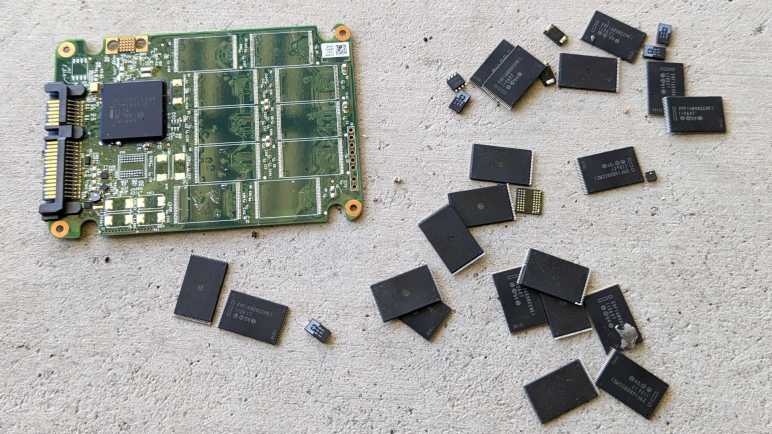
The whole point of secure data wipe (and lock) is to render all data safely inaccessible, so I should be good to stop. But why pass up a chance to play? Just like my previous decommissioned SSD, I’m going to remove those flash chips with my paint-stripping hot air gun. This blunt tool is unsuitable for electronics work if we want delicate devices to work again. But in this case, if the heat should damage a chip beyond repair, that would be a feature and not a bug.

A few minutes later, I had a loose jumble of flash memory and other chips. Even if the heat gun hasn’t destroyed the chips completely, anyone who wants to steal my data will need to figure out which chip went in which location. (I recommend they find a different hobby.)