Power Source Selection Jumper

I’m making a Wemos D1 Mini clone (with an ESP8266 at its heart) into a solar panel output voltage monitor. I plan to run it off the solar panel power as well, since it seems silly to involve another power source when it is already hooked up to one. However, having a buck converter supplying 3.3V to the ESP8266 means I need to avoid taking USB power at the same time. Having multiple voltage regulators on the same voltage plane is a bad thing. I don’t want to have dueling regulators when, for example, debugging over USB while it is connected to solar.

I know this is not a new problem, because every battery-powered USB device knows to switch between battery power and USB power. But I’m having trouble finding the right vocabulary to describe exactly my battery-less scenario. Using search terms like “isolating USB power” I usually find people who are trying to avoid ground loops for audio quality, or optical isolators for data, and other similar tasks which are useful but not the problem I’m trying to solve right now.

Momentarily stymied in my research, I switched over to devising my own manual solution. I’m routing the 3.3V output pin of my buck converter through a jumper on the circuit board. When the jumper is installed, the ESP8266 will run on the solar power it is measuring. When the jumper is removed, the module will run on USB power.

But I know myself, and I could not trust myself to remember to install/remove the jumper as the situation changes. Hence the next trick: placement of the jumper. I put it right next to the USB port so that the jumper could not be installed at the same time as the USB cable, ensuring that it is impossible to have both power sources active at the same time.

I think this mostly works, but I’m worried about the jumper pins. They are taller than I had expected and reach pretty close to the USB connector as we can see in this side view. When I plug/unplug the USB cable, I have to carefully avoid accidentally touching those pins. Accidentally shorting those pins would probably not damage the dev board, because electrically it is same as the jumper in place and at that point USB is not plugged in. However, touching the pin could connect voltage supply to ground and that might fry either the buck converter or something on my USB host, neither of which is ideal.

I didn’t like how accident-prone this design is, so I switched to plan B: cut the USB power line.

Setting Up ESP8266 Voltage Monitor

I’ve decided to start playing with an ESP8266 in a wireless data monitoring role. I plan to use it to measure power output of my little Harbor Freight solar array and log data into an InfluxDB database. The first draft will only deal with voltage, since I want to start with minimal hardware and the ESP8266 has only a single ADC channel.

In addition to the restriction of a single channel, the ESP8266 has an additional restriction that the voltage on this pin can only be from zero to one volt, a small sub range of its standard 3.3V signal. Since the analog in pin can’t be used for anything else, I learned many ESP8266 development boards went ahead and put a pair of voltage dividing resistors on board. Using my multi-meter I probed the lowest-bidder Wemos D1 Mini clone I purchased on Amazon (*) and found 220KΩ from the A0 pin on the dev board to ADC0 on the ESP8266 module then another 100KΩ to ground.

In a perfect world we would have 230KΩ and 100KΩ to divide 0-3.3V into 0-1V, but this is as close as we can get with commodity resistor values. Assuming going slightly over 1V would not damage the ESP8266, this just means we lose a little bit range if input voltage goes above 3.2V.

I will add to this, because I want to measure output of my solar panel, which has a much higher open circuit voltage. I’ve measured at a little over 20V. Reading online, the commonly quoted maximum voltage is 22V, which seems like a good target to design for. This means ideal additional resistance of 1880KΩ before connecting to A0 input pin. In the interest of keeping things simple with commodity resistor values, I’ll use two 1MΩ resistors in series and sacrifice a bit of resolution.

I want to power my sensor node from the same solar power it is measuring, which again can go up to >20V. The Wemos D1 Mini board has an onboard voltage regulator to take 5V USB power down to 3.3V required by the ESP8266. I can’t tell exactly what module it is, but I will assume it does not handle input voltage up to 22V. Instead I will pull another MP1584EN buck converter from the last batch I bought on Amazon.(*) I will configure it to output 3.3V and connect that to the 3.3V voltage plane on the Wemos D1 Mini.

Which leaves a problem: If I’m getting 3.3V supplied from the solar panel, it is important we do not connect to 5V USB power at the same time. Perhaps a switch is in order?


(*) Disclosure: As an Amazon Associate I earn from qualifying purchases.

Hello Wemos D1 Mini Clone

We can run the Arduino framework on an Espressif ESP8266 chip, but that was not its original purpose. It was originally designed as a WiFi bridge for small devices, handling wireless networking duties on behalf of another microcontroller. But as it turned out, the chip was more than capable to drive the whole show by itself for certain scenarios. Versions 1 and 2 of Pixelblaze, for example, ran on an ESP8266 even though my experience has been with the ESP32-based version 3. I haven’t had a project of my own where the ESP8266 made sense until the current InfluxDB logging project. It is time.

My electronics skill isn’t up to the level of directly using a bare ESP8266 chip. Using a module integrating ESP8266 chip with support circuitry (including a circuit board antenna) is close, but just beyond my comfort level. I went online looking for development boards for such modules and it appears many of them are clones of something called “Wemos D1 Mini“. A brief look at related web pages seem to indicate this rose to prominence alongside a development platform called NodeMCU. I don’t know which came first, the NodeMCU platform or the Wemos D1 Mini module, but they seem to be mentioned side by side in a majority of my search hits. Since I came into this project looking to use the Arduino core on an ESP8266 board, I’ll set aside the NodeMCU angle for now. I clicked “Buy” on a batch of Wemos D1 Mini clones from the lowest bidder of the day. (*)

When they arrived, I was pleasantly surprised to find that I had multiple options on connectors. The package came with three sets: I could have pins appropriate for a breadboard, or sockets appropriate for jumper wires, or passthrough connectors with both pins and sockets. And since none of them were pre-soldered on the board, I actually have a fourth option to “dead-bug” wire a circuit directly without any of those connectors. I think this will prove very useful to fit projects in tight spaces. Some people may gripe about having to heat up a soldering iron before this board is usable, and to them I shall point to this fishing line trick.

For my first ESP8266 project, I’ll stick with traditional pins, followed by mounting it in a perforated prototype board.


(*) Disclosure: As an Amazon Associate I earn from qualifying purchases.

Managed InfluxDB Arduino Client Access

While learning how to setup and run InfluxDB 2 in a docker container, I learned some administrative tasks require dropping to the command line. I had to do this by launching bash in a running instance via docker exec -it influxdb /bin/bash. I looked this up because creating less-privileged user accounts for non-administrative access had to be done in the command line, but it turns out InfluxDB manages access levels using authorization tokens and not user accounts. Creating a key with restricted permissions can be done within the UI and does not need the command line.

I wanted restricted access permissions for two main scenarios. The first ability is to add data to a specific table (sorry… um… measurement in InfluxDB terms) but unable to do other things like delete data. This is for my data sources, as I don’t want bugs in my data sources to corrupt or delete the database. The second ability is read-only access for analysis and displaying results. Again, I didn’t want a bug in a data dashboard to damage data.

Once I learned how to create these authorization keys scoped correctly to the minimum access necessary to fulfill a role, the next step is to use them. Looking over InfluxDB’s list of client libraries, I was fascinated to see Arduino listed among the expected list of programming languages. How does an ATMega328 talk to an InfluxDB instance? This got me really curious and clicked that link to a GitHub repository.

On the README.md I got my answer: this library is not for all Arduino boards, just the ESP8266 and ESP32 WiFi-enabled microcontrollers running their respective Arduino cores. Other Arduino platforms like Teensy or the original ATMega328 are excluded. I’ve played with the ESP32 for a bit and never had a real reason to look into its ESP8266 predecessor. This project will be the motivation to play with an ESP8266.

InfluxDB Investigation Skipping 1.x, Going Straight To 2.x

After I read enough to gain some working knowledge of how to use InfluxDB, it was time to get hands-on. And the first decision to make is: what version? The InfluxDB project made a major version breaking change not that long ago. And older projects like the Raspberry Pi Power Monitor project is still tied to the 1.x lineage of InfluxDB. Since this is an experiment, I would keep the footprint light by running InfluxDB in a Docker container. So when I looked on InfluxDB’s official Docker repository I was puzzled to see it had only 1.x releases. [Update: 2.x images are now available, more details below.] Looking around for an explanation, I saw the reason was because they did not yet have (1) feature parity and (2) a smooth automatic migration from 1.x to 2.x. This could mean bad things happening to people who periodically pull influxdb:latest from Docker Hub. While this problem was being worked on, InfluxDB 2 Docker images are hosted on quay.io/influxdb/influxdb instead of Docker hub.

I found it curious Docker didn’t have a standard mechanism to hold back people who are not ready to take the plunge for a major semantic version change, but I’m not diving into that rabbit hole right now. I have no dependency on legacy 1.x features, or a legacy 1.x database to migrate, or code using the old SQL-style query language. Therefore I decided to dive in to InfluxDB 2 with the knowledge I would also have to learn its new Flux query language that looks nothing like SQL.

Referencing the document Running InfluxDB 2.0 and Telegraf Using Docker, I quickly got a bare-bones instance of InfluxDB 2 up and running. I didn’t even bother trying to persist data on the first run: it was just to verify that the binaries would execute, and that the network ports were set up correctly so I could get into the administration UI to poke around. On the second run I mapped a volume to /root/.influxdbv2 so my data would live on after the container itself is stopped. Now all I need to do is to get some data to store!

[Update: After InfluxDB Docker Hub was updated to release version 2 binaries, the mapped volume path changed from /root/.influxdbv2 to /var/lib/influxdb2. See the InfluxDB Docker Hub repository for details under the section titled: Upgrading from quay.io-hosted InfluxDB 2.x image. In my case it wasn’t quite as straightforward. The migration was introduced in InfluxDB 2.0.4, but I got all the way up to 2.1.1 from quay.io before I performed this migration. A direct switch to 2.1.1 did not work: it acted as if I had a new InfluxDB instance and didn’t have any of my existing data. Trying to run 2.0.4 would fail with a “migration specification not found” error due to a database schema change introduced in 2.1.0. Fortunately, running 2.1.0 docker image appeared to do the trick, loading up all the existing data. After that, I could run 2.1.1 and still keep all my data.]

Docker compose file I used to run 2.1.1 image hosted on quay.io, data stored in the subdirectory “mapped” which is in the same directory as the docker-compose.yml file:

version: "3.8"

services:
  server:
    image: quay.io/influxdb/influxdb:2.1.1
    restart: unless-stopped
    ports:
      - 8086:8086
    volumes:
      - ./mapped/:/root/.influxdbv2/

Update: here’s the version to use latest Docker hub image instead:

version: "3.8"

services:
  server:
    image: influxdb:latest
    restart: unless-stopped
    ports:
      - 8086:8086
    volumes:
      - ./mapped/:/var/lib/influxdb2/

Learning InfluxDB Basics

I’ve decided to learn InfluxDB in a project using it to track some statistics about my little toy solar array. And despite looking at some super-overkill high end solutions, I have to admit that even InfluxDB is more high-end than I would strictly need for a little toy project. It will probably be fine with MySQL, but the learning is the point and the InfluxDB key concepts document was what I needed to start.

It was harder than I had expected to get to that “key concept” document. When someone visits the InfluxDB web site, the big “Get InfluxDB” button highlighted on the home page sends me to their “InfluxDB Cloud” service. Clicking “Developers” and the section titled “InfluxDB fundamentals” is a quick-start guide to… InfluxDB Cloud. They really want me to use their cloud service! I don’t particularly object to a business trying to make money, but their eagerness has overshadowed an actual basic getting started guide. Putting me on their cloud service doesn’t do me any good if I don’t know the basics of InfluxDB!

I know some relational database basics, but because of its time-series focus, InfluxDB has slightly different concepts described using slightly different terminology. Here are the key points, paraphrased from the “key concepts” document, that I used to make the mental transition.

  • Bucket: An InfluxDB instance can host multiple buckets, each of which are independent of the others. I think of these as multiple databases hosted on the same database server.
  • Measurement: This is the one that confused me the most. When I see “measurement” I think of a single quantified piece of data, but in InfluxDB parlance that is called a “Point”. In InfluxDB a “measurement” is a collection of related data. “A measurement acts as a container for tags, fields, and timestamps.” In my mind an InfluxDB “Measurement” is roughly analogous to a table in SQL.
  • Timestamp: Time is obviously very important in a time-series database, and every “Point” has a timestamp. All query operations will typically be time-related in some way, or else why are we bothering with a time-series database? I don’t think timestamps are required to be unique, but since they form the foundation for all queries, they have become de-facto primary keys.
  • Tags: This is where we start venturing further away from SQL. InfluxDB tags are part of a Point and this information is indexed. When we query for data within a time range, we specify the subset of data we want using tags. But even though tags are used in queries for identification, tags are not required to be unique. In fact, there shouldn’t be too many different unique tag values, because that degrades InfluxDB performance. This is a problem called “high series cardinality” and it gets a lot of talk whenever InfluxDB performance is a topic. As I understand it, it is a sign the database layout design was not aligned with strengths of InfluxDB.
  • Fields: Unlike Tags, Fields are not indexed. I think of these as the actual “data” in a Point. This is the data we want to retrieve when we make an InfluxDB query.

Given the above understanding, I’m aiming in the direction of:

  • One bucket for a single measurement.
  • One measurement for all my points.
  • “At 10AM today, solar panel output was 21.4 Watts” is a single point. It has a timestamp of 10AM, it is tagged with “panel output” and a field of “21.4 Watts”

With that goal in mind, I’m ready to fire up my own instance of InfluxDB. But first I have to decide which version to run.

Investigating Time Series Data

I’ve had a little solar power system running for a while, based on an inexpensive Harbor Freight photovoltaic array. It’s nowhere near big enough to run a house, but I can do smaller things like charge my cell phone on solar power. It’s for novelty more than anything else. Now I turn my attention to the array again, because I want to start playing with time series data and this little solar array is a good test subject.

The motivation came from reading about a home energy monitoring project on Hackaday. I don’t intend to deploy that specific project, though. The first reason is that particular project isn’t a perfect fit for my little toy solar array, but the real reason is that I wanted to learn the underlying technologies hands-on. Specifically, InfluxDB for storing time-series data and Grafana to graph said data for visualization.

Before I go down the same path, I thought I would do a little reading. Here’s an informative StackExchange thread on storing large time series data. InfluxDB was one of the suggestions and I’m sure the right database for the project would depend on specific requirements. Other tools in the path would affect throughput as well. I expect to use Node-RED for some intermediary processing, and that would introduce bottlenecks of its own. I don’t expect to be anywhere near hundreds of sampling points per second, though, so I should be fine to start.

The original poster of that thread ended up going with HDF5. This is something developed & supported by people who work with supercomputer applications, and again had very different performance requirements than what I need right now. HDF5 came up in a discussion on a revamped ROS logging format (rosbag) and it linked to some people unhappy with HDF5. So there are definitely upsides and downsides to that format. Speaking of ROS2… I don’t know where they eventually landed on the rosbag format. Here is an old design spec absent from the latest main branch, but I don’t know what eventually happened to that information.

While I’m on the subject, out of curiosity I went to look up what CERN scientists use for their data. This led me to something called ROOT, a system with its own file format. Astronomers are another group of scientists who need to track a lot of data, and ASDF exists to serve their needs.

It was fun to poke around at these high-end worlds, but it would be sheer overkill to use tools that support petabytes of data with high detail and precision. I’m pretty sure InfluxDB will be fine for my project, so I will get up to speed on it.

Disappointing Budget Keyboard Protector

I bought an Apple M1-powered MacBook Air laptop and bought a laptop cover to protect it against scratches and mild impacts. The hinge mechanism of this machine presents a challenge for case makers: there’s not much clearance to work with. Letting the lid open past 90 degrees is a tradeoff between protection and adding stress to the laptop joint. The first case I tried(*) had a very noticeable “bump” that my lid had to push past, and I worried about long term durability of the hinge under that stress. I then tried a different vendor (*), whose back corner (where the hinge is) is thinner and potentially more fragile but it put far less stress on the laptop hinge joint. Even though I could feel a bit of a bump as I open the lid, I decided to stay with this case which has worked very well over the past three months.

The same could not be said of the keyboard protector membrane that came bundled with the case. Historically I had not used such things and its inclusion did not factor in my case purchase decision. But since I got it anyway, I thought I would give it a try.

The good news: it is very good at its primary purpose of protecting the keyboard from small particles, like food crumbs that get dropped when I use the laptop while eating.

The neutral news: I had been worried about how it would change the keyboard feel. I’m a touch typist and particular about how my keyboard feel as I type. (I never got a “butterfly keyboard” MacBook for this reason.) And while the keyboard tactility definitely feels different, I did not find it objectionable. At least, at first.

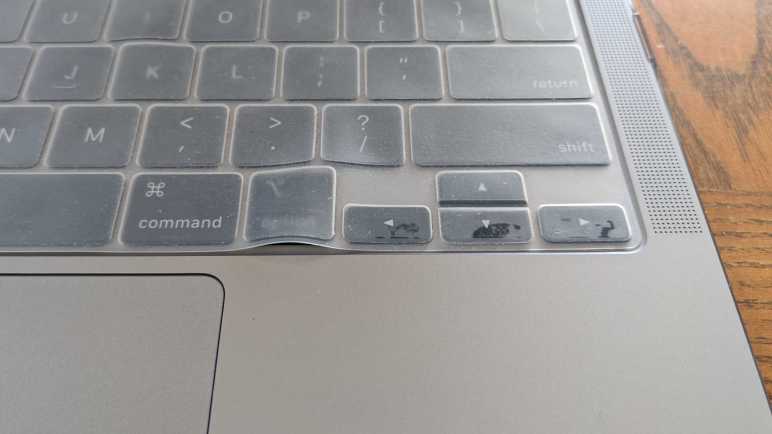
Now we come to the bad news, part one. After a few months, the membrane material starts exuding some kind of liquid. There doesn’t seem to be any odor and there’s very little of it, but it starts leaving blackened blotches where the liquid touches the keyboard and made the membrane more transparent than other areas. This looks bad and I worry about getting that stuff on my fingers. The membrane never gets tacky enough to stick to my fingers, but it still doesn’t feel good to the touch.

The bad news, part two, is in the flexible nature of the material. After using it for several months, the material has started to stretch. If I try to keep the shape aligned with the keyboard, the stretched portions would bulge up which looks bad. Plus when the laptop lid is closed, these bulges touch the screen and leave behind little spots of the aforementioned liquid.

If I smooth out the bulge so the membrane lies flat, its shape no longer align with the keys. This is especially obvious in the arrow keys in the corner, where the designated bumps for arrow keys are now 2-3mm further to the right than the actual keys themselves.

Due to this unsightly shape, black spots, and sticky sensation, I’m going to throw away this membrane. It was a low-cost test so no big loss. But if I ever get serious about putting protectors on my keyboard I know to either (1) look for higher quality material or (2) budget for frequent replacement.

Microwave Water Heating Tests

Microwave ovens have become a fixture in kitchens, offering a convenient way to heat or reheat foods quickly and efficiently. Internet opinions on their expected lifespan range somewhere from seven to ten years. Recently, my reheated leftovers occasionally came out cooler than expected. Is my microwave failing?

As always, the first step is to find documentation. Looking at the manufacturer’s plate at the back, I find it is a Sharp R-309YK. A PDF manual for R-309Y model line is available for download from Sharp. (The “K” at the end designated the color, which is black in my case.) I had hoped the manual would have a “Troubleshooting” section, as appliance manuals sometimes do, but not this one. The identification plate also said the microwave was manufactured in December 2014. Since we’ve passed the seven-year anniversary, a failure would be unfortunate but not completely unreasonable.

Absent a troubleshooting section in the manual, I went online and found several tests for microwave effectiveness by heating water. In increasing order of credibility in my book, the results were:

Test #1: Wikihow = Fail

This test heats two cups of water on high for one minute and measures the temperature difference before and after. A healthy microwave is expected to raise the temperature by 35 to 60 degrees Fahrenheit. Using my food thermometer I measured the starting temperature at 64.9F, ended at 90.0F, for a rise of 25.1F. This is lower than the accepted range.

Test #2: GE Appliances = Pass

This test doubles the amount of water to one quart, and more than doubles the heating time to two and a half minutes. Despite proportionally longer heating time, this test had lower expectation on heating with a target range of 28 to 40 degrees Fahrenheit. My test started at 69F and ended at 34F, right in the middle of the target range.

Test #3: USDA = Pass

This test is a little different than the other two. The quantity of water is smaller: only one cup, but the heating procedure is different. Instead of measuring temperature rise over a fixed time duration, we are going from freezing to boiling temperatures and measuring the time elapsed. The water started showing small bubbles at two and a half minutes, and a full roiling boil at three minutes. Based on a lookup chart accompanying this test, this is consistent with a microwave in the range of 700 to 800 Watts. Lower than the advertised 1000 Watt but still within the usable range.

Result: Two Out of Three

My microwave passed two of three tests. Furthermore, since I place more credibility with USDA and GE than whoever authored the Wikihow article, I’m inclined to put more weight in those results. It appears that my microwave is functional, at least nominally. But then how might I explain the lower-than-expected heating I experienced?

Unknown Cycling

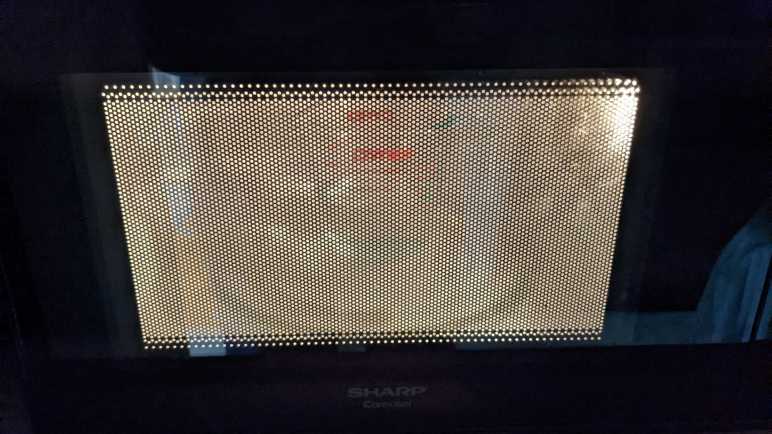
The best guess is a behavior difference I noticed during these tests. They are all heating water on high power setting, which means everything should be running at full power at all times. But during normal use, something is cycling on-and-off. I could hear a change in sound, and the interior light would flicker. The magnetron is expected to cycle on-and-off during a partial power reheat, but not when it is set to full power.

Looking online for potential explanations, I read the magnetron may turn off for a few seconds if it got too hot. This could happen, for example, when there’s not quite enough food in the microwave to absorb all the energy. If that was the case, however, I thought my food would be piping hot. My current hypothesis: something is triggering a self-protection mode during normal use, but not during these water heating tests. I’ll keep my eyes open for further clues on microwave behavior… and also keep my eyes open for discounts on 1000-Watt microwaves.

Convert Nexus 5 To Use External DC Power

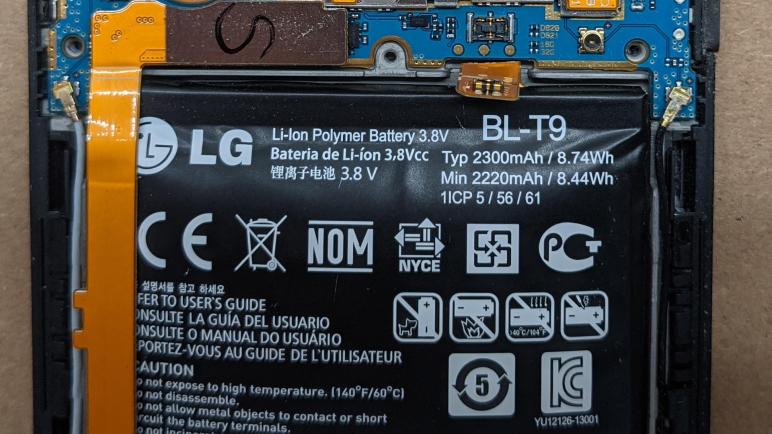
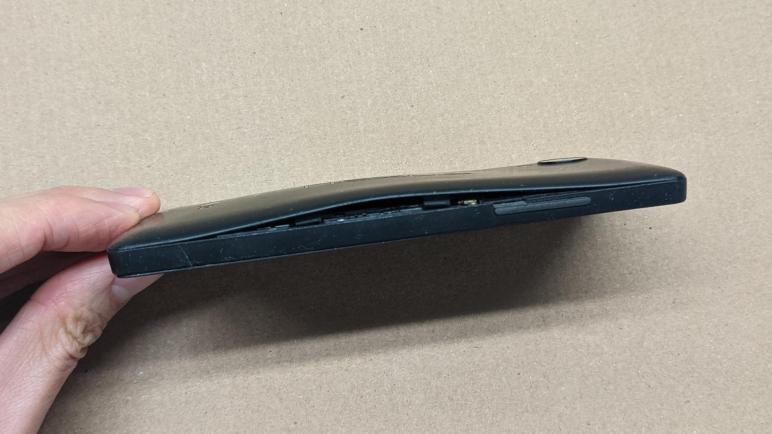
I just took apart a BL-T9 battery module from my old Nexus 5 cell phone. I had removed it as a precaution since its internal chemical situation had degraded, puffing up and pushing itself out of the phone. Even though the phone still seemed to work (or at least it would boot up) a puffed-up lithium-ion polymer battery is not a good situation.

But now I have an otherwise functional cell phone without a battery. It would be a shame to toss it in the e-waste, but it needs a power source to do more than just gathering dust. The first experiment was to see if the phone would run on USB power with the battery removed, and that was a bust. Trying to turn the phone on would show the low battery icon and then the screen goes dark again.

I then looked online for a replacement battery. (*) They range from a very poorly reviewed $10 unit on Amazon, up through the $35-$50 range. But did I want to spend that money? I don’t really need this device to be portable and battery-powered anyway. It’s more likely to go the way of my HP Stream 7 and become an always-on externally powered display, something I’ve tried earlier and plan to revisit in the future.

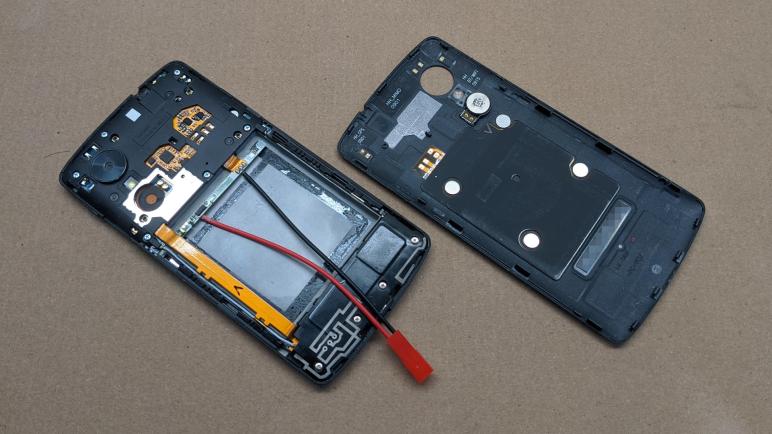
With my HP Stream 7 power experiments fresh on my mind, I decided to convert this device to run on external DC power as well. It won’t have a battery to buffer spikes in power draw, but that might be fine. An Android phone has lower power demand than a Windows tablet. For starters, I wouldn’t be plugging in external USB peripherals. Also with the HP experience in mind, I expect there are device drivers in its Android system image that expects to communicate with the chip in the battery module. So I’ll keep that module in the circuit and solder a JST-RCY connector where the battery cell terminals used to be. As a quick test, and one last farewell to the old puffy battery cell, I connected it to the JST-RCY connector. This electrically replicated original arrangement so I could verify everything still worked. I pushed the power button and there was no response. Oh no!

I mentally explored some possibilities: perhaps there is a thermal fuse on board the circuit board that killed the connection when it sensed the heat of my soldering iron. Or perhaps the chip would refuse to power up if the battery voltage ever sank to zero. As an experiment I plugged in USB power again, and I was presented with the battery charging animation. Pushing the power button now booted up the phone. Conclusion: if the battery had been disconnected and reconnected, a Nexus 5 requires USB power to jump start the cold boot process.

With the system verified to function (and learning the cold startup procedure with USB power) I disconnected the puffy battery for disposal. I replaced it with a MP1584EN DC voltage buck converter module (*) I adjusted to output 4.2V simulating a fully charged battery. I also added an electrolytic capacitor in the hope of buffering spikes in power draw. After using USB power for cold start, the Nexus 5 was content to run in this configuration for over a week. Perfectly happy to believe it was running on a huge battery the whole time.


(*) Disclosure: As an Amazon Associate I earn from qualifying purchases.

Nexus 5 BL-T9 Battery Teardown

Sitting in my pile of old electronics, my Nexus 5 battery’s internal chemistry has started doing something that made it puff up like a balloon. I removed the battery as soon as I noticed the symptom and thought it might be fun to take a look inside the battery module. The module might be just some packaging around a bare lithium polymer pouch, or it might be something more. It was the latter.

I peeled away the external plastic sheet and saw a small circuit board between battery terminal tabs and the phone. Looking at the phone connector, I see four electrical contacts. The two larger contacts are likely to be power and ground, two smaller pins would be consistent with data and clock for I2C or another communication protocol. However, looking closer I saw the bottom center contact is electrically connected to the large right contact, for three usable pins leaving one for communication.

This side of the circuit board also had a few bits of information silkscreened on it. BL-T9 is the name of this battery pack. UL94V-O probably refers to Underwriters Laboratories standard for device flammability. The remainder of information “NXCT 50 31” are a mystery, possibly PCB design revision numbers. The black ink printed “F9 DA” is probably a manufacturing lot number or identifier of similar purpose.

Looking at the other side of the circuit board, there are only three soldering points on the phone connector which is consistent with what we saw earlier. To its left is a silkscreened “LI176AH” and in this context it’s tempting to think it means “Lithium Ion” battery of a particular “Amp-Hour” rating, but 176 doesn’t correspond to the 2.2AH printed on the outside label so it must mean something else.

Further left on this circuit board, I see a small chip labeled “SP45AE A41711” but a search on that designation came up empty. Continuing left we see a few test points, and something I don’t recognize labeled with a “P”. It looks like a tiny circuit board with visible traces, soldered to the larger circuit board. Probing contacts accessible on either side of the “P” gave a resistance reading of 0.2Ω. My best guess is a shunt resistor for measuring electrical current flow, or possibly a fuse. (Which is also a sensor for electrical current, technically speaking.)

This was all very interesting, but retiring this battery also meant I had a phone with no battery. So I will convert it to run on external DC power.

Degraded Nexus 5 Battery Demands Immediate Removal

I’m happy I found a way to make use of the HP Stream 7 tablet, though I have no immediate use for it so I jotted down some notes before putting it away in my pile of old hardware. When I did so, I found an unpleasant surprise in that pile: my old Nexus 5 cell phone shows signs of lithium battery degradation. It has puffed up, pushing against the back panel of the phone and popping a few clips loose. This is not good. I don’t know how long it’s been in this state, but I need to pay immediate attention.

With the first few retaining clips popped loose by the puffy battery, it was relatively simple to pop the remainder loose in order to remove the back panel. However, more disassembly is necessary before the battery could be (nicely) removed.

Further disassembly meant removing six screws holding this inner shield.

Once that inner shield was removed, I could disconnect the data cable running between the top and bottom halves of the phone, and I could electrically disconnect the battery. Mechanically, the battery itself is held by adhesive strips. The puffiness pulled some loose, but the remainder required some persuasion to release. I used a bit of thin clear plastic cut from some thermoformed product packaging.

The battery has puffed up roughly triple of its original thickness. No wonder it didn’t fit inside the phone anymore.

I’m glad I was able to remove the problematic battery before it expressed its degradation in unwanted and exciting ways. (Fire? Maybe fire.) But now I have removed the battery, I might as well take a closer look.

Miscellaneous Notes on HP Stream 7 Installation

My old HP Stream 7 can now run around the clock on external power, once I figured out I needed to disable its battery drivers. Doing so silenced the module that foiled my previous effort. (It would raise an alert: “the tablet has run far longer than the battery capacity could support” and shut things down.) Ignoring that problematic module, remaining drivers in the same large Intel chipset driver package allowed the machine to step down its power consumption. From ten watts to under two watts, even with the screen on. (Though at minimum brightness.) Quite acceptable and I’m quite certain I’ll repurpose this tablet for a project in the future. In the meantime, I wanted to jot down some notes on this hardware as reference.

The magic incantation to get into boot select menu (getting into BIOS, reinstalling operating system, and other tools) is to first shut down the tablet. While holding [Volume Down], hold [Power] until the HP logo is visible. Release power immediately or else it might trigger the “hold power for four seconds to shut off” behavior. (This is very annoying.) The boot select menu should then be visible along with on-screen touch input to navigate without a keyboard.

There are many drivers on the HP driver downloads site. Critical for optimized power consumption — and majority of onboard hardware — is the “Intel Chipset, Graphics, Camera and Audio Driver Pack”. I also installed the “”Goodix Touch Controller Driver” so the touchscreen would work, but be warned: this installer has a mix of case-sensitive and case-insensitive code which would fail with a “File Not Found” error if the directory names got mixed up. (/SWSetup/ vs /swsetup/)

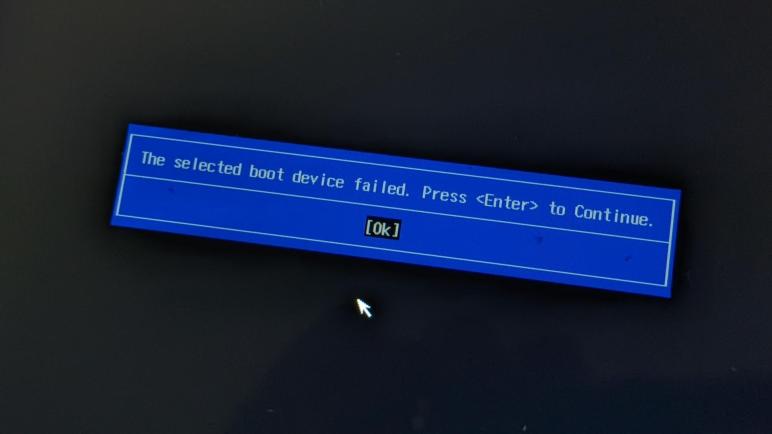
The available drivers are for Windows 8 32-bit (what the machine came with) and Windows 10 32-bit (what it is successfully running now.) The machine is not able to run 64-bit operating system despite the fact its Intel Atom Z3735G CPU is 64-bit capable. I don’t know exactly what the problem is, but when I try to boot into 64-bit operating system installer (true for both Windows 10 and Ubuntu) I get the error screen

The selected boot device failed. Press <Enter> to Continue.
[Ok]

Which reminds me of another fun fact: this machine has only a single USB micro-B port. In order to use USB peripherals, we need a USB OTG adapter. Which is good enough for a bootable USB drive for operating system installation… but then I need to press [Ok] to continue! The usual answer here is to use an USB hub so I could connect both the bootable OS installer and a keyboard. There’s actually no guarantee this would work: it’s not unusual for low-level hardware boot USB to support only root-level devices and not hubs. Fortunately, this tablet supported a hub to connect multiple USB devices allowing bootable USB flash driver for operating system installation to coexist with USB input devices to navigate a setup program.

I’ll probably need some or all of these pointers the next time I dig this tablet out of my pile of hardware. For now, I return it to the pile… where I noticed an unpleasant surprise.

Disable HP Stream 7 Battery Drivers When Externally Powered

I gave up trying to run my HP Stream 7 tablet on external DC power with the battery unplugged. The system is built with a high level of integration and it has become unreliable and too much of a headache to try running the hardware in a configuration it was not designed for. So I plugged the battery back in and installed Windows 10 again. And this time, the Intel chipset driver package installed successfully.

This was a surprise, because I thought my driver problems were caused by hardware I damaged when I soldered wires for direct DC power. Plugging in the battery allowed these drivers to install. And the driver package is definitely doing some good, because idle power draw with screen on minimum brightness has dropped from nearly 10W to just under 2W. This is a huge improvement in power efficiency!

So I wanted the drivers for low power operation, but maybe I don’t need every driver in the package. I went into device manager to poke around and found the key to my adventure: The “Batteries” section and more importantly the “Micro ACPI-Compliant Control Method Battery” device. This must have been the driver that rendered the system unbootable once I unplugged the battery — as an integrated system, there’s no reason for the driver to account for the possibility that the user would unplug the battery!

But now that I see this guy exists, I think perhaps it is part of the mechanism that outsmarted me and was skeptical running on external power. I disabled the drivers in the “Batteries” section and rebooted. I reconnected the external power supply keeping battery at 3.7V. Disabling the battery power related drivers were the key to around-the-clock operation. With the battery device absent from the driver roster, there’s nothing to tell the system to shut down due to low battery. But since the battery hardware is present, the driver package could load and run and there’s something to buffer sharp power draws like plugging in USB hardware. This configuration was successful running for a week of continuous operation.

Drawing a modest two watts while idle, this tablet can now be used as anything from a data dashboard, to a digital picture frame, or any other project I might want to do in the future. I don’t know what it will be yet, but I want to make sure I write down a few things I don’t want to forget.

HP Stream 7 Really Wants Its Battery

I’ve been trying to get a HP Stream 7 tablet running in a way suitable to use as a future project user interface or maybe a data dashboard. Meaning I wanted it to run on external power indefinitely even though it could not do so on USB power alone. When I supplied power directly to the battery it would shut down after some time. The current session deals with disconnecting the battery and feeding the tablet DC directly, but this machine was designed to run with a battery and it really, really wanted its battery.

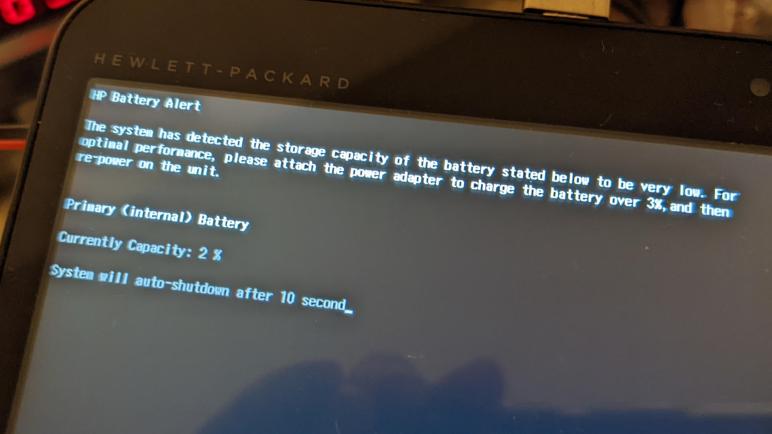
While I could feed it DC power and it would power up, it would intermittently complain about its battery being very low. This must be in hardware because it would occur when booting into either Windows or a Debian distribution of Linux. This shouldn’t be an input voltage problem, as my bench power supply should be keeping it at 3.7V. But there’s something trigging this error message upon startup and I have to retry rebooting several times before operation would resume:

HP Battery Alert

The system has detected the storage capacity of the battery stated below to be very low. For optimal performance, please attach the power adapter to charge the battery over 3%, and then re-power on the unit.

Primary (internal) Battery

Currently Capacity: 2 %

System will auto-shutdown after 10 second

Perhaps my bench power supply isn’t as steady as I assume it is. Perhaps there are problems keeping up with changes in power demand and that would occasionally manifest as a dip in voltage that triggers the battery alert. Another symptom that supports the hypothesis is the fact I couldn’t use USB peripherals while running on the bench power supply. When I plug in a USB peripheral, the screen goes black and the system resets, consistent with a power brownout situation.

So to make the hardware happy and to support sudden spikes in power requirements, I really need to plug the battery back in. Trying to run without battery was a fun experiment but more importantly it gave me an idea on running this tablet on continuous external power: silence the battery driver.

HP Stream 7 Running Debian with Raspberry Pi Desktop

My HP Stream 7 seems to be having problems with a Windows device driver, but the problematic driver is somewhere in a large bundle of Intel chipset related drivers. For another data point I thought I would try an entirely different operating system: Debian with Raspberry Pi Desktop. Also, because I thought it would be fun.

Debian with Raspberry Pi Desktop is something I encountered earlier when looking for Linux distributions that are familiar to me and built for low-end (old) PC hardware left behind by mainline Ubuntu builds or even Chrome OS. The HP Stream 7 tablet fit the bill.

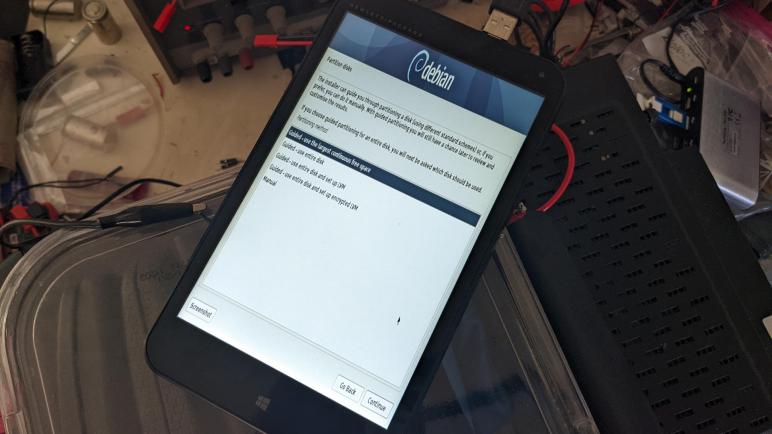
One amusing note is that since HP Stream 7 is formally a tablet, the default resolution is portrait-mode which means taller than it is wide. Unlike the Windows installer which knew to keep to the middle of the screen, the Debian installer scaled to fit the entire screen making for some very difficult to read tall narrow text.

Once up and running, the Debian with Raspberry Pi desktop ran on this tablet much as Raspberry Pi runs its Raspberry Pi OS, except this configuration is comparable to a fresh installation of Windows: many devices didn’t have drivers for proper function. I disabled Secure Boot in order to access non-mainline device drivers, which is thankfully straightforward unlike some other PCs of the era I had played with. But even then, many drivers were missing. Video and WiFi worked, but sound did not. A pleasant surprise was that the touchscreen worked as input, but only at the default orientation. If I rotate the desktop, the touchscreen did not adjust to fit. And while an idle Debian drew less power (~8W) than plain vanilla Windows (~10W) it is still significantly worse than this tablet running at its best.

Seeing Debian with Raspberry Pi Desktop run on this tablet was an amusing detour and possibly an option to keep in mind for the future. On the upside, at no point did Debian complain that the battery is low, because the operating system didn’t think there was a battery at all. The hardware, however, really misses the battery’s absence.

HP Stream 7 Reboot Loop Linked to Intel Chipset Windows Driver

I disconnected the battery on my HP Stream 7 tablet and soldered wires to put power on its voltage supply lines. The good news is that the tablet would start up, the bad news is that Windows couldn’t complete its boot sequence and gets stuck in a reboot loop. After a few loops, Windows notices something is wrong and attempted to perform startup repair. It couldn’t fix the problem.

My first thought was that I had damaged a component with my soldering. A small tablet has tiny components and I could have easily overheated something. But portions of the computer is apparently still running, because I could still access the Windows recovery console and boot into safe mode. But I didn’t have any idea on what to do to fix it while in safe mode.

Since there were no data of consequence on this tablet, I decided to perform a clean installation of Windows. If it succeeds, I have a baseline from which to work from. If it fails, perhaps the failure symptoms will give me more data points to diagnose. A few hours later (this is not a fast machine) I was up and running on Windows 10 21H2. Basic functionality seemed fine, which was encouraging, but it also meant the machine was running in unoptimized mode. The most unfortunate consequence is that the tablet runs hot. The power supply indicates the tablet is constantly drawing nearly 10 Watts, no matter if the CPU is busy or idle. A basic Windows installation doesn’t know how to put machine into a more power efficient mode, putting me on a search for drivers.

Since the tablet is quite old by now (Wikipedia says it launched in 2014) I was not optimistic, but I was pleasantly surprised to find that HP still maintains a driver download page for this device. Running down the list looking for an Intel chipset driver, I found a bundled deal in the “Intel Chipset, Graphics, Camera and Audio Driver Pack“. It sounded promising… but during installation of this driver pack, the tablet screen went black. When I turned it back on, the dreaded reboot loop returned. Something in this large package of Windows drivers is the culprit. Maybe I could try a different operating system instead?

Direct DC Power on HP Stream 7 Renders Windows Unbootable

While spending way too much time enjoying the game Hardspace: Shipbreaker, I was actually reminded of a project. In the game, safely depowering a ship’s computers involve learning which power systems are on board and disconnecting them without electrocuting yourself. It got me thinking about my old HP Stream 7 tablet that couldn’t run indefinitely on USB power and refused to believe an illusion of free energy when I supplied power on the lithium-ion battery cell. I thought it might be interesting to see what would happen if I disconnected the battery and supplied DC power directly.

My hypothesis is that the earlier experiment was foiled by the battery management PCB, it was too smart for its own good and realized the tablet had consumed far more capacity than its attached battery cell had any business providing and shutting the computer down. By disconnecting that PCB, perhaps the doubting voice would be silenced.

To test this idea, I would need to find the power supply and ground planes on the circuit board. I could solder directly to the empty battery connector, but that would make it impossible to plug the battery back in and was too drastic for my experiment. I could see pads underneath the connector clearly labeled VBAT + and – but I couldn’t realistically solder to them without damaging the connector either.

Taking my multi-meter, I started probing components near that battery connector for promising candidates. The search didn’t take long — the closest component had pads that connected to the voltage planes I wanted. I had hoped to find a decoupling capacitor nearby, but this doesn’t look like a capacitor. With a visible line on one side, it looks like a diode connected the “wrong” way. Perhaps this protects the tablet from reverse voltage: if VBAT +/- were reversed, this diode would happily short and burn out the battery in the interest of protecting the tablet.

Whatever its actual purpose, it serves my need providing a place to solder wires where I can put 3.7V (nominal voltage for single lithium-polymer battery cell) to power the tablet while its original battery is unplugged.

Good news: The machine powers up!

Bad news: Windows doesn’t boot anymore!

I could see the machine boot screen with the HP logo, and I could see the swirling dots of Windows starting up. But a few seconds later, the screen goes blank. We return to the HP logo, and the process repeats. Time to diagnose this reboot cycle.


UPDATE: Comment by Craig pointed to this project, which directly soldered 5V supply not to the mainboard but to the battery management circuit board (without battery.) https://www.instructables.com/Run-HP-Stream-7-Tablet-Without-a-Battery/

Notes on “Hardspace: Shipbreaker” 0.7

I have spent entirely too much time playing Hardspace: Shipbreaker, but it’s been very enjoyable time spent. As of this writing, it is a Steam Early Access title and still in development. The build I’ve been playing is V.0.7.0.217552 dated December 20th, 2021. (Only a few days before I bought it on Steam.) The developers have announced their goal to take it out of Early Access and formally release in Spring 2022. Comments below from my experience do not necessarily reflect the final product.

The game can be played in career mode, where ship teardowns are accompanied by a storyline campaign. My 0.7 build only went up to act 2, the formal release should have an act 3. Personally, I did not find the story compelling. This fictional universe placed the player as an indentured servant toiling for an uncaring mega-corporation, and that’s depressing. It’s too close to the real world of capitalism run amok.

Career mode has several difficulty settings. I started with the easiest “Open Shift” that removes the stress of managing consumables like my spacesuit oxygen. It also removes the time limit of a “shift” which is fifteen minutes. After I moved up to “Standard” difficulty, the oxygen limit is indeed stressful. But I actually started appreciating the fifteen-minute limit timer because it encourages me to take a break from this game.

Whatever the game mode (career, free play or competitive race) the core game is puzzle-solving: How to take apart a spaceship quickly and efficiently to maximize revenue. My workspace is a dockyard in earth orbit, and each job takes apart a ship and sort them into one of three recycle bins:

  1. Barge: equipment kept intact. Examples: flight terminal computers, temperature control units, power cells, reactors.
  2. Processor: high value materials. Examples: exterior hull plates, structural members.
  3. Furnace: remainder of materials. Example: interior trim.

We don’t need to aim at these recycle bins particularly carefully, as they have an attraction field to suck in nearby objects. Unfortunately, these force fields are also happy to pull in objects we didn’t intend to deposit. Occasionally an object would fall just right between the bins and they would steal from each other!

I haven’t decided if the hungry processors/furnaces is a bug, or an intended challenge to the game. There are arguments to be made either way. However, the physics engine in the game exhibit behavior that are definitely bugs. Personally, what catches me off guard the most are small events with outsized effects. The most easily reproducible artifact is to interact with a large ship fragment. Our tractor beam can’t move a hull segment several thousand kilograms in mass. But if we use the same tractor beam to pick up a small 10 kilogram component and rub it against the side of the hull segment, the hull segment starts moving.

Another characteristic of the physics engine is that everything has infinite tensile strength. As long as there is a connection, no matter how small, the entire assembly remains rigid. It means when we try to cut the ship in half, each half weighting tens of thousands of kilograms, we could overlook one tiny thing holding it all together. My most frustrating experience was a piece of fabric trim. A bolt of load-bearing fabric holding the ship together!

But at least that’s something I can look for and see connected onscreen. Even more frustrating are bugs where ship parts are held together by objects that are visibly apart on screen. Like a Temperature Control Unit that doesn’t look attached to an exterior hull plate, but it had to be removed from its interior mount at which point both the TCU and the hull are free to move. Or the waste disposal unit that rudely juts out beyond its allotted square.

Since the game is under active development, I see indications of game mechanics that was not available to me. It’s not clear to me if these are mechanisms that used to exist and removed, or if they are promised and yet to come. Example: there were multiple mentions of using coolant to put out fires, and I could collect coolant canisters, but I don’t see how I can apply coolant to things on fire. Another example: there are hints that our cutter capability can be upgraded, but I encountered no upgrade opportunity and must resort to demolition charges. (Absent an upgrade, it’s not possible to cut directly into hull as depicted by game art.) We also have a side-quest to fix up a little space truck, but right now nothing happens when the quest is completed.

The ships being dismantled are one of several types, so we know roughly what to expect. However, each ship includes randomized variations so no two ships are dismantled in exactly the same way. This randomization is occasionally hilarious. For example, sometimes the room adjacent to the reactor has a window and computers to resemble a reactor control room. But sometimes the room is set up like crew quarters with chairs and beds. It must be interesting to serve on board that ship, as we bunk down next to a big reactor through the window and its radioactive warning symbols.

There are a few user interface annoyances. The “F” key is used to pick up certain items in game. But the same key is also used to fire a repulsion field to push items away. Depending on the mood of the game engine, sometimes I press “F” to pick up an item only to blast it away instead and I have to chase it down.

But these are all fixable problems and I look forward to the official version 1.0 release. In the meantime I’m still having lots of fun playing in version 0.7. And maybe down the line the developers will have the bandwidth to explore putting this game in virtual reality.

Spaceship Teardowns in “Hardspace: Shipbreaker”

While studying Unity’s upcoming Data-Oriented Technology Stack (DOTS) I browsed various resources on the Unity landing page for this technology preview. Several game studios have already started using DOTS in their titles and Unity showcased a few of them. One of the case studies is Hardspace:Shipbreaker, and it has consumed all of my free time (and then some.)

I decided to look into this game because the name and visuals were vaguely familiar. After playing a while I remembered I first saw it on Scott Manley’s YouTube channel. He made that episode soon after the game was available on Steam. But the game has changed a lot in the past year, as it is an “Early Access Game” that is still undergoing development. (Windows only for now, with goal of eventually on Xbox and PlayStation consoles.) I assume a lot of bugs have been stamped out in the past year, as it has been mostly smooth sailing in my play. It is tremendously fun even in its current incomplete state.

Hardspace:Shipbreaker was the subject of an episode of Unity’s “Behind the Game” podcast. Many aspects of developing this game were covered, and towards the end the developers touched on how DOTS helped them solve some of their performance problems. As covered in the episode, the nature of the game means they couldn’t use many of the tried-and-true performance tricks. Light sources move around, so they couldn’t pre-render lights and shadows. The ships break apart in unpredictable ways (especially when things start going wrong) there can be a wide variation in shapes and sizes of objects in the play area.

I love teardowns and taking things apart. I love science fiction. This game is a fictional world where we play a character that tears down spaceships for a living. It would be a stretch to call this game “realistic” but it does have its own set of realism-motivated rules. As players, we learn to work within the constraints set by these rules and devise plans to tear apart these retired ships. Do it safely so we don’t die. And do it fast because time is money!

This is a novel puzzle-solving game and I’m having a great time! If “Spaceship teardown puzzle game” sounds like fun, you’ll like it too. Highly recommended.

[Title image from Hardspace: Shipbreaker web site]