Choosing a VR Headset in 2023

I broke my HP Windows Mixed Reality headset I bought five years ago in 2018. I made a repair effort, but the results are questionable with risk of electrical faults. I’m not comfortable risking damage to an expensive video card but I also appreciated having an excuse to upgrade.

A lot has changed in those five years. Most 3DOF VR garbage have faded away as the market realized that they sucked. Facebook poured a lot of money into virtual/augmented reality, including buying Oculus, spurring investment from others as well. Oculus launched the 3DOF Go headset (not interesting) followed by the 6DOF Quest headset (worth considering). Now we have the relatively affordable Quest 2 and the high-end Quest Pro. Both of which has onboard computing power to run standalone: no tether to break! But there are limitations to standalone operation: software-wise, we are limited to Oculus walled garden of applications, and graphics are limited by onboard hardware that are closer to phones than PCs. Fortunately Steam VR compatibility and better graphics fidelity can be had by using them as tethered PC VR headsets.

HTC, the other half of old PC VR duopoly, still exists and continues to evolve their line, releasing products across a price range that doesn’t dip as low as Quest 2 at the low end but definitely gets to Quest Pro on the high end. As far as I can tell, evolution has been incremental improvements without any significant innovation like Quest and their standalone operating ability.

Microsoft’s Windows Mixed Reality initiative seems to have lost momentum. After a flurry of headsets from multiple manufacturers five years ago, only Acer and HP released follow-up products. And it’s not just hardware releases that have dried up: I haven’t seen anything notable on the software front, either. Certainly nothing as notable as Oculus’ exclusives. I had really hoped Microsoft would port some variation of their Mars rover software from high-end Hololens to more affordable WMR headsets, but that never happened. It’s a good thing WMR headsets are compatible with Steam VR, because that’s where I’ve been spending my VR time.

I don’t think I’ve spent 1582 hours, though. That multiplies out to over two months. Searching online, I found many people complain Steam overcounts VR usage time. I’m going to blame that, because I really doubt I’ve spent two out of past sixty months of my life in VR. (Or if it is true, I don’t want to believe it.)

If I’m spending all my time in Steam VR anyway, then the obvious candidate is Valve Index who counts Steam VR as its home turf. It is a very well-reviewed headset with a notable innovation in handheld controller design. After evaluating the tradeoffs against other options on the market, I bought a Valve Index.
Damaged HP Windows Mixed Reality Headset Tether

In the middle of 2018, I bought a HP Windows Mixed Reality headset (VR1000-100) and it’s been a lot of fun. It lived up to the promise I saw in 2014 from an Oculus DK2 (Development Kit 2) headset, which set a bar never met by a long series of lackluster phone-based VR systems. Which got a little of play then set aside and never used again. I was far more entertained by the HP WMR headset and its 6DOF tracking for superior immersion. I’ve been using it on-and-off over the past several years to the point I needed to replace worn out soft foam parts. But that was small potatoes compared to what happened a few weeks ago: plugging a disconnected tether cable back into the headset, something went wrong and damaged the connector. I went to my workbench for a closer look under better lighting.

I see damage in the outermost metal shield, with a corner of the metal bent pack. I see damage in the black plastic with pieces at the bottom of the well, instead of the sides where they belong. And the worst part: 6-8 thin copper pins bent out of place.

Based on damage, I have a guess on the sequence of events: In the middle of a game, I stepped on the tether and this connector popped free to relieve the sudden strain and keep it from doing damage elsewhere. Falling away from the headset, this connector struck something that bent an exposed corner of the metal shield. Not realizing this damage and eager to get back to my game, I plugged the connector back in. The damaged metal shield made contact and started bending outward. As it bent it also acted as a lever pushing the black plastic and copper connectors inward. They made contact with the other end of this connector but in the wrong shape, resulting in shattered plastic and bent pins.

As this device is long out of support from HP, I headed to eBay to see what I could find. I found a few pairs of controllers, some complete sets purported to be in working condition, and many headsets with some variation of “Not working, for parts only: broken cable.” I guess this is a common failure for these headsets! I had hoped to find an aftermarket replacement cable, but no luck. And I’m not going to spend hundreds of dollars for a secondhand set, I’d rather put that money towards a newer VR headset.

Back to the workbench, I thought I had nothing to lose by trying to repair the connector. I pulled out a set of fine-tipped tweezers. They were designed for SMD work but they were also able to reach inside this connector to pull out pieces of shattered plastic and bend pins back into an approximation of their intended positions. The 7-8 bent pins no longer had plastic backing to apply pressure for optimal electrical conductivity, but they were close to their intended locations and maybe it’s good enough.

Using needle-nosed pliers, I tried to bend the outer metal shield back, but I could not return it to its original shape. Eventually metal fatigue was victorious with the tab breaking off entirely. I accepted my defeat and switched tactics: I filed down remaining jagged edge after adding some tape to protect conductors from metal shavings.

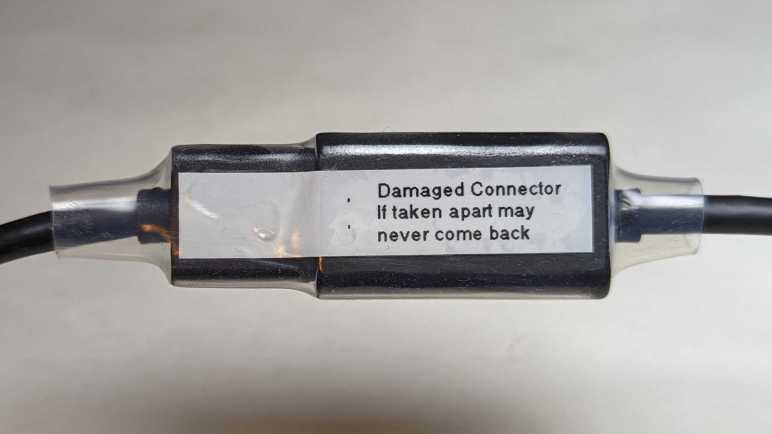
I carefully plugged this connector back in and there were no untoward crunching sensation or sound. I’m pretty sure this connector should never be separated again. I added a label to remind me and then securing the connector with a length of clear heat shrink tube.

I started this experiment thinking I had nothing to lose but, when I had the HDMI plug in my hand reaching to plug it into the computer, I realized I did have something to lose: the computer. What if one or more of these pins were out of place? What if some metal file shavings got into the works despite my taped protection? If I’ve accidentally shorted power to ground, that would do bad things.

Looking in my pile of PC hardware, I reassembled the guts of my decommissioned Luggable PC Mark II. This time I used a proper PC case and so I could plug Radeon R9 380 video card directly into mini-ITX motherboard without the problematic PCI-Express extension cable. This old Radeon R9 380 does not meet minimum system requirements for VR, but it is still a modestly capable GPU and I wouldn’t cry (too much) if it dies.

Plugging the headset into the R9 380, the good news is that an image came up and everything seems to work. The bad news is that I now have this doubt in my mind about the quality of my repair. Yes, it seems to work now, but is it solid or is it marginal? What if one of those loosely-flapping pins start moving around as I am wearing the headset moving around in virtual reality? I am still at risk for electrical faults that can kill an expensive video card. I don’t like it, and I’m going to use it as my excuse to upgrade.

HP Windows Mixed Reality Headset (VR1000-100)

Disappointed by phone-based virtual reality systems, hampered by their limited 3DOF tracking, I committed to spending the money for a PC-based 6DOF system. I didn’t quite go all-in, though, because it was quite possible this headset would also end up just gathering dust. So instead of buying leading-edge hardware, I bought one of the first wave of Windows Mixed Reality headsets after they were discounted to compete with more advanced headsets that launched later. In my case this meant the HP Windows Mixed Reality headset model VR1000-100 and, thankfully, it did not end up just gathering dust. This 6DOF headset was far more enjoyable than lackluster 3DOF setups from Google Cardboard & friends.

This was around mid-2018, a few years after my first experience with a 6DOF PC setup that enchanted me. I eagerly anticipated seeing what a few years of hardware evolution had brought. The first and most immediately noticeable advancement is in display resolution. This headset specification lists 1440×1440 per eye, which multiplies out to double the number of pixels of an Oculus DK2. As expected, I saw the virtual world in much sharper detail. The “screen door effect” of black lines are present if I look for them, but not so thick as to be distracting and I could ignore them.

On the opposite end, the most immediately noticeable problem is frequent loss of tracking of handheld controllers. This headset has just two cameras for tracking, and it’s pretty easy for my controller to move out of view of these two cameras. Newer headsets have four cameras to increase coverage volume. This older headset also lacked built-in audio speakers designed to maximize positional audio effects. It has a standard headphone jack and I plugged in some cheap earbuds, but they don’t work as well as purpose-built speakers.

One downside of a PC-based system is the fact there is a long tether to the computer somewhere nearby, restricting range of motion. I was able to extend the reach with a pair of ten-feet (~3 meter) cables: an HDMI extension cable (*) and a USB3 extension cable. (*) I never noticed any problems that I attributed to these cables, and they let me move around more freely. But they are still cables in the real world, subject to tripping hazard and cord damage. (This would bite me later.)

Every Windows Mixed Reality headset seems to use a common reference design for their handheld controllers. I have been mostly happy with these, especially the wrist straps that saved the controllers from flying across the room on several occasions. They have proven to be very durable. Especially the illuminated LED halo for position tracking. Every once in a while, excited in my virtual world, I would enthusiastically wave and accidentally whack them against each other. In rare occasions, this would cause the controller to reset leading to a few seconds of “Oh no, did I break it?” panic.

One downside of these controllers is their power consumption. The power tray is shaped for standard AA batteries and rechargeable batteries are highly recommended. I tried a pair of non-rechargeable Alkaline AA batteries for curiosity’s sake, and they died within twenty minutes of use. Due to their power consumption I have to recharge my NiMH AAs after every VR sesson, no matter if I use nice Eneloop batteries or cheap AmazonBasics batteries.(*)

I used this headset enough to start wearing out the soft touch portions. After several years of on-and-off usage, the foam surround soaked up enough sweat to smell bad and fall apart. Since HP had discontinued support for this old headset, I had to buy an aftermarket replacement from VR-Cover.

Back to the topic of the cable tether: one engineering design decision that had worried me was the cable connector near my temple. If the cable should tangle up on something, it disconnects. I agree a disconnection is preferable to either yanking the headset off my head, or the laptop off my desk, or ripping the cable out of the HDMI port. But the connector is a nonstandard unidirectional type that is very finicky to plug back in and had very fine-pitched connectors. (I estimate 0.5mm pitch, on par with HDMI or DisplayPort connector but definitely not either of those types.) Such a dense connector with small contact points seems like a bad type to handle violent events like accidental cord jerks.

Eventually it happened: separating in response to an accidental yank, the connector suffered some kind of damage. I didn’t look at it too carefully before plugging it back in. When I did, I felt and heard a crunch. “Oh, no. That can’t be good.” That ended the evening’s VR session and the headset moved over to my electronics workbench for a closer look.


(*) Disclosure: As an Amazon Associate I earn from qualifying purchases.

Ditching Phone-Based Virtual Reality for PC

I was fascinated by virtual reality and my frugality was tempted by Google Cardboard’s promise of phone-based virtual reality on the cheap. But eventually I had to face the reality I wasted a lot of money on disappointing hardware. They were limited to tracking rotation in x, y, and z axes. (3DOF = three degrees of freedom.) I wanted the magic I first experienced with an Oculus Rift DK2 so in 2018 I committed to spend money necessary to move beyond phone-based systems (*) for a PC-based system that tracks both rotation and translation in x, y, and z. (6DOF)

For many years the market consisted of a duopoly between Oculus Rift and HTC Vive. Then Microsoft convinced multiple PC hardware manufacturers to sell 6DOF VR headsets conforming to Microsoft’s Windows Mixed Reality (WMR) specification. While still expensive pieces of hardware, they were slightly more affordable than earlier offers. Competition is good!

No matter which way I went, though, I still needed to upgrade my desktop PC video card and that had been the bigger barrier. The cryptocurrency craze made a new GPU financially unfeasible for many years. Around the middle of 2018 I found a workaround to crypto frenzy: a laptop computer with a VR-capable GPU. Laptops are not cost-effective for cryptocurrency mining, nor could their cooling systems sustain performance for cryptocurrency math around the clock. I wanted a laptop anyway and the cost premium of stepping up to a VR-capable unit was a relative bargain compared to desktop video cards being gobbled up. Around the time I got that laptop, the initial launch wave of WMR headsets like the HP Windows Mixed Reality headset model VR1000-100 could be found at a discount. As newer headsets had released, and first-gen needed discounts to be competitive.

I snapped up that bargain and as soon as I started moving around in my new HP headset, I knew the extra money was worthwhile. 6DOF tracking gave me a sense of immersion that 3DOF tracking could not match. I was glad to be back in the kind of world promised by that Oculus DK2 years ago, and I enjoyed my visits to PC-based virtual worlds far more than I ever enjoyed phone-based virtual experiences.


(*) The Oculus Quest, which launched in 2019 (about a year after this) is a 6DOF VR system that operated standalone without requiring a supporting PC. It had a lot of commonalities with high-end phones like a Qualcomm Snapdragon processor and the Android operating system. It is, however, definitely not a phone.

Google Cardboard and Friends

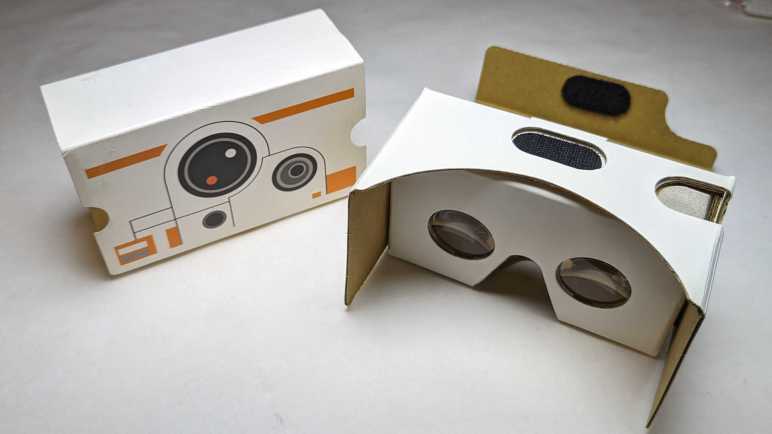
Almost ten years ago, an Oculus Rift DK2 (Development Kit 2) gave me an exciting peek into consumer-grade virtual reality. I was enthusiastic, but the leading edge of VR technology was still very raw and also very expensive. Trying to make this novel technology more accessible, Google Cardboard was a way to turn Android phones into VR headsets. A simple box so cheap, they can be given away as promotions. I have a BB-8 themed viewer that promoted Star Wars: The Force Awakens.

The downside of using a phone is that we only have an accelerometer to sense device orientation. There’s nothing to sense device position. This meant visuals can rotate in response to a head tilt in roll/pitch/yaw directions (three degrees of freedom or 3DOF) but doesn’t change if we take a step left/right, or a step front/back, or sit/stand/kneel. (Which constitute an additional three degrees of freedom for a total of six or 6DOF.)

I eventually decided trading off three degrees of freedom for low cost was false economy. My virtual reality “Ah-ha” moment of leaning in close to a panel was impossible to do in a 3DOF system like Google Cardboard. It’s not just a matter of missing features: I quickly get motion sickness in 3DOF VR. No matter how I tried to keep my body still, there are small movements in the remaining three degrees of freedom and after a few minutes my body started protesting the lack of visual feedback for that motion.

Still, the price was low, which translated to high distribution volume. People tried to iterate on the idea to grow the market, and I kept hoping I could find something I like. Spending money that I should have saved towards a real 6DOF VR system.

The most entertaining take was a VR revival of the View-Master brand. I had an old-school View-Master with a few picture discs, and that nostalgia motivated me to buy one of these new viewers. Technologically speaking it was merely Google Cardboard in View-Master’s signature red plastic, including the orange “lever”. As it was merely a styling and software effort, the business case failed: VR content cost a lot more to produce than those old View-Master picture discs! The best thing I can say is the fact View-Master experiences were only good for short durations, avoiding my motion sickness issue.

With big brands like Mattel and Google onboard, a lot of other brands jumped into the market looking for a successful niche. This was a “Utopia 360” viewer that added two axes of adjustments to improve visual comfort: (1) focal distance between our eyes and the phone, and (2) IPD adjustment. (Interpupillary Distance, or the distance between eyeballs.) Instead of standard tap-on-screen interface, this viewer bundled a small Bluetooth controller. Unfortunately, these features needed software-side support to be useful, and approximately nobody bothered to do so. (This particular unit had a troublesome spring-loaded generic phone holder, so I decided to make a custom holder as one of my first 3D printing projects.)

Samsung is never shy about throwing money at experimental niches. They took a stab with the Gear VR. Going beyond standard Google Cardboard, Samsung added a directional keypad to the side as well as higher quality accelerometer for faster and more accurate 3DOF feedback. I didn’t have a Samsung phone but had a friend who had a Galaxy S7. I thought he shared my enthusiasm of VR, but I later learned he was just being polite while I spewed my enthusiasm. How did I learn this? I bought this Gear VR for him to use with his phone. Years later, he retired that S7 and donated it to my pile of retired Android phones I keep for random projects. Along with the phone he also returned the Gear VR, still unopened in its packaging. By then Samsung has moved on to other things and shut down their Gear VR software support ecosystem so now I can’t do anything with it either.

My final 3DOF VR experiment was this first-generation Google Daydream viewer. It was a small additional expenditure as I already had a Google Pixel phone to go with it. Daydream was Google’s own evolution of the Cardboard concept, with at least two advancements: there were two capacitive touch nubs on the headset to help the phone align its onscreen image. A handheld remote was included, much like the Utopia 360. Google used their muscle to get more software support for Daydream controllers than Utopia 360 ever got for theirs, but there was no way to overcome the fundamental limitations of 3DOF VR.

This string of experiments firmed up my position on virtual reality: 6DOF or GTFO. By the time Oculus released their Go headset, I dismissed it as just another 3DOF system with no meaningful advantages over my Google Daydream. I decided against buying a Go, saving up money towards a 6DOF system of my own.

My Virtual Reality “A-Ha” Moment

Nearly ten years ago, I got my first taste of consumer-grade virtual reality hardware when I had the opportunity to put an Oculus Rift DK2 (Development Kit 2) on my head. Up until that point, I had only science fiction stories like Star Trek‘s Holodeck and reading about professional/industrial installations that were priced well beyond my reach. I knew Oculus launched their hardware development as a Kickstarter campaign, but I was too skeptical to put in my own money. I was still very interested in the technology, though, so it would come up in conversation with other tech-oriented friends. I learned one of my friends did pitch in the Kickstarter campaign and was slated to receive a DK2. Unfortunately, my friend’s computer did not meet DK2 GPU hardware requirements and in the absence of data they were reluctant to throw more money at it. I saw an opportunity: my gaming PC had a Radeon HD 7950 GPU which met DK2 minimums. (The minimums would be raised for release, excluding my HD 7950, but that came later.) We decided to meet up and plug their DK2 into my PC so we can both see firsthand what it’s all about.

I have vague memories of software installation struggles mostly with batch files and only a few graphical installer applications. I had to give administrator privileges to many unknown binaries and that made me squirm, and there were error messages to address. All of these unpolished edges were normal and expected of a development kit.

I don’t remember any hardware connectivity issues: I think everything plugged in together just fine. When the picture actually came up, the first impression was rather underwhelming. DK2 display panel resolution was relatively low, resulting in a blurry picture as if my eyeglass prescriptions are out of date. Plus, there was a distracting “screen door effect” caused by visible black lines between pixels. But of course, if we just wanted a static viewpoint, we could have just stared at a computer monitor. Things got more interesting once we started moving our heads to look around, leveraging key elements of virtual reality technology.

The demo applications (all under development) were mixed. It was definitely early days for the technology, with lots of people trying ideas to see what works. There were many standalone test apps and a few VR modes grafted onto existing titles. My friend and I quickly reached agreement we didn’t care for the titles that simulated motion independent of our seating position. The worst of those were roller-coaster simulations, one of them caused my friend to loudly proclaim “NOPE!” and yanked the headset off their head. We both got motion-sick from such experiments and had to take a break.

We were starting to think the whole thing might be a waste of time and money when we fired up Elite: Dangerous and its then-experimental VR mode. After our experience with VR roller-coaster and the like, we were not optimistic about flying around in a spaceship. But hey, we’ve come this far, might as well take a look. I remember it took some effort to get the game to switch from computer monitor over to the DK2 headset. My friend fiddling at the keyboard and the DK2 on my head. “Do you see the cockpit yet?” “Nope” “How about now?” “Still nope” Then it came up. “Hey I see something!”

The ship was still unpowered, so the only movement were of my own head. Even then I could look around at the controls and it felt like I was at the controls of a spaceship. A virtual representation of a reality that’s out of my reach: I could go on real rollercoasters; I couldn’t fly real spaceships. This was all very promising, but there was a problem. Elite Dangerous ship cockpits were designed to be shown on high resolution monitors. Sitting in the middle of the cockpit wearing the low resolution DK2 headset, all control labels were blurry and illegible. I suppose if I were already familiar with the game I could go from memory, but I was not familiar with it and didn’t know how to start up my ship.

My friend and I put our brains together, drawing from our collective computer gaming experiences. Maybe pressing “Z” will zoom in? How about the mouse scroll wheel? PgUp/PgDn? Arrow keys? The answer was none of those, because this was something new. I forgot which of us had the insight to lean closer to the panel, but I leaned closer to the labels and found I could read them. Such a simple thing we would do in the real world without thinking, but somehow it took several minutes for us to think of doing it in the VR world.

That was my VR “A-ha” moment. I no longer remember anything from that day after that moment. Did we manage to get our ship into space? Did we get motion sickness from flying around? It didn’t matter. The mundane act of leaning closer to read labels was the moment it clicked in my mind, and I was hooked on the concept of virtual reality. Sadly, I was too cheap to commit to good VR with 6DOF tracking and wasted a lot of money on cheaper 3DOF headsets like Google Cardboard and friends.

Extracted Magnets from Wired Earbuds

Headphone jacks are disappearing from recent phones, which is a shame. Thanks to global volume, wired earbuds have become simple and effective accessories for audio on-the-go. So inexpensive as to be practically disposable, the price fits with the fact they have a finite and short lifespan. As the wires flex and bend, they eventually break and cause intermittent connections audible as cracks and pops. Which was why this particular set (Monoprice #18591) was retired.

Compact and lightweight, there’s hardly any material here at all to reclaim or recycle. But there’s a small rare earth magnet inside each earbud, and I want to extract them before the remaining carcass heads to the landfill. Similar to what I did to a retired iPad cover case.

These earbuds had been waiting processing for a while, hence the dust.

The soft rubber layer pops off easily. As I recall this was a user-replaceable item. The earbuds came with three sizes. The midsize one is installed by default, with smaller and larger sizes in the package the user can switch to best match the size of their ear canal.

There were no further user-serviceable parts. Everything else is molded or glued together so I had to break things apart with a pair of pliers.

Inside the black plastic enclosure is a shiny metal case for the tiny soundmaker.

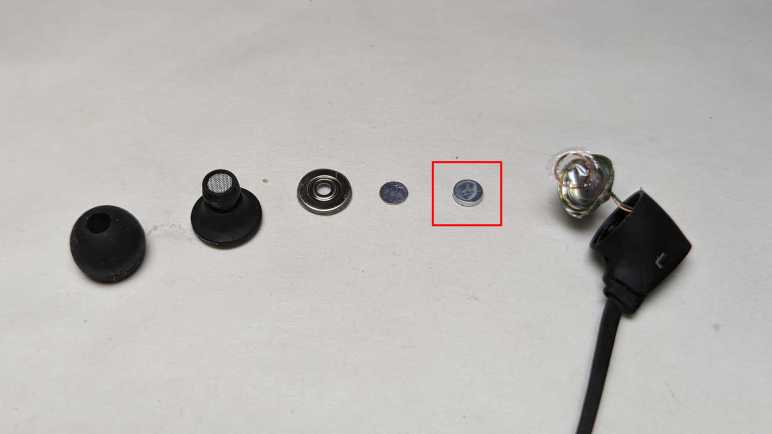
Prying off the front metal plate exposes the thin membrane that vibrates with a small copper coil. Inside the center of that copper coil is the magnet I seek.

The magnet is glued to the enclosure, but thankfully the glue here wasn’t very strong. Bending the sheet metal to get more clearance, I was able to reach in with a thin metal tool and pop out the magnet.

Attached to the magnet is a thin metal circle of the same diameter. I think it serves as a spacer, held on by the same not-very-strong glue so I could separate it from the magnet.

Here’s the entire stack disassembled. Circled in red square is the magnet I will keep. Remainder will head to landfill.

Compass Project Updated with Angular Signals

I’ve been digging through the sample for Getting Started with Angular Signals code lab and learned a lot beyond its primary aim of teaching me Angular Signals. But a beginner could only absorb so much. After learning a whole bunch of things including drag-and-drop with the Angular CDK, my brain is full. I need to get back to hands-on practice to apply (some of) what I’ve learned and cement the lessons. Which means it’s time for my Angular practice app Compass (recently upgraded to Angular 16) to use Angular Signals!

In my practice app, I created a service to disseminate magnetometer sensor information. It subscribed to the relevant W3C sensor API and publishes data via RxJS BehaviorSubject. I didn’t know it at a time, but I had effectively recreated a Signal using much more powerful (and heavyweight) RxJS mechanisms. One by one I converted to broadcast data via signals: magnetometer x/y/z data, magnetometer service status (user-readable text string), and finally service state (an enumeration). I also removed the workaround of making an explicit call to Angular change detection. I never did understand why I needed it under Mozilla Firefox and Microsoft Edge but not under Google Chrome. But after switching to Angular signals, I had different change detection problems to investigate.

The switchover greatly simplified my application code, making it much more straightforward to read and understand. Running in a browser on my development desktop computer, I didn’t have real magnetometer data but my placeholder data stream (sending data to the same signals) worked well. Making me optimistic as I deployed, and then surprised when I failed to see magnetometer data updates on an Android phone.

Since the failure was specific to the device, it was time for me to set up Chrome remote debugging for my phone. My development desktop has Android Studio installed, so all of the device drivers for hardware debugging were in place. Following instructions on the Chrome documentation page DevTools/Remote Debugging, I established a connection between Chrome DevTools on my desktop and Chrome on my phone. Forwarding port 4200 for my Angular development server, I could load up a development mode version of my app for easier debugging. Another advantage was that it’d show up as http://localhost:4200. The magnetometer sensor API is restricted to web code served via https:// but there’s an exemption for http://localhost for debugging as I’m doing.

I was happy to find the Chrome DevTools advertised at Google I/O worked very well in practice: there is a source map allowing me to navigate execution in terms of my Angular TypeScript source code (versus the transpiled JavaScript) and I could use logpoints to see execution progress without having to add console.log() to my app. Thanks to those lovely tools I was able to quickly determine that magnetometer reading event handler was getting called as expected. That callback function called signal set() with new data, but those signals’ dependencies were never called. I had two in Compass: numerical text in HTML template to display raw coordinates onscreen, and code to update position of compass needle drawn via three.js.

Just like earlier, I had a problem with Angular Signals code not getting called and breakpoints can’t help debug why calls aren’t happening. I reviewed the same documentation again but gained no insights this time. (I have the proper injection context, so what now?) Experimenting with various hypothesis, I found one hit: there’s something special about the calling context of a sensor reading event handler incompatible with Angular signals. If I add a timed polling loop calling the exact same code (but outside the context of a sensor callback) then my magnetometer updates occur as expected.

This gives me a workaround, but right now I don’t know if this problem is an actual bug with Angular Signals or if it is merely hacking over a mistake I’ve made elsewhere. I need more Angular practice to gain experience to determine which is which.


Source code for this project is publicly available on GitHub.

Angular Signals Code Lab Drag & Drop Letters

After looking over some purely decorative CSS in the Angular Signals code lab sample application, I dug around elsewhere in the source code for interesting things to learn. The next item that caught my attention was the “keyboard” where we drag-and-dropped letters to create our decoder. How was this done?

Inside the HTML template code, I found an attribute cdkDropListGroup on the keyboard container. A web search pointed me to the Angular CDK (Control Development Kit.) Angular CDK is a library that packages many common web app behaviors we can use in our own custom controls, one of them being drag-and-drop as used in the Angular Signals sample app. The CDK is apparently under the umbrella of Angular Material, which has a set of fully implemented app controls implemented to the Material Design specification. Many of them use the CDK for their own implementation.

Drag-and-drop behavior in Angular CDK is very flexible and has many options for configuring behavior. Such flexibility and options unfortunately also meant it’s easy for a beginner to get lost. I’m thankful I have the Angular Signals code lab cipher app. It lets me look over a very specific simple use of CDK drag-and-drop.

Here’s an excerpt of the HTML template for the cipher keyboard in file cipher.ts, stripped of everything unrelated to drag-and-drop.

<div class="cipher-wrapper" cdkDropListGroup>
    <div class="key-container">
      <letter-key
        *ngFor="let l of this.cipher.alphabet"
        cdkDropList
        cdkDropListSortingDisabled
        [cdkDropListData]="l"/>
    </div>
    <div class="guess-container"
      cdkDropList
      cdkDropListSortingDisabled>
      <letter-guess
        *ngFor="let l of this.cipher.unsolvedAlphabet()"
        cdkDrag
        [cdkDragData]="l"
        (cdkDragDropped)="drop($event)">
        <div class="placeholder" *cdkDragPlaceholder></div>
      </letter-guess>
    </div>
  </div>

It has two containers, one for a list of custom control letter-key and and another for a list of letter-guess. Drag-and-drop is all encapsulated here in cipher.ts, there’s nothing in either of those two controls concerning drag-and-drop.

Uniting these two containers is a div with cdkDropListGroup which associates all child cdkDropList elements together. This allows us to drag individual letter-guess (tagged with cdkDrag) from one cdkDropList onto the sibling cdkDropList of letter-key. These properties are enough to let Angular CDK know how to respond to pointer input events to manipulate these elements. All the app has to do is register a cdkDragDropped listener for when a cdkDrag element is dropped into a cdkDropList.

I poked around the code looking for how a letter-guess sits in the key-container after it has been dropped into the right location. The answer is: it doesn’t, that’s just an illusion. When a letter is dropped into the correct location, it is removed from the list returned by this.cipher.unsolvedalphabet(). Meaning that particular letter-guess I had been dragging disappears. The letter-key I had dragged it onto, however, will pick up a new CSS class and change its appearance to look as if the letter-guess stayed in that location.

I had to spend some time flipping between looking at source code and looking at CDK drag-and-drop API documentation. But once I made that time investment, I could understand how this app utilized the library. Once understood, I’m impressed at how little work is required in an Angular app to pick up very complex behavior from Angular CDK.

I look forward to leveraging this capability in my own projects in the future. Before that, though, I can try using Angular signals in my Compass practice app.

Angular Signals Code Lab Decorative CSS

I want to understand the Angular Signals code lab project beyond what was set up for signals practice. While learning why layout for <body> looks funny, I stumbled across CSS quirks mode which I hadn’t known before. And since I’m already in a CSS mindset, I stayed on topic to understand a few places where the sample app used CSS to create aesthetic visuals.

The first item I wanted to understand was a large list of <div> in index.html, taking up more than half of the lines in the file. I originally thought it had something to do with the alphabet cipher keyboard, but it was actually implementation of the fake speaker grill. CSS class .sound-grid is a grid of 8 columns filled with a <div> styled to be a small circle. There were 48 of them to create 6 rows in those 8 columns. Some of these circles are dark representing holes, some light representing… something else, and four corner circles were transparent to de-emphasize the rectangular nature of a grid.

That was kind of neat. And the next item I wanted to understand was the green screen display resembling a monochrome LED like an old Game Boy. I was curious how the graph paper grid was implemented, and the answer is a CSS linear gradient (class .message::before) given parameters to be very not smooth in the gradient transition in order to create a grid. I was mildly confused looking at the gradient and text styles, as they are all working in grayscale. The answer is another piece of CSS (.message::after) that gave a green tint over the entire screen area plus a bit of blur for good effect.

While these are nifty creations, I am curious why CSS was used here. Both the fake speaker and screen grid feel like vector graphic tasks, which I had thought was the domain of either SVG (if via markup) or canvas (if via code). What’s the advantage of using CSS instead? Sure, it worked in this case, but it feels like using the wrong tool for the job. I hope to eventually learn reasons beyond “because we can”. For now, I turn my attention to other functional bits of this sample application.