Canon Contact Image Sensor

When I pulled the scanner image sensor bar from a partially disassembled Canon MX340 multi-function inkjet, I didn’t expect to understand very much of it. However, I was able to figure out the LED illumination subset of the scan head! Encouraged by this success, I felt more positive about trying to tackle the rest of the sensor bar. Which meant investing time to do a little bit of research.

When I set out to probe the electrical behavior of MX340 components, I did a brief search and found this type of sensor is called a contact image sensor (CIS). When searching for information online, getting the name is a big part of the battle. The Wikipedia page is sadly just a stub, and I don’t have the knowledge to expand it myself. (Yet?) The only source cited on that page is a ten year old link now dead, so I have to find something else.

When looking for information on electronics components at a hobbyist accessible level, I found it’s useful to search for the component and “Arduino”. Using that keyword distinguishes product sales pages from electronics details. Sadly I found nothing more helpful than the Arduino forum page that taught me the name. Searching for the name by itself found a lot of eBay listings selling replacement parts, which isn’t useful for my goal of learning about the sensors.

Scrolling through search results, my attention was caught by a link to the CIS section on Canon Components web site for businesses. This sounds like the current-day counterpart to the dead source link on Wikipedia. It is a page advertising Canon’s engineering prowess and aimed at companies that may build products around Canon CIS units. So the page exists to encourage these companies to contact the Canon sales team, which isn’t me.

Still, the page was informative. There’s a diagram breaking down the major components of Canon CIS technology, so I can get an idea of what parts I’m looking at and their names. Before seeing this diagram, I had thought the imaging sensor sits somewhere behind the clear optical lens. Now I know the clear optical lens is merely the light guide for the LED emitters I had just examined. The sensors actually look through a linear lens array adjacent to the light guide.

Armed with this knowledge, I went back to look at the sensor bar and found the row of small lenses that I had never noticed before. They are tiny, each lens is roughly 0.3mm across. As a rough approximation, that’s roughly 75 of them in an inch (~25.4mm). Scanners usually advertise their resolution as 300dpi or some multiple thereof (1200dpi, etc.) which means each of these lenses must correspond to more than one pixel in the resulting scan data. That process involves optical imaging magic out of scope of my current project: learn how they work electrically.

Clicking on the link for “Contact Image Sensor Product List” brought me to a sample selection of current Canon CIS products. I was most interested in the “Output form” column, specifying broadly how the sensor outputs its data. Possibilities include LVDS, which I have little hope of reading. Camera Link is also listed, and I had to go to Wikipedia to learn it is a protocol built on top of LVDS. And finally, there’s “analog output” which superficially seemed like the cheapest option. If I’m lucky, that’s what a cheap multi-function inkjet would have.

I don’t see any details on how image information is transmitted via Camera Link, LVDS, or analog. But I’ve learned a little more about contact image sensors today and maybe this is enough for me to recognize sensor image data when I see it under an oscilloscope.


This teardown ran far longer than I originally thought it would. Click here for the starting point.

Canon Pixma MX340 Scanner LED

I’m looking over the scanner module of a Canon Pixma MX340 multi-function inkjet. Its stepper motor got the oscilloscope treatment first, now onward to the image sensor bar.

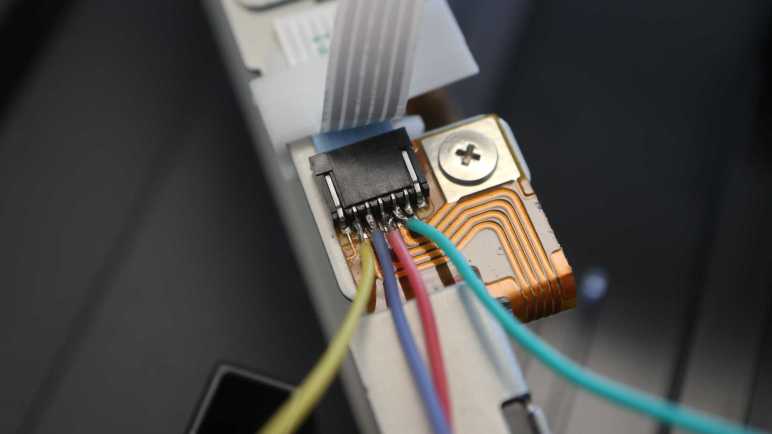
When I took apart the scanner module, I noticed there were a few through-hole pins at the end of the image sensor bar and wondered what components they might be attached to. As I explored the scanner further to determine its startup behavior, I stared at the bar and saw the answer.

This end of the image sensor bar housed illumination light sources. This close-up shot showed the red, green, and blue LEDs working together to light the bar white.

From that I would expect three pins, one for each color, and a fourth pin as either a common anode or a common cathode. In actuality, I see five pins in this row. What did I miss? Starting with the basics, I probed the pins for continuity with chassis ground and found one, topmost in this picture.

I soldered wires to the four unknowns so I can see what they look like during printer startup, when the light bar is illuminated white looking for the homing marker.

Looks like the green wire is supplying 5.5V DC, possibly the same voltage plane powering the ADF paper sensors. The remaining three wires show a pattern that switches between two voltage levels and repeats less than 2.5 milliseconds. That works out to be less than 400Hz, too slow to be some sort of LED PWM scheme. Something else is going on. But first, I want to figure out if these wires are the positive anode (LED illuminates at higher voltage) or negative anode (LED illuminates at lower voltage).

I pulled out my LED tester and determined it is the latter: the LED illuminates from the 5.5V rail to the lower voltage shown on oscilloscope. I guess the ground pin is present merely for chassis ground and not actively used in this circuit. I also determined which wire corresponded to which colors, which is unfortunately now very confusing because I soldered these wires without knowing beforehand. Here is the mapping table:

Oscilloscope Wire ColorLED Color
YellowRed
RedGreen
BlueBlue

At least I got blue right.

Using this chart and looking back at the oscilloscope plot, I see each of the three colors are pulled low in non-overlapping time windows. The blue line (for blue LED) has the shortest time. Then the yellow line (red LED) with a slightly longer duration, and finally the red line (for green LED) for almost as long as the other two combined.

Why would the scanner light up one LED at a time and cycle through them? My hypothesis is this allows a monochrome image sensor to scan in color. Light up blue, scan. Light up red, scan again. Light up green, scan a third time. Assemble them together for full RGB color information. If so, the difference in LED illumination duration may be proportional to the image sensor’s sensitivity to those colors.

I am very happy with this discovery. It is already much further into understanding the scanner sensor bar than I had originally expected to get. Encouraged by this success, I want to see how much I can decipher of the rest of this image sensor. Which meant a quick side quest for contact image sensor research.


This teardown ran far longer than I originally thought it would. Click here for the starting point.

Canon Pixma MX340 Scanner Motor

I’m exploring the inner workings of a Canon Pixma MX340 multi-function inkjet as I take it apart. After coming up with a hypothesis on how the scanner bar finds its way to its home position, I had some fun confirming that hypothesis and confusing that electronic brain. Next I wanted to look at the motor that drives scan head movement.

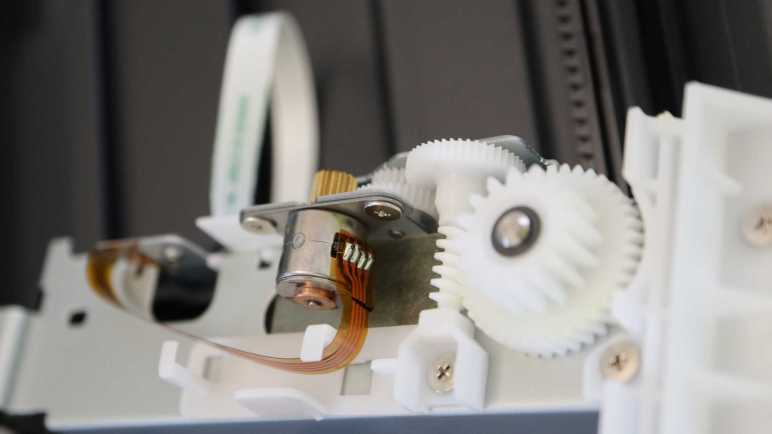
Canon engineers designed the scanner bar to be easily disassembled into its two major components. A slight sideways push was all it took to separate the motor gearbox motion-control assembly from the lighting and imaging sensor bar.

Flipping the motion control assembly on its side, I can take a close look at the connector to a long cable leading back to the printer main board. There are five conductors in this wire, one of which went immediately to a screw fastening it to the stamped sheet-metal structure. This would be the chassis ground. The other four pins likely led to a pair of coils inside a stepper motor.

Probing those pins with a multi-meter, I found 15 Ohms of resistance between pairs of pins that I’ve labeled as +/- endpoints of two coils A and B.

This connector has 1mm spacing between pins (“pitch”) which is less than half of the 0.1″ (~2.54mm) pitch I’m familiar with. I’ve found this is roughly the limit of my current soldering skill, requiring two attempts before I could solder wires to them without accidental solder bridges. These wires were connected to my oscilloscope, measuring their voltage levels as the scanner went through its homing sequence.

This stepper motor is also run at 24V DC as delivered by the power supply, same as the ADF motor. The coils in this scanner motor measured 15 Ohms which calculates out to 1.6 Amps of current through each coil. Less than half of the power delivered to the ADF motor. And similar to the ADF motor, the scanner position motor does not need to hold position which means it avoids the high stress duty of having power continuously on a coil heating it up.

There’s a visibly repeating pattern in this oscilloscope snapshot, but it’s a bit difficult to make out each of the four wires when they’re all together on the same plot. Here they are individually:

Here are two ends of “A” coil, most of the time energized to one direction or another but there’s a brief period where both ends are at ground leaving the coil de-energized.

A similar pattern is visible in the B coil, offset by half a pattern period. I’m not sure why the motor cycle has this bit of de-energized coil time in between other energized patterns. Except for that small window, this pattern would be match what I expected from stepper motor operating theory. For a stepper motor spinning at a constant speed, I would expect something like this four-state cycle with equal duration per state:

A+B+
A+B-
A-B-
A-B+

But that’s not what I see in this oscilloscope trace. This is what I picked out, a slightly different pattern and some states are held for different duration.

A+B+
A+B-
A-B-
A-(off)
(off)B+

This difference from textbook description serves a purpose I couldn’t determine. Perhaps this helps ensure the coils don’t overheat from constant power? Maybe this is to help reduce resonance problems? Perhaps this is synchronized to the imaging sensor for some data purpose? It’ll stay a mystery for now, as I proceed to take a closer look at said imaging sensor.


This teardown ran far longer than I originally thought it would. Click here for the starting point.

Canon Pixma MX340 Scanner Homing Marker

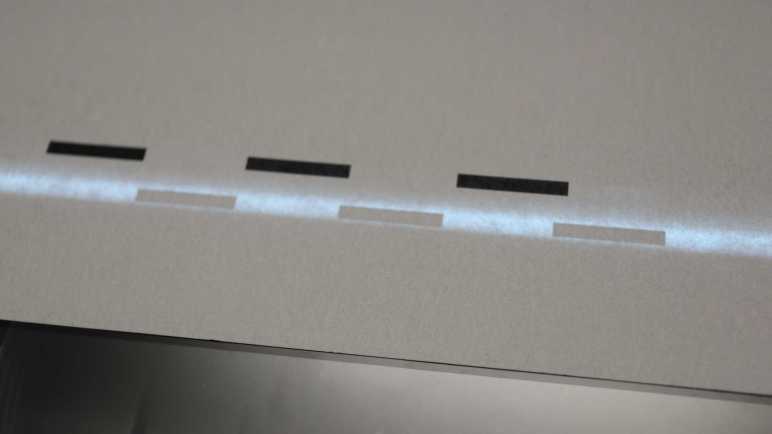
I’m playing with a partially disassembled scanner module from a Canon Pixma MX340 multi-function inkjet. I’ve figured out how the scan head finds its way to its home position, and now I want to experiment with the marker used by the process. Back when I disassembled the scanner module, I had expected a mechanical homing switch but didn’t find one. I suspect the homing sequence uses a distinct pattern I found on the bottom of the bar separating the two windows.

Is this the homing marker? I will now confirm my suspicion.

The first experiment was to deliberately assemble the scanner module incorrectly. Instead of putting the lid (with glass windows) in its correct position, I placed it roughly 15cm offset in the positive direction. This was wider than the ADF window so the first test was a failure: the scan head didn’t move far enough before reversing direction. On the second test, I manually moved the scan head a bit further up, so the bar was in range of the initial positive scan. This time, the scan head homed to its new position. It also homed to the new position if I manually placed the scan head further in the positive direction: it would scan for a while, reverse direction, and find the relocated marker. Homing marker confirmed!

I then tried to see if I can spoof that marker. I measured the special pattern to start about 62mm from the document left edge. It is made of three black rectangles 20mm long and 3mm wide, separated by 20mm of white between them.

I drew up that pattern and printed it on paper. It took several attempts to actually match the measured dimensions because apparently “print at 100%” is a lie. I didn’t want to waste paper so my multiple attempts were printed on different ends and sides of the same sheet of paper.

Again I moved the scan head out of its homing position, and placed my fake homing marker paper down on the flatbed scan area. I turned on the printer and, when the scan head saw my fake marker, it acted as if it saw the real marker.

After this success, I realized that I had accidentally used one of the slightly smaller size fake markers. Retrying a few times with my different printing attempts, I found my 18mm and 19mm long markers worked just as well as the 20mm long markers. So the homing program has some tolerance for marker size.

If it is tolerant of less-than-perfect homing markers, perhaps I can spoof it with the pattern taped on a ruler? This worked when I put it on the flatbed glass like earlier experiments, but it failed if I skipped the flatbed glass and held the ruler on top of the sensor in midair. I can think of a few possible explanations:

  1. Holding the ruler above the sensor by hand had improper alignment. (It’s crooked.)
  2. Holding the ruler above the sensor by hand could not maintain the correct distance for proper image focus.
  3. The scanner sensor bar requires a sheet of glass between it and the scan subject for proper optical behavior.

And naturally, the explanation might be none of the above. I don’t feel the need to dig deeper right now because I’ve already had my fun and ready to move on to look at the motor moving this scann head.


This teardown ran far longer than I originally thought it would. Click here for the starting point.

Canon Pixma MX340 Scanner Homing Sequence

I’m carefully taking apart my old Canon Pixma MX340 multi-function inkjet, exploring its workings as I go. I’ve recorded the electrical parameters of the automatic document feeder (ADF) motor during printer startup, completing this phase of ADF exploration. My next focus is the scanner module, starting with the scan head homing sequence.

During power-up, there is a programmed sequence to ensure the scanner head is at its home position, sitting under the bar separating the small glass window (used for ADF scanning) and the large glass window for flatbed scanning. After opening up the scanner module, I could manually place the scan head at various locations to observe its homing sequence. I think I now understand how it works and writing it down here.

For the purposes of this description, I’m arbitrarily labeling the home position as zero. Movement towards the small ADF scanner window is in the negative direction, and moving down the flatbed scanner page is in the positive direction.

Usually, the scan head is already at the home position. It moves a little bit in the positive direction to verify it can detect its homing marker (more about that later) then returns to its home position.

If the scan head is not already at the home position, it will keep moving in the positive direction for a short distance. I measured this distance to be the roughly the size of the ADF scanner window. So if the scan head was located somewhere under the ADF scanner window, this motion should bring the homing marker into view.

If that short positive distance fails to detect the homing marker, the scan head reverses direction and runs for a much longer distance. I think this is the size of the large flatbed scanner window. So if the scan head was located somewhere under the large window at power-up, it will scan a bit in the wrong direction (thinking it might be under the ADF window) then course-correct back towards the zero position.

If the homing marker is not found after scanning in the negative direction for the size of the large glass, the printer enters an error state. Both its power LED and the “Alarm” LED will blink, and the LCD screen alternates between two messages: “Printer error has occurred” and “5011” which I assume is the error code indicating scan head homing failure.

It was fun to figure out how the scanner homing sequence worked, but it was even more fun to spoof that homing marker.


This teardown ran far longer than I originally thought it would. Click here for the starting point.

Canon Pixma MX340 ADF Motor

Working to understand the electronics of a Canon Pixa MX340 multi-function inkjet, I started with the automatic document feeder (ADF) on top of the machine and believe I’ve fully deciphered its paper presence sensors. Next objective is to measure the ADF motor’s electrical parameters.

Seeing four wires leading to the motor, I guessed it was a bipolar stepper motor. I disconnected its cable from the mainboard to measure resistance between each of these wires. I found two 8.8 Ohms pairs and open circuit in other combinations. This is consistent with the guess.

I didn’t find identifying labels around the perimeter. There might be something on the side facing the gearbox, but I didn’t want to disassemble it just yet.

The non-gearbox side is marked with QK1-6332 OXKT. Searching on that designation found a few eBay vendors selling replacement motors for a Canon MX340. This is oddly model-specific. I would have expected the same motor to be used across multiple devices. Perhaps this is not a designation for the motor but designation for a MX340 replacement part.

Taking advantage of the fact I still have a running printer, I soldered some wires onto the motor interface board to see their behavior during the printer’s startup sequence. The upper pair of wires (green and blue wires) is one of the 8.8-Ohm pairs, the lower pair (yellow and red) is the other pair. I expect to see four square waves alternating in a pattern consistent with driving bipolar stepper motors.

Here’s a snapshot of them during the startup sequence. Yep, bunch of square waves! I see the voltage level swings between 24V DC and ground, getting full power from the power supply. With 8.8 Ohm coils, straightforward Ohm’s Law calculation says the MX340 is driving this motor at 2.7A. Higher than I would have guessed, but within the range of power figures for a small stepper motor. It should also be noted that the ADF motor doesn’t seem to get powered on at a single coil for an extended period of time. Some stepper motor usage scenarios do this to hold position, but apparently not here. This is good because when power pulses are rapid and short in duration, the motor can tolerate higher amperage levels without burning out.

Isolating each of the wires, here’s the yellow-red coil. In the short time period of this snapshot, the coil is always energized one way or another.

And the green-blue coil doing the same. I’m not sure exactly what’s going on at the time of this particular snapshot, but it doesn’t have the regular pattern of a motor turning at a constant rate in a single direction. Perhaps I just happened to catch the motor as it switched direction? Digging for further details may be important if I am here to repair the document feeder. But as someone who only expects to repurpose the stepper motor in a future project, it is enough for me to confirm this looks reasonable for a bipolar stepper motor and knowing I can drive it at up to 2.7A at least for short periods.

That’s everything I wanted out of the ADF in this pass, I’m moving on to the scanner.


This teardown ran far longer than I originally thought it would. Click here for the starting point.

Canon Pixma MX340 ADF Sensors

I’m diving into the electronic guts of a partially disassembled Canon Pixma MX340 multi-function inkjet, starting from the top: the automatic document feeder (ADF).

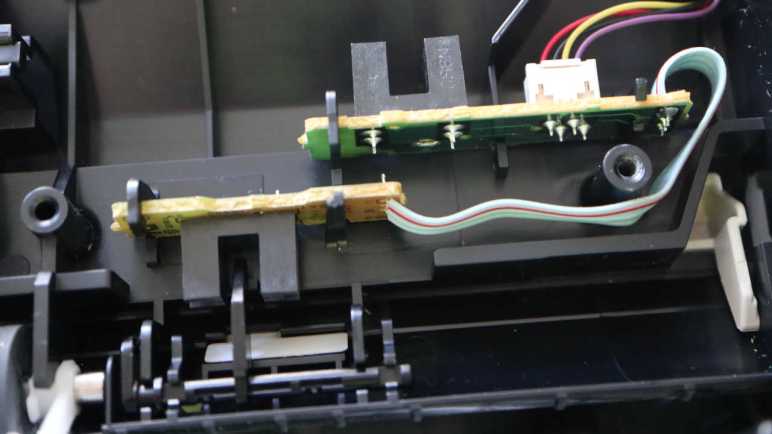
Inside the paper feed mechanism is a pair of sensors that appear to be photo-interrupter switches.

I see a simple circuit board and through-hole components, so it looked like an easy starting point. There were no fasteners holding these two circuit boards in place, just cleverly shaped plastic molded into the body. A four-wire harness connects this sensor assembly to the main board. I see wires colored red, black, yellow, and purple. I guessed they would be power, ground, signal 1 and signal 2. (I was wrong.)

Here’s front and back of the sensor that senses when a document has been placed in the ADF. Looking at the back, I see a tiny surface-mount resistor labeled R51 and marked with “471” for 47 * 101 = 470 Ohms. This is a common value used for a LED current-limiting resistor, so that implies the associated pin is emitter LED power and the adjacent pin ground. Which makes sense, as it was routed to one of the pins of the receiver as well. Process of elimination says the final pin should be the sensor signal.

Turning the printer on, my hypothesis was verified with the volt meter. When light between the emitter and receiver is blocked, the sensor signal is at 3.3V. Probably pulled up by something on the mainboard. When there is no blockage between the emitter and receiver, the sensor signal pin is pulled to ground.

Given the 3.3 volts I detected on the signal wire, I had expected power to be 3.3V as well and was mildly surprised to measure 5.5V on that wire. Why go through the complexity of having multiple voltage planes? Maybe the engineers thought it would better to have higher voltage running through the long skinny wire from mainboard to sensor. But if so, why not use 24V DC directly from the power supply and use a bigger current-limiting resistor? 5.5V must present a useful tradeoff between 3.3V and 24V but I don’t know those Canon engineers’ considerations.

The other sensor detects whether a sheet of paper has been successfully fed into the ADF mechanism. It seems to use the same photo-interrupter sensor and the circuit works similarly.

Working back to the long 4-wire harness, I was surprised to discover my initial guess on wire assignments were backwards from the actual measured behavior.

RedBlackYellowPurple
ExpectedPowerGroundSignalSignal
ActualSignal 1Signal 2Ground+5.5V DC Power

I guess Canon doesn’t care much for wire color convention, where red is usually power and black for ground. Alternatively, maybe this was a production hiccup that inadvertently reversed the color order loaded on the wire harness machine. Maybe the relevant Canon engineering team decided: “Well, it is wired right electrically, so we’ll just ship with the wrong wire colors.” A valid choice! The end user never sees these wires and would never care about their color anyway. Maybe the story is documented in an errata for Canon technicians that I would never see.

That’s fine, I got what I came here for. Next up: the ADF motor.


This teardown ran far longer than I originally thought it would. Click here for the starting point.
Canon Pixma MX340 Cover Switch and Power Supply

I want to probe the electronic guts of this Canon Pixma MX340 multi-function inkjet and see what I can learn. Before I dive in, though, there were a few bits of preparatory work to be done.

There is a small switch in the device to detect if the cover (which includes automatic document feeder + scanner modules) has been lifted. This is usually a sign the user intends to either replace ink cartridges or clear a paper jam, so the printer goes into a non-printing standby state. It is spring-loaded to the open state. When the cover is closed, it presses on the lever and closes the circuit. In order to control state of this circuit without the weight of the cover pressing on the lever, I’m unsoldering its wires and moving them over to a large switch I salvaged from an earlier teardown.

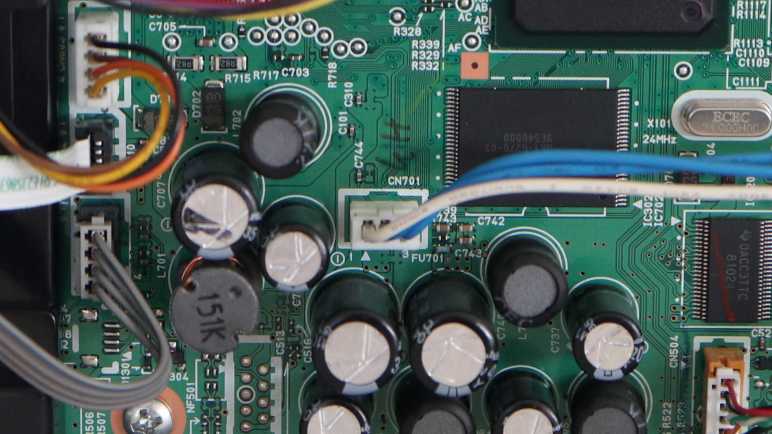
I also wanted to see what’s going on with the power supply wires plugged into the mainboard. The label says 24V DC but there are three wires. From prior experience I expected them to be ground wire, power wire, and a signal wire to toggle low-power sleep mode. Thankfully, this connector exposed enough metal for my volt meter to reach them without fancy tools, and it was easy to probe the voltage level of each wire in the powered-up “ON” state and the standby “OFF” state. Looking on the circuit board silkscreen, I see this was designated CN701 and there’s an arrow pointing to pin 1, corresponding to the white wire.

Printer StatePin 1 (White)Pin 2 (Blue)Pin 3 (Blue)
On0.003.2424.21
Standby/”Off”0.000.008.50

Looks like pin 1 is ground, pin 3 delivers either 8.50V or 24.21V DC depending on the state of pin 2. The 3.24V I see on pin 2 in full-power mode is likely the logic high voltage, implying a circuit board primarily built around 3.3V DC components.

I also measured continuity (or at least minimal resistance) between pin 1 ground and the metal chassis. This will make electrical probing easier, because I can do things like putting oscilloscope probes’ ground reference alligator clip on the metal chassis instead of having to solder a separate wire to the circuit board ground plane. This was useful when I probed the automatic document feeder (ADF) sensors.


This teardown ran far longer than I originally thought it would. Click here for the starting point.

Canon Pixma MX340 Electronics Plan

I’m pausing mechanical disassembly of a Canon Pixma MX340 multi-function inkjet so I can explore its electrical aspects while everything is still running. I know I won’t understand everything and that is OK. Roughly in order of my self-confidence going in, the electrical subsystems I expect to find are:

Motors and Sensors: Yes

I expect to be able to understand all of the motors and mechanical sensors.

  • There are two stepper motors, one for the automatic document feeder and one for the scanner. Determine open-circuit resistance for their coils, and monitor the voltage they see during printer startup sequence. That should give me a ballpark figure of their electrical current capacity.
  • Determine pin-out of photo-interrupter sensors in this printer. This printer seem to use the same unit throughout, one that integrates the LED sender and the photosensitive receiver in a plastic package. Figure out which pins are power, ground, signal, and their voltage ranges.
  • Determine the typical voltage sent to the two DC motors, one for paper feed and the other for print head carriage. Since they are used in a closed-loop control system for precise positioning, I don’t expect them to see full 24V DC from the power supply.
  • Determine if pin-out of the paper feed motor’s encoder are power/ground/A/B as expected. Print carriage encoder is not currently accessible and will have to wait for later.

Control Panel: Hopefully Yes

I’ll take a look at the control panel, full of buttons and an integrated LCD. I managed to decipher the front panel of a Toyota tape deck and a Honda CD unit, and I’m optimistic that experience will help me understand what I will find on this front panel.

Scanner: Unlikely

While I’m pretty confident I can understand the stepper motor in the scanner, I’m less optimistic about the image capture side. A bit of web search found this Arduino forum thread, where I learned the imaging bar that moves across a scanner’s glass bed is called a contact image sensor (CIS). I haven’t found much in the way of publicly available documentation on any CIS modules. The prospects are even lower here because, as a worldwide leader in imaging technology, Canon probably produced this particular CIS for internal consumption. Meaning there’s even less reason for related documentation to be public.

I found a few YouTube videos that purport to cover all the things you can do to repurpose scanner components. They usually talk about the glass, the motor, the gears, the illumination light bar, etc. The sensor? “You’re not going to be able to reuse that.” Bah.

Maybe they’re right, but I’ll poke around anyway.

WLAN Module: Not Interested

I will ignore the Canon WiFi module, as I don’t foresee reusing that component. If I have a project idea that involves WiFi, I’m far more likely to pull out an ESP8266 or ESP32.

Ink Cartridges: Hell No

I will ignore the ink cartridges as well. I have a hard enough time understanding electronics without trying to untangle deliberate obfuscation. Ink cartridges are the profit center for inkjet manufacturers and encumbered with all sorts of trickery to discourage aftermarket ink cartridges. I’m going to steer clear of that mess.

Main Board: Examination Only

I’m interested in the motherboard only as far as looking it over for generalities. Try to figure out where the power handling areas are, identify peripherals like the stepper motor and DC motor control chips, stuff like that. Most of the components will be too small for me to reuse, and I’m not interested in trying to modify the firmware or running my own.


I think that plan is within my current capabilities, and I’ll start with the simplest things: a switch and power input.


This teardown ran far longer than I originally thought it would. Click here for the starting point.

Canon Pixma MX340 Teardown Phase 1 Complete

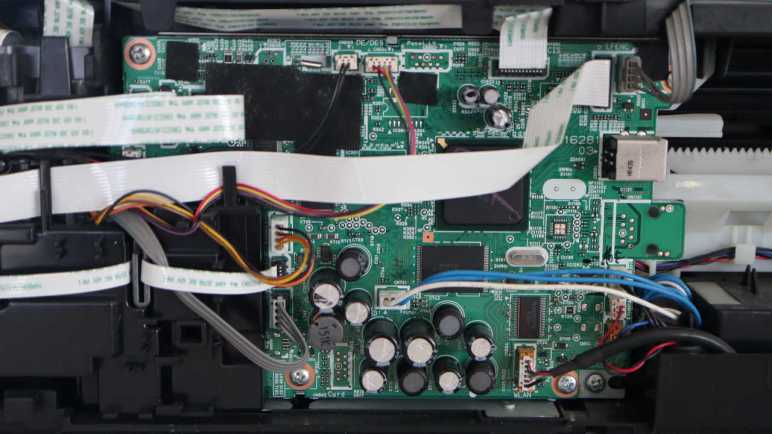
Working my way around the base of a Canon Pixma MX340 multi-function inkjet, removing panels and exposing components, I think I’ve reached a good stopping point. After disassembling the components behind the print head carriage motor, I have access to everything with an electric wire or cable attachment to the main control board. This is a good place to pause mechanical disassembly, and switch focus to probing electrically and see what I can learn. This marks the transition from phase 1 to phase 2 in my original 3-phase teardown plan.

There are still many fascinating mechanisms I have not yet explored, most of which are behind the print head parking area. It is home to at least two paper-handling functions: one to kick out the base of the paper feed tray, so the topmost sheet makes contact with the large central paper feed roller. Then another mechanism to turn that roller and feed a sheet into the print path. I also saw what looked like flexible tubes down there and I don’t know what they do yet.

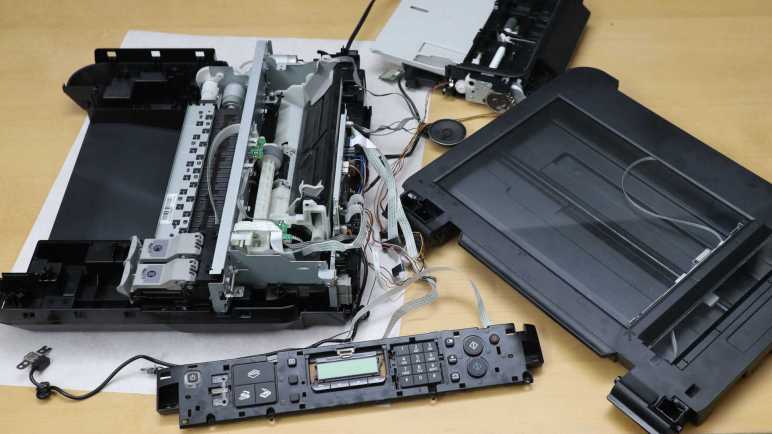
I think I know which screws I need to remove to access those mechanisms and get some answers, but I’m not sure if the printer will still function if I do. Right now, all the major components of this MX340 are laid out on a large desk (the scattered layout is too large to fit on my usual electronics workbench) and everything still runs. The document feeder can feed sheets of paper, the scanner can scan, and the inkjet can print. Taking the printer further apart may damage functionality, so I’ll postpone further disassembly until after I’ve learned what I can from electrically probing the printer while it is running.

What do I hope to learn? Well, I know I won’t understand everything. Part of why I have a collection of inkjet printers is that I had been waiting until I’ve learned enough to decipher all of the electronic details, letting the collection grow. But I’ve decided it’s OK if I can’t decipher everything. So I will scope phase 2 of my project with reasonable expectations and a plan.


This teardown ran far longer than I originally thought it would. Click here for the starting point.

Canon Pixma MX340 Print Head Motor Area

I’m taking apart a Canon Pixma MX340 multi-function inkjet and finding fascinating details everywhere. Including a mechanism that automatically opens the door to the print output tray by tapping into torque from the paper feed motor.

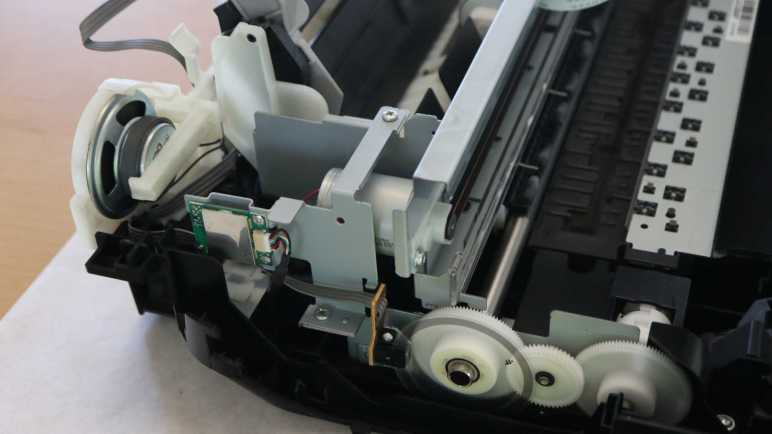
Above and behind (to the left in this picture) the paper feed motor is the print head carriage motor, these two motors work together for complete control in two dimensions for printing across the entire page. The actual motor units look like they might be mechanically identical units, it’s hard to tell for sure until further disassembly. Both are under closed-loop control.

In comparison to the paper feed motor’s encoder disk, the print head motor has a encoder strip across the width of the printer in front of its drive belt. A spring pulls the strip tight so it does not sag.

Here’s a close-up view of the encoder strip. Again, no fancy patterns, just an alternating strip of black and clear. The black dot to the left may be part of a position sensing homing mechanism. The sensor to read this encoder strip is probably part of the print head assembly, something to look for later when I take that piece apart.

Next to the motor is a small circuit board, about the size of a large postage stamp, sitting all by itself on a metal bracket. Connected to the mainboard with a six-wire harness, most of it is covered up by a metal shield.

Releasing three screws and flipping it over uncovers the product label telling us it is the WLAN Module. Its left-rear position is interesting. I know motors generate a lot of electromagnetic noise, and this is the area where the print head and paper feed motors live. Almost directly overhead is the stepper motor to drive the automatic document feeder. Sitting in close proximity to motors, this is about the last place I expected to find a module for wireless radio frequency communication! I would have guessed such a thing would have lived in the front right corner, near the USB port, putting it as far away from the motors as possible. But as I can see here, the Canon engineers decided differently. Apparently there is some criteria more important than “keep the RF antenna away from sources of RF noise”, but I don’t know what it might be.

Behind the motor and WiFi module is the speaker assembly. At first I was confused to find a full speaker here, as most of the audio feedback came from simple beeps and I had expected to find a small piezo buzzer either on the front control panel circuit board or on the main circuit board in the back. A few minutes later it clicked: one of the multiple functions is a fax machine. If we’ve accidentally dialed a voice line and a human being picked up, we need to be able to hear their confused “Hello?” to realize our mistake.

With disassembly of the speaker and WLAN module assemblies, I now have access to all the electrical wiring I could see inside this machine. Time to pause working with screwdrivers and pull out the oscilloscope.


This teardown ran far longer than I originally thought it would. Click here for the starting point.

Canon Pixma MX340 Paper Output Tray Door

I’m taking apart a Canon Pixma MX340 multi-function inkjet and I’ve found a lot of clever mechanisms that allow a single motor to activate multiple different functions. In this example, the paper feed motor does more than just feed paper.

There is a door in front of the printer below the control panel. It is usually kept closed when the printer is not in use. It help keep dust out of the printer mechanisms and also presents an aesthetically clean face when not printing. Once opened, the door becomes part of the paper output tray. I usually remember to pry the door open whenever I start a print job on this printer, but one time I forgot to do so as the printer whirred to life. Before I realized my mistake, I was startled by the sound of the printer popping the door open by itself. I had been curious how this was done, because I doubt it would be cost-effective to include a motor just to actuate this door. Now I can look at the details of this mechanism for opening the door using the paper feed motor.

Here’s the mechanical linkage responsible for this magic. In these pictures, the camera is looking from the printer’s side. The door is to our right and the paper feeds from our left. The picture on the left depicts the system when the door is closed state, the picture on the right is when the door is open.

Tracing it further back, I saw the pop-open mechanism is under this black plastic cover, removed after releasing two fasteners. Removing the cover also uncovered the motor driving this gearbox, confirming it is a DC motor and appears to be a commodity component.

How does the paper feed roller shaft pop open the front door? Power is transmitted via this pin in the shaft, rigidly coupling the right-most piece of plastic to the shaft.

I count at least three, possibly more, other pieces of plastic adjacent to the pinned piece. They lack the pin and thus could spin freely on the shaft. As the paper feed roll rolls forward, tabs on each plastic piece would have a bit of freedom to rotate before engaging the next piece in the sequence. The door opening mechanism is connected to a paddle (circled in red) that rests against the left-most segments.

As each piece spins and engages the next, we start seeing the slot that will engage with the paddle.

As the pieces kept turning, the slot (divided across two pieces) line up and the paddle falls in to the slot. This blocks the left-most two pieces of plastic from turning until the paddle moves.

But the motor is quite powerful, so it pushes the paddle away, which opens the door. As the door flop down to become part of the paper output tray, the paddle pulls further away from the shaft.

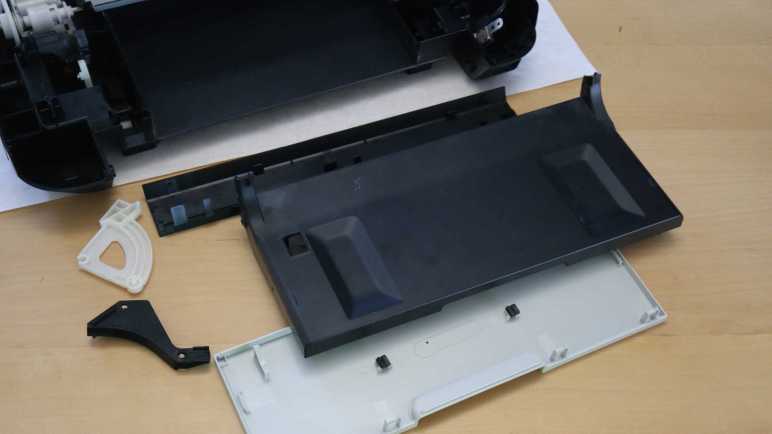
There weren’t much else to the front door other than its automatic opening mechanism. I found it was clipped together and fairly straightforward to take apart into its component plastic pieces.

The open question I have about this mechanism is the fact it incorporated several interlocking pieces that all have to engage and connect before the door opens. In practice, this means the paper feed roller turns several rotations before the door opens. Versus an easy single-piece implementation that would have opened the door as soon as the paper feed roller starts spinning forward. Why does this complexity exist? I think the answer has to do with the gearbox behind the print head parking area, so it’s a mystery I’ll put on hold for the moment. There are other, more easily accessible, things to look at like the print head carriage motor and nearby components.


This teardown ran far longer than I originally thought it would. Click here for the starting point.

Canon Pixma MX340 Paper Feed Motor Gearbox

I know I haven’t uncovered all of the paper handling mechanisms of this Canon Pixma MX340 I’m taking apart, but I’m already impressed with the partial overview I’ve got so far. Right now my focus is tracing those paper feed rollers back to the motor gearbox driving them.

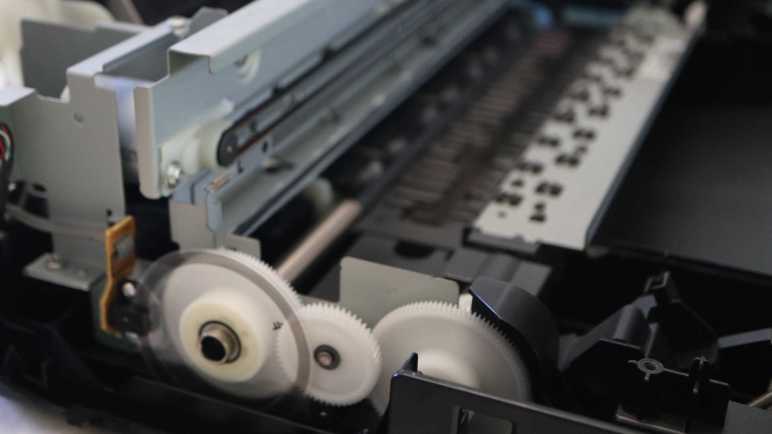
There are two paper feed rollers visible here, one before and one after the printing area. Each of those roller shafts are attached to a large white gear. A smaller intermediate gear sits between them to drive both. Earlier I had thought the motor must be behind that center gear, but it turned out the motor was actually a little lower.

The motor output shaft has a small black plastic gear, almost blending into the shadows. I traced only two wires leading into this area, implying it’s a brushed DC motor down there. Some of the older inkjet printers I took apart earlier used stepper motors for open-loop control. In this printer, precise control is accomplished with a closed-loop control system: the gear on the left has an encoder wheel and a sensor reading its motion providing feedback.

Flipping my camera lens to “super macro” mode, I got this close-up picture of the encoder ring. It is series of very fine evenly spaced radial lines, consistent with an incremental encoder. I see four wires leading to the sensor, consistent with things I expect to see: power, ground, A, and B. I’ll hook them up to my oscilloscope later to verify this deduction.

This motor drives a lot more than the two paper feed rollers immediately adjacent to the print area. One of the paper feed rollers transmit its power all the way across the printer to a gearbox behind the print head parking area. It’s likely involved in feeding paper from the input tray, and others I look forward to deciphering later. Right now, though, another interesting feature of this printer is immediately adjacent and accessible.


This teardown ran far longer than I originally thought it would. Click here for the starting point.

Canon Pixma MX340 Paper Path

I’m taking apart a Canon Pixma MX340 multi-function inkjet and it took a while to work my way down to the actual printing mechanisms in its base. There were a lot of interesting parts near the print head parking area, including a mystery gearbox I can’t access until later. For now I know only it has several gears and a photo interrupter sensor, and it’s involved in the paper feed process.

One of the gears is connected via a shaft to the paper feed roller, which has its own corresponding spring-loaded lever + photo interrupter sensor to detect when a sheet of paper has been fed through.

The tired old paper feed roller is covered with cracks.

The paper feed path design for this printer is nearly straight, barely bending the sheet of paper as it is fed from the input tray in the back through to the printing area and the output tray in the front. Here we can see two more sets of rollers, one immediately before and immediately after where the print head deposits ink.

Between these two sets of rollers, underneath that print area, is a sponge-looking substance that has soaked up a visible quantity of ink. The surrounding plastic shows plenty of ink stain discoloration as well. I can’t explain all of the reasons why ink ended up here instead of on paper, but I know one explanation are from my border-less photo printing on 4″ x 6″ glossy photo paper. In order to not leave any borders, the print head shoots out extra ink beyond the paper’s edge. That ink had to be go somewhere and we’re looking at them now.

Now that I know excess ink may get sprayed around even during normal usage, I started noticing ink absorption pads scattered throughout the print engine. I remember reading consumer backlash against Epson EcoTank machines. Advertised to be ideal for high volume inkjet printing, some users were surprised when their machines stopped printing. They had encountered a preprogrammed expiration for ink pads reaching end of life. At the time I agreed with many others online thinking it was just corporate greed shutting down perfectly working printers, but now that I’m looking at these ink pads on my old printer, maybe it’s a good idea to avoid overfilling their diapers.

The second set of paper feed rollers helps keep the paper straight during printing, and can help eject the printed sheet at the end. But it needs to solve an unique problem: how does it handle the printout when the ink is still damp immediately after printing? To see how that was done, I unscrewed the top set of rollers and flipped over the mechanism for a closer look.

The top rollers are actually small stamped sheet metal spiked wheels that minimize contact area with the just-printed surface. Thereby avoid smearing still-wet ink as the paper travels through these rollers. Very nice! Next I will look at the motor and gears driving this paper feed mechanism.


This teardown ran far longer than I originally thought it would. Click here for the starting point.

Canon Pixma MX340 Print Head Parking Area

The flatbed scanner module of this Canon Pixma MX340 multi-function inkjet turned out to be mostly empty space, which should hopefully ease a more detailed investigation later. Removing the scanner also unblocked the fasteners I saw earlier, allowing me to finally disassemble the base of this machine for a look inside.

I opened the base enclosure starting from its front right corner, where I found a very sturdily installed USB port. I remember this machine had the ability to scan straight to a PDF on a USB flash drive in this port, which was quite the lifesaver in the few times I needed that capability and needed it now. Behind the USB port is a thin sheet of clear plastic attached with double-sided adhesive. It looks like a shield… but against what?

I could see the USB port and shield is in front of where the print head carriage assembly is parked when it is not printing. I guess this shield is protecting the USB port from any errant ink drops that may spray from behind. I can see how we wouldn’t want ink to drip out of the USB port onto our flash drives, but I didn’t even know splashing ink was a risk.

Then I took a closer look at the print head parking area and saw ink-stained components underneath it. Oh yeah, I now see there’s plenty of ink splash risk.

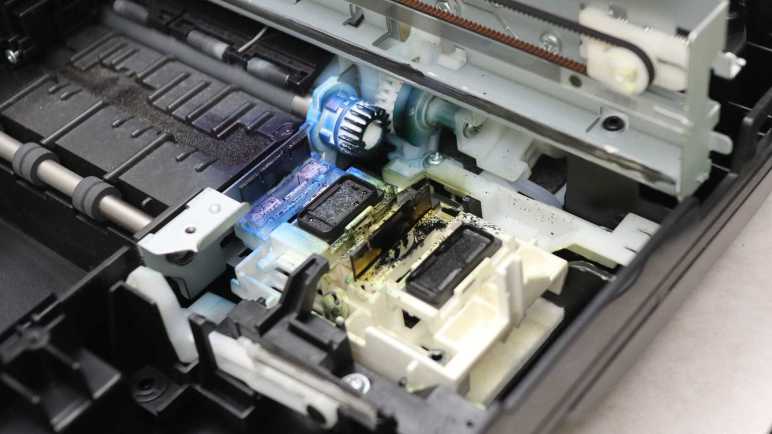
I pushed the print head carriage out of the way for a closer look at what lies beneath. There’s a lot of ink stain from years of service. It’s pretty clear the black cartridge lives on the right and the color cartridge on the left. For the color cartridge, it looks like the blue ink comes out of the left side and the yellow ink comes out the right. Curiously, I don’t see much in the way of red ink (or more likely magenta) even though I would have thought red would leave the brightest stains.

The front-most white gear, heavily stained blue, is attached to one of two paper feed roller shafts. I can see it meshes with gears further back, but I couldn’t see exactly what’s going on down there without further disassembly. The most intriguing feature that caught my attention are what looks like tubes. What flows through those tubes, where do they come from, and where do they go?

In the foreground of this picture, we see an assembly that sits below the print head when it is parked. The assembly can move at least vertically, possibly horizontally as well. The topmost features are two rubber squeegees, one heavily stained blue and another stained black but not as heavily. Next to those squeegees are what I assume to be ink absorbent pads. All appear to be useful tools to maintain, clean, and unclog ink nozzles.

For comparison, here’s a picture I took of the counterpart in a brand new Canon Pixma MG3620 before printing anything. I see many similar looking components, with the obvious difference of being factory fresh with clear squeegees and unstained white plastic.

Back to the MX340, I examined the print head carriage data cable and found it’s actually three flex cables stacked together. I had thought such stacking invited electrical interference between cables, but apparently not a problem here.

Tracing the cable back towards the main control board, there seems to be a pit stop at a small circuit board.

It turns out to be only a mechanical clip to keep the cable in place, there is no electrical connection to the little circuit board. The little circuit board has its own four conductor cable, visibly gray in this picture. The board houses another photo interrupter sensor for something in the gear box beneath it. I can’t see the rest of the gearbox, though, without further disassembly that carries a risk of breaking something. Since I want to poke around the printer in a still-working state, I am going to postpone gearbox investigation until later. I have enough other interesting things to look at.


This teardown ran far longer than I originally thought it would. Click here for the starting point.

Canon Pixma MX340 Scanner Rail

A flatbed scanner is part of a Canon Pixma MX340 multi-function inkjet, and I’ve freed it from its associated hinges and damper. Once freed it was relatively straightforward to remove all visible fasteners and work around the perimeter to pop loose all remaining clips. I lifted the glass top and found it surprisingly empty inside.

During normal operation I could see the scanning head and two ribbon cables through the glass. I had expected to find more components hidden along the sides out of sight. At least a switch or sensor for the scanning head to find its home position. But there’s nothing, just structural ribbing and empty space.

One ribbon cable led to an assembly with visible gears, so it’s probably the motion control cable.

There weren’t anything else holding the scanning head in place, so I could flip it over to confirm four wires consistent with a stepper motor. The curious part is I counted five conductors in the long white ribbon cable. Either I miscounted or there’s an extra wire I lost track of, for purpose I have yet to determine.

I count twelve conductors inside the other ribbon cable, leading to one end of the scanning head assembly. I guess image data comes across this wire. While the ribbon cable and its associated connector are too small for me to work with, I see at least five through-hole pins on a circuit board and I could work with that. It’s something to look into more detail later.

The other end of the scanning head has a spring to help keep the imaging hardware tight against the bottom of the glass surface.

Speaking of which, I was surprised to find two separate pieces of glass. One for the large whole-page scanning window, and a separate narrower piece works with the automatic document feeder. I had expected a single piece of glass spanning across those windows. Why did Canon engineers decide two separate pieces were better than a single piece? There must be a good reason for increasing parts count and assembly complexity. Do these two pieces have different optical characteristics? Or maybe it’s a supply chain volume thing. The large piece would be a high-volume piece usable on all printers and scanners, whereas the small window glass is lower volume only applicable to machines equipped with an automatic document feeder.

The glass pieces were about 3.45mm thick, far thicker than I had thought they were. I guess I got too used to LCD glass that are less than a millimeter thick and easily cracked. I’ve always been scared to accidentally crack the glass on a scanner bed, thinking they were just as thin and fragile as display glass. Now I know better. They’re still glass so I should still treat them with care, but I won’t be afraid to breathe on them anymore. Another feature I appreciated is that their corners have been beveled so I’m less likely to cut myself open on these edges.

Seeing how robust they are, I’m inclined to remove these pieces of glass for reuse elsewhere. They seem to be held in place by double-sided tape. Peeling off the tape and cleaning any remaining residue should be trivial for a glass surface.

While looking over the glass, I noticed this distinct pattern of three black stripes on a white background hiding underneath the bar between the two visible scanning windows. I think this explains the lack of a physical homing switch. Rather than adding hardware for a homing switch, the imaging sensor (which needs to be on a scanner anyway) is used to look for this pattern indicating home position. I wonder if I can spoof it by printing this pattern on a sheet of paper? That’s a potential experiment for later. Right now, because I wanted to keep the entire machine functional, I had to put the scanning module back together. That’s the easiest way to keep this stripe in place and visible to the scanning head while I go off and play with the rest of the device.


This teardown ran far longer than I originally thought it would. Click here for the starting point.

Canon Pixma MX340 Damper

I’m admiring all of the clever mechanical design as I take apart a Canon Pixma MX340 multi-function inkjet, even if some of the designs were too clever for me to figure out. Fortunately some of the mechanisms are more easily understood, like the damper mechanism.

After removing the top layer housing the ADF and control panel, the next layer is home to the scanner module.

This scanning bed tilts up for access to the ink cartridges.

A spring-loaded piece of blue plastic on the right props up the scanning bed assembly (and the ADF + control panel assembly above it) while we replace ink cartridges. When the task is complete, it is tempting to retract the blue plastic support and let the top slam shut. But slamming shut would destroy fragile components like scan bed glass.

Which is why Canon engineers have incorporated a damping mechanism to make sure the lid closes gently. This mechanism is my next teardown target. I could see most of it after removing side panels from the base.

Leaving only a small clipped-in cover before the entire mechanism became accessible.

Six removed screws later, the whole damper mechanism was free. It was a lot simpler than I had expected. The black arc is rigidly attached to the scanner, with geared teeth to engage with the upper white gear. The lower white gear is where the damping happens.

Here’s a closer look at the gearbox still installed. Two small black assemblies surround the lower gear, it felt like they contain a viscous fluid to accomplish their rotational damping. I might want to reuse them later, so I didn’t take them apart. Which also avoided making a mess.

The upper gear is not fixed at a single location, it is allowed to move almost 1cm in a slot, with a piece of spring to hold it against the upper side of the slot. When the user lifts the scanner for a ink cartridge replacement, the upper gear follows along and moves to the higher position. This movement disengages the upper gear from the lower gear, so the lifting motion is not damped. But when the lid starts falling, the upper gear is pushed to the lower side of the slot, engaging the lower gear and its pair of little black dampers.

This meant the user can lift the lid as fast as they like and not have to fight the damper before they could access the ink cartridges. After they were done, they can let go of the lid and the dampers will automatically engage to slow the fall. I had expected something more complex was necessary to implement unidirectional damping, but it was just a movable gear held by a piece of spring. Cool.

Once the damper was removed, I looked at the hinge itself and it’s a simple plastic nub in a slot. Bending a little plastic was enough to free the hinge.

Once they were both freed, I could access all of the fasteners holding the scanner module together, allowing me to take that apart and look inside.


This teardown ran far longer than I originally thought it would. Click here for the starting point.
Canon Pixma MX340 ADF Hinge

It was fun to look over the automatic document feeder (ADF) in this Canon Pixma MX340 multifunction inkjet. Thanks to clever mechanical design, it only needed two sensors and a single motor to feed a stack of paper through the scanner one sheet at a time. After removing those components I was faced with the hinge mechanism holding the ADF (and control panel) up above the scanner bed.

In addition to normal hinge rotation, these hinge modules can move vertically extending upwards by about 3cm. This accommodates thicker material on the scanner bed, such as a book. Some kind of a mechanical stop prevents them from being pulled out more than that 3cm. Not falling apart during normal use is great, but now that stop mechanism is an obstacle blocking progress in my teardown.

After removing the control panel and ADF, I have a large tray and two hinge modules, each held by three fasteners.

Removing the fasteners freed the module from the tray. And while that gives a bit of play moving the module around, the top part is physically too large to fit through the tray slot. The hinge module has to be removed from the scanner bed below, but I couldn’t see what’s still holding it place because the tray is still in the way. The teardown so far tells me Canon engineers must have designed for graceful and non-destructive removal, but my belief didn’t lead to useful insight. Fingertip tactile feedback tells me there’s some sort of mechanical interaction down there, but I couldn’t see it to understand what I’m feeling.

Conceding defeat, I went with the brute-force mechanism and pried one hinge assembly loose. This damaged its vertical channel. Once removed, I could see how things worked: a small tab held the hinge module in a vertical channel. This channel is blocked on top to keep the hinge from falling out during normal use.

As long as the tab stayed in the channel, the hinge module stayed inside. However, there was a small slot in the side of the channel around halfway up. To remove this hinge module non-destructively, we have to slide it sideways into that alternate channel.

This sideways movement was not allowed until the three fasteners holding the hinge mechanism to the tray were removed. But given that little bit of mechanical play, we can move the tab into the alternate channel. It is not blocked at the top, allowing the hinge module to slide out. Those Canon mechanical engineers were sure clever, too clever for me to figure out their trickery on this first pass. Maybe I’ll encounter a similar mechanism in the future, but it won’t be in this teardown. The next hinge down is for the scanner bed module, and it’s completely different.


This teardown ran far longer than I originally thought it would. Click here for the starting point.

Canon Pixma MX340 ADF Motor and Sensors

I disassembled the control panel for this Canon Pixma MX340 multi-function inkjet and took a quick look from a mechanical perspective. I’ll return later for an electronics examination but right now I wanted to dig into the rest of the scanning/copying automatic document feeder (ADF). I got a taste of what’s involved in an ADF from a clever lid mechanism, now it’s time to see the rest of it.

The control panel had to be disassembled first because it uncovered the fasteners and latches I needed to release before I could remove this back cover.

Then I could see the ADF motor and gearbox assembly, including the gear that drove the ADF lid paper feed rollers. Judging by the presence of four wires going into this motor, I believe this is a bipolar stepper motor.

Removing the bottom of the ADF paper feed tray allowed visibility into the core of this mechanism. In addition to paper handling rollers, I see a pair of photo interrupter sensors.

A plastic paddle attached to the bottom of the ADF paper feed tray slots into a sensor, visible towards the top of this picture. It detects when a document has been placed in the ADF. The sensor at the bottom of this picture still has its matching paddle in the slot, it detects whether a sheet of paper has been properly fed into the roller assembly.

Adjacent to the motor gearbox, I saw a beefy ground wire attached to foil tape.

This foil tape led into the middle of the ADF assembly…

… and out the bottom where it hovered over the entire width of the output tray. I believe this intends to dissipate any static electricity built up after the sheet of paper passes through the document scanner. The more interesting question is: was this always part of the design? Or was this added after testing uncovered problems with static electricity buildup? Foil tape is simple and effective for conducting low current, a good fit for managing static electricity buildup. But if static electric dissipation was the goal, I would have expected some stamped sheet metal integrated into this plastic structure. Foil tape felt like it might have been a hack. Which is fine, if it was. Canon engineers are only human after all and this machine already has more than enough intricate designs to facinate me.


This teardown ran far longer than I originally thought it would. Click here for the starting point.

Canon Pixma MX340 Control Panel

This inkjet teardown is off to a great start, with an interesting mechanism to feed the top sheet of document into the automatic document feeder (ADF) without requiring its own motors or wiring.

The next assembly I managed to free was the control panel.

I failed to find visible fasteners, but there were a few of these rectangular slots with arrows that I have learned was Canon engineer’s way of indicating “Here’s a plastic clip you can unlatch.”

Unlatching a trio of them allowed me to slide out the white plastic trim underneath the control panel, exposing many other plastic clips and fasteners.

Which allowed removal of the control panel facade, exposing… another layer of plastic! The top layer is focused on appearance, this next layer handles mechanical functionality for all the buttons.

I had hoped the LCD module is in its own little standalone sub-assembly, because that would be the easiest for me to repurpose elsewhere. Sadly that doesn’t look to be very likely here, as the screen is bonded to a segment of flex PCB with very fine pitched wires.

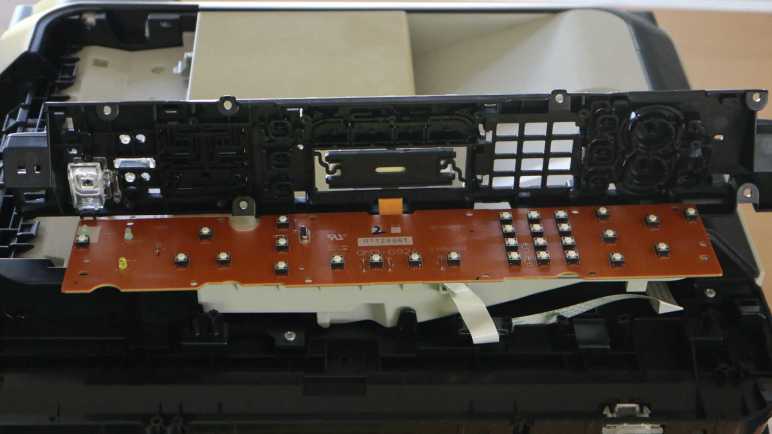
Flipping the control panel module over, I confirmed LCD connector is a tiny thing. The only other connector is for a white ribbon cable leading to the main board at the back of the printer. I see a single large IC on this board. The combination of LCD + buttons + single chip remind me of the control panel from a Toyota factory tape deck. There’s a chance this printer control panel is designed along a similar architecture. Maybe that single IC is in charge of scanning through and refreshing LCD segments as well as scanning the array of buttons?

Removing all the visible fasteners allowed the plastic button mechanical layer to be separated from the electronic circuit board, where I could confirm this is a single-layer board. Right now I want to stay focused on mechanical disassembly, proceeding to disassemble the automatic document feeder. I will return to this circuit board board later to investigate its electrical properties.


This teardown ran far longer than I originally thought it would. Click here for the starting point.