Fan Strobe LED Adjustments via ESPHome

After proving my fan blade LED strobe idea worked with a minimalist Arduino sketch, I ported that code over as an ESPHome custom component. I thought it would be good practice for writing ESPHome custom components and gain Home Assistant benefit of adding adjustments in software. For me it was easier to create an analog control with a few lines of YAML and C, than it would be to wire up a potentiometer. (I recognize it may be the reverse for people more comfortable with hardware than software.)

The first adjustment “Fan Speed Control” actually did not require custom component at all: making the fan speed adjustable utilized the built-in fan speed component. In my minimalist sketch the fan is always running at full speed, now I can adjust fan speed and verify that the strobe logic indeed stays in sync with the fan speed. Meaning the strobe keeps these fan blades visually frozen in the same place regardless of their rotational speed.

The first custom output component adjustment “Strobe Duration” changes the duration of LED strobe pulse, from zero to 1000 microseconds. For this LED array, I found values under 100 to be too dim to be useful. The dimmest usable value is around 100, and things seem to work well up to 300. I start detecting motion blur above 300, and things are pretty smeared out above 600.

The next addition is a toggle switch “Strobe Tachometer Toggle”. Because the tachometer signal pulses twice per revolution, I ignore every other pulse. But that means a 50% chance the code will choose to trigger on the wrong pulse, resulting in a visually upside-down image. When this happens, this toggle allows us to flip to trigger on the opposing pulse, flipping the frozen visual right-side up.

The final custom component adjustment “Strobe Delay” adds a delay between triggered by tachometer wire and illumination of LED strobe. This changes the point at which the fan is visually frozen by the strobe light. Dynamically adjusting this value makes it look like the fan blade is slowly rotating position even though it is actually rotating at ~1200RPM. I think it is a fun effect, but to fully take advantage of that effect I will need longer delays, which means finding how I could move that work outside of my interrupt service routine. Inside the ISR I should set up a hardware timer for this delay and turn on LED when timer expires. I can then use the same mechanism to set a timer for LED duration and turn off LED when that timer expires.

Unfortunately, there are only two hardware timers on an ESP8266, and they are both spoken for. One runs WiFi, the other runs Arduino core for things like millis(). To explore this idea further, I will need to move up to an ESP32 which has additional hardware timers exposed to its Arduino core. And if I choose to explore that path, I don’t even need to redo my circuit board: there exists a (mostly) drop-in ESP32 upgrade for anything that runs a Wemos D1 Mini.


YAML Excerpt:

esphome:
  includes:
    - led_strobe_component.h

output:
  - platform: esp8266_pwm
    pin: 14
    id: fan_pwm_output
    frequency: 1000 Hz
  - platform: custom
    type: float
    lambda: |-
      auto led_strobe = new LEDStrobeComponent();
      App.register_component(led_strobe);
      return {led_strobe};
    outputs:
      id: strobe_duration_output
  - platform: custom
    type: float
    lambda: |-
      auto led_strobe_delay = new LEDStrobeDelayComponent();
      App.register_component(led_strobe_delay);
      return {led_strobe_delay};
    outputs:
      id: strobe_delay_output

fan:
  - platform: speed
    output: fan_pwm_output
    id: fan_speed
    name: "Fan Speed Control"

light:
  - platform: monochromatic
    output: strobe_duration_output
    id: strobe_duration
    name: "Strobe Duration"
    gamma_correct: 1.0
  - platform: monochromatic
    output: strobe_delay_output
    id: strobe_delay
    name: "Strobe Delay"
    gamma_correct: 1.0

switch:
  - platform: custom
    lambda: |-
      auto even_odd_flip = new LEDStrobeEvenOddComponent();
      App.register_component(even_odd_flip);
      return {even_odd_flip};
    switches:
      name: "Strobe Tachometer Toggle"

ESPHome custom component file led_strobe_component.h:

#include "esphome.h"

volatile int evenOdd;
volatile int strobeDuration;
volatile int strobeDelay;

IRAM_ATTR void tach_pulse_handler() {
  if (0 == evenOdd) {
    evenOdd = 1;
  } else {
    delayMicroseconds(strobeDelay);
    digitalWrite(13, HIGH);
    delayMicroseconds(strobeDuration);
    digitalWrite(13, LOW);
    evenOdd = 0;
  }
}

class LEDStrobeComponent : public Component, public FloatOutput {
  public:
    void setup() override {
      // LED power transistor starts OFF, which is LOW
      pinMode(13, OUTPUT);
      digitalWrite(13, LOW);

      // Attach interrupt to tachometer wire
      pinMode(12, INPUT_PULLUP);
      evenOdd = 0;
      attachInterrupt(digitalPinToInterrupt(12), tach_pulse_handler, RISING);

      strobeDuration = 200;
    }

    void loop() override {
    }

    void write_state(float state) override {
      // Multiply by 1000 = strobe duration from 0 to 1ms.
      strobeDuration = 1000 * state;
    }
};

class LEDStrobeEvenOddComponent: public Component, public Switch {
  public:
    void write_state(bool state) override {
      evenOdd = !evenOdd;
      publish_state(state);
    }
};

class LEDStrobeDelayComponent: public Component, public FloatOutput {
  public:
    void write_state(float state) override {
      strobeDelay = 1000*state;
    }
};
LED Strobing to Fan Speed Signal

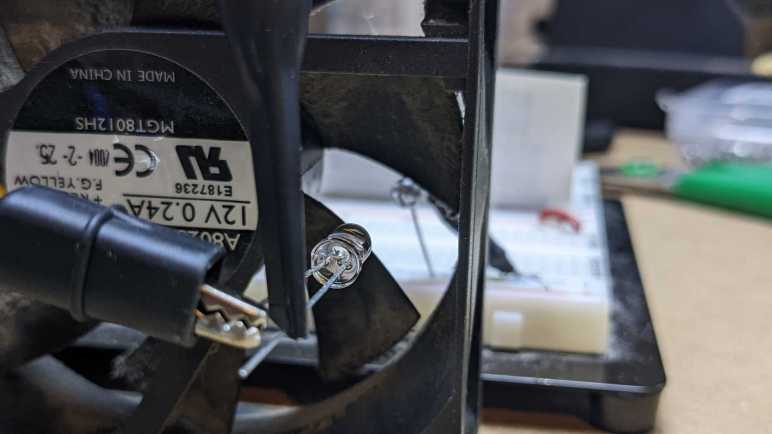
The reason I cared about power-on response time of a salvaged LED array is because I wanted to use it as a strobe light shining on a cooling fan pulsing once per revolution. Historically strobe lights used xenon bulbs for their fast response, as normal incandescent bulbs were too slow. This LED array used to be a battery-powered work light with no concern of reaction time, but LEDs are naturally faster than incandescent. Is it fast enough for the job? PC case fan specifications usually range from the hundreds to low thousands of RPM. Using 1200RPM as a convenient example, that means 1200/60 seconds per minute = 20 revolutions per second. Pulsing at 20Hz should be easy for any LED.

For the hardware side of controlling LED flashes, I used a 2N2222A transistor because I had a bulk bag of them. They are usually good for switching up to 0.8 Amps of current. I measured this LED array and it drew roughly 0.3 Amps at 11.3V, comfortably within limits. I just need to connect this transistor’s base to a microcontroller to toggle this light on and off. For this experiment I repurposed the board I had built for the first version of my bedstand fan project. I unsoldered the TMP36 sensor to free up space for 2N2222A and associated LED power wire connector.

This board also had the convenience of an already-connected fan tachometer wire. My earlier project used it for its original purpose of counting fan RPM, but now I will use those pulses to trigger a LED flash. Since timing is critical, I can’t just poll that signal wire and need a hardware interrupt instead. Within Arduino framework I could use attachInterrupt() for this purpose and run a small bit of code on every tachometer wire signal pulse. Using an ESP8266 for this job had an upside and a downside. The upside is that interrupts could be attached to any available GPIO pin, I’m not limited to specific pins like I would have been with an ATmega328P. The downside is that I have to use an architecture-specific keyword IRAM_ATTR to ensure this code lives in the correct part of memory, something not necessary for an ATmega328P.

Because it runs in a timing-critical state, ISR code is restricted in what it can call. ISR should do just what they absolutely need to do at that time, and exit allowing normal code to resume. So many time-related things like millis() and delay() won’t work as they normally would. Fortunately delayMicroseconds() can be used to control duration of each LED pulse, even though I’m not supposed to dawdle inside an ISR. Just for experiment’s sake, though, I’ll pause things just a bit. My understanding of documentation is as long as I keep the delay well under 1 millisecond (1000 microseconds) nothing else should be overly starved for CPU time. Which was enough for this quick experiment, because I started noticing motion blur if I keep the LED illuminated for more than ~750 microseconds. The ideal tradeoff between “too dim” and “motion blurred” seems to be around 250 microseconds for me. This tradeoff will be different for every different combination of fan, circuit, LED, and ambient light.

My minimalist Arduino sketch for this experiment (using delayMicroseconds() against best practices) is publicly available on GitHub, as fan_tach_led within my ESP8266Tests repository. Next step in this project is to move it over to ESPHome for bells and whistles.

NEXTEC Work Light LED Array

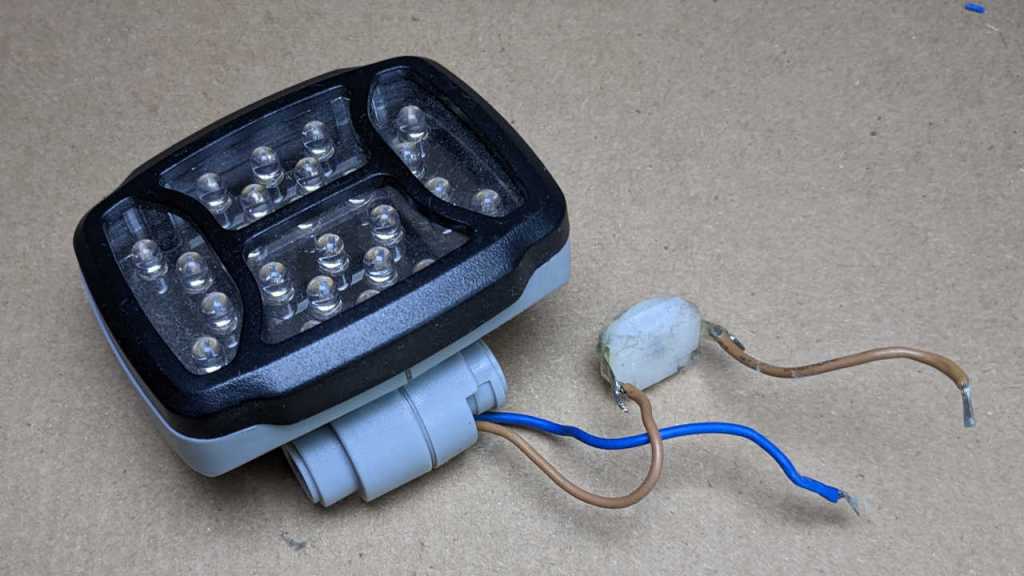
While experimenting with 5V power delivery over USB-C, I thought of an experiment that will utilize my new understanding of computer cooling fan tachometer wire. For this experiment I will need a light source in addition to the fan itself. I wanted a nice and bright array of many LEDs, and preferably something already set up to run at around 12V so I wouldn’t have to add current-limiting resistors. A few years ago, I took apart a Sears Craftsman NEXTEC work light for its battery compartment. Now it is the LEDs turn to shine. That battery pack used three lithium 18650 cells in series, so it is in the right voltage range.

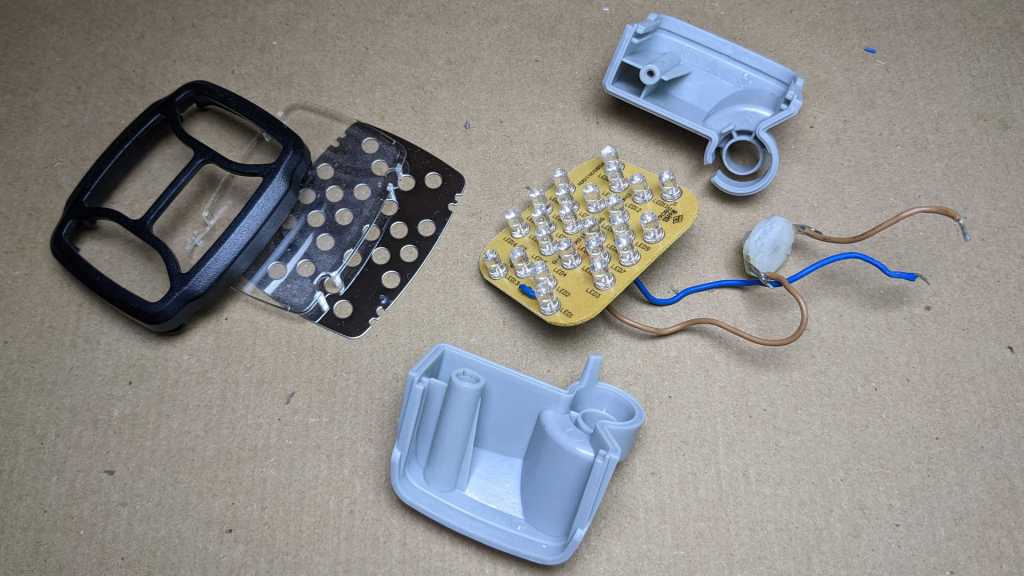
I think there was only a single fastener involved in this LED array, and it was already gone from teardown earlier so now everything slid apart easily.

I like the LED housing and intend to use it, but I wanted to take a closer look at the LED array.

I confirm the 24 white LEDs visible before disassembly, and there’s nothing else hiding on this side of the board, just the power supply wires looping through for a bit of strain relief. We can also see that Chervon Group was the subcontractor who produced this device to be sold by Sears under their Craftsman branding.

Everything is on the backside of this circuit board. From here we can see the 24 LEDs are arranged in 12 parallel sets of 2 LEDs in series, each set with a 240 Ohm resistor between them. Beyond that, to lower left I see a cluster of components and I’m not sure what they do. My best guess is battery over-discharge protection. Perhaps the component marked ZD1 is a Zener diode to detect voltage threshold, working with power transistor Q1 to cut power if battery voltage drops too low.

The most important thing is that I don’t see a microcontroller that requires time to boot up. I will be pulsing this LED array rapidly and want minimal delay between power and illumination. If delay proves to be a problem, I’ll try bypassing those lower-left bits: Relocate the power supply wire (brown wire, connects between markings R1 and ZD1) so it connects directly to the LED supply plane. Either to the transistor tab adjacent to the Q1 marking, or directly to the high end of any of those 12 parallel LED strings. But I might not need to perform that bypass. I will try my experiment with this circuit board as-is.

Resistors Negotiate 5V Power in USB Type C

Thanks to prompting by a comment, I am picking up where I left off trying to supply power over a USB-C cable. I love the idea of USB Power Delivery, the latest version covers transferring up to 240W over a USB Type-C cable. But that power also comes with complexity, and I didn’t want to figure out how to establish a power delivery contract when my project really just wanted five volts. Fortunately, the specification also describes a low-complexity way to manage 5V power over USB Type-C. But I had to be confident I was dealing with the correct wires, so I probed wiring with a small breakout board. (*) I confirmed that the four red wires were VBUS, the green and white wires were indeed the differential data pairs, and the mystery yellow wire is the VCONN or CC (cable configuration) wire on the same side.

Ah, yes, that “same side” was an interesting find. USB Type-C is physically shaped so there’s no “upside-down” way to insert the plug, with symmetric wires. However, that also means each side has a set of D+/D-/CC wires, and a USB Type-A to Type-C adapter only connects to one side. It is up to the Type-C device to check both sides.

In my previous experiment I learned that just connecting +5V to red and ground to black was enough to be recognized as a power source by some Type-C device but not my Pixel 3a phone. I found multiple guides that said to connect a 56kΩ pull-up resistor between CC and VBUS, but I wanted to know a little bit more without diving into the deep end of USB specifications. I found a very accessible post on Digi-Key forums describing the details of 5V @ 3A = 15W power over Type-C. Which is itself a simplified version of a much more complex Digi-Key overview of USB power.

Like several other guides, it mentioned the resistors on both ends of the Type-C cable, but it also had this phrase: “Together they form a voltage divider” which was my “A-ha!” moment. It allowed components to negotiate 5V power delivery without a digital communication protocol. We just need a resistor on either side: one for the provider to indicate the amount available, and the other by the consumer to indicate its desired consumption. Then we just need an ADC to measure voltage value of the resulting voltage divider, and we’ll know the safe power level.

When I added the 56kΩ pull-up resistor to my circuit, my Pixel 3a lit up with “Charging slowly”. I thought it was successfully charging at 500mA, but it wasn’t. Over the next half hour, its battery level actually dropped! I put the circuit under a USB power meter(*) and found it was only drawing a feeble 40mA. That meter also told me why: my circuit had supplied only 4.3V because I had a transistor in the circuit for power control and it dropped 0.7V from collector to emitter. This was why the power level was so low: a pull-up resistor to 4.3V was below the voltage threshold for 500mA power.

In order to create a microcontroller-switchable 5V (not 4.3V) power supply, I went with my most expedient option of using another voltage regulator with an enable pin connected to what used to be the transistor base. This raised the divided voltage within 500mA range, and finally the Pixel 3a started charging at that rate as confirmed by the USB power meter. And as an experiment to confirm my understanding, I dropped pull-up resistance down to 22kΩ. This raised the resulting voltage at the divider, and USB power meter reported that my Pixel 3a started drawing 1.5A. My buck converter is rated to handle this output and this way the phone charges faster.

[UPDATE: Hackaday has post describing USB-C power for the electronic hobbyist audience.]


(*) Disclosure: As an Amazon Associate I earn from qualifying purchases.

Notes on “Make: Bluetooth” by Allan, Coleman, and Mistry

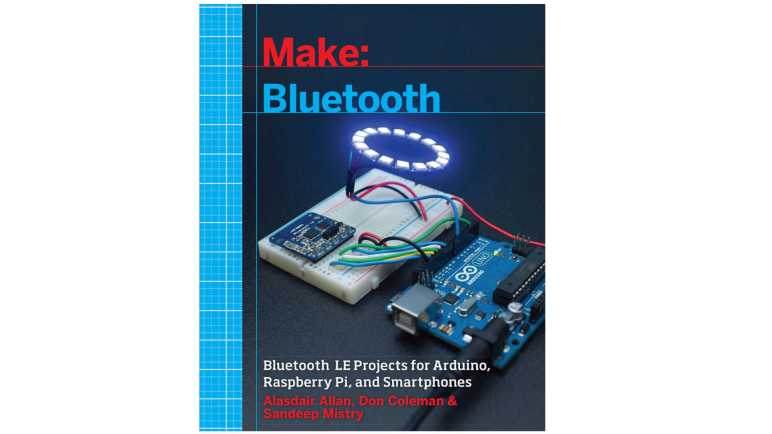
As a part of a Humble Bundle package of books published by Maker Media, I had the chance to read through Make: Bluetooth (*) by Alasdair Allan, Don Coleman & Sandeep Mistry. This book covers a series of projects that can be built by the Make audience: by assembling development breakout boards and discrete components on prototype breadboards.

One of the first things this book covers is that these projects all use Bluetooth LE and not “Classic” Bluetooth. They share two things: (1) they both communicate over 2.4GHz range of RF spectrum, and (2) they are both administered by the Bluetooth Special Interest Group. Other than that, they are completely different wireless communication protocols named for maximum customer confusion.

For each project, this book provides a detailed step-by-step guide from beginning to end, covering just what we need for each project. This is both the book’s greatest strength and leads to my biggest criticism. Minimizing extraneous information not pertinent to the current project avoids confusing beginners, but if that beginner wants to advance beyond being a beginner, this book doesn’t provide much information to guide their future study. This problem gets worse as the book ages, because we’re not given the background information necessary to adapt. (The book is copyrighted 2016, this post is written in 2022.)

The first example is the Bluetooth LE module they used for most of the book: Adafruit product #1697, Bluefruit LE – Bluetooth Low Energy (BLE 4.0) – nRF8001 Breakout. The book never covers why this particular BLE module was chosen. What if we can’t get one and need to find a substitute? We’re not just talking about a global chip shortage. It’s been years since the book was written and Adafruit has discontinued product #1697. Fortunately, Adafruit is cool, and added a link to their replacement products built around the nRF51822 chip. But if Adafruit hadn’t done that, the reader would have been up a creek trying to figure out a suitable replacement.

Another example was the phone interaction side of this book, which is built using Adobe PhoneGap to produce apps for either iOS or Android phones. And guess what, Adobe has discontinued that product as well. While most of the codebase is also available in the open-source counterpart Apache Cordova, Adobe’s withdrawal from the project means a big cut of funding and support. A web search for Apache Cordova will return many links titled “Is Apache Cordova Dead?” Clearly the sentiment is not optimistic.

The Bluetooth LE protocol at the heart of every project in this book was given similarly superficial coverage. There were mentions of approved official BLE characteristics, and that we are free to define our own characteristic UUID. But nothing about how to find existing BLE characteristics, nor rules on defining our own UUID. This was in line with the simplified style of the rest of the book, but at least we have a “Further Reading” section at the back of the book pointing to two books:

  1. Getting Started with Bluetooth Low Energy (*) by Townsend, Cufí, Akiba, and Davidson.
  2. Bluetooth Low Energy: The Developer’s Handbook (*) by Heydon

I like the idea of a curated step-by-step guide to building projects with Bluetooth LE, but when details are out of date and there’s nothing to help the reader adapt, such a guide is not useful. I decided not to spend the time and money to build any of these projects.


(*) Disclosure: As an Amazon Associate I earn from qualifying purchases.

Fan Blade Counter Success: Infrared LED Photovoltaic Effect

I wanted to rig up a fan blade counter as an oscilloscope exercise: set up an emitter and hook the receiver up to the oscilloscope and count the spinning blades via interruption between emitter and receiver. I had a box of consumer infrared remote-control emitter and receivers, but those receivers were too smart and sophisticated for my project. I needed something simpler.

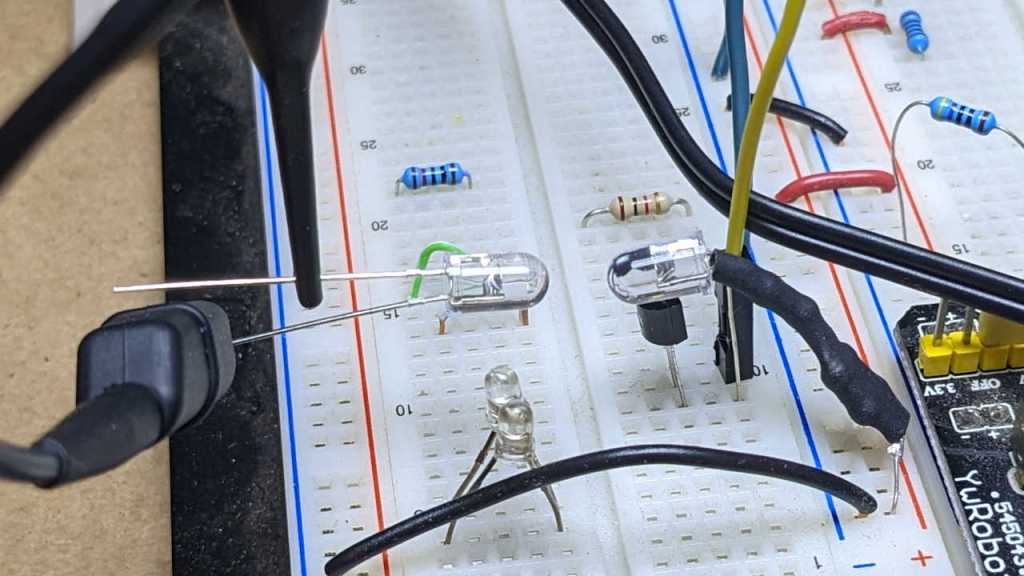
Looking at what I (literally) have on hand, I wondered if the oscilloscope is sensitive enough to pick up a photovoltaic effect on these IR emitters. I remembered that every piece of silicon responds to light to some degree. This fact caused problems like the first run of Raspberry Pi 2 that resets when exposed to bright light, which is why they’re usually shrouded in black plastic to block light. I already had an IR emitter set up to pulse at 38kHz, so I placed another emitter pointed face-to-face wired directly to an oscilloscope probe: the probe connected to LED anode and corresponding ground pin connected to LED cathode.

The answer is: yes, the oscilloscope can pick up electrical activity on the IR emitter diode as it was stimulated by an identical IR emitter. It’s not a very clean square wave, with a sharp climb and a slower decay, but it’s clearly transmitting the 38kHz signal. I don’t know how to build a circuit that triggers behavior based on such small voltages, but right now I don’t have to. The exercise is measuring fan blades and see how it correlates to fan tachometer signal on a multichannel oscilloscope, and I have an effect strong enough to be picked up by said oscilloscope.

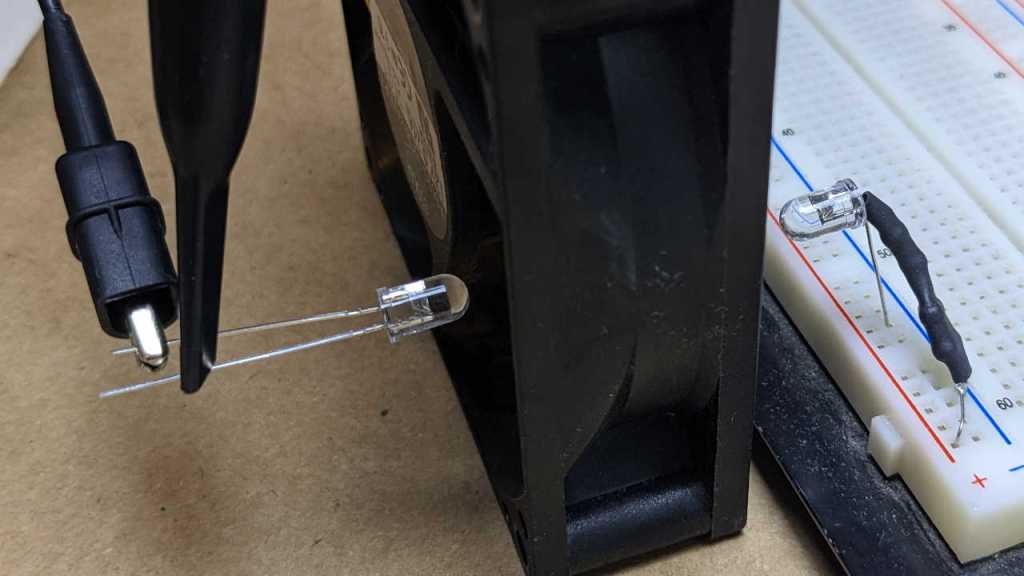
The emitter LED was removed from the 38kHz circuit. Now it lives on the breadboard power rail, so it is always on. The other emitter LED (acting as receiver) was placed on the other side of the fan. A separate set of oscilloscope probes were connected to the fan tachometer wire. I gave the fan power, and saw the graph I had hoped to get:

The yellow square wave is the fan tachometer signal, and the rougher purple wave is the receiving LED. There are seven blades on this particular fan, so seven purple cycles would correspond to one revolution of the fan. I count seven purple cycles for every two yellow cycles, finally confirming that the cooling fan tachometer signal goes through two full cycles on every fan revolution.

Fan Blade Counter Fail: IR Receiver is not Simple Phototransistor

After a successful Lissajous experiment with my new oscilloscope, I proceeded to another idea to explore multichannel capability: a fan blade counter. When I looked at the tachometer wire on a computer cooling fan, I could see a square wave on a single-channel oscilloscope. But I couldn’t verify how that corresponded to actual RPM, because I couldn’t measure the latter. I thought I could set up an optical interrupter and use the oscilloscope to see individual fan blades interrupt the beam as they spun. Plotting the tachometer wire on one oscilloscope channel and the interrupter on another would show how they relate to each other. However, my first implementation of this idea was a failure.

I needed a light source, plus something sensitive to that particular light, and they need to be fast. I have some light-sensitive resistors on hand, but their reaction times are too slow to count fan blades. A fan could spin up to a few thousand RPM and a fan has multiple blades. So, I need a sensor that could handle signals in the tens of kilohertz and up. Looking through my stock of hardware, I found a box of consumer infrared remote-control emitter and receiver modules (*) from my brief exploration into infrared. Since consumer IR usually modulate their signals with a carrier frequency in the ballpark of 38kHz, these should be fast enough. But trying to use them to count fan blades was a failure because I misunderstood how the receiver worked.

I set up an emitter LED to be always-on and pointed it at a receiver. I set up the receiver with power, ground, and its signal wire connected to the oscilloscope. I expected the signal wire to be at one voltage level when it sees the emitter, and at another voltage level when I stick an old credit card between them. Its actual behavior was different. The signal was high when it saw the emitter, and when I blocked the light, the signal is… still high. Maybe it’s only setup to work at 38kHz? I connected the emitter LED to a microcontroller to pulse it at 38kHz. With that setup, I can see a tiny bit of activity with my block/unblock experiment.

Immediately after I unblocked the light, I see a few brief pulses of low signal before it resumed staying high. If I gradually unblocked the light, these low signals stayed longer. Even stranger, if I do the opposite thing and gradually blocked the light, I also get longer pulses of low signal.

Hypothesis: this IR receiver isn’t a simple photoresistor changing signal high or low depending on whether it sees a beam or not. There’s a circuit inside looking for a change in intensity and the signal wire only goes low when it sees behavior that fits some criteria I don’t understand. That information is likely to be found in the datasheet for this component, but such luxuries are absent when we buy components off random Amazon lowest-bidder vendors instead of a reputable source like Digi-Key. Armed with microcontroller and oscilloscope, I could probably figure out the criteria for signal low. But I chose not to do that right now because, no matter the result, it won’t be useful for a fan blade counter. I prefer to stay focused on my original goal, and I have a different idea to try.


(*) Disclosure: As an Amazon Associate I earn from qualifying purchases.

LRWave Audio Under Multichannel Oscilloscope

When I read through the user’s guide for my new 4-channel oscilloscope, one of the features that jumped out at me was “XY mode”. Normally signals are displayed with their voltage on the vertical axis and time on the horizontal axis. But XY mode allows us to plot one channel on the vertical axis against another channel on the horizontal axis. Aside from its more technical applications, people have used this to display vector art on their oscilloscope. And the simplest vector art are Lissajous curves, which Emily Velasco introduced me to. We’ve had several projects for Lissajous curves including this old CRT projection TV tube.

Motivated by these Lissajous experiments, I created my software project LRWave to give us a basic function generator using our cell phones. Or really anything that has an audio output jack and a web browser. It’s not nearly as good as a real function generator instrument, but I didn’t really know how far away from “good” it is. Now that I have an oscilloscope, I can look closer.

Digging into my pile of discarded electronics, I found a set of stereo headphones. Cutting its cable, I pulled out three wires corresponding to left audio, right audio, and common ground reference.

These wire strands had an insulating coating that had to be removed. Hot solder seemed to work well melting them off, also conveniently giving me a surface to attach a short segment of wire for oscilloscope probes to hook onto. Now I can see what LRWave output looks like under an oscilloscope.

It’s not very pretty! Each vertical grid on this graph is 20mV according to the legend on the top right. The waveform is far from crisp, smearing across a range of about 50mV. This is very bad when the maximum and minimum levels are only separated by roughly 120mV. The narrow range was because my phone was set at very low audio volume.

Cranking my phone volume up to maximum increased the amplitude to about 1.5V, so the maximum and minimum levels are separated by about 3V. (Each vertical grid is now 500mV.) With this range, the 50mV variation is a lot less critical and we have a usable sine wave. Not as good as a real function generator, but usable. Also, actual performance will vary depending on the audio hardware. Different cell phones/tablets/computers will output audio to varying levels of fidelity.

This is as far as I could have gone with my cheap DSO-138 single-channel oscilloscope, but now that I have more than one channel, I can connect both stereo audio channels to the oscilloscope and activate XY mode to plot them against each other and get some nice Lissajous curves on my oscilloscope screen.

Yeah, that’s what I’m talking about! I expect this line would be finer (thinner) if I used a real wave generation instrument instead of the headphone output jack of a cell phone, but it’s more than enough for a fun graph. Onwards to my next multichannel oscilloscope experiment.

Notes on Siglent SDS1104X-E Oscilloscope User’s Guide

I have some basic ideas on how to use an oscilloscope, but I’ve never had one of my own until I bought one during this year’s Amazon Prime Day sale. Given its complexity and cost, I thought it would be a good idea to invest some time into Reading The Fine Manual. This did not start well, as there was only a Quick Start Guide in the box, featuring this particular gem:

These symbols may appear on the product: (But we won’t tell you what they mean!) Thanks, guys. Despite such minor mistakes, the quick start guide seems fine if perfunctory. I was moderately annoyed that they used the same manual for two-channel and four-channel versions of this scope, so I would occasionally look at something that made no sense until I realize it was about the two-channel. That annoyance aside, I learned valuable things like adjusting probe compensation as part of unpacking and initial setup (they were all slightly under-compensated but easily resolved with the procedure) but most of the other descriptions assumed I already knew how to use an oscilloscope. I was worried until I saw a note saying I could find more information in the User Manual.

Okay! A real User Manual exists, even if it isn’t in the box. I went hunting online and found my answer on Siglent NA (North America?) document repository where I could find the User Manual (and many other guides) in PDF format under the SDS1000X-E-Series section. It has the same annoyance of using one manual for both 2- and 4-channel versions, but now with a lot more useful detail.

  • One valuable thing I learned and need to keep in mind is that most knobs on this oscilloscope are like the quadrature encoder knob I took apart: there is a button press in addition to rotation. If I’m poking around looking for a feature, it might be a knob press.
  • I like the idea of the “Auto Setup” button. It is advertised to looks at the channel’s signal and choose an appropriate vertical and horizontal scaling. Sounds like a counterpart to “auto ranging” capability on a multimeter, I hope it will turn out to be as useful as it sounds.
  • These scopes came with probes that have a switch to toggle between 1X and 10X attenuation. It appears the probe has no way to communicate its current setting to the scope, I have to tell the scope. Something to keep in mind and check when things make no sense.
  • When I zoom out to a longer timescale, there’s a threshold where the cheap DSO-138 would automatically switch to showing data in a horizontal scrolling display. After reading this user’s guide I know it is called “Roll Mode” (Page 34) here and it’s something I can choose to toggle on/off with a button, independent of timescale.
  • I frequently try to adjust display timescale on the DSO-138 so I could zoom in and out to look at various features. Now, I have an actual zoom function (page 35) so I can keep the longer timescale waveform on screen simultaneously with a short timescale subset of the same wave.
  • DSO-138 would frequently fail to show fast blips. If I need to see peaks of very brief signals, I can choose to display “Peak Detection” mode. (page 46).
  • Typically having multiple channels mean multiple lines all graphed against time, but setting “Acquire” to “XY” (page 49) allows graphing one channel versus another instead of time. There will be some vector graphics fun with Lissajous curves in the near future.
  • It seems like half of the manual goes into depth on what each of the trigger modes do. I will need to re-read this section several times. Eventually I should be able to recognize which situations are best fit for certain trigger modes.
  • I was very excited to read about Video Trigger: it sounds like the oscilloscope knows what NTSC composite video signals should look like and can trigger on specific parameters or fields. Once I master this mode, I foresee it becoming extremely valuable for debugging my ESP32 composite video output library.
  • I had no idea “Measurements” (page 130) are something oscilloscopes can do now. So instead of reading the screen to see how much time is represented by an on-screen grid division, and calculating the period of a waveform, and from there calculating the frequency… now the scope has measurement tools to do all that math for us. Wow, fancy!

Judging by what I’ve learned from this User’s Guide, I’m very happy with the potential usefulness of my oscilloscope purchase. I hope it will prove to be actually useful as I learn to harness its abilities.

Finally Bought a Real Oscilloscope

An oscilloscope has been on my workbench wish list for years. I had been limping along with a degraded DSO-138 kit, occasionally wishing for something with more channels, or more bandwidth, or just the ability to measure voltage levels accurately. The key word being occasionally. I haven’t felt that I would use an oscilloscope enough to justify the expense. But when this year’s Amazon Prime Day rolled around, the memory of deciphering multi-channel signals was fresh on my mind, and I clicked “Buy” on a Siglent Technologies SDS1104X-E Oscilloscope. (*)

I had actually been eyeing a Rigol DS1054z(*), which had become a very popular entry-level oscilloscope for hobbyists. It is sold far and wide including my favorite vendor Adafruit, and its popularity meant plenty of online resources. From basic beginner’s “Getting Started” guides to hacks for unlocking features. Ah yes, those features. They were a big part of why I hadn’t bought the Rigol: it really sours me on a company when they would hold features for ransom even though all of the hardware is already present. Sure, I could visit questionable websites and generate codes to unlock those features without paying for them, but just the idea of buying from a company that would do such a thing turned me off.

While the Siglent oscilloscope did have a few paid upgrade features, they all involved additional hardware not already onboard. This made the concept more palatable for me. For reference, they were:

  • WiFi capability. The scope comes with an Ethernet port for network connectivity. Wireless comes at extra cost for the software upgrade in addition to the cost of a supported wireless adapter. I prefer wired Ethernet so I did not care.
  • AWG (arbitrary waveform generator) capability requires extra hardware in the form of Siglent SAG1021I. (~$175 *) So far, my waveform generation needs have been very basic. So basic, in fact, that I wrote a HTML app to cover my needs. I don’t think I’ll miss this feature.
  • MSO (multi-signal oscilloscope) capability requires a Siglent SLA1016 (~$330 *) which adds sixteen additional digital channels for logic analysis. Between the four channels already on board the oscilloscope (which already has logic analyzer functionality without paying to unlock as would a Rigol) and eight channels on my Saleae, I think I’ll be fine without the MSO add-on.

One thing that made me frown was that the AWG and MSO addons connect by something Siglent called “SBus”. Proprietary expansion ports are nothing new, but they chose to use a HDMI connector for the purpose. With a warning that plugging in actual HDMI devices would damage the oscilloscope. Gah! I see the economic advantage of using an existing high bandwidth connector already produced at high volume, but the resulting user experience sucks. Since I don’t plan on making any SBus upgrades, I will try my best to ignore that not-HDMI port.

This oscilloscope cost more than a Rigol DS1054z, though it is technically cheaper because many of Rigol’s paid add-ons were on the Siglent without extra charge. The Prime Day discount closed the price gap enough for me. Once it arrived, I dug into the manual eager to learn about my first real oscilloscope.


(*) Disclosure: As an Amazon Associate I earn from qualifying purchases.

Asus Wireless Router (RT-N66R)

Taking apart a broken Ethernet switch reminded me that I have another piece of networking equipment that had been retired and sitting in a box. It was my Asus RT-N66R wireless router that I retired because its gigabit Ethernet ports started failing. After years of use I lost one port, and within two weeks I lost another port. I took those two consecutive port failures as a sign of impending total failure and quickly replaced it.

One thing that I remembered about this router was that it ran hot. Really, really hot. The power supply is rated at 19V DC @ 1.58A. That’s 30 watts of electricity pumped into a device without active cooling or even a metal case for passive heat dissipation. I wouldn’t be surprised if its failure can be traced to heat.

Four rubber feet on the bottom concealed four Philips-head fasteners. Once they were removed, though, the router was not inclined to come apart. Its top and bottom halves were held together by hooks inside these very robust loops. While undoing these assemblies, I noticed that plastic on one side of the router is much more brittle than the other side. Might this be a result of long-term heat exposure?

Removing the top exposed this aluminum heatsink up top, oddly situated far away from vents along the sides and bottom of the device. It explained why the top surface was so warm to the touch. Bare copper traces visible on the circuit board show signs of discoloration that may or may not be heat.

Towards one corner I saw two items of interest: a 4-pin header labeled with VCC, RX, TX, and GND that indicated an UART connection. And not far away, what looks like an empty microSD card slot. Asus routers run their fork of DD-WRT and it is possible to install custom builds of DD-WRT. I assume this UART and microSD would be handy for such enterprises. But we now live in the age of Raspberry Pi and BeagleBone so having a small network-capable Linux computer is not the novelty it once was. I’m not going to bother, especially as this hardware has started to fail.

Flipping the assembly over, I expected to see another finned heatsink for dissipating heat out of those ventilation slots on the bottom, but I only saw this sheet of metal. Likely aluminum.

And it’s not even a heatsink. There was no surface contact with any electronic components. It made contact only with six brass standoffs, none of which had any connection to the finned heatsink on the other side. If anything, the air trapped between it and the circuit board would have kept heat inside. I’m very mystified by the thermal engineering of this router.

Said heatsink were held on by four plastic retainers, two on each side. Here’s a closeup of one side. They have become very brittle and shattered when I tried to release them.

Once the heatsink was removed, we have our first sighting of thermal pads, but they sat on top of thin metal shields for radio-frequency (RF) isolation.

Prying off those shields revealed four more thermal pads, one on each of four important-looking chips.

The biggest thermal pad sits on the most important looking chip, a Broadcom BCM4706KPBG. A quick web search indicates this is a MIPS32 architecture CPU. Remaining three chips with thermal pads all have a Broadcom logo on top, but text information below that logo were very hard to read.

I saw no obvious damage that would explain why two out of four Ethernet ports failed, nor do I see anything I could conceivably salvage and reuse with my current skill level. Plastic enclosure will go to landfill, aluminum heat sink and sheet will head to metal recycle, and the circuit board will go to electronic waste disposal.

TP-Link 8-Port Ethernet Switch (TL-SG108)

Latest visitor to the teardown workbench is a TP-Link 8-port Gigabit Ethernet Switch. When plugged in to power, I see the power LED illuminate. But when I plug in an Ethernet cable, its corresponding activity LED stays dark. It’s not just an indicator light failure, no networking traffic flows through this switch at all. All the cables act as if they were not plugged in.

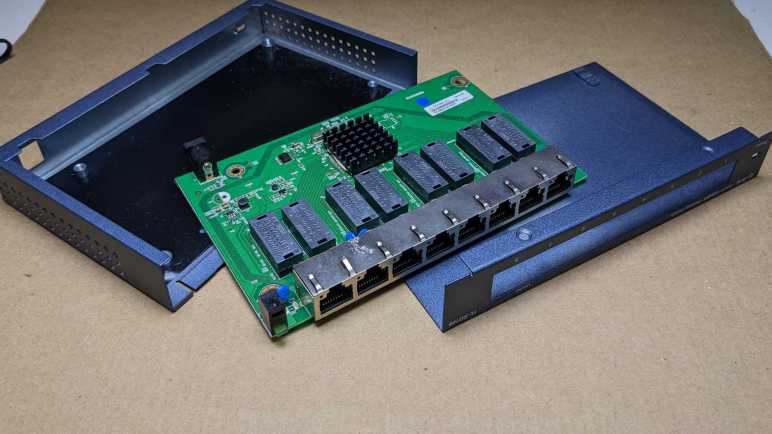
I don’t expect to see very much inside, but I still wanted to take a look. Also, disassembly will allow me to separate its metal enclosure (sent to normal recycle) from its internal circuit board (for electronic waste.)

Removing two externally accessible fasteners allow me to slide the top lid away, reveling the circuit board held by four more fasteners. Removing them released the circuit board. Nothing tricky here.

There is one obvious large chip in charge of the operation, but there is a heatsink epoxied to its surface so I could not read its label. There are eight large rectangular Group-Tek HST-2027DAR network transformers, one per port. Each of them embeds many little coils inside to carry network data while keeping things electrically isolated. (A picture showing internals of a similar Ethernet transformer is available in Open Circuits.)

With so few components, it didn’t take long for me to inspect them and verify there were no obvious signs of failure. There were several unpopulated footprints, but those looked deliberate. The lone exception is C88 which looks to have been torn off. There should have been a tiny capacitor complementing its twin C87. I don’t think a single capacitor would explain a complete failure of the switch, though.

Another feature visible in this closeup is a large sprinkling of dimples that I associate with circuit board vias – holes drilled through the substrate to connect to another circuit board layer. They’re usually done to conduct signal to another layer. (For an example see the near end of R38, visible in this picture towards the left.) But this board had so so many vias! Do they all go to the other side of the board?

Yes they do! I’ve seen generous vias done in the name of heat dissipation, but thermal management vias would be concentrated around heat-generating components. These vias are scattered throughout the board, surrounding the many traces carrying Ethernet data. Which leads to my new hypothesis: these are all part of the ground plane, helping maintain integrity of signal traveling over data wires.

Chair Mounted Mouse Buttons

I was motivated by more than idle curiosity when I took apart my old Logitech M570 wireless trackball. I also wanted to use it to prototype an idea. Years of computer use has taken its toll on my body, one of them being RSI (repetitive stress injury) to my wrists. Clicking a mouse button with my index finger is an action that quickly leads to a tingling sensation and if I continue, pain. This was part of the reason I prefer trackballs that let me click with my thumb, but what I really want to do is transfer that workload to an entirely different part of my body.

Which is where the retired wireless trackball came into the picture. The ergonomics of this design preserved the use of index finger for button clicks, something I explicitly did not want. But it is still a perfectly functional computer pointing device, so I took it apart hoping to find electrical contacts I could utilize for different mouse click options. I was happy to find that the primary (left click) and secondary (right click) buttons were large through-hole Omron switches, with easily solderable pins accessible from the bottom of the circuit board. Probing with my meter found their “Common” pin are both connected in parallel. I see traces going to their center pin, which is Normally Open. The third pin is Normally Closed (with Common) and appears unused in this device.

To experiment with different ways to left- and right-click, I soldered three wires: red wire went to the common pin shared between both switches. Blue wire went to the left-click button’s “Normally Open” pin, and yellow went to the right-click button’s Normally Open pin.

Powering the device back up, I confirmed that connecting blue to red wire would result in a left-click, and connecting yellow wire to red would result in a right-click. I closed the trackball back up, routing these wires through the hole left by removing the physical plastic pieces for left- and right-clicks. These three wires were crimped into a JST-SM wire-to-wire connector (*) so I could experiment with different button implementations.

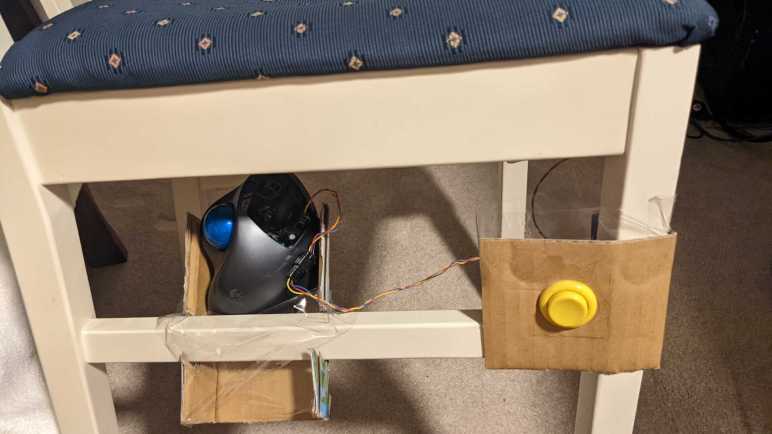
The first prototype is to mount large durable arcade machine style buttons to the left and right legs of my chair. This picture shows the right side, with a yellow button corresponding to right-click yellow wire. This allows me to perform mouse clicks by using my legs, pressing my calf against the button. I have no idea how well this would work (if at all) so I used cardboard to hold the button in this first draft. And thanks to the fact this trackball is wireless, I could still move the chair around without worry of tangling or damaging a wire.

The first few attempts to use this felt really strange, but that’s fine. Clicking a mouse button is such a habitual task that I expect a period of acclimation even in the best of circumstances. And this doesn’t really get in the way of anything, because I could continue using my desktop trackball. I will leave it installed for a few weeks to see if I’ll adapt to it over time. One thing is sure, though, moving my legs to click these buttons would not put any stress my wrist.

Logitech Wireless Trackball (M570)

I have always preferred trackballs over mice for my desktop pointing device. A preference very much related to the fact that I’ve always had a cluttered desk and a trackball requires less desk space than a mouse. Trackballs also come in varying layouts. I prefer those that put the trackball under my fingers, and I click buttons with my thumb. (Like this design I’m currently using. *) Others put the trackball under the thumb instead and leave buttons to be pressed like a mouse.

This Logitech M570 trackball used the latter layout. I tried it for a few weeks and decided I didn’t like it, so it’s been gathering dust ever since. Now I’ll take it apart to look inside, evaluating it for a project idea.

There was one visible fastener on the bottom, which is curious because it was adjacent to a rubber foot. There are three other rubber feet on this trackpad, each of which hid a fastener. Why was the fourth foot unable to hide a fastener?

After removing those four fasteners, I had expected the trackball to come apart easily. It did not, acting as if there were at least one more screw holding things together. Applying lesson learned from my Microsoft Arc Mouse teardown, I peeled back the battery tray sticker. Aha! Gotcha, you little sneak.

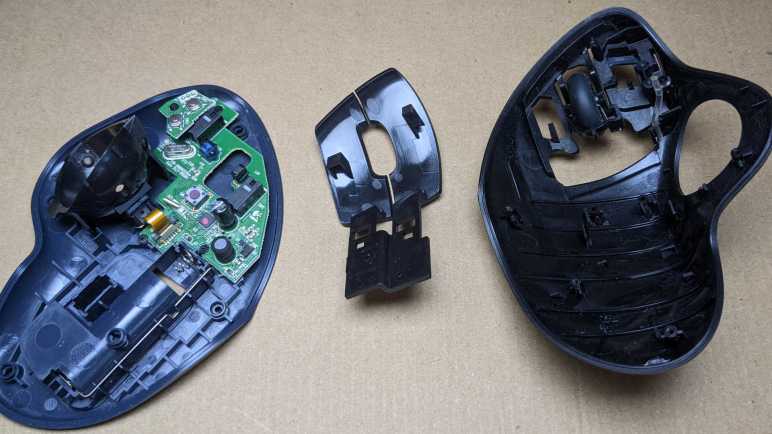
Once that final fastener was removed, the top and bottom halves came apart easily. There was only a very small circuit board inside. Two if you count the tiny raiser board hosting SW4 and SW5. The trackball position sensor is at an angle relative to the main circuit board, and engineers solved that challenge with a short length of flex cable.

The most significant chip on the top of the circuit board is an ATmega168PA, a close relative of the ATmega328P made popular by Arduino.

The two main buttons were large pieces of plastic that could be unclipped. Their motion actuates two long black Omron tactile switches. Between them lies an optical emitter and receiver to read scroll wheel motion.

Looking at the scroll wheel we can see slits for the optical encoder. A short length of spring pushes against the interior surface of this wheel, which has a wavy texture. Combination of spring and texture results in scroll “step” tactile feedback.

A few components are visible on the bottom of the circuit board including the power switch.

The most significant looking chip on the bottom is a nRF24L01+, a popular 2.4GHz wireless transceiver chip that we can get in cheap breakout boards (*) for hobbyist wireless projects.

Between the ATmega168PA up top and the nRF24L01+ on the bottom, it is tempting to see if I can reprogram this trackball for complete firmware control. We even see an array of eight potential test and diagnostics pads on the bottom of this board. That might be a fun project, but I had something much more straightforward in mind.


(*) Disclosure: As an Amazon Associate I earn from qualifying purchases.

ESP32 VGA Signal Generator Finds Cozy Home Inside Monitor

I want to repurpose a malfunctioning monitor as a lighting fixture. I was tempted to separate the LED backlight from the LCD module, because that LED illumination is the functionality I actually cared about. But I might need the LCD portion for further diagnostics, so I held off separation for now. Either way, I need an ESP32 generating VGA signal of full screen white to keep the monitor from going into sleep mode. Dangling it outside the monitor is functional, but not very elegant. There’s plenty of space inside the monitor enclosure for a little ESP32 development board, I just have to find places to solder the necessary wires.

The signal output side is easy because we know where the VGA input port is. There was no exposed metal to solder on the top side, but it is a through-hole part so soldered pins are accessible from the bottom. A multimeter set to continuity detection mode quickly found the five critical signal pins I need to solder to: red, green, blue, horizontal sync, and vertical sync.

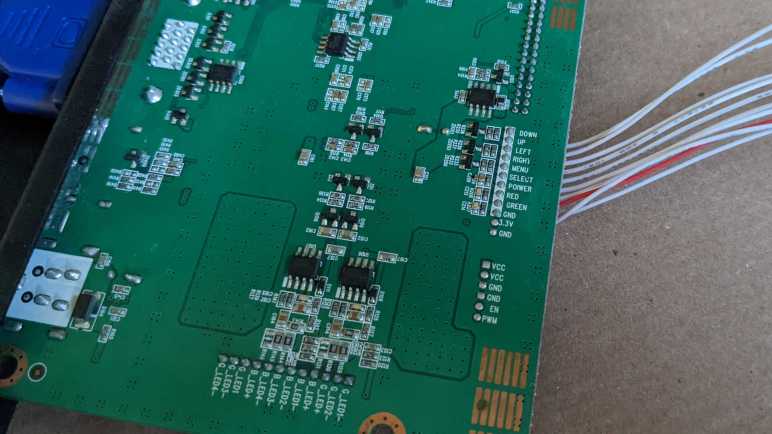
I also probed the VGA ground pins and found them to be common to electrical ground throughout the entire board, so that would be easy. The only remaining challenge was to find an appropriate power source for the ESP32. I found the power supply input jack, but that comes in at 24V DC and too high for the ESP32’s onboard voltage regulator. I didn’t want to add a buck converter to the circuit because I’m sure something already existed on this board. The answer was found on the connector for physical control buttons for this monitor. We see a row of wires each corresponding to a button: Down, Up, Left, Right, Menu, Select, Power. Below that are wires for the two status LEDs: red and green. And finally, GND and 3.3V, which I could tap to power my ESP32.

With these wires soldered in place, the ESP32 will have power as soon as the monitor is plugged in, eliminating the need for a separate power supply. It will generate a VGA signal sent directly to the VGA input port, eliminating the need for a separate VGA cable. When the power button is pressed, the monitor will wake up and detect a valid VGA signal and display full screen white, turning the monitor (and its useless sub pixels) into a lighting fixture.

Small black heat-shrink tubing helped me keep the wires organized, and a large clear heat-shrink tube encased the ESP32 board providing electrical insulation from the monitor enclosure. A small piece of double-sided tape holds the entire assembly inside the monitor. It lives here now. This lets me test the concept and verify the system could run long term in this state. If proven successful, I will return and separate the LED backlight to unlock full brightness.

Monoprice Monitor Internals: Round 2 (10734)

Leveraging Bitluni’s work, I was able to convert one of my ESP32 into a VGA signal generator that outputs full-screen white. This gave me a low-impact way to convert a malfunctioning monitor into a lighting fixture. But the low-impact way is definitely not the optimal way, because it meant I would need a VGA cable dangling outside of the screen, connected to an ESP32, which needs its own power supply. What are my other options? The first time I opened up this monitor, I didn’t understand very much of what I had looked at. A few years of tinkering lessons have been added to my brain, so I’ll open it up again for another look.

This display was spared from the Great Backlight Liberation because it could still be powered on, but once I had it open, I wanted to examine its backlight in light (ha ha) of new knowledge. I found the likely wire harness for this panel’s backlight, a respectable bundle of twelve wires. Flipping over the circuit board, I see those wires were labeled with:

  • G_LED1-
  • G_LED2-
  • G_LED+
  • B_LED+
  • B_LED1-
  • B_LED2-
  • B_LED3-
  • B_LED4-
  • B_LED+
  • G_LED1
  • G_LED3-
  • G_LED4-

Based on these labels, we can infer there are four “G” LED strings and four “B” LED strings, each with their own “-” wire. There are two wires for “B_LED+”, but the “G” LEDs have separate “G_LED+” and “G_LED1”. I don’t know why they were labelled differently, but my multimeter found electrical continuity between “G_LED+” and “G_LED1” so they are wired in parallel, as are those two “B_LED+” wires. Leading me to believe that “G” and “B” LEDs each have two “+” wires corresponding to four “-” wires. So far, so good. I then turned on the monitor to probe voltage levels of these wires. I had expected something in the neighborhood of the 24V DC power supply that feeds this monitor, but my meter said the voltage level is actually in the neighborhood of 64V to 68V DC. Yikes! That’s well above maximum voltage of any boost converter I have on hand, so driving the backlight without this board wouldn’t be my top choice.

I see inductors and capacitors that are likely the boost conversion circuit for this backlight, but I didn’t see a promising chip that might be a standalone LED driver like I see in some laptop panel teardowns. I think it is all controlled by that central main chip sitting under a heatsink. I couldn’t make it drive the backlight with a PWM signal like I could the laptop panel, so I have to stay with the ESP32 VGA signal generator.

The next question is then: could I use this board to drive just the backlight? To test this possibility, I unplugged these two cables connecting to the LCD array. Some of these wires carry power, the rest carry LVDS pixel data. When fed with VGA data from my ESP32, this control board happily powered up the backlight even when it couldn’t communicate with the LCD array. This is a very promising find, but I’m not ready to commit to a destructive separation just yet.

By itself, without an incoming video signal, this monitor quickly goes to sleep mode. I know that my ESP32 VGA signal can keep it awake past that initial sleep mode, but I’m not yet confident everything else will continue running for the long term. The only diagnostic channel I have for this system is the on-screen display, and if I should separate the LCD from its backlight, I would no longer be able to read the on-screen display.

It’s very tempting to separate them now, because I know a lot of light is trapped back there. Look at the brightness difference when I compared a bare backlight with the same non-broken (and non-separated) Chromebook panel. I expect there to be a very bright backlight behind this LCD. But for the sake of doing things incrementally, I’ll leave the LG display module intact for now and focus on integrating my ESP32 VGA signal generator.

Full Screen White VGA Signal with Bitluni ESP32 Library

Over two and a half years ago, I had the idea to repurpose a failed monitor into a color-controllable lighting panel. I established it was technically feasible to generate a solid color full screen VGA signal with a PIC, then I promptly got distracted by other projects and never dug into it. I still have the weirdly broken monitor and I still want a large diffuse light source, but now I have to concede I’m unlikely to dedicate the time to build my own custom solution. In the interest of expediency, I will fall back to leveraging someone else’s work. Specifically, Bitluni’s work to generate VGA signals with an ESP32.

Bitluni’s initial example has since been packaged into Bitluni’s ESP32Lib Arduino library, making the software side very easy. On the hardware side, I dug up one of my breadboards already populated with an ESP32 and plugged in the VGA cable I had cut apart and modified for my earlier VGAX experiment. Bitluni’s library is capable of 14-bit color with the help of a voltage-dividing resistor array, but I only cared about solid white and maybe a few other solid colors. The 3-bit color mode, which did not require an external resistor array, would suffice.

I loaded up Bitluni’s VGAHelloWorld example sketch and… nothing. After double-checking my wiring to verify it is as expected, I loaded up a few other sketches to see if anything else made a difference. I got a picture from the VGASprites example, though it had limited colors as it is a 14-bit color demo and I had only wired up 3-bit color. Simplifying code in that example step by step, I narrowed down the key difference to be the resolution used: VGAHelloWorld used MODE320x240 and VGASprites used MODE200x150. I changed VGAHelloWorld to MODE200x150 resolution, and I had a picture.

This was not entirely a surprise. The big old malfunctioning monitor had a native resolution of 2560×1600. People might want to display a lower resolution, but that’s still likely to be in the neighborhood of high-definition resolutions like 1920×1080. There was no real usage scenario for driving such a large panel with such low resolutions. The monitor’s status bar said it was displaying 800×600, but 200×150 is one-sixteenth of that. I’m not sure why this resolution, out of many available, is the one that worked.

I don’t think the problem is in Bitluni’s library, I think it’s just idiosyncrasies of this particular monitor. Since I resumed this abandoned project in the interest of expediency, I didn’t particular care to chase down why. All I cared about was that I could display solid white, so resolution didn’t matter. But timing mattered, because VGAX output signal timing was slightly off and could not fill the entire screen. Thankfully Bitluni’s code worked well with this monitor’s “scale to fit screen” mode, expanding the measly 200×150 pixels to its full 2560×1600. An ESP32 is overkill for just generating a full screen white VGA signal, but it was the most expedient way for me to turn this monitor into a light source.

#include <ESP32Lib.h>

//pin configuration
const int redPin = 14;
const int greenPin = 19;
const int bluePin = 27;
const int hsyncPin = 32;
const int vsyncPin = 33;

//VGA Device
VGA3Bit vga;

void setup()
{
  //initializing vga at the specified pins
  vga.init(vga.MODE200x150, redPin, greenPin, bluePin, hsyncPin, vsyncPin); 

  vga.clear(vga.RGB(255,255,255));
}

void loop()
{
}

UPDATE: After I had finished this project, I found ESPVGAX: a VGA signal generator for the cheaper ESP8266. It only has 1-bit color depth, but that would have been sufficient for this. However there seem to be a problem with timing, so it might not have worked for me anyway. If I have another simple VGA signal project, I’ll look into ESPVGAX in more detail.

Windows SFC (System File Checker) Revived Explorer

On a computer running Microsoft Windows operating system, the executable application explorer.exe is very important. It handles the start bar and is the starting point for almost every activity on the system. Its core position means if Explorer breaks for any reason, it’s very hard to do anything else on that system! Yet its complexity and wide span of responsibilities also means having wide exposure to things that go wrong. Countering this risk, Explorer has recovery measures built-in as well. If it freezes up, there’s a watchdog time to restart the process. If it should crash, there are mechanisms to relaunch it. And if the relaunch immediately leads to a problem, it relaunches with gradually decreasing capability until it finds a configuration that is stable enough for the user to go in and figure out what went wrong.

This happened to my Windows machine. Something went wrong and Explorer went into a failing loop that restarted once every 10-15 seconds. This continued for several minutes (Explorer restarting a few dozen times) until it stabilized in a very reduced configuration that was unfortunately pretty difficult to use. The Start menu is missing, but at least Window+E shortcut key still worked to open File Explorer. That allowed me to launch diagnostics tools, though I had to use my phone to search for their paths on the system so I could find them in File Explorer.

The first stop to diagnose Windows problems is the Event Viewer, which I had to launch from File Explorer by double-clicking C:\Windows\System32\eventvwr.exe. Clicking the root node in the tree “Event Viewer (Local)” will show a summary of events. My system showed over four hundred “Error” events in the past hour, an obvious place to start looking. Expanding that tree took me to a list of those hundreds of Application Error logs, here is one example:

Unfortunately, the details of this Application Error were not scaled for high DPI displays and pretty unreadable in that screenshot, so here is a copy of the text shown inside that “General” tab:

Faulting application name: explorer.exe, version: 10.0.22000.832, time stamp: 0x8947d46c
Faulting module name: wintypes.dll, version: 10.0.22000.778, time stamp: 0xb903efeb
Exception code: 0xc0000005
Fault offset: 0x0000000000022b20
Faulting process id: 0x1f44
Faulting application start time: 0x01d8b13598ecfee1
Faulting application path: C:\Windows\explorer.exe
Faulting module path: C:\Windows\SYSTEM32\wintypes.dll
Report Id: d0fb6df2-0bad-45bd-aff3-dee9c438b3d2
Faulting package full name: 
Faulting package-relative application ID: 

Looks like explorer is pointing a finger at its dependency wintypes.dll. Unfortunately, there isn’t enough data here to tell us if the problem is in wintypes itself or a dependency in turn. But at least it is a narrower scope than explorer, whose scope covers damned near everything. A search for “wintypes corrupt” found many websites advertising “Download wintypes to fix your system!” But downloading replacements for Windows system executables off the internet is a recipe for security disaster and I’m not going to do that. There were a few promising diagnostics steps, the one that was eventually successful was this Microsoft community forums thread.

The repair procedure was to first run the Deployment Image Servicing and Management tool (DISM) to ensure my system has a valid copy of the system image. Followed by running the System File Checker tool (SFC) to scan through my Windows system files. SFC will compare what’s on my system against the system image archive. If a mismatch is found, SFC will replace the corrupted file with a clean copy from the system image. These are system-level administrative tools. In order to run them, I had to launch an administrator command prompt from File Explorer. (Right click on C:\Windows\System32\cmd.exe and select “Run as administrator”)

It took several minutes for those tools to complete. After SFC reported scan and repair was complete, I rebooted my system. And this time, Windows explorer started with full functionality. Success! I went back to take a look at the log file (C:\Windows\Logs\CBS\CBS.log) and searched for mentions of “repair”. I found these two lines:

2022-08-15 23:15:56, Info                  DEPLOY [Pnp] Corrupt file: C:\Windows\System32\drivers\bthmodem.sys
2022-08-15 23:15:56, Info                  DEPLOY [Pnp] Repaired file: C:\Windows\System32\drivers\bthmodem.sys

Huh. The Bluetooth communications driver caused me all this grief? It is indeed part of my Windows system, because I’ve been playing with Microsoft Phone Link and it connects to my Android phone over Bluetooth. I didn’t think a problem with this file would bring down Explorer, but now I know it can. I also don’t know how this file got corrupted to begin with, and that might be important to know if it should happen again. For now, I’m happy my computer is back up and running.

My BeagleBone Boards Returning to Their Box

I have two BeagleBone boards — a PocketBeagle and a BeagleBone Blue — that had been purchased with ambitions too big for me to realize in the past. In the interest of learning more about the hardware so I can figure out what to do with them, I followed the lead of a local study group to read Exploring BeagleBone, Second Edition by Derek Malloy. I enjoyed reading the book, learned a lot, and thought it was well worth the money. Now that I am better informed, I returned to the topic of what I should do with my boards.

I appreciate the aims of the BeagleBoard foundation, but these boards are in a tough spot finding a niche in the marketplace. Beagle boards have a great out-of-the-box experience with a tutorial page and Cloud9 IDE running by default. But as soon as we try to go beyond that introduction, all too quickly we find that we’re on our own. The Raspberry Pi foundation has been much more successful at building a beginner-friendly software ecosystem to support those trips beyond the introduction. On the hardware side, Broadcom processors on a Pi are far more computationally powerful than CPUs on equivalent beagles. This includes a move to 64-bit capable processors on the Raspberry Pi 3 in 2017, well ahead of BeagleBoard AI-64 that launched this year (2022). That last bit is important for robotics, as ROS2 is focused on 64-bit architectures and there’s no guarantee of support for 32-bit builds.

Beyond the CPU, there were a few advantages to a Beagle board. My favorite are the more extensive (and usable) collection of onboard LEDs and buttons, including a power button for graceful powerup / shutdown that is still missing from a Raspberry Pi. There is also onboard flash memory storage of known quality, which makes their performance far more predictable than random microSD cards people would try to use with their Raspberry Pi. None of those would be considered make-or-break features, though.

What I had considered a definitive BeagleBone hardware advantage are the programmable real-time units (PRU) within Octavo modules, capable of tasks with timing precision beyond the guarantee of a Linux operating system. In theory that sounded like great teaming for many hardware projects, but in Exploring BeagleBone chapter 15 I got a look at the reality of using a PRU and I became far less enamored. Those PRU had their own instructions, their own code building toolchain, their own debugging tools, and their own ways of communicating with the rest of the system. It looked quite convoluted and intimidating for a beginner. Learning to use the PRU is not like learning a little peripheral. It is literally learning an entirely new microcontroller and that knowledge is not portable to any other hardware. I can see the payoff for highly integrated commercial industrial solutions, but that kind of time investment is hard to justify for hobbyist one-off projects. I now understand why BeagleBoard PRUs aren’t used as widely as I had expected them to be.

None of the above sounded great for my general use of BeagleBoard, but what about the robotics-specific focus of the BeagleBoard Blue? It has lots of robot-focused hardware, crammed onto a small board. Their corresponding software is the “Robot Control Library”, and I can get a good feel for its capabilities via the library documentation site. Generally speaking, it looked fine until I clicked on the link to its GitHub repository. I saw the most recent update was more than two years ago, and there is a long backlog of filed issues few people are looking at. Those who put in the effort to contribute code in a pull request could only watch and sit them gather dust. The oldest PR is over two years old and has yet to be merged. All signs of an abandoned codebase.

I like the idea of BeagleBone, but after I took a closer look, I’m not terribly enthused at the reality. At the moment I don’t see a project idea niche where a BeagleBone board would be the best tool for the job. With my updated knowledge, I hope to recognize a good fit for a Beagle board if an opportunity should arise. But until then, my boards are going back into their boxes to continue gathering dust.

Notes on “Exploring BeagleBone” by Derek Molloy

As an electronics hobbyist I’ve managed to collect two different BeagleBone boards, but I’ve never done anything useful with them. In the interest of learning enough to put them to work, I bought the Kindle eBook for Exploring BeagleBone, Second Edition by Derek Molloy. (*) I dusted off my PocketBeagle from the E-ALE hardware kit and started following along. My current level of knowledge is slightly higher than this book’s minimum target audience, so some of the materials I already knew. But there were plenty I did not know!

The first example came quickly. In chapter 2 I learned how to give my PocketBeagle access to the internet. This is not like a Raspberry Pi which had onboard WiFi or Ethernet. In contrast, a PocketBeagle’s had to access the network over its USB connection. At E-ALE I got things up and running once, but SCaLE was a Linux conference so I only received instructions for Ubuntu. This book gave me instructions on how to set up internet sharing over USB in Windows, so my PocketBeagle could download updates for its software.

Chapter 5 Practical Beagle Board Programming is a whirlwind tour of many different programming languages with their advantages and disadvantages. Some important programming concepts such as object-oriented programming was also covered. My background is in software development, so few of the material was new to me. However, this chapter was an important meta-learning opportunity. Because I already knew the subject matter, as I read this chapter I frequently thought: “Wait, but the book didn’t cover [some related thing]” or “the book didn’t explain why it’s done this way”. This taught me a mindset for the whole book: it is a quick superficial overview of concepts that give us just enough keywords for further learning. The title is “Exploring BeagleBone”, not “BeagleBone in Depth”!

On that front, I believe the most impactful thing I learned from this book is sysfs, a mechanism to allow communication with system hardware by treating their various input/output parameters as files. This presents an interface that avoids the risks and pitfalls of going into kernel mode. Sysfs was introduced in chapter 2 and is used throughout the text, culminating in the final chapter 16 where we get a taste of implementing a sysfs interface in our own loadable kernel module. (LKM) But there are many critical bits of knowledge not covered in the book. For example, sysfs was introduced in chapter 2 where we were told the sysfs path /sys/class/leds/beaglebone:green:usr3/brightness will allow us to control brightness of one of BeagleBoard’s onboard LEDs. That led me to ask two questions immediately:

  1. If I hadn’t known that path, how would I find it? (“What is the sysfs path for an onboard LED?”)
  2. If I look at a /sys/ path and didn’t know what hardware parameter it corresponded to, how would I find out? (“What does /sys/[blah] control?”)

The book does not answer these questions. However, it taught me that sysfs interfaces were exposed by loadable kernel modules (LKM, chapter 16) and that LKMs are loaded for specific hardware based on device tree (chapter 6). Given this, I think I have enough background to go and find answers elsewhere.

The book used sysfs for many examples, and the book also covered at least one example where sysfs was not enough. When dealing with high-bandwidth video data, there’s too much overhead for sysfs so the code examples switched to using ioctl.

My biggest criticism of this book is a lax attitude towards network security. In chapter 11 (The Internet of Things) instructions casually tell readers to degrade their GMail account security and to turn off Windows firewall. No! Bad book! Bad! Even worse, there’s no discussion of the risks that are opened up if a naive reader should blindly follow those instructions. And that’s just the reader’s email account and desktop machine. What about building secure networked embedded devices with a BeagleBone? Nothing. No discussion at all, not even a superficial overview. There’s a running joke that “The S in IoT stands for security” and this book is not helping.

Despite its flaws, I did find the book instructive on many aspects of a BeagleBone. And thanks to the programming chapter and lack of security information, I’m also keenly aware there are many more things not covered by this book at all. After reading this book, I pondered what it meant for my own BeagleBone boards.


UPDATE: I was impressed by this application of sysfs: show known CPU hardware vulnerabilities and status of mitigations: grep -r . /sys/devices/system/cpu/vulnerabilities/


(*) Disclosure: As an Amazon Associate I earn from qualifying purchases.