ESP8266 MicroPython Exception Handling Helps Robustness

I had to solve a few problems encountered publishing data to MQTT using ESP8266 MicroPython, running into MQTTException raised by the library. On the upside, dealing with MQTTException reminded me that I don’t usually have the luxury of exception handling on microcontrollers.

Exception handling in Python is my favorite part so far of using MicroPython on a microcontroller. I’m no stranger to calling APIs and checking error codes in typical C programming style and I can certainly work in that environment, but I do enjoy using a language like Python with exception handling mechanisms because it allows me to structure code in a way I find much more readable. This is important, especially for small projects where I don’t expect to look at the code on a regular basis. By the time I need to come back and modify the code months or years later, I’m looking at it with essentially fresh eyes. Comments are critical, but a good structure is very helpful too!

If I don’t have any exception handlers, an error would stop execution of my program and break into REPL awaiting diagnosis and repair. This is great while I’m developing the code, but I won’t want that later. During runtime I expect errors to be one of three types:

  1. Failing to connect to WiFi. This could happen if my WiFi router is in the middle of a firmware update, and for such harmless scenarios the best thing is to go to sleep and try again later.
  2. Failing to connect to MQTT broker. This could happen if I took down my Mosquitto docker container, again probably for an update.
  3. Failure to publish ADC data. This could happen if the WiFi router or Mosquitto went down in between connection and data publishing.

For all of these cases, the best thing to do is to try again later. Which for this project is actually the exact same thing I want to do even when everything is successful: go to sleep for a minute and repeat everything upon wake.

My first implementation caught all exceptions and proceeded to deep sleep for retry in one minute, but this is a problem: if I encounter a problem outside of the expected errors, or if I want to break into REPL for any other reason like updating the program with a new feature, I have only a very narrow window of time to do so. In fact, it was too fast for me to catch it awake!

So I actually want to do something different in case of error: keep the ESP8266 awake for 30 seconds or so. Long enough for me to connect a serial terminal and hit Control-C to break into REPL. I could trigger this path by taking down my Mosquitto docker container causing scenario #2 above.

This is an improvement over my first implementation, but I couldn’t upload my improved code. The ESP8266 wakes up, try to report ADC, and immediately go to deep sleep no matter what happens. After some time tearing my hair out trying to break into this narrow time window, I resorted to reflashing the ESP8266 with fresh MicroPython. Now I could actually get into REPL and upload the new code. It’s a good thing I keep these little code projects publicly accessible on GitHub where I could get a copy for my own use if I had to erase it.

I really like what I’ve seen of MicroPython so far, and it’ll definitely be a consideration for future projects. But for this project I’m changing course for no fault of MicroPython.

ESP8266 MicroPython Simple MQTT Client

I’ve got my second voltage monitoring ESP8266 up and running. Power comes from my lead-acid battery array stepped down with a DC buck converter, and data communication is over WiFi. I could work with MicroPython over WiFi using WebREPL, where I confirmed I can obtain a value from ESP8266 ADC. Next step: report that ADC value via MQTT.

The instance of Mosquitto MQTT broker I’ve got running in a docker container is password restricted, so I called docker exec on my running Mosquitto container to obtain a command line inside the container, and from there run mosquitto_passwd tool to create a username and a password for this ESP8266.

Then I have to figure out how to make use of that new name and password. I had assumed there would be a MQTT client library for MicroPython and I was correct. In fact, there were several! One of my top web search results went to a page on Random Nerd Tutorials, which used umqttsimple.py. That probably would have worked, but it hasn’t been updated in three years so I looked for something more recent. Continuing my search, I found a MQTT page on documentation for the mPython board. It’s not the hardware I’m using but from that page I learned MicroPython developers maintain a GitHub repository micropython-lib for useful MicroPython code libraries outside of core MicroPython project. This collection of libraries included a simple MQTT client.

Running the MQTT publish example, an exception was raised when I called connect(). This is a minimalist library so the MQTTException class was equally minimal: only a value of 5 was returned as the error code. It’s not very descriptive but I had guessed it was because the example code didn’t include the username and password I had setup for this client. Putting those in eliminated exception 5, which is good, but now I’m looking at a different exception: 2. I have no further guesses and need to go online for research.

Finding the MQTT specification online, I went to the section describing return code values for MQTT connect. This table listed 5 as “not authorized” which makes sense for lack of username and password. But error 2 is “identifier rejected” which is a puzzle. Officially, the error condition is “The Client identifier is correct UTF-8 but not allowed by the Server” but my client identifier is a straightforward string. Trying a few different client identifier strings didn’t make a difference. Suspecting it’s a problem in my MQTT broker, I tried the Mosquitto public test server and got the same error. What’s going on?

The answer is a known bug in this simple MQTT library, filed as issue #445. Apparently a recent release of Mosquitto tightened up spec compliance requirements and this simple MQTT library does not conform. It has something to do with keepalive and specifying zero is no longer tolerated. Specifying a nonzero value allowed my connection to succeed without error, but I understand it is only a hack because I’m not actually doing any of the other work to actually keep alive at my specified interval. Since this particular project is going to report an ADC value and immediately go into deep sleep, it also means I would immediately disconnect from Mosquitto MQTT broker and disconnect from WiFi. So I don’t think I’ll get in trouble for lying with a keepalive interval, as long as I bail before my lie causes a problem.

But this little adventure with MQTTException reminded me of one advantage of using MicroPython: getting access to exception handling mechanisms!

Second ESP8266 Voltage Monitor is Directly Wired to Buck Converter

Once I got my MicroPython ESP8266 connected to my home network, I expect to continue working with it over the network instead of an USB cable. Which meant it was time for me to take this development board and wire it to a DC voltage buck converter as I did earlier. However, this time I’m going to skip on the perforated prototype circuit board and going for direct wiring. (Sometimes called deadbug style due to folded pins and wires.)

But without the prototype board, I have to handle my own spacing. I cut up an expired credit card and placed the sheet of plastic in between Wemos D1 Mini clone (*) and its MP1584EN DC buck converter (*). Wires looped around the outside of this sheet to carry power lines 3.3V and GND, as well as the pair of 1 Megaohm resistors in series to ADC input pin for measuring voltage.

And relative to the previous iteration, I added one more wire: connecting ESP8266 GPIO16 (labeled D0 on a Wemos D1 Mini board) to the reset (RST) pin. This is required for an ESP8266 to wake from deep sleep, and this requirement is the very first sentence on MicroPython section for ESP8266 deep sleep. I’m going to guess that it is front and center because enough people forgot to do this critical step and their ESP8266 wouldn’t wake from sleep.

Once this package was tested to function over MicroPython WebREPL, I wrapped the whole thing up in clear heat shrink tube(*) (not pictured in title image) for a nice compact package. I could now query ADC value representing input voltage over WebREPL, but that’s not useful until I could report that value via MQTT.


(*) Disclosure: As an Amazon Associate I earn from qualifying purchases.

ESP8266 MicroPython Automatically Remembers WiFi

There were a few speed bumps on my way to a MicroPython interactive prompt, also known as REPL the read, evaluate, print loop. But once I got there, I was pretty impressed. It was much friendlier to iterative experimentation than Arduino on an ESP8266, because I don’t have to reflash and reboot every time. And since the ESP8266 has WiFi capabilities, getting REPL over the network (WebREPL) is even cooler. Now I can experiment while it runs on another power source, completely independent of USB for either power of data.

Before I got there, though, I needed to get this ESP8266 on my home WiFi network. By default, MicroPython sets up an access point for its own network so I need to turn “AP mode” off. Then I turn on “station mode” which allows connection to my WiFi router given its SSID and password.

import network

ap = network.WLAN(network.AP_IF)
ap.active(False)

sta = network.WLAN(network.STA_IF)
sta.active(True)
sta.config(dhcp_hostname='my hostname')
sta.connect('my wifi ssid','my wifi password')

I added one optional element: the dhcp_hostname parameter. This is the name shown to my router and probably other devices on my home network. If I don’t set this, the default name is “ESP-” followed by six hexadecimal digits of the ESP8266’s MAC address. That’s not a particularly memorable name so I wanted something I could remember and recognize.

And then, to my surprise, MicroPython remembered the network settings upon restart. I wrote a piece of Python code to perform this routine that I could run whenever I rebooted the board. But when I set out to test it by rebooting the board, it automatically reconnected to WiFi. This tells me a successful WiFi connection would cause a write to flash memory, which implies I should not run my WiFi connection code upon every startup. I expect to make this board go to deep sleep frequently and, if it writes WiFi information to flash every time it wakes up, I will quickly wear out the flash.

But that is just a hypothesis. As MicroPython is an open source project, it should be possible for me to dig into the code and figure out exactly when MicroPython writes WiFi connection information to flash. Perhaps it isn’t as bad as I feared it would be. Until then, however, I will hold off running my WiFi connection script.

A downside of not running my script is the DHCP hostname, which is not remembered upon reboot and this board reverted back to the default ESP-prefix name. But I can live with that for now, the next step is to set up my hardware for playing with deep sleep under battery power.

A Few Speed Bumps on the Road to ESP8266 MicroPython

I decided to play with MicroPython on an ESP8266 and started with MicroPython documentation page appropriately titled Quick reference for the ESP8266. It was almost (but not entirely) smooth sailing with the inexpensive Wemos D1 Mini clone(*) I had on hand.

I had recently switched desktop computers, with a fresh installation of Windows, so everything had to be reinstalled. Starting with Python, since I need that to run esptool tool to flash Espressif devices. It got its own virtual Python environment with venv and I could start working with the ESP8266.

I verified that flash size matched 4MB as per Amazon product listing with esptool.py --port COM4 flash_id

Then the first step in MicroPython directions: erase whatever might be in flash: esptool.py --port COM4 erase_flash

Followed by flashing the board with MicroPython, version 1.17 was the latest as of this writing: esptool.py --port COM4 --baud 460800 write_flash --flash_size=detect 0 esp8266-20210902-v1.17.bin

esptool.py v3.1
Serial port COM4
Connecting....
Detecting chip type... ESP8266
Chip is ESP8266EX
Features: WiFi
Crystal is 26MHz
Uploading stub...
Running stub...
Stub running...
Changing baud rate to 460800
Changed.
Configuring flash size...
Auto-detected Flash size: 4MB
Flash will be erased from 0x00000000 to 0x0009afff...
Flash params set to 0x0040
Compressed 633688 bytes to 416262...
Wrote 633688 bytes (416262 compressed) at 0x00000000 in 9.4 seconds (effective 537.1 kbit/s)...
Hash of data verified.

Leaving...
Hard resetting via RTS pin...

That looked good! But I thought I’d verify anyway: esptool.py --port COM4 --baud 460800 verify_flash --flash_size=detect 0 esp8266-20210902-v1.17.bin

esptool.py v3.1
Serial port COM4
Connecting....
Detecting chip type... ESP8266
Chip is ESP8266EX
Features: WiFi
Crystal is 26MHz
Uploading stub...
Running stub...
Stub running...
Changing baud rate to 460800
Changed.
Configuring flash size...
Auto-detected Flash size: 4MB
Flash params set to 0x0040
Verifying 0x9ab58 (633688) bytes @ 0x00000000 in flash against esp8266-20210902-v1.17.bin...
-- verify OK (digest matched)
Hard resetting via RTS pin...

This all looked good, but during this process I found communication with my board was unreliable. Occasionally I would fail to connect:

esptool.py v3.1
Serial port COM4
Connecting........_____....._____....._____....._____....._____....._____....._____

A fatal error occurred: Failed to connect to Espressif device: Invalid head of packet (0x08)

The frustrating part is that I don’t know what causes this, all I could do is retry until it worked. I didn’t notice anything I did differently between the times that worked and the times that failed. Is it the ESP8266? Is it the CH340 serial port bridge? Is it my USB cable? I can’t tell. The good news with MicroPython is that, once it is flashed, I could work via serial port without further headaches with esptool.

I remembered that PlatformIO Visual Studio Code had a serial port monitor, and it was indeed able to connect. But as the name stated, it was only a monitor and while I could see a MicroPython prompt I couldn’t type any commands back. Looking around Visual Studio extension marketplace I found a serial terminal extension published by Nordic Semiconductor. This allowed me to type commands into the MicroPython prompt and verify it worked, but frustratingly I could not copy/paste in this terminal. So much for a modern integrated environment! I returned to trusty old PuTTY for my MicroPython serial terminal needs and got to work.


(*) Disclosure: As an Amazon Associate I earn from qualifying purchases.

Next Practice Round: MicroPython on ESP8266

I’ve been running through “Hello World” level microcontroller projects, using my little Harbor Freight solar array as a target subject. I just finished a trial run of programming an ESP32 using ESP-IDF platform and while analog input and power-saving deep sleep worked as expected, GPIO output pins did not. I thought I would use an external peripheral to get around the problem but, if I’m doing that, I might as well fall back to the cheaper ESP8266 used in a batch of Wemos D1 Mini clone(*) I had bought.

An earlier experiment with ESP8266 used the Arduino development platform. This time around, I’m trying MicroPython for the following reasons:

  1. With MicroPython I could modify my code without reflashing the entire ESP8266 as I had to do with Arduino.
  2. My Arduino sketch was a fairly short piece of code, but MicroPython promises to get going with even less code.
  3. Last time I looked at MicroPython I rejected it because it didn’t support a hardware peripheral I wanted to use. (MCPWM of ESP32.) This time I’m using just the ADC, which is supported.

I actually wanted to try CircuitPython, Adafruit’s derivative of MicroPython with changes focused on making things even easier for beginners to play with and something I first encountered on their HalloWing product. However, a part of CircuitPython is exposing the microcontroller as a USB mass storage device and letting us drag-and-drop Python source files onto the board for instant execution. This requires native USB support on the microcontroller, which is present on newer ESP32 variations but not the one I have. There used to be an ESP8266 version without the drag-and-drop but Adafruit stopped supporting that configuration some time ago.

Putting CircuitPython back on the “look at later” list, I changed focus to MicroPython. I brought up documentation for putting MicroPython on an ESP8266. In 15 minutes I had an interactive Python command line over serial port, though there were a few speed bumps.


(*) Disclosure: As an Amazon Associate I earn from qualifying purchases.

Problems Making ESP32 Hold GPIO While Asleep

I had several motivations for using an ESP32 for my next exercise. In addition to those outlined earlier, I also wanted to explore using these microcontrollers to control things. Not just report a measurement. In other words, I wanted to see if they can be output nodes as well as data input nodes. This should be a straightforward use of GPIO pins, except for another twist: I also want the ESP32 to be asleep most of the time to save power.

The ESP32 has several sleep modes available, and I decided to go straight for the most power-saving deep sleep as my first experiment. It was straightforward to call esp_deep_sleep() at the end of my program, and this was the easiest sleep mode because I don’t have to do much configuration or handling different cases of things that might happen during sleep. When an ESP32 wakes up from deep sleep, my program starts from the beginning as if it had just been powered up. This gives me a clean slate. I don’t have to worry about testing to see if a connection is still good and maybe reconnecting if not: I always have to start from scratch.

So what are the states of GPIO pins while an ESP32 is asleep? Reading the documentation, I thought I could command digital output pins to be held either high or low while the ESP32 was in deep sleep. However, my program calling gpio_deep_sleep_hold_en() didn’t actually hold output state like I thought it would. I think my program is missing a critical step somewhere along the line.

Some research later, I haven’t figured out what I am missing, but I have learned I’m not alone in getting confused. I found ESP-IDF issue #3370, which was resolved as a duplicate of ESP32 Arduino Core issue #2712. Even though it was marked as resolved, it is still getting traffic from people confused about why GPIO states aren’t held during sleep.

As a workaround, I can use an IO expander chip like the PCF8574. Letting that hold output pin state high or low while the ESP32 is asleep. As a relatively simple chip, I expect the PCF8574 wouldn’t use a lot of power to do what it does. But it would still be an extra chip adding extra power draw. I intend to figure out ESP32 sleep mode GPIO at some point, but for now the project is both moving on. Well, at least in software, the hardware side is taking a step back to ESP8266.


[Source code for this project (flaws and all) is publicly available on GitHub]

Switching to ESP32 For Next Exercise

After deciding to move data processing off of the microcontroller, it would make sense to repeat my exercise with an even cheaper microcontroller. But there aren’t a lot of WiFi-capable microcontrollers cheaper than an ESP8266. So I looked at the associated decision to communicate via MQTT instead, because removing requirement for an InfluxDB client library meant opening up potential for other development platforms.

I thought it’d be interesting to step up to ESP8266’s big brother, the ESP32. I could still develop with the Arduino platform with an ESP32 but for the sake of practice I’m switching to Espressif’s ESP-IDF platform. There isn’t an InfluxDB client library for ESP-IDF, but it does have a MQTT library.

ESP32 has more than one ADC channel, and they are more flexible than the single channel on board the ESP8266. However, that is not a motivate at the moment as I don’t have an immediate use for that advantage. I thought it might be interesting to measure current as well as voltage. Unfortunately given how noisy my amateur circuits have proven to be, I doubt I could build a circuit that can pick up the tiny voltage drop across a shunt resistor. Best to delegate that to a dedicated module designed by people who know what they are doing.

One reason I wanted to use an ESP32 is actually the development board. My Wemos D1 Mini clone board used a voltage regulator I could not identify, so I powered it with a separate MP1584EN buck converter module. In contrast, the ESP32 board I have on hand has a regulator clearly marked as an AMS1117. The datasheet for AMS1117 indicated a maximum input voltage of 15V. Since I’m powering my voltage monitor with a lead-acid battery array that has a maximum voltage of 14.4V, in theory I could connect it directly to the voltage input pin on this module.

In practice, connecting ~13V to this dev board gave me an audible pop, a visible spark, and a little cloud of smoke. Uh-oh. I disconnected power and took a closer look. The regulator now has a small crack in its case, surrounded by shiny plastic that had briefly turned liquid and re-solidified. I guess this particular regulator is not genuine AMS1117. It probably works fine converting 5V to 3.3V, but it definitely did not handle a maximum of 15V like real AMS1117 chips are expected to do.

Fortunately, ESP32 development boards are cheap, counterfeit regulators and all. So I chalked this up to lesson learned and pulled another board out of my stockpile. This time voltage regulation is handled by an external MP1584EN buck converter. I still want to play with an ESP32 for its digital output pins.

Move Calculation Off Microcontroller to Node-RED

After I added MQTT for distributing data, I wanted to change how calculations were done. Using a microcontroller to read a voltage requires doing math somewhere along the line. The ADC (analog-to-digital) peripheral on a microcontroller will return an integer value suitable for hardware registers, and we have to convert that to a floating-point voltage value that makes sense to me. In my first draft ESP8266 voltage measurement node, getting this conversion right was an iterative process:

  • Take an ADC reading and convert to voltage using a conversion multiplier.
  • Comparing against voltage reading from my multimeter.
  • Calculate a better conversion factor.
  • Reflash ESP8266 with Arduino sketch that includes the new conversion factor.
  • Repeat.

The ESP8266 ADC is pretty noisy, with probable contributions from other things like temperature variations. So there was no single right conversion factor value, it varies through time. The best I can hope for is a pretty-close average tradeoff. While looking for that value, the loop of recalculating and uploading got to be pretty repetitious. I want to move that conversion work off of the Arduino so it can be more easily refined and updated.

One option is to move that work to the data consumption side. This means logging raw ADC values into InfluxDB and whoever queries that data is responsible for conversion. This preserves original unmodified measurement data allowing the consumers to be smart about dealing with jitter and such. I like that idea but not ready to dive into that sort of data analysis just yet.

To address both of these points, I pulled Node-RED into the mix. I’ve played with this flow computing tool earlier and I think my current project aligns well with the strengths of Node-RED. The voltage conversion process, specifically, is a type of data transformation people do so often in Node-RED that there is a standard node Range for this purpose. Performing voltage conversion in a Range node means I could fine-tune the conversion and update by clicking “Deploy” which is much less cumbersome than recompiling and uploading an Arduino sketch.

Node-RED also allows me to carry both the original and converted data through the flow. I use a Change node to save original ADC value to another property before using Range to convert ADC value to voltage. Now I have a Node-RED message with both original and converted data. Now I need to put that into the database, and I searched the public Node-RED library for “InfluxDB” and I decided to try node-red-contrib-stackhero-influxdb-v2 first since it explicitly supported version 2 of InfluxDB. I’m storing the raw ADC values now even though I’m not doing anything with it yet. The idea is to keep track so in the future I can explore voltage conversion on the data consumption side.

To test this new infrastructure design using MQTT and Node-RED, I’ll pull an ESP32 development board out of my pile of parts.


Here is my Node-RED function to package data in the format expected by node-red-contrib-stackhero-influxdb-v2 InfluxDB write node. Input data: msg.raw_ADC is the original ADC value, and msg.payload the voltage value converted by Range node:

var fields = {V: msg.payload, ADC: msg.raw_ADC};
var tags = {source: 'batt_monitor_02',location: 'lead_acid'};
var point = {measurement: 'voltage',
      tags: tags,
      fields: fields};
var root = {data: [point]};
msg.payload = root;
return msg;

My simple docker-compose.yml for running Node-RED:

version: "3.8"

services:
  nodered:
    image: nodered/node-red:latest
    restart: unless-stopped
    ports:
      - 1880:1880
    volumes:
      - ./data:/data

Routing Data Reports Through MQTT

Once a read-only Grafana dashboard was up and running, I had end-to-end data flow from voltage measurement to a graph of those measurements over time. This was a good first draft, from here I can pick and choose where to start refining the system. First thought: it was cool that an ESP8266 Arduino could log data straight to an InfluxDB2 server, but I don’t think that is the best way to go.

InfluxDB is a great database to track historical data, but sometimes I want just the most recent measurement. I don’t want to have to spin up a full InfluxDB client library and perform a query just to retrieve a single data point. That would be a ton of unnecessary overhead! Even worse, due to the overhead, not everything has an InfluxDB client library and I don’t want to be limited to the subset that does. And finally, tracking historical data is only one aspect of the system, at some point I want to take action based on data and measurements. InfluxDB doesn’t help at all for that.

To improve these fronts, I’m going to add a MQTT broker to my home network in the form of a docker container running Eclipse Mosquitto. MQTT is a simple publish/scribe system. The voltage measuring node I’ve built out of an ESP8266 is a publisher, and InfluxDB is a subscriber for that data. If I want the most recent measurement, I can subscribe to the same data source and see it at the same time InfluxDB does.

I’ve read the Hackaday MQTT primer, and I understand it is a popular tool for these types of projects. It’s been on my to-do list ever since and this is the test project for playing with it. Putting MQTT into this system lets me start small with a single publisher and a single subscriber. If I expand on this system, it is easy to add more to my home MQTT network.

As a popular and lightweight protocol, MQTT enjoys a large support ecosystem. While not everything has an InfluxDB client library, almost everything has a MQTT client library. Including ESP8266 Arduino, and InfluxDB in the form of a Telegraf plugin. But after looking over that page, I understand it is designed for direct consumption and has little (no?) options for data transformation. This is where Node-RED enters the discussion.


My simple docker-compose.yml for running Mosquitto:

version: "3.8"

services:
  mqtt-broker:
    image: eclipse-mosquitto:latest
    restart: unless-stopped
    ports:
      - 1883:1883
      - 9001:9001
    volumes:
      - ./config:/mosquitto/config
      - ./data:/mosquitto/data
      - ./log:/mosquitto/log

Using Grafana Despite Chronograf Integration

I’ve learned some valuable lessons making an ESP8266 Arduino log data into InfluxDB, giving me ideas on things to try for future iterations. But for the moment I’m getting data and I want to start playing with it. This means diving into Chronograf, the visualization charting component of InfluxDB.

In order to get data around the clock, I’ve changed my plans for monitoring solar panel voltage and connected the datalogging ESP8266 to the lead-acid battery array instead. This allows me to continue refining and experimenting with data at night when the solar panel generates no power. It also means the unnecessarily high power consumption also means the battery is being unnecessarily drained, but an ESP8266 on full power is still consuming only a small percentage of what my lead-acid battery array can deliver so I’m postponing that problem.

Chronograf was pretty easy to get up and running. Querying on the tags of my voltage measurement/table, plotting logged voltage values over time. This is without getting distracted by all the nifty toys Chronograf has to offer. Getting a basic graph allows me to explore how to present this data in some sort of dashboard, and here I ran into a problem. There doesn’t seem to be a way within Influx to present a Chronograf chart in a read-only manner. I found no access control on the data visualization dashboard, nor could I find access restriction options at an Influx users level. Not that I could create new users from the UI

Additional users cannot be created in the InfluxDB UI.

A search for more information online directed me to the Chronograf GitHub repository, where there is a reference to a Chronograf “Viewer” role. Unfortunately, that issue is several years old, and I think this feature got renamed sometime in the past few years. Today a search for “viewer role” on InfluxDB Chronograf documentation comes up empty.

The only access control I’ve found in InfluxDB is via API tokens, and I don’t know how that helps me when logged in to use Chronograf. The only way I know to utilize API tokens is from outside the system, which means firing up a separate Docker container running another visualization charting software package: Grafana. Then I could add InfluxDB as a data source with a read-only API token so a Grafana dashboard has no way to modify InfluxDB data. This feels very clumsy and I’m probably making a beginner’s mistake somewhere, but it gives me peace of mind to leave Grafana displaying on a screen without worry about my InfluxDB data integrity. This lets me see the data so I know the system is working end-to-end as I go back and rework how data is communicated.

For reference here is my very simple docker-compose.yml for my Grafana instance.

version: "3.8"

services:
  server:
    image: grafana/grafana:latest
    restart: unless-stopped
    ports:
      - 3000:3000
    volumes:
      - ./data:/var/lib/grafana

Initial Lessons on ESP8266 Arduino Sketch for InfluxDB

Dipping my toes in building a data monitoring system, I have an ESP8266 Arduino sketch that reads its analog input pin, converts it to original input voltage, and log that information to InfluxDB. Despite the simplicity of the sketch, I’ve already learned some very valuable lessons.

The Good

The Arduino libraries do a very good job of recovering from problems on their own, taking care of it so my Arduino sketch does not. The ESP8266 Arduino WiFi library can reconnect lost WiFi as long as I call WiFiMulti.run() periodically. And the InfluxDB library doesn’t need me to do anything special at all. I call InfluxDbClient.writePoint() whenever I want to write data. If the connection was lost since initial connection, it will be re-established and the data point written with no extra work on my part. I’ve had this sketch up and running as I’ve taken the InfluxDB docker container offline to upgrade to newer versions, or performed firmware updates WiFI access point which takes wireless offline for a few minutes. This sketch recovered and resume logging data, no sweat.

The Bad

ESP8266 ADC (analog-to-digital converter) is pretty darned noisy when asked to measure within a narrow range of its full range of voltages as I am. The full range is 0-22V, and I’m typically only within a narrow band between 12-14V. I tried taking multiple measurements and averaging them, but that didn’t seem to help very much.

This noisiness also made it hard to calibrate readings against voltage values as measured by my multi-meter. It’s not difficult to take a meter reading and calculation a conversion factor for an ADC reading taken at the same time. But if the ADC value can drift even as the actual voltage is held steady, the conversion factor is unreliable. Even worse, since the conversion is done in my Arduino sketch, every time I want to refine this value, I had to hook up a computer and re-upload my Arduino sketch.

Since I expect to add more data sources to this system, I also expected to query by source to see data returned by each. For this first iteration, I tagged points with the MAC address of my ESP8266. This is a pretty good guarantee of uniqueness, but it is not very human-friendly. Or at least not to me, as I’m not in the habit of memorizing MAC addresses of my devices.

The Ugly

As typical of Arduino sketches, this sketch is running loop() as fast as it could. Functionally speaking, this is fine. But it means the ESP8266 is always in a state of high power draw, with the WiFi stack always active and the CPU running as fast as it could. When the objective is merely to record measurements every minute or so, I could be far more energy efficient here.

Addressing these issues (and much more I’m sure) will be topic of future iterations. In the meantime, I have some data points and I want to graph them.


[Source code for this project is publicly accessible on GitHub]

Setting Up ESP8266 Arduino Sketch for InfluxDB

I think I’ve got the hardware side sorted out for building an ESP8266 that monitors voltage output of a solar panel, so it’s time to dive into the software side. I want to log this data into InfluxDB as a learning exercise, and the list of client libraries included a pointer to a GitHub repository for an InfluxDB client library for ESP8266 and ESP32 running on their Arduino core.

Arduino is not exactly the most fully featured development environment, so I’ve been doing my Arduino development using PlatformIO plugin of Visual Studio Code. However, this is the first time I’ve had to manually add a third-party library and it’s not the same as Arduino’s Library Manager so I had to go online for a little help like this forum thread. I learned I should go to https://registry.platformio.org/ and search for the desired library. Searching on “InfluxDB” resulted in several results, one of which is the same client library I found earlier but now with instructions on how to install into PlatformIO.

After compiling a simple test sketch, my serial output monitor returned gibberish. The key here is that baud rate must match between my platformio.ini configuration file:

monitor_speed = 115200

And my serial output initialization code in setup() function of my sketch:

  Serial.begin(115200);

Another configuration issue concern information necessary to connect to my home WiFi and my InfluxDB server. This little sketch needs that information to run, but I don’t want to include them in my source code since I intended to upload this to GitHub in a publicly accessible repository. I found a solution on StackOverflow: put my secret information in a separate secrets.h file. After I committed a basic version without any actual information, use the command git update-index --skip-worktree secrets.h to remove it from further Git activity. After that point, I could edit secrets.h and Git would not care to upload that information leaving my local secrets local, which is what I want.

Once all of these setup details were taken care of, I could dive into code and learn some valuable lessons out of the experience.


[Source code for this project is publicly accessible on GitHub]

Making a USB Data-Only Cable

My current microcontroller project uses a development board that has built-in hardware to take both power and programming/debugging data over USB. But I want to connect it to another power source, which means I need to disconnect USB power in order to avoid potential problems from dueling voltage regulators on the same voltage plane. My first attempt used a small jumper on the circuit board, but it looks pretty accident-prone, so I went with the backup plan: a USB data-only cable.

I hate having to resort to this solution, as I hate having USB cables that don’t do what I thought they did. This hatred was bred by USB power-only cables. They are frequently bundled with small electronics that charge their batteries via USB power and have no need for USB data communication. The problem is that these cables look identical to normal USB cables and it’s too easy to use them elsewhere not realizing they are power-only. I have spent far too much time debugging device communication issues only to realize my problem was a USB power-only cable in the mix.

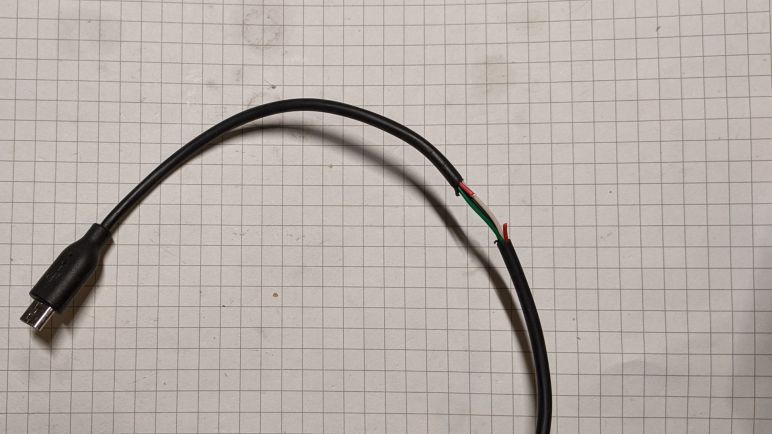
A data-only cable is the same kind of cursed, but in reverse. Unfortunately, it is what I need now if I wish to debug a development board that already has its own power source. USB data communication is a differential signal protocol, so we really need only the two data lines. They are usually labeled D+ and D- on a diagram. When we cut open a wire, the convention is to have D+ on the green wire and D- on the white wire.

Black is ground by convention, and red wire for +5V USB power. I took one of my micro-USB cables and cut it open to expose these wires, then I cut the red wire. The nature of differential signals means their voltage difference relative to ground isn’t as critical, but I need to leave ground wire intact to make sure the ground planes on either end don’t drift too far apart. With the +5V line cut, there shouldn’t be much electrical current flowing through the ground line.

This serves my purpose but it isn’t great. For one thing, it confuses my computer. Apparently having three out of four wires alive triggers USB device insertion alert. When the cable is connected to the development board with its own power, everything works as expected. But when it’s just the cable without the board, Windows throws up an “Windows doesn’t recognize the last USB device you plugged in” alert. This tells me it is doing other weirdness behind the scenes. I hope it doesn’t damage the computer, and I’ll try to make sure I don’t plug the cable in by itself.

On the upside, the damaged insulation makes it pretty obvious I’ve hacked on this USB cable. I doubt I would ever unknowingly use this cable so I should never expect USB power from this data-only cable.

I hated having to do this, but this hacked-up cable will serve until I have a better idea. In the meantime, work can continue on my ESP8266 solar panel voltage monitor project.

Power Source Selection Jumper

I’m making a Wemos D1 Mini clone (with an ESP8266 at its heart) into a solar panel output voltage monitor. I plan to run it off the solar panel power as well, since it seems silly to involve another power source when it is already hooked up to one. However, having a buck converter supplying 3.3V to the ESP8266 means I need to avoid taking USB power at the same time. Having multiple voltage regulators on the same voltage plane is a bad thing. I don’t want to have dueling regulators when, for example, debugging over USB while it is connected to solar.

I know this is not a new problem, because every battery-powered USB device knows to switch between battery power and USB power. But I’m having trouble finding the right vocabulary to describe exactly my battery-less scenario. Using search terms like “isolating USB power” I usually find people who are trying to avoid ground loops for audio quality, or optical isolators for data, and other similar tasks which are useful but not the problem I’m trying to solve right now.

Momentarily stymied in my research, I switched over to devising my own manual solution. I’m routing the 3.3V output pin of my buck converter through a jumper on the circuit board. When the jumper is installed, the ESP8266 will run on the solar power it is measuring. When the jumper is removed, the module will run on USB power.

But I know myself, and I could not trust myself to remember to install/remove the jumper as the situation changes. Hence the next trick: placement of the jumper. I put it right next to the USB port so that the jumper could not be installed at the same time as the USB cable, ensuring that it is impossible to have both power sources active at the same time.

I think this mostly works, but I’m worried about the jumper pins. They are taller than I had expected and reach pretty close to the USB connector as we can see in this side view. When I plug/unplug the USB cable, I have to carefully avoid accidentally touching those pins. Accidentally shorting those pins would probably not damage the dev board, because electrically it is same as the jumper in place and at that point USB is not plugged in. However, touching the pin could connect voltage supply to ground and that might fry either the buck converter or something on my USB host, neither of which is ideal.

I didn’t like how accident-prone this design is, so I switched to plan B: cut the USB power line.

Setting Up ESP8266 Voltage Monitor

I’ve decided to start playing with an ESP8266 in a wireless data monitoring role. I plan to use it to measure power output of my little Harbor Freight solar array and log data into an InfluxDB database. The first draft will only deal with voltage, since I want to start with minimal hardware and the ESP8266 has only a single ADC channel.

In addition to the restriction of a single channel, the ESP8266 has an additional restriction that the voltage on this pin can only be from zero to one volt, a small sub range of its standard 3.3V signal. Since the analog in pin can’t be used for anything else, I learned many ESP8266 development boards went ahead and put a pair of voltage dividing resistors on board. Using my multi-meter I probed the lowest-bidder Wemos D1 Mini clone I purchased on Amazon (*) and found 220KΩ from the A0 pin on the dev board to ADC0 on the ESP8266 module then another 100KΩ to ground.

In a perfect world we would have 230KΩ and 100KΩ to divide 0-3.3V into 0-1V, but this is as close as we can get with commodity resistor values. Assuming going slightly over 1V would not damage the ESP8266, this just means we lose a little bit range if input voltage goes above 3.2V.

I will add to this, because I want to measure output of my solar panel, which has a much higher open circuit voltage. I’ve measured at a little over 20V. Reading online, the commonly quoted maximum voltage is 22V, which seems like a good target to design for. This means ideal additional resistance of 1880KΩ before connecting to A0 input pin. In the interest of keeping things simple with commodity resistor values, I’ll use two 1MΩ resistors in series and sacrifice a bit of resolution.

I want to power my sensor node from the same solar power it is measuring, which again can go up to >20V. The Wemos D1 Mini board has an onboard voltage regulator to take 5V USB power down to 3.3V required by the ESP8266. I can’t tell exactly what module it is, but I will assume it does not handle input voltage up to 22V. Instead I will pull another MP1584EN buck converter from the last batch I bought on Amazon.(*) I will configure it to output 3.3V and connect that to the 3.3V voltage plane on the Wemos D1 Mini.

Which leaves a problem: If I’m getting 3.3V supplied from the solar panel, it is important we do not connect to 5V USB power at the same time. Perhaps a switch is in order?


(*) Disclosure: As an Amazon Associate I earn from qualifying purchases.

Hello Wemos D1 Mini Clone

We can run the Arduino framework on an Espressif ESP8266 chip, but that was not its original purpose. It was originally designed as a WiFi bridge for small devices, handling wireless networking duties on behalf of another microcontroller. But as it turned out, the chip was more than capable to drive the whole show by itself for certain scenarios. Versions 1 and 2 of Pixelblaze, for example, ran on an ESP8266 even though my experience has been with the ESP32-based version 3. I haven’t had a project of my own where the ESP8266 made sense until the current InfluxDB logging project. It is time.

My electronics skill isn’t up to the level of directly using a bare ESP8266 chip. Using a module integrating ESP8266 chip with support circuitry (including a circuit board antenna) is close, but just beyond my comfort level. I went online looking for development boards for such modules and it appears many of them are clones of something called “Wemos D1 Mini“. A brief look at related web pages seem to indicate this rose to prominence alongside a development platform called NodeMCU. I don’t know which came first, the NodeMCU platform or the Wemos D1 Mini module, but they seem to be mentioned side by side in a majority of my search hits. Since I came into this project looking to use the Arduino core on an ESP8266 board, I’ll set aside the NodeMCU angle for now. I clicked “Buy” on a batch of Wemos D1 Mini clones from the lowest bidder of the day. (*)

When they arrived, I was pleasantly surprised to find that I had multiple options on connectors. The package came with three sets: I could have pins appropriate for a breadboard, or sockets appropriate for jumper wires, or passthrough connectors with both pins and sockets. And since none of them were pre-soldered on the board, I actually have a fourth option to “dead-bug” wire a circuit directly without any of those connectors. I think this will prove very useful to fit projects in tight spaces. Some people may gripe about having to heat up a soldering iron before this board is usable, and to them I shall point to this fishing line trick.

For my first ESP8266 project, I’ll stick with traditional pins, followed by mounting it in a perforated prototype board.


(*) Disclosure: As an Amazon Associate I earn from qualifying purchases.

Managed InfluxDB Arduino Client Access

While learning how to setup and run InfluxDB 2 in a docker container, I learned some administrative tasks require dropping to the command line. I had to do this by launching bash in a running instance via docker exec -it influxdb /bin/bash. I looked this up because creating less-privileged user accounts for non-administrative access had to be done in the command line, but it turns out InfluxDB manages access levels using authorization tokens and not user accounts. Creating a key with restricted permissions can be done within the UI and does not need the command line.

I wanted restricted access permissions for two main scenarios. The first ability is to add data to a specific table (sorry… um… measurement in InfluxDB terms) but unable to do other things like delete data. This is for my data sources, as I don’t want bugs in my data sources to corrupt or delete the database. The second ability is read-only access for analysis and displaying results. Again, I didn’t want a bug in a data dashboard to damage data.

Once I learned how to create these authorization keys scoped correctly to the minimum access necessary to fulfill a role, the next step is to use them. Looking over InfluxDB’s list of client libraries, I was fascinated to see Arduino listed among the expected list of programming languages. How does an ATMega328 talk to an InfluxDB instance? This got me really curious and clicked that link to a GitHub repository.

On the README.md I got my answer: this library is not for all Arduino boards, just the ESP8266 and ESP32 WiFi-enabled microcontrollers running their respective Arduino cores. Other Arduino platforms like Teensy or the original ATMega328 are excluded. I’ve played with the ESP32 for a bit and never had a real reason to look into its ESP8266 predecessor. This project will be the motivation to play with an ESP8266.

InfluxDB Investigation Skipping 1.x, Going Straight To 2.x

After I read enough to gain some working knowledge of how to use InfluxDB, it was time to get hands-on. And the first decision to make is: what version? The InfluxDB project made a major version breaking change not that long ago. And older projects like the Raspberry Pi Power Monitor project is still tied to the 1.x lineage of InfluxDB. Since this is an experiment, I would keep the footprint light by running InfluxDB in a Docker container. So when I looked on InfluxDB’s official Docker repository I was puzzled to see it had only 1.x releases. [Update: 2.x images are now available, more details below.] Looking around for an explanation, I saw the reason was because they did not yet have (1) feature parity and (2) a smooth automatic migration from 1.x to 2.x. This could mean bad things happening to people who periodically pull influxdb:latest from Docker Hub. While this problem was being worked on, InfluxDB 2 Docker images are hosted on quay.io/influxdb/influxdb instead of Docker hub.

I found it curious Docker didn’t have a standard mechanism to hold back people who are not ready to take the plunge for a major semantic version change, but I’m not diving into that rabbit hole right now. I have no dependency on legacy 1.x features, or a legacy 1.x database to migrate, or code using the old SQL-style query language. Therefore I decided to dive in to InfluxDB 2 with the knowledge I would also have to learn its new Flux query language that looks nothing like SQL.

Referencing the document Running InfluxDB 2.0 and Telegraf Using Docker, I quickly got a bare-bones instance of InfluxDB 2 up and running. I didn’t even bother trying to persist data on the first run: it was just to verify that the binaries would execute, and that the network ports were set up correctly so I could get into the administration UI to poke around. On the second run I mapped a volume to /root/.influxdbv2 so my data would live on after the container itself is stopped. Now all I need to do is to get some data to store!

[Update: After InfluxDB Docker Hub was updated to release version 2 binaries, the mapped volume path changed from /root/.influxdbv2 to /var/lib/influxdb2. See the InfluxDB Docker Hub repository for details under the section titled: Upgrading from quay.io-hosted InfluxDB 2.x image. In my case it wasn’t quite as straightforward. The migration was introduced in InfluxDB 2.0.4, but I got all the way up to 2.1.1 from quay.io before I performed this migration. A direct switch to 2.1.1 did not work: it acted as if I had a new InfluxDB instance and didn’t have any of my existing data. Trying to run 2.0.4 would fail with a “migration specification not found” error due to a database schema change introduced in 2.1.0. Fortunately, running 2.1.0 docker image appeared to do the trick, loading up all the existing data. After that, I could run 2.1.1 and still keep all my data.]

Docker compose file I used to run 2.1.1 image hosted on quay.io, data stored in the subdirectory “mapped” which is in the same directory as the docker-compose.yml file:

version: "3.8"

services:
  server:
    image: quay.io/influxdb/influxdb:2.1.1
    restart: unless-stopped
    ports:
      - 8086:8086
    volumes:
      - ./mapped/:/root/.influxdbv2/

Update: here’s the version to use latest Docker hub image instead:

version: "3.8"

services:
  server:
    image: influxdb:latest
    restart: unless-stopped
    ports:
      - 8086:8086
    volumes:
      - ./mapped/:/var/lib/influxdb2/

Learning InfluxDB Basics

I’ve decided to learn InfluxDB in a project using it to track some statistics about my little toy solar array. And despite looking at some super-overkill high end solutions, I have to admit that even InfluxDB is more high-end than I would strictly need for a little toy project. It will probably be fine with MySQL, but the learning is the point and the InfluxDB key concepts document was what I needed to start.

It was harder than I had expected to get to that “key concept” document. When someone visits the InfluxDB web site, the big “Get InfluxDB” button highlighted on the home page sends me to their “InfluxDB Cloud” service. Clicking “Developers” and the section titled “InfluxDB fundamentals” is a quick-start guide to… InfluxDB Cloud. They really want me to use their cloud service! I don’t particularly object to a business trying to make money, but their eagerness has overshadowed an actual basic getting started guide. Putting me on their cloud service doesn’t do me any good if I don’t know the basics of InfluxDB!

I know some relational database basics, but because of its time-series focus, InfluxDB has slightly different concepts described using slightly different terminology. Here are the key points, paraphrased from the “key concepts” document, that I used to make the mental transition.

  • Bucket: An InfluxDB instance can host multiple buckets, each of which are independent of the others. I think of these as multiple databases hosted on the same database server.
  • Measurement: This is the one that confused me the most. When I see “measurement” I think of a single quantified piece of data, but in InfluxDB parlance that is called a “Point”. In InfluxDB a “measurement” is a collection of related data. “A measurement acts as a container for tags, fields, and timestamps.” In my mind an InfluxDB “Measurement” is roughly analogous to a table in SQL.
  • Timestamp: Time is obviously very important in a time-series database, and every “Point” has a timestamp. All query operations will typically be time-related in some way, or else why are we bothering with a time-series database? I don’t think timestamps are required to be unique, but since they form the foundation for all queries, they have become de-facto primary keys.
  • Tags: This is where we start venturing further away from SQL. InfluxDB tags are part of a Point and this information is indexed. When we query for data within a time range, we specify the subset of data we want using tags. But even though tags are used in queries for identification, tags are not required to be unique. In fact, there shouldn’t be too many different unique tag values, because that degrades InfluxDB performance. This is a problem called “high series cardinality” and it gets a lot of talk whenever InfluxDB performance is a topic. As I understand it, it is a sign the database layout design was not aligned with strengths of InfluxDB.
  • Fields: Unlike Tags, Fields are not indexed. I think of these as the actual “data” in a Point. This is the data we want to retrieve when we make an InfluxDB query.

Given the above understanding, I’m aiming in the direction of:

  • One bucket for a single measurement.
  • One measurement for all my points.
  • “At 10AM today, solar panel output was 21.4 Watts” is a single point. It has a timestamp of 10AM, it is tagged with “panel output” and a field of “21.4 Watts”

With that goal in mind, I’m ready to fire up my own instance of InfluxDB. But first I have to decide which version to run.