Dell XPS 8950 Stress Test with Folding@Home

I had another lengthy saga running In parallel with my lengthy Canon Pixma MX340 teardown. The Dell XPS 8950 I bought primarily for SteamVR with my Valve Index began exhibiting bug checks on an irregular basis. This is not good. I paid a premium over similar-spec computers on the expectation that a XPS would be more reliable and, failing that, Dell is more likely to fix things that go wrong. Well, the first part turned out to be wrong. Thankfully the second part was eventually tested to be true, but it took some work to get there.

The first thing I needed was a better way to reproduce the issue. I want to collect many bug check memory dumps to compare them against each other, and I needed a way to verify the problem has been resolved or not. Since I bought this computer mainly for SteamVR, the bug check usually happens while I’m in the middle of a VR session. It spoiled a few Beat Saber songs and abruptly ended firefights with Combine soldiers in Half Life: Alyx, but not every VR session triggered the problem and I wasn’t going to just stay in VR until it occurred.

I found hardware tests in Dell’s SupportAssist tool (more on SupportAssist in a future post) and ran those. My computer passed the tests with no errors. I looked for a way to run these tests in a loop but didn’t find a way to do so.

I tried just leaving the computer on and running, but not doing anything in particular. After a week, I got two bug checks. This is better than unpredictable crashes in VR sessions, but waiting 3-4 days between reproducing a failure is still not great.

I increased system workload by installing and running Folding@Home. It kept the GPU busy but CPU utilization would drop off after a few minutes. I eventually figured out Windows 11 detected a long-running compute process and decided to restrict Folding@Home to the four power-efficient E-Cores on my i7-12700 CPU. Gah, foiled! I worked around this by disabling the E-Cores in system BIOS. (Where they were called Atom Cores.) With E-Cores out of the picture, CPU utilization stays at 100% with all eight hyper-threaded P-cores running at full blast.

I would rather have a procedure to consistently and immediately reproduce the crash but I never found one. Running Folding@Home the bug check would usually occur within 12-24 hours and this was the best I’ve got. Over the course of about two weeks, Folding@Home helped me generate a decently sized collection of bug check crash memory dumps to examine.

Options for Improving Timestamp Precision

After a quick test determined that my Arduino sketch will be dealing data changing at a faster rate than 1kHz, I switched the timestamp query from calling millis() to micros(). As per Arduino documentation, this change improved time resolution by 250 from 1 millisecond precision to 4 microsecond precision. Since I had time on my mind anyway, I took a research detour to learn how this might be improved further. After learning how much work it’d take, I weighed it against my project and decided… nah, never mind.

Hardware: ATmega328P

A web search for ATmega328P processor programming found good information on this page Developing in C for the ATmega328: Marking Time and Measuring Time. The highest possible timing resolution is a counter that increments upon every clock cycle of the processor. For an ATmega328P running at 16MHz, that’s a resolution of 62.5 nanoseconds from ticks(). This 16-bit counter overflows very quickly (once every 4.096 milliseconds) so there’s another 16 bit counter ticks_ro() that increments whenever ticks() overflows. Together they become a 32-bit counter that would overflow every 4.47 minutes, after that we’re on our own to track overflows.

However, ticks() and ticks_ro() are very specific to AVR microcontrollers and not (easily) accessible from Arduino code because that kills its portability. Other microcontrollers have similar concepts but they would not be called the same thing. (Example: ESP32 has cpu_hal_get_cycle_count())

Software: Encoder Library

Another factor in timing precision is the fact that I’m not getting the micros() value when the encoder position is updated. The encoder position counter is updated within the quadrature decoding library, and I call micros() sometime afterwards.

timestamp,position,count
16,0,448737
6489548,1,1
6490076,2,1
6490688,5,1
6491300,8,1
6491912,12,1
6492540,17,1
6493220,21,1
6493876,25,1

Looking at the final two lines of this excerpt, I see my code recorded encoder update from position 21 to 25 over a period of 6493876-6493220 = 656 microseconds. But 6493876 is only when my code ran, that’s not when the encoder clicked over from 24 to 25! There’s been a delay on the order of three-digit microseconds, an approximation derived from 656/(25-21) = 164.

One potential way to improve upon this is to add a variable to the Encoder library, tracking the micros() timestamp of the most recent position update. I can then query that timestamp from my code later, instead of calling micros() myself which pads an unknown delay. I found the encoder library source code at https://github.com/PaulStoffregen/Encoder. I found an update() function and saw a switch() statement that looked at pin states and updated counter as needed. I can add my micros() update in the cases that updated position. Easy, or so I thought.

Looking at the code more closely, I realized the function I found is actually in a comment. It was labeled the “Simple, easy-to-read “documentation” version 🙂” implying the actual code was not as simple or easy to read. I was properly warned as I scrolled down further and found… AVR assembly code. Dang! That’s hard core.

On the upside, AVR assembly code means it can access the hardware registers behind ticks() and ticks_ro() for the ultimate in timer resolution. On the downside, I don’t know AVR assembly and, after some thought, I decided I’m not motivated enough to learn it for this particular project.

This was a fun side detour and I learned things I hadn’t known before, but I don’t think the cost/benefit ratio makes sense for my Canon MX340 teardown project. I want to try some other easy things before I contemplate the harder stuff.


This teardown ran far longer than I originally thought it would. Click here to rewind back to where this adventure started.

Captured CSV and Excel worksheets are included in the companion GitHub repository.

Quadrature Decoding with Arduino

I want to understand the internal workings of a Canon Pixma MX340 multi-function inkjet. Right now my focus is on its paper feed motor assembly, and I want to record data reported by a quadrature rotation encoder inside that assembly. I want to track behavior over several seconds, possibly a minute of two, which gets a little unwieldy with a logic analyzer timeline interface. So I thought I should create a tool tailored to my project and I found a promising lead using an ESP32’s pulse counter (PCNT) peripheral.

As as I started preparing for the project, thinking through and writing down what I’d need to do, a lot of details felt very familiar in a “wait… I’ve done this before” way. I had forgotten I’ve played with quadrature encoders before! A search for “quadrature” on my project notebook (this blog site) found entries on reading the knob on a Toyota audio head unit, an inexpensive knob from Amazon, and investigative detour during Honda audio head unit adventures.

Following my earlier footsteps would be an easier way to go, because the Arduino IDE and Paul Stoffregen’s quadrature decoder library are already installed on my machine. But this will be the first time I apply it to something turned by a motor instead of by a human hand. Is it fast enough to keep up? Decoder library documentation says 100-127kHz sampling rate is possible on a Teensy 3, which was the library’s original target hardware. Running on an ATmega328 would be slower.

Aside: I found this Gammon forum thread listing technical detail on ATmega328 interrupt service routines, which laid out work just for ISR overhead that would take 5.125us before any ISR code actually runs. This puts a hard upper bound of ~200 kHz on response rate of an ISR that does nothing.

In the spirit of “try the easy thing first” I’ll start with ATmega328 Arduino. If it proves too slow, I have a Teensy LC somewhere, and I definitely have ESP8266 boards. In the unlikely case they all fail to meet my need, I can resume my examination of ESP32’s pulse counter (PCNT) peripheral.


This teardown ran far longer than I originally thought it would. Click here to rewind back to where this adventure started.

Configuring Laptop for Proxmox VE

I’m migrating my light-duty server duties from my Dell Latitude E6230 to my Dell Inspiron 7577. When I started playing with KVM hypervisor on the E6230, I installed Ubuntu Desktop instead of server for two reasons: I didn’t know how to deal with the laptop screen, and I didn’t know how to work with KVM via the command line. But the experience allowed me to learn things I will incorporate into my 7577 configuration.

Dealing with the Screen

By default, Proxmox VE would leave a simple text prompt on screen, which is fine because most server hardware don’t even have screens attached. On a laptop, keeping the screen on wastes power and probably cause long-term damage as well. I found an answer on Proxmox forums:

  • Edit /etc/default/grub to add “consoleblank=30” (30 is timeout in seconds) to GRUB_CMDLINE_LINUX if an entry already existed. If not, add a single line GRUB_CMDLINE_LINUX="consoleblank=30"
  • Run update-grub to apply this configuration.
  • Reboot

Another default behavior: when closing the laptop lid, the laptop goes to sleep. I don’t want this behavior when I’m using it as mini-server. I was surprised to learn the technique I found for Ubuntu Desktop would also work for server edition as well: edit /etc/systemd/logind.conf and change HandleLidSwitch to ignore.

Making the two above changes turn off my laptop screen after the set number of seconds of inactivity, and leaves the computer running when the lid is closed.

Dealing with KVM

KVM is a big piece of software with lots of knobs. I was intimidated by the thought of learning all command line options and switches on my own. So, for my earlier experiment, I ran Virtual Machine Manager on Ubuntu Desktop edition to keep my settings straight. I’ve learned bits and pieces of interacting with KVM via its virsh command line tool, but I have yet to get comfortable enough with it to use command line as the default interface.

Fortunately, many others felt similarly and there are other ways to work with a KVM hypervisor. My personal data storage solution TrueNAS has moved from a FreeBSD-based system (now named TrueNAS CORE) to a Linux-based system (a parallel sibling product called TrueNAS SCALE). TrueNAS SCALE included virtual machine capability with KVM hypervisor which looked pretty good. After a quick evaluation session, I decided I preferred working with KVM using Proxmox VE, a whole operating system built on top of Debian/Ubuntu dedicated to the job. Hosting virtual machines with the KVM hypervisor and tools to monitor and manage those virtual machines. Instead of Virtual Machine Manager’s UI running on Ubuntu Desktop, both TrueNAS SCALE and Proxmox VE expose their UI as a browser-based interface accessible over the network.

I liked the idea of doing everything on a single server running TrueNAS SCALE, and may eventually move in that direction. But there is something to be said of keeping two isolated machines. I need my TrueNAS SCALE machine to be absolutely reliable, an appliance I can leave running its job of data storage. It can be argued it’s a good idea to use a different machine for more experimental things like ESPHome and Home Assistant Operating System. Besides, unlike normal people, I have plenty of PC hardware sitting around. Put some of them to work!

Dell Inspiron 7577 Laptop as Light Duty Server

I’m setting aside my old Dell Latitude E6230 laptop due to its multiple hardware failures. At the moment I am using it to play with virtualization server software. Virtualization hosts usually run on rack-mounted server hardware in a datacenter somewhere. But an old laptop works well for light-duty exploration at home by curious hobbyists: they sip power for small electric bill impact, they’re compact so we can stash them in a corner somewhere, and they come with a battery for surviving power failures.

I bought my Dell Inspiron 7577 15″ laptop five years ago, because at the time that was the only reasonable way to get my hands on a NVIDIA GPU. The market situation have improved since then, so I now have a better GPU on my gaming desktop. I’ve also learned I haven’t needed mobile gaming power enough to justify carrying a heavy laptop around, so I got a lighter laptop.

RAM turned out to be a big constraint on what I could explore on the E6230. Which had a meager 4GB RAM and I couldn’t justify spending money to buy old outdated DDR2 memory. Now I look forward to having 16GB of elbow room on the 7577.

While none of my virtualization experiments demanded much processing power, more is always better. This move will upgrade from a 3rd-gen Core i5 3320M processor to a 7th-gen Core i5 7300HQ. Getting four hardware cores instead of two hyperthreaded cores should be a good boost, in addition to all the other improvements made over four generations of Intel engineering.

For data storage, I’ve upgraded the 7577 from its factory M.2 NVMe SSD from a 256GB unit to a 1TB unit, and the 7577 chassis has an open 2.5″ SATA slot for even more storage if I need it. The E6230 had only a single 2.5″ SATA slot. Neither of these machines had an optical drive, but if they did, that can be converted to another 2.5″ SATA slot with adapters made for the purpose.

Both of these laptops have a wired gigabit Ethernet port, sadly a fast-disappearing luxury in laptops. It eliminates all the unreliable hassle of wireless networking, but an Ethernet jack is a huge and bulky component in an industry aiming for ever thinner and lighter designs. [UPDATE: The 7577’s Ethernet port would prove to be a source of headaches.]

And finally, the Inspiron 7577 has a hardware-level feature to improve battery longevity: I could configure its BIOS to stop battery charging at 80% full. This should be less stressful on the battery than being kept at 100% full all the time, which is what the E6230 would do and I could not configure it otherwise. I believe this deviation from laptop usage pattern contributed to battery demise and E6230 retirement, so I hope the 80% state of charge limit will keep the 7577 battery alive for longer.

When I started playing with KVM hypervisor on the E6230, I installed Ubuntu Desktop instead of server for two reasons: I didn’t know how to deal with the laptop screen, and I didn’t know how to work with KVM via the command line. Now this 7577 configuration will incorporate what I’ve learned since then.

Dell Latitude E6230 Getting Benched

I’ve got one set of dead batteries upgraded and tested and now attention turns to a different set of expired batteries. I bought this refurbished Dell Latitude E6230 several years ago intending to take apart and use as a robot brain. I changed my mind when it turned out to be a pretty nifty little laptop to take on the go, much smaller and lighter than my Dell Inspiron 7577. With lower specs than the 7577, it also had longer battery run time and its performance didn’t throttle as much while on battery. It has helped me field-program many microcontrollers and performed other mobile computing duties admirably.

I retired it from laptop duty when I got an Apple Silicon MacBook Air, but I brought it back out to serve as my introduction to running virtual machines under KVM hypervisor. Retired laptops work well as low-power machines for exploratory server duty. Running things like Home Assistant haven’t required much in the way of raw processing power, it was more important for a machine to run reliably around the clock while stashed unobtrusively in a corner somewhere. Laptops are built to be compact, energy-efficient, and already have a built-in battery backup. Though the battery usage pattern will be different from normal laptop use, which caused problems long term.

Before that happened though, this Latitude E6230 developed a problem starting up when warm. If I select “restart” it’ll reboot just fine, but if I select “shut down” and press the power button immediately to turn it back on, it’ll give me an error light pattern instead of starting up: The power LED is off, the hard drive LED is on, and the battery LED blinks. Given the blinking battery LED I thought it indicated a problem with the battery, but if I pull out the battery to run strictly on AC, I still see the same lights. The workaround is to leave the machine alone for 20-30 minutes to cool down, after which it is happy to start up either with or without battery.

But if the blinking battery LED doesn’t mean a problem with the battery, what did it mean? I looked for the Dell troubleshooting procedure that would explain this particular pattern. I didn’t get very far and, once I found the workaround, I didn’t invest any more time looking. Acting as a mini-server meant it was running most of the time and rarely powered off. And if it does power off for any reason, this mini-server isn’t running anything critical so waiting 20 minutes isn’t a huge deal. I decided to just live with this annoyance for a long time, until the second problem cropped up recently:

Now when the machine is running, the battery LED blinks yellow. This time it does indicate a problem with the battery. The BIOS screen says “Battery needs to be replaced”. The Ubuntu desktop gives me a red battery icon with an exclamation mark. And if I unplug the machine, there’s zero battery runtime: the machine powers off immediately. (Which has to be followed by that 20 minute wait for it to cool down before I can start it up again.)

I knew keeping lithium-ion batteries at 100% full charge is bad for their longevity, so this was somewhat expected. I would have preferred the ability to limit state of charge at 80% or so. Newer Dell laptops like my 7577 have such an option in BIOS but this older E6230 did not. Given its weird warm startup issue and dead battery, low-power mini-server duty will now migrate to my Inspiron 7577.

PC Power Supply Fan Replacement (CWT GPS650S)

While learning electronics by reverse-engineering board schematics, one of my computers started making an intermittent growling noise. I suspect a failing fan bearing. Probably not a big deal, as mechanical things wear, and failure is inevitable. I traced the sound to a Channel Well Technology GPS650S power supply’s internal fan. This computer has a 9th gen Core i7 CPU, which launched in 2019 so this power supply has been running for roughly four years. This is on the short end of PC cooling fan lifespan, but hopefully just bad luck of being on the short end of the bell curve.

Looking on the bright side, I know how to replace a failing fan. So given a choice I prefer this failure mode versus blowing a non-user replaceable fuse or burning up.

Getting past a few “no user serviceable parts inside” and “warranty void if removed” stickers opened up the enclosure to access the 120mm 12VDC fan.

Something’s definitely wrong with the fan, as the label isn’t supposed to get puffy and shiny in the middle like that. This is consistent with friction heat generated by a failing bearing.

Fortunately, the fan seems to be plugged in to the power supply control board with a commodity JST-XH 2-position connector.

Sitting on my shelf are multiple 120mm 12VDC cooling fans that can serve as suitable replacement. One of them even has a JST-XH connector already installed. Judging by the sheet of airflow control plastic on this fan, it was salvaged from another power supply. Probably the the one that blew an inaccessible fuse.

Unfortunately it was not that easy, but that was my own fault. I connected it up to my bench power supply dialed up to 12V DC for a test. It spun up nicely and when I reached over to disconnect power I knocked the fan grill into the fan. The fan, spinning at full speed, dealt with the sudden stop by snapping off a blade. Rendering the fan useless. D’oh!

But I had other fans to spare, including one with an Antec sticker that probably meant it came from the power supply that went up in smoke. It should work just as well, merely a bit less convenient for me because I had to cut off its existing connector and crimp my own JST-XH compatible connector. This time I was more careful with the spin-up test and did not break a blade.

The power supply is now back in action, running quietly with a replacement salvaged fan. And now I have two broken fans on hand: one with a bad bearing and another with a broken blade.

Lenovo Mirage AR was a Huge Disappointment

I’m fascinated by the significant promise and potential of Apple Vision Pro, but I’m waiting to see real-world feedback. They would have to be very positive for multiple product generations (at the very least, a more affordable non-Pro edition) before I would consider pulling out my own credit card. The last time I paid money for an AR experience, it was on the opposite end of the spectrum that was barely more than an old school Pepper’s Ghost illusion.

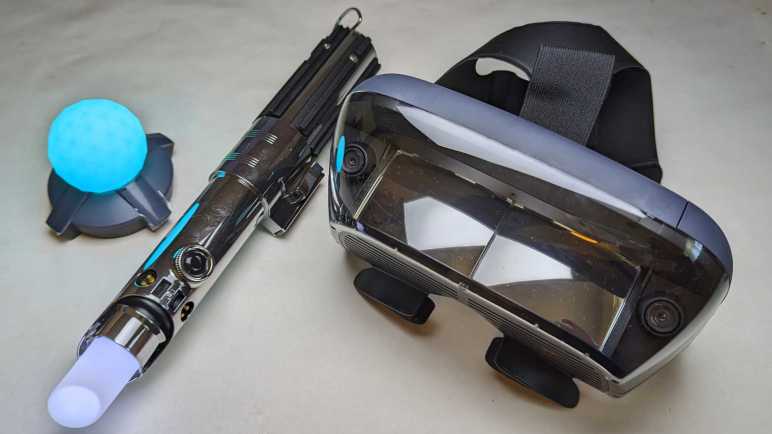
This was the Star Wars: Jedi Challenges product, with a Lenovo Mirage AR headset as the main hardware component. With all hype and no substance, there was no follow-up to this now-retired product. The promised third-party software development kit never materialized. The lone app has been removed from app stores. Its main URL now redirects to Lenovo’s general website, though its product support page still exists for the moment.

My first experience with an AR headset were automaker promotions with Microsoft’s Hololens and I was impressed. Sometime after that, Star Wars: Jedi Challenges promotion hype machine started spinning. I was intrigued but skeptical. It cost a tiny fraction of a Microsoft Hololens so I knew there were compromises involved. It is built around a cell phone like all lackluster 3DOF VR headsets, but this headset adds a pair of onboard cameras with onboard processing hardware that sends data to the phone via a USB cable. Based on that description, it was possible there is enough hardware for a rudimentary AR experience.

The reality was disappointing. While we did have 6DoF tracking, it was restricted to the lightsaber peripheral, just barely good enough to draw a virtual lightsaber blade on the AR headset at a rate of (unscientific guess) 30fps. There was a clearly perceptible lag between our lightsaber movement and the glowing line onscreen. In addition to the lightsaber, the cameras could also track an external beacon. A squishy rubber ball with a colorful LED inside. Since it is a sphere, there was no meaningful orientation tracking as with the lightsaber, just position relative to the headset.

There was no further understanding of our environment and no tracking of the AR headset itself. Not even 3DoF tracking like in Google Cardboard. Kylo Ren is directly in front of us regardless of which way we are looking. If we are looking down, Kylo Ren is in the floor. If we look up, Kylo Ren is in the ceiling. As far as I can tell, the only reality this headset augmented was the lightsaber, drawing a lightsaber blade over a fixed and scripted experience projected Pepper’s Ghost-style in front of my face. As far as an immersive experience goes, this rated even lower than what we can get from Google ARCore.

The good news was that I didn’t waste too much money on this disappointment, as I had waited until these things were heavily discounted just so stores could clear them out of inventory. If I had paid full MSRP I would have definitely demanded a refund! The bad news is that, since I got them on clearance, there was no refund and no return. They sat gathering dust until recently as I decided to write up my VR/AR/XR experiences here. There’s no reason to keeping taking up space with this garbage, meaning now is a good time to take it apart before disposing of it.

Dell XPS 8950 with RTX 3080 and i7-12700

Looking over Memorial Day Sale discounted computers, I decided a Dell XPS 8950 configured with a RTX 3080 GPU and i7-12700 CPU had the grunt to drive my new Valve Index VR headset at a price I’m willing to pay. My next stop was the XPS 8950 service manual. Flipping through component replacement procedures let me get a look at the design for this system. I liked seeing its clever layout and tool-less operation. I especially liked the brace that help support video card weight. GPUs been growing bigger and heavier and I’ve been grumpy the industry has not yet coalesced on a de-facto standard to support all that mass. For the most part they’re still just mounted on the backplate and cantilevered way out past the PCI Express slot, placing a great deal of strain. Motherboard manufacturers have started putting metal reinforcements on their PCI Express slot, which I consider a hack and not a solution, but that’s an entirely separate rant so I’ll stop here.

The downside of novel capabilities is a nonstandard form factor. Historically, by the time I want to upgrade a CPU/motherboard combo I’m ready for a new system anyway. (Like right now.) Therefore, I’m not terribly bothered by the fact neither the mainboard nor case are standard ATX: they’re tailored specifically to each other. There’s an upside, though. Front panel ports here are actually mounted directly on the mainboard and not connected via cables as is typical of a standard ATX case. I’ve had intermittent connection issues with such front panel ports, so I see this design as a positive.

The only part that made me pause was the proprietary power supply. Unlike CPU/mainboard combos, I have had to replace power supplies on my own PCs. Mitigating this worry is (1) XPS power supply should last longer than lowest-bidder ATX PSU, and (2) power plug could (might?) be compatible with the new ATX12VO standard. So I could rig up something to keep the machine running, even if it wouldn’t fit in the case properly.

That was enough information for me to decide on buying one. One thing the manual couldn’t definitively show are the cables, so I had to wait until my system showed up to see them. They are laid out very tidily as expected of a customized power supply with all wires trimmed to necessary length. It is also free of all legacy power plugs. No floppy connector, no CD-ROM connector. Lack of clutter ensures great airflow through the airy middle section of the case.

I was happy to see robust provision for GPU power. There are a pair of 8-pin PCIe power plugs to feed the existing RTX 3080 card. Waiting in the wings just below them, tucked into a plastic bracket, are a duplicate set of extra PCIe power plugs. Together they are enough to feed a RTX 4090 card and I feel comfortable they are ready for whatever video card I might want to upgrade to in the future.

Only a single PCIe x1 slot is still open for future expansion, but historically that has been sufficient. This system came with 32GB of DDR5 RAM in two 16GB modules, leaving two additional memory slots open. There are two M.2 slots, one of which is occupied by a terabyte Samsung NVMe SSD and the other open. If I want to add some bulk HDD storage, there are two unoccupied 3.5″ drive bays. Both of which have SATA power plugs ready to go. However, only one of the two bays have a SATA data cable and the proprietary tool-less drive caddy installed. (Look for blue plastic in upper-right corner of picture.) SATA cables are easy to get and there are open SATA ports on the mainboard. It might not be as tidy since the length isn’t customized for the case, but I’m not worried about that. I’m considering buying one caddy now. It’s pretty cheap, and ensures the bay is usable even if Dell stops carrying this part. Or I could measure the dimensions of my existing caddy and 3D print a clone.

I saw no open 2.5″ drive bays, but that is a solvable problem. This system came with a laptop-sized DVD-R/W optical drive that I do not expect to ever use. However, that gives me the option to swap it out with a 2.5″ drive adapter. I’ll just have to remember to get the correct height adapter this time.

With the exception of power supply, I see standardized form factors for everything else I anticipate installing as either replacements or upgrades. The non-standardized elements have offset benefits like GPU support, tidy cabling, good airflow, etc. This compact integrated package seems well worth a ~15% premium over a DIY build. Now I have to see if it stands up to the test of time. I hope this machine will support many adventures (VR and otherwise) for years to come. Starting with revisiting my favorites to feel its upgraded power.

Narrowed Field Down to Dell XPS 8950

When I upgraded my VR headset to a Valve Index, I knew there’s a chance I’d want a new video card to go with it. The increased display resolution and refresh rate of the Index is significantly more demanding, possibly outpacing my existing RTX 2070 video card. Well, that expectation proved to be true. And to my small surprise, the challenge of running an Index has outpaced not only my video card but my processor as well! Faced with a major upgrade, I decided to get an entire system built around a RTX 3080. I combed through all of the Memorial Day 2023 sales I could find, and the winner of this competition was a Dell XPS 8950.

Most PCs built with a RTX 3080 video card cater to a market infatuated with multicolor LEDs. I don’t care to have them on my own computer, but I know how they work electronically and confident I can turn down the garish lights if they bother me. The bigger problem are functional tradeoffs made by cases optimized around those lights and related aesthetics accessories. For example, many of these PCs have clear sides to show off the hardware and lights inside. Glass and acrylic are poor thermal conductors and obviously obstructs airflow, not great for a power-hungry machine that needs to dissipate a lot of heat. Such are the silliness in HP Omen, Lenovo Legion, Dell Alienware, and other PCs competing in this market.

Dell’s Inspiron product line is their economy class for competing on price. If price was the biggest concern, I would buy parts and build a PC myself. I’m willing to pay a small premium to have a well-engineered system that I can expect to work well for several years. After that point I will contemplate piecemeal upgrades like a new video card. Between Dell’s low-priced Inspiron and their high-end Alienware is their XPS product line. Returning to the airline analogy: if Inspiron is economy class and Alienware is first class, XPS is their business class. I think I can find my Goldilocks “just right” point here. These products aren’t penny-pinched to last barely as long as the warranty. They should give all the performance I want with none of the gratuitous LEDs.

Dell’s list prices for XPS systems are roughly double what I would pay to buy similar components and assemble a system by myself, but I have never paid Dell MSRP and I don’t intend to start. The current Dell XPS desktop is the 8960 with 4000-series NVIDIA GPUs and 13-th generation Intel CPUs. This meant existing stock for older XPS 8950 with previous generation RTX 3080 video card and older generation CPU can sometimes be found with clearance pricing. Combined with Memorial Day and additional discounts, these not-bottom-basement machines can be had for less than 15% premium over self-assembly with bottom-basement components. This was good enough for a closer look.

New PC For New VR Headset

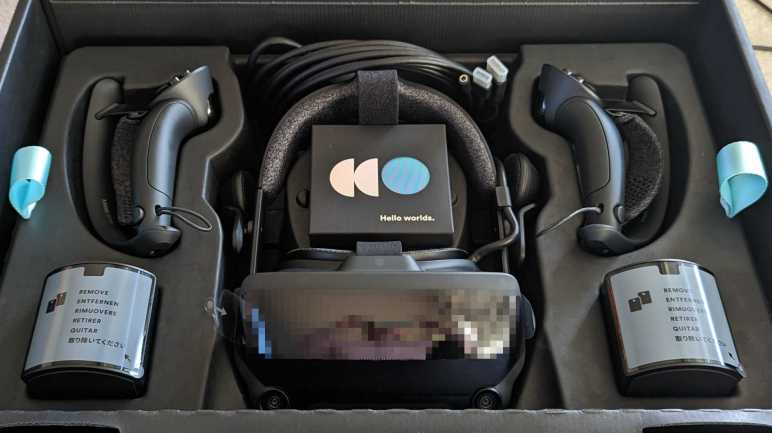
I recently bought a Valve Index VR headset and it made great first impressions. A significant improvement over my older HP Windows Mixed Reality headset. Even though display resolution was only slightly higher than my old headset, it is now refreshing at 120Hz for smoother movement and a much more enjoyable experience. On the downside, my existing computer couldn’t keep up and I learned stutters at 120Hz are far more annoying (in the “discomfort leading to motion sickness” sense) than stutters at 90Hz or 60Hz.

When I bought my HP Windows Mixed Reality headset, it was paired with a laptop equipped with NVIDIA GTX 1060 mobile edition GPU. This barely met minimum system requirements for VR and I was no stranger to stutters even at 60Hz. A few years later, shortly after NVIDIA launched the RTX 2070 Super, there was a brief window of time when RTX 2070 (non-super) were discounted to a level I felt tolerable so I got one for VR duty. This was a big step above my laptop, but it could not keep up with a Valve Index.

Looking around the GPU market, NVIDIA recently launched their RTX 4070 which is reportedly on par with the RTX 3080. (Quick model number decoder: 3xxx vs 4xxx means earlier generation. xx8x vs. xx7x means higher tier product in that earlier generation.) Combined with easing of electronics component shortage and the cryptocurrency crash (about damned time), vendors clearing out older inventory dropped RTX 3080 market price drastically relative to insane heights of just a few months ago.

But if the new RTX 4070 is a newer GPU that is about as good for roughly the same money, why am I looking at the older RTX 3080? Because when I dug into RTX 4070 reviews and their associated comparison tests, I found that the RTX 3080 gets its benchmark scores from brute force pixel-pushing power while RTX 4070 gets them with help of features like DLSS. This is fine for most games, but such features add a bit of latency which is very bad for VR. As I’m looking at a GPU specifically for VR, the raw power of RTX 3080 is preferable to fancy smarts of RTX 4070.

I started looking around for a standalone RTX 3080 video card upgrade, then it occurred to me to look at Windows Task Manager to verify my GPU is indeed a bottleneck. The good news is that Task Manager confirmed my GPU utilization occasionally maxes out. The bad news is that I also noticed my 7th-gen Core i5 processor has its hands full. I was under the impression that games only care about single-core performance, but this information tells me newer VR titles are multicore aware and four cores won’t cut it anymore. I need to upgrade my CPU as well, which meant a new motherboard, which wants new DDR5 memory… at this point I might as well look at an entire new computer system.

Fortunately, the same pricing pressures on RTX 3080 video cards also lowered prices for complete systems prebuilt with a RTX 3080. Stacked with Memorial Day Sale discounts, I found several complete systems available at a reasonably small premium over what it would cost for me to buy parts from lowest-bidder retailers and build my own. Some of these are name brands who probably aren’t buying bargain-basement components from questionable Amazon/eBay/Newegg vendors as I would. Over Memorial Day weekend I evaluated all the deals I could find, and a Dell XPS 8950 looks very promising.

Valve Index VR Kit First Impressions

After five years with an HP Windows Mixed Reality VR headset, I looked over VR hardware choices in 2023 and decided to get a Valve Index. It has worked well through my first few sessions, and I wanted to write down my first impressions to see how they hold up after a few years. (In hindsight I wish I did this for my HP WMR headset when I got it in 2018.)

Reading various Valve Index reviews, the biggest recurring complaints focused on the display. The resolution is only incrementally higher than my five-year-old HP WMR headset. Compared against modern competition, it is lower than even the affordable Quest 2. Furthermore, it lacks the color and contrast of OLED panels used by some headsets in a similar price range. The redeeming feature of Index display is a high refresh rate of 120Hz with an experimental 144Hz mode available. While I know I would prefer OLED color and contrast, I don’t think it would be a huge immersion breaker in VR. The same with resolution: I’m sure I would appreciate a higher resolution display, but it hasn’t been a significant hinderance to my VR experience. What has been an actual problem were jerky movement. I decided I like Valve Index engineering team’s decision to prioritize high screen refresh rate, and indeed motion has been noticeably smoother. (For low complexity content, at least. More on that later.)

But 120Hz refresh rate might not have been the sole contribution. Some of that might be due to the tracking mechanism of a Valve Index. Rather than using visual tracking with a pair of cameras, the Valve Index required external base stations to serve as lighthouses helping my headset (and controllers) figure out where they are in space. This was a minor extra hassle during setup, but not so much to justify the complaints I’ve read about their setup. Theoretically this type of tracking would be a more responsive system because it requires less computation than camera-based visual positioning. I know VR motion is smoother, I just don’t know how much of that is 120Hz refresh rate, how much of that is beacon tracking, and how much is psychology.

A less-important but nevertheless appreciated bonus of beacon-based tracking is that my controller is no longer restricted to moving within a few camera cones of view. This came in useful for Half Life: Alyx which had two aspects problematic with the old headset. First is a motion where we put the controller over our shoulder to put stuff in our backpack, and the second is operating a mounted weapon late in the game. We have to aim with one hand on the rear of the large weapon, and fire with another hand on the handle midway up the left side of the weapon. In the real world this meant my left hand reached in front and the right hand near my chest. Problem: when looking up at the target, my HP WMR tracking camera couldn’t see my right hand near my chest! That made it very difficult to aim and a frustrating encounter on the old headset. With the Index controllers, it was a nonissue.

On that front, controller position tracking is improved but still not perfect. On the old headset, if I held my hand in front of my face and kept it steady, its position would jump around by roughly 5mm. I had hoped the new headset’s tracking system would fix this and keep it rock steady, but it did not. It still jumps around, though by a smaller amount. Maybe 2-3mm.

I really, really love Valve Index controllers, which were designed to allow me to open my hands without dropping them. Not merely for the VR immersion aspect, it also means less strain on my wrists because I don’t need to keep a death grip to keep them from flying across the room. Another improvement is moving the tracking detectors from a front ring to an outside arc. This reduced the frequency of (but did not eliminate) times I whack controllers against each other in enthusiastic play. Hopefully they’ll prove to be durable despite such abuse. I am worried about their shape, though. An advantage of rings is that, if I hit controllers against each other, the two rings would just bounce off each other.

In contrast, Index controller arcs have protrusions that can potentially snag on each other. It has yet to happen, so we’ll see if my worries are unfounded. And finally, these controllers have built-in batteries rechargeable via USB type-C. More convenient than constantly removing, recharging, and reinstalling NiMH AA batteries.

Back to the headset, I like having built-in speakers that hover a few centimeters away from my ears. I no longer have to either route audio to external speakers, which loses positional audio effects, or use earbuds I find uncomfortable. Even better are eye adjustments: both front-back (focal distance) and narrow-wide (IPD, interpupillary distance) are adjustable with the Index, I no longer have to put up with not-quite-right fixed positions. These features add weight relative to the HP WMR, but the Index also has an additional third top strap to better distribute that weight. Altogether these features (especially the eye adjustments) result in a more comfortable headset.

A damaged cable and lack of support motivated me to retire my previous VR headset. Valve enlisted iFixit for repair support and has provided repair parts. If I damage my Index cable, I could buy a replacement for $129 unless I want to use that excuse to buy a new headset again. I also damaged the face surround foam on my previous headset and bought aftermarket replacements. Official Index face gasket replacements are available at $40 for a two-pack, which I consider reasonable. They are magnetically attached which allows easy removal for cleaning. And when I removed my existing unit for a closer look, I found this cool little design detail:

There’s a tiny little ventilation slot molded into the top of this assembly. Airflow would be limited because of that lower tab blocking external light, but having this slot will help reduce the amount of humidity that gets built up inside a VR headset while in use. Small details like this show a great deal of thought went into design of this headset. I liked this headset enough to get a new PC worthy of it, and I hope they both hold up well to years of use in the future.

Choosing a VR Headset in 2023

I broke my HP Windows Mixed Reality headset I bought five years ago in 2018. I made a repair effort, but the results are questionable with risk of electrical faults. I’m not comfortable risking damage to an expensive video card but I also appreciated having an excuse to upgrade.

A lot has changed in those five years. Most 3DOF VR garbage have faded away as the market realized that they sucked. Facebook poured a lot of money into virtual/augmented reality, including buying Oculus, spurring investment from others as well. Oculus launched the 3DOF Go headset (not interesting) followed by the 6DOF Quest headset (worth considering). Now we have the relatively affordable Quest 2 and the high-end Quest Pro. Both of which has onboard computing power to run standalone: no tether to break! But there are limitations to standalone operation: software-wise, we are limited to Oculus walled garden of applications, and graphics are limited by onboard hardware that are closer to phones than PCs. Fortunately Steam VR compatibility and better graphics fidelity can be had by using them as tethered PC VR headsets.

HTC, the other half of old PC VR duopoly, still exists and continues to evolve their line, releasing products across a price range that doesn’t dip as low as Quest 2 at the low end but definitely gets to Quest Pro on the high end. As far as I can tell, evolution has been incremental improvements without any significant innovation like Quest and their standalone operating ability.

Microsoft’s Windows Mixed Reality initiative seems to have lost momentum. After a flurry of headsets from multiple manufacturers five years ago, only Acer and HP released follow-up products. And it’s not just hardware releases that have dried up: I haven’t seen anything notable on the software front, either. Certainly nothing as notable as Oculus’ exclusives. I had really hoped Microsoft would port some variation of their Mars rover software from high-end Hololens to more affordable WMR headsets, but that never happened. It’s a good thing WMR headsets are compatible with Steam VR, because that’s where I’ve been spending my VR time.

I don’t think I’ve spent 1582 hours, though. That multiplies out to over two months. Searching online, I found many people complain Steam overcounts VR usage time. I’m going to blame that, because I really doubt I’ve spent two out of past sixty months of my life in VR. (Or if it is true, I don’t want to believe it.)

If I’m spending all my time in Steam VR anyway, then the obvious candidate is Valve Index who counts Steam VR as its home turf. It is a very well-reviewed headset with a notable innovation in handheld controller design. After evaluating the tradeoffs against other options on the market, I bought a Valve Index.

Damaged HP Windows Mixed Reality Headset Tether

In the middle of 2018, I bought a HP Windows Mixed Reality headset (VR1000-100) and it’s been a lot of fun. It lived up to the promise I saw in 2014 from an Oculus DK2 (Development Kit 2) headset, which set a bar never met by a long series of lackluster phone-based VR systems. Which got a little of play then set aside and never used again. I was far more entertained by the HP WMR headset and its 6DOF tracking for superior immersion. I’ve been using it on-and-off over the past several years to the point I needed to replace worn out soft foam parts. But that was small potatoes compared to what happened a few weeks ago: plugging a disconnected tether cable back into the headset, something went wrong and damaged the connector. I went to my workbench for a closer look under better lighting.

I see damage in the outermost metal shield, with a corner of the metal bent pack. I see damage in the black plastic with pieces at the bottom of the well, instead of the sides where they belong. And the worst part: 6-8 thin copper pins bent out of place.

Based on damage, I have a guess on the sequence of events: In the middle of a game, I stepped on the tether and this connector popped free to relieve the sudden strain and keep it from doing damage elsewhere. Falling away from the headset, this connector struck something that bent an exposed corner of the metal shield. Not realizing this damage and eager to get back to my game, I plugged the connector back in. The damaged metal shield made contact and started bending outward. As it bent it also acted as a lever pushing the black plastic and copper connectors inward. They made contact with the other end of this connector but in the wrong shape, resulting in shattered plastic and bent pins.

As this device is long out of support from HP, I headed to eBay to see what I could find. I found a few pairs of controllers, some complete sets purported to be in working condition, and many headsets with some variation of “Not working, for parts only: broken cable.” I guess this is a common failure for these headsets! I had hoped to find an aftermarket replacement cable, but no luck. And I’m not going to spend hundreds of dollars for a secondhand set, I’d rather put that money towards a newer VR headset.

Back to the workbench, I thought I had nothing to lose by trying to repair the connector. I pulled out a set of fine-tipped tweezers. They were designed for SMD work but they were also able to reach inside this connector to pull out pieces of shattered plastic and bend pins back into an approximation of their intended positions. The 7-8 bent pins no longer had plastic backing to apply pressure for optimal electrical conductivity, but they were close to their intended locations and maybe it’s good enough.

Using needle-nosed pliers, I tried to bend the outer metal shield back, but I could not return it to its original shape. Eventually metal fatigue was victorious with the tab breaking off entirely. I accepted my defeat and switched tactics: I filed down remaining jagged edge after adding some tape to protect conductors from metal shavings.

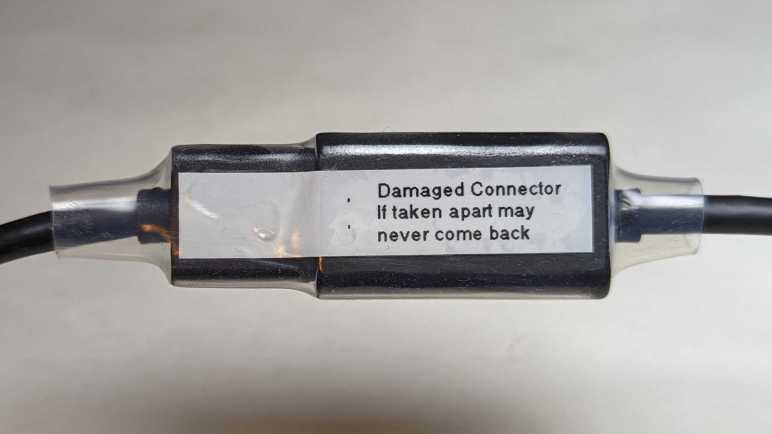
I carefully plugged this connector back in and there were no untoward crunching sensation or sound. I’m pretty sure this connector should never be separated again. I added a label to remind me and then securing the connector with a length of clear heat shrink tube.

I started this experiment thinking I had nothing to lose but, when I had the HDMI plug in my hand reaching to plug it into the computer, I realized I did have something to lose: the computer. What if one or more of these pins were out of place? What if some metal file shavings got into the works despite my taped protection? If I’ve accidentally shorted power to ground, that would do bad things.

Looking in my pile of PC hardware, I reassembled the guts of my decommissioned Luggable PC Mark II. This time I used a proper PC case and so I could plug Radeon R9 380 video card directly into mini-ITX motherboard without the problematic PCI-Express extension cable. This old Radeon R9 380 does not meet minimum system requirements for VR, but it is still a modestly capable GPU and I wouldn’t cry (too much) if it dies.

Plugging the headset into the R9 380, the good news is that an image came up and everything seems to work. The bad news is that I now have this doubt in my mind about the quality of my repair. Yes, it seems to work now, but is it solid or is it marginal? What if one of those loosely-flapping pins start moving around as I am wearing the headset moving around in virtual reality? I am still at risk for electrical faults that can kill an expensive video card. I don’t like it, and I’m going to use it as my excuse to upgrade.

HP Windows Mixed Reality Headset (VR1000-100)

Disappointed by phone-based virtual reality systems, hampered by their limited 3DOF tracking, I committed to spending the money for a PC-based 6DOF system. I didn’t quite go all-in, though, because it was quite possible this headset would also end up just gathering dust. So instead of buying leading-edge hardware, I bought one of the first wave of Windows Mixed Reality headsets after they were discounted to compete with more advanced headsets that launched later. In my case this meant the HP Windows Mixed Reality headset model VR1000-100 and, thankfully, it did not end up just gathering dust. This 6DOF headset was far more enjoyable than lackluster 3DOF setups from Google Cardboard & friends.

This was around mid-2018, a few years after my first experience with a 6DOF PC setup that enchanted me. I eagerly anticipated seeing what a few years of hardware evolution had brought. The first and most immediately noticeable advancement is in display resolution. This headset specification lists 1440×1440 per eye, which multiplies out to double the number of pixels of an Oculus DK2. As expected, I saw the virtual world in much sharper detail. The “screen door effect” of black lines are present if I look for them, but not so thick as to be distracting and I could ignore them.

On the opposite end, the most immediately noticeable problem is frequent loss of tracking of handheld controllers. This headset has just two cameras for tracking, and it’s pretty easy for my controller to move out of view of these two cameras. Newer headsets have four cameras to increase coverage volume. This older headset also lacked built-in audio speakers designed to maximize positional audio effects. It has a standard headphone jack and I plugged in some cheap earbuds, but they don’t work as well as purpose-built speakers.

One downside of a PC-based system is the fact there is a long tether to the computer somewhere nearby, restricting range of motion. I was able to extend the reach with a pair of ten-feet (~3 meter) cables: an HDMI extension cable (*) and a USB3 extension cable. (*) I never noticed any problems that I attributed to these cables, and they let me move around more freely. But they are still cables in the real world, subject to tripping hazard and cord damage. (This would bite me later.)

Every Windows Mixed Reality headset seems to use a common reference design for their handheld controllers. I have been mostly happy with these, especially the wrist straps that saved the controllers from flying across the room on several occasions. They have proven to be very durable. Especially the illuminated LED halo for position tracking. Every once in a while, excited in my virtual world, I would enthusiastically wave and accidentally whack them against each other. In rare occasions, this would cause the controller to reset leading to a few seconds of “Oh no, did I break it?” panic.

One downside of these controllers is their power consumption. The power tray is shaped for standard AA batteries and rechargeable batteries are highly recommended. I tried a pair of non-rechargeable Alkaline AA batteries for curiosity’s sake, and they died within twenty minutes of use. Due to their power consumption I have to recharge my NiMH AAs after every VR sesson, no matter if I use nice Eneloop batteries or cheap AmazonBasics batteries.(*)

I used this headset enough to start wearing out the soft touch portions. After several years of on-and-off usage, the foam surround soaked up enough sweat to smell bad and fall apart. Since HP had discontinued support for this old headset, I had to buy an aftermarket replacement from VR-Cover.

Back to the topic of the cable tether: one engineering design decision that had worried me was the cable connector near my temple. If the cable should tangle up on something, it disconnects. I agree a disconnection is preferable to either yanking the headset off my head, or the laptop off my desk, or ripping the cable out of the HDMI port. But the connector is a nonstandard unidirectional type that is very finicky to plug back in and had very fine-pitched connectors. (I estimate 0.5mm pitch, on par with HDMI or DisplayPort connector but definitely not either of those types.) Such a dense connector with small contact points seems like a bad type to handle violent events like accidental cord jerks.

Eventually it happened: separating in response to an accidental yank, the connector suffered some kind of damage. I didn’t look at it too carefully before plugging it back in. When I did, I felt and heard a crunch. “Oh, no. That can’t be good.” That ended the evening’s VR session and the headset moved over to my electronics workbench for a closer look.


(*) Disclosure: As an Amazon Associate I earn from qualifying purchases.

Ditching Phone-Based Virtual Reality for PC

I was fascinated by virtual reality and my frugality was tempted by Google Cardboard’s promise of phone-based virtual reality on the cheap. But eventually I had to face the reality I wasted a lot of money on disappointing hardware. They were limited to tracking rotation in x, y, and z axes. (3DOF = three degrees of freedom.) I wanted the magic I first experienced with an Oculus Rift DK2 so in 2018 I committed to spend money necessary to move beyond phone-based systems (*) for a PC-based system that tracks both rotation and translation in x, y, and z. (6DOF)

For many years the market consisted of a duopoly between Oculus Rift and HTC Vive. Then Microsoft convinced multiple PC hardware manufacturers to sell 6DOF VR headsets conforming to Microsoft’s Windows Mixed Reality (WMR) specification. While still expensive pieces of hardware, they were slightly more affordable than earlier offers. Competition is good!

No matter which way I went, though, I still needed to upgrade my desktop PC video card and that had been the bigger barrier. The cryptocurrency craze made a new GPU financially unfeasible for many years. Around the middle of 2018 I found a workaround to crypto frenzy: a laptop computer with a VR-capable GPU. Laptops are not cost-effective for cryptocurrency mining, nor could their cooling systems sustain performance for cryptocurrency math around the clock. I wanted a laptop anyway and the cost premium of stepping up to a VR-capable unit was a relative bargain compared to desktop video cards being gobbled up. Around the time I got that laptop, the initial launch wave of WMR headsets like the HP Windows Mixed Reality headset model VR1000-100 could be found at a discount. As newer headsets had released, and first-gen needed discounts to be competitive.

I snapped up that bargain and as soon as I started moving around in my new HP headset, I knew the extra money was worthwhile. 6DOF tracking gave me a sense of immersion that 3DOF tracking could not match. I was glad to be back in the kind of world promised by that Oculus DK2 years ago, and I enjoyed my visits to PC-based virtual worlds far more than I ever enjoyed phone-based virtual experiences.


(*) The Oculus Quest, which launched in 2019 (about a year after this) is a 6DOF VR system that operated standalone without requiring a supporting PC. It had a lot of commonalities with high-end phones like a Qualcomm Snapdragon processor and the Android operating system. It is, however, definitely not a phone.

Google Cardboard and Friends

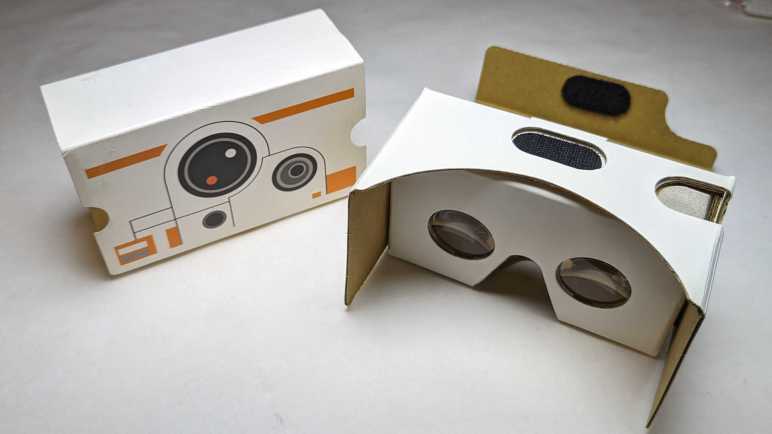
Almost ten years ago, an Oculus Rift DK2 (Development Kit 2) gave me an exciting peek into consumer-grade virtual reality. I was enthusiastic, but the leading edge of VR technology was still very raw and also very expensive. Trying to make this novel technology more accessible, Google Cardboard was a way to turn Android phones into VR headsets. A simple box so cheap, they can be given away as promotions. I have a BB-8 themed viewer that promoted Star Wars: The Force Awakens.

The downside of using a phone is that we only have an accelerometer to sense device orientation. There’s nothing to sense device position. This meant visuals can rotate in response to a head tilt in roll/pitch/yaw directions (three degrees of freedom or 3DOF) but doesn’t change if we take a step left/right, or a step front/back, or sit/stand/kneel. (Which constitute an additional three degrees of freedom for a total of six or 6DOF.)

I eventually decided trading off three degrees of freedom for low cost was false economy. My virtual reality “Ah-ha” moment of leaning in close to a panel was impossible to do in a 3DOF system like Google Cardboard. It’s not just a matter of missing features: I quickly get motion sickness in 3DOF VR. No matter how I tried to keep my body still, there are small movements in the remaining three degrees of freedom and after a few minutes my body started protesting the lack of visual feedback for that motion.

Still, the price was low, which translated to high distribution volume. People tried to iterate on the idea to grow the market, and I kept hoping I could find something I like. Spending money that I should have saved towards a real 6DOF VR system.

The most entertaining take was a VR revival of the View-Master brand. I had an old-school View-Master with a few picture discs, and that nostalgia motivated me to buy one of these new viewers. Technologically speaking it was merely Google Cardboard in View-Master’s signature red plastic, including the orange “lever”. As it was merely a styling and software effort, the business case failed: VR content cost a lot more to produce than those old View-Master picture discs! The best thing I can say is the fact View-Master experiences were only good for short durations, avoiding my motion sickness issue.

With big brands like Mattel and Google onboard, a lot of other brands jumped into the market looking for a successful niche. This was a “Utopia 360” viewer that added two axes of adjustments to improve visual comfort: (1) focal distance between our eyes and the phone, and (2) IPD adjustment. (Interpupillary Distance, or the distance between eyeballs.) Instead of standard tap-on-screen interface, this viewer bundled a small Bluetooth controller. Unfortunately, these features needed software-side support to be useful, and approximately nobody bothered to do so. (This particular unit had a troublesome spring-loaded generic phone holder, so I decided to make a custom holder as one of my first 3D printing projects.)

Samsung is never shy about throwing money at experimental niches. They took a stab with the Gear VR. Going beyond standard Google Cardboard, Samsung added a directional keypad to the side as well as higher quality accelerometer for faster and more accurate 3DOF feedback. I didn’t have a Samsung phone but had a friend who had a Galaxy S7. I thought he shared my enthusiasm of VR, but I later learned he was just being polite while I spewed my enthusiasm. How did I learn this? I bought this Gear VR for him to use with his phone. Years later, he retired that S7 and donated it to my pile of retired Android phones I keep for random projects. Along with the phone he also returned the Gear VR, still unopened in its packaging. By then Samsung has moved on to other things and shut down their Gear VR software support ecosystem so now I can’t do anything with it either.

My final 3DOF VR experiment was this first-generation Google Daydream viewer. It was a small additional expenditure as I already had a Google Pixel phone to go with it. Daydream was Google’s own evolution of the Cardboard concept, with at least two advancements: there were two capacitive touch nubs on the headset to help the phone align its onscreen image. A handheld remote was included, much like the Utopia 360. Google used their muscle to get more software support for Daydream controllers than Utopia 360 ever got for theirs, but there was no way to overcome the fundamental limitations of 3DOF VR.

This string of experiments firmed up my position on virtual reality: 6DOF or GTFO. By the time Oculus released their Go headset, I dismissed it as just another 3DOF system with no meaningful advantages over my Google Daydream. I decided against buying a Go, saving up money towards a 6DOF system of my own.

My Virtual Reality “A-Ha” Moment

Nearly ten years ago, I got my first taste of consumer-grade virtual reality hardware when I had the opportunity to put an Oculus Rift DK2 (Development Kit 2) on my head. Up until that point, I had only science fiction stories like Star Trek‘s Holodeck and reading about professional/industrial installations that were priced well beyond my reach. I knew Oculus launched their hardware development as a Kickstarter campaign, but I was too skeptical to put in my own money. I was still very interested in the technology, though, so it would come up in conversation with other tech-oriented friends. I learned one of my friends did pitch in the Kickstarter campaign and was slated to receive a DK2. Unfortunately, my friend’s computer did not meet DK2 GPU hardware requirements and in the absence of data they were reluctant to throw more money at it. I saw an opportunity: my gaming PC had a Radeon HD 7950 GPU which met DK2 minimums. (The minimums would be raised for release, excluding my HD 7950, but that came later.) We decided to meet up and plug their DK2 into my PC so we can both see firsthand what it’s all about.

I have vague memories of software installation struggles mostly with batch files and only a few graphical installer applications. I had to give administrator privileges to many unknown binaries and that made me squirm, and there were error messages to address. All of these unpolished edges were normal and expected of a development kit.

I don’t remember any hardware connectivity issues: I think everything plugged in together just fine. When the picture actually came up, the first impression was rather underwhelming. DK2 display panel resolution was relatively low, resulting in a blurry picture as if my eyeglass prescriptions are out of date. Plus, there was a distracting “screen door effect” caused by visible black lines between pixels. But of course, if we just wanted a static viewpoint, we could have just stared at a computer monitor. Things got more interesting once we started moving our heads to look around, leveraging key elements of virtual reality technology.

The demo applications (all under development) were mixed. It was definitely early days for the technology, with lots of people trying ideas to see what works. There were many standalone test apps and a few VR modes grafted onto existing titles. My friend and I quickly reached agreement we didn’t care for the titles that simulated motion independent of our seating position. The worst of those were roller-coaster simulations, one of them caused my friend to loudly proclaim “NOPE!” and yanked the headset off their head. We both got motion-sick from such experiments and had to take a break.

We were starting to think the whole thing might be a waste of time and money when we fired up Elite: Dangerous and its then-experimental VR mode. After our experience with VR roller-coaster and the like, we were not optimistic about flying around in a spaceship. But hey, we’ve come this far, might as well take a look. I remember it took some effort to get the game to switch from computer monitor over to the DK2 headset. My friend fiddling at the keyboard and the DK2 on my head. “Do you see the cockpit yet?” “Nope” “How about now?” “Still nope” Then it came up. “Hey I see something!”

The ship was still unpowered, so the only movement were of my own head. Even then I could look around at the controls and it felt like I was at the controls of a spaceship. A virtual representation of a reality that’s out of my reach: I could go on real rollercoasters; I couldn’t fly real spaceships. This was all very promising, but there was a problem. Elite Dangerous ship cockpits were designed to be shown on high resolution monitors. Sitting in the middle of the cockpit wearing the low resolution DK2 headset, all control labels were blurry and illegible. I suppose if I were already familiar with the game I could go from memory, but I was not familiar with it and didn’t know how to start up my ship.

My friend and I put our brains together, drawing from our collective computer gaming experiences. Maybe pressing “Z” will zoom in? How about the mouse scroll wheel? PgUp/PgDn? Arrow keys? The answer was none of those, because this was something new. I forgot which of us had the insight to lean closer to the panel, but I leaned closer to the labels and found I could read them. Such a simple thing we would do in the real world without thinking, but somehow it took several minutes for us to think of doing it in the VR world.

That was my VR “A-ha” moment. I no longer remember anything from that day after that moment. Did we manage to get our ship into space? Did we get motion sickness from flying around? It didn’t matter. The mundane act of leaning closer to read labels was the moment it clicked in my mind, and I was hooked on the concept of virtual reality. Sadly, I was too cheap to commit to good VR with 6DOF tracking and wasted a lot of money on cheaper 3DOF headsets like Google Cardboard and friends.

Hello ESPAsyncWebServer

I have several interesting sensors in my hardware to-do pile, and I think it’d be interesting to do a series of interactive UIs one for each sensor. My first effort in this vein was a browser UI to interactively play with an AS7341 spectral color sensor, and I learned a lot doing it.

One lesson was that I could perform all sensor data computation and visualization in the browser, so I don’t need much in the way of microcontroller capabilities. The ESP32 I used for AS7341 web UI was overkill. All I needed was an I2C bus and WiFi, so I could easily drop down to an ESP8266. However, because I had used the WebServer from ESP32 Arduino Core library, I will need an ESP8266-friendly replacement.

Sticking with Original Repository

I decided to look into ESPAsyncWebServer, which I had been using indirectly as a dependency of ESPHome. In addition to supporting ESP8266 as well as ESP32, it had a few other features I liked. The most important being its ability to serve files from flash file system, so I don’t have to do silly things like hexadecimal encoding files to program memory. Using this capability also means switching from Arduino IDE to PlatformIO, because the latter has easy tools to work with flash file system. And finally, I was intrigued by the claim ESPAsyncWebServer can serve GZip-compressed files. Making better use of our precious megabyte of flash memory.

The only worry is that the GitHub repository looks stale. There are over 100 open issues, and there are 69 pull requests sitting unmerged. Maybe I should use one of the forks that saw more recent development? Since I was introduced via ESPHome, I thought I would try their fork of the repository. It has seen more recent work, but unfortunately as of this writing, the most recent merge has a C syntax error.

.pio\libdeps\d1_mini\ESPAsyncWebServer-esphome\src\AsyncWebSocket.cpp: In function 'size_t webSocketSendFrame(AsyncClient*, bool, uint8_t, bool, uint8_t*, size_t)':
.pio\libdeps\d1_mini\ESPAsyncWebServer-esphome\src\AsyncWebSocket.cpp:105:23: error: expected primary-expression before ')' token
  105 |   if (!client->send();) return 0;
      |                       ^

It’s been sitting broken for over a month now. I don’t know the story behind the scenes, but it is clear the repository is in no shape to be used. I don’t know which of the other forks might be worth investigating. As an introduction, I’ll start with the original until I run into a compelling reason to do otherwise.

SPIFFS vs. LittleFS

There were a few examples to help me orient myself with ESPAsyncWebServer. Compiling them myself, though, brought up warnings that SPIFFS is now deprecated and I should switch to LittleFS. This was opened as an issue #780 against ESPAsyncWebServer library, but was closed without further action because the warning came from an optional SPIFFS-specific component called SPIFFSEditor. Since it is optional and not relevant to my projects, I can choose to ignore the warning.

Switching over is a little tricky because we build the code and file system separately, and they are two different uploads. If I upload the file system first, it gets reformatted by the code when it sees a file system it doesn’t recognize. As per documentation: “attempting to mount a SPIFFS volume under LittleFS may result in a format operation and definitely will not preserve any files, and vice-versa” In order to end up with a functional system, I need upload code using LittleFS then upload LittleFS file system contents.

Gzip Compressed Files

After verifying a simple “Hello World” web server worked, I compressed the small index.html into index.html.gz. Uploading the new LittleFS system, I was happy to see it come up in my browser! But how does this work? I queried using curl and found the answer:

HTTP/1.1 200 OK
Content-Length: 1284
Content-Type: text/html
Content-Encoding: gzip
Content-Disposition: inline; filename="index.html"
Connection: close
Accept-Ranges: none

ESPAsyncWebServer added “Content-Encoding: gzip” to the HTTP header effectively making the browser deal with it. As the browser will be running on a far more powerful CPU than the ESP8266, it is indeed better suited to handle decompression.

Serve Angular Web Application

As a test of compression, I brought over my Angular tutorial app “Tour of Heroes”. It’s not as simple as just copying the files, though. As per Angular deployment guide, I needed to add a rule so ESPAsyncWebServer will serve up index.html rather than a 404 error when an URL is not found.

  server.onNotFound([](AsyncWebServerRequest *request){
    request->send(LittleFS, "/www/index.html");
  });

Another problem was that LittleFS has a 31-character name limit. (32 characters + null termination.) Unfortunately, my Angular app bundle had a file polyfills.716cc9a230a87077.js.gz which is 32 letters! The hexadecimal hash was generated by “–output-hashing” option of “ng build”. It’s changed on every build in order to avoid using stale cached versions of polyfills.js. I could skip that feature, but then I run the risk of stale cached files. The other workaround is to skip compressing polyfills.js. Dropping the “.gz” extension resulted in a 29-letter filename that works for LittleFS.

With all files in my Angular app compressed (except for polyfills.716cc9a230a87077.js) the size of the app dropped from ~800kB down to ~230kB. This is a dramatic difference when default available flash storage is only 1MB out of a total of 4MB total flash memory onboard.

Should I use Angular to build my ESP8266-hosted sensor web UI projects? No. It is far too heavyweight and a simple sensor UI does not need the capabilities of Angular application framework.

Will I use Angular to build my ESP8266-hosted sensor web UI projects? Possibly. Angular is not the best tool for the job, but it might be valuable for me to practice Angular by starting with something simple.


Source code for this exploratory project is publicly available on GitHub

Potential Small PC Explorations

I had fun playing with the GMKtec NucBox3, an interesting and capable little PC more affordable than Intel’s NUC product line, naturally with some expected tradeoffs for its lower cost. I learned about these little PCs from a Newegg advertisement and, between the time I ordered one and its arrival, I had a failed USB external drive that I transplanted into a small form factor Dell PC. Computers in these two projects represent a spectrum that I should keep in mind for future project possibilities. Which one I buy would depend on a project’s requirements.

Intel NUC

A genuine Intel NUC would be more expensive than any of the other options below, but sometimes it’s worth spending that money. For example, if I’m building a solution that needs to be reliable, I will pay more for a brand name. Or if I want to design something that can be repeated by others, it’s easier for someone to buy an identical Intel NUC than to find, say, a GMKtec. For this reason: If my Sawppy rover ever changes over to an x86-64 PC ROS brain, the official recommended hardware will be an Intel NUC. (Supplemented with suggestions on what to look for in lower-cost alternatives like the NucBox3.)

Just Below $90

But when we’re feeling adventurous and not particularly motivated to pay for quality or consistency, we can go bargain hunting. Searching for various options, I observed a price floor somewhere in the $80-$90 range. I see an interesting hint of economic factors at play preventing things from much lower than $90, but I don’t know what they might be. (As a point of comparison, Raspberry Pi 4 8GB MSRP is $75.)

Lowest Bidder du Jour

Amazon categorized these products under: “Electronics” > “Computers & Accessories” > “Computers & Tablets” > “Desktops” > “Minis”. Sorting them by price today, I see several options right around $89, roughly 40% discount from the price of a NucBox3. To get to that price point we have to give up many things. For example, this item (*) made some notable tradeoffs:

  • Memory is half the size (4GB vs. 8GB), uses older technology (DDR3 vs. DDR4), and is soldered in never to be upgraded.
  • Storage is half the size (64GB vs 128GB), uses much slower technology (eMMC vs. SATA) and is also permanently soldered. However, it does have a 2.5″ SATA bay, which the NucBox3 does not.
  • CPU is three years older and from a different product generation (Celeron J3455 vs. J4125) and it doesn’t meet hardware requirements for Windows 11.

On the upside, it still meets all my hard requirements for robot brain: 64-bit CPU running x86-64/amd64 instruction set, gigabit Ethernet port, small, lightweight, and might run on battery power. Depending on future project requirements, I may choose these tradeoffs in favor of a <$90 bargain.

Buying Refurbished

Looking at inexpensive PCs on Amazon, I saw a lot of refurbished units. Clicking around a few listings, I learned Amazon had set up an entire department. “Amazon Renewed” is dedicated to refurbished products of all kinds, not just computers. I should definitely keep this in mind as an option. Given my personal experience, I’d restrict my search to refurbished Dell products from their corporate line. Which would still leave me with very many options. Check out these guys, each offered at a few bucks under $90:

  • Optiplex 3040 Micro Desktop (*) are bigger than an Intel NUC, but tiny compared to anything else. Skimming Dell’s manual, I see a 2.5″ SATA bay inside. I also see what looks like a M.2 slot on a picture of its mainboard, but M.2 isn’t called out in the manual as a storage option. I see a gigabit Ethernet port and it accepts power from a DC barrel jack, so there’s a possibility it can be persuaded to run on battery power.
  • Optiplex 790 USFF Desktop (*) are significantly larger. Packing an optical drive on top of a 2.5″ drive bay and AC power supply. No robot battery power for this machine, but dual 2.5″ drives are possible via an optical drive caddy. This could work for TrueNAS replication target if my storage drive is a high capacity 2.5″ laptop hard drive.
  • Optiplex 3020 SFF Slim Desktop (*) is a successor to the Optiplex 960 I repurposed to a TrueNAS replication target, with at least one 3.5″ drive bay and one optical drive bay. This would be my default choice if I need to build another replication target machine.

What if I want a parallel port for LinuxCNC? Sadly, that’s an uncommon enough request I can’t filter on Amazon. But when it comes to refurbished small Dell PCs, Amazon Renewed is not the only game in town. There are plenty of other vendors like PC Liquidations, who offers filtering by parallel port. Resulting in a list of refurbished Dell Optiplex with parallel port starting at, you guessed it, a few dollars under $90. All good options if I want to dedicate a cheap PC to a task, which usually also requires me to set up automatic software updates.


(*) Disclosure: As an Amazon Associate I earn from qualifying purchases.