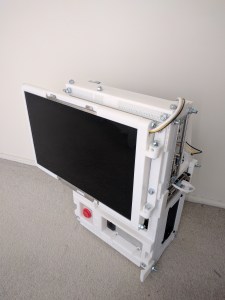
Drying Nexus 5X Off From Swim

My Nexus 5X phone took a 30-minute swim in a pool due to my negligence. It was unsurprisingly dark when retrieved from the pool. I’ve already ordered a replacement phone but I was curious: could it be brought back to life?

The first order of business was water removal. A public swimming pool has all sorts of chemicals unfriendly to electronics. The first thing I found upon return to home was a jug of distilled water originally intended for the car’s battery. Good enough for a starting point, I left the phone soaking in distilled water while I went online to read up on Nexus 5X disassembly on iFixit.

The information is promising – by modern phone standards, this model is very easy to disassemble and repair. Following the instructions, I disassembled the phone into its major components, performed a second round of rinsing, and laid the parts out to dry.

Disassembled

After drying overnight, it was obvious soaking in distilled water was not enough. There were enough chemicals remaining to leave a white residue on many surfaces and corrosion began eating many components. Here’s a close-up picture of the SIM slot and a few of the surrounding components. The brown stuff building up in the lower-right is especially worrisome.

Soak in Distilled

If gentle soak in distilled water wasn’t enough, it’s time to step things up. Isopropyl alcohol is easily available as a first aid disinfectant though at a lower concentration than ideal. First aid rubbing alcohol is 70% alcohol and electronics cleaning usually specifies alcohol content of 90% or higher. Since time is of the essence, the first aid stuff will have to do. Once the parts are soaking, I also ran a small plastic bristle brush over the surfaces to dislodge any remaining pool chemical and the corrosion that is accessible.

It’s not clear if the alcohol or the brushing was more useful, or if they were both required, but things look much better after the alcohol dried off overnight.

Alcohol and Brush

Some printed numbers were erased by the alcohol, which I wasn’t worried about. Some adhesives were dissolved by the alcohol, and I’m worried about the tape that used to sit over the CPU. I will need a replacement heat conductor to help transfer heat generated by the CPU to the chassis frame for dissipation.

Portable External Monitor 2.0: Stacking Plates

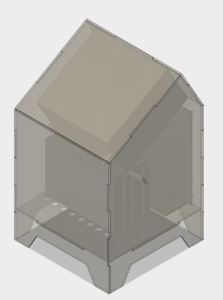
Enclosure2_CADPortable External Monitor version 2.0 (PEM2) explored a different construction technique from PEM1. Instead of building a box by assembling its six side pieces (top, bottom, left, right, front back) the box is built up by stacking sheets of acrylic.

With this construction technique, it is much quicker to place components in arbitrary locations in 3D space. Control along the X/Y laser cutting axis are trivial. Control in the Z axis takes a little more effort. The components can be aligned to the thickness of the sheet of acrylic, but if that’s not enough, it is possible to use engraving operations to precisely locate the component in Z.

In contrast, when we want to locate components inside a box at a specific coordinate, we’ll have to design additional pieces – supports and brackets – to mount the item at the appropriate location in the box.

It is also very easy to assure alignment between the parts of the box. Cut a few fastener holes at the same location across all the sheets. After they are stacked up, inserting the fasteners to align all the sheets.

The downside of this approach is that it is very wasteful of material. Each layer will consume an acrylic sheet of the overall X and Y dimensions. And if we only cut away the parts we need for the components, there is potential for a lot of unnecessary acrylic in the final assembly. They add weight without usefully contributing to the structure. Putting in the design time to cut away those parts reduces the time savings of this technique, as it starts approaching the work needed to design supports and brackets in an empty box.

If there’s an upside to the wasted material, it is the fact that this glue-less technique can be easily disassembled. When we’re done evaluating this prototype, every sheet of acrylic can be reused as material for future (necessarily smaller) projects.

Lesson learned: This “stacking plates” construction technique offer a trade off of reducing design time and effort at a cost of reduced material usage efficiency.

Enclosure2_Complete

Thread Tapping Failure and Heat-Set Threaded Inserts

Part of the design for PEM1 (portable external monitor version 1.0) was a VESA-standard 100 x 100mm pattern to be tapped with M5 thread. This way I can mount it on an existing monitor stand and avoid having to design a stand for it.

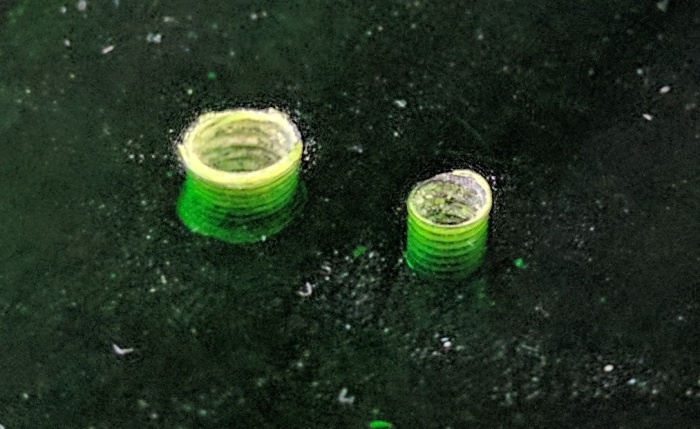
I had hand tapped many M5 threads in 3D printed plastic for the Luggable PC project, so I anticipated little difficulty here. I was surprised when I pulled the manual tapping tool away from one of the four mounting holes and realized I had destroyed the thread. Out of four holes in the mounting pattern, two were usable, one was marginal, one was unusable.

AcrylicTappedThreads
Right: usable #6-32 thread for circuit board standoff. Left: Unusable M5 thread for VESA 100 monitor mount.

A little debugging pointed to laser-cutting too small of a hole for the tapping tool. But still the fact remains tapping threads in plastic is time-consuming and error-prone. I think it is a good time to pause the project and learn: What can we do instead?

One answer was literally sitting right in front of me: the carcass of the laptop I had disassembled to extract the LCD panel. Dell laptop cases are made from plastic, and the case screws (mostly M2.5) fasten into small metal threaded inserts that were heat-set into the plastic.

Different plastics have different behavior, so I thought I should experiment with heat-set inserts in acrylic before buying them in quantity. It doesn’t have to be M5 – just something to get a feel of the behavior of the mechanism. Where can I get my hands on some inserts? The answer is again in the laptop carcass: well, there’s some right here!

Attempting to extract an insert by brute force instead served as an unplanned demonstration of the mechanical strength of a properly installed heat-set insert. That little thing put up quite a fight against departing from its assigned post.

But if heat helped soften the insert for installation, perhaps heat can help soften the plastic for extraction. And indeed, heat did. A soldering iron helped made it far easier to salvage the inserts from the laptop chassis for experimentation.

Portable External Monitor 1.0

LCD Enclosure 1 piecesOnce the LCD panel and matching frame had been salvaged from the laptop, it’s time to build an enclosure to hold it and the associated driver board together. Since this was only the first draft, I was not very aggressive about packing the components tightly. It’s merely a simple big box to hold all the bits checking to see if I have all the mounting dimensions for all the circuit boards correct.

It was also the first time I had the chance to try acrylic sheets in a color other than clear. There was a dusty stack of 6 mm green acrylic that I enlisted into this project. Since this is just an early draft project, I valued ease of construction over appearance or strength (6 mm is more than sufficient) and so I used the interlocking tab design for self-aligning assembly.

The resulting box was functional, but not very interesting from a design viewpoint. I just wanted to prove that all the components worked together before I proceeded to the next draft.

I did not design this enclosure to stand by itself. Instead, I had designed this enclosure with a VESA standard 100x100mm mounting pattern in the back and intended to tap those laser-cut holes to take M5 fasteners. Once so prepared, I can mount this enclosure on any existing stand that conforms to the standard. That little design detail – independent of the LCD panel and driver board – sent me off on a little side exploration of plastic construction techniques.

That is a story for the next update.

LCD Panel Frame From Laptop Lid

Drilling out plastic rivetsMy Luggable PC display was a LCD panel I had salvaged from an old laptop, which I’m doing again for this external monitor project. When I pulled the Luggable PC panel out of the old laptop, I left most of the associated mounting hardware behind. During the Luggable PC project I wished I had also preserved the old mounting hardware.

The first reason is dimension data. When I mounted the screen to my Luggable PC, I had to measure the panel and design my frame to match. A Dell engineer did this work years ago, and when I threw away the mounting hardware, I threw that away as well.

The second reason is strength. A LCD panel is fragile, but when backed with its sheet metal frame, it becomes quite a bit stronger. This is usually a worthwhile trade off against the increased size and weight.

The third reason, less obvious than the previous two, is to manage heat. The back light assembly across the bottom of the screen would get quite hot when the panel is just sitting by itself. However, when the panel is mounted in its frame, the frame served a secondary purpose as heat sink.

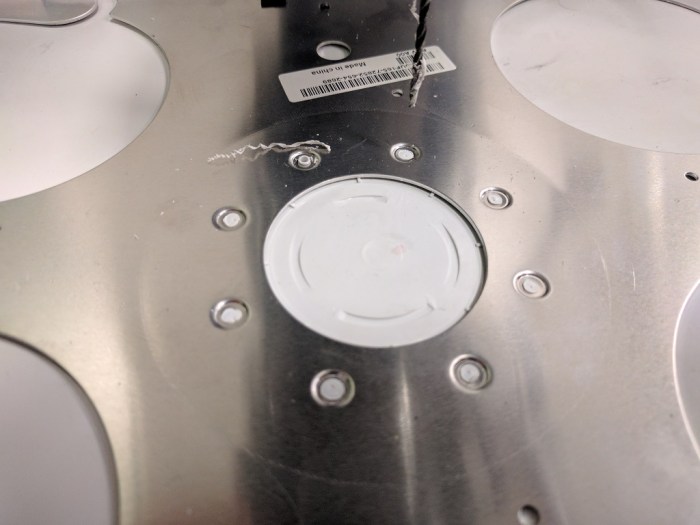
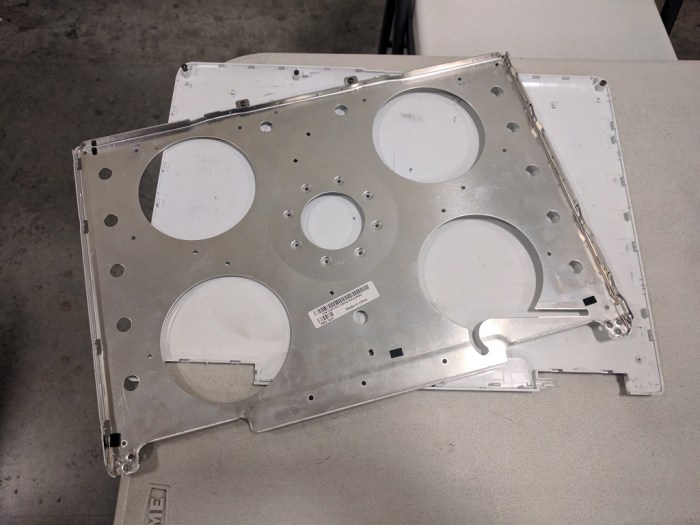
The metal frame I want to reuse is attached to the plastic outer cover of the laptop lid. The attachment is done via small plastic rivets: bits of the plastic lid cover melted into the metal frame. Pulling off the frame with brute force is likely to bend and damage the frame, so the assembly is put under the drill press. After cores of all of the plastic rivets were drilled out (above), the metal frame easily pops off the plastic lid cover (below).

Frame freed

The metal frame can now be used to build the rest of the enclosure. The frame can be cut, drilled, and generally manipulated in ways that I would never do to the LCD panel itself. And when I’m done with all the prep work, the panel itself will drop right in to the frame. This should be much easier than what I had to do for the Luggable PC screen.

Portable External Monitor Project

Thanks to a friend’s generous donation of a nonfunctional Dell Inspiron E1505, I have another LCD panel to play with. (And distract me from FreeNAS Box project.) The eventual ambition is to upgrade my Luggable PC to a multiple-monitor system but as a first step, I’ll learn to work with the new panel by turning it into a portable external monitor. If phase 1 is successful, it becomes an optional additional accessory I can lug alongside the Luggable PC. Then, if I’m feeling ambitions, I can move on to phase 2 of integrating everything into a multi-monitor Luggable PC.

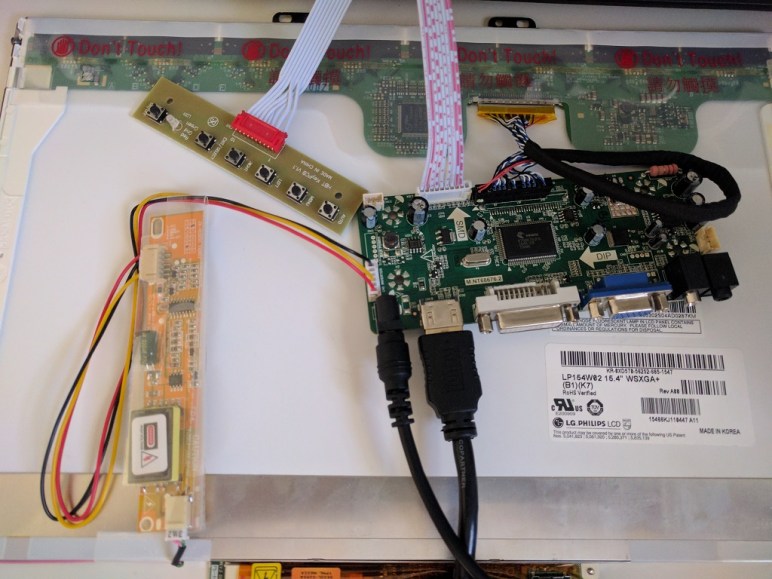
The first order of business is to extract the panel and look at its specifications. Dell laptops around that vintage offer resolution as low as 1024×768, which wouldn’t even be worth the effort to resurrect. Fortunately, this LG Philips LP154W02 panel has a decently respectable 1680×1050 resolution.

Since the computer doesn’t work, next I have to see if the panel does. Off to Amazon to look for boards that claim to drive this panel. The first board (*) pictured here was able to present all the right info to a computer, and it can power the back light, but no picture showed on screen. At this time I was worried – did I get a bum board, or is the display dead?

After some diagnostic chatter with the seller, I was pointed to another board they carried. The first board was computer-focused, the second board was more TV and media focused. The upside is that it worked. The downside is that it seems to have trouble preserving 1:1 pixel information at 1680×1050. I wonder if its media-focused nature meant it up scale all signals to 1080p and then down sample to the panel resolution. That would explain the minor visual artifacts.

The artifacts does take a bit away from the success. But it’s lit, it shows a picture, and that’s good enough to proceed.


(*) Disclosure: As an Amazon Associate I earn from qualifying purchases.

Acrylic Joint Evaluation

Acrylic JointBefore diving into building FreeNAS box #2, I thought I’d take a pause and take a closer look at the acrylic construction results of experiment #1. This is purely about learning to build structures from acrylic – independent from the positive or negative aspects of the project as a computer enclosure.

Since laser cutting acrylic is a fairly popular construction technique, there is a wealth of information on the internet. (To be taken with the usual grain of salt.) After getting some first-hand experience I now have context to better understand the information people have shared online. My favorite single page so far is on Makezine. After reading some of these again (with better understanding due to the new experience) I re-evaluated my design and decided my corners are bad.

For the corners of the enclosure, I had designed tongues for one panel to fit into another. On the upside, this helped with aligning pieces for assembly. On the downside, it made the design more complex to draw up and arrange. And even when well joined with acrylic cement, it is an visually unsightly interruption in the clean clear joint.

Even worse, this has introduced stress points that would otherwise not been there. As I recently learned building the Luggable Frame #1, a sharp internal corner laser cut into acrylic concentrates stress from surrounding components and is liable to start cracking from the point of the corner. Each of these tongues introduced two new stress points in each of the two sheets.

Since the only real upside here is making construction easier, I’ve decided this is not the way to build with acrylic. I should keep the edges for corners joints smooth and clear, free of these tongues, and figure out other ways to keep the pieces aligned during construction.

I’ll spend some time and effort to improve my acrylic joints before proceeding to build FreeNAS box prototype #2.


FreeNAS Box V1 Prototype

FreeNASv1With the concept designed, it’s time to head over to Tux-Lab to build it!

To be honest, it was not fully designed for use as a computer case. Since this was my first effort designing for acrylic construction I expected to run into some amateur mistakes very quickly. As a result I had left some known design issues open to be resolved in future prototypes. One example: I had not designed any kind of door or hinge. The prototype panels are mostly glued together, except for the front panel which is held in place by tape.

Aesthetically, I am pleased with how the clear acrylic looked though I am not pleased at how much of a rat’s nest the power supply cables became. Taming wires is a perpetual challenge. I now understand why Apple enclosed all the ugly guts of the G4 cube in shiny aluminum shell inside the clear acrylic shell.

Other than the messy computer wires, the clear acrylic does hint at the illusion of a computer floating in mid air. I’m pretty happy with that, but it’s not enough to offset the tangle of wires. Next prototype will either have good cable management (takes effort) or have some dark colored acrylic to hide the interior (much easier.)

The cooling functionality worked as designed: the intake air is drawn from the bottom, past the two hard drives keeping them cool, and out the top.

Similarly, the designed goals of tilted-PSU (power supply unit) space optimization was successful, as did the gentler turn demanded of the wires. However, there was an unforeseen deal-breaker of an issue.

Uh-oh!

FreeNASv1_FlawOn the back side of the tilted-PSU, we see that the tilt has pressed the bottom of the PSU up against the wire bundle at the top of the motherboard. The tight quarters mean individual wires of the bundle tried to relieve the crowding by moving into the space for the PSU fan preventing it from turning. Since the PSU fan is the primary air-mover for this enclosure, a stopped fan is obviously not acceptable.

Other notes

Space utilization efficiency has room for improvement. Some of this was caused by the desire to emulate the Apple G4 cube and have a square footprint. (20 cm squared!) The squareness was completely unnecessary and future iteration will likely have a rectangular footprint for space efficiency.

There was uncertainty about how well 3mm acrylic can hold the weight of the power supply unit. It proved to be surprisingly capable once the two top sheets reinforced each other at right angle.

Amateur Hour: A laser cutter only cuts vertically. There was no way to cut a 30 or 60 degree edge for the tilted PSU section! For this learning exercise, the cornered edges are simply left open and unattached.

The angled PSU was a novel idea to solve specific problems, but it caused new ones and also unsuitable for laser cut acrylic construction. That was a fun experiment, but we’ll have to leave the angled PSU concept behind for the next prototype.

FreeNAS Box V1 Design

FreeNASv1_CADOnce the components are gathered, we start thinking about designing an enclosure for them. The tool of choice is the Tux-Lab laser cutter. The material of choice is acrylic sheet. The objective of the exercise is to learn how to build with acrylic and ideally create something novel and unique.

Since my mind is already on acrylic, it was a short jump to think about the Apple Power Mac G4 Cube. A landmark of industrial design. Obviously what I make won’t be as pretty, but it’ll be my homage to the cube. Here are the two main design considerations in my FreeNAS experiment #1.

Hard Drive Cooling

Heightwise
Airflow along the sides has small surface area.
Lengthwise
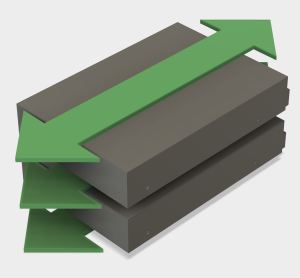
Airflow lengthwise has large surface area, but will be obstructed by data and power cables.


Crosswise
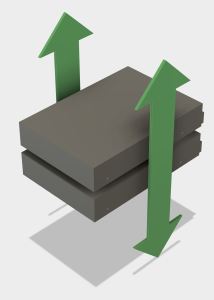
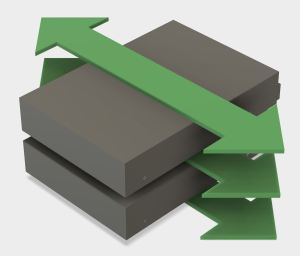
Airflow crosswise has large surface area and will not be obstructed by data and power cables.

Since the goal is for low power, low noise, and small size, I didn’t want to add any fans. The small fan on the processor and the large fan in the power supply will take care of their respective components. That leaves the two hard drives without their own cooling, so the enclosure will have to utilize airflow created by the power supply fan.

We desire the maximum cooling surface area that presents the fewest obstructions to the air stream. And we want to work with (instead of against) natural convection forces. Evaluating the possibilities, the best choice is to align cross-wise airflow to be vertical by sitting the hard drives on their long sides.

Power Supply Spacing

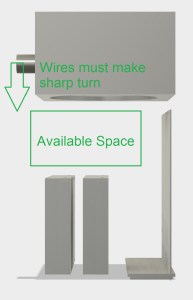
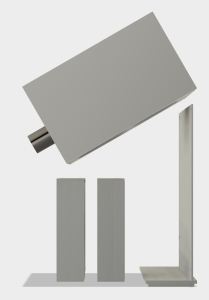
PSU UprightFollowing the lead of the G4 Cube, air intake will be on the bottom and the power supply (with its fan) will sit at the top to work alongside natural convection and exhaust hot air.PSU Tilted

With the power supply sitting at the top, and the hard drives sitting on their sides against the bottom, that leaves a fairly large piece of unused space. The wires protruding from the power supply is also a concern. We either have to force those wires to make sharp downward turns to reach the system components, or we have to increase the depth of the enclosure to give the wires room.

Our experiment #1 tilts the power supply downward 30 degrees to utilize the available space to relieve the wire spacing issue.

Will these ideas work? Let’s build it and find out…


Components for FreeNAS Project

I wanted to play with FreeNAS without spending a lot of money to build the computer to run it. In fact, I would prefer not spending any money at all. This is a lot like how the Luggable PC project started: figuring out the most interesting thing I can do with computer parts I already had on hand.

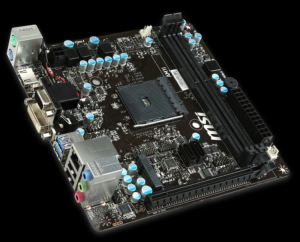
AM1IThe brains of the system will be a Mini-ITX board, the MSI AM1I. I got this board a few years ago, along with its AMD Athlon 5350 processor while they were on sale at Fry’s Electronics together as a bundle. This pair has participated in many experiments and projects since. It was visible in some early Luggable PC project pictures, mostly of the January 2016 “Easel Frame” phase. And now, it will play host to the FreeNAS project.

The storage will be provided by two Seagate 2TB hard drives. These drives were part of my Windows Home Server and had been gathering dust ever since the server was decommissioned. They will now re-enlist to serve as storage for the home network.

The power will be provided by an ATX power supply that I’ve relegated to standby/ backup status. In its old age it has started to develop some coil whine. While it has not yet become a functional issue, the noise is unpleasant coming from a computer on my desk. Which makes it the ideal candidate for powering a NAS box stored someplace out of the way, probably out of sight, and best of all, out of hearing range.

I could throw all these pieces into a commercially available case, and call the physical setup done and turning this FreeNAS project into a strictly software learning exercise. But where’s the fun in that?

When I said I wanted to build a FreeNAS box I meant that literally: I want to build the physical box to enclose the above components.

My FreeNAS Project Begins

FreeNAS LogoRecently I lost access to my Amazon Drive for approximately 72 hours. There was no data loss, merely interrupted access, but it highlighted the fact that cloud-based storage can disappear on me just like any other kind of storage. This experience moved a back-burner project up to the front burner: adding NAS (Network Attached Storage) to my home network to supplement the (relatively) small SSDs in my computers.

I used to have a Windows Home Server on my home network, which presented network storage as part of its feature set. Sadly for me Microsoft had abandoned that product line, so I decommissioned my machine with no network-based replacement. I moved back to straightforward USB hard drives at home to supplement my cloud-based storage.

Since I’m not entirely sure a 24×7 network-accessible storage would be useful enough for me to justify the electric bill, I didn’t want to go out and spend several hundreds of dollars on a Drobo or similar commercially-available NAS. I also wanted to learn more about this part of the computing world. Drobo (& friends) are designed to be super easy to use, set-and-forget computing appliances. I wanted to see a little bit more under the hood and get a better feel of the nuts-and-bolts.

A desire for lower up-front cost and an interest in seeing the guts… sounds like time for an open source software solution! And like most open source solutions, there are several different projects, some with multiple forks, all proclaiming to be the best solution to the problem.

I decided to try FreeNAS as a starting point. The code base has been around a while (though supposedly extensively rewritten recently) and it is currently funded by iXsystems who makes money by selling storage solution for businesses. (Basically hardware specifically built to run FreeNAS.) So the product has some history, and has a funding source to help make sure it has a future. Both are good things.

Sounds promising, so let’s build a FreeNAS Box!

Luggable Frame Experiment #2

Catleap2The second iteration of the luggable frame experiment addressed the failings of the first version by relying less on acrylic and more on aluminum. The first iteration was a good experiment to see if acrylic was strong enough for the work. Once V1 conclusively proved the weaknesses, it’s time to fall back to the known quantity.

The following changes were made for version 2:

Extrusion upgrade: In the interest of greater rigidity, the extrusions themselves were upgraded from Misumi HFS3 (15mm x 15mm cross section) to HFS5 (20mm x 20mm). The smaller extrusions seemed to be doing the job but they did exhibit some flex. And we had HFS5 conveniently on hand so let’s use it!

Connection upgrade: In V1 the extrusion T-joint at the base of the frame was held together by the side pieces of acrylic. Though it seemed to work, V2 went with a stronger solution by using metal connectors for the joint. (Misumi HBLFSNF5).

Handle upgrade: The V1 handles were part of the acrylic assembly. With the reduction in acrylic usage, there wasn’t enough left to carry the load of the whole frame. So the handle became another aluminum extrusion.

Catleap2-RearPC tray upgrade: This was the first acrylic thing that failed in V1. The PC is now held in place by aluminum structure instead of an acrylic cutout which makes it quite secure. Three of the extrusion right-angle connectors were re-purposed as “claws” to keep the PC case in place.

Catleap2-SideVESA mount upgrade: The worrisome flex in the Catleap monitor enclosure was traced down to the metal threads inside the Catleap enclosure that were longer than the thickness of the enclosure plastic. This meant when the mounting screws fully engaged, there was still a bit of space between the VESA mount plate and the monitor’s rear surface, allowing movement. A spacer plate was added to fill that gap. Now the VESA mounting plate on the frame is fully pressed against the monitor’s rear surface, greatly reducing the flex.

All this additional structure added up to a very secure frame for carrying around the Yamakasi Catleap monitor with the HP Z220 computer. Unfortunately it also added weight which was a concern even before the frame came into the picture. The heft means this is probably the end of the line for the Catleap + Z220 experiments. Frame V2 will serve as a perfectly good workstation albeit not a very portable one.

The idea of building a Luggable PC around a commercially available monitor will continue, with the focus shifting to using smaller and lighter components.

Luggable Frame Experiment #1

Catleap1The dimensions for my Luggable PC project were determined by the components within. The width and height, specifically, were dictated by the LCD screen module. Even though I made the CAD files public for anybody to build their own Luggable PC, in practical terms only people with the exact same LCD module would be able to use the files without modification.

A friend who saw the Luggable PC was interested in generalizing the concept and create a frame for lugging a (not disassembled) screen alongside its (also not disassembled) PC. Relative to my project, it would be easier to build and less specialized to the components within, with a trade-off in larger size and heavier weight.

I thought it was a great idea to explore and joined in the experiment. We each came up with a design, and we built both of them at Tux-Lab to see how the ideas translated into reality.

This blog post is a brief summary of my first experiment.

The Components

The monitor is an Yamakasi Catleap monitor, built around a 27″ IPS panel with 2560×1440 resolution. The specific dimensions don’t really matter, as it will be mounted via the standard 75mm VESA pattern on the back. Any large monitor with 75mm VESA pattern would fit as-is, and only minor modifications would be necessary to accommodate monitors with a different mounting pattern.

The PC is a HP Z220, small form factor PC from the HP business line available with a range of components to trade off processing power against price. For the purposes of this experiment, the important details are its height of 331mm and depth of 100mm. Thought not a standardized dimension, many small form factor PCs are roughly the same size.

The Construction

The core of the frame are built from 15mm aluminum extrusions (Misumi HFS3) for strength and the remainder of the frame are made from 6mm laser-cut acrylic fastened to the extrusions via M3 nuts and bolts.

Making the panels from laser-cut acrylic has the advantage of simpler modifications. Many of the critical dimensions in my Luggable PC 3D CAD file has the problem that, when changed, they trigger cascading changes that need to be reconciled. When designing for the 2D tool path of laser laser cutting, it is easier to keep modifications in mind so that a change in one sheet does not cascade to other sheets.

Example #1: The frame has a 331mm x 100mm hole to fit the Z200 case. This can be adjusted to fit any other SFF frame without cascading changes to other components.

Example #2: The monitor mount pattern can be changed, and the mount position can be moved up or down to adjust elevation of the monitor.

The Result

CompleteI had never designed for laser cutting before and was happy for the chance to do something on the Tux-Lab laser cutter. I knew that, having little experience with the material, my first few designs will have some amateurish flaws. So this frame #1 was fairly minimalist just to see what happens.

I didn’t have a good grasp how many fasteners I would need to hold everything together. I laser-cut roughly double the number of fastener positions than what I think I would need, as it is easier to have more options rather than less. For the assembly I only installed fasteners in every other hole.

The screen mount was surprisingly successful. We questioned whether 6mm acrylic would be suitable for holding up the Catleap monitor by its 75mm VESA mounts. When we found some worrisome flex, the suspicion went immediately to the 6mm acrylic but it turned out the Catleap monitor enclosure was the source of the flex.

When attempting to install the PC, we found that the case itself would fit just fine but the rubber feet attached to the side of the case did not. I added cutouts in the CAD file but it seemed wasteful to cut entirely new pieces of acrylic just for the little feet cutouts. For purposes of experimentation, a Dremel tool was used to cut gaps to clear the rubber feet.

After the frame was assembled with the screen and the PC, we started plugging in all the cables and wires and I realized I had forgotten to account for the cables. There’s no good place to coil up the excess so they kind of dangle and stand ready to catch on something inconvenient.

The entire assembly was built in a tiny fraction of the time of my Luggable PC and included a much larger monitor with a much higher resolution. The trade off was almost doubling of the weight. The handle, part of the acrylic assembly, appeared to be sufficient to manage the weight.

I carried it across Tux-Lab and quickly encountered the first failure.

The Failure

Lesson of the Day: Sharp internal corners are bad.

My amateur mistake was cutting a sharply cornered rectangle to hold the PC. The sharp corners concentrated the physical load of the PC into a small point in the 6mm acrylic, which protested the poor design by breaking apart.

The next experiment will incorporate this lesson.

Build, fail, learn, iterate, repeat.

Broken


OpenSCAD for Motion Visualization

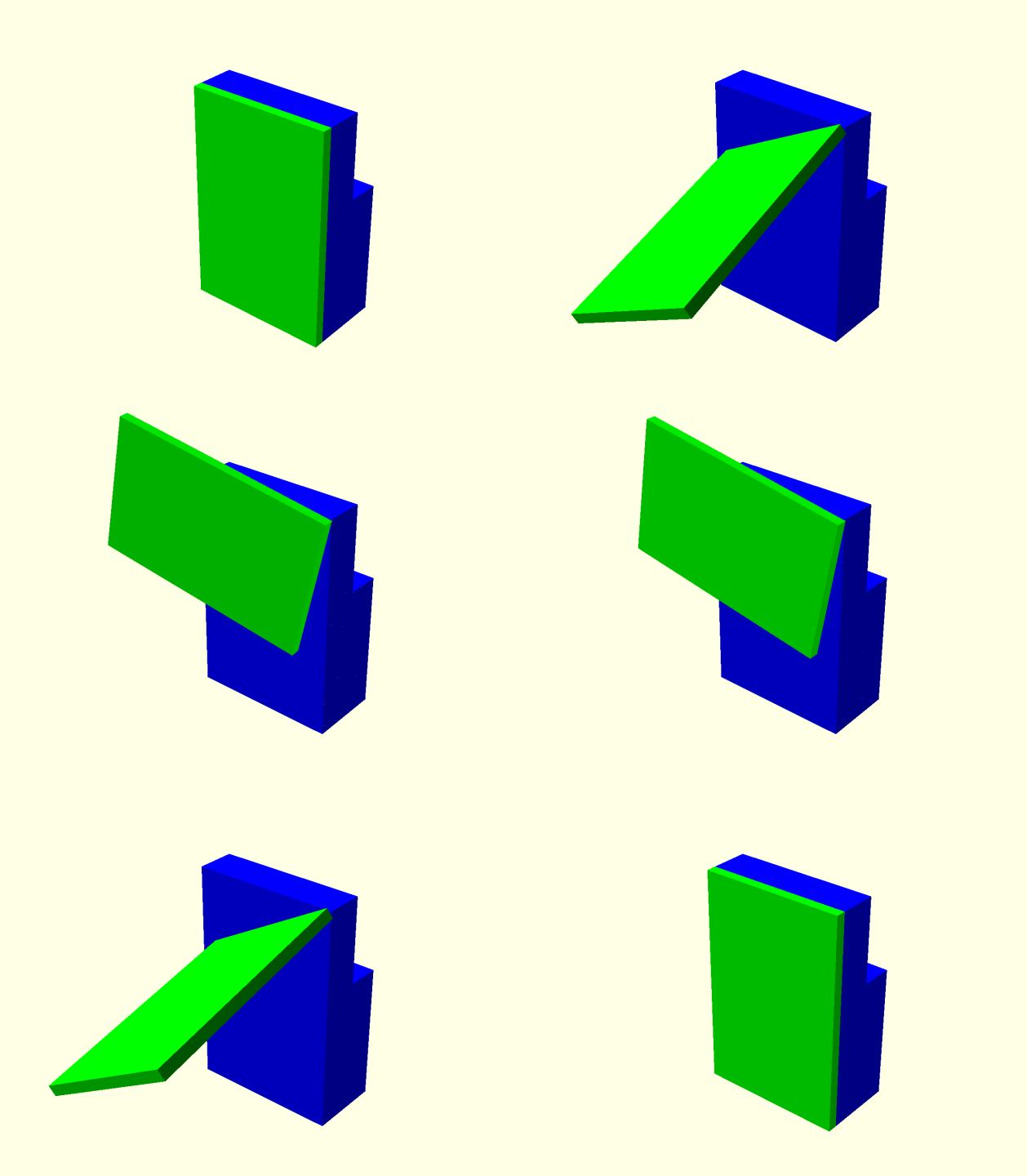
Now that I’ve climbed the initial learning curve for OpenSCAD, it’s time to start working towards my goal for doing this: I want to visualize arbitrary motion between components as a rough draft to see how things move in virtual space.

This is not an unique capability in CAD packages. Both Fusion 360 and Onshape have ability to define object hierarchies and visualize their motion. However, they are both focused on the assemblies that have been mechanically defined in CAD. If I wanted to visualize a  hinge-like motion between two objects, I first need to build that hinge in CAD or the software would “helpfully” tell me I’m trying to perform an impossible motion in my design.

In contrast, OpenSCAD does not care. I can place a rotate() operation anywhere I want and it won’t care if there’s no hinge in the design. It is happy to let me rotate about an arbitrary point in 3D space with no hardware around it. This makes OpenSCAD ideal for trying out how wild ideas would (or would not) work in virtual space, before getting down to the nitty-gritty about how to build the mechanisms to implement those wild ideas.

This means some cool-looking ideas would turn out to be impossible to implement, but that’s OK. I wanted something with a lot more freedom than I can get in the CAD packages that limit what I can do for (in their view) my own protection.

But that’s still in the future. For now I’m still climbing the learning curve of moving objects around in OpenSCAD in a way that ties into the built-in animation capability and generating animated GIF to illustrate concepts.

As a learning exercise, I’ve re-implemented the motion of the Luggable PC hinge. Thanks to OpenSCAD flexibility, I didn’t have to spend time building the hinge before I move it!

lug3

Luggable PC Project Complete!

The Luggable PC project page on Hackaday.io has been fully documented for anybody to build their own home-built 3D-printed computer chassis. All the components required for assembly have been listed, and all the steps of assembly documented with pictures taken at each and every step.

I expect to continue to make small tweaks to the design, improving little things here and there, but the machine is usable enough that I should stop tinkering with it and actually start using it. This means no new versions rebuilt from scratch for the foreseeable future. But if inspiration strikes, there will be!

When I’ve taken my Luggable PC to various maker events in the local area I’ve received generally positive reception and appreciation. Now I wait to see if anybody actually takes me up on the information compiled and build their own.

LuggablePCAssembly640

Luggable PC Drive Bay Revisions

Here’s the 2.5″ drive bay in the initial iteration of the threaded-box Luggable PC design. It is a simple, basic place to hold one laptop-sized drive, but not a very efficient use of space.

IMG_20170228_090310 - Copy

The most obvious thing to do is to vertically stack another drives adjacent to the existing drive. Easy to do in CAD, but has problems in the real world.

Problem 1: How do you access the fasteners? The laptop storage market have mostly settled around two basic fastener schemes: four screws on the bottom of the drive, or four screws along the sides. If we use the side fasteners, they would not be accessible for drive replacement without taking the whole case apart. The bottom fasteners would be accessible, except that bracket would be impossible to print on a FDM 3D printer.

Problem 2: How do you connect the wires? While at first glance there is enough space to physically accommodate the drive and its plugs, it fails to take into account the wires. The wires for the existing drive barely clear the edge in the picture. Stacking another drive into that space (even if moving it another cm or two to the right) would demand wires make relatively sharp right-angle turns. This would place strain on the connectors including the fragile unsupported SATA connectors on the drive itself.

After some experimentation with the available space, keeping in mind the requirements above, I decided to angle the two stacked drives:

IMG_20170228_091421 - Copy

Now the Luggable PC has two independent drives: One for Windows 10, and another for Ubuntu Linux 16.10.

This design solves the fastener issue: in this arrangement, it is possible to 3D print the drive bay so both drives are held in place by the shape without use of any screws on the sides or on the bottom. Both drives are held in place by a single 3D printed clamp that is secured with just two screws. The downside is that the design only works when both drives are present. It is unable to hold a single drive in place.

This also solves the initial wiring issue: By angling both drives, the wires do not have to make sharp turns and would not place unreasonable strain on the connectors. However, this comes at a cost of usable interior volume. By angling the connectors, and avoiding sharp turns, the cables consumed more precious interior volume than the previous design.

Going back to the idea of drives stacked in the available volume, we revisit the problem of forcing wires to make sharp turns. The turns can be relaxed if we can find more room for the wires without angling it into precious interior volume. The solution turned out to be… turning the drives instead! By rotating 90 degrees a drive can be positioned to make room for the cables’ turns. It also allows two drives to exist side-by-side, allowing the bay to work with a single drive or dual drives.

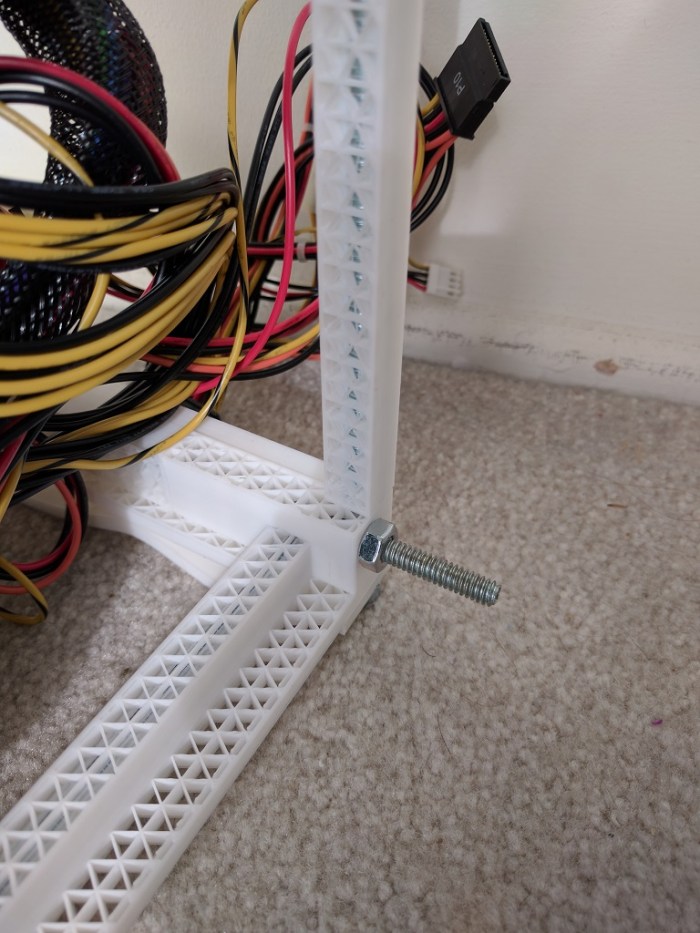
This design was incorporated into the following iteration of the chassis, built using aluminum extrusions instead of threaded rods as the metal structure.

DriveBayV3


Luggable PC Feet Design Considerations

After some time using the assembled Luggable PC prototype, I wanted to adjust the screen ergonomics. While the screen has been raised to a height much more comfortable compared to a laptop, after a few hours of use I wished I could tilt the screen upwards a few degrees.

At first glance this would have been impractical – the screen hinge design is already complicated and adding a tilt adjustment mechanism would only make it more so. So instead of tilting the screen, let’s achieve the goal by tilting the entire Luggable PC by adding 3D printed feet that can be bolted to the bottom of the machine.

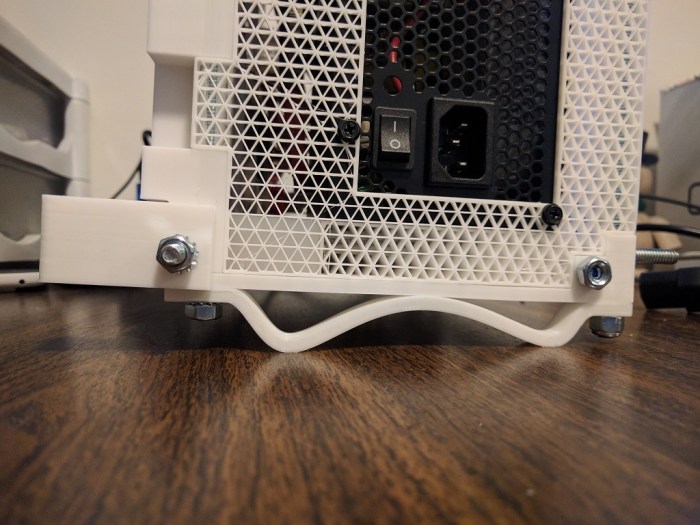
The easiest approach would have been to print a simple solid wedge with the desired angle, but I decided to be a little more experimental. I played with Fusion 360’s spline tool to sketch out feet that are designed to move and flex a tiny bit. The flexibility adds two features:

  1. Shock absorption: We still need to be careful setting it down on a surface, but the minute bit of flexibility we gain will help cushion the harshest part of initial impact and make it feel less like we’re breaking the machine every time we set it down.
  2. Flatness compensation: With a bit of flexibility in the feet, the Luggable PC can now conform to surfaces that are not perfectly flat. Previously, the solid bottom means it will rock on 3 out of 4 feet on any surface that isn’t perfectly flat (which is most of them.)

Here is the first iteration, which accomplishes the desired goals:

IMG_20170228_173547 - Copy

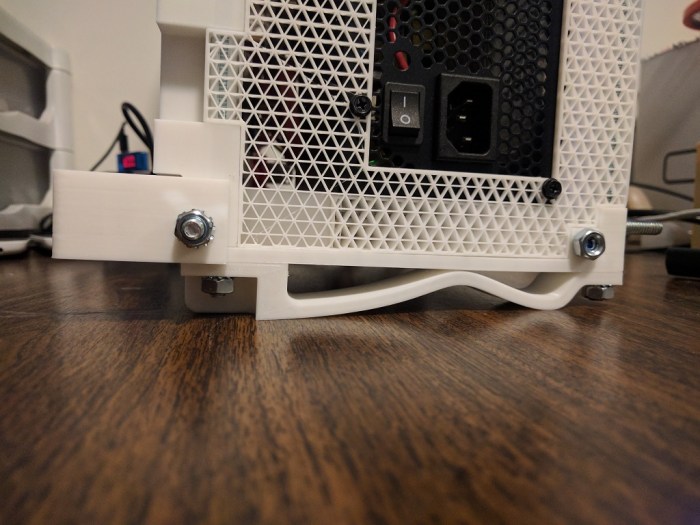
Unfortunately it also has a problem: by moving the contact points inward, the front feet are now uncomfortably close to the center of gravity. A slight push from the rear will send the whole thing toppling forward. The design needs to be adjusted to have a wider stance… but we are constrained by the fact the fastening nuts still need to be accessible.

In this case, the short-term fix is to move the feet as far front as possible while still allowing wrench access to fasteners.

IMG_20170228_174620 - Copy

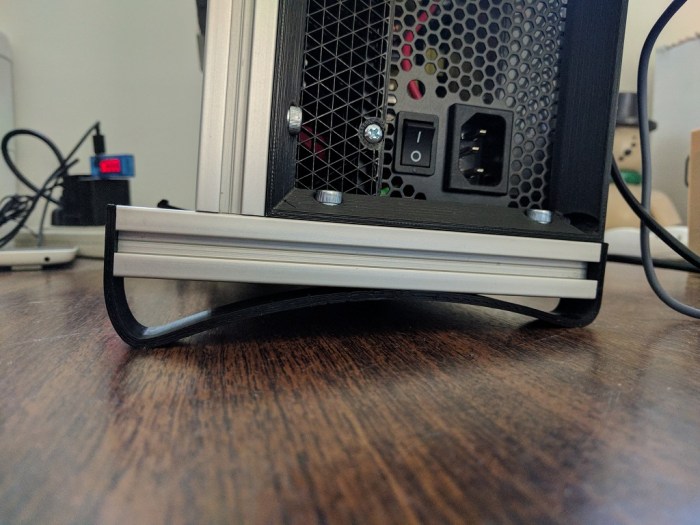
The real solution is to redesign the bottom of the case to accommodate the feet while maintaining a sufficiently wide stance. This idea was incorporated into the following iteration of the Luggable PC. As it used aluminum extrusions for backbone instead of threaded rods, the new wider feet were installed on the bottom extrusion.

FeetV3

A Tale of Three Corners: Design Evolution

The use of threaded rods to hold the Luggable PC case together was borne out of necessity: The print volume of the 3D printer is much smaller than the volume of a PC case so it must be printed in pieces then fastened together. A threaded rod provides strength along its length, but how do we best handle the inevitable corners?

The key constraint is the strength of a 3D printed part, especially the adhesion between layers. This is an unavoidable fact of life for FDM-type printers: the part is weakest between layers, so designing for 3D printers must consider the layers similar to how designing for wood must consider the grain.

Version 1: basic asymmetric

In this design (as used in the “Easel PC” iteration) two of the rod axis are aligned with the direction of the layer. Stress along those two axis would mostly be held in check by the strength within each layer, but a fraction of the force would try to push the layers apart. To guard against this, the third axis is orthogonal so its fastening nuts would also try to hold the layers together.

Corner 1 B
Two of the rods are co-planar with the print layer. (Rod pointing left, and rod pointing down.) The nuts fastening the third rod (Rod pointing away) also exerts a clamping force on the layers.
Corner 1 A
Same hinge viewed from a different angle.

The problem with this design is that the corners are asymmetric by nature. Not just in appearance, the loads it can tolerate are also asymmetric.

Version 2: symmetric but space consuming

The goal of a corner that handle loads symmetrically across the plastic layers means finding a way to make sure the plastic grain is equally strong across all three axis. The solution is to print at an orientation that lies at the same angle to all three axis.

CornerCura
The corner laid flat on the print bed for slicing in Cura.
Corner 2 B
Results in a corner that is equally strong across all three axis.

While this design solved the problem of symmetric appearance and strength, it introduced a new problem: by printing this way, the hinge consumes a lot of the enclosed volume making it unusable. When the goal is to pack the computer components inside a minimalist PC case, every cubic centimeter counts!

Corner 2 A
Angle showing the problem with this design – it consumes a lot of space inside the enclosed volume.

This hinge was used in the “Threaded Rod Box V1” and the space it consumed severely hampered the packaging of that layout. It is definitely not the optimal solution so the search continues.

Version 3: Let’s All Huddle Close!

The previous two designs both depended on the plastic to take some part of the load and hold on to a few steel rods. These rods were a few centimeters apart because we needed room for a wrench to tighten the nuts. We needed the nuts to sit inside the corner because…

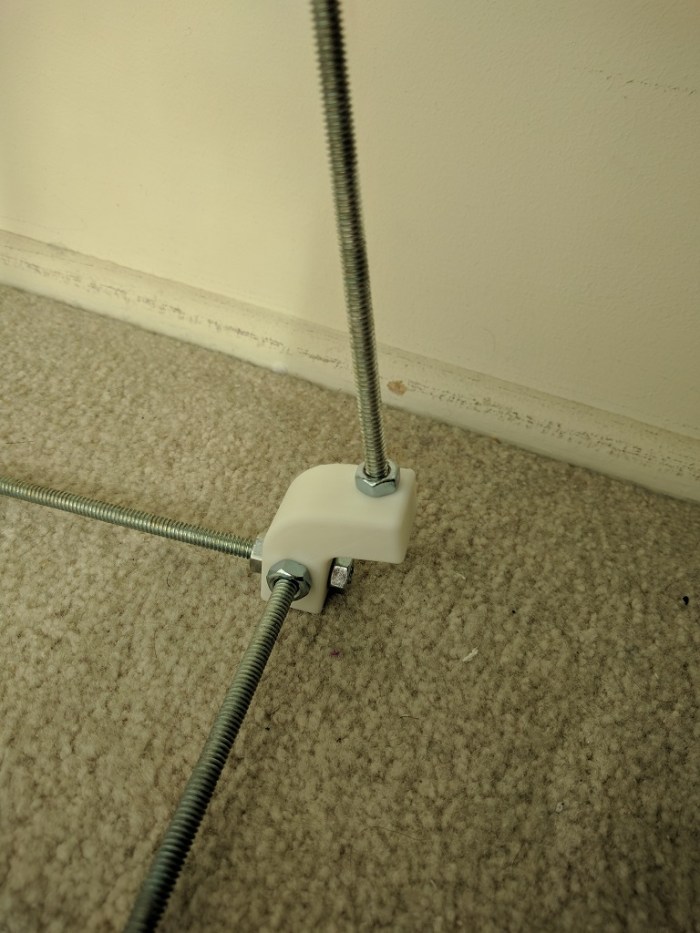
… um, why do we need them inside? The key for version 3 is the realization that we don’t need that. By offsetting the rods slightly, we can extend the rods past the corner so the fastening nuts are outside of the enclosed volume and not competing for space with the components inside the box.

When the nuts (and the required wrench clearance) are no longer inside the volume, it allows the rods to sit much closer to each other. Now the closest distance between rods are measured in millimeters instead of centimeters. It also means the three sets of fastening nuts help exert a clamping force across all three axis, compressing everything together. This compression means the alignment of the print layers become much less critical allowing significantly more freedom in designing the rest of the case.

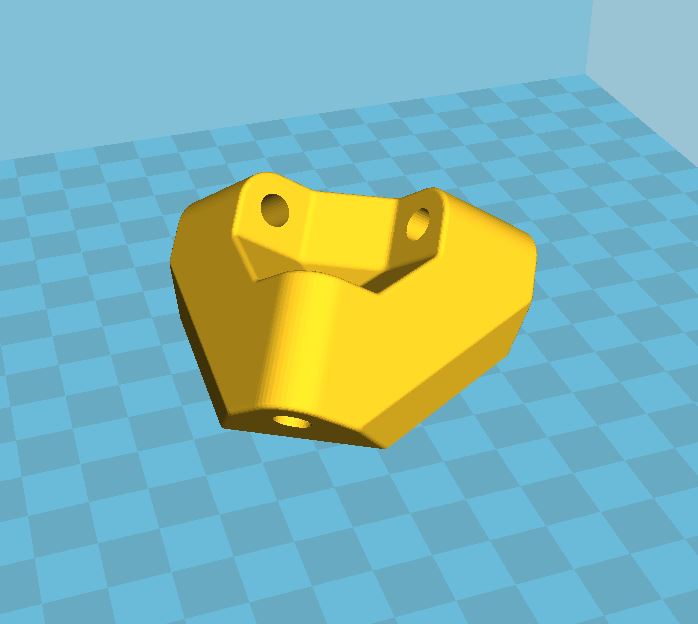
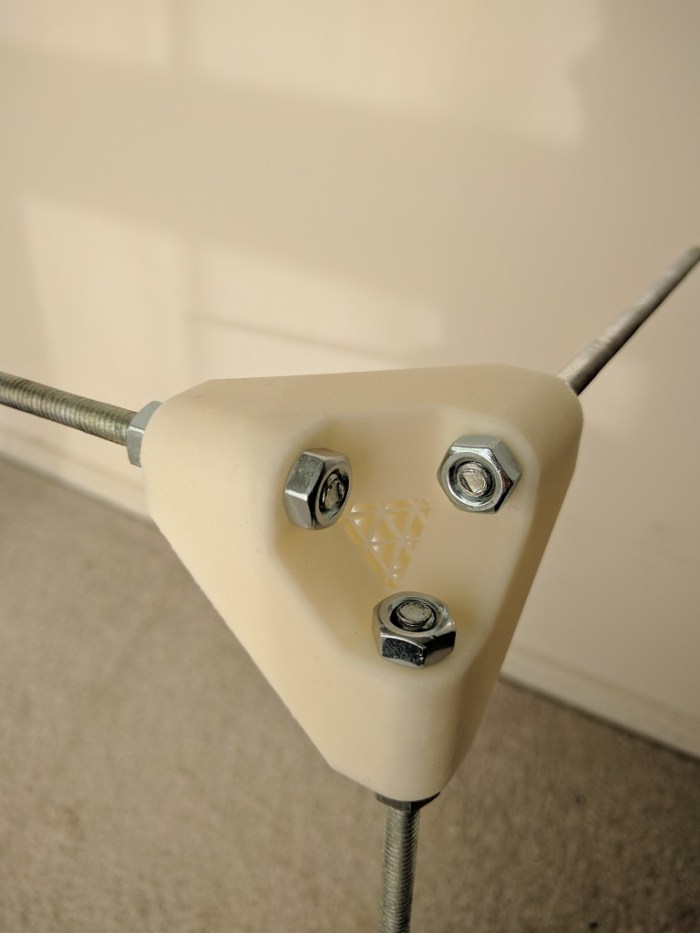
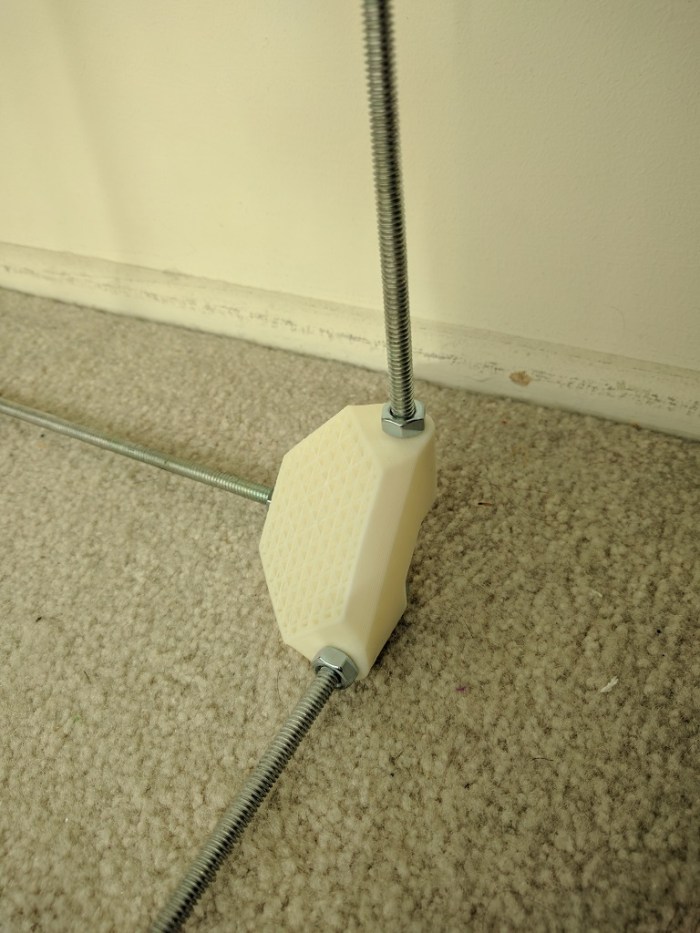
This corner design was used successfully in Threaded Rod Box V2 as shown. (In these pictures, some of the threaded rods have yet to be trimmed to length.)

Corner 3 BCorner 3 A

Luggable PC Screen Hinge

In the previous post we have established all the desired traits of the ideal screen layout, and how it’s impossible to meet them all simultaneously. The only solution is to design a mechanism allowing us to convert between two different configurations, each designed to provide the traits desirable for its corresponding condition.

  • Closed: the travel configuration.
    • Compact: We want to be able to lug this around without too much worry of catching on things, so the screen should align with the rest of the case (vertical or portrait orientation.)
    • Protected: To protect the screen, it should be facing inward so the glass surface is less vulnerable to damage.
  • Open: the computing configuration
    • Landscape: Unlike phones and tablets, desktop computer applications are not designed for the possibility of vertical/portrait orientation, so the screen needs to be in horizontal/landscape orientation.
    • Ergonomic: Unlike laptop screens that sit at table height, we can turn our extra heft into an advantage as support to hold the screen up to eye height. Ergonomically superior to the tabletop height of laptop screens.

To transition between these two states, we need movement along at least two axis:

  • Flip: The screen needs to move from facing inward (protected) to facing outward (visible)
  • Rotate: The screen needs to move from vertical/portrait orientation to horizontal/landscape orientation.

My ideal was to devise a mechanism that can execute both of these movements in parallel, so the user sees a single continuous movement from one configuration to another. After quite some thought and experimentation without success, I decided to postpone this ideal for later. For now, I’ll implement a hinge that has two separate degrees of freedom so the two desired axis of movement can be accommodated.

front-open
The open in-use configuration, with the screen offset to the left instead of centered

Originally the open configuration would have the screen up and centered relative to the rest of the body, and I had a few overly complex mechanical linkages attempting to make this happen. But then I realized it isn’t really necessary: the body has enough heft to hold up the screen even if it is not centered left-right. If we accept that the screen can be offset to the left, the rotation axis becomes a very simple hinge, leaving plenty of room to implement the flip axis.

front-closed
The closed travel configuration

This “ah-ha!” moment of realization, letting the screen be offset, greatly simplified the design. With the side bonus of reliability as simpler designs tend to be more reliable.


closelid
Demonstrating the open-to-closed transition. (Animated GIF by Shulie)

In the back of my mind, I will continue to dream of a continuous single degree-of-freedom unambiguous movement between open and closed. Maybe I’ll have another “Ah-ha!” moment to make it happen. I’m happy with this as the first draft.

Luggable PC Screen Layout: Challenges

The previous two posts discussed the design reasoning behind the positioning for the power supply unit and the motherboard. Now we get to the most interesting problem: Where do we want to position the screen?

The easiest approach is to line the screen up with the existing components, so I tried that first. A 17″ screen is almost the same length and width as the ATX motherboard plus PSU. But that means the screen would be at a vertical (portrait) orientation. While common for phones and tablets, it is not a typical layout for a desktop PC. (Historical trivia: The Alto by XEROX PARC, recognized to be one of the first computers with a graphical user interface, uses a portrait orientation.)

threadrodboxisoThe easiest solution to that problem is to rotate the whole works 90 degrees. I tried it for a while and the upright screen sitting at table height level was ergonomically poor.

Laptops also have their screens at table height (one of my peeves against laptops) but at least their screens can tilt. I wanted to do even better than merely tilting: I aim for the OSHA ergonomic recommendation raising the top of the screen to eye height.

spaceThe wasted volume between the screen and the motherboard was another problem exposed by this prototype. The space looked small in CAD because the CAD model blocked out all the volume allocated by ATX spec. Since the actual motherboard consumed only a fraction of the allocated volume, the real world example had far more wasted space.
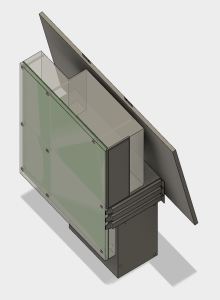
screenwingsI had the idea to solve both issues by raising the screen high to eye level, oriented horizontally, and tilt it into the empty volume. I never got as far as building it. Looking at the CAD layout, it is quite clear that the horizontally-oriented screen sticks out on either side of the case. This makes for a shape awkward to transport and also leaves the screen extremely vulnerable to damage. The screen height was good, but everything else was bad.

Plus, there was one more problem not addressed by any of these ideas: The screen glass surface is exposed while in transit. Laptops fold closed to protect the glass while travelling, but all these designs leave the glass exposed.

It became clear that no single static arrangement will have all of the desired qualities. Similar to a laptop, we will need some kind of mechanism to switch between two states.

  • Closed: A compact configuration for easy transport while protecting the screen from damage.
  • Open: An ergonomically desirable screen position.

Next post: The mechanism to address these challenges.