Compass Project Updated with Angular Signals

I’ve been digging through the sample for Getting Started with Angular Signals code lab and learned a lot beyond its primary aim of teaching me Angular Signals. But a beginner could only absorb so much. After learning a whole bunch of things including drag-and-drop with the Angular CDK, my brain is full. I need to get back to hands-on practice to apply (some of) what I’ve learned and cement the lessons. Which means it’s time for my Angular practice app Compass (recently upgraded to Angular 16) to use Angular Signals!

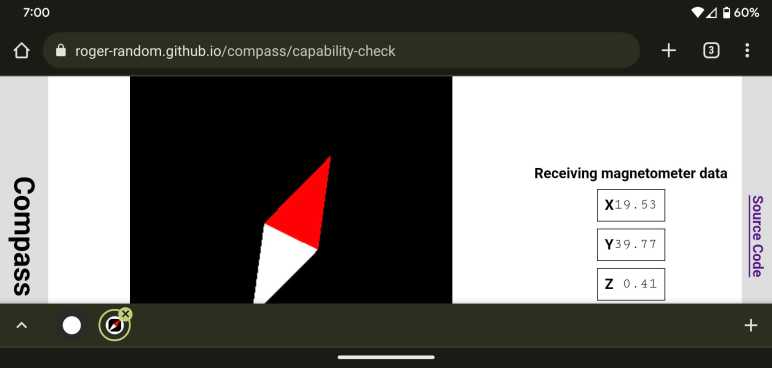
In my practice app, I created a service to disseminate magnetometer sensor information. It subscribed to the relevant W3C sensor API and publishes data via RxJS BehaviorSubject. I didn’t know it at a time, but I had effectively recreated a Signal using much more powerful (and heavyweight) RxJS mechanisms. One by one I converted to broadcast data via signals: magnetometer x/y/z data, magnetometer service status (user-readable text string), and finally service state (an enumeration). I also removed the workaround of making an explicit call to Angular change detection. I never did understand why I needed it under Mozilla Firefox and Microsoft Edge but not under Google Chrome. But after switching to Angular signals, I had different change detection problems to investigate.

The switchover greatly simplified my application code, making it much more straightforward to read and understand. Running in a browser on my development desktop computer, I didn’t have real magnetometer data but my placeholder data stream (sending data to the same signals) worked well. Making me optimistic as I deployed, and then surprised when I failed to see magnetometer data updates on an Android phone.

Since the failure was specific to the device, it was time for me to set up Chrome remote debugging for my phone. My development desktop has Android Studio installed, so all of the device drivers for hardware debugging were in place. Following instructions on the Chrome documentation page DevTools/Remote Debugging, I established a connection between Chrome DevTools on my desktop and Chrome on my phone. Forwarding port 4200 for my Angular development server, I could load up a development mode version of my app for easier debugging. Another advantage was that it’d show up as http://localhost:4200. The magnetometer sensor API is restricted to web code served via https:// but there’s an exemption for http://localhost for debugging as I’m doing.

I was happy to find the Chrome DevTools advertised at Google I/O worked very well in practice: there is a source map allowing me to navigate execution in terms of my Angular TypeScript source code (versus the transpiled JavaScript) and I could use logpoints to see execution progress without having to add console.log() to my app. Thanks to those lovely tools I was able to quickly determine that magnetometer reading event handler was getting called as expected. That callback function called signal set() with new data, but those signals’ dependencies were never called. I had two in Compass: numerical text in HTML template to display raw coordinates onscreen, and code to update position of compass needle drawn via three.js.

Just like earlier, I had a problem with Angular Signals code not getting called and breakpoints can’t help debug why calls aren’t happening. I reviewed the same documentation again but gained no insights this time. (I have the proper injection context, so what now?) Experimenting with various hypothesis, I found one hit: there’s something special about the calling context of a sensor reading event handler incompatible with Angular signals. If I add a timed polling loop calling the exact same code (but outside the context of a sensor callback) then my magnetometer updates occur as expected.

This gives me a workaround, but right now I don’t know if this problem is an actual bug with Angular Signals or if it is merely hacking over a mistake I’ve made elsewhere. I need more Angular practice to gain experience to determine which is which.


Source code for this project is publicly available on GitHub.

Angular Signals Code Lab Drag & Drop Letters

After looking over some purely decorative CSS in the Angular Signals code lab sample application, I dug around elsewhere in the source code for interesting things to learn. The next item that caught my attention was the “keyboard” where we drag-and-dropped letters to create our decoder. How was this done?

Inside the HTML template code, I found an attribute cdkDropListGroup on the keyboard container. A web search pointed me to the Angular CDK (Control Development Kit.) Angular CDK is a library that packages many common web app behaviors we can use in our own custom controls, one of them being drag-and-drop as used in the Angular Signals sample app. The CDK is apparently under the umbrella of Angular Material, which has a set of fully implemented app controls implemented to the Material Design specification. Many of them use the CDK for their own implementation.

Drag-and-drop behavior in Angular CDK is very flexible and has many options for configuring behavior. Such flexibility and options unfortunately also meant it’s easy for a beginner to get lost. I’m thankful I have the Angular Signals code lab cipher app. It lets me look over a very specific simple use of CDK drag-and-drop.

Here’s an excerpt of the HTML template for the cipher keyboard in file cipher.ts, stripped of everything unrelated to drag-and-drop.

<div class="cipher-wrapper" cdkDropListGroup>
    <div class="key-container">
      <letter-key
        *ngFor="let l of this.cipher.alphabet"
        cdkDropList
        cdkDropListSortingDisabled
        [cdkDropListData]="l"/>
    </div>
    <div class="guess-container"
      cdkDropList
      cdkDropListSortingDisabled>
      <letter-guess
        *ngFor="let l of this.cipher.unsolvedAlphabet()"
        cdkDrag
        [cdkDragData]="l"
        (cdkDragDropped)="drop($event)">
        <div class="placeholder" *cdkDragPlaceholder></div>
      </letter-guess>
    </div>
  </div>

It has two containers, one for a list of custom control letter-key and and another for a list of letter-guess. Drag-and-drop is all encapsulated here in cipher.ts, there’s nothing in either of those two controls concerning drag-and-drop.

Uniting these two containers is a div with cdkDropListGroup which associates all child cdkDropList elements together. This allows us to drag individual letter-guess (tagged with cdkDrag) from one cdkDropList onto the sibling cdkDropList of letter-key. These properties are enough to let Angular CDK know how to respond to pointer input events to manipulate these elements. All the app has to do is register a cdkDragDropped listener for when a cdkDrag element is dropped into a cdkDropList.

I poked around the code looking for how a letter-guess sits in the key-container after it has been dropped into the right location. The answer is: it doesn’t, that’s just an illusion. When a letter is dropped into the correct location, it is removed from the list returned by this.cipher.unsolvedalphabet(). Meaning that particular letter-guess I had been dragging disappears. The letter-key I had dragged it onto, however, will pick up a new CSS class and change its appearance to look as if the letter-guess stayed in that location.

I had to spend some time flipping between looking at source code and looking at CDK drag-and-drop API documentation. But once I made that time investment, I could understand how this app utilized the library. Once understood, I’m impressed at how little work is required in an Angular app to pick up very complex behavior from Angular CDK.

I look forward to leveraging this capability in my own projects in the future. Before that, though, I can try using Angular signals in my Compass practice app.

Angular Signals Code Lab Decorative CSS

I want to understand the Angular Signals code lab project beyond what was set up for signals practice. While learning why layout for <body> looks funny, I stumbled across CSS quirks mode which I hadn’t known before. And since I’m already in a CSS mindset, I stayed on topic to understand a few places where the sample app used CSS to create aesthetic visuals.

The first item I wanted to understand was a large list of <div> in index.html, taking up more than half of the lines in the file. I originally thought it had something to do with the alphabet cipher keyboard, but it was actually implementation of the fake speaker grill. CSS class .sound-grid is a grid of 8 columns filled with a <div> styled to be a small circle. There were 48 of them to create 6 rows in those 8 columns. Some of these circles are dark representing holes, some light representing… something else, and four corner circles were transparent to de-emphasize the rectangular nature of a grid.

That was kind of neat. And the next item I wanted to understand was the green screen display resembling a monochrome LED like an old Game Boy. I was curious how the graph paper grid was implemented, and the answer is a CSS linear gradient (class .message::before) given parameters to be very not smooth in the gradient transition in order to create a grid. I was mildly confused looking at the gradient and text styles, as they are all working in grayscale. The answer is another piece of CSS (.message::after) that gave a green tint over the entire screen area plus a bit of blur for good effect.

While these are nifty creations, I am curious why CSS was used here. Both the fake speaker and screen grid feel like vector graphic tasks, which I had thought was the domain of either SVG (if via markup) or canvas (if via code). What’s the advantage of using CSS instead? Sure, it worked in this case, but it feels like using the wrong tool for the job. I hope to eventually learn reasons beyond “because we can”. For now, I turn my attention to other functional bits of this sample application.

Angular Signals Code Lab CSS Requires “No-Quirks” Mode

The sample application for “Getting Started with Angular Signals” is designed to run on the StackBlitz cloud-based development environment. Getting it up and running properly on my local machine (after solving installation and compilation errors) took more effort than I had expected. I wouldn’t call the experience enjoyable, but it was certainly an educational trip through all the infrastructure underlying an Angular app. Now I have all the functional components up and running, I turn my attention to the visual appearance of the app. The layout only seems to work for certain window sizes and not others. I saw a chance for me to practice my CSS layout debugging skills, but what it also taught me was “HTML quirks mode”.

The sample app was styled to resemble a small hand-held device in the vein of the original Nintendo Game Boy: a monochrome screen up top and a keyboard on the bottom. (On second thought, maybe it’s supposed to be a Blackberry.) This app didn’t have audio effects, but there’s a little fake speaker grill in the lower right for a visual finish. The green “enclosure” of this handheld device is the <body> tag of the page, styled with border-radius for its rounded corners and box-shadow to hint at 3D shape.

When things go wrong, the screen and keyboard spills over the right edge of the body. Each of which had CSS specifying a height of 47% and an almost-square aspect-ratio of 10/9. The width, then, would be a function of those two values. The fact that they become too wide and spill over the right edge means they have “too much” height for the specified aspect ratio.

Working my way up the component tree, I found the source of “too much” height was the body tag, which has CSS specifying a width (clamped within a range) and an aspect-ratio of 10/17. The height, then, should be a function of those two values. When things go wrong, the width seems to be clamped to maximum of specified range as expected, but the body is too tall. Something has taken precedence over aspect-ratio:10/17 but that’s where I got stuck: I couldn’t figure out what the CSS layout system had decided was more important than maintaining aspect ratio.

After failing to find an explanation on my own, I turned to the StackBlitz example which worked correctly. Since I’ve learned the online StackBlitz example isn’t exactly the same as the GitHub repository, the first thing I did is to compare CSS. They seemed to match minus the syntax errors I had to fix locally, so that’s not it. I had a hypothesis that StackBlitz has something in their IDE page hierarchy and that’s why it worked in the preview pane. But clicking “Open in new tab” to run the app independent of the rest of StackBlitz IDE HTML still looks fine. Inspecting the object tree and associated stylesheets side-by-side, I saw that my local copy seems to have duplicated styles. But since that just meant one copy completely overrides the other identical copy, it wouldn’t be the explanation.

The next difference I noticed between StackBlitz and local copy is the HTML document type declaration at the top of index.html.

<!DOCTYPE html>

This is absent from project source code, but StackBlitz added it to the root when it opened the app in a new tab. I doubted it had anything to do with my problem because it isn’t a CSS declaration. But in the interest of eliminating differences between them, I added <!DOCTYPE html> to the top of my index.html.

I was amazed to find that was the key. CSS layout now respects aspect-ratio and constrains height of the body, which kept screen and keyboard from spilling over. But… why does the HTML document type declaration affect CSS behavior? A web search eventually led me to the answer: backwards compatibility or “Quirks Mode”. By default, browsers emulate behavior of older browsers. What are those non-standards-compliant behaviors? That is a deep dark rabbit hole I intend to avoid as much as I can. But it’s clear one or more quirks affected aspect-ratio used in this sample app. Having the HTML document type declaration at the top of my HTML activates the “no-quirks” mode that intends to strictly adhere to modern HTML and CSS standards, and now layout works as intended.

The moral of today’s story: Remember to put <!DOCTYPE html> at the top of my index.html for every web app project. If things go wrong, at least the mistake is likely my own fault. Without the tag, there are intentional weirdness because some old browser got things wrong years ago and I don’t want that to mess me up. (Again.)

Right now, I have a hard enough time getting CSS to do my bidding for normal things. Long term, I want to become familiar enough with CSS to make it do not just functional but also fun decorative things.


My code changes are made in my fork of the code lab repository in branch signals-get-started.

Running “Getting Started with Angular Signals” Code Lab Locally

After fixing local Angular build errors for the Getting Started with Angular Signals code lab sample application, I saw it was up and running but not running correctly. Given the fact I had to fix installation errors for this sample before fixing the build errors, seeing runtime errors were not a surprise.

Of course, some of the missing functionality is intentional, because this is a hands-on code lab where we fill in a few intentional gaps to see Angular signals in action. I’ve done the exercise once before on StackBlitz so I knew what to expect. The signal() and computed() exercises went smoothly, but the effect() had no effect. Every time solvedMessage signal changed, our effect() was supposed to compare it against superSecretMessage. And if they matched, launch a little confetti effect. I saw the completion confetti on StackBlitz, and nothing on my local version. Time to start debugging.

There were no error messages, so I started by adding a few console.log() to see what is and isn’t happening. It led me to the conclusion that the code inside my effect() call was not getting executed. This is a bit of a pickle. Standard debugging procedure is to attach a breakpoint to an interesting piece of code and see what happens when it is called. But in this case, my problem is that the code was not getting called. D’oh! A breakpoint on code inside effect() would be useless because it is never hit. In these situations, the next thing to try is setting a breakpoint somewhere upstream. Ideally in the bit of logic that decided whether to call my code or not. Unfortunately, here it means setting a breakpoint somewhere inside Angular’s implementation of effect() and I don’t know where that is or where to even start looking. I barely understand code in an Angular application, digging into Angular framework internals is beyond my current skill level.

At a loss on how to find my answer in code, I decided to revisit the documentation. Specifically, re-reading Angular Signals developer guide. Since it’s a new feature in developer preview, it’s still relatively sparse document and not something overwhelmingly long. I hoped to find an answer here and the most promising information is about Injection context. It explained effect() requires something called an injection context and gave a few examples of how to make sure an effect() has what it needs. The document didn’t say what happens if an effect() did not have an injection context so I have no idea if my problem match the expected symptoms. Still, it was worth a shot.

For the code lab, we were instructed to put our effect() inside the ngOnInit() function. I don’t know if ngOnInit() has an injection context, but it isn’t in any of the examples listed in documentation. I followed the first example of putting my effect() in the constructor. Once that code was moved, my console.log() messages inside started sending data to the developer console and, when I solved the cipher, I see a pop of confetti. Success!

I’m glad that worked, because it was a stab in the dark and I’m not sure what I would try next if it had not worked. So how did the StackBlitz example’s effect() throw up confetti upon completion if ngOnInit() had no injection context? Comparing code I see a difference: in the StackBlitz project, the prompt “// TODO(3): Add your first effect()” was in the constructor and not ngOnInit() as per both the GitHub repository and code lab instruction text. I had wrongly thought StackBlitz cloned from the same GitHub repository. And now that I know the code is different, it helps explain “How the heck did this even work on StackBlitz” mystery.

I’m glad I got the code lab application up and running correctly locally on my own computer, but there’s something weird with its CSS layout I need to investigate.


My code changes are made in my fork of the code lab repository in branch signals-get-started.

Compiling “Getting Started with Angular Signals” Code Lab Locally

It was easy to follow “Getting Started with Angular Signals” tasks with the online StackBlitz development environment, but as a practice exercise I wanted to get it up and running on my own computer. This turned out to be more challenging than expected, with several problems I had to fix before I could install dependencies on my computer with “npm install“.

Successful installation of project dependencies moved me to the next part of the challenge: Angular project issues. Running “ng serve” resulted in the following error:

Error: Schema validation failed with the following errors:
  Data path "" must have required property 'tsConfig'.

Unfortunately, there was no filename associated with this error message, so it took a lot of wrong turns before I found the answer. I compared files between my Compass project and this demo project and eventually figured out this was referring to the "build"/"options" section in angular.json. In my Compass project, I had a “tsConfig” entry pointing to a file tsconfig.app.json. This code lab exercise project’s angular.json is missing that entry and missing the file tsconfig.app.json. I copied both from my Compass project to reach the next set of errors:

Error: src/cipher/cipher.ts:1:21 - error TS2305: Module '"@angular/core"' has no exported member 'effect'.

1 import { Component, effect, OnInit } from '@angular/core';

This is just the first of several errors, all complaining that the newfangled Angular signal mechanisms signal, computed, and effect were missing from @angular/core. Well, of course they wouldn’t be. The packages.json file specified Angular 15, and signals were one of the new touted features of Angular 16. Running “ng update” I was informed of the following:

Using package manager: npm
Collecting installed dependencies...
Found 25 dependencies.
    We analyzed your package.json, there are some packages to update:
    
      Name                               Version                  Command to update
     --------------------------------------------------------------------------------
      @angular/cdk                       15.2.9 -> 16.0.1         ng update @angular/cdk
      @angular/cli                       15.2.8 -> 16.0.2         ng update @angular/cli
      @angular/core                      15.2.9 -> 16.0.3         ng update @angular/core
      @angular/material                  15.2.9 -> 16.0.1         ng update @angular/material

So I ran “ng update @angular/cdk @angular/cli @angular/core @angular/material“. It was mostly successful but there was one error:

Migration failed: Tsconfig cannot not be read: /src/tsconfig.spec.json
  See "/tmp/ng-QdC8Cc/angular-errors.log" for further details.

Judging by the “spec.json” suffix this has something to do with Angular testing and I will choose to ignore that error. Now when I run “ng serve” I no longer get complaints about missing Angular signal mechanisms. I get syntax errors instead:

./src/cipher/guess/letter-guess.ts-2.css?ngResource!=!./node_modules/@ngtools/webpack/src/loaders/inline-resource.js!./src/cipher/guess/letter-guess.ts - Error: Module build failed (from ./node_modules/postcss-loader/dist/cjs.js):
SyntaxError

(17:5) /workspaces/codelabs/src/cipher/guess/letter-guess.ts Unclosed block

  15 |     }
  16 | 
> 17 |     p {
     |     ^
  18 |       font-size: clamp(16px, 3vw, 20px);
  19 |       margin: 0;


./src/secret-message/secret-message.ts-5.css?ngResource!=!./node_modules/@ngtools/webpack/src/loaders/inline-resource.js!./src/secret-message/secret-message.ts - Error: Module build failed (from ./node_modules/postcss-loader/dist/cjs.js):
SyntaxError

(87:10) /workspaces/codelabs/src/secret-message/secret-message.ts Unknown word

  85 |       font-size: clamp(10px, 3vw, 20px);
  86 | 
> 87 |       // color: #c0e0c7;
     |          ^
  88 |       text-shadow: -1px -1px 1.2px rgb(255 255 255 / 50%), 1px 1px 1px rgb(1 1 1 / 7%);
  89 |       background: transparent;

This sample project has component CSS as string literals inside the TypeScript source code files. This is a valid approach, but these bits of CSS were broken. For the first one, the paragraph style didn’t have a closing brace, exactly as the error message complained. Adding a closing brace resolved that error. The second stylesheet error used double-slash comment style which isn’t how CSS comments work. Changing that over to /* comment */ style resolved that error. After all of those changes, the little cipher app is up and running onscreen with some visual errors relative to what I saw for the same project StackBlitz.

How did StackBlitz run despite these problems? I’m going to guess that it has its own default tsconfig and did not require one to be specified. In the repository package.json I see that @angular/core was specified as “next“. Apparently StackBlitz interpreted that to be something new that included signals, whereas my local machine decided “next” is the same “15.2.9” as everything else which did not. As for the CSS syntax errors… I have no guesses and that remains a mystery to me.

But at least now I have something running locally, and I got a useful exercise understanding and fixing Angular build errors. Now onward to fixing runtime errors.


My code changes are made in my fork of the code lab repository in branch signals-get-started.

Installing “Getting Started with Angular Signals” Code Lab Locally

I revisited Compass, my Angular practice project, in light of what I’ve recently learned about Angular standalone components & other things. And now I’ll rewind back to Getting Started with Angular Signals code lab. I’ve gone through the primary exercise of Angular signals, but the app has many more lessons to teach me. The first one is: how do I fix a broken Angular build? Because while the code lab works fine on the recommended StackBlitz online environment, it failed to install locally on my development machine when I ran “npm install

npm ERR! code ERESOLVE
npm ERR! ERESOLVE unable to resolve dependency tree
npm ERR! 
npm ERR! While resolving: qgnioqqrg.github@0.0.0
npm ERR! Found: @angular/compiler@15.2.9
npm ERR! node_modules/@angular/compiler
npm ERR!   @angular/compiler@"^15.2.2" from the root project
npm ERR! 
npm ERR! Could not resolve dependency:
npm ERR! peer @angular/compiler@"15.1.0-next.2" from @angular/compiler-cli@15.1.0-next.2
npm ERR! node_modules/@angular/compiler-cli
npm ERR!   dev @angular/compiler-cli@"15.1.0-next.2" from the root project

Earlier, for the sake of doing the Angular signals code lab, I resorted to using error-free StackBlitz. Now I want to get it working locally. Checking the versions published to NPM for @angular/compiler package, I see 15.1.0-next.2 listed. @angular/compiler-cli also showed a 15.1.0-next.2 as a valid version. Their presence eliminated the “listing nonexisting version” as a candidate problem.

What’s next? I thought it might be how @angular/compiler has several different versions listed. Not just 15.1.0-next.2 that I checked, but also 15.2.9 and 15.2.2. Why don’t they match? Looking for the source of these version numbers, I looked through the repository and found they were listed in package.json file. I see 15.1.0-next.2 was explicitly named for the three @angular/[...] components under devDependencies, while “^15.2.2” is specified for all the @angular/[...] components under dependencies. That “^” prefix is apparently a “caret range” specifier, and 15.2.9 is the latest version that satisfies the caret range.

In order to make all @angular/[...] component versions consistent, I replaced all three instances of “15.1.0-next.2” with “^15.2.2“. That got me to the next error.

npm ERR! code ERESOLVE
npm ERR! ERESOLVE unable to resolve dependency tree
npm ERR! 
npm ERR! While resolving: qgnioqqrg.github@0.0.0
npm ERR! Found: typescript@4.7.4
npm ERR! node_modules/typescript
npm ERR!   dev typescript@"~4.7.2" from the root project
npm ERR! 
npm ERR! Could not resolve dependency:
npm ERR! peer typescript@">=4.8.2 <5.0" from @angular/compiler-cli@15.2.9
npm ERR! node_modules/@angular/compiler-cli
npm ERR!   dev @angular/compiler-cli@"^15.2.2" from the root project
npm ERR!   peer @angular/compiler-cli@"^15.0.0" from @angular-devkit/build-angular@15.2.8
npm ERR!   node_modules/@angular-devkit/build-angular
npm ERR!     dev @angular-devkit/build-angular@"^15.2.2" from the root project

Updating to 15.2.9 meant TypeScript “~4.7.2” is too old. Not fully understand what changed between those versions, I tried the lowest version listed as acceptable: 4.8.2. These version number changes were required to make them consistent with each other, and that is enough to bring me to the next error:

npm ERR! code ERESOLVE
npm ERR! ERESOLVE could not resolve
npm ERR! 
npm ERR! While resolving: qgnioqqrg.github@0.0.0
npm ERR! Found: @angular/animations@16.0.3
npm ERR! node_modules/@angular/animations
npm ERR!   peer @angular/animations@"^16.0.0 || ^17.0.0" from @angular/material@16.0.1
npm ERR!   node_modules/@angular/material
npm ERR!     @angular/material@"^15.2.2" from the root project
npm ERR!   peerOptional @angular/animations@"16.0.3" from @angular/platform-browser@16.0.3
npm ERR!   node_modules/@angular/platform-browser
npm ERR!     peer @angular/platform-browser@"16.0.3" from @angular/forms@16.0.3
npm ERR!     node_modules/@angular/forms
npm ERR!       peer @angular/forms@"^16.0.0 || ^17.0.0" from @angular/material@16.0.1
npm ERR!       node_modules/@angular/material
npm ERR!         @angular/material@"^15.2.2" from the root project
npm ERR!       1 more (the root project)
npm ERR!     peer @angular/platform-browser@"^16.0.0 || ^17.0.0" from @angular/material@16.0.1
npm ERR!     node_modules/@angular/material
npm ERR!       @angular/material@"^15.2.2" from the root project
npm ERR!     3 more (@angular/platform-browser-dynamic, @angular/router, the root project)
npm ERR!   1 more (the root project)
npm ERR! 
npm ERR! Could not resolve dependency:
npm ERR! @angular/animations@"^15.2.2" from the root project
npm ERR! 
npm ERR! Conflicting peer dependency: @angular/core@15.2.9
npm ERR! node_modules/@angular/core
npm ERR!   peer @angular/core@"15.2.9" from @angular/animations@15.2.9
npm ERR!   node_modules/@angular/animations
npm ERR!     @angular/animations@"^15.2.2" from the root project

Since I had upgraded my Angular tools to v16 for Compass, I now have a problem with this project which specified an older version. Now I have to downgrade with the following steps:

  1. Uninstalling Angular v16 via “npm uninstall -g @angular/cli
  2. Flush v16 binaries from my project tree with “rm -rf node_modules
  3. Installing 15.2.2 with “npm install -g @angular/cli@15.2.2“.

With these version numbers updated, I was able to run “npm install” successfully to install remaining dependencies.

How did this work on StackBlitz when I had problems on my local machine? I hypothesize that StackBlitz handles their installation procedure differently than a local “npm install“. If they ignore the “devDependencies” section, there wouldn’t have been a conflict with “15.1.0-next.2” modules. And if they ignored the caret range and used “15.2.2” exactly instead moving up to 15.2.9, there wouldn’t have been a TypeScript conflict either.

For now, I have solved my Node.js package management headaches and onwards to Angular headaches.


My code changes are made in my fork of the code lab repository in branch signals-get-started.

Compass Project Updated to Angular 16, Standalone Components

After reading up on Angular Forms (both template-driven and reactive) I was ready to switch gears for some hands-on practice of what I’ve recently learned. My only Angular practice project so far is my Compass app. I couldn’t think of a reasonable way to practice Angular reactive forms with it, but I could practice a few other new learnings.

Angular 16 Upgrade

Every major Angular version upgrade is accompanied by a lot of information. Starting with the broadest strokes on the Angular Blog “Angular v16 is here!“, then more details in Angular documentation under “Updates and releases” as “Update Angular to v16” which points to an Angular Update Guide app that will list all the nuts and bolts details we should watch out for.

My compass app is very simple, so I get to practice Angular version upgrade on easy mode. Before I ran the update script, though, I thought I’d take a snapshot of my app size to see how it is impacted by upgrade.

Initial Chunk Files           | Names         |  Raw Size | Estimated Transfer Size
main.0432b89ce9f334d0.js      | main          | 642.10 kB |               145.70 kB
polyfills.342580026a9ebec0.js | polyfills     |  33.08 kB |                10.65 kB
runtime.7c1518bc3d8e48a2.js   | runtime       | 892 bytes |               513 bytes
styles.e5365f8304590c7a.css   | styles        |  51 bytes |                45 bytes

                              | Initial Total | 676.11 kB |               156.89 kB

Build at: 2023-05-23T23:37:24.621Z - Hash: a00cb4a3df82243e - Time: 22092ms

After running “ng update @angular/cli @angular/core“, Compass was up to Angular 16.

Initial Chunk Files           | Names         |  Raw Size | Estimated Transfer Size
main.6fd12210225d0aec.js      | main          | 645.17 kB |               146.60 kB
polyfills.f00f35de5fea72bd.js | polyfills     |  32.98 kB |                10.62 kB
runtime.7c1518bc3d8e48a2.js   | runtime       | 892 bytes |               513 bytes
styles.e5365f8304590c7a.css   | styles        |  51 bytes |                45 bytes

                              | Initial Total | 679.08 kB |               157.76 kB

Build at: 2023-05-23T23:50:05.468Z - Hash: f595c7c43b5422f4 - Time: 29271ms

Looks like it grew by 3 kilobytes, which is hard to complain about when it is 0.5% of app size.

Standalone Components

I then converted Compass components to become standalone components. Following the “Migrate an existing Angular project to standalone” guide, most of the straightforward conversion can be accomplished by running “ng generate @angular/core:standalone” three times. Each pass converts a different aspect of the project (convert components to standalone, remove vestigial NgModule, application bootstrap for standalone API) and we have an opportunity to verify our app still works.

Initial Chunk Files           | Names         |  Raw Size | Estimated Transfer Size
main.39226bf17498cc2d.js      | main          | 643.58 kB |               146.35 kB
polyfills.f00f35de5fea72bd.js | polyfills     |  32.98 kB |                10.62 kB
runtime.7c1518bc3d8e48a2.js   | runtime       | 892 bytes |               513 bytes
styles.e5365f8304590c7a.css   | styles        |  51 bytes |                45 bytes

                              | Initial Total | 677.48 kB |               157.52 kB

Since Compass is a pretty simple app, eliminating NgModule didn’t change very much. All the same things (declare dependencies, etc.) still had to be done, they just live in different places. From a code size perspective, eliminating NgModule shrunk app size down by about 1.5 kilobytes, reclaiming about half of the minimal growth from converting to v16.

Remove Router

Compass is a very simple app that really didn’t use the Angular router for any of its advanced capabilities. Heck, with a single URL it didn’t even use any Angular router capability. But as a beginner, copying and pasting code from tutorials without fully understanding everything, I didn’t know that at the time. Now I know enough to recognize the router portions of the app (thanks to standalone components code lab) I could go in and remove router from Compass.

Initial Chunk Files           | Names         |  Raw Size | Estimated Transfer Size
main.4a58a43e0cb90db0.js      | main          | 565.24 kB |               128.77 kB
polyfills.f00f35de5fea72bd.js | polyfills     |  32.98 kB |                10.62 kB
runtime.7c1518bc3d8e48a2.js   | runtime       | 892 bytes |               513 bytes
styles.e5365f8304590c7a.css   | styles        |  51 bytes |                45 bytes

                              | Initial Total | 599.14 kB |               139.94 kB

Build at: 2023-05-24T00:30:36.609Z - Hash: 155b70d2931a3e06 - Time: 18666ms

Ah, now we’re talking. App size shrunk by about 77 kilobytes, quite significant relative to other changes.

Fix PWA Service Worker

And finally, I realized my mistake when playing with turning Compass into a PWA (Progressive Web App): I never told it anything about the deployment server. By default, a PWA assumes the Angular app lives at the root of the URL. My Compass web app is hosted via GitHub Pages at https://roger-random.github.io/compass, which is not the root of the URL. (That would be https://roger-random.github.io) In order for path resolution to work correctly, I had to pass in the path information via --base-href parameter for ng build and ng deploy. Once I started doing that (I updated my npm scripts to make it easier) I no longer see HTTP 404 errors in PWA service worker status page.

I’m happy with these improvements. I expect my Compass web app project will continue to improve alongside my understanding of Angular. The next step in that journey is to dive back into the Angular Signals code lab.


Source code for this project is publicly available on GitHub.

Notes on Angular “Forms” Guide

A quick survey of Google App Engine and other options for hosting Node.js web applications found a few free resources if I should start venturing into web projects that require running server-side code. That survey was motivated by the Getting Started with Angular Standalone Components code lab which included instructions to host our Angular app on Google App Engine. That example application also made use of form input, an Angular topic that I knew I needed to study if I were to build useful Angular apps.

As it’s such a big part of web development, Angular’s developer guide naturally included a section on forms. The first time I read the forms overview, I got as far as learning there were two paths to building forms on Angular: “Reactive Forms” and “Template-Driven Forms”. At the time, I didn’t know enough Angular to understand how they differ, so I put the topic aside for later. I almost managed to forget about it, because the Angular “Tour of Heroes” tutorial (which I took twice) didn’t use any forms at all! The standalone components code lab reminded me it’s something I needed to get back into.

This time around, I understood their difference: Reactive forms are almost entirely specified in TypeScript code, whereas template-driven forms are mostly specified via directives in HTML markup template. Template-driven forms resemble what I saw in Vue.js with v-model directives, allowing simple forms to be built with very little work. As scenarios get more complex, though, template-driven forms become limiting, and some features (like dynamic forms and strictly typed forms) are only available in reactive forms.

Both approaches use the FormControl class for underlying code functionality. Each instance corresponds to a single input field in the HTML form. As forms usually have more than one input field, they are collected in a FormControlGroup. A FormControlGroup can nest inside another as desired to represent a logical structure in the form. FormControlArray is an alternative way to group several FormControl together, focused on dynamic organization at runtime.

To validate data user has entered into the form, Angular has a Validators library that covers common data validation activities. Where equivalent HTML validation functionality exist, the Angular Validators code replaces them by default. Custom data validation logic would naturally have to be written in code, but they can be attached either programmatically in a reactive form or via directives in template-driven forms.

Common control status like valid, invalid, etc. can be accessed programmatically as boolean properties on AbstractControl (common base class for FormControl, FormControlGroup, etc.) They are also automatically reflected on the CSS classes of associated HTML input control with .ng-valid, .ng-invalid, etc. Handy for styling.

After reading through this developer guide, I’ve decided to focus on reactive forms for my projects in the near future based on the following reasons:

  • The sample applications I’ve already looked at for reference use reactive forms. This includes the recently-completed standalone components code lab and the starter e-commerce project.
  • My brain usually has an easier time reasoning about code than markup, and reactive forms are more code-centric or the two.
  • Data updates in reactive forms are synchronous, versus asynchronous updates in template-driven forms. If given the choice, synchronous code is usually easier for me to debug.
  • I like data type enforcement of TypeScript, and strictly-typed forms are exclusive to reactive forms. I like the ability to explicitly list expected data types (plus a null for when form is reset) via <type|null> and declare fields expected to be optional with the “?” suffix.

While I understood this developer guide a lot better than the first time I tried reading it, there are still a lot of information I don’t understand yet. Features like asynchronous validators are topics I’ll postpone until the time when I need to learn them. I’ve already got too much theoretical Angular stuff in my head and I need to get some hands-on practice before I forget them all.

Angular Standalone Components for Future Projects

Reading through Angular developer guide for standalone components filled in many of the gaps left after going through the “Getting Started with Angular Standalone Components” code lab. The two are complementary: the developer guide gave us reasons why standalone components exist, and the code lab gave us a taste of how to put them to use. Between framework infrastructure and library support, it becomes practical to make Angular components stand independently from Angular modules.

Which is great, but one important detail is missing from the documentation I’ve read. If it’s such a great idea to have components independent from NgModule, why did components need NgModule to begin with? I assume sometime in the history of Angular, having components live in NgModule was a better idea than having components stand alone. Not knowing those reasons is a blank spot in my Angular understanding.

I had expected to come across some information on when to use standalone components and when to package components in NgModule. Almost every software development design decision is a tradeoff between competing requirements, and I had expected to learn when using a NgModule is a better tradeoff than not having them. But I haven’t seen anything to that effect. It’s possible past reasons for NgModule has gradually atrophied as Angular evolved with the rest of the web, leaving a husk that we can leave behind and there’s no reason to go back. I would still appreciate seeing words to that effect from the Angular team, though.

One purported benefit was to ease the Angular learning curve, making it so we only have to declare dependencies in the component we’re working on instead of having to do it both in the component and in its associated NgModule. As a beginner that reason sounds good to me, so I guess should write future Angular projects with standalone components until I have a reason not to. It’s a fine plan but I worry I might run into situations when using NgModule would be a better choice and I wouldn’t recognize “a reason not to” when it is staring me in the face.

On the topic of future projects, at some point I expect I’ll grow beyond serving static content via GitHub Pages. Fortunately, I think I have a few free/trial options to explore before committing money.

Notes on Angular “Standalone Components” Guide

I went through the code lab Getting Started with Angular Standalone Components to see standalone components in action. The exercise provided a quick overview and a useful background to keep me focused while reading through corresponding documentation on the topic: Angular’s developer guide for standalone components. The opening paragraph advertised reducing the need for NgModule. Existing Angular applications can convert to using standalone components in a piecemeal fashion: it’s not an all-or-nothing choice.

Current standard Angular code structure packages one or more related components in a NgModule, which defines their shared configuration such as dependency injection. This made sense for solving problems like reducing duplication across similar components. Unfortunately, it would also bring its own set of problems which standalone components are intended to solve. Here is my current beginner’s understanding of these problems. (Likely with some mistake in the details):

The first and most relevant problem for Angular beginners like me is that every change to component dependency requires editing files in two locations. Beginners have to remember to jump back and forth: it’s not enough to add a new dependency in the component we are working on, we also have to remember to add new import references to the associated NgModule. (Which, for small beginner projects, is a single global NgModule.) This got to be pretty annoying when I was playing with adding Angular Material to Tour of Heroes tutorial.

Eventually an Angular developer would want to graduate beyond a single NgModule, at which point they’re faced with the challenge of code refactoring. Which dependencies were brought in for which components needed to be sorted out to see which imports can be omitted from a NgModule and which ones needs to be duplicated.

One motivation for splitting an Angular application into multiple NgModule is to speed up application load time. Load just what we need to run, when we need to run them. This is especially important on startup, put something up on screen as fast as possible for the user to know the application hasn’t frozen. Changing around which components are loaded, and when, is a lot easier when they are standalone and Angular introduced new lazy-loading mechanisms to take advantage.

There are other advantages to standalone components, but those three are enough for me to get an idea of the general direction. Enough motivation to learn all the new mechanisms introduced to replace what used to be done with NgModule. Starting with the root component, which every application has. If we want to make that standalone, we need to use bootstrapApplication() to define application-level configuration. Some framework level providers have added a standalone-friendly counterpart. A standalone component can use provideRouter() instead of importProvidersFrom(RouterModule.forRoot). The challenge is to find them in the documentation when we need them! I’m sure this will be a recurring issue as I intend to adopt standalone components for my future Angular projects.

Notes on “Getting Started with Standalone Components” Code Lab

I enjoyed the code lab exercise of Getting Started with Angular Signals, and I think I can learn even more from the exercise application source code. First up is learning “Angular Standalone”. I’ve seen mentions of this feature before, but I misunderstood it to be an advanced feature I should postpone until later. It wasn’t until an Angular presentation at Google I/O 2023 that I learned standalone components were intended to make Angular easier for beginners. My mistake! I noticed the Cipher sample project for Angular Signals were itself built with standalone components. Conveniently, the final page of that code lab pointed to another one: Getting Started with Standalone Components. So, I clicked that link to get my first look.

This code lab is a little bit older, about a year old judging from the fact it was written for Angular 14. But it wasn’t too far out of date because I was able to follow along on Angular 16 with only minor differences. That said, some Angular knowledge was required to make those necessary on-the-fly changes and I wouldn’t have known enough to do that earlier. Despite its bare-bones nature, template HTML in this code lab application used semantic HTML tags like <article> and <section>. I was happy to see that.

I learned a few things in addition to the main topic. As part of converting the boilerplate Angular application to use standalone components, I finally learned to recognized how Angular router is included in an app. Angular router is very powerful, core of component navigation and associated features like lazy-loading components. But it is big! For the sake of exercise, I took my newfound knowledge and built an empty Angular app without router. That came out to ~160kb from ng build. Adding the router back in and running ng build again got ~220kB of code. This means adding router ballooned size by over 37%. (220/160=1.375) Wow. At least now I think I know how to strip the router out of simple Angular applications that don’t need it.

This sample app also gave me another example of HTML forms in Angular. I’m still not very confident in building my own Angular app to take form input, but I think I understand enough to recognize this application is using the “reactive form” option in Angular. Not the “template-driven form” option which uses the NgModel directive that (at least to my limited knowledge) resembles Vue.js v-model.

And finally, this code lab sample application plugged Google Cloud services that have nothing to do with Angular standalone. “How to embed a chat dialogue in a standalone component using Dialogflow Messenger” and “How to deploy an Angular application to Google Cloud App Engine using Google Cloud CLI (gcloud)“. I’m probably never going to look at Diagflow Messenger again, but Google’s App Engine is interesting enough for a look later. Right now I want to follow this code lab with a dive into Angular developer guide for standalone components.

Notes on “Getting Started with Angular Signals” Code Lab

As part of Google’s I/O 2023 developer conference, they released several code labs that went with some of the talks. We can get a quick taste of new technology with these low-overhead exercises. I went through the WebGPU code lab out of curiosity to learn basics of modern GPU hardware programming. In contrast, I went into Getting Started with Angular Signals with more than just curiosity. I had full expectation I’ll learn stuff I can use in future Angular projects.

Project source code is set up for us to run in the browser (on StackBlitz infrastructure) with no need for local machine installation. Since I expect to use Angular Signals in future projects, I thought I’d clone the repo into my typical Angular environment: a Visual Studio dev container running locally. However, I ran into an error while running “npm install“:

While resolving: qgnioqqrg.github@0.0.0
Found: @angular/compiler@15.2.9
node_modules/@angular/compiler
  @angular/compiler@"^15.2.2" from the root project

Could not resolve dependency:
peer @angular/compiler@"15.1.0-next.2" from @angular/compiler-cli@15.1.0-next.2
node_modules/@angular/compiler-cli
  dev @angular/compiler-cli@"15.1.0-next.2" from the root project

This might have been easy to resolve with a little time, but StackBlitz was ready to go with no time. I decided to postpone debugging this situation until later and went through this code lab exercise on StackBlitz. It was fine, pretty much exactly what I saw in the video presentation associated with this code lab. We get to use signal() (the reactive piece of data), computed() (which reacts to other signal(s) and deliver its own reactive result) and effect() (which also reacts to other signal but does not deliver its own reactive result.) After going through Vue.js documentation recently, I recognize these as closely analogous to Vue’s data, computed, and watch.

If that’s all I got out of the code lab project, I would be disappointed because I hadn’t learn anything in addition to what was covered in the video presentation. But unlike the video presentation, I have the rest of the project in hand for me to sink my teeth into. The first thing I wanted to investigate was the “Angular Standalone” concept, which I had thought was an advanced technique. But one of the Angular seesions at Google I/O told me I was wrong: It was something intended to make Angular easier for beginners and small-scale projects. I should look into that! This Angular Signals code lab project makes use of standalone:true and I wanted to learn more. Fortunately for me, this code lab linked to an earlier code lab Getting Started with Standalone Components.

Notes on Google I/O 2023: Angular Signals

It was reassuring to learn that Google Chrome team is continuing to invest in debugging tools for web developers, but I need to practicing writing more web apps before I have anything to debug. My final set of Google I/O presentations focus on Angular framework, which I’ve been learning about and intend to use for future projects.

What’s new in Angular

The biggest news for Google I/O 2023 is the release of Angular 16, and the rundown included a mixture of features I understood and features I did not. One of the latter is “Angular Standalone” which I knew was introduced in an early state in Angular 15. I had mentally filed it away as an advanced feature I could postpone to later, but these presenters said it was intended to reduce Angular learning curve. Oh yeah? Maybe I shouldn’t have shelved it. I should take a closer look.

New to Angular 16 is “Angular Signals“. I saw mentions of this when I was learning RxJS, but all I saw at the time were excitement from reactive programming proponents. Listening to its overview in this presentation, I quickly realized this was Angular catching up to what Vue.js had with its reactive data system. For more details, we were pointed to another session…

Rethinking reactivity with Signals

This session covered Angular Signals in more detail. Conceptually, I understood an Angular signal is equivalent to fields in Vue data(). An Angular “computed” is a counterpart to members of Vue’s computed, changing in response to signal changes. And finally, Angular’s “effect” is analogous to Vue’s watch, executing code in response to signal changes.

While concepts may be similar, Angular’s implementation have some significant differences. For example, Angular is all-in on TypeScript and incorporating type information in Angular Signals didn’t feel like a hacked-on afterthought like it did for Vue data. As a fan of TypeScript, I found this very encouraging.

Getting started with Angular Signals

After concepts of Angular Signal were introduced and explained, this presentation follows up the theory with some hands-on practice. This presentation is a companion to the code lab on Angular signals, building a sample cipher game. I want to go through that code lab myself and learn the primary lesson, and I expect I can learn even more from that exercise beyond the main lesson of Angular signals. But first, I’m curious to learn what GPU programming looks like with WebGPU.

Compass Project Now a PWA

The full scope of PWA (Progressive Web App) is too much for me to comprehend with my limited web development skills. Fortunately, I don’t need to. PWA helper libraries exist, including some tailored to specific web frameworks. Reading over a developer guide for Angular framework’s PWA helper, I understood it offers basic PWA service worker functionality without much effort. Naturally, I had to give it a try and see how it turns my Compass project, a simple practice Angular web app, into a PWA.

Following instructions, I ran “ng add @angular/pwa” in my project and looked over the changes it made. As expected, there were several modifications to configuration JSON files on top of adding one of their own ngsw-config.json. Eight placeholder icon PNG files (showing the Angular logo) were added to the source tree, each representing a different resolution from 72×72 up to 512×512. Notably, the only TypeScript source code change was in app.module.ts to register service worker file ngsw-worker.js, and that service worker file is not part of the source tree where we can enhance it. And if there’s an extension mechanism, I don’t see it. This tells me behavioral changes are limited to what we can affect via settings in ngsw-config.json. For app authors that want to go beyond, they’d have to write their own PWA service worker from scratch.

But I don’t have any ambition of code changes in this first run. I replaced those placeholder icon PNG files. Change them from the Angular logo to a crude compass I whipped up in a few minutes. Plus a few edits to the application name and cosmetic theme color. (Duplicated in two locations: the .webmanifest file and in index.html.) I built the results, deployed to GitHub Pages, and brought it up on my Android phone Chrome browser to see if anything looks different.

Good news: Android Chrome recognized the site is available as a PWA and offered the option to install it. (Adding yet another browser interface bar to the clutter…) I clicked install, and my icon in all its crudeness was added to my Android home screen.

Bad news: I tapped the icon, saw the loading splash screen (with an even bigger version of my crude icon in the middle) and then… nothing. It was stuck at the splash screen.

I killed the app and tried a second time, which was successful: my compass needle came up on screen after a brief pause. (1-2 seconds at most.) I returned to home screen, tapped the icon again, and it came up instantly. Implying the app was suspended and resumed.

A few hours later, I tapped the icon again. It was apparently no longer suspended and no longer available for resume, because I saw the splash screen again and it got stuck again. Killing the app and immediately trying again was successful.

The observed pattern is thus: Initial launch would get stuck at the splash screen due to an undiagnosed issue. Killing the stuck app and immediately relaunching would be successful. Suspend and resume works, but if a suspended app is terminated, we’re back to the initial launch problem upon relaunch.

Since it wasn’t possible to change any code in @angular/pwa I’m not sure what I did wrong. Following instructions for “Debugging the Angular service worker” I headed over to the debug endpoint ngsw/state where I saw it couldn’t download favicon.ico from the server. (Full debug output error message below.) I could see the file exists on the server, so I don’t understand why this PWA service worker could not download it. At the moment I’m at a loss as to how to diagnose this further. For today I’m going to declare a partial success and move on.

[UPDATE: I’ve figured it out. By default the PWA service worker assumes the app was deployed to server root, which in this case was incorrect. Since it is hosted at https://roger-random.github.io/compass/ I needed to run “ng deploy --base-href /compass/“]


Source code for this project is publicly available on GitHub

Appendix

Full error from https://roger-random.github.io/compass/ngsw/state

NGSW Debug Info:

Driver version: 15.2.8
Driver state: EXISTING_CLIENTS_ONLY (Degraded due to failed initialization: Failed to retrieve hashed resource from the server. (AssetGroup: app | URL: /favicon.ico)
Error: Failed to retrieve hashed resource from the server. (AssetGroup: app | URL: /favicon.ico)
    at PrefetchAssetGroup.cacheBustedFetchFromNetwork (https://roger-random.github.io/compass/ngsw-worker.js:479:17)
    at async PrefetchAssetGroup.fetchFromNetwork (https://roger-random.github.io/compass/ngsw-worker.js:449:19)
    at async PrefetchAssetGroup.fetchAndCacheOnce (https://roger-random.github.io/compass/ngsw-worker.js:428:21)
    at async https://roger-random.github.io/compass/ngsw-worker.js:528:9
    at async https://roger-random.github.io/compass/ngsw-worker.js:519:9
    at async https://roger-random.github.io/compass/ngsw-worker.js:519:9
    at async https://roger-random.github.io/compass/ngsw-worker.js:519:9
    at async https://roger-random.github.io/compass/ngsw-worker.js:519:9
    at async https://roger-random.github.io/compass/ngsw-worker.js:519:9
    at async https://roger-random.github.io/compass/ngsw-worker.js:519:9)
Latest manifest hash: ecc53033977c5c6ddfd3565d7c2bc201432c42ff
Last update check: 37s199u

=== Version ecc53033977c5c6ddfd3565d7c2bc201432c42ff ===

Clients: 

=== Idle Task Queue ===
Last update tick: 42s670u
Last update run: 37s668u
Task queue:


Debug log:

[37s320u] Error(Failed to retrieve hashed resource from the server. (AssetGroup: app | URL: /favicon.ico), Error: Failed to retrieve hashed resource from the server. (AssetGroup: app | URL: /favicon.ico)
    at PrefetchAssetGroup.cacheBustedFetchFromNetwork (https://roger-random.github.io/compass/ngsw-worker.js:479:17)
    at async PrefetchAssetGroup.fetchFromNetwork (https://roger-random.github.io/compass/ngsw-worker.js:449:19)
    at async PrefetchAssetGroup.fetchAndCacheOnce (https://roger-random.github.io/compass/ngsw-worker.js:428:21)
    at async https://roger-random.github.io/compass/ngsw-worker.js:528:9
    at async https://roger-random.github.io/compass/ngsw-worker.js:519:9
    at async https://roger-random.github.io/compass/ngsw-worker.js:519:9
    at async https://roger-random.github.io/compass/ngsw-worker.js:519:9
    at async https://roger-random.github.io/compass/ngsw-worker.js:519:9
    at async https://roger-random.github.io/compass/ngsw-worker.js:519:9
    at async https://roger-random.github.io/compass/ngsw-worker.js:519:9) Error occurred while updating to manifest 271c8a71bf2acb8075fc93af554137c2e15365f2
[37s229u] Error(Failed to retrieve hashed resource from the server. (AssetGroup: app | URL: /favicon.ico), Error: Failed to retrieve hashed resource from the server. (AssetGroup: app | URL: /favicon.ico)
    at PrefetchAssetGroup.cacheBustedFetchFromNetwork (https://roger-random.github.io/compass/ngsw-worker.js:479:17)
    at async PrefetchAssetGroup.fetchFromNetwork (https://roger-random.github.io/compass/ngsw-worker.js:449:19)
    at async PrefetchAssetGroup.fetchAndCacheOnce (https://roger-random.github.io/compass/ngsw-worker.js:428:21)
    at async https://roger-random.github.io/compass/ngsw-worker.js:528:9
    at async https://roger-random.github.io/compass/ngsw-worker.js:519:9
    at async https://roger-random.github.io/compass/ngsw-worker.js:519:9
    at async https://roger-random.github.io/compass/ngsw-worker.js:519:9
    at async https://roger-random.github.io/compass/ngsw-worker.js:519:9
    at async https://roger-random.github.io/compass/ngsw-worker.js:519:9
    at async https://roger-random.github.io/compass/ngsw-worker.js:519:9) initializeFully for ecc53033977c5c6ddfd3565d7c2bc201432c42ff
[37s110u] Error(Failed to retrieve hashed resource from the server. (AssetGroup: app | URL: /favicon.ico), Error: Failed to retrieve hashed resource from the server. (AssetGroup: app | URL: /favicon.ico)
    at PrefetchAssetGroup.cacheBustedFetchFromNetwork (https://roger-random.github.io/compass/ngsw-worker.js:479:17)
    at async PrefetchAssetGroup.fetchFromNetwork (https://roger-random.github.io/compass/ngsw-worker.js:449:19)
    at async PrefetchAssetGroup.fetchAndCacheOnce (https://roger-random.github.io/compass/ngsw-worker.js:428:21)
    at async https://roger-random.github.io/compass/ngsw-worker.js:528:9
    at async https://roger-random.github.io/compass/ngsw-worker.js:519:9
    at async https://roger-random.github.io/compass/ngsw-worker.js:519:9
    at async https://roger-random.github.io/compass/ngsw-worker.js:519:9
    at async https://roger-random.github.io/compass/ngsw-worker.js:519:9
    at async https://roger-random.github.io/compass/ngsw-worker.js:519:9
    at async https://roger-random.github.io/compass/ngsw-worker.js:519:9) Error occurred while updating to manifest 271c8a71bf2acb8075fc93af554137c2e15365f2

Notes on Angular “Service Workers & PWA” Guide

Reading through web.dev’s “Learn PWA!” guide was quite a lot of information to absorb, much of which has already leaked out of my brain. I’d need a lot more practice at designing and building web applications before I can understand and retain the full range of PWA capabilities. Fortunately, we don’t need to understand everything. We can start small, leveraging libraries that expose commonly desired functionality. There are general PWA libraries like Workbox, and most popular web app frameworks also have an optional PWA library. Angular’s take is introduced in “Service Workers and PWA“, one of Angular’s Developer Guides.

I was relieved to learn that Angular 15’s @angular/pwa library was exactly the “start small” option I had hoped for. Installing the library adds a service worker implementation of fundamental service worker tasks: cache the bundles and assets of an Angular app, serves them as needed while running as PWA, and updates those files if newer versions are found on the server. This is a small subset of all the features I saw covered in “Learn PWA!” but it’s enough to turn an Angular app into a PWA!

Underscoring the potential complexity of PWAs, the longest page in this Angular PWA developer guide is “Service worker in production” which talks about all the ways PWAs can go wrong and how an Angular developer can fix it. It’s possible the author of this guide just wants to be through, and I certainly appreciate honesty and detail. Much better than optimistically assuming nothing will go wrong. Still, seeing all the ways things can go wrong isn’t terribly confidence inspiring for a beginner.

If an Angular web app author wants to go beyond this basic service worker, I’m not sure if it’s built to be extensible or if said author is expected to write their own service worker from scratch. The developer guide didn’t say anything either way. Also unknown to me is whether trying to use a library like Workbox would risk collisions with the default service worker implementation. I saw no warnings about that, either.

I’m just going to start small and use this library to turn my Compass web app into a basic PWA without worrying about extra features.

Compass Project Version 1.0 Complete

Along with source code, GitHub code repositories have an “Issues” section for tracking problems. I’ve logged the outstanding problems and their workarounds for my Compass project. Since fixing them are outside of my control, I am going to declare version 1.0 complete. Now to wrap up before moving on to something else.

The primary goal of this project was to practice working with Angular framework, and that goal is a success. I knew going in that Angular wouldn’t be the best tool for the job: its architecture was designed to handle much larger and more complex web apps than my Compass. But I wanted a chance to practice Angular with something small, and Compass succeeded at that.

An entirely expected consequence of my initial decision is a web app far larger than it needs to be. I knew from earlier experiments a bare-bones Angular app doing nothing more than <body><h1>Hello World</h1></body> start at over 200 kilobytes. I wasn’t too impressed by that, but as a practical matter I accept this is not considered huge in today’s web world. I found an online tool https://bundlescanner.com/ which lists download sizes for the given URL, and most of the sites I visit weigh in at several megabytes. Even the legendarily lightweight Google home page downloads over 300 kilobytes. Judged in that context, 200 kilobytes of overhead are unlikely to be a dealbreaker by themselves. Not even in space-constrained situations, thanks to the fact it compresses very well.

Since it’s such a small app, I didn’t touch upon very much beyond Angular core. I created just two components, one (compass-needle) inside the other (capability-check) so there was no routing at all. (It is literally a ‘single-page application’). I created two services who distributed information via RxJS, but I didn’t need to deal with server communication over a network. It’s good to start small to get over beginner hurdles. My next Angular practice project can be more complex to expand my exploration frontier.

Unrelated to Angular, one thing I knew I needed to practice — and I got lots of it here — was CSS layout. This was the first project where I used media queries to react to portrait vs. landscape orientations, and it was great practice towards more responsive layouts in future projects. I know people can do great things with CSS, but I don’t count myself among them. I foresee a lot more hair-pulling in the future as I struggle to declare CSS rules to create what I have in my mind, but that’s the journey I know I need to take.

Compass Web App Workarounds

After giving my Compass web app the ability to go full screen, it’s working pretty much as I had imagined when I started this project. Except, of course, for the two problems that I believe to be browser bugs outside of my control. I’ve always known that real-world web projects have a lot of ugly workarounds for problems hiding across browser implementations, but I had thought I could avoid that by targeting a single browser. (Chrome on Android with experimental magnetometer API.) Sadly, no such luck. It is time to get hacking.

The vertical text issue is merely cosmetic and the easiest to fix. I want sideways-lr but it doesn’t work. Fortunately, vertical-lr is also a vertical text layout, just rotated in the opposite direction from the one I wanted. Because I only have a single line of text, adding transform: rotate(180deg) was enough to get the result I wanted. I believe there would be additional complications if there were more than one line of text, but that’s a problem I don’t have to deal with today. I opened a GitHub issue to track removing this workaround, but as a practical matter, there’s no real harm leaving this workaround in place even if sideways-lr starts working correctly.

The same could not be said of the magnetometer {referenceFrame: 'screen'} problem, where landscape-left receives the result for landscape-right and vice versa. While the workaround is the same, adding transform: rotate(180deg) to flip things around, I can’t leave this workaround the same way as I could vertical text. As soon as the upstream browser bug is fixed, my workaround rotation would cause the display to be wrong again. And even worse, there’s no way for me to determine within the app whether the workaround is applicable. I couldn’t issue a CSS media query for whether this bug is fixed! I don’t know of a graceful way to handle this, but at least I’ve opened an issue for it as well.

And finally for completeness, I opened an issue tracking the fact magnetometer API is a preview experiment. Because it is likely to change, this app could stop working at any time. I expect that magnetometer API would mature to become available across multiple platforms, not just Chrome on Android. Once adoption broadens, this app needs to be updated from experimental to standard API.

Compass Web App Going Full Screen

HTML started as a way to display text within a given width and whatever height is needed to accommodate that content, scrolling if necessary. My desire to create a single-page layout without scrolling feels like a perpetual fight to put a square peg in a round hole. I’ve seen layouts I like out in the world, so I believe it’s only a matter of practice to master all the applicable techniques. A tool I wanted to add to my toolbox is the ability to make my web app go full screen.

When my web app first loads up on Chrome browser for Android, I declared CSS layout to work within full viewport width and height. However, Chrome doesn’t actually show my app on the full viewport, because it has a lot of user interfaces in the way. A bar up top has the address and other related buttons, and a bar at the bottom has my open tabs and additional controls. Together they consume more than one third of overall screen space, far too much for tasks not related to my web app. Fortunately, this situation is only temporary.

As soon as I tap my app, both bars retreat. A small bar is left up top for the phone icons (clock, signal strength, battery) and a bar below reminding me I could drag to unveil more controls. I estimate they consume approximately one eighths of overall screen space. An improvement, but I can do even better by going full screen.

MDN page on fullscreen API makes it seem pretty straightforward, at least for updated browsers that support the official standard. The complication comes from its history: Going full screen was such a desirable browser feature that they were available in vendor-specific ways before they were standardized. To support such browsers, MDN pointed to the fscreen library which packaged all the prefixed variations together. Fortunately, a personal project like my Compass web app doesn’t need to worry about legacy browser support. Besides, they probably wouldn’t have the magnetometer API anyway.

After adding a button for triggering fullscreen request, I can make my app full screen and free of all browser UI. It doesn’t necessarily mean I have the entire screen, though. I noticed that on my phone (Pixel 7) my app was prohibited from the screen region where a hole was punched for the front-facing camera. When my app is fullscreen, that area is filled with black so at least it is not distracting even if it was unusable. Native Android apps can request to render into this “display cutout” area, but as far as I can tell browser apps are out of luck. That’s a relatively trivial detail I can ignore, but I have to devise workarounds for other problems out of my control.


Source code for this project is publicly available on GitHub

Compass Web App in Landscape Exposed Browser Bugs

I got my Compass web app deployed to GitHub Pages and addressed some variations in browser rendering. Once it was working consistently enough across browsers, I tackled the next challenge: creating CSS layout for landscape as well as portrait orientations. Built solely around media query for orientation, it was a great exercise for me to build experience with CSS layouts. Most of my challenges can be chalked up to beginner’s awkwardness, but there were two factors that seemed to be beyond my control.

Sideways Text

While in landscape orientation, I wanted my headline banner to be rotated in order to occupy less screen real estate. This is a common enough desire that CSS has provision for this via writing-mode. My problem is that my desired direction (top of word pointing to screen left) doesn’t seem to work, I could only get vertical text in the opposite direction (top of word pointing to screen right, 180 degrees from desired.) The MDN page for writing-mode had an example indicating it’s not my mistake. It has a table of examples in markup followed by two renderings. A bitmap showing expected behavior (here with my desired output circled in red):

And then the markup as rendered by Chrome 112 (with different behavior circled in red.)

Looking for a workaround, I investigated CSS rotate transform. The good news is that I could get text rotated in the direction I want with rotate(-90deg). The bad news is that only happens after size layout. Meaning my header bar is the sized as if the header text was not rotated, which is very wide and thus defeating the objective of occupying less screen real estate.

I guess I can’t get the layout I want until some bugs are fixed or until I find a different workaround. Right now the least-bad alternative is to use writing-mode vertical-lr, which rotates text the wrong way from what I wanted but at least it is vertical and compact.

Magnetometer Reference Frame

Landscape mode uncovered another browser issue. When initializing the magnetometer object, we could specify the coordinate reference frame. Two values are supported: “device” is fixed regardless of device orientation, and “screen” will automatically transform coordinate space to match screen orientation. The good news is that “screen” does perform a coordinate transform while in landscape mode, the bad news is the transform is backwards: each landscape orientation gives information appropriate to the other landscape orientation.

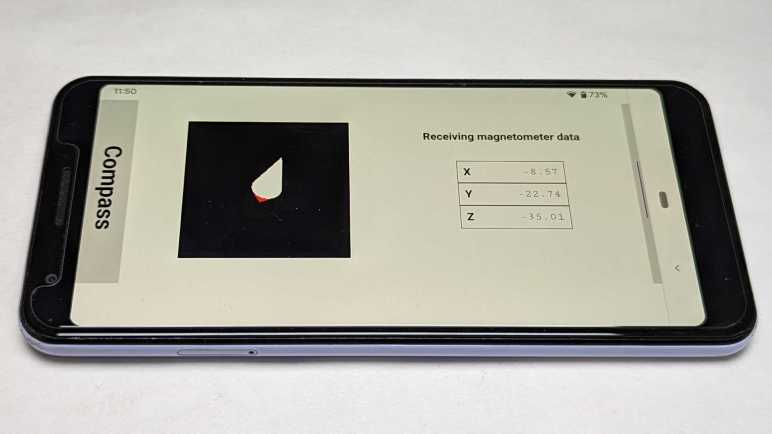
For reference, here’s my app in portrait mode and the compass needle pointing roughly north. For a phone, this is the natural orientation where “device” and “screen” would give the same information.

After rotating the phone, Chrome browser rotates my app to landscape orientation as expected. Magnetometer coordinates were also transformed, but it is pointing the wrong way!

Still Lots to Learn

These two issues are annoying because they are out of my control, but they were only a minority of the problems I encountered trying to make my little app work in landscape mode. Vast majority of the mistakes were of my own making, as I learned how to use CSS for my own layout purposes. Hands-on time makes concepts concrete, and such experience helps me when I go back to review documentation.


Source code for this project is publicly available on GitHub