Canon Pixma MX340 Control Panel Communication Appears To Be Serial

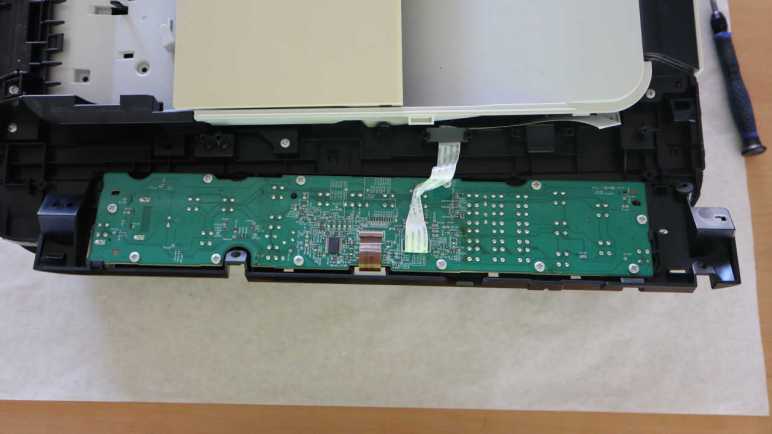
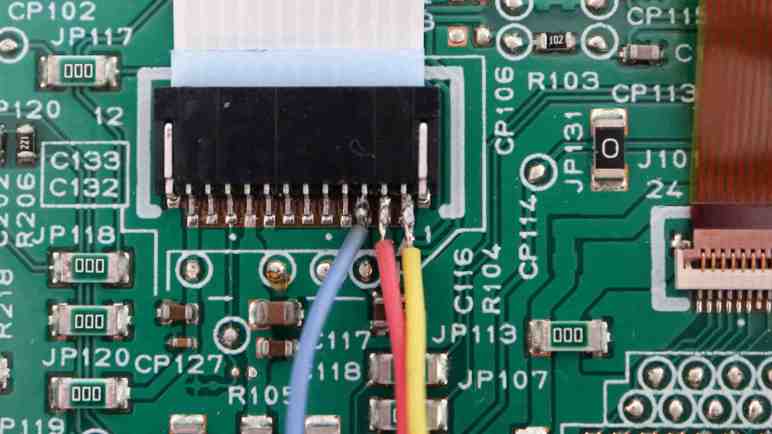
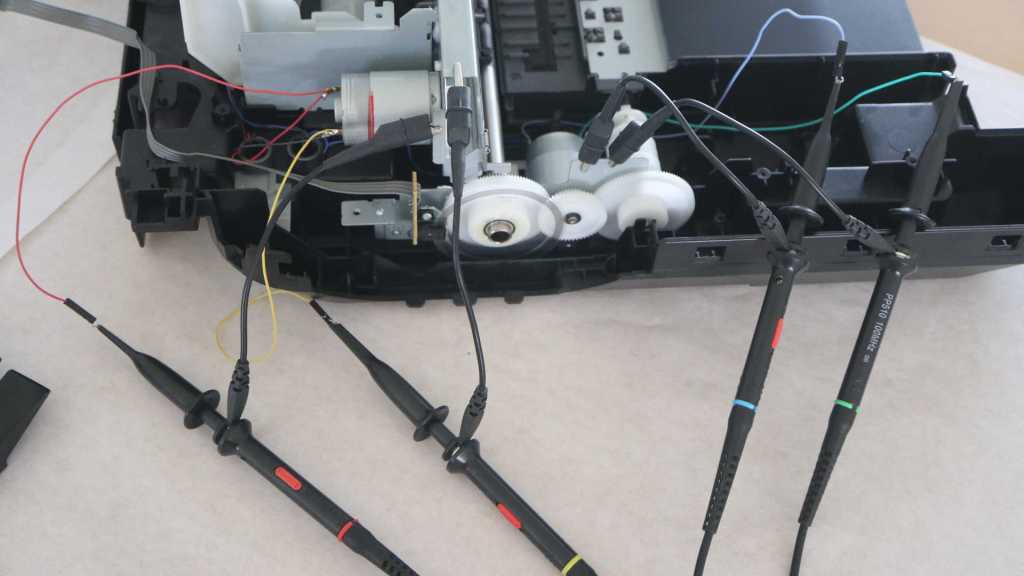
I’ve got the control panel of a Canon Pixma MX340 multi-function inkjet on my workbench, hooked up to my oscilloscope. I’ve located the three wires used for communication between the main board and the control panel circuit board. Monitoring activity of these three wires with my oscilloscope, two of the pins are behaving as communication lines one in each direction and the third has been tentatively identified as a Chip Enable signal for the NEC K13988 chip on board the control panel circuit board.

Before oscilloscope observation, I didn’t know what those three wires were. I thought the best guess was SPI with clock, MOSI, and MISO. I felt I2C was less likely due to its official design intent of communication on the same circuit board, it’s not as robust for running across long ribbon cables. But since I saw no clock signal on any of these three wires, synchronous protocol like SPI and I2C are ruled out. I don’t know any asynchronous protocols aside from old school serial, so I hoped that was it. I went back to my first tutorial of asynchronous serial published by Sparkfun for comparison against my set of oscilloscope traces.

Here was the transmission from control panel to main board, reporting the press of “Back” button. (Leftmost of four buttons under the LCD screen.) Horizontal scale is 5us per grid here, and each state is held for less than one grid. Five of them seem to fit nicely in four grids, so call it 4us per bit. If I interpret this graph as serial data, I would get: 0 for the start bit, 11001001 for 8 data bits, 0 would represent an even parity bit, and a final 1 bit as stop bit. This is consistent with serial. Repeating the exercise with my remaining button press traces, they all had patterns that made sense as 8E1 serial data.

As for the speed, 115200 baud is pretty common for microcontroller projects I’ve examined. 1/115200 = 8.68us, about double the time for each of these bits, implying this is double that speed in the neighborhood 115200 * 2 = 230400 baud. So I will try interpreting this data as 8E1 serial data at 230400 baud and see how far I get.


This teardown ran far longer than I originally thought it would. Click here for the starting point.

Canon Pixma MX340 Control Panel Chip Enable (NEC K13988)

I have hooked up my oscilloscope to the control panel circuit board of a Canon MX340 multi-function inkjet, watching communication between the inkjet main board and the control panel. Updating information shown on the LCD screen involved too much data for me to decipher on the oscilloscope, far more than the amount of data reporting button status. But there’s one more communication wire between the main board and control panel, with comparatively little activity. I think this third wire is “Chip Enable” for a NEC K13988 chip on the control panel.

Here’s an oscilloscope capture of the first second and a half after I plugged the printer in. There was a bit of activity on all three communication wires in the final 100ms of this chart.

Zooming in, channel 1 (yellow line) has been established as the wire used by the mainboard to send LCD screen updates. It makes sense for the main board wire to be the first to rise up to 3.3V and the last to fall in this sequence. Channels 2 and 3 came up to 3.3V together and shortly after that, channel 2 showed a pulse representing data sent from K13988 to main board. After that, things go quiet again.

But “2 and 3 together” is not literally simultaneous. Zooming much further in, I can see channel 3 started rising first and channel 2 didn’t start rising until after channel 3 rose above 1.6V. A similar thing happens when the printer wakes up out of stand by.

On the other end of the process, here’s a trace when the printer goes into standby. A few bytes of data were communicated between the main board and the K13988. Then channel 3 drops to ground, followed by channel 2 dropping to 2.5V.

All of the above activity are consistent with a “Chip Enable” signal on channel 3. Upon plugging in the printer, the main board wakes up the control panel’s NEC K13988 chip. After hearing acknowledgement data from the K13988, the main board drops it off to sleep. When the user presses the power button to bring the system out of standby, pin 3 wakes up the NEC K13988 and stays at 3.3V DC until time to go to sleep again.

If this hypothesis is correct, that is great news. It meant I don’t have to worry too much about that particular wire as I try to decode data on the other two lines.


This teardown ran far longer than I originally thought it would. Click here for the starting point.

Canon Pixma MX340 Control Panel LCD Updates Under Oscilloscope

I’ve been looking at the control panel circuit board from a Canon Pixma MX340 multi-function inkjet. I have found the pins used for communication between the main board and control panel, and connected them to my oscilloscope. The first discovery was the line used by the control board to report button status back to the main board.

Here is a sample of communication activity on that line, reporting the user has pressed the “OK” button. (Rightmost of four buttons below the LCD screen.)

When I press a button that is not valid for the current menu, I hear an error beep. In this error case, information on the LCD does not change and nothing happens on pin 1 (yellow line). But if I press a valid button causing a change on screen, I see a digital serial communication wave form on the oscilloscope screen. A lot more of it.

I had to zoom out to get an idea of how much more. Whatever it is, it takes around 72ms to complete. Notably, it takes the same amount of time no matter what changed on screen. It doesn’t matter if I change only a single digit or navigate to an entirely different menu. If there’s any change, there will be ~72ms of activity on pin 1. This puts an upper limit on screen refresh rate of (1000/72) = 13.89 frames per second. Too slow for video games (no Doom for this screen) but perfectly fine for an inkjet control panel.

Transmission time of ~72ms would cover multiple cycles of pin 2 keyboard update data. This means keyboard status could change in the middle of a screen update, though again this lack of responsiveness is not a concern for an inkjet control panel.

To try to get some context as to the magnitude of data involved here, I went back to looking at data on pin 2. It looks like each bit takes roughly 4us to transmit. A millisecond would allow 1000/4=250 bits to be transmitted. 250 bits * 72 milliseconds = 18,000 bits. I look at the LCD and it looks like each character is represented by 8×16 pixels and there’s room for two lines of 28 characters each. 8*16*2*28 = 7168 which is less than half of that wild guess.

That was only a rough estimate. Screen update data isn’t necessarily transmitted at the same rate as keyboard data. Some of that data will be transmission overhead, so on and so forth. But getting the rough magnitude is informative for some broad strokes. If refreshing the entire screen took very little data, I could infer the mainboard is probably sending ASCII character values. But the quantity involved here meant the main board is probably not doing that. There’s more than enough to be transmitting the entire LCD screen frame buffer as a raw bitmap. It also meant manually decoding this data on my oscilloscope is a hopeless task. Thankfully, I now have tools to help tackle such things. Before I do, though, there’s still one more wire to examine under the oscilloscope.


This teardown ran far longer than I originally thought it would. Click here for the starting point.

Canon Pixma MX340 Control Panel Button Presses Under Oscilloscope

The control panel of a Canon Pixma MX340 multi-function inkjet has only one significant microchip. It is marked NEC K13988 and I’ve traced through how it is connected to the rest of the circuit board. Among these connections are two communication channels. One to the main board, and one to the LCD screen. I decided to look at main board communication first, wiring up those three pins to see how it looks under my Siglent oscilloscope. Since they were pins 1-3 on the circuit board connector, it was easiest to wire them up to channels 1-3 on the oscilloscope.

I saw a little bit of activity when I plugged in the printer, before I turned it on. Pin 2 came up to about 2.5V DC, and pin 1 came up just a little higher for 300ms before dropping back. About one second later, pin 1 came up to 3.3V, followed a few tens of milliseconds later by pins 2 and 3 together. A few tens of milliseconds after that, pin 3 dropped to ground and pin 2 dropped to 2.5V at around the same time. Then pin 1 dropped to ground, and all three lines stayed that way (pin 1+3 ground, pin 2 at 2.5V DC) for the printer standby state.

When I pressed the power button to turn on the printer, there was a flurry of activity I don’t understand yet, but it quickly settled to this state:

This is what it looks like when the printer is on with data on the LCD screen, but nothing else happening. Pins 1 and 3 stay at 3.3V DC with no activity. Pin 2 (magenta line) sends something at regular intervals. A little over 9ms between pulses, or at the oscilloscope measured rate at 108.439Hz.

Zooming in on the pin 2 state, it looks like it dips to ground for about 33us.

Pressing a button triggers a change on pin 2 activity. For this exploration I tried the four buttons under the LCD screen, starting with the above trace representing the back button.

Pressing left arrow/- generated trace above.

Pressing right arrow/+.

And pressing OK.

These snapshots make pin 2 look like a digital serial communication data stream describing user input to the main board. It’s a short enough burst I can probably decode the values by hand [UPDATE: I decoded them by hand.] but right now I want to look at other pins first.


This teardown ran far longer than I originally thought it would. Click here for the starting point.

Canon Pixma MX340 Control Panel IC Pinout (NEC K13988)

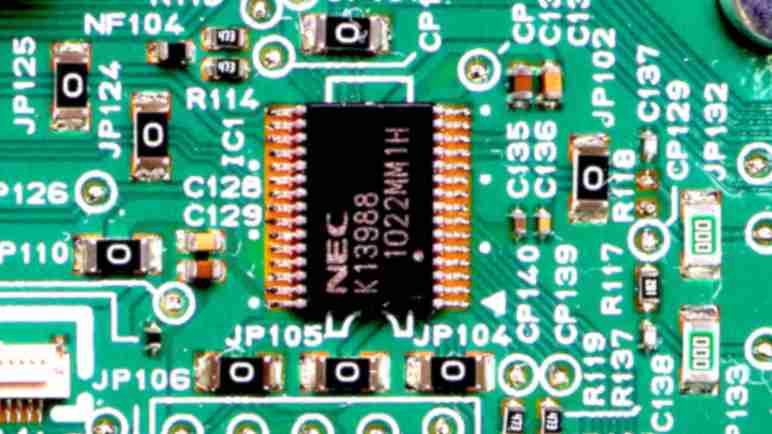
I’m looking at a Canon Pixma MX340 multi-function inkjet’s control panel circuit board, and I’m slowly peeling back the curtain on its implementation details. After tracing through the circuitry to label every pin on the connector for communicating with the main board, I turned my attention to the biggest component on the board: a 30-pin chip marked with NEC K13988. I didn’t have any luck finding an official datasheet describing this chip so I have to infer its functionality by how it is connected to everything else on the circuit board.

Starting with the just-deciphered main board connector, I found three wires connected to K13988 which probably meant some sort of digital serial data communication. (Data, Clock, and…?) K13988 also communicates with the LCD screen with five wires, but I don’t have a good candidate on 5-wire protocols. I’ll look at that later.

Also provided by the main board are power and ground. The power line is relatively straightforward, but there were several K13988 pins indirectly going to ground via a component labeled NF104. NF104 is tiny and lack markings other than the NF104 label. I believe Canon engineers would have used common prefix if it was a resistor (R), a capacitor (C), or a fuse (F). I don’t know what the NF prefix means and it’s not on Wikipedia’s list of common reference designation prefix.

Two pins control LEDs indicating WiFi and Memory/In Use. Two pins go to a component X1. I associate the form factor with crystal oscillators, and this one was marked with 6.1AKSSOHT. I don’t know how to interpret that in terms of an oscillator frequency.

Eleven pins are wired to a matrix of buttons. Tracing them took me all around the circuit board. I lost track several times and unknowingly jumped to a different trace, leading to conclusions that made no sense and had to be redone. It took a few tries to generate this table. Accuracy is still dubious, but it is at least consistent and plausible. I’m not sure if convention is to call this 4 rows and 7 columns, or 7 rows and 4 columns. They read status of 27 buttons not under direct main board control. (One short of maximum possible combination of 7*4=28 buttons.) I color-coded them in this table, but I’m not sure if that actually makes it any more readable. The ordering of buttons in this list corresponds to the order in which the copper traces visited them, starting from the K13988. Example: starting from K13988 pin 1, following that trace will reach SW220 first, then SW213, then SW207, and finally SW227.

PinConnection
1SW220 (-) SW213 (+) SW207 (OK) SW227 (Hook)
2Transistor Q101 for WiFi LED104
3SW201 (7) SW214 (*) SW221 (4) SW208 (1)
4SW219 (Back) SW206 (Fax Quality) SW212 (Settings) SW226 (Menu)
5SW215 (0) SW202 (8) SW222 (5) SW209 (2)
6SW216 (#) SW203 (9) SW223 (6) SW210 (3)
7SW204 (Copy) SW224 (Scan) SW217 (Fax)
8SW225 (Coded Dial) SW211 (Redial/Pause) SW205 (Black) SW218 (Color)
9LCD pin 4
10LCD pin 5
11C135 + C136 to NF104 to Ground
12One leg of X1
13Other leg of X1
14NF104 to Ground
15NF104 to Ground
16Main board connector pin 1
(Main board to K13988 asynchronous serial 250000 8E1)
1747k ohm (R114) to NF104 to Ground
18Main board connector pin 2
(K13988 to main board asynchronous serial 250000 8E1)
1947k ohm (R115) to NF104 to Ground
20SW204 (Copy) SW206 (Fax Quality) SW207 (OK)
SW201 (7) SW202 (8) SW203 (9) SW205 (Black)
21LED103- (Memory/In Use)
22SW226 (Menu) SW224 (Scan)
SW221 (4) SW222 (5) SW223 (6) SW225 (Coded dial) SW227 (Hook)
23SW208 (1) SW209 (2) SW210 (3)
SW211 (Redial/Pause) SW213 (+) SW212 (Settings)
24SW218 (Color) SW216 (#) SW215 (0) SW214 (*)
SW220 (-) SW219 (Back) SW217 (Fax)
25(None)
26LCD pin 2
27LCD pin 3
28LCD pin 1
29Main board connector pin 3
(K13988 Chip Enable)
303.3V DC Power

After all that, the circuit board left nothing I could find for pin 25. I think it is unused.

My trio of pinout charts (for main board cable connector, one for LCD, and this chart for K13988) has demystified the physical connections on this control panel circuit board. Armed with this knowledge I’ll start looking at their electrical behavior under an oscilloscope.


This teardown ran far longer than I originally thought it would. Click here for the starting point.

Canon Pixma MX340 Control Panel Connector to Main Board Pinout

There was no shortage of surprises as I’m learning from the control panel circuit board of a Canon Pixma MX340 multi-function inkjet. I followed a wire that I thought supplied power to multiple components, found it powered just a single LED, then realizing the LED on/off is actually controlled by a transistor further down the line. Weird! Fortunately the remaining pins on this connector (for ribbon cable to main board) were easier to understand, enough for me to generate a medium-confidence pinout chart.

Connector to main board pin 11 was soldered to a trace that went under the connector and out the top side. Tracing its path through a zero-ohm jumper resistor (JP117), a few check points (CP102, CP112), an unpopulated capacitor position (C110) and a 220 ohm resistor (R101) I arrived at the “Stop” button (SW101) at the control panel’s far right edge. Canon engineers decided a user trying to stop something in a panic should have a direct line to the main board bypassing the NEC K13988 intermediary.

Connector to main board pin 3 was connected to a capacitor (C116) to ground typical of a decoupling capacitor, and a 470 ohm resistor (R104) typical for LED current limiting. Upon initial examination I thought it might lead to one of the LEDs, but I’ve accounted for all LEDs by now so I know it isn’t that. I traced its route through CP114 and CP126 to arrive at K13988 pin 29.

Connector to main board pin 2 and pin 1 traveled side-by-side, but received slightly different treatments. Pin 2 signal had to travel through a 100 ohm resistor (R103) while pin 1 signal did not. Pin 2 also had a capacitor (C115) to ground while the pin 1 equivalent position (C114) is unpopulated. When they reached the K13988 chip, main board connector pin 1 signal went to K13988 pin 16, and main board pin 2 went to K13988 pin 18.

Pin numbering is right-to-left in the picture, as per arrow and number 1 printed adjacent to the right end of the connector. There is also a dot every 5 pins to aid in counting. After tracking down all of these traces, I repeated the exercise with pins connected to the K13988 chip.

Pin NumberConnection
1 (arrow)K13988 pin 16
(Main board to K13988 asynchronous serial 250000 8E1)
2K13988 pin 18
(K13988 to main board asynchronous serial 250000 8E1)
3K13988 pin 29
(K13988 Chip Enable)
4Ground
5 (dot)Alarm LED+ @ 3.3V DC
6Power LED+ @ 3.3V DC
7Power button
(Grounded when pressed)
8Ground
93.3V DC power
(Always on, even in standby)
10 (dot)Ground
11Stop button
(Grounded when pressed)
12WiFi LED+ @ 5.5V DC
(Illumination controlled via transistor Q101.)

This teardown ran far longer than I originally thought it would. Click here for the starting point.

Canon Pixma MX340 Control Panel WiFi LED

I’m examining the control panel of a Canon Pixma MX340 multi-function inkjet, and I found an interesting mix. Most of the buttons and such are managed by a NEC K13988 chip on the circuit board, but a few select items like the power button and nearby LEDs have direct connections to the main board.

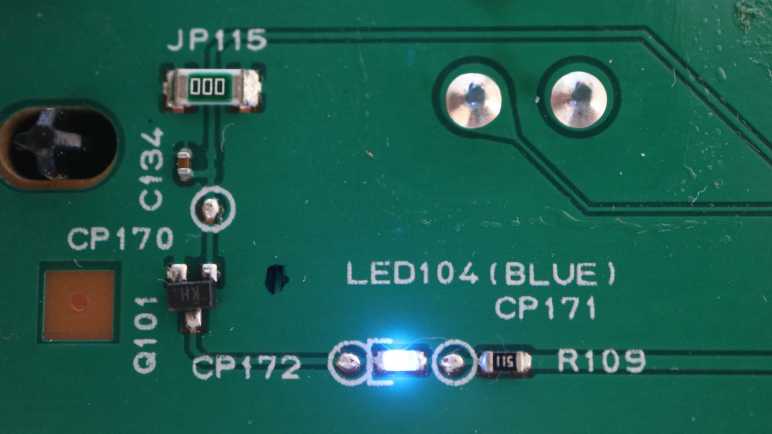
That discovery meant I’ve got most of the main board connector pins identified, and I thought I’d finish the job. Starting with pin 12, furthest away from the K13988 chip. On my first pass I identified it as a 5.5V DC power supply, and I was curious what needed the burly power of a nice thick copper trace. I followed it down and left to a bright blue LED.

Well, technically it went to a 510 ohm resistor (R109) and check point (CP171) before reaching LED104. This LED shines into a clear plastic light guide to illuminate the “WiFi” sign on the front panel. Since I’ve established the WiFi module is connected to the main board, I thought it made sense the main board would control whether this WiFi sign is lit. But that’s not what’s going on here! The circuit continues through another check point (CP172) to a transistor (Q101) that controls whether or not to connect the other end of the LED to ground. The control signal voltage travels through a check point (CP170), buffered with a capacitor (C134) and circles back into the heart of the circuit board. I followed it all the way back to pin 2 of K13988.

This is very curious, because it implies the K13988 is responsible for turning this LED on or off by controlling the transistor. If that’s the whole picture, it wouldn’t have been terribly difficult to replace R109 with a lower resistance value and connect it to the 3.3V DC power plane that already existed on this board. I found no other branches for the 5.5V line, so there must have been a reason why they ran a separate 5.5V DC wire on the ribbon cable just for this LED. Does this LED draw too much power for the existing 3.3V DC power plane? Maybe the main board reserves the ability to turn it off by cutting power?

This project to trace main board connector pin 12 actually raised more questions than it answered. Fortunately there weren’t too many other mysteries attached to remaining main board connector pins.


This teardown ran far longer than I originally thought it would. Click here for the starting point.

Canon Pixma MX340 Control Panel Power Button and LED

I’m exploring the control panel from a Canon Pixma MX340 multi-function inkjet. To help navigate my journey, I took multiple close-up photos of copper traces on the circuit board and stitched them together. With my new detailed atlas in hand, my first journey is the power button and nearby LEDs.

Mechanically, the control panel is built from multiple layers of injection-molded plastic. Here is the second layer that bridges between facade in front and circuit board behind.

Pre-built buttons with integrated LED exist, but Canon didn’t use one here. They made their own using a custom clear plastic piece serving as both light guide and the thing user actually pushes. On the circuit board it’s a standard button with an adjacent standard LED.

That’s all great, but the focus today is tracing their circuit on the back. I inferred the NEC K13988 chip is responsible for reading most buttons on this control panel, but I thought a few critical items likely bypassed the NEC chip and are routed directly to the main board ribbon cable. The power button is a great candidate: routing that directly to the main board gives Canon the option of powering down the NEC K13988 chip while in standby mode.

The power button has four legs. Two of them are soldered to the ground plane, and a third has its own island not connected to anything else. That leaves a single signal wire that travels across half the circuit board. Near the mainboard connector, it meets up with resistor labeled R100 and marked with 221 (220 ohms), then continued on to main board pin 7. Hypothesis confirmed!

Adjacent to the power button is the power LED, and again one leg is soldered to ground. The other leg goes to check point CP142, unpopulated capacitor C119, and resistor R110 marked 101 (100 ohms) then traveled alongside the power button trace all the way to main board pin 6. Since the main board is responsible for the power button, it made sense it also has control of power LED.

The “Alarm” LED is set up much the same way: one leg to ground, other leg to check point CP143, unpopulated capacitor C120, and resistor R111 also marked 101 (100 ohms). Then it jumped over a trace with JP1 before meeting up with the power LED trace all the way to main board pin 5. It is no surprise the main board has direct control of the error indicator LED.

In comparison, the “In Use/Memory” LED was implemented differently. One leg taps into the always-on 3.3V DC voltage plane from main board pin 9. The other leg disappears underneath K13988. Determining exactly which K13988 pin is responsible for sinking “In Use/Memory” LED is a future exercise. Right now I have learned enough to fill in a few entries from the earlier incomplete table of main board connector pins, and I want to work towards filling in the rest.

[UPDATE: After investigation, this post has the table fully filled in.]

Pin NumberTentative GuessPrinter OnPrinter Standby (“Off”)
1?
2?
3Maybe LED power?3.3V DC0V DC
4Ground
5Alarm LED+
6Power LED+
7Power button
(grounded when pressed)
8Ground
9Always-on power3.3V DC3.3V DC
10Ground
11?
12Power5.5V DC0V DC

This teardown ran far longer than I originally thought it would. Click here for the starting point.

Canon Pixma MX340 Control Panel Circuit Board Photo Stitch

Poking around internals of a retired Canon Pixma MX340 multi-function inkjet, I decided its control panel circuit board was within my skill level to decipher. After following a set of five wires from control board LCD screen to the biggest chip on the board, I think the next effort is to trace out the relationship between that chip and all components on this circuit board. I started doing this by eye but the traces are thin, the contrast is low, and my eyesight isn’t what it used to be. If I will be tackling many more similar projects, I might invest in a magnifier or microscope designed for circuit board work. But for today, I’ll use what I already have on hand: taking pictures with my camera + macro lens then stitch them together.

In order to keep the circuit board traces as well as surface component markings in focus, I need to narrow the aperture for greater depth of field. I also wanted to use my polarizing filter to eliminate glare. Both decisions reduced the amount of light reaching my camera sensor. To compensate, I can increase sensitivity, but that adds noise and I don’t want a noisy picture when looking at fine copper traces. The alternate solution is to increase shutter time, which meant setting up my tripod to keep my camera steady during long duration shots. I ended up using an 8 second shutter time in order to stay at low noise ISO 100 sensitivity.

For each picture, I wanted to fill my imaging area with circuit board. The aspect ratio of the circuit board meant I could cover the entire width with four pictures. However, that means a seam somewhere in the middle where all the important bits (main board connector, LCD connector) are located so I decided to take five pictures. One center shot with all the important bits together in one shot, then two pictures on either side.

Once I had the pictures, I brought them into my photo editor putting each image into its own layer. I brought the center image to the foreground, the edge most images to the back, and intermediate images between them. I then scaled image in each layer so all the copper circuit traces lined up at the edges. Looks like I didn’t manage to maintain distance between camera and circuit board, because this resulted in a slightly trapezoidal shape.

After the traces were all lined up, I adjusted image color levels to bring out contrast of copper circuit traces. Doing this meant blowing out bright parts and dark details got crushed, but I decided that’s not important for this project. I also decided not to worry about the fact seams are very noticeable, because color balance changed between pictures.

I didn’t use panorama photo stitching software here because they have different goals. They fix color balance, warp perspective, and blend edges to create a pretty picture. For this project, I’m not looking for pretty, I’m looking for accurate. When I’m following a copper trace across the board, I want to be confident I’m following real untouched data and not misled by something that had been modified to look pretty.

Here is a low-resolution version of the result. If anyone else wants a look, the full resolution version (and original set of five images) are up on my GitHub as they are too large to be hosted here. Obviously I’ll use the full resolution version for further circuit board exploration.


This teardown ran far longer than I originally thought it would. Click here for the starting point.

Canon Pixma MX340 Control Panel LCD to IC

I’m examining the control panel circuit board from a Canon Pixma MX340 multi-function inkjet to see what I can learn. After identifying all but five LCD screen connector pins, I’m obviously inclined to follow those five pins. Again, I took the best picture I could and edited the photo to highlight traces and make them easier to follow. The good news is that all five wires traveled together to a conspicuous feature on this board: a row of five resistors marked 331 for 330 ohms.

I noticed this row of resistors in my initial cursory examination and had been curious to their purpose, now they’ve been moved to the top of the queue. One bit of oddity that caught my attention was the fact their marking numbers didn’t all align the same way: three were installed one direction, and two the other. I’m pretty sure they would have been all in the same orientation from the product reel, yet the pick-and-place machine decided on different orientations. While the orientation doesn’t matter for resistor functionality, there must have been a reason to not do the same thing five times and I wonder what it was.

Between each resistor and the LCD connector, each wire also has a capacitor to ground. (C123-C127 inclusive.) C124 is also accompanied by R136, which looks like a pull-down resistor. There were no other features I could see, aside from test points labeled with the CP prefix. “Check Point”, maybe? On the other side of the resistor, all five wires were routed under a few zero ohm resistors labeled with the JP prefix (probably meaning “jumper”) and went under the biggest (only?) chip on this circuit board.

The chip is marked NEC K13988 1022MM1H. A search for this designation found several electronic component distributors offering to sell some to me. I checked two of those links: neither actually had the chip in stock, and both used a placeholder image instead of a picture of the actual chip. More importantly, while both pages had a “Datasheet” link, they didn’t link to a PDF. Instead, they were links to different datasheet dump sites, both of which helpfully offer “Here are some datasheets for components starting with K139…” none of which was K13988 and none were made by NEC.

Without a datasheet, I’ll have to infer this chip’s functionality. This is a 30-pin part mounted on a single-layer board serving a known purpose, so this should be a tractable problem. In addition to normal power and ground wires, there are the five pins for communication with the LCD. A few pins would be routed to the cable connector to communicate with the main board. Some of the pins are likely used as outputs to indicator LEDs, but there’s a small chance the main board directly handle all LEDs. (There are only a few of them.) The rest would be used to read button status, likely with a row/column matrix of wires.

To find these answers, I’ll need to follow copper traces over much longer distances, possibly across the entire width of this control panel circuit board. I couldn’t do this by eye because the contrast is too poor for me to follow narrow traces. I need the photo editing contrast enhancement. But if I pull my camera back far enough to encompass the entire board, those narrow traces become too blurry. I’ll have to take multiple pictures and stitch them together.


This teardown ran far longer than I originally thought it would. Click here for the starting point.

Canon Pixma MX340 Control Panel LCD Connector

I have a Canon Pixma MX340 multi-function inkjet in a partially disassembled state, still running, and I’m learning how it works. Looking at the control panel, I was encouraged by how much I could learn just by looking at the connector to the main board, so I will keep going and look at its LCD screen connector.

The first challenge is the LCD interface connector is even smaller and denser. My experience had been hobbyist-level electronics for a breadboard with pins 0.1″ (~2.54mm) apart. The main board connector had just 1mm between pins, over double the density. This LCD connector doubles density again, with only 0.5mm between pins. Those thin copper traces were hard to see so I took my picture and exaggerated its contrast. Bright parts are now overblown and dark detail crushed, but the traces are much easier to see now and that’s what’s important today.

Since Canon engineers thoughtfully labeled pin 1 with an arrow and number, I know to count pins right-to-left. The first thing to do is look for traces larger than the rest, usually indicating power/ground wires. I see three instances of two pins wired together: 6+7, 8+9, and 10+11. Visually following the copper traces, I found LCD pins 6+7 connected to mainboard pin 9 that delivers 3.3V even in standby mode. LCD 8+9 is connected to mainboard pin 10, the curiously thin ground pin. (LCD draw very little current, so that is consistent with the hypothesis pin 10 serves low power draw components.) C100 is the decoupling capacitor between those power and ground planes.

LCD pins 10+11 didn’t go very far: they led to capacitor C101, the other side of which is ground. In fact, looking at that patch of copper, five more capacitors (C105 through C109 inclusive) connect corresponding LCD pins (19 through 23 inclusive) to ground. Working towards the right, C104 sits between LCD pins 17 and 16. C103 between LCD pins 15 and 14. C102 between LCD pins 14 and 13. I’ve seen LCD modules use external capacitors before, but this is a much larger capacitor network.

I don’t see any traces going under the connector out the other side, so pins 12 and 18 are either unconnected or connected to one of the copper patches that run under the connector. One patch is ground, to which the connector’s chassis pins soldered to. There’s a smaller patch, which supplies power to pin 24.

This tiny super dense connector was intimidating at first glance, but as it turned out an explanation can be found within 3cm for majority of those pins. Only 5 pins out of 24 require further exploration.

[UPDATE: I now have information on pins 1 through 5, which connects to NEC K13988 chip on the circuit board. Table has been updated accordingly.]

Pin numberConnection
1NEC K13988 pin 28
2NEC K13988 pin 26
3NEC K13988 pin 27
4NEC K13988 pin 9
5NEC K13988 pin 10
63.3V DC
73.3V DC
8Ground
9Ground
10C101 to ground
11C101 to ground
123.3V, ground, or not connected
13C102 to 14
14C102 to 13 and C103 to 15
15C103 to 14
16C104 to 17
17C104 to 16
183.3V, ground, or not connected
19C105 to ground
20C106 to ground
21C107 to ground
22C108 to ground
23C109 to ground
243.3V DC

This teardown ran far longer than I originally thought it would. Click here for the starting point.

Canon Pixma MX340 Control Panel to Main Board Connector

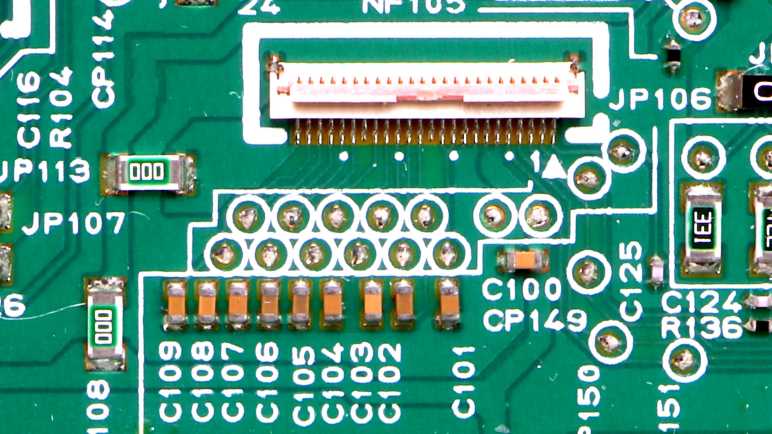
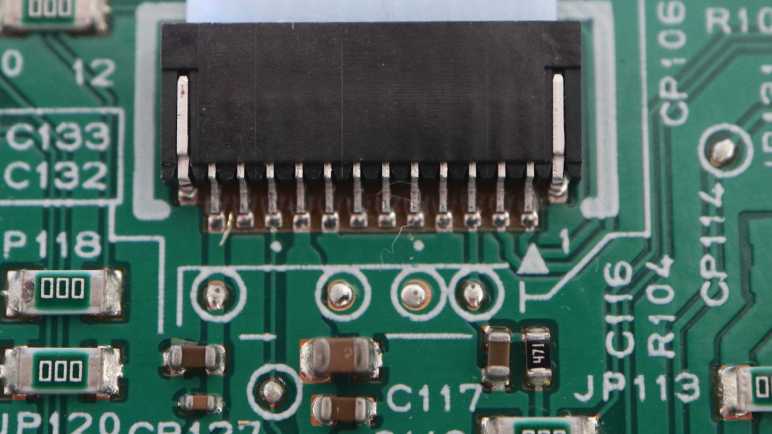
I have the front control panel of a Canon Pixma MX340 multi-function inkjet and I will try to understand of how it worked. I’m starting with this 12-pin connector for the ribbon cable leading to the main board, because all input and output will necessarily go through this connector. Luckily this circuit board only has a single layer of copper traces. Making it much easier to glean information just by looking at the connector and its immediate surroundings.

The first piece of good news is the fact Canon engineers had drawn an arrow with a number 1 in white silkscreen on the board, sparing me the agony of trying to guess which pin is #1. Using that numbering system, the first circuit observation is that pins 4 and 8 are visibly connected together immediately adjacent to the connector. Pins 5, 6, 7 must go under the connector out the other side, something I’ll track down later.

Having multiple pins connected together with large sections of copper (instead of thin traces) usually indicate multiple pins connected to a common ground. Probing with my multi-meter I confirmed those two pins showed only about a single ohm of resistance to the metal chassis. But the “ground wires are big” is only a rule of thumb, because I probed the remaining pins and found pin 10 — a thin trace typical of data signals — is also connected to ground. I assume it is part of a circuit with low power draw so it doesn’t need a fat low resistance ground wire.

The next circuit observation are the capacitors right next to the connector, sitting between the just-identified ground wires and three other wires. This is typical pattern for decoupling capacitors and imply those other wires — pins 3, 9, and 12 — are power supply wires. Probing with my multi-meter while the printer is turned on, pins 3 and 9 read 3.3V and 5.5V for pin 12. I then repeated the probe with the printer in standby (“turned off”) state, and saw pin 9 still had 3.3V while the other two has dropped to zero. Implying certain parts of the board stay active even in standby state while the rest of the board is powered down.

Pin 3 has a resistor adjacent to its decoupling capacitor. Marked with “471” indicating 470 Ohms. That is a popular value to use as LED current-limiting resistor when connected to 5V DC. This wire gets 3.3V instead of 5V but that should still result in more than enough current to illuminate a modern LED. When I trace through the circuit later, I will find out if this is a LED illuminated directly by the main board or if the familiar 470 Ohm value is only a coincidence.

With this basic exploration, I already have tentative information on half of the pins. [UPDATE: This later post has filled in the rest of the table.] This is a very encouraging start and motivated me to go look at the other connector on this board, for its LCD screen.

Pin NumberTentative GuessPrinter OnPrinter Standby (“Off”)
1?
2?
3Maybe LED power?3.3V DC0V DC
4Ground
5?
6?
7?
8Ground
9Always-on power3.3V DC3.3V DC
10Ground
11?
12Power5.5V DC0V DC

This teardown ran far longer than I originally thought it would. Click here for the starting point.
Canon Pixma MX340 Control Panel Round 2

After looking at the paper feed roller shaft position encoders of this Canon Pixma MX340 multi-function inkjet, I don’t have too many other circuit boards to probe. But the remaining boards are significantly larger like the user control panel. I took a quick look at this earlier during mechanical disassembly, now I want to look at it electrically.

Thankfully, it is large mostly because it spaces things out for user-friendliness.

The circuit board only has a single layer of copper traces. Most of the components on the non-copper side are push buttons. There are a few LEDs, and a few jumper wires to help route signals over backside copper traces.

Electrically speaking, this board needs to read the state of all the push buttons and report them back to the main board. It is also home to a bitmap LCD screen, displaying information on command from the main board. Plus the on/off state of those LEDs. All main board communication occurs over a small ribbon cable with 12 conductors.

Functionally, this serves a similar purpose to the front face plate of a car audio system. I’ve looked at two units earlier, one from a Toyota and another from a Honda. Both of them used chips from Sanyo designed to perform both tasks (button matrix scanning and driving the LCD) on behalf of a main board via an electrical connector with roughly a dozen or two of conductors. Like those face plates, only a single significant looking chip resides on this printer control board. Perhaps it serves a similar purpose.

Before I dive in to that chip, though, I thought I would first explore around it. This is another lesson learned from those car faceplate teardowns: it is common for a few electrical conductors to be reserved for direct main board control bypassing that chip. If such direct connection wires are among the 12 conductors of this cable, knowing where they are would make later analysis easier. I’ll look at that connector first.


This teardown ran far longer than I originally thought it would. Click here for the starting point.
Canon Pixma MX340 Paper Feed Shaft Encoder

I’m poking around inside a Canon Pixma MX340 multi-function inkjet and was surprised when my oscilloscope showed it rapidly cycled between forward and backward power to its two DC motors. I’m sure it is related to the fact they’re part of a closed-loop control system: the printer has high-resolution encoders telling the mainboard how much each axis has moved, so the control system can adjust the forward/back power ratio.

I can see the encoder strip used for the print carriage, but the encoder itself is not easily accessible. The data wires would be among print cartridge control wires somewhere in the trio of cables between print carriage and main board.

In contrast, the paper feed encoder is a standalone unit with only four wires already conveniently labeled 1 through 4 from left to right in this picture.

It looks like the encoder has some sort of physical pad to keep the encoder disc properly aligned in the channel. It has worn a groove into the plastic encoder disc and will eventually wear through and destroy the disc. But it lasted long enough for me to retire the printer first, so “It’s not just good, it’s good enough!

Since physical position and alignment is clearly important here, I didn’t want to remove the module while I still want to probe the system in a functioning state. It looks like a pretty simple one-layer circuit board. Aside from the cable with four wires (1 through 4 from right to left, now that we’re looking on the back side) and the encoder sensor itself, there are two surface mount components. One looks like a capacitor, and other looks like a small resistor marked with either 820 (82 Ohms) or 82D (629K as per Digi-Key tool).

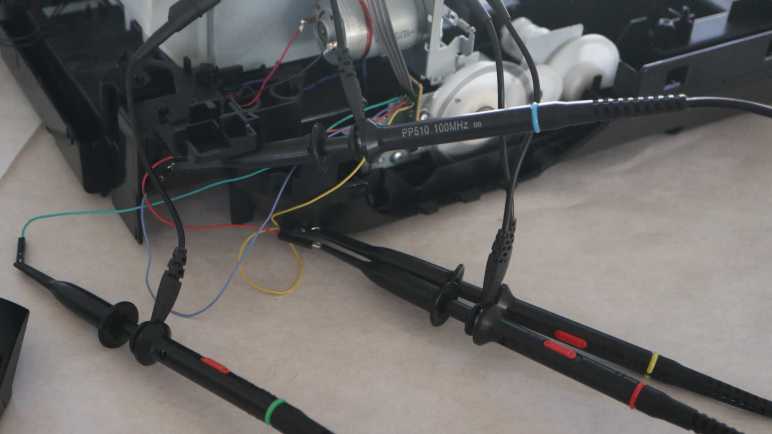
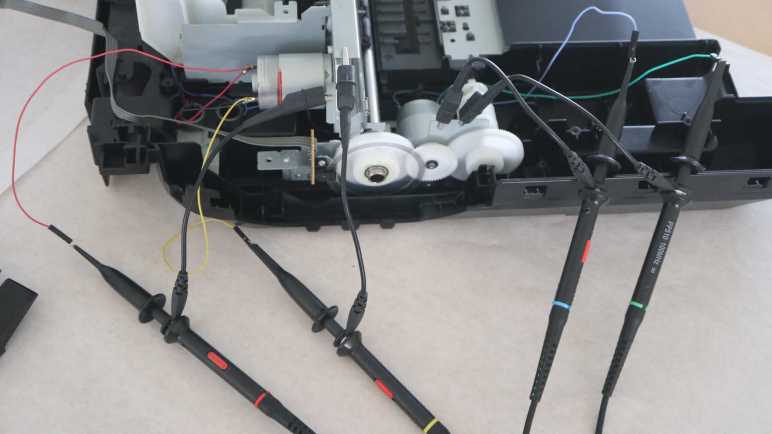
It was a tight fit to get my soldering iron into that space, but at least the four wires were generously spaced apart so I could solder wires for attachment to oscilloscope probes.

This is again from the power-up sequence, when this motor is running backwards. This matches the wave form I expected to see from an incremental encoder. Unlike the photo interrupter sensors that ran at 5.5V DC, this encoder runs at 3.3V DC. The shape of the curve, tapering off as rose up to 3.3V DC and a sharp drop with no taper when it goes to ground, tells me there’s a pull-up resistor on each line and the sensor itself pulls to ground.

For comparison, here’s the plot from later in the power-up sequence, when the motor is running forward but at a slower speed. The red/blue ordering is reversed, and the pulses are wider apart. I’m curious about the slight voltage drop I see in one color when the other signal is pulled to ground. Is this caused by interaction between the two pull-up resistors or something else?

The pinout for this sensor can be determined from these oscilloscope plots. As per numbers printed on the board: pin 1 is 3.3V DC, pin 4 is ground, and A/B phase signals live between them.

That was a nice simple circuit board to decipher, the next project is a little more complex.


This teardown ran far longer than I originally thought it would. Click here for the starting point.
Canon Pixma MX340 Motors for Print Carriage and Paper Feed

When I started taking apart my old Canon Pixma MX340 multi-function inkjet, I didn’t expect to make heads or tails of the sensor bar. So I was very proud of myself for getting far enough with a reasonable hypothesis on how to work with it, and jotted down some potential approaches potentially scaled down to my skill level. They are potential projects for later. Right now I want to move on with observing other parts of the machine. Today’s subjects: the motors used to move the print carriage horizontally (“X-axis”, in my mind) and a separate but similar motor responsible for feeding sheets of paper (“Y-axis”).

There are two wires on each motor, characteristic of inexpensive commodity brushed DC motors. I was pretty confident I knew what I’ll see on my oscilloscope screen: 0V ground on one wire and 24V DC from the power supply on the other wire in a PWM pattern depending on desired speed. It turns out I was both right and wrong.

There’s definitely PWM going on, but in both directions! Here’s the oscilloscope plot for the print carriage motor upon startup, moving the print carriage out of its parking spot across the width of the printer. For slow motion I expected a low PWM cycle on one pin and the other pin held kept at ground, but the printer actually alternates between turning the motor forward and reverse with no de-energized states between them. (Not counting the very brief MOSFET ramp-down during the switch.) I guess this is similar to how when we want to make precise motions with our limbs, we keep some tension on muscles on both sides of the joint. The motor speed is thus dictated by the ratio of time spent in each direction.

Continuing the startup sequence: After the print head moved across the entire width of the printer, it moves back towards its parking position at the same speed. Changing the edge trigger channel made it easy to see the same ratio was used except with the polarity reversed.

The paper feed motor is driven in a similar manner. This was also taken during the printer startup sequence, at the moment the motor is spinning in a direction backwards from normal paper feed direction during printing. I don’t know what this motion accomplishes yet, I hope to find out later in this teardown.

Shortly after that action, the motor turned in the normal paper feed direction for a short distance. (Not far enough to pop open the paper output tray door.) It also turns at a slightly slower speed. The most obvious difference between these two plots are the different in voltage for opposite direction, and a less obvious difference is the power energized ratio between blue and green wires. It is slightly closer to 50/50 when the motor is turning slower.


Driving the motor in this manner is not very energy-inefficient, as most of the power is spent fighting power expended a few microseconds earlier. Only a fraction actually goes into motion, all the rest are turned into heat. Indeed these motors grew warm to the touch after some use. There’s probably an explanation for why this is the preferred approach, somewhere in an electrical engineering motor control theory textbook. Maybe this is the only way to reliably accomplish precise movements with inexpensive DC motors? I should experiment with this concept the next time I revisit my micro Sawppy project, perhaps it would allow the little thing crawl at a more rover-like speed. However, I think it’s likely this motor control scheme only works because it has encoder feedback for a closed-loop control system.


This teardown ran far longer than I originally thought it would. Click here for the starting point.

Canon Pixma MX340 Scanner Image Sensor Partial Reuse Ideas

Thinking over what I now know about the scanner image sensor bar from a Canon Pixma MX340, I’ve decided using the sensor properly is beyond the reach of my current electronics projects skill level. My biggest problem is that I don’t have the tools/skills to keep up with a data clock signal running at 2.375MHz. But what if I just ignore that clock signal? For digital data, ignoring clock pulses would mean we just get gibberish. But this sensor bar communicates image data in analog voltage values. Theoretically, it is a valid option to sample that analog line at a lower rate to obtain a lower resolution image. The “new line is starting” pulse is still there at 425Hz to separate one line from the next, and keeping up with a 425Hz signal is a more tractable problem if I can get the analog sampling side figured out.

Arduino (ATmega328P)

Can an old school Arduino Nano on a ATmega328P chip keep up with the 425Hz line sync signal? I don’t know. Suppose that it could, the analog sample limit of 10k/second means (10000/425=) 23-ish samples per line or (23/8.5)=2.77 dots per inch. That’s worse resolution than a row of photo-resistors and probably not worth the effort.

ESP32

How about the ESP32 chip? It’s a much faster processor but higher core processing speed doesn’t necessarily correlate with faster ADC peripheral performance. I found this page Working with ESP32 Audio Sampling describing one effort to run the ESP32 ADC at high speed. This particular author found ESP Arduino layer to be limiting and went deeper to make some ESP-IDF calls directly.

Audio Hardware

That page got me thinking about hardware peripherals that sample an audio signal. Unlike high speed ADC chips for the industrial market, an audio-in peripheral is something available to the hobbyist market. Audio sampling usually tops out at either 44.1kHz or 48kHz, and has the advantage of being tailored for consistent performance at that sampling rate. Another advantage of the scanner image sensor pretending to be a microphone is that it’s pretty common for audio ADC to measure signal relative to a base reference ground, something I can take advantage of with the sensor pins.

The challenge of using an audio-in peripheral is splitting the incoming “audio” sample data into lines using the 425Hz line sync signal. At the moment I have no idea how I’d go about it.

I2S ADC Mode

One common protocol for communicating audio data to/from an external peripheral is I2S. Not only does ESP32 support the I2S protocol, its I2S hardware peripheral can be adapted to other high speed signal tasks unrelated to communicating audio data. At one point, Espressif offered a way to use the I2S peripheral to transfer data directly from ADC peripheral to memory at high speed. (A maximum sampling rate of 150kHz, as per old documentation for i2s_set_adc_mode.) Unfortunately, they’ve since moved i2s_adc_enable, i2s_adc_disable, and related APIs off to the “legacy” portions of ESP-IDF. The latest ESP-IDF documentation only has a short paragraph acknowledging it once existed and spoke no more of it.

Even if it was still a supported API, I saw several complaints on the ESP32 forums that the ADC is very noisy. Something I’ve found out firsthand, and apparently that limitation gets worse as we go faster. Looks like using ESP32’s onboard ADC peripheral wouldn’t be a great way to go, suggesting an external peripheral. I’ve already determined it’s not really practical to get those high-quality high-speed industrial ADCs, but maybe another microcontroller has better onboard ADC peripherals?

STM32

Searching for discussions on microcontroller ADC, I found references to chips in the very large STM32 family of products. Some have superior ADC capabilities, at least on paper. The most promising lead is ST Application Note AN5354 Getting started with the STM32H7 Series MCU 16-bit ADC. Figure 1 shows ADC behavior while sampling at 16-bit in differential mode @ 2.5 million samples per second. That’s the kind of speed needed for the scanner sensor bar!

And what’s this “differential mode”? I found a ST forum thread ADC input voltage range in differential mode where the explanation says it is a STM32 configuration using two hardware ADC channels together. The hardware will generate a single data stream from the difference between them. In other words, exactly what I want to evaluate signal+ against signal- voltage levels. Even better!

This sounds perfect. but I don’t know how the STM32H7 chips relate to the STM32F103 chips commonly available to hobbyists as the “Blue Pill” board. This is something I will need to research. I knew the “Blue Pill” is very popular with some circles of electronics hobbyists, and I’ve had requests for a STM32 Sawppy brain. If I try to do build a project around this Canon MX340 scanner sensor, it might be the motivation I need to get into STM32 development. But that’s far too big of a project for me to undertake as a side detour, so I’m going to set that aside and resume examining the electrical behavior of this inkjet. Next up: the DC motors.


This teardown ran far longer than I originally thought it would. Click here for the starting point.

Canon Pixma MX340 Scanner Image Sensor Reuse Challenges

I’ve examined the scanner image sensor from a Canon Pixma MX340 multi-function inkjet while it was still attached and running. I think I now understand how it communicates with the printer main board. However, that’s a ways from being able to reuse the sensor in my own electronics projects.

The first obstacle is that I only know voltage levels on the wires, I don’t know which component (the sensor or the main board) was responsible for putting them on the wires. Some are easy guess: the LED illumination power must come from the main board, and the image data must come from the sensor. But others are ambiguous: I see a clock signal, but who’s generating it? In order to reuse this sensor, I need to know what I need to re-implement in my own circuit in order to impersonate the printer main board.

The second obstacle is speed. My oscilloscope measured that clock signal at 2.375MHz. If my project is responsible for clock, toggling a pin in software won’t be fast enough and my current hardware skills can’t build an appropriate oscillator circuit. On the upside, if my project would be responsible for generating the clock signal, perhaps I can emit a slower clock and make everything easier. Of course, that’s out the door if clock was sensor-generated and I have to keep up. A dedicated hardware peripheral may be needed. 2.375MHz is a challenging speed for microcontroller code to keep up, demanding at least an interrupt-driven system if not other performance techniques.

Another speed-related challenge is reading and processing the analog pixel brightness value. Analog-to-digital (ADC) conversion is a common peripheral feature in many affordable microcontrollers, but they can’t sample data as fast as 2.375MHz. The basic Arduino boards built on the ATmega328P chip has a limit of 10k samples per second, two orders of magnitude too slow. That seems to be the typical ballpark for hobbyist-level hardware. Looking over Adafruit selection of ADC modules, it looks like item #5836 is the fastest unit which traded precision for speed, but that’s still only 70k samples per second.

High-speed ADC modules certainly exist, available with capabilities up to billions of samples per second. I found many listings from companies like Texas Instruments and Analog Devices. (Very appropriately named in this context.) But they’re not the kind of chips Amazon/AliExpress vendors put on breadboard-friendly breakout boards.

Given these challenges, reusing this sensor to its full potential is currently out of reach for my own projects. However, the data signal is an analog signal, and the beauty of analog systems is that we have the option of a partial (a.k.a. half-assed) implementation.


This teardown ran far longer than I originally thought it would. Click here for the starting point.

Canon Pixma MX340 Scanner Image Sensor Pinout

Taking apart a Canon Pixma MX340 multi-function inkjet, I wanted to see what I could learn from its scanner’s CIS (contact image sensor) bar. Expectations weren’t high at the start but after spending some time looking at its behavior under an oscilloscope I think I understand enough to explain every pin on its cable connector.

I’m arbitrarily numbering these pins from left-to-right in this picture. I don’t have Canon’s electronic schematic or engineering data, so this might be reversed from Canon’s actual pin ordering. I feel confident about the accuracy of red labels, I’m more tentative about the pins labeled in blue.

The first five pins support illumination. There are separate pins for red/blue/green LEDs and they all shine onto a common light guide that disperses across the sensor bar.

  1. 5.5V DC power source as common LED anode.
  2. Red LED cathode.
  3. Green LED cathode.
  4. Blue LED cathode.
  5. Chassis ground.

The remaining seven pins support image sensor data.

  1. Data clock (tentative) at 2.37538MHz with amplitude of 3.3V. Clock signals are normally square waves. This one is very nearly a smooth sine wave but I guess it still counts?
  2. Line sync+ (tentative) at 425.543Hz. Raised up to ~3.3V for one data clock cycle to signal new scan line, read on falling edge of clock signal. Low voltage level fluctuates relative to chassis ground, but is in sync with line sync- and should be compared against that.
  3. Line sync-. Reference base for pin 7 line sync+.
  4. 3.3V DC power source for image sensor logic.
  5. Power ground for image sensor logic.
  6. Analog pixel data+ (tentative). Raised up to ~3.3V above chassis ground (or roughly 2V above reference base pin analog pixel data-) to indicate brightly lit pixel. Drops to less than 0.1V above reference base for both dark pixels and overblown pixels. Drops under reference base in the non-data periods at the beginning and end of each scan line.
  7. Analog pixel data- (tentative). Reference base for pin 11 analog pixel data+. Voltage level is roughly 1.0V above chassis ground but fluctuates in sync with analog pixel+ approximately +/- 0.1V.

All of this information were inferred from using either a multimeter or an oscilloscope to observe voltage levels on each pin, while the printer is either going through its startup sequence or sitting idle. This doesn’t tell us which component is responsible for which signal. For example, while pin 11 analog pixel data is certain to come from the sensor bar, this data doesn’t tell us if the clock signal on pin 6 comes from the sensor bar or from the printer main board. That’s just the first of many barriers against repurposing this sensor bar.


This teardown ran far longer than I originally thought it would. Click here for the starting point.

Canon Pixma MX340 Contact Image Sensor Signal

I have a contact image sensor (CIS) from the scanner module of a Canon MX340 multi-function inkjet. Connecting its wires to my oscilloscope, I found a wire that I believe to convey image data.

The yellow line is probably the clock signal, and the green line fluctuates in rough correlation with sensor light levels. When the sensor bar is facing down, the signal hovers near lower voltage levels. When it is facing up towards the light, more of the signal line shows at a higher voltage. I think this is the “analog” output format for Canon contact image sensors!

If the yellow line is indeed the clock signal for each sensor pixel, and the voltage level is an analog representation of the brightness of that pixel, there is still one missing piece of data: how would we know when a scan line had completed and another begins? There must be a signal on one of the other wires, and I know there’s something that occasionally flashes past this screen. Time to chase that down.

Playing around with the oscilloscope trigger, I eventually pinned the flashing culprit down to the red wire. Its voltage is raised high for a single clock cycle at a rate of 425.543Hz. Dividing the frequency of the yellow clock signal (2.37538MHz) by 425.543 yields 5582 yellow clock cycles per red cycle. The scanner bed is 8.5 inches wide, so 5582/8.5 ~= 656. This would make sense for a 600dpi image scanner bar that is slightly wider than the scan bed.

This oscilloscope plot also shows the red signal wire voltage looks wavy, but not when compared against the blue signal wire. I think these two voltage values are intended to be evaluated together: the “new scan line” signal should be evaluated as red voltage minus blue voltage.

Keeping the oscilloscope trigger on the red wire, I changed horizontal scale to see a longer time duration. Lengthening the time scale 5000 times (from 100ns/grid to 500us/grid) showed scan lines represented by analog voltage. This particular plot shows three scan lines (one and a half scan line on either side of the trigger in the middle) and there’s a dip in the middle of each scan line. This is with the sensor bar looking up at the room ceiling so my finger is casting a shadow in the middle. I got excited that I could see some correlation between oscilloscope plot and light level, getting very close to understanding this sensor. But there’s a big problem: The shadow part looks pretty consistent, but the bright parts jump around wildly. Why is the data so noisy?

I lengthened the time scale again, by ten times to 5ms/grid so I could see about 30 scan lines at once. There’s definitely a pattern here, what is it?

Perhaps the fluctuation is normal? Since I just learned red wire voltage level appears to be relative to blue wire voltage level, maybe the image signal analog voltage is relative to another baseline. I moved the blue wire over to the pin adjacent to the signal wire to see if they fluctuate together in sync.

The good news is the baseline voltage hypothesis appears confirmed, with dark pixels dropping to the level of the newly relocated blue wire. These three scan lines show me holding my hand over the sensor bar, with several fingers casting shadows. The bad news is the non-shadowed areas are still fluctuating wildly.

I went back to staring at the earlier oscilloscope plot capture, trying to decipher a pattern to its repetition. The breakthrough came when I counted the period of repetition: at 5ms/grid, this is repeating every three grids plus a little more. So period of a little over 15ms, or a frequency somewhere under 66Hz.

Ah-Ha!

That was literally a light bulb moment: the image sensor bar is not only picking up the overhead lights, it’s picking up the 60Hz cycle of household AC power behind those lights. To test this hypothesis, I turned off my room’s overhead lights and switched to a battery-powered LED flashlight. The fluctuations disappeared, hypothesis confirmed! Now I feel pretty good about my understanding of this image sensor.


This teardown ran far longer than I originally thought it would. Click here for the starting point.

Canon Pixma MX340 Contact Image Sensor Connector

I want to see how much I can understand of the scanner image sensor bar I pulled out of a Canon MX340 multi-function inkjet. A little research side quest helped me feel better prepared for the task of figuring out what happens over the twelve wires connecting the sensor bar to the printer main board.
Looking at the copper traces on the circuit board, I can see some of them are directly wired to the pins for LED illumination. Verifying continuity between those connector pins and LED pins identified the left-most five of twelve wires. Probing for continuity with chassis ground, I found one more ground wire. Measuring the remaining wires while the system is powered up, I found one pin that held steady at 3.3V. A good power source candidate for image sensor logic.

That left five unknowns whose voltages fluctuate. Too quickly for my volt meter to catch what’s happening, hinting at data signals. My oscilloscope has four channels so I need to choose four to solder wires to and leave one for later.

This connector also has 1.0mm pitch and this time I managed to solder wires without creating bridges. Luck or improving skill I don’t know yet, either way I expect my MX340 teardown project will give me many more practice opportunities.

I turned on the MX340 and saw this on my oscilloscope screen. The yellow wire is attached to a pretty steady wave at 2.375MHz, possibly a clock signal. Its adjacent red and blue wires seem to track pretty closely to each other, the green wire looks much the same but at roughly 1V higher.

Unfortunately, that’s pretty much everything I got. I see this pattern as soon as the printer powers up, and it looks much the same during the homing sequence and afterwards. I waved my hand and shined a light at the sensor bar and saw no significant change in these signals. If I were looking at LVDS, according to Wikipedia I should see a 350mV change, but I don’t.

That said, there is something that occasionally flashes past this screen, but I didn’t know how to isolate it yet. Whatever it was, it occurred too infrequently to be image data. (Later I would determine it is a line sync signal on the red wire.)

Could the magical data wire be the fifth and final wire I had yet to examine? On paper it was a 20% chance I missed the most important wire, but Murphy’s Law raises those odds. Besides, I’m so close and it’d be silly to give up now. I turned off the printer and oscilloscope and turned on the soldering iron. The green wire was moved one pin over, and I tried again.

Jackpot! I have a candidate image sensor data signal.


This teardown ran far longer than I originally thought it would. Click here for the starting point.