Canon Pixma MX340 ADF Lid

I started taking apart this Canon Pixma MX340 multi-function inkjet from the back panel, but I didn’t get very far before I got stuck. Next I’ll try another angle, starting from the top. This device has an automatic document feeder (ADF) up top to help scan/fax multi-page documents.

In case of paper jam, this ADF lid flips open to help us clear them. A few fasteners were visible with the lid open, but removing them were not immediately helpful for disassembly. This piece of plastic must be held in place by other things. Two spring-loaded latches on either side of the lid keeps it in place when closed. These latches were interesting because they had to be loose enough to make the lid easy to open, but tight enough to keep the lid in place while the feeder is running. Note the white gear visible towards the top right of this picture, more on that later.

The lid itself were not held by any fasteners at all. Bending a few pieces of plastic were enough to free it from its hinge. This caught my attention because I saw multiple paper feed rollers on this lid, but there were no cables in this hinge.

Power is transmitted to rollers via that gear on the lid’s back edge. Turning this single gear activated multiple functions. I can see the dual-roller mechanism flip out from the lid, which would put some pressure on the top sheet of paper in the document feeder. Once this pressure was applied, continuing to turn the gear would start turning rollers to help feed that top sheet into the feeder.

If I were to design a mechanism to do this before seeing Canon’s solution, I would have used a servo to put pressure on the roller and a separate motor to turn the roller, two motors — and associated complexity and potential failure points — instead of this clever mechanism. This is why I am not working as a mechanical engineer for Canon.

The topmost white plastic piece in this lid were held by a few clips. Once removed, we can see internals of the spring-loaded latches and the roller mechanism.

Friction plays a big part here. The paper feed roller themselves are covered in soft rubber for traction, and that rubber layer has dried and cracked with age. The roller pressure mechanism also works with friction to some degree, tight enough to rotate this mechanism to put pressure on the top sheet of paper but loose enough to allow the rotation force to gracefully transition to turning the paper feed rollers. I expect this friction mechanism to wear down with age, putting less and less pressure on the top document sheet. It’s not great to have a mechanism designed to gradually destroy itself, but the fact is, it lasted to retirement. It’s not just good, it’s good enough!

I enjoyed looking over this unexpectedly complex mechanism, and I’ve barely started taking the inkjet apart. I hope there are more fascinating details as I continued this teardown.

Canon Pixma MX340 Base Panels

I’m taking apart this Canon Pixma MX340 carefully, hoping to keep all of its system in a running state so I can learn more about how it works. Lucky for me, Canon engineered this machine with disassembly in mind. I’m not sure of their original motivation to do so, but it was an appreciated surprise. Given the nearly disposable nature of printers in the inkjet economy I had half expected something glued together.

I started looking for ways to get into the printer from the bottom, where the product label lived.

Also accessible from the bottom is the AC to DC conversion power supply. Held in place by a single plastic tab marked in this picture with a red oval. Given this unit is listed to accept 100V AC and output 24V DC, I assume a different unit is used for sale in countries with 240V AC. The AC input side uses an IEC 60320 C7/C8 “figure 8” connector and the output side has three wires (white, blue, blue) just visible to the left in this picture.

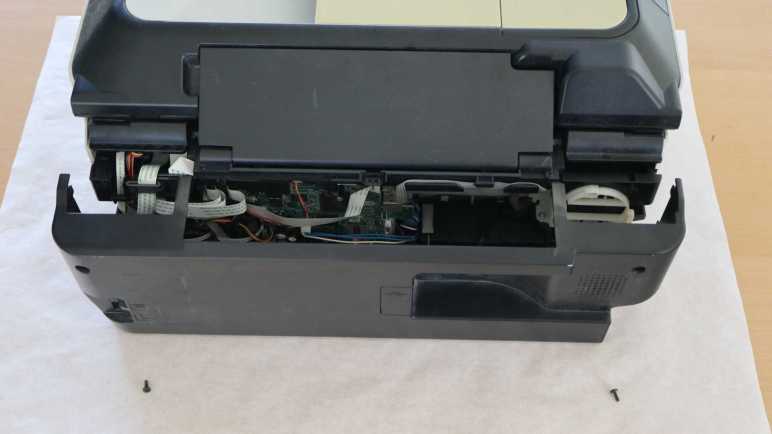
I found no exposed fasteners on the bottom. I found two exposed fasteners in the back, and removing them freed the rear panel.

Behind the rear panel is a circuit board, looking like the brains of this whole operation. Roughly a dozen connectors carry power to and data from the rest of this printer. As this teardown proceeds I should get an idea of the purpose for each of these connectors. I can start with the white-blue-blue wire just below the center: that receives power from the power supply and it makes sense majority of capacitors are clustered around that area.

Above the circuit board, I can see there are no fasteners or clips holding the paper feed tray in place. It can be removed by bending the plastic away from plastic nubs acting as hinges.

Removing the rear panel also exposed this fastener for a side panel.

The same panel has a fastener on the front, accessible by lifting the scanner module.

After removing those two fasteners, I yanked on the panel and it came free but not without damage. There are two long clips in the middle of this panel. The rear clip survived but I broke the front clip.

In hindsight, I see that Canon engineers had placed hints on how to release these clips without damage. Small rectangular holes were cut into the surface, with small triangular arrows drawing attention to them. I noticed the arrows earlier but I didn’t know what they meant! Now I understand this symbol and shape mark locations to access clips for removal. And once I knew what they meant and knew what to look for, I see them all over this printer. Thank you, Canon engineers!

Now that I have this knowledge, I could remove the other side panel without damage. Unfortunately I could make no further progress taking apart the base at the moment. I have found more fasteners, but they are blocked by the hinged scanner module above. My next step will disassemble the automatic document feeder at the top and work my way down to the base.

Canon Pixma MX340 Pre-Teardown Overview

I have a stack of retired inkjet printers on my teardown waiting list, supplied by an industry whose ink cartridge-focused business plans render printers borderline disposable. I’ve learned a lot about electronics and mechanical engineering since my last inkjet teardown, so I’m going to do another one and I hope to get more out of it. Both in terms of knowledge and salvaging parts for potential reuse.

This Canon Pixma MX340 will be the next to receive the teardown treatment. I bought this around 2011 when I needed a fax machine and a scanner that can go directly to PDF on a flash drive. The automatic document feeder (ADF) on top of the machine made life easier when I needed to fax or scan a multi-page document.

Flipping open the lid for the ADF document feed tray, I can see sunlight over these years has yellowed exposed exterior trim. This all used to be the same color!

This machine is built with multiple hinged layers. Top layer housed the control panel and ADF. Lifting that exposes the flatbed scanner bed. Useful for items that aren’t suitable for the ADF, such as books or items with fragile/wrinkled paper.

Lifting the scanner bed exposes the print mechanism. Nowadays I have a monochrome laser printer that handles most of my printing needs, because I rarely need to print in color. The last time I wanted a color print, I fired up this MX340 only to find the neglected nozzles have clogged. The unclog procedure didn’t fix the problem, so I started thinking about replacement cartridges. I still have a 210XL black cartridge unopened in original packaging. No 211 color cartridge, though, and I only found a few places that would sell Canon 211XL cartridges. Asking price is about $35 which is discouraging when new color inkjet printers can be found on sale for about $40. The ink cartridge that comes in a new printer won’t be the higher capacity “XL” variety, but I don’t need a lot of color printing. In my usage pattern the cartridges tend to dry out and clog before I use up all of their ink.

This specific printer is so old even the aftermarket cartridge vendors don’t bother carrying a compatible cartridge. Canon has discontinued support for this hardware, so it will never receive printer drivers for Windows 11 or Apple Silicon MacOS. Its WiFi connectivity is built around WPS, which is now considered insecure and not even supported by my WiFi router anymore. All of these reasons added together lead to the decision to retire this printer. I’ll buy one of those $40 printers when I need to print in color again.

I opened my 210XL black cartridge and installed it in the printer, then tried an ADF copier test run. The dried-out/clogged color cartridge did nothing, but thankfully this printer was willing to print anyway. (Some of the more annoying printers will refuse to run with an empty cartridge.) The test run verified all mechanical components in the automatic document feeder, scanner, and inkjet printing engine are in working order.

Since the components are still working, my teardown plan will include a stage where I poke and prod a disassembled (but still running) device. I hope it will be educational.

  • Phase 1: Take this printer apart as far as I can while still preserving electrical and mechanical functionality.
  • Phase 2: Bring out the multimeter, oscilloscope, and logic analyzer. Measure motor & sensor electrical behavior and write them down. Learn what I can about how they work. Such knowledge improve the odds I can reuse them later.
  • Phase 3: After I have learned all I can, take it apart the rest of the way.

Endgame: Keep salvaged components with reuse possibilities. Recycle the metal bits, circuit boards goes to e-waste, and plastic goes to landfill.

Onward to phase 1!


This teardown ran far longer than I originally thought it would. Click here to jump to an index of all my teardown notes.

Inkjet Printers as Teardown Fodder

I thought a malfunctioning hair trimmer was a simple device and I understood why it failed. But it turned out to be more complex, my deduction turned out to be wrong, and I had no further ideas. Giving up on it didn’t feel great, but I did learn a few things. A few salvaged parts may yet see reuse in a future project, and the components were separated. The metal parts could be recycled, the circuit board is going to e-waste, leaving only the plastic bits to landfill. This is roughly the same situation as the last time I took apart a retired inkjet printer.

Inkjet printers were a wonderful invention enabling affordable color printing. Unfortunately, the product ecosystem have landed on a wasteful business model deriving profit from ink cartridge sales. Printers were built to be sold cheaply, other concerns like long-term durability became secondary. Short warranty periods and discontinued printers became the norm. Speaking for myself, I rarely need to print in color. When I do, I tend to find my cartridge had clogged up along with other problems caused by lack of use. Like paper jams caused by rubber rollers that had hardened and no longer had good grip on paper. Considering the fact a cartridge for an old discontinued printer cost almost as much as a new printer, it’s easier to just buy a new printer. Sure, the ink cartridge bundled with a new printer has less ink, but it is likely to clog from neglect before I actually run out either way. And thus the cycle repeats.

A small upside to this sorry state of affairs is that teardown tinkerers have a steady feed stock of retired inkjet printers. I let friends and family know I’m interested in their old inkjet printers as well, and they’ve been happy to let their broken printers gather dust at my house instead of theirs.

Years ago (before I started writing down projects on this blog) I took apart a few of those printers. I was fascinated by the amount of engineering that went into even entry-level printers. But I was frustrated by the fact I didn’t understand very much of what went on, and couldn’t put the components to other use. At least the metal parts got recycled and I kept the circuit boards out of landfill.

But I’ve learned a lot since my last inkjet teardown. I managed to put one power supply to use (multiple times, actually) and I’ve learned things like driving stepper motors I pulled from those printers. I have an oscilloscope and a logic analyzer now, and I have 3D printing to help reuse the mechanical bits. I still won’t understand everything inside an inkjet printer, but I will understand more than before, and that’s good enough to embark on another run.

Philips Norelco Multigroom Circuit Board (MG7790)

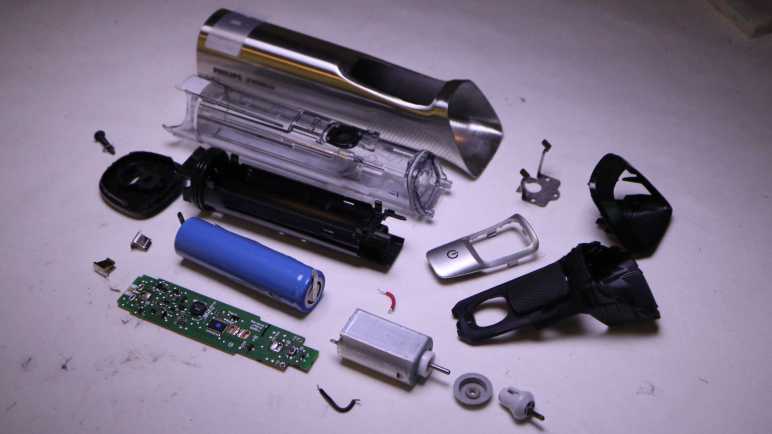
Joining a dead-again subwoofer on my failed repair hall of shame is my Philips Norelco Multigroom MG7790. It had been halting partway through a haircut session, stopping the motor and pulsing its amber LED. My first guess was a failing battery, but the battery looked OK. I then thought the problem was a clogged cutting blade module. I cleaned it up and it tested fine through one session, but then it died again on a second session with a still-clean cutting blade module. I had misdiagnosed the failure a second time and again out of ideas.

Taking it apart, I confirmed battery voltage was not the issue, measuring at 4.08V. I could spin the motor freely by hand, so it’s not a stalled motor. I know the button works, because pressing it would start the amber LED pulsing instead of the motor turning as expected. So… what’s left? There’s not a whole lot to this device!

Examining the circuit board, I didn’t see any obviously damaged components. And there were quite a few of them, more than I had originally expected from a device that turns a motor on and off.

Here’s the back side of the circuit board, completely empty. Seeing it was a single-layer design, I briefly hoped I could try to understand how this circuit works, but I didn’t get very far.

The good news is that, as a single-layer board, I could light it from behind to get clear look at most of the traces. I haven’t built any kind of lighting setup for this, so it’s still just my cell phone’s LED flashlight same as my quick side-light experiment. Here’s a crude mosaic of several different shots, taken with the LED behind different parts of the circuit board. One thing is clear: there are a lot of test points on this board.

The bad news is I have no idea what most of these components are. Some of them are labeled like resistors, but some others are engraved with only a few difficult-to-search characters, only slightly better than the remaining components which have no markings at all.

And everything is just so tiny. For a sense of scale, here’s a 1:1 pixel crop of the lower left corner of the previous picture. This was a well-used hair trimmer, and my teardown is plagued with little bits of hair getting everywhere. That small black cylinder in the middle of this closeup is one such hair fragment, conveniently providing a sense of scale of these components. These tiny parts are beyond the reach of my current skill level.

While somewhat frustrating, I have to be OK with not understanding everything as I play with retired electronics. Especially since I don’t have any of the technical documentation proprietary to the company. In keeping with this mindset, I’m going to take apart a few inkjet printers.

Insignia 100W Powered Subwoofer (NS-RSW211)

About a year ago I opened up my malfunctioning Insignia 100W Powered Subwoofer (NS-RSW211). I found a burnt-out capacitor, and replaced it with two salvaged capacitors that should work well together. That repair brought the subwoofer back up and running until it fell silent again recently. I looked at the control panel and saw the power LED was dark. Hmm. Back onto the workbench it goes for another round.

The first thing I checked out were the capacitors I previously installed. If there was a flaw in this system that kills capacitors, it might have killed this second set.

The capacitor up top looks fine

As did its parallel buddy mounted to the bottom. I don’t know if their capacitance has degraded and I don’t feel like unsoldering them to check. For now it is good enough they are not blackened like the original when I found it.

The next thing I checked was the non-user-replaceable fuse sitting adjacent to these capacitors. Electrical continuity checked out OK so it’s not a blown fuse.

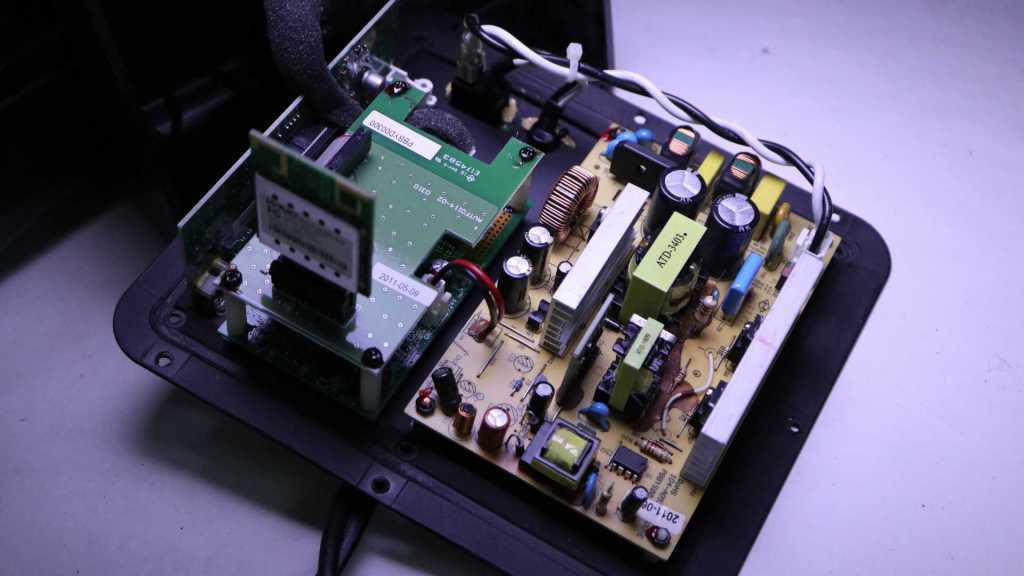
Trying to isolate whether the fault was again in the yellow power supply board, I powered up the system and measured its output connector to the logic board. I read 24V DC, exactly as expected. Implying the fault was not in the power supply board. Onward to the logic boards!

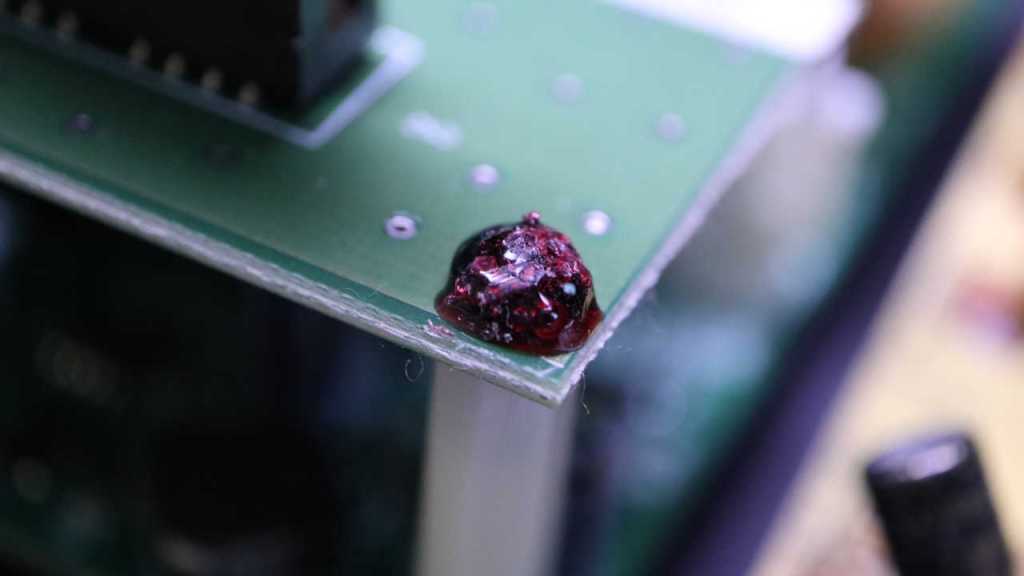
Its top screws had this annoying material on top. I don’t know if this is supposed to be a thread locking compound to keep it from coming loose (a good idea in the vibration environment of a subwoofer) or if it’s supposed to be tamper-resistant. It wasn’t much of a barrier, though, as it is brittle and shatters under light pressure for removal. Maybe it’s meant to be tamper-evident?

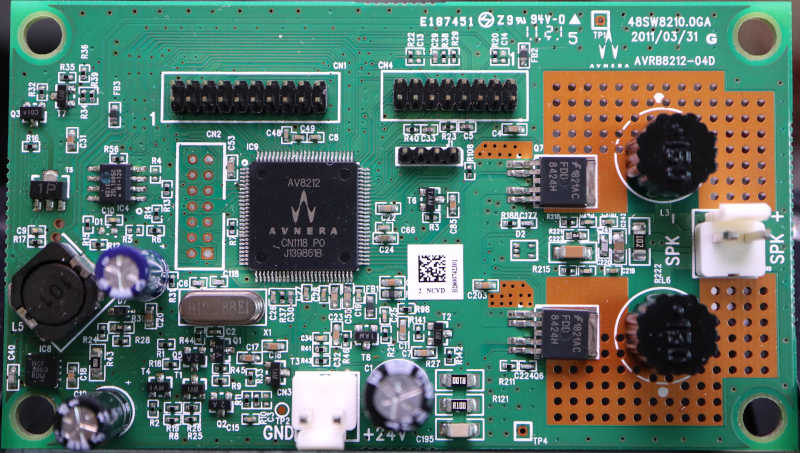
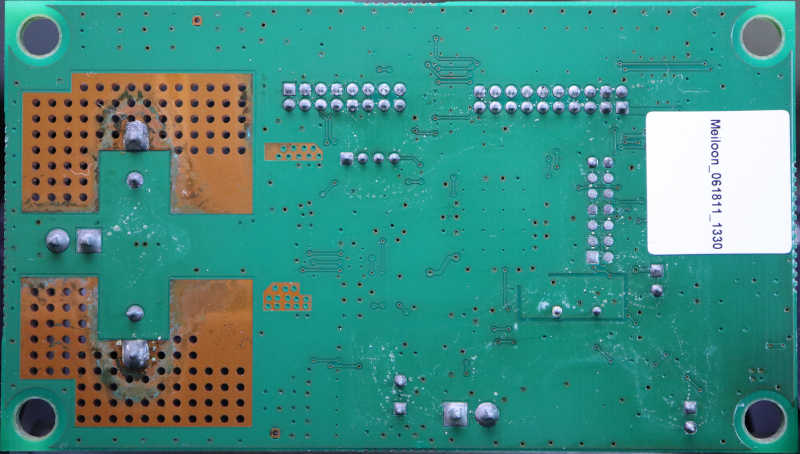
I didn’t notice anything burnt out or visibly damaged on the main logic board, which had an Avnera logo in the upper-right corner as well on the AV8212 controller in the middle the board. Apparently Avnera was the subcontractor for this Insignia (Best Buy house brand) product. Avnera was acquired by Skyworks in 2018 and now every link I’ve found just gets forwarded to the Skyworks home page. Dead end.

Nothing obviously failed on the I/O board, either. I was surprised to find the volume knob appeared to be a quadrature encoder instead of a potentiometer. From this I inferred the volume could be adjusted via the wireless protocol supported by this device. Something I’ve never used so I never noticed.

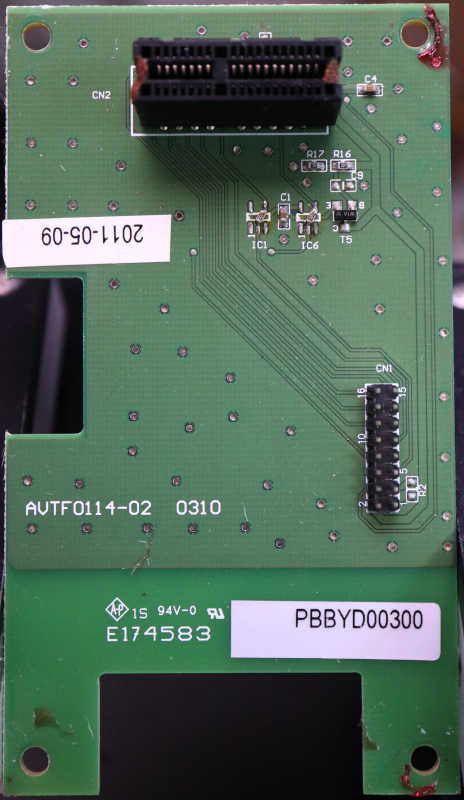
Nothing obviously failed on the wireless carrier board, but then again there’s not much on this board at all. The 16-pin connector is for a ribbon cable to the mainboard, and it is routed almost directly to a connector for the wireless module. It looks like a PCI Express x1 card slot.

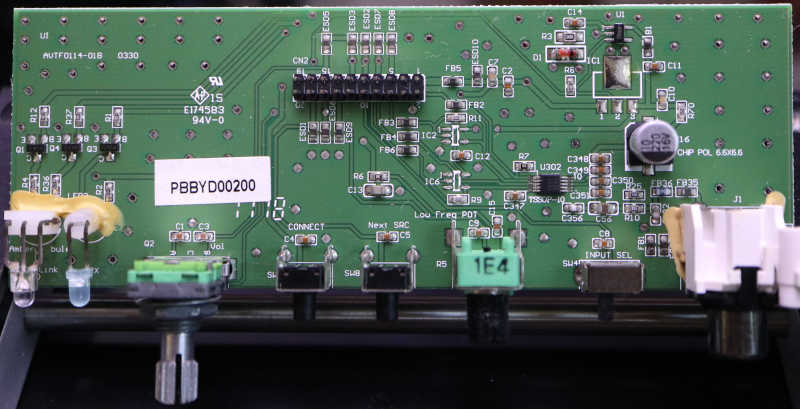
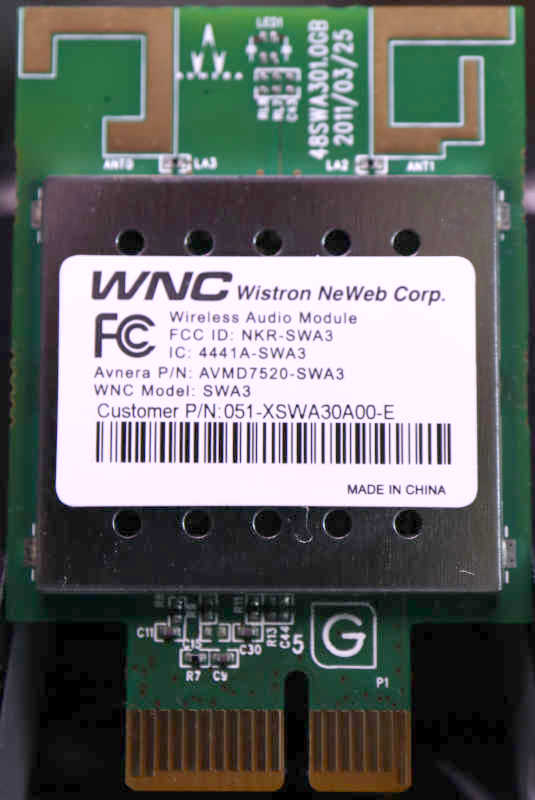
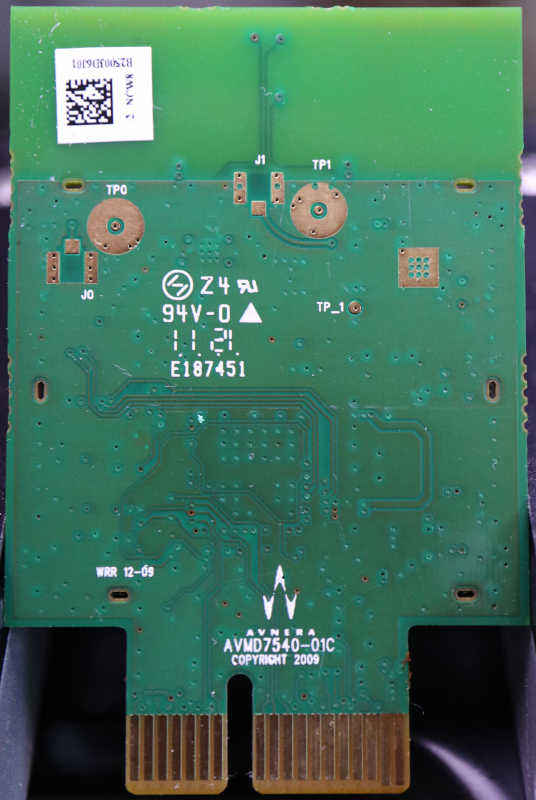
And finally, the wireless module itself. No obvious signs of failure here but most of it is under that metal shield. I see the Avnera logo front and back on the circuit board, but the stick had a different name: Wistron NeWeb Corp. This company has not been acquired by Skyworks, but there were no results for a query on model number SWA3. There’s an Avnera part number AVMD7520-SWA3 but I’ve already established Avnera’s website is gone. That left the FCC ID NKR-SWA3 and that returned some interesting results from FCC’s database. One bit of trivia: they did, in fact, use the PCI Express x1 connector but this is not a PCI Express card.


Sadly I didn’t find any signs of a failure I could fix. Since the 24VDC power supply seems to still be good and the speaker driver itself looks OK, I went online looking for subwoofer amplifier modules. The DC-powered units I found were designed for cars expecting 12V-14.4V and not all the way up to 24V. And regardless of AC or DC power input, everything I found were aimed at powering big booming boxes. Not basic units like this one, so they tend to cost more than just buying another basic little sub. I admit defeat and conclude I’m at the end of the road for this device. Since I had most of the components taken apart already, I continued taking things apart for curiosity’s sake.

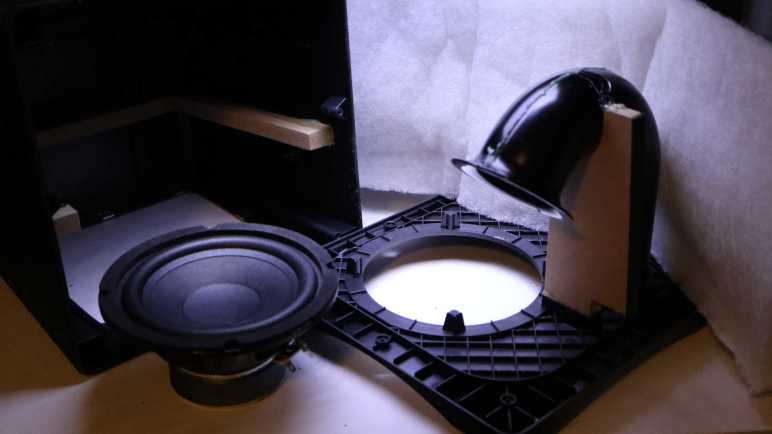
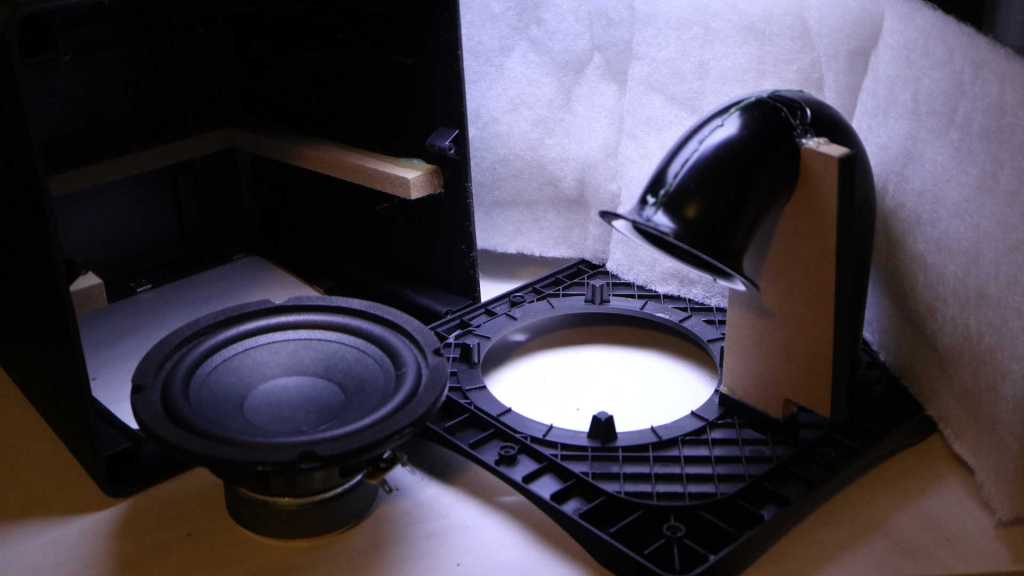
Beyond the electronics box, the cabinet was mostly a big box to surround the speaker driver and padded with white fluffy batting.

The air duct and port design is interesting, allowing air movement in and out of the subwoofer enclosure. I recognized flared edges exist to reduce hissing airflow noise, but I don’t know the art/science behind the length and shape of the tube. I just think it looks neat! [UPDATE: Thanks to a comment by Nic, I now know this speaker is a bass reflex system and science behind the tube is based on Helmholtz resonance.] Too bad it is glued in place. I’m curious about the few pieces of MDF supporting the injection-molded plastic. What are the respective strengths and weaknesses of these two materials? I thought there was a chance the MDF were late additions to the design to address problems, but they look too well integrated for that. There’s a slot molded in the plastic for the MDF piece supporting the duct.

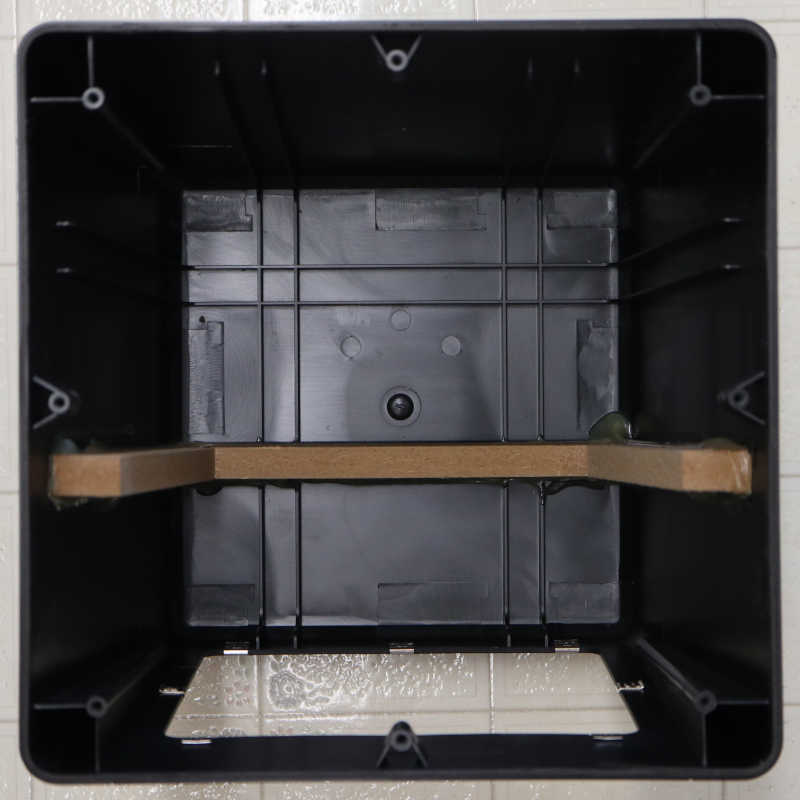
As for the outer enclosure, it looked like multiple slots were molded in place but only one was occupied by a piece of MDF. Perhaps they were reinforcement ribs instead of MDF slots? I can sense some sort of design intent here but I have no guesses on what they were.

Bug Hunt Could Cross Three or More Levels of Indirection

When running Proxmox VE, my Dell Inspiron 7577’s onboard Realtek Ethernet would quit at unexpected times. Network transmission halts, and a network watchdog timer fires which triggers a debug error message. One proposed workaround is to change to a different Realtek driver. But after learning about the tradeoffs involved, I decided against pursuing that path.

This watchdog timer error message has been reported by many users on Proxmox forums, and some kind of a fix is en route. I’m not confident it’ll help me, because it deactivated ASPM on Realtek devices but turning off ASPM across the board on my computer didn’t keep the machine online. I’m curious how that particular fix was developed, or the data that informed the fix. Thinking generally, pinning such a failure down requires jumping through three levels of indirection. My poorly-informed speculation is as follows:

The first and easiest step is the watchdog timer itself. A call stack is part of the error message, which might be enough to determine the code path that started the timer. But since it is a production binary, the call stack has incomplete symbols. Getting more information would require building a debug kernel in order to get full symbols.

With that information, it should be relatively straightforward to get to the second step: determining what network operation timed out. But then what? Given the random and intermittent nature, the failing network operation was probably just an ordinary transaction that had succeeded many times before and should have succeeded again. But for whatever reason, failed this time because the Realtek driver and/or hardware got in a bad state.

And that’s the difficult third step: how to look at an otherwise ordinary network transaction and deduce a cause for the bad Realtek state. It probably wasn’t the network transaction itself! Which meant at least one more indirect jump. The fix en route dealt with PCIe ASPM (PCI Express Active State Power Management) which probably wasn’t directly on the code path for a normal network data transmission. I’m really curious how that deduction was made and, if the incoming fix doesn’t address my issue, how I can use similar techniques to determine what put my hardware in a bad state.

From the outside, that process feels like a lot of black magic voodoo I don’t understand. For now I will sit tight with my reboot cron job workaround and wait for the updated kernel to arrive.

[UPDATE: A Proxmox VE update has arrived bringing kernel 6.2.16-18-pve to replace 6.2.16-15-pve I had been running. Despite my skepticism about ASPM, either that change or another in this update seems to be successful keeping the machine online!]


Featured image created by Microsoft Bing Image Creator powered by DALL-E 3 with prompt “Cartoon drawing of a black laptop computer showing a crying face on screen and holding a network cable

Realtek r8168 Driver Is Not r8169 Driver Predecessor

I have a Dell Inspiron 7577 whose onboard Realtek Ethernet hardware would randomly quit under Proxmox VE. [UPDATE: After installing Proxmox VE kernel update from 6.2.16-15-pve to 6.2.16-18-pve, this problem no longer occurs, allowing the machine to stay connected to the network.] After trying some kernel flags that didn’t help, I put in place an ugly hack to reboot the computer every time the network watchdog went off. This would at least keep the machine accessible from the network most of the time while I learn more about this problem.

In my initial research, I found some people who claimed switching to the r8168 driver kept their machines online. Judging by their names, I thought the r8168 driver was the immediate predecessor to the r8169 driver currently part of the system causing me headaches. But after reading a bit more, I’ve learned this was not the case. While both r8168 and r8169 refer to Linux drivers for Realtek Ethernet hardware, they exist in parallel reflecting two different development teams.

r8169 is an in-tree kernel driver that supports a few Ethernet adapters including R8168.

r8168 module built from source provided by Realtek.

— Excerpt from “r8168/r8169 – which one should I use?” on AskUbuntu.com:

This is a lot more complicated than “previous version”. As an in-tree kernel driver, r8169 will be updated in lock step with Linux updates largely independent of Realtek product cycle. As a vendor-provided module, r8168 will be updated to support Realtek hardware, but won’t necessarily stay in sync with Linux updates.

This explains why when someone has a new computer that doesn’t have networking under Linux, the suggestion is to try the r8168 driver: Realtek would add support for new hardware before Linux developers would get around to it. It also explains why people running r8168 driver run into problems later: they updated their Linux kernel and could no longer run their r8168 driver targeted to an earlier kernel.

Given this knowledge, I’m very skeptical running r8168 would help me. Some Proxmox users report that it’s the opposite of helpful, killing their network connection entirely. D’oh! Another interesting data point from that forum thread was the anecdotal observation that Proxmox clusters accelerate faults with the Realtek driver. This matches with my observation. Before I set up a Proxmox cluster, the network fault would occur roughly once or twice a day. After my cluster was up and running, it would occur many times a day with uptime as short as an hour and a half.

Even if switching to r8168 would help, it would only be a temporary solution. The next Linux update in this area would break the driver until Realtek catches up with an update. The best I can hope from r8168 is a data point informing an investigation of what triggers this fault condition, which seems like a lot of work for little gain. I decided against trying the r8168 driver. There are many other pieces in this puzzle.


Featured image created by Microsoft Bing Image Creator powered by DALL-E 3 with prompt “Cartoon drawing of a black laptop computer showing a crying face on screen and holding a network cable

Reboot After Network Watchdog Timer Fires

My Dell Inspiron 7577 is not happy running Proxmox VE. For reason I don’t yet understand, its onboard Ethernet would quit at unpredictable times. [UPDATE: Network connectivity stabilized after installing Proxmox VE kernel update from 6.2.16-15-pve to 6.2.16-18-pve. The hack described in this post is no longer necessary.] Running dmesg to see error messages logged on the system, I searched online and found a few Linux kernel flags to try as potential workarounds. None of them have helped keep the system online. So now I’m falling back to an ugly hack: rebooting the system after it falls offline.

My first session stayed online for 36 hours, so my first attempt at this workaround was to reboot the system once a day in the middle of the night. That wasn’t good enough because it frequently failed much sooner than 24 hours. The worst case I’ve observed so far was about 90 minutes. Unless I wanted to reboot every half hour or something ridiculous, I need to react to system state and not a timer.

In the Proxmox forum thread I read, one of the members said they wrote a script to ping Google at regular intervals and reboot the system if that should fail. I started thinking about doing the same for myself but wanted to narrow down the variables. I don’t want to my machine to reboot if there’s been a network hiccup at a Google datacenter, or my ISP, or even when I’m rebooting my router. This is a local issue and I want to focus my scope locally.

So instead of running ping I decided to base my decision off of what I’ve found so far. I don’t know why the Ethernet networking stack fails, but when it does, I know a network watchdog timer fires and logs message into the system. Reading about this system, I learned it is called a journal and can be accessed and queried using the command line tool journalctl. Reading about its options, I wrote a small shell script I named /root/watch_watchdog.sh:

#!/usr/bin/bash
if /usr/bin/journalctl --boot --grep="NETDEV WATCHDOG"
then
  /usr/sbin/reboot
fi

Every executable (bash, journalctl, and reboot) are specified with full paths because I had problems with context of bash scripts executed as cron jobs. My workaround, which I decided was also good security practice, is to fully qualify each binary file.

The --boot parameter restricts the query to the current running system boot, ignoring messages from before the most recent reboot.

The --grep="NETDEV WATCHDOG" parameter looks for the network watchdog error message. I thought to restrict it to exactly the message I saw: "kernel: NETDEV WATCHDOG: enp59s0 (r8169): transmit queue 0 timed out" but using that whole string returned no entries. Maybe the symbols (the colon? the parentheses?) caused a problem. Backing off, I found just "NETDEV" is too broad because there are other networking messages in the log. Just "WATCHDOG" is also too broad given unrelated watchdogs on the system. Using "NETDEV WATCHDOG" is fine so far, but I may need to make it more specific later if that’s still too broad.

The most important part of this is the exit code for journalctl. It would be nonzero if messages are found from the query, and zero if no entries are found. This exit code is used by the "if" statement to decide whether to reboot the system.

Once the shell script file in place and made executable with chmod +x /root/watch_watchdog.sh, I could add it to the cron jobs table by running crontab -e. I started by running this script once an hour on the top of the hour.

0 * * * * /root/watch_watchdog.sh

But then I thought: what’s the downside to running it more frequently? I couldn’t think of anything, so I expanded to running once every five minutes. (I learned the pattern syntax from Crontab guru.) If I learn a reason not to run this so often, I will reduce the frequency.

*/5 * * * * /root/watch_watchdog.sh

This ensured network outages due to Realtek Ethernet issue are no longer than five minutes in length. This is a vast improvement over what I had until now, which is waiting until I noticed the 7577 had dropped off the network (which may take hours), pulling it off the shelf, log in locally, and type “reboot”. Now this script will do it within five minutes of watchdog timer message. It’s a really ugly hack, but it’s something I can do today. Fixing this issue properly requires a lot more knowledge about Realtek network drivers, and that knowledge seemed to be spread across multiple drivers.


Featured image created by Microsoft Bing Image Creator powered by DALL-E 3 with prompt “Cartoon drawing of a black laptop computer showing a crying face on screen and holding a network cable

Reported PCI Express Error was Unrelated

I have a Dell Inspiron 7577 laptop whose Ethernet hardware is unhappy with Proxmox VE 8, dropping off the network at unpredictable times. [UPDATE: Network connectivity stabilized after installing Proxmox VE kernel update from 6.2.16-15-pve to 6.2.16-18-pve. The PCI Express AER messages described in this post also stopped.] Trying to dig deeper, I found there was an error message dump indicating a watchdog timer went off while waiting to transmit data over the network. Searching online, I find bug reports that match the symptoms but that’s not necessarily the cause. A watchdog timer can be triggered by anything that gum up the works, so what resolves the network issue on one machine wouldn’t necessarily work on mine. I went back to dmesg to look for other clues.

Before the watchdog timer triggered, I found several lines of this message at irregular intervals:

[36805.253317] pcieport 0000:00:1c.4: AER: Corrected error received: 0000:3b:00.0

Sometimes only seconds apart, other times hours apart, and sometimes it never happens at all before the watchdog timer barks. This is some sort of error on the PCIe bus from device 0x3b:00.0, which is the Realtek Ethernet controller as per this lspci excerpt:

3b:00.0 Ethernet controller: Realtek Semiconductor Co., Ltd. RTL8111/8168/8411 PCI Express Gigabit Ethernet Controller (rev 15)

Even though the debug message said the error was corrected, maybe it triggered side effects causing my problem? Searching on this error message, I found several possibly relevant kernel flags. This Reddit thread has a good summary of them all.

  • pci=noaer disables PCI Express Advanced Error Reporting which sent this message. This is literally shooting the messenger. It’ll silence those messages but won’t do anything to address underlying problems.
  • pci=nomsi disables a PCI Express signaling mechanism that might cause these correctable errors, forcing all devices to fall back to a different mechanism. Some people reported losing peripherals (like USB) when they use this flag, I guess that hardware couldn’t fall back to something else? I tried it and while it didn’t cause any obvious problems (I still had USB) it also didn’t help keep my Ethernet alive either.
  • pci=nommconf disables PCI Express memory-mapped configuration. (I don’t know what those words mean, I just copied them out of kernel documentation.) The good news is adding this flag did eliminate those “Corrected error received” messages. The bad news it didn’t help keep my Ethernet alive, either.

Up until I tried pci=nommconf I had wondered if I’ve been doing kernel flags wrong. I was editing /etc/default/grub then running update-grub. After boot, I checked they showed up on cat /proc/cmdline but I didn’t really know if the kernel actually changed behavior. After pci=nommconf, my confidence was boosted by the lack of “Corrected error received” messages, though that might still be a false sense of confidence because “Corrected error received” messages don’t always happen. It’s an imperfect world, I work with what I have.

And sadly, there is something I need but don’t have today: ability to dig deeper into Linux kernel to find out what has frozen up, leading to the watchdog timer expiring. But I’m out of ideas for now and I still have a computer that drops off the network at irregular times. I don’t want to keep pulling the laptop off the shelf to log in locally and type “reboot” several times a day. I concede I must settle for a hideously ugly hack to do that for me.


Featured image created by Microsoft Bing Image Creator powered by DALL-E 3 with prompt “Cartoon drawing of a black laptop computer showing a crying face on screen and holding a network cable

Ethernet Failure Triggers Network Stack Timeout

I was curious about Proxmox VE capability to migrate virtual machines from one cluster node to another. I set up a small cluster to try it and found it to be as easy as advertised. After migrating my VM experiments to a desktop computer with Intel networking hardware, they have been running flawlessly. This allowed me to resume tinkering with a laptop computer that would drop off the network at unpredictable times. This unfortunate tendency makes it a very poor Proxmox VE server. [UPDATE: Network connectivity stabilized after installing Proxmox VE kernel update from 6.2.16-15-pve to 6.2.16-18-pve.]

Repeating Errors From r8169

After it dropped off the network, I have to log on to the computer locally. The screen is usually filled with error messages. I ran dmesg and saw the same messages there as well. Based on associated timestamp, this block of messages repeats every four minutes:

[68723.346727] r8169 0000:3b:00.0 enp59s0: rtl_chipcmd_cond == 1 (loop: 100, delay: 100).
[68723.348833] r8169 0000:3b:00.0 enp59s0: rtl_ephyar_cond == 1 (loop: 100, delay: 10).
[68723.350921] r8169 0000:3b:00.0 enp59s0: rtl_ephyar_cond == 1 (loop: 100, delay: 10).
[68723.352954] r8169 0000:3b:00.0 enp59s0: rtl_ephyar_cond == 1 (loop: 100, delay: 10).
[68723.355097] r8169 0000:3b:00.0 enp59s0: rtl_ephyar_cond == 1 (loop: 100, delay: 10).
[68723.357156] r8169 0000:3b:00.0 enp59s0: rtl_ephyar_cond == 1 (loop: 100, delay: 10).
[68723.359289] r8169 0000:3b:00.0 enp59s0: rtl_ephyar_cond == 1 (loop: 100, delay: 10).
[68723.389357] r8169 0000:3b:00.0 enp59s0: rtl_eriar_cond == 1 (loop: 100, delay: 100).
[68723.415890] r8169 0000:3b:00.0 enp59s0: rtl_eriar_cond == 1 (loop: 100, delay: 100).
[68723.442132] r8169 0000:3b:00.0 enp59s0: rtl_eriar_cond == 1 (loop: 100, delay: 100).

Searching on that led me to Proxmox forums, and one of the workarounds was to set the kernel flag pcie_aspm=off. I tried that, but the computer still kept dropping off the network. Either I’m not doing this correctly (editing /etc/default/grub then running update-grub) or the change doesn’t help my situation. Perhaps it addressed a different problem with similar symptoms, leaving open the mystery of what’s going with my machine.

NETDEV WATCHDOG

Looking for more clues, I scrolled backwards in dmesg log and found this block of information just before the repeating series of r8169 errors:

[67717.227089] ------------[ cut here ]------------
[67717.227096] NETDEV WATCHDOG: enp59s0 (r8169): transmit queue 0 timed out
[67717.227126] WARNING: CPU: 1 PID: 0 at net/sched/sch_generic.c:525 dev_watchdog+0x23a/0x250
[67717.227133] Modules linked in: veth ebtable_filter ebtables ip_set ip6table_raw iptable_raw ip6table_filter ip6_tables iptable_filter bpfilt>[67717.227254]  iwlwifi ttm snd_timer pcspkr drm_display_helper intel_wmi_thunderbolt btintel dell_wmi_descriptor joydev processor_thermal_mbox>[67717.227374]  i2c_i801 xhci_pci i2c_hid_acpi crc32_pclmul i2c_smbus nvme_common i2c_hid realtek xhci_pci_renesas ahci libahci psmouse xhci_hc>[67717.227401] CPU: 1 PID: 0 Comm: swapper/1 Tainted: P           O       6.2.16-15-pve #1
[67717.227404] Hardware name: Dell Inc. Inspiron 7577/0P9G3M, BIOS 1.17.0 03/18/2022
[67717.227406] RIP: 0010:dev_watchdog+0x23a/0x250
[67717.227411] Code: 00 e9 2b ff ff ff 48 89 df c6 05 ac 5d 7d 01 01 e8 bb 08 f8 ff 44 89 f1 48 89 de 48 c7 c7 90 87 80 bc 48 89 c2 e8 56 91 30>[67717.227414] RSP: 0018:ffffae88c014ce38 EFLAGS: 00010246
[67717.227417] RAX: 0000000000000000 RBX: ffff99129280c000 RCX: 0000000000000000
[67717.227419] RDX: 0000000000000000 RSI: 0000000000000000 RDI: 0000000000000000
[67717.227421] RBP: ffffae88c014ce68 R08: 0000000000000000 R09: 0000000000000000
[67717.227423] R10: 0000000000000000 R11: 0000000000000000 R12: ffff99129280c4c8
[67717.227425] R13: ffff99129280c41c R14: 0000000000000000 R15: 0000000000000000
[67717.227427] FS:  0000000000000000(0000) GS:ffff991600480000(0000) knlGS:0000000000000000
[67717.227429] CS:  0010 DS: 0000 ES: 0000 CR0: 0000000080050033
[67717.227432] CR2: 000000c0006e1010 CR3: 0000000165810003 CR4: 00000000003726e0
[67717.227434] Call Trace:
[67717.227436]  <IRQ>
[67717.227439]  ? show_regs+0x6d/0x80
[67717.227444]  ? __warn+0x89/0x160
[67717.227447]  ? dev_watchdog+0x23a/0x250
[67717.227451]  ? report_bug+0x17e/0x1b0
[67717.227455]  ? irq_work_queue+0x2f/0x70
[67717.227459]  ? handle_bug+0x46/0x90
[67717.227462]  ? exc_invalid_op+0x18/0x80
[67717.227465]  ? asm_exc_invalid_op+0x1b/0x20
[67717.227470]  ? dev_watchdog+0x23a/0x250
[67717.227474]  ? dev_watchdog+0x23a/0x250
[67717.227477]  ? __pfx_dev_watchdog+0x10/0x10
[67717.227481]  call_timer_fn+0x29/0x160
[67717.227485]  ? __pfx_dev_watchdog+0x10/0x10
[67717.227488]  __run_timers+0x259/0x310
[67717.227493]  run_timer_softirq+0x1d/0x40
[67717.227496]  __do_softirq+0xd6/0x346
[67717.227499]  ? hrtimer_interrupt+0x11f/0x250
[67717.227504]  __irq_exit_rcu+0xa2/0xd0
[67717.227507]  irq_exit_rcu+0xe/0x20
[67717.227510]  sysvec_apic_timer_interrupt+0x92/0xd0
[67717.227513]  </IRQ>
[67717.227515]  <TASK>
[67717.227517]  asm_sysvec_apic_timer_interrupt+0x1b/0x20
[67717.227520] RIP: 0010:cpuidle_enter_state+0xde/0x6f0
[67717.227524] Code: 12 57 44 e8 f4 64 4a ff 8b 53 04 49 89 c7 0f 1f 44 00 00 31 ff e8 22 6d 49 ff 80 7d d0 00 0f 85 eb 00 00 00 fb 0f 1f 44 00>[67717.227526] RSP: 0018:ffffae88c00ffe38 EFLAGS: 00000246
[67717.227529] RAX: 0000000000000000 RBX: ffffce88bfc80000 RCX: 0000000000000000
[67717.227531] RDX: 0000000000000001 RSI: 0000000000000000 RDI: 0000000000000000
[67717.227533] RBP: ffffae88c00ffe88 R08: 0000000000000000 R09: 0000000000000000
[67717.227534] R10: 0000000000000000 R11: 0000000000000000 R12: ffffffffbd2c3a40
[67717.227536] R13: 0000000000000008 R14: 0000000000000008 R15: 00003d96a543ec60
[67717.227540]  ? cpuidle_enter_state+0xce/0x6f0
[67717.227544]  cpuidle_enter+0x2e/0x50
[67717.227547]  do_idle+0x216/0x2a0
[67717.227551]  cpu_startup_entry+0x1d/0x20
[67717.227554]  start_secondary+0x122/0x160
[67717.227557]  secondary_startup_64_no_verify+0xe5/0xeb
[67717.227563]  </TASK>
[67717.227565] ---[ end trace 0000000000000000 ]---

A watchdog timer went off somewhere in the networking stack while waiting to transmit data. The data output starts with [ cut here ] but I have no idea where this information should be pasted into. I recognize the format of a call trace alongside a dump of CPU register data, but the actual call trace is incomplete. There are a lot of “?” in here because I am not running the debug kernel and symbols are missing.

Looking in the FAQ for Kernel.org, I followed a link to kernelnewbies.org and from there their page “So, you think you’ve found a Linux kernel bug?” I see the section on “Oops messages” and they look very similar to what I see here, except without the actual line with “Oops” in it. From there I was linked to the kernel bug tracking database. A search on watchdog timer expiration in r8169 got several dozen hits across many years, including 217814 which I found earlier via Proxmox forum search, thus coming full circle.

I see some differences between my call trace with that in 217814, but that’s possibly expected differences between my kernel (6.2.16-15-pve) and what generated 217814 (6.2.0-26-generic). In any case, the call stack appears to be for the watchdog timer itself and not whatever triggered it. Supposedly disabling ASPM would resolve 217814. Since it didn’t do anything for me, I conclude there’s something else clogging up the network stack. Teasing out that “something else” requires learning more about Linux kernel inner workings. I’m not enthusiastic about that prospect so I looked for other things to try.


Featured image created by Microsoft Bing Image Creator powered by DALL-E 3 with prompt “Cartoon drawing of a black laptop computer showing a crying face on screen and holding a network cable

Proxmox Cluster VM Migration

I had hoped to use an older Dell Inspiron 7577 as a light-duty virtualization server running Proxmox VE, but there’s a Realtek Ethernet problem causing it to lose connectivity after an unpredictable amount of time. A workaround mirroring the in-progress bug fix didn’t seem to do anything, so now I’m skeptical that the upcoming “fixed” kernel will address my issue. [UPDATE: I was wrong! After installing Proxmox VE kernel update from 6.2.16-15-pve to 6.2.16-18-pve, the network problem no longer occurs.] I found two other workarounds online: revert back to an earlier kernel, or revert back to an earlier driver. Neither feel like great options, so I’m going to leverage my “hardware-rich environment” a.k.a. I hoard computer hardware and might as well put them to work.

I brought another computer system online, the hardware was formerly the core of Luggable PC Mark II and mostly gathering dust ever since Mark II was disassembled. I bring it out for an experiment here and there, and now it will be my alternate Proxmox VE host. The first thing I checked was its networking hardware by typing “lspci” to see all PCI devices including the following two lines:

00:1f.6 Ethernet controller: Intel Corporation Ethernet Connection (2) I219-V
06:00.0 Ethernet controller: Intel Corporation I211 Gigabit Network Connection (rev 03)

This motherboard has two onboard Ethernet ports, and apparently both have Intel hardware behind them. So if I run into problems, hopefully it’s at least not the same Realtek problem.

At idle, this system draws roughly 16 watts which is not bad for a desktop system but vastly more than the 2 watts drawn by a laptop. Running my virtual machines on this desktop will hopefully more reliable while I try to get to the bottom of my laptop’s network issue. I really like the idea of a server that draws only around 2 watts when idle so I want to make it work. This means I foresee two VM migrations: immediate move from the laptop to the desktop, and a future migration back to the laptop after its Ethernet is reliable.

I am confident I can perform this migration manually, since I just did it a few days ago to move these virtual machines from Ubuntu Desktop KVM to Proxmox VE. But why do it manually when there’s a software feature to do it automatically? I set these two machines up as nodes in a Proxmox cluster. Grouping them together in such a way gains several features, the one I want right now is virtual machine migration. Instead of messing around with manually setting up software and copying backup files, now I click a single “Migrate” button.

It took roughly 7 minutes to migrate the 32GB virtual disk from one Proxmox VE cluster node to another, and once back up and running, each virtual machine resumed as if nothing had happened. This is way easier and faster than my earlier manual migration procedure and I’m happy it worked seamlessly. With my virtual machines now seamlessly running on a different piece of hardware, I can dig deeper into the signs of a a problematic network driver.

A Quick Look at ASPM and Power Consumption

[UPDATE: After installing Proxmox VE kernel update from 6.2.16-15-pve to 6.2.16-18-pve, this problem no longer occurs, allowing the machine to stay connected to the network.]

I’ve configured an old 15″ laptop into a light-duty virtualization server running Proxmox VE, and I’m running into a reliability problem with the Ethernet controller on this Dell Inspiron 7577. My symptoms line up with a bug that others have filed, and a change to address the issue is working its way through the pipeline. I wouldn’t call it a fix, exactly, as the problem seems to be flawed power management in Realtek hardware and/or driver in combination with the latest Linux kernel. The upcoming change doesn’t fix Realtek power management, it merely disables their participation in PCIe ASPM (Active State Power Management).

Until that change arrives, one of the mitigation workarounds is to deactivate ASPM on the entire PCIe bus. There are a lot of components on that bus! Here’s the output from running “lspci” at the command line:

00:00.0 Host bridge: Intel Corporation Xeon E3-1200 v6/7th Gen Core Processor Host Bridge/DRAM Registers (rev 05)
00:01.0 PCI bridge: Intel Corporation 6th-10th Gen Core Processor PCIe Controller (x16) (rev 05)
00:02.0 VGA compatible controller: Intel Corporation HD Graphics 630 (rev 04)
00:04.0 Signal processing controller: Intel Corporation Xeon E3-1200 v5/E3-1500 v5/6th Gen Core Processor Thermal Subsystem (rev 05)
00:14.0 USB controller: Intel Corporation 100 Series/C230 Series Chipset Family USB 3.0 xHCI Controller (rev 31)
00:14.2 Signal processing controller: Intel Corporation 100 Series/C230 Series Chipset Family Thermal Subsystem (rev 31)
00:15.0 Signal processing controller: Intel Corporation 100 Series/C230 Series Chipset Family Serial IO I2C Controller #0 (rev 31)
00:15.1 Signal processing controller: Intel Corporation 100 Series/C230 Series Chipset Family Serial IO I2C Controller #1 (rev 31)
00:16.0 Communication controller: Intel Corporation 100 Series/C230 Series Chipset Family MEI Controller #1 (rev 31)
00:17.0 SATA controller: Intel Corporation HM170/QM170 Chipset SATA Controller [AHCI Mode] (rev 31)
00:1c.0 PCI bridge: Intel Corporation 100 Series/C230 Series Chipset Family PCI Express Root Port #1 (rev f1)
00:1c.4 PCI bridge: Intel Corporation 100 Series/C230 Series Chipset Family PCI Express Root Port #5 (rev f1)
00:1c.5 PCI bridge: Intel Corporation 100 Series/C230 Series Chipset Family PCI Express Root Port #6 (rev f1)
00:1d.0 PCI bridge: Intel Corporation 100 Series/C230 Series Chipset Family PCI Express Root Port #9 (rev f1)
00:1f.0 ISA bridge: Intel Corporation HM175 Chipset LPC/eSPI Controller (rev 31)
00:1f.2 Memory controller: Intel Corporation 100 Series/C230 Series Chipset Family Power Management Controller (rev 31)
00:1f.3 Audio device: Intel Corporation CM238 HD Audio Controller (rev 31)
00:1f.4 SMBus: Intel Corporation 100 Series/C230 Series Chipset Family SMBus (rev 31)
01:00.0 VGA compatible controller: NVIDIA Corporation GP106M [GeForce GTX 1060 Mobile] (rev a1)
01:00.1 Audio device: NVIDIA Corporation GP106 High Definition Audio Controller (rev a1)
3b:00.0 Ethernet controller: Realtek Semiconductor Co., Ltd. RTL8111/8168/8411 PCI Express Gigabit Ethernet Controller (rev 15)
3c:00.0 Network controller: Intel Corporation Wireless 8265 / 8275 (rev 78)
3d:00.0 Non-Volatile memory controller: Intel Corporation Device f1aa (rev 03)

Deactivating APSM across the board will impact far more than the Realtek chip. I was curious what impact this would have on power consumption and decided to dig up my Kill-a-Watt meter for some before/after measurements.

Dell Latitude E6230 + Ubuntu Desktop

As a point of comparison, I had measured a few values of Dell Latitude E6230 I had just retired. These are the lowest values I could see within a ~15 second window. It would jump up by a watt or two for a few seconds before dropping.

  • 5W: idle.
  • 8W: hosting Home Assistant OS under KVM but not doing anything intensive.
  • 35W: 100% CPU utilization as HAOS compiled ESPHome firmware updates.

As a light-duty server, the most important value here is the 8W value, because that’s what it will be drawing most of the time.

Dell Inspiron 7577 + Proxmox VM

Since the Inspiron 7577 came with a beefy 180W AC power adapter (versus the 60W unit of the E6230) I was not optimistic about its power consumption. As a newer larger more power-hungry machine, I had expected idle power draw at least double that of the E6230. I was very pleasantly surprised. Running Proxmox VE but with all VMs shut down, the Kill-a-Watt indicated a rock solid two watts. Two!

As I started up my three virtual machines (Home Assistant OS, Plex, and InfluxDB), it jumped up to fifteen watts then gradually ramped back down to two watts as those VMs reached steady state. After that, it would occasionally jump up to four or five watts for a few seconds to service those mostly-idle VMs, then drop back down to two watts.

On the upside, it appears four generations of Intel CPU and laptop evolution has provided significant improvements in power efficiency. However, they were running different software so some of that difference might be credited to Ubuntu Desktop versus Proxmox.

On the downside, the Kill-a-Watt only measures down to whole watts with no fractional numbers. So a baseline of two watts isn’t very useful because it would take a 50% change in power consumption to show up in Kill-a-Watt numbers. I know running three VMs would take some power, but idling with and without VM both bottomed out at two watts. This puts me into measurement error territory. I need finer grained instrumentation to make meaningful measurements, but I’m not willing to pay money for just a curiosity experiment. I shrugged and kept going.

Dell Inspiron 7577 + Proxmox VM + pcie_aspm=off

Reading Ubuntu bug #2031537 I saw one of their investigative steps was to add pcie_aspm=off to the kernel command line. To follow in those footsteps, I first needed to learn what that meant. I could confirm it is documented as a valid kernel command line parameter. Then I had to find instructions on how to add such a thing, which involved editing /etc/default/grub then running update-grub. And finally, after the system rebooted, I could confirm the command line was processed by typing “cat /proc/cmdline“. I don’t know how to verify it actually took effect, though, except by observing system behavior changes.

The first data point is power consumption: now when hosting my three virtual machines, the Kill-a-Watt showed three watts most of the time. It still occasionally dips down to two watts for a second or two, but most of the time it hovers at three watts plus the occasional spike up to four or five watts. Given the coarse granularity, it’s inconclusive whether this reflects actual change or just random.

The second and more important data point is: did it improve Ethernet reliability? Sadly it did not. Before I made this change, I noted three failures from Realtek Ethernet. Each session lasting 36 hours or less. The first reboot after this change lost network after 50 hours. This might be within range of random error (meaning maybe pcie_aspm=off didn’t actually change anything) and definitely not long enough. After that reboot, the system fell off the network again after less than 3 hours. (2 hours 55 minutes!) That is a complete fail.

I’m sad pcie_aspm=off turned out to be a bust. So what’s next? First I need to move these virtual machines to another physical machine, which was a handy excuse to play with Proxmox clusters.

Realtek Network r8169 Woes with Linux Kernel 6

[UPDATE: After installing Proxmox VE kernel update from 6.2.16-15-pve to 6.2.16-18-pve, this problem no longer occurs, allowing the machine to stay connected to the network.]

After setting up a Home Assistant OS virtual machine in Proxmox VE alongside a few other virtual machines, I wondered how long it would be before I encounter my first problem with this setup. I got my answer roughly 36 hours after I installed Proxmox VE. I woke up in the morning with my ESP microcontrollers blinking their blue LEDs, signaling a problem. The Dell Inspiron 7577 laptop I’m using as a light-duty server has fallen off the network. What happened?

I pulled the machine off the shelf and opened the lid, which is dark because of my screen blanking configuration earlier. But tapping a key woke it up and I saw it filled with messages. Two messages were dominant. There would be several lines of this:

r8169 0000:03:00.0 enp3s0: rtl_chipcmd_cond == 1 (loop: 100, delay: 100).

Followed by several lines of a similar but slightly different message:

r8169 0000:03:00.0 enp3s0: rtl_ephyar_cond == 1 (loop: 100, delay: 10).

Since the machine is no longer on the network, I couldn’t access Proxmox VE’s web interface. About the only thing I could do is to log in at the keyboard and type “reboot”. A few minutes later, the system is back online.

While it was rebooting, I performed a search for rtl_ephyar_cond and found a hit on the Proxmox subreddit: System hanging intermittently after upgraded to 8. It pointed the finger at Realtek’s 8169 network driver, and to a Proxmox forum thread: System hanging after upgrade…NIC driver? It sounds like Realtek’s 8169 drivers have a bug exposed by Linux kernel 6. Proxmox bug #4807 was opened to track this issue, which led me down a chain of links to Ubuntu bug #2031537.

The code change intended to resolve this issue doesn’t fix anything on the Realtek side, but purportedly avoids the problem by disabling PCIe ASPM (Active State Power Management) for Realtek chip versions 42 and 43. I couldn’t confirm this is directly relevant to me. I typed lspci at the command line and here’s the line about my network controller:

3b:00.0 Ethernet controller: Realtek Semiconductor Co., Ltd. RTL8111/8168/8411 PCI Express Gigabit Ethernet Controller (rev 15)

This matches some of the reports on Proxmox bug 4807, but I don’t know how “rev 15” relates to “42 and 43” and I don’t know how to get further details to confirm or deny. I guess I have to wait for the bug fix to propagate through the pipeline to my machine. I’ll find out if it works then, and whether there’s another problem hiding behind this one.

So if the problem is exposed by the combination of new Linux kernel and new Realtek driver and only comes up at unpredictable times after the machine has been running a while, what workarounds can I do in the meantime? I’ve seen the following options discussed:

  1. Use Realtek driver r8168.
  2. Revert to previous Linux kernel 5.12.
  3. Disable PCIe ASPM on everything with pcie_aspm=off kernel parameter.
  4. Reboot the machine regularly.

I thought I’d try the easy thing first with regular reboots. I ran “crontab -e” and added a line to the end. “0 4 * * * reboot” This should reboot the system every day at four in the morning. It ran for 36 hours the first time around, so I thought a reboot every 24 hours would suffice. This turned out to be overly optimistic. I woke up the next morning and this computer was off the network again. Another reboot and I could log in to Home Assistant and saw it stopped receiving data from my ESPHome nodes just after 3AM. If the 4AM reboot happened, it didn’t restore the network. And it doesn’t matter anyway because the Realtek crapped out before then.

Oh well! It was worth a try. I will now try disabling ASPM, which is also an opportunity to learn its impact on electric power consumption.


Featured image created by Microsoft Bing Image Creator powered by DALL-E 3 with prompt “Cartoon drawing of a black laptop computer showing a crying face on screen and holding a network cable

Running Home Assistant OS Under Proxmox VE

I’ve dusted off my Dell Inspiron 7577 laptop and set it up as a light-duty virtualization server running Proxmox Virtual Environment. My InfluxDB project and my Plex server both run on top of Ubuntu Server, and Proxmox has a very streamlined process to set up virtual machines from installation media ISO file. I got those two up and running easily.

Setting up Home Assistant OS under Proxmox took more work. Unlike Virtual Machine Manager, Proxmox doesn’t have a great way to import an existing KVM virtual machine image, which is how Home Assistant OS was distributed. I tried three sets of instructions without success:

  • Proxmox documentation describes how to import an OVF file. HAOS is available as an OVA file, which is a tar archive of an OVF plus its associated files. I unpacked that file to confirm it did include an OVF file and tried using that, but the disk image reference was considered invalid by the import tool and ignored.
  • GetLabsDone: I got far enough to get a virtual machine, but it never booted. I got some sort of infinite loop, consuming 100% of one CPU while showing a blank screen.
  • OSTechNix: Slightly different procedure but the same results: blank screen and 100% of one CPU.

Then I found a forum thread on Home Assistant forums, where I learned GitHub user @tteck has put together a script to automate the entire process. I downloaded the script to see what it is doing. I understood it enough to see it closely resembled the instructions on GetLabsDone and OSTechNix, but not enough to understand all the differences. I felt I at least understood it enough to be satisfied it’s not doing anything malicious, so I ran the script on my Proxmox VE instance and it worked well to get Home Assistant OS up and running. Looking at the resulting machine properties in Proxmox UI, I see a few differences. The system BIOS is “OVMF” instead of default “SeaBIOS” and there’s an additional 4MB “EFI disk”. I could try to recreate a Home Assistant VM using these parameters, but since HAOS is already up and running so I’m not particularly motivated to perform that experiment.

A side note on auditing @tteck‘s script haos-vm.sh: commands are on a single line no matter their length, so I wanted a way to line-wrap text files at the command-line and learned about the fold command. Instead of dumping out the script with “more haos-vm.sh” I can line wrap it at spaces with “fold -s haos-vm.sh | more“.

After Home Assistant OS fired up and I could access its interface in a web browser, the very first screen has an option for me to upload a backup file from my previous HAOS installation. I uploaded the file and a few minutes later the new HAOS virtual machine running under Proxmox VE took over all functions with only a few notes:

  • The “upload…” screen spinner kept spinning even after the system was up and running. I saw the CPU and memory usage dropped in Proxmox UI and thought things were done. I opened up a new browser tab to http:/homeassistant.local:8123/ and saw Home Assistant was indeed up and running, but the “Uploading…” spinner never stopped. I shrugged, closed that first spinner tab, and moved on.
  • The nightly backup automation carried over, but I had to manually re-add the network drive used for backups and point the automation back at the just-re-added storage location target.
  • All my ESPHome YAML files carried over intact, but I had to manually re-add ESPHome integration. Then all the YAML files were visible and associated with their respective still-running devices around the house, who seamlessly started reporting data to the new HAOS virtual machine.

I have done several Home Assistant migrations by now, and it’s been nearly seamless every time with only minor adjustments needed. I really appreciate how well Home Assistant handles this infrequently-used but important capability to backup and restore.

After I got Home Assistant up and running under Proxmox VE on the new machine, I wondered how long it’ll be before I run into my first technical problem with this setup. The answer: about 36 hours.
Configuring Laptop for Proxmox VE

I’m migrating my light-duty server duties from my Dell Latitude E6230 to my Dell Inspiron 7577. When I started playing with KVM hypervisor on the E6230, I installed Ubuntu Desktop instead of server for two reasons: I didn’t know how to deal with the laptop screen, and I didn’t know how to work with KVM via the command line. But the experience allowed me to learn things I will incorporate into my 7577 configuration.

Dealing with the Screen

By default, Proxmox VE would leave a simple text prompt on screen, which is fine because most server hardware don’t even have screens attached. On a laptop, keeping the screen on wastes power and probably cause long-term damage as well. I found an answer on Proxmox forums:

  • Edit /etc/default/grub to add “consoleblank=30” (30 is timeout in seconds) to GRUB_CMDLINE_LINUX if an entry already existed. If not, add a single line GRUB_CMDLINE_LINUX="consoleblank=30"
  • Run update-grub to apply this configuration.
  • Reboot

Another default behavior: when closing the laptop lid, the laptop goes to sleep. I don’t want this behavior when I’m using it as mini-server. I was surprised to learn the technique I found for Ubuntu Desktop would also work for server edition as well: edit /etc/systemd/logind.conf and change HandleLidSwitch to ignore.

Making the two above changes turn off my laptop screen after the set number of seconds of inactivity, and leaves the computer running when the lid is closed.

Dealing with KVM

KVM is a big piece of software with lots of knobs. I was intimidated by the thought of learning all command line options and switches on my own. So, for my earlier experiment, I ran Virtual Machine Manager on Ubuntu Desktop edition to keep my settings straight. I’ve learned bits and pieces of interacting with KVM via its virsh command line tool, but I have yet to get comfortable enough with it to use command line as the default interface.
Fortunately, many others felt similarly and there are other ways to work with a KVM hypervisor. My personal data storage solution TrueNAS has moved from a FreeBSD-based system (now named TrueNAS CORE) to a Linux-based system (a parallel sibling product called TrueNAS SCALE). TrueNAS SCALE included virtual machine capability with KVM hypervisor which looked pretty good. After a quick evaluation session, I decided I preferred working with KVM using Proxmox VE, a whole operating system built on top of Debian/Ubuntu dedicated to the job. Hosting virtual machines with the KVM hypervisor and tools to monitor and manage those virtual machines. Instead of Virtual Machine Manager’s UI running on Ubuntu Desktop, both TrueNAS SCALE and Proxmox VE expose their UI as a browser-based interface accessible over the network.

I liked the idea of doing everything on a single server running TrueNAS SCALE, and may eventually move in that direction. But there is something to be said of keeping two isolated machines. I need my TrueNAS SCALE machine to be absolutely reliable, an appliance I can leave running its job of data storage. It can be argued it’s a good idea to use a different machine for more experimental things like ESPHome and Home Assistant Operating System. Besides, unlike normal people, I have plenty of PC hardware sitting around. Put some of them to work!

Dell Inspiron 7577 Laptop as Light Duty Server

I’m setting aside my old Dell Latitude E6230 laptop due to its multiple hardware failures. At the moment I am using it to play with virtualization server software. Virtualization hosts usually run on rack-mounted server hardware in a datacenter somewhere. But an old laptop works well for light-duty exploration at home by curious hobbyists: they sip power for small electric bill impact, they’re compact so we can stash them in a corner somewhere, and they come with a battery for surviving power failures.

I bought my Dell Inspiron 7577 15″ laptop five years ago, because at the time that was the only reasonable way to get my hands on a NVIDIA GPU. The market situation have improved since then, so I now have a better GPU on my gaming desktop. I’ve also learned I haven’t needed mobile gaming power enough to justify carrying a heavy laptop around, so I got a lighter laptop.

RAM turned out to be a big constraint on what I could explore on the E6230. Which had a meager 4GB RAM and I couldn’t justify spending money to buy old outdated DDR2 memory. Now I look forward to having 16GB of elbow room on the 7577.

While none of my virtualization experiments demanded much processing power, more is always better. This move will upgrade from a 3rd-gen Core i5 3320M processor to a 7th-gen Core i5 7300HQ. Getting four hardware cores instead of two hyperthreaded cores should be a good boost, in addition to all the other improvements made over four generations of Intel engineering.

For data storage, I’ve upgraded the 7577 from its factory M.2 NVMe SSD from a 256GB unit to a 1TB unit, and the 7577 chassis has an open 2.5″ SATA slot for even more storage if I need it. The E6230 had only a single 2.5″ SATA slot. Neither of these machines had an optical drive, but if they did, that can be converted to another 2.5″ SATA slot with adapters made for the purpose.

Both of these laptops have a wired gigabit Ethernet port, sadly a fast-disappearing luxury in laptops. It eliminates all the unreliable hassle of wireless networking, but an Ethernet jack is a huge and bulky component in an industry aiming for ever thinner and lighter designs. [UPDATE: The 7577’s Ethernet port would prove to be a source of headaches.]

And finally, the Inspiron 7577 has a hardware-level feature to improve battery longevity: I could configure its BIOS to stop battery charging at 80% full. This should be less stressful on the battery than being kept at 100% full all the time, which is what the E6230 would do and I could not configure it otherwise. I believe this deviation from laptop usage pattern contributed to battery demise and E6230 retirement, so I hope the 80% state of charge limit will keep the 7577 battery alive for longer.

When I started playing with KVM hypervisor on the E6230, I installed Ubuntu Desktop instead of server for two reasons: I didn’t know how to deal with the laptop screen, and I didn’t know how to work with KVM via the command line. Now this 7577 configuration will incorporate what I’ve learned since then.

Dell Latitude E6230 Getting Benched

I’ve got one set of dead batteries upgraded and tested and now attention turns to a different set of expired batteries. I bought this refurbished Dell Latitude E6230 several years ago intending to take apart and use as a robot brain. I changed my mind when it turned out to be a pretty nifty little laptop to take on the go, much smaller and lighter than my Dell Inspiron 7577. With lower specs than the 7577, it also had longer battery run time and its performance didn’t throttle as much while on battery. It has helped me field-program many microcontrollers and performed other mobile computing duties admirably.

I retired it from laptop duty when I got an Apple Silicon MacBook Air, but I brought it back out to serve as my introduction to running virtual machines under KVM hypervisor. Retired laptops work well as low-power machines for exploratory server duty. Running things like Home Assistant haven’t required much in the way of raw processing power, it was more important for a machine to run reliably around the clock while stashed unobtrusively in a corner somewhere. Laptops are built to be compact, energy-efficient, and already have a built-in battery backup. Though the battery usage pattern will be different from normal laptop use, which caused problems long term.

Before that happened though, this Latitude E6230 developed a problem starting up when warm. If I select “restart” it’ll reboot just fine, but if I select “shut down” and press the power button immediately to turn it back on, it’ll give me an error light pattern instead of starting up: The power LED is off, the hard drive LED is on, and the battery LED blinks. Given the blinking battery LED I thought it indicated a problem with the battery, but if I pull out the battery to run strictly on AC, I still see the same lights. The workaround is to leave the machine alone for 20-30 minutes to cool down, after which it is happy to start up either with or without battery.

But if the blinking battery LED doesn’t mean a problem with the battery, what did it mean? I looked for the Dell troubleshooting procedure that would explain this particular pattern. I didn’t get very far and, once I found the workaround, I didn’t invest any more time looking. Acting as a mini-server meant it was running most of the time and rarely powered off. And if it does power off for any reason, this mini-server isn’t running anything critical so waiting 20 minutes isn’t a huge deal. I decided to just live with this annoyance for a long time, until the second problem cropped up recently:

Now when the machine is running, the battery LED blinks yellow. This time it does indicate a problem with the battery. The BIOS screen says “Battery needs to be replaced”. The Ubuntu desktop gives me a red battery icon with an exclamation mark. And if I unplug the machine, there’s zero battery runtime: the machine powers off immediately. (Which has to be followed by that 20 minute wait for it to cool down before I can start it up again.)

I knew keeping lithium-ion batteries at 100% full charge is bad for their longevity, so this was somewhat expected. I would have preferred the ability to limit state of charge at 80% or so. Newer Dell laptops like my 7577 have such an option in BIOS but this older E6230 did not. Given its weird warm startup issue and dead battery, low-power mini-server duty will now migrate to my Inspiron 7577.

First Lithium Iron Phosphate Battery Runtime Test

My uninterruptible power supply (UPS) was designed to work with sealed lead-acid (SLA) batteries. I’ve just upgraded it to use lithium iron phosphate (LiFePO4 or LFP) battery packs built to be drop-in replacements for such commodity form factor SLA batteries. The new setup should give me better calendar life longevity so I won’t have to replace these batteries as often, and the tradeoff is a shorter runtime capacity for extended power outages. Time will tell whether I get my wish for better longevity, but I can test the runtime now while it is brand new.

Cheap batteries off Amazon (as these were) have an unfortunate tendency to under-perform their advertised capacities. I’m not too interested in whether I have the full advertised seven amp-hours (closer to five, given the partially charged nature of using it at SLA standby voltage) as a metric but I am interested in knowing how long they can run for as more relevant metric.

I am also concerned by the difference between SLA and LFP battery discharge curves. They will have different voltages as they run down, which will throw off my UPS estimate of runtime remaining. It is my understanding LFP voltages typically stay higher than SLA voltages as they discharge. This may lead to the UPS over-estimating amount of time remaining, up until the time the LFP battery is nearly empty and the voltage drops too fast to meet that overly optimistic time estimate.

What happens after that? That’s an unknown as well. There are two low-voltage shutoff mechanisms in play: the UPS has one, and there’s an integrated battery management system (BMS) inside these LFP modules as well. If the UPS shuts down first, that should be fine and I should be able to plug it back in to start charging things again. But if the battery’s integrated BMS shuts down first, the UPS may interpret that as a dead battery and possibly throw a different error. Maybe even refuse to charge it, in which case I’d have to pull the battery module out. Charge it externally for a while, then put it back in.

For rigorous testing with controlled variables, I should test the UPS discharging into a known, controlled, and constant load. This is usually something that burns off the energy as heat, which I find incredibly wasteful. So I’m going to do a less scientific test and run what’s typically plugged into this UPS: my cable modem, wireless router, and a lightly-loaded desktop computer not in sleep mode. Together they draw an indicated 25W. As a rough approximation, 13.8V * 5 Ah * 2 batteries = no more than 138 Wh of capacity. Divide by 25 and that’s a ceiling of 5.5 hours or 331 minutes. The real runtime will be shorter for many reasons. Obviously the voltage will drop as power is drawn out of the battery. And there are many other electrical losses in the system, for example in converting battery DC to household AC.

At the beginning of the test, with the battery charged to SLA standby voltage, the UPS estimates a runtime of 228 minutes. The first surprise came when I pulled the plug: estimated runtime jumped up to 295 minutes. What happened? I toggled the display and saw the measured power draw has dropped from 25W when running on AC power down to 18W when running on battery power. This doesn’t make any sense but the experiment continues. I set a timer so I can check back and note down the estimated runtime remaining every five minutes. Here is an Excel chart of my data:

After the initial surprise jump to 295 minutes, most of the following data points were pretty linear. Usually a ~5 minute drop for every 5 minutes of actual runtime, an encouraging sign. There was the exception of two larger dips on either side of the 60 minute mark, I’m not sure what that’s about. Maybe the desktop computer had a background task that spun up and needed a bit of extra power, an uncertainty I added to this test because I couldn’t stand the thought of just burning energy off as heat.

The anticipated “over optimistic estimate” effect started at around 180 minutes. The estimate stayed at just under 60 minutes despite continued battery draw. It still read 57 minutes when I checked at the 255 minute mark. When I came back at 260 minutes, everything has gone dark. That’s the end of that!

I plugged the UPS back in. It started recharging the battery without any complaints about battery condition, which is great! Looks like I now have a baseline for these batteries in new condition. I intend to repeat this experiment in the future, maybe once every six months or annually. [UPDATE: Runtime test #2 performed 9 months later showed minimal degradation.] In the best case scenario I can run the same test on the same hardware. If any of them change (modem, router, or computer) I will have to come up with some sort of data normalization so I could compare graphs. That is a problem for future me. Right now I have to deal with a different uncooperative battery.

Lithium Iron Phosphate Battery Upgrade for Uninterruptible Power Supply

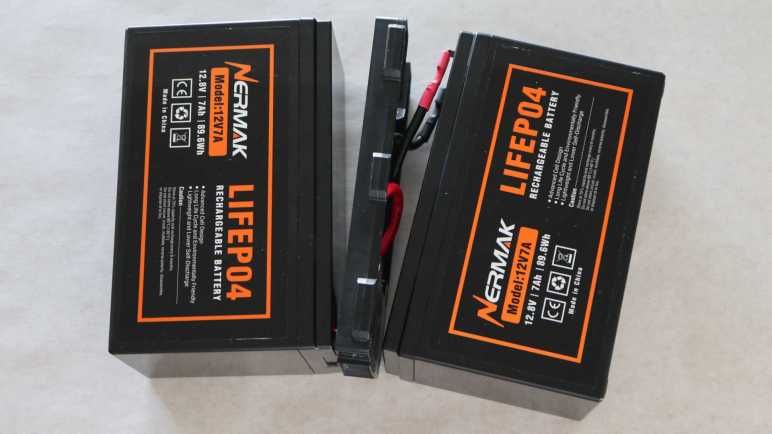
When I went shopping for new batteries to replace worn 7AH sealed lead-acid (SLA) batteries in my APC uninterruptible power supply (UPS), I saw listings for an interesting alternative: Lithium-iron phosphate batteries (LiFePO4 or LFP) packaged in the 7AH SLA form factor with a built-in battery protection circuit, advertised to be drop-in upgrades for systems designed to run on SLA batteries. They offer many advantages and cost more but, if they last longer, there’s a chance LFP batteries would be more economical long term. I thought it was worth a try and ordered a two-pack from the lowest Amazon bidder of the day. (*)

Here is the “before” picture, my worn APC RBC cartridge and the two 7AH SLA form factor LFP batteries I intend to upgrade to.

The APC cartridge is held together by front and rear sheets of adhesive-backed plastic. This unit didn’t peel as cleanly as the last time I did this, but came apart just the same. Under these label we can see they used Vision CP 1270 batteries, a different subcontractor from the previous batch.

After the front and back sheets of plastic were removed, both sets of connectors are easily accessible. I swapped out the batteries and reused the wire, connectors, and plastic bracket in between the batteries.

I weighed the batteries just for curiosity’s sake. Each 7AH SLA battery weighed 2072 grams, more than double the 940 grams of their LFP counterpart.

I’m sure these terminal connectors are only rated for a limited number of plug-unplug cycles, but here I’m only up to two cycles so I should be OK. If these ever start causing problems, there are vendors selling just the center parts (*) for people who want to build RBC-compatible cartridges from scratch.

After verifying voltage and polarity of the output terminals, I was satisfied this upgraded cartridge is electrically sound and proceeded to mechanical structural integrity. I don’t have the big fancy sheets of adhesive-backed plastic, but I do have a roll of clear packing tape that should suffice.

Everything seemed fine when I plugged it in. These batteries shipped only partially charged so I left the UPS plugged in for 24 hours to give it plenty of time to charge up to full. Or actually, the lead-acid standby voltage of 13.8V, which is less than full for these LFP batteries. But “less than full” was exactly what I wanted in the hope of prolonging their useful life. Despite this caveat I expect I’ll still get plenty of battery runtime out of this setup, an expectation that needs to be tested.


(*) Disclosure: As an Amazon Associate I earn from qualifying purchases.