Taking Another Look at BeagleBone

I like the idea behind BeagleBone boards, a series of embedded Linux devices. BeagleBone hardware are built around modules from Octavo Systems, which are designed for easy of integration into custom embedded hardware. BeagleBone are merely one of many Octavo-based devices, but (as far as I know) the only one focused on building an easy on-ramp for learning and hobbyist use. From that aspect they resemble the Raspberry Pi lineup, but sadly they have not found the same degree of success.

One advantage of a BeagleBoard are the onboard LEDs available for experimentation. A Raspberry Pi has onboard LEDs as well, but they already have jobs indicating power and microSD activity and it takes work to reallocate them for a quick experiment. But my favorite BeagleBone advantage is a power button for graceful shutdowns, something that’s always been missing from the Pi since the first version. Even though they are now on the Pi 4, the Raspberry Pi foundation seems uninterested in solving this problem. I’ve read claims that SD corruption from ungraceful shutdowns are rare, but it still makes me grumpy.

I personally own two BeagleBone devices. The first was a PocketBeagle I bought with the intention of taking the E-ALE (Embedded Apprentice Linux Engineer) course that premiered at SCaLE 16X. Unfortunately, between my lack of foundational knowledge and the rough nature of their first run, I didn’t absorb very much information from the course. But I still have the PocketBeagle and Bacon Bits cape that went with the course.

The second was a BeagleBone Blue that I bought after a conversation at SCaLE with Jason Krider, one of the people behind BeagleBone. He saw my Sawppy rover and told me about BeagleBone Blue which was designed with a focus on robotics. He asserted a Blue should be much more suitable for Sawppy than the Raspberry Pi I had been using. I ordered a board and, as soon as I took it out of the box, I knew I had a problem. The physical size of BeagleBone boards is designed to fit in an Altoids mint tin. In order to follow that precedence and cram onboard all the robotics-related output, the Blue used many fine-pitched connectors that aren’t in my usual toolkit of connectors. I looked into either paying for pre-made wiring bundles with the connectors already crimped, or tools to crimp my own, and balked at the cost. I decided to think it over, which stopped my momentum, and it’s been sitting ever since.

Which is a shame, because on paper these are nifty little devices! Now motivated by a local study session meetup, I decided to buy an eBook to help me get a better understanding of BeagleBone. I’m still not comfortable with public gatherings, but I can follow along at home as the study group went through chapters of Exploring BeagleBone, Second Edition by Derek Molloy.

Notes on “Open Circuits” by Eric Schlaepfer and Windell H. Oskay

I am interested in electronics, in teardowns, and in electronics teardowns. Thus I was the exact audience for a book coming out soon: Open Circuits by Eric Schlaepfer and Windell H. Oskay. I preordered directly from publisher No Starch Press, which also granted me access to an early access eBook. I’ve finished browsing through that PDF and loved every page of it. I look forward to having the print book in my hand.

I first became aware of these cutaways from Twitter, where author Eric Schlaepfer tweeted a few cross sections shot with a cell phone camera via @TubeTimeUS. Feedback was positive, encouraging Eric to repeat the same treatment for more components, improving the techniques as he went. Things got popular enough that a vocal subset of his new Twitter following got grumpy when he went back to his regular programming. (Paraphrasing his reply: “Come on, guys, this account isn’t @CrossSectionTimeUS.”) Still, people loved the cross-sections and some said “I would love to have these pictures in a coffee-table book.” Thus this book Open Circuits.

Every component cross-sectioned in the book is accompanied by a brief explanation of the component. Knowing what a component does and how its internals accomplish the objective helps give us context to understand what we see in the pictures. Sometimes there’s a diagram with subcomponents called out as a visual explanation augmenting the text description. I knew roughly what some of these components did, but most of them were new information for me. But even if I had known of a component, usually I hadn’t known what it looked like inside! Every page is a new discovery. Occasionally, I even recognized something that I’ve seen before. For example, I recognized a thermal switch as something I took out of a retired coffee maker but I wasn’t sure what it was until I saw one explained and cross-sectioned.

This book is aimed at people who want to know more about what happens behind the scenes, so naturally the book covered that as well: the afterword section describes the techniques that went into this book’s photography. From cutting and polishing of components, to cleaning and mounting, to the photography process. Starting with cameras and lenses, to macro photography, and finally focus stacking to compose the sharp pictures in the book.

If you’ve read this far, you will enjoy the book as well.


I earn nothing from endorsing this book, I just love it.

Radeon HD 7950 Video Card (MSI R7950-3GD5/OC BE)

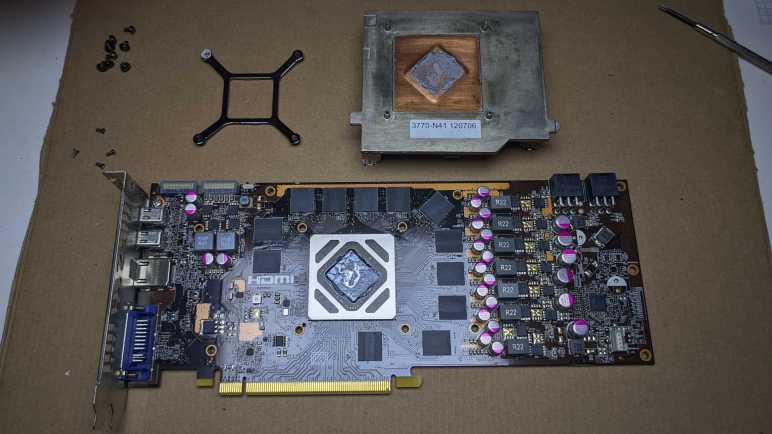
This video card built around a Radeon HD 7950 chip is roughly ten years old. It is so outdated, nobody would pay much for a used unit on eBay. Not even at the height of The Great GPU Shortage. I’ve been keeping it around as a representative for full sized, dual-slot PCIe video cards as I played with custom-built PC enclosures. But I now have other video cards that I can use for the purpose, so this nearly-teenager video card landed on the teardown bench.

Most of its exterior surface is covered by a plastic shroud, but the single fan intake is no longer representative of modern GPUs with two or three fans.

Towards the center of this board is a metal bracket for fastening a heat sink that accounted for most of the weight of this card. In the upper left corner are auxiliary PCIe power supply sockets. The circuit board has provision for a 6-pin connector adjacent to an 8-pin connector, even though only two 6-pin connectors are soldered to this board. Between those connectors and the GPU itself, I see six (possibly seven) sets of components. I infer these are power-handling parts working in parallel to feed a power-hungry chip.

This was my first 4K UHD capable video card, which I used via the mini-DisplayPort connectors on the right. As I recall, the HDMI port only supported up to 1080p Full HD and could not drive a 4K display. Finally, a DVI port supported all DVI capabilities (not all of them do): analog VGA on its DVI-A pins, plus dual-link DVI-D for driving larger displays. I don’t recall if the DVI-D plug could output 4K UHD, but I knew it went beyond 1080p Full HD by driving a 2560×1600 monitor.

The plastic shroud was held by six plastic screws to PCB and two machine screws to metal plate. Once those eight fasteners were removed, shroud came off easily. From here we get a better look at the PCIe auxiliary power connectors on the top right, and the seven sets of capacitors/inductors/etc. that work in parallel to handle power requirements of this chip.

Four small machine screws held the fan shroud to the heat sink. Fan label indicates this fan consumes up to 6 Watts (12V 0.5A) and I recall it can get move a lot of air at full blast. (Or at least, gets very loud trying.) It appears to be a four-wire fan which I only recently understood how to control if I wanted. Visible on the fan’s underside is a layer of fine dust that held on, despite a blast of compressed air I used to clean out dust bunnies before this teardown.

Some more dust had also clung on to these heat sink fins. It seems like a straightforward heat sink with stamped sheet metal fins on an aluminum base, no heat pipes like what we see on many modern GPUs. But if it is all aluminum, and there are no heat pipes, it should be lighter weight than it is.

Unfastening four machine screws from the X-shaped rear bracket allowed me to remove the heat sink, and now we can see the heat sink has a copper core for heat distribution. That explains the weight.

The GPU package is a high-density circuit board in its own right, hosting not just the GPU die itself but also a large collection of supporting components. Based on the repeated theme of power handling, I guess these little tan rectangles are surface mount capacitor arrays, but they might be something else.

Here’s a different angle taken after I cleaned up majority of thermal paste. An HD 7950 is a big silicon die sitting on a big package.

When I cleaned all thermal paste off the heatsink, I was surprised at its contact surface. It seems to be the direct casting mold surface texture with no post-processing. For CPU heatsinks, I usually see a precision machined flat surface, either milling or grinding. Low-power/low-cost devices may skip such treatment for their heatsinks, but I don’t consider this GPU as either low power or low cost. I know this GPU dissipated heat on par with a CPU, yet there was no effort for a precision flat surface to maximize heat transfer.

I think this is a promising module for reuse. Though in addition to the lack of precision flat surface, there’s another problem that the copper core is slightly recessed. The easiest scenario for reuse is to find something that sticks up ~2mm above its surrounding components, but not by more than the 45x45mm footprint of this GPU. This physical shape complicates my top two ideas for reuse: (1) absolute overkill cooling for a Raspberry Pi, or (2) retrofit active cooling to the passively-cooled HP Split X2. If I were to undertake either project, I’d have to add shims or figure out how to remove some of the surrounding aluminum.

Solar Powered Dancing Duck

A small solar cell doesn’t get much power with indoor lighting. As far as consumer electronics go, I haven’t seen much beyond a solar-powered desktop calculator. I had thought there’d never be enough power for an indoor solar mechanical device, but a few years back little solar-powered pendulum toys started showing up. I usually see them as little waving cats (maneki-neko) like the teardown and analysis posted to Hackaday.

This device is a variation of the same basic idea. Instead of waving a cat’s arm, the pendulum swings the body. An additional sophistication in this design is a second linkage that swings the head in the opposite direction of the body, creating a dancing duck. It was purchased for a buck and a half from Daiso Japan, so we’re looking at something produced for raw material cost somewhere a quarter (if even that much.) It was an impulse buy and wasn’t expected to last very long, but it actually ran for years before suffering mechanical issues and frequently getting stuck. It was then moved to a window ledge, where it could occasionally swing its head and hips under power of direct sunlight. But the sun that gave it a second life also took away its shine: brightly colored plastic started fading rapidly and became brittle. Finally, an unfortunate fall from that window ledge ended this duck’s performance career.

Poor duck broke its neck in the fall. The neck linkage was lost, but we can see the head’s pivot point inside the neck, where plastic shaded from direct sun is a visibly more vibrant shade of yellow.

I think the bottom of the base was originally glued in place, but that glue has weakened with age (or sun) and could be easily pried apart.

A small solar cell feeds into a circuit board, home to just two components: an electrolytic capacitor and a chip under a blob of epoxy. A coil wound from super fine copper wires is attached to this board as well. As explained in the Hackaday link above, this coil is both input and output: for sensing position of the magnet and for creating a magnetic field to boost the magnet’s swing.

The coil looked off-center, so I broke off the rear side of the base and reinstalled it to verify the coil is indeed off center when the magnetic pendulum (black plastic with black magnet on the bottom) is at rest. There is only about a millimeter of air between the coil and the magnet, a much closer distance than found in the cat mentioned in the Hackaday post.

This old dancing duck has a bit of arthritis and could not self-start under indoor light. I gave the pendulum a small tap and it started rocking but halted again after a few seconds. We can see the problem in the pivot point, which was designed to minimize friction. The pendulum axle has a triangular profile, so only a tiny sharp point touches the circular hole in the base. Years of dancing in the sun has worn both components. The triangular wedge’s sharp edge has been rounded off, and the hole perimeter is no longer circular. Together these two parts presented too much friction for the pendulum to overcome.

Daiso has long since stopped carrying this device, and I had no luck finding an exact replacement. There is no shortage of solar-powered dancing ducks for sale, but they all looked different from this cute little thing. Some are the opposite of cute, and a few looked downright scary! I have to say goodbye to this dancing duck now, it gave its all for dance and was quite an entertaining $1.50 spent.

Fundraising Keychain LED Flashlight

Sometimes an organization will send a little gift in the mail accompanying a plea for donation. These small tokens are sent as a psychological tactic to generate a return that far outweigh their low cost. I’ve received things like address stickers, notepads, and the occasional calendar. And now, I can add “keychain LED flashlight” to the list.

This item was included in a request to donate to Doctors without Borders, a well-respected organization well worth donating more money to. Whether they sent me a keychain flashlight or not. But it is on the teardown bench because I’m curious about the implementation details of a freebie giveaway that must have been designed for the lowest possible cost.

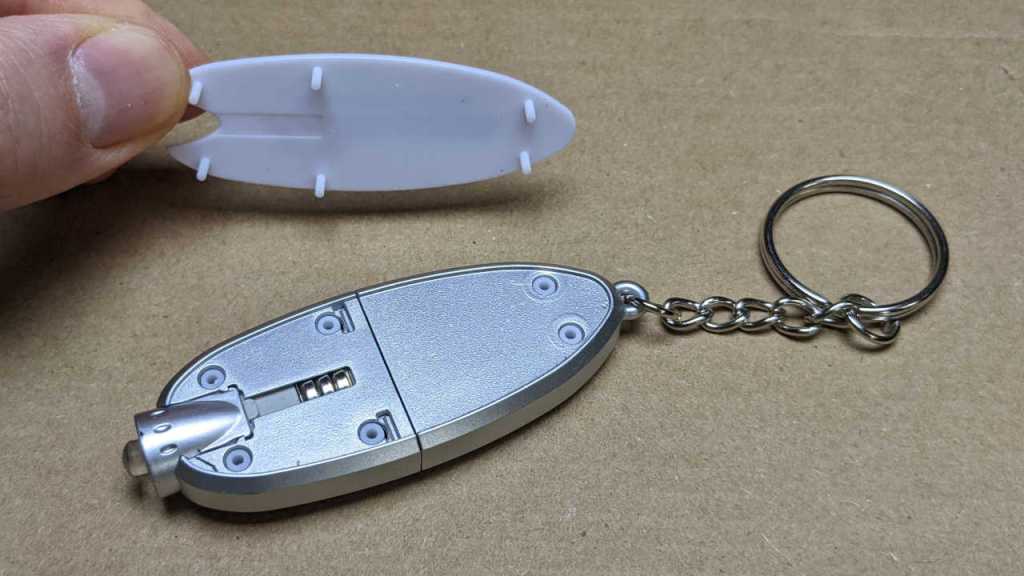
A power switch slider illuminates the commodity 5mm white LED. Judging by the exterior, I expect to find a LED and a coin cell battery inside, based on the width probably a CR2032 or CR2035. The power switch would have been designed to open/close the circuit with minimal parts. I see a seam on the side of the device, so the silvery plastic body must consist of at least two pieces. The switch would be the third silvery plastic piece. White plastic on top and bottom may be two pieces or a single piece. So not counting the keychain itself, I expected five pieces of plastic plus the LED and coin cell for seven parts.

My expectations were proven wrong as soon as I removed the first piece. White pieces top and bottom were indeed separate pieces, held together in a friction fit. A good friction fit requires tight tolerances which costs money. I had expected cheaper loose tolerances which would have meant holding things together with glue, but this wasn’t glued together.

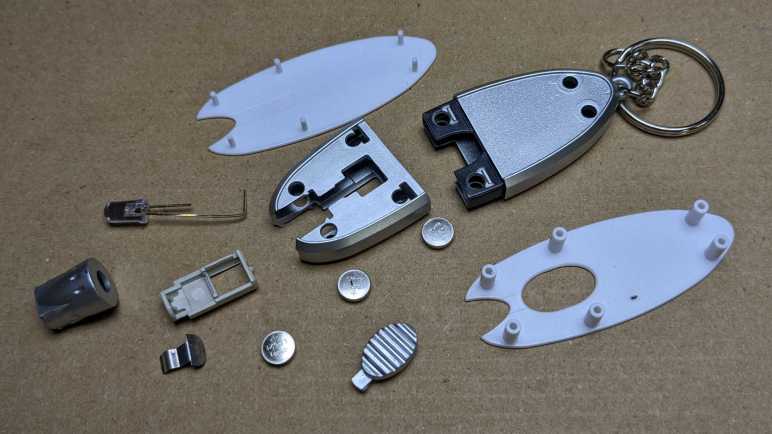
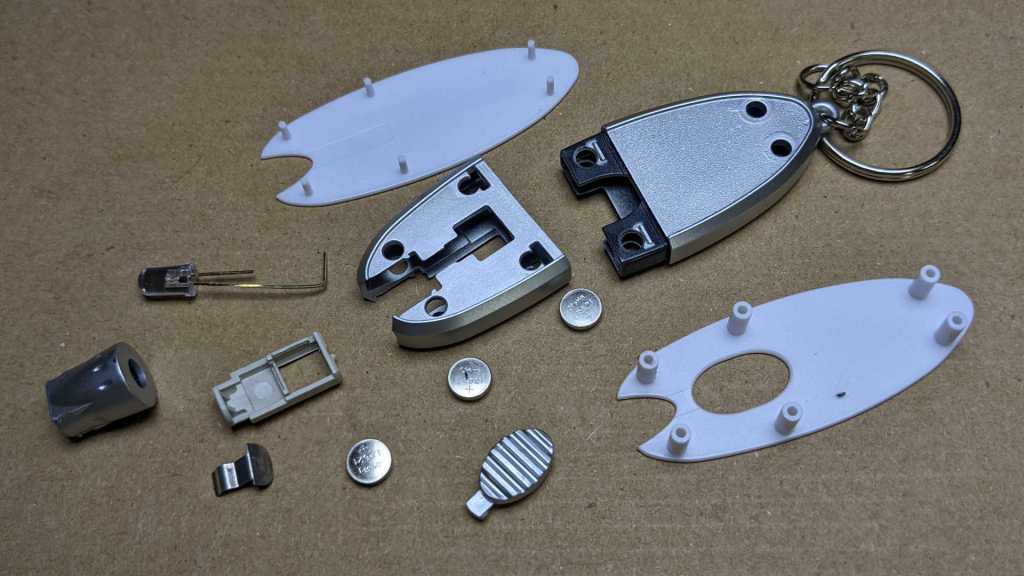
Once I removed top and bottom white plastic pieces, rest of the flashlight was easily disassembled. Power comes from a trio of tiny LR621 coin cell batteries, not the single CR2035 I expected. As a result, there was more empty space inside than I had expected including an empty rear cavity that is big enough to hide a microSD card or three. The power switch was indeed a clever mechanism, but it required an extra piece of metal that I thought it might have done without.

This little LED flashlight was indeed an extremely simple and low-cost device, just not quite as simple or low cost as I had thought it would be. Nice to see my assumptions proven wrong.

Disable Sleep on a Laptop Acting as Server

I’ve played with different ways to install and run Home Assistant. At the moment my home instance is running as a virtual machine inside KVM hypervisor. The physical machine is a refurbished Dell Latitude E6230 running Ubuntu Desktop 22.04. Even though it will be running as a server, I installed the desktop edition for access to tools like Virtual Machine Manager. But there’s a downside to installing the desktop edition for server use: I did not want battery-saving features like suspend and sleep.

When I chose to use an old laptop like a server, I had thought its built-in battery would be useful in case of power failure. But I hadn’t tested that hypothesis until now. Roughly twenty minutes after I unplugged the laptop, it went to sleep. D’oh! The machine still reported 95% of battery capacity, but I couldn’t use that capacity as backup power.

The Ubuntu “Settings” user interface was disappointingly useless for this purpose, with no obvious ability to disable sleep when on battery power. Generally speaking, the revamped “Settings” of Ubuntu 22 has been cleaned up and now has fewer settings cluttering up all those menus. I could see this as a well-meaning effort to make Ubuntu less intimidating to beginners, but right now it’s annoying because I can’t do what I want. To the web search engines!

Looking for command-line tools to change Ubuntu power saving settings brought me to many pages with outdated information that no longer applied to Ubuntu 22. My path to success started with this forum thread on Linux.org. It pointed to this page on linux-tips.us. It has a lot of ads, but it also had applicable information: systemd targets. The page listed four potentially applicable targets:

  • suspend.target
  • sleep.target
  • hibernate.target
  • hybrid-sleep.target

Using “systemctl status” I could check which of those were triggered when my laptop went to sleep.

$ systemctl status suspend.target
○ suspend.target - Suspend
     Loaded: loaded (/lib/systemd/system/suspend.target; static)
     Active: inactive (dead)
       Docs: man:systemd.special(7)

Jul 21 22:58:32 dellhost systemd[1]: Reached target Suspend.
Jul 21 22:58:32 dellhost systemd[1]: Stopped target Suspend.
$ systemctl status sleep.target
○ sleep.target
     Loaded: masked (Reason: Unit sleep.target is masked.)
     Active: inactive (dead) since Thu 2022-07-21 22:58:32 PDT; 11h ago

Jul 21 22:54:41 dellhost systemd[1]: Reached target Sleep.
Jul 21 22:58:32 dellhost systemd[1]: Stopped target Sleep.
$ systemctl status hibernate.target
○ hibernate.target - System Hibernation
     Loaded: loaded (/lib/systemd/system/hibernate.target; static)
     Active: inactive (dead)
       Docs: man:systemd.special(7)
$ systemctl status hybrid-sleep.target
○ hybrid-sleep.target - Hybrid Suspend+Hibernate
     Loaded: loaded (/lib/systemd/system/hybrid-sleep.target; static)
     Active: inactive (dead)
       Docs: man:systemd.special(7)

Looks like my laptop reached the “Sleep” then “Suspend” targets, so I’ll disable those two.

$ sudo systemctl mask sleep.target
Created symlink /etc/systemd/system/sleep.target → /dev/null.
$ sudo systemctl mask suspend.target
Created symlink /etc/systemd/system/suspend.target → /dev/null.

After they were masked, the laptop was willing to use most of its battery capacity instead of just a tiny sliver. This should be good for several hours, but what happens after that? When the battery is almost empty, I want the computer to go into hibernation instead of dying unpredictably and possibly in a bad state. This is why I left hibernation.target alone, but I wanted to do more for battery health. I didn’t want to drain the battery all the way to near-empty, and this thread on AskUbuntu led me to /etc/UPower/UPower.conf which dictates what battery levels will trigger hibernation. I raised the levels so the battery shouldn’t be drained much past 15%.

# Defaults:
# PercentageLow=20
# PercentageCritical=5
# PercentageAction=2
PercentageLow=25
PercentageCritical=20
PercentageAction=15

The UPower service needs to be restarted to pick up those changes.

$ sudo systemctl restart upower.service

Alas, that did not have the effect I hoped it would. Leaving the cord unplugged, the battery dropped straight past 15% and did not go into hibernation. The percentage dropped faster and faster as it went lower, too. Indication that the battery is not in great shape, or at least mismatched with what its management system thought it should be doing.

$ upower -i /org/freedesktop/UPower/devices/battery_BAT0
  native-path:          BAT0
  vendor:               DP-SDI56
  model:                DELL YJNKK18
  serial:               1
  power supply:         yes
  updated:              Fri 22 Jul 2022 03:31:00 PM PDT (9 seconds ago)
  has history:          yes
  has statistics:       yes
  battery
    present:             yes
    rechargeable:        yes
    state:               discharging
    warning-level:       action
    energy:              3.2079 Wh
    energy-empty:        0 Wh
    energy-full:         59.607 Wh
    energy-full-design:  57.72 Wh
    energy-rate:         10.1565 W
    voltage:             9.826 V
    charge-cycles:       N/A
    time to empty:       19.0 minutes
    percentage:          5%
    capacity:            100%
    technology:          lithium-ion
    icon-name:          'battery-caution-symbolic'

I kept it unplugged until it dropped to 2%, at which point the default PercentageAction behavior of PowerOff should have occurred. It did not, so I gave up on this round of testing and plugged the laptop back into its power cord. I’ll have to come back later to figure out why this didn’t work but, hey, at least this old thing was able to run 5 hours and 15 minutes on battery.

And finally: this laptop will be left plugged in most of the time, so it would be nice to limit charging to no more than 80% of capacity to reduce battery wear. I’m OK with 20% reduction in battery runtime. I’m mostly concerned about brief blinks of power of a few minutes. A power failure of 4 hours instead of 5 makes little difference. I have seen “battery charge limit” as an option in the BIOS settings of my newer Dell laptops, but not this old laptop. And unfortunately, it does not appear possible to accomplish this strictly in Ubuntu software without hardware support. That thread did describe an intriguing option, however: dig into the cable to pull out Dell power supply communication wire and hook it up to a switch. When that wire is connected, everything should work as it does today. But when disconnected, some Dell laptops will run on AC power but not charge its battery. I could rig up some sort of external hardware to keep battery level around 75-80%. That would also be a project for another day.

First Run with DS18B20 Temperature Sensor

I have a revised bedside fan (now with integrated LED illumination) up and running, and now it needs a temperature sensor. The goal is so I could automate turning off the fan once things cool down. My previous attempt used a TMP36 sensor that reported results as an analog voltage level. The results made me feel it was not a good fit with ESP8266 ADC peripheral. I don’t blame Espressif, it’s just a matter of different ADC designed for different usage requirements.

As an alternative to TMP36, I wanted to try a sensor that has its own integrated analog circuitry designed for the purpose and reported measurements via a digital communication protocol. Between what I could find in how-to guides and listed by vendors competing on price, I found my next candidate to be Maxim Semiconductor DS18B20 1-Wire Digital Thermometer. Another point in favor of this sensor is that it is frequently sold already packaged in a waterproof enclosure and a length of wire. This helps me place the sensor far enough away to avoid the heat generated by a running ESP8266. The lowest-bidder of the day sold them in a multipack of 15 (*) so that’s what I bought.

When I read through the DS18B20 datasheet, I was a little wary of its “1-Wire” data bus because I wasn’t sure I wanted to spend the time to implement another protocol. But I need not have worried: I only planned to use it with an ESP8266 running ESPHome, and somebody has already integrated the code to use these sensors.

The hardware side was simple: red wire to 3.3V, black wire to ground, and yellow wire to an ESP8266 pin. The only catch is that 1-Wire protocol requires a 4.7kΩ pull-up resistor so the chosen ESP8266 pin must be able to tolerate one. On my first try, I connected the data wire to Wemos D1 Mini pin D8 a.k.a. ESP8266 GPIO15 out of convenience. (It was easy to lay out on my circuit board.) Naturally Murphy’s Law ensured that I chose the pin that, if pulled high, would prevent an ESP8266 from booting. I had to move the data wire (and the pull-up resistor) to another pin before things would run. And now that it’s up and running, I think leveraging an Arduino library to read digital messages of DS18B20 measurement is preferable to using ESP8266 ADC to read TMP36 sensor voltage. Not to mention the convenience of having the sensor already encased and connected to a length of wire. This will be my go-to temperature sensor until I find a reason to try another.


(*) Disclosure: As an Amazon Associate I earn from qualifying purchases.

Bedside Fan and Light V2

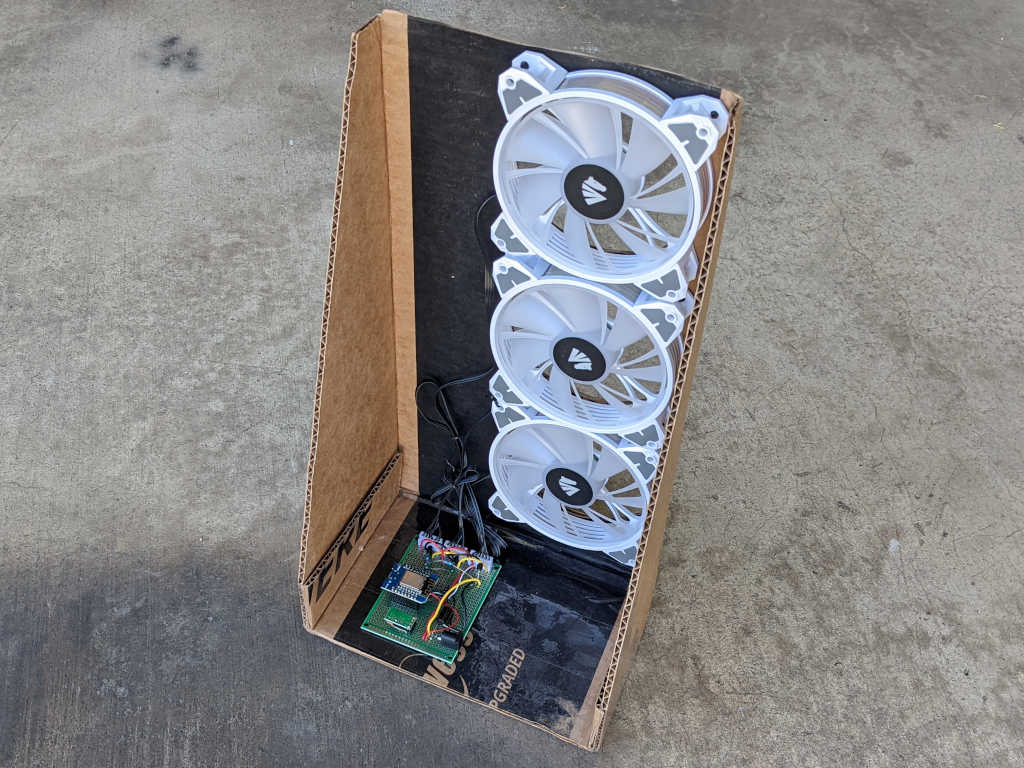
I took apart the Asiahorse Magic-i 120 V2 control hub and remote because I didn’t need them anymore: I could control its trio of fans with my own circuit board. How shall I wield such power? It was fun playing with 3D coordinate mapping with a Pixelblaze, but my most immediate need is a lot less exciting: combination bedside fan and light to replace my first bedside fan project. (Which didn’t have a light.)

For such a simple use, the power of a Pixelblaze is overkill. So, my board was modified to use an ESP8266 (Wemos D1 Mini module) as its brain, running ESPHome for integration with Home Assistant. In the Pixelblaze demo, the fans were always on. Now they will be controlled by that ESP8266 as well.

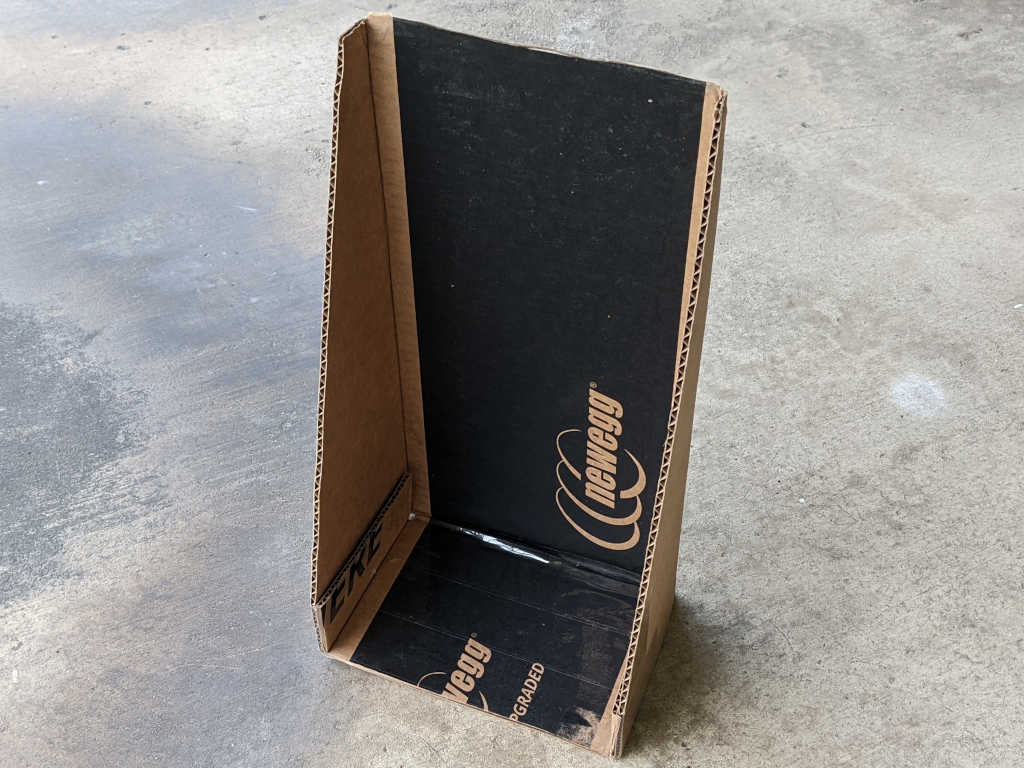
I’m still not settled enough on the idea to spend the time designing and 3D printing a proper frame, but at least I’ve put a bit more effort into this cardboard creation. I’m reusing a corner of a Newegg shipping box (I think it was the very box used to ship the Asiahorse fan bundle) and I’ve turned it inside out so at least I don’t have to stare at the Newegg logo every time I’m in bed.

Three large holes, one per fan, was cut from that cardboard for airflow. Twelve more holes, four per fan, were drilled into the cardboard for fan mounting screws. The physical assembly came together quickly, but there were a few more hiccups.

First problem was that FastLED, the addressable LED Arduino library used by ESPHome, is not compatible with the latest Arduino 3 framework at the time of this writing. Relevant ESPHome documentation page listed the issues as 1264 and 1322 filed against FastLED Github repository. Until they are resolved, ESPHome offers a workaround for compiling against Arduino framework 2.7.4. Which is what I did to run these WS2812 LEDs. For the first draft, I’m not going to use the addressable nature at all, just a single solid color. I think it would be cool to have a falling waterfall pattern on these lights, but that’ll be experimentation for later.

The second problem is that PWM control of fan speed results in an audible whine, probably an 1kHz whine which is the practical maximum speed for ESP8266 software PWM. The previous fan project removed the audible whine by adding a capacitor to smooth out voltage output. I could do that again, one capacitor per fan, but these fans run quietly enough at full speed I’m willing to skip PWM and have just on/off control.

The final problem is that I still want this fan to be responsive to temperature changes, turn itself off in the middle of the night when it got cool enough. I wasn’t happy with the TMP36 sensor I bought for the previous experiment, so now I’m going to try another sensor: the DS18B20.

RGB LED Fan Hub and Remote (Asiahorse Magic-i 120 V2)

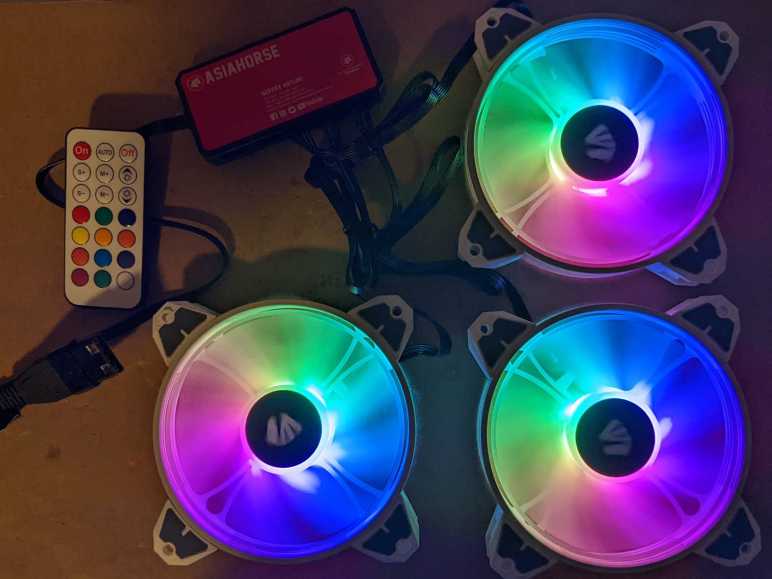
I bought the Asiahorse Magic-i 120 V2 package from Newegg, which bundled three 120mm fans with embedded RGB LEDs with a hub and a remote to control those LEDs. Now that I have successfully created a control circuit for my own independent control of those fans and their LEDs, I no longer have any use for the hub and remote.

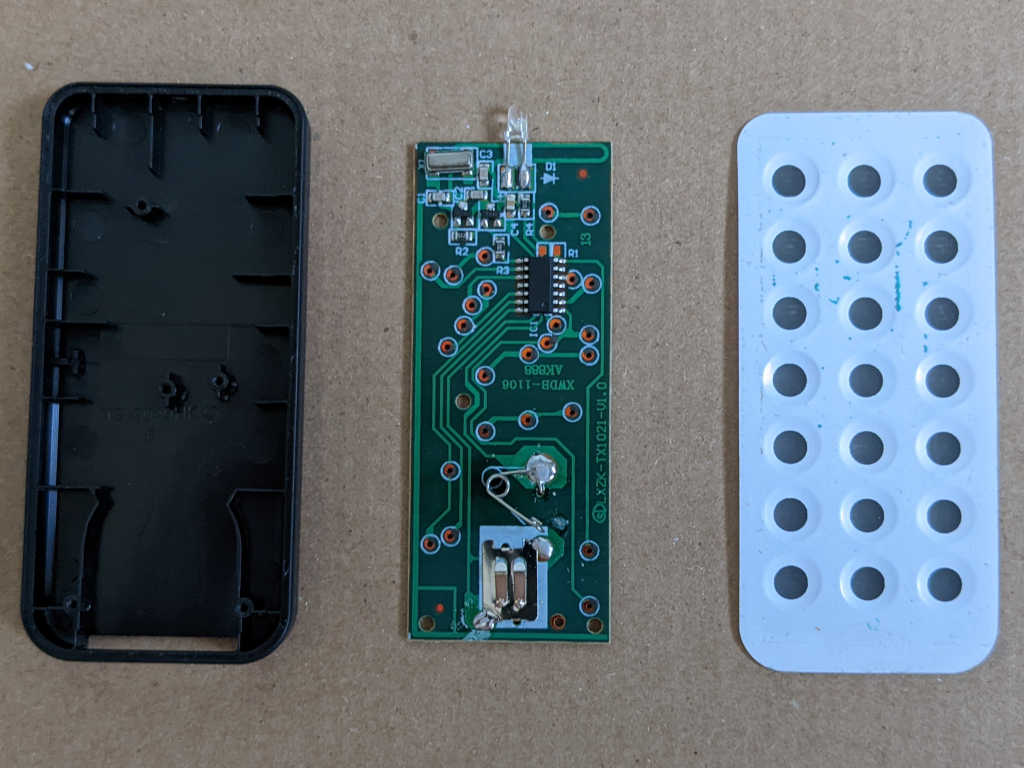
The remote has an array of 21 membrane buttons. Across the top, we can turn the LEDs “On” and “Off”. “Auto” will start running an animated pattern. Just below the “Off” button are brightness controls. S+ / S- controls the speed for animations, and M+ / M – cycles through different animated patterns. Bottom 12 buttons will show the selected solid color.

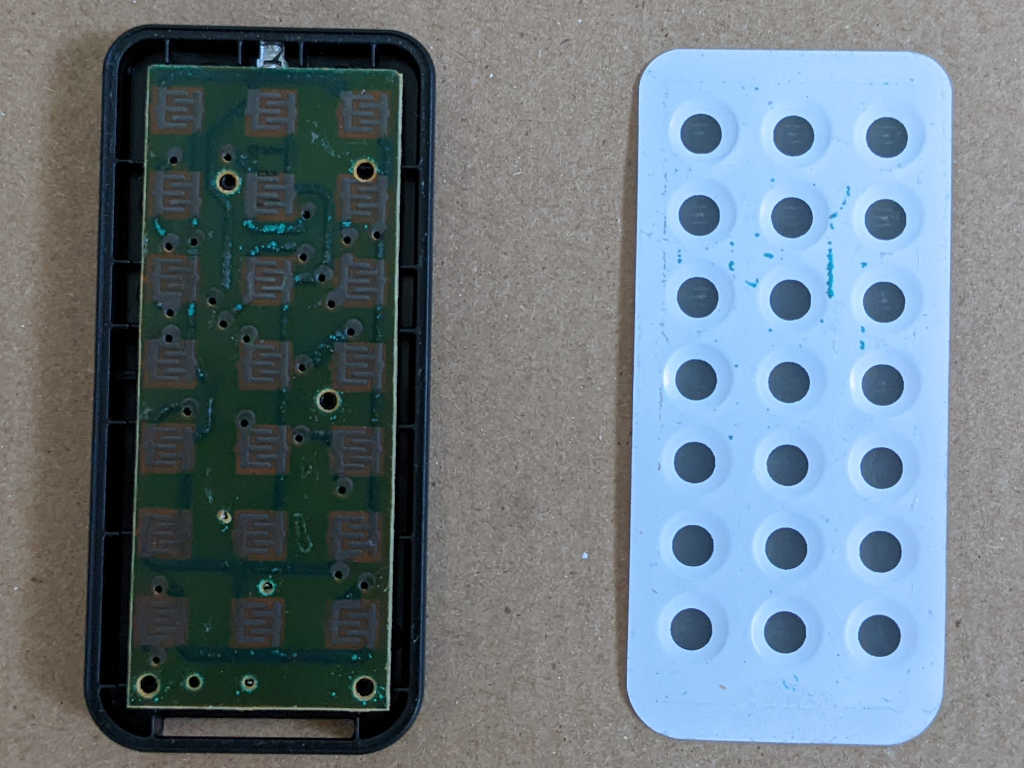
Top membrane is held on with moderately strong adhesive that could be peeled off, exposing the less interesting side of its circuit board.

Flipping the board over showed a single chip with its support components. There were no visible markings on the chip. Battery contact springs are at the bottom, the top features an infrared remote control LED emitter, and a few passive components in between.

After disassembling the remote, I started on the hub.

There were no exposed fasteners top or bottom. I pushed on the bottom sticker and felt the corners move.

The bottom sticker is glued on more tenaciously than the remote membrane keyboard and refused to come off cleanly. But at least those four Philips head fasteners are now exposed.

Not much to see on the bottom.

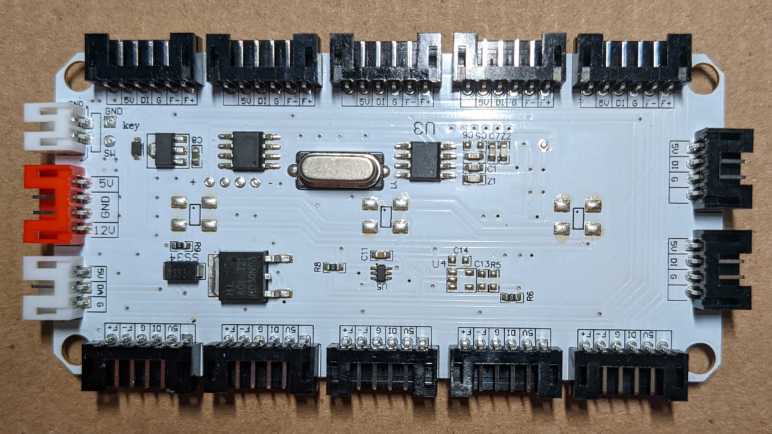
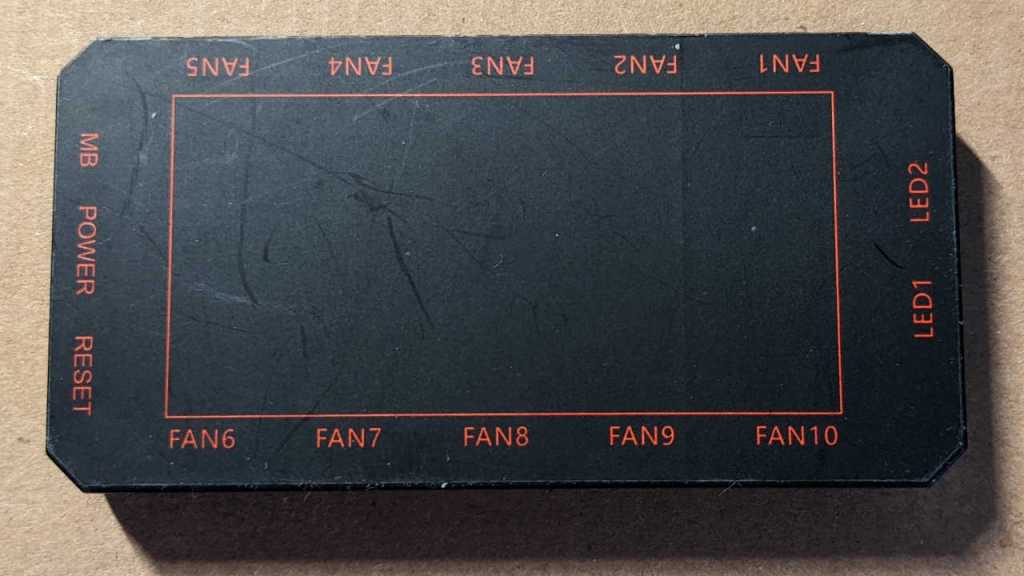
Flipping the circuit board over exposed… not many more chips than the remote. Most of the surface area are consumed by connectors all around the perimeter, and traces to connect them.

I’m glad to see fan connector pin labels are consistent with my reverse-engineered pinout table. A large component on this board appears to be a power transistor. I probed its pins and one of them is connected to all “F-” pins, so it is present for fan control. There are three sets of unused pads across the middle, provision for WS2812 LEDs wired in parallel with the fans. These three are chained together, left-to-right, with the leftmost LED receiving the same “DI” (data input) as all fans. When present, these three LEDs would act identically to first 3 out of 12 LEDs on board each fan.

There were a few other unpopulated pads on this circuit board, but there is one part I found fascinating for its absence: an infrared receiver like the one I found in a Roku. I don’t see one, and I don’t see solder pad provision for one. How could the hub receive IR remote signals without one? I know the remote and hub works together, so does this mean they communicate by radio frequency instead of infrared? I don’t know enough about RF circuits to look for components that would implement such a thing. I had thought all RF devices sold in the United States are required to have an FCC ID printed on it, but none are visible. Perhaps certain unlicensed frequency bands are exempt from FCC ID requirement? Shrug, doesn’t matter to me anymore as I won’t be needing this remote or hub to put their associated fans to use.

Orthogonal Fans with Pixelblaze 3D Mapping

I have built a control board for a trio of affordable PC case fans, replacing their bundled control hub of this Asiahorse Magic-i 120 V2 system. With my board I can control individual RGB LED inside these fans with help of a Pixelblaze LED controller. My initial tests used simple built-in linear patterns, but I wanted to use patterns that take advantage of 3D coordinate mapping. This is my favorite part of Pixelblaze and a core part of my Glow Flow project.

To get a 3D structure out of three fans, I did the easiest and most expedient thing: orient them orthogonal to each other with a few twist-ties. Now every fan motor axis lines up with one of three axes in 3D space. I have a Pixelblaze 3D coordinate test program already in hand, the RGB-XYZ 3D Sweep program I created during Glow Flow. All I had to do was create a 3D coordinate map in my Pixelblaze to describe LED layout in three-dimensional space.

I opened up the Pixelblaze mapping editor and… immediately got stuck. Where, exactly, should I map these LEDs? Physically, they are surface mounted on the central hub. However, their light diffused by translucent fan blade plastic, no longer fixed to a single location but distributed across entire fan diameter. Should I map the LEDs where they are physically? Or fan blade outer perimeter? Or somewhere in between? There really isn’t one single location for resulting output of a single LED.

I decided to experiment by writing my mapping code so a single variable controls how far from the center each location is. When pixelRadius is zero, everything is at the center and not very interesting. When set to 0.5, everything is mapped to the perimeter. I adjusted this value until the pattern “looked right” and that ended up at 0.4. I’m not satisfied with the empirical nature of this value, but I haven’t figured out a better way to account for diffusion.

Another problem with these LEDs is that they weren’t placed with precise coordinates in mind. I think LEDs were laid out on the circuit board relative to wiring bundle location, which is slightly offset from one of the four mounting arms. As a result, the LEDs aren’t aligned to any reference point on the exterior. To use an analog clock face as example, these LEDs are evenly placed but slightly offset from the hour numbers. Instead of lined up at 12, 1, 2, 3. They are at 12:10, 1:10, 2:10, etc.

These fans are physically squares with side lengths of 120mm. They can be installed in one of four orientations that are 90 degrees from each other and be mechanically fine. I usually choose my orientation based on whichever makes the wiring most convenient. But whatever the motivation, my 3D coordinate map would have to compensate for the resulting rotation.

The answer for both of the above rotation compensation concerns is an array fanRotationCorrection. One value for each fan, a sum of physical and LED offset rotations (in radians) added into coordinate map angle calculation for that fan.

Here is the result of my 3D pixel map running my RGB-XYZ sweep test program:

Here is my Pixelblaze Pixel Mapper code. [UPDATE: I later noticed that I got my Z-axis backwards. Be aware that both the video embedded in the tweet and this pixel mapper code are known to be flawed. At least they’re consistent with each other!]

function(pixelCount) {
  pixelPerFan = 12;
  pixelRadius = 0.4;
  fanRotationCorrection = [0.65, 0.65, 0.65];

  var map = [];
  for (i = 0; i < pixelCount; i++) {
    var ledNumber = i % pixelPerFan;
    var ledRadians = ((ledNumber/pixelPerFan) * Math.PI * 2);

    if (i < pixelPerFan) {
      ledRadians += Math.PI*fanRotationCorrection[0]
      map.push([0, 0.5 + Math.cos(ledRadians)*pixelRadius, 0.5 - Math.sin(ledRadians)*pixelRadius]);
    } else if (i < pixelPerFan*2) {
      ledRadians += Math.PI*fanRotationCorrection[1]
      map.push([0.5 - Math.cos(ledRadians)*pixelRadius, 0, 0.5 - Math.sin(ledRadians)*pixelRadius]);
    } else if (i < pixelPerFan*3) {
      ledRadians += Math.PI*fanRotationCorrection[2]
      map.push([0.5 - Math.cos(ledRadians)*pixelRadius, 0.5 + Math.sin(ledRadians)*pixelRadius, 0]);
    } else {
      // Unexpected pixels are placed at origin
      map.push(0,0,0);
    }
  }
  return map;
}

My Asiahorse investigation results were also posted to Pixelblaze forums. And now that I have full and complete control over these fans, I no longer need the hub that came in the box.

Control Board for Asiahorse 120mm Fans with RGB LED

I have a trio of PC cooling fans with embedded addressable RGB LED. They were designed to plug into a control hub that came in the bundle, but that hub had only a limited set of patterns and appeared to send the same signal to all fans. In order to run my own light show and control each fan individually, I determined the fan pinout and will now build my own control board for these fans.

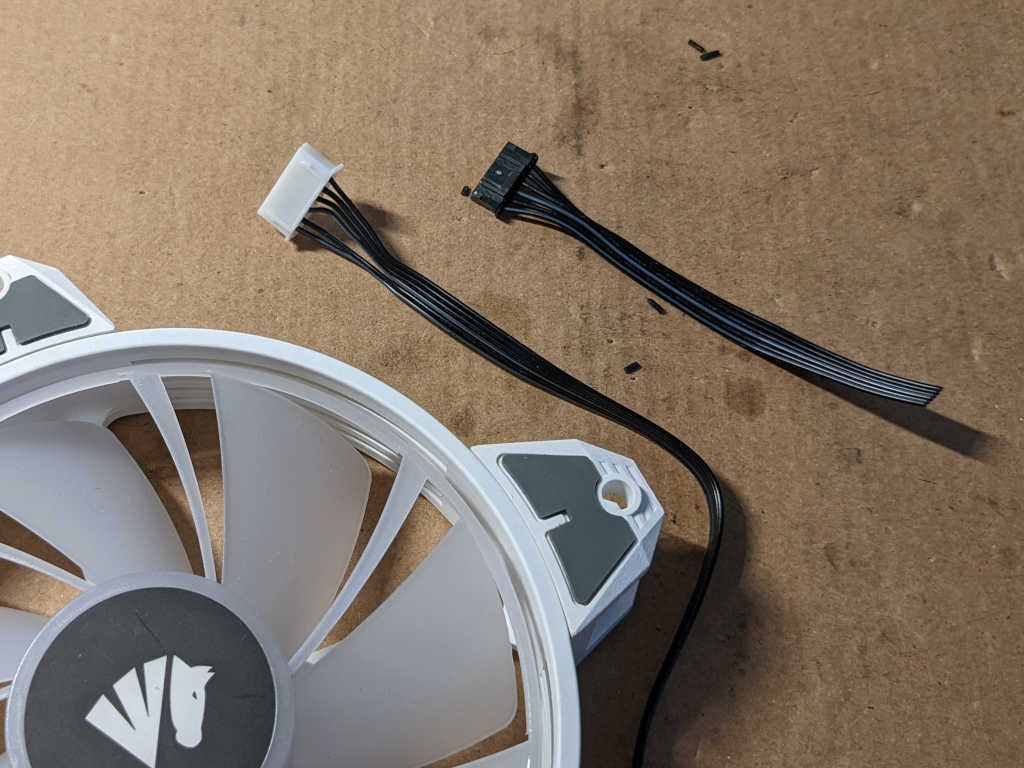
The first problem was wiring. These fans came with a JST-PH style plug with 2.0mm pitch. (Distance between pins.) My perforated prototype circuit boards (and most connectors and components on hand) have a pitch of 0.1″ (~2.54mm) and would not fit. To work around this problem today, I cut off the factory connector and crimped on a replacement. These are JST-XH clones(*) with 0.1″ pitch. In the future, I might consider buying some perforated prototype boards with 2.0mm pitch (*) but that would have the problem of using components with 0.1″ pitch. The real solution is to make my own circuit boards that can accommodate whatever pitch I need, but that’s beyond my reach at the moment.

To generate individual control signals for these fans, I will be using the very awesome Pixelblaze controller. For power I will be using one of my salvaged 12V DC power bricks. It is rated for up to 1.5A which should be sufficient for a trio of fans and 12*3 = 36 LEDs. The barrel jack has a 5.5mm outer diameter and 2.1mm inner diameter, so I soldered a matching power jack (*) to the board. This will deliver power for the fans, with a decoupling capacitor to smooth things out. A buck converter (*) with convenient 5V preset feeds from that 12V rail to deliver 5V for Pixelblaze and LEDs.

I soldered some 2N2222A transistors for potential control of fan speed, but for this first iteration they’re pulled high so the fans spin all the time. It would have been easier to solder fan motor low wire directly to ground, but I have ambition of fan control in a future update.

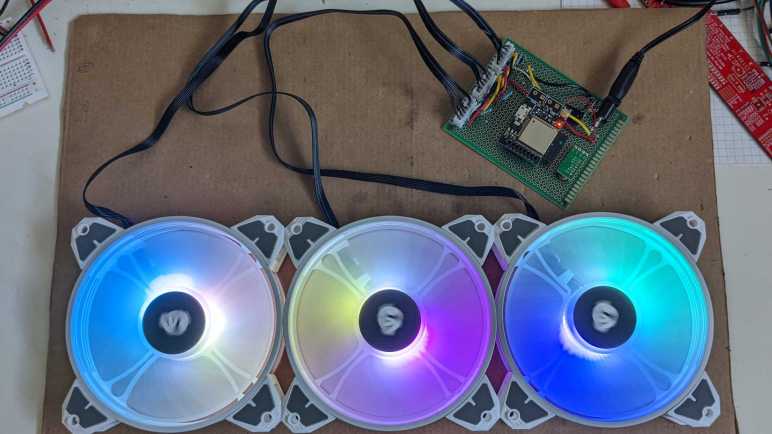
The LEDs are connected in serial across all three fans. Pixelblaze data is connected to “data in” of the first fan, whose “data out” is connected to “data in” of the second fan, and onwards to the third fan. Configured for 12*3 = 36 WS2812-style LEDs, the Pixelblaze has individual control of every LED with a single data line. And for the first time, these three fans show patterns different from each other. With this new power I can make things even more interesting.


(*) Disclosure: As an Amazon Associate I earn from qualifying purchases.

Pinout for Asiahorse 120mm Fan (Magic-i 120 V2)

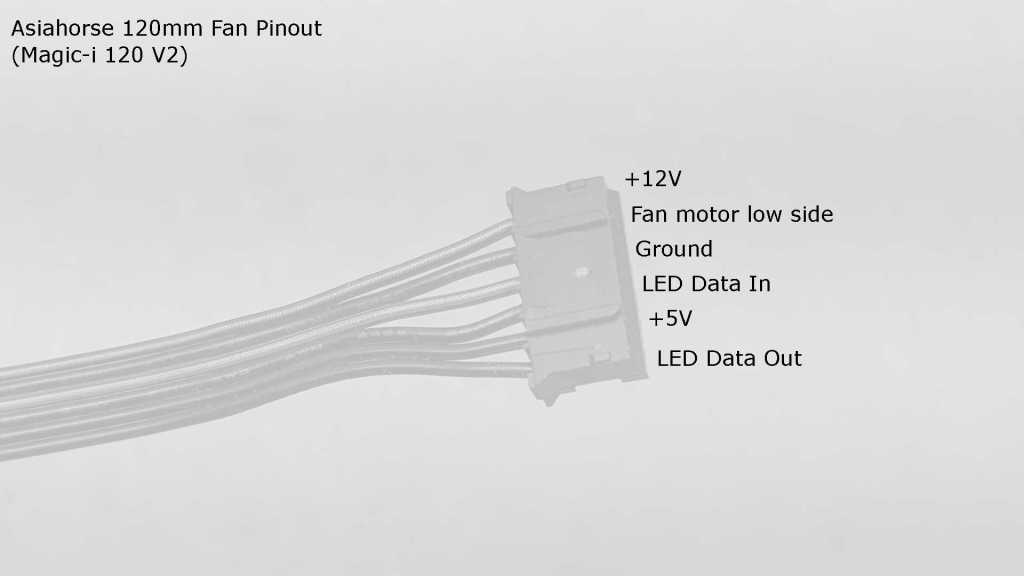
The Asiahorse Magic-i 120 V2 bundle included three 120mm cooling fans with integrated addressable RGB LEDs. These fans have a six-wire connector designed to be plugged into a hub that was included in the bundle, along with a remote control to change the light shown performed by those LEDs. Most users just need to plug those fans into the included hub, but some users like myself want to bypass the hub and control each fan directly. For this audience, I present the fan connector pinout derived from an exploratory session on my electronics workbench.

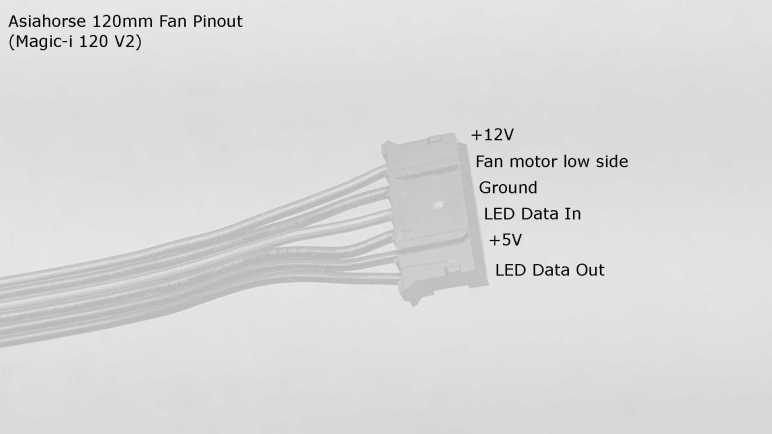
Since this was reverse engineered without original design documents, I don’t know which side is considered “pin #1” by the engineers who designed this system. These connectors appear to be JST-PH, whose datasheet does point to one side as “Circuit #1”. But there’s no guarantee the engineers followed JST convention. To avoid potential confusion, I’ll call them only by name.

NameSystemComments
+12VFanHigh side of fan motor. Hub connects this wire directly to +12V power input.
Motor LowFanLow side of fan motor. Use a power transistor between this wire and ground to control fan speed.
GroundFan + LEDPower return for LED circuit and can be used for fan motor low side as well. Hub connects this wire directly to power input ground.
Data InLEDInput control signal for addressable RGB LED. Compatible with WS2812/”NeoPixel” protocol.
+5VLEDPower for LED circuit. Hub connects this wire directly to +5V power input.
Data OutLEDControl signal for addressable RGB LED beyond the end of LED string inside the fan. Useful for chaining multiple units together by connecting this wire to Data In of the next device in line.

Now that I understand its pinout, I will build my own control circuit to replace the default Asiahorse hub.

Exploring 6-Wire Connector of Asiahorse Magic-i 120 V2

I was curious about PC accessories with embedded addressable RGB LED, so I bought the cheapest item available on Newegg that day. I have verified it works as originally intended, and now I’m going to dig deeper. This Asiahorse Magic-i 120 V2 is a three-pack of 120mm fans with integrated LEDs. All three fans plug into a hub that has a corresponding remote control for me to select from a list of programmed patterns. This bundle is fine if I’m satisfied with those patterns, but I want display patterns of my own.
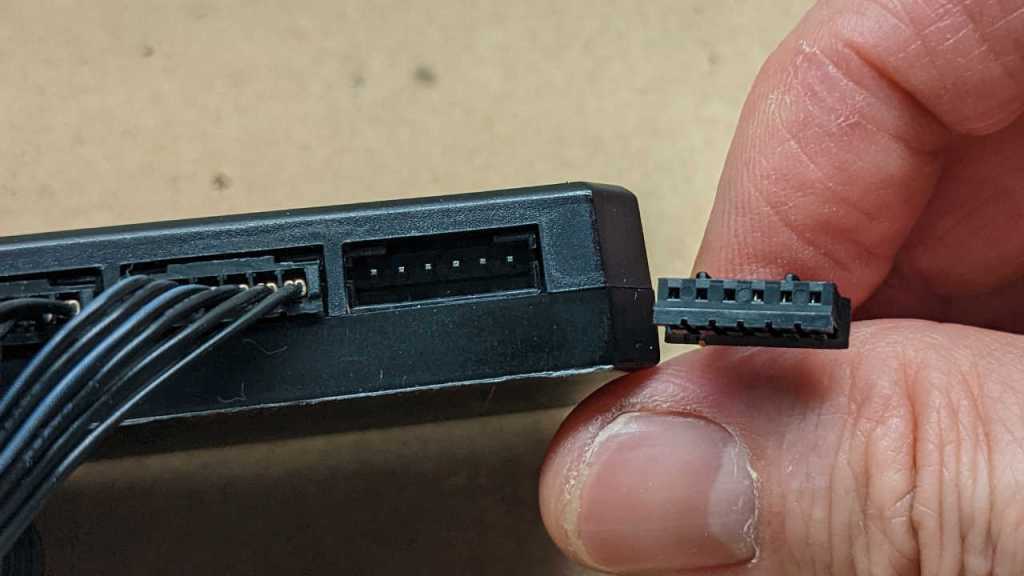
Each fan connects to the hub through this six-wire connector. The distance between each pin is 2mm. Judging by the pitch and physical appearance, I guess they are JST-PH or a clone. (I don’t have any 6-conductor JST-PH to verify.) This is mildly inconvenient because my workbench is setup to work with 0.1″ pitch (~2.54mm) connectors so it’s not very easy for me to probe those signals as-is.

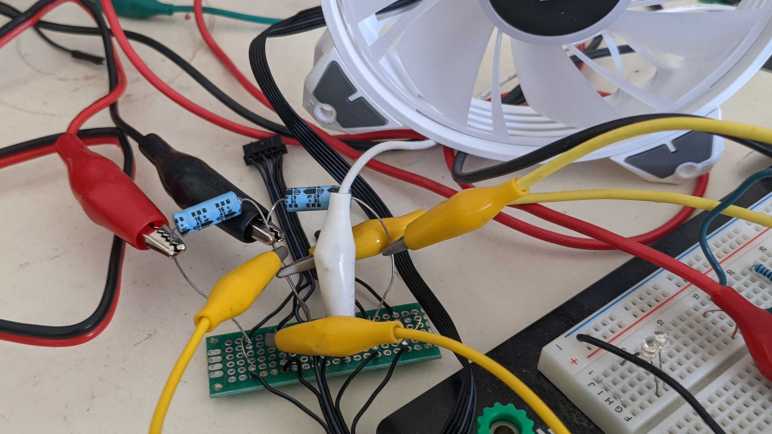
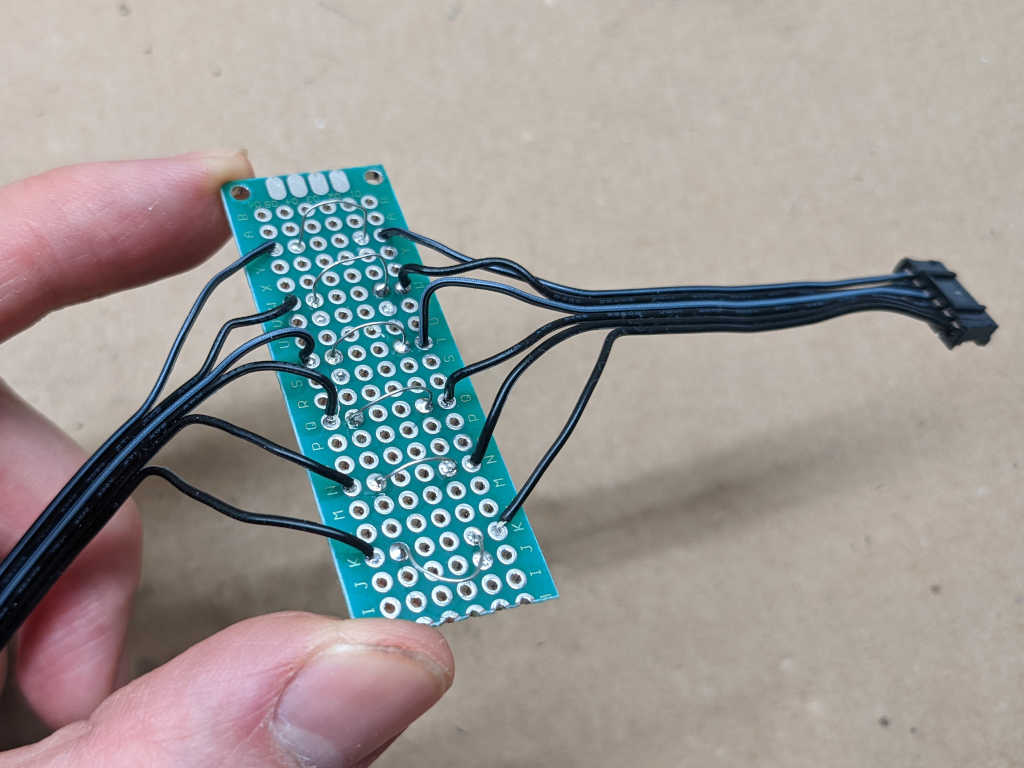
The solution is a quick soldering project to give me an exploration board. I cut the bundle of six wires and inserted a small piece of perforated prototype board. Each of the six wires are then bridged with an exposed length of solid wire, easy for me to clip probes onto.

Trying the easy thing first, I probed for continuity between these six wires and the power input wires. This gave me location for +12V source, +5V source, and ground. Armed with this information, I soldered capacitors to smooth out both power rails, because the AC adapter I’m using is designed for far higher wattage than a few LEDs and it’s not unusual for switching power supplies to be noisy at low power levels. (And the cheap ones are always noisy at all power levels…)

With three out of six wires identified for power, this left me with three more wires to decipher. Here are my candidates:

  • Fan control: it may be one (or none) of the following:
    • Fan motor high side: the fan may be internally connected to the ground wire, and the high side wire is left exposed here for external PWM or on/off control with a power transistor.
    • Fan motor low side: the same idea but reverse: fan motor is internally connected to +12V and the low side is exposed here for external PWM or on/off control with a power transistor.
    • Fan motor PWM: Neither of the above. Instead of leaving either high or low side unconnected for external power transistor, a suitable power transistor is built into the fan and controlled with a 25kHz PWM signal as used in 4-wire fans.
  • Fan tachometer like the type I found in 3-wire fans.
  • LED Data In: addressable RGB signal input.
  • LED Data Out: signal that has passed through the LED string inside this device and ready to be passed on to other LEDs in other devices down the chain.

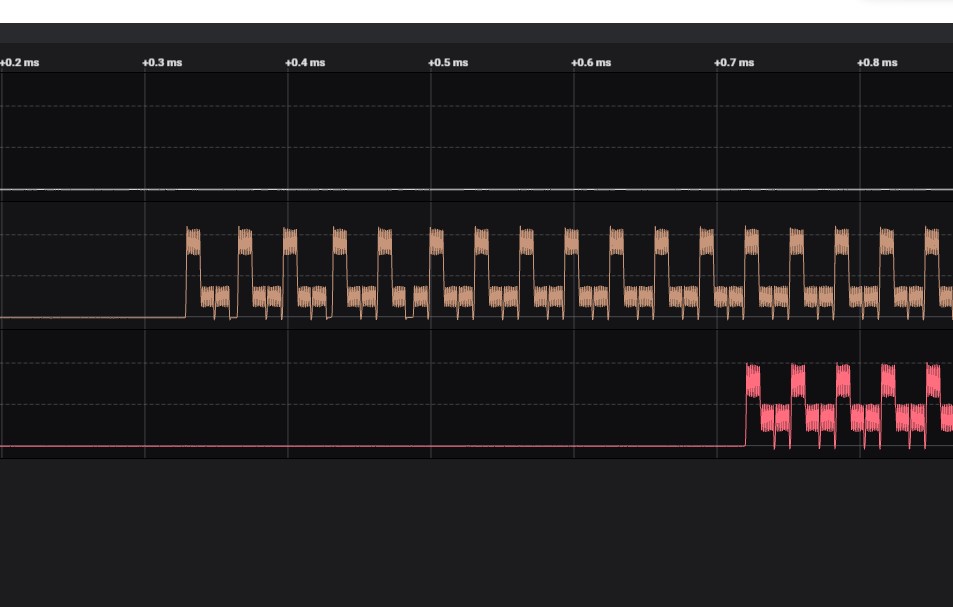
To decipher which wires are which of those candidate capabilities, I connected my Saleae Logic 8 to the three unknown wires. I started an analog waveform capture session and used the fan remote control to command that all fans show a solid green.

The top line in white stayed at 0V through the entire session. This may be the tachometer wire, or it may be fan motor low side. To determine which, I disconnected everything other than the +12V and ground wires. The fan did not move. I connected the wire corresponding to this white line to ground, and the fan started spinning. Conclusion: this wire is fan motor low side.

The middle line in brown shows a distinct repeating pattern. The bottom line in red shows the same repeating pattern, but delayed by 12 cycles. Since there are 12 LEDs in a fan, that means the middle brown line is LED Data In and the red line is LED Data Out.

To verify LED Data In, I connected +5V, ground, plus this wire to the data pin of a Pixelblaze. After I configured the Pixelblaze to emit control signal for a string of 12 x WS2812 (NeoPixel) LEDs, I saw them light up appropriately on the fan.

To verify LED Data Out, I connected it to the data input pin of an array of 64 WS2812 LEDs. I configured the Pixelblaze for 12 + 64 = 76 pixels. After colorful pixels cycle through the fan, they marched onwards to the array as appropriate for LED Data Out.

With these functions verified, I’m confident enough to describe this Asiahorse fan pinout.

Asiahorse Magic-i 120 V2

I wanted to play with a set of PC case cooling fans with embedded addressable RGB LEDs, with the intent of learning how to control them for a future project. For extra challenge, I got a multipack that combined both fan and LED controls into a single (probably proprietary) connector that plugged into a bundled hub. Using the selection criteria of “Lowest bidder of the day” I bought a three-pack of fans: the Asiahorse Magic-i 120 V2 and I look forward to seeing how it works.

Before I start cutting things up, I need to verify the product worked as originally designed. I won’t need a computer for this as this multipack came with a remote control for the hub that allows operation without a computer. This lets me explore its signals without the risk of damaging a computer. I just need to supply power in the 4-pin accessory format popular with pre-SATA hard drives and optical disks. I didn’t need a computer here, either, as I had an AC adapter with this plug that originally came in a kit that turned internal HDDs into USB HDDs.

There were no instructions in the box, but things were straightforward. Three fans plugged into the hub, and a power cable connected my AC adapter to the hub. As soon as I turned on the power, all three fans started spinning. The LED light show didn’t start until I pressed the “On” button on the remote.

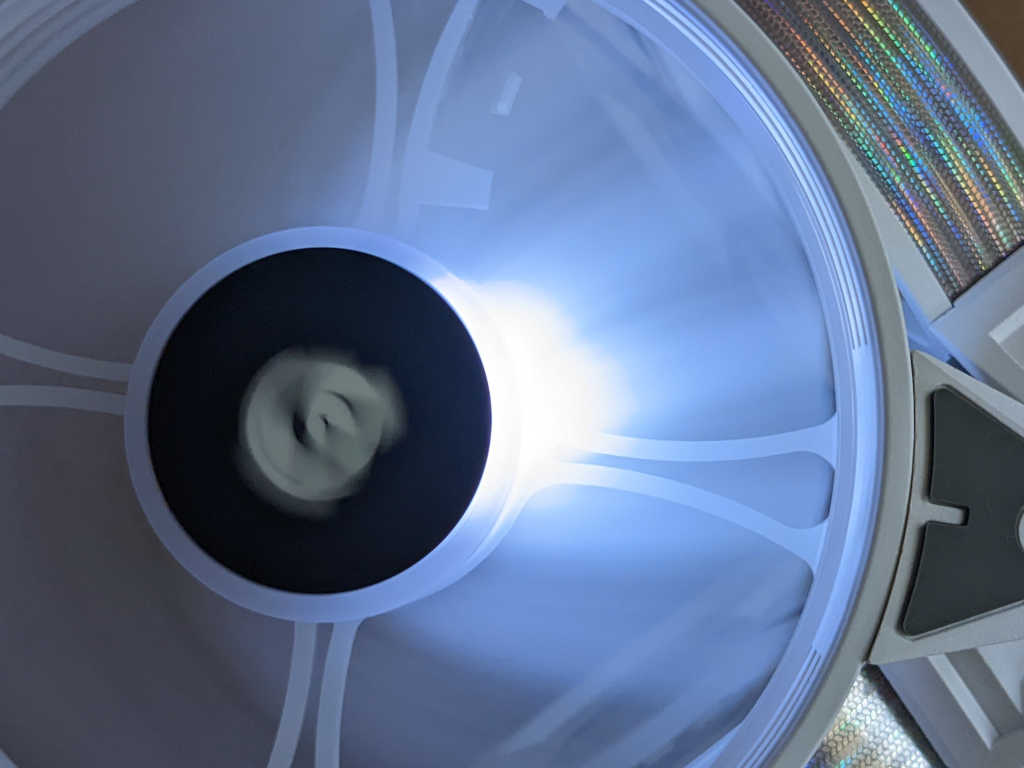
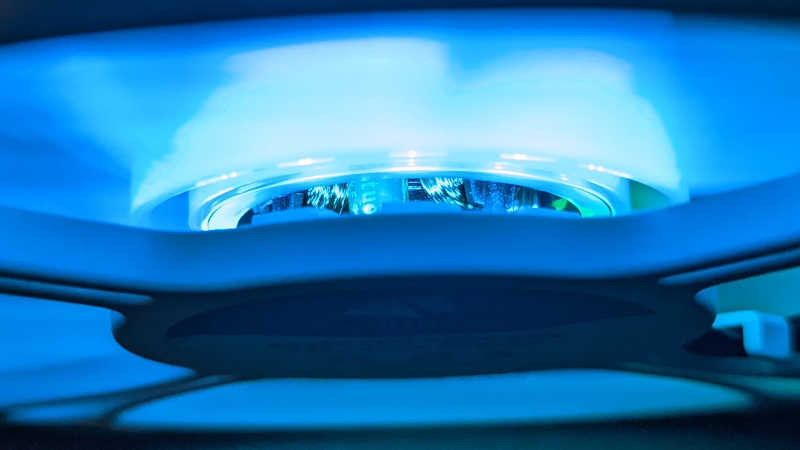
RGB LEDs in this fan are mounted in the hub, on the outside perimeter of the motor control board. I count 12 LEDs and they aimed along motor axis upwards into the center portion of translucent fan blades. These colorful lights are then diffused along length of the blade, resulting in a colorful spinning disk. While shopping on Newegg I saw other arrangements. Some fans have LEDs around the outside perimeter instead, and some fans illuminate both the hub and the perimeter. Each manufacturer hoping to capture the attention of a buyer with novelty of their aesthetic.

This remote control allowed me to cycle between various colorful programs or choose from a set of solid colors. I had hoped the colorful programs would ripple across the fans, but all three fans appear to display identical light sequence. I could control LED brightness or turn all the lights off, but I didn’t seem to have any control over fan speed. I guess this is where an instruction manual would have been useful.

If I wanted to build something bright and colorful that circulates air, almost everything is already here and ready to go. I just have to wire up a power switch to turn everything on/off, and the remote can take care of the rest. But I didn’t buy this just to have some lights. I wanted full control and I’m not afraid to start cutting things up to get there.

Shopping for PC Cooling Fans with RGB LED

I’ve decided to investigate controlling the RGB LEDs embedded in aesthetics-based PC accessories. I’m not interested in using them for my PC, but as research for a yet to be determined future electronics project. I wanted something that is a standardized commodity with a large range of variety in the ecosystem and have some usefulness beyond just looking shiny. I settled on 120mm PC cooling fans.

There are many common sizes for cooling fans, but I’ve found 120mm to be the most common for aftermarket cooling. They’re larger than average for CPU cooling, but not too large especially for heat-pipe based cooling towers. But they’re typically installed for general cooling in tower cases, whose cooling vents are cut for 120mm fans. Covering both popular use cases mean more options.

Looking around on my NewEgg, I find that fans sold individually typically have two separate connectors. One for LED and one for fan control. To the rest of the computer, these fans look like two separate peripherals: the LED and the fan. They just happened to coexist in the same device. The fan control connector sometimes just have two wires for +12V and ground. Some have a third tachometer wire for reporting speed, and some have a fourth wire for built-in PWM control. Here’s an example of a CPU cooler the Vetroo V5 whose fan has two connectors: a 4-pin CPU cooler fan control connector and a JRAINBOW RGB LED plug. These should be simple and straightforward to interface.

More challenging are fans that use an intermediate hub. The hub has a connector for power and for JRAINBOW, consolidating those signals into a proprietary connector. I started contemplating this particular Rosewill RGBF-S12001 three-pack of fans which use such a design. I think I can decipher roles of each wire so I could bypass the hub and control each fan directly. This multipack also had a remote control for direct control of the hub without a computer. This is appealing to me, because independent control meant I didn’t need a PC involved as I probed how it worked. If I should make a fatal mistake (say, accidentally short-circuited something) it should only kill the hub or the fan and not an entire computer.

As I scrolled down, though, Newegg showed me several other items under “similar products”. I saw an even more discounted three-pack of fans: the Asiahorse Magic-i 120 V2. Three fans for fourteen bucks, well within my impulse buy range. I’ll buy the pack and see what it does.

Repurposing PC RGB LED Accessories

I’m quite comfortable poking around inside the tower case of a DIY PC. I’ve built a few PCs from components, and I’ve bought a few that came prebuilt by a shop. In my PC experience I’ve focused on the functional side of things and haven’t paid much attention to the aesthetics side. There’s a whole segment of the market enchanted with flashy LEDs. As an electronics hobbyist, it had been hard for me to look at those accessories seriously. I know how little addressable RGB LED modules cost in bulk, and it is quite clear those PC accessories were sold at a huge profit margin. I would be more inclined to build my own LED creations like Glow Flow than to pay a premium just for overpriced flashy lights in my PC.

But what if I looked beyond products’ MSRP? Since this particular market is about novelty, just like the clothing fashion industry there is a high turnover of products. The huge profit margin entices startups hoping to make it big, and most don’t. High product turnover means there are those who upgrade to the latest look. Each of these scenarios can lead to products sold well below MSRP: (1) clearance sales on unsold inventory of “old looks” (2) liquidation sales from bankrupt companies, and (3) secondhand markets (eBay/Craigslist) for those who have upgraded. A bargain hunter can find LED-bedazzled gear well below the price of new equipment, and in extreme cases even lower than price of buying new WS2812 modules directly.

Well, now I’m interested! Not for my PC, but for potential future electronics projects. Which means looking at these products and try to figure out how I can repurpose them. I started by looking at the product pages for a few PC hardware component companies and their advertising spiel for RGB LED accessories.

  • Corsair uses the iCUE branding as an umbrella covering aesthetics-based accessories. Some are the addressable LEDs I care about, but not all of them.
  • Gigabyte uses the name RGB Fusion.
  • Asus calls theirs Aura.
  • MSI calls theirs Mystic Light.

I hit a gold mine on MSI’s Mystic Light site, because their FAQ included an entry “What is Mystic Light Extension” that gave the following description:

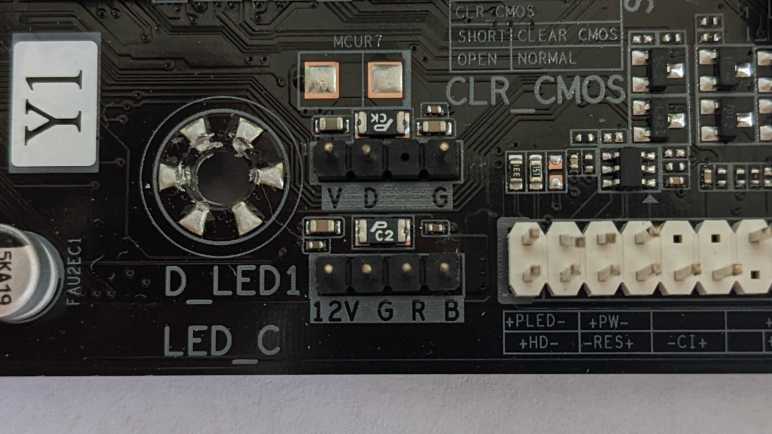
Mystic Light Extension is a feature of Mystic Light software which allows user to control colors and effects of partner’s product such as RGB LED Strips, RGB PC Fans or RGB PC Case via on-board JRGB / JRainbow / JCorsair pin header.

    JRGB (4-Pin / PIN-definition: 12V/G/R/B): The JRGB pin header provides up to 3A (12V) power supply for non-addressable 5050 RGB LED solution showing single color.
    JRAINBOW (3-Pin / PIN-definition: 5V/D/-/G): The JRainbow pin header provides up to 3A (5V) power supply for addressable WS2812 RGB LED (ARGB) solution showing rainbow color.
    JCORSAIR (3-Pin / PIN-definition: 5V/D/G): The JCorsair pin header provides up to 3A (5V) power supply to Mystic Light software compatible CORSAIR devices.

This tells me products that use the JRGB header are colorful but not individually addressable. Products using JRAINBOW or JCORSAIR are 5V devices that uses a single data pin and no clock. This is a very strong hint these products are made of LEDs made of either WS2812 (“NeoPixel”) or alternatives that understand the same control signals. I will go look for a bargain and try one out.

Temperature Responsive Cereal Box Fan

This quick and easy project produces a quiet breeze for hot summer nights. I wanted something gentler than the fans already in the house, and I wanted it to automatically turn itself off in the middle of the night once things cooled down enough. It also let me apply lessons I’ve recently learned. Even though I’ve found that the TMP36 sensor isn’t a great fit for a ESP8266, it’s something already on hand for an ESP8266 to tell if it’s cool enough to turn the fan off.

The 3-wire fan is a PC cooling fan with a 200mm diameter, relatively large within that category. I bought it some years ago for my first Luggable PC project, it was just a bit too large for that purpose and sat idle until now. I thought about designing and 3D-printing a stand for this fan, but in the spirit of keeping things simple and quick, I mounted it in an empty cereal box instead. Cutting holes in the box to accommodate the fan took a tiny fraction of the time it would have taken to 3D-print something.

Primary air intake was the top of the box, left open.

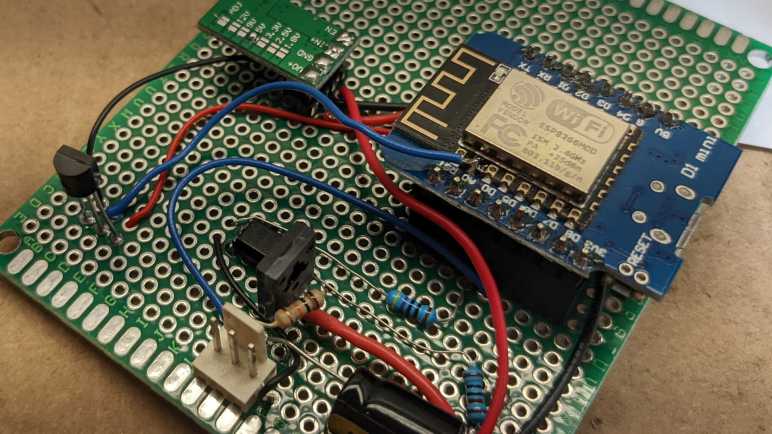
I cut a smaller secondary air intake towards the bottom of the box, which also makes it easy to toss my control board in there and feed it power from a salvaged DC power supply. A TMP36 sensor was soldered in the farthest corner in this picture, visible sticking up vertically.

Results

Running ESPHome (YAML excerpt below) this project successfully controls fan speed via ESP8266 PWM. It was also able to read temperature via TMP36 sensor, but values were affected by ESP8266. Located 1/2 of the circuit board away plus the entire height of its legs was not enough distance from the ESP8266 heat island: temperature reading dropped noticeably whenever the fan is turning. Still, it’s enough for me to create a Home Assistant automation to turn off this fan whenever the temperature dropped below a certain threshold. Due to the heating from ESP8266, the temperature value rises a few degrees immediately after the fan was turned off. Thankfully there was no risk of system feedback oscillation, because I did not create an automation to turn the fan on — I do that manually when I’m ready for a light breeze.

This worked well sitting on my bedstand, creating a light cool breeze when I’m ready to fall asleep and turning itself off while I was asleep. But its physical footprint was a problem: it took up space that is ideally used for a bedstand light. The obvious solution was to pull some LEDs into the next version, which is an opportunity to tackle another item on my to-learn list: PC accessories with embedded RGB LEDs.


ESPHome YAML to read TMP36 temperature and fan speed every 5 minutes:

sensor:
  - platform: adc
    pin: A0
    name: "Fan Temperature"
    unit_of_measurement: "°C"
    update_interval: 1s
    accuracy_decimals: 2
    filters:
      - multiply: 100
      - offset: -50
      - sliding_window_moving_average:
          window_size: 450
          send_every: 300
          send_first_at: 15
  - platform: pulse_counter
    pin: 12
    id: fan_rpm_counter
    name: "Fan RPM"
    unit_of_measurement: "RPM"
    accuracy_decimals: 0
    update_interval: 300s
    filters:
      - multiply: 0.5 # 2 pulses per revolution

output:
  - platform: esp8266_pwm
    pin: 14
    id: fan_pwm_output
    frequency: 1000 Hz

fan:
  - platform: speed
    output: fan_pwm_output
    id: fan_speed
    name: "Fan Speed Control"

TMP36 Temperature Sensor + ESP8266 = Not a Great Team

After successfully building a small circuit for 3-pin fan PWM control, I decided to add a temperature sensor. Now I have the option to make it smarter about adjusting speed (or stopping entirely) based on temperature. There are many temperatures sensor options, I decided to start simply and inexpensively with a sensor that returns an analog voltage representing temperature. A batch of TMP36 (*) seemed like a good starting point.

According to the Analog Devices datasheet, TMP36 output pin voltage is 0.75V at 25 degrees Celsius. For every degree of temperature rise, voltage increases 0.01V. For my first draft I wired it to my Wemos D1 Mini module’s analog input pin. But I had to adjust the scaling because a D1 Mini includes a voltage divider to scale input of 0-3.3V down to ESP8266 ADC range of 0-1V. This voltage divider (and math necessary to convert it back) added error to the reading. Since I intend to use this sensor for measuring room temperature, I do not expect to measure above 50 degrees Celsius (122 Farenheit) which corresponded to 1 Volt. Thus, I soldered a wire to connect TMP36 signal directly to ESP8266 module analog input, bypassing the voltage divider.

I noticed that there appears to be a startup time period where the temperature reading is 2-3 degrees too high but, after about 5-10 minutes, it will drop to a steady state temperature and stay there. I’m not sure if this startup behavior is from the TMP36 sensor or from the ESP8266 ADC. Either way, it meant I could not use this sensor in a sleep/read/sleep/read cycle because such a quick read will always result in a too-high value from this startup behavior.

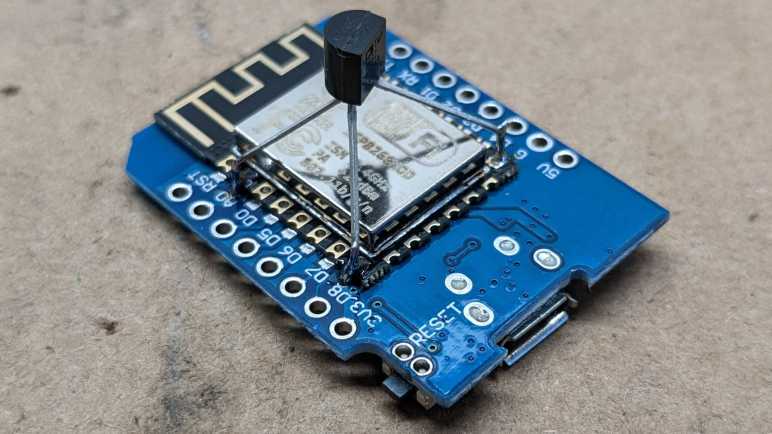
With the initial breadboard test complete, I built a dedicated temperature sensor node with just an ESP8266 with a TMP36. In the interest of compactness, I decided to solder the sensor directly to ESP8266 module pins.

Upon startup, I saw that it reported temperature that was a few degrees too high, but I thought that was just the startup behavior I already noticed. But instead of dropping, it had kept going up. I thought I had a bad TMP36 until I realized it was accurately reading heat generated by a running ESP8266. According to my USB power meter, it consumed less than a third of a Watt, but that’s plenty of heat for a directly-mounted TMP36 to pick up.

If I wanted to measure a room’s air temperature and not temperature of a running ESP8266, I needed to give the sensor some distance. But even then, the readings weren’t reliable.

A little web research taught me that the ESP8266 ADC isn’t very precise nor is it calibrated. For most applications, being off by a few hundredth of a volt is a negligible error, but here every hundredth of a volt represents an entire degree of temperature which is decidedly not negligible. Taking multiple values and averaging them did help with the precision, but not accuracy. Knowing what I know now, in hindsight I should have done this with an ESP32. Those chips (or at least newer units) have their ADCs calibrated at Espressif factory. Though it is more likely that I will try a different temperature sensor in a future project. Either way, right now I have TMP36 on hand with a circuit board suitable for controlling 3-wire PC cooling fans. Time to put them together to do something useful.


Even though it doesn’t work very well, here’s an ESPHome YAML excerpt anyway. This will read a TMP36 every second and report average value every five minutes. TMP36 signal is assumed to have been soldered directly to ESP8266 analog input, bypassing Wemos D1 Mini voltage divider.

sensor:
  - platform: adc
    pin: A0
    name: "Mobile Node Temperature"
    unit_of_measurement: "°C"
    update_interval: 1s
    accuracy_decimals: 2
    filters:
      - multiply: 100
      - offset: -50
      - sliding_window_moving_average:
          window_size: 450
          send_every: 300
          send_first_at: 15

(*) Disclosure: As an Amazon Associate I earn from qualifying purchases.

High-Side Fan ESP8266 PWM Using Optocoupler

It was neat that I could control the speed of a 4-wire CPU cooling fan with just software a PWM signal from an ESP8266, but 4-pin fans with built-in power switching are in the minority. Most available fans have no built-in speed control and depend on external PWM circuitry to vary their input voltage level. If I wanted to control speed of such fans with an ESP8266, I’ll need to get a power transistor of some sort into the circuit.
I’ve found several tutorials online for fan speed control via PWM, but they all use a transistor on low side of the fan. They do this because it makes the circuit easier. We connect the black fan wire to collector of the transistor, connect emitter to ground, and finally connect PWM signal from our microcontroller to transistor base. This will work because the transistor and the microcontroller share a common ground. A transistor needs only a volt or so on the base pin, easily delivered from any microcontroller.

The problem with this approach is that we could no longer directly read the tachometer signal of 3-pin fans, because they are open-drain to the “ground” which is no longer ground but low side of the fan. Depending on implementation details on the fan, the voltage level on that pin may rise too high for the microcontroller.

There are many valid ways to resolve this situation, the path I chose is to use a PC817 optocoupler. (*) Internally it is a LED pointed at a receiver. This optical system transmits a signal while electrically separating LED side from receiver side. In my case this I no longer need a common ground.

From here, there are two options forward: I could use the optocoupler to read the tachometer signals, or I could use the optocoupler to put the transistor on the fan’s high side. I chose to switch the fan’s high side so the fan has a common ground with the microcontroller, and I could directly read tachometer signal. Of course, it is valid to use optocoupler on both motor power PWM and for tachometer feedback. This is necessary for electrically noisy motor systems, but the brushless fan of a computer cooling fan (usually) does not require such measures.

I did have to add a capacitor to smooth out my PWM output, but that would have been necessary in any case. Having full PWM control means I can now switch the fan off completely with a 0% duty cycle, but it also means I am responsible for avoiding low PWM levels where a fan could not turn and stalls. After I proved I had PWM control via Home Assistant UI, I thought it would be fun to have the option to control fan based on temperature, so I added a TMP36 sensor.


ESPHome YAML excerpt for basic PWM fan control and reading fan tachometer. Note: this simple example lacks intelligence to avoid low PWM levels that would stall a fan.

sensor:
  - platform: pulse_counter
    pin: 12
    id: fan_rpm_counter
    name: "Fan RPM"
    unit_of_measurement: "RPM"
    accuracy_decimals: 0
    update_interval: 300s
    filters:
      - multiply: 0.5 # 2 pulses per revolution

output:
  - platform: esp8266_pwm
    pin: 14
    id: fan_pwm_output
    frequency: 1000 Hz

fan:
  - platform: speed
    output: fan_pwm_output
    id: fan_speed
    name: "Fan Speed Control"

(*) Disclosure: As an Amazon Associate I earn from qualifying purchases.

ESP8266 Controlling 4-Wire CPU Cooling Fan

I got curious about how the 4 wires of a CPU cooling fan interfaced with a PC motherboard. After reading the specification, I decided to get hands-on.

I dug up several retired 4-wire CPU fans I had kept. All of these were in-box coolers bundled with various Intel CPUs. And despite the common shape and Intel brand sticker, they were made by three different companies listed at the bottom line of each label: Nidec, Delta, and Foxconn.

I will use an ESP8266 to control these fans running ESPHome, because all relevant code has already been built and ready to go:

  • Tachometer output can be read with the pulse counter peripheral. Though I do have to divide by two (multiply by 0.5) because the spec said there are two pulses per fan revolution.
  • The ESP8266 PWM peripheral is a software implementation with a maximum usable frequency of roughly 1kHz, slower than specified requirement. If this is insufficient, I can upgrade to an ESP32 which has hardware PWM peripheral capable of running 25kHz.
  • Finally, a PWM fan speed control component, so I can change PWM duty cycle from HomeAssistant web UI.

One upside of the PWM MOSFET built into the fan is that I don’t have to wire one up in my test circuit. The fan header pins were wired as follows:

  1. Black wire to circuit ground.
  2. Yellow wire to +12V power supply.
  3. Green wire is tachometer output. Connected to a 1kΩ pull-up resistor and GPIO12. (D6 on a Wemos D1 Mini.)
  4. Blue wire is PWM control input. Connected to a 1kΩ current-limiting resistor and GPIO14. (D5 on Wemos D1 Mini.)

ESPHome YAML excerpt:

sensor:
  - platform: pulse_counter
    pin: 12
    id: fan_rpm_counter
    name: "Fan RPM"
    update_interval: 5s
    filters:
      - multiply: 0.5 # 2 pulses per revolution

output:
  - platform: esp8266_pwm
    pin: 14
    id: fan_pwm_output
    frequency: 1000 Hz

fan:
  - platform: speed
    output: fan_pwm_output
    id: fan_speed
    name: "Fan Speed Control"

Experimental observations:

  • I was not able to turn off any of these fans with a 0% duty cycle. (Emulating pulling PWM pin low.) All three kept spinning.
  • The Nidec fan ignored my PWM signal, presumably because 1 kHz PWM was well outside the specified 25kHz. It acted the same as when the PWM line was left floating.
  • The Delta fan spun slowed linearly down to roughly 35% duty cycle and was roughly 30% of full speed. Below that duty cycle, it remained at 30% of full speed.
  • The Foxconn fan spun down to roughly 25% duty cycle and was roughly 50% of the speed. I thought it was interesting that this fan responded to a wider range of PWM duty cycles but translated that to a narrower range of actual fan speeds. Furthermore, 100% duty cycle was not actually the maximum speed of this fan. Upon initial power up, this fan would spin up to a very high speed (judged by its sound) before settling down to a significantly slower speed that it treated as “100% duty cycle” speed. Was this intended as some sort of “blow out dust” cleaning cycle?
  • These are not closed-loop feedback devices trying to maintain a target speed. If I set 50% duty cycle and started reducing power supply voltage below 12V, the fan controller will not compensate. Fan speed will drop alongside voltage.

Playing with these 4-pin fans were fun, but majority of cooling fans in this market do not have built-in power transistors for PWM control. I went back to learn how to control those fans.