Good First Impressions of GMKtec NucBox3

It was fun to poke around internal hardware of a tiny PC I wanted to investigate for use as a robot brain. This GMKtec NucBox3 I ordered off Amazon (*) is a more affordable variation on the Intel NUC formula, and its price (significantly lower than Intel’s own NUC) makes me more willing to experiment with it.

Decent PC for Windows 11 Home

But before I take any risk with nonstandard usage, I should verify it worked as advertised. The 128GB SATA SSD came installed with Windows 11 Home edition build 21H2. Upon signing in with my Microsoft account, it started the update process to build 22H2. I assumed the machine came with a license of Windows either embedded in the hardware or otherwise registered. Windows 11 control panel “Activation state” says “Windows is activated with a digital license linked to your Microsoft account” which I found to be ambiguous. I shrugged because I plan to use it as ROS brain and, if so, I’m likely to run Ubuntu instead of Windows. And if I wipe the SATA drive with a fresh installation of Windows 11, it sounds like I can log in with my Microsoft account and retrieve its license.

The more informative aspect of Windows sign-in and registration is letting me get a feel of the machine in its default configuration. All hardware drivers are in place with no question marks in device manager. Normal user interface tasks were responsive and never frustrating, which is better than certain other budget Windows computers I’ve tried. A NucBox3 is a perfectly competent little Windows box for light duty computer use.

One oddity I found with the NucBox3 was the lack of a power-up screen letting me change boot behavior with a keypress. When a PC first powers up, there’s typically a prompt telling me to press F12 to enter a menu to select a boot device, or DEL to enter system setup, etc. Not on a NucBox3, though: we always boot directly into Windows. The only way I found to enter hardware menu was from within Windows: under “Settings”/”System”/”Recovery” we can choose “Advanced startup” to boot into a special Windows menu, where I can select “Advanced Options” and choose “UEFI Firmware Settings”. This is expected to be an infrequent activity most users would never do, so I guess it’s OK for the process to be a convoluted.

UEFI Menu

Once I got into UEFI menu for NucBox3 I was surprised by how many options are listed. Far more than any branded (Dell, etc) computer I’ve seen and even more than hobbyist-focused motherboards.

Some of these options like “Debug Configuration” almost feel like they weren’t supposed to ship in a final product. My hypothesis is that I’m looking at the default full menu of options for a manufacturer using this AMI (American Megatrends, Inc) UEFI firmware. Maybe the manufacturer was expected to trim it down as appropriate for their product, and maybe nobody bothered to do that.

Under the “Chipset” menu we have device configuration for many peripherals absent from this device. They’re marked [Disabled] but the menu option didn’t even need to be here. The final line was also the most surprising: a selection for resistors on I2C buses. On one hand, I’ve never seen a PC’s I2C hardware exposed in any user-visible form before. On the other hand, if I can figure out where SDA/SCL lines are on this motherboard, maybe I can really have some fun. Why bother with a Raspberry Pi or even an ESP32 to bridge I2C hardware if I can attach them directly to this PC?

Ubuntu Server

But all those shiny lights in UEFI menus were just a distraction. What I really want right now is to control boot sequence so I can boot from a USB flash drive to install Ubuntu Server 22.04 LTS. I found I could do it from the “Boot” section of UEFI menu. Ubuntu Server was installed, it worked, and that was no surprise. A computer competent at a full Windows 11 GUI rarely has a problem with text-based network-centric Ubuntu Server, and indeed I had no problems here. For a ROS brain I would want gigabit networking, all four CPU cores, RAM, storage, and USB peripherals. They are all present and accounted for, even sleep mode if I want to put a robot to sleep.

Variable Input Voltage

The next experiment was to see if this computer is tolerant of variable DC supply voltage. On paper it requires 12V DC and the supplied AC adapter was measured at 12.27V DC. I could buy a boost/buck converter that takes a range of input voltages and output a steady 12V (*) but it would be more efficient to run without such conversion if I could get away with it. Since the NucBox3 used a standard 5.5mm OD barrel jack for DC power input, it was easy to wire it up to my bench power supply. I found it was willing to boot up and run from 10VDC to 12.6VDC, the operating voltage range of 3S LiPo battery packs.

Good ROS Brain Candidate

This little computer successfully ran Ubuntu Server on (simulated) battery power. It handily outperforms the Dell 11 3180 I previously bought as ROS brain candidate and is much more compact for easy integration on robot chassis. Bottom line, I have a winner on my hands here!

I’m glad that Newegg advertisement made me aware of an entire ecosystem of inexpensive small PCs. I need to keep this product category in mind as candidates for potential future projects. I have many options to consider, depending on a project’s needs.


(*) Disclosure: As an Amazon Associate I earn from qualifying purchases.

Looking Inside GMKtec NucBox3

I thought the GMKtec NucBox3 looked interesting (at least on paper) as candidate ROS brain, so I ordered one (*) for a closer look despite some skepticism. All pictures on that Amazon listing look perfect, I suspected they were all 3D computer renders instead of photos of an actual product. There’s a chance the actual product looked very different from the listing.

The good news: the product is real and for the most part, as depicted in the listing. I find good fit and finish on its plastic enclosure. There is one downside: fingerprints show up very clearly. I had to wipe down the case pretty aggressively for these pictures and I still see greasy smudges. Well, at least you know these aren’t renders! One instance where oily fingerprint smudges are a feature, not a bug.

I see two brass heat-set inserts on the bottom of the case which will be useful for mounting this little box somewhere. They look very small but this is a small lightweight box so it would probably suffice.

Here we also see where actual product differed from product listing rendering. The company website page for NucBox3 showed an access panel to upgrade memory or storage.

But there’s no such access panel on the real thing, and it’s not clear how to get inside without one. Documents in the box consisted of a minimal warranty card in the box and no instruction manual. No matter, the lack of a convenient access panel or a manual shall not deter me from getting inside for a look.

Hiding fasteners under glued-on rubber feet is a common and effective technique. These four fasteners are not symmetrical so, even though the box is a square, we need to remember correct orientation to reinstall.

Without a convenient access door for upgrades, I wasn’t sure what else would differ from listing picture. I was afraid memory and storage would be soldered-in parts, but I was relieved to find they were standard DDR4 RAM and M.2 2280 SSD as advertised. They’re just a tiny bit harder to access without the panel.

Judging by its M.2 keys, we have the option to upgrade this factory-installed SATA M.2 SSD to a higher-performing NVMe M.2 SSD if needed.

What appears to be empty threaded holes (marked with circles) are actually used to secure the CPU heatsink from the other side. (There’s a fourth one under RAM module and not visible in this image.) Four fasteners (marked with squares) secure the motherboard and must be removed to proceed.

The headphone jack protrudes into the enclosure, so we must tilt the mainboard from the opposite side for removal. But we have to be careful because we are limited by length of WiFi antenna wires.

A block of foam keeps WiFi antenna connectors in place, peeling it back allowed the connectors to be released. The antennae themselves appear to be thin sheets glued to the top of the case, similar to what I’ve salvaged from laptops. How securely were they held? I don’t know. I didn’t try to peel them off.

Freed of WiFi wires, I could flip the mainboard over to see a big heatsink surrounded by connectors. As chock-full of connectors as this product already is, I was surprised to see that there are still several provisions for even more connectors on the circuit board. I’m also very fascinated by connectors used here for USB3, HDMI, and DisplayPort. I usually see them oriented flat against the circuit board as typical of laptop mainboards, but without design pressure to be thin, these connectors are standing upright. This is a tradeoff to fit more connectors on the edge of a circuit board, but each connector must go deeper to obtain the necessary mechanical strength to withstand use.

Looking in from the side, the heatsink appears to have a flat bottom. This is good news if I want to mount a different heatsink on this board, possibly with a fan. The flat bottom means I don’t have to worry about sticking out to make thermal contact with other chips or have to cut a hole to clear protrusions. If I want to mount to the same holes, I will have to drill four holes which unfortunately are irregularly spaced but not an insurmountable challenge. All that said, I’m more likely to just point a fan at this heatsink if heat proves to be a problem.

Using this computer as robot brain also means running it on battery power. Nominal power requirements are listed as 12V up to 3A. My voltmeter measured the factory power adapter output at 12.27V. But what can this thing tolerate? I found this chip directly behind the DC power barrel jack, but a search for DC3905 WK1MEG (or WX1MEG) didn’t turn up anything definitive. Texas Instruments has a LP3905 and Analog inherited Linear Technology’s LT3905. Both chips are designed for DC power handling, but neither footprint matches this chip. This might not even be the power management chip, I’m only guessing based on its proximity to the DC barrel jack.

As far as I know, the highest voltage requirement on this PC are USB ports at 5V. On the assumption that nothing on this machine actually needs 12V, then all power conversion are buck converters to lower voltage levels. If true, then this little box should be OK running directly on 3S LiPo power (Three lithium-polymer battery cells in series) which would range from 12.6V fully charged to 11.1V nominal to 10V low power cutoff. I’ll use the power brick that came in the box to verify everything works before testing my battery power hypothesis.


(*) Disclosure: As an Amazon Associate I earn from qualifying purchases.

SATA Optical to 2.5″ Drive Adapter

I dusted off an old Dell Optiplex 960 for use as my TrueNAS replication backup target. The compact chassis had a place for my backup storage 8TB 3.5″ HDD extracted from a failed USB enclosure, which is good. But I also need a separate drive for Ubuntu operating system, and that’s where I ran into problems. There was an empty 3.5″ bay and a SATA data socket available on the motherboard, but the metal mounting bracket was missing, and power supply had no more SATA power plugs.

As an alternative plan, I thought I would repurpose the optical drive’s location. Not just its SATA data and power plugs, but I could also repurpose physical mounting bracket with an optical drive shaped caddy for a 2.5″ SATA drive. (*) It wasn’t a perfect fit but that was my own fault for ordering the wrong size.

Examining the caddy after I opened its package, I saw this oddly bent piece of sheet metal. Comparing against the DVD drive, I don’t think it’s supposed to bend like that. I can’t tell if it was damaged at the factory or during shipping, either way metal was thin and easy to bend back into place.

Also comparing against the DVD drive, I realized I bought the wrong size. It didn’t occur to me to check to see if there were multiple different sizes for laptop DVD drives. I bought a 9.5mm thick caddy (*) when I should have bought something thicker possibly this 12.7mm thick unit.(*) Oh well, I have this one in hand now and I’m going to try to make it work.

To install this caddy in an Optiplex 960 chassis, I need to reuse the sheet metal tray currently attached to the DVD drive.

One side fit without problems, but the other side didn’t fit due to mismatched height. This is my own fault.

There’s a mismatch in width as well, I’m not sure this was my fault. I understand the different form factors to be the same width so this part should have lined up. Oh well, at least it is easier to deal with a ~1mm too narrow adapter because one ~1mm too wide wouldn’t fit at all.

There were slots to take the DVD drive’s faceplate. This is for aesthetics so we don’t leave a gaping hole, the eject button wouldn’t work as it is no longer a DVD drive. Unfortunately, faceplate mounting slots didn’t match up, either. This might also be a function of the wrong height, but I’m skeptical. I ended up using the generic faceplate that came with the caddy.

Forcing everything to fit results in a caddy mounted crookedly.

Which resulted in a crooked facade.

Aesthetically speaking this is unfortunate, I should have bought a taller caddy (*) but functionally this unit works fine. The SSD is securely mounted in the caddy, which is now securely mounted to the chassis. And even more importantly, SATA power and data communication worked just fine, allowing me to install Ubuntu Server 22.04 LTS on an old small SSD inside the caddy. And about that old SSD… freeing it up for use turned out to be its own adventure.


(*) Disclosure: As an Amazon Associate I earn from qualifying purchases.

Dusting Off Dell Optiplex 960 SFF PC

After two years of use, my USB3 external 8TB backup drive stopped responding as an external disk. I took apart its enclosure and extracted a standard 3.5″ hard disk drive which seems OK in perfunctory testing. In order to continue using it for TrueNAS replication backup, I’ll need another enclosure. I briefly contemplated getting an USB3 SATA enclosure that takes 3.5″ drives (*) but I decided to use an entire computer as its enclosure: I have an old Dell Optiplex 960 SFF (small form factor) PC collecting dust and it would be more useful as my TrueNAS replication backup machine.

Dell’s Optiplex line is aimed at corporate customers, which meant it incorporated many design priorities that weren’t worth my money to buy new. But those designs also tend to live well past their first lives, and I have bought refurbished corporate Dells before. I’ve found them to be sturdy well-engineered machines that, on the secondhand market, is worth a small premium over generic refurbished PCs.

There’s nothing garish with exterior appearance of an Optiplex, just the computer equivalent of professional office attire. This particular machine is designed to be a little space-efficient box. Office space costs money and some companies decide compactness is worth paying for. Building such a compact box required using parts with nonstandard form factors. For a hobbyist like me, not being able to replace components with generic standard parts is a downside. For the corporate IT department with a Dell service contract, the ease of diagnosis and servicing is well worth the tradeoff.

This box is just as happy sitting horizontally as vertically, with rubber feet to handle either orientation.

Before it collected dust on my shelf, this computer collected dust on another maker’s shelf. I asked for it sometime around the time I started playing with LinuxCNC. I saw this computer had a built-in parallel port, so I would not need an expansion card. (Or I can add a card for even more control pins.) The previous owner said “Sure, I’m not doing anything with it, take it if you will do cool things with it.” Unfortunately, my LinuxCNC investigation came to a halt due to pandemic lockdown and I lost access to that space. TrueNAS replication target may not be as cool as my original intention for this box, but at least it’s better than collection dust.

Even though the chassis is small, it has a lot of nice design features. The row of “1 2 3 4” across the front are diagnostics LEDs. They light up in various combinations during initial boot-up so, if the computer fails to boot corporate IT tech support can start diagnosing failure before even opening up the box.

Which is great, because opening up the box might be hindered by a big beefy lock keeping the side release lever from sliding.

And if we get past the lock and open the lid, we trip the chassis intrusion detection switch. I’ve seen provision for chassis intrusion detection in my hobbyist-grade motherboards, but I never bothered to add an actual intrusion switch to any of my machines. Or a lock, for that matter.

Once opened I find everything is designed to be worked on without requiring specific tools. This chassis accommodates two half-height expansion cards: One PCI and one PCI-Express. On my PCs, expansion endplates are held by small Philips-head screws. On this PC, endplates are retained by this mechanism.

A push on the blue button releases a clamp for access to these endplates.

Adjacent to those expansion slots is a black plastic cage for 3.5″ Hard drive.

Two blue metal clips release the cage to flip open, allowing access to the hard drive. This drive was intended to be the only storage device hosting operating system plus all data. I plan to install my extracted 8TB backup storage drive in this space, which needs to be a separate drive from the operating system drive, so I need to find another space for a system drive.

Most of the motherboard is visible after I flipped the HDD cage out of the way. I see three SATA sockets. One for the storage HDD, one for the DVD drive, and an empty one I can use for my system drive. Next to those slots is a stick of DDR2 RAM. (I’m quite certain Corsair-branded RAM is not original Dell equipment.) Before I do anything else with this computer, I will need to replace the CR2032 coin cell timekeeping battery.

A push on the blue-stickered sheet metal button released the DVD drive. Judging by scratches, this DVD drive has been removed and reinstalled many times.

Putting the DVD drive aside, I can see a spare 3.5″ drive bay underneath. This was expected because we could see a 3.5″ blank plate in the front of this machine, possibly originally designed for a floppy disk drive. The good news is that this bay is empty and available, the bad news is that a critical piece of hardware is missing: This chassis is designed to have a sheet metal tray for installing a 3.5″ drive, which is not here.

I can probably hack around the missing bracket with something 3D-printed or even just double-sided tape. But even if I could mount a small SSD in here, there are no spare SATA power connector available for it. This is a problem. I contemplated repurposing the DVD drive’s power and data cables for a SSD and found adapters cables for this purpose. (*) But under related items, I found a product I didn’t even know existed: an optical-to-hard drive adapter (*) that doesn’t just handle the power and data connectors, it is also a mechanical fit into the optical drive’s space!


(*) Disclosure: As an Amazon Associate I earn from qualifying purchases.

Window Shopping: GMKtec NucBox3 Mini PC

A Newegg advertisement sent me down a rabbit hole of tiny little desktop PCs with full x86-64 processors. I knew about Intel’s NUC, but I hadn’t realized there was an entire product ecosystem of such small form factor machines built by other manufacturers. The one that originally caught my attention was distributed by several different companies under different names, I haven’t figured out who made it. But that exploration took me to GMKtec which is either their manufacturer, or a distributor with a sizable collection of similar products built by different manufacturers. The product that originally caught my attention is listed as their “NucBox5” (company website listing and Amazon link *) but I actually found their “NucBox3” (company website listing and Amazon link *) to be a more interesting candidate for my Sawppy Rover’s ROS brain. Both products have a Gigabit Ethernet wired networking port that I demand for resistance against RF interference, but beyond that, their respective designs differ wildly:

First the bad news: the NucBox 3 has an older CPU, the Celeron J4125 instead of the Celeron N5105. But comparing them side-by-side, it looks like I’d be giving up less than 10% of peak CPU performance. There is a huge (~50%) drop in GPU performance, but that doesn’t matter to Sawppy because most of the time its brain wouldn’t even have a screen attached.

A longer list of good stuff balances out the slower CPU:

  • RAM on the NucBox 3 is a commodity DDR4 laptop memory module. That can be easily upgraded if needed, unlike the soldered-in memory on the NucBox 5.
  • They both use M.2 SSDs for storage, but the NucBox 3 accommodates popular 2280 form factor instead of a less common 2245 size used by NucBox 5.
  • The SSD advantage was possible because NucBox 3 has a different shape: is wider and deeper than a NucBox 5, but not as tall. Designed for installation on a VESA 100×100 mount, it will be easier to bolt onto a rover chassis.
  • Officially, NucBox 3 is a fan-less passively cooled machine whereas the NucBox 5 has a tiny little cooling fan inside. (Which I expect to be loud, as tiny cooling fans tend to be.) Given that these are both 10W chips, I doubt NucBox 3 has a more effective cooling solution, I think it is more likely that the design just lets the chip heat up and throttle itself to stay within thermal limits. This would restrict its performance in stock form, but it also means it’ll be easy for me to hack up a quiet cooling solution if necessary.
  • NucBox 5 accepts power via USB-C, which is getting easier and easier to work with. I foresaw no problems integrating it with battery power onboard a Sawppy rover. But the NucBox 3 has a generic 5.5mm barrel jack for DC input power, and I think that’ll be even easier.

A NucBox3 costs roughly 80% of a NucBox5 for >90% of the performance, plus all of the designed tradeoff listed above are (I feel) advantages in favor of the NucBox3. I’m sold! I placed an order (*) and look forward to playing with it once it arrives.


(*) Disclosure: As an Amazon Associate I earn from qualifying purchases.

Window Shopping: Mystery Mini PC of Many Names

An interesting item came to my attention via Newegg marketing mailing list for discounts: an amazingly tiny Windows PC. My attention was captured by listing picture showing its collection of hardware ports. Knowing the size of an Ethernet port and HDMI port we can infer this is an itty-bitty thing. Newegg’s specific sale item was generically named “Mini PC” with an asking price of $200. I’m not entirely sure the thing is real: all the images look perfect enough I couldn’t tell if they’re 3D renderings or a highly retouched product photos.

I looked at the other listings by the same vendor “JOHNKANG” and saw several other generically named devices ranging from laptops to external monitors. There were no other similar products, so I think JOHNKANG is a distributor and not the manufacturer of this palm-sized wonder. If JOHNKANG is a US distributor for such merchandise, I guessed they probably have an Amazon listing as well. Sure enough, they have it listed on Amazon also at $200(*) at time of writing. Unlike the Newegg listing, the Amazon listing included this exploded-view diagram showing internals and capabilities.

That’s… pretty darned good for $200! With an Intel Celeron N5105 processor, I see a machine roughly equivalent to capabilities of a budget laptop but without the keyboard, screen, or battery. Storage size is serviceable at 256GB and can be swapped out with another M.2 SSD, though in a less common 2242 format which is shorter than the popular 2280. Its 8GB of RAM are soldered and not easily expandable, but 8GB is more than sufficient for this price point.

A few features distinguish this tiny PC from equivalent-priced laptops, starting with its dual HDMI port where laptops only have one. That might be important for certain uses, but I’m more interested in its wired Gigabit Ethernet port and that it runs on USB-C power input. This machine appears to check off all of my requirements for a candidate Sawppy Rover brain. It’s a pretty good candidate for running ROS slotting just below an Intel NUC in capability but compensates for that with a lower price and smaller physical size. Heck, at this size it is starting to compete with Raspberry Pi and might even fit in a Micro Sawppy.

I found no make or model number listed, which is consistent with a distributor that really doesn’t want us to comparison shop against anyone else who might be distributing the same product for less money. If I want hard details, I might have to buy one and look over the hardware for hints as to who built it. Still, searching for “Mini PC” and “MiniPC” with N5105 CPU found this eBay listing of a used unit with Rateyuso branding. Then I found this AliExpress listing with ZX01 as model name. That AliExpress listing is a mess, showing pictures of several other different mini PCs. Not confidence inspiring and definitely turned me off of buying from that vendor. However, the “ZX01” model name was useful because it led me to this page, which linked to a Kickstarter project that has apparently been taken down due to intellectual property dispute.

Performing an image search using the suspiciously perfect picture/render found the GMKtec Nucbox5(*) which appears to be the same product but with “GMKtec” stamped on top. Looking at the Amazon storefront for GMKtec (*) I see many other small form factor PCs without any family resemblance between their industrial designs. My hypothesis is that GMKtec is a distributor as well, but they have built up a collection of products from different manufacturers and that’s why they all look different. I thought this was encouraging. It implies experience and knowledge with the ecosystem of tiny PCs, offering a breadth of products each making a different tradeoff. I looked over their roster and found one more to my taste.


(*) Disclosure: As an Amazon Associate I earn from qualifying purchases.

High Power 600W Power Supply (HP1-J600GD-F12S)

Along with the “keyboard is broken” laptop, I was also asked to look into a mid-tower PC that would no longer turn on. I grabbed a power supply I had on hand and plugged it into the motherboard, which happily powered up. Diagnosis: dead power supply. I bought a new power supply for the PC to bring it back to life, now it’s time to take apart the dead power supply to see if I can find anything interesting. Could it be as easy as a popped circuit breaker or a blown fuse?

According to the label, the manufacturer has the impossibly unsearchable name of “High Power”. Fortunately, the model number HP1-J600GD-F12S is specific enough to find a product page on the manufacturer’s site. The exact model string also returned a hit for a power supply under Newegg’s house brand Rosewill, implying the same device was sold under Newegg’s own name. Amusingly, Newegg’s Rosewill product listing included pictures with “High Power” embossed on the side.

If there is a user-replaceable fuse or a user-accessible circuit breaker, they should be adjacent to the power socket and switch. I saw nothing promising at the expected location or anywhere else along the exterior.

Which meant it was time to void the warranty.

Exterior enclosure consisted of two pieces of sheet metal each bent into a U shape and held together with four fasteners. Once pried apart, I had to cut a few more zip-ties holding the cooling fan power wire in place before I could unplug it to get a clear view at the interior. Everything looks clean. In fact, it looked too clean — either this computer hadn’t been used very much before it blew, or it lived in a location with good air filtration to remove dust.

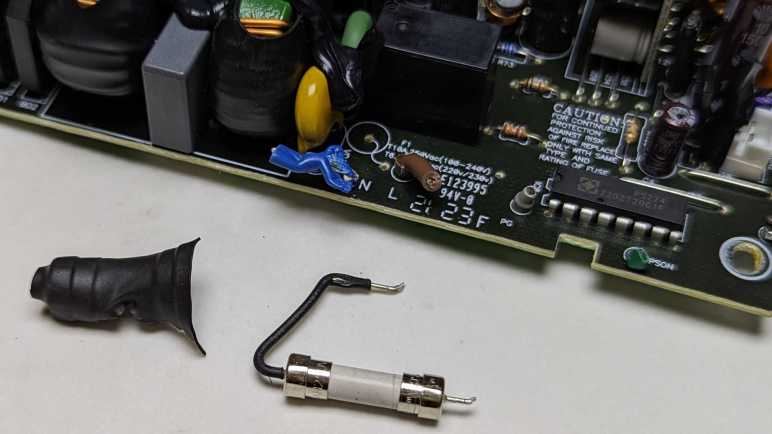
Still on the hunt for a circuit breaker or a fuse, I found the standard boilerplate fuse replacement warning. Usually, this kind of language would be printed immediately adjacent to a user-serviceable fuse. But getting here required breaking the warranty seal and none of the adjacent components looked like a fuse to me.

Disassembly continued until I could see the circuit traces at the bottom of the board. Getting here required some destructive cutting of wires, so there’s no bringing this thing back online. Perhaps someone with better skills could get here nondestructively but I lacked the skill or the motivation to figure things out nicely. I saw no obviously damaged components or traces on this side, either. But more importantly, now I could see that 120V AC line voltage input wire is connected to a single wire. That must lead to the fuse.

Turning the board back over, I see the line voltage input wire (brown) connected to a black wire that led to a cylinder covered in heat-shrink tubing and held in place by black epoxy. The shape of that cylinder is consistent with a fuse. The heat-shrink and epoxy meant this is really not intended to be easily replaced.

Once unsoldered, I could see the electronic schematic symbol for fuse printed on the circuit board. The “F” in its designation “F1” is consistent with “Fuse”, as do the amperage/voltage ratings listed below. This fuse is a few centimeters away from the caution message I noticed earlier, which was farther away than I had expected. My multi-meter showed no continuity across this device, so indeed the fuse has blown. I cut off the heat-shrink hoping to see a burnt filament inside a glass tube, but this fuse didn’t use a glass tube.

I started this teardown wondering if it was “as easy as a popped circuit breaker or a blown fuse”. While it was indeed a blown fuse, a nondestructive replacement would not have been easy. I don’t know why the fuse on this device was designed to be so difficult to access and replace, but I appreciate it is far better to blow a fuse than for a failing power supply to start a fire.

Windows PC Keyboard Beeps Instead of Types? Turn Off “Filter Keys”

A common side effect of technical aptitude is the inevitable request “Can you help me with my computer?” Whether this side effect is an upside or downside depends on the people involved. Recently I was asked to help resurrect a computer that had been shelved due to “the keyboard stopped working.”

Before I received the hardware, I was told the computer was an Asus T300L allowing me to do a bit of research beforehand. This is a Windows 8 era touchscreen tablet/laptop convertible along the lines of a Microsoft Surface Pro or the HP Split X2. This added a twist: the T300L keyboard base not only worked while docked, but it could also continue working as a wireless keyboard + touchpad when separated from the screen. This could add a few hardware-related variables for me to investigate.

When I was finally presented with the machine, I watched the owner type their Windows login password using the keyboard. “Wait, I thought you said the keyboard didn’t work?” “Oh, it works fine for the password. It stops working after I log in.”

Ah, the hazard of imprecision of the English language. When I was first told “keyboard doesn’t work” my mind went to loose electrical connections. And when I learned of the wireless keyboard + touchpad base, I added the possibility of wireless settings (device pairing, etc.) I had a hardware-oriented checklist ready and now I can throw it all away. If the keyboard worked for typing in Windows password, the problem is not hardware.

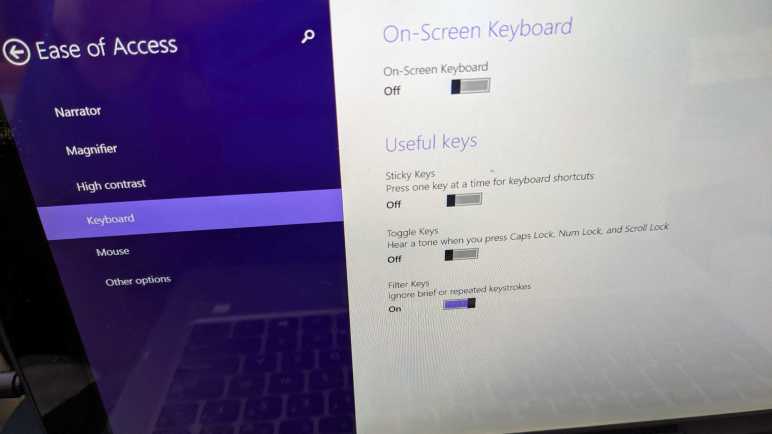
Once the Windows 8 desktop was presented, I could see what “keyboard stopped working” meant: every keypress resulted in an audible beep but no character typed on screen. A web search with these symptoms found this Microsoft forum thread titled “Keyboard Beeps and won’t type” with the (apparently common) answer to check Windows’ Ease of Access center. I made my way to that menu (as the touchscreen worked fine) and found that Filter Keys were turned on.

Filter Keys is a feature that helps users living with motor control challenges that result in shaky hands. This could result in pressing a key multiple times when they only meant to press a key once or jostling adjacent keys during that keypress. Filter Keys slow the computer’s keyboard response, so they only register long and deliberate presses as a single action. Rapid tap and release of a key — which is what usually happens in mainstream typing action — are ignored and only a beep is played. Which is great, if the user knew how to use Filter Keys and intentionally turned it on.

In this case, nobody knows how this feature got turned on for this computer, but apparently it was not intentional. They didn’t recognize the symptoms of Filter Keys being active. Lacking that knowledge, they could only communicate their observation as “the keyboard stopped working.” I guess that description isn’t completely wrong, even if it led me down the wrong path in my initial research. Ah well. Once Filter Keys were turned off, everything is fine again.

Mystery Slot in Xbox Series X Packaging

In the video game console market, I am definitely on Team Green of the pie chart going all the way back to the original Xbox. Right now, the Xbox hardware product line is split into two: the expensive Series X with maximum power and the Series S which made design tradeoffs for affordability. Supplies of both were hampered by global electronics supply chain disruption at launch. I wanted a Series X but I didn’t want it badly enough to pay a scalper premium. The Series S got sorted out and has been widely available for several months, and I was happy to find that the supply of Series X is just starting to catch up to demand. During this year’s Black Friday sales season when everyone was out looking for discounts, I was just happy to find Series X available at all for list price. (There were discounts on Series S, but I was not interested.)

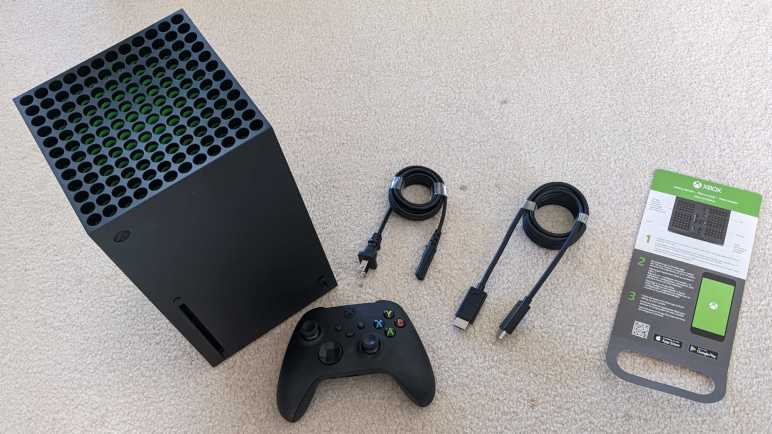
When I flipped opened the box, I was happy to see that Microsoft put some design effort into its packaging. The unboxing experience isn’t up to the premium bar set by Apple & others but a far step above the “sufficient and practical” packaging of past Xbox consoles. The console itself is front and center, wrapped like a gift under a “Power Your Dreams” banner. A cardboard box behind the console held a power cable, a 4K120FPS capable HDMI cable, and a single Xbox controller complete with a pair of AA batteries.

Underneath the console, between two blocks of packaging foam, is a piece of cardboard. This turned out to be a “Getting Started” card for those too impatient to read a manual.

The bottom of that card has a fold, and a rounded slot was cut out of it. Why is it shaped like that?

Making this fold and cutting out that slot consumed manufacturing time and money. This was definitely an intentional design choice, but I can’t tell what its purpose could be. The information printed on the card is specific to Series X, so the cutout wouldn’t have been used elsewhere and just went unused here. I thought maybe it was supposed to help hold it somewhere in the box so we could see it when we flipped it open, but this card was just lying in the bottom of my box. The “Power Your Dreams” banner is front and center, so that’s not the location for this card and (2) I don’t see anything for that slot to fit onto elsewhere.

The rest of the package is too well thought-out for this slot cutout to have been an accident, yet it went unused. I can smell a story here, and I am fascinated, but I have to accept that I will never know the answer.

MageGee Wireless Keyboard (TS92)

In the interest of improving ergonomics, I’ve been experimenting with different keyboard placements. I have some ideas about attaching keyboard to my chair instead of my desk, and a wireless keyboard would eliminate concerns about routing wires. Especially wires that could get pinched or rolled over when I move my chair. Since this is just a starting point for experimentation, I wanted something I could feel free to modify as ideas may strike. I looked for the cheapest and smallest wireless keyboard and found the MageGee TS92 Wireless Keyboard (Pink). (*)

This is a “60% keyboard” which is a phrase I’ve seen used two different ways. The first refers to physical size of individual keys, if they were smaller than those on a standard keyboard. The second way refers to the overall keyboard with fewer keys than the standard keyboard, but individual keys are still the same size as those on a standard keyboard. This is the latter: elimination of numeric keypad, arrow keys, etc. means this keyboard only has 61 keys, roughly 60% of standard keyboards which typically have 101 keys. But each key is still the normal size.

The lettering on these keys are… sufficient. Edges are blurry and not very crisp, and consistency varies. But the labels are readable so it’s fine. The length of travel on these keys are pretty good, much longer than a typical laptop keyboard, but the tactile feedback is poor. Consistent with cheap membrane keyboards, which of course this is.

Back side of the keyboard shows a nice touch: a slot to store the wireless USB dongle so it doesn’t get lost. There is also an on/off switch and, next to it, a USB Type-C port (not visible in picture, facing away from camera) for charging the onboard battery.

Looks pretty simple and straightforward, let’s open it up to see what’s inside.

I peeled off everything held with adhesives expecting some fasteners to be hidden underneath. I was surprised to find nothing. Is this thing glued together? Or held with clips?

I found my answer when I discovered that this thing had RGB LEDs. I did not intend to buy a light-up keyboard, but I have one now. The illumination showed screws hiding under keys.

There are six Philips-head self-tapping plastic screws hidden under keys distributed around the keyboard.

Once they were removed, keys assembly easily lifted away to expose the membrane underneath.

Underneath the membrane is the light-up subassembly. Looks like a row of LEDs across the top that shines onto a clear plastic sheet acting to diffuse and direct their light.

I count five LEDs, and the bumps molded into clear plastic sheet worked well to direct light where the keys are.

I had expected to see a single data wire consistent with NeoPixel a.k.a. WS2812 style of individually addressable RGB LEDs. But label of SCL and SDA implies this LED strip is controlled via I2C. If it were a larger array I would be interested in digging deeper with a logic analyzer, but a strip of just five LEDs isn’t interesting enough to me so I moved on.

Underneath the LED we see the battery, connected to a power control board (which has both the on/off switch and the Type-C charging port) feeding power to the mainboard.

Single cell lithium-polymer battery with claimed 2000mAh capacity.

The power control board is fascinating, because somebody managed to lay everything out on a single layer. Of course, they’re helped by the fact that this particular Type-C connector doesn’t break out all of the pins. Probably just a simple voltage divider requesting 5V, or maybe not even that! I hope that little chip at U1 labeled B5TE (or 85TE) is a real lithium-ion battery manage system (BMS) because I don’t see any other candidates and I don’t want a fiery battery.

The main board has fewer components but more traces, most of which led to the keyboard membrane. There appears to be two chips under blobs of epoxy, and a PCB antenna similar to others I’ve seen designed to work on 2.4GHz.

With easy disassembly and modular construction, I think it’ll be easy to modify this keyboard if ideas should strike. Or if I decide I don’t need a keyboard after all, that power subsystem would be easy (and useful!) for other projects.


(*) Disclosure: As an Amazon Associate I earn from qualifying purchases.

Google AIY Vision Bonnet & Accessories

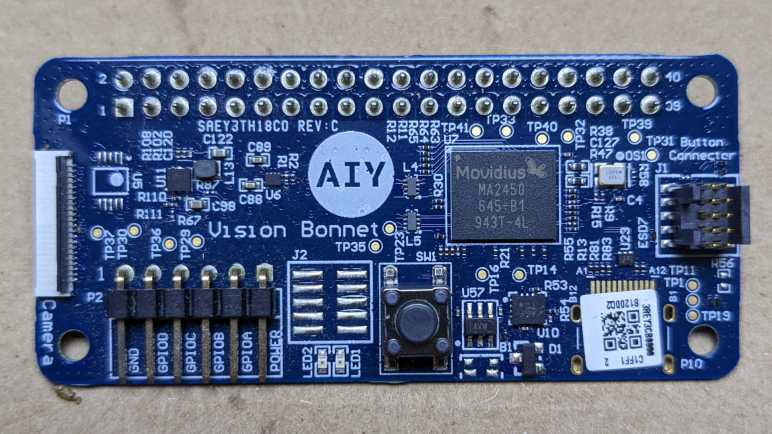
The key component of a Google AIY Vision kit is the “Vision Bonnet”, a small circuit board to sit atop the Raspberry Pi Zero WH bundled in the kit. In addition to all the data interface available via the standard Raspberry Pi GPIO pins, this peripheral also gets “first dibs” on raw camera data. The camera itself is a standard Raspberry Pi Camera V2.1 but instead of connecting directly to the Raspbery Pi Zero, the camera cable connects directly to the vision bonnet. There is then a second cable connecting from vision bonnet to the Raspberry Pi camera connector, for the bonnet to forward camera data to the Pi after Vision Bonnet is done processing it. This architecture ensures the Vision Bonnet will never be constrained by data interface limitations onboard the Pi. It can get raw camera feed and do its magic before camera data even gets into a Pi.

The vision coprocessor on this Vision Bonnet circuit board is a Movidius Myriad MA2450, launched in 2016 and discontinued in 2020. Based on its application here, I infer the chip can accelerate inference operations for vision-based convolutional neural networks that fit within constraints outlined in the AIY Vision documentation. I don’t know enough about the field of machine vision to judge whether these constraints are typical or if they pose an unreasonable burden. What I do know is that, now that everything has been discontinued, I probably shouldn’t spend much more time studying this hardware.

My interest in commercially available vision coprocessors has since shifted to Luxonis OAK-D and related products. In addition to a camera array (two monochrome cameras for stereoscopic vision and one color camera for object detailed) it is built around Luxonis OAK SoM (System on Module) built around the newer Movidius Myriad MA2485 chip. Luxonis has also provided far more software support and product documentation on their OAK modules than Google ever did for their AIY Vision Bonnet.

I didn’t notice much of interest on the back side of AIY Vision Bonnet. The most prominent chip is marked U2, an Atmel (now Microchip) SAM-D.

The remainder of hardware consists of a large clear button with three LEDs embedded within. (Red, green, and blue.) That button hosts a small circuit board that connects to the vision bonnet via a small ribbon cable. It also hosts connectors for the piezo buzzer and the camera activity (“privacy”) LED. The button module appears identical to the counterpart in AIY Voice kit (right side of picture for comparison) but since voice kit lacked piezo buzzer or LED, it lacked the additional circuit board.

Google AIY Vision Kit

A few years ago, I tried out the Google AIY “Voice” and “Vision” kits. They featured very novel hardware but that alone was not enough. Speaking as someone not already well-versed in AI software of the time, there was not enough documentation support to get people like me onboard to do interesting things with that novel hardware. People like me could load the default demo programs, we could make minor modifications to it, but using that hardware for something new required climbing a steep learning curve.

At one point I mounted the box to my Sawppy rover’s instrument mast, indicating my aspirations to use it for rover vision, but I never got much of anywhere.

The software stack also left something to be desired, as it built on top of Raspberry Pi OS but was fragile and easily broken by Raspberry Pi updates. Reviewing my notes, I realized I published my notes on AIY Voice but the information on AIY Vision was still sitting in my “Drafts” section. Oops! Here it is for posterity before I move on.

Google AIY Vision Kit

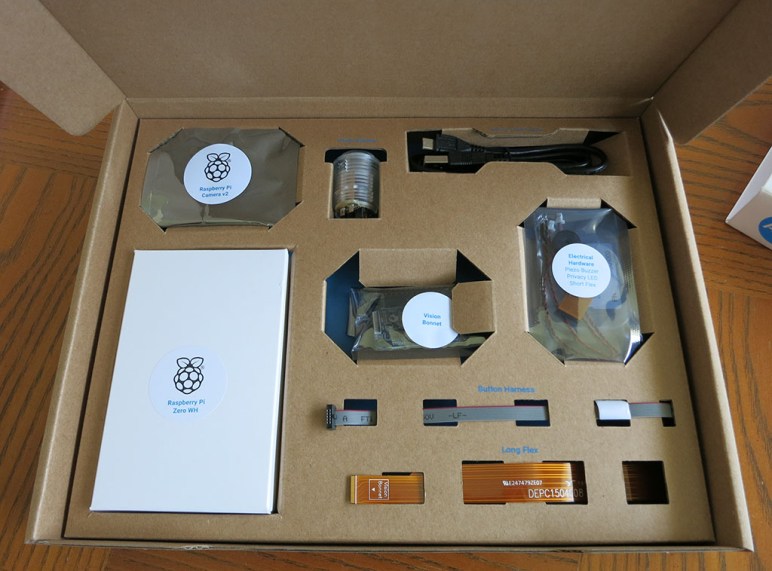
The product packaging is wonderful. This was from the era of Google building retail products from easily recycled cardboard. All parts were laid out and neatly labeled in a cardboard box.

Google AIY online instructions.jpg

There was no instruction booklet in the box, just a pointer to assembly instructions online. While fairly easy to follow, note that instructions were written for people who already know how to handle bare electronic circuit boards. Handle the circuit boards by the edges and avoid touching components (especially electrical contacts) and such. Complete beginners unaware of basics might ruin their AIY kit.

Google AIY Vision Kit major components

From a hardware architecture perspective, the key is the AIY Vision bonnet that sat on top of a Raspberry Pi Zero WH. (W = WiFi, H = with presoldered header pins.) In addition to connection with all Pi Zero GPIO pins, it also connects to the Pi camera connector for direct access to camera feed. (Normal data path: Camera –> Pi Zero. AIY Vision data path: Camera –> Vision Bonnet –> Pi.) In addition to the camera, there is a piezo buzzer for auditory feedback, a standalone green LED to indicate camera is live (“Privacy LED”), and a big arcade-style button with embedded LEDs.

Once assembled, we could install and run several visual processing models posted online. If we want to go beyond that, there are instructions on how to compile trained TensorFlow models for hardware accelerated inference by the AIY Vision Bonnet. And if those words don’t mean anything (it didn’t to me when I played with the AIY Vision) then we’re up a creek. That was bad back then, and now that a few years have gone by, things have gotten worse.

  1. The official Google AIY system images for Raspberry Pi hasn’t been updated since April 2021. And we can’t just take it and pick up more recent updates, because that breaks bonnet functionality.
  2. The vision bonnet model compiler is only tested to work on Ubuntu 14.04, whose maintenance updates ended in 2019.
  3. Example Python code is in Python 2, whose support ended January 1st, 2020.
  4. Example TensorFlow information are for the now-obsolete TensorFlow 1. TensorFlow 2 was a huge breaking change, and it takes a lot of work — not to mention expertise — to migrate from TF1.x to TF2.

All of these factors together tell me the Google AIY Vision bonnet has been left to the dusty paths of history. My unit has only ever ran the default “Joy Detection” demo, and I expect this AIY Vision Bonnet will never run anything else. Thankfully, the rest of the hardware (Raspberry Pi Zero WH, camera, etc.) should have better prospects of finding another use in the future.

Old OCZ SSD Reawakened and Benchmarked

In the interest of adding 3.5″ HDD bays to a tower case, along with cleaning up wiring to power them, I installed a Rosewill quad hard drive cage where a trio of 5.25″ drive bays currently sit open and unused. It mostly fit. To verify that all drive cage cable connections worked with my SATA expansion PCIe card (*) I grabbed four drives from my shelf of standby hardware. When installing them in the drive cage, I realized I made a mistake: one of the drives was an old OCZ Core Series V2 120GB SSD that had stopped responding to its SATA input. I continued installation anyway because I thought it would be interesting to see how the SATA expansion card handled a nonresponsive drive.

Obviously, because today intent was to see an unresponsive drive, Murphy’s Law stepped in and foiled the plan: when I turned on the computer, that old SSD responded just fine. Figures! I don’t know if there was something helpful in the drive cage, or the SATA card, or if something was wrong with the computer that refused to work with this SSD years ago. Whatever the reason, it’s alive now. What can I do with it? Well, I can fire up the Ubuntu disk utility and get some non-exhaustive benchmark numbers.

Average read rate 143.2 MB/s, write 80.3 MB/s, and seek of 0.22 ms. This is far faster than what I observed by using the USB2 interface, so I was wrong earlier about the performance bottleneck. Actual performance is probably lower than this, though. Looking at the red line representing write performance, we can see it started out strong but degraded at around 60% of the way through the test and kept getting worse, probably the onboard cache filling up. If this test ran longer, we might get more and more of the bottom end write performance of 17 MB/s.

How do these numbers compare to some contemporaries? Digging through my pile of hardware, I found a Samsung ST750LM022. This is a spinning-platter laptop hard drive with 750GB capacity.

Average read 85.7 MB/s, write 71.2 MB/s, and seek of 16.77 ms. Looking at that graph, we can clearly see degradation in read and write performance as the test ran. We’d need to run this test for longer before seeing a bottom taper, which may or may not be worse than the OCZ SSD. But even with this short test, we can see the read performance of a SSD does not degrade over time, and that SSD has a much more consistent and far faster seek time.

That was interesting, how about another SSD? I have an 120GB SSD from the famed Intel X25-M series of roughly similar vintage.

Average read 261.2 MB/s, write 106.5 MB/s, seek 0.15 ms. Like the OCZ SSD, performance took a dip right around the 60% mark. But after it did whatever housekeeping it needed to do, performance level resumed at roughly same level as earlier. Unlike the OCZ, we don’t see as much of a degradation after 60%.

I didn’t expect this simple benchmark test to uncover the full picture, as confirmed after seeing this graph. By these numbers, the Intel was around 30% better than the OCZ. But my memory says otherwise. In actual use as a laptop system drive, the Intel was a pleasure and the OCZ was a torture. I’m sure these graphs are missing some important aspects of their relative performance.

Since I had everything set up anyway, I plugged in a SanDisk SSD that had the advantage of a few years of evolution. In practical use, I didn’t notice much of a difference between this newer SanDisk and the old Intel. How do things look on this benchmark tool?

Average read 478.6 MB/s, write 203.4 MB/s, seek 0.05 ms. By these benchmarks, the younger SanDisk absolutely kicked butt of an older Intel with at least double the performance. But that was not borne out by user experience as a laptop drive, it didn’t feel much faster.

Given that the SanDisk benchmarked so much faster than the Intel (but didn’t feel that way in use) and OCZ benchmarked only slightly worse than the Intel (but absolutely felt far worse in use) I think the only conclusion I can draw here is: Ubuntu Disk Utility built-in benchmarking tool does not reflect actual usage. If I really wanted to measure performance details of these drives, I need to find a better disk drive benchmarking tool. Fortunately, today’s objective was not to measure drive performance, it was only to verify all four bays of my Rosewill drive cage were functional. It was a success on that front, and I’ll call it good for today.


(*) Disclosure: As an Amazon Associate I earn from qualifying purchases.

Rosewill Hard Disk Drive Cage (RSV-SATA-Cage-34)

Immediately after my TrueNAS CORE server power supply caught fire, I replaced it with a spare power supply I had on hand. This replacement had one annoyance: it had fewer SATA power connectors. As a short-term fix, I dug up some adapters from the older CD-ROM style power connectors to feed my SATA drives, but I wanted a more elegant solution.

The ATX tower case I used for my homebuilt server had another issue: it had only five 3.5″ hard drive bays for my six-drive array. At the moment it isn’t a problem, because the case had two additional 2.5″ laptop sized hard drive mount points and one drive in my six-drive array was a smaller drive salvaged from an external USB drive which fits in one bay. The other 2.5″ bay held the SSD boot drive for my TrueNAS CORE server. I did not want to be constrained to using a laptop drive forever, so I wanted a more elegant solution to this problem as well.

I found my elegant solution for both problems in a Rosewill RSV-SATA-Cage-34 hard drive cage. It fits four 3.5″ drives into the volume of a trio of 5.25″ drive bays, which is present on my ATX tower case and currently unused. This would solve my 3.5″ bay problem quite nicely. It will also solve my power connector problem, as the cage used a pair of CD-ROM style connectors for power. A circuit board inside this cage redistributes that power to four SATA power connectors.

First order of business was to knock out the blank faceplates covering the trio of 5.25″ bays.

Quick test fit exposed a problem: the drive cage is much longer than a CD-ROM drive. For the case to sit at the recommended mounting location for 5.25″ peripherals, drive cage cooling fan would bump up against the ATX motherboard power connector. This leaves very little room for the four SATA data cables and two CD-ROM power connectors to connect. One option is to disconnect and remove the cooling fan to give me more space, but I wanted to maintain cooling airflow, so I proceeded with the fan in place.

Given the cramped quarters, there would be no room to connect wiring once the cage was in place. I pulled the cage out and connected wires while it was outside the case, then slid it back in.

It is a really tight fit in there! Despite my best effort routing cables, I could not slide the drive cage all the way back to its intended position. This was as hard as I was willing to shove, leaving the drive cage several millimeters forward of its intended position.

As a result, the drive cage juts out beyond case facade by a few millimeters. Eh, good enough.


[UPDATE: I learn there exist products with a similar concept for small 2.5″ (laptop) form factor drives. Athena Power BP-15827SAC packs a whopping eight 2.5″ SATA drives into the volume of a single 5.25″ CD-ROM drive bay. All eight must be thin 7mm drives, though. To accommodate thicker drives, Athena Power also has six-bay and four-bay versions of the same idea, and naturally there are other vendors offering similar executions.]

Notes on “Make: FPGAs” by David Romano

After skimming through a Maker Media book on CNC routing wood furniture, I wanted to see what I could learn from their FPGAs: Turning Software into Hardware with Eight Fun & Easy DIY Projects (*) by David Romano. I was motivated by the FPGA-based badge of Superconference 2019, which had (I was told) a relatively powerful FPGA at its core. But all my badge work were at the software level, I never picked up enough to make gateware changes. Perhaps this book can help me?

My expectations dropped when I saw it was published in February 2016. The book is very honest that things are evolving quickly in the realm of FPGAs and things would be outdated quickly, but I was surprised at how little of the information in the book could be transferred to other FPGA projects.

In the preface, the author explained they had worked with FPGAs in a professional context since the early days (1980s) of the field. Seeing the technology evolve over the years and drop in price into hobbyist-accessible range, this book was written to share excitement with everyone. This is an admirable goal! But there is a downside to a book written by someone who has been with the technology for so long. They are so familiar with concepts and jargons that it’s difficult to get in the right frame of mind to explain things in a way that novices in the field can understand.

As an example of this problem, we only got up to page 15 before we are hit with this quote: “Behavioral models and bus functional models are used as generators and monitors in the test bench. A behavioral model is HDL code that mimics the operation of a device, like a CPU, but is not gate-level accurate. In other words, it is not synthesizable.” That sound is the <WOOSH> of indecipherable words flying over my head.

The hardware examples used in this book are development boards built around various FPGAs from Xilinx. To use those boards, we have a long list of proprietary software. It starts with Xilinx software for the FPGA itself, followed by tools from each development board vendor to integrate with their hardware. This introduces a long list of headaches, starting from the fact Xilinx’s “ISE WebPack” was already a discontinued product at the time of writing, with known problems working under 64-bit Windows. And things went downhill from there.

For reference, the hardware corresponding to projects in the book are:

The project instructions do not get into very much depth on how to create FPGA gateware. After an overly superficial overview (I think the most valuable thing I learned is that $display is the printf() of Verilog) the book marches into using blocks of code published by other people on OpenCores, and then loading code written by others onto FPGA. I guess it’s fine if everything works. But if anything goes wrong in this process, a reader lacks knowledge to debug the problem.

I think the projects in this book have the most value for someone who already has one of the above pieces of hardware, giving them instructions to run some prebuilt gateware on it. The value decreases for other boards with Xilinx FPGA, and drops to nearly nothing for non-Xilinx FPGA. This book has little relevance to the Lattice ECP5 on board Superconference 2019 badge, so I will have to look elsewhere for my FPGA introduction.


(*) Disclosure: As an Amazon Associate I earn from qualifying purchases.

Adafruit SSD1305 Arduino Library on ESP8266

Thanks to Adafruit publishing an Arduino library for interfacing with SSD1305 display driver chip, I proved that it’s possible to control an OLED dot matrix display from a broken FormLabs Form 1+ laser resin 3D printer. But the process wasn’t seamless, I ran into several problems using this library:

  1. Failed to run on ESP32 Arduino Core due to watchdog timer reset.
  2. 4 pixel horizontal offset when set to 128×32 resolution.
  3. Sketch runs only once on Arduino Nano 33 BLE Sense, immediately after uploading.

Since Adafruit published the source code for this library, I thought I’d take a look to see if anything might explain any of these problems. For the first problem of watchdog reset on ESP32, I found a comment block where the author notes potential problems with watchdog timers. It sounds like an ESP8266 is a platform known to work, so I should try that.

  // ESP8266 needs a periodic yield() call to avoid watchdog reset.
  // With the limited size of SSD1305 displays, and the fast bitrate
  // being used (1 MHz or more), I think one yield() immediately before
  // a screen write and one immediately after should cover it.  But if
  // not, if this becomes a problem, yields() might be added in the
  // 32-byte transfer condition below.

While I’m setting up an ESP8266, I could also try to address the horizontal offset. It seems a column offset of four pixels were deliberately added for 32-pixel tall displays, something not done for 64-pixel tall displays.

  if (HEIGHT == 32) {
    page_offset = 4;
    column_offset = 4;
    if (!oled_commandList(init_128x32, sizeof(init_128x32))) {
      return false;
    }
  } else {
    // 128x64 high
    page_offset = 0;
    if (!oled_commandList(init_128x64, sizeof(init_128x64))) {
      return false;
    }
  }

There was no comment to explain why this line of code was here. My best guess is the relevant Adafruit product has internally wired its columns with four pixels of offset, so this code makes a shift to compensate. If I remove this line of code and rebuild, my OLED displays correctly.

As for the final problem of running just once (immediately after upload) on an Arduino Nano 33 BLE Sense, I don’t have any hypothesis. My ESP8266 happily restarted this test sketch whenever I pressed the reset button or power cycled the system. I’m going to chalk it up to a hardware-specific issue with the Arduino Nano 33 BLE Sense board. At the moment I have no knowledge (and probably no equipment and definitely no motivation) for more in-depth debugging of its nRF52840 chip or Arm Mbed OS.

Now I have this OLED working well with an ESP8266, a hardware platform I have on hand, I can confidently describe this display module’s pinout.

First Test with Adafruit SSD1305 Library

I feel I now have a good grasp on how I would repurpose the OLED dot matrix display from a broken FormLabs Form 1+ laser resin 3D printer. I felt I could have figured out enough to play back commands captured by my logic analyzer, interspersed with my own data, similar to how I controlled a salvaged I2C LCD. But this exploration was much easier because a user on FormLabs forums recognized the SSD1305-based display module. Thanks to that information, I had a datasheet to decipher the commands, and I could go searching to see if anyone has written code to interface with a SSD1305. Adafruit, because they are awesome, published an Arduino library to do exactly that.

Adafruit’s library was written to support several of their products that used an SSD1305, including product #2675 Monochrome 2.3″ 128×32 OLED Graphic Display Module Kit which looks very similar to the display in a Form 1+ except not on a FormLabs custom circuit board. Adafruit’s board has 20 pins in a single row, much like the Newhaven Display board but visibly more compact. Adafruit added level shifters for 5V microcontroller compatibility as well as an extra 220uF capacitor to help buffer power consumption.

Since the FormLabs custom board lacked such luxuries, I need to use a 3.3V Arduino-compatible microcontroller. The most convenient module at hand (because it was used in my most recent project) happened to be an ESP32. The ssd1305test example sketch of Adafruit’s library compiled and uploaded successfully but threw the ESP32 into a reset loop. I changed the Arduino IDE Serial Monitor baud rate to 115200 and saw this error message repeating endlessly every few seconds.

ets Jun  8 2016 00:22:57

rst:0x8 (TG1WDT_SYS_RESET),boot:0x13 (SPI_FAST_FLASH_BOOT)
configsip: 0, SPIWP:0xee
clk_drv:0x00,q_drv:0x00,d_drv:0x00,cs0_drv:0x00,hd_drv:0x00,wp_drv:0x00
mode:DIO, clock div:1
load:0x3fff0030,len:1344
load:0x40078000,len:13516
load:0x40080400,len:3604
entry 0x400805f0
SSD1305 OLED test

Three letters jumped out at me: WDT, the watchdog timer. Something in this example sketch is taking too long to do its thing, causing the system to believe it has locked up and needs a reset to recover. One unusual aspect of ssd1305test code is that all work live in setup() leaving an empty loop(). As an experiment, I moved majority of code to loop(), but that didn’t fix the problem. Something else is wrong but it’ll take more debugging.

To see if it’s the code or if it is the hardware, I pulled out a different 3.3V microcontroller: an Arduino Nano 33 BLE Sense. I chose this hardware because its default SPI communication pins are those already used in the sample sketch, making me optimistic it is a more suitable piece of hardware. The sketch ran without triggering its watchdog dimer, so there’s an ESP32 incompatibility somewhere in the Adafruit library. Once I saw the sketch was running, I connected the OLED and immediately saw the next problem: screen resolution. I see graphics, but only the lower half. To adjust, I changed the height dimension passed into the constructor from 64 to 32. (Second parameter.)

Adafruit_SSD1305 display(128, 32, &SPI, OLED_DC, OLED_RESET, OLED_CS, 7000000UL);

Most of the code gracefully adjusted to render at 32 pixel height, but there’s a visual glitch where pixels are horizontally offset: the entire image has shifted to the right by 4 pixels, and what’s supposed to be the rightmost 4 pixels are shown on the left edge instead.

The third problem I encountered is this sketch only runs once, immediately after successful uploading to the Nano 33 BLE Sense. If I press the reset button or perform a power cycle, the screen never shows anything again.

Graphics onscreen prove this OLED responds to an SSD1305 library, but this behavior warrants a closer look into library code.

Wemos D1 Mini ESP32 Derivative

It was fun to build a LED strobe light pulsing in sync with a cooling fan’s tachometer wire. After the initial bare-bones prototype I used ESPHome to add some bells and whistles. My prototype board is built around a Wemos D1 Mini module, but I think I’ve hit a limit of hardware timers available within its onboard ESP8266 processor. The good news is that I could upgrade to its more powerful sibling ESP32 with this dev board, and its hardware compatibility means I don’t have to change anything on my prototype board to use it.

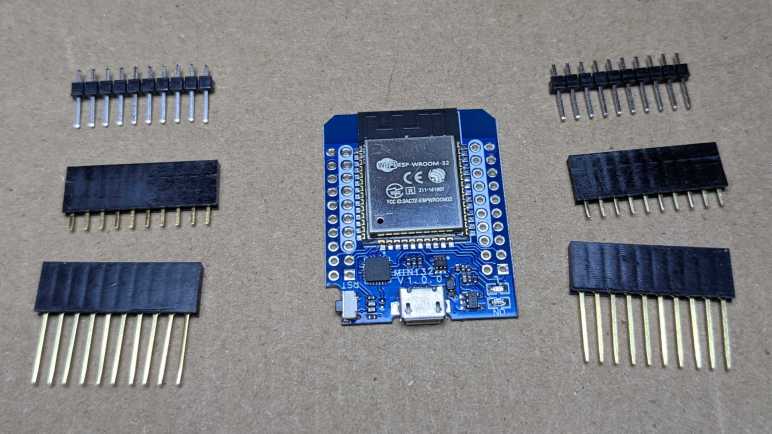
The most puzzling thing about this particular ESP32 dev format is that I’m not exactly sure where it came from. I found it as “Wemos D1 Mini ESP32” on Amazon where I bought it. (*) I also see it listed by that name as well as “Wemos D1 Mini32” on its Platform.IO hardware board support page, which helpfully links to Wemos as “Vendor”. Except, if we follow that link, we don’t see this exact board listed. The Wemos S2 Mini is very close, but I see fewer pins (32 vs. 40) and their labels indicate a different layout. Did Wemos originate this design, but since removed it for some reason? Or did someone else design this board and didn’t get credit for it?

Whatever the history of this design, putting a unit (right) next to the Wemos D1 Mini design (left) shows it is a larger board. ESP32 has a much greater number of I/O pins, so this module has 40 through-holes versus 16.

Another contributing factor for larger size is the fact all components are on a single side of the circuit board, as opposed to having components on both sides of the board. It leaves the backside open for silkscreened information for pins. Some of the pins were labeled with abbreviations I don’t understand, but probing those lines found the following:

  • Pins connected to onboard flash and not recommended for GPIO use: CMD (IO11), CLK (IO6) SD0/SDD (IO7) SD1 (IO8) SD2 (IO9) and SD3 (IO10).
  • TDI is IO12, TDO is IO15, TCK is IO13, and TMS is IO34. When not used as GPIO, these can be used as JTAG interface pins for testing and debugging.
  • SVP is IO36, and SVN is IO39. I haven’t figured out what “SVP” and “SVN” might mean. These are two of four pins on an ESP32 that are input-only. “GPI” and not “GPIO”, so to speak. (IO34 and IO35 are the other input-only pins.)

Out of these 40 pins, two are labeled NC meaning not connected, leaving 38 connections. An Espressif ESP32 DevKitC has 38 pins and it appears the same 38 are present on this module, including the aforementioned onboard flash pins and three grounds. But physical arrangement has been scrambled relative to the DevKitC to arrive at this four-column format. What was the logic behind this rearrangement? The key insight for me was that a subset of 16 pins were highlighted with white. They were arranged to be physically and electrically compatible with the Wemos D1 Mini ESP8266:

  • Reset pin RST is in the same place.
  • All power pins are at the same places: 5V/VCC, 3.3V, and one of the ground pins.
  • Serial communication lines up with UART TX/RX at the same places.
  • ESP32 can perform I2C on most of its GPIO pins. I see many examples use the convention of pins 21 for SDA and pin 22 for SCL, and they line up here with ESP8266 D1 Mini’s I2C pins D2 and D1.
  • Same deal with ESP32 SPI support: many pins are supported, but convention has uses four pins (5, 18, 19, and 23) so they’ve been lined up to their counterparts on ESP8266 D1 Mini.
  • ESP8266 has only a single pin for analog-to-digital conversion. ESP32 has more flexibility and one of several ADC-supported pins was routed to the same place.
  • ESP8266 supported hardware sleep/wake with a single pin. Again ESP32 is more flexible and one of the supported pins was routed to its place.
  • There’s a LED module hard-wired to GPIO2 onboard the ESP8266MOD. ESP-WROOM-32 has no such onboard LED, so there’s an external LED wired to GPIO2 adjacent to an always-on power LED. Another difference from ESP8266: this LED illuminates when GPIO2 is high instead of ESP8266’s onboard LED which shines when GPIO2 is low.

This is a nice piece of backwards-compatibility work. It means I can physically plug this board’s white-highlighted subset of 16 pins into any hardware expecting the Wemos D1 Mini ESP8266 board, like its ecosystem of compatible shields. Physically it will hang out the sides, but electrically things should work. Software will still have to be adjusted and recompiled for ESP32, changing GPIO numbers to match their new places. But at least those pins are all capable of the digital and analog IO pins in those places.

The only downside I see with this design? It is no longer breadboard-friendly. When all pins are soldered, all horizontally adjacent pins would be shorted together and that’s not going to work. I’m specifically eyeing one corner where reset (RST) would be connected to ground (GND). I suppose we could solder pins to just the compatibility subset of 16 pins and plug that into a breadboard, but this module is too wide for a standard breadboard. A problem shared with another ESP32 dev board format I’ve used.

And finally, like my ESP8266 Wemos D1 Mini board, these came without any pins soldered to the board. Three different types were included in the bag: pins, or sockets, or passthrough. However, the bag only included enough 20 pins of each type, which isn’t enough for all 40 pins. Strange, but no matter. I have my own collection of pins and sockets and passthrough connectors if I want to use them. And my most recent ESP32 project didn’t need these pins at all. In fact, I had to unsolder the pins that module came with. An extra step I wouldn’t need to do again, now I have these “Wemos D1 Mini ESP32” modules on hand for my experiments.


(*) Disclosure: As an Amazon Associate I earn from qualifying purchases.

Full Screen White VGA Signal with Bitluni ESP32 Library

Over two and a half years ago, I had the idea to repurpose a failed monitor into a color-controllable lighting panel. I established it was technically feasible to generate a solid color full screen VGA signal with a PIC, then I promptly got distracted by other projects and never dug into it. I still have the weirdly broken monitor and I still want a large diffuse light source, but now I have to concede I’m unlikely to dedicate the time to build my own custom solution. In the interest of expediency, I will fall back to leveraging someone else’s work. Specifically, Bitluni’s work to generate VGA signals with an ESP32.

Bitluni’s initial example has since been packaged into Bitluni’s ESP32Lib Arduino library, making the software side very easy. On the hardware side, I dug up one of my breadboards already populated with an ESP32 and plugged in the VGA cable I had cut apart and modified for my earlier VGAX experiment. Bitluni’s library is capable of 14-bit color with the help of a voltage-dividing resistor array, but I only cared about solid white and maybe a few other solid colors. The 3-bit color mode, which did not require an external resistor array, would suffice.

I loaded up Bitluni’s VGAHelloWorld example sketch and… nothing. After double-checking my wiring to verify it is as expected, I loaded up a few other sketches to see if anything else made a difference. I got a picture from the VGASprites example, though it had limited colors as it is a 14-bit color demo and I had only wired up 3-bit color. Simplifying code in that example step by step, I narrowed down the key difference to be the resolution used: VGAHelloWorld used MODE320x240 and VGASprites used MODE200x150. I changed VGAHelloWorld to MODE200x150 resolution, and I had a picture.

This was not entirely a surprise. The big old malfunctioning monitor had a native resolution of 2560×1600. People might want to display a lower resolution, but that’s still likely to be in the neighborhood of high-definition resolutions like 1920×1080. There was no real usage scenario for driving such a large panel with such low resolutions. The monitor’s status bar said it was displaying 800×600, but 200×150 is one-sixteenth of that. I’m not sure why this resolution, out of many available, is the one that worked.

I don’t think the problem is in Bitluni’s library, I think it’s just idiosyncrasies of this particular monitor. Since I resumed this abandoned project in the interest of expediency, I didn’t particular care to chase down why. All I cared about was that I could display solid white, so resolution didn’t matter. But timing mattered, because VGAX output signal timing was slightly off and could not fill the entire screen. Thankfully Bitluni’s code worked well with this monitor’s “scale to fit screen” mode, expanding the measly 200×150 pixels to its full 2560×1600. An ESP32 is overkill for just generating a full screen white VGA signal, but it was the most expedient way for me to turn this monitor into a light source.

#include <ESP32Lib.h>

//pin configuration
const int redPin = 14;
const int greenPin = 19;
const int bluePin = 27;
const int hsyncPin = 32;
const int vsyncPin = 33;

//VGA Device
VGA3Bit vga;

void setup()
{
  //initializing vga at the specified pins
  vga.init(vga.MODE200x150, redPin, greenPin, bluePin, hsyncPin, vsyncPin); 

  vga.clear(vga.RGB(255,255,255));
}

void loop()
{
}

UPDATE: After I had finished this project, I found ESPVGAX: a VGA signal generator for the cheaper ESP8266. It only has 1-bit color depth, but that would have been sufficient for this. However there seem to be a problem with timing, so it might not have worked for me anyway. If I have another simple VGA signal project, I’ll look into ESPVGAX in more detail.

My BeagleBone Boards Returning to Their Box

I have two BeagleBone boards — a PocketBeagle and a BeagleBone Blue — that had been purchased with ambitions too big for me to realize in the past. In the interest of learning more about the hardware so I can figure out what to do with them, I followed the lead of a local study group to read Exploring BeagleBone, Second Edition by Derek Malloy. I enjoyed reading the book, learned a lot, and thought it was well worth the money. Now that I am better informed, I returned to the topic of what I should do with my boards.

I appreciate the aims of the BeagleBoard foundation, but these boards are in a tough spot finding a niche in the marketplace. Beagle boards have a great out-of-the-box experience with a tutorial page and Cloud9 IDE running by default. But as soon as we try to go beyond that introduction, all too quickly we find that we’re on our own. The Raspberry Pi foundation has been much more successful at building a beginner-friendly software ecosystem to support those trips beyond the introduction. On the hardware side, Broadcom processors on a Pi are far more computationally powerful than CPUs on equivalent beagles. This includes a move to 64-bit capable processors on the Raspberry Pi 3 in 2017, well ahead of BeagleBoard AI-64 that launched this year (2022). That last bit is important for robotics, as ROS2 is focused on 64-bit architectures and there’s no guarantee of support for 32-bit builds.

Beyond the CPU, there were a few advantages to a Beagle board. My favorite are the more extensive (and usable) collection of onboard LEDs and buttons, including a power button for graceful powerup / shutdown that is still missing from a Raspberry Pi. There is also onboard flash memory storage of known quality, which makes their performance far more predictable than random microSD cards people would try to use with their Raspberry Pi. None of those would be considered make-or-break features, though.

What I had considered a definitive BeagleBone hardware advantage are the programmable real-time units (PRU) within Octavo modules, capable of tasks with timing precision beyond the guarantee of a Linux operating system. In theory that sounded like great teaming for many hardware projects, but in Exploring BeagleBone chapter 15 I got a look at the reality of using a PRU and I became far less enamored. Those PRU had their own instructions, their own code building toolchain, their own debugging tools, and their own ways of communicating with the rest of the system. It looked quite convoluted and intimidating for a beginner. Learning to use the PRU is not like learning a little peripheral. It is literally learning an entirely new microcontroller and that knowledge is not portable to any other hardware. I can see the payoff for highly integrated commercial industrial solutions, but that kind of time investment is hard to justify for hobbyist one-off projects. I now understand why BeagleBoard PRUs aren’t used as widely as I had expected them to be.

None of the above sounded great for my general use of BeagleBoard, but what about the robotics-specific focus of the BeagleBoard Blue? It has lots of robot-focused hardware, crammed onto a small board. Their corresponding software is the “Robot Control Library”, and I can get a good feel for its capabilities via the library documentation site. Generally speaking, it looked fine until I clicked on the link to its GitHub repository. I saw the most recent update was more than two years ago, and there is a long backlog of filed issues few people are looking at. Those who put in the effort to contribute code in a pull request could only watch and sit them gather dust. The oldest PR is over two years old and has yet to be merged. All signs of an abandoned codebase.

I like the idea of BeagleBone, but after I took a closer look, I’m not terribly enthused at the reality. At the moment I don’t see a project idea niche where a BeagleBone board would be the best tool for the job. With my updated knowledge, I hope to recognize a good fit for a Beagle board if an opportunity should arise. But until then, my boards are going back into their boxes to continue gathering dust.