A Quick Look at ASPM and Power Consumption

[UPDATE: After installing Proxmox VE kernel update from 6.2.16-15-pve to 6.2.16-18-pve, this problem no longer occurs, allowing the machine to stay connected to the network.]

I’ve configured an old 15″ laptop into a light-duty virtualization server running Proxmox VE, and I’m running into a reliability problem with the Ethernet controller on this Dell Inspiron 7577. My symptoms line up with a bug that others have filed, and a change to address the issue is working its way through the pipeline. I wouldn’t call it a fix, exactly, as the problem seems to be flawed power management in Realtek hardware and/or driver in combination with the latest Linux kernel. The upcoming change doesn’t fix Realtek power management, it merely disables their participation in PCIe ASPM (Active State Power Management).

Until that change arrives, one of the mitigation workarounds is to deactivate ASPM on the entire PCIe bus. There are a lot of components on that bus! Here’s the output from running “lspci” at the command line:

00:00.0 Host bridge: Intel Corporation Xeon E3-1200 v6/7th Gen Core Processor Host Bridge/DRAM Registers (rev 05)
00:01.0 PCI bridge: Intel Corporation 6th-10th Gen Core Processor PCIe Controller (x16) (rev 05)
00:02.0 VGA compatible controller: Intel Corporation HD Graphics 630 (rev 04)
00:04.0 Signal processing controller: Intel Corporation Xeon E3-1200 v5/E3-1500 v5/6th Gen Core Processor Thermal Subsystem (rev 05)
00:14.0 USB controller: Intel Corporation 100 Series/C230 Series Chipset Family USB 3.0 xHCI Controller (rev 31)
00:14.2 Signal processing controller: Intel Corporation 100 Series/C230 Series Chipset Family Thermal Subsystem (rev 31)
00:15.0 Signal processing controller: Intel Corporation 100 Series/C230 Series Chipset Family Serial IO I2C Controller #0 (rev 31)
00:15.1 Signal processing controller: Intel Corporation 100 Series/C230 Series Chipset Family Serial IO I2C Controller #1 (rev 31)
00:16.0 Communication controller: Intel Corporation 100 Series/C230 Series Chipset Family MEI Controller #1 (rev 31)
00:17.0 SATA controller: Intel Corporation HM170/QM170 Chipset SATA Controller [AHCI Mode] (rev 31)
00:1c.0 PCI bridge: Intel Corporation 100 Series/C230 Series Chipset Family PCI Express Root Port #1 (rev f1)
00:1c.4 PCI bridge: Intel Corporation 100 Series/C230 Series Chipset Family PCI Express Root Port #5 (rev f1)
00:1c.5 PCI bridge: Intel Corporation 100 Series/C230 Series Chipset Family PCI Express Root Port #6 (rev f1)
00:1d.0 PCI bridge: Intel Corporation 100 Series/C230 Series Chipset Family PCI Express Root Port #9 (rev f1)
00:1f.0 ISA bridge: Intel Corporation HM175 Chipset LPC/eSPI Controller (rev 31)
00:1f.2 Memory controller: Intel Corporation 100 Series/C230 Series Chipset Family Power Management Controller (rev 31)
00:1f.3 Audio device: Intel Corporation CM238 HD Audio Controller (rev 31)
00:1f.4 SMBus: Intel Corporation 100 Series/C230 Series Chipset Family SMBus (rev 31)
01:00.0 VGA compatible controller: NVIDIA Corporation GP106M [GeForce GTX 1060 Mobile] (rev a1)
01:00.1 Audio device: NVIDIA Corporation GP106 High Definition Audio Controller (rev a1)
3b:00.0 Ethernet controller: Realtek Semiconductor Co., Ltd. RTL8111/8168/8411 PCI Express Gigabit Ethernet Controller (rev 15)
3c:00.0 Network controller: Intel Corporation Wireless 8265 / 8275 (rev 78)
3d:00.0 Non-Volatile memory controller: Intel Corporation Device f1aa (rev 03)

Deactivating APSM across the board will impact far more than the Realtek chip. I was curious what impact this would have on power consumption and decided to dig up my Kill-a-Watt meter for some before/after measurements.

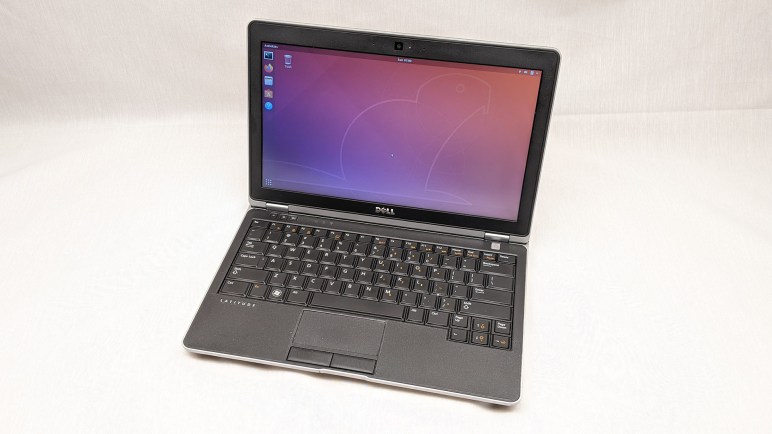
Dell Latitude E6230 + Ubuntu Desktop

As a point of comparison, I had measured a few values of Dell Latitude E6230 I had just retired. These are the lowest values I could see within a ~15 second window. It would jump up by a watt or two for a few seconds before dropping.

  • 5W: idle.
  • 8W: hosting Home Assistant OS under KVM but not doing anything intensive.
  • 35W: 100% CPU utilization as HAOS compiled ESPHome firmware updates.

As a light-duty server, the most important value here is the 8W value, because that’s what it will be drawing most of the time.

Dell Inspiron 7577 + Proxmox VM

Since the Inspiron 7577 came with a beefy 180W AC power adapter (versus the 60W unit of the E6230) I was not optimistic about its power consumption. As a newer larger more power-hungry machine, I had expected idle power draw at least double that of the E6230. I was very pleasantly surprised. Running Proxmox VE but with all VMs shut down, the Kill-a-Watt indicated a rock solid two watts. Two!

As I started up my three virtual machines (Home Assistant OS, Plex, and InfluxDB), it jumped up to fifteen watts then gradually ramped back down to two watts as those VMs reached steady state. After that, it would occasionally jump up to four or five watts for a few seconds to service those mostly-idle VMs, then drop back down to two watts.

On the upside, it appears four generations of Intel CPU and laptop evolution has provided significant improvements in power efficiency. However, they were running different software so some of that difference might be credited to Ubuntu Desktop versus Proxmox.

On the downside, the Kill-a-Watt only measures down to whole watts with no fractional numbers. So a baseline of two watts isn’t very useful because it would take a 50% change in power consumption to show up in Kill-a-Watt numbers. I know running three VMs would take some power, but idling with and without VM both bottomed out at two watts. This puts me into measurement error territory. I need finer grained instrumentation to make meaningful measurements, but I’m not willing to pay money for just a curiosity experiment. I shrugged and kept going.

Dell Inspiron 7577 + Proxmox VM + pcie_aspm=off

Reading Ubuntu bug #2031537 I saw one of their investigative steps was to add pcie_aspm=off to the kernel command line. To follow in those footsteps, I first needed to learn what that meant. I could confirm it is documented as a valid kernel command line parameter. Then I had to find instructions on how to add such a thing, which involved editing /etc/default/grub then running update-grub. And finally, after the system rebooted, I could confirm the command line was processed by typing “cat /proc/cmdline“. I don’t know how to verify it actually took effect, though, except by observing system behavior changes.

The first data point is power consumption: now when hosting my three virtual machines, the Kill-a-Watt showed three watts most of the time. It still occasionally dips down to two watts for a second or two, but most of the time it hovers at three watts plus the occasional spike up to four or five watts. Given the coarse granularity, it’s inconclusive whether this reflects actual change or just random.

The second and more important data point is: did it improve Ethernet reliability? Sadly it did not. Before I made this change, I noted three failures from Realtek Ethernet. Each session lasting 36 hours or less. The first reboot after this change lost network after 50 hours. This might be within range of random error (meaning maybe pcie_aspm=off didn’t actually change anything) and definitely not long enough. After that reboot, the system fell off the network again after less than 3 hours. (2 hours 55 minutes!) That is a complete fail.

I’m sad pcie_aspm=off turned out to be a bust. So what’s next? First I need to move these virtual machines to another physical machine, which was a handy excuse to play with Proxmox clusters.

Dell Inspiron 7577 Laptop as Light Duty Server

I’m setting aside my old Dell Latitude E6230 laptop due to its multiple hardware failures. At the moment I am using it to play with virtualization server software. Virtualization hosts usually run on rack-mounted server hardware in a datacenter somewhere. But an old laptop works well for light-duty exploration at home by curious hobbyists: they sip power for small electric bill impact, they’re compact so we can stash them in a corner somewhere, and they come with a battery for surviving power failures.

I bought my Dell Inspiron 7577 15″ laptop five years ago, because at the time that was the only reasonable way to get my hands on a NVIDIA GPU. The market situation have improved since then, so I now have a better GPU on my gaming desktop. I’ve also learned I haven’t needed mobile gaming power enough to justify carrying a heavy laptop around, so I got a lighter laptop.

RAM turned out to be a big constraint on what I could explore on the E6230. Which had a meager 4GB RAM and I couldn’t justify spending money to buy old outdated DDR2 memory. Now I look forward to having 16GB of elbow room on the 7577.

While none of my virtualization experiments demanded much processing power, more is always better. This move will upgrade from a 3rd-gen Core i5 3320M processor to a 7th-gen Core i5 7300HQ. Getting four hardware cores instead of two hyperthreaded cores should be a good boost, in addition to all the other improvements made over four generations of Intel engineering.

For data storage, I’ve upgraded the 7577 from its factory M.2 NVMe SSD from a 256GB unit to a 1TB unit, and the 7577 chassis has an open 2.5″ SATA slot for even more storage if I need it. The E6230 had only a single 2.5″ SATA slot. Neither of these machines had an optical drive, but if they did, that can be converted to another 2.5″ SATA slot with adapters made for the purpose.

Both of these laptops have a wired gigabit Ethernet port, sadly a fast-disappearing luxury in laptops. It eliminates all the unreliable hassle of wireless networking, but an Ethernet jack is a huge and bulky component in an industry aiming for ever thinner and lighter designs. [UPDATE: The 7577’s Ethernet port would prove to be a source of headaches.]

And finally, the Inspiron 7577 has a hardware-level feature to improve battery longevity: I could configure its BIOS to stop battery charging at 80% full. This should be less stressful on the battery than being kept at 100% full all the time, which is what the E6230 would do and I could not configure it otherwise. I believe this deviation from laptop usage pattern contributed to battery demise and E6230 retirement, so I hope the 80% state of charge limit will keep the 7577 battery alive for longer.

When I started playing with KVM hypervisor on the E6230, I installed Ubuntu Desktop instead of server for two reasons: I didn’t know how to deal with the laptop screen, and I didn’t know how to work with KVM via the command line. Now this 7577 configuration will incorporate what I’ve learned since then.

Dell Latitude E6230 Getting Benched

I’ve got one set of dead batteries upgraded and tested and now attention turns to a different set of expired batteries. I bought this refurbished Dell Latitude E6230 several years ago intending to take apart and use as a robot brain. I changed my mind when it turned out to be a pretty nifty little laptop to take on the go, much smaller and lighter than my Dell Inspiron 7577. With lower specs than the 7577, it also had longer battery run time and its performance didn’t throttle as much while on battery. It has helped me field-program many microcontrollers and performed other mobile computing duties admirably.

I retired it from laptop duty when I got an Apple Silicon MacBook Air, but I brought it back out to serve as my introduction to running virtual machines under KVM hypervisor. Retired laptops work well as low-power machines for exploratory server duty. Running things like Home Assistant haven’t required much in the way of raw processing power, it was more important for a machine to run reliably around the clock while stashed unobtrusively in a corner somewhere. Laptops are built to be compact, energy-efficient, and already have a built-in battery backup. Though the battery usage pattern will be different from normal laptop use, which caused problems long term.

Before that happened though, this Latitude E6230 developed a problem starting up when warm. If I select “restart” it’ll reboot just fine, but if I select “shut down” and press the power button immediately to turn it back on, it’ll give me an error light pattern instead of starting up: The power LED is off, the hard drive LED is on, and the battery LED blinks. Given the blinking battery LED I thought it indicated a problem with the battery, but if I pull out the battery to run strictly on AC, I still see the same lights. The workaround is to leave the machine alone for 20-30 minutes to cool down, after which it is happy to start up either with or without battery.

But if the blinking battery LED doesn’t mean a problem with the battery, what did it mean? I looked for the Dell troubleshooting procedure that would explain this particular pattern. I didn’t get very far and, once I found the workaround, I didn’t invest any more time looking. Acting as a mini-server meant it was running most of the time and rarely powered off. And if it does power off for any reason, this mini-server isn’t running anything critical so waiting 20 minutes isn’t a huge deal. I decided to just live with this annoyance for a long time, until the second problem cropped up recently:

Now when the machine is running, the battery LED blinks yellow. This time it does indicate a problem with the battery. The BIOS screen says “Battery needs to be replaced”. The Ubuntu desktop gives me a red battery icon with an exclamation mark. And if I unplug the machine, there’s zero battery runtime: the machine powers off immediately. (Which has to be followed by that 20 minute wait for it to cool down before I can start it up again.)

I knew keeping lithium-ion batteries at 100% full charge is bad for their longevity, so this was somewhat expected. I would have preferred the ability to limit state of charge at 80% or so. Newer Dell laptops like my 7577 have such an option in BIOS but this older E6230 did not. Given its weird warm startup issue and dead battery, low-power mini-server duty will now migrate to my Inspiron 7577.

Disable Sleep on a Laptop Acting as Server

I’ve played with different ways to install and run Home Assistant. At the moment my home instance is running as a virtual machine inside KVM hypervisor. The physical machine is a refurbished Dell Latitude E6230 running Ubuntu Desktop 22.04. Even though it will be running as a server, I installed the desktop edition for access to tools like Virtual Machine Manager. But there’s a downside to installing the desktop edition for server use: I did not want battery-saving features like suspend and sleep.

When I chose to use an old laptop like a server, I had thought its built-in battery would be useful in case of power failure. But I hadn’t tested that hypothesis until now. Roughly twenty minutes after I unplugged the laptop, it went to sleep. D’oh! The machine still reported 95% of battery capacity, but I couldn’t use that capacity as backup power.

The Ubuntu “Settings” user interface was disappointingly useless for this purpose, with no obvious ability to disable sleep when on battery power. Generally speaking, the revamped “Settings” of Ubuntu 22 has been cleaned up and now has fewer settings cluttering up all those menus. I could see this as a well-meaning effort to make Ubuntu less intimidating to beginners, but right now it’s annoying because I can’t do what I want. To the web search engines!

Looking for command-line tools to change Ubuntu power saving settings brought me to many pages with outdated information that no longer applied to Ubuntu 22. My path to success started with this forum thread on Linux.org. It pointed to this page on linux-tips.us. It has a lot of ads, but it also had applicable information: systemd targets. The page listed four potentially applicable targets:

  • suspend.target
  • sleep.target
  • hibernate.target
  • hybrid-sleep.target

Using “systemctl status” I could check which of those were triggered when my laptop went to sleep.

$ systemctl status suspend.target
○ suspend.target - Suspend
     Loaded: loaded (/lib/systemd/system/suspend.target; static)
     Active: inactive (dead)
       Docs: man:systemd.special(7)

Jul 21 22:58:32 dellhost systemd[1]: Reached target Suspend.
Jul 21 22:58:32 dellhost systemd[1]: Stopped target Suspend.
$ systemctl status sleep.target
○ sleep.target
     Loaded: masked (Reason: Unit sleep.target is masked.)
     Active: inactive (dead) since Thu 2022-07-21 22:58:32 PDT; 11h ago

Jul 21 22:54:41 dellhost systemd[1]: Reached target Sleep.
Jul 21 22:58:32 dellhost systemd[1]: Stopped target Sleep.
$ systemctl status hibernate.target
○ hibernate.target - System Hibernation
     Loaded: loaded (/lib/systemd/system/hibernate.target; static)
     Active: inactive (dead)
       Docs: man:systemd.special(7)
$ systemctl status hybrid-sleep.target
○ hybrid-sleep.target - Hybrid Suspend+Hibernate
     Loaded: loaded (/lib/systemd/system/hybrid-sleep.target; static)
     Active: inactive (dead)
       Docs: man:systemd.special(7)

Looks like my laptop reached the “Sleep” then “Suspend” targets, so I’ll disable those two.

$ sudo systemctl mask sleep.target
Created symlink /etc/systemd/system/sleep.target → /dev/null.
$ sudo systemctl mask suspend.target
Created symlink /etc/systemd/system/suspend.target → /dev/null.

After they were masked, the laptop was willing to use most of its battery capacity instead of just a tiny sliver. This should be good for several hours, but what happens after that? When the battery is almost empty, I want the computer to go into hibernation instead of dying unpredictably and possibly in a bad state. This is why I left hibernation.target alone, but I wanted to do more for battery health. I didn’t want to drain the battery all the way to near-empty, and this thread on AskUbuntu led me to /etc/UPower/UPower.conf which dictates what battery levels will trigger hibernation. I raised the levels so the battery shouldn’t be drained much past 15%.

# Defaults:
# PercentageLow=20
# PercentageCritical=5
# PercentageAction=2
PercentageLow=25
PercentageCritical=20
PercentageAction=15

The UPower service needs to be restarted to pick up those changes.

$ sudo systemctl restart upower.service

Alas, that did not have the effect I hoped it would. Leaving the cord unplugged, the battery dropped straight past 15% and did not go into hibernation. The percentage dropped faster and faster as it went lower, too. Indication that the battery is not in great shape, or at least mismatched with what its management system thought it should be doing.

$ upower -i /org/freedesktop/UPower/devices/battery_BAT0
  native-path:          BAT0
  vendor:               DP-SDI56
  model:                DELL YJNKK18
  serial:               1
  power supply:         yes
  updated:              Fri 22 Jul 2022 03:31:00 PM PDT (9 seconds ago)
  has history:          yes
  has statistics:       yes
  battery
    present:             yes
    rechargeable:        yes
    state:               discharging
    warning-level:       action
    energy:              3.2079 Wh
    energy-empty:        0 Wh
    energy-full:         59.607 Wh
    energy-full-design:  57.72 Wh
    energy-rate:         10.1565 W
    voltage:             9.826 V
    charge-cycles:       N/A
    time to empty:       19.0 minutes
    percentage:          5%
    capacity:            100%
    technology:          lithium-ion
    icon-name:          'battery-caution-symbolic'

I kept it unplugged until it dropped to 2%, at which point the default PercentageAction behavior of PowerOff should have occurred. It did not, so I gave up on this round of testing and plugged the laptop back into its power cord. I’ll have to come back later to figure out why this didn’t work but, hey, at least this old thing was able to run 5 hours and 15 minutes on battery.

And finally: this laptop will be left plugged in most of the time, so it would be nice to limit charging to no more than 80% of capacity to reduce battery wear. I’m OK with 20% reduction in battery runtime. I’m mostly concerned about brief blinks of power of a few minutes. A power failure of 4 hours instead of 5 makes little difference. I have seen “battery charge limit” as an option in the BIOS settings of my newer Dell laptops, but not this old laptop. And unfortunately, it does not appear possible to accomplish this strictly in Ubuntu software without hardware support. That thread did describe an intriguing option, however: dig into the cable to pull out Dell power supply communication wire and hook it up to a switch. When that wire is connected, everything should work as it does today. But when disconnected, some Dell laptops will run on AC power but not charge its battery. I could rig up some sort of external hardware to keep battery level around 75-80%. That would also be a project for another day.

Home Assistant OS in KVM Hypervisor

I encountered some problems running Home Assistant Operating System (HAOS) as a virtual machine on a TrueNAS CORE server, which is based on FreeBSD and its bhyve hypervisor. I wanted to solve these problems and, given my good experience with Home Assistant, I was willing to give it dedicated hardware. A lot of people use a Raspberry Pi, but in these times of hardware scarcity a Raspberry Pi is rarer and more valuable than an old laptop. I pulled out a refurbished Dell Latitude E6230 I had originally intended to use as robot brain. Now it shall be my Home Assistant server, which is a robot brain of sorts. This laptop’s Core i5-3320M CPU launched ten years ago, but as a x86_64 capable CPU designed for power-saving laptop usage, it should suit Home Assistant well.

Using Ubuntu KVM Because Direct Installation Failed Boot

I was willing to run HAOS directly on the machine, but the UEFI boot process failed for reasons I can’t decipher. I couldn’t even copy down an error message due to scrambled text on screen. HAOS 8.0 moved to a new boot procedure as per its release announcement, and the comments thread on that page had lots of users reporting boot problems. [UPDATE: A few days later, HAOS 8.1 was released with several boot fixes.] Undeterred, I tried a different tack: install Ubuntu Desktop 22.04 LTS and run HAOS as a virtual machine under KVM Hypervisor. This is the hypervisor used by the Linux-based TrueNAS SCALE, to which I might migrate in the future. Whether it works with HAOS would be an important data point in that decision.

Even though I expect this computer to run as an unattended server most of the time, I installed Ubuntu Desktop instead of Ubuntu Server for two reasons:

  1. Ubuntu Server has no knowledge of laptop components, so I’d be stuck with default hardware behavior that are problematic. First is that the screen will always stay on, which wastes power. Second is that closing the lid will put the machine to sleep, which defeats the point of a server. With Ubuntu Desktop I’ve found how to solve both problems: edit /etc/systemd/logind.conf and change lid switch behavior to lock, which turns off the screen but leaves the computer running. I don’t know how to do this with Ubuntu Server or Home Assistant OS direct installation.
  2. KVM Hypervisor is a huge piece of software with many settings. Given enough time I’m sure I could learn all of the command line tools I need to get things up and running, but I have a faster option with Ubuntu Desktop: Use Virtual Machine Manager to help me make sense of KVM.

KVM Network Bridge

Home Assistant instructions for installing HAOS as a KVM virtual machine was fairly straightforward except for lack of details on how to set up a network bridge. This is required so HAOS is a peer on my home network, capable of communicating with ESPHome devices. (Equivalent to the network_mode: host option when running Home Assistant Docker container.) HAOS instruction page merely says “Select your bridge” so I had to search elsewhere for details.

A promising search hit was How to use bridged networking with libvirt and KVM on linuxconfig.org. It gave a lot of good background information, but I didn’t care for the actual procedure due to this excerpt: “Notice that you can’t use your main ethernet interface […] we will use an additional interface […] provided by an ethernet to usb adapter attached to my machine.” I don’t want to add another Ethernet adapter to my machine. I know network bridging is possible on the existing adapter, because Docker does it with network_mode:host.

My next stop was Configuring Guest Networking page of KVM documentation. It offered several options corresponding to different scenarios, helping me confirm I wanted “Public Bridge”. This page had a few Linux distribution-specific scripts, including one for Debian. Unfortunately, it wanted me to edit a file /etc/network/interfaces which doesn’t exist on Ubuntu 22.04. Fortunately, that page gave me enough relevant keywords for me to find Network Configuration page of Ubuntu documentation which has a section “Bridging” pointing me to /etc/netplan. I had to change their example to match Ethernet hardware names on my computer, but once done I had a public network bridge upon my existing network adapter.

USB Device Redirection

Even though I’m still running HAOS under a virtual machine hypervisor, ESPHome could access USB hardware thanks to KVM device redirection.

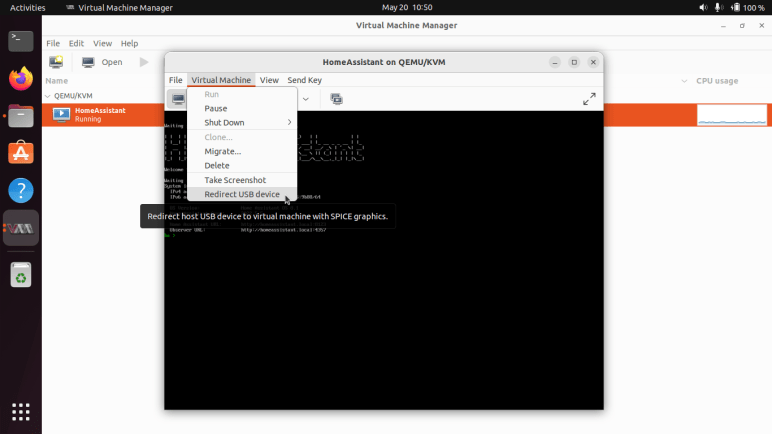
First I plug in my ESP32 development board. Then, I open the Home Assistant virtual machine instance and select “Redirect USB device” under “Virtual Machine” menu.

That will bring up a list of plugged-in USB devices, where I could select the USB to UART bridge device on my ESP32 development board. Once selected, the ESPHome add-on running within this instance of HAOS could see the ESP32 board and flash its firmware via USB. This process is not as direct as it would have been for HAOS running directly on the computer, but it’s far better than what I had to do before.

At the moment, surfacing KVM capability for USB device redirection is not available on TrueNAS SCALE but it is a requested feature. Now that I see the feature working, it has become a must-have for me. Until this is done, I probably won’t bother migrating my TrueNAS server from CORE (FreeBSD/bhyve) to SCALE (Linux/KVM) because I want this feature when I consolidate HAOS back onto my TrueNAS hardware. (And probably send this Dell Latitude E6230 back into the storage closet.)

Start on Boot

And finally, I had to tell KVM to launch Home Assistant automatically upon boot. By checking “Start virtual machine on host boot up” under “Boot Options” setting.

In time I expect that I’ll learn the KVM command lines to accomplish what I’m doing today with Virtual Machine Manager, but today I’m glad VMM helps me get everything up and running quickly.

[UPDATE: virsh autostart is the command line tool to launch a virtual machine upon system startup. Haven’t yet figured out command line procedure for USB redirection.]

Dell Latitude E6230: Working Too Well To Be Dismembered, NUCC to the Rescue

The previous few blog posts about my refurbished Dell Latitude E6230 was written several months ago and had sat waiting for a long-term verdict. After several months of use I’m now comfortable proclaiming it to be a very nice little laptop. Small, lightweight, good battery life, and decently high performance when I need it. (At the cost of battery life when doing so, naturally.)

The heart of this machine is a third generation Intel Core i5, which covers the majority of computing needs I’ve had while away from my desk. From the basics like 64-bit software capability to its ability to speed itself up to tackle bigger workloads. When working away from a wall plug and running on battery, the E6230 slows only minimally. Unlike my much newer Inspiron 7577 which slows drastically while on battery to the extent that it occasionally felt slower than the E6230. I can run my 7577 for perhaps two to four hours on battery, never far from a reminder of its limited on-battery performance. Whereas I can run the E6230 for around four to six hours on battery, without feeling constrained by reduced performance.

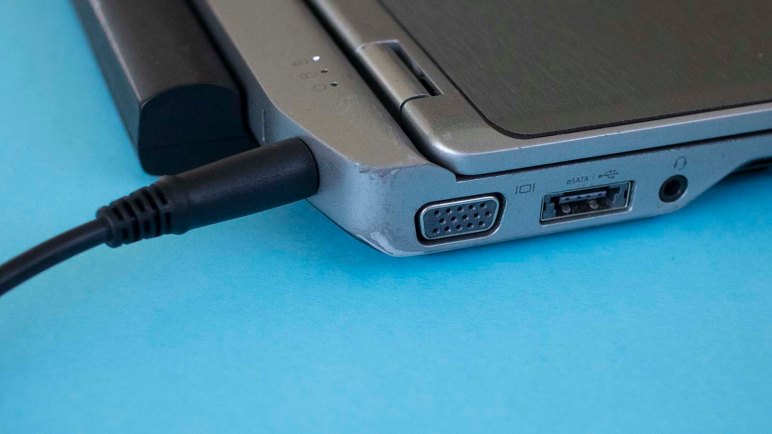
The E6230 has several other features I felt would be good for a robot brain. Top of the list is an Ethernet port for reliable communication in crowded RF environments. Several “SuperSpeed” USB 3 ports are useful for interfacing with hardware. And when I want more screen real estate than the built-in screen can offer, I have my choice of VGA or HDMI video output.

That built-in screen, with its minimal 1366×768 resolution, is about the only thing standing between this machine and greatness. Originally I did not care, because I had planned to tear the case apart and embed just the motherboard in a robot. But this laptop is working too darned well to be subjected to that fate! For the near future I plan to continue using the E6230 as a small laptop for computing on-the-go, and kept my eyes open for other old laptops as robot brain candidates.

An opportunity arose at Sparklecon 2020, when I mentioned this project idea to NUCC. They had a cabinet of laptops retired for one reason or another. I was asked: “What do you need?” and I said the ideal candidate would be a laptop with a broken screen and/or damaged keyboard, and have at least a Core i3 processor.

We didn’t find my ideal candidate, but I did get to bring home three machines for investigation. Each representing a single criteria: one with a busted screen, one with a busted keyboard, and one with a Core i3 processor.

Close enough! And now it’s time for me to get to work on a research project: determine what condition these machines are in, and how they can be best put to use.

Dell Latitude E6230: Blank ExpressCard Placeholder Is Also A Ruler

I found a fun little design while looking over the refurbished laptop I had bought. It was a Dell Latitude E6230, which had an ExpressCard slot. I’ve never used a laptop in a way that required add-on hardware. No PCMCIA, no ExpressCard, etc. Few of my laptops even had provisions for an expansion slot. But I remembered one of them — an old Dell XPS M1330 — included a little bit of creativity. Rather than the typical blank piece of plastic placeholder, the expansion slot held an infrared remote control with simple media buttons like “Play”, “Pause”, etc. This lets people use the little laptop as a media player where they can sit back away from the keyboard and still be able to control playback.

This laptop is from Dell’s business-oriented Latitude line, so it would not be keeping with product position to have such entertainment-oriented accessories. But I was curious if it had more than just a blank piece of plastic placeholder. So even though I had no ExpressCard to install, I popped out the blank to take a look. I was happy to see that someone put some thought into the design: the blank plate is a small ruler with both inch and millimeter measurements.

This feature cost them very little to implement, and it would never be the make-or-break deciding factor when choosing the laptop, but it was a fun touch.

Dell Latitude E6230: Soft Touch Plastic Did Not Age Well

When I looked over the exterior of my refurbished Dell Latitude E6230 laptop, I noticed  some common touch parts of the wrist rest and touch pad had been covered with stickers. They were very well done on my example. It took me a while to realized they were even there. In use, they were not bothersome.

Initially I thought they were there to cover up signs of wear and tear on this refurbished machine, but I’ve realized there’s an additional and possibly more important reason for the sticker: The plastic material for the wrist rest has degraded.

Usually when plastic degrades it hardens or discolors, but for certain types of plastic, the breakdown results in a sticky surface that is unpleasant to touch. I usually see this in the flexible plastic shroud for old cables and not in rigid installations like a keyboard wrist rest. I assume these machines were originally built with some type of soft touch plastic which degraded in this very unpleasant manner.

I wonder what the production story behind this laptop is. I can think of a few possibilities right away and I’m sure there are more:

  1. Dell did not perform long term testing on this material and didn’t know it would degrade this way.
  2. Dell performed testing, but the methodology for accelerated aging didn’t trigger this behavior, so it didn’t show up in the tests.
  3. Dell was aware of this behavior, believed it would not occur until well after warranty period, and thus not their problem.

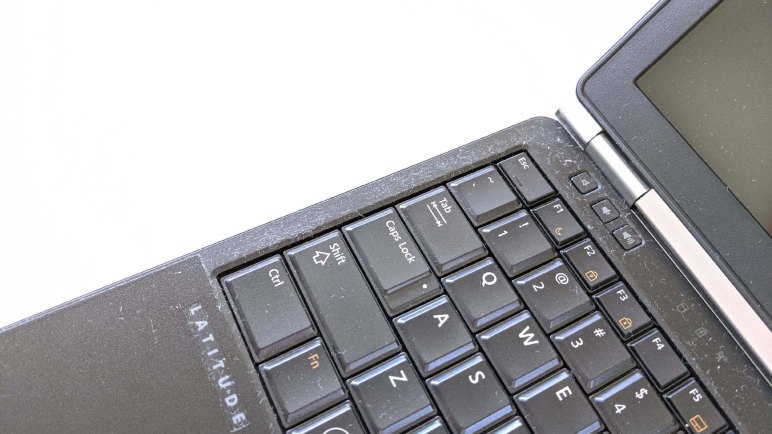
The expensive way to solve this problem would be to re-cast the plastic wrist rest in a different material and replace the part. Covering just the important surfaces with stickers is an ingeniously inexpensive workaround. Once the stickers were installed, I wouldn’t have to touch the unpleasant surfaces in normal use. However, there are still some sections exposed around the keyboard, and the sticky material is now a dust magnet.

It is a flaw in this little capable machine, but one I can tolerate thanks to the stickers. It made the laptop cheap to buy refurbished, and I’ll be less reluctant to take the computer apart and embed it in a robot, which is one of the long term plans for this machine.

Dell Latitude E6230: Hardware Internals

I picked up a Core i5-powered Dell Latitude E6230. It was a refurbished item at Fry’s Electronics, on sale for $149, and that was too tempting of a bargain to pass up. There were two major downsides to the machine: a low resolution 1366×768 display that I couldn’t do anything about, and a spinning magnetic platter hard drive that I intend to upgrade.

As is typical of Dell, a service manual is available online and I consulted it before purchasing to verify this chassis use standard laptop form factor SATA drive for storage. (Unlike the last compact Dell I bought.) Once I got it home, it was easy to work on this machine designed to be easily serviceable as is most Latitudes. A single screw releases the back cover, and the HDD was held down by two more screws. With only three screws and two plastic modules to deal with, this SSD upgrade needed less than five minutes to complete.

But since I had it open anyway, I spent some more time looking around inside to see signs of this laptop’s prior life.

Dell Latitude E6230 interior debris

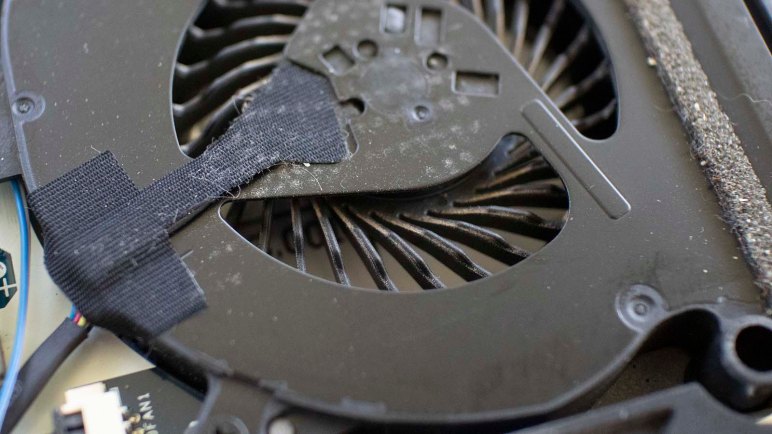
There were a few curious pieces of debris inside. A piece of tape that presumably held down a segment of wire has come loose, and the adhesive is not sticky. This is consistent with aged tape. There was also a loose piece of clear plastic next to the tape. I removed both.

The CPU fan had an fine layer of insignificant dust clinging to its surface. I would have expected an old laptop to have picked up more dirt than this. Either the buildup has been cleaned up (and the cleaner ignored the tape and clear plastic) or more likely this laptop spent most of its time in an office HVAC environment with well maintained dust filtration.

The HDD that I removed was advertised to have a copy of Windows 10. But where is the license? Computers of this vintage may have their Windows license embedded in hardware. Though this is less likely for business line machines, as some businesses have their own site license for Windows. I installed Windows 10 on the SSD and checked its licensing state: not activated. The Windows 10 license is on that HDD and not in hardware. That’s fine, I intended to run Ubuntu on this one anyway, so I installed Ubuntu 18.04 over the non-activated Windows 10.

Once Ubuntu 18.04 was up and running, this machine proved quite capable. All features appear to be usable under Ubuntu and it is easily faster than my Inspiron 11 3180 across the board. It is a bit heavier, but much of that is the extended battery and might be worth the tradeoff.

Overall, a very good deal for $149 and my new ROS robot brain candidate.

Dell Latitude E6230: First Impressions

Dell’s business oriented Latitude line command a price premium over their consumer grade Inspiron offerings, some of that money actually does go towards features for long term durability of those machines. A Latitude X1 I bought over a decade ago is still running. None of the Inspiron I’ve purchased has lasted nearly as long.

But despite their longevity, many businesses retire their computers on a regular schedule independent of actual condition. Once retired they go into a secondary market, a great opportunity for bargain hunters. Recently a batch of refurbished Dell Latitude E6230 were on sale for $149 at Fry’s Electronics and that was too good of a deal to pass up. For comparison, a new eighth-generation Core i5 processor is roughly $200 at retail, and that’s just the processor. This refurbished machine has an old but still capable third-generation Core i5 processor at its heart, and an entire computer around it including storage, memory, display, and battery. The price/performance ratio here trounces every other candidate for a ROS robot brain. Even the low cost leader, the Raspberry Pi, would have a hard time matching this price point after adding storage, display, battery, etc. In terms of computing power, an old Core i5 will have no problem leaving a Raspberry Pi in the dust.

I’ve had good luck with refurbished Dell computers so far. (Including that teenager Latitude X1.) So I thought I would pick up one of these units to see what I had to trade off for this screaming bargain. The answer is: not a whole lot.

The machine is very definitely used. There are visible wear and tear on exterior, but all purely cosmetic: discoloration of emblems, rubbed off paint, things along those lines.

Dell Latitude E6230 palm rest sticker

A typical sign of wear on an old laptop is the palm rest. I saw no wear at all in the palm rest area and was impressed until I realized what they had done: They’ve added a sticker over the palm rest to give it a new surface. The curled-up visible edge of this sheet gave the trick away. The surface of the touchpad, another frequent sign of age, also received the sticker treatment.

According to the documentation in its box, this laptop’s refurbishment was performed by a company called Advanced Skyline Technology, Ltd. Side effect of a non-Dell refurbished computer are a few tradeoffs for cost. The AC power adapter is not a genuine Dell item, neither is the battery. However, the battery has the larger size of an extended runtime battery. If it actually offers longer runtime that would be a pleasant surprise.

This machine came with a spinning platter hard disk, which I was not interested in using so the first project with this machine is to open it up, look around its insides, and upgrade it to a solid state drive.