Recording ESPHome Sensor Values: Min, Max, and Average

I’m learning more and more about ESPHome and Home Assistant, most recently I was happy to confirm that ESPHome code was very considerate about flash memory wear. Another lesson I’ve learned is the use of “templates” (or “lambdas”). It is a mechanism to insert small pieces of C code, letting me add functionality unavailable from ESPHome configuration files. Here I’m using it to do something I’ve wanted to do ever since I learned about sensor filters. It expands on an existing ESPHome feature to calculate an aggregate sensor value from multiple samples. We could choose from aggregation functions like “minimum” or “maximum” or “sliding window average”. Now, with the template mechanism, I could track minimum and maximum and average.

First, I needed to declare two template sensors. They let template code send data into the ESPHome (and therefore Home Assistant) sensor reporting mechanism. I will use this to report the highest (maximum) and lowest (minimum) power values. (Hence units of “W” or Watts.)

sensor:
  - platform: template
    name: "Output Power (Low)"
    id: output_power_low
    unit_of_measurement: "W"
    update_interval: never # updates only from code, no auto-updates
  - platform: template
    name: "Output Power (High)"
    id: output_power_high
    unit_of_measurement: "W"
    update_interval: never # updates only from code, no auto-updates

The power sensor is configured to report sliding window average, which will take multiple samples and report the average to Home Assistant. The reporting event is on_value, but there’s also on_raw_value which is triggered on each sample. This is where I can attach a small fragment of C code to track the minimum and maximum values seen while the rest of ESPHome tracks the average.

    power:
      name: "Output Power"
      filters:
        sliding_window_moving_average:
          window_size: 180
          send_every: 120
          send_first_at: 120
      on_raw_value:
        then:
          lambda: |-
            static int power_window = 0;
            static float power_max = 0.0;
            static float power_min = 0.0;
            
            if (power_window++ > 120)
            {
              power_window = 0;
              id(output_power_low).publish_state(power_min);
              id(output_power_high).publish_state(power_max);
            }
            
            if (power_window == 1)
            {
              power_max = x;
              power_min = x;
            }
            else
            {
              if (x > power_max)
              {
                power_max = x;
              }
              if (x < power_min)
              {
                power_min = x;
              }
            }

The hard-coded value of 120 represents the number of samples to take before I report. When I have the sensor configured to take a sample every half second, 120 samples translates to one minute. (If the sensor is sampling once a second, 120 samples would be two minutes, etc.)

I discard the very first (zeroth) data sample to work around a quirk with ESPHome INA219 sensor support: the very first reported power value is always zero. I don’t know what’s going there but since zero is a valid reading (solar panel generates no power at night) I couldn’t just discard a zero power reading whenever I see it. Hence I reset power_max and power_min when power_window is one, not zero as I tried first.

Here is a plot of all three values. The average value in purple, the maximum in cyan, and the minimum in orange. Three devices were represented in this power consumption graph. The HP Stream 7 is always on through this period, and we can see its power consumption fluctuates throughout the day. Around midnight, the Raspberry Pi powered up to take a replication snapshot of my TrueNAS storage array and I shut it off shortly after it was done. And in the morning, after the solar monitor battery is charged (not shown on this graph) at about 10AM, the Pixel 3a started charging until just after noon.

For the Raspberry Pi, power consumption average hovered around 6W, but the maximum spiked a little over 10W. Similarly, the Pixel 3a charging averaged less than 6W but would spike up to 8W. The average value is useful for calculations regarding things like battery capacity, and the maximum value is necessary to ensure all components are staying within their maximum operating limits. And for now, the minimum value is merely informatively and not used, but that might change later.

Flash Memory Wear Effects of ESPHome Recovery: ESP8266 vs. ESP32

One major difference between controlling charging of a battery and controlling power to a Raspberry Pi is the tolerance for interruptions. Briefly interrupting battery charging is nothing to worry about, we can easily pick up where we left off. But a brief interruption of Raspberry Pi power means it will reset. At the minimum we will lose in-progress work, but consequences can get worse including corruption of the microSD card. If I put an ESPHome node in control of Raspberry Pi power, what happens when that node reboots? I don’t want it to trigger a Raspberry Pi reboot as well.

This was on my mind when I read ESPHome documentation for GPIO Switch: There is a parameter “restore_mode” that allows us to specify how that switch will behave upon bootup. ALWAYS_ON and ALWAYS_OFF are straightforward: the device is hard-coded to flip the switch on/off upon bootup. Neither of these would be acceptable for this case, so I have to use one of the restore options. I added it to my ESP32 configuration and performed an OTA firmware update to trigger a reboot. I was happy to see there was no interruption to the Pi. Or at least if there was, it was short enough that the capacitors I added to my Raspberry Pi power supply was able to bridge the gap.

This is great! But how does the device know the previous state to restore? The most obvious answer is to store information in the onboard flash memory for these devices, but flash memory has a wear life that embedded developers must keep in mind. Especially when dealing with inexpensive components like ESP8266 and ESP32 modules. Their low price point invites use of inexpensive flash with a short wear life. I don’t know how to probe flash memory to judge their life, but I do know ESPHome is an open-source project and I could dig into source code.

ESPHome GPIO Switch page has a link to Core Configuration, where there’s a deprecated flag esp8266_restore_from_flash to dictate whether to store persistent data in flash memory. That gave me the keyword needed to find the Global Variables section on ESPHome Automations page. Where it said there is only 96 bytes available in a mechanism called “RTC memory” and that it would not survive a power-cycle. That didn’t sound very useful but researching further I learned it survives deep sleep and so there’s utility there. Searching in ESPHome GitHub repository, I found the file preferences.cpp for ESP8266 where I believe the implementation lives. It defaults to false which means the default wouldn’t wear out ESP8266 flash memory but at the expense of RTC memory not surviving a power cycle. If we really need that level of recovery and switch esp8266_restore_from_flash to true, we have an additional knob to make trade offs between accuracy and flash memory lifespan using the flash_write_interval parameter.

So that covers ESPHome running on an ESP8266. What about an ESP32? While I see that ESP32 has its own concept of RTC memory, looking in ESPHome source code for ESP32 variant of preferences.cpp I see that it used a different mechanism called NVS. Non-Volatile Storage library is tailored for storing small key-value pairs in flash memory, and was written to minimize wear. This is great. Even better, the API also leaves the door open for different storage mechanisms in future hardware revisions, possibly something with better write durability.

From this, I conclude that ESPHome projects that require restoring states through reboots events are better off running on an ESP32 and its dedicated NVS mechanism. I didn’t have this particular feature in mind when I made the decision to use an ESP32 to build my power-control board, but in hindsight that was the right choice! Armed with confidence in the hardware, I can patch up a few to-do items in my ESPHome-based software.

Power Control Board for TrueNAS Replication Raspberry Pi

Encouraged by (mostly) success of controlling my Pixel 3a phone’s charging, the next project is to control power for a Raspberry Pi dedicated to data backup for my TrueNAS CORE storage array. (It is a remote target for replication, in TrueNAS parlance.) There were a few reasons for dedicating a Raspberry PI for the task. The first (and somewhat embarrassing) reason was that I couldn’t figure out how to set up a remote replication target using a non-root account. With full root level access wide open, I wasn’t terribly comfortable using that Pi for anything else. The second reason was that I couldn’t figure out how to have a replication target wake up for the replication process and go to sleep after it was done. So in order to keep this process autonomous, I had to leave the replication target running around the clock, and a dedicated Raspberry Pi consumes far less power than a dedicated PC.

Now I want to take a step towards power autonomy and do the easy part first. I have my TrueNAS replications kick off in response to snapshots taken, and by default that takes place daily at midnight. The first and easiest step was then to turn on my Raspberry Pi a few minutes before midnight so it is booted up and ready to receive replication snapshot shortly after midnight. For the moment, I would still have to shut it down manually sometime after replication completes, but I’ll tackle that challenge later.

From an electrical design perspective, this was no different from the Pixel 3a project. I plan to dedicate another buck converter for this task and connect enable pin (via a cable and a 1k resistor) to another GPIO pin on my existing ESP32. This would have been easy enough to implement with a generic perforated prototype circuit board, but I took it as an opportunity to play with a prototype board tailored for Raspberry Pi projects. Aside from the form factor and pre-wired connections to Raspberry Pi GPIO, these prototype kits also usually come with appropriate pin header and standoff hardware for mounting on a Pi. Looking over the various offers, I chose this particular four-pack of blank boards. (*)

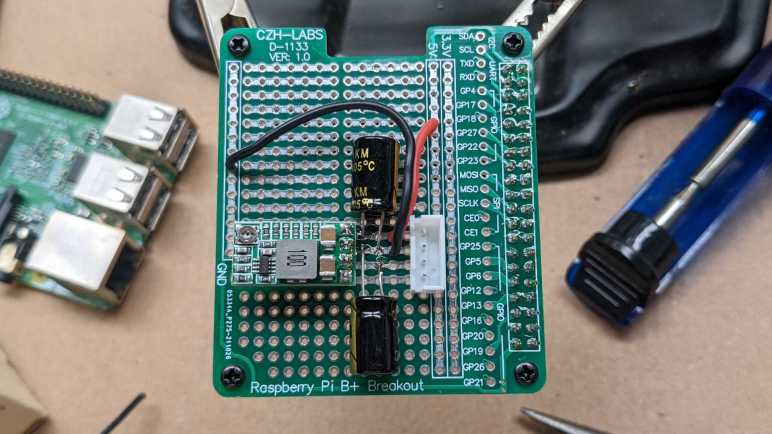
Somewhat surprisingly for cheap electronics supply vendors on Amazon, this board is not a direct copy of an existing Adafruit item. Relative to the Adafruit offering, this design is missing the EEPROM provision which I did not need for my project. Roughly two-thirds of the prototype area has pins connected as they are on a breadboard, and the remaining one-third are individual pins with no connection. In comparison the Adafruit board is breadboard-like throughout.

My concern with this design is in its connection to ground. It connects only a single pin, designated #39 in most Pi GPIO diagrams and lower-left in my picture. The many remaining GND pins: 6,9,14,20,25,30, and 34 appear to be unconnected. I’m not sure if I should be worried about this for digital signal integrity or other reasons, but at least it seems to work well enough for today’s simple power supply project. If I encounter problems down the line, I can always solder more grounding wires to see if that’s the cause.

I added a buck converter and a pair of 220uF capacitors: one across input and one across output. Then a JST-XH board-to-wire connector to link back to my ESP32 control board. I needed three wires: +Vin, GND and enable. But I used a four-pin connector just in case I want to surface +5Vout in the future. (Plus, I had more four-pin connectors remaining in my JST-XH assortment pack than three-pin connectors. *)

I thought about mounting the buck converter and capacitors on the underside of this board. There’s enough physical space between the board and the Raspberry Pi to fit them. I decided against it on concern of heat dissipation, and I was glad I did. After this board was installed on top of the Pi, the CPU temperature during replication rose from 65C to 75C presumably due to reduced airflow. If I had mounted components underneath, that probably would have been even worse. Perhaps even high enough to trigger throttling.

I plan to have my ESP32 control board run around the clock, so this particular node doesn’t have the GPIO deep sleep state problem of my earlier project with ESP8266. However, I am still concerned about making sure power stays on, and the potential problems of ensuring so.


(*) Disclosure: As an Amazon Associate I earn from qualifying purchases.

Successful Quick ESPHome Test: M5Stack ESP32 Camera

I don’t really have the proper gear to test and verify my modifications to an USB cable with type C connectors. Flying blind, I knew there was a good chance I would fry something. I dug through my pile of electronics for the cheapest thing I have with an USB-C socket, which turned out to be a M5Stack ESP32 Camera.

I got this particular module as an add-on to the conference badge for Layer One 2019 as documented on Hackaday. It’s been gathering dust ever since, waiting for a project that needed a little camera driven by an ESP32. For conference badge purposes it ran code from this repository, which also pointed to resources that helped me find the M5Stack ESP32Cam product documentation page.

The camera module is an OV2640, which is a very popular for electronics hobbyists and found in various boards like this one from ArduCam. If I want to do more work with ESP32+OV2640 I can find variations on this concept for less than $10 each. But M5Stack is at least a relatively name-brand item here, enough for this module to be explicitly described in ESPHome documentation. (Along with a warning about insufficient cooling in this design!)

Two notes about this ESP32Cam module that might not be present on other ESP32+OV2640 modules:

  1. There is a battery power management IC (IP5306) on board, making this an interesting candidate for projects if I want to run on a single lithium-ion battery cell and if I don’t want to tear apart another USB power bank. I think it handles both charge safety and boost conversion for higher voltage. I don’t know for sure because the only datasheets I’ve found so far are in Simplified Chinese and my reading comprehension isn’t great.
  2. The circuit board included footprints for a few other optional IC components. (BMP280 temperature/pressure/humidity environmental sensor, MPU6050 3-axis accelerometer + 3-axis gyroscope, SPQ2410 microphone.) They are all absent from my particular module, but worth considering if they are ICs that would be useful for a particular project.
  3. There is a red LED next to the camera connected to pin 16. I used it as an ESPHome status light.
status_led:
  pin:
    number: 16

My first attempt to put ESPHome on this module was to compile a *.bin file for installation via https://web.esphome.io. Unfortunately, it doesn’t seem to properly set up the flash memory for booting as the module gets stuck in an endless loop repeating this error:

rst:0x10 (RTCWDT_RTC_RESET),boot:0x13 (SPI_FAST_FLASH_BOOT)
flash read err, 1000
ets_main.c 371 
ets Jun  8 2016 00:22:57

To work around this problem, I fired up an Ubuntu laptop and ran ESPHome docker container to access a hardware USB port for flashing. This method flashed successfully and the ESP32 was able to get online where I could make future updates over wireless.

A web search indicates an OV2640 has a native sensor resolution of 1632×1232. But the ESPHome camera component running on this module could only handle a maximum of 800×600 resolution. The picture quality was acceptable, but only about 2-3 frames per second gets pushed to Home Assistant. As expected, it is possible to trade resolution for framerate. The lowest resolution of 160×120 is very blurry but at least motion is smooth. If I try resolutions higher than 800×600, at bootup time I would see this error message in debug log:

[E][esp32_camera:095]:   Setup Failed: ESP_ERR_NO_MEM

This isn’t great. But considering its price point of roughly ten bucks for a WiFi-enabled camera module, it’s not terrible. This experiment was a fun detour before I return to my project of automated charging for a Pixel 3a phone.

Vertically Mounted Construction Experiment

My experiments with IN219 DC voltage/current sensor started by monitoring the DC output of my solar storage battery, where I can count on a constant source of power and didn’t need to worry about going to sleep to conserve power. After I gained some confidence using ESPHome I tackled the challenges of running on solar panel power with an independent battery (salvaged from a broken USB power bank) and now the first version is up and running.

But that meant I was no longer monitoring the DC output and solar battery consumption… and I liked collecting that data. So I created another ESPHome node with its own INA219 sensor to continue monitoring power output, with a few changes this time around.

The biggest hardware change is switching from ESP8266 to ESP32. I have ambition for this node to do more than monitor power consumption, I want it to control a few things as well. The ESP8266 has very few available GPIO for these tasks so I wanted the pins and peripherals (like hardware PWM) of an ESP32. Thanks to the abstraction offered by ESPHome, it is a minor switch in terms of software.


Side note: I found that (as of today) https://web.esphome.io fails to flash an ESP32 image correctly, leaving the flash partition table in a state that prevents an ESP32 from booting. Connecting to the USB port with a serial monitor shows an endless stream repeating this error:

rst:0x10 (RTCWDT_RTC_RESET),boot:0x13 (SPI_FAST_FLASH_BOOT)
flash read err, 1000
ets_main.c 371 
ets Jun  8 2016 00:22:57

My workaround was to fire up ESPHome Docker container on an Ubuntu laptop for direct USB port access. This allowed an ESP32 image to be flashed in a way that boots up successfully. After the initial flash, I no longer needed the laptop as I was able to refine my ESPHome configuration via wireless updates.

My ESP8266 flashed correctly with https://web.esphome.io, no problems there.


Back to the hardware: another experiment is trying to mount my various electronics modules on their edge to pack items closer together. This is pretty easy for things like my INA219 module and my new experimental buck converter board, which has their connectors all on one side of their circuit board. I did mount an INA219 on its edge as planned, but just before I soldered a buck converter, I changed my mind and went with a known quantity MP1584 module instead. It’s still mounted vertically, though, using legs of 220uF capacitors.

Since I expect to add various experimental peripherals for this ESP32 to control, I also added a fuse in case something goes wrong. (Generally speaking, I really should be incorporating more fuses in my projects anyway.)

The first experimental peripheral output on this board is a USB Type-A port connected to the 5V output of my MP1584. I’m starting out with a direct tap to verify everything worked as expected before I start adding ESP32 control. Thanks to vertical mounting, I have plenty of room left on this prototype board for future experiments like an aborted attempt to hack a USB Type-C cable.

Initial Logic for Solar Monitor Project

I think I’ve got the hardware portions of my solar power monitor sensor node figured out, so I can write the first version of corresponding software logic. I have set out the following requirements:

  • Over-discharge protection: If battery voltage drops below a threshold, put the system to sleep to protect the battery.
  • Low solar output: When the solar panel isn’t generating any power, put the system to sleep.
  • Battery charging start: when panel power generation rises above a certain level for the first time that day, start charging the repurposed USB power bank battery.
  • Battery charging pause: If cloud cover causes a dip in solar power, pause charging.
  • Battery charging stop: Once battery cell voltage rises to a certain level, stop charging.
  • Sleep override: local hardware method to prevent deep sleep.

The ESPHome documentation for deep sleep described one way to prevent sleep using MQTT, keeping a node awake to receive firmware updates. But I wanted something even lower level hence the jumper and it became useful when I implemented the “low solar output, go to sleep” logic. Apparently INA219 component’s first power value always return zero. Which meant as soon as it booted up, that initial zero reading puts the node immediately back to sleep before it would even get on the network. (Never mind checking MQTT!) The solution is to switch from sampling values once a minute to sampling once a second, and make decisions based on average over a minute.

A different approach would be to go to sleep based on sun’s position in the sky, which can be queried and used in the Sun component. However, I expect this component has dependency on network connection (it needs to know the time, for starters) and would not be reliable if the network goes down. It also doesn’t know if the sun is obscured by clouds, so I think it’s better to use panel power output to decide what to do during the day. But I may explore using the Sun component in a future version to sleep all through the night instead of waking up every few minutes to fruitlessly check power level.

Strictly speaking, I don’t need to worry about stopping battery charging. I can supply 5V all day when panel delivers power, and trust the USB power bank charging circuit to keep the battery from being overcharged. But keeping lithium-ion cells full would shorten their useful life, so in the interest of battery longevity I’ll stop charging before full. On that topic: for optimal battery life I should charge it slowly over the course of the day, but I don’t have control over charging rate used by USB power bank.

One thing I don’t know yet is how the system will handle several rainy days in a row. I assume this panel can still generate enough power to charge an 18650 battery cell, but I might be wrong! I’ll have to wait for a long stretch of rain to come to Southern California, which may be a long wait. After seeing its behavior I can adjust for a future version.

Here’s version 1 of my ESPHome configuration YAML, and I expect to fine tune various hard-coded threshold values over the weeks ahead while I build more projects:

# Blue LED on the ESP8266 module signals connection status.
status_led:
  pin:
    number: 2
    inverted: true

# The goal is to charge once a day, and this flag tracks if we've already done it.
globals:
  - id: never_charged_today
    type: bool
    restore_value: no
    initial_value: "true"

# We can go to deep sleep to conserve battery, but sometimes we don't want to
# actually go to sleep. For example, when we need to upload a firmware update.
# Pin 13 is an input pin with internal pullup. It should be wired to a jumper
# that would ground the pin if jumper is present. Removing the jumper should
# disable going to deep sleep. To enforce this, call try_to_sleep script
# instead of calling deep_sleep.enter directly.
deep_sleep:
  id: deep_sleep_1

binary_sensor:
  - platform: gpio
    name: "Disable Sleep"
    id: sleep_jumper
    pin:
      number: 13
      mode:
        input: true
        pullup: true
    on_release:
      then:
        - logger.log: "Sleep jumper installed"
        - script.execute: try_to_sleep

script:
  - id: try_to_sleep
    then:
      if:
        condition:
          binary_sensor.is_on: sleep_jumper
        then:
          logger.log: "Sleep requested but staying awake due to override jumper"
        else:
          - logger.log: "Sleep requested and permitted by jumper"
          - delay: 5s # Allow sensor values to be sent.
          - deep_sleep.enter:
              id: deep_sleep_1
              sleep_duration: 10min

# This should be wired to a 1k resistor, which then connects to the enable pin
# of a power supply source. When ON, it should deliver power to charge the battery.
switch:
  - platform: gpio
    pin: D5
    id: charge_switch
    name: "Charge Battery"
    restore_mode: RESTORE_DEFAULT_OFF

# An I2C INA219 sensor monitors panel voltage, current, and calculates power.
i2c:
  sda: 4
  scl: 5

sensor:
  - platform: ina219
    address: 0x40
    shunt_resistance: 0.1 ohm
    max_voltage: 24.0V
    max_current: 3.2A
    update_interval: 1s
    current:
      name: "Panel Current"
      id: solar_panel_current
      accuracy_decimals: 5
      filters:
        sliding_window_moving_average:
          window_size: 90
          send_every: 60
          send_first_at: 15
    power:
      name: "Panel Power"
      id: solar_panel_power
      accuracy_decimals: 5
      filters:
        sliding_window_moving_average:
          window_size: 90
          send_every: 60
          send_first_at: 15
      on_value:
        then:
          # When power is low, put the board to sleep.
          # Note: upon boot, the first reading of current (and therefore power) always
          # seems to be zero, so we need to run moving average filters to ensure we
          # don't shut off immediately on power-up.
          if:
            condition:
              and:
                - sensor.in_range:
                    id: solar_panel_power
                    below: 0.01
                - sensor.in_range:
                    id: solar_panel_voltage
                    below: 3.0
            then:
              - logger.log: "Panel delivering low power, should go to sleep"
              - globals.set:
                  id: never_charged_today
                  value: "true"
              - script.execute: try_to_sleep
    bus_voltage:
      name: "Panel Voltage"
      id: solar_panel_voltage
      accuracy_decimals: 5
      filters:
        sliding_window_moving_average:
          window_size: 90
          send_every: 60
          send_first_at: 15
# ESP8266 ADC pin should be wired to a resistor just over 100kOhm to measure
# lithium-ion battery cell voltage. Values under calibrate_linear need to be
# customized for each board (and their resistors.)
  - platform: adc
    pin: A0
    name: "Battery Voltage"
    id: battery_voltage
    update_interval: 1s
    accuracy_decimals: 3
    filters:
      - calibrate_linear:
          - 0.84052 -> 3.492
          - 0.99707 -> 4.113
      - sliding_window_moving_average:
          window_size: 90
          send_every: 60
          send_first_at: 15
    on_value:
      then:
        - if:
            condition:
              and:
                - lambda: "return id(never_charged_today);"  
                - sensor.in_range:
                    id: solar_panel_power
                    above: 10
            then:
              - logger.log: "Panel has power, start charging for the day"
              - globals.set:
                  id: never_charged_today
                  value: "false"
              - switch.turn_on: charge_switch
        - if:
            condition:
              and:
                - switch.is_on: charge_switch
                - sensor.in_range:
                    id: solar_panel_power
                    below: 5
            then:
              - logger.log: "Charging paused due to low panel output"
              - globals.set:
                  id: never_charged_today
                  value: "true" # Resume charging if power returns
              - switch.turn_off: charge_switch
        # When battery is low enough to trigger this emergency measure, we
        # would not be able to activate charging ourselves. Charging needs to
        # be activated manually (or at least externally)
        - if:
            condition:
              sensor.in_range:
                id: battery_voltage
                below: 3.0
            then:
              - logger.log: "Battery critically low, should sleep to protect battery."
              - script.execute: try_to_sleep
    # We don't need a full charge to last through a day, so turn off charging
    # well before reaching maximum in order to improve battery longevity
    on_value_range:
      above: 4.0
      then:
        - logger.log: "Battery charge is sufficient"
        - switch.turn_off: charge_switch

Two Problems Controlling Buck Converter

My solar power monitor project runs on a ESP8266 microcontroller and an INA219 sensor powered by an old USB power bank. In order to charge it during the day from solar power, I’m trying out a new-to-me buck converter module because it exposed an “Enable” pin that was absent from my usual MP1584 buck converter module. I connected it (via a 1k resistor) to the closest available GPIO pin on my ESP8266 module, which happened to be GPIO0. Configuring ESPHome to use that pin as a switch, I could turn charging on or off from Home Assistant UI. I declared victory but it was premature.

I realized there was a problem when I put the ESP8266 to sleep and noticed charging resumed. This was a surprise. Probing the circuit I found my first problem: there is a pull-up resistor or a voltage divider on board my new buck converter module so that if its enable pin is left floating, it will activate itself as my usual MP1584 module would. This was mildly disappointing, because it meant I might have to unsolder a few resistors to get the behavior I originally wanted, and one of the reasons to buy this module was because I didn’t want to unsolder resisters from my MP1584 buck converter boards. As a short-term hack, I fought the existing circuit by adding a pull-down resistor external to the module. Experimentally it looks like a 10k resistor to ground was enough to do the trick, disabling the buck converter when enable input line is left floating.

But I wasn’t done yet, there’s a second problem to address: When ESP8266 was put back in the circuit, the charging would still resume when I put it into deep sleep. Probing the pin, I saw GPIO0 was at 3.3V while asleep. Reading online resources like this page on Random Nerd Tutorials, I learned the pin needs to be high for ESP8266 to boot. Presumably this means the Wemos D1 Mini module has a pull-up resistor on board for the boot process. Therefore I can’t use GPIO0 for charging control.

I went down the list of still-unused pins by distance to the buck converter on my circuit board. The next closest pin is GPIO2, which I can’t use as I’m already using the blue status LED. After that is GPIO14. It is usually used for SPI communication but I have no SPI peripherals for this project. Looking on the reference chart, it doesn’t seem to get pulled up or down while ESP8266 was asleep. After confirming that behavior with a voltmeter, I switched buck converter enable pin over to GPIO14. It allowed me to control charging from ESPHome and, when the ESP8266 is asleep, the buck converter stays disabled. Finally, the hardware is working as intended! Now I need to figure out the software.

ESP8266 ADC Helps Avoid Over-Discharging Battery

I took apart a USB power bank so I could bypass its problematic power output circuit and run a Wemos D1 Mini module directly on the single lithium-ion battery cell. But bypassing the output circuit also means losing its protection against battery over-discharge. This could permanently damage a lithium-ion battery cell, so it is something I have to reimplement.

I can to use the only ADC (analog-to-digital conversion) peripheral on an ESP8266 to monitor battery voltage. The ESP8266 ADC is limited to sensing voltage in the range of zero to one volt, so a voltage divider is necessary to bring the battery’s maximum voltage level of 4.2V down to 1V. The Wemos D1 Mini module has a voltage divider already on board, using 220kΩ and 100kΩ resistors to (almost) bring 3.3V down to 1V. To supplement this, I added another 100kΩ resistor between battery positive and Wemos D1 Mini analog input pin.

For an initial test, I connected the analog input pin to my bench power supply and started adjusting power. It did not quite work as expected, reaching maximum value at a little over 4.1 volts. I suspect one or more of the resistors involved have actual resistance values different than advertised, which is normal with cheap resistors of 15% tolerance.

As a result, I could not sense voltage above 4.1V, which is probably fine for the purpose of over-discharge protection. But I was willing to put in a little extra effort to sense the entire range, and added another 10kΩ resistor in series for a total of 110kΩ between battery positive and the Wemos D1 Mini analog pin. This was enough to compensate for resistor tolerance and allow me to distinguish voltage all the way up to 4.2V.

To translate this divided voltage back to original input voltage, I recorded values from two voltage levels. I recorded what the ESP8266 ADC reported for each, and what I measured with my voltmeter. These data points allow me to use ESPHome Sensor component’s calibrate_linear filter to obtain values good enough to watch for battery over-discharge.

Here are the relevant excerpts from my ESPHome configuration YAML:

  - platform: adc
    pin: A0
    name: "Battery Voltage"
    filters:
      - calibrate_linear:
          - 0.84052 -> 3.492
          - 0.99707 -> 4.113
    on_value:
      then:
        - if:
            condition:
              sensor.in_range:
                id: battery_voltage
                below: 3.0
            then:
              - logger.log: "Battery critically low"
              - deep_sleep.enter:

Ideally, I would never reach this point. I should make sure the battery is adequately charged each day. I will need to drop voltage output of solar panel (up to 24V) down to the 5V input voltage expected by an USB power bank’s lithium-ion battery charging circuit, and I want to try a new-to-me buck converter module for the task.

Exploring Low Power ESPHome Nodes

When I investigated adding up power over time into a measure of energy, I found that I have the option of doing it either on board my ESPHome microcontroller or on the Home Assistant server. I’m personally in favor of moving as much computation on the server as I can, and another reason is because keeping the sensor node lightweight gives us the option of putting it to sleep in between sensor readings.

Preliminary measurements put this MP1584EN + ESP8266 + INA219 at a combined average power draw of somewhere around a quarter to a third of a Watt. This is pretty trivial in terms of home power consumption, but not if there is ambition to build nodes that run on battery power. For example, let’s do some simple math with a pair of cheap NiMH rechargeable AA batteries. With a nominal capacity of 2000 mAh and nominal voltage of 1.2V each, that multiplies out (1.2 V * 2 Amps 1 hour * 2 batteries) to 4.8 Watts over an hour. Actual behavior will vary a lot due other variables, but that simple math gives an order of magnitude. Something that constantly draws 0.3 Watt would last somewhere on the order of (4.8 / 0.3) 16 hours, or less than a day, on a pair of rechargeable AA NiMH batteries.

ESPHome has options for putting a node into deep sleep, and the simplest options are based on time like running for X seconds and sleep for Y minutes. For more sophisticated logic, a deep_sleep.enter action is exposed to enter sleep mode. There is also a deep_sleep.prevent action to keep a node awake, and the example is to keep a node awake long enough to upload a code update. This is a problem I’ve tripped over during my MicroPython adventure and it’s nice to see someone has provided a solution in this framework.

The example code reads retained value on a MQTT topic to decide whether to go to sleep or not. I think this is useful, but I also want a locally controlled method for times when MQTT broker is unreachable for any reason. I wanted to dedicate a pin on the ESP8266 for this, with an internal pull-up and an external switch to pull to ground. When the pin is low, the node will go to sleep as programmed. If the pin is high, the node stays awake. I will wire this pin to ground via a jumper so that when the jumper is removed, the node stays awake. And if the jumper is reinstalled, the node goes to sleep.

Such GPIO digital activity can be specified via ESPHome Binary Sensor:

deep_sleep:
  run_duration: 30s
  sleep_duration: 2min
  id: deep_sleep_1

binary_sensor:
  - platform: gpio
    name: "Sleep Jumper"
    id: sleep_jumper
    pin:
      number: 13
      mode:
        input: true
        pullup: true
    on_press:
      then:
        - logger.log: "Preventing deep sleep"
        - deep_sleep.prevent: deep_sleep_1
    on_release:
      then:
        - logger.log: "Entering deep sleep"
        - deep_sleep.enter:
            id: deep_sleep_1
            sleep_duration: 1min

But this is not quite good enough, because on_press only happens if the high-to-low transition happens while the node is awake. If I pull the jumper while the node is asleep, upon wake the pin state is low and my code for high-to-low transition does not run. I needed to check the binary sensor state elsewhere before the sleep timer happens. In the case of this particular project, I also used the analog pin to read battery voltage once every few seconds, so I removed the check from on_press to ADC sensor on_value. (I left on_release code in place so it will still go to sleep when jumper is reinstalled.)

sensor:
  - platform: adc
    pin: A0
    name: "Battery"
    update_interval: 5s
    on_value:
      if:
        condition:
          binary_sensor.is_on: sleep_jumper
        then:
          - logger.log: "Preventing deep sleep"
          - deep_sleep.prevent: deep_sleep_1

This performs a jumper check every time the ADC value is read. This is pretty inelegant code, linking two unrelated topics, but it works for now. It also avoids the problem of digital signal debouncing, which would cause on_press and on_release to both be called in rapid succession unless a delayed_on_off filter is specified.


Ideally, this sensor node would go to sleep immediately after successfully performing a sensor read operation. This should take less than 30 seconds, but the time is variable due to external conditions. (Starting up WiFi, connect to router, connect to Home Assistant, etc.) The naive approach is to call deep_sleep.enter in response to on_value for a sensor, but that was too early. on_value happens immediately after the value is read, before it was submitted to Home Assistant. So when I put it to sleep in on_value, Home Assistant would never receive data. I have to find some other event corresponding to “successfully uploaded value” to trigger sleep, and I haven’t found it yet. The closest so far is the Home Assistant client api.connected condition, but that falls short on two fronts. The first is that it does not differentiate between connecting to Home Assistant (useful) versus ESPHome dashboard (not useful). The second is that it doesn’t say anything about success/failure of sensor value upload. Maybe it’s possible to do something using that condition, in the meantime I wait 30 seconds.

A quick search online found this person’s project also working to prolong battery life for an ESP8266 running ESPHome, and their solution is to use MQTT instead of the Home Assistant communication API. I guess they didn’t find an “after successful send” event, either. Oh well, at least I’m getting data from INA219 between sleep periods, and that data looks pretty good.

Adding Up Power in ESPHome and Home Assistant

Using an INA219 breakout board, I could continuously measure voltage and current passing through a circuit. Data is transmitted by an ESP8266 running ESPHome software and reported to Home Assistant. In order to avoid getting flooded with data, we can use ESPHome sensor filters to aggregate data points. Once we have voltage and current, multiplying them gives us power at a particular instant. The next step is to sum up all of these readings over time to calculate energy produced/consumed. We have two methods to perform this power integration: onboard the microcontroller with ESPHome, or on the Home Assistant server.

ESPHome

The Total Daily Energy component accumulates value from a specified power sensor and integrates a daily tally. (It also needs the Time component to know when midnight rolls around, in order to reset to zero.) The downside of doing this calculation on the controller is that our runny tally must be saved somewhere, or else we would start from zero every time we reset. By default, the tally is saved in flash memory every time a power reading arrives. If power readings are taken at high frequency, this could wear out flash storage very quickly. ESPHome provides two parameters to mitigate wear: we could set min_save_interval to a longer duration in order to reduce the number of writes, or we could set restore to false and skip writing entirely. The former means we lose some amount of data when we reset, the latter means we lose all the data. But your flash memory will thank you!

Home Assistant

Alternatively, we can perform this calculation on Home Assistant server with the unfortunately named integration integration. The first “integration” refers to the math, called Riemann sum integral. The second “integration” is what Home Assistant calls its modules. Hence “integration integration” (which is also very annoying to search for).

Curiously, I found no way in Home Assistant user interface to add this to my instance, I had to go and manually edit configuration.yml as per documentation. After I restarted Home Assistant, a new tally started counting up on my dashboard, but I could not do anything else with the user interface element. I just get an error “This entity does not have a unique ID“.

On the upside, doing this math on the server meant data in progress will be tracked and saved in a real database, kept on a real storage device instead of fragile flash memory. But by default it does not reset at midnight, so the number keeps ticking upwards. Doing more processing with this data is on the to-do list.


Should we do our computation on the microcontroller or on the server? There are certainly advantages to either approach, but right now I lean towards server-side because that lets us put the microcontroller to sleep.

ESPHome Sensor Filters Help Manage Flood of Data

I was happy to find that ESPHome made building a sensor node super easy. Once my hardware was soldered together, it took less than ten minutes of software work before I was looking at a flood of voltage and current values coming in from my ESP8266-based power sensor.

It was a flood of data by my decision. Sample code from ESPHome INA219 documentation set data refresh rate at once every sixty seconds. I was hungry for more so I reduced that to a single second. This allowed me to see constantly updating numbers in my Home Assistant dashboard, which is satisfying in a statistics nerd kind of way, but doing so highlighted a few problems. Home Assistant was not designed for this kind of (ab)use. When I click on a chart, it queries from SQLite and took several seconds to plot every single data point on the graph. And since there are far more points than there are pixels on screen, what I get is a crowded mess of lines.

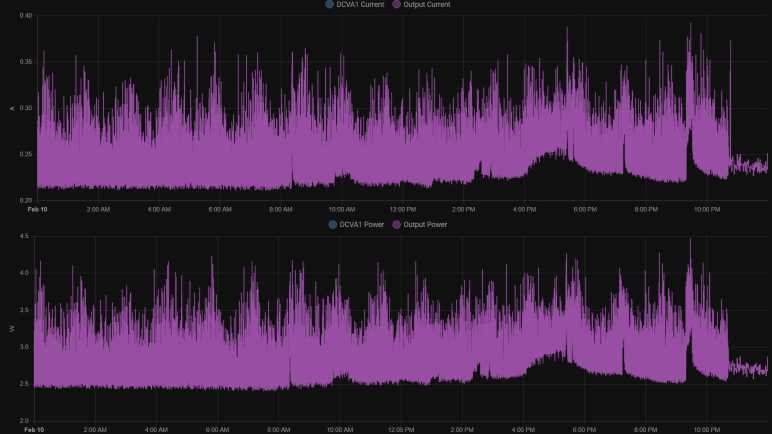
For comparison, InfluxDB and Grafana were designed to handle larger volumes of data and gives us tools for aggregating data. Working with aggregates for analysis and visualization avoids bogging the system down. I’m not sure how to do the same in Home Assistant, or if it’s possible at all, but I do know there are data aggregation tools in ESPHome to filter data before it gets into Home Assistant. These are described in the Sensor Filters documentation. I could still take a reading every second, but I could choose to send just the average value once a minute. Or the maximum value, or the minimum value. Showing average value once a minute, my Home Assistant UI is responsive again. The graph above was for the day I invoked this once-a-minute averaging, and the effect is immediately visible roughly around 10:45PM.

The graph below was from a later day when once-a-minute average was active the entire day:

It is a cleaner graph, but it does not tell the whole story. I had used this INA219 sensor node to measure power consumption of my HP Stream 7 tablet. Measuring once a second, I could see that power use was highly variable with minimum of less than two and a half watts but spikes up to four and a half watts. When showing the average, this information was lost. The average never dropped below 2.4 or rose above 3.2. If I had been planning power capacity for a power supply, this would have been misleading about what I would need. Ideally, I would like to know the minimum and the maximum and the average over a filtered period. If I had been writing my system from scratch, I know roughly what kind of code I would write to accomplish it. Hence the downside of using somebody else’s code: it’s not obvious to me how to do the same thing within this sensor filter framework. I may have to insert my own C code using ESPHome’s Lambda mechanism, something to learn later. [UPDATE: I learned it later and here’s the lambda/template code.] In the meantime I wanted to start adding up instantaneous power figures to calculate energy over time.

Using INA219 Was Super Easy with ESPHome

Once I had ESPHome set up and running, the software side of creating a small wireless voltage and current sensor node with was super easy. I needed to copy sample code for I2C bus component, then sample code for INA219 component, and… that’s it. I started getting voltage, current, and power reports into my Home Assistant dashboard. I am impressed.

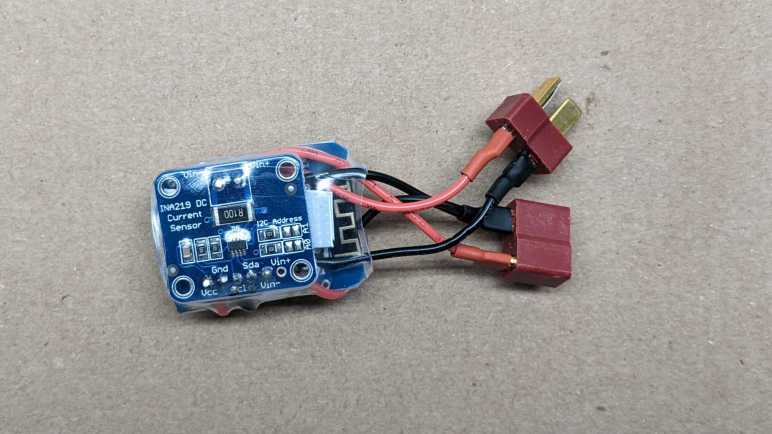
It was certainly far less work than the hardware side, which took a bit of soldering. I started with the three modules. From left to right: the INA219 DC sensor board, the MP1584EN DC voltage buck converter, and the ESP8266 in a Wemos D1 Mini form factor.

First the D1 Mini received a small jumper wire connecting D0 to RST, this gives me to option to play with deep sleep.

The MP1584EN was adjusted to output 3.3 volts, then its output was wired directly to the D1 Mini’s 3V3 pin. A small piece of plastic cut from an expired credit card separated them.

The INA219 board was then wired in a similar manner on the other side of D1 mini, with another piece of plastic separating them. For I2C wires I used a white wire for SDA and green wire for SCL lines following Adafruit precedence. Vcc connected to the 3.3V output of MP1584EN in parallel with D1 mini, and ground wires across all three boards. The voltage input for MP1584EN was tapped from Vin- pin of the INA219 board. This means the power consumed by ESP8266 would be included in INA219’s measurements.

A small segment of transparent heat shrink tube packed them all together into a very compact package.

I like the concept of packing everything tightly but I’m squeamish about my particular execution. Some of the wires were a tiny bit longer than they needed to be, and the shrink tube compressed and contorted them to fit. If I do this again, I should plan out wire my lengths for a proper fit.


Like I said earlier, the hardware took far more time than the software, which thanks to ESPHome became a trivial bit of work. I was soon staring at a flood of data, but thankfully ESPHome offers sensor filters to deal with that, too.

Notes on Running ESPHome Dashboard

Once I got Home Assistant running on my home server, I launched an ESPHome container to run alongside and pointed Home Assistant to that container via ESPHome integration. After running it for a while, here are some notes.

Initial Setup Required USB

The primary advantage of this approach is that I have an always-on dashboard for my ESPHome devices, from which I could edit and upload new firmware wirelessly. The primary downside of this approach is that I couldn’t route USB port to this docker instance, so I needed another computer to perform initial firmware flash with USB cable. There are a few options: (1) select “Manual Install” to download a binary file that I would then flash with esptool.py. Advantage: esptool is easy to install. Disadvantage: I have to remember all of the other parameters for flashing. Option (2) copy the configuration YAML file and run a separate instance of ESPHome on the computer with USB port. Advantage: ESPHome took care of all flashing parameters, no need to remember them. Disadvantage: ESPHome not as easy to install. Option (3) select “Manual Install” to download a binary, then use https://web.esphome.io/ to flash. Advantage: zero setup!

ESPHome /cache Directory

In addition to the required /config directory, we could optionally mount a /cache directory to ESPHome container instance. When present, the directory is used for items that are easily replaceable. For example downloading PlatformIO binaries and intermediate files during compilation. My /config directory is mapped to a ZFS hard drive array. It is regularly backed up so I have a history of my configuration YAML files, but it is not fast. So I mapped /cache to a SSD volume which is fast but not regularly backed up. It also gets quite large, after a few experiments I approached a gigabyte under /cache versus only a few megabytes in /config.

Not Actually Required for Home Assistant

I had thought ESPHome dashboard served as communication node for all my ESP32/ESP8266 boards to talk to Home Assistant. I was wrong! The boards actually get all the code to talk to Home Assistant directly. This meant I don’t strictly need to have Home Assistant Core and ESPHome Dashboard launch together in a common docker-compose.yml file. Home Assistant Core needs to be running, but ESPHome Dashboard could be launched just when I want to wirelessly modify a node.

Add Dashboard Password

But if ESPHome will always be left running as a standalone container, it would be a very good idea to install a minimum bar of security protection. By default, ESPHome dashboard is openly accessible, and I didn’t think it was the best idea. It left open access of all my ESPHome nodes to any port sniffers that might get on my home network. Whether I leave ESPHome running or not, I should at least add a username and password to ESPHome dashboard. This can be done by modifying the container launch commands as per parameters in ESPHome documentation.

version: '3'

services:
  esphome:
    image: esphome/esphome:latest
    command: dashboard --username [my username] --password [my password] /config
    restart: unless-stopped
    volumes:
      - [path to regularly backed-up volume]:/config
      - [path to speedy SSD that isn't backed-up]:/cache
    network_mode: host

This would not be necessary if running as an add-in with Home Assistant Operating System. When installed and managed by the supervisor, access to the ESPHome dashboard becomes part of Home Assistant user control.


All this effort to learn Home Assistant and ESPHome was kicked off when I decided not to write my own code to work with an INA219 voltage+current sensor, hoping it would be easier to use ESPHome instead. And I’m happy to report it absolutely paid off.

Notes on Home Assistant Core Docker Compose File

I’m playing with Home Assistant and I started with their Home Assistant Core Docker container image. After a week of use, I understood some of the benefits of going with their full Home Assistant Operating System. If I like Home Assistant enough to keep it around I will likely dig up one of my old computers and make it a dedicated machine. In the meantime, I will continue evaluating Home Assistant by running Home Assistant Core in a container. The documentation even gave us a docker-compose.yml file all ready to go:

version: '3'
services:
  homeassistant:
    container_name: homeassistant
    image: "ghcr.io/home-assistant/home-assistant:stable"
    volumes:
      - /PATH_TO_YOUR_CONFIG:/config
      - /etc/localtime:/etc/localtime:ro
    restart: unless-stopped
    privileged: true
    network_mode: host

This is fairly straightforward, but I had wondered about the last two lines.

    privileged: true

First question: why does it need to run in privileged mode? I couldn’t find an answer in Home Assistant documentation. And on the other end, official Docker compose specification just says:

privileged configures the service container to run with elevated privileges. Support and actual impacts are platform-specific.

So the behavior of this flag isn’t even explicitly defined! For the sake of following directions, my first launch of Home Assistant Core image specified true. Once I verified it was up and running, I took down the container and brought it back up without the flag. It seemed to work just fine.

One potential explanation: upon initial startup, Home Assistant needed to create a few directories and files in the mapped volume /config. Perhaps it needed the privileged flag to make sure it had permissions to create those files and set their ownership properly? If so, then I only needed to run with the flag for first execution. If not, then that flag may be completely unnecessary.

    network_mode: host

Second question: why does it need to run in host network mode? Unlike privileged, network mode is much better defined and host means “gives the container raw access to host’s network interface”. I tried running Home Assistant Core with and without this flag. When running without, Home Assistant could no longer automatically detect ESPHome nodes on the network. Apparently auto-discovery requires running in host network mode, and it’s a big part of the convenience of ESPHome. In order to avoid the tedium of getting, tracking, and typing in network addresses, I shall keep this line in my Docker compose file while I play with Home Assistant Core.

Notes on Home Assistant Core vs Home Assistant Operating System

Once I decided to try Home Assistant, the next decision is how to run it. Installation documentation listed many options. Since I’m in the kick-the-tires trial stage, I am not yet ready to dedicate a computer to the task (not even a Raspberry Pi) so I quickly focused on running Home Assistant inside a virtualized environment on my home server. But even then, that left me with two options: run Home Assistant Core in a Docker container, or run Home Assistant Operating System in a virtual machine.

Reading into more details, I was surprised to learn that both cases run Home Assistant Core in a Docker container. The difference is that Home Assistant Operating System also includes a “Supervisor” module that helps manage the Docker instance, doing things like automatic updates (and rollback in case of failure), making backups, and setting up additional Docker instances for Home Assistant add-ons. (ESPHome dashboard is one such addon.) If I opt out of supervisor to run Home Assistant Core on my existing Docker host, I will have to handle my own updates, backups, and add-ons.

Since I already had a backup solution for data used by Docker containers running on my server, I decided to start by running Home Assistant Core directly. After running in this fashion for a week, I’ve learned a few facts in favor of running Home Assistant Operating System on a physical computer:

  • Home Assistant Core updates very frequently, three updates in the first week of playing with it. Thanks to Docker it’s no great hardship to pull a new image and restart, but it’d be nice to have automatic rollback in case of failure.
  • When browsing the wide selection of Home Assistant integrations, there’s usually a little “Add Integration” button that held the promise to automatically set everything up for us. When the thing is an addon that requires running its own Docker container (like the ESPHome dashboard) the promise goes unfulfilled because we’d need the supervisor module for that.
  • When managed by the supervisor, addons like ESPHome can be integrated into the Home Assistant user interface. Versus opening up a separate browser tab when running in a Docker container I manage manually. This also means an addon can integrate with Home Assistant permissions so there’s no need to set up a separate username and password for access control.
  • Some addons like the ESPHome dashboard requires hardware access. In the case of ESPHome, a USB cable is required for flashing initial firmware on an ESP8266/ESP32. Further updates can be done over the network, but that first one needs a cable. Some Docker hosting environments allow routing a physical USB port to the Docker instance, but mine does not.

I could work around these problems so none of them are deal-breakers. But if I like Home Assistant enough to keep it around, I will seriously consider running it on its own physical hardware. Whether that’d be a Raspberry Pi or something else is to be determined.

In the meantime, I will continue running Home Assistant Core in a container. The documentation even gave us a docker-compose.yml file all ready to go, but I was skeptical about running it as-is.

Learned About Home Assistant From ESPHome Via WLED

I thought Adafruit’s IO platform was a great service for building network-connected devices. If my current project had been something I wanted to be internet-accessible with responses built on immediate data, then that would be a great choice. However, my current intent is for something locally at home and I wanted the option to query and analyze long term data, so I started looking at Home Assistant instead.

I found out about Home Assistant in a roundabout way. The path started with a tweet from GeekMomProjects:

A cursory look at WLED’s home page told me it is a project superficially similar to Ben Hencke’s Pixelblaze: an ESP8266/ESP32-based platform for building network-connected projects that light up individually addressable LED arrays. The main difference I saw was of network control. A Pixelblaze is well suited for standalone execution, and the network interface is primarily to expose its web-based UI for programming effects. There are ways to control a Pixelblaze over the network, but they are more advanced scenarios. In contrast, WLED’s own interface for standalone effects are dominated by less sophisticated lighting schemes. For anything more sophisticated, WLED has an API for control over the network from other devices.

The Pixelblaze sensor board is a good illustration of this difference: it is consistent with Pixelblaze design to run code that reacts to its environment with the aid of a sensor board. There’s no sensor board peripheral for a WLED: if I want to build a sensor-reactive LED project using WLED, I would build something else with a sensor, and send commands over the network to control WLED lights.

So what would these other network nodes look like? Following some links led me to the ESPHome project. This is a platform for building small network-connected devices using ESP8266/ESP32 as its network gateway, with a library full of templates we can pick up and use. It looks like WLED is an advanced and specialized relative of ESPHome nodes like their adaptation of the FastLED library. I didn’t dig deeper to find exactly how closely related they are. What’s more interesting to me right now is that a lot of other popular electronics devices are available in the ESPHome template library, including the INA219 power monitor I’ve got on my workbench. All ready to go, no coding on my part required.

Using an inexpensive ESP as a small sensor input or output node, and offload processing logic somewhere else? This can work really well for my project depending on that “somewhere else.” If we’re talking about some cloud service, then we’re no better off than Adafruit IO. So I was happy to learn ESPHome is tailored to work with Home Assistant, an automation platform I could run locally.