Probing TPS61187 LED Driver Configuration

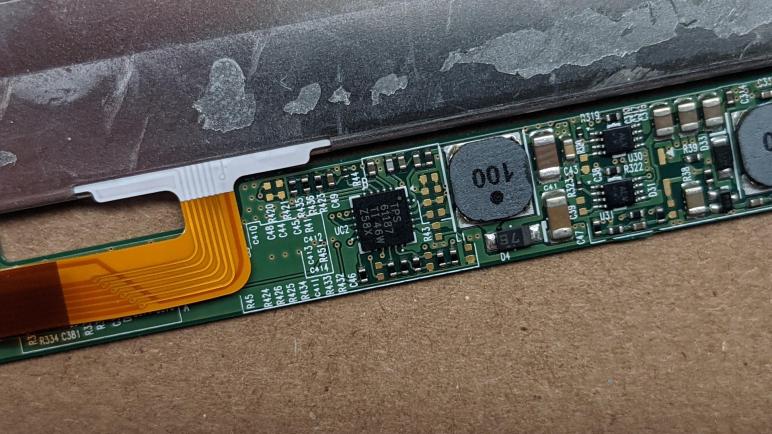
I’ve read through the datasheet for a TI TPS61187 LED driver chip and I think I have a fair (if not perfect) grasp of how to use it. Specifically I want to use one I found on the integrated driver board of a LG laptop LCD panel I’ve taken apart, there to drive the backlight module I wanted to salvage as a LED light. Armed with the datasheet and a multimeter, I started poking at the driver board to understand how it uses the chip. Since most of the chip’s configuration are done via resistors connected to certain pins, I could use the ohmmeter to decipher configuration. I enlarged and printed out my picture of that area of the circuit board so I could scribble down notes as I went.

Here’s what I found on this board, listed in order of their corresponding datasheet sections:

7.3.1 Supply Voltage

For applications that are always-on, it is valid for the enable (EN) pin to be connected to the chip’s internal regulator output pin VDDIO. Since a laptop would want to put a screen to sleep, I did not expect EN to be tied to VDDIO and my meter confirmed it was not. Which means I’ll have to go hunting for my own connection to EN later.

7.3.2 Boost Regulator and Programmable Switch Frequency (FSCLT)

The internal boost converter can operate at a range of frequencies, giving the designer an option to tradeoff between efficiency, inductor component size, etc. I probed the selection resistor on this board to be 822 kΩ. Plugging this into datasheet formula I arrive at a switching frequency of 608 kHz. Table 1 lists a few recommended values, and 833 kΩ is one of the recommendations for 600 kHz. I suspect this was indeed the intent and this 822 kΩ resistor is pretty good at less than 2% off nominal value.

7.3.3 LED Current Sinks

This is arguably the core parameter of driving LEDs. I traced the circuit and found two resistors in series. ~20 kΩ and ~31 kΩ but they added up to about 58 kΩ so there’s obviously something else I missed. Nevertheless, plugging 58 kΩ into datasheet formula says it’ll sets the target at 20mA. Typical for driving LEDs.

7.4.2 Adjustable PWM Dimming Frequency and Mode Selection (R_FPWM/MODE)

There are two ways to control brightness of the backlight. Either they can be blinked directly by an external PWM signal, or they can be blinked with an internal signal generator. One advantage of using the internal signal is that the phase for each of six strings are offset, so they blink in turn instead of simultaneously, which I expect to give smoother dimming. Another advantage of separating the two signals is that the external PWM can run at a far slower frequency, even one that would otherwise cause visible flicker, but it wouldn’t matter. Because once its duty cycle is read, it is copied for use by the internal generator running at a far faster flicker-free rate.

Probing the configuration resistors proved this board uses the internal high speed PWM signal. The resistor is 3.9 kΩ which works out to about 46.6 kHz. This is not one of the Table 2 recommendations, in fact it is over twice the speed of the highest recommended value. at 9.09 kΩ / 20 kHz. Higher switching frequency usually mean smoother behavior but lower power efficiency, I wonder what design meeting decisions at LG led to this value. Though of course it’s possible I’ve misread the value somehow.

7.4.4 Overvoltage Clamp and Voltage Feedback (OVC/FB)

These resistors configure how the boost converter works, and there’s an ideal formula in the datasheet mapping input voltage to LED output voltage. I was able to measure Rdown as 20 kΩ, but Rupper did not converge. My ohmmeter’s initial reading was in the 370-400 kΩ range, but the value continued to increase as I kept the probes in place. Eventually it would read as off-scale high. I think this means there’s a capacitor in parallel?

Out of all the configurations I had hoped to read, this was the one I really wanted to get because it would inform me as to the best voltage level to feed into this system. With this ambiguous reading, I’m sadly no wiser.

But at least I have some idea of how this chip has been configured to run, so I could continue probing this circuit board looking for places where I can interface with this LED driving circuit.

My TPS61187 LED Driver Startup Plan

I wanted to see if I could power up just the LED backlight portion of a broken LG LCD laptop screen, model LP133WF2(SP)(A1). It was cracked and couldn’t display images, but the backlight still worked before I took it apart. Does it still work? I wanted to find out and I still had the screen’s integrated driver circuit board and will try that first. The biggest question mark here is how the rest of the circuit board will react if I try to power up the TI TPS61187 LED driver chip in-place on the circuit board. My fallback position is to bypass the chip and power the LED strings directly, but that wouldn’t be as energy-efficient and I lose out on cool features. The one most novel to me is the phase-shifted PWM dimming control, where the six LED strings are dimmed round-robin instead of all at once for a smoother display. It’s not something I would likely do if I had to power the LEDs directly with my own cricuit.

To see if I could get the original circuit running, I plan to do it in steps based on this excerpt from the datasheet:

7.3.4 Enable and Start-up

The internal regulator which provides VDDIO wakes up as soon as VIN is applied even when EN is low. This allows the device to start when EN is tied to the VDDIO pin. VDDIO does not come to full regulation until EN is high. The TPS61187 checks the status of all current feedback channels and shuts down any unused feedback channels. It is recommended to short the unused channels to ground for faster start-up.

After the device is enabled, if the PWM pin is left floating, the output voltage of the TPS61187 regulates to the minimum output voltage. Once the device detects a voltage on the PWM pin, the TPS61187 begins to regulate the IFB pin current, as pre-set per the ISETH pin resistor, according to the duty cycle of the signal on the PWM pin.

This translated to the following plan:

  1. Put minimal voltage across VIN and GND. If it doesn’t go up in smoke, probe VDDIO to see if it has some voltage.
  2. If that works, check the Enable pin. If I am to drive the chip, I will need to control the state of the Enable pin. This is where an interaction with existing components might cause headaches: something else on the board might be trying to keep it high or keep it low, and if I put voltage on that pin the opposite state, I might damage that component unless I cut a trace somewhere to disconnect it.
  3. I might also have to find and cut a trace for the PWM pin for the same reason.
  4. Send the Enable signal, and check the voltage level across a LED string for the “minimum output voltage” mentioned by the datasheet.
  5. If all of the above works, then I’ll work on how to generate the PWM dimming signal.

Plans rarely survive intact upon their first contact with reality, but I wanted to have one before I got started. It will guide me as I probe the circuit board to understand how it uses a TPS61187.

TI TPS61187 Circuit’s Boost Converter

I had a broken LG laptop screen, model LP133WF2(SP)(A1), which I’ve disassembled and now I’m digging into its backlight module. I want to see if it I could make it work as a standalone diffuse light panel. I could probably wire up the LEDs directly with a voltage source and current-limiting resistor, but I also have its original integrated driver circuit board which still worked as far as I knew. I’m sure most of it were concerned with moving pixels which are no longer relevant, but there is also a TI TPS61187 chip on the board to drive the backlight section.

The PWM control signal is 3.3V friendly with a logic high threshold of 2.1V, so I could use either a 5V ATmega328 Arduino or a 3.3V ESP32. The part I didn’t understand was the power input. The datasheet says input voltage can range anywhere from 4.5V to 24V, and that it has a built-in boost converter to send up to 38V to the LED strings. I had expected to see a separate output pin for this higher voltage, but in the Typical Application schematic, the LED’s common anode is connected to the input voltage plane via a diode and an inductor. This combined with the following quote in the datasheet confused me:

there must be enough white LEDs in series to ensure the output voltage stays above the input voltage range

With the common anode seemingly tied to voltage input, I didn’t understand how the anode voltage could be higher than the input voltage. The next hypothesis is that instead of different voltage supply planes, perhaps there are separate ground planes at different levels. I saw there was a PGND pin for logic that is separate from AGND pin for the LED strings so the hypothesis had potential. But when I probed the circuit board, my meter said PGND and AGND pins are tied together on my board, eliminating the “separate ground levels” idea.

With a distinct sense that I have misunderstood something, I went to Wikipedia to learn more about boost converters and how they work. As soon as the diagrams came onscreen for that page, I realized that inductor and diode I saw earlier WAS the boost converter. I just didn’t recognize it as I was only aware of a block diagram representation and didn’t know it when the core components of a boost converter were staring at me in the schematic. Now it all makes sense how the LED string common anode voltage will be higher than the input voltage, and I feel confident enough to devise a plan.

Investigating TI TPS61187 WLED Driver

I took apart a LG LCD panel LP133WF2(SP)(A1) hoping to salvage something useful. After I failed to salvage the polarizer film, my hope lies with the backlight module. Its diffuser had a multi-layer construction I didn’t understand but found fascinating and wanted to see it light up firsthand. And if I am to do that, I need to figure out how to send power to the backlight LEDs. When I split the panel into the display and backlight modules, I saw the backlight was connected by a ribbon cable with seven conductors. Six of them look identical, and the seventh was wider than the rest, making it a good candidate for either a common anode or a cathode. Which is it, though? For that I looked for hints on the display panel’s integrated driver board.

There were three significant-looking ICs on board. The largest is closest to the connector to the rest of the laptop and the top two lines written on it were “LG Display ANX2804”. I found no information on this chip online. In the middle of the circuit board is another IC, this one labeled “SM4037 DA1422 AMER038”. I found no information on this particular designation, either. (There exists a SM4037 from Fairview Microwave, but it is a connector and not a microchip.) That leaves the chip closest to the backlight connector as the best candidate for a LED driver, and luckily its markings of TPS 61187 match that of a Texas Instruments WLED driver. I think this is it.

Reading its publicly available datasheet reinforced it is the right result, as its “typical application” diagram shows the chip driving six parallel strings of LEDs. The schematic indicates the six strings are connected to a common anode with their own individual cathodes wired to one of six current sinks on the chip. This information is enough for me to wire up this array to my bench power supply to find the right voltage for this string and create my own LED driver circuit. But since I have the datasheet already on hand and a “I know it used to work” backlight control board, I kept reading to see if I could perhaps reuse the board as well.

It looks pretty promising. There are no handshake or control protocol involved, all the potential configurations for this chip are done via resistance values to certain pins which would be already present in this case. I think for a bare minimum setup I only need to provide a power source and a PWM signal to control brightness. I could also connect the enable pin but I think I could get away with using a pull-up resistor. And under this minimalist plan I would be ignoring the fault signals. Plus one very important lesson about its power supply I had to learn first.

LG LCD Panel Backlight Also Has Layers

I’ve got a cracked laptop LCD module by LG, model LP133WF2(SP)(A1) and I am taking it apart to see what’s inside and maybe salvage fun stuff for future projects. After I failed to learned lessons about salvage the polarizer film, my adventure continues with the backlight module. My ambition is to make it light up again as a diffused light source, hoping it’ll be more pleasant than the point light sources of individual LEDs.

I foresee a decision that I will have to make: do I work with the LEDs directly with its seven-conductor cable? Or do I try to work with the LED driver IC on the board?

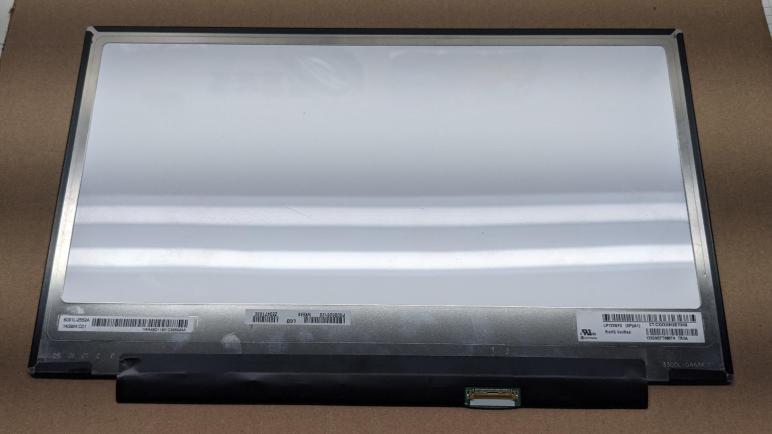
But before I get that far, I wanted to examine the physical construction of this laptop LCD backlight. There wasn’t much to it at first glance, just a big flat expanse of white matte material.

I had expected a thin row of LEDs and some sort of light diffuser material, and I saw… just diffuser. The LEDs must be incredibly thin to hide under this black strip which is only about 2mm wide.

I had expected the diffuser material to be a translucent sheet of plastic. When I lifted it away from the frame, I found it’s actually composed of four layers. The top and bottom layers are close to what I had expected, they are translucent but are visibly different from each other. The surprise came in the middle two layers, which had optical properties that reminded me of a Fresnel lens but not in a concentric pattern as usually found in Fresnel lenses.

I’m ignorant on how to characterize this any more specifically, but it feels like an entire discipline of engineering that I have never known before. There are experts out there for this intersection between physics (optics) and manufacturing to mass produce these backlight elements. At some point I hope to learn the technical terms of this material so I can learn more about them. But right now this discovery makes me even more motivated to get the backlight back up and running so I can see this stuff in action. Which means it’s time to read up on that LED driver IC.

[UPDATE: This Hackaday post A Hacker’s Introduction to DIY Light Guide Plates has more details about these backlight layers, as well as making custom plates out of acrylic sheets with a laser cutter.]

Turning to Chemistry for LCD Panel Polarizer

I thought it might be fun to salvage the polarizer from a broken laptop LCD screen, but it has put up quite a fight. I first tried direct mechanical brute force and managed to shatter the glass. Thankfully, not injuring myself doing it. When physical power doesn’t cut it, we turn to chemistry.

The risk of this approach comes from the fact the polarizer is made of plastic of unknown composition. Ideally I could find a solvent that will dissolve the adhesive and leave the plastic intact. If I was better at chemistry I might have some methodical way to find that solvent, but all I’ve got is trial-and-error. To aid in the trial-ing (and the error-ing) I have a portion of the polarizer I’ve already freed from brute force, carrying with it a layer of tacky glue. It’s enough for me to get started.

I had a rough progression of least- to most-aggressive solvents. First up to bat was 70% isopropyl alcohol, and the glue just laughed at its feeble efforts. After I let the alcohol dry, I tried WD-40, which also did nothing. I wiped up as much of it as I could before moving on to the next contestant: Goo-Gone.

Goo-Gone had some effect. It did not magically dissolve the glue as it tends to do with most other glues I come across, but it did soften this stuff somewhat, and it didn’t seem to damage the plastic. Using Goo-Gone to soften the glue, I was able to peel the sheet of polarizer free of the remaining glass and finally freed myself of the risk of puncturing some body part from thin pieces of broken glass.

However, that’s only half a victory as the glue remained stubbornly attached to the plastic making it unusable for light polarization fun. More Goo-Gone only seemed to spread it around and didn’t dissolve it. So I moved on to the next item: mineral spirits. It further softened the glue enough for me to start rubbing them off the plastic. It was a very labor intensive process, but I could start to see the shiny surface of my polarizer sheet. But I soon reached the limits of this approach as well. I started sensing uneven bumps in the surface and I couldn’t figure out what’s going on until I dried off all the mineral spirits for a look.

It appears there are multiple parts to this glue, and there is a much tougher component that clung on to the film. They were applied in lines and that explained the ridges I could feel in my fingertips while this film was damp with mineral spirit.

Finding the limits of mineral spirits for this task, I moved on to acetone a.k.a. nail polish remover. This is something I knew could melt certain plastics, as it’s used to smooth and weld plastic parts 3D-printed in ABS. However, I also knew it is not equally destructive to all plastic, as it seems to do very little (or absolutely nothing) to 3D-printed PLA parts and acetone itself sometimes comes in plastic bottles. Lacking experience in identifying plastics, I proceeded on my trial-and-error process.

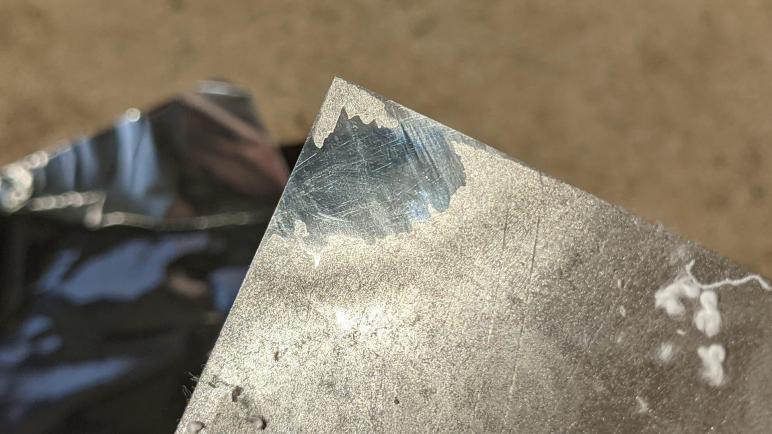
The good news: using a small amount of acetone in a test corner, I found that it quickly dissolved the adhesive, turning them into soft goop that are trivial to remove. Wiping it off, I see the clear surface of polarization film with no evidence of chemical etching or erosion. I think this is the ticket!

But then I went too far by soaking the entire sheet in acetone, expecting to pull out a completely clean polarizer. When immersed in acetone, the polarizer film became brittle and cracked into little pieces. It marked the end of this experiment, but next time (I’m confident there’ll be a next time) I’ll try a few intermediate steps to see if I can find a good point on the spectrum between “few drops in a corner” and “soaking the entire sheet.”

Trying to salvage something from this screen’s LCD module was a bust, but I still have a very fascinating backlight module to play with.

Layers of Glass in LG Laptop LCD

I have a broken laptop LCD display module that I’m taking apart. It is a LG LP133WF2(SP)(A1) and it came from a Toshiba Chromebook 2 which was retired due to said cracked screen. I was able to split it into its two main components, the backlight and the display, both connected to the integrated driver circuit board. The backlight connector was something I could disconnect and reconnect, which is not something I could say for the high density connectors to the front display panel. Fortunately the screen is already cracked and nonfunctional so the majority of risk of disassembly is from broken glass.

The edge of this display module made it clear there is a complex multi-layer sandwich within.

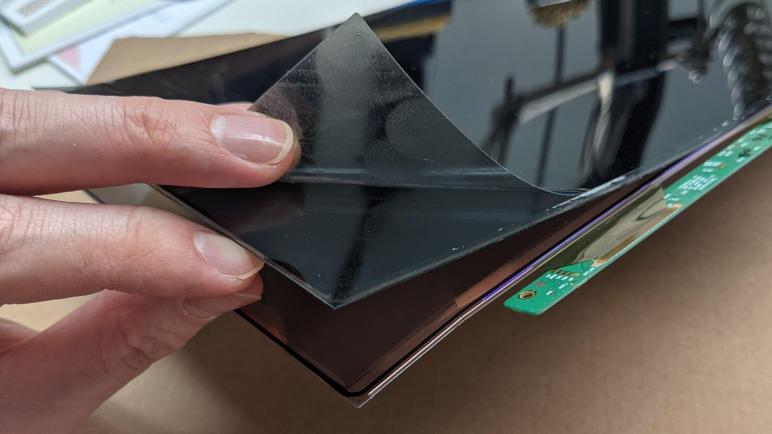
There are at least three layers. The topmost layer is very thin and feels like plastic. The middle and bottom layers feel like glass. They don’t come apart easily, so I thought I’d try peeling the top plastic layer like a sticker. It is indeed backed by some adhesive, pretty tenacious ones at that.

I tried to keep the glass layers as flat as I could while I peeled, a difficult task with the strength of that glue which resulted in some alarming flex in the glass. I double and triple checked to make sure my eye protection is in place while peeling. After several centimeters of progress, scary bending and all, I felt a “pop” as the flexing freed whatever had held the middle and bottom glass layers together around their edges. Once this corner popped free, it was trivial to travel around all edges to peel the two glass layers apart.

It was damp between these two layers, presumably a thin layer of the “liquid” in Liquid Crystal Display (LCD). It was easily absorbed by a single sheet of paper towel, and its oily residue cleaned up nicely with 70% isopropyl alcohol. As far as I know, this is not a toxic material and I had not just cut years off my life, but I went and washed my hands before proceeding.

The bottom layer is where the original crack had lived, and these cracks had gotten worse due to the recent flexing. I don’t see anything of interest in this layer so I set it aside for safe disposal.

The two glass layers each had a grating that can be barely felt with my fingertips. They are also visible if I shined light through each layer. They are orthogonal to each other which would make sense if one set controlled horizontal pixels and the other controlled vertical pixels. Also, once the two glass layers separated, I was able to confirm the passive polarization filter (one of the objectives for salvaging) is the flexible sheet of plastic I had been tugging on. I resumed peeling that layer but didn’t get much further. Now that I only have one glass layer instead of two, it shattered under stress.

Even though I expected this as a potential (likely, even) outcome, it was still a surprise when things finally let go. Three cheers for eye protection! I picked out a few tiny shards of glass from my fingertips, but none of them found a blood vessel so there was no bleeding. And I think I managed to collect all the pieces scattered around the table. I had thought this would be a minor setback and I could continue peeling but just with smaller pieces of glass, but I was wrong. I don’t know my glass properties very well, but something happened here to change the mechanical properties of the glass. Once the first break happened, it has almost no strength at all. Continuing to peel — even at a lower force — causes new breaks. Brute strength will take me no further. And when brute strength fails, I turn to chemistry.

LCD Panel Driver Circuit Board

I’m taking apart a broken laptop LCD panel, a LG LP133WF2(SP)(A1) from a Toshiba Chromebook 2. I started with the very fancy tape surrounding the edges. Once the tape was gone, its top edge started unfolding into two parts. But they’re still held together on the bottom edge with the integrated driver board for this display. So I should figure out what that’s about before trying to completely separate the two parts.

The front side of this board had three sets of extremely high density connectors to carry signal for all 1920×1080 pixels on this module.

The back side of this board had all of the integrated circuits and a lower density connector for the backlight.

A single cable carried both power and data from the laptop mainboard. The chip closest to that connector was the largest IC on this board and probably mastermind in charge of this operation.

A search for “LG ANX2804” came up empty, which is not a huge surprise for a chip designed and built by LG for internal consumption by their display division. There’s no reason for them to distribute specifications or datasheets. On the other side of the board we see a connector for the backlight. The connector has nine pins, but in the ribbon we see six thin wires plus a wider seventh wire. This wider wire consumes two of the nine pins, making it a good candidate for either a common anode or cathode for LEDs. This left one pin in the connector seemingly unused.

I had expected just two wires for a simple string of LEDs, but the backlight is evidently more complicated than that. I’m optimistic I can get this figured out because the IC closest to this connector is clearly marked as a TPS 61187 by Texas Instruments, and I hope the information available online will help me sort it out later.

Returning to the front of this board, these high density data connectors are fascinating but I don’t understand everything that’s going on here.

I count somewhere between four and five contacts within a millimeter. This is definitely beyond my soldering skill, but they aren’t soldered anyway. Whatever this type of connection is, it is clearly single use. Once I detach it (it peeled off like tape) there’s no way for me to reattach it. I see nothing to help me align the connector. I’m also curious about the fact the copper contacts area is wider than what we see actually used. I’m sure it’s a provision for something but I don’t know what. For today it doesn’t matter, as the screen is already cracked and nonfunctional so I lose nothing by peeling them off before I explore its intricate layers of glass.

LG LCD Panel LP133WF2(SP)(A1) Teardown

After I checked the USB OTG reader off my teardown to-do list, I decided to continue ignoring what I had originally planned to do and continued tearing down another item that’s been sitting on my teardown to-do list: a broken LG LCD panel LP133WF2(SP)(A1). It was the original screen in a Toshiba Chromebook 2 (CB35-B3340) which I received in a broken state with the screen cracked. I revived the Chromebook with a secondhand replacement screen, and I set the original cracked screen with the intent of eventually taking it apart to see what I can see. “Eventually” is now.

Out of all the retired screens in my hardware pile, this was the most inviting for a teardown due to its construction. The ever-going quest for lighter and thinner electronics meant this screen wasn’t as stout as screens I’ve removed from older laptops. I noticed how flexible it was and it made me nervous while handling it. Most of the old panels I’ve handled felt roughly as rigid as a thick plastic credit card, this display felt more like a cardboard business card. I’m sure the lack of structure contributed to why the screen was cracked.

The primary objective of this exercise is curiosity. I just wanted to see how far I could disassemble it. The secondary objective is to see if I can salvage anything interesting. While the display itself is cracked and could no longer display data, the backlight was still lit and it would be great if I could salvage an illumination panel. And due to how LCDs work, I know there are polarization filters somewhere in its sandwich of layers. I just didn’t know if it’s practical to separate it from the rest of the display.

The primary concern in this exercise is safety. The aforementioned quest for light weight meant every layer in this sandwich will be as thin as it can possibly be, including the sheets of glass. And since the screen is visibly cracked, we already know this activity will involve shards of broken glass. I will be wearing eye protection at all times. I had also thought I would wear gloves to protect my fingertips, but I don’t have the right types for this work. All the gloves I have are either too bulky (can’t work with fine electronics in gardening gloves) or too thin to offer protection (glass shards easily slice through nitrile.) I resigned to keeping a box of band-aid nearby.

All that said, time to get to work: around the metal frame this panel is surrounded by a thin black material that contributes nothing to structure. It’s basically tape. Cut to precise dimensions and applied with the accuracy of automated assembly robots, but it’s adhesive-backed plastic sheets so: tape.

The adhesive is quite tenacious and it did not release cleanly. Once peeled, the top edge of the LCD array could separate from the backlight. The diagonal crack is vaguely visible through the silvered mirror back of the LCD.

This is a good start, but I can’t pull them apart yet. Right now they’re both connected to this panel’s integrated driver circuit board.

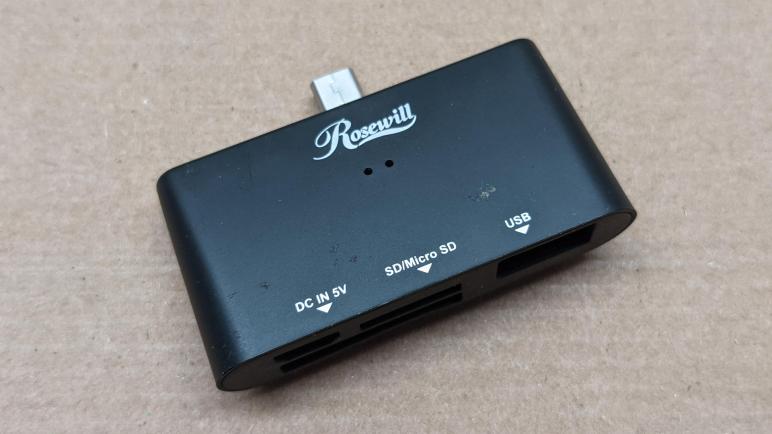
Rosewill USB OTG Memory Card Reader (RHBM-100-U2) Teardown

I got this thing from a “Does Not Work” box intending to do a teardown. Since it’s so small, I thought it would be fun and quick, but I kept putting it off. It’s been sitting adjacent to my workbench through several reorganizations and cleanups, and I kept moving it from one place to another. Today I was about to move it again when I decided: No more. I have other things I need to do, but I’m putting them on pause for this thing. Today is the day.

Based on all the slots on one side, this is clearly a multi-format flash media reader/writer. The other end was a little more interesting, as it is a USB micro-B plug instead of the usual socket. The presence of the plug implies this was designed for use with USB OTG devices such as an Android phone, allowing them to read and write flash cards. Aside from a few labels for the various types of flash media, there was only the “Rosewill” brand logo. I found no model number or serial number printed on the enclosure. Searching for “Rosewill USB OTG” retrieved information on many products. The closest match based on pictures is the RHBM-100-U2.

There was a visible seam around the faceplate full of memory slots. The remainder of the enclosure appeared seamless. The lack of fasteners indicate this faceplate is glued in place. Using pliers, I was able to get a bite out of the enclosure to use as starting point. Not elegant, but I’m going for speed in this teardown and elegance be damned.

The bite allowed my pliers to get a firm grip on the faceplate and peel all around the perimeter. After that, I could pull the faceplate free.

Once the faceplate was removed, a firm push on the USB micro-B plug popped the final few glue points free and I could slide out the PCB. As expected, it was relatively simple dominated by surface mount flash media connectors.

Aside from those media connectors, one side was dominated by small passives.

The other side had one IC clearly more sophisticated than anything else on the device. The only other unexpected item is the black goo on the USB micro-B plug. I have no idea why that is there.

Searching on “GLB23” didn’t get me anywhere, but “GL823” got a likely hit with Genesys Logic. It is advertised as a single-chip solution for implement a multi-format USB media card reader, which is a perfect match for the device at hand. I didn’t bother downloading its datasheet, but I wouldn’t be surprised if this device basically followed the reference design.

Years after I picked this up, intending for a quick teardown, I finally did it. It no longer needs to occupy space on my workbench and I can move on with my life.

Four Screws Fasten NVIDIA GTX 1070 Dust Cover

I recently took apart three external hard drives to retrieve their bare drives within to use in an internal application. In all three cases, there were no externally accessible fasteners to help with disassembly. I had to pop plastic clips loose, breaking some of them. For laughs, I thought it’d be fun to talk about a time when I had the opposite problem: I was confronted with far too many screws, most of which weren’t relevant to the goal.

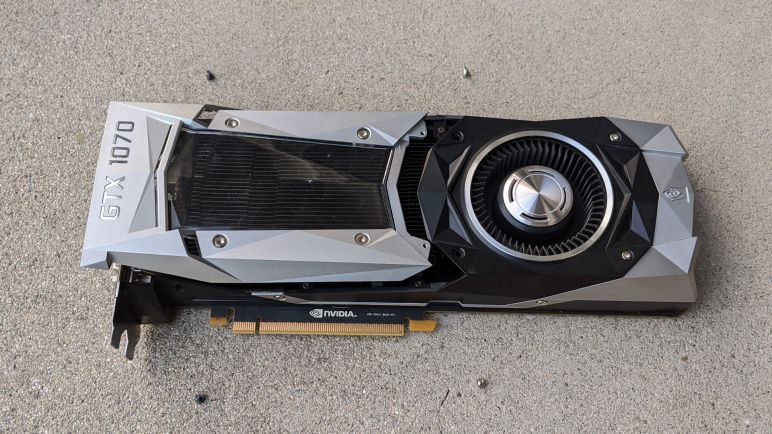
I have a NVIDIA GTX 1070 GPU and it had been in service for several years. NVIDIA designed the cooling shroud with a faceted polygonal design. Part of it was a clear window where I could see dust had accumulated through years of use. I thought I should clean that up, but it wasn’t obvious to me which of the many visible screws held the dust cover in place. The visual answer is in this picture:

In case these words are separated from the illustrative image, here is the text description:

Starting from the clear window, we see four fasteners closest to them. These four fasteners hold the clear plastic to the dust cover and not useful right now. We need to look a little bit further. There are two screws further away between the clear window and the fan. Those are two of the four dust cover screws. The remaining two are on the top and bottom of the card, closer to the metal video connector backplate. Once these four screws are removed, the dust cover can slide sideways (towards the backplate) approximately 1cm and then the dust cover can lift free. After that, the four screws holding the clear window can be removed to separate the window from the rest of the dust cover.

In the course of discovering this information, I had mistakenly removed a few other screws that turned out to be irrelevant. Since they’re not useful to the task at hand, I put them back without digging deeper into their actual roles.

Hot Air Station Amateur Hour

A hot air station is one of the standard tools for working with surface-mount electronics, mostly in the context of rework to fix problems rather than initial assembly. In addition to manuals for individual pieces of equipment, there are guides like this one from Sparkfun. My projects haven’t really needed me to buy one, though that’s debatable whether that’s a cause or an effect: perhaps I design my projects so I don’t need one, because I don’t have one!

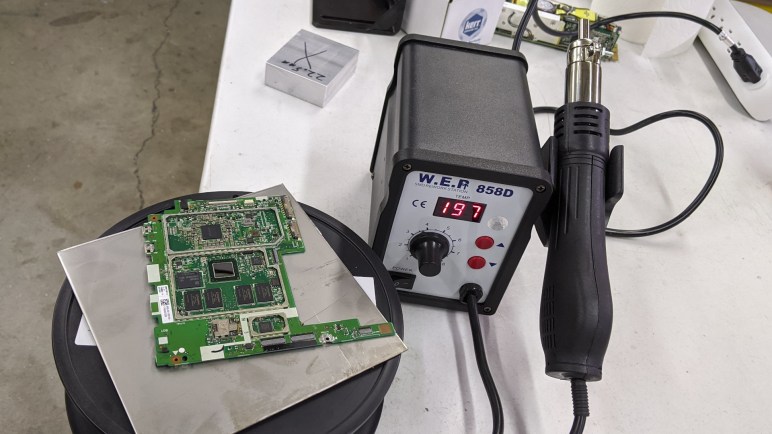
Either way I knew some level of dexterity and skill are required to use the tool well, and the best way to get started is to start playing with one in a non-critical environment. Shortly before the pandemic lockdown, I had the opportunity when Emily Velasco offered to bring her unit to one of our local meetups for me to play with. I had a large collection of circuit boards removed from tearing down various pieces of equipment. I decided to bring the mainboard from an Acer Aspire Switch 10, which was a small Windows 8 laptop/tablet convertible that I had received in an as-is nonfunctional state. I was able to get it up and running briefly but I think my power supply hack had provided the wrong voltage. Because a few months later, it no longer powered up.

Using the hot air rework station, I started with small SMD components. A few capacitors, transistors, things of that nature. I could take them off, and put them back on. I have no idea if they remained functional, that will be a future test at some point.

The USB ports and mini HDMI port on this device were surface mounted and I tried them next. I could remove them with the hot air rework station, but I couldn’t reinstall them. I got close so I believe this is a matter of practice and improving my technique.

Those connectors had relatively few large connection points, I tried my luck with larger chip packages on board. These were memory modules and flash storage modules, fairly large chips with electrical connections underneath where no soldering iron could reach them. My success rate here is similar, of being able to pull them off but not put them back on. I was less optimistic I could get this to work with practice, since these are ball grid array (BGA) modules and I would have to re-ball them to reinstall properly.

The largest chip on the board was the Intel CPU. I suspect there are heat dissipation measures in circuit board copper layers, similar to how a DRV8833 handles cooling with PowerPAD. Whatever is going on, I could not remove the CPU at all with this hot air rework station.

This was a fun introductory hot air play session, I look forward to more opportunities to learn how to use hot air once we can safely hold hacker meetups again. Here’s the final dissected cadaver:

Hot air rework session end

Western Digital My Book 1TB (WDBACW0010HBK-01) Teardown

I took apart an external USB 2.0 hard drive I had formerly used for MacOS Time Machine, but haven’t touched in years. It was the second of three external drives under two terabytes that I had gathering dust. The third and final drive to be disassembled in this work session was used for a similar purpose: the Windows Backup tool that (as far as I can recall) was introduced in Windows 8. Now it will serve that role again, sort of, by becoming part of my fault-tolerant ZFS RAIDZ2 storage array running under TrueNAS. Which does not support USB external drives, so I am removing the bare drive within for its SATA connection.

Like the other two drives, this one lacked external fasteners and had to be taken apart by prying at its seams to release plastic clips. (Not all of the clips survived the process.)

The geometry was confusing to me at first, but following the seams (and releasing clips) made it clear this enclosure was made of two C-shaped pieces that are orthogonal to each other. I thought it was a creative way to approach the problem.

I was also happy to see that the cooling vents on this drive was more likely to be useful than the other two, since the drive is actually exposed to the airflow and it is designed to stand on its edge so warm air can naturally escape by convection. There is no cooling fan, and none was expected.

Like the other two drives, there’s a surface mounted indicator LED on the circuit board. To carry its light to the front façade, there’s an intricately curved light pipe. It might look like a flexible piece of clear plastic in the picture but it is actually rigid. I was a little sad to see that, because its precision fixed curvature means there’s almost no chance I can find a way to reuse it.

Two circuit boards are visible here. The duller green board is the actual hard drive controller circuit, the brighter green board is the USB3 adapter board converting it to an external drive. My goal is to remove the bright green board to expose the bare drive’s SATA interface so I could install it in my TrueNAS server. It was quite stoutly attached! On the other two drives, once the internals were exposed I could easily pull the drive loose from the adapter board. This board was rigidly fastened to the drive with two screws, including this one that took me an embarrassingly long time to find. On the upside, this rigidly fastened metal reinforcement meant the USB3 port is the strongest I’ve seen by far. Another neat feature visible here is a power button, a feature I don’t often see on external drives.

This assembly was mounted inside the external case with some very custom shaped pieces of rubber for vibration isolation. Like the light pipe, I doubt I would be able to find a use for these pieces elsewhere. But that’s fine, the main objective was to retrieve the SATA HDD within this enclosure and that was successful.

This is enough hard drive “shucking” for one work session. I have more retired drives (two terabytes and larger) awaiting disassembly, but I think I have enough to satisfy my TrueNAS array replacement needs for the near future.

Seagate Expansion External Drive 1.5 TB (9SF2A6-500) Teardown

The terabyte drive shucking series continues! Second in this work session is an older Seagate external drive with a slower USB 2.0 interface. They dropped out of favor after USB 3.0 came on the scene, but that’s only a limitation imposed by the external enclosure. I’m confident the hard drive within will be just as fast as the others once I’ve pulled it out and can connect it via SATA to my TrueNAS ZFS storage array. This particular drive served as my MacOS Time Machine backup drive and exhibited some strange problems that resulted in my MacBook showing the spinning beach ball of death patience while the drive makes audible mechanical clicking noises trying to recover. I no longer trust the drive as a reliable single-point backup, but I’m fine with trying it in a fault tolerant RAIDZ2 array.

Again I had no luck finding fasteners on the external enclosure, so I proceeded to pry on the visible seam. I was rewarded by the sound of snapping plastic clips and lid released.

Despite the visible ventilation holes, it seems like the hard drive is actually fully enclosed in a metal shell. I guess those vents didn’t do very much. The activity light in this particular drive was not as clever as the previous drive, it is a straightforward LED at the end of a wire harness.

Unlike the previous drive, which had an external shock-absorbing shell, this drive’s vibration-isolating mechanism is inside in the form of these black squares of soft rubber.

The screws have standard #6-32 thread but have an extra shoulder to fit into these rubber squares. I feel these would be easily reusable so I’m going to save them for when I need a bit of shock absorption.

Once those four screws were removed, the bare drive slid out of the case easily. I didn’t need to bend the top of the sheet metal box to remove the drive, I did it so we can see the circuit board in this picture.

When I added this bare drive to my ZFS array, I had half expected the process to fail. If the clicking-noise problem persists, I expect TrueNAS to fail the drive and tell me to install another. I was pleasantly surprised to see the entire process completely smoothly. There were no audible clicking, and TrueNAS accepted it as a productive member of the drive array. I wonder if the problem I encountered with this drive was MacOS specific? It doesn’t matter anymore, now it helps back up data for all of my computers and not just the MacBook Air. It’ll share this new job with one of its counterparts, who formerly kept my Windows backups.

Seagate Backup Plus Slim Portable Drive 1TB (SRD00F1) Teardown

I remember when consumer level hard drives reached one terabyte of capacity. At the time it seemed like an enormous amount of space and I had no idea how I could possibly use it all, and where the storage industry could go when additional capacity didn’t seem as useful as it once did. The answer to the latter turned out to be solid state drives that sacrificed capacity but had far superior performance. SSD capacities have since grown, as our digital lives have also grown such that a terabyte of data no longer feels gargantuan.

As someone who has played with computers for a while, I naturally had a pile of retired hard drives. An earlier purge dismissed everything under one terabyte, but with the wonder of the terabyte milestone still in my mind I held on to those one terabyte and higher. This became sillier and sillier every year, especially now that the two worlds have met back up: Sometime within the past year I noticed I can buy an one terabyte solid state drive for under $100 USD.

In this environment, the only conceivable use I have for these old drives is to put them together into a large storage array, which motivated me to retire my two-drive FreeNAS box. My replacement running that operating system (which has since been rebranded TrueNAS) put six of my old terabyte drives to use as a RAIDZ2 array, resulting in four terabytes of capacity and tolerance of up to two drive failures. In the year since I’ve fired these old drives back up, I was a bit disappointed but not terribly surprised some of these old drives have already started failing. It’s not a huge worry as I had plenty more drives waiting in reserve. However, some of them are sitting inside external enclosures and need to be shucked in order to retrieve the disk drive within. First up: the Seagate Backup Plus Slim Portable Drive (SRD00F1) This will be a smaller 2.5″ laptop-sized drive with slower performance, but that should be fine as a member of a large secondary storage array.

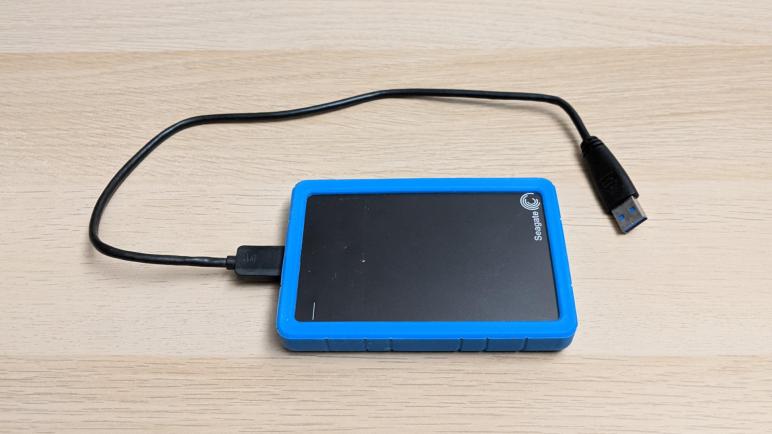
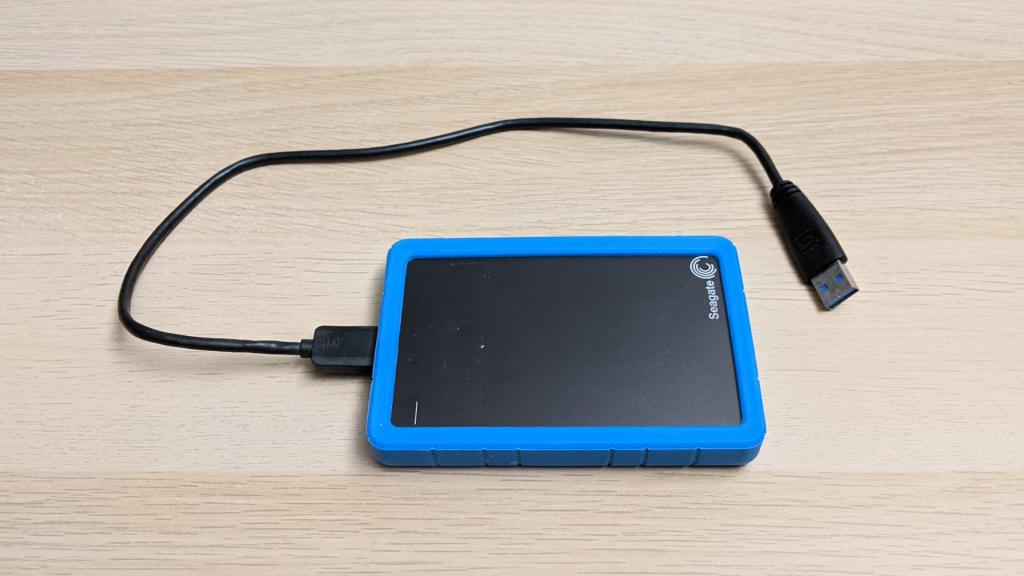
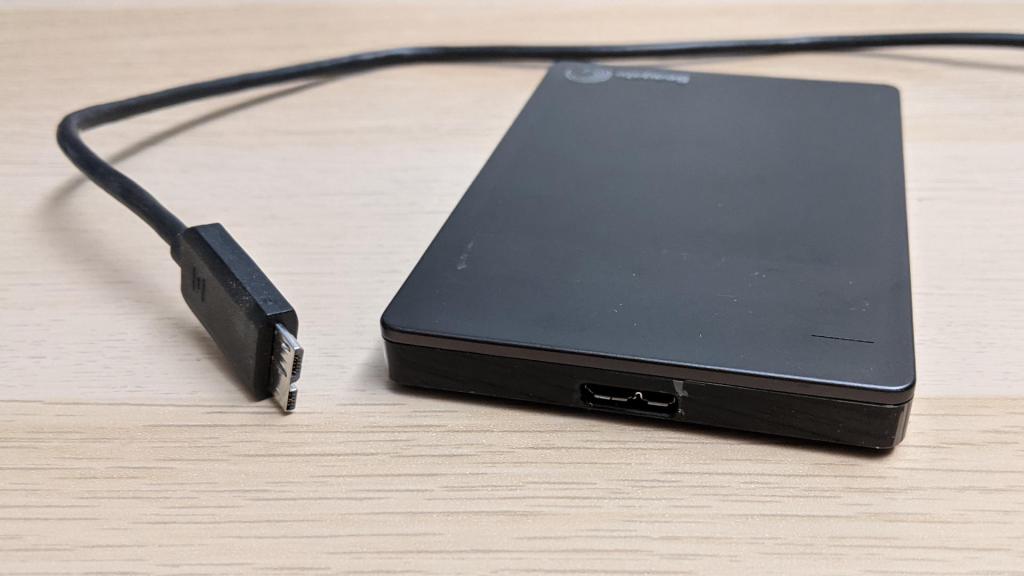
I used this drive for a while as portable bulk storage to hold stuff that didn’t fit on my laptop’s small SSD, so it had to be something durable enough to be tossed in my backpack without too much worry. I was enamored with the design, which had an impact absorbing exterior of blue rubber that also incorporated a flexible band to hold the corresponding cable cable while in my backpack. It had an USB 3 micro B connector which I rarely see beyond external hard drives like these.

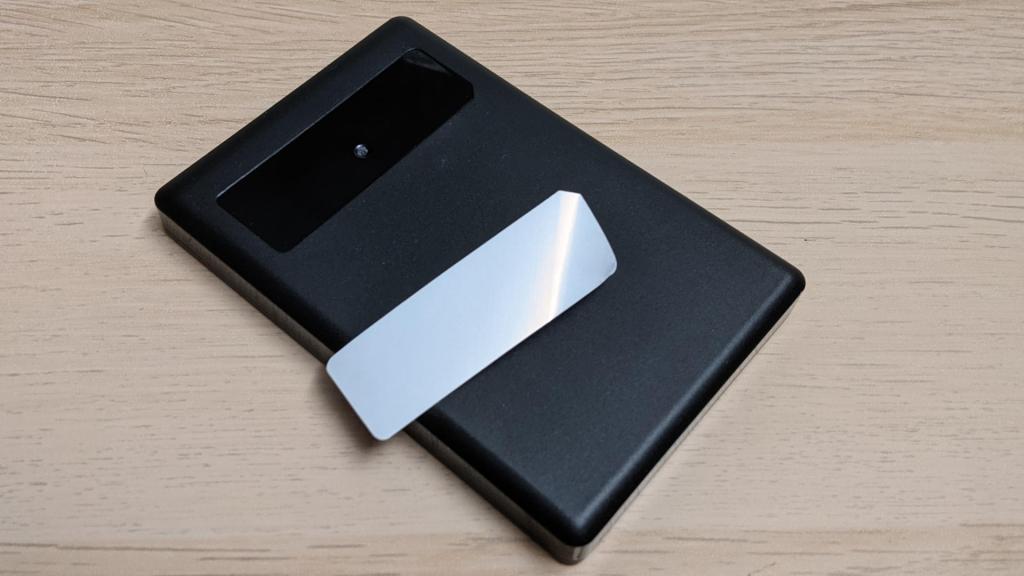
As a small portable drive, there were the expected lack of visible fasteners. Perhaps something is hidden under the sticker?

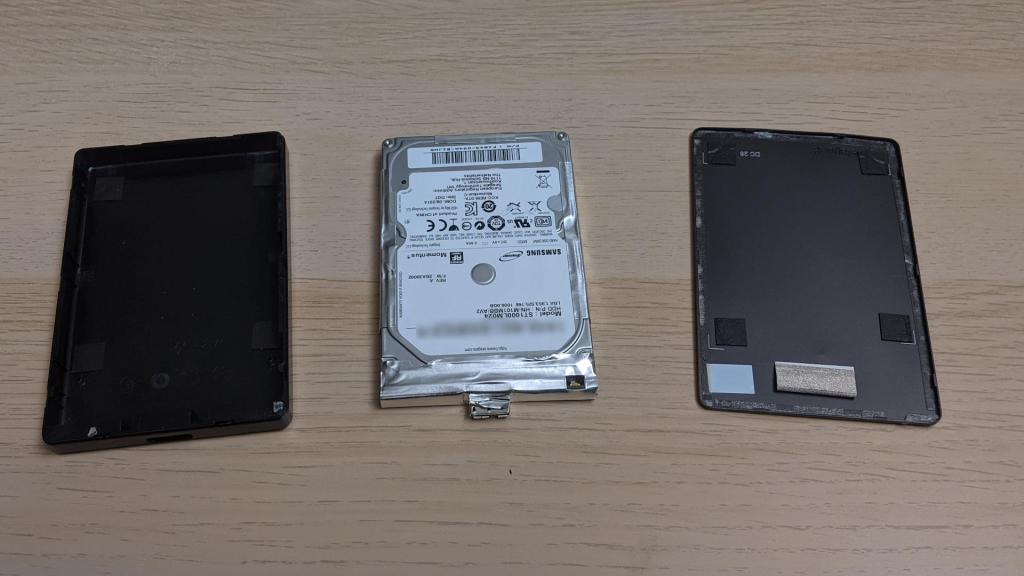
Nope, no fastener there. Without stickers, this device must be held together by either glue or clips. Most of the body is black plastic and the top feels like a sheet of metal, so the gap between them is the obvious place to start prying. It didn’t take a lot of force to break the top free from some indents cast into the plastic, but it’s enough force to bend the metal. I had passed the point of no return: this drive will never come back together nicely.

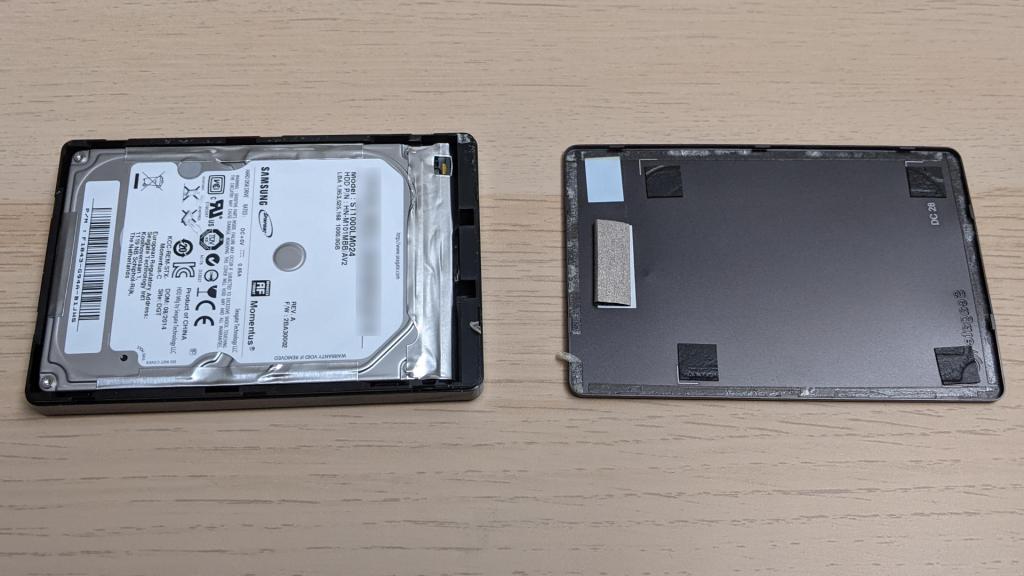
The top was held by both double-sided tape and a plastic ring that helped it clip onto the body. I thought it was very clever how they designed the activity indicator light. Under the metal slit is a block of white tape (still attached to the lid in the picture below) serving as diffuser for the LED. The LED is on a circuit board that is almost completely enclosed by foil tape, but there’s a small hole cut in the tape for the LED to shine through.

There were no fasteners inside the case, either. Once the lid was removed, the drive came out easily.

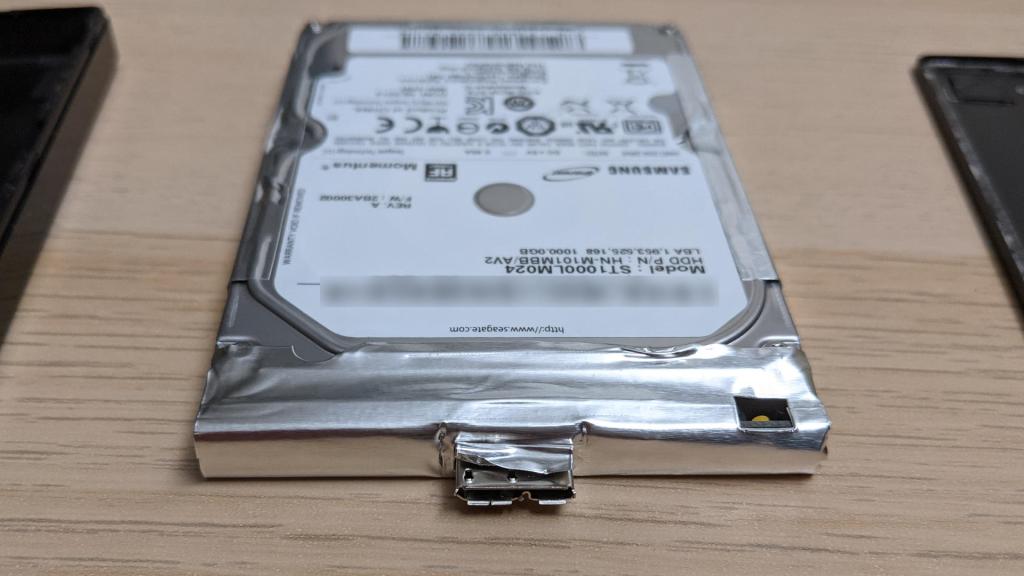
Here’s a closer look at the drive, with its electronics still inside the foil tape. The rectangular hole for activity LED is visible on the right, with the LED itself peeking through.

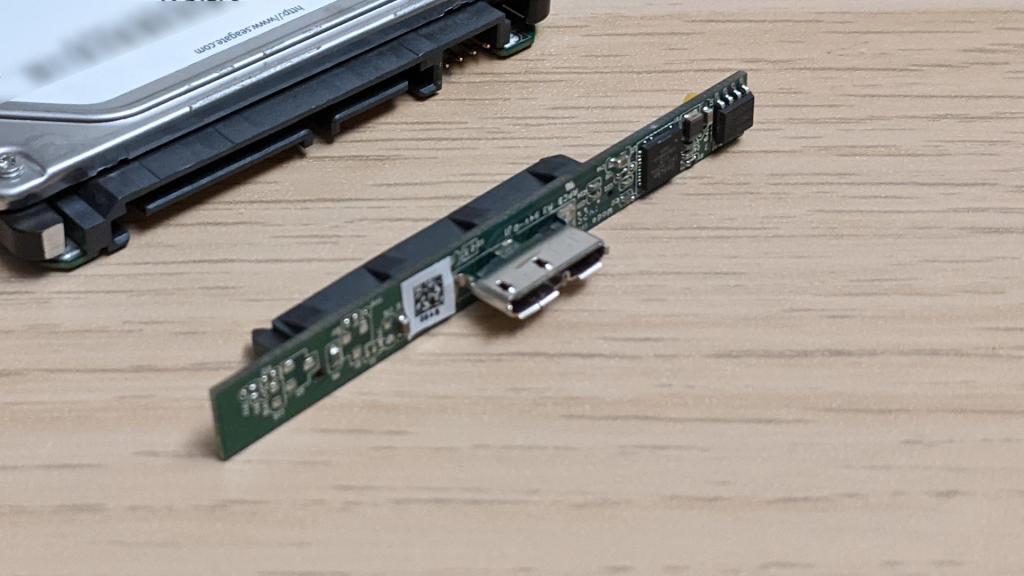
After the adhesive-backed foil was removed, I could pull off the adapter circuit board. It is an admirably minimal design to bridge USB3 to SATA. The orientation of the board was a surprise, I hadn’t know there were vertically-standing surface-mount connectors for USB3 micro-B and for SATA connectors. Most of the connectors I’ve seen sit flat on the same plane as the circuit board, not orthogonal to the board like these.

At the moment I don’t foresee anything useful I could do with this board, but at least it is tiny so I can toss it into the hoard as I await ideas. In the meantime, it’s onwards to the next retired hard drive.

Cat and Galactic Squid

Emily Velasco whipped up some cool test patterns to help me diagnose problems with my port of AnimatedGIF Arduino library example, rendering to my ESP_8_BIT_composite color video out library. But that wasn’t where she first noticed a problem. That honor went to the new animated GIF she created upon my request for something nifty to demonstrate my library.

This started when I copied an example from the AnimatedGIF library for the port. After I added the code to copy between my double buffers to keep them consistent, I saw it was a short clip of Homer Simpson from The Simpsons TV show. While the legal department of Fox is unlikely to devote resources to prosecute authors of an Arduino library, I was not willing to take the risk. Another popular animated GIF is Nyan Cat, which I had used for an earlier project. But despite its online spread, there is actual legal ownership associated with the rainbow-pooping pop tart cat. Complete with lawsuits enforcing that right and, yes, an NFT. Bah.

I wanted to stay far away from any legal uncertainties. So I asked Emily if she would be willing to create something just for this demo as an alternate to Homer Simpson and Nyan Cat. For the inspirational subject, I suggested a picture she posted of her cat sleeping on her giant squid pillow.

A few messages back and forth later, Emily created Cat and Giant Squid complete with a backstory of an intergalactic adventuring duo.

Here they are on an seamlessly looping background, flying off to their next adventure. Emily has released this art under the CC BY-SA (Creative Commons Attribution-ShareAlike) 4.0 license. And I have happily incorporated it into ESP_8_BIT_composite library as an example of how to show animated GIFs on an analog TV. When I showed the first draft, she noticed a visual artifact that I eventually diagnosed to missing X-axis offsets. After I fixed that, the animation played beautifully on my TV. Caveat: the title image of this post is hampered by the fact it’s hard to capture a CRT on camera.

Finding X-Offset Bug in AnimatedGIF Example

Thanks to a little debugging, I figured out my ESP_8_BIT_composite color video out Arduino library required a new optional feature to make my double-buffering implementation compatible with libraries that rely on a consistent buffer such as AnimatedGIF. I was happy that my project, modified from one of the AnimatedGIF examples, was up and running. Then I swapped out its test image for other images, and it was immediately clear the job is not yet done. These test images were created by Emily Velasco and released under Creative Commons Attribution-ShareAlike 4.0 license (CC BY-SA 4.0).

This image resulted in the flawed rendering visible as the title image of this post. Instead of numbers continously counting upwards in the center of the screen, various numbers are rendered at wrong places and not erased properly in the following screens. Here is another test image to get more data

Between the two test images and observing where they were on screen, I narrowed the problem. Animated GIF files might only update part of the frame and when that happens, the frame subset is to be rendered at a X/Y offset relative to the origin. The Y offset was accounted for correctly, but the X offset went unused meaning delta frames were rendering against the left edge rather than the correct offset. This problem was not in my library, but inherited from the AnimatedGIF example. Where it went unnoticed because the trademark-violating animated GIF used by that example didn’t have an X-axis offset. Once I understood the problem, I went digging into AnimatedGIF code. Where I found the unused X-offset, and added it into the example where it belonged. These test images now display correctly, but they’re not terribly interesting to look at. What we need is a cat with galactic squid friend.

Animated GIF Decoder Library Exposed Problem With Double Buffering

Once I resolved all the problems I knew existed in version 1.0.0 of my ESP_8_BIT_composite color video out Arduino library, I started looking around for usage scenarios that would unveil other problems. In that respect, I can declare my next effort a success.

My train of thought started with ease of use. Sure, I provided an adaptation of Adafruit’s GFX library designed to make drawing graphics easy, but how could I make things even easier? What is the easiest way for someone to throw up a bit of colorful motion picture on screen to exercise my library? The answer came pretty quickly: I should demonstrate how to display an animated GIF on an old analog TV using my library.

This is a question I’ve contemplated before in the context of the Hackaday Supercon 2018 badge. Back then I decided against porting a GIF decoder and wrote my own run-length encoding instead. The primary reason was that I was short on time for that project and didn’t want to risk losing time debugging an unfamiliar library. Now I have more time and can afford the time to debug problems porting an unfamiliar library to a new platform. In fact, since the intent was to expose problems in my library, I fully expected to do some debugging!

I looked around online for an animated GIF decoder library written in C or C++ code with the intent of being easily portable to microcontrollers. Bonus if it has already been ported to some sort of Arduino support. That search led me to the AnimatedGIF library by Larry Bank / bitbank2. The way it was structured made input easy: I don’t have to fuss with file I/O or SPIFFS, I can feed it a byte array. The output was also well matched to my library, as the output callback renders the image one horizontal line at a time, a great match for the line array of ESP_8_BIT.

Looking through the list of examples, I picked ESP32_LEDMatrix_I2S as the most promising starting point for my test. I modified the output call from the LED matrix I2S interface to my Adafruit GFX based interface, which required only minor changes. On my TV I can almost see a picture, but it is mostly gibberish. As the animation progressed, I can see deltas getting rendered, but they were not matching up with their background.

After chasing a few dead ends, the key insight was noticing my noisy background of uninitialized memory was flipping between two distinct values. That was my reminder I’m performing double-buffering, where I swap between front and back buffers for every frame. AnimatedGIF is efficient about writing only the pixels changed from one frame to the next, but double buffering meant each set of deltas was written over not the previous frame, but two frames prior. No wonder I ended up with gibberish.

Aside: The gibberish amusingly worked in my favor for this title image. The AnimatedGIF example used a clip from The Simpsons, copyrighted material I wouldn’t want to use here. But since the image is nearly unrecognizable when drawn with my bug, I can probably get away with it.

The solution is to add code to keep the two buffers in sync. This way libraries minimizing drawing operations would be drawing against the background they expected instead of an outdated background. However, this would incur a memory copy operation which is a small performance penalty that would be wasted work for libraries that don’t need it. After all of my previous efforts to keep API surface area small, I finally surrendered and added a configuration flag copyAfterSwap. It defaults to false for fast performance, but setting it to true will enable the copy and allow using libraries like AnimatedGIF. It allowed me to run the AnimatedGIF example, but I ran into problems playing back other animated GIF files due to missing X-coordinate offsets in that example code.

TIL Some Video Equipment Support Both PAL and NTSC

Once I sorted out memory usage of my ESP_8_BIT_composite Arduino library, I had just one known issue left on the list. In fact, the very first one I filed: I don’t know if PAL video format is properly supported. When I pulled this color video signal generation code from the original ESP_8_BIT project, I worked to keep all the PAL support code intact. But I live in NTSC territory, how am I going to test PAL support?

This is where writing everything on GitHub paid off. Reading my predicament, [bootrino] passed along a tip that some video equipment sold in NTSC geographic regions also support PAL video, possibly as a menu option. I poked around the menu of the tube TV I had been using to develop my library, but didn’t see anything promising. For the sake of experimentation I switched my sketch into PAL mode just to see what happens. What I saw was a lot of noise with a bare ghost of the expected output, as my TV struggled to interpret the signal in a format it could almost but not quite understand.

I knew the old Sony KP-53S35 RPTV I helped disassemble is not one of these bilingual devices. When its signal processing board was taken apart, there was an interface card to host a NTSC decoder chip. Strongly implying that support for PAL required a different interface card. It also implies newer video equipment have a better chance of having multi-format support, as they would have been built in an age when manufacturing a single worldwide device is cheaper than manufacturing separate region-specific hardware. I dug into my hardware hoard looking for a relatively young piece of video hardware. Success came in the shape of a DLP video projector, the BenQ MS616ST.

I originally bought this projector as part of a PC-based retro arcade console with a few work colleagues, but that didn’t happen for reasons not important right now. What’s important is that I bought it for its VGA and HDMI computer interface ports so I didn’t know if it had composite video input until I pulled it out to examine its rear input panel. Not only does this video projector support composite video in both NTSC and PAL formats, it also had an information screen where it indicates whether NTSC or PAL format is active. This is important, because seeing the expected picture isn’t proof by itself. I needed the information screen to verify my library’s PAL mode was not accidentally sending a valid NTSC signal.

Further proof that I am verifying a different code path was that I saw a visual artifact at the bottom of the screen absent from NTSC mode. It looks like I inherited a PAL bug from ESP_8_BIT, where rossumur was working on some optimizations for this area but left it in a broken state. This artifact would have easily gone unnoticed on a tube TV as they tend to crop off the edges with overscan. However this projector does not perform overscan so everything is visible. Thankfully the bug is easy to fix by removing an errant if() statement that caused PAL blanking lines to be, well, not blank.

Thanks to this video projector fluent in both NTSC and PAL, I can now confidently state that my ESP_8_BIT_composite library supports both video formats. This closes the final known issue, which frees me to go out and find more problems!

[Code for this project is publicly available on GitHub]

Allocating Frame Buffer Memory 4KB At A Time

Getting insight into computational processing workload was not absolutely critical for version 1.0.0 of my ESP_8_BIT_composite Arduino library. But now that the first release is done, it was very important to get those tools up and running for the development toolbox. Now that people have a handle on speed, I turned my attention to the other constraint: memory. An ESP32 application only has about 380KB to work with, and it takes about 61K to store a frame buffer for ESP_8_BIT. Adding double-buffering also doubled memory consumption, and I had actually half expected my second buffer allocation to fail. It didn’t, so I got double-buffering done, but how close are we skating to the edge here?

Fortunately I did not have to develop my own tools here to gain insight into memory allocation, ESP32 SDK already had one in the form of heap_caps_print_heap_info() For my purposes, I called it with the MALLOC_CAP_8BIT flag because pixels are accessed at the single byte (8 bit) level. Here is the memory output running my test sketch, before I allocated the double buffers. I highlighted the blocks that are about to change in red:

Heap summary for capabilities 0x00000004:
  At 0x3ffbdb28 len 52 free 4 allocated 0 min_free 4
    largest_free_block 4 alloc_blocks 0 free_blocks 1 total_blocks 1
  At 0x3ffb8000 len 6688 free 5872 allocated 688 min_free 5872
    largest_free_block 5872 alloc_blocks 5 free_blocks 1 total_blocks 6
  At 0x3ffb0000 len 25480 free 17172 allocated 8228 min_free 17172
    largest_free_block 17172 alloc_blocks 2 free_blocks 1 total_blocks 3
  At 0x3ffae6e0 len 6192 free 6092 allocated 36 min_free 6092
    largest_free_block 6092 alloc_blocks 1 free_blocks 1 total_blocks 2
  At 0x3ffaff10 len 240 free 0 allocated 128 min_free 0
    largest_free_block 0 alloc_blocks 5 free_blocks 0 total_blocks 5
  At 0x3ffb6388 len 7288 free 0 allocated 6784 min_free 0
    largest_free_block 0 alloc_blocks 29 free_blocks 1 total_blocks 30
  At 0x3ffb9a20 len 16648 free 5784 allocated 10208 min_free 284
    largest_free_block 4980 alloc_blocks 37 free_blocks 5 total_blocks 42
  At 0x3ffc1f78 len 123016 free 122968 allocated 0 min_free 122968
    largest_free_block 122968 alloc_blocks 0 free_blocks 1 total_blocks 1
  At 0x3ffe0440 len 15072 free 15024 allocated 0 min_free 15024
    largest_free_block 15024 alloc_blocks 0 free_blocks 1 total_blocks 1
  At 0x3ffe4350 len 113840 free 113792 allocated 0 min_free 113792
    largest_free_block 113792 alloc_blocks 0 free_blocks 1 total_blocks 1
  Totals:
    free 286708 allocated 26072 min_free 281208 largest_free_block 122968

I was surprised at how fragmented the memory space already was even before I started allocating memory in my own code. There are ten blocks of available memory, only two of which are large enough to accommodate an allocation for 60KB. Here is the memory picture after I allocated the two 60KB frame buffers (and two line arrays, one for each frame buffer.) With the changed sections highlighted in red.

Heap summary for capabilities 0x00000004:
  At 0x3ffbdb28 len 52 free 4 allocated 0 min_free 4
    largest_free_block 4 alloc_blocks 0 free_blocks 1 total_blocks 1
  At 0x3ffb8000 len 6688 free 3920 allocated 2608 min_free 3824
    largest_free_block 3920 alloc_blocks 7 free_blocks 1 total_blocks 8
  At 0x3ffb0000 len 25480 free 17172 allocated 8228 min_free 17172
    largest_free_block 17172 alloc_blocks 2 free_blocks 1 total_blocks 3
  At 0x3ffae6e0 len 6192 free 6092 allocated 36 min_free 6092
    largest_free_block 6092 alloc_blocks 1 free_blocks 1 total_blocks 2
  At 0x3ffaff10 len 240 free 0 allocated 128 min_free 0
    largest_free_block 0 alloc_blocks 5 free_blocks 0 total_blocks 5
  At 0x3ffb6388 len 7288 free 0 allocated 6784 min_free 0
    largest_free_block 0 alloc_blocks 29 free_blocks 1 total_blocks 30
  At 0x3ffb9a20 len 16648 free 5784 allocated 10208 min_free 284
    largest_free_block 4980 alloc_blocks 37 free_blocks 5 total_blocks 42
  At 0x3ffc1f78 len 123016 free 56 allocated 122880 min_free 56
    largest_free_block 56 alloc_blocks 2 free_blocks 1 total_blocks 3
  At 0x3ffe0440 len 15072 free 15024 allocated 0 min_free 15024
    largest_free_block 15024 alloc_blocks 0 free_blocks 1 total_blocks 1
  At 0x3ffe4350 len 113840 free 113792 allocated 0 min_free 113792
    largest_free_block 113792 alloc_blocks 0 free_blocks 1 total_blocks 1
  Totals:
    free 161844 allocated 150872 min_free 156248 largest_free_block 113792

The first big block, which previously had 122,968 bytes available, became the home of both 60KB buffers leaving only 56 bytes. That is a very tight fit! A smaller block, which previously had 5,872 bytes free, now had 3,920 bytes free indicating that’s where the line arrays ended up. A little time with the calculator with these numbers arrived at 16 bytes of overhead per memory allocation.

This is good information to inform some decisions. I had originally planned to give the developer a way to manage their own memory, but I changed my mind on that one just as I did for double buffering and performance metrics. In the interest of keeping API simple, I’ll continue handling the allocation for typical usage and trust that advanced users know how to take my code and tailor it for their specific requirements.

The ESP_8_BIT line array architecture allows us to split the raw frame buffer into smaller pieces. Not just a single 60KB allocation as I have done so far, it can accommodate any scheme all the way down to allocating 240 horizontal lines individually at 256 bytes each. That will allow us to make optimal use of small blocks of available memory. But doing 240 instead of 1 allocation for each of two buffers means 239 additional allocations * 16 bytes of overhead * 2 buffers = 7,648 extra bytes of overhead. That’s too steep of a price for flexibility.

As a compromise, I will allocate in the frame buffer in 4 kilobyte chunks. These will fit in seven out of ten available blocks of memory, an improvement from just two. Each frame would consist of 15 chunks. This works out to an extra 14 allocations * 16 bytes of overhead * 2 buffers = 448 bytes of overhead. This is a far more palatable price for flexibility. Here are the results with the frame buffers allocated in 4KB chunks, again with changed blocks in red:

Heap summary for capabilities 0x00000004:
  At 0x3ffbdb28 len 52 free 4 allocated 0 min_free 4
    largest_free_block 4 alloc_blocks 0 free_blocks 1 total_blocks 1
  At 0x3ffb8000 len 6688 free 784 allocated 5744 min_free 784
    largest_free_block 784 alloc_blocks 7 free_blocks 1 total_blocks 8
  At 0x3ffb0000 len 25480 free 724 allocated 24612 min_free 724
    largest_free_block 724 alloc_blocks 6 free_blocks 1 total_blocks 7
  At 0x3ffae6e0 len 6192 free 1004 allocated 5092 min_free 1004
    largest_free_block 1004 alloc_blocks 3 free_blocks 1 total_blocks 4
  At 0x3ffaff10 len 240 free 0 allocated 128 min_free 0
    largest_free_block 0 alloc_blocks 5 free_blocks 0 total_blocks 5
  At 0x3ffb6388 len 7288 free 0 allocated 6776 min_free 0
    largest_free_block 0 alloc_blocks 29 free_blocks 1 total_blocks 30
  At 0x3ffb9a20 len 16648 free 1672 allocated 14304 min_free 264
    largest_free_block 868 alloc_blocks 38 free_blocks 5 total_blocks 43
  At 0x3ffc1f78 len 123016 free 28392 allocated 94208 min_free 28392
    largest_free_block 28392 alloc_blocks 23 free_blocks 1 total_blocks 24
  At 0x3ffe0440 len 15072 free 15024 allocated 0 min_free 15024
    largest_free_block 15024 alloc_blocks 0 free_blocks 1 total_blocks 1
  At 0x3ffe4350 len 113840 free 113792 allocated 0 min_free 113792
    largest_free_block 113792 alloc_blocks 0 free_blocks 1 total_blocks 1
  Totals:
    free 161396 allocated 150864 min_free 159988 largest_free_block 113792

Instead of almost entirely consuming the block with 122,968 bytes leaving just 56 bytes, the two frame buffers are now distributed among smaller blocks leaving 28,329 contiguous bytes free in that big block. And we still have anther big block free with 113,792 bytes to accommodate large allocations.

Looking at this data, I could also see allocating in smaller chunks would have led to diminishing returns. Allocating in 2KB chunks would have doubled the overhead but not improved utilization. Dropping to 1KB would double the overhead again, and only open up one additional block of memory for use. Therefore allocating in 4KB chunks is indeed the best compromise, assuming my ESP32 memory map is representative of user scenarios. Satisfied with this arrangement, I proceeded to work on my first and last bug of version 1.0.0: PAL support.

[Code for this project is publicly available on GitHub]