First Look at FormLabs Form 1+ Display Board Signals

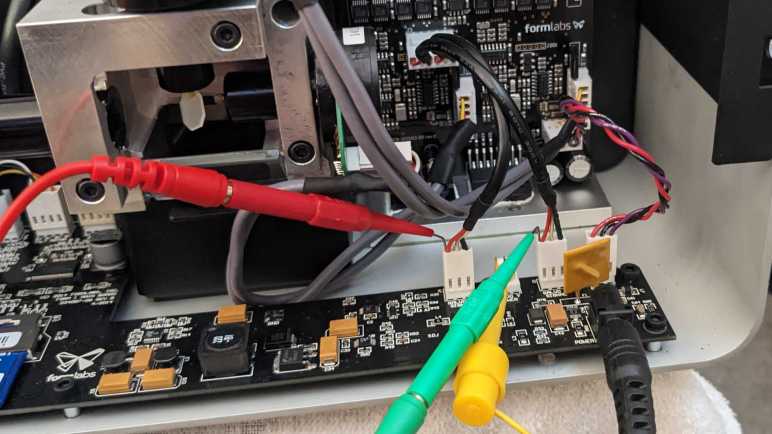
I’m working to understand the OLED dot matrix display from a broken FormLabs Form 1+ laser resin printer. It is hosted on a FormLabs custom circuit board and, after tracing through copper traces of that board, I have a candidate list of five wires for further investigation. When I went to attach my Saleae logic analyzer, I decided to attach probes to all eight unknown wires. (Out of ten wires total and I have identified two: the ground and 3.3VDC Vcc wires.) It wasn’t much extra effort and I was curious if anything was going on. I then captured traces for four activities:

  1. Power-on: when I plugged the 24VDC power supply into the printer.
  2. Startup: when I pressed the front panel button to start its logo animation, ending at the “lid is open” warning.
  3. Steady: Several seconds when the display stays at “lid is open” warning, with no updates.
  4. Ready/Open/Ready: Using a magnet, I toggled the display from “ready” to “cover open” and back to “ready” again.

Trace for “Steady” showed no activity at all. I had expected the system to refresh the display periodically regardless of update activity, but I just captured five seconds of silence. This is quite a contrast from the super chatty display from an AT&T CL84209 handset where I had 2569 messages within 10 seconds! Here I have nothing. Well, at least that was out of the way.

Trace for “Power-on” and “Startup” was interesting because it captured activity on two of the three wires that were unused. One looked like clock and another looked like data, so I asked Saleae Logic to treat them as I2C. They came back as valid I2C messages.

write to 0x48 ack data: 0x01 0x00 
write to 0x48 ack data: 0x00

Hypothesis: printer mainboard has an I2C peripheral bus and it’s been routed all the way to the OLED display module circuit board. I2C is not used by this particular display module, but the design gives FormLabs an option to switch to an I2C display module without changing the rest of printer hardware. In the meantime, a logic analyzer connected to the display module would see traffic on the I2C bus. By this hypothesis, such traffic is intended for other components instead of this display, so I’ll ignore it until/unless I discover a reason to revisit. [UPDATE: I found a NXP LM75B on the mainboard, an I2C temperature sensor that could answer to address 0x48.]

Back to the five wires of interest: three wires showed activity correlating with screen updates. I didn’t see any activity independent of screen update, so these wires might be a dedicated peripheral data line. If it is a peripheral bus, every other peripheral on the bus stayed quiet during my test set of activities. At first glance I thought this was SPI, but a closer look revealed behavior inconsistent with SPI.

  • Mainboard cable pin 3 — connected to logic analyzer channel 0 (white line) — showed infrequent level changes near the start of every activity. A good candidate for SPI “Chip Select” or Enable, except data transfers seem to happen both when it is low and when it is high. Which shouldn’t happen if it is indeed Enable.
  • Mainboard cable pin 4 — connected to logic analyzer channel 4 (yellow line) — shows regular level changes during every activity. A good candidate for SPI Clock, except the candidate data line changes within each “clock” pulse” which shouldn’t happen if it is indeed clock.
  • Mainboard cable pin 6 — connected to logic analyzer channel 5 (green line) — shows level changes at irregular bursts. A good candidate for SPI Data, except it pulses out of sync with “clock”.

If this is SPI, why does it look weird? If this is not SPI, what is it? I’ll have to check over my setup and try again.

FormLabs Form 1+ Display Board Routing

I’m working to understand the OLED dot matrix display from a broken FormLabs Form 1+ laser resin printer. Thanks to FormLabs user forums I have a lead on an OLED module that might be using the same OLED display. However, the OLED is hosted on a different circuit board. Publicly downloadable information exists for that board, so I will use it as a guide in my exploration.

On the printer mainboard, next to the DISPLAY label for this connector is a number 1. The closest pin appears to be system ground and the red wire in the ribbon cable. I will use that as the starting point for display input pin numbering.

Examining the front, I could see there’s a connection between pin 1 and majority of copper on this side of the circuit board, giving us a generous ground plane. The copper trace connecting to pin 2 is wider than any other on this board. It measures 3.26V DC when the system is powered up, making it the best candidate for power input. It feeds into the network of components mounted on this circuit board, which then has its own traces to the OLED. This is strongly suggestive of a power-related circuit. I measured those traces and found a few different higher voltages. Conclusion: these components implement a voltage boost converter.

Out of remaining eight wires in the ribbon cable, it seems like only five are used. Those five signals were routed together towards the OLED.

This diagram captures what I could determine by visually following traces of copper. On the other end of these traces is the sheet of yellow FPC. It has “1” printed on the right and “24” on the left, so I’ll happily use them as pin numbers. Using that system, I have a first draft for the OLED wires on that yellow FPC. Right to left in the above picture, they are: [UPDATE: added information from deciphered pinout.]

  1. NC (Not Connected)
  2. GND (Ground — connected to display input pin 1)
  3. GND
  4. NC (Only wire to visibly end inside the FPC.)
  5. 3.3V — connected to display input pin 2
  6. GND
  7. GND
  8. Display input pin 7 [UPDATE: SPI Chip Select (Active Low)]
  9. Display input pin 5 [UPDATE: Reset (Active Low)]
  10. Display input pin 3 [UPDATE: Command/Data Select]
  11. GND
  12. GND
  13. Display input pin 4 [UPDATE: SPI Clock]
  14. Display input pin 6 [UPDATE: SPI Data In (there is no SPI Data Out)]
  15. NC
  16. GND
  17. GND
  18. GND
  19. GND
  20. GND
  21. 9.0V supplied by boost converter
  22. 8.1V supplied by boost converter
  23. 12.6V supplied by boost converter
  24. NC

This explains the majority of wires going into this OLED module, leaving five unknowns that connected input IDC ribbon cable directly to OLED FPC. Those five wires will be the focus for further exploration and my Saleae logic analyzer will give me some insight as to what’s going on.

FormLabs Form 1+ Display Board Rev 01

Following wires on the mainboard in a broken FormLabs Form 1+ laser resin 3D printer, I found harnesses leading to several components mounted on the front panel. There is a sensor to detect if the lid is open. (Or more technically, if a magnet is nearby. A magnet is embedded in the lid.) There is also a button combined with embedded LED illumination. And finally, the dot matrix display.

When this printer boots up, a short logo animation is shown before proceeding to display text, indicating arbitrary dot matrix graphics capability and not restricted to alphanumeric character display of a built-in font. Which is great for flexibility but would also mean it is more complex to operate.

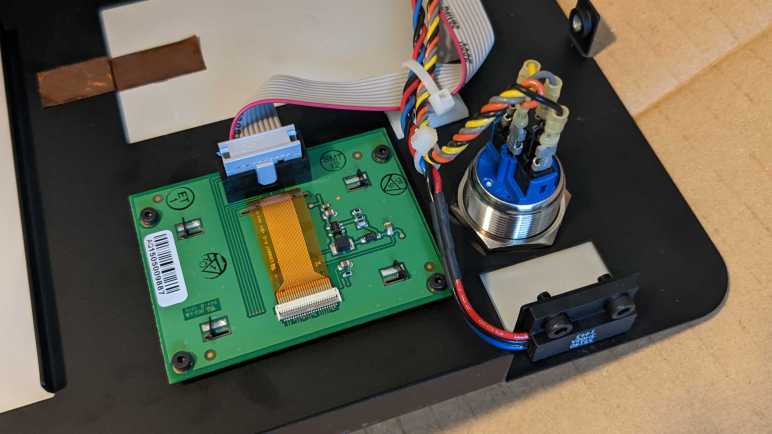
After removing four tiny hex screws I could pull the display circuit board free. (Promptly losing one of four plastic spacers between the circuit board and front panel.) Now I can confirm its blue color came directly from the display and not a tint imparted by front panel plastic window. We also see the circuit board is a FormLabs custom breakout board labeled with:

FORMLABS, INC.
DISPLAY BOARD REF 01
334056-01

But what is that module hosted by the board? I couldn’t see any identifying markings as-is. Maybe there are some on the back? The display module is held in place by four twisted rear metal tabs that I could straighten out with pliers, freeing the module.

I had noticed the pixel illumination didn’t look like backlit LCD, and here we see it very clearly marked as an OLED unit. Nice! Printed on the back were the following information:

PG-2832ALBM
P1471277-20-D14

And my search for that text came up with… nothing. Quite disappointing! I went on the internet to see if anyone else has identified this OLED module but didn’t find anything definitive. What I found was “Possible OLED display swap/spare” on the FormLabs user forums, posted by someone before they even received their Form 1 printer. They speculated it might be an NHD-2.23-12832UCB3 by Newhaven Display, which has a SS1305 controller. Sadly, they never returned to FormLabs forum to confirm their speculation, so I guess I’ll have to try that myself.

FormLabs circuit board has 10 IO pins in two rows of five. Newhaven Display’s website shows a very different breakout circuit board of 20 IO pins in a single row. But this difference could be explained. The display has very flexible IO configuration options: “This self-illuminating module has 6800/8080 parallel, serial SPI or I2C interface compatibility.” A custom FormLabs circuit board would only need to accommodate the interface they actually use in the product, ignoring pins for other interface options.

The collection of components on the FormLabs board looks broadly similar to the Newhaven board, though missing a few parts that could likewise be explained by supporting just data one interface instead of several. I would feel better if there’s a match between information printed on the OLED module itself and what’s listed on Newhaven Display website. But I felt more confident after looking at the thin FPC ribbon cable connecting the OLED to the circuit board: They are both 24-pins and have a very similar layout, including a truncated pin 4. Furthermore, they are both printed with the text:

E308847 F-D 1 94V-0

If these were two different displays, they’re using the same FPC ribbon cable so there’s a chance they use the same control protocols. Newhaven Display website says they welcome custom orders so maybe PG-2832ALBM is a FormLabs custom derivative of 2832UCB3? Either way, it is a promising starting point for a deeper look.

More FormLabs Form 1+ Mainboard IO

I turned on a broken FormLabs Form 1+ resin laser printer without its rear panel so I could poke around. I started with cables (POWER, X SIGNAL, Y SIGNAL) between its mainboard and galvanometer control board, because that’s where things broke. But now I have a better understanding (and even a long-shot idea to try) I came back to measure voltages of wires on the remaining mainboard connectors.

The Z-axis linear motion actuator (Z MOTOR) is driven by a bipolar stepper motor with two phases and two wires for each phase, the four wires labeled A+/A-/B+/B-. The resin tray peeling actuator (TILT MOTOR) is physically a very different motor but driven in the same style. Z-axis limit switch appears to be an optical interrupter which can be more accurate than the physical contact microswitch typically used for limit switch duty in FDM printers. It has three wires. One end has continuity to ground, the other end measured +5V while the printer is powered up. Middle wire measured 0.06V when Z-axis is positioned at top, and 3.7V when Z-axis is lowered.

As part of laser eye protection, the printer stops printing if we open the lid. Detecting this condition is the job of a (likely Hall effect) sensor just under the lid along with a magnet embedded in the lid. The magnet sensor plugs into the connector labeled INTERLOCK on the mainboard, with three wires colored black, blue, and red.

Wire ColorVolts DC (No magnet)Volts DC (Magnet nearby)
Black0V (Ground)0V (Ground)
Blue11.18V DC0.02V DC
Red11.18V DC11.18V DC

Speaking of that laser, I had hoped to see a diode module with two wires positive and ground. (Example*) But LASER connector actually had four wires: red, black, blue, and yellow.

Wire ColorLaser StandbyLaser Illuminated
Red11.18V DC11.18V DC
Black8.55V DC6.6V DC
Blue5V DC3.3V DC
Yellow0V (Ground)0V (Ground)

I’m sure those voltages aren’t the whole picture so if I have the ambition to drive this laser module myself, I have more investigation ahead.

Next connector is BUTTON for a gorgeous illuminated metal button on the front panel. Four wires support this button, two for the LED and two for the switch. Red wire is LED+, gray wire is LED- (wired to ground on this circuit board.) Yellow is pulled up to 3.3V on this board and when pressed, yellow wire shorts to black which is wired to ground.

The final connector is a little more complex. It is a 10-pin (2×5) IDC ribbon cable for the front panel display. Probing that display will be a project all by itself.


(*) Disclosure: As an Amazon Associate I earn from qualifying purchases.

Guesses on FormLabs Form 1+ Galvanometer Control Board

The laser galvanometers on this FormLabs Form 1+ resin laser printer no longer move, which rendered the printer useless. Probing voltage of wires leading to those galvanometers weren’t as enlightening as I had hoped but hinted that actuator position sensors were analog. Earlier probing of wires between printer mainboard and galvanometer control board, I also found mainboard commands were analog voltages.

With these analog inputs, I was confused by the fact I found no analog-to-digital converters among the list of ICs. The STM32 microcontroller has but a single ADC channel. And even if it had enough channels, I doubt they’d be fast or accurate enough. (Built-in ADC peripheral proved to be limited when I used a ESP32 to measure voltage, and when I used an ESP8266 to measure temperature.) I found many digital potentiometers and a two-channel SPI-controlled DAC for converting digital commands to analog voltage, but not the other way around.

I went online to look at other galvanometer control boards. Looking at this unit (*) and this unit (*) found a few commonalities. They have six wires leading to their galvanometers as well, hinting at a standardized system or at least a convention. I see they also want positive and negative supply voltages, which matches what I’ve seen. I also noticed they want different input voltage ranges, and their galvanometers don’t operate with the same mechanical ranges. (Movement in terms of degrees of rotation.) Dashing any hope of a direct replacement.

They also have 6 or 7 potentiometers on board for tuning, and this was my “A-ha!” moment. I saw similar potentiometers on the teardown of a Form 1, but such manual tuning potentiometers are missing here. This is what the STM32 and those digital potentiometers/SPI DAC are for: instead of manual tuning control with potentiometers, the upgraded Form 1+ galvanometer control board uses a STM32 to manage those parameters using those SPI-controlled digital potentiometers. The high-speed control loop is still an entirely analog process built out of those quad-pack op-amp chips.

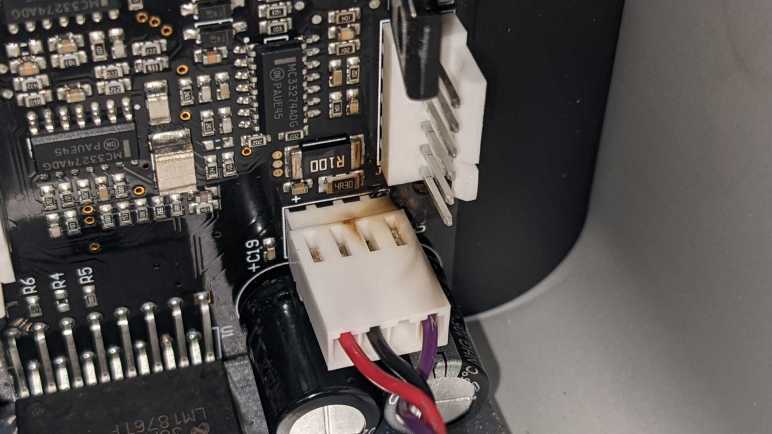
Looking at this system with new knowledge, I see a tempting possibility. When I turn on the printer, I see a few brief LED flashes on the galvanometer control board as if STM32 booted up. Probing the 3.3V regulator (component U5) I saw it received +24VDC input and output the expected +3.3V DC for digital logic. Looking at the burned-out power connector, I saw the drama happened with the purple wire which I now know carried -24VDC. Perhaps this damage meant the board no longer has negative voltage and that’s why analog control system stopped working. What if I soldered the purple wire to some other location on the -24VDC plane? Say the input leg on one of two L79 negative voltage regulators? There’s a good chance it’ll only recreate the electrical fire, because I have not fixed the root cause of whatever caused that fire. But I see a slim chance rerouting -24VDC will get the galvanometers running again.

While I contemplate this potentially destructive experiment, I will look at other parts of this printer starting with the rest of those mainboard connectors.


(*) Disclosure: As an Amazon Associate I earn from qualifying purchases.

FormLabs Form 1+ Laser Galvanometer Voltages

I’m learning what I can from a broken FormLabs Form 1+ laser resin 3D printer, and it was instructive to probe voltage of wires between its (apparently functioning) mainboard and its (definitely toasted) galvanometer control board. Since I had my tools ready, I thought I’d take a look at voltages of wires leading to those galvanometers themselves. Even though they’re not moving anymore I had little to lose and hoped to learn something.

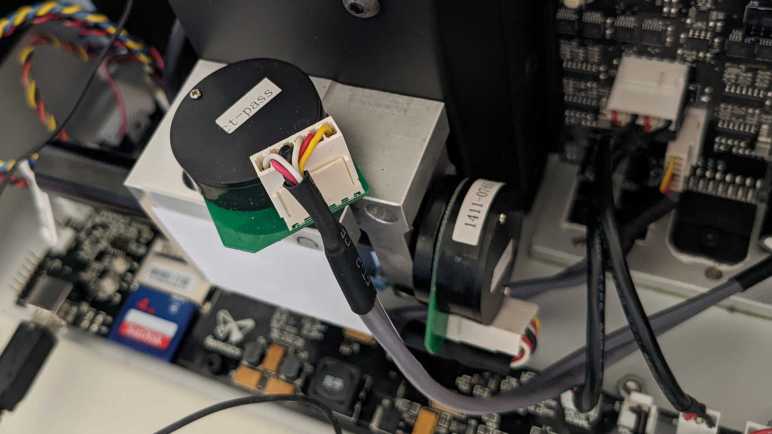
There weren’t many markings on these galvanometers. There are two stickers on both. On a flat end is a sticker with “ct-pass” probably for quality assurance during production. On the side of the cylinder is another sticker. One read “1411-0765 X” and the other “1411-0985 Y” Given that the X and Y axis are labeled, these are probably not part numbers. But what else would they be? Maybe something from the calibration process? I might see more markings if I remove these galvanometers from their aluminum mount, but I didn’t want to do that just yet. In the remote chance I could get things working, removing the galvanometers would ruin their factory direction calibration because I wouldn’t be able to put them back exactly in the same place.

Electrically speaking, from galvanometer Wikipedia page I knew a coil of wire to be involved, and there should be some way to read current position for closed-loop control. Examining the thin circuit board hosting the connector, I see the white and red wires on one end routed to one side together, a candidate for coil wires. Remaining four wires were routed together in a different direction, and I guess they are involved with position sensing in some way. Perhaps a high-resolution quadrature encoder? Or perhaps the four wires communicate position digitally via I2C or SPI? I did see a lot of chips on the control board communicate using SPI.

Turning the system on, I measured the following standby voltage values:

Wire ColorVolts DC
Yellow-0.044
Red-0.026
White+1.328
Black0.015
Red0.015
White0.040

Not terribly informative by themselves, sadly. I didn’t want to probe these voltages while the laser is shining, out of concern for my eyeballs. But I was curious to test my hypothesis of position sensing. Using fine-tipped tweezers, I rotated the output shaft while watching voltage values. The yellow wire showed a tiny change that correlated to shaft position: from -0.014V to -0.078V. The adjacent red wire showed a larger range, from 0.044V to -0.235V, also correlated to shaft position. Both of these are tiny changes in voltage, but the fact there’s a repeatable correlation of voltage rules out quadrature encoder or digital data communication. This is an analog position sensor of some type. If it were like potentiometers I’ve dealt with, then at one end of the range of motion either yellow or red wire should get up to +1.328V provided by a white wire. But it didn’t, so something else is going on. These observations aren’t enough for me to fully understand workings of this board, but enough for me to formulate a few guesses.

FormLabs Form 1+ Laser Galvanometer Control

Despite some concerns, I’ve decided to poke around inside a broken FormLabs Form 1+ laser resin 3D printer while it is running. I think it’ll tell me more about how it was supposed to work, because I didn’t learn very much from just a roster of ICs. But it still wouldn’t tell me everything, because some of its current behavior would be as intended while other behavior would be wrong because the printer is broken. And as my only example of the species, it might be hard to tell which is which.

Before I powered it up, I probed around for all the ground wires. Since the printer is powered by 24V DC delivered through a standard barrel jack, it was least easy to probe for continuity to ground. There was even an exposed pad on the main processor board labeled GND. Knowing which wire is ground for each connector established a baseline for voltage measurements once I turned the printer on.

The first surprise was on the GALVO POWER connector. It had three wires colored red, black, and purple. Black was known to be ground. Red was expected to be +24V DC, which was confirmed. I didn’t know what to expect for purple, and it turned out to be -24V DC. Negative voltage! Something I rarely see but it would be consistent with the presence of a ST Micro L79 negative voltage regulator delivering -15V. Which is a mirror match for the L78 positive regulator taking +24V DC and delivering +15V DC. Separately there is an On Semi NCP1117 delivering 3.3V for digital logic.

As for GALVO SIGNAL, it had three wires colored black, white, and red. Again I knew black was ground from earlier probing. Once the system was powered on, I saw white wire voltage stayed pretty consistent at 2.5V DC. The red wire was where interesting things happened: It varied between 0V to 5V relative to ground (or -2.5V to +2.5V relative to white wire) while this printer went through the motion of printing, blissfully unaware its galvanometer control system was fried. Plotting X and Y galvo signals against each other on my oscilloscope’s XY mode, it sure looks like a laser draw path. That is, as long as we ignore that diagonal noise I blame on my beginner level oscilloscope skill. Anyway, noise aside, it shows this 0-5V (Or -2.5 to +2.5V) analog voltage is how mainboard commands galvo position. This scorched control board couldn’t translate those commands into galvanometer movement, but I wanted to see if anything is getting to those galvanometers at all.

Considerations Exploring FormLabs Form 1+ While Powered Up

Curious about what I could learn from a scorched laser galvanometer control board, I looked up all component markings I could find. That gave me a few pieces of a puzzle, but I’m missing many more pieces and I don’t have a guess as to how those pieces fit together. In the interest of getting more data, I thought I would probe around while this FormLabs Form 1+ printer is powered up.

The biggest danger is a laser at the heart of this laser resin printer. This whole printer is classified as a Class 1 laser device, which means it is safe to use without eye protection. But that guarantee of safety only applies when used as intended. If I’m going to probe its circuitry with panels removed, I lose protection provided by those panels. Bypassing such protection means I have to be careful not to damage my eyes. Anyone who plans to try this as well: please be careful!

Working with lasers is especially dangerous if they operate at a wavelength outside human visible spectrum. We have evolved a blink reflex to protect our vision, but it wouldn’t work for wavelengths we can’t see. Thankfully, 405nm is within human visible spectrum (it should show up as an intense blue or violet beam), so I still have my blink reflex as a final line of defense. Why 405nm? Apparently, this wavelength became popular because Blu-ray drives drove R&D and economies of scale. I don’t know about power levels, though. I would guess resin printing runs 405nm lasers at a higher power level than reading Blu-ray discs (60mW as per Wikipedia) but I have no data to support that guess.

There’s another interesting data point I want to investigate: the printer was happy to run through its printing process with a dead galvanometer control board. Such behavior tells me something is running as an open-loop process, operating without feedback that its laser beam wasn’t being steered. I knew stepper motors used in cheap FDM 3D printers are open-loop devices, where the printer control board sends motor pulses without knowing if there is actual physical motion. But laser galvanometers are closed-loop actuators, so something else is going on.

Despite my wariness of a laser operating at unknown power levels, my curiosity motivated me to power it up and poke around.

Form 1+ Galvanometer Control Board IC Roll Call

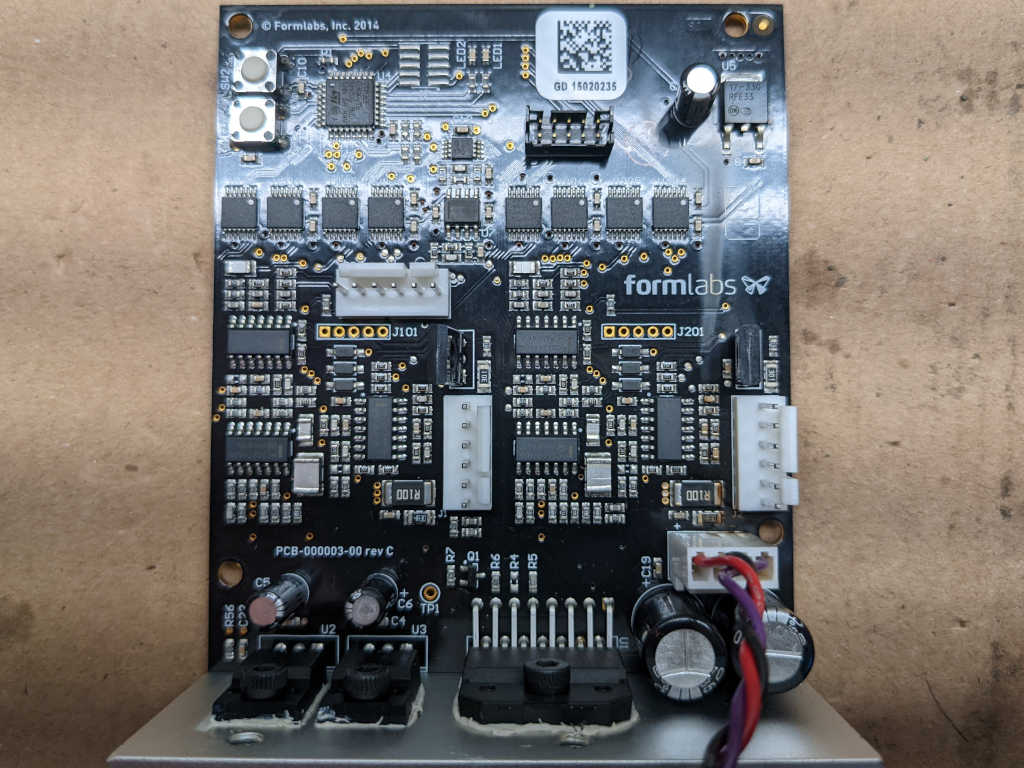
This Form 1+ laser resin printer has a scorched galvanometer control board, and replacements are no longer available from FormLabs. I don’t have any background to make heads or tails of a laser galvanometer control board, but I might get a vague idea and learn something by examining its collection of components. Here’s a roll call based on markings on those chips.

The board controls both X and Y axis galvanometers, probably why the middle section of this board a pair of identical assemblies.

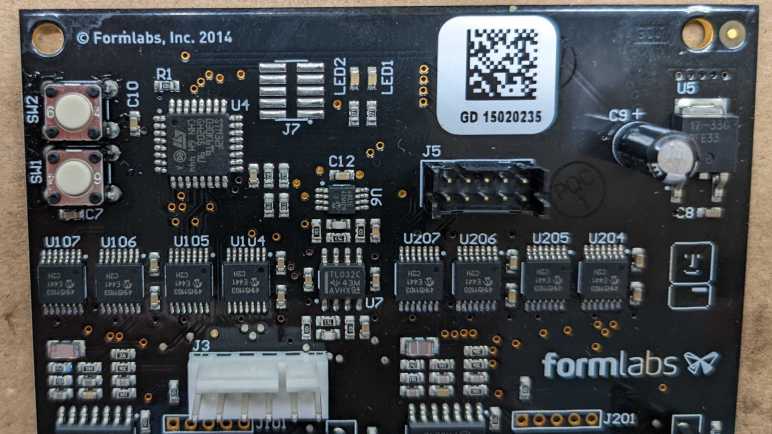
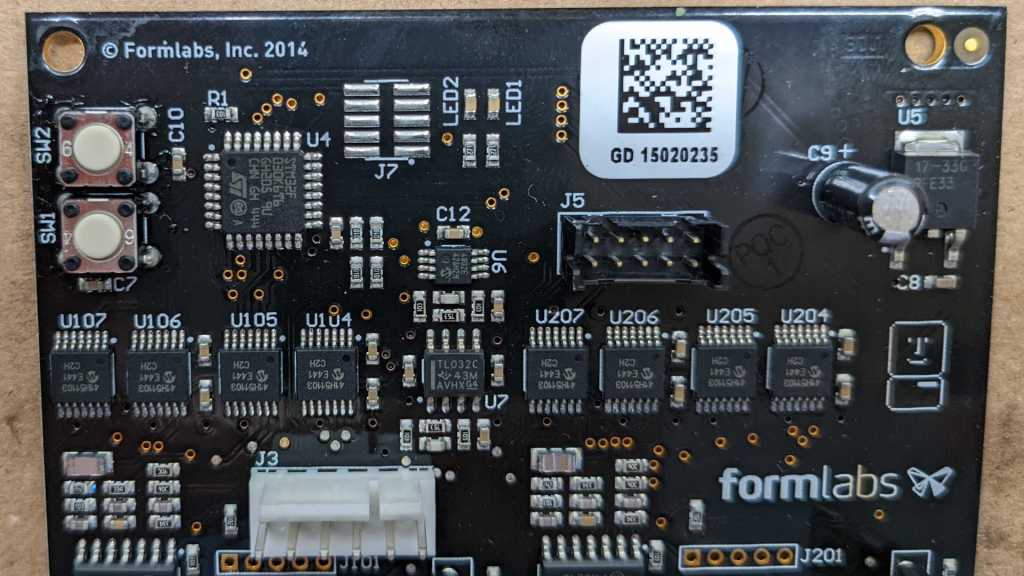
Starting from the upper left, component U4 looks to be the brains of this operation: a ST Microelectronics STM32F030K6T6 with its ARM Cortex-M0 core running at up to 48MHz.

U5 in the upper right is an On Semiconductor NCP1117, a low-dropout (LDO) voltage regulator marked with 17-33G indicating it outputs 3.3V. This would supply power to the STM32 and other 3.3V digital logic.

Back towards the centerline, U6 is a Microchip MCP4802 digital-to-analog converter (DAC) with dual 8-bit resolution channels controlled via SPI.

Just below that is U7, a TI TL032 dual-channel op-amp.

On either side of U7 is a collection of 8 chips, four on each side. (U104, U105, U106, and U107 on the left. U204, U205, U206, and U207 on the right.) They are all marked with Microchip logo and 41H51103, which I found to be a MCP41HV51 SPI-controlled digital potentiometer. In section 11.1 Package Marking Information of the MCP41HVx1 datasheet, 41H51103 is identified as MCP41HV51-103E/ST variant.

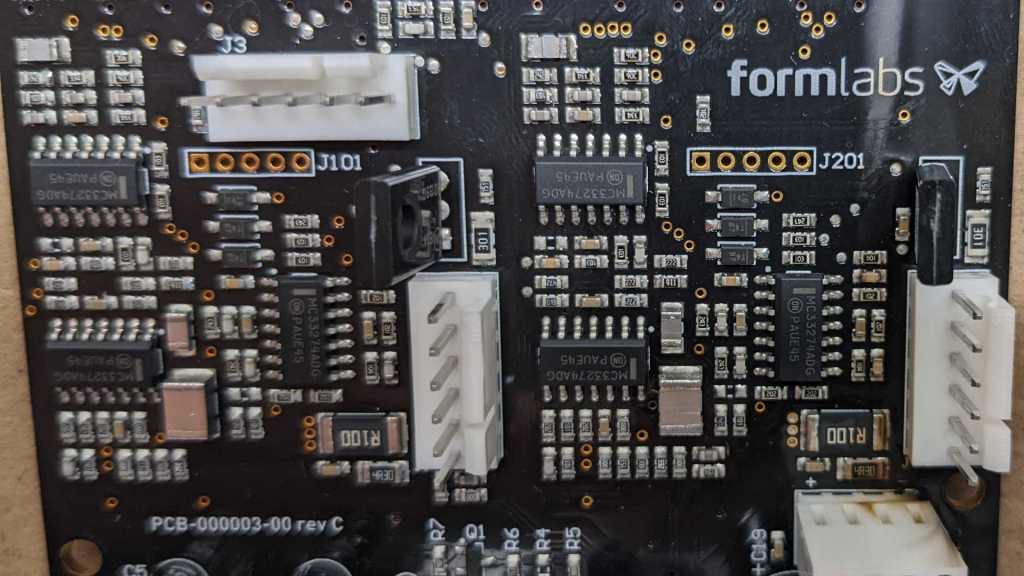
There are a lot of surface mount passives in the center section with two copies of the layout left and right. Each copy gets a trio of chips marked with On Semiconductor logo and MC33274ADG. These MC33274A chips are each a quad-pack of op-amps. Each side has an additional component that is mounted vertically so we only see their top here.

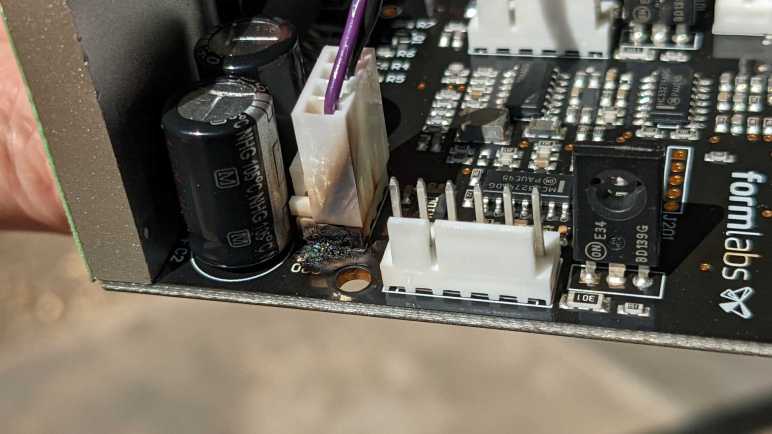
Going back to an earlier picture focused on the burnt and melted connector, we can see one of those vertical standing components clearly on the right. They are On Semiconductor BD139 NPN power transistors.

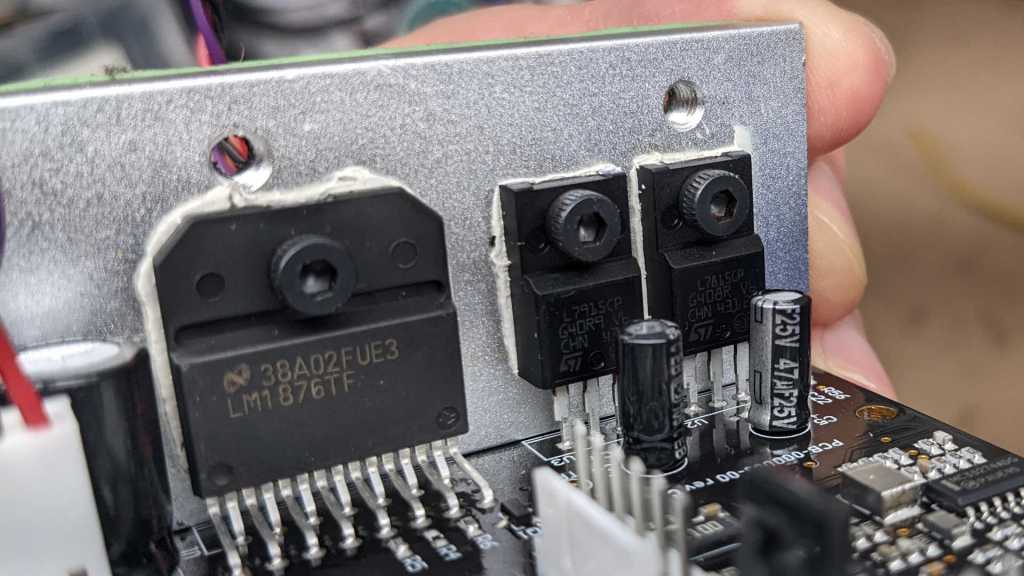
Three components are bolted to a heat sink at the bottom. To the left is a single Texas Instruments LM1876. It is a dual 20W audio power amplifier. Adjacent to that amplifier are a mirror pair of ST Microelectronics voltage regulators. The L79 negative voltage regulator accept up to -35V DC and output a regulated -15V DC. L78 is its symmetric positive voltage sibling, accepts up to +35V DC and output a regulated +15V DC.

Those components are major pieces of my “how did this board work” puzzle, but I’m still fuzzy on how they fit together. If I want more data, I’ll have to probe around while the system is powered up and I’m not entirely sure I want to do that.

FormLabs Form 1+ Next Steps

Diagnosing why a FormLabs Form 1+ resin laser 3D printer wasn’t working; I found the smoke trail of an electrical fire on its galvanometer (galvo) control board. This board is cooked in a very literal sense. Even though the printer is long out of support, I contacted FormLabs hoping for a replacement board. While waiting for a response, I took the printer apart to get a closer look at the damaged board.

It looks far worse from this angle. A lot of charred and burnt plastic at the base of power connector, which had melted together into a single lump. It is no longer possible to (neatly) unplug this connector. A surface-mount capacitor C20 has been vaporized along with some of the circuit board creating a small pit.

Holding the board at a different angle, I saw charred residue of smoke trail running all the way up the board. This fire was more significant than I had previously thought. This is good news and bad news. I had been worried that I cooked the device with a nonstandard power supply but seeing extent of damage confirmed it happened before I got my hands on the device. If it happened on my watch, I would have definitely smelled dead electronics, a scent I was reminded of quite recently.

On the downside, severity of this damage puts repair out of reach of my current skill level. I don’t know anything about how galvanometer control circuits are supposed to work. My electronics engineering skills aren’t good enough to reverse engineer this board and fix it without technical information like schematics and diagnostics procedures.

After this (very discouraging) sight, FormLabs got back to me: no replacement galvo control boards are available. Unsurprising but at least it didn’t hurt to ask. I briefly considered buying a laser light show galvanometer setup from eBay or Amazon. But even if I could interface them, I don’t know how to test and tune them for good resin prints. Given these challenges, I’m not going to try to get this printer printing. I’ll focus on learning as much as I can from taking it (further) apart.

FormLabs Form 1+ Galvanometer Power Failure

I tried to revive a FormLabs Form 1+ resin printer that had been sitting unused for years, but the test print was a failure. Comparing against videos on YouTube showing a Form 1/1+ in action, I noticed two differences. First, the resin vat tilting action (to peel it off a print between layers) was not happening. And more seriously, the laser beam was not moving around to trace out the shape. Instead, it stayed focused on one spot solidifying resin and damaging the resin vat at that point. There are four mechanical actuators on this device: the vat tilt stepper motor, X/Y-axis galvanometers (shortened below to galvos), and the Z-axis stepper motor. Out of four, three aren’t working! Quite disappointing, but at least they should be electromechanical issues that I have a better chance of fixing than software issues. I’ll take it apart and look around.

My disassembly was guided by Bunny Studios’ Form 1 teardown blog post from almost ten years ago. I was glad for the reference, but as the blog post pointed out, FormLabs designed the machine for easy disassembly, inspection, and repair. All fasteners are easily accessible and use the same 2.5mm hex key.

Once I got to remove the back panel, majority of control circuitry became accessible. Only one circuit board is not visible in this picture, as it is mounted in the front for power button and screen.

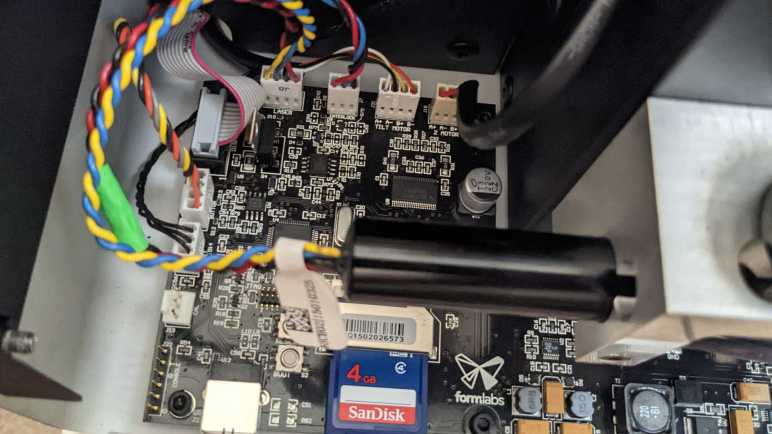
The large horizontal circuit board has a power-handling section to the right, as indicated by the presence of many transistors, diodes, and inductors. To the left is the brain, including a SanDisk 4GB SD card that wasn’t accessible until the back panel was removed. The smaller vertical circuit board on the right is dedicated to X/Y position control, judging by cables connecting it to the X/Y galvos.

This printer had been shipped around without its original packaging materials, so I had hoped the problem was as easy as a loose connector I could plug back in. Thus my attention was immediately drawn to headers on these circuit board without a wire, but there were no candidate loose wires to plug into those headers. Apparently FormLabs has intentionally chosen not to use those connections, likely related to changes from original Form 1 to this Form 1+.

One of the unused connectors was labeled GALVO Y POWER. I see cables on GALVO Y SIGNAL and GALVO X SIGNAL as well as GALVO X POWER. I guess both galvos are powered from GALVO X POWER cable. This might be relevant to what I find later.

Disappointed that I didn’t find a loose connector I could plug back in or any other obvious easy-to-fix problems, I proceeded to unplug and reinstall every connector to reseat them. Working from left-to-right, everything looked and felt fine until I unplugged the right-most galvo connector. Once it was removed, I got a clear view of the galvo power connector below it.

Discoloration from overheating and possibly soot from a small fire. The toasty connector is the other end of GALVO X POWER. I don’t know enough about this device to say sharing X and Y galvo power from a single connector caused the failure, but it certainly looks suspicious.

I saw no obvious places where GALVO Y POWER could have connected to this galvo control board. I guess it is a later revision that integrated both galvo controls on a single board powered by a single cable. Compare this to Bunny’s earlier device, where we see two separate and seemingly identical galvo control boards, one for X and one for Y, each with their own power and signal cables.

This device is long out of warranty, and official support ended in 2017. I don’t expect FormLabs to have a replacement galvo control board for this Form 1+, but it wouldn’t hurt to ask and see what they say.

FormLabs Form 1+ Printed a Shapeless Blob

I had been given a FormLabs Form 1+ resin printer that’s been sitting unused for years and requested to get it back up and running. Working with FormLabs equipment isn’t cheap, and this “free as-is” printer required nearly $300 of stuff just so I could see if it even runs. With the hardware in hand, I moved on to the software side of things.

All FormLabs equipment require their PreForm software to run, and the current version (3.25.2 as of writing) no longer supports the Form 1+. I dug through FormLabs support to find this page Using PreForm with the Form 1+ which provides a link to download PreForm 2.20. That was the final release before PreForm dropped support for this old printer. PreForm 2.20 is also available for download from the page listing PreForm versions and their equipment compatibility. If someone wants to go even older because they have a need for 32-bit edition, PreForm 2.16.0 was the final 32-bit release and available on that same page.

Installing and launching PreForm activated an introduction to the software, which guides us through printing the FormLabs test object: a (hair?) clip in the shape of FormLabs butterfly logo. I followed through the tutorial to properly orient the shape and generate supports. I installed the Form 1+ compatible aftermarket resin vat from Z-Vat industries, and poured in Form 1+ compatible aftermarket resin from ApplyLabWork. I hit print and started hearing the buzzing of the Z-axis stepper motor. A good sign! Given the upside-down printing nature of resin printers, the metal printing platform blocked my view of what it was doing. I left the machine alone to do its thing.

Roughly half an hour later, the print height has risen enough I could see between the print platform and the vat. I had hoped to see a sturdy print raft forming the foundation of my test clip, but I saw only a lumpy misshapen blob. This is not good.

Watching the machine work, I could see the laser illuminated only a single spot instead of sweeping through the shape as I had expected. I didn’t see movement from the resin vat, either, which was supposed to move as part of peeling process between layers.

After I cancelled the print job, the build platform was raised to its maximum height where I can confirm the misshapen blob. This is definitely not the intended test clip object. It isn’t even in the right place. The test clip was supposed to be close to the peeling hinge edge. (Right side edge in picture above.)

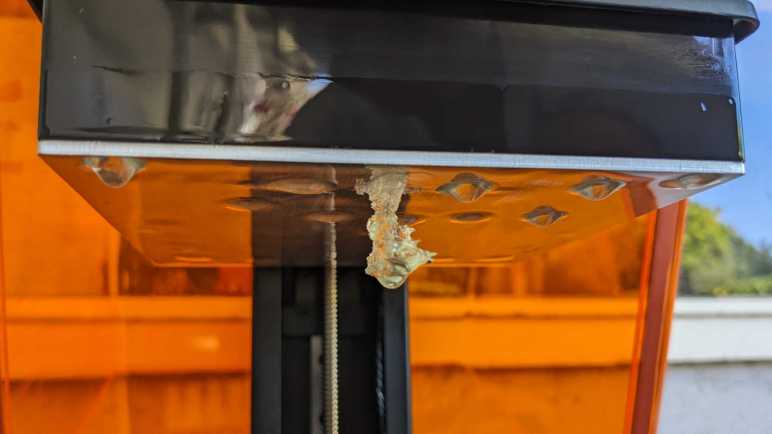
The unmoving laser beam is what hardened the blob. It also hardened various bits of resin which are now floating amongst still-liquid resin. I drained all of that contaminated resin into a disposal container that I will leave out in direct sunlight to harden. Wiping the resin vat clean of residue, I see a hole burned in the precious PDMS layer.

The good news is that all the aftermarket hardware I bought for this printer worked: the aftermarket AC power supply brick seemed to deliver enough power, the aftermarket resin hardened in response to the laser, and the aftermarket resin vat’s PDMS layer allowed the hardened resin to separate between layers. That’s great! But there is something wrong with the printer itself and I’ll take it apart to look for hints.

FormLabs Form 1+ Resin Printer in Unknown Condition

This FormLabs Form 1+ resin printer was purchased as part of a company’s R&D project. Presumably sometime between June 2014 when Form 1+ was released, and September 2015 when Form 2 launched. It printed a few things and sat neglected since. Recently it came into my possession in “AS-IS” condition delivered by someone several steps removed from that R&D project. The people in that project has since departed, and all he knew was that “something was wrong with it”. If I could produce satisfactory results from this printer, they may subcontract me to print some parts for them and earn an operator’s fee to run this machine that used to be theirs. If I fail, they’ll still be happy because it’s no longer uselessly taking up space gathering dust at their facility.

When this agreement was reached, the machine still had a resin vat that held resin left from its last print. Neither vat nor resin would be any use after several years of neglect. That plus the high probability of making a sticky resin mess meant they were disposed instead of shipped. I was not given the power adapter, either. During the years it sat unused, it had been moved from one workbench to another and became separated from its original AC power adapter.

Fortunately, FormLabs had the foresight to clearly specify power requirements right next to the power socket. I have several 24V DC adapters on hand, but none as high as 2.5A. The best on hand is a 1.5A unit, which I bought for the Neato vacuum charging experiment. I put the correct size barrel connector (5.5mm OD, 2.1mm ID) on the wire and plugged it in.

That was enough for the printer to go through its startup sequence. Now assured the printer at least powers up, I will order a 24V power supply that can supply more than 2.5A. (*) What else would I need to run this printer? The Form 1 and Form 1+ have fallen out of official FormLabs support since March 2017, so now the best reference material I have is the “Retro Form 1 Guide” compiled by a user and posted to FormLabs user forums.

Another consequence of being out-of-support is that FormLabs no longer sells replacement resin vats for the 1 and 1+. These are considered consumables due to something called “PDMS layer” at the bottom of the vat. PDMS in this context may or may not mean polydimethylsiloxane, but I understand it is something that gradually degrades during printing so it (and the resin vat it is attached to) needs to be replaced periodically. With FormLabs no longer supplying this consumable, I looked for aftermarket solutions and found Z-Vat Industries. They would sell me a replacement resin vat.

FormLabs also no longer sells their specifically formulated resin in bottles we manually pour into a Form 1 resin vat, only in cartridges for installation into Form 2 and 3 which dispenses resin automatically as needed. From this FormLabs forum thread, I learned that resins for DLP resin printers are very different formulation from resins designed for laser resin printers like this Form 1+. (Quick summary: laser resin is designed to be sensitive to a quick flash of intense laser beam, DLP resin is tuned for longer exposure to less-intense light.) This fact drastically limited my options of aftermarket resins, leaving a few vendors like ApplyLabWork. Looking over their catalog, I will avoid the brittle precision resins and order one of their resilient “Robust” resin.

Resin printing is expensive, and FormLabs resin printing more so! I’ve spent nearly $300.00 just so I can find out if the printer even works. And the answer was… it doesn’t.


(*) Disclosure: As an Amazon Associate I earn from qualifying purchases.

Another Z-Axis End Stop For Geeetech A10

Once the power situation was improved to something more acceptable, I revisited the Z-axis end stop. Because the bare wire hack attached with tape was never going to cut it long term.

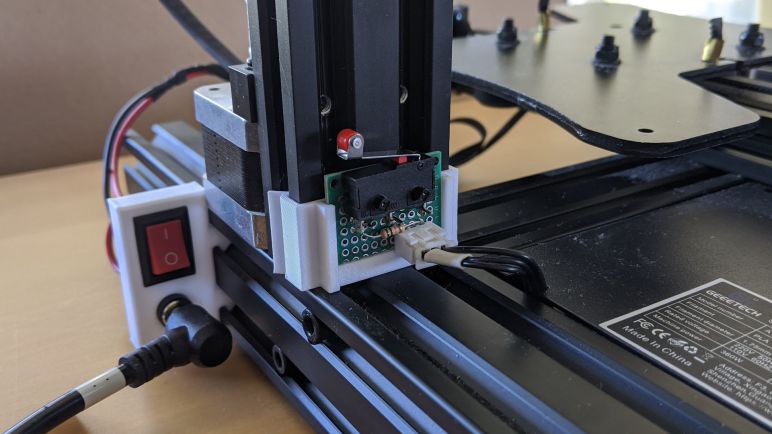
The first order of business was to transfer the circuit to a small circuit board instead of just wires hanging in the air. This little board was broken off from a larger prototype board, an easy task as the board was already perforated. The inexpensive switch I used (*) had two mounting holes that conveniently lined up to holes on the perforated prototype circuit board, so I soldered two pins at those locations as primary load bearers. I pushed the switch against those two pins as I soldered the three signal pins, hopefully this means any downward force from the homing procedure would be directed into the two mounting pins and not the three electrical pins.

Geeetech A10 Z axis end stop clip old and new

Geeetech A10 Z axis end stop clip CADOnce I had a small circuit board to hold the switch wired to the appropriate JST-XH (*) 3P (3-pin or 3-position) connector, I designed and 3D printed a small bracket to hold it to the machine. I saw no signs of how the original Z-axis may have been fastened, certainly no obvious holes to reuse. So I designed a clip-on bracket. The tool-less installation is a plus, but it came with the downside that it could not grip solidly enough to reliably hold a Z-axis position.
Right now it is sitting at the bottom against a cross beam, sitting at a height that I had guessed is relatively close to the original Z-axis end stop switch position. If that is too high, I will either have to print a shorter bracket or take a knife and trim some of the bottom off of this one. If it is too low, I can add something underneath this bracket to act as a spacer or print a taller bracket.

Now that I have the three-axis motion control portion of a 3D printer up and running, what can I do with it? I have lots of ideas! The first idea to be explored will be for visual dimension measurement.


(*) Disclosure: As an Amazon Associate I earn from qualifying purchases.

Replacement Power Panel for Geeetech A10

A very crude Z-axis end stop switch allowed me to verify this partial chassis of an old Geeetech A10 could still move in the X, Y, and Z axis. Once proven, I went back to refine the hacks done in the interest of expediency for those tests. First task is the power adapter, which had been a cheap barrel jack not quite the correct dimensions for reliable electrical contact with the 12V DC power adapter I’ve been using.

The 12V supply itself was a hack, as the Geeetech A10 printer is actually designed as a 24V printer but I didn’t have a 24V power brick handy. Since this printer has been deprived of its print nozzle and heated bed, the majority of power draw are absent leaving only the motors. I understand the stepper motor current chopper drivers would still keep the current within limits and give me nearly equivalent holding torque. However, halving the voltage meant it couldn’t sustain as high of a maximum speed and I saw this on the Z-axis. The X axis is super light (as there is no print head) and had no problem running quickly on 12V. The Y axis has to move the print bed carriage (minus heated print bed) and had a little more difficulty, but still plenty quick. So it was the Z-axis that ran into limitations first, as it had to push the entire carriage upwards and it would lose steps at higher speeds well before reaching firmware speed limits that are presumably achievable if given 24V.

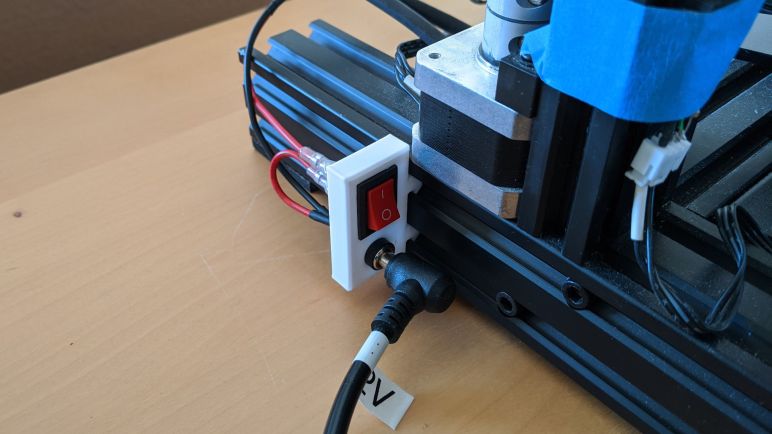
Geeetech A10 power panel CADA reduced top speed was still good enough for me to proceed so I drew up a quick 3D printable power panel for the printer. Since the 12V DC power supply was from my disassembled Monoprice Mini printer, I decided to reuse the jack and the power switch as well. Two protrusions in the printed plastic fit into extrusion rails, though it took a few prints to dial in the best size to fit within the rails.

With this power panel I could use the 12V DC power adapter and the connection is reliable. No more power resets from jiggled power cables! It also allows me to turn the printer off and on without unplugging the power jack.

With this little power panel in place, I moved on to build a better Z-axis end stop.

Crude Z Axis End Stop For Geeetech A10

Preliminary exploration of a retired Geeetech A10 has gone well so far, enough that I felt confident discarding the control panel I did not intend to use. Before I tossed the control panel in a box, I verified each of the motors could move via jogging commands. But before I can toss more complex commands at the machine, I need a way to reset the machine to a known state. In machine tools this is called a “homing” operation, and this 3D printer do so via the G28 Auto Home command to set each axis to their end stop switches.

Problem: While the X and Y axis still had their respective end stop switches, this machine is missing the Z-axis switch and I wanted to whip up a quick hack to test the machine capabilities. If it works, I’ll revisit the problem and spend more time on a proper one. If it doesn’t work, at least I haven’t wasted a lot of time and effort.

The existing X-axis end stop was buried inside the mechanism, but the Y-axis end stop is visible. I was surprised to see a circuit board with several surface mount components on board. Unlike most of my other 3D printers, the end stop mechanism isn’t just a pair of wires hooked up to a single switch, there are actually three wires.

Geeetech A10 Y endstop

I removed the Y-axis switch to probe the circuit and search online. It appears to be close but not quite identical to the RepRap design, and had a few additions like a LED and its associated current-limiting resistor. The LED is a nice indicator of switch toggling status, but it is not strictly necessary. This end stop boiled down to a switch that directly connects the normally open leg to common, and a resistor between the normally closed leg and common.

Once understood, I grabbed a micro switch waiting in my parts bin (*) and created a free form wire soldering job for the test attached with double sided foam tape. (Picture up top.) The foam tape did not hold position well enough, so additional structure support was added in the form of blue painter’s tape.

Geeetech A10 Z endstop hack with tape

Hacks upon hacks, it’s hacks all the way down.

But it was good enough for G28 Auto Home to succeed, which opened the door for more tests to verify this 3D printer chassis could still execute motion control commands coordinated across all three dimensions. Once I was satisfied it is working well enough for further tinkering, I revisited the power hack to make it more reliable.


(*) Disclosure: As an Amazon Associate I earn from qualifying purchases.

Geeetech A10 Control Panel Removed

Once I had the retired Geeetech A10 3D printer powered up, I could start poking around to see what is working and what is not. Obviously the control panel was my entry point to jog each axis. I was very happy to see the individual motors move on command, but I couldn’t command a homing cycle just yet due to the missing Z-axis switch.

However, the control panel itself was annoying to use. The screen contrast was poor, and user responsiveness is lacking. I frequently find that encoder steps were ignored, as were some of my wheel presses to select menu options. I experienced the same frustration with the Monoprice Maker Select, and I had thought those issues were specific to that printer. Now I’m starting to wonder if this is common with 3D printers running Marlin on a ATmega328 control board.

The good news is that I don’t plan to interact with the control panel for much more than this initial test. Once I established the board was functional, I no longer feared the USB port damaging my computer so I found an appropriate USB cable and plugged it in. The expected USB serial device showed up. With the popular settings 250000 8N1, I could command the printer via Marlin G-code. This is how I intend to control this machine as a three-axis motion control platform.

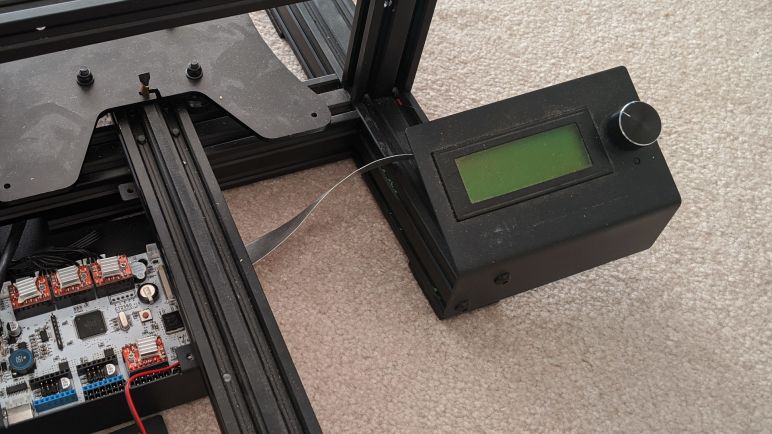
I didn’t intend to use the control panel anymore, and I could have just left it alone. But it also sticks out to the side of the printer and awkwardly taking up space. After a particularly painful meeting between a body part and an outer corner of the panel, I took a closer look at how it was connected to the control board. It seems to be a single ribbon cable plugged into a single connector that had two dabs of hot glue to help keep it in place.

Geeetech A10 control panel ribbon cable connector

I removed the hot glue and the cable to see if this printer would continue functioning as a USB serial peripheral, in the absence of the control panel. Good news: it does! I could move all three axis (X, Y, and Z) via G0 commands. So after removing two M5 bolts, the control panel go live in a box. Cleaning up the printer outline and hopefully reducing painful episodes in the future.

Now I need to install a replacement Z-axis homing switch in order to try homing cycle.

Power Input Replacement for Geeetech A10

I’ve received the gift of a retired Geeetech A10 3D printer. It is missing some important components for 3D printing, but its three axis motion control components are superficially intact. The machine is in unknown condition with no warranties expressed or implied. Ashley Stillson, the previous owner, don’t remember everything that was wrong with it, but she did not remember anything dangerous. (My specific question was: “Will I burn down the house if power it up?”)

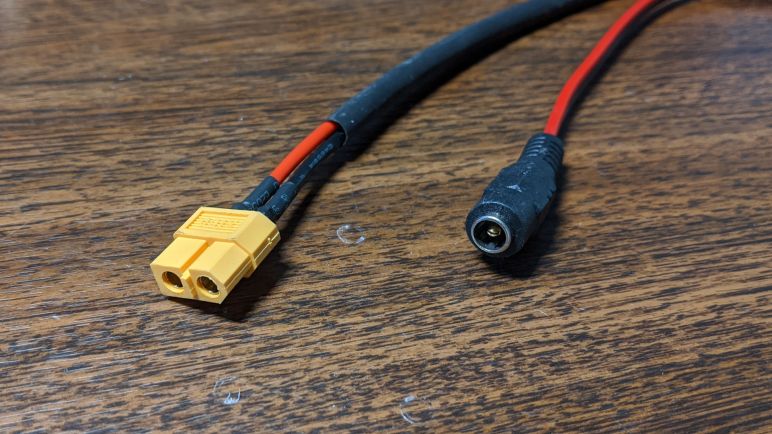
Not burning down the house was a good baseline, so I’ll begin by supplying the machine with some power to see what wakes up. The first task was to replace the XT60 power connector. The XT60 isn’t a type I use and hence I had nothing to plug into it. This type is an excellent connector for high current draw applications, but since I’m not planning to run a heated print bed nor a filament nozzle heater, I can start with something less capable and more generic. So instead of buying some XT60 connectors (*), I replaced it with a jack for a barrel plug (*) that I already had on hand.

The cheap jack I have on hand is listed with outer diameter of 5.5mm and inner diameter of 2.1mm. It is very close but not exactly the correct type to connect to the 12V DC power supply from my disassembled Monoprice Mini printer, which I guess is actually the very similar and popular type 5.5mm OD / 2.5mm ID. But what I have is close enough for a little hacking to permit power to flow.

Later I learned I had made an assumption I didn’t even realize I was making at the time: I assumed the printer wanted 12V power. The Geeetech A10 is actually a 24V printer! This is irrelevant to the electronics, which will run on stepped-down voltage probably 5V. It is most important for the heater elements, which are absent anyway. In the middle are the stepper motor subsystem, where 12V is not ideal leaving them less capable than if they were fed 24V, but they should function well enough to let me evaluate the situation.

When power was supplied, a fan started spinning, a red LED illuminated, followed by the control panel coming to life. We are in business.


(*) Disclosure: As an Amazon Associate I earn from qualifying purchases.

Retired Geeetech A10 3D Printer

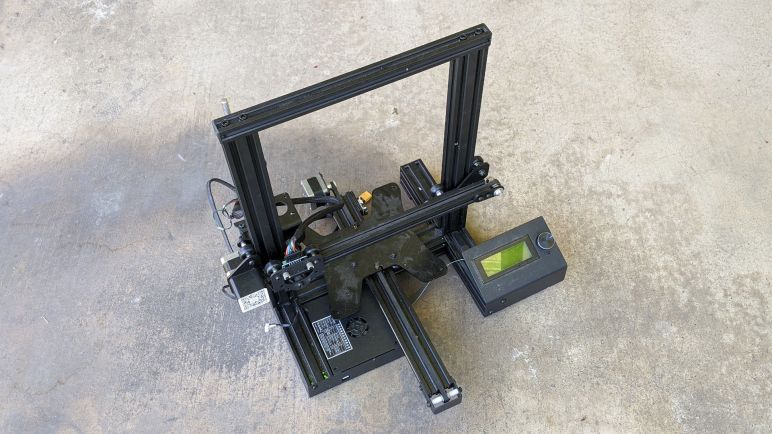
My herd of 3D printers has gained a new member: a Geeetech A10. Or at least, most of one. It was a gift from Ashley Stillson, who retired this printer after moving on to other machines. Wear on the rollers indicated it has lived a productive life. Its age also showed from missing several of the improvements visible in the product listing for the current version. (And here it is on Amazon *)

In addition to those new features, this particular printer is missing several critical components of a 3D printer. There is no print head to deposit melted plastic filament, it has no extruder to push filament into the print head. The Bowden tube connecting those two components are missing. There is no print bed to deposit filament on to, and there is no power supply to feed all the electrical appetite.

It does, however, still have all three motorized axis X, Y, and Z, and a logic board with control panel. X and Y axis still had their end stop switches, but the Z axis switch is absent leaving only a connector for the switch.

Geeetech A10 Z endstop connector

The only remnant of the power supply system is a XT60 plug. I don’t use XT60 in my own projects and have none on hand, so I will either need to buy some (*) or swap out the connector to match a power supply I have on hand.

Geeetech A10 XT60 power connector

It would take some work to bring it back into working condition as a 3D printer, but that’s not important right now because my ideas for this chassis is not to bring it back to printing duty. I’m interested in putting its three-axis motion control capability. to other use. But first, I need to get its three axis moving, which means giving it some power.


(*) Disclosure: As an Amazon Associate I earn from qualifying purchases.

And Now I’m Up To (Most Of) Five 3D Printers

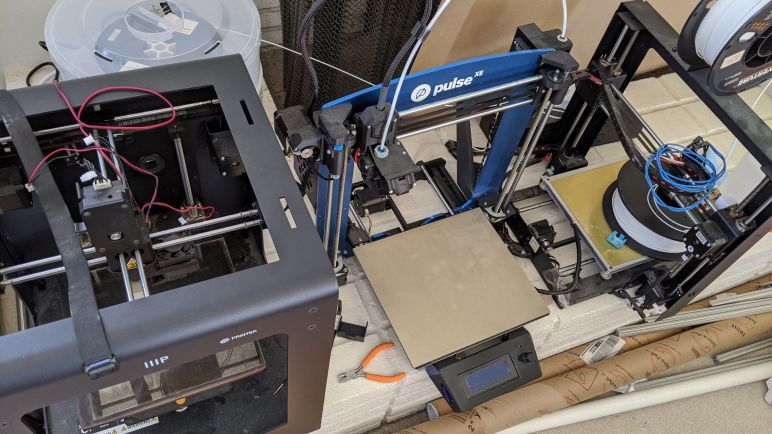
When I first got started in 3D printing, I was well aware of the trend for enthusiasts in the field to quickly find themselves with an entire flock of them. I can confirm that stereotype, as now I am in the possession of (most of) five printers.

My first printer, a Monoprice Select Mini, was still functional but due to its limitations I had not used it for many months. I had been contemplating taking it apart to reuse its parts. When I talked about that idea with some local people, I found a mutually beneficial trade: in exchange for my functioning printer, I traded it for a nearly identical but non-functioning unit to take apart.

My second, a Monoprice Maker Ultimate, has experienced multiple electrical failures with an infamous relay, and I suspect those failures had secondary repercussions that triggered other failures in the system. It is currently not working and awaiting a control board upgrade.

My third printer, a Monoprice Maker Select, was very affordable but there were trade-offs made to reach that price point. I’ve since had to make several upgrades to make it moderately usable, but it was never a joyous ownership experience.

Those three printers were the topic of the tale of 3D printing adventures I told to Robotics Society of Southern California. One of my parting advise was that, once we get to the ~$700 range of the Maker Ultimate, there were many other solid options. The canonical default choice is a Prusa i3 and I came very close to buying one of my own several times.

What I ended up buying is a MatterHackers Pulse, a derivative of the Prusa i3. I bought it during 2019’s “Black Friday” sale season, when MatterHackers advertised their Pulse XE variant at a hefty discount. Full of upgrades that I would have contemplated installing anyway, it has performed very well and I can happily recommend this printer.

Why would I buy a fifth printer when I had a perfectly functioning Pulse XE? Well, I wouldn’t. I didn’t get this printer because it was better, I picked it up because it was free. I have some motion control (not 3D printing) projects on the candidate list and a retired partial Geeetech A10 printer may prove useful.