Notes on “Exploring BeagleBone” by Derek Molloy

As an electronics hobbyist I’ve managed to collect two different BeagleBone boards, but I’ve never done anything useful with them. In the interest of learning enough to put them to work, I bought the Kindle eBook for Exploring BeagleBone, Second Edition by Derek Molloy. (*) I dusted off my PocketBeagle from the E-ALE hardware kit and started following along. My current level of knowledge is slightly higher than this book’s minimum target audience, so some of the materials I already knew. But there were plenty I did not know!

The first example came quickly. In chapter 2 I learned how to give my PocketBeagle access to the internet. This is not like a Raspberry Pi which had onboard WiFi or Ethernet. In contrast, a PocketBeagle’s had to access the network over its USB connection. At E-ALE I got things up and running once, but SCaLE was a Linux conference so I only received instructions for Ubuntu. This book gave me instructions on how to set up internet sharing over USB in Windows, so my PocketBeagle could download updates for its software.

Chapter 5 Practical Beagle Board Programming is a whirlwind tour of many different programming languages with their advantages and disadvantages. Some important programming concepts such as object-oriented programming was also covered. My background is in software development, so few of the material was new to me. However, this chapter was an important meta-learning opportunity. Because I already knew the subject matter, as I read this chapter I frequently thought: “Wait, but the book didn’t cover [some related thing]” or “the book didn’t explain why it’s done this way”. This taught me a mindset for the whole book: it is a quick superficial overview of concepts that give us just enough keywords for further learning. The title is “Exploring BeagleBone”, not “BeagleBone in Depth”!

On that front, I believe the most impactful thing I learned from this book is sysfs, a mechanism to allow communication with system hardware by treating their various input/output parameters as files. This presents an interface that avoids the risks and pitfalls of going into kernel mode. Sysfs was introduced in chapter 2 and is used throughout the text, culminating in the final chapter 16 where we get a taste of implementing a sysfs interface in our own loadable kernel module. (LKM) But there are many critical bits of knowledge not covered in the book. For example, sysfs was introduced in chapter 2 where we were told the sysfs path /sys/class/leds/beaglebone:green:usr3/brightness will allow us to control brightness of one of BeagleBoard’s onboard LEDs. That led me to ask two questions immediately:

  1. If I hadn’t known that path, how would I find it? (“What is the sysfs path for an onboard LED?”)
  2. If I look at a /sys/ path and didn’t know what hardware parameter it corresponded to, how would I find out? (“What does /sys/[blah] control?”)

The book does not answer these questions. However, it taught me that sysfs interfaces were exposed by loadable kernel modules (LKM, chapter 16) and that LKMs are loaded for specific hardware based on device tree (chapter 6). Given this, I think I have enough background to go and find answers elsewhere.

The book used sysfs for many examples, and the book also covered at least one example where sysfs was not enough. When dealing with high-bandwidth video data, there’s too much overhead for sysfs so the code examples switched to using ioctl.

My biggest criticism of this book is a lax attitude towards network security. In chapter 11 (The Internet of Things) instructions casually tell readers to degrade their GMail account security and to turn off Windows firewall. No! Bad book! Bad! Even worse, there’s no discussion of the risks that are opened up if a naive reader should blindly follow those instructions. And that’s just the reader’s email account and desktop machine. What about building secure networked embedded devices with a BeagleBone? Nothing. No discussion at all, not even a superficial overview. There’s a running joke that “The S in IoT stands for security” and this book is not helping.

Despite its flaws, I did find the book instructive on many aspects of a BeagleBone. And thanks to the programming chapter and lack of security information, I’m also keenly aware there are many more things not covered by this book at all. After reading this book, I pondered what it meant for my own BeagleBone boards.


UPDATE: I was impressed by this application of sysfs: show known CPU hardware vulnerabilities and status of mitigations: grep -r . /sys/devices/system/cpu/vulnerabilities/


(*) Disclosure: As an Amazon Associate I earn from qualifying purchases.

Taking Another Look at BeagleBone

I like the idea behind BeagleBone boards, a series of embedded Linux devices. BeagleBone hardware are built around modules from Octavo Systems, which are designed for easy of integration into custom embedded hardware. BeagleBone are merely one of many Octavo-based devices, but (as far as I know) the only one focused on building an easy on-ramp for learning and hobbyist use. From that aspect they resemble the Raspberry Pi lineup, but sadly they have not found the same degree of success.

One advantage of a BeagleBoard are the onboard LEDs available for experimentation. A Raspberry Pi has onboard LEDs as well, but they already have jobs indicating power and microSD activity and it takes work to reallocate them for a quick experiment. But my favorite BeagleBone advantage is a power button for graceful shutdowns, something that’s always been missing from the Pi since the first version. Even though they are now on the Pi 4, the Raspberry Pi foundation seems uninterested in solving this problem. I’ve read claims that SD corruption from ungraceful shutdowns are rare, but it still makes me grumpy.

I personally own two BeagleBone devices. The first was a PocketBeagle I bought with the intention of taking the E-ALE (Embedded Apprentice Linux Engineer) course that premiered at SCaLE 16X. Unfortunately, between my lack of foundational knowledge and the rough nature of their first run, I didn’t absorb very much information from the course. But I still have the PocketBeagle and Bacon Bits cape that went with the course.

The second was a BeagleBone Blue that I bought after a conversation at SCaLE with Jason Krider, one of the people behind BeagleBone. He saw my Sawppy rover and told me about BeagleBone Blue which was designed with a focus on robotics. He asserted a Blue should be much more suitable for Sawppy than the Raspberry Pi I had been using. I ordered a board and, as soon as I took it out of the box, I knew I had a problem. The physical size of BeagleBone boards is designed to fit in an Altoids mint tin. In order to follow that precedence and cram onboard all the robotics-related output, the Blue used many fine-pitched connectors that aren’t in my usual toolkit of connectors. I looked into either paying for pre-made wiring bundles with the connectors already crimped, or tools to crimp my own, and balked at the cost. I decided to think it over, which stopped my momentum, and it’s been sitting ever since.

Which is a shame, because on paper these are nifty little devices! Now motivated by a local study session meetup, I decided to buy an eBook to help me get a better understanding of BeagleBone. I’m still not comfortable with public gatherings, but I can follow along at home as the study group went through chapters of Exploring BeagleBone, Second Edition by Derek Molloy.

Radeon HD 7950 Video Card (MSI R7950-3GD5/OC BE)

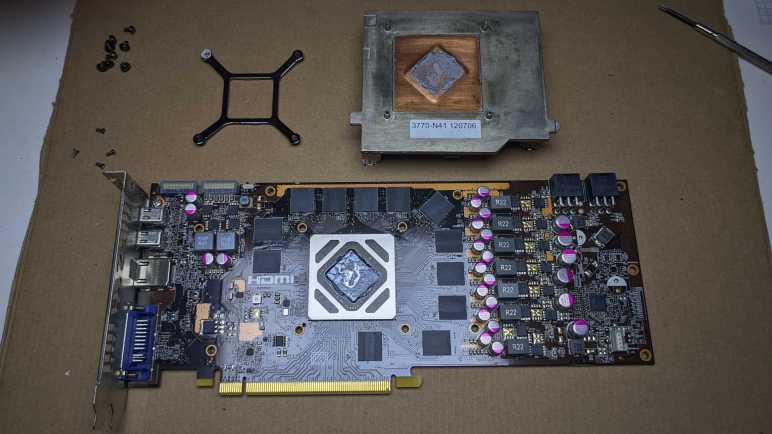
This video card built around a Radeon HD 7950 chip is roughly ten years old. It is so outdated, nobody would pay much for a used unit on eBay. Not even at the height of The Great GPU Shortage. I’ve been keeping it around as a representative for full sized, dual-slot PCIe video cards as I played with custom-built PC enclosures. But I now have other video cards that I can use for the purpose, so this nearly-teenager video card landed on the teardown bench.

Most of its exterior surface is covered by a plastic shroud, but the single fan intake is no longer representative of modern GPUs with two or three fans.

Towards the center of this board is a metal bracket for fastening a heat sink that accounted for most of the weight of this card. In the upper left corner are auxiliary PCIe power supply sockets. The circuit board has provision for a 6-pin connector adjacent to an 8-pin connector, even though only two 6-pin connectors are soldered to this board. Between those connectors and the GPU itself, I see six (possibly seven) sets of components. I infer these are power-handling parts working in parallel to feed a power-hungry chip.

This was my first 4K UHD capable video card, which I used via the mini-DisplayPort connectors on the right. As I recall, the HDMI port only supported up to 1080p Full HD and could not drive a 4K display. Finally, a DVI port supported all DVI capabilities (not all of them do): analog VGA on its DVI-A pins, plus dual-link DVI-D for driving larger displays. I don’t recall if the DVI-D plug could output 4K UHD, but I knew it went beyond 1080p Full HD by driving a 2560×1600 monitor.

The plastic shroud was held by six plastic screws to PCB and two machine screws to metal plate. Once those eight fasteners were removed, shroud came off easily. From here we get a better look at the PCIe auxiliary power connectors on the top right, and the seven sets of capacitors/inductors/etc. that work in parallel to handle power requirements of this chip.

Four small machine screws held the fan shroud to the heat sink. Fan label indicates this fan consumes up to 6 Watts (12V 0.5A) and I recall it can get move a lot of air at full blast. (Or at least, gets very loud trying.) It appears to be a four-wire fan which I only recently understood how to control if I wanted. Visible on the fan’s underside is a layer of fine dust that held on, despite a blast of compressed air I used to clean out dust bunnies before this teardown.

Some more dust had also clung on to these heat sink fins. It seems like a straightforward heat sink with stamped sheet metal fins on an aluminum base, no heat pipes like what we see on many modern GPUs. But if it is all aluminum, and there are no heat pipes, it should be lighter weight than it is.

Unfastening four machine screws from the X-shaped rear bracket allowed me to remove the heat sink, and now we can see the heat sink has a copper core for heat distribution. That explains the weight.

The GPU package is a high-density circuit board in its own right, hosting not just the GPU die itself but also a large collection of supporting components. Based on the repeated theme of power handling, I guess these little tan rectangles are surface mount capacitor arrays, but they might be something else.

Here’s a different angle taken after I cleaned up majority of thermal paste. An HD 7950 is a big silicon die sitting on a big package.

When I cleaned all thermal paste off the heatsink, I was surprised at its contact surface. It seems to be the direct casting mold surface texture with no post-processing. For CPU heatsinks, I usually see a precision machined flat surface, either milling or grinding. Low-power/low-cost devices may skip such treatment for their heatsinks, but I don’t consider this GPU as either low power or low cost. I know this GPU dissipated heat on par with a CPU, yet there was no effort for a precision flat surface to maximize heat transfer.

I think this is a promising module for reuse. Though in addition to the lack of precision flat surface, there’s another problem that the copper core is slightly recessed. The easiest scenario for reuse is to find something that sticks up ~2mm above its surrounding components, but not by more than the 45x45mm footprint of this GPU. This physical shape complicates my top two ideas for reuse: (1) absolute overkill cooling for a Raspberry Pi, or (2) retrofit active cooling to the passively-cooled HP Split X2. If I were to undertake either project, I’d have to add shims or figure out how to remove some of the surrounding aluminum.

Disable Sleep on a Laptop Acting as Server

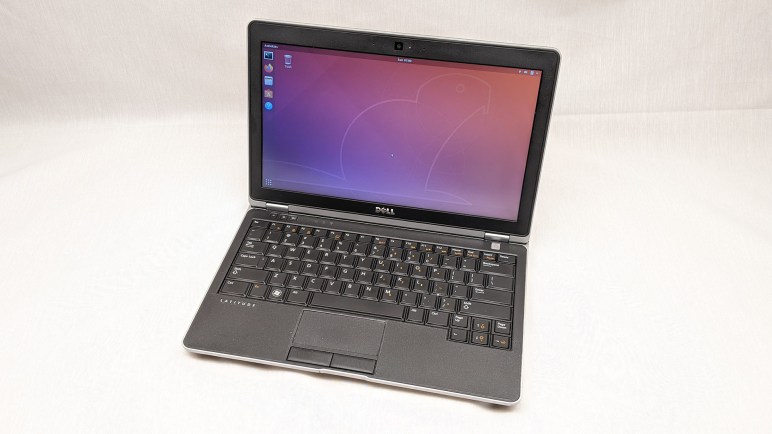
I’ve played with different ways to install and run Home Assistant. At the moment my home instance is running as a virtual machine inside KVM hypervisor. The physical machine is a refurbished Dell Latitude E6230 running Ubuntu Desktop 22.04. Even though it will be running as a server, I installed the desktop edition for access to tools like Virtual Machine Manager. But there’s a downside to installing the desktop edition for server use: I did not want battery-saving features like suspend and sleep.

When I chose to use an old laptop like a server, I had thought its built-in battery would be useful in case of power failure. But I hadn’t tested that hypothesis until now. Roughly twenty minutes after I unplugged the laptop, it went to sleep. D’oh! The machine still reported 95% of battery capacity, but I couldn’t use that capacity as backup power.

The Ubuntu “Settings” user interface was disappointingly useless for this purpose, with no obvious ability to disable sleep when on battery power. Generally speaking, the revamped “Settings” of Ubuntu 22 has been cleaned up and now has fewer settings cluttering up all those menus. I could see this as a well-meaning effort to make Ubuntu less intimidating to beginners, but right now it’s annoying because I can’t do what I want. To the web search engines!

Looking for command-line tools to change Ubuntu power saving settings brought me to many pages with outdated information that no longer applied to Ubuntu 22. My path to success started with this forum thread on Linux.org. It pointed to this page on linux-tips.us. It has a lot of ads, but it also had applicable information: systemd targets. The page listed four potentially applicable targets:

  • suspend.target
  • sleep.target
  • hibernate.target
  • hybrid-sleep.target

Using “systemctl status” I could check which of those were triggered when my laptop went to sleep.

$ systemctl status suspend.target
○ suspend.target - Suspend
     Loaded: loaded (/lib/systemd/system/suspend.target; static)
     Active: inactive (dead)
       Docs: man:systemd.special(7)

Jul 21 22:58:32 dellhost systemd[1]: Reached target Suspend.
Jul 21 22:58:32 dellhost systemd[1]: Stopped target Suspend.
$ systemctl status sleep.target
○ sleep.target
     Loaded: masked (Reason: Unit sleep.target is masked.)
     Active: inactive (dead) since Thu 2022-07-21 22:58:32 PDT; 11h ago

Jul 21 22:54:41 dellhost systemd[1]: Reached target Sleep.
Jul 21 22:58:32 dellhost systemd[1]: Stopped target Sleep.
$ systemctl status hibernate.target
○ hibernate.target - System Hibernation
     Loaded: loaded (/lib/systemd/system/hibernate.target; static)
     Active: inactive (dead)
       Docs: man:systemd.special(7)
$ systemctl status hybrid-sleep.target
○ hybrid-sleep.target - Hybrid Suspend+Hibernate
     Loaded: loaded (/lib/systemd/system/hybrid-sleep.target; static)
     Active: inactive (dead)
       Docs: man:systemd.special(7)

Looks like my laptop reached the “Sleep” then “Suspend” targets, so I’ll disable those two.

$ sudo systemctl mask sleep.target
Created symlink /etc/systemd/system/sleep.target → /dev/null.
$ sudo systemctl mask suspend.target
Created symlink /etc/systemd/system/suspend.target → /dev/null.

After they were masked, the laptop was willing to use most of its battery capacity instead of just a tiny sliver. This should be good for several hours, but what happens after that? When the battery is almost empty, I want the computer to go into hibernation instead of dying unpredictably and possibly in a bad state. This is why I left hibernation.target alone, but I wanted to do more for battery health. I didn’t want to drain the battery all the way to near-empty, and this thread on AskUbuntu led me to /etc/UPower/UPower.conf which dictates what battery levels will trigger hibernation. I raised the levels so the battery shouldn’t be drained much past 15%.

# Defaults:
# PercentageLow=20
# PercentageCritical=5
# PercentageAction=2
PercentageLow=25
PercentageCritical=20
PercentageAction=15

The UPower service needs to be restarted to pick up those changes.

$ sudo systemctl restart upower.service

Alas, that did not have the effect I hoped it would. Leaving the cord unplugged, the battery dropped straight past 15% and did not go into hibernation. The percentage dropped faster and faster as it went lower, too. Indication that the battery is not in great shape, or at least mismatched with what its management system thought it should be doing.

$ upower -i /org/freedesktop/UPower/devices/battery_BAT0
  native-path:          BAT0
  vendor:               DP-SDI56
  model:                DELL YJNKK18
  serial:               1
  power supply:         yes
  updated:              Fri 22 Jul 2022 03:31:00 PM PDT (9 seconds ago)
  has history:          yes
  has statistics:       yes
  battery
    present:             yes
    rechargeable:        yes
    state:               discharging
    warning-level:       action
    energy:              3.2079 Wh
    energy-empty:        0 Wh
    energy-full:         59.607 Wh
    energy-full-design:  57.72 Wh
    energy-rate:         10.1565 W
    voltage:             9.826 V
    charge-cycles:       N/A
    time to empty:       19.0 minutes
    percentage:          5%
    capacity:            100%
    technology:          lithium-ion
    icon-name:          'battery-caution-symbolic'

I kept it unplugged until it dropped to 2%, at which point the default PercentageAction behavior of PowerOff should have occurred. It did not, so I gave up on this round of testing and plugged the laptop back into its power cord. I’ll have to come back later to figure out why this didn’t work but, hey, at least this old thing was able to run 5 hours and 15 minutes on battery.

And finally: this laptop will be left plugged in most of the time, so it would be nice to limit charging to no more than 80% of capacity to reduce battery wear. I’m OK with 20% reduction in battery runtime. I’m mostly concerned about brief blinks of power of a few minutes. A power failure of 4 hours instead of 5 makes little difference. I have seen “battery charge limit” as an option in the BIOS settings of my newer Dell laptops, but not this old laptop. And unfortunately, it does not appear possible to accomplish this strictly in Ubuntu software without hardware support. That thread did describe an intriguing option, however: dig into the cable to pull out Dell power supply communication wire and hook it up to a switch. When that wire is connected, everything should work as it does today. But when disconnected, some Dell laptops will run on AC power but not charge its battery. I could rig up some sort of external hardware to keep battery level around 75-80%. That would also be a project for another day.

ESP8266 Controlling 4-Wire CPU Cooling Fan

I got curious about how the 4 wires of a CPU cooling fan interfaced with a PC motherboard. After reading the specification, I decided to get hands-on.

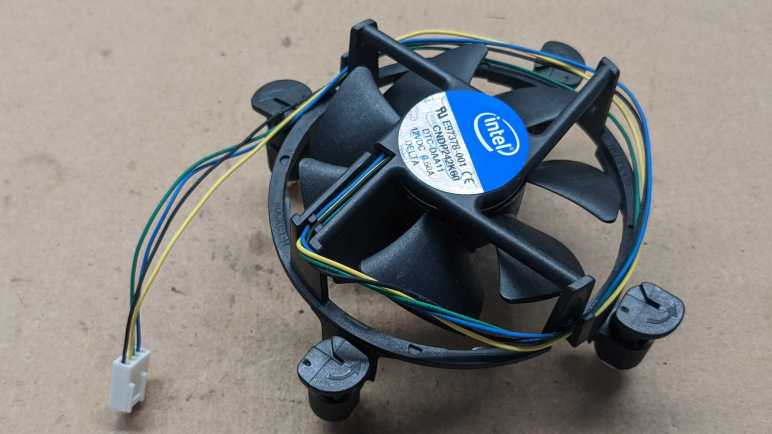
I dug up several retired 4-wire CPU fans I had kept. All of these were in-box coolers bundled with various Intel CPUs. And despite the common shape and Intel brand sticker, they were made by three different companies listed at the bottom line of each label: Nidec, Delta, and Foxconn.

I will use an ESP8266 to control these fans running ESPHome, because all relevant code has already been built and ready to go:

  • Tachometer output can be read with the pulse counter peripheral. Though I do have to divide by two (multiply by 0.5) because the spec said there are two pulses per fan revolution.
  • The ESP8266 PWM peripheral is a software implementation with a maximum usable frequency of roughly 1kHz, slower than specified requirement. If this is insufficient, I can upgrade to an ESP32 which has hardware PWM peripheral capable of running 25kHz.
  • Finally, a PWM fan speed control component, so I can change PWM duty cycle from HomeAssistant web UI.

One upside of the PWM MOSFET built into the fan is that I don’t have to wire one up in my test circuit. The fan header pins were wired as follows:

  1. Black wire to circuit ground.
  2. Yellow wire to +12V power supply.
  3. Green wire is tachometer output. Connected to a 1kΩ pull-up resistor and GPIO12. (D6 on a Wemos D1 Mini.)
  4. Blue wire is PWM control input. Connected to a 1kΩ current-limiting resistor and GPIO14. (D5 on Wemos D1 Mini.)

ESPHome YAML excerpt:

sensor:
  - platform: pulse_counter
    pin: 12
    id: fan_rpm_counter
    name: "Fan RPM"
    update_interval: 5s
    filters:
      - multiply: 0.5 # 2 pulses per revolution

output:
  - platform: esp8266_pwm
    pin: 14
    id: fan_pwm_output
    frequency: 1000 Hz

fan:
  - platform: speed
    output: fan_pwm_output
    id: fan_speed
    name: "Fan Speed Control"

Experimental observations:

  • I was not able to turn off any of these fans with a 0% duty cycle. (Emulating pulling PWM pin low.) All three kept spinning.
  • The Nidec fan ignored my PWM signal, presumably because 1 kHz PWM was well outside the specified 25kHz. It acted the same as when the PWM line was left floating.
  • The Delta fan spun slowed linearly down to roughly 35% duty cycle and was roughly 30% of full speed. Below that duty cycle, it remained at 30% of full speed.
  • The Foxconn fan spun down to roughly 25% duty cycle and was roughly 50% of the speed. I thought it was interesting that this fan responded to a wider range of PWM duty cycles but translated that to a narrower range of actual fan speeds. Furthermore, 100% duty cycle was not actually the maximum speed of this fan. Upon initial power up, this fan would spin up to a very high speed (judged by its sound) before settling down to a significantly slower speed that it treated as “100% duty cycle” speed. Was this intended as some sort of “blow out dust” cleaning cycle?
  • These are not closed-loop feedback devices trying to maintain a target speed. If I set 50% duty cycle and started reducing power supply voltage below 12V, the fan controller will not compensate. Fan speed will drop alongside voltage.

Playing with these 4-pin fans were fun, but majority of cooling fans in this market do not have built-in power transistors for PWM control. I went back to learn how to control those fans.

CPU Cooling 4-Wire Fan

Building a PC from parts includes keeping cooling in mind. It started out very simple: every cooling fan had two wires, one red and one black. Put +12V on the red wire, connect black go ground, done. Then things got more complex. Earlier I poked around with a fan that had a third wire, which proved to be a tachometer wire for reading current fan speed. The obvious follow-up is to examine cooling fans with four wires. I first saw this with CPU cooling fans and, as a PC builder, all I had to know was how to plug it in the correct orientation. But now as an electronics tinkerer I want to know more details about what those wires do.

A little research found the four-wire fan system was something Intel devised. Several sources cited URLs on http://FormFactors.org which redirects to Intel’s documentation site. Annoyingly, Intel does not make the files publicly available, blocking it with a registered login screen. I registered for a free account, and it still denied me access. (The checkmark next to the user icon means I’ve registered and signed in.)

Quite unsatisfying. But even if I can’t get the document from official source, there are unofficial copies floating around on the web. I found one such copy, which I am not going to link to because the site liberally slathered the PDF with advertisements and that annoys me. Here is the information on the title page which will help you find your own copy. Perhaps even a more updated revision!

4-Wire Pulse Width Modulation
(PWM) Controlled Fans
Specification
September 2005
Revision 1.3

Reading through the specification, I learned that the four-wire standard is backwards compatible with three-wire fans as those three wires are the same: GND, +12V supply, and tachometer output. The new wire is for a PWM control signal input. Superficially, this seems very similar to controlling fan speed by PWM modulating the +12V supply, except now the power supply stays fixed at +12V and the PWM MOSFET is built into the fan. How is this better? What real-world problems are solved by using an internal PWM MOSFET? The spec did not explain.

According to spec, the PWM control signal should be running at 25kHz. Fan manufacturers can specify a minimum duty cycle. Fan speed for duty cycle less than the minimum is open for interpretation by different implementations. Some choose to ignore lower duty cycles and stay running at minimum, some interpret it as a shutoff signal. The spec forbids pull-up or pull-down resistor on the PWM signal line external to the fan, but internal to the fan there is a pull-up resistor. I interpret this to mean that if the PWM line is left floating, it will be pulled up to emulate 100% duty cycle PWM.

Reading the specification gave me the theory of operation for this system, now it’s time to play with some of these fans to see how they behave in practice.

OCZ Core Series V2 120GB SSD (OCZSSD2-2C120G)

My first SSD was a Patriot WARP V.2 32GB SSD. It not quite the bleeding edge, that “V.2” signified a revision that solved some issues in the first wave. Early experience with my first SSD was amazing enough for me to look for a larger 120GB unit to gain a little more elbow room in day-to-day use. They both represented early technology with flaws that needed solving before SSD became long-term reliable. I didn’t know that when I bought them, but it was certainly made clear as their performance degraded over a few years and then dying entirely when they no longer showed up as SATA drives when plugged them in. I took apart the first Patriot drive, now it’s time for the second OCZ drive.

Since they were both built around the JMF602 controller and arrived on market around the same time, I expected them to both utilize a JMF602 reference design. Before I opened up this SSD, I expected the circuit board to look identical to the smaller Patriot, just with higher capacity flash memory chips.

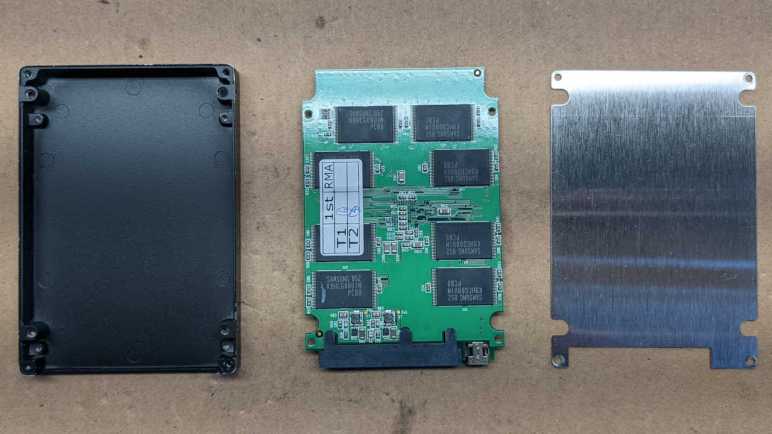
I found I was wrong when I opened up the case, this drive used a very different circuit board layout. This design placed the JMF602 at the center, and I don’t see an obvious debug header. There is still a connector adjacent to the SATA data port and it is populated on this drive: a USB mini-B socket that lets this SSD act as a USB flash drive.

Four more flash chips live on the other side of this board, again in a different layout compared to the Patriot drive. They seem to have the same production information sticker, but that might be some sort of industry standard sticker.

Thanks to the USB port, I could still access this drive even though the SATA port no longer enumerates. It is only an USB 2.0 connection, but I don’t think that is a constraint. Write performance has degraded to an atrocious level on this drive. Here I’m copying a single large ISO file to the drive. 25MB/sec throughput and a response time of nearly 500ms are well below limits of USB2.

Read throughput is only slightly better at nearly 40MB/sec and a 20ms read response time is significantly faster but still not great. Since this drive still works via USB, for now I’ll spare it the hot air treatment I performed to the Patriot. But given this level of performance I’m not sure if I can do anything useful with it.

Patriot WARP V.2 32GB SSD (PE32GS25SSD)

When the cost of flash memory dropped low enough for consumer-level solid state drives to come to market, it was a time when multicore multi-gigahertz processors sit mostly idle waiting for data to be fetched from a spinning platter hard drive. SSDs resolved that performance bottleneck and provided a huge boost to overall system performance. But like all revolutionary technology, early implementations had some serious teething issues. Some problems required operating system support like TRIM to solve, which didn’t show up until later.

In those pre-TRIM days, the most affordable consumer-level SSD were built around a JMF602 controller. It helped make SSD affordable, but without TRIM and related functions, those drives weren’t durable. My first two SSDs used JMF602 and both drives died within two years of use. When I plug them into a computer’s SATA port, they no longer enumerate as devices as if they weren’t plugged in at all.

I forgot I had kept those two drives until I found them in my pile of old computer hardware. I might as well open them up before I dispose of them. I don’t expect to see much: just a circuit board inside a 2.5″ form factor metal case. But I was curious if those two circuit boards would be identical: it is fairly common for multiple manufacturers to use the same reference implementation and sell basically identical devices.

First up is Patriot’s WARP V.2 with a paltry 32GB capacity, model PE32GS25SSD.

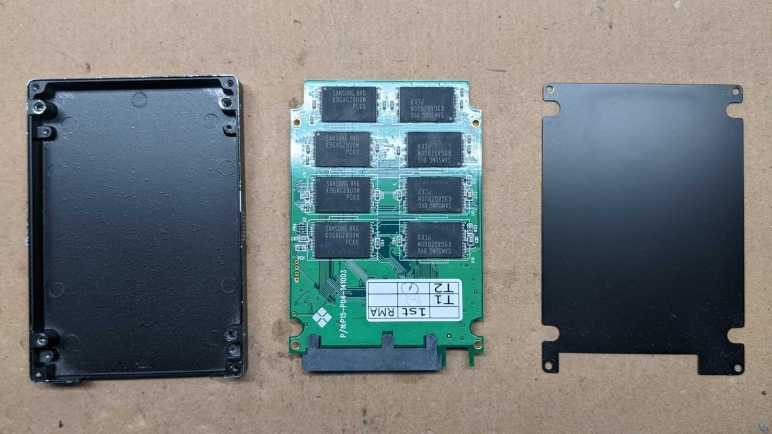
I found the expected single circuit board inside. The infamous JMF602 chip amongst multiple Samsung flash chips. I see a row of four vias on the lower right edge resembling an unpopulated debug header. (Not that I’d know how to debug this thing.) In the lower left, adjacent to the SATA data connector, is an unpopulated connector blocked off by the metal case. We’ll see this again later.

Four more Samsung flash chips reside on the other side of the circuit board.

I now remember why I kept the drive even after it failed: I had personal data on this drive when stopped responding. Even though it doesn’t enumerate as a SATA device for me, I was worried that the data could still be recovered. Perhaps through that debug header, or possibly a SATA diagnostic tool could unlock it.

Making data really difficult to recover is easy with a spinning platter hard drive: I would open it up to expose those shiny platters. Everyday household dust would render those data surfaces unreadable except to maybe the NSA. But at the time I didn’t know how to perform similar data destruction with SSDs. I had contemplated drilling a hole through each flash chip, but now that I have a hot air rework station, I decided to remove all 16 flash chips from the board. If someone wants to steal my data, they’ll have to decipher how my data was spread across these chips and do a lot of soldering. I may still drill a hole through one of those chips just for curiosity, but first I want to compare and contrast this drive with my second SSD based on the same JMF602 controller.

Computer Cooling Fan Tachometer Wire

When I began taking apart a refrigerator fan motor, I expected to see simplest and least expensive construction possible. The reality was surprisingly sophisticated, including a hall effect sensor for feedback on fan speed. Seeing it reminded me of another item on my to-do list: I’ve long been curious about how computer cooling fans report their speed through that third wire. The electrical details haven’t been important to build PCs, all I needed to know was to plug it the right way into a motherboard header. But now I want to know more.

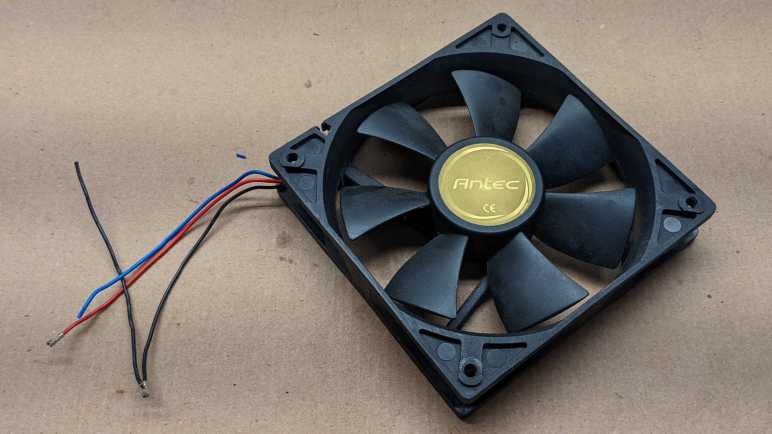
I have a fan I modified for a homemade evaporator cooler project, removing its original motherboard connector so I could power it with a 12V DC power plug. The disassembled connector makes it unlikely to be used in future PC builds and also makes its wires easily accessible for this investigation.

We see an “Antec” sticker on the front, but the actual manufacturer had its own sticker on the back. It is a DF1212025BC-3 motor from the DF1212BC “Top Motor” product line of Dynaeon Industrial Co. Ltd. Nominal operating power draw is 0.38A at 12V DC.

Even though 12V DC was specified, the motor spun up when I connected 5V to the red wire and grounded the black wire. (Drawing only 0.08 A according to my bench power supply.) Probing the blue tachometer wire with a voltmeter didn’t get anything useful. Oscilloscope had nothing interesting to say, either.

To see if it might be an open collector output, I added a 1kΩ pull-up resistor between the blue wire and +5V DC on the red wire.

Aha, there it is. A nice square wave with 50% duty cycle and a period of about 31 milliseconds. If this period corresponds to one revolution of the fan, that works out to 1000/31 ~= 32 revolutions per second or just under 2000 RPM. I had expected only a few hundred RPM, so this is roughly quadruple my expectations. If this signal was generated by a hall sensor, it would be consistent with multiple poles on the permanent magnet rotor.

Increasing the input voltage to 12V sped up the fan as expected, which decreased the period down to about 9ms. (The current consumption went up to 0.22 A, lower than the 0.38 A on the label.) The fan is definitely spinning at some speed far lower than 6667 RPM. I think dividing by four (1666 RPM) is in the right ballpark. I wish I had another way to measure RPM, but regardless of actual speed the key observation today is that the tachometer wire is an open-collector output that generates a 50% duty cycle square wave whose period is a function of the RPM. I don’t know what I will do with this knowledge yet, but at least I now know what happens on that third wire!

[UPDATE: After buying a multichannel oscilloscope, I was able to compare fan tachometer signal versus fan behavior and concluded that a fan tachometer wire signals two cycles for each revolution. Implying this fan was spinning at 3333 RPM which still seems high.]

Analog TV Tuning Effect with ESP_8_BIT_Composite

After addressing my backlog of issues with the ESP_8_BIT_Composite video output library, I felt that I have “eaten my vegetables” and earned some “have a dessert” fun time with my own library. On Twitter I saw that Emily Velasco had taken a programming bug and turned it into a feature, and I wanted to try taking that concept further.

When calling Adafruit GFX library’s drawBitmap() command, we have to pass in a pointer to bytes that make up the bitmap. Since that is only a buffer of raw bytes, we also have to tell drawBitmap() how to interpret those bytes by sending in dimensions for width and height. If we accidentally pass in a wrong width value, the resulting output would be garbled. If I had seen that behavior, I would have thought “Oops, my bad, let me fix the bug” and moved on. But not Emily, instead she saw a fun effect to play with.

This is pretty amazing, using the wrong width value messes up the stride length used to copy image data, and it does vaguely resemble tuning an analog TV when it is just barely out of horizontal sync. Pushing the concept further, she added a vertical scrolling offset to emulate going out of vertical sync.

However, applying the tuning effect to animations required an arduous image conversion workload and complex playback code. I was quite surprised when I learned this, as I had wrongly assumed she used the animated GIF support I had added to my library. In hindsight I should have remembered drawBitmap() was only monochrome and thus incompatible.

Hence this project: combine my animated GIF support with Emily’s analog TV tuning effect in order to avoid tedious image conversion and complex playback.

I started with my animated GIF example, which uses Larry Bank’s AnimatedGIF library to decode directly into ESP_8_BIT_Composite back buffer. For this tuning effect, I needed to decode animation frames into an intermediate buffer, which I could then selectively copy into ESP_8_BIT_Composite back buffer with the appropriate horizontal & vertical offsets to simulate tuning effect. Since I am bypassing drawBitmap() to copy memory myself, I switched from the Adafruit GFX API to the lower-level raw byte buffer API exposed by my library.

For my library I allocated the frame buffer in 15 separate 4KB allocations, which was a tradeoff between “ability to fit in fragmented memory spaces” and “memory allocation overhead”. Dividing up buffer memory was possible because rendering is done line by line and it didn’t matter if one line was contiguous with the next in memory or not. However, this tuning effect will be copying data across line boundaries, so I had to allocate the intermediate buffer as one single block of memory.

My original example also asked the AnimatedGIF library to handle the wait time in between animation frames. However, since that delay could vary in an animation, and I have a user-interactive component. In order to remain responsive to knob movement faster than animation frame rate, I took over frame timing in a non-blocking fashion. Now every run of loop() reads the potentiometer knob position and update horizontal/vertical offsets without having to wait for the next frame of the animation, resulting in more immediate feedback to the user.


Animated GIF Tuner Effect with Cat and Galactic Squid is publicly available on GitHub.

ESP_8_BIT_Composite Version 1.3.1

Over a year ago I released my first Arduino library, not knowing if anyone would care. The good news is that they do: people have been using ESP_8_BIT_Composite to drive composite video devices. The bad news is that they have been filing issues for me to fix. This backlog has piled up over several months and long overdue for me to go in and get things fixed up.


Two of the issues were merely compiler warnings, but I should still address them to minimize noise. What was weird to me that I didn’t see either of those warnings myself in the Arduino IDE. I had to switch over to using PlatformIO under Visual Studio Code, where I learned I could edit my platformio.ini file to add build_flags = […] to enable warnings of my choosing. Issue #24 was a printf() formatting issue that I couldn’t see until I added -Wformat, and issue #35 was invisible to me until I added -Wreturn-type.

Since I was on the subject anyway, I executed a build with all warnings turned on. (-Wall) This gave me far too many warnings to review. Not only did this slow down compilation to a snail’s pace, most of the hits were outside my code. Of items in my code, some appear to be overzealous rules giving me false positives. But I did see a few valid complaints of unused variables (-Wunused-variable) and I removed them.


Issue #27 took a bit more work, mostly because I started out “knowing” things that were later proven to be wrong. I had added support for setRotation() and I tested it with some text drawn via the AdafruitGFX library. (This test code became my example project GFX_RotatedText) I didn’t explicitly test drawing rectangles because when I reviewed code for Adafruit_GFX::drawChar() I saw that they use writePixel() for text size 1 and fillRect() for text sizes greater than one. So when my rotated text sample code worked correctly, I inferred that meant fillRect() was correct as well.

That was wrong, and because I didn’t know it was wrong, I kept looking in wrong places. Not realizing that my coordinate transform math for fillRect() (and drawRect()) were fundamentally broken. These APIs passed in X/Y coordinates for the rectangle’s upper-left corner, and my mistake was forgetting that drawing commands are always in the original non-rotated orientation. When the rectangles are rotated, their upper-left corner is no longer the upper-left for the actual low-level drawing operations.

My incorrect foundation blinded me to the real problem, even though I saw failures across multiple test programs. Test programs evolved until one drew four rectangles every frame, one in each supported orientation, and cycle through modifying one of four parameters in a one-second-long animation. Only then could I see a pattern in the error and realize my mistake. This test code became my new example project GFX_RotatedRect.


Finally, I had no luck with issue #23. I was not able to reproduce the compilation error myself and therefore I could not diagnose it. I reluctantly closed it out as “unable to reproduce” before tagging version 1.3.2 for release.

Install Other OS on Toshiba Chromebook 2 (CB35-B3340)

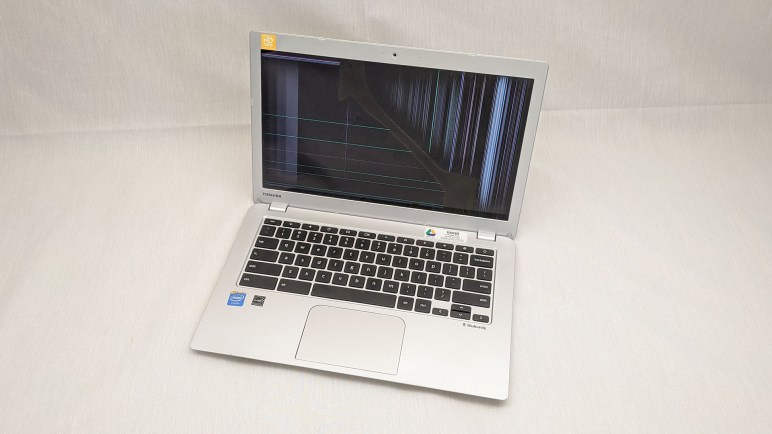
When I received a broken Chromebook to play with, I had assumed it was long out of support and my thoughts went to how I might install some operating system other than ChromeOS on it. Then I found that it actually still had some supported lifespan left so I decided to keep it as a Chromebook for occasional use. That supported life ended in September 2021, now it very bluntly tells me to buy a newer model: there will be no more Chrome OS after 92.

Time again to revisit the “install other OS” issue, starting with the very popular reference Mr. Chromebox. Where I learned newer (~2015 and later) Chromebooks are very difficult to get working with other operating systems. I guess this 2014 vintage Chromebook is accidentally close to optimal for this project. Following instructions, I determined this machine has the codename identifier “Swanky” and I have the option to replace default firmware with an implementation of UEFI, in theory allowing me to install any operating system that runs on this x86-64 chip and can boot off UEFI. But first, I had to figure out how to deactivate a physical write protect switch on this machine.

The line “Fw WP: Enabled” is what I need to change to proceed. Documentation on Mr. Chromebox site said I should look for a screw that grounds a special trace on the circuit board. Severing that connection would disable write protect. I found this guide on iFixit, but it is for a slightly different model of Toshiba Chromebook with different hardware. That is a CB35-C3300 and I have a CB35-B3340. The most visible difference is that CPU has active cooling with a heat pipe and fan, but the machine in front of me is passively cooled.

So I will need to find the switch on my own. Starting with looking up my old notes on how to open up this machine and get back to the point where I could see the metal shield protecting the mainboard.

With the bottom cover removed, I have a candidate front and center.

This screw has a two-part pad that could be grounding a trace, though there is an unpopulated provision for a component connected to that pad. This may or may not be the one. I’ll keep looking for other candidates under the metal shield.

A second candidate was visible once the metal shield was removed. And this one has a little resistor soldered to half of the pad.

I decided to try this one first.

I took a thin sheet of plastic (some random product packaging) and cut out a piece that would sit between the split pad and the metal shield with screw.

That was the correct choice, as firmware write-protection is now disabled. I suspect candidate #1 could be used for chassis intrusion protection (a.k.a. “has the lid been removed”) but at this point I have neither the knowledge or the motivation to investigate. I have what I want, the ability to install UEFI (Full ROM) Firmware.

What happens now? I contemplated the following options:

  1. Install Gallium OS. This is a Linux distribution based on Ubuntu and optimized for running on a Chromebook.
  2. I could go straight to the source and install Ubuntu directly. Supposedly system responsiveness and battery life won’t be as good, and I might have more hardware issues to deal with, but I’ll be on the latest LTS.
  3. Or I can stay with the world of Chrome and install a Chromium OS distribution like Neverware CloudReady.

Looking at Gallium, I see it purports to add hardware driver support missing from mainline Ubuntu and stripping things down to better suit a Chromebook’s (usually limited) hardware. There were some complaints that some of Ubuntu’s user-friendliness was trimmed along with the fat, but the bigger concern is that Gallium OS is based on Ubuntu 18 LTS and has yet to update to Ubuntu 20 LTS. This is very concerning as Ubuntu 22 LTS is expected to arrive soon. [UPDATE: Ubuntu 22 LTS “Jammy Jellyfish” has been officially released.] Has the Gallium project been abandoned? I decided to skip Gallium for now, maybe later I’ll decide it’s worth a try.

I already had an installation USB drive for Ubuntu 20.04 LTS, so I tried installing that. After about fifteen minutes of playing around I found a major annoyance: keyboard support. A Chromebook has a different keyboard layout than standard PC laptops. The Chromebook keys across the top of the keyboard mostly worked fine as function keys, but there are only ten keys between “Escape” and “Power” so I didn’t have F11 or F12. There is no “Fn” key for me to activate their non-F-key functions, such as adjusting screen brightness from the keyboard. Perhaps in time I could learn to navigate Ubuntu with a Chromebook keyboard, but I’ve already learned that I have muscle memory around these keys that I didn’t know I had until this moment. It was also missing support for this machine’s audio device, though that could be worked around with an external USB audio device like my Logitech H390 headset. (*) It is also possible to fix the audio issue within Ubuntu, work that Gallium OS supposedly has already done, but instead of putting in the work to figure it out I decided on the third option.

It’s nice to have access to the entire Ubuntu ecosystem and not restricted to the sandbox of a Chrome OS device, but I already have Ubuntu laptops for that. This machine was built to be a small light Chromebook and maybe it’s best to keep it in that world. I created an installation USB drive for Neverware CloudReady and returned this machine to the world of Chrome OS. Unlike Ubuntu, the keyboard works in the Chrome OS way. But like Ubuntu, there’s no sound. Darn. Oh well, I usually use my H390 headset when I wanted sound anyway, so that is no great hardship. And more importantly, it puts me back on the train of Chromium OS updates. Now it has Chromium OS 96, and there should be more to come. Not bad for a Chromebook that spent several years dumped in a cabinet because of a broken screen.


(*) Disclosure: As an Amazon Associate I earn from qualifying purchases.
Window Shopping LovyanGFX

One part of having an open-source project is that anyone can offer their contribution for others to use in the future. Most of them were help that I was grateful to accept, such as people filling gaps in my Sawppy documentation. But occasionally, a proposed contribution unexpectedly pops out of left field and I needed to do some homework before I could even understand what’s going on. This was the case for pull request #30 on my ESP_8_BIT_composite Arduino library for generating color composite video signals from an ESP32. The author “riraosan” says it merged LovyanGFX and my library, to which I thought “Uh… what’s that?”

A web search found https://github.com/lovyan03/LovyanGFX which is a graphics library for embedded controllers, including ESP32. But also many others that ESP_8_BIT_composite does not support. While the API mimics AdafruitGFX, this library adds features like sprite support and palette manipulation. It looks like a pretty nifty library! Based on the README of that repository, the author’s primary language is Japanese and they are a big fan of M5Stack modules. So in addition to the software technical merits, LovyanGFX has extra appeal to native Japanese speakers who are playing with M5Stack modules. Roughly two dozen display modules were listed, but I don’t think I have any of them on hand to play with LovyanGFX myself.

Given this information and riraosan’s Instagram post, I guess the goal was to add ESP_8_BIT composite video signal generation as another supported output display for LovyanGFX. So I started digging into how the library was architected to enable support for different displays. I found that each supported display unit has corresponding files in the src/lgfx/v1/panel subdirectory. Each of which has a class that derives from the Panel_Device base class, which implements the IPanel interface. So if we want to add a composite video output capability to this library, that’s the code I expected to see. With this newfound knowledge, I returned to my pull request to see how it was handled. I saw nothing of what I expected. No IPanel implementation, no Panel_Device derived class. That work is in the contributor’s fork of LovyanGFX. The pull request for me has merely the minimal changes needed to ESP_8_BIT_composite to be used in that fork.

Since those changes are for a specialized usage independent of the main intention of my library, I’m not inclined to incorporate such changes. I suggested to riraosan that they fork the code and create a new LovyanGFX-focused library (removing AdafruitGFX support components) and it appears that will be the direction going forward. Whatever else happens, I now know about LovyanGFX and that knowledge would not have happened without a helpful contributor. I am thankful for that!

Power Control Board for TrueNAS Replication Raspberry Pi

Encouraged by (mostly) success of controlling my Pixel 3a phone’s charging, the next project is to control power for a Raspberry Pi dedicated to data backup for my TrueNAS CORE storage array. (It is a remote target for replication, in TrueNAS parlance.) There were a few reasons for dedicating a Raspberry PI for the task. The first (and somewhat embarrassing) reason was that I couldn’t figure out how to set up a remote replication target using a non-root account. With full root level access wide open, I wasn’t terribly comfortable using that Pi for anything else. The second reason was that I couldn’t figure out how to have a replication target wake up for the replication process and go to sleep after it was done. So in order to keep this process autonomous, I had to leave the replication target running around the clock, and a dedicated Raspberry Pi consumes far less power than a dedicated PC.

Now I want to take a step towards power autonomy and do the easy part first. I have my TrueNAS replications kick off in response to snapshots taken, and by default that takes place daily at midnight. The first and easiest step was then to turn on my Raspberry Pi a few minutes before midnight so it is booted up and ready to receive replication snapshot shortly after midnight. For the moment, I would still have to shut it down manually sometime after replication completes, but I’ll tackle that challenge later.

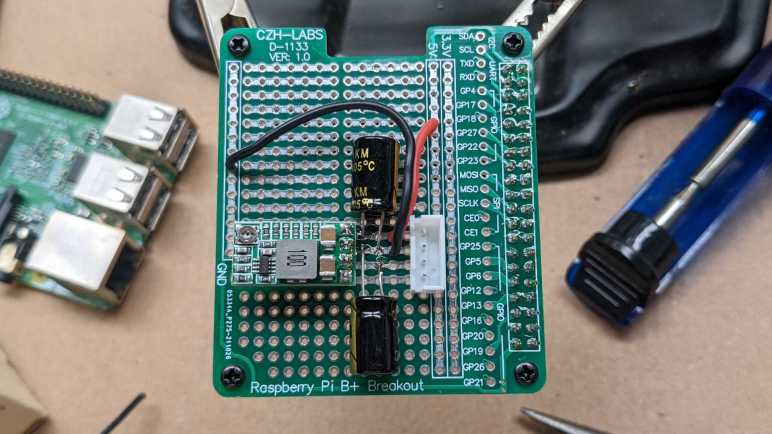
From an electrical design perspective, this was no different from the Pixel 3a project. I plan to dedicate another buck converter for this task and connect enable pin (via a cable and a 1k resistor) to another GPIO pin on my existing ESP32. This would have been easy enough to implement with a generic perforated prototype circuit board, but I took it as an opportunity to play with a prototype board tailored for Raspberry Pi projects. Aside from the form factor and pre-wired connections to Raspberry Pi GPIO, these prototype kits also usually come with appropriate pin header and standoff hardware for mounting on a Pi. Looking over the various offers, I chose this particular four-pack of blank boards. (*)

Somewhat surprisingly for cheap electronics supply vendors on Amazon, this board is not a direct copy of an existing Adafruit item. Relative to the Adafruit offering, this design is missing the EEPROM provision which I did not need for my project. Roughly two-thirds of the prototype area has pins connected as they are on a breadboard, and the remaining one-third are individual pins with no connection. In comparison the Adafruit board is breadboard-like throughout.

My concern with this design is in its connection to ground. It connects only a single pin, designated #39 in most Pi GPIO diagrams and lower-left in my picture. The many remaining GND pins: 6,9,14,20,25,30, and 34 appear to be unconnected. I’m not sure if I should be worried about this for digital signal integrity or other reasons, but at least it seems to work well enough for today’s simple power supply project. If I encounter problems down the line, I can always solder more grounding wires to see if that’s the cause.

I added a buck converter and a pair of 220uF capacitors: one across input and one across output. Then a JST-XH board-to-wire connector to link back to my ESP32 control board. I needed three wires: +Vin, GND and enable. But I used a four-pin connector just in case I want to surface +5Vout in the future. (Plus, I had more four-pin connectors remaining in my JST-XH assortment pack than three-pin connectors. *)

I thought about mounting the buck converter and capacitors on the underside of this board. There’s enough physical space between the board and the Raspberry Pi to fit them. I decided against it on concern of heat dissipation, and I was glad I did. After this board was installed on top of the Pi, the CPU temperature during replication rose from 65C to 75C presumably due to reduced airflow. If I had mounted components underneath, that probably would have been even worse. Perhaps even high enough to trigger throttling.

I plan to have my ESP32 control board run around the clock, so this particular node doesn’t have the GPIO deep sleep state problem of my earlier project with ESP8266. However, I am still concerned about making sure power stays on, and the potential problems of ensuring so.


(*) Disclosure: As an Amazon Associate I earn from qualifying purchases.

ESP8266 MicroPython Exception Handling Helps Robustness

I had to solve a few problems encountered publishing data to MQTT using ESP8266 MicroPython, running into MQTTException raised by the library. On the upside, dealing with MQTTException reminded me that I don’t usually have the luxury of exception handling on microcontrollers.

Exception handling in Python is my favorite part so far of using MicroPython on a microcontroller. I’m no stranger to calling APIs and checking error codes in typical C programming style and I can certainly work in that environment, but I do enjoy using a language like Python with exception handling mechanisms because it allows me to structure code in a way I find much more readable. This is important, especially for small projects where I don’t expect to look at the code on a regular basis. By the time I need to come back and modify the code months or years later, I’m looking at it with essentially fresh eyes. Comments are critical, but a good structure is very helpful too!

If I don’t have any exception handlers, an error would stop execution of my program and break into REPL awaiting diagnosis and repair. This is great while I’m developing the code, but I won’t want that later. During runtime I expect errors to be one of three types:

  1. Failing to connect to WiFi. This could happen if my WiFi router is in the middle of a firmware update, and for such harmless scenarios the best thing is to go to sleep and try again later.
  2. Failing to connect to MQTT broker. This could happen if I took down my Mosquitto docker container, again probably for an update.
  3. Failure to publish ADC data. This could happen if the WiFi router or Mosquitto went down in between connection and data publishing.

For all of these cases, the best thing to do is to try again later. Which for this project is actually the exact same thing I want to do even when everything is successful: go to sleep for a minute and repeat everything upon wake.

My first implementation caught all exceptions and proceeded to deep sleep for retry in one minute, but this is a problem: if I encounter a problem outside of the expected errors, or if I want to break into REPL for any other reason like updating the program with a new feature, I have only a very narrow window of time to do so. In fact, it was too fast for me to catch it awake!

So I actually want to do something different in case of error: keep the ESP8266 awake for 30 seconds or so. Long enough for me to connect a serial terminal and hit Control-C to break into REPL. I could trigger this path by taking down my Mosquitto docker container causing scenario #2 above.

This is an improvement over my first implementation, but I couldn’t upload my improved code. The ESP8266 wakes up, try to report ADC, and immediately go to deep sleep no matter what happens. After some time tearing my hair out trying to break into this narrow time window, I resorted to reflashing the ESP8266 with fresh MicroPython. Now I could actually get into REPL and upload the new code. It’s a good thing I keep these little code projects publicly accessible on GitHub where I could get a copy for my own use if I had to erase it.

I really like what I’ve seen of MicroPython so far, and it’ll definitely be a consideration for future projects. But for this project I’m changing course for no fault of MicroPython.

Second ESP8266 Voltage Monitor is Directly Wired to Buck Converter

Once I got my MicroPython ESP8266 connected to my home network, I expect to continue working with it over the network instead of an USB cable. Which meant it was time for me to take this development board and wire it to a DC voltage buck converter as I did earlier. However, this time I’m going to skip on the perforated prototype circuit board and going for direct wiring. (Sometimes called deadbug style due to folded pins and wires.)

But without the prototype board, I have to handle my own spacing. I cut up an expired credit card and placed the sheet of plastic in between Wemos D1 Mini clone (*) and its MP1584EN DC buck converter (*). Wires looped around the outside of this sheet to carry power lines 3.3V and GND, as well as the pair of 1 Megaohm resistors in series to ADC input pin for measuring voltage.

And relative to the previous iteration, I added one more wire: connecting ESP8266 GPIO16 (labeled D0 on a Wemos D1 Mini board) to the reset (RST) pin. This is required for an ESP8266 to wake from deep sleep, and this requirement is the very first sentence on MicroPython section for ESP8266 deep sleep. I’m going to guess that it is front and center because enough people forgot to do this critical step and their ESP8266 wouldn’t wake from sleep.

Once this package was tested to function over MicroPython WebREPL, I wrapped the whole thing up in clear heat shrink tube(*) (not pictured in title image) for a nice compact package. I could now query ADC value representing input voltage over WebREPL, but that’s not useful until I could report that value via MQTT.


(*) Disclosure: As an Amazon Associate I earn from qualifying purchases.

ESP8266 MicroPython Automatically Remembers WiFi

There were a few speed bumps on my way to a MicroPython interactive prompt, also known as REPL the read, evaluate, print loop. But once I got there, I was pretty impressed. It was much friendlier to iterative experimentation than Arduino on an ESP8266, because I don’t have to reflash and reboot every time. And since the ESP8266 has WiFi capabilities, getting REPL over the network (WebREPL) is even cooler. Now I can experiment while it runs on another power source, completely independent of USB for either power of data.

Before I got there, though, I needed to get this ESP8266 on my home WiFi network. By default, MicroPython sets up an access point for its own network so I need to turn “AP mode” off. Then I turn on “station mode” which allows connection to my WiFi router given its SSID and password.

import network

ap = network.WLAN(network.AP_IF)
ap.active(False)

sta = network.WLAN(network.STA_IF)
sta.active(True)
sta.config(dhcp_hostname='my hostname')
sta.connect('my wifi ssid','my wifi password')

I added one optional element: the dhcp_hostname parameter. This is the name shown to my router and probably other devices on my home network. If I don’t set this, the default name is “ESP-” followed by six hexadecimal digits of the ESP8266’s MAC address. That’s not a particularly memorable name so I wanted something I could remember and recognize.

And then, to my surprise, MicroPython remembered the network settings upon restart. I wrote a piece of Python code to perform this routine that I could run whenever I rebooted the board. But when I set out to test it by rebooting the board, it automatically reconnected to WiFi. This tells me a successful WiFi connection would cause a write to flash memory, which implies I should not run my WiFi connection code upon every startup. I expect to make this board go to deep sleep frequently and, if it writes WiFi information to flash every time it wakes up, I will quickly wear out the flash.

But that is just a hypothesis. As MicroPython is an open source project, it should be possible for me to dig into the code and figure out exactly when MicroPython writes WiFi connection information to flash. Perhaps it isn’t as bad as I feared it would be. Until then, however, I will hold off running my WiFi connection script.

A downside of not running my script is the DHCP hostname, which is not remembered upon reboot and this board reverted back to the default ESP-prefix name. But I can live with that for now, the next step is to set up my hardware for playing with deep sleep under battery power.

A Few Speed Bumps on the Road to ESP8266 MicroPython

I decided to play with MicroPython on an ESP8266 and started with MicroPython documentation page appropriately titled Quick reference for the ESP8266. It was almost (but not entirely) smooth sailing with the inexpensive Wemos D1 Mini clone(*) I had on hand.

I had recently switched desktop computers, with a fresh installation of Windows, so everything had to be reinstalled. Starting with Python, since I need that to run esptool tool to flash Espressif devices. It got its own virtual Python environment with venv and I could start working with the ESP8266.

I verified that flash size matched 4MB as per Amazon product listing with esptool.py --port COM4 flash_id

Then the first step in MicroPython directions: erase whatever might be in flash: esptool.py --port COM4 erase_flash

Followed by flashing the board with MicroPython, version 1.17 was the latest as of this writing: esptool.py --port COM4 --baud 460800 write_flash --flash_size=detect 0 esp8266-20210902-v1.17.bin

esptool.py v3.1
Serial port COM4
Connecting....
Detecting chip type... ESP8266
Chip is ESP8266EX
Features: WiFi
Crystal is 26MHz
Uploading stub...
Running stub...
Stub running...
Changing baud rate to 460800
Changed.
Configuring flash size...
Auto-detected Flash size: 4MB
Flash will be erased from 0x00000000 to 0x0009afff...
Flash params set to 0x0040
Compressed 633688 bytes to 416262...
Wrote 633688 bytes (416262 compressed) at 0x00000000 in 9.4 seconds (effective 537.1 kbit/s)...
Hash of data verified.

Leaving...
Hard resetting via RTS pin...

That looked good! But I thought I’d verify anyway: esptool.py --port COM4 --baud 460800 verify_flash --flash_size=detect 0 esp8266-20210902-v1.17.bin

esptool.py v3.1
Serial port COM4
Connecting....
Detecting chip type... ESP8266
Chip is ESP8266EX
Features: WiFi
Crystal is 26MHz
Uploading stub...
Running stub...
Stub running...
Changing baud rate to 460800
Changed.
Configuring flash size...
Auto-detected Flash size: 4MB
Flash params set to 0x0040
Verifying 0x9ab58 (633688) bytes @ 0x00000000 in flash against esp8266-20210902-v1.17.bin...
-- verify OK (digest matched)
Hard resetting via RTS pin...

This all looked good, but during this process I found communication with my board was unreliable. Occasionally I would fail to connect:

esptool.py v3.1
Serial port COM4
Connecting........_____....._____....._____....._____....._____....._____....._____

A fatal error occurred: Failed to connect to Espressif device: Invalid head of packet (0x08)

The frustrating part is that I don’t know what causes this, all I could do is retry until it worked. I didn’t notice anything I did differently between the times that worked and the times that failed. Is it the ESP8266? Is it the CH340 serial port bridge? Is it my USB cable? I can’t tell. The good news with MicroPython is that, once it is flashed, I could work via serial port without further headaches with esptool.

I remembered that PlatformIO Visual Studio Code had a serial port monitor, and it was indeed able to connect. But as the name stated, it was only a monitor and while I could see a MicroPython prompt I couldn’t type any commands back. Looking around Visual Studio extension marketplace I found a serial terminal extension published by Nordic Semiconductor. This allowed me to type commands into the MicroPython prompt and verify it worked, but frustratingly I could not copy/paste in this terminal. So much for a modern integrated environment! I returned to trusty old PuTTY for my MicroPython serial terminal needs and got to work.


(*) Disclosure: As an Amazon Associate I earn from qualifying purchases.

Problems Making ESP32 Hold GPIO While Asleep

I had several motivations for using an ESP32 for my next exercise. In addition to those outlined earlier, I also wanted to explore using these microcontrollers to control things. Not just report a measurement. In other words, I wanted to see if they can be output nodes as well as data input nodes. This should be a straightforward use of GPIO pins, except for another twist: I also want the ESP32 to be asleep most of the time to save power.

The ESP32 has several sleep modes available, and I decided to go straight for the most power-saving deep sleep as my first experiment. It was straightforward to call esp_deep_sleep() at the end of my program, and this was the easiest sleep mode because I don’t have to do much configuration or handling different cases of things that might happen during sleep. When an ESP32 wakes up from deep sleep, my program starts from the beginning as if it had just been powered up. This gives me a clean slate. I don’t have to worry about testing to see if a connection is still good and maybe reconnecting if not: I always have to start from scratch.

So what are the states of GPIO pins while an ESP32 is asleep? Reading the documentation, I thought I could command digital output pins to be held either high or low while the ESP32 was in deep sleep. However, my program calling gpio_deep_sleep_hold_en() didn’t actually hold output state like I thought it would. I think my program is missing a critical step somewhere along the line.

Some research later, I haven’t figured out what I am missing, but I have learned I’m not alone in getting confused. I found ESP-IDF issue #3370, which was resolved as a duplicate of ESP32 Arduino Core issue #2712. Even though it was marked as resolved, it is still getting traffic from people confused about why GPIO states aren’t held during sleep.

As a workaround, I can use an IO expander chip like the PCF8574. Letting that hold output pin state high or low while the ESP32 is asleep. As a relatively simple chip, I expect the PCF8574 wouldn’t use a lot of power to do what it does. But it would still be an extra chip adding extra power draw. I intend to figure out ESP32 sleep mode GPIO at some point, but for now the project is both moving on. Well, at least in software, the hardware side is taking a step back to ESP8266.


[Source code for this project (flaws and all) is publicly available on GitHub]

Switching to ESP32 For Next Exercise

After deciding to move data processing off of the microcontroller, it would make sense to repeat my exercise with an even cheaper microcontroller. But there aren’t a lot of WiFi-capable microcontrollers cheaper than an ESP8266. So I looked at the associated decision to communicate via MQTT instead, because removing requirement for an InfluxDB client library meant opening up potential for other development platforms.

I thought it’d be interesting to step up to ESP8266’s big brother, the ESP32. I could still develop with the Arduino platform with an ESP32 but for the sake of practice I’m switching to Espressif’s ESP-IDF platform. There isn’t an InfluxDB client library for ESP-IDF, but it does have a MQTT library.

ESP32 has more than one ADC channel, and they are more flexible than the single channel on board the ESP8266. However, that is not a motivate at the moment as I don’t have an immediate use for that advantage. I thought it might be interesting to measure current as well as voltage. Unfortunately given how noisy my amateur circuits have proven to be, I doubt I could build a circuit that can pick up the tiny voltage drop across a shunt resistor. Best to delegate that to a dedicated module designed by people who know what they are doing.

One reason I wanted to use an ESP32 is actually the development board. My Wemos D1 Mini clone board used a voltage regulator I could not identify, so I powered it with a separate MP1584EN buck converter module. In contrast, the ESP32 board I have on hand has a regulator clearly marked as an AMS1117. The datasheet for AMS1117 indicated a maximum input voltage of 15V. Since I’m powering my voltage monitor with a lead-acid battery array that has a maximum voltage of 14.4V, in theory I could connect it directly to the voltage input pin on this module.

In practice, connecting ~13V to this dev board gave me an audible pop, a visible spark, and a little cloud of smoke. Uh-oh. I disconnected power and took a closer look. The regulator now has a small crack in its case, surrounded by shiny plastic that had briefly turned liquid and re-solidified. I guess this particular regulator is not genuine AMS1117. It probably works fine converting 5V to 3.3V, but it definitely did not handle a maximum of 15V like real AMS1117 chips are expected to do.

Fortunately, ESP32 development boards are cheap, counterfeit regulators and all. So I chalked this up to lesson learned and pulled another board out of my stockpile. This time voltage regulation is handled by an external MP1584EN buck converter. I still want to play with an ESP32 for its digital output pins.