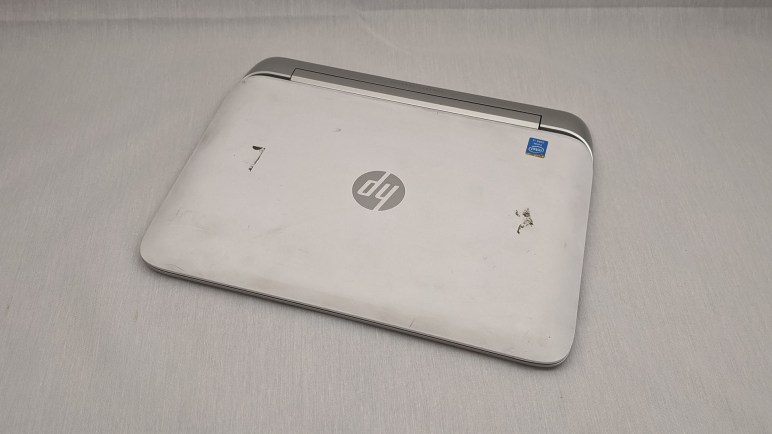
HP Mini (110-1134CL): SSD Upgrade

Installing Ubuntu Desktop 16.04 LTS on this ~10 year old netbook resulted in a very sluggish computing experience. Since it was not a speed demon even when new ten years ago, I doubt its performance was only held back by its old school spinner platter hard drive. As a quick experiment, I’ll perform a SSD upgrade and see how much of an performance improvement it would result.

Opening the door at the bottom revealed a memory module as expected. It appears to be a DDR2 memory module with a capacity of 1 GB. Unfortunately I don’t have any DDR2 laptop memory modules to attempt a memory upgrade, so I left it alone and continued trying to open the laptop.
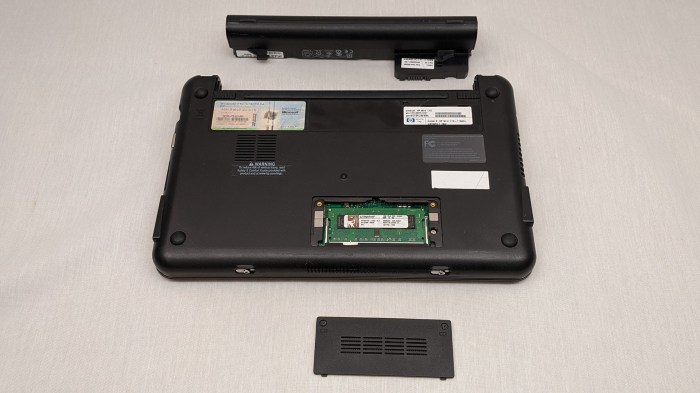
HP Mini 110-1134CL remove easy stuff

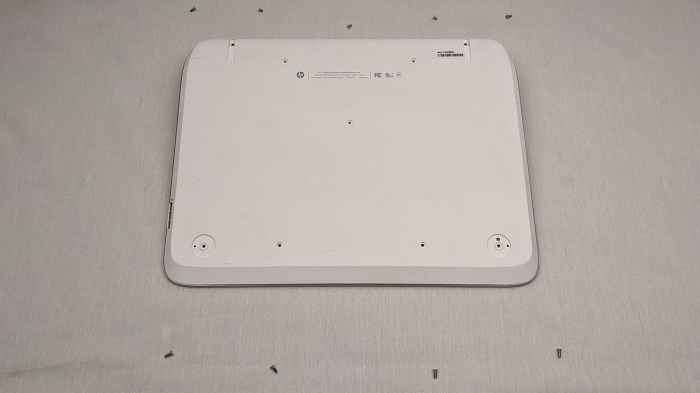
There are clips around the perimeter. Trying to open them up, I find resistance at the corners due to screws hidden underneath each rubber feet.
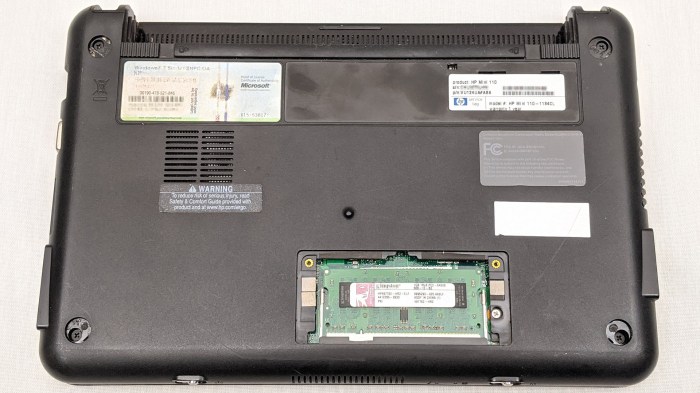
HP Mini 110-1134CL screws hiding under feet

Removing them did not help release the top and bottom halves of the machine, so there are even more fasteners I have yet to see. Looking for what I might have missed, I found three screws with a keyboard icon inside the battery compartment.
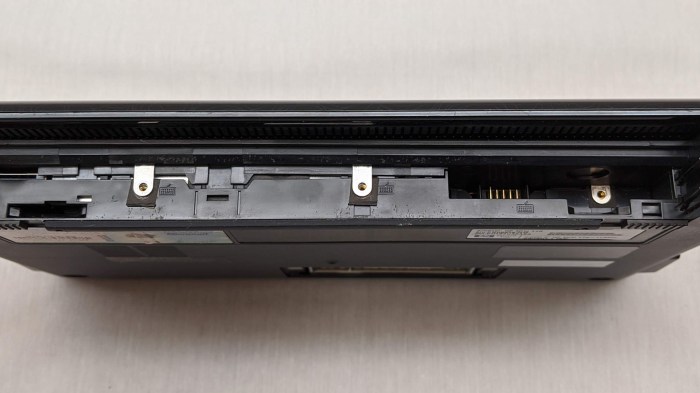
HP Mini 110-1134CL keyboard retention screws

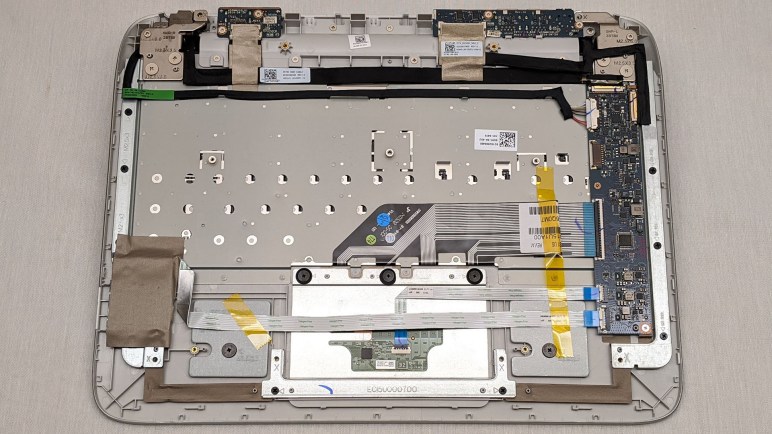
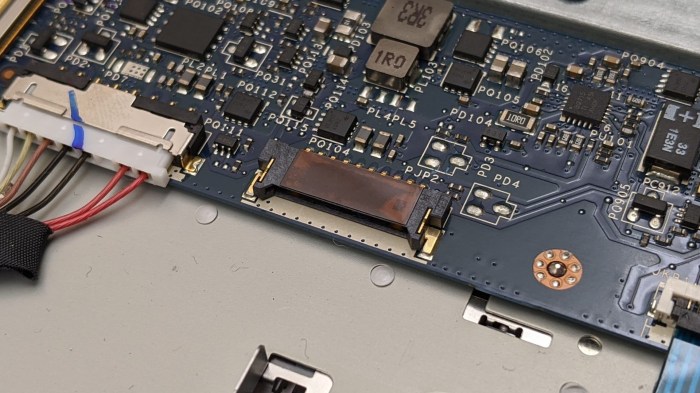
Removing those screws allowed the keyboard to be popped open, exposing the hard drive plus additional fasteners holding the laptop together. The focus at the moment is the SSD upgrade, so I’ll hold off on further disassembly for now.
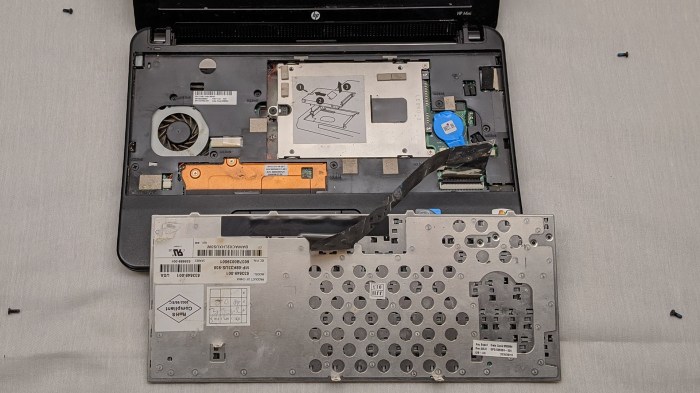
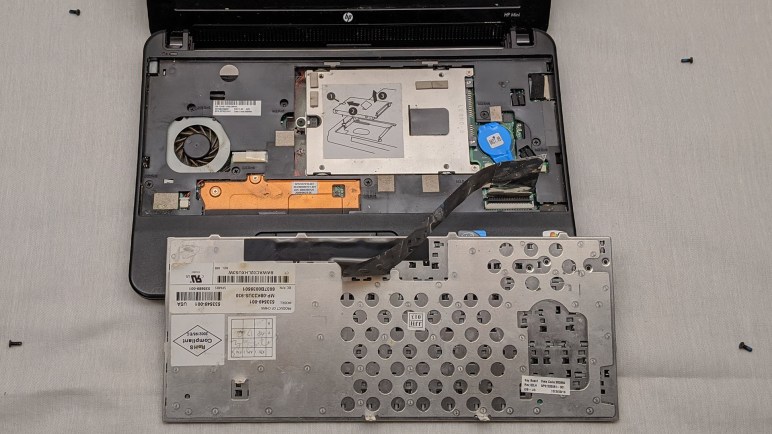
HP Mini 110-1134CL keyboard removed

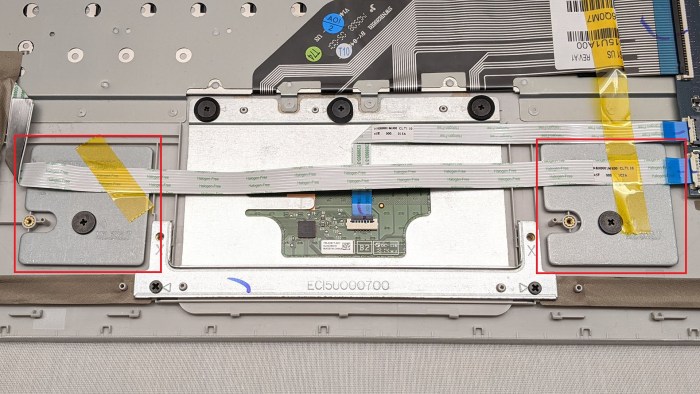
The bright piece of metal had the right shape and size for a hard drive cage, and it was also conveniently labeled with an instructional diagram. I thought that was great — it’s going to be as easy as 1, 2, 3! Except it wasn’t. For reasons I don’t understand, they neglected to mention two more screws that had to be removed before I could proceed with steps 2 and 3.

HP Mini 110-1134CL hard drive removal

Once removed, the stock hard drive was held to this cage with four standard mounting screws. From there it was straightforward to install a 2.5″ SATA SSD for further adventures in netbook computing.
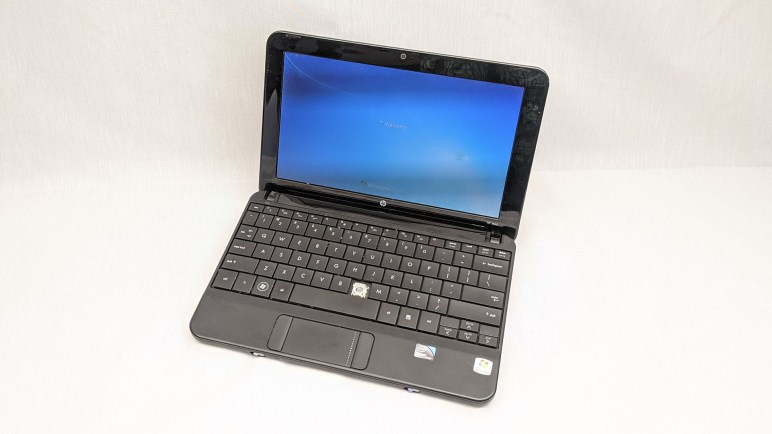
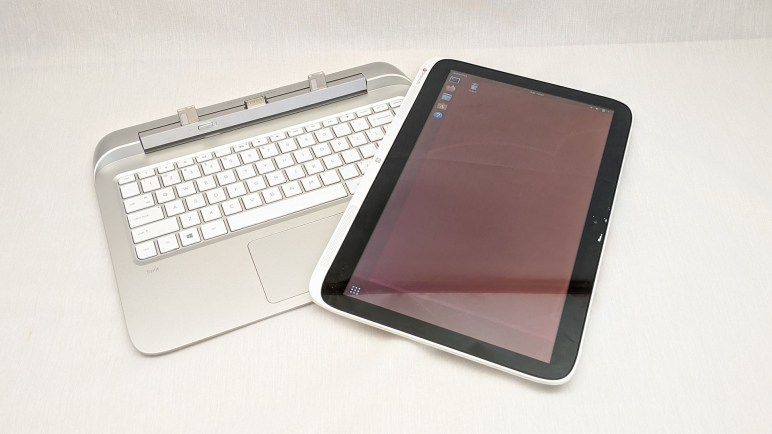
HP Mini (110-1134CL): Slow At Ubuntu 16 Desktop

A quick hardware orientation tour of this retired netbook found that we should be able to run ROS Kinetic Kame on this computer. Getting a simple ROS Kinetic environment running would be a baseline test to see how it might perform as a robot brain. And for that, we’ll have to erase the Windows 7 Starter Edition on this hard drive with Ubuntu 16.04 “Xenial Xerus”.

A sticker at the bottom of the machine identified the default operating system as Windows 7 Starter Edition. Since this machine predated Windows 8 mechanism for embedded licenses, we know this hardware would not have an embedded license for Windows and erasing this drive would mean the loss of a Windows license. I decided a Starter Edition license was no great loss and proceeded to install Ubuntu Desktop 16.04 LTS, i386 (32-bit CPU) edition.

Installation was successful on this netbook, but it was annoyingly slow to use. Every action required a few seconds, starting from activating the logon screen to every single interaction after that. I don’t know if running Windows 7 Starter Edition was any more responsive on this computer, but I wouldn’t have wanted to run an end-of-life OS even if it was faster.

What was the bottleneck here? Was it the CPU? Was it the RAM? Was it the hard drive? Or perhaps a combination of the above, like a lack of RAM triggering virtual memory activity that is hampered by a slow hard drive? For diagnosis I appreciated the fact this little netbook had a hard drive activity light, a feature that has been dropped from most modern machine. Judging by the lack of activity on that light, I suspect the problem is a slow CPU and upgrading the drive to a SSD would have limited benefit.

Even with this pessimistic view, I wanted to give it a try. I had a spare SATA SSD already on hand so it shouldn’t take a lot of time to test.

HP Mini (110-1134CL): Hardware Specifications

After a quick check to make sure this machine comes to life after charging, I started researching its hardware specifications. A sticker below the machine identified itself as a HP Mini 110-1134CL.

Based on reviews online for the HP Mini 110 product line, this is roughly ten years old powered by an Atom N270 processor. This is a big strike against using this computer as a robot brain running ROS, as the N270 is limited to 32-bit software. The latest longer-term support distribution of ROS “Melodic Morenia” only officially supports 64-bit Intel/AMD chips. If this machine is to run ROS, it would be limited to the previous LTS of ROS “Kinetic Kame” which is not ideal, but at least it will be supported until April 2021.

According to BIOS readout, there is 1GB of RAM installed on this computer. An access door with a memory module icon is visible on the underside of the machine, so a RAM upgrade is probably possible. But I don’t have any old memory modules on hand and I’m not inclined to spend money upgrading a ten year old computer. A single gigabyte is expected to be very limiting, but it is possible to get a very basic ROS installation running on a Raspberry Pi 3, which also only has 1GB. It might get annoying but is probably not going to be a deal breaker.

The BIOS hardware list also describes the hard drive as an old school spinning platter type, which was as expected. Thankfully the Fujitsu MJA2160BH G2. A 2.5″ 160GB 5400 RPM is at least a standard SATA drive and not the compact variant that stumped me earlier. This means I have the option to try upgrading it with one of the SATA SSD drive I already have on hand.

Now that I’m oriented, it’s time to take on the first experiment: see if it can run Ubuntu 16, the basis for ROS Kinetic Kame.

HP Mini (110-1134CL): Relic of the Netbook Era

After I had completed my first pass at the Toshiba Chromebook 2, I moved on to the third and final machine in this research project made possible by NUCC: the HP Mini 110-1134CL. It is an example from “netbook” era, a category of computers launched by the Asus Eee PC. Netbooks were an early attempt to build minimalist computers for basic internet activity, years before Chromebooks defined their own product category.

Like Chromebooks, the first netbooks ran a custom operating system that offered a web browser and very few other basic applications. But unlike Chromebooks, netbooks quickly abandoned custom OS and started running a special “Starter Edition” of Windows. Was it due to customer demand? Manufacturer preference? Microsoft offering carrot and stick? I have nothing useful to contribute here.

Like the other two machines, when I received this machine the battery was flat. Nothing happened when I first pushed the power switch. Fortunately it could be charged with the “type I” tip for my Targus universal laptop AC power adapter, same as the Toshiba Chromebook 2 I looked at earlier.

While it was charging I looked over its physical condition. There is a missing “N” key on the keyboard, but nothing else was outwardly wrong. Once the battery was charged, I turned it on to take a quick look at its condition. I saw what I recognized as the Windows 7 boot up sequence, but after some time staring at “Welcome…” I never got to the login screen. It threw up an error of “failed to start” without any error codes I could investigate, and suggested “rerun installation” which I don’t particularly care to do as we’ve long passed the end of life for Windows 7.

That’s a problem to be looked at later. For now, I’m glad the machine showed signs of life making it worthwhile to spend some time looking over its specifications.

HP Split X2 (13-r010dx): First Pass Evaluation

After I had my fun looking inside this retired tablet/laptop convertible, I put it all back together and verified everything still worked. As far as I could tell there’s no functional problem with this machine, no deviation from original designed performance. It’s even capable of running the latest release of Windows 10.

Why it was retired by its original owner? My personal opinion points to the nature of a tablet/laptop convertible. When this class of devices were introduced alongside Windows 8, they were advertised to be machines that combine the best of both worlds. But Windows 8 failed to deliver its promised revolution in touch-centric tablet computing. So machines that made design compromises instead found themselves saddled with the problems of both worlds.

Even though it offered bigger screen real estate than the standard iPad, it had inferior resolution and responsiveness is sluggish. It is also significantly heavier on account of having all the hardware of a PC inside the case, including the hard drive I failed to replace. For normal web browsing and content consumption, it isn’t any better than an iPad. Sure, it can be docked into the base to do things an iPad can’t, but that just brings in a different set of problems.

The laptop mode dock had to support the weight of a full PC inside the tablet module, whereas normal laptops only had to support the weight of the screen. This class of hardware became inherently top-heavy and required a lot of design work to keep from toppling over. Up to and including unfortunate additions of counterweights. The hinge and docking mechanism adds parts weight and cost, resulting in a laptop that is bulkier and more expensive than non-convertible counterparts. This machine is nominally a 13″ laptop but it is almost double the physical volume and weight of a 13″ Macbook Air from the same era.

The computer market of 2020 have some pretty compelling 2-in-1 machines, built with the advantage of several years of hardware advancement. High resolution screens, flash storage, and power-efficient CPUs that can run on smaller lighter batteries. They incurred a much smaller penalty for the compromises of a convertible design. Technology moved on, and first generation convertibles like this model were left behind.

But even if it is no longer desirable as either a tablet or a laptop, this machine is still capable of running latest generation of software. Including latest releases of Windows 10, Ubuntu, and both ROS 1 and 2. Despite being saddled by the performance of a hybrid hard drive, I’m confident some interesting use for this machine will be possible. I’ll set this promising machine aside for now to examine the next unit in line.

HP Split X2 (13-r010dx): Docking Base Internals

After I’ve poked around in the main tablet unit of this convertible laptop, attention shifted to the docking base. There were 9 screws, 4 of which were hidden under rubber feet which had to be removed.

HP Split X2 13-r010dx base

Once the screws were removed, only a few tabs held the panel in place. Since the base had functionality in addition to just hosting a keyboard and touchpad, it was not a surprise to find circuit boards near the USB ports, HDMI port, and SD card reader. But there is also a long, much larger than expected, circuit board. This base must be more sophisticated than what I gave it credit for.

HP Split X2 13-r010dx base unused connector

An unused connector caught my attention. Typically when a connector is not used, it is not even soldered to the board. (See earlier examination of a potential M.2 connector.) This connector is soldered, but unused. Perhaps supporting a feature of an upscale model or an optional upgrade, but I have no guesses on what it might be.

HP Split X2 13-r010dx base possible ballast

Another unusual point of interest are these two pieces of metal flanking the touch pad. They appear to serve no electrical or structural purpose, and I speculate they are here just to provide a few grams of weight. Convertible tablets like this device are top-heavy and it’s a challenge to prevent them from toppling over backwards when open. Clever geometry could solve most of this problem, but when all else fails, bolt some counterweight to the base far from the hinge for leverage. Some laptop shoppers compare by weight, motivating companies to go to great lengths to reduce overall weight. Adding counterweights negates the effort, so I would guess these were done as a last resort.

There was more inside this base than I had expected. Now that I’ve looked around the insides, it’s time to put this machine back together and write down some concluding thoughts before moving on.

HP Split X2 (13-r010dx): Tablet Innards

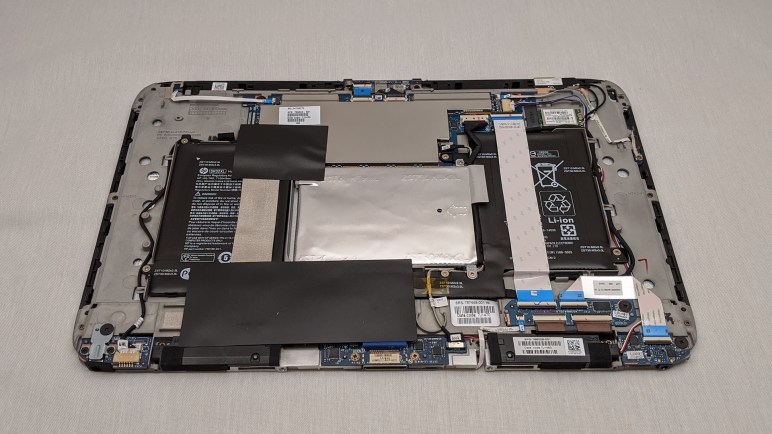
I took apart this convertible tablet/laptop with the goal of upgrading a SATA hybrid drive to a full SSD, but I was foiled. Since I had it open anyway, I took a look around. With the hybrid drive sitting directly in the middle and batteries on either side, circuit boards were necessarily scattered on either side with ribbon cables connecting them.

Most of the computing brains resided on a circuit board up top, and peripheral interfaces lived on the bottom. Including the microSD slot, headphone jack, charging port, and the docking connector. In between them were black speaker assemblies, one left and one right.

HP Split X2 13-r010dx wifi module

There were also provisions for interface cards to flank left and right of the main processing board. On one side is a WiFi interface module, with wires leading to antennae. The antenna is smaller than I had expected, but I don’t know enough to say if this necessarily meant reduced WiFi range. I also noticed the WiFi module didn’t occupy the entire width of the interface slot, leaving a few pins unconnected. I don’t think I’ve ever seen that before.

HP Split X2 13-r010dx unpopulated connector

The opposite side is even more interesting, with pads for an absent connector. This has roughly the pin counts to be a M.2 “B key” edge connector which could support a M.2 SSD. There’s also a hole cast into the chassis that’s roughly the correct distance to secure a M.2 2280 card. But like my previous experience with unpopulated connectors, several adjacent supporting components also seem to be missing from the circuit board so I am not confident I can just solder a M.2 connector and make things go.

I was curious if the 4GB RAM on this board could be upgraded. If a standard memory module is here it would be under the metal shield covering most of the processing board, but I didn’t want to dig that deep just yet. 4GB is enough to cover basic tasks and it is clearly not designed to be easily upgraded.

[UPDATE: I dug deeper and didn’t find memory modules.]

With curiosity about the tablet internals satisfied for the moment, I reassembled the tablet module and turned my attention to the docking base.

HP Split X2 (13-r010dx): SATA But Not As I Know It

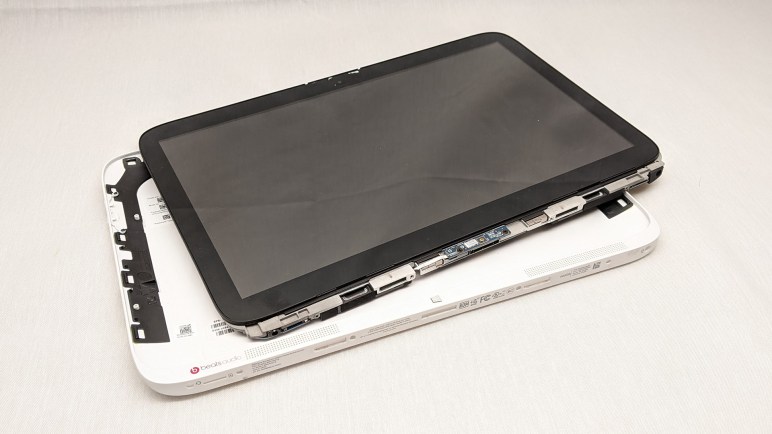
I got this retired laptop up and running, but it felt sluggish and I thought I should try upgrading the SATA hybrid drive to a full SSD, which meant it was time to bring out the screwdriver set and dig in. When the tablet module is removed from its docking base, we can see four circles for the screws holding the tablet together. Unfastening those four screws allowed me to travel around the perimeter to pop clips loose all around the shell, allowing me to extract the heart of the machine. Flipping it face down, we see the hard drive is in the center flanked by battery modules on either side.

HP Split X2 13-r010dx tablet internals

Quite a few black adhesive-backed sheets help keep things from rattling loose. I had to peel several back to access the drive, which was itself in a foil package that I couldn’t figure out how to remove without damage. I ended up tearing the whole foil off to expose the hard drive and its data connector. I immediately realized I had a problem.

HP Split X2 13-r010dx unexpected SATA connector

I’ve never seen this kind of drive connector before. This machine’s spec sheet called it a SATA drive, but it is apparently not the same kind of SATA drive I’ve dealt with to date. Certainly the SATA SSD I had planned to install into this machine would not fit, seeing how it has an entirely different (and much larger) connector.

HP Split X2 13-r010dx will not take SATA drive on hand

Removing the original drive, its label identifies itself as a WD Black Solid State Hybrid Drive. 500 GB capacity with 8GB NAND Model WD5000M21K. A search indicates this connector is called SFF-8784. (*) Adapters are available (*) to put one of these drives in a SATA slot type I’m familiar with, which looks to be only possible because of its compact dimensions. And because of those dimensions, the reverse is not possible: we can’t put the popular form factor SATA drive into a space designed for SFF-8784. However, there exist adapters (*) to put a mSATA drive into such a location, or adaptor for a M.2 form factor SATA drive (*).

I own a few M.2 SATA SSDs, but they are currently in active use. When I retire one it might be interesting to get a M.2 adapter to put in this machine. I’ll wait until that happens, or until an interesting project arises, before buying anything. [UPDATE: A M.2 SATA SSD became available for experimentation, and I got an adapter (actually two) to perform the upgrade.]

I have to abandon the SATA SSD upgrade project for now, but since I already have the shell open, I’m going to look around just for curiosity’s sake.


(*) Disclosure: As an Amazon Associate I earn from qualifying purchases.

HP Split X2 (13-r010dx): Up And Running

I’ve looked over exterior and spec sheet for the first of three research project laptops from NUCC. With its battery charged, I turned it on to see what we have. I was greeted with the login screen for an installation of Ubuntu 14. This was enough to verify the system boots and runs. I do not have the password, so it was time to wipe the disk and install a fresh operating system. I have a suitable USB flash drive on hand with the Ubuntu 18.04 installer.

I usually work with Dell laptops, whose typical convention is to hold down F12 while turning it on to select booting from a USB installation drive. This did not work, so I went back to HP documentation to find it is actually F9 for this laptop. Furthermore, since this keyboard is the type to make function keys pull multi duty, it appears I had to also hold down the Fn key at the same time as F9. It’s important not to lose the docking base as neither F9 upon powerup nor USB installation disk is possible with just the tablet module.

It took a few tries before system boot selector recognized the Ubuntu 18 installation USB drive. I don’t think it is random when USB drives are recognized as a boot option. But if it is not random, it was definitely following a system I did not quite understand. Still, I eventually got Ubuntu 18 installer to run successfully.

Normal everyday functionality appears to work under Ubuntu 18, surprisingly this included the portrait/landscape orientation sensor and a touch friendly on-screen keyboard. When Ubuntu abandoned Unity in version 18, I thought their ambition of a unified tablet-friendly interface also died. I now know I was wrong. But even though single-point touch worked well, multi-point touch support is lacking. One example: two finger pinch failed to zoom in/out as expected.

Which meant if I wanted consistent multi-touch support on this screen, I will need to install Windows. Touchscreen tablet/laptop convertibles like this are likely to be from the Windows 8 era, which meant it’s likely to have a Windows license key embedded in the hardware. This hypothesis was confirmed when Windows 10 build 1911 reported itself activated after an uneventful installation onto this laptop.

Both Ubuntu and Windows were more sluggish than I had expected for this machine. A look at system activity shows a lot of time waiting for disk. I guess neither OS is compact enough to fit within the 8GB NAND cache of this hybrid drive. To verify this hypothesis, I’ll try to upgrade the SATA hybrid drive to a full SATA SSD and see if it makes the system more responsive.

HP Split X2 (13-r010dx): Hardware Specifications

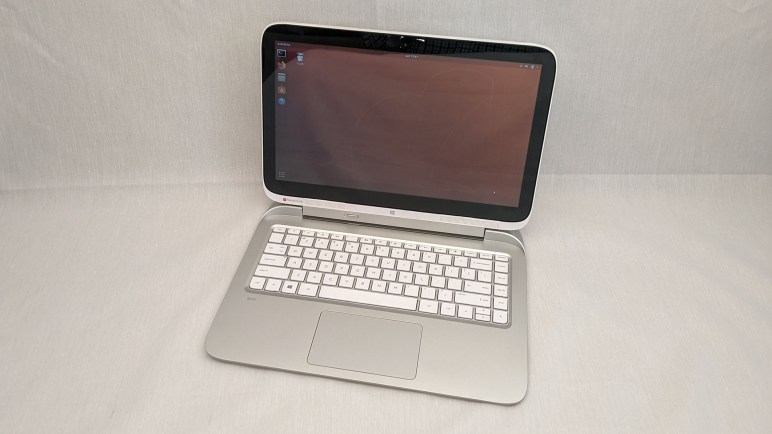
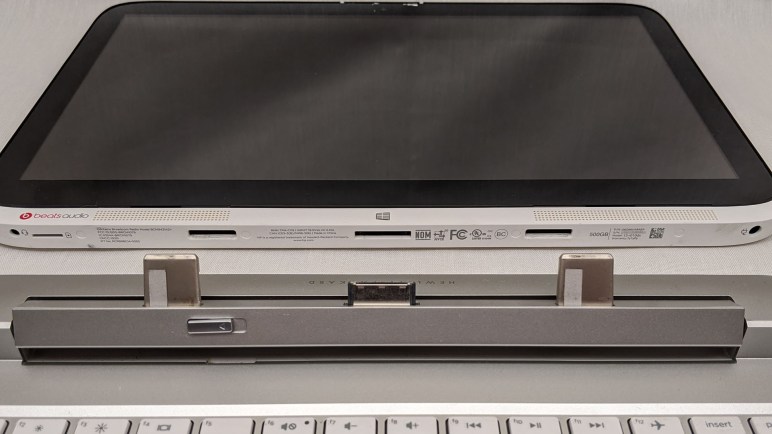
The first of three old laptops from NUCC to be examined stumped me at first. I found very little information printed on the device and it took a while before I realized it was a convertible tablet. All the information labels were hidden while the tablet was docked. Once I separated the pieces, I could read all the identifiers including its model number 13-r010dx. From there it was easy to find HP’s product page for this machine.

While in laptop mode, the device has a full size SD memory card slot, one HDMI port, and two USB ports. By detaching the base turning it into a tablet, we also expose a duplicate charging jack, a headphone jack, and a microSD memory card slot. I find it odd that the headphone jack is a tablet mode exclusive, and even more odd that they felt it was important to have two flash memory slots.

For robot brain purposes I would have preferred to have a physical Ethernet jack but I can do without. USB Ethernet adapters are plentiful, though the ones I’ve tried had problems with long term reliability. On the upside, both memory card slots are full depth slots so cards sits flush against exterior and would not jut out. So for example, I could keep a microSD card in the tablet and still dock it to the keyboard base without mechanical interference. For robot brain purposes, memory cards are useful for data transfer and logging.

Keyboard feel is decent and the accompanying touchpad is satisfactorily large. Sadly the screen resolution was a disappointing 1366×768. It was accompanied by tablet style features like a touchscreen and a portrait/landscape orientation sensor. None of these would be critical as a robot brain but might be pertinent for other uses.

A sticker proclaimed its processor to be a Core i3, the spec sheet elaborated it is a Core i3-4012Y that I expect to be capable but not super speedy. 4GB of RAM should be sufficient for most purposes, and storage is a SATA hybrid hard drive with 500GB of spinning magnetic platter storage backed by 8GB of NAND Flash memory cache. I don’t recall any prior experience with these hybrid drives and looking forward to seeing one in action. The charge port LED changed from orange to white indicating full charge by the time I was ready to turn it on.

HP Split X2 (13-r010dx): Charge and Split

I came home from Sparklecon 2020 with several laptops that had been awaiting reuse at NUCC. I took on the research project to determine the best way to put them to work. My primary goal was to turn them into robot brains, but I will need to keep my mind and eyes open for the best use. All three machines had depleted batteries, so I had no idea of their current condition.

I started with the bulkiest machine of the bunch, primarily because I could start charging its batteries with a Targus universal laptop AC adapter I already had on hand along with the H2 tip that seemed to fit charging jack dimensions. When I plugged it in, I saw an orange LED illuminate on the laptop and we were in business. The other two laptops appear to take Targus type I tip, currently on order via the “Tips from Targus” program and I’ll examine them after the adapter arrives and I could power them.

While I waited for some power to be put back into this flat battery, I wiped down the machine with a disinfectant wipe and examined the machine as I did so. I was surprised at the sparse text at the bottom of the machine. I would have expected to find a model number, FCC ID, the usual identifiers, but I only found a few cryptic alphanumeric designations. Fiddling with the various controls I found, I pushed a slider and the machine came apart in my hands. I panicked for a second before realizing this was supposed to happen.

HP Split X2 13-r010dx tablet

This machine is a tablet/laptop convertible, and the screen could detach from its base. The bottom of the screen, previously blocked by the keyboard base, is where all the product identification information were. Now I can get started researching this device.

Dell Latitude E6230: Working Too Well To Be Dismembered, NUCC to the Rescue

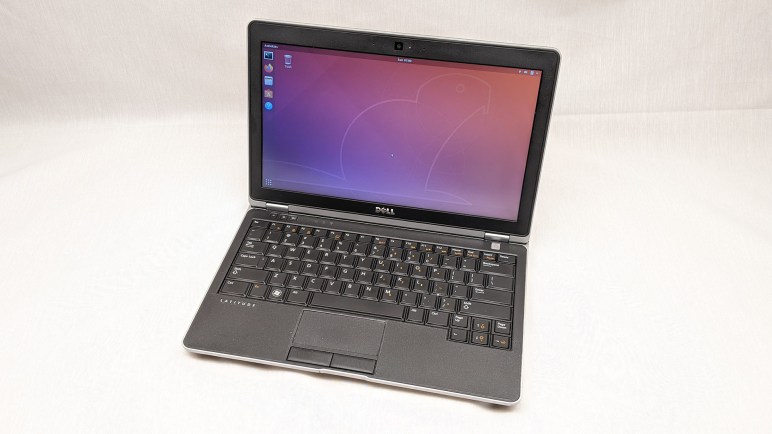
The previous few blog posts about my refurbished Dell Latitude E6230 was written several months ago and had sat waiting for a long-term verdict. After several months of use I’m now comfortable proclaiming it to be a very nice little laptop. Small, lightweight, good battery life, and decently high performance when I need it. (At the cost of battery life when doing so, naturally.)

The heart of this machine is a third generation Intel Core i5, which covers the majority of computing needs I’ve had while away from my desk. From the basics like 64-bit software capability to its ability to speed itself up to tackle bigger workloads. When working away from a wall plug and running on battery, the E6230 slows only minimally. Unlike my much newer Inspiron 7577 which slows drastically while on battery to the extent that it occasionally felt slower than the E6230. I can run my 7577 for perhaps two to four hours on battery, never far from a reminder of its limited on-battery performance. Whereas I can run the E6230 for around four to six hours on battery, without feeling constrained by reduced performance.

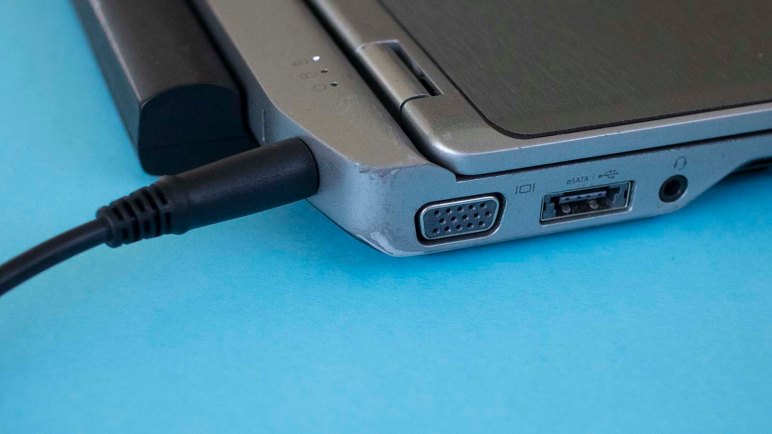
The E6230 has several other features I felt would be good for a robot brain. Top of the list is an Ethernet port for reliable communication in crowded RF environments. Several “SuperSpeed” USB 3 ports are useful for interfacing with hardware. And when I want more screen real estate than the built-in screen can offer, I have my choice of VGA or HDMI video output.

That built-in screen, with its minimal 1366×768 resolution, is about the only thing standing between this machine and greatness. Originally I did not care, because I had planned to tear the case apart and embed just the motherboard in a robot. But this laptop is working too darned well to be subjected to that fate! For the near future I plan to continue using the E6230 as a small laptop for computing on-the-go, and kept my eyes open for other old laptops as robot brain candidates.

An opportunity arose at Sparklecon 2020, when I mentioned this project idea to NUCC. They had a cabinet of laptops retired for one reason or another. I was asked: “What do you need?” and I said the ideal candidate would be a laptop with a broken screen and/or damaged keyboard, and have at least a Core i3 processor.

We didn’t find my ideal candidate, but I did get to bring home three machines for investigation. Each representing a single criteria: one with a busted screen, one with a busted keyboard, and one with a Core i3 processor.

Close enough! And now it’s time for me to get to work on a research project: determine what condition these machines are in, and how they can be best put to use.

Dell Latitude E6230: Blank ExpressCard Placeholder Is Also A Ruler

I found a fun little design while looking over the refurbished laptop I had bought. It was a Dell Latitude E6230, which had an ExpressCard slot. I’ve never used a laptop in a way that required add-on hardware. No PCMCIA, no ExpressCard, etc. Few of my laptops even had provisions for an expansion slot. But I remembered one of them — an old Dell XPS M1330 — included a little bit of creativity. Rather than the typical blank piece of plastic placeholder, the expansion slot held an infrared remote control with simple media buttons like “Play”, “Pause”, etc. This lets people use the little laptop as a media player where they can sit back away from the keyboard and still be able to control playback.

This laptop is from Dell’s business-oriented Latitude line, so it would not be keeping with product position to have such entertainment-oriented accessories. But I was curious if it had more than just a blank piece of plastic placeholder. So even though I had no ExpressCard to install, I popped out the blank to take a look. I was happy to see that someone put some thought into the design: the blank plate is a small ruler with both inch and millimeter measurements.

This feature cost them very little to implement, and it would never be the make-or-break deciding factor when choosing the laptop, but it was a fun touch.

Dell Latitude E6230: Soft Touch Plastic Did Not Age Well

When I looked over the exterior of my refurbished Dell Latitude E6230 laptop, I noticed  some common touch parts of the wrist rest and touch pad had been covered with stickers. They were very well done on my example. It took me a while to realized they were even there. In use, they were not bothersome.

Initially I thought they were there to cover up signs of wear and tear on this refurbished machine, but I’ve realized there’s an additional and possibly more important reason for the sticker: The plastic material for the wrist rest has degraded.

Usually when plastic degrades it hardens or discolors, but for certain types of plastic, the breakdown results in a sticky surface that is unpleasant to touch. I usually see this in the flexible plastic shroud for old cables and not in rigid installations like a keyboard wrist rest. I assume these machines were originally built with some type of soft touch plastic which degraded in this very unpleasant manner.

I wonder what the production story behind this laptop is. I can think of a few possibilities right away and I’m sure there are more:

  1. Dell did not perform long term testing on this material and didn’t know it would degrade this way.
  2. Dell performed testing, but the methodology for accelerated aging didn’t trigger this behavior, so it didn’t show up in the tests.
  3. Dell was aware of this behavior, believed it would not occur until well after warranty period, and thus not their problem.

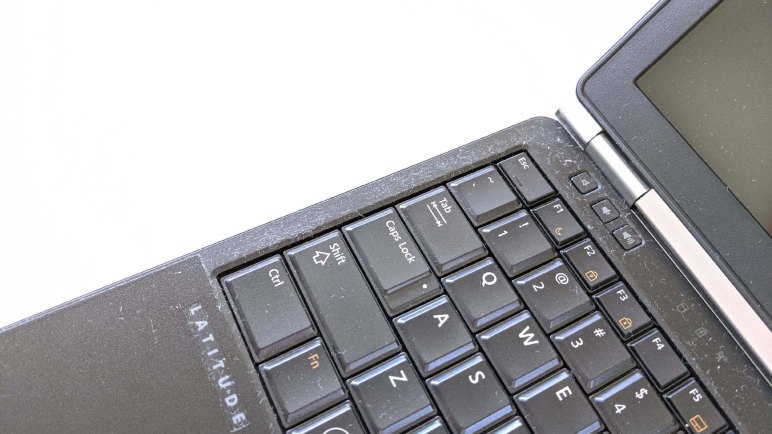
The expensive way to solve this problem would be to re-cast the plastic wrist rest in a different material and replace the part. Covering just the important surfaces with stickers is an ingeniously inexpensive workaround. Once the stickers were installed, I wouldn’t have to touch the unpleasant surfaces in normal use. However, there are still some sections exposed around the keyboard, and the sticky material is now a dust magnet.

It is a flaw in this little capable machine, but one I can tolerate thanks to the stickers. It made the laptop cheap to buy refurbished, and I’ll be less reluctant to take the computer apart and embed it in a robot, which is one of the long term plans for this machine.

Dell Latitude E6230: Hardware Internals

I picked up a Core i5-powered Dell Latitude E6230. It was a refurbished item at Fry’s Electronics, on sale for $149, and that was too tempting of a bargain to pass up. There were two major downsides to the machine: a low resolution 1366×768 display that I couldn’t do anything about, and a spinning magnetic platter hard drive that I intend to upgrade.

As is typical of Dell, a service manual is available online and I consulted it before purchasing to verify this chassis use standard laptop form factor SATA drive for storage. (Unlike the last compact Dell I bought.) Once I got it home, it was easy to work on this machine designed to be easily serviceable as is most Latitudes. A single screw releases the back cover, and the HDD was held down by two more screws. With only three screws and two plastic modules to deal with, this SSD upgrade needed less than five minutes to complete.

But since I had it open anyway, I spent some more time looking around inside to see signs of this laptop’s prior life.

Dell Latitude E6230 interior debris

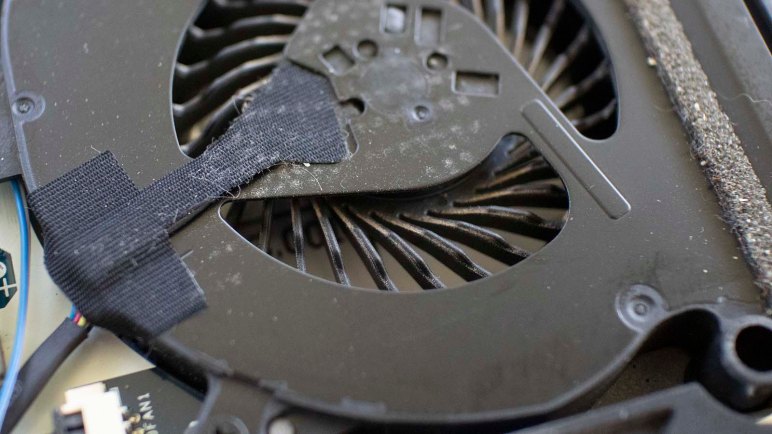
There were a few curious pieces of debris inside. A piece of tape that presumably held down a segment of wire has come loose, and the adhesive is not sticky. This is consistent with aged tape. There was also a loose piece of clear plastic next to the tape. I removed both.

The CPU fan had an fine layer of insignificant dust clinging to its surface. I would have expected an old laptop to have picked up more dirt than this. Either the buildup has been cleaned up (and the cleaner ignored the tape and clear plastic) or more likely this laptop spent most of its time in an office HVAC environment with well maintained dust filtration.

The HDD that I removed was advertised to have a copy of Windows 10. But where is the license? Computers of this vintage may have their Windows license embedded in hardware. Though this is less likely for business line machines, as some businesses have their own site license for Windows. I installed Windows 10 on the SSD and checked its licensing state: not activated. The Windows 10 license is on that HDD and not in hardware. That’s fine, I intended to run Ubuntu on this one anyway, so I installed Ubuntu 18.04 over the non-activated Windows 10.

Once Ubuntu 18.04 was up and running, this machine proved quite capable. All features appear to be usable under Ubuntu and it is easily faster than my Inspiron 11 3180 across the board. It is a bit heavier, but much of that is the extended battery and might be worth the tradeoff.

Overall, a very good deal for $149 and my new ROS robot brain candidate.

Dell Latitude E6230: First Impressions

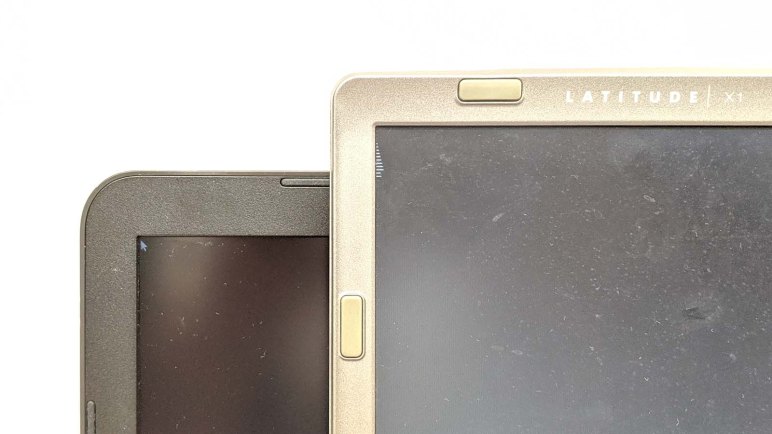
Dell’s business oriented Latitude line command a price premium over their consumer grade Inspiron offerings, some of that money actually does go towards features for long term durability of those machines. A Latitude X1 I bought over a decade ago is still running. None of the Inspiron I’ve purchased has lasted nearly as long.

But despite their longevity, many businesses retire their computers on a regular schedule independent of actual condition. Once retired they go into a secondary market, a great opportunity for bargain hunters. Recently a batch of refurbished Dell Latitude E6230 were on sale for $149 at Fry’s Electronics and that was too good of a deal to pass up. For comparison, a new eighth-generation Core i5 processor is roughly $200 at retail, and that’s just the processor. This refurbished machine has an old but still capable third-generation Core i5 processor at its heart, and an entire computer around it including storage, memory, display, and battery. The price/performance ratio here trounces every other candidate for a ROS robot brain. Even the low cost leader, the Raspberry Pi, would have a hard time matching this price point after adding storage, display, battery, etc. In terms of computing power, an old Core i5 will have no problem leaving a Raspberry Pi in the dust.

I’ve had good luck with refurbished Dell computers so far. (Including that teenager Latitude X1.) So I thought I would pick up one of these units to see what I had to trade off for this screaming bargain. The answer is: not a whole lot.

The machine is very definitely used. There are visible wear and tear on exterior, but all purely cosmetic: discoloration of emblems, rubbed off paint, things along those lines.

Dell Latitude E6230 palm rest sticker

A typical sign of wear on an old laptop is the palm rest. I saw no wear at all in the palm rest area and was impressed until I realized what they had done: They’ve added a sticker over the palm rest to give it a new surface. The curled-up visible edge of this sheet gave the trick away. The surface of the touchpad, another frequent sign of age, also received the sticker treatment.

According to the documentation in its box, this laptop’s refurbishment was performed by a company called Advanced Skyline Technology, Ltd. Side effect of a non-Dell refurbished computer are a few tradeoffs for cost. The AC power adapter is not a genuine Dell item, neither is the battery. However, the battery has the larger size of an extended runtime battery. If it actually offers longer runtime that would be a pleasant surprise.

This machine came with a spinning platter hard disk, which I was not interested in using so the first project with this machine is to open it up, look around its insides, and upgrade it to a solid state drive.

Ubuntu Core 18 Web Kiosk Experiment on Dell Inspiron 11 3180

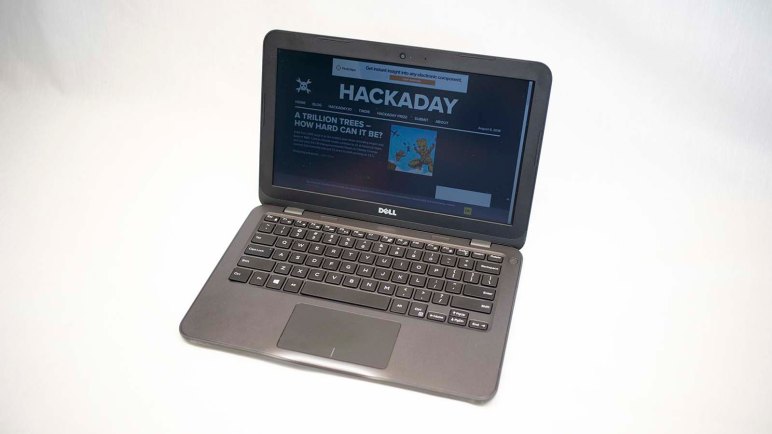
While experimenting with Ubuntu Core 18 on a 14-year old Dell Latitude X1, I ran into problems and wanted to verify it was a hardware support issue and not a mistake on my part. So I brought my much younger Inspiron 11 (3180) up on Ubuntu Core 18 as well. It verified the issue was indeed hardware support and not my mistake, hampering functionality on the Latitude X1.

After I got my answer, I thought since I’ve already got this Inspiron 11 up and running, I might as well continue experimenting on it. I proceeded to follow through the rest of the steps in the tutorial for setting up a web kiosk on Ubuntu Core. Since this machine had recent hardware, I encountered no hardware issues and got a dedicated web kiosk machine up and running.

Browsing a few web sites, basic browser functionality seem to be present. The first missing functionality I noticed was a lack of sound. A little poking confirmed that Linux audio system ALSA is not installed as part of Ubuntu Core. If someone wants sound on their Ubuntu Core machine, they’ll have to install it. This is fits with my expectation for a bare minimum “Core” OS.

Another feature I noticed is the lack of persistent state. As far as I can tell, everything is ephemeral and lost upon reset. No cookies are preserved across sessions, and it appears the cache is flushed as well. Whether this is a bug or a feature depends on application. It would be desirable for public use web terminal where we really want to wipe everything and start over for every new user.

And it isn’t intended to be a general use web browser, anyway. The cursor can be hidden and so can the navigation bar. I enabled the navigation bar expecting a normal browser tool bar, but it is actually a very minimalist bar with a few buttons like back and refresh. There is no URL input field, as appropriate for a kiosk dedicated to serving specific pages.

Sometimes this is exactly what I would need making Ubuntu Core an ideal bare-minimum OS for an Intel-based machine. But in this day and age, those aren’t our only options. Projects along these lines are also commonly built with a Raspberry Pi. How well does Ubuntu Core work on a Raspberry Pi, compared to Raspberry Pi’s standard Raspbian OS?

Dell Latitude X1 Running Ubuntu Core 18: No Graphics But CH341 USB Serial Works

It was a pleasant surprise to see the Ubuntu Core 18 up and running on a 14-year old Dell Latitude X1, even more pleasant to see it is lightweight enough to be speedy and responsive on such old and slow hardware. But given its age, I knew not to expect everything to work on the stock i386 image. There’s no way they can package a comprehensive set of device drivers on such a compact package. I speculate it was not the intent, either. Ubuntu Core is targeted to embedded projects where it is typical to generate an OS image custom tailored to the specific hardware. So the fact it mostly works out of the box is a tremendous bonus, and the missing hardware support is not a bug.

That said, I’m not terribly interested in generating the custom device tree (or whatever mechanism Ubuntu Core uses) to utilize all peripherals on this Latitude X1. I’m more interested in working with what I already have on hand. During initial configuration I already learned that the wireless module did not work properly. What works, and what doesn’t?

Again I’m not interested in an exhaustive list, I just wanted to find enough to enable interesting projects. Getting this far meant text output and keyboard input functions in addition to wired networking. The next thing to try is to activate the graphics subsystem and mouse input. Looking on Ubuntu’s tutorial web site, I found the web kiosk example which would test hardware necessary to offer a useful set of web-related functionality.

Following the tutorial steps, I could get the machine to switch display modes, but it never got as far as showing a web browser, just a few lines I didn’t understand. At this point I wasn’t sure if I followed the procedures correctly or if the hardware failed, so I duplicated the steps with Ubuntu Core 18 running on my modern Dell Inspiron 11 (3180) laptop. I saw a web browser, so the procedures were correct and the hardware is at fault. Oh well.

Comparing what’s on screen after starting mir-kiosk on both machines, I see the gibberish lines on the X1 actually resemble the mouse arrow but distorted and scattered across interleaved lines. Lending to the hypothesis that video support on stock Ubuntu Core 18 i386 image needs some tweaks before it can support the video hardware on board a Latitude X1. The fact some lines showed up tells me it’s close, but I’m choosing not to invest the time to make it work.

The next idea is to test USB serial communications. I plugged in an Arduino Nano knockoff with the CH341 USB-serial chip and ran dmesg to learn the device was picked up, understood, and assigned a ttyUSB device path. This particular Arduino was already flashed with a sketch that sent data through the serial port, and as a crude test I used cat /dev/ttyUSB0 to see if anything comes up: it did! This is wonderful news. The Latitude X1 can act as high-level processor counterpart to a lower level controller communicating over USB serial opening up project possibilities. I’ll have to think on that for a while.

Dell Latitude X1 Now Running Ubuntu Core 18

About two years ago, an old friend was returned to me: a 2005 vintage Dell Latitude X1. It struggled to run desktop software of 2017 but speed wasn’t the point – the impressive part was that it could run software of 2017 at all. It was never a speed demon even when new, as it sacrificed raw performance for its thin and light (for its day) construction. Over the past two years, I would occasionally dust it off just to see it still running, but as software got more complex it has struggled more and more to act as a modern personal computer.

When an up-to-date Ubuntu 16 LTS desktop edition takes over 10 minutes to boot to the login screen, I had to concede it’s well past time to stop trying to run it as a desktop computer. I hate to give up on this oddball hobby to keep an old machine running modern up to date operating systems, but an interesting idea came up to keep things going: How about running a lighter-weight text-based operating system?

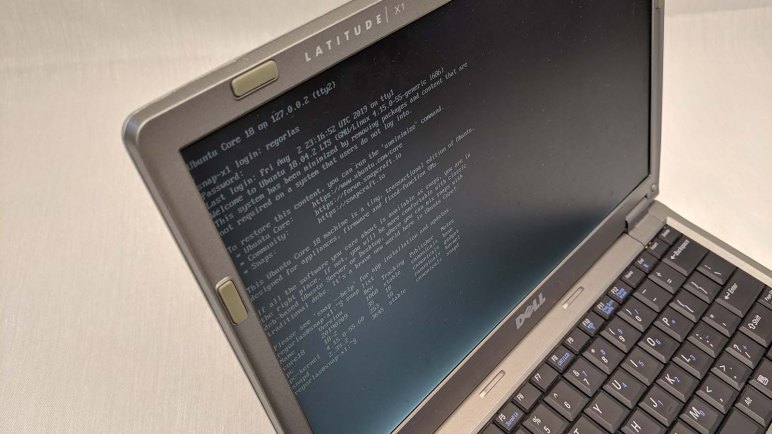
The overburdened desktop Ubuntu was erased to make room for Ubuntu 16.04.6 server. This is a much lighter-weight operating system. As one point of measure, it now takes only about 55 seconds from pressing the power button to a text login prompt. This is much more tolerable than >10 minutes to boot to a graphical login screen.

After I logged in, it gave me a notification that Ubuntu 18 server is available for upgrade. I’ve noticed that my desktop Ubuntu took longer to boot after upgrading from 16 to 18, and I was curious if the text-mode server edition would reflect the same. Since I had no data on this machine anyway, I upgraded to obtain that data point.

The verdict is yes, Ubuntu 18 server takes longer to boot as well. Power button to login prompt now takes 96 seconds, almost double the time for ubuntu 16 server. Actually more than double, considering some portion of that time was hardware initialization and GRUB boot selection timeout before the operating system even started loading.

That was disappointing, but there is an even more interesting experiment: What if, instead of treating this old computer as a server, I treat it as an embedded device? After all, its ~1 GHz CPU and ~1 GB RAM is roughly on par with a Raspberry Pi, and its ~30GB HDD is in the ballpark of microSD cards used in a Pi.

This is the new Ubuntu Core option for bare-bones installations, targeting IoT and other embedded projects. There is an i386 image already available to be installed on the hard drive of this 14-year old Dell laptop. Since Ubuntu Core targets connected devices, I needed a network adapter for initial setup. It looks like the Latitude X1’s WiFi adapter is not supported, but fortunately its wired Ethernet port worked.

Once up and running, I timed its boot time from power switch to login prompt: 35 seconds. Subtracting non-OS overhead, booting Ubuntu 18 Core takes almost half the time of Ubuntu 16 Server, or approaching one quarter of Ubuntu 18 Server. Very nice.

Ubuntu 18 Core makes this old laptop interesting again. Here is a device offering computing power in the ballpark of a Raspberry Pi, plus a display, keyboard, and mouse. (There’s a battery, too, but its degraded capacity barely counts.) It is far too slow to be a general desktop machine, but now it is potentially a viable platform for an embedded device project.

The story of this old workhorse is not yet over…

Dell Alienware Area-51m vs. Luggable PC

On the Hackaday.io project page of my Luggable PC, I wrote the following as part of my reason for undertaking the project:

The laptop market has seen a great deal of innovation in form factors. From super thin-and-light convertible tablets to heavyweight expensive “Gamer Laptops.” The latter pushes the limits of laptop form factor towards the desktop segment.

In contrast, the PC desktop market has not seen a similar level of innovation.

It was true when I wrote it, and to the best of my knowledge it has continued to be the case. CES (Consumer Electronics Show) 2019 is underway and there are some pretty crazy gamer laptops getting launched, and I have heard nothing similar to my Luggable PC from a major computer maker.

laptops-aw-alienware-area-51m-nt-pdp-mod-heroSo what’s new in 2019? A representative of current leading edge gamer laptop is the newly launched Dell Alienware Area-51m. It is a beast of a machine pushing ten pounds, almost half the weight of my luggable. Though granted that weight includes a battery for some duration of operation away from a plug, something my luggable lacks. It’s not clear if that weight includes the AC power adapter, or possibly adapters plural since I see two power sockets in pictures. As the machine has not yet officially launched, there isn’t yet an online manual for me to go read what that’s about.

It offers impressive upgrade options for a laptop. Unlike most laptops, it uses a desktop CPU complete with a desktop motherboard processor socket. The memory and M.2 SSD are not huge surprises – they’re fairly par for the course even in mid tier laptops. What is a surprise is the separate detachable video card that can be upgraded, at least in theory. Unlike my luggable which takes standard desktop video cards, this machine takes a format I do not recognize. Ars Technica said it is the “Dell Graphics Form Factor” which I had never heard of, and found no documentation for. I share Ars skepticism in the upgrade claims. Almost ten years ago I bought a 17-inch Dell laptop with a separate video card, and I never saw an upgrade option for it.

There are many different upgrade options for the 17″ screen, but they are all 1080p displays. I found this curious – I would have expected a 4K option in this day and age. Or at least something like the 2560×1440 resolution of the monitor I used in Mark II.

And finally – that price tag! It’s an impressive piece of engineering, and obviously a low volume niche, but the starting price over $2,500 still came as a shock. While the current market prices may make more sense to buy instead of building a mid-tier computer, I could definitely build a high end luggable with specifications similar to the Alienware Area-51m for less.

I am clearly not the target demographic for this product, but it was still fun to look at.