Dell Inspiron 11 3000 (3180) As Robot Brain Candidate

Well, I should have seen this coming. Right after I wrote I wanted to be disciplined about buying hardware, that I wanted to wait until I know what I actually needed, a temptation rises to call for a change in plans. Now I have a Dell Inspiron 11 3000 (3180) on its way even though I don’t yet know if it’ll be a good ROS brain for Sawppy the Rover.
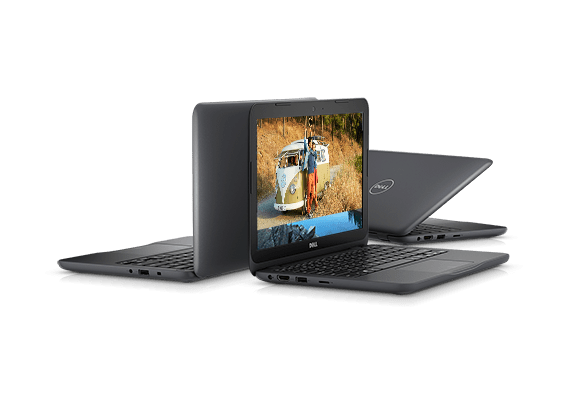
Dell Notebook Inspiron 11 3000 3180

The temptation was Dell’s Labor Day sale. This machine in its bare-bones configuration has a MSRP of $200 and can frequently be found on sale for $170-$180. To kick off their sale event, Dell made a number of them available for $130 and that was too much to resist.

This particular hardware chassis is also sold as a Dell Chromebook, so the hardware specs are roughly in line with the Chromebook comments in my previous post. We’ll start with the least exciting item: the heart is a low-end dual-core x86 CPU, an AMD E2-9000e that’s basically the bottom of the totem pole for Intel-compatible processors. But it is a relatively modern 64-bit chip enabling options (like WSL) not available on the 32-bit-only CPUs inside my Acer Aspire or Latitude X1.

The CPU is connected to 4GB of RAM, far more than the 1GB of a Raspberry Pi and hopefully a comfortable amount for sensor data processing. Main storage is listed as 32GB of eMMC flash memory which is better than a microSD card of a Pi, if only by a little. The more promising aspect of this chassis is the fact that it is also sometimes sold with a cheap spinning platter hard drive so the chassis can accommodate either type of storage as confirmed by the service manual. If I’m lucky (again), I might be able to swap it out with a standard solid state hard drive and put Ubuntu on it.

It has most of the peripherals expected of a modern laptop. Screen, keyboard, trackpad, and a webcam that might be repurposed for machine vision. The accessory that’s the most interesting for Sawppy is a USB 3 port necessary for a potential depth camera. As a 11″ laptop, it should easily fit within Sawppy’s equipment bay with its lid closed. The most annoying hardware tradeoff for its small size? This machine does not have a hard-wired Ethernet port, something even a Raspberry Pi has. I hope its on-board wireless networking is solid!

And lastly – while this computer has Chromebook-level hardware, this particular unit is sold with Windows 10 Home. Having the 64-bit edition installed from the factory should in theory allow Windows Subsystem for Linux. This way I have a backup option to run ROS even if I can’t replace the eMMC storage module with a SSD. (And not bold enough to outright destroy the Windows 10 installation on eMMC.)

Looking at the components in this package, this is a great deal: 4GB of DDR4 laptop memory is around $40 all on its own. A standalone license of Windows 10 Home has MSRP of $100. That puts us past the $130 price tag even before considering the rest of the laptop. If worse comes to worst, I could transfer the RAM module out to my Inspiron 15 for a memory boost.

But it shouldn’t come to that, I’m confident even if this machine proves to be insufficient as Sawppy’s ROS brain, the journey to that enlightenment will be instructive enough to be worth the cost.

The Spectrum of ROS Robot Brain Candidates

In the immediate future, my ROS experimentation will follow the TurtleBot 3 model: An on-board Raspberry Pi 3 will read sensor input and send motor output. It will communicate over wireless network to a PC (either desktop or laptop) who will process sensor data, evaluate potential actions, and plan actions to be sent back to RPi3 for execution.

This should scale well to pretty much any output mechanisms we have on the horizon, especially since we’re likely to offload real time control to dedicated co-processor modules like a Roboclaw or serial bus servos. They take care of direct motor control, leaving the RPi3 with very little to do beyond sending a short command.

Input will be a different story. We know simple bump sensors will be easy. And while the Neato scanning LIDAR isn’t taxing to a Pi, its limited sensing capability means we will eventually need better sensors that give more data. A depth-sensing camera sensor like an old Kinect or an Intel RealSense looks interesting, but they require USB 3 which is beyond a Raspberry Pi. And while a Pi can handle simple vision processing of a Duckiebot, doing something more complex will quickly outstrip its capabilities.

We won’t know for sure what the bottleneck would be until we start building some robots and run into limitations firsthand. Until we know, we risk wasting money on unnecessary capability. Still, it’s good to have information on a spectrum of candidates.

raspberry-pi-logoWe already have a starting point on the low end of the spectrum: Raspberry Pi. There are several other competitors in the single-board computer market, almost all of which claim to be more powerful than a Pi. But very few could match the mass volume pricing of a Pi or its software ecosystem. The last part is important because ROS runs best on something that has a port of Ubuntu, which is absent from many Pi competitors.

The first step beyond a Raspberry Pi 3, then, is probably going to be something cheap with a low-end Intel processor that can run Ubuntu. I had thought my collection of old PC hardware could step into this space, but an Acer Aspire 10 really doesn’t want to run Linux and the Dell Latitude X1 is just too old. Its CPU consumes far more power than modern chips while doing far less. And even worse than that, its spinning platter hard drive consumes more power than SSDs while being slower.

chromebook logoThis points to a modern Chromebook with x86 CPU, most of which could be convinced to run Ubuntu. The CPU won’t be anything exciting. They might even be slower than the RPi’s ARM chip for some tasks, but they’ll have a larger cache and connect to more memory. Chromebooks also tend to have more robust main storage (instead of a microSD card) plus keyboard, screen, and battery. Some of these will even have USB 3 ports for a complete package starting at around $200.

NVIDIA logoIf a Chromebook proves insufficient, it’ll likely be due to the low-end CPU. Where we go beyond that will depend on the nature of the work overloading the chip. If it’s in the arena of dedicated vision or other AI-related processing capabilities, we might move to something like NVIDIA’s Jetson which has dedicated processing hardware for specific tasks and could run Ubuntu. The Jetson TX2 is not cheap (*), so we have to be sure we need the specialized capabilities before shelling out the dollars. [UPDATE: After this was originally written, NVIDIA launched the Jetson Nano (*) with a much more palatable price.]

Intel logoFor less task-specific needs, the Intel NUC product line is a good candidate: compact little boxes that holds RAM, SSD, USB3 ports and available with a wide range of processors. From unexciting Chromebook-equivalent chips all the way up to Core i7 paired with a respectable AMD GPU. And unlike dedicated hardware like Jetson, an Intel NUC can be repurposed to a wide spectrum of other projects if not serving as robot brain. They’re quite capable little Swiss Army knives of computing.

But there’s one remaining scenario where a NUC might prove insufficient. And that’s when we need a powerful Intel CPU in conjunction with a powerful NVIDIA GPU. This means a high-end ‘gamer laptop’ at which point my Inspiron 15 7000 (7577) might end up sitting in Sawppy‘s equipment bay. This marks the high end of the spectrum and I hope I don’t end up there, because that’s going to be a very expensive trip.


(*) Disclosure: As an Amazon Associate I earn from qualifying purchases.

Duckietown Is Full Of Autonomous Duckiebots

Duckietown duckiebotThe previous blog post outlined some points of concern against using Raspberry Pi 3 as the brains of an autonomous robot. But it’s only an inventory of concerns and not condemning the platform against robotics use. A Raspberry Pi is quite a capable little computer in its own right and that’s even before considering its performance in light of low cost. There are certainly many autonomous robot projects where a Raspberry Pi provides sufficient computing power for their respective needs. As one example, we can look at the robots ferrying little rubber duckies around the city of Duckietown.
According to its website, the Duckietown started as a platform to teach a 2016 MIT class on autonomous vehicles. Browsing through their public Github repository it appears all logic is expressed as a ROS stack and executed on board its Raspberry Pi, no sending work to a desktop computer over network like the TurtleBot 3.  A basic Duckiebot has minimal input and output to contend with – just a camera for input and two motors for output. No wheel encoders, no distance scanners, no fancy odometry calculations. And while machine vision can be computationally intensive, it’s the type of task that can be dialed back and shoehorned into a small computer like the Pi.

Making this task easier is assisted by Duckietown, an environment designed to help Duckiebots function by leveraging its strengths and mitigating its weaknesses. Roads have clear contrast to make vision processing easier. Objects have machine-friendly markers to aid object identification. And while such measures imply a Duckiecar won’t function very well away from a Duckietown, it’s still a capable little robotics platform for exploring basic concepts.

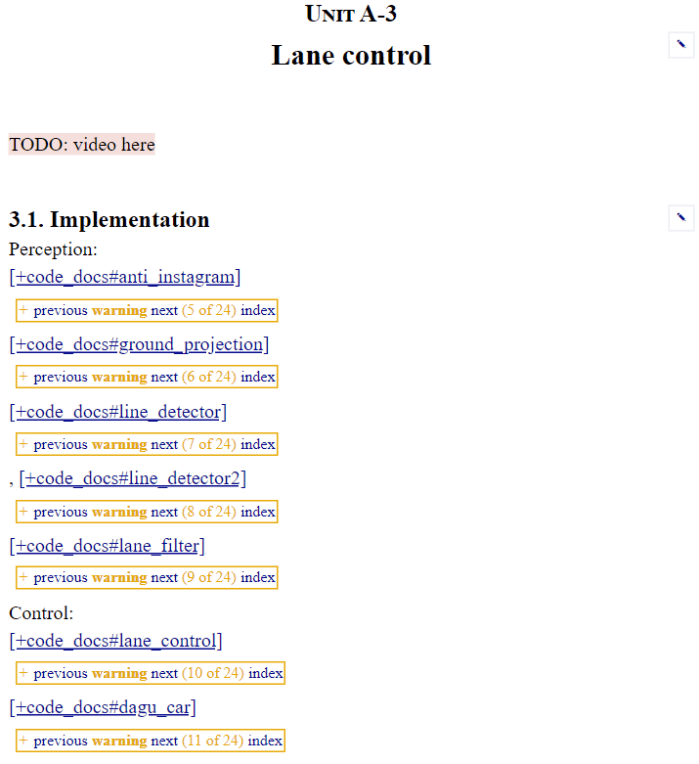
At first glance the “Duckiebooks” documentation area has a lot of information, but I was quickly disappointed by finding many pages filled with TODO and links to “404 Not Found”. I suppose it’ll be filled out in coming months, but for today it appears I must look elsewhere for guidelines on building complete robots running ROS on Raspberry Pi.

Duckietown TODO

Anticipating Limitations of a Raspberry Pi 3 Robot Brain

rosorg-logo1As investigation into ROS continues, it’s raising concern that a self-contained autonomous robot will likely need a brain more powerful than a Raspberry Pi. It’s a very capable little computing platform and worked well serving as Sawppy’s brain when operated as a remote-control vehicle. But when the rover needs to start thinking on its own, would a little single-board computer prove to be limiting?
CPU

raspberry-pi-logoThe most obvious point of concern is the low power ARM CPU. The raw processing capability of the chip is actually fairly respectable, and probably won’t be the biggest problem. But there are two downsides with the chip:

  1. It has a very small memory cache, so the chip will have problems working with large data sets. (Say, a detailed map of the robot’s surroundings.) Without a large cache or high bandwidth memory, the CPU will sit idle as it starves for data.
  2. It has limited heat dissipation. Under sustained load, the CPU will heat up and reach the point where it will have to slow itself down to avoid overheating.

Both of these are consistent with design objective of the chip. It is very good at quickly completing a task using its high-speed CPU, then wait for its next task. This type of workload is common to devices like cell phones. In contrast, a robot has to process sensor inputs, evaluate its current condition, and decide what to do about it in a constantly running loop. There’s no “wait for next task” downtime where the computer can cool down and clean up its memory cache.

Memory

The main memory is also a point of concern. There’s only 1GB of RAM on board a Raspberry Pi 3 with no option for expansion. This is already pretty cramped to run a modern operating system, never mind the robotic software we’d like to run on top. To mitigate limitations of small RAM, modern operating systems can page memory out to storage. But that just makes the next problem worse…

Storage

A Raspberry Pi uses commodity microSD flash memory as main storage. These devices are designed for usage scenarios like holding photos in a digital camera. Each bit of capacity is only expected to be written to a handful of times in its lifetime. But when serving as main storage of a Raspberry Pi actively running complex applications (or serving as paged memory) high traffic sections of the microSD may receive new write data several times a second, leading to premature failure.

Raspberry Pi in the TurtleBot 3

A Raspberry Pi 3 serves as the on-board brains of a TurtleBot 3 ‘Burger’ and ‘Waffle Pi’ variants. I had been curious how they got around the problems above and the answer is they’ve divided up workload of a robot brain across multiple computers. The Raspberry Pi 3 reads sensor data and outputs motor data, but performs little computation itself. Sensor data is sent over the network to a desktop computer who does the computation, evaluation, and decision making. Once an action is decided, the desktop computer sends motor commands over the network back to the Raspberry Pi.

This is a cost-effective approach because anyone doing robotics research will already have a powerful desktop computer where development is taking place. By offloading computation to said computer and keeping the robot’s on-board processing simple, it makes the robot a lot cheaper.

This is fine for development, but the fact TurtleBot 3 makers chose this approach reinforces the suspicion that an actual self-contained autonomous robot will need something more than a Raspberry Pi.

DIY Evaporative (“Swamp”) Cooler Build – Results

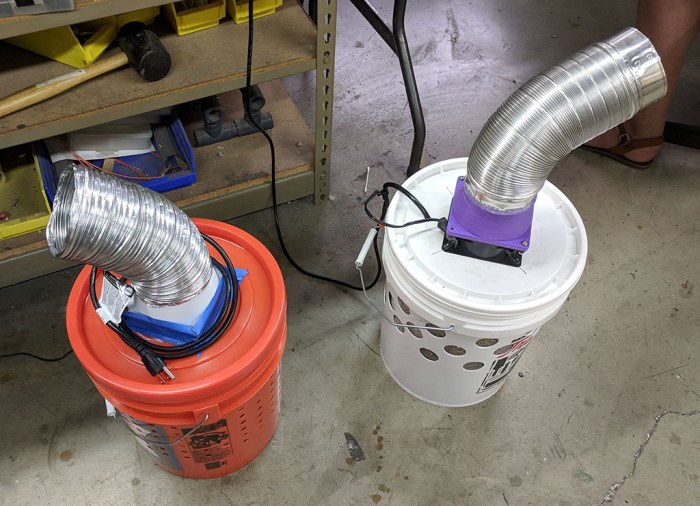
When my orange Home Depot bucket DIY swamp cooler started running, the stream of cool air blasting on my face was a very refreshing change from the oppressive heat of this southern California summer. However, this crude home-built unit does have some room for improvement, and I brought it into a local maker meet to seek ideas. Here it is at the meet sitting next to its inspiration, an earlier unit built out of a TrueValue white bucket.

Dual bucket swamp coolers

First problem: the cooling pad imparts a scent on the air stream. It’s not a bad smell – I describe it as bales of hay – but it gets pretty strong as the cooler runs. There’s a chance this will fade with use, but right now it definitely gets strong enough to be a turnoff. Especially when I am smelling it all the time.

Not helping with the above problem: water cycling through the unit sometimes drips out of holes. On solid surfaces, this collects as a puddle and has to be wiped up. But on carpeted surfaces if unchecked this water will soak into the carpet and underlying padding, making the room smell like bales of hay even in the absence of the cooler.

Also not helping: when transporting the cooler (like, say, to the maker meet) water may slosh out of the side. If this water soaks into the car’s upholstery, the car will start to smell like hay, too.

An idea to address dripping is to put a fine mesh between the bucket and the pad, such as the one installed on the white unit. This reduces but does not completely eliminate the water issue. A second potential line of defense is to build some sort of small catch gutter around bucket perimeter to catch and drain water back into the bucket. A small catch rim would be enough to handle small drips.

Lastly, the rate of evaporation isn’t high enough to require a constantly running pump. For better energy efficiency, the pump only needs to run intermittently, but that requires smarts and control equipment absent from this bargain-basement build.

This was an instructive (and cheap) first attempt at a home-built swamp cooler. There may be an improved iteration in the future, but for now it works well enough.


DIY Evaporative (“Swamp”) Cooler Build

And once again, I’m reminded that summers in southern California can get really, really hot. Sitting in the heat trying to comprehend details of ROS gets very tiresome very quickly. Normal house fans can’t cut it anymore. Air conditioning is an obvious solution, but it racks up my electric bill. But in the relatively dry climate of California, there is another option: the evaporative cooler (“swamp cooler”).

I could buy one, but a local maker tried the DIY option and that looked like it might be interesting. The key find enabling such an experiment is a cooler pad designed for the purpose and available for just $5.

My first attempt was to put that pad inside an old 10-gallon pail already in the house and just collecting dust. Unfortunately, the plastic for the pail proved too brittle to withstand drilling. Whether it is from old age or if the compound is fundamentally brittle I can’t tell, and the actual reason doesn’t matter anyway.

Brittle pail

Plan B: Use a cheap Home Depot 5-gallon bucket. Using rulers to measure out spacing, ventilation holes were drilled in the bucket. It was tedious but surprisingly took less time than I had feared.

Holey Bucket

Once holes were drilled, the pad was placed inside the bucket along with some water. A cheap pump designed for decorative water fountains were placed inside along with some hoses to circulate water, keeping the cooling pad damp.

For air circulation: I first tried to adapt my house fan but it proved too unwieldy. Moving on to plan B, I used a computer cooling fan salvaged from a dead ATX power supply. It bolted directly to the bucket lid and, with aid of a simple 3D-printed adapter to a flexible dryer duct, its output air can be directed to where it does the most good. Here’s my cooler, next to its inspiration.

The output air stream feels a lot cooler than ambient air, so the project is an overall success. But there is room for improvement…

ROS Is Not Secure, This Is Not News

rosorg-logo1When I started reading about ROS, as soon as I learnt ROS modules communicate over standard networking protocols, I immediately thought “What about security?” This should rightly be the first question of any software developer dealing with any networking code in this day and age. But… ROS was not created in this day and age of constant relentless network attacks. It was created ten years ago, when the internet was a far less hostile environment, and security was declared not a concern.

I can cast no stones here, my own SGVHAK Rover project did the same thing, declaring network security Someone Else’s Problem. But it’s one thing to declare as such in a little hobbyist project, it’s quite another to do so on a widely used framework. Given that the framework was already established by the time the internet turned into the environment it is today, the best ROS can do is to clearly document this fact and they have done so on a document explicitly titled Security. In it, they declare the lack of built-in security measures explicitly. A bad actor getting on a ROS network has access to everything, so in ROS installations where security is a concern it must be walled off from the internet at large via tools of the network security trade: firewalls, VPN, etc.

Given this established fact, and clear documentation stating so, it was disappointing to see Wired making a fuss about how insecure ROS is. This really isn’t news, anyone who bothered to read ROS documentation would already know this. It’s difficult to see the Wired article as anything other than to sensationalize a piece of information for people not familiar with ROS, and stroke paranoia about robots in general. This is… not a hallmark of great journalism.

But that’s out there, and getting picked up by a few other tech news sources, and we’ll just have to see where this goes. The best available defense is the fact researchers are not blind to the situation and there already exists work to beef up ROS security. Though to be clear, it’s just a research project and does not claim to be tough enough for the nasty world out there.

And as briefly mentioned in the Wired article: ROS2, the future of ROS currently in development, has a baseline option for security. Communication in ROS is built on top of DDS and the intent is to enable secure ROS networks by letting people use an implementation that features DDS-Security.

So it’s not news, and it’ll be even less news in the future.

Notes on “ROS Robot Programming” Book by Creators of TurtleBot 3

ROS Robot Programming cover 800The people at Robotis who created TurtleBot 3 created a pretty good online manual for their robot that also served as a decent guide for a beginner like myself to start experimenting with ROS. But that’s not the only resource they’re released to the public – they’ve also applied themselves to writing a book. It has a straightforward title “ROS Robot Programming” and is described to be a compilation of what they’ve learned on their journey to create the TurtleBot 3. Pointers to the book are sprinkled throughout the TurtleBot 3 manual, most explicitly under the “Learn” section with additional resources.
The book is available in four languages: English, Chinese, Japanese, and Korean. The English and Chinese editions are also available freely as PDF. I thought I’d invest some time into reading the book, here are my comments:

Chapters 1-7: ROS Fundmentals

The reader is assumed to be a computer user who is familiar with general programming concepts, but no robotics knowledge is assumed. The book starts with the basic ideas behind ROS, then working from there. These chapters have a great deal of overlap with existing “Beginner Level” tutorials on ROS Wiki. Given this, I believe the bigger value of this book is in its non-English editions. Chinese/Japanese/Korean readers would probably benefit more from these sections written in their respective languages, making this information accessible for readers who can’t just go to the English ROS Wiki tutorials like I did.

Content-wise, the biggest deviation I found in this book was that it treated the action library as peers of ROS topics and services. As a user I agree it made sense to cover them together and I’m glad this book did it. And as someone who has worked on programming platforms, I understand why the official documentation treated them differently.

Chapter 8: Sensors and Motors

Given that chapters 1-7 overlapped a lot with the tutorials I’ve already covered, it was not terribly informative. That changed when I got into chapter 8, where we started talking about a few different classes of sensors people have used in ROS. When it came to motors, though, the only one covered was Robotis’ own Dynamixel product. This was a little disappointing – they could have at least put some minor lip service to motors other than their own product. But they chose not to.

This chapter ended with a useful tutorial and some words of wisdom about how to navigate the big library of ROS modules openly available for us to play with. This is a good place for the topic, because sensor and motor driver libraries are going to be the first things beginners have to deal with beyond core ROS modules. And skills dealing with these libraries will be useful for other things beyond sensors and motors.

Chapter 9-13: All Robotis All The Time

The rest of the book is effectively an extension of the TurtleBot 3 manual with side trips to other Robotis projects. They go over many of the same ideas, using their robots as example. But while the manual focused on a specific robot, the book did try to go a little deeper. They said their goal is to cover enough so the reader can adapt the same general ideas to other robots, but I don’t feel I’ve received quite enough information. This is only a gut feeling – I won’t know for sure until I start rolling up my sleeves and get to work on a real robot.

The final few chapters felt rushed. Especially the abrupt ending of the final manipulator chapter. Perhaps they will work to fill in some of the gaps in a future edition.

Final Verdict: B+

I felt like my time spent reading the PDF was well spent. If nothing else, I have a much better understanding of how TurtleBot 3 (and friends) work. The most valuable aspect was seeing ROS described from a different perspective. I plan to check out a few other ROS books from the library in the future, and after I get a few books under my belt I’ll have a better idea how “ROS Robot Programming” ranks among them. It’s clear the first edition has  room for improvement, but it is still useful.

Observations From A Neato LIDAR On The Move

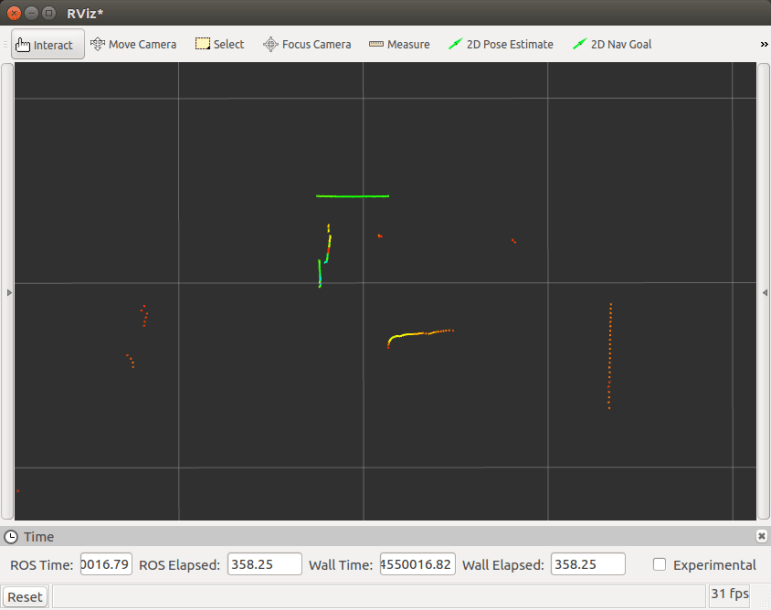
Now that the laser distance scanner has been built into a little standalone unit, it’s easy to take it to different situations and learn how it reacts by watching RViz plot its output data. First I just picked it up and walked around the house with it, which led to the following observations:

  • The sensor dome sweeps in a full circle roughly four times per second. (240 RPM) This sounded pretty good at first, but once I started moving the sensor it doesn’t look nearly as good. Laser distance plot is distorted because it’s moving while it’s sweeping, visibly so even at normal human walking speeds. Clearly a robot using this unit will have to post-process distance data generated by this sensor to compensate for speed. Either that, or just move really slowly like the Neato XV-11 robot vacuum this LIDAR was salvaged from.
  • The distance data is generated from a single narrowly focused beam. This generates detailed sweep data at roughly one reading per vertical degree of separation. However, it also means we’re reading just a very narrow one degree horizontal slice of the environment. It’s no surprise this is limiting, but just how limited wasn’t apparent until we started trying to correlate various distance readings with things we can see with our eyes.

Autonomous vehicles use laser scanners that spin far faster than this one, and they use arrays of lasers to scan multiple angles instead of just a single horizontal beam. First hand experimentation with this inexpensive unit really hammered home why those expensive sensors are necessary.

Neato LIDAR on SGVHAK Rover

After the few handheld tests, the portable test unit was placed on top of SGVHAK Rover and driven around a SGVHAK workshop. There’s no integration at all…. not power, not structure, and certainly not data. This was just a quick smoke test that was very productive because it lead to more observations:

  • Normal household wall paint, especially matte or eggshell, works best. This is not a surprise given that it was designed to work on a home vacuum robot.
  • Thin structural pieces of shelving units are difficult to pick up.
  • Shiny surfaces like glass become invisible – presumably the emitted beam is reflected elsewhere and not back into the detector. Surprisingly, a laptop screen with anti-reflective matte finish behaved identically to shiny glass.
  • There’s a minimum distance of roughly 15-20cm. Any closer and laser beam emitted is reflected too early for detector to pick up.
  • Maximum range is over 4-5 meters (with caveat below). More than far enough for a vacuum robot’s needs.

The final observation was unexpected but obvious in hindsight: The detection capability is affected by the strongest returns. When we put a shiny antistatic bag in view of the sensor, there was a huge distortion in data output. The bag reflected laser back to the scanner so brightly that the control electronics reduced receiver sensitivity, similar to how our pupils contract in bright daylight. When this happens, the sensor could no longer see less reflective surfaces even if they were relatively close.

That was fun and very interesting set of experiments! But now it’s time to stick my head back into my ROS education so I can make use of this laser distance sensor.

Making My Neato LIDAR Mobile Again

The laser distance sensor I bought off eBay successfully managed to send data to my desktop computer, and the data looks vaguely reasonable. However, I’m not interested in a static scanner – I’m interested in using this on a robot that moves. Since I don’t have the rest of the robot vacuum, what’s the quickest way I can hack up something to see how this LIDAR unit from a Neato XV-11 works in motion?

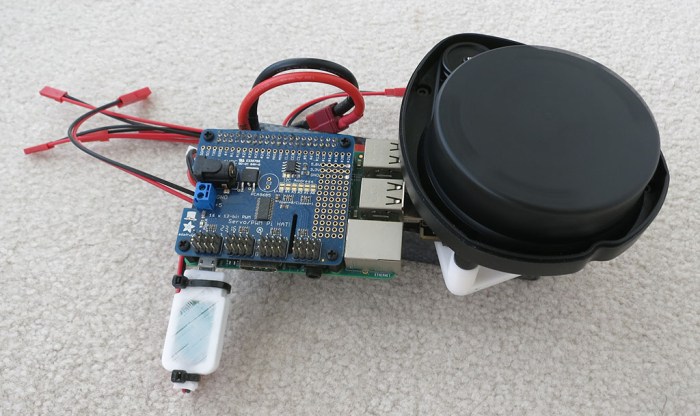
Obviously something on the move needs to run off battery, and there’s already a motor voltage regulator working to keep motor speed correct. So that part’s easy, and attention turns to the data connection. I needed something that can talk to a serial device and send that data wirelessly to my computer. There are many ways to do this in the ROS ecosystem, but in the interest of time I thought I’d just do it in the way I already know how. A Raspberry Pi is a ROS-capable battery-powered computer and everything I just did on my computer would work on a Pi. (The one in the picture here has the Adafruit servo control PWM HAT on board, though the HAT is unused in this test.)

Mobile Scanning Module

The Raspberry Pi is powered by its own battery voltage regulator I created for Sawppy, supplying 5 volts and running in parallel with an identical unit tuned for 3 volts supplying power to spin the motor. As always, the tedious part is getting a Pi on the wireless network. But once I could SSH into the Pi wirelessly, I could run all the ROS commands I used on my desktop to turn this into a mobile distance data station. Reading in data via FTDI serial port adapter, sends data out as ROS topic /scan over WiFi.

Using a Raspberry Pi 3 in this capacity is complete overkill – the Pi 3 can easily shuttle 115200 bps serial data over the network. But it was quick to get up and running. Also – the FTDI is technically unnecessary because a Pi has 3.3V serial capability on board that we could use. It’s not worth the time to fuss with right now but something to keep in mind for later.

Now that the laser is mobile, it’s time to explore its behavior on the move…

Telling USB Serial Ports Apart with udev Rules

Old school serial bus is great for robot hacking. It’s easy and widespread in the world of simple microcontrollers, and it’s easy for a computer to join in the fun with a USB to serial adapter. In my robot adventures so far, it’s been used to talk to Roboclaw motor controllers, to serial bus servos, and now to laser distance scanners. But so far I’ve only dealt with one of them at any given time. If I want to build a sophisticated robot with more than one of these devices attached, how do I tell them apart?

When dealing with one device at a time, there is no ambiguity. We just point our code to  /dev/ttyUSB0 and get on with our experiments. But when we have multiple devices, we’ll start picking up /dev/ttyUSB1, /dev/ttyUSB2, etc. And even worse, there is no guarantee on their relative order. We might have the laser scanner on /dev/ttyUSB2, and upon computer reboot, the serial port associated with laser scanner may become /dev/ttyUSB0.

I had vague idea that a Linux mechanism called ‘udev rules‘ can help with this problem, but most of the documentation I found were written for USB device manufacturers. They can create their own rules corresponding to their particular vendor and product identification, and create nice-sounding device names. But I’m not a device manufacturer – I’m just a user of USB to serial adapters, most of which use chips from a company called FTDI and will all have the same vendor and product ID.

The key insight came in as a footnote of the XV-11 ROS node instructions page: it is possible to create udev rules that create a new name incorporating a FTDI chip’s unique serial number.

echo 'SUBSYSTEMS=="usb", KERNEL=="ttyUSB[0-9]*", ATTRS{idVendor}=="0403", ATTRS{idProduct}=="6001", SYMLINK+="sensors/ftdi_%s{serial}"' > /etc/udev/rules.d/52-ftdi.rules

Such a rule results in a symbolic link that differentiates individual serial devices not by an arbitrary and changing order, but a distinct and unchanging serial number.

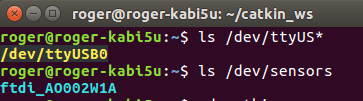
In the screenshot, my serial port is visible as /dev/ttyUSB0… but it is also accessible as /dev/sensors/ftdi_AO002W1A. By targeting my code to the latter, I can be sure they’ll be talking on the correct port. No matter which USB port it was plugged into, or what order the operating system enumerated those devices. I just need to put in the one-time upfront work to write down which serial number corresponds to which devices, code that into my robot configuration, and all should be well from there.

This mechanism solves the problem if I use exclusively USB-to-serial adapters built from FTDI chips with unique serial numbers. Unfortunately, sometimes I have to use something else… like the LewanSoul serial bus servo interface board (*). It uses the CH341 chip for communication, and this chip does not have a unique serial number.

This isn’t a problem in the immediate future. One LewanSoul serial servo control board on can talk to all LewanSoul serial servos on the network. So as long as we don’t need anything else using the same CH341 chip (basically use FTDI adapters for everything else) we should be fine… or at least not worry about it until we have to cross that bridge.


(*) Disclosure: As an Amazon Associate I earn from qualifying purchases.

Shouldn’t Simple LIDAR Be Cheaper By Now?

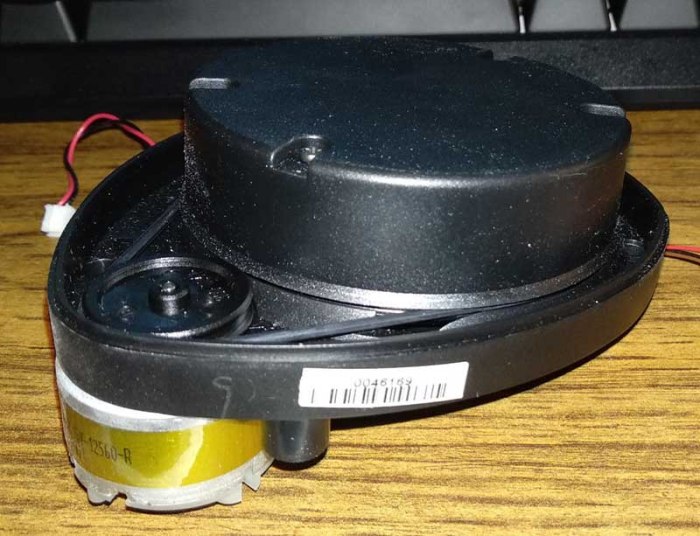
While waiting on my 3D printer to print a simple base for my laser distance scanner salvaged from a Neato robot vacuum, I went online to read more about this contraption. The more I read about it, the more I’m puzzled by its price. Shouldn’t these simple geometry-based distance scanners be a lot cheaper by now?

The journey started with this Engadget review from 2010 when Neato’s XV-11 was first introduced to fanfare that I apparently missed at the time. The laser scanner was a critical product differentiation for Neato, separating them from market leader iRobot’s Roomba vacuums. It was an advantage that was easy to explain and easy for users to see in action on their product, both of which help to justify their price premium.

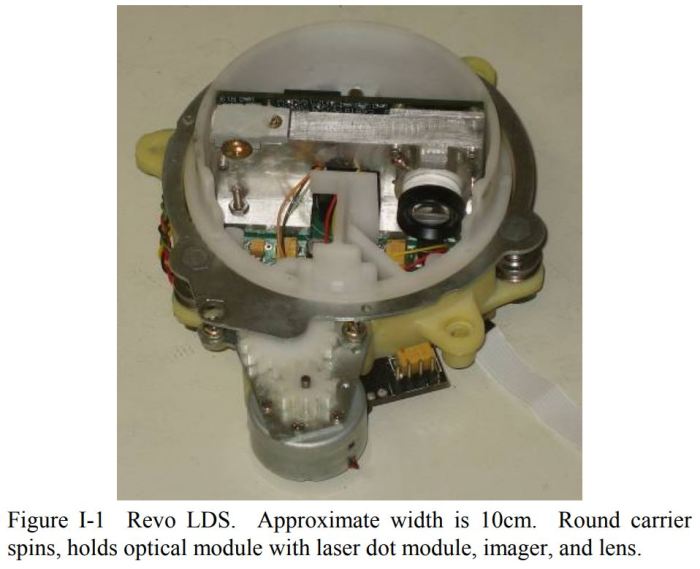
Of course the rest of its market responded and now high-end robot vacuums all have mapping capability of some sort or another, pushing Neato to introduce other features like internet connectivity and remote control via a phone app. In 2016 Ars Technica reviewed these new features and found them immature. But more interesting to my technical brain is that Ars linked to a paper on Neato’s laser scanner design. Presented at May 19-23 2008 IEEE International Conference on Robotics and Automation titled A Low-Cost Laser Distance Sensor and listing multiple people from Neato Robotics as authors, it gave an insight into these spinning domes. Including this picture of internals.

Revo LDS

But even more interesting than the fascinating technology outlined in the paper, is the suggested economics advantage. The big claim is right in the abstract:

The build cost of this device, using COTS electronics and custom mechanical tooling, is under $30.

Considering that Neato robot vacuums have been in mass production for almost ten years, and that there’s been ample time for clones and imitators to come on market, it’s quite odd how these devices still cost significantly more than $30. If the claim in the paper is true, we should have these types of sensor for a few bucks by now, not $180 for an entry-level unit. If they were actually $20-$30, it would make ROS far more accessible. So what happened on the path to cheap laser scanner for everyone?

It’s also interesting that some other robot vacuum makers – like iRobot themselves – have implemented mapping via other means. Or at least, there’s no obvious dome of a laser scanner on top of some mapping-capable Neato competitors. What are they using, and are similar techniques available as ROS components? I hope to come across some answers in the near future.

Simple Base for Neato Vacuum LIDAR

Since it was bought off eBay, there was an obvious question mark associated with the laser scanner salvaged from a Neato robot vacuum. But, following instructions on ROS Wiki for a Neato XV-11 scanner, results of preliminary tests look very promising. Before proceeding to further tests, though, I need to do something about how awkward the whole thing is.

The most obvious problem are the two dangling wires – one to supply motor power and one to power and communicate with the laser assembly. I’ve done the usual diligence to reduce risk of electrical shorts, but leaving these wires waving in the open will inevitably catch on something and break wires. The less obvious problem is the fact this assembly does not have a flat bottom, the rotation motor juts out beyond the remainder of the assembly preventing the assembly from sitting nicely on a flat surface.

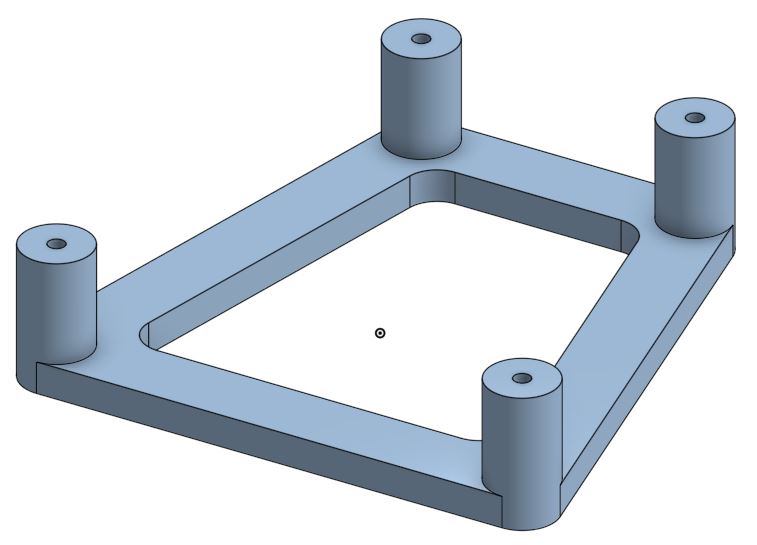
So before proceeding further, a simple base is designed and 3D-printed, using the same four mounting holes on the laser platform designed to bolt it into its robot vacuum chassis. The first draft is nothing fancy – a caliper was used to measure relative distance between holes. Each mounting hole will match up to a post, whose height is dictated by thickness of rotation motor. A 5mm tall base connects all four posts. This simple file is a public document on Onshape if anyone else needs it.

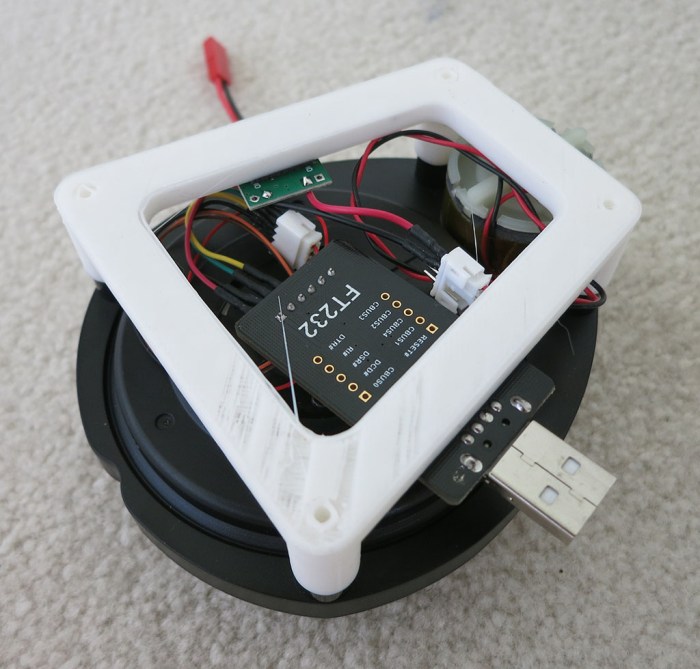
Each dangling wire has an associated circuit board – the motor power wire has a voltage regulator module, and the laser wire has a 3.3V capable USB to serial bridge (*). Keeping this first draft simple, circuit boards were just held on by double-sided tape. And it’s a good thing there wasn’t much expectation for the rough draft as even the 3D printer had a few extrusion problems during the print. But it’s OK to be rough for now. Once we verify the laser scanner actually works for robot project purposes, we’ll put time into a nicer mount.

Simple Neato LDS base
Bottom view of everything installed on simple 3D printed base.

(*) Disclosure: As an Amazon Associate I earn from qualifying purchases.

Neato Vacuum Laser Scanner Works in RViz

Scanner Motor SpinsI bought a laser scanner salvaged from a Neato robot vacuum off eBay. The promised delivery date is mid next week but the device showed up far earlier than anticipated. Which motivated me to drop other projects and check out the new toy immediately.
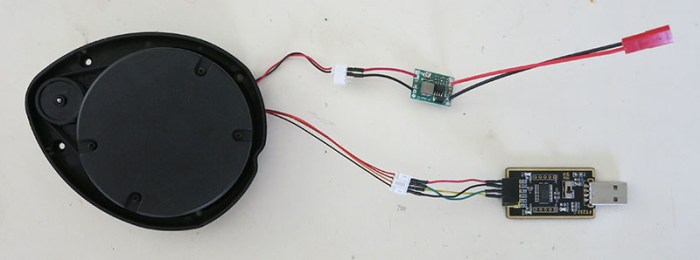
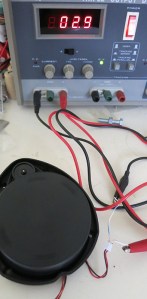
The first test is to verify the rotation motor works. According to instructions, it demands 3.0 volts which I dialed up via my bench power supply. Happily, the scanner turns. After this basic verification, I took one of the adjustable voltage regulators I bought to power a Raspberry Pi and dialed it down to an output of 3.0 volts. Since the connectors have a 2mm pitch, my bag of 4-pin JST-XH connectors could be persuaded to fit. It even looks like the proper connector type, though the motor connector only uses two pins out of four.

The instructions also had data pinout, making it straightforward to solder up an adapter to go between it and a 3.3V capable USB serial adapter. This particular adapter (*) claims to supply 3.3V between 100-200mA. Since the instruction said the peak power draw is around 120mA, it should be OK to power the laser directly off this particular USB serial adapter.

Scanner Power and Data

With physical connection complete, it’s time to move on to the software side. This particular XV-11 ROS node is available in both binary and source code form. I chose to clone the Github source code because I have ambition to go in and read the source code later. The source code compiled cleanly and RViz, the data visualizer for ROS data, was able to parse laser data successfully.

That was an amazingly smooth and trouble-free project. I’m encouraged by the progress so far. I hope we could incorporate this into a robot and, if it proves successful, I anticipate buying more of these laser sensors off eBay in the future.


(*) Disclosure: As an Amazon Associate I earn from qualifying purchases.

Incoming: Neato Robot Vacuum Laser Scanner

The biggest argument against buying a Monoprice robot vacuum for ROS hacking is that I already know how to build a two-wheeled robot chassis. In fact two-wheeled differential drive is a great simple test configuration that I’ve done once or twice. Granted, I have yet to build either of them into having full odometry capability, but I do not expect that to be a fundamentally difficult thing.

No, the bigger challenge is integrating sensing into a robot. Everything I’ve built so far has no smarts – they’re basically just big remote-control cars. The ambition is to ramp up on intelligent robots and that means giving a robot some sense of the world. The TurtleBot 3 Burger reads its surroundings with a laser distance sensor that costs $180. It’s been a debate whether I should buy one or not.

But at this past Monday’s SGVHAK meetup, I was alerted to the fact that some home robot vacuums use a laser scanner to map their surroundings for use planning more efficient vacuum patterns. I knew home robot vacuums have evolved beyond the random walk vacuum pattern of the original Roomba, but I didn’t know their sophistication has evolved to incorporate laser scanners. Certainly neither of the robot vacuums on clearance at Monoprice have a laser scanner.

But there are robot vacuums with laser scanners and, more importantly, some of these scanner-equipped robot vacuums are getting old enough to break down and stop working, resulting in scavenged components being listed on eBay… including their laser scanner! Items come and go, but I found this scavenged scanner for $54 and clicked “Buy It Now”. The listing claims it works, but it’s eBay… we’ll find out for sure when it arrives. But even if it doesn’t, Neato vacuums are available nearby for roughly the same price, so I have the opportunity for multiple attempts.

The unit off eBay was purportedly from a Neato XV-11 vacuum and someone in the ROS community has already written a package to interface with the sensor. The tutorials section of this package describes how to wire it up electrically. It looks fairly straightforward and I hope it’ll all come together as simply as I hope it will when the eBay item arrives in about a week and a half.

Neato Scanner 800


Monoprice Vacuums Are Tempting For Robot Hacking

The original research hardware for ROS is the Willows Garage PR2, a very expensive robot. To make ROS accessible to people with thinner wallets, the TurtleBot line was created. The original TurtleBot was based on the iRobot Create, a hacking-friendly variant of their Roomba home robot vacuum. Even then, the “low-cost” robot was still several thousand dollars.

The market has advanced in that time. TurtleBot 3 has evolved beyond a robot vacuum base, and the iRobot Create 2 itself is available for $200. Not exactly pocket change but far more accessible. The market pioneered by Roomba is also no longer dominated by iRobot, with lots of competitors, which brings us to cheap Chinese clones. Some of which are sold by Monoprice, and right now, it seems like Monoprice is either abandoning the market or preparing for new products – their robot vacuums are on clearance sale presenting tempting targets for robotic hacking.

Monoprice Cadet 512The low-end option is the “Cadet“, and looking at the manual we see its basic two-wheel differential drive mechanism is augmented by three cliff sensors in addition to the bump sensors. The hardware within only has to support the basic random walk pattern, so the expectation is not high. But that might be fine at its clearance sale price of $55.

Monoprice Intelligent Vacuum 512The higher-end option is the “Intelligent Vacuum“. It has a lot more features, some of which are relevant for the purposes of robot hacking. It still has all the cliff sensors, but it also has a few of those proximity sensors pointing outwards to augment the bump sensors. But most interesting to robot hacking – it is advertised to vacuum in one of several patterns and not just random walk. This implies wheel encoders or something to track robot movement. There’s also a charging base docking station that the robot can return to charge, backing up the speculation there exists mechanisms on board the robot for odometry. Its clearance sale price of $115 is not significantly higher than the cost of building a two-wheeled robot with encoder, plus its own battery, charger, and all the sensors.

As tempting as they are, though, I think I’ll go down a different path…

HTML with Bootstrap Control Interface for ROSBot

While learning ROS, I was confident that it would be possible to replicate the kind of functionality I had built for SGVHAK rover. That is to say: putting up a HTML-based user interface for the user and talking to robot mechanical based on user input. Except that, in theory, the modular nature of ROS and its software support should mean it’ll take less time to build one. Or at least, it should be for someone who had already invested in the learning curve of ROS infrastructure.

At the time I didn’t know how long it would take to ramp up on ROS. I’m also a believer that it is educational to do something the hard way once to learn the ropes. So SGVHAK Rover received a pretty simple robot control built from minimal use of frameworks. Now that I’m ramping up on ROS, I’m debating whether it’s worthwhile to duplicate the functionality for self-education’s sake or if I want to go straight to something more functional than a remote control car.

This week I have confirmation a ROS web interface pretty simple to do: this recent post on Medium described one way of creating a web-based interface for a ROS robot. The web UI framework used in this tutorial is Bootstrap, and the sample robot is ROSBot. The choice of robot is no surprise since the Medium post was written by CEO of Husarion, maker of the robot. At MSRP of $1,299 it is quite a bit out of my budget for my own ROS experimentation at least for now. Still, the information on Medium may be useful if I tackle this project myself for a different robot, possibly SGVHAK rover or Sawppy.

Processed by: Helicon Filter;


New Addition To ROS: Bridge To OpenAI

OpenAI LogoWhile we’re on the topic of things I wanted to investigate in the future… there was a recent announcement declaring availability of the openai_ros package, a ROS toolkit to connect OpenAI to robots running ROS. Like the Robotis demo on how to use TensorFlow in ROS, it reinforces that ROS is a great platform for putting these new waves of artificial intelligence tools into action on real robots. Of course, that assumes I’ve put in the time to become proficient with these AI platforms and that has yet to happen. Like TensorFlow, learning about OpenAI is still on my to-do list and most of the announcement information didn’t mean anything to me. I understood the parts talking about Gazebo and about actual robot, but the concept of an OpenAI “task” is still fuzzy, as are details on how it relates to OpenAI training.

What’s clear is that my to-do list is growing faster than I can get through them. This is not a terrible problem to have, as long as it’s all interesting and rewarding to learn. But I can only take so much book learning before I lose my anchor and start drifting. Sometime soon I’ll have to decide to stop with the endless reading and put in some hands-on time to make abstract ideas concrete.

It’ll be fun when I get there, though. OpenAI recently got some press with their work evolving a robotic hand to perform dexterous manipulations of a cube. It looks really slick and I look forward to putting OpenAI to work on my own projects in the future.

New Addition To TurtleBot 3 Manual: TensorFlow

TensorFlow LogoBeing on the leading edge carries its own kind of thrill. When I started looking over the TurtleBot 3 manual I noticed the index listed a “Machine Learning” chapter. As I read through all the sections in order, I was looking forward to that chapter. Sadly I was greatly disappointed when I reached that chapter and saw it was a placeholder with “Coming Soon!”

I didn’t know how soon that “soon” was going to be, but I did not expect it to be a matter of days. But when I went back to flip through the material today I was surprised to see it’s no longer a placeholder. The chapter got some minimal content within the past few days, as confirmed by Github history of that page. Nice! This is definitely a strength of an online electronic manual versus a printed one.

So it’s no longer “Coming Soon!” but it is also by no means complete. Or at least, the user is already assumed to understand machine learning via DQN algorithms. Since I put off my own TensorFlow explorations to look at ROS, I have no idea what that means or how I might tweak the parameters to improve results. This page looks especially barren when compared to the mapping section, where the manual had far more information on how the algorithm’s parameters can be modified.

Maybe they have plans to return a flesh it out some more in the future, which would be helpful. Alternatively, it’s possible that once I put some time into learning TensorFlow I will know exactly what’s going on with this page. But right now that’s not the case.

Still, it’s encouraging to know that there are documented ways to use TensorFlow machine learning algorithms in the context of driving a robot via ROS. I look forward to the day when I know enough to compose all these pieces together to build intelligent robots.

TurtleBot3 Demo Navigating Gazebo Simulation World

Continuing on this beginner’s exploration of ROS, I got a taste of how a robot can be more intelligent about its movement than the random walk of turtlebot3_drive. It also gave me a taste of how much I still have to learn about how to effectively use all these open source algorithms available through the ROS ecosystem, but seeing these things work is great motivation to put in the time to learn.

There’s an entire chapter in the manual dedicated to navigation. It is focused on real robots but it only needs minimal modification to run in simulation. The first and most obvious step is to launch the “turtle world” simulation environment.

roslaunch turtlebot3_gazebo turtlebot3_world.launch

Then we can launch the navigation module, referencing the map we created earlier.

roslaunch turtlebot3_navigation turtlebot3_navigation.launch map_file:=$HOME/map.yaml

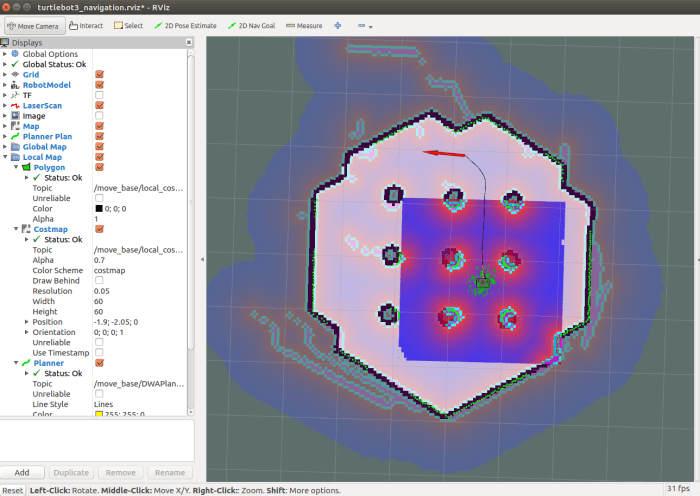
When RVis launches, we see one and a half turtle world. The complete turtle world is the map data, the incomplete turtle world is the laser distance data. We see the two separately because the robot doesn’t yet know where it is, resulting in a gross mismatch between map data and sensor data.

Navigation Startup

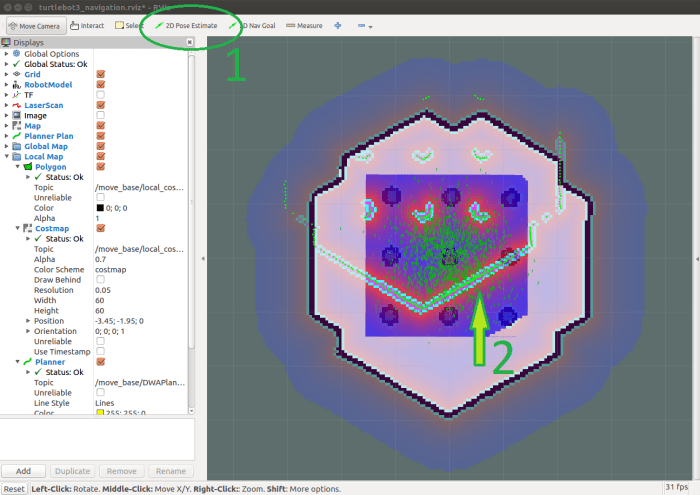
ROS navigation can determine the robot’s position, but it needs a little help with initial position. We provide this help by clicking on “2D Pose Estimate” and drawing an arrow. First we click on the robot’s position on the map, then we drag upwards to point the arrow up representing the direction our robot is facing.

navigation-pose_estimate.png

In theory, once the robot knows roughly where it is and which direction it is facing, it can match laser data up to the map data and align itself the rest of the way. In practice it seems like we need to be fairly precise about the initial pose information for things to line up.

Navigation Aligned

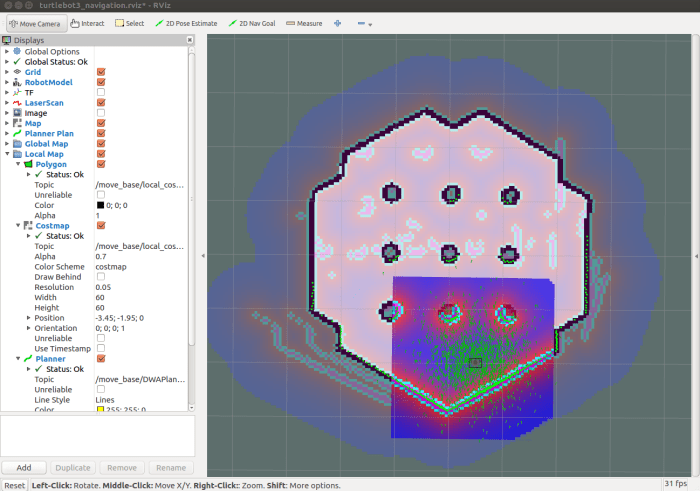
Once aligned, we can click on “2D Nav Goal” to tell our robot navigation routine where to go. The robot will then plan a route and traverse that route, avoiding obstacles along the way. During its travel, the robot will continuously evaluate its current position against the original plan, and adjust as needed.

Navigation Progress

That was a pretty cool demo!

Of course there’s a lot of information shown on RViz, representing many things I still need to sit down and learn in the future. Such as:

  • What are those little green arrows? They’re drawn in RVis under the category named “Amcl Particles” but I don’t know what they mean yet.
  • There’s a small square surrounding the robot showing a red-to-blue gradient. The red appears near obstacles and blue indicates no obstacles nearby. The RViz check box corresponding to this data is labelled “Costmap”. I’ll need to learn what “cost” means in this context and how it can be adjusted to suit different navigation goals.
  • What causes the robot to deviate off the plan? In the real world I would expect things like wheel slippage to cause a robot to veer off its planned path. I’m not sure if Gazebo helpfully throws in some random wheel slippage to simulate the real world, or if there are other factors at play causing path deviations.
  • Sometimes the robot happily traverses the route in reverse, sometimes it performs a three-point-turn or in-place turn before beginning its traversal. I’m curious what dictates the different behaviors.
  • And lastly: Why do we have to do mapping and navigation as two separate steps? It was a little disappointing this robot demo separates them, as I had thought state of the art is well past the point where we could do both simultaneously. There’s probably a good reason why this is a hard problem, I just don’t know it yet in my ignorance.

Lots to learn!