And A Quest 2 Too

One reason I was willing to take apart my old HP Windows Mixed Reality system is the Meta Quest 2. Now with the Quest 3 taking mainstream position in their product line, Quest 2 inventory is getting cleared out at $200. That price was too tempting to resist so I got one even though I had a perfectly functional Valve Index. Here are some notes from my first hand experience.

Versus HP Windows Mixed Reality

I did not find a single spec sheet advantage my old WMR headset had over the much younger Quest 2. Technology moves fast! Quest 2 has higher screen resolution, integrated microphone and headset, and controllers that were happy to run on a single nominal AA battery instead of demanding two fully-charged AAs. Both used camera-based inside-out tracking but Quest 2 maintained better tracking because it used four cameras instead of two, and those cameras did not demand I turn on every light in the house if I wanted to use it at night. Quest 2 had some level of IPD adjustment with three settings, whereas the HP had no IPD adjustment at all.

I have not yet decided if I prefer Quest 2’s elastic headband versus HP WMR’s headband. I think the HP headband was the best part of the device and I may try 3D printing an adapter to use it with my Quest 2 to see if that’s an improvement.

Versus Valve Index

On the spec sheet Valve Index has a resolution advantage to the Quest 2. Fewer display pixels spread out across a wider field of view. In practice, I found the wider field of view much more important for immersive VR. I am happy making the tradeoff for better field of view but obviously I wouldn’t say no to both if I can get it in a future headset.

Beacon-based tracking used by Index meant I had to add those two little boxes in my room, but the results are worth it. Index has consistently better tracking especially for games where my hands have to move out of my field of view. (Reach behind my back or have a hand on my chest while looking up.) The Index controllers themselves are also much better than Quest controllers, with individual finger sensing, grip pressure sensing, and straps allowing me to open my grip without the controllers falling out. It’s a great immersion advantage, too bad Half Life: Alyx is the only game that takes full advantage of Index controllers.

Both have integrated microphone and speakers, but the Valve Index delivered much better positional audio. Weight of an Index is significantly heavier but part of that weight is the headband balancing things across my head versus Quest 2’s thin elastic band. And finally, Index has better optical adjustment capabilities. Not only smooth IPD adjustment (instead of three fixed positions) but also fore-aft adjustment.

Index is a much more comfortable headset for longer sessions and provides a more immersive VR experience compared to a Quest 2. But we have to consider their relative price tags. It’s better, but it’s not five times better. Even more if you count cost of a gaming PC! Plus, the comparisons here overlook what’s arguably Quest 2’s greatest advantage: it doesn’t need an associated gaming PC at all.

HP Windows Mixed Reality Controller

One advantage of tearing down a VR system is that many things come in left-right pairs. After taking apart the first one, I learn lessons that help tearing down the second one more successful. It was true of headset LCD screens, and it is also true for the controller.

The parts are not interchangeable between these two, including the battery compartment covers that are almost but not identical.

Once the cover was removed we see four obvious fasteners to start.

There’s a fifth fastener, hidden under a faceplate held with clips. I didn’t find this the first time and ruined some things, but I was able to take this picture on the second pass.

Once those five screws are removed, the back cover is held only by clips and can be popped off.

The index finger trigger was a surprise: instead of a potentiometer, there is a small magnet. I think component U4 on the joystick circuit board is the Hall effect sensor reading magnet position for an analog value representing position of finger trigger.

There’s nothing on the other side that look like a Hall sensor. Just a big joystick, an additional button, and a few resistors+capacitors.

Once the joystick circuit board was removed, the second screw holding the LED ring in place became accessible and the LED ring can be freed. I’ll come back to this later.

Below the LED ring is an Y-shaped bracket holding the capacitive touch pad in place.

Once removed, releasing a trio of clips freed the touch pad.

Leaving the main controller logic board as the final component still in the handle, held by two more screws.

The vibration motor is the largest component on the back.

Almost everything is on the front, including the most surprising component J7: a 10-pin FPC connector is populated on this circuit board, but there was no associated FPC in the final product. Why is it here?

Now I return to the LED ring. No fasteners were visible so I started prying at seams.

Some clips popped loose and half of the mounting bracket came free.

Releasing more clips freed the inner ring.

All position reference LEDs were on a single long FPC, wound around the ring and folded into position. Small screws are distributed all around the perimeter to ensure everything is fastened tight and LEDs held in position.

But that’s a solvable problem.

Once the innermost ring was freed, the LED host FPC could be peeled off.

LED array laid out flat on the workbench.

Every time I take apart a gaming peripheral, I am amused by the thought this single controller by itself has more computing power than an entire Atari 2600 console.

HP Windows Mixed Reality Headset (VR1000-100) Display

I’m taking apart my soon-to-be-bricked HP WMR headset. Mainly following the community contributed teardown guide on iFixit plus my own detour into stuff like the headband. My next detour is to take apart its display unit.

The iFixit community guide left it as a single unit, with good reason. I found out it is a slim lightweight assembly mostly held together with adhesive strips. (Double-sided tape) I’m not sure it is possible to disassemble it neatly. My disassembly was an irreversibly destructive procedure.

The display unit consists of two nearly identical assemblies, one for each eye. Given that fact I am grumpy they didn’t design a way to adjust the distance between them to match an user’s interpupillary distance. I had thought that limitation reflected a headset built on a single wide LCD a la Google Cardboard. But it wasn’t! They were two separate square LCD units. Majority of wires lead to the actual liquid crystal matrix. The four-pin connector to the right lead to an LED strip for backlight.

I tried to disassemble the right eye assembly first, starting from the back. After releasing a metal frame fastened with six screws, I found everything else was taped down. Peeling this backlight diffuser assembly broke the white plastic frame because that thin strip of tape was apparently stronger than the plastic.

After much snap-crackle-and-popping, the light diffusion films were removed and I could see the row of white backlight LEDs.

I managed to peel off the LED strip intact…

But I completely destroyed the LCD matrix in doing so. That’s a thin sliver of LCD stuck to the back, with its matrix circuitry visible. Ugh, what a mess.

For the other side, I decided to try approaching from the front. I first removed the Fresnel lens, which was held by its own ring of adhesive tape.

Carefully pushing from the front allowed me to remove this second screen assembly intact. That’s better than before!

But I still couldn’t cleanly separate the LCD matrix from its backlight. Glass cracked, liquid smeared, plastic tore. It ended up just as big of a mess as the first try. Oh well.

I doubt I could line up the diffusion film with the LED strip again, so I failed to salvage two diffuse square white light sources. But the LED strips themselves might still be useful. They’re good candidates for building a rig to side-illuminate small circuit boards. These Fresnel lenses will join my salvaged Google Cardboard lenses in my bin of parts awaiting potential future projects.

Next up: the controllers.

HP Windows Mixed Reality Headset (VR1000-100) Teardown

I decided to tear apart my Windows Mixed Reality VR headset because it will soon become just a paperweight. I don’t expect to find much that I can repurpose, but I still wanted to see what’s inside. Thankfully someone has already written a teardown guide on iFixit which will save me time. It also lets this post focus on items not already in the guide.

The guide has location for all the screws, but one thing not explicitly called out is the fact the screws are tiny and some of them are very deeply recessed. A large handle with an interchangeable screwdriver bit wouldn’t fit here. I had to dig up an actual tiny screwdriver.

A good VR headset would minimize weight hanging on our head. So I had expected to find a fully optimized design but I see many unpopulated footprints on the main logic board. I don’t know enough to speculate what they might have been but it’s clear this board isn’t as optimized as I had thought it would be. Sure, we’re probably talking about surface mount components that wouldn’t weigh much on their own, but consider their downstream effects. Their footprints and associated wiring makes this logic board larger. Which meant the enclosure had to be larger, and so on. Each individual step may be a small weight gain but they add up.

The guide got as far as removing this headband assembly and didn’t go into any more detail about it. This headband was very adjustable to accommodate a wide range of human head sizes and well padded for comfort holding up the weight that it did. I thought this headband might be the component most likely to get reused. Technology and market forces has rendered rest of the headset obsolete, but I still have the same head!

The hinge mechanism was secured by four screws hidden under a sticker.

Opposite those screws were a set of four clips.

Removing screws and releasing clips allowed the hinge mechanism to slide free of the visor chassis.

The hinge came apart easily once freed. It looks very promising for reuse if I ever wanted to build something to wear on my head. The underlying spring-loaded mechanism has a round output shaft with flattened top and bottom, a shape I should be able to 3D print and mesh with. Or I could try to design and print something that fits into the clips and screws. Both are possibilities for the future. Right now I’ll set it aside to look at the display unit.

End of Windows Mixed Reality

In December 2023 Microsoft announced that Windows Mixed Reality has been deprecated and will be removed from Windows 11 24H2. This did not come as a surprise, as the platform hasn’t seen any investment in years. But it does mean my HP WMR headset will officially become a paperweight later this year.

This is fine by me, because my headset has pretty much been a paperweight since I damaged its cord. I tried fixing it and was seemingly successful, but there was a chance my fix is flawed. An errant pin could potentially ruin an expensive video card so I never really put the headset back into use. It is old anyway, lacking features of newer headsets. Heck, it was old and out of date when I got it! At that time, WMR was already… not a resounding success… and my local Best Buy decided to clear out their slow-moving inventory with heavy discounts.

What could I do with it now? There was never any compelling WMR exclusive experience for me, so I don’t have anything to revisit before it’s gone. And since I’ve upgrade to a Valve Index headset, that gives me a superior experience for everything in SteamVR. I guess I could use the deprecated WMR headset for experiments that I don’t want to risk on my expensive Valve Index, but I don’t have any project ideas along that direction. There’s no particular reason to hang on to it “just in case” an idea comes up because (1) it’ll stop working by the end of the year, and (2) if I want VR experiments with an affordable headset, I have to option to go pick up a Meta Quest 2. Which is not only affordable, but would let me explore untethered VR as well as opening the door to Quest exclusive experiences.

During my long inkjet teardown/Dell XPS debugging saga, I would frequently think about what I could do with this obsolete WMR headset. After a few months of not coming up with anything interesting, I will proceed with the ultimate fallback option: it is teardown time!

My Cell Phones Before Android, 1998-2013

I recently rediscovered this picture of all my cell phones from 1998 to 2013. I took this group picture shortly before sending most of them to electronic waste disposal. At the beginning of that fifteen year period, these were “cell phones” to specify they worked on a wireless network. By the end of that period, they are just “phones” and what used to be “phones” had become “landline”. It would have been symbolic to post this note on August 30th 2023 as that would have been the picture’s 10th anniversary, but I’m a few months late.

The oldest phone on the far left is a Sony CM-H888. I bought it in September 1998 and at the time it was a wonder of miniaturization much smaller than its contemporary analog peers. Yes, analog! This was a telephone for making voice calls over analog cellular network and nothing else. No internet, no apps, not even SMS. It looks bulky compared to the rest of this lineup mostly because of its 4*AA NiMH battery pack consuming over half of its volume. It is the only device on this list not powered by a lithium-ion battery.

Rapid technology advancement motivated me to part with my money. I upgraded to a Nokia 8260 a year later (October 1999) which weighs less than half as much (220g vs. 97g), eliminated the protruding antenna, and is a comfortable fit in my pocket instead of a barely-fit bulge. Multiple different technologies helped make this possible, including lithium-ion battery and a switch from AirTouch Cellular‘s analog network to AT&T Wireless TDMA digital cellular. It also gave me first exposure to a phone app in the form of Nokia’s legendary snake game.

A few years after getting the Nokia 8260, I bought a Compaq iPaq personal digital assistant (PDA) to help track my calendar and related adulting information that I could no longer all keep in my head. I appreciated that I had a pocket reminder of my responsibilities, and I admit to a certain level of Geek Cred for carrying around these electronic devices, but it still meant I was carrying them!

Consolidation came in December 2003, when I upgraded to a Motorola MPx200. It was the device that launched “Windows Mobile Smartphone” OS which gave me phone apps to functionally replace my PDA. The screen resolution of 176×220 was a huge upgrade over the Nokia brick but lower than iPaq’s 240×320. Plus, both of those screens were monochrome and now I have a color screen. Upgrading from TDMA to GSM digital cellular also meant I gained access to SMS text messaging. And finally, switching to a flip phone eliminated accidental butt-dials.

But it was a lot thicker than the Nokia, and didn’t fit in my pocket as nicely. So a year later (December 2004) I upgraded to an Audiovox 5600 (HTC Typhoon). It has all the features of the Motorola MPx200 at size of the Nokia 8260, so it’s almost the best of both worlds. The only thing I consider a downgrade is the fact butt-dials started happening again. Especially annoying was a feature where holding down “9” would automatically dial “911” and I could not figure out how to disable it.

So when the Cingular 3125 (HTC Startrek) launched, it caught my attention and I bought one in March 2007. It’s a flip phone to eliminate embarrassing butt-dials again, but far thinner than the Motorola MPx200. Hardware had advanced enough to put iPaq resolution screen (240×320 and in color) into a phone, and the laser-etched metal keypad looks way better in person than in pictures.

The first Apple iPhone also launched in 2007, but as an expensive premium product. My CIngular 3125 cost a small fraction of the iPhone up front, and did not require an expensive cellular data plan as the iPhone did. But the cost gap narrowed over the following years. Apple iPhone prices (along with corresponding data plan prices) eventually dropped to within reach of mass market consumers, and it was clear slabs of touch screen glass were the way of the future.

The AT&T HTC Pure (HTC Touch Diamond2) weighted about as much as my Cingular 3125. It lost the cool laser-etched keypad in exchange for a much larger and higher resolution (480×800) screen. It was one of several non-Apple efforts to follow iPhone’s lead as of January 2010 and a pretty poor showing at that. The marketing team tried their best trying to find advantages but it was pretty futile. Example: The 480×800 screen resolution was higher than the iPhone 3, but that marketing item was quickly buried by “retina display” of iPhone 4. Phones like HTC Pure could only compete at a lower price and I was fine with that. My Cingular 3125 was falling apart, held together with glue and tape. A cheap not-as-good-as-iPhone unit would suffice.

Minimizing usage of expensive data plan meant my HTC Pure did not get used as a smartphone very much. Mostly just voice calls and calendar, similar to how I had used my earlier phones. I didn’t know what I was missing out on until I upgraded to a Samsung Focus in November 2010. Windows Phone 7 was a huge advancement. Its first-party experience became a credible competitor to iPhone and Android, but third-party app support was inferior and would never catch up.

My biggest complaint with the Samsung Focus was its AMOLED screen. The bright high-contrast colors worked well for video and pictures, but its RGBG PenTile matrix proved horrible for text legibility at those resolutions. So when the Nokia Lumia 900 launched with classic RGB color pixels, I jumped over in July 2012. I was happy to accept some color and brightness limitations of a LCD screen in exchange for more legible text. Beyond its screen, I preferred Nokia’s sleek industrial design over Samsung’s anonymous black blob.

And finally, at the far right of this lineup, is a Nokia Lumia 620 I bought in May 2013. All the Nokia design and RGB matrix of the 900, but in a smaller package running Windows Phone 8. It was fine, but it was still a Windows Phone. After multiple major updates (7.5, 7.8 and 8) it became clear Microsoft was unable or unwilling to match iOS/Android on third-party app support. After losing faith in Microsoft, I never upgraded to Windows Phone 10… er, sorry, “Windows 10 Mobile”. Because rebranding always solves fundamental product issues.

I switched to Android in 2015 with a Nexus 5 and I’ve had Android phones ever since. I still have many of them (and try to keep them running) but a group photo wouldn’t be very interesting as they’re all touch screen slabs. (Effectively this photo.) RGBG PenTile AMOLED panels came back into my life again with recent phones, but I found that I didn’t mind it as much at modern phone screen resolutions. I have less than a dozen apps installed on my current phone so I never got into apps in a big way. But if I needed one, I can be confident an Android app exists. I no longer have to worry about whether an app exists for Windows Phone.

I hardly noticed when Microsoft finally pulled the plug on their phone OS efforts. I was long gone. It’s hardly the only platform I own that Microsoft axed.

Canon 210 (Black) And 211 (Color) Cartridges

While reviewing my notes about getting my Dell XPS 8950 fixed, I realized an item from my inkjet teardown slipped through the cracks: an aborted teardown of its 210XL and 211 ink cartridges. I wasn’t terribly interested in their internals. So when I encountered its robust construction I just shrugged and moved on. Still, there were a few interesting observations.

When I looked at the print carriage internals, I was not surprised to see the black cartridge had fewer electrical contact points than the color cartridge. However, I was surprised to see it’s not one-third the amount. It has to deal with just black instead of cyan, magenta, and yellow. Why does it have well over 1/3 the contact points?

I saw the answer when I flipped those two cartridges over and compared them side by side. The single-color black ink print head is double the height of the three-color ink print head. When printing purely in monochrome, it can print a band twice as high in a single pass so the paper can advance twice the distance basically doubling print speed. Assuming all else are equal, it would imply the black ink cartridge would need 2/3 the contact points of the color cartridge rather than 1/3. The actual numbers are 20 contacts for black and 36 contacts for color. Close enough for me to declare mystery solved.

Those contact points are on a thin flexible printed circuit and held down by four melted plastic rivets. I could cut them flush with a knife to free the thin sheet.

Once freed, I took a picture of the exterior side…

… and the interior side. The print head is to the left of these two pictures so it’s no surprise a bunch of copper traces lead that direction, but I was intrigued by the traces running off the edge to the right. What purpose did that serve?

I didn’t see any more rivets I could cut, and I couldn’t see anything else I could release. Trying to see what might be holding things in place, I gave the thin sheet a firm tug and it ripped off. The answer is, apparently, glue. Underneath the ripped-off sheet is the print head embedded inside cartridge enclosure. I saw no fasteners or clips. I think it is either glued in or molded in.

I tried prying against a corner and ended up braking off a piece. The whole thing is made of a very strong material. When it is over stressed, its brittle nature causes it to shatter instead of bend.

Looks like the enclosure is bonded strongly enough to the actual print head that they broke apart together. There’s no way to get further inside without being extremely destructive about it, which won’t teach me anything interesting, so I stopped here.

Dell XPS 8950 Components Replaced Under Warranty

My six-month-old Dell XPS 8950 has been exhibiting intermittent bug checks. (Blue screens of death.) Since it was still under warranty, I wanted Dell to fix it. The tech support department tried their best to fix it in software, but they eventually decided hardware component replacement will be required to get this system back up and running reliably.

The premium I paid for XPS included on-site service visits as a perk. Dell dispatched a technician (an employee of WorldWide Tech Services) to my home with a job order to replace SSD and power supply. This made sense: a bad SSD would corrupt system files and cause the kind of seemingly random and unpredictable errors I see. If the power supply had gone bad, intermittent power glitches can do the same. As far as system components go, they are relatively inexpensive and easy to replace, so it made sense for Dell to try that first.

Unfortunately, this repair job went awry. When the technician powered my system back up, there was no video from the RTX 3080 GPU. Intel’s integrated video worked if the GPU was removed so the rest of the system seemed fine. A follow-up visit had to be scheduled for another technician to arrive with a replacement RTX 3080 GPU to get things back up and running. I hope the first technician didn’t get in too much trouble for this problem as RTX 3080 cards are not cheap.

The evening after the system was back up, another bug check occurred. Two more occurred within the 24 hours that followed. I reported this back to Dell and they asked if I would be willing to send the system to a repair depot. I didn’t care how it was done, I just wanted my system fixed, so I agreed. They sent me a shipping box with packing material and a shipping label. I guess they didn’t expect people to hang on to the original box! (I did.)

Looking up the shipping label address, I found a match for CSAT Solutions. Apparently contracted by Dell to perform such repairs. These people worked fast! According to FedEx tracking information, it was delivered to CSAT at 11AM and by 4PM the box was back in FedEx possession for the return trip. I had set up the machine to run Folding@Home and I included instructions to reproduce the problem, but it’s clear they ain’t got time for that nonsense.

An invoice in the box indicated they replaced CPU and RAM. Two more components that, if faulty, can cause random bug checks. They are significantly more expensive than a SSD or power supply so I understand why they weren’t first to be replaced. (A RTX 3080 cost more, but wasn’t part of the plan.)

I reinstall Windows 11 again and fired up Folding@Home. This time there were no bug checks running for seven days nonstop. Hooray! I’m curious whether it was CPU or RAM at fault (or both?) but at this point I have no way to know.

Due to component replacements, I almost have a different computer. Of its original parts, the metal enclosure and main logic board are all that remained. Dell has fixed the computer under warranty with no financial cost to me but significant time cost. If I value my time at, say, $50 an hour, I would have been better off just buying a new computer. As for Dell, whatever profit they had made on this sale has been completely erased and became a net loss. I’m glad this problem was fixed under warranty, but both sides prefer to avoid doing it at all. I hope this gives them a financial incentive to improve system reliability!

Despite the headaches of this particular episode, the fact it was repaired under warranty made me quite willing to buy more refurbished Dell computers.

Notes On Diagnostics From Dell Support

My Dell XPS 8950 has started exhibited unpredictable bug checks. (Blue Screen of Death) I poked around Dell’s SupportAssist software and found a lot of promising troubleshooting tools, but none of them fixed it. Out of ideas on software fixes, and unwilling to void the warranty by modifying hardware, I used SupportAssist text chat feature to open an official trouble ticket with Dell technical support. They eventually fixed the issue, but it took a few weeks to get there.

As expected, they wanted to try the easy things first. This meant repeating many SupportAssist tools which I already knew would be doomed to fail. And Windows tools (like restore points) that did no better. Since hardware diagnostics tests passed, their suspicion moved to operating system corruption. This involved trying a lot of procedures I already knew about, and have already run, but they want to do it again. There were a few bits of novelty:

Throughout this arduous process,I was instructed to reinstall Windows three separate times in three different ways: first with SupportAssist’s OS reinstall option, then Windows’ built in recovery option, finally a clean install via an USB drive created with Microsoft’s Media Creation Tool. This is on top of the re-installation I had already performed before contacting Dell support. With all this practice, I got really good at Windows setup!

Each time I reinstalled Windows, I had to reinstall SupportAssist. Clicking on text chat created a new chat session. Which meant I was sent to someone expecting to open a new ticket and I’d have to spend time to get them straightened out with my existing ticket number.

With each bug check, I get a crash memory dump to prove their latest idea hadn’t resolved my issue. Sadly Dell’s support ticket web interface allowed only a maximum of five attachments. I quickly reached my limit and additional memory dumps had to submitted by sharing files via my Microsoft OneDrive and Google Drive accounts and sending a link via text chat. This was… sub-optimal.

Weeks later, I’ve exhausted all their scripted solutions and finally granted an escalation to senior support technicians. They reviewed my ticket and came to the conclusion I hoped they would: some hardware components would need to be replaced.

Notes on Dell SupportAssist

I have a thorny issue with my XPS 8950. The symptom is an intermittent bug check (a.k.a. blue screen of death) that is not readily reproducible and, even when it occurs, the error code varies wildly in type and in location. My previous trouble-free Dell computers have allowed me to ignore Dell’s tech support portal. Now I have a troubled PC and have to learn what’s in Dell’s SupportAssist software.

Dell SupportAssist is primarily a native Windows application that is pre-installed on every Dell PC. If it is lost, SupportAssist can be downloaded from Dell’s website. (I had to do this several times after performing operating system reinstall as a diagnostic procedure.) It has several roles to play in regular maintenance:

  • Look for common configuration problems and tries to fix them.
  • Download drivers and other system files, though mostly supplanted by Windows Update. I even got BIOS update 1.16.0 from Windows Update before it showed up as an option in SupportAssist.
  • Clean up unused files to free up disk space.

SupportAssist also included troubleshooting tools including:

  • Examine Windows system events. SupportAssist recognized that I had been experiencing bug checks, and even offered a “Fix Now” option. It’s not obvious what that did, but it didn’t help.
  • Perform a suite of hardware tests. CPU tests, memory tests, disk tests. I was amused it even spun up each of the fans.

Regarding the hardware tests: there’s also a separate piece of software that can run independent of Windows. Its title bar calls itself “SupportAssust | On-board Diagnostics” and it lives on a separate disk partition. To launch it, we have to trigger the BIOS boot select menu and select “Diagnostics”. My computer passed all of these tests as well, including running everything under “Advanced Test” with “Thorough mode” selected.

This diagnostics partition was deleted when following directions from Dell tech support to perform a completely clean install. I was worried about that — it seemed useful! — but I later learned SupportAssist Windows application can re-partition the hard drive and reinstall that Diagnostics partition.

There is one worrisome aspect of SupportAssist. When this native Windows application is installed on a system, the Dell web site running in a browser seems to be able to query hardware configuration in order to offer the appropriate documentation and driver downloads. How are those components communicating? I’m worried about that channel being a potential venue for security exploits.

There are many other features of SupportAssist I didn’t investigate because they didn’t seem helpful to me. Like tools to migrate data from one PC to another, and naturally an upsell for extended warranty coverage.

I ran every SupportAssist maintenance task and diagnostic test I could find, none helped. As a last resort I activated its operating system reinstall procedure, and that didn’t help either. I’m out of ideas for software fixes. If this were one of my home-built desktop PCs, I would start swapping out hardware to see if I can isolate it to a particular component. However, this computer is still under warranty so I don’t want to do anything that would void said warranty. If hardware replacements are to be done, it will have to be done by Dell people on Dell dime under warranty. To get that process started, I have to contact Dell technical support. I could call them over the phone, but that doesn’t seem like the best approach for an intermittent error that takes a day to reproduce. Fortunately SupportAssist includes a text chat client, and that seems more practical for my situation.

Dell XPS 8950 Bug Check Codes List

My Dell XPS 8950 I bought primarily for SteamVR started exhibiting bug checks at around six months old. It was eventually fixed under Dell’s one-year warranty, but the journey started with an attempt to diagnose it myself. Stressing it with Folding@Home would crash it once roughly every 12-24 hours.

When Windows halts with a bug check, a memory dump file is written to disk for debug purposes. It takes significant expertise to dig through a memory dump file to pinpoint a root cause. However, it’s pretty easy to get a general idea of what we are dealing with. We can install Windows debugger (WinDbg) and use its built-in automated analyzer to extract a top-level error code we can then look up online. Over the course of two weeks I ran Folding@Home to build a collection of memory dump files, hoping to find commonalities that might point at a source.

The best case scenario is to have the same bug check code on every dump, occurring in the same operating system component. What I got instead is a list of thirteen codes (appended at the bottom of this post), some more often than others. And even worse, they didn’t all happen at the same place in the system but was spread all around. The only vague commonality between them is an invalid memory operation. Sadly, “invalid memory operation” is too broad of a category to tie to a root cause. I became quite discouraged looking over those memory dumps.

I know Dell tech support has a database of bug check codes and a list of diagnostic steps to address each of them. First level support technicians are trained to tell the customer to try each item in turn. Figure a half dozen things they want me to try (probably starting with “please turn off and back on again”…) for each of 13 possible codes means I will have to trudge through a lot of those procedures.

Eventually my support ticket will establish a widespread pattern that escalate my case to more senior support staff who will look at the problem more holistically, but I have to earn it with persistence! I will be spending a lot of time with Dell tech support, starting with their preinstalled troubleshooting tool called SupportAssist.


Bug check codes encountered, with URL of the Microsoft reference page and the first sentence of their explanation pasted in after the code.

Dell XPS 8950 Stress Test with Folding@Home

I had another lengthy saga running In parallel with my lengthy Canon Pixma MX340 teardown. The Dell XPS 8950 I bought primarily for SteamVR with my Valve Index began exhibiting bug checks on an irregular basis. This is not good. I paid a premium over similar-spec computers on the expectation that a XPS would be more reliable and, failing that, Dell is more likely to fix things that go wrong. Well, the first part turned out to be wrong. Thankfully the second part was eventually tested to be true, but it took some work to get there.

The first thing I needed was a better way to reproduce the issue. I want to collect many bug check memory dumps to compare them against each other, and I needed a way to verify the problem has been resolved or not. Since I bought this computer mainly for SteamVR, the bug check usually happens while I’m in the middle of a VR session. It spoiled a few Beat Saber songs and abruptly ended firefights with Combine soldiers in Half Life: Alyx, but not every VR session triggered the problem and I wasn’t going to just stay in VR until it occurred.

I found hardware tests in Dell’s SupportAssist tool (more on SupportAssist in a future post) and ran those. My computer passed the tests with no errors. I looked for a way to run these tests in a loop but didn’t find a way to do so.

I tried just leaving the computer on and running, but not doing anything in particular. After a week, I got two bug checks. This is better than unpredictable crashes in VR sessions, but waiting 3-4 days between reproducing a failure is still not great.

I increased system workload by installing and running Folding@Home. It kept the GPU busy but CPU utilization would drop off after a few minutes. I eventually figured out Windows 11 detected a long-running compute process and decided to restrict Folding@Home to the four power-efficient E-Cores on my i7-12700 CPU. Gah, foiled! I worked around this by disabling the E-Cores in system BIOS. (Where they were called Atom Cores.) With E-Cores out of the picture, CPU utilization stays at 100% with all eight hyper-threaded P-cores running at full blast.

I would rather have a procedure to consistently and immediately reproduce the crash but I never found one. Running Folding@Home the bug check would usually occur within 12-24 hours and this was the best I’ve got. Over the course of about two weeks, Folding@Home helped me generate a decently sized collection of bug check crash memory dumps to examine.

Canon Pixma MX340 Teardown Index

I’ve taken apart my retired Canon Pixma MX340 multi-function inkjet. Its task-specific plastic components are heading to landfill and its electronics core twist-tied to a sheet of cardboard for potential future reuse. I found a lot of interesting details as I went though this teardown and learned lessons that I hope to apply to future projects. I wrote down a lot of my observations here, so much that it has become pretty unwieldy to find specific information. Text search helps, but I also found myself frequently clicking “Next Post” and “Previous Post” to find a specific piece of information.

This post will be my first effort to help streamline finding references: all my MX340 posts listed in chronological order with as few words as practical (sometimes just a title excerpt) to remind my future self of their relative context. There are probably other ways to organize this information, but I am ignorant of the library science involved so this first effort is merely chronological.

Introduction

Tearing down inkjet printers as a learning exercise. General thoughts followed by an overview for this Canon MX340.

Phase 1: Functionality-Preserving Disassembly

Phase 2: Probe certain electronic subsystems as system runs

Phase 3: Disassembly Without Concern for Preserving Functionality

And finally, the summary index. (You are here!)

Bonus item: aborted teardown of Canon 210 (black) and 211 (color) ink cartridges.

Follow-Up Project: CircuitPython and MX340 Control Panel

CircuitPython learning project: write code to allow a microcontroller to communicate with control panel following precedence of MX340 main logic board.

At this point the exploratory project was getting mature enough for conversion to library.

Finale: Tiny Cat & Galactic Squid on MX340 LCD.


Whew, that was a lot to write down, but at least it wraps up documenting this lengthy project. Now I can document another lengthy saga that took place at the same time: debugging bug checks on my Dell XPS 8950.

MX340 Teardown Complete With Loose Ends Tied Up

I’m done taking apart my old retired Canon Pixma multi-function inkjet, with salvaging its scanner flatbed glass as my final act. While this marks the end of my teardown, this is not the end of my MX340 adventure: there are many components that have future project potential. I have several ideas that may or may not put certain parts to other use. But the end of my teardown is a good place to take a break, let those ideas stew for a while.

Since I want a change of pace, I need to clear MX340 components off my workbench. And since I want to reuse them in the future (or at least preserve the option) I can’t just sweep them into a box. There are some fairly fragile parts here, with my top concern being the X-axis optical encoder strip and its Y-axis counterpart encoder disc. Also, the contact image sensor bar would be more useful if it does not get scratched up.

I decided the minimum effort way to store these components is to revisit an idea I had earlier with prototype circuits: mount components on a sheet of cardboard. My priority here is to ensure parts don’t damage each other and that wires are not jerked around. I cut apart a cardboard shipping box and started punching holes for me to secure components with twist ties.

I can even power up the system in this state and watch it go through its power-on self test, probing any circuitry if needed. If I want to run the test, though, I need to make sure the print carriage is dangling over the edge of my table. Given how it extends slightly below cardboard level.

I wouldn’t call this safely packaged — I wouldn’t ship it in this condition, for one thing — but it should be good enough for me to keep everything together without causing damage. Having all of these literal loose ends tied up on a sheet of cardboard means I have the option to stand it vertical leaning against a wall. This only consumes only a few square inches of desktop space, and far less than the full volume of an intact MX340. It’s a good way to clear my workbench so I can think about other things.

That takes care of physical organization, next up is my first stab at information organization.


This teardown ran far longer than I originally thought it would. Click here to rewind back to where this adventure started.

MX340 Scanner Glass

My old Canon Pixma MX340 multi-function inkjet is about as taken apart as I want it to be right now. After taking a big group photo of all the components, I started gathering up the plastic that I don’t plan to keep. That’s when I noticed a loose end: two glass panels in the flatbed scanner assembly.

Early in this teardown, I discovered those panes of glass were much thicker than those used in LCD screens and thus far more robust than I had given them credit for. They also had nicely beveled edges so I’m much less likely to cut myself while handling them. Those two traits made it interesting to salvage those panes for my own use, but I forgot about them until now.

These two panes of glass were held with double-sided tape. It was not a surprise to discover the tape had yellowed and hardened, and the adhesive had dried up. It was pretty easy to peel both pieces of glass off their plastic frame.

Some residue was left behind as I peeled, but majority were easy to clean up. Some small streaks will need to be either scraped off with a razor or cleaned off with a solvent.

Underneath the glass is the image sensor homing marker. I thought it was a thin piece of paper, but it was actually a more substantial sheet of plastic and I’m curious why it had to be this thick. It’s almost as thick as the #11 knife blade I used to get started peeling off its adhesive.

I really doubt I’d reuse this homing marking for anything else, but it won’t take much space to hang on to a thin strip of plastic for now. To preserve context I will keep it alongside its matching contact image sensor bar so at least they’re available if I think of something to do with that sensor. Fortunately, I have a convenient piece of cardboard I can use to keep it with the sensor bar.


This teardown ran far longer than I originally thought it would. Click here to rewind back to where this adventure started.

MX340 Disassembled And Laid Out

I’ve torn down my retired Canon Pixma MX340 multi-function inkjet almost to its individual components. I was a bit surprised the remaining electronics still ran through its power-on self-test sequence. It failed the test, of course, given how almost all mechanical components have been disassembled. But the fact it ran at all was enough to motivate keeping all the electronics together until I pick off individual pieces for future repurposing.

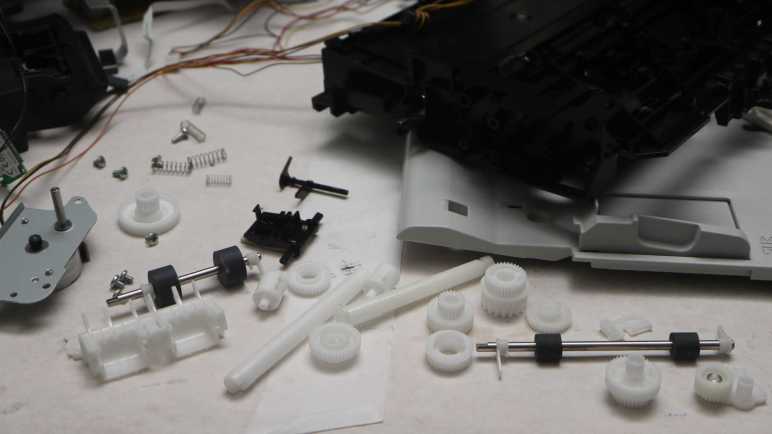
The same could not be said of its mechanical components. Most of the plastic pieces are very specific to a MX340’s mission of handling paper and that hasn’t been my area of interest. Now that they’ve been taken apart, I no motivation to put them back together again. Another part of this lack of interest is the fact that, thanks to 3D printing, it’s easy for me to create tailored plastic pieces for future projects. I think I will keep the gears because, even though they can be challenging to repurpose, they are difficult to 3D print well. The remaining plastic are landfill bound.

I don’t have any metalworking capability, though, so all these miscellaneous metal bits will be added to my jar of salvaged parts. Joining my existing collection of screws, springs, and shafts.

Before these parts go their separate ways, I laid them all out together one last time. I had originally thought it would be neat to lay them out in a way that maintained their relative position to each other like an exploded-view engineering drawing. But due to how a MX340 is built, it quickly became an impossible task to maintain 3D space relationship of multiple layers on a flat 2D layout.

Ignoring my failure to maintain spacial relationship, this “group picture” showed the large number of parts that go into a multi-function inkjet. I believe an inkjet is the most mechanically complex consumer electronic equipment still on the market. Especially now that VHS decks, audio cassette players, and CD changers have disappeared. Given their complexity it’s amazing inkjets are still sold for well under a hundred bucks. Now that I’ve taken one thoroughly apart I find it more believable they might be sold at low to no profit (or even a loss) for the intent selling profitable ink cartridges.

Taking this apart was a lot of fun! But when putting together this picture, I realized I missed an item on the to-do list: salvage the scanner flatbed glass.


This teardown ran far longer than I originally thought it would. Click here to rewind back to where this adventure started.

MX340 Disembodied But Still Runs

I unplugged everything from the main board of my Canon Pixma MX340 multi-function inkjet so I could take a look at components on that circuit board. This examination was the originally planned end point for my teardown. Now I’m looking over what I have on hand to see where to go from here.

The first thing I did was to plug everything back into the main board. This turned out to be a lot easier than I had originally expected, because (aside from two exceptions) every connector was distinct from another so it was easy to make sure I didn’t plug something into the wrong place. I believe this was another sign of intentional design for serviceability.

Once everything was plugged in, I had the disembodied nervous system of a Canon Pixma MX340 separated from almost every mechanical component. I plugged in a power cord and it turned on and started running its power-on self-test sequence. Nice!

I kept the two encoder-equipped DC motor assemblies intact enough to run through their respective self tests, so the paper feed motor could run through its sequence and the print carriage motor could do the same.

There were a total of four optical interrupter sensors. Two in the automatic document feeder and two in the paper feed mechanism. They were all designed so the “normal” position blocks the beam and the power-on self-test sequence doesn’t do anything requiring those beams to be unblocked. So even though these sensors have been separated from their respective mechanisms, all I had to do was to stick something opaque into these sensors to fool the computer.

Beyond that, though, fooling the computer got more complex. The scanner tries to run through its homing sequence. It would fail because the sensor bar has been separated from the homing marker and I don’t see an easy way to fool the system. I guess I could set up a short rail so its motor can move the marker into view and out of view, but that’s more effort than I care to expend on such a project.

And finally, the computer complains it can’t talk to the absent ink cartridges. I expect that communication to be protected in multiple different ways in the interest of protecting their revenue stream, so I’m not even going to try to figure out how to spoof it.

Since this disembodied MX340 nervous system still runs, I’m inclined to keep the electronics together as I dispose of the rest. But before that, they get to hang out together one last time for a big group photo.


This teardown ran far longer than I originally thought it would. Click here to rewind back to where this adventure started.

MX340 Main Circuit Board

I’ve learned a lot from taking apart my retired Canon Pixma MX340 multi-function inkjet, and there are many more potential lessons that I’ve chosen not to pursue. The paper-handling details of its ADF is one, its main circuit board is another. There are a lot of electronics design lessons on this intricate board, but they’re beyond my current skill level to understand. (In comparison, the control panel was a much simpler single-sided circuit board and I enjoyed tracing through it.) But I’ll still take a cursory look at the main board.

So far, I’ve kept everything plugged in so I could keep it running and probe component interactions. Now I will unplug everything so I can take a look at the board itself. I took many pictures as reference as I went, to increase the odds I can put it back together, but I would later learn it was unnecessary.

Unplugging everything left a large plastic shield.

Removing the shield uncovered the fact that landline phone jacks (for its fax functionality) are on a separate circuit board. I’ve reused salvaged jacks before so these may yet find another use.

Finally I have the main board by itself. As already stated it’s much more complex than my skill level can reverse-engineer, and I have no motivation to do so anyway.

The circuit board as a minimum of two layers, possibly more but I don’t know enough to tell.

Apparently production volume of mainstream Canon inkjets are high enough to amortize up-front cost of custom electronic components. I picked a few large pieces and tried searching for them based on their markings, coming up empty handed across the board. An example is IC702 here marked with a Texas Instruments logo. It should have been a slam dunk but all I got were chip vendors promising to sell me a TI OACC3TTC 81024 without having any idea what it is. The same story repeated for three other chips before I threw my hands up and quit trying.

There were many unpopulated footprints on the main board, presumably to support features of other models in the product line. I can speculate on two of them. This looks like an Ethernet port, something I would have appreciated as its WiFi module is now out of date due to its WPS dependency.

This unpopulated footprint for connector CN502 is labeled “Card” and has nine pins, matching nine contacts on a SD card. MX340 have a feature for scanning a document directly to PDF file on a USB memory stick. Looks like a sibling model could write out to a SD card.

There were a few other unpopulated footprints but I had no speculation on what they might be. Bringing to a conclusion all I had expected to get out of looking over this circuit board. I plugged everything back in and was mildly surprised it still ran.


This teardown ran far longer than I originally thought it would. Click here to rewind back to where this adventure started.

MX340 Automatic Document Feeder (ADF) Disassembled

I’m finishing up the teardown of my old Canon Pixma MX340 multi-function inkjet. After completing my exploration of the print carriage encoder, I looked over my workbench and saw: Hey, the automatic document feeder (ADF) gearbox is still intact! I’ll take it apart now.

Since I don’t expect to need to know how to mass-produce a paper feeding mechanism, I’m not going to spend too much time to understand exactly how all the mechanisms work together.

Mechanically, a stepper motor drives at least three shafts, each turning a set of soft rubber rollers. I wonder if these gears are all specifically designed for this device or if they might be standard parts from a catalog. If the latter, I would love to browse through that catalog.

As with the rest of the device, everything came apart nicely now that I recognize the system of clips Canon engineers use to ease disassembly and repair.

The ADF lid is likewise an assembly of injection-molded parts held together with easily disassembled mechanisms. Within this assembly I noticed several freewheel mechanisms implemented with a coil of metal, now that I understand what I’m looking at.

I appreciate precision ground metal shafts, much more satisfying in the hand than an injection-molded plastic shaft. I keep thinking it would be cool to reuse them in another project, but due to their precision nature they’re typically tailored to a specific purpose and not easily reused elsewhere. They usually end up just as toys for me, roughly analogous to fidget toys but with no moving parts. When my projects need metal shafts, I end up having to cut new ones tailored for my project. My shafts are not as precise as these mass-produced units, but good enough for their own respective purposes.

Next up: the original finish line of my teardown, the main circuit board itself.


This teardown ran far longer than I originally thought it would. Click here to rewind back to where this adventure started.

MX340 Print Carriage Encoder Delivers 600 Counts Per Inch

After taking apart the print carriage of my old Canon Pixma MX340 multi-function inkjet, I figured out the pinout for its quadrature encoder. Sadly, it didn’t look very easy to tap into those signals on the printer mainboard.

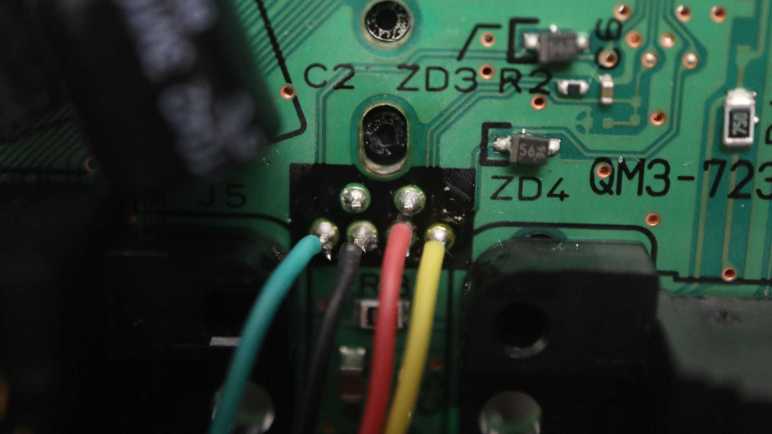
So I soldered wires to the print carriage instead.

I routed these wires through the front with nice long flexible wires, to my Arduino Nano running a quadrature decoding library. Providing 3.3V power and manually moving the carriage back and forth across its entire range, I saw ~7637 counts. I divided it by centimeters but didn’t get a very nice number. I tried Imperial measurements, and it worked out to 600 counts per inch.

Earlier I decided the paper feed encoder delivered 8640 counts per revolution. Trying to correlate the two measurements, I went back to measure the diameter of the paper feed shaft at 9.75mm. That works out to a circumference of 30.615mm or roughly 1.2 inch. 8640/1.2 = 7200 counts per inch. That’s 12 times the horizontal axis resolution!

Such a huge discrepancy in resolution between horizontal and vertical axes can be explained by how this print engine moves. The paper feed motor needs to advance paper with high accuracy to make sure one print head pass lines up exactly against the next pass with no gaps or overlaps in between. The print carriage motor then moves the print head across the page at a controlled rate, which is the key here: the steady rate of motion means the printer control system can interpolate between those 600 counts per inch to synthesize virtual steps in between real hardware steps. Doubling to 1200 or quadrupling to 2400 (or more) are valid options when print carriage motor moves at a known controlled speed.

Now that I have my answer, I no longer need these wire taps. At first I was ready to disassemble the print carriage again so I could unsolder these wires, and I wasn’t trilled about the risk of damage and losing springs when I take it apart again. Then I decided to not take that risk, save myself the time of disassembly, and just cut off those wires today. I’ll unsolder the remaining stump later, if ever. Right now I would rather spend my time disassembling the ADF gearbox instead.


This teardown ran far longer than I originally thought it would. Click here to rewind back to where this adventure started.