Ubuntu 18 and ROS on Toshiba Chromebook 2 (CB35-B3340)

Following default instructions, I was able to put Ubuntu 16 on a Chromebook in developer mode. But the current LTS (Longer Term Support) release for ROS (Robot Operating System) is their “M” or Melodic Morenia release whose corresponding Ubuntu LTS is 18. (Bionic Beaver)

As of this writing, Ubuntu 18 is not officially supported for Crouton. It’s not explicitly forbidden, but it does come with a warning: “May work with some effort.” I didn’t know exactly what the problem might be, but given how easy it is to erase and restart on a Chromebook I decided to try it and see what happens.

It failed failed with a hash sum failure during download. This wasn’t the kind of failure I thought might occur with an unsupported build, download hash sum failure seems more like a flawed or compromised download server. I didn’t understand enough about the underlying infrastructure to know what went wrong, never mind fixing it. So in an attempt to tackle a smaller problem with a smaller surface area, I backed off to the minimalist “cli-extra” install of Bionic which skips graphical user interface components. This path succeeded without errors, and I now have a command line interface that reported itself to be Ubuntu 18 Bionic.

As a quick test to see if hardware is visible to software running inside this environment, I plugged in a USB to serial adapter. I was happy to see dmesg reported the device was visible and accessible via /dev/ttyUSB0. Curiously, the owner showed up as serial group instead of the usual dialout I see on Ubuntu installations.

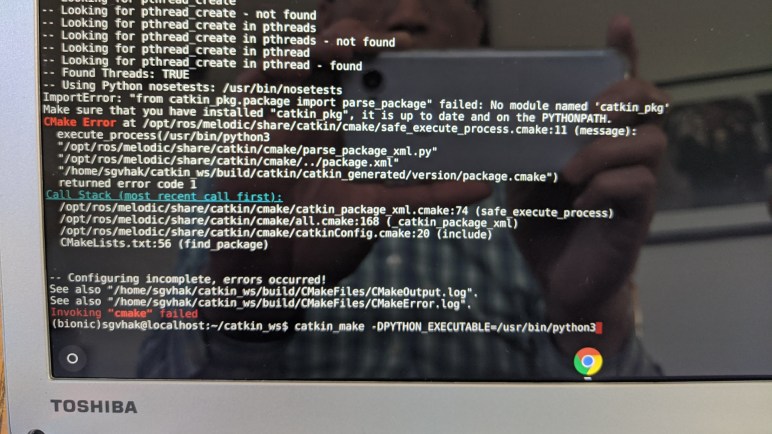
A visible serial peripheral was promising enough for me to proceed and install ROS Melodic. I thought I’d try installation with Python 3 as the Python executable, but that went awry. I then repeated installation with the default Python 2. Since I have no GUI, I installed the ros-melodic-ros-base package. Its installation completed with no errors, allowing me to poke around and see how ROS works in this environment.

Developer Mode and Crouton on Toshiba Chromebook 2 (CB35-B3340)

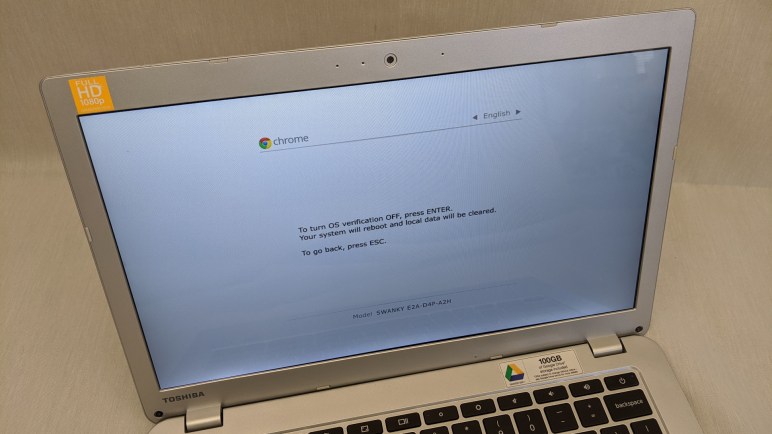
Having replaced a cracked and illegible screen with a lightly blemished but perfectly usable module, I can finally switch this Toshiba Chromebook 2 (CB35-B3340) into developer mode. It’s not a complicated procedure, but the critical menus are displayed only on the main display and not an external monitor. With the earlier illegible screen, there was no way to tell when I needed to push the right keys. I might have been able to do it blind if I had a timeline reference… which is a potential project for another day.

Today’s project was to get Crouton up and running on this Chromebook. Following instructions for the most mainstream path, I went through a bunch of procedures where I only had a vague idea of what was happening. Generally speaking it’s not a great idea to blindly run scripts downloaded from the internet, but Crouton is fairly well known and I had no personal data on this Chromebook, something enforced by Chrome OS.

Until I put this Chromebook into developer mode myself I hadn’t known that user data is erased whenever a Chrome OS device transitions into or out of developer mode. This meant whatever data is saved on a Chrome OS device can’t be snooped upon in developer mode. Also, any tools or utilities that might have been installed to view system internals in developer mode are erased and no longer usable once the machine is in normal mode. This policy increased my confidence in privacy and security of Chrome OS. I’m sure it’s not perfect as all software have bugs, but it told me they had put thought into the problem.

What it meant for me today was that everything I had put on that Chromebook was wiped before I could start playing with Crouton. Whose default instructions quickly got me up and running on Ubuntu 16 (Xenial) with the xfce desktop. Running two full user-mode GUI on top of a single kernel noticeably stresses this basic machine, with user response becoming a little sluggish. Other than that, it felt much like any other Ubuntu installation except it’s all running simultaneously with full Chrome OS on the exact same machine.

Raw performance concerns aside, it seemed to work well. And the wonder of chroot meant it’s pretty easy to erase and restart with a different configuration. Which is what I’ll tackle next, because ROS Melodic is intended for Ubuntu 18 (Bionic).

Secondhand Replacement Screen for Toshiba Chromebook 2 (CB35-B3340)

Once I discovered the support window for a Toshiba Chromebook 2 (CB35-B3340) extended longer than I had originally anticipated, I was more willing to spend money to bring it back to working condition. While I was shopping for a replacement screen earlier I saw several offers for new units and a few scattered offers for secondhand units. I presume these were salvaged from retired machines and resold, which is fine by me as it came at a significant discount. $47 with taxes and shipping (*), as compared to $75 (before taxes & shipping) for a new unit.

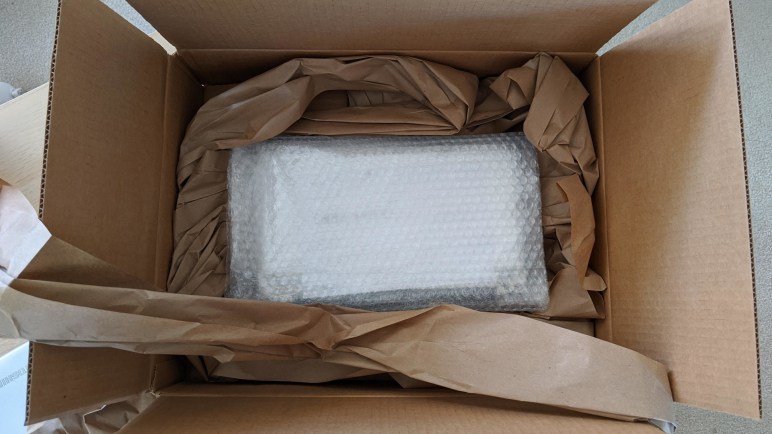
That ~40% discount also came with a caveat: I clicked “Buy” on a unit that was rated “Grade B: Fully functional but with visible blemishes.” It was a bit of a gamble, but my primary requirement is only to see enough to enter developer mode, so I decided I would tolerate visual blemishes to save a few extra dollars. There was also a bit of a gamble in shipping. from my disassembly efforts I knew this panel is very thin and fragile. This time around, I did not mind the extensive packaging of Amazon orders.

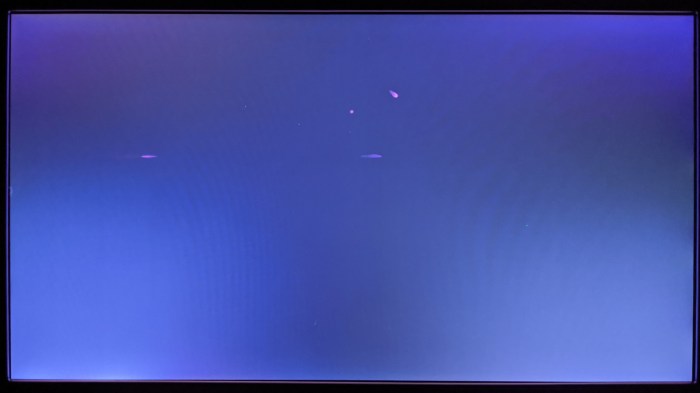
I saw no physical blemishes on the panel during installation. Once installed, I was happy to see Chrome OS boot up and run. I had to work hard to see the visual blemishes that earned this panel its Grade B rating. I had to set the screen to full black, and artificially increase contrast in a photo editor, before we can see the magenta smudges: Two light horizontal smudges, and two dots one of which look a bit smeared.

Toshiba Chromebook 2 CB35-B3340 used replacement screen defects

I’m not familiar with failure mode of LCD display modules so I have no idea what’s going on here. Perhaps these were manufacturing defects? In any case, these flaws are only visible if I strain to look for them and there is no physical damage to the screen so I’m satisfied with my purchase.

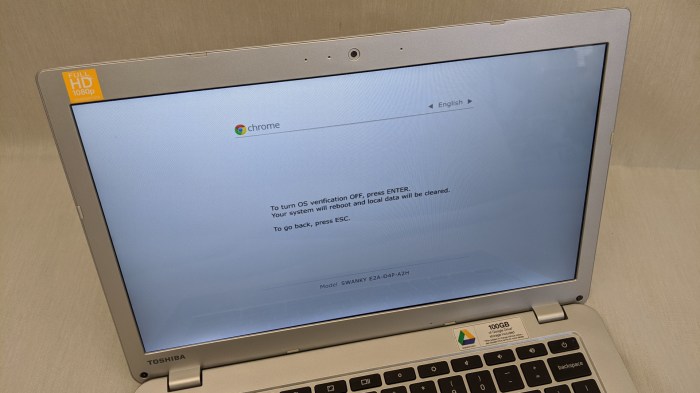
Toshiba Chromebook 2 CB35-B3340 recovery screen now readable

The visual blemishes are not at all bothersome in normal usage. This level of performance was more than good enough to be used as a normal Chromebook if I wanted to use it as such. But the reason I got the screen was to access Chrome OS recovery menu to enter developer mode, so I will try that first.


(*) Disclosure: As an Amazon Associate I earn from qualifying purchases.

Old Chromebook Lifespan Longer Than Originally Thought

A cracked screen seemed to be the only problem with this Toshiba Chromebook 2 (CB35-B3340). I found no other hardware or software issues with this machine and it seemed to be up and running well with an external monitor. The obvious solution was to buy a replacement screen module, but I was uncertain if that cost would be worthwhile. I based my opinion on Google’s promise to support Chromebook hardware for five years, and it’s been five years since this model was introduced. I didn’t want to spend money on hardware that would be immediately obsolete.

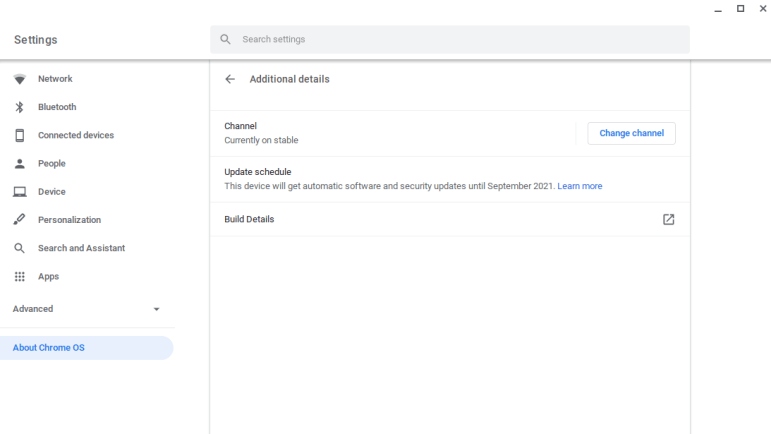
I’ve since come across new information while exploring the device. This was the first Chrome OS device I was able to spend a significant time with, and I was curious about all the capabilities and limitations of this constrained-by-design operating system. While poking around in the Settings menu, under “About Chrome OS” I found the key quote:

This device will get automatic software and security updates until September 2021.

I don’t know how this September 2021 time was decided, but it is roughly seven years after the device was introduced. At a guess I would say Google estimated a two year shelf life for this particular Chromebook hardware to be sold, and the promised five year support clock didn’t start until the end of that sales window. This would mean someone who bought this Chromebook just as it was discontinued would still get five years of support. If true, it is more generous than the typical hardware support policy.

Whatever the reason, this support schedule changes the equation. If I bought a replacement screen module, this machine could return to full functionality and support for a year and a half. It could just be a normal Chromebook, or it could be a Chromebook running in developer mode to open up a gateway to more fun. With this increased motivation, I resumed my earlier shopping for a replacement and this time bought a salvaged screen to install.

Inviting My FreeNAS Box To The Folding Party

Once my Luggable PC Mark I was up and running, I have one more functional desktop-class CPU in my household that has not yet been drafted into my Folding@Home efforts: it was recently put in charge of running FreeNAS. As a network attached storage device, FreeNAS is focused on its main job of maintaining files and serving them on demand. There are FreeNAS plug-ins to add certain features, such as a home Plex server, but there’s no provision for running arbitrary programs on the FreeBSD-based task-specific appliance.

What FreeNAS does have is the ability to act as a host for separate virtual environments that run independently of core FreeNAS capability. This extension capability is a part of why I upgraded my FreeNAS box to more capable hardware. The lighter-weight mechanism is a “jail”, similar in concept to the Linux container (from which Docker was built) but for applications that can run under the FreeBSD operating system. However, Folding@Home has no native FreeBSD clients, so we can’t run it in a jail and have to fall back to plan B: full virtual machine under bhyve. This incurs more overhead as a virtual machine will need its own operating system instead of sharing the underlying FreeBSD infrastructure, consuming hard disk storage and locking away a portion of RAM unusable by FreeNAS.

But the overhead wasn’t too bad in this particular application. I installed the lightweight Ubuntu 18 server edition in my VM, and Folding@Home protein folding simulation is not a memory-intensive task. The VM consumed less than 10GB of hard drive space, and only 512MB of memory. In the interest of always reserving some processing power for FreeNAS, I only allocated 2 virtual CPUs to the folding VM. The Intel Core i3-4150 processor has four logical CPUs which are actually 2 physical cores with hyperthreading. Giving the folding simulation VM 2 virtual CPUs should allow it to run at full speed on the two physical CPUs and still leave some margin to keep FreeNAS responsive.

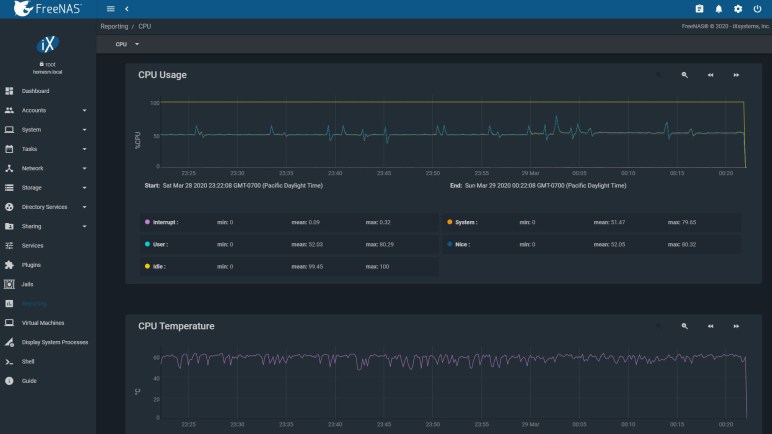
Once the VM was up and running, FreeNAS CPU usage report does show occasional workload pushing it above 50% (2 out of 4 logical CPU) load. CPU temperature also jumped up well above ambient temperature, to 60 degrees C. Since this Core i3 is far less powerful than the Core i5 in Luggable PC Mark I and II, it doesn’t generate as much heat to dissipate. I can hear the fan increased speed to keep temperature at 60 degrees, but the difference is minor relative to the other two.

Old AMD GPU for Folding@Home: Ubuntu Struggles, Windows Win

The ex-Luggable Mark II is up and running Folding@Home, chewing through work units quickly mostly thanks to its RTX 2070 GPU. An old Windows 8 convertible tablet/laptop is also up and running as fast as it can, though its best speed is far slower than the ex-Luggable. The next recruit for my folding army is Luggable PC Mark I, pulled out of the closet where it had been gathering dust.

My old AMD Radeon HD 7950 GPU was installed in Luggable PC Mark I. It is quite old now and AMD stopped releasing Ubuntu drivers after Ubuntu 14. Given its age I’m not sure if it even works for GPU folding workloads. It was designed and released near the dawn of the age when GPUs started finding work beyond rendering game screens, and its GCN1 architecture probably had problems typical of first versions of any technology.

Fortunately I also have an AMD Radeon R9 380 available. It was formerly in Luggable PC Mark II but during the luggable chassis decommissioning I retired it in favor of a NVIDIA RTX 2070. The R9 380 is a few years younger than the HD 7950, I know it supports OpenCL, and AMD has drivers for Ubuntu 18.

A few minutes of wrenching removed the HD 7950 from Luggable Mark I, putting the R9 380 in its place, and I started working out how to install those AMD Ubuntu drivers. According to this page, the “All-Open stack” is recommended for consumer products, which I mean to include my consumer-level R9 380 card. So the first pass started by running amdgpu-install. To verify OpenCL is up and running, I installed clinfo to verify GPU is visible as OpenCL device.

Number of platforms 0

Hmm. That didn’t work. On advice of this page on Folding@Home forums, I also ran sudo apt install ocl-icd-opencl-dev That had no effect, so I went back to reread the instructions. This time I noticed the feature breakdown chart between “All-Open” and “Pro” and OpenCL is listed as a “Pro” only feature.

So I uninstalled “All-Open” and installed “Pro” stack. Once installed and rebooted, clinfo still showed zero platforms. Returning to the manual, on a different page I found the fine print saying OpenCL is an optional component of the Pro stack. So I reinstalled yet again, this time with --opencl=pal,legacy flag.

Running clinfo now returns:

Number of platforms 1
Platform Name AMD Accelerated Parallel Processing
Platform Vendor Advanced Micro Devices, Inc.
Platform Version OpenCL 2.1 AMD-APP (3004.6)
Platform Profile FULL_PROFILE
Platform Extensions cl_khr_icd cl_amd_event_callback cl_amd_offline_devices
Platform Host timer resolution 1ns
Platform Extensions function suffix AMD

Platform Name AMD Accelerated Parallel Processing
Number of devices 0

NULL platform behavior
clGetPlatformInfo(NULL, CL_PLATFORM_NAME, ...) No platform
clGetDeviceIDs(NULL, CL_DEVICE_TYPE_ALL, ...) No platform
clCreateContext(NULL, ...) [default] No platform
clCreateContext(NULL, ...) [other] <error: no devices in non-default plaforms>
clCreateContextFromType(NULL, CL_DEVICE_TYPE_DEFAULT) No devices found in platform
clCreateContextFromType(NULL, CL_DEVICE_TYPE_CPU) No devices found in platform
clCreateContextFromType(NULL, CL_DEVICE_TYPE_GPU) No devices found in platform
clCreateContextFromType(NULL, CL_DEVICE_TYPE_ACCELERATOR) No devices found in platform
clCreateContextFromType(NULL, CL_DEVICE_TYPE_CUSTOM) No devices found in platform
clCreateContextFromType(NULL, CL_DEVICE_TYPE_ALL) No devices found in platform

Finally, some progress. This is better than before, but zero devices is not good. Back to the overview page which says their PAL OpenCL stack supported their Vega 10 and later GPUs. My R9 380 is from their Tonga GCN 3 line, which is quite a bit older than Vega, which is GCN 5. So I’ll reinstall with --opencl=legacy to see if it makes a difference.

It did not. clinfo still reports zero OpenCL devices. AMD’s GPU compute initiative is called ROCm or RadeonOpenCompute but it is restricted to hardware newer than what I have on hand. Getting OpenCL up and running, on Ubuntu, on hardware this old, is out of scope for attention from AMD.

This was the point where I decided I was tired of this Ubuntu driver dance. I wiped the system drive to replace Ubuntu with Windows 10 along with AMD Windows drivers. Folding@Home saw the R9 380 as a GPU compute slot, and I was up and running simulating protein folding. The Windows driver also claimed to support my older 7950, so one potential future project would be to put both of these AMD GPUs in a single system. See if the driver support extends to GPU compute for multi GPU folding.

For today I’m content to have just my R9 380 running on Windows. Ubuntu may have struck out on this particular GPU compute project, but it works well for CPU compute, especially virtual machines.
Naked HP Split X2 (13-r010dx) Sitting In A Breeze Runs Faster

Mobile computer processors must operate within tighter constraints than their desktop counterparts. They sip power to prolong battery life, and that power also eventually ends up as heat that must be dissipated. Unfortunately both heat management mechanisms and batteries are heavy and take up space, so finding the proper balance is always a difficult challenge. It is typical for laptop computers to give up its ability to run sustained workloads at full speed. But if we’re not worried about voiding warranties or otherwise rendering a mobile computer immobile, we can lift some of those constraints limiting full performance: run on an AC adapter to provide power, and get creative on ways to enhance heat dissipation.

For this experiment I pulled out the most powerful computer from my NUCC trio of research project machines, the HP Split X2 (13-r010dx). The goal is to see if I can add it to my Folding@Home pool. Looking over the technical specifications published by Intel for Core i3-4012Y CPU, one detail caught my eye: it lists two separate power consumption numbers where most processors only have one. The typically quoted “Thermal Design Power” figure is at 11.5W, but this chip has an additional “Scenario Design Power” of 4.5W. This tells us the processor is designed for computers that only expect to run in short bursts. So even if TDP is 11.5W, it valid to design a system with only 4.5W of heat dissipation.

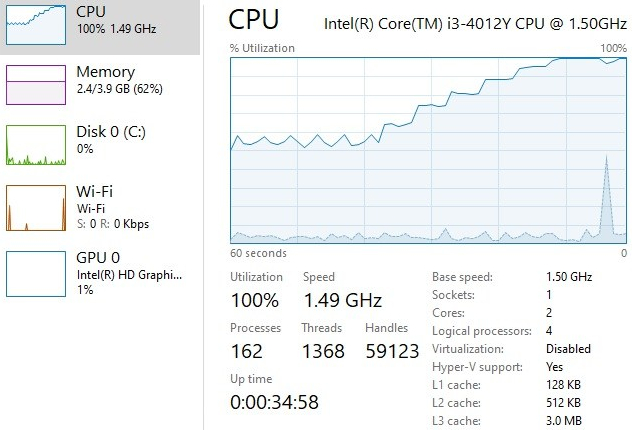
Which is likely the case here, as I found no active cooling on this HP Split X2. The outer case is entirely plastic meaning it doesn’t even have great thermal conduction to the environment. If I put a sustained workload on this computer, I expect it to run for a while and then start slowing itself down to keep the heat manageable. Which is indeed what happened: after a few minutes of Folding@Home, the CPU clock cycle pulled back to roughly half, and utilization was pulled back half again meaning the processor is chugging along at only about a quarter of its maximum capability.

HP Split X2 13-r010dx thermal throttling

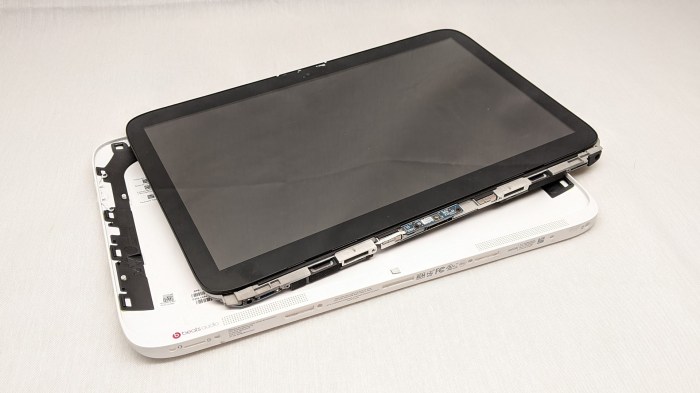
For more performance, let’s help that heat escape. Just as I did earlier, I pulled the core out of its white plastic case. This time for better ventilation rather than just curiosity.

HP Split X2 13-r010dx tablet internals removed from case

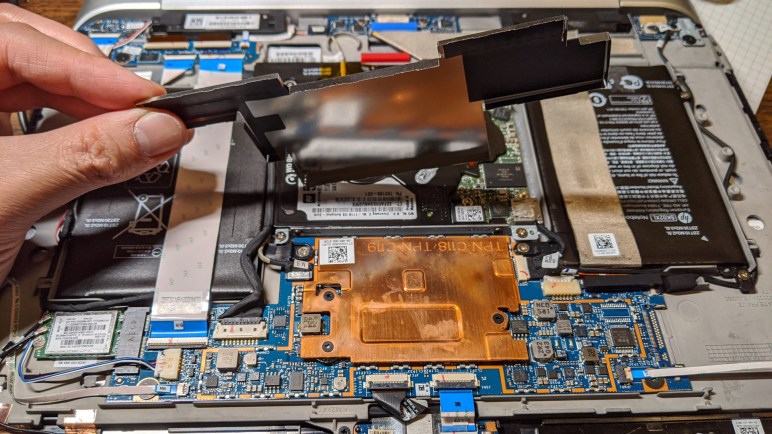
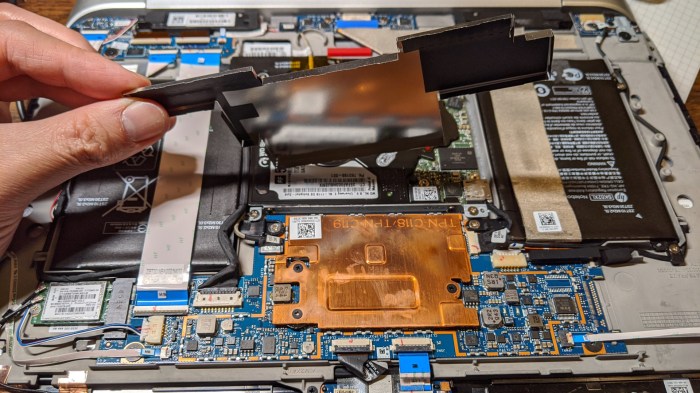
Removing it from its plastic enclosure helped only a tiny bit. Most of the generated heat are still trapped inside, so I pulled the metal shield off its main processor board. This exposed the slab of copper acting as CPU heat sink.

HP Split X2 13-r010dx CPU heat sink under shield

Exposing that heat sink to ambient air helped a lot more, but passive convection cooling is still not quite enough. The final push was to introduce some active airflow. I was contemplating several different ideas on how to jury-rig an active cooling fan, but this low power processor didn’t actually need very much. All I had to do is to set the computer down in the exhaust fan airflow from a PC tower case. That was enough for it to quickly climb back up to full 1.5 GHz clock speed with 100% utilization, and sustain running at that rate.HP Split X2 13-r010dx receiving cooling

It’s not much, but it is contributing. I can leave it simulating folding proteins and move on to another computer: my Luggable PC Mark I.

Desktop PC Component Advantage: Sustained Performance

A few weeks ago I decommissioned Luggable PC Mark II and the components were installed into a standard desktop tower case. Heeding Hackaday’s call for donating computing power to Folding@Home, I enlisted my machines into the effort and set up my own little folding farm. This activity highlighted a big difference between desktop and laptop components: their ability to sustain peak performance.

My direct comparison is between my ex-Luggable PC Mark II and the Dell laptop that replaced it for my mobile computing needs. Working all out folding proteins, both of those computers heated up. Cooling fans of my ex-Luggable sped up to a mild whir, the volume and pitch of the sound roughly analogous to my microwave oven. The laptop fans, however, spun up to a piercing screech whose volume and pitch is roughly analogous to a handheld vacuum cleaner. The resemblance is probably not a coincidence, as both move a lot of air through a small space.

The reasoning is quite obvious when we compare the cooling solution of a desktop Intel processor against one for a mobile Intel processor. (Since my active-duty machines are busy working, I pulled out some old dead parts for the comparison picture above.) Laptop engineers are very clever with their use of heat pipes and other tricks of heat management, but at the end of the day we’re dealing with the laws of physics. We need surface area to transfer heat to air, and a desktop processor HSF (heat sink + fan) has tremendously more of it. When workload is light, laptops keep their fans off for silent operation whereas desktop fans tend to run even when lightly loaded. However, when the going gets rough, the smaller physical volume and surface area of laptop cooling solutions struggle.

This is also the reason why different laptop computers with nearly identical technical specifications can perform wildly differently. When I bought my Inspiron 7577, I noticed that there was a close relative in Dell’s Alienware line that has the same CPU and GPU. I decided against it as it cost a lot more money. Some of that is branding, I’m sure, but I expect part of it goes to more effective heat removal designs.

Since I didn’t buy the Alienware, I will never know if it would have been quieter running Folding@Home. To the credit of this Inspiron, that noisy cooling did keep its i5-7300HQ CPU at a consistent 3.08GHz with all four cores running full tilt. I had expected thermal throttling to force the CPU to drop to a lower speed, as is typical of laptops, so the fact this machine can sustain such performance was a pleasant surprise. I appreciate the capability but that noise got to be too much… when I’m working on my computer I need to be able to hear myself think! So while the ex-Luggable continued to crunch through protein simulations, the 7577 had to drop out. I switched my laptop to the “Finish” option where it completed the given work unit overnight (when I’m not sitting next to it) and fetched no more work.

This experience taught me one point in favor of a potential future Luggable PC Mark III: the ability to run high performance workloads on a sustained basis without punishing hearing of everyone nearby. But this doesn’t mean mobile oriented processors are hopeless. They are actually a lot of fun to hack, especially if an old retired laptop doesn’t need to be mobile anymore.

Window Shopping: Progressive Web App

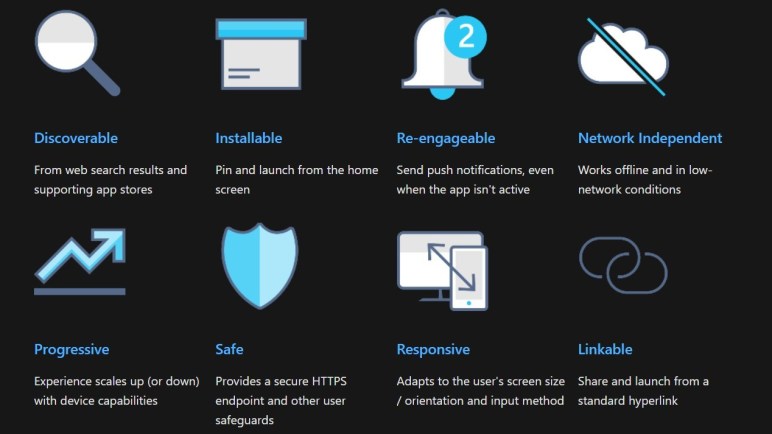
When I wrote up my quick notes on ElectronJS, I had the nagging feeling I forgot something. A few days later I remembered: I forgot about Progressive Web Apps (PWA), created by some people at Google who agrees with ElectronJS that their underlying Chromium engine can make a pretty good host for local offline applications.

But even though PWA and ElectronJS share a lot in common, I don’t see them as direct competitors. What I’ve seen on ElectronJS is focused on creating applications in the classic sense. They are primarily local apps, just built using technologies that were born in the web world. Google’s PWA demos showcase extension of online web sites, where the primary focus is on the web site but PWA lets them have a local offline supplement.

Given that interpretation, a computer control panel for an electronics hardware project is better suited to ElectronJS than a PWA. At least, as long as the hardware’s task is standalone and independent of others. If a piece of hardware is tied to a network of other similar or complementary pieces, then the network aspect may favor a PWA interfacing with the hardware via Web USB. Google publishes a tutorial showing how to talk to a BBC micro:bit using a Chrome serial port API. I’m not yet familiar with the various APIs to know if this tutorial used the web standard or if it uses the Chrome proprietary predecessor to the standard, but its last updated date of 2020/2/27 implies the latter.

Since PWA started as a Google initiative, they’ve enabled it in as many places as they could starting with their own platforms like Android and ChromeOS. They are also supported via Chrome browser on major desktop operating systems. The big gap in support are Apple’s iOS platforms, where Apple forbids a native code Chrome browser and more generally any application platforms. There are some technical reasons but the biggest hurdle is financial: installing a PWA bypasses Apple’s iOS app store, a huge source of revenue for the company, so Apple has a financial disincentive.

In addition to Google’s PWA support via Chrome, Microsoft supports PWA on Windows via their Edge browser with both the old EdgeHTML and new Chromium-based versions, though with different API feature levels. While there’s a version of Edge browser for Xbox One, I saw no mention of installing PWAs on an Xbox like a standard title.

PWAs would be worth a look for network-centric projects that also have some offline capabilities, as long as iOS support is not critical.

Progress After One Thousand Iterations

Apparently I’ve got a thousand posts under my belt, so I thought it’d be fun to write down my current format. Sometime in the future I can look back on these notes and compare to see how it has evolved since.

Length: My target length has remained 300 words, but I’ve become a lot less stringent about it. 300 words is enough for a beginning, middle and end to a story. It is also about the right length to describe a problem, list the constraints, and explain why I made the decision I did. Sometimes I could get my thoughts out in 250 words, and that’s fine. When something goes long, I usually try to cut them into multiple ~300 word installments, but sometimes splitting up doesn’t make sense. I forced it a few times and they read poorly in hindsight, so if I run into it again (like this post) I just let those pieces run long.

Always Have A Featured Image: When I started writing I paid little attention to images, because the original focus is to have a written record I can search through. As it turned out, the featured image is really useful. First: it allows me to quickly skim through a set of posts just by their thumbnails, faster than reading each of their titles. Second: making sure I have at least one picture attached to every story is very helpful for jogging old memories. And sometimes, what I thought was a simple throwaway image became a useful wiring reference. I now believe pictures are a valuable part of documenting. Today’s cell phone cameras are so much better than they were four years ago, it only takes a few seconds to snap a high quality picture.

Still figuring out video: While images may have been an afterthought, video was not a thought at all when I started. Right now I’m in the middle of exploring video as an supplement — not a replacement — for these written records. It is another tool to use when appropriate, and cell phone camera improvements helps on this front as well. The only hiccup today is that I can’t directly embed video because VideoPress is only available to higher WordPress subscription tiers. As workarounds, short video clips are tweeted then embedded, and longer video clips are uploaded to YouTube and embedded. I expect video usage evolve rapidly as I experiment and see what works.

Use more tags, fewer categories: I started out trying to organize posts in categories, and that has become an unsatisfying mess representing a lot of wasted effort. When I want to find something I wrote, I go for the straight text search instead of browsing categories. And if I want to relate posts to each other in a search, I can use tags. It has advantage of arbitrary relations free of constraints imposed by a tree hierarchy.

Yet to stay with consistent voice: This is my blog about my own work, so I usually say “I”. But sometimes I slip into talking about “we” because in my mind I’m talking to my future self.

Keep up the daily rhythm: Scheduling a post to go out once a day, every day, is the best way I’ve had to keep the momentum going. I tried going to slower rhythms, like every other day, and it never works. If I stop for a single day, I’m liable to stop for multiple days that drag to weeks without a post. Usually there’s a good reason like a paid project that is consuming my time, but sometimes there isn’t. I’ve learned it is very easy to lose my momentum.

If it was interesting enough to take time, it’s interesting enough to write: I now describe tasks that took time, multiple searches, and multiple tries, before I found the solution. My original reasoning for not writing them down is the that since I found all the information online, my blog post won’t have anything new that people can’t find themselves. But there have been a few episodes where I forgot the solution and had to repeat the process again, and I was unhappy I didn’t write it down earlier. I’ve learned my lesson. Now if it took a nontrivial amount of time, I’ll at least jot down a few details in my “Drafts” folder for expanding to a full blog post later. Some of these are still sitting as a draft, but at least in that state they are still searchable.

One Thousand Posts

I just learned WordPress puts up a special milestone notification when a blog site has one thousand posts, because I triggered that notification with yesterday’s post about vaguely attainable somewhat humanoid robots.NewScrewdriver 1000 posts

It’s pretty common for a personal blog to have only a handful of posts — sometimes just one — before it goes dormant. My first attempt ended after less than a dozen. The second attempt had more than a dozen, but not by much. Fortunately for me, they have stopped taunting me as they have been erased by no actions of my own: both of them were hosted on small startup blog hosting services that have since gone out of business. Maybe fragments have survived in Google caches and what not, but I haven’t felt inclined to go searching for them.

I had no reason to expect the results would be any different with this third attempt, so again I started with the free tier of service. Except this time I started with a more established host: WordPress.com, the commercial hosting counterpart whose revenue helps support the free open-source blog software available from WordPress.org. When I felt that I’ve found my groove and can keep this going, I upgraded to the “Personal” plan so I can have my own domain and remove WordPress ads.

So far I have felt no need to upgrade beyond the Personal tier. Most of the higher tier features are tailored to people trying to make money in one way or another but I have no revenue goals for this blog. This is mostly documentation for my own aims, and if my notes are useful for someone else, that’s just a happy coincidence. One way I’ve described this site to friends is “a diary with zero expectation of privacy”. My content is not tailored to maximize traffic and, in fact, is the wrong medium to do so: consumer traffic (and corresponding ad revenue) are migrating towards video and away from text.

But I want text. I like to read and learn at my own pace. While I’m glad YouTube (and other video sites) have implemented ability to adjust playback speed of a video, having to go and change that setting is still a hassle. And finally: as documentation for myself, I want to be able to search through my notes and that’s a lot easier with text than video.

But there are some things more suited to a video than the written word, and for them I’ve shot video footage and created a New Screwdriver YouTube channel to host them. Right now I see the YouTube channel as roughly analogous to my first few aborted blogging efforts: an exploration into the medium looking for a way to make this work. Hopefully it won’t go dormant, but the YouTube channel certainly won’t be my focus for the foreseeable future.

One thousand posts is a good milestone, and I intend to keep things going. But as things will continue to evolve and change, it’s a good time to write down the current state for future comparison.

Attainable(ish) Humanoid(ish) Robots

There are lots of people who are interested in robotics software but lack the resources or the interest to build their own robot from scratch. There is no shortage of robot hardware platforms that love software attention, but most of them are focused on mechanical functionality and thus are shaped like tools. The field is much smaller when we want robots with at least a vaguely humanoid appearance.

Hobbyists need not apply for NASA’s R5 Valkyrie robot, with its several million dollar value. Most of Valkyrie’s fellow competitors in the 2013 DARPA Robotics Challenge are similarly custom built for the competition and unavailable to anyone else. One of the exceptions is the ThorMang chassis, built by the same people behind Dynamixel AX-12A serial bus servos. Naturally, the motors of a ThorMang are their highest end components on the opposite side of their entry level AX-12A. Not surprisingly, it is into the “please call for a quote” category of pricing, but hey, at least it’s theoretically possible to buy one.

The junior member of that team are their OP2 and OP3 robots, which appear to be roughly the size of a toddler and uses smaller and more affordable motors. Handling computation inside the chest is an Intel NUC, which might be the closest we get to a powerful commodity robot brain computer. Still, “affordable” here is still a five-digit proposition at $11,000 USD or so.

There are multiple offerings at this price level, using servos that are similar to the AX-12A. However they all appear roughly equally crude. For something more refined, we’d have to step up to something like a NAO robot. It seems like a modern-day QRIO but actually available for purchase for around $16,000.

A large part of the cost is the difficulty of building a self-balancing, self-contained, two-legged robot. It’s a big part of a humanoid appearance, but it is out of proportion with the parts that lend a robot well to human interaction. Giving up the legged locomotion for a wheeled platform allows something far cheaper but still have an expressive head and face plus two arms.

The people who make the NAO also makes the Pepper. Roughly the size of a human choid, it still has fully expressive head and arms but uses a wheeled base platform. The company seems to be trying to find niches outside of education and development, but they all seem rather far-fetched to me. Or at least, I don’t see enough to justify the cost of ownership at roughly $30,000.

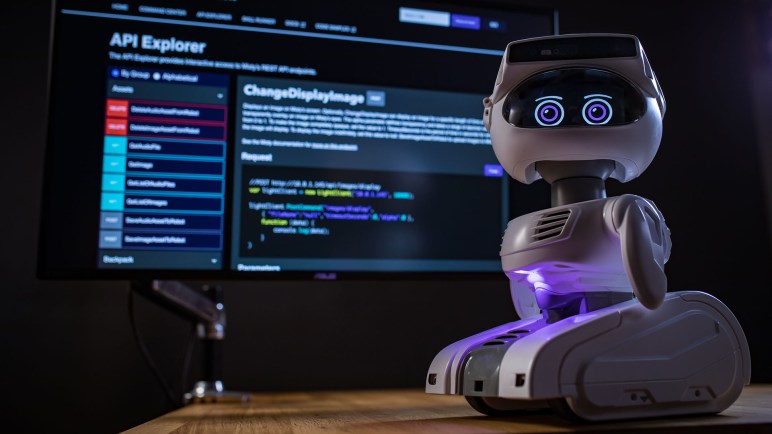
Simplifying further, we can have smaller robots on wheels that still have an expressive head but limited arms. Out of the offerings in this arena, Misty II is the most developer-friendly platform I’m aware of. Since my first introduction to Misty II, the company has launched several variants including a cost-reduced basic version that lacks the 3D depth camera. (Similar to a Microsoft Kinect.) Misty is still not cheap at a starting price of $2,000, but not so bad in the context of all these other robots.

(Image source: Misty Robotics)

NASA R5 Valkyrie Humanoid Robot

When I was researching my Hackaday post about DARPA Subterranean Challenge, I learned that there’s a virtual track to the competition using just digital robots inside Gazebo. I also learned it was not the first time a virtual competition with prize money took place within Gazebo, there was also the NASA Space Robotics Challenge where competitors submit software to control a humanoid robot on a Mars habitat.

What I didn’t know at the time was that the virtual humanoid robot was actually based on a physical robot, the NASA R5. Also called Valkyrie, this robot is the size of a full human adult with a 7-digit price tag putting it quite far out of my reach. This robot was originally built for the 2013 DARPA Robotics Challenge. It appeared the robot had no shortage of ingenious mechanical design (I like the pair of series elastic actuator for that ankle joint.) It was not lacking in sophisticated sensors, and it was not lacking in electric power. What it lacked were the software to tie them all together, and an unfortunate network configuration issue hampered performance on actual day of DARPA competition.

After the competition, Valkyrie visited several research institutions interested in advancing the state of the art in humanoid robotics. I assume some of that research ended up as published papers, though I have not yet gone looking for them. Their experience likely fed into how the NASA Space Robotics Challenge was structured.

That competition was where Valkyrie got its next round of fame, albeit in a digital form inside Gazebo. Competitors were given a simulation environment to perform the list of tasks required. Using a robot simulator meant people don’t need a huge budget and a machine shop to build robots to participate. NASA said the intent is to open up the field to nontraditional sources, to welcome new ideas by new thinkers they termed “citizen inventors”. This proved to be a valid approach, as the winner was an one-person team.

As for the physical robot, I found a code repository seemingly created by NASA to support research institutions that have borrowed Valkyrie, but it feels rather incomplete and has not been updated in several years. Perhaps Valkyrie has been retired and there’s a successor (R6?) underway? A writer at IEEE Spectrum noticed a job listing that implied as such.

(Image source: NASA)

Vertical Stand for Asus Router

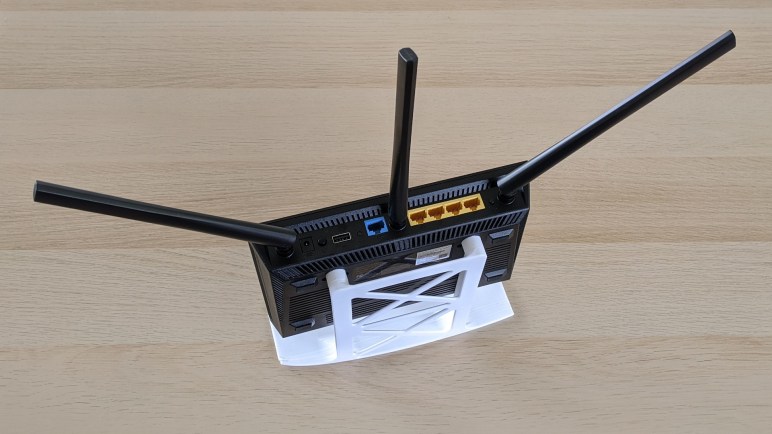
After almost 7 years of reliable service, my Asus RT-N66R started failing. I bout an Asus RT-AC66U B1 as replacement. The two routers look nearly identical from the outside, but the new one is actually slightly larger so it would not fit exactly in the same place. Which was fine, because I felt maybe my previous placement didn’t have enough ventilation and contributed to the old router’s demise.

For better space utilization, I wanted the router to stand vertically. But in the interest of providing more cooling, I didn’t want it to be wall-mounted against an airflow-constricting surface. Making a vertical stand became a quick-and-dirty design and 3D printing project.

As soon as it started printing I realized I overlooked an something important: the base of the stand is too thin for proper print bed adhesion. The was compounded by the fact that it sat near print bed corners, which tends to be a little cooler than the center of the bed. A few layers into the print, one corner started to lift as expected. Looking at the design, I guessed a base with a lifted edge will still be sufficient. So I decided to let the print continue rather than abort the print and waste the filament.

I was rather surprised at how far it continued to lift! I thought after a few millimeters there would have been enough plastic to hold things rigid, and that expectation was true for one corner. (Left side in the picture below.) But the other corner just kept lifting and lifting, even starting to peel the main body off the bed. I was starting to get worried the whole thing would pop off. Fortunately it finally stabilized after lifting a little over 21mm.

Router stand bed lift

This was outside my experience, as I usually abort a print before the lift got nearly that bad. But my original guess was correct: the stand worked just fine even with rear corners asymmetrically lifted from the print bed. What I have in hand is good enough for my purposes so I’ll use it as-is, but the public Onshape document is here if anyone wants to evolve this design to make it less prone to lifting.

Window Shopping: ElectronJS

The Universal Windows Platform allows Windows application developers to create UI that can dynamically adapt to different screen sizes and resolutions, as well as adapting to different input methods like mouse vs. touchscreen. The selling point is to make it as easy and robust as a web page.

So… why not have a web page? Web developers were the pioneers in solving these problems and we might want to adapt existing solutions instead of Microsoft’s effort to replicate them on Windows. But a web page has limitations relative to native applications, and hardware access is definitely one such category. (For USB specifically, there is web USB, but that is not a general hardware access solution.)

Thus occasionally developers familiar with web technology had a need to build platform native applications. Some of them decided to build their own native application framework to support web-style interfaces across multiple platforms. This is why we have Electron. (Sometimes ElectronJS to differentiate it from its namesake.)

All the x86_64 operating systems are supported: Windows, MacOS, and Linux are first tier platforms. There’s no fundamental reason Electron won’t work elsewhere, but apparently users need to be prepared to deal with various headaches to run it on platforms like a Raspberry Pi. And that’s just getting it to run, that doesn’t even touch on the most interesting part of running on a Raspberry Pi: its GPIO pins.

Like UWP, given graphical capabilities of modern websites, I have no doubt I can display arbitrary data visualization under Electron. My favorite demo of what modern WebGL is capable of is this fluid dynamics simulation.

The attention then turns to serial communication, and a web search quickly pointed me to electron-serialport Github repo. At first glance this looks promising, though I have to be careful when building it into an Electron app. The tricky part is that this serial support is native code and must be compiled to match the version in a particular release of Electron. It appears the tool electron-rebuild can take care of this particular case. However, it sets expectation that anything Electron app dealing with hardware would likely also require a native code component.

If I ever need to build a graphically dynamic application that needs to run across multiple operating systems, plus hardware access that is restricted to native applications, I’ll come back and take a closer look at Electron. But it’s not the only game in town for a offline local application based on web technology. For applications whose purpose is less about local hardware and more about online connectivity, we also have the option of Progressive Web Applications.

Window Shopping: Universal Windows Platform Fluent Design

Looking over National Instruments’ Measurement Studio reinforced the possibility that there really isn’t anything particularly special about what I want to do for a computer front-end to control my electronics projects. I am confident that whatever I want to do in such a piece of software, I can put it in a Windows application.

The only question is what kind of trade-offs are involved for different approaches, because there is certainly no shortage of options. There have been many application frameworks over the long history of Windows. I criticised LabWindows for faithfully following the style of an older generation of Windows applications and failed to keep updated since. So if I’m so keen on the latest flashy gizmo, I might as well look over the latest in Windows application development: the Universal Windows Platform.

People not familiar with Microsoft platform branding might get unduly excited about “Universal” in the name, as it would be amazing if Microsoft released a platform that worked across all operating systems. The next word dispelled that fantasy: “Universal Windows” just meant across multiple Microsoft platforms: PC, Xbox, and Hololens. UWP was also going to cover phone as well, but well, you know

Given the reduction in scope and the lack of adoption, some critics are calling UWP a dead end. History will show if they are right or not. However that shakes out, I do like Fluent Design that was launched alongside UWP. A similar but competitive offering to Google’s Material Design, I think they both have potential for building some really good user interactivity.

Given the graphical capabilities, I’m not worried about displaying my own data visualizations. But given UWP’s intent to be compatible across different Windows hardware platforms, I am worried about my ability to communicate with my own custom built hardware. If something was difficult to rationalize a standard API across PC, Xbox, and Hololens, it might not be supported entirely.

Fortunately that worry is unfounded. There is a UWP section of the API for serial communication which I expect to work for USB-to-serial converters. Surprisingly, it actually went beyond that: there’s also an API for general USB communication even with devices lacking standard Windows USB support. If this is flexible enough to interface arbitrary USB hardware other than USB-to-serial converters, it has a great deal of potential.

The downside, of course, is that UWP would be limited to Windows PCs and exclude Apple Macintosh and Linux computers. If the objective is to build a graphically rich and dynamically adaptable user interface across multiple desktop application platforms (not just Windows) we have to use something else.

A Quick Look At NI Measurement Studio

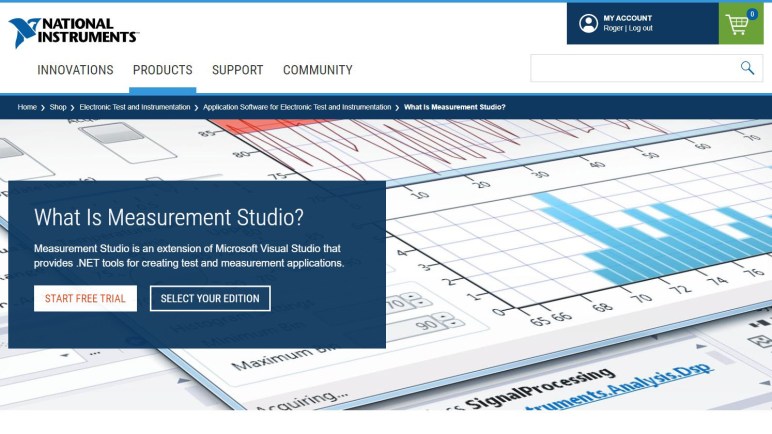
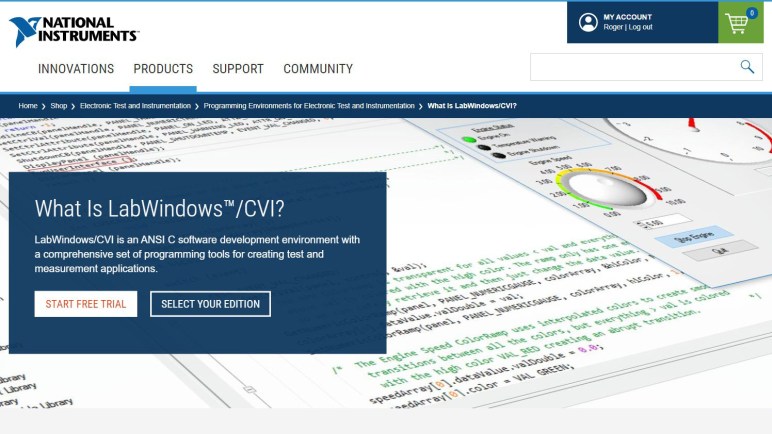
While digging through National Instruments online documentation to learn about LabVIEW and LabWindows/CVI, I also came across something called Measurement Studio. This trio of products make up their category of Programming Environments for Electronic Test and Instrumentation. Since I’ve looked at two out of three, might as well look at the whole set and jot down some notes.

Immediately we see a difference in the product description. Measurement Studio is not a standalone application, but an extension to Microsoft Visual Studio. By doing so, National Instruments takes a step back and allows Microsoft Visual Studio to handle most of the common overhead of writing an application, stepping in only when necessary to deliver functionality valuable to their target market. What are these functions? The product page lists three bullet points:

  • Connect to Any Hardware – Electronics equipment industry standard communication protocols GPIB, VISA, etc.
  • Engineering UI Controls – on-screen representation of tasks an electronics engineer would want to perform.
  • Advanced Analysis Libraries – data processing capabilities valuable to electronics engineers.

Basically, all the parts of LabVIEW and LabWindows/CVI that I did not care about for my own projects! Thus if I build a computer control application in Microsoft Visual Studio, I’m likely to just use Visual Studio by itself without the Measurement Studio extension. I am not quite the target market for LabVIEW or LabWindows, and I am completely the wrong market for Measurement Studio.

Even if I needed Measurement Studio for some reason, the price of admission is steep. Because Measurement Studio is not compatible with the free Community Edition of Visual Studio, developing with Measurement Studio requires buying license for a paid tier of Microsoft Visual Studio in addition to the license for Measurement Studio.

And finally, it has been noted that the National Instruments products require low level Win32 API access that prevents them from being a part of the new generation of Windows app that can be distributed via Microsoft Store. These newer apps promise to have better installation and removal experience, automatic updates, and better isolated from each other to avoid incompatibilities like “DLL Hell”. None of those benefits are available if an application pulls in National Instruments software components, which is a pity.

Earlier I said “if I build a computer control application in Microsoft Visual Studio, I’ll just use Visual Studio by itself without the Measurement Studio extension” which got me thinking: that’s a good point! What if I went ahead and wrote a standard Windows application with Visual Studio?

Digging Further Into LabWindows/CVI

Following initial success of RS-232 serial communication in a LabWindows/CVI sample program, I dived deeper into the documentation. This RS-232 library accesses the serial port at a very low level. On the good side, it allows me to communicate with non-VISA peripherals like a consumer 3D printer. On the bad side, it means I’ll be responsible for all the overhead of running a serial port.

The textbook solution is to leave the main program thread to maintain responsive UI, and spin up another thread to keep an eye on the serial port so we know when data comes in. The good news here is that LabWindows/CVI help files say RS-232 library code is thread safe, the bad news here is that I’m responsible for thread management myself. I failed to find much in the help files, but I did find something online for LabWindows/CVI multi-threading. Not super easy to use, but powerful enough to handle the scenario. I can probably make this work.

Earlier I noted that LabWindows/CVI design seems to reflect the state of the art about ten years ago and not advanced since. This was most apparent in the visual appearance of both the tool itself and of the programs it generated. Perhaps the target paying audience won’t put much emphasis on visual design, but I like to put in some effort in my own projects.

Which is why it really pained me when I realized the layout in a LabWindows/CVI program is fixed. Once they are laid out in the drag-and-drop tool, that’s it, forever. Maximizing the window will only make the window larger, all the controls stay the same and we just get more blank space. I searched for an option to scale windows and found this article in National Instruments support, but it only meant scaling in the literal sense. When this option is used, and I maximize a window, all the controls still keep the same layout but they just get proportionally larger. There’s no easy way to take advantage of additional screen real estate in a productive way.

This means a default LabWindows/CVI program will be unable to adapt to a screen with different aspect ratio, or be stacked side-by-side with another window, or any of the dynamic layout capabilities I’ve come to expect of applications today. This makes me sad, because the low-level capabilities are quite promising. But due to the age of the design and the high cost, I’m likely to look elsewhere for my own projects. But before I go, a quick look at one other National Instruments product: Measurement Studio.

LabWindows/CVI Serial Communication Test

Once I was done with LabWindow’s Hello World tour, it was time for some independent study, focused on fields I’m personally interested in. Top of the list was serial port communications. Researching them ahead of time indicated it was capable of arbitrary protocols. Was that correct? I dived into the RS-232 API to find out.

Before we can open a serial port for communication, we must first find it. And the LabWindows/CVI RS-232 library for enumerating serial port is… nothing. There isn’t one. A search on user forums indicate this is the consensus: if someone wants to enumerate serial ports, they have to go straight to the underlying Win32 API.

Puzzled at how a program is supposed to know which COM port to open without an enumeration API, I went into the sample applications directory and found a generic serial terminal program. How did they solve this problem? They did not: they punted it to the user. There is a slider control for the user to select the COM port to open. If the user doesn’t know which device is mapped to which COM port, it is not LabWindows’ problem. So much for user-friendliness.

I had a 3D printer handy for experimentation, so I tried to use the sample program to send some Marlin G-code commands. The first obstacle is baud rate: USB serial communication can handle much faster speeds than old school RS-232 so my printer defaults to 250,000 baud. The sample program’s baud selection control only went up to 57,600 baud so the sample program had to be modified to add a 250,000 baud option. After that was done, everything worked: I could command the printer to home its axis, move to position, etc.

First test: success! Time to dig deepeer.

LabWindows/CVI Getting Started Guide

A quick look through the help files for LabWindows/CVI found it to be an interesting candidate for further investigation. It’s not exactly designed for my own project goals, but there is enough alignment to justify a closer look.

Download is accomplished through National Instruments Package Manager. Once installed and updated I could scroll through all of the National Instruments software and select LabWindows/CVI for installation. As is typical of development tools, it’s not just one package but many (~20) separate packages that get installed. Ranging from the actual IDE to runtime library redistributable binaries.

Once up and running I find that my free trial period lasts only a week, but that’s fine as I only wanted to run through their Hello World tutorial in LabWindows/CVI Getting Started Guide (PDF). The tutorial walks through generating a simple application with a few buttons and a graphing control that displays a generated sine wave. I found the LabWindows/CVI interface to be familiar, with a strong resemblance to Microsoft Visual Studio which is probably not a complete coincidence. The code editor, file browser, debug features, and drag-and-drop UI editor are all features I’ve experienced before.

The biggest difference worth calling out is the UI-based tool “Function Panel” for generating library calls. While library calls can be typed up directly in text like any other C API, there’s the option to do it with a visual representation. The function panel is a dialog box that has a description of the function and all its parameters listed in text boxes that the developer can fill in. When applicable, the panel also shows an example of the resulting configuration. Once we are satisfied with a particular setup, selecting “Code”/”Insert Function Call” puts all parameters in their proper order in C source code. It’s a nifty way to go beyond a help page of text, making it a distinct point of improvement over the Visual Studio I knew.

Not the modern Microsoft Visual Studio, though, more like Visual Studio of many years ago. The dated visual appearance of the tool itself are consistent with old appearance of available user controls. They are also consistent with the documentation, as that Getting Started PDF was dated October 2010 and I couldn’t find anything more recent. The latest edition of the more detailed LabWindows/CVI Programmer’s Reference Manual (PDF) is even older, at June 2003.

All of these data points make LabWindows appear to be a product of an earlier generation. But never mind the age – how well does it work?