LED Modules Salvaged From Cree Dimmable Bulb

Earlier this year I brought a failed dimmable Cree LED light bulb to SGVHAK for a teardown. We determined the LEDs were fine and the problem was in its power supply but we couldn’t figure out exactly where. I stashed the board aside, intending to someday pull the LED modules off for potential reuse elsewhere. That “someday” has finally rolled around.
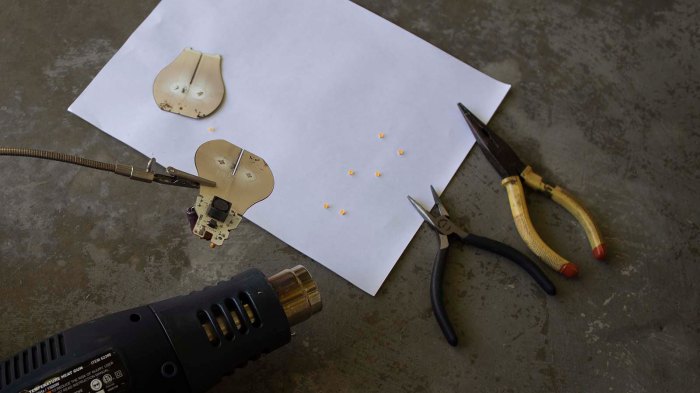
Removing 10 LED module from light bulb

I deployed the heat gun I’ve used to remove many components from PCBs before. It is usually just for fun, or for removing hardy components like switches, transformer coils, and power connectors. This would be the first time I tried removing a silicon component with intention of reuse.


Out of eight modules, two were damaged when I tried to remove them. These LED modules were composed of two parts: a substrate to which the set of 10 LEDs were mounted, and a diffuser/cover module over them. And much to my chagrin – they weren’t bonded very tightly to each other. Here are pictures of one of the damaged modules. One LED was clearly torn off and embedded in the cover, or else I would have been tempted to power it up just to see if it works. (The LEDs are not powered in the picture, they appear bright via reflected ambient light.)
LED module with ruler

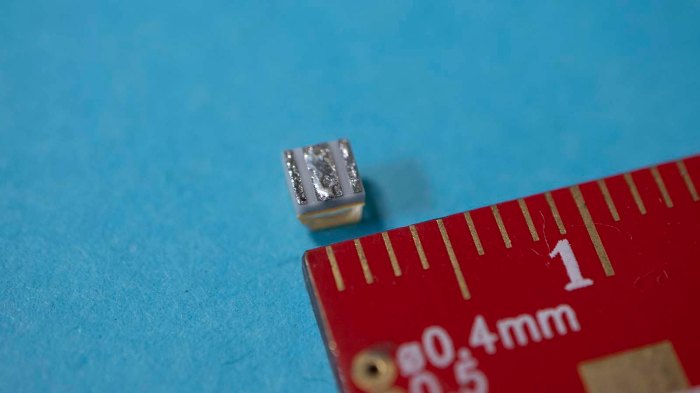
I considered trying to repair that module, by adding a blob of solder to bridge the gap where the damaged LED used to live. But it proved beyond my skill level to work at such sub-millimeter scales. Here is one of the successfully removed modules next to a ruler showing millimeters.
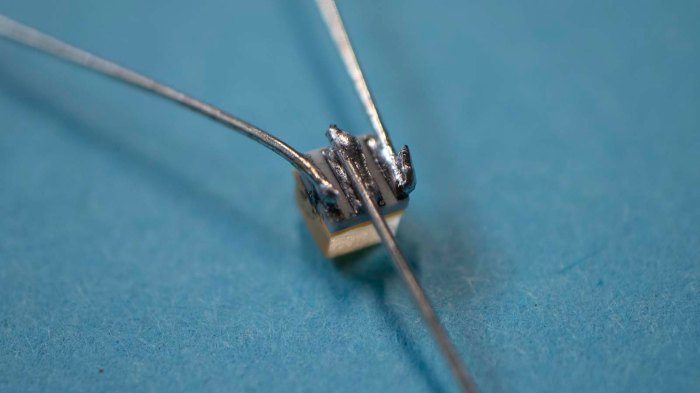
LED module with 3 soldered wires

There are three solderable contacts at the bottom of each module where I expected just two. So they would be positive, negative, and… something else? To try to figure out which pad did what, I soldered a small wire (trimmed from the end of a resistor) to each pad. This turned out to be even more difficult than its small size suggested. The first wire wasn’t too bad, but when I tried to solder on a second wire I understood the challenge. This module is so small there’s very little heat dissipation between adjacent pads. As soon as I heat up one solder joint, it is hot enough to melt solder on remaining pads too. This was really designed for SMD soldering by machine, where the solder is supposed to all melt at once. Soldering one at a time by hand was hard.

Once soldered, I connected power to two of the three pins. It appears the center solder point is not for power. My best guess is that it is for heat dissipation and apparently a wire soldered to the pad does not offer enough dissipation to tolerate abuse. As a test I cranked up the power (over 30V and over 40mA). That heated up the LED enough to melt the solder and escape, falling off the wires onto my workbench.
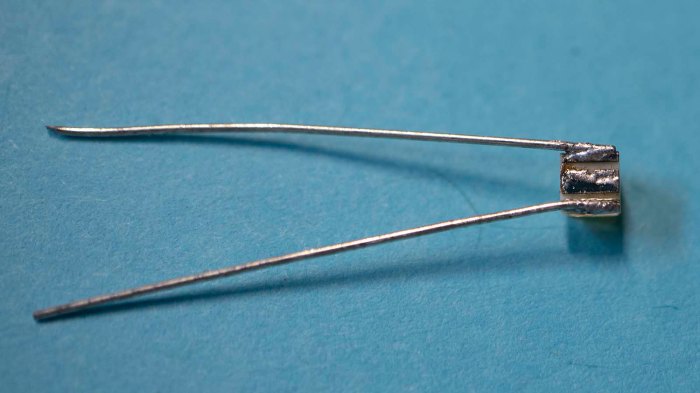
LED module with 2 soldered wires

Which meant another opportunity to practice patience while soldering. This time I didn’t bother soldering to the center pad, and I didn’t crank the power up as high.
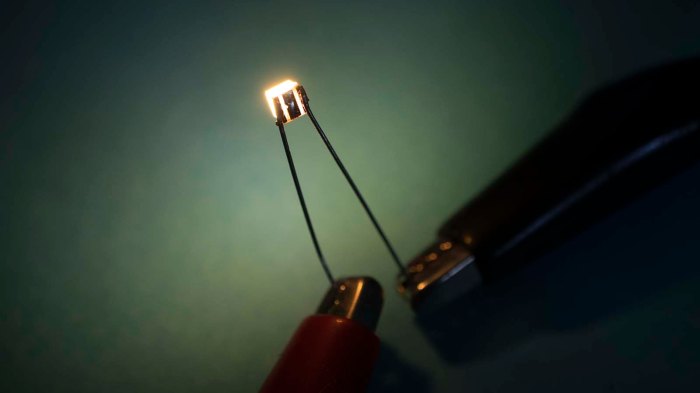
LED module illuminated

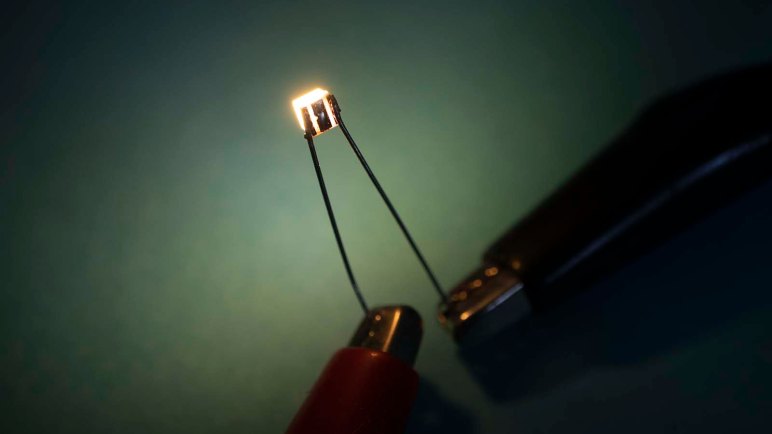
These LED modules give a dull glow at 24V, drawing less than 10 mA while doing so. They start growing brightly at roughly 27V, drawing approximately 20mA. I’ll need to provide better heat dissipation, connected to that center pad, before I push through power any higher again.
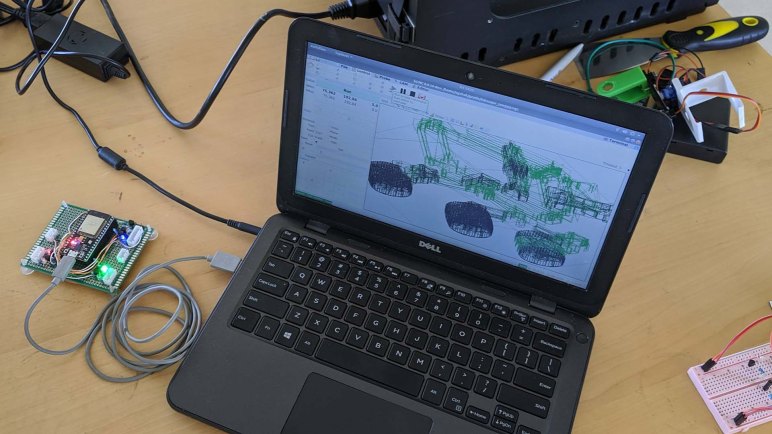
Successfully Ran Multi Hour Programs With bCNC

Once we added a crude but functioning third axis to our primordial CNC machine, we started testing it by running longer and longer G-code programs. Once we got to a test program that took roughly 25 minutes to complete, we encountered our first system failure: our computer running UGS (Universal G-code Sender) would lose its serial communication connection at unpredictable times.

As we intend to eventually run programs much longer than 25 minutes, this was unacceptable and UGS was removed from contention. We returned to the list of G-code senders in Grbl documentation and chose bCNC as our next candidate.

We are definitely giving up some nice features by moving from UGS to bCNC. We lose the ability to customize the arrangement of our control elements, and we lose the ability to preview our tool path from arbitrary directions. (We’re restricted to a few fixed projections.) But reliability is more important than eye candy, so we’re happy to give them up if it means a system that we can rely upon to run for hours.

To test bCNC, we take advantage of the fact this is an open loop system: the control board will run exactly the same whether it is attached to the salvaged industrial XY stage or not. This allowed me to run long duration tests using just the laptop and the prototype control board, away from the workshop where the machine hardware resides.

To establish our baseline: UGS is brought up to run this 25 minute test program again in the test configuration without hardware. Two attempts both failed with serial connection dropping offline at different times.

Then, using the same desktop test configuration, bCNC is brought up to run the same 25 minute test program. Five attempts ran to successful completion without losing serial connection.

Then we moved on to the challenge level: a G-code program that takes over 7 hours to execute. I would leave the laptop and prototype board running over most of a week. Every time I noticed the program had succeeded, I press “Cycle Start” again. This netted roughly ten attempts, and they were all successful. No serial connections were lost.
It looks like bCNC is the way to go. And with the new candidate software in place, attention returns to machine hardware.

Tool-less Corner Steering Motor Cover for JPL Open Source Rover

While building a JPL Open Source Rover, I would put the rover chassis in many different orientations in order to better access whichever part I was working on at the time. I’ve experienced recurring problems with the default corner steering motor cover popping off under sideways load, which happens when I have the rover on its side or on its back. The motors themselves are relatively robust but the wiring terminals at the end are fragile and difficult to repair if broken off. So I’d like to keep them protected as I work on other parts of the rover. I know I’m prone to accidental bumps that, thanks to Murphy’s Law, tend to impact the fragile and difficult to repair parts of my project.

Thus the motivation for this quick 3D printing project: an alternate design for steering motor covers. I had the following project goals:

  • Easy to print, without overhangs that would require support.
  • Tool-less installation and removal
  • Robust against sideways forces
  • Round shape to reduce chance of catching on obstacles.

In order to take advantage of nature of 3D printed parts, it was broken up into two pieces. The inner clip is printed at an orientation suited to clip onto the Actobotics aluminum rail without worrying about layer separation. The cap is printed at an orientation that makes it easy to print without supports. Separating the cap from the clip also makes it easy to create variants on the cap without worrying about compromising the Actobotics clipping capability.

With these caps installed on my corner steering motors, I was able to work in various orientations without worry of the cap falling off. I could also move the rover about and, thanks to the round surface, the cap is unlikely to catch on things and fall off. So even if a rover ultimately has plans for other caps, the round cap is still useful to have installed during construction and maintenance.

I’ve released this design on the JPL rover builder’s forum, hoping others would find it useful to build upon. The original CAD is a public document in Onshape, the read-to-print STLs have been uploaded to Thingiverse, and a video walkthrough explaining how it works has been posted to YouTube.

Unreliable Serial Communication with UGS, Try bCNC Next

We now have a three-axis machine: aged but still robust industrial motion control linear drives for our X and Y axis, and a new but not at all robust servo holding a Sharpie marker as our Z-axis. It was enough to let us feed three-axis G-code programs and watch them in action.

We started with short programs that would take less than a minute to run, then gradually increased the complexity and duration of jobs. If we wanted to turn this into a CNC mill, it will need to be reliable and dependable for long jobs. We didn’t have enough experience to have a list of potential points of failure, we just ran ever longer jobs and watched to see what goes wrong. We knew it was going to be a process of finding a problem, fixing it, finding the next thing to fail, fix that too, and repeat.

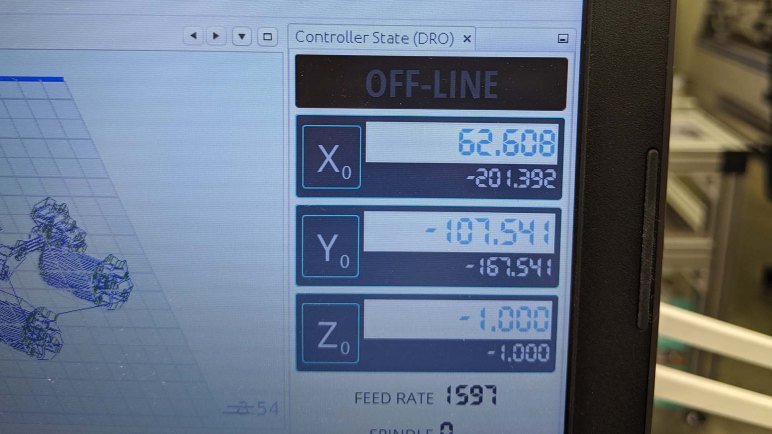
Our first problem: the G-code sender UGS running on the control console laptop. In the middle of running a job of approximately 15 minutes, UGS would drop serial connection. The machine stops moving and UI shows “OFF-LINE”. This is not just annoying, it is plainly unacceptable in a machine that might be expected to run for hours.

And there’s another possibly related problem with UGS serial communication: it was not able to connect to Grbl ESP32 if the dev board was connected at boot. We could work around this by unplugging the USB cable to ESP32 and reconnect, but this is rather inconvenient.

We could put up with the startup connection issue if that was the only problem, but randomly halting in the middle of a long job is unacceptable. So UGS is out of contention, and we return to the Grbl G-code sender list to find a replacement.

The next candidate: bCNC.

Quick Fabrication For Servo Z-Axis

Soldering up components for a test run at the workshop, I ran out of time to implement something to actually attach to the end of the Z-axis servo. While I was setting up all the components with copious amounts of tape, I asked Emily for help. She has repeatedly demonstrated skill at creatively building a solution in very short time using whatever parts were on hand. The most important episode of this skill saving our bacon was when she fabricated a steering servo bracket for SGVHAK rover.

As I was focused on routing wires and taping them in place, I didn’t watch the magic happen first hand. But I was amazed when Emily walked up less than 15 minutes later with a bracket with parts clearly made of 3D printed plastic. There was not enough time to print such a thing… “How did you do that so fast?”

As it turned out, she drew from a box of rejected & failed 3D prints that was sitting in the back of the shop. The parts were not printed for this project, but their residence in the fail pile made them candidate raw material for today’s quick fabrication. Once Emily installed the Sharpie marker holder to our servo Z-axis, our plotter can lift its pen!

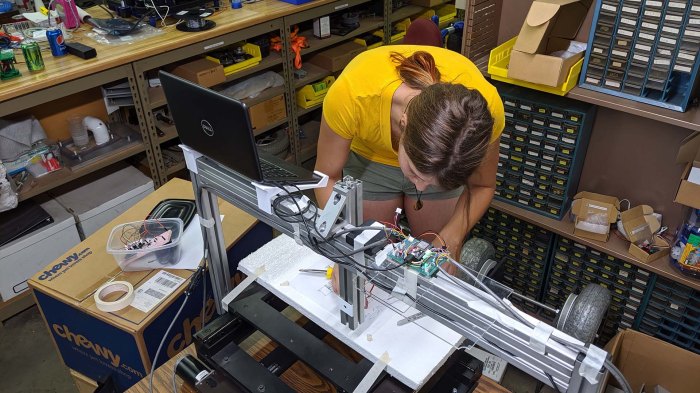
Emily rigging up Sharpie holder for Grbl ESP32 Z axis servo

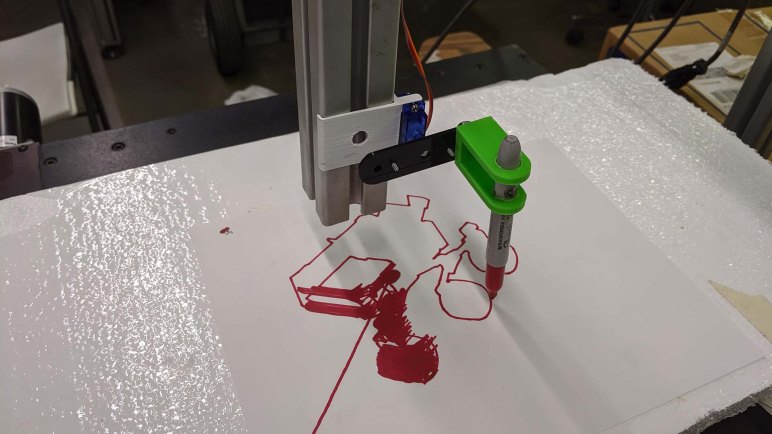
But as we found out very quickly, the lift is not clean. This cheap micro servo has a lot of slop which made it difficult to position it at a height that will make good contact with the paper when down and stay clear of the paper when lifting. Instead of ending a line cleanly, the pen would make a short diagonal mark as it lifted.

No matter, it was enough for us to continue testing this system. We started feeding it increasingly longer programs to see what breaks down first. Our answer: UGS, the G-code sender program running on our control console laptop, was the first to fail.

This Test Run Made Possible By Tape

Completion of soldering circuits for hardware control switches seemed like a good place to take a break and test. It’s fun to keep the momentum going, but it’s also important to stop and verify the work done so far. Off to the shop we go to set things up!

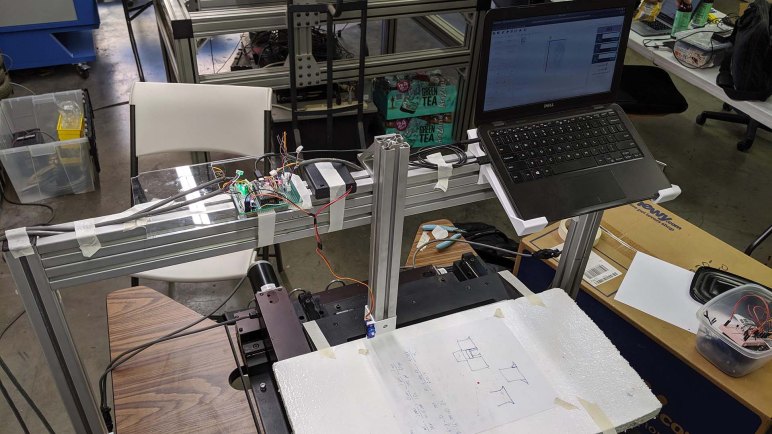
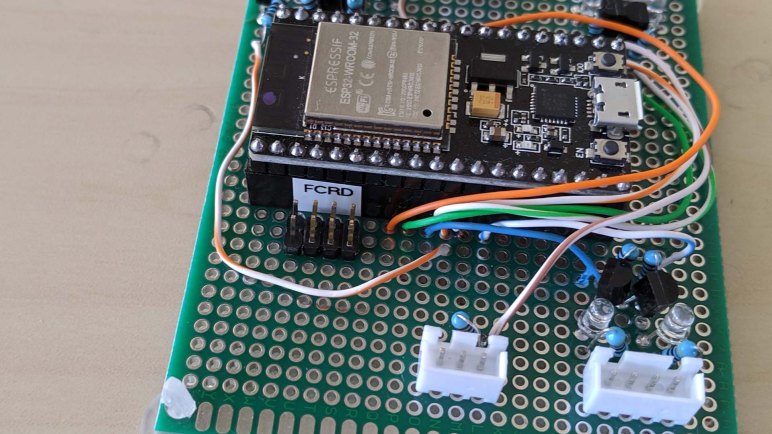
The jury-rigged nature of this prototype test is evident. While I had put a bit of time into building a nice shelf for the computer, none of the other pieces received such attention. Eventually there’ll be an enclosure for the ESP32 running Grbl. A circuit board of the dev module plus all of its associated circuitry, much like the official Grbl ESP32 board. But that board has room for Pololu stepper drivers like those on a 3D printer, and we don’t need that for our Parker motors. That will happen later. For this test, I found a piece of scrap acrylic and taped it to the top extrusion beam to serve as table for the perforated circuit board.

In fact, tape is the dominant element in this test. In addition to the ESP32 platform, tape is held the battery pack for Z-axis servo. Plus all the wires, as it’s not yet clear how we’d want to run wiring for this system. The Parker ZETA4 drivers are still sitting loosely on the bottom shelf of the table, they need to be properly mounted eventually. Once these drivers and the ESP32 are mounted, we will need to consider how to best run wiring to minimize chances of wires getting in the way of our work piece.

In the meantime, everything is held out of the way with tape. Tape tape tape.

Aside from the computer, about the only thing not held by tape was the servo I intended to use to test Z-axis, which received a small 3D printed bracket. However, I ran out of time at home before I could devise something to attach to that servo output shaft.

For that I had to call for help, and Emily answered.

Sawppy Attends MatterHackers Modern Creators Night

MatterHackers is a local supplier for 3D printing. They also carry other products catering to the same hobbyist-grade audience for small scale fabrication, such as laser cutters and CNC engravers. I’ve bought much of my supplies — including the PETG filament used to print the current iteration of Sawppy — from MatterHackers.

I’ve met some of the people of MatterHackers at Yuri’s Night, and been extended an invitation to visit their headquarters where there’s a showroom area. But I have yet to take them up on that invitations because, while MatterHackers is within driving distance, it is a nontrivial drive accounting for LA traffic. Going to that area is basically a day trip, and it kept not happening.

But when Sawppy was invited to be at their Modern Creators Night event, that was enough motivation for me to pack up and take that trip. At the event, I learned it is a scaled-up version of an occasional meetup MatterHackers used to hold at their main office, but there was no longer enough space there. Their business has grown, as has the size of the crowds. Hence – a new event at a venue with a new format.

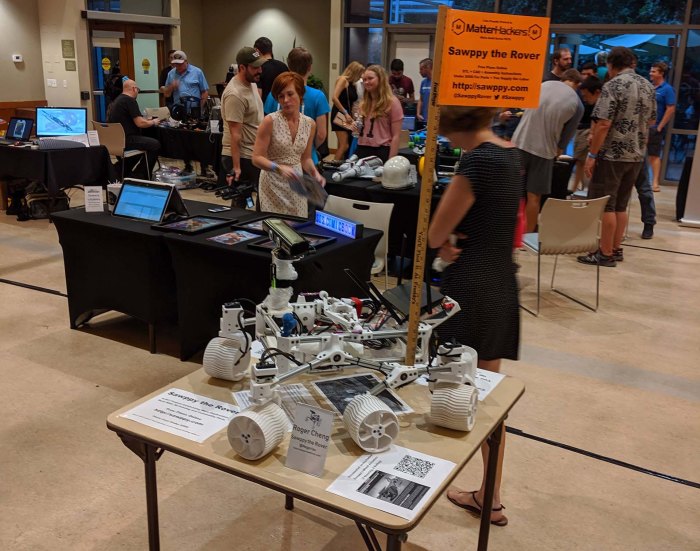
Sawppy arrived and started roaming the exhibit area as rovers tend to do. But when it came time for the speakers to present, Sawppy was presented with a table for static exhibit. I made some signage I could tape to the table, to explain Sawppy when I’m not present to tell the story.

Sawppy on small MatterHackers display table

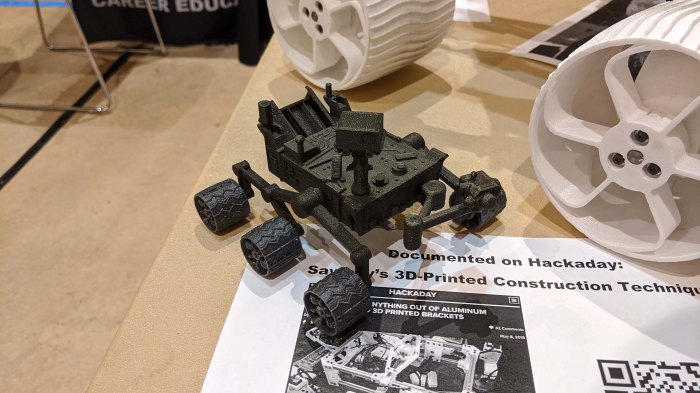
There were a lot of 3D prints on exhibit by other makers, and one of them decided to loan their little printed model of Curiosity to keep Sawppy company during speaker presentations. I was happily surprised when I saw this little guy, and didn’t meet its owner until later. I regret to say I’ve already forgotten her name, but her generous and appropriate loan is very much appreciated!

Sawppys little friend

Wire Up Hardware Control Switches

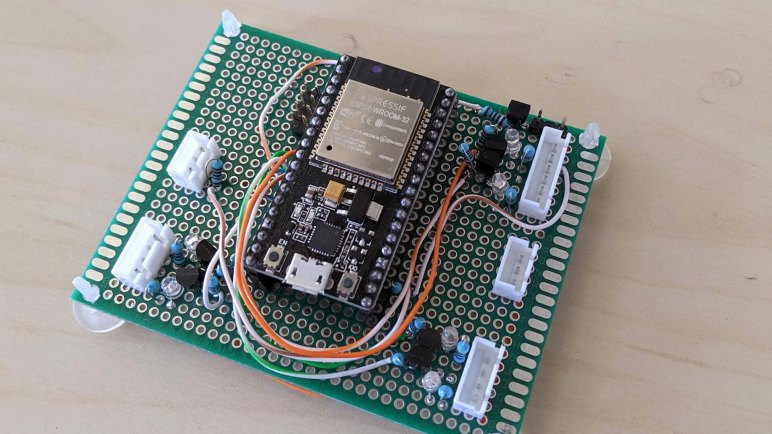
After wiring up for Z-axis servo control, I turned my attention to the remaining empty quadrant of the prototype board.

At the moment I have a small laptop running a G-code sender acting as the CNC control console, from which I can access all functionality of Grbl. The ESP32 port of Grbl also offers a built-in web interface, which is a great choice for compact machines that don’t want the overhead of a full computer. Both of these control options have a communication delay, so some things are better handled by hardware switches for immediate feedback.

By default Grbl ESP32 supports four physical switches, in the order of their pin assignment they are:

  1. Feed Hold: On many CNC, this completes execution of the current G-code command but holds off running the next one. Some machines can pause mid-command but this is not guaranteed. Axis motion stops, but spindle does not. This is a good way to have a machine pause, useful for example when the operator wants to visually check to make sure position and upcoming commands look reasonable.
  2. Cycle Start: Begins executing the loaded G-code program. Also used to resume execution after Feed Hold.
  3. Reset: This commands an immediate stop, of everything. Unlike Feed Hold, it will not wait for the current command to complete. It will also turn off spindle in addition to axis motion. Since it is an immediate cutoff of execution, the controller ends up in an unpredictable state. There’s no resuming after a reset. The machine has to be re-homed and all coordinate offsets recalculated.
  4. Door: Designed to be wired up to a door open detection switch so the machine can take actions to ensure operator safety. On some machines this is effectively a Feed Hold, others treat it as an emergency Reset, most machines treat it as somewhere in between. I don’t know yet how Grbl reacts.

All four are designed for normally-open switches that activate upon closing the circuit to ground. For reasons I don’t understand, these switches don’t use the ESP32 internal pull-ups and require external pull-up resistors. Normally-open switches don’t necessarily make sense for a situation. For example, reset is usually wired up with a series of normally closed switches and, if any of them should open, the machine halts. But this is easy to address in the physical circuit.

Another concern for these switches is that they tend to have long runs of wire. (Such as  the aforementioned reset switch.) Long wires have a nasty tendency to act as an antenna picking up stray signals. So a real board would require opto-isolation to avoid triggering from line noise. But again, this is a prototype board missing the full set of protective features.

After I wired up jumpers for playing with these four switches, I made a small piece of label to remind me which pin is which. Then it’s time to bring the results of this prototype soldering session to the shop and run a few tests.

Z-Axis Servo and Battery Box

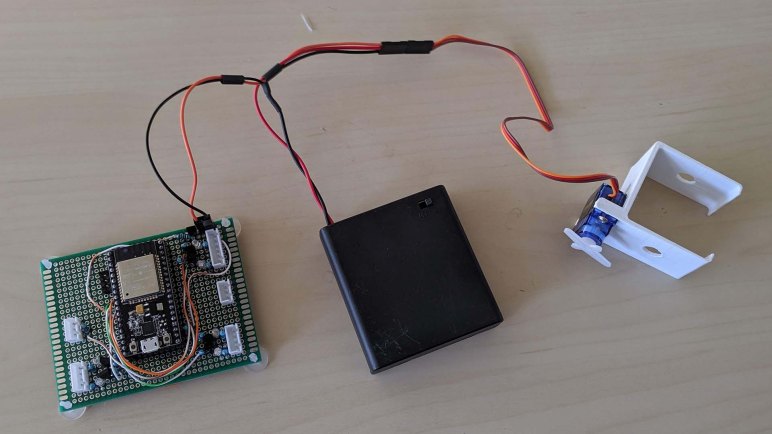
I plan to take advantage of a feature in Grbl ESP32, where a RC hobby servo can take the place of a stepper motor for any supported axis. It won’t be nearly as precise, or have the same range of motion, but it’s a good option for specific situations including tests.

The first part of this task was, obviously, to find it in the code repository and know how to compile with this option active. The second is to wire up my ESP32 dev board to emit the 1-2 ms RC control signal at its 3.3V output and convert that to a 5V signal courtesy of the USB port. Then it’s time to connect a servo.

But not directly, because USB doesn’t supply very much current and would not be a good source for servo motor power. Tasks with high stress or moving quickly will draw more than what USB can supply and cause voltage level to sag. Possibly causing the ESP32 to brown out and restart which would ruin everything.

What I needed for a servo test was a separate power supply. I started digging through my collection of salvaged AC to DC power transformer bricks looking for one in an appropriate voltage range before I decided I was overthinking things. This isn’t going to be the long term solution, it’s just for a short test. I don’t need a long term power source.

RC hobby servos are originally designed to run off 4.8-6V of a four-cell pack of batteries, tracing its lineage back to the age of NiCad radio receiver packs. This is roughly the same voltage as a commodity AA battery cell, so I pulled from my stock of 4xAA battery holders (*) for this test. They even have an integrated on/off switch for convenience.

The ground wire was connected to the servo ground wire as well as ESP32 ground. Servo power wire is supplied by this 4xAA tray, and servo control signal from the 3-pin servo header of the prototype controller board. And finally, the servo gets a 3D printed bracket to clip on to the gantry structure’s 40mm extrusion beams.

The Z-axis test arrangement is now complete. But before I wrap up this session of perf board soldering, I wired up provisions for hardware control switches.


(*) Disclosure: As an Amazon Associate I earn from qualifying purchases.

Wiring For Both Options Of Z-Axis Motion

Strictly speaking, it was not critical to add a shelf for the little laptop used to control everything, but it is very nice to resolve the constant irritation of pausing what I wanted to do just to find a place to set it down. It should speed up future tinkiering of this machine, and the next step in that process is to wire up Z-axis capability.

In hindsight I should have packed the X (lower left) and Y axis (lower right) components a little closer together, but learning these lessons this is why we build prototypes. There isn’t quite enough room to duplicate the same pin layout for Z in the upper right, but then again, I don’t really need to. I’m not interfacing with an existing Parker Motion Control product, the Z-axis will be different.

As a result, the JST-XH connectors have been simplified from a 4+3 arrangement to a single 6-pin arrangement. 4 of the pins are the same: a pair of open-drain signals for step and direction. The remaining two pins are for a normally-open switch to home the Z axis stepper control.

But there’s another twist to the Z-axis: a feature of Grbl ESP32 is the ability to use a RC hobby servo for any axis. It requires changing a few #define in the source code and recompiling, something I could do on the little laptop who now has a shelf. I thought a servo-actuated Z-axis would work well as a first test of system functionality, before I go through the effort of building a more functional stepper-controlled Z axis.

But I couldn’t use the same pin for both, because an open-drain circuit is the wrong way to send a control signal to a servo. Instead, a separate transistor was rigged up so the ESP32 control signal (3.3V) can emit a 5V servo signal. The signal pin and ground are exposed via a separate 3-pin header.

The 5V source for the control signal came from the USB port connected to the little laptop. Ideally there’ll be some opto-isolation for the control signal, but this will suffice for a prototype. However, it will not be enough to power the servo motor, which will require its own power source.

A Shelf For CNC Console Computer

The first thing I wanted to address after a wobbly (but successful!) first run was placement of the control console computer. I didn’t have a good place to set the tiny laptop down. The machine may not look like it would take up the entire table, but once machine’s range of motion is accounted for, there’s not a whole lot of space left. During the test run, the laptop was literally on the ground next to the table. It would be useful to have a dedicated computer shelf.

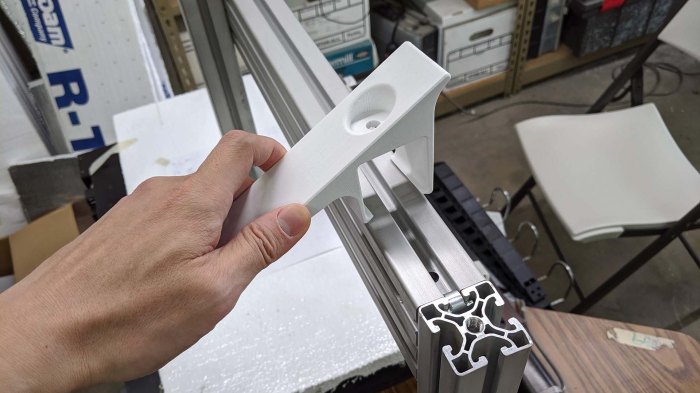
The shelf was designed in two parts. The right side could be bolted to the end of an extrusion beam, but the left side didn’t have that luxury. I thought I would design it to clip on to the extrusion beam, but the first draft hooks were far too aggressive. I had to trim them back with a saw before I could fit the piece around the beam.

HAKCNC computer shelf overly agressive claws

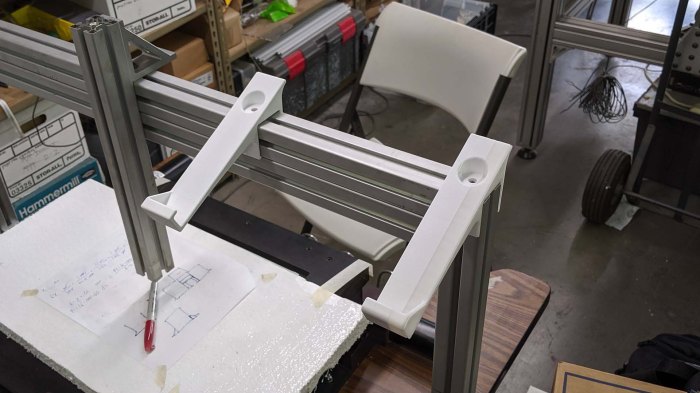
Both hooks installed and ready to host the computer. The right hand hook was printed with the final filament from one spool and start of another spool of PLA. Even though I ordered from the same vendor (Monoprice) they have apparently changed vendors or specification and the new spool filament is visibly different.

HAKCNC computer shelf in place

At first glance this design may appear to be heavily cantilevered, with most of the weight on the front of the hook placing great stress on the mounting points. This is only true when the laptop lid is closed. When the lid is open, where this shelf mounts on the beams is actually very close to the center of gravity of the laptop.

It still needs to be able to accept some weight, though, since there’ll be physical forces as I type on the keyboard and use the trackpad. But PLA is plenty strong for this application, with very little flex even when I rest my wrists on the computer.

This shelf is probably not permanent, but it is nice to have a convenient shelf to hold the laptop while I figure out how to work the rest of this machine.

3D Printed Spacer For Rover RoboClaw

A 3D printer is not a fast worker, but as slow as they are, they are still faster than waiting for shipping. This means owning a 3D printer can sometimes be a convenience feature, unblocking project progress while real objects are in transit or perhaps substituting them entirely.

While following the current iteration of JPL Open Source Rover instructions, I was tripped up by an error in the parts list reference. As a practical matter, it meant I didn’t have the aluminum spacers on hand to mount RoboClaw motor controllers to the rover mainboard. Once I understood what was going on and filed the issue on Github, I ordered correct parts from McMaster-Carr and they will arrive in a few days.

But what do I do in the meantime? If I’m not able or willing to wait for the correct spacers, I can design and print my own. It is a very simple shape and a small part that will be quick to print. I didn’t model the threads but it would have been too fine to print anyway – the screws will just self-tap into 3D-printed plastic.

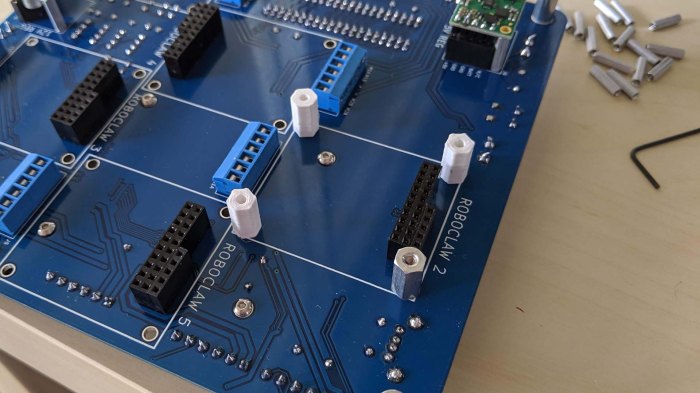
Here are 3 printed and 1 metal spacers on a test run on the rover mainboard, before I installed a RoboClaw to verify all parts worked as planned.

RoboClaw spacer 3P1M

While these plastic parts are weaker than the proper aluminum bits, in this particular application I don’t expect the material strength differences to matter. What is far more useful is the fact they are here right now and I did not have to wait for an UPS truck.

Second Caliper Battery Hack Prioritizes Simplicity

One of my early 3D printing projects was motivated by the wasteful battery usage of a cheap Harbor Freight digital caliper. I didn’t want to replace its LR44 battery all the time, and I didn’t want to directly modify the caliper in any way, so I ended with an overly complex tray to hold a AAA battery in place of the default LR44 battery.

The main goal was to avoid the wastefulness of burning through LR44 batteries, and that goal was a success. I was able to use cheaper AAA batteries and use them for longer. In fact, this caliper was able to run on AAA batteries that were too weak for much else, giving them a very useful secondary life. However, my battery tray suffered poor reliability of electrical contact points. In actual usage it was too easy to move a component just enough to break electrical connection, resetting the caliper and losing whatever measurement I had at the time. After a few frustrating episodes, I broke off the plastic head substituting the LR44 battery and soldered wires directly.

Caliper printed battery tray cracked

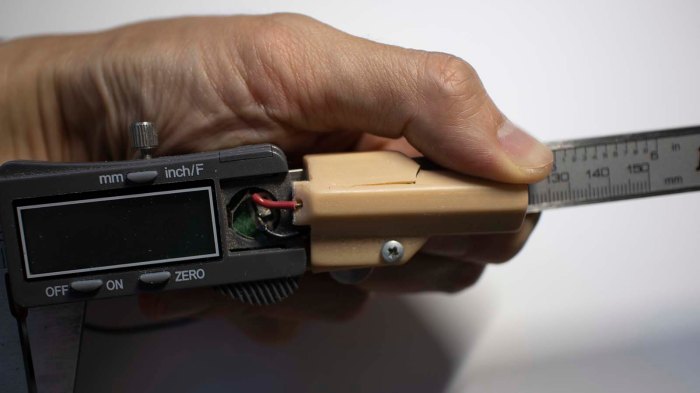
After years of use, the battery tray I designed and 3D printed finally cracked. And this time around I decided to go for simplicity instead: a commodity AA battery tray held to the back side of my caliper with double-sided foam tape.

Caliper commodity battery tray back mounted

Wires from this battery tray were soldered directly to the battery tabs inside my caliper for reliable operation. I could no longer lay this caliper down flat on a table, but I don’t think that will be a significant concern. I’ll know for sure after some usage and if it proves to be a problem I will re-evaluate.

In the meantime, I have a replacement battery tray allowing me to run my caliper on weak AA batteries already destined to be thrown away. And since this tray is a mass produced commodity item, using it was cheaper and it was faster to install than my previous solution.

Moral of the story: sometimes 3D printing is not the answer.

Drilling Wheels For JPL Open Source Rover

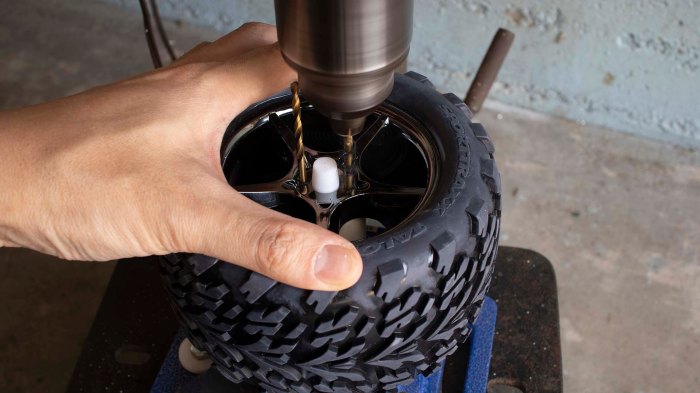
Jet Propulsion Laboratory’s Open Source Rover uses six wheels adapted from Traxxas remote control trucks. Traxxas suspension has a hex shaped mounting point for these wheels, but the ServoCity motor hubs used by OSR does not fit. To bolt these wheels onto those hubs, rover builders need to drill two holes aligned with two diagonally opposite holes on the ServoCity hub. Precisely locating these holes may prove challenging, and some rover builders have offered their solution to the problem. This post outlines my approach.

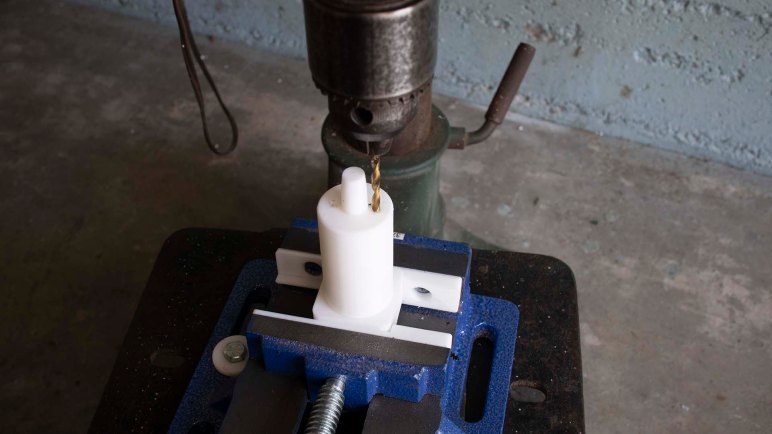
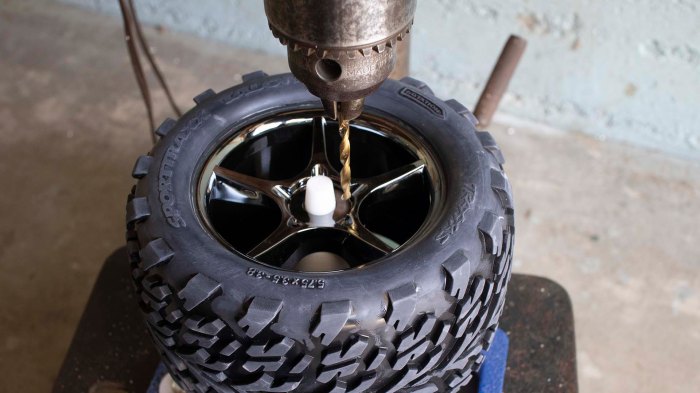
The heart of my approach is a 3D printed jig that is clamped in a drill press vise. It is tall enough to accomodate one of these wheels, with a cylindrical tip that locates the center hole for the wheel. There are two holes on either side of this tip, corresponding to the locations where we want to drill. For setup, the vise and jig are positioned such that one of the holes are aligned with the location of our drill bit.

OSR wheel drill jig with wheel 1

Once aligned, a wheel is mounted on the jig and we drill our first hole. Once that is done we turn the wheel 180 degrees. We can visually align the newly drilled hole to the printed hole in the jig, or we can use another drill bit as a locating pin. Drop this drill bit through the just-drilled hole into the 3D printed hole in order to locate the wheel.

OSR wheel drill jig with wheel 2

This setup has room for improvement in terms of precision. The holes aren’t precisely the correct size so the location pin/drill bit has room to move. But it is sufficiently precise for the task at hand so I didn’t put in the time to revise the jig for additional precision.

The 3D printed jig is shared on Thingiverse, and a video demonstration has been posted to YouTube:


A Wobbly First Draft Of Z Axis Gantry

We had a few final bits of goofing off without a Z-axis before starting to build a real one. Two beams available for construction were found to be exactly the same length as the width of our table, so they were natural candidates as the main horizontal gantry structure. Now we could use arbitrary lengths for the vertical support beams bolted to either side, because they could drape past the edge and below the table surface. Not only does it give us complete flexibility on what height to mount our main horizontal beam, we also gain the option to reinforce the beam with brackets bolted to the bottom of the table.

Once the drilling and bolting started, however we found a few unexpected problems.

A small problem was that while our horizontal beam is exactly the width of the table, we also had a black plastic moulding surrounding the edge of the table. Actually dropping the beam below the table surface meant cutting interfering pieces of plastic away. Which we could do, but we don’t need to do so just yet so that’s been deferred.

A more significant problem was that one of the two holes of a bracket overlapped with the existing metal structure of this printer table. If it lined up exactly with the horizontal parts of the metal, we could drill a hole through it just as we did the wooden parts. Unfortunately it partially overlapped with some vertical members of the support structure, which would severely weaken the table if we drilled into it. We chose not to drill, but it also meant there were only two bolts instead of four fastening our gantry to the table.

This meant we ended with a less rigid gantry than we had originally hoped. It is pretty good left-right (parallel to machine X axis) but front-back (machine Y axis) is weak. We’ll have to add more reinforcements before we get serious about cutting material, but in the meantime it is the best Z-axis yet for pen plotting.

So Emily created a program that draws a gift for our enthusiastic supportive online cheerleader. This was the machine’s first run with nontrivial G-code, and its success cleared the way to further refinement of this machine.

Making Our Way To A Z-Axis Gantry

After some debugging and re-awakening, I brought the laptop running UGS back to the workshop and this time it mostly worked. There were still a few unexplained system freeze-ups early in the work session but it was stable afterwards. Was there something weird with Java runtime settling down? I’m not sure, but I’ll have to keep an eye out to see if this recurs upon every system bootup.

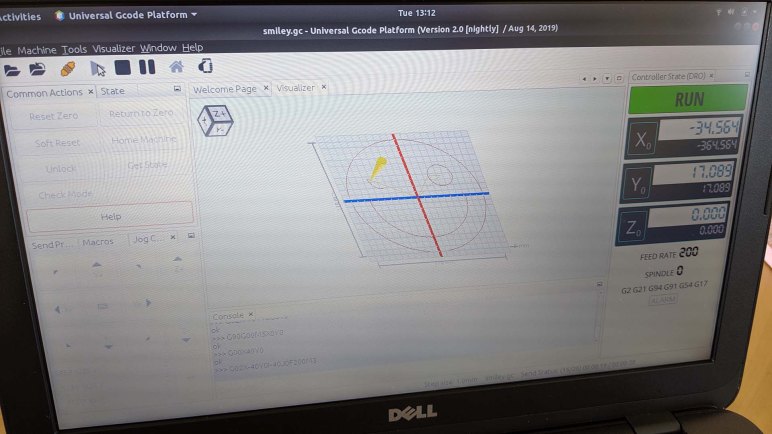
Having a computer running UGS proved useful because we now have a 3D visualization of G-code tool path. It allowed us to see where a particular program declared its origin, so we could set work coordinate zero accordingly. It also allowed us to debug a few problems with the G-code we’ve randomly found online. The smiley face, for example, issued a G54 command early in the program but Grbl didn’t like that upon rerun and demanded a G0 before it.

Running G-code programs repeatedly to debug UGS settings meant we had ample opportunity to goof around with more drawings.

While fun, this “let’s act like a crappy Z-axis” game is not the point of the project. We know we need some sort of structure to fasten a Z-axis mechanism to. We hunted around the workshop for items collecting dust and found a set of 40mm x 40mm aluminum extrusion beams along with associated hardware. Formerly some sort of display for trade shows, it has been retired and available for use.

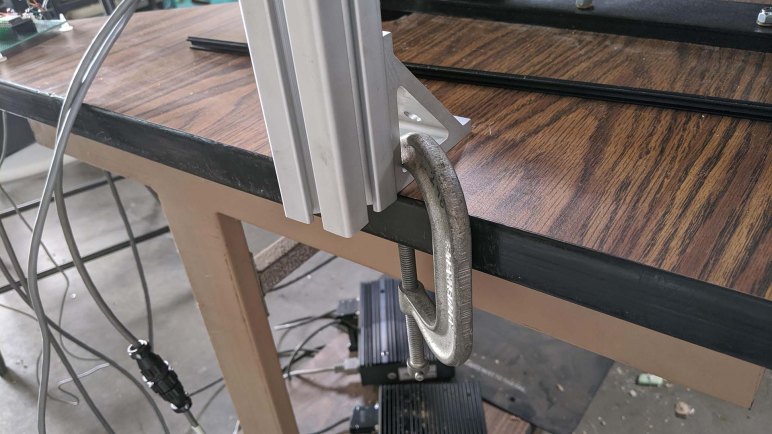
For the first draft we just want something better than holding the pen by hand, so we weren’t picky. Not really understanding what we wanted also meant we were reluctant to cut into these beams destructively until we know better. This meant using the lengths as-is and playing with various arrangements. C-clamps were very useful to temporarily hold pieces in place! Eventually we had enough of a plan and the clamps were replaced with bolts.


Computer Running UGS As CNC Control Console

One thing that didn’t go quite according to plan during our first system test was how we sent our G-code file to the controller. I had planned to dedicate my Dell Inspiron 11 (3180) to the task of CNC control console, but it didn’t turn on at the workshop.

This was a problem, because I had hoped the G-code sender program I had installed on that laptop would help us understand what’s going on as we drive the machine. While CNC G-code is officially standardized, the standards still left a lot to the individual machine makers to define. Grbl (mostly) follows example set by LinuxCNC, so for the most part I can use LinuxCNC reference guide. I doubt I could memorize everything immediately, so a little software help might have been nice.

Grbl ESP32 is capable of operating completely independently using web interface. This is a basic interface which is extremely streamlined and missing some of the luxury features of other control interfaces. Furthermore, there is not enough onboard storage for CNC programs. To address the latter, there’s provision for attaching a SD card for storage via four pins on the ESP32. This is great for building small self-contained (maybe even portable!) machines.

But since our project is not very easily portable, I thought it’d be better to have a more full featured control console for this CNC. Grbl project wiki included a list of popular G-code senders, after reading that list I decided to try UGS and installed it on the little Dell. Since it was written for Grbl, it understands the Grbl-specific subset of G-code and also has a visualization module so we know what to expect when we run a program. All of these would have been useful in an initial system run.

At the workshop I pulled the Dell out of my backpack, pushed the power button, and nothing happened. After a few failed efforts to wake the machine, I resorted to using simple_stream.py from the Grbl site, a flat Python script with absolutely no user friendly features whatsoever.

I brought the little Dell home in order to debug the problem. Once I got home, I determined the machine is running but stuck. I held the power button for longer than 4 seconds, which per ACPI spec will power down the machine regardless of state. I thought I had tried that at the workshop but I guess I didn’t quite hold it long enough? In any case the computer is ready for another attempt.

[Update: UGS didn’t pan out, more details here.]

Freehand + CNC Pen Plotter

While we’ve proven our nascent CNC could home and respond to individual hand-typed G-Code commands, we have yet to run more than a single line at a time. We’ve just bolted it down to a table but before we put too much effort into more hardware, it seemed like a good idea to make sure the software side is capable of a multi-line program.

Emily found a short snippet of G-Code that purports to draw a smiley face with a pen plotter. It is a great introduction to G-Code, showing us a basic way to start and stop the machine. Curiously, there is no Z-axis motion at all. It uses spindle motor commands to communicate “drawing” (M3 = spindle on) and “not drawing” (M5 = spindle off.)

T1 M6
G90 G94
G54 X0 Y0
G00 X0 Y0
G00 X-25 Y20
G91 X-10
G02 X10 Y-10 I10 J0 F200 M3
G02 X-10 Y10 I0 J10;
G90 G00 M5 X0 Y0;
G00 X25 Y20
G91 X-10
G02 X10 Y-10 I10 J0 F200M3
G02 X-10 Y10 I0 J10;
G90 G00 M5 X0 Y0;
G00 X40 Y0
G02 X-40 Y0 I-40 J0 F200 M3
G90 G00 M5 X-55 Y0;
G02 X0 Y-55 I55 J0 F200 M3
G02 X-55 Y0 I0 J55
M30;

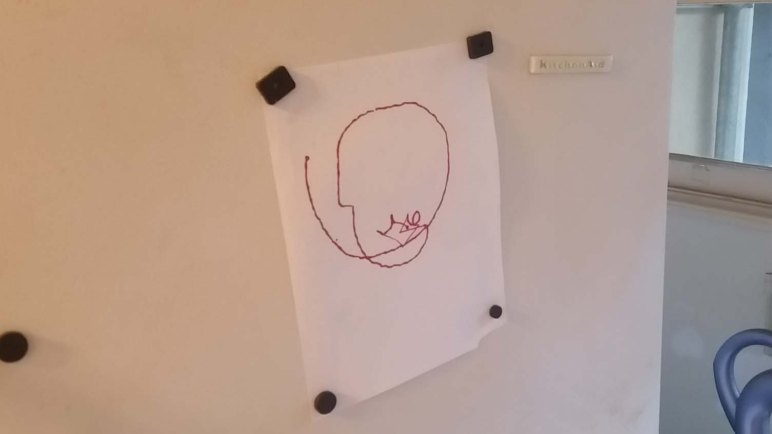
Reading through this, I could see the XY coordinates are all around (0,0) so the center of this smiley face should be at the origin. Other than that, I have no idea. And since we haven’t built our Z-axis yet, Emily volunteered to be a human Z-axis. We sent this snippet of G-Code (some hiccups along the way) and our reward at the end of this work session was an artistic collaboration between human and machine.

Some Nuts And Bolts For XY Stage

Once we can successfully perform XY axis homing in Grbl ESP32 and see that it responds to some simple G-Code commands, it was time to get a little more rigorous about our hardware configuration. Up until this point this machine was mere placed on a dusty table, itself a salvaged piece of equipment.

Based on the appearance of a slot in the middle and a metal shelf underneath, it appears to have been designed for old dot matrix (or maybe even daisy-wheel) printers that use continuous fanfold paper fed through that slot. Given that such printers have a carriage that moves left-right (now our X axis) it was unexpectedly wobbly along that axis. Our X-axis movement now sets the table oscillating.

We may need to reinforce that sometime down the line, but the first task is to bolt our XY stage to the table. Since it is quite powerful and heavy, there’s a lot of momentum involved in its motion and we could not depend on friction to hold it in place: it slides around on the surface. Six holes were drilled in the table for 1/4″-20 threaded rods, each held in place by a nylon insert locking nut above and below. Now XY stage will no longer slide around on the table.

The chosen location is aligned with the front edge of the table, slightly right of center, due to the Y-axis lead screw to the left of the table. This placement left equal amount of space to the left and right for us to plan out how we want to build a Z-axis gantry. The first candidate approach is to use some aluminum extrusion beams that are sitting around gathering dust in the shop. But in the spirit of “build a little, test a little” we want to run a short G-Code file for fun.

Drilling Into Half Inch Diameter Tubes

It didn’t take long before my new old drill press was put to work doing something that was difficult without the tool: I needed to drill a total of eight holes through three half inch diameter aluminum tubes, perpendicular to the tube’s axis.

Because the surface is curved at the point where drilling starts, it takes a skilled hand to perform the task via freehand held drill and workpiece. I did not have such skills in my hands. Putting the workpiece in a vise helps, but still difficult for me to keep a hand held drill on center. What I needed was a way to hold both the workpiece and the drill bit in rigid relation to each other, meaning a custom workholding solution bolted to the drill press table.

Printed V vise jaw installed

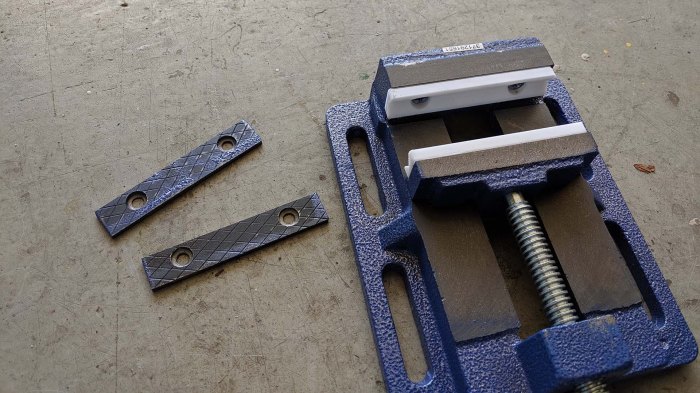
It was built using a very cheap Harbor Freight vise. Its jaws were removable and I designed and 3D printed replacement jaws with a V profile to better hold a round object. The other benefit of 3D printed plastic jaws compared to metal jaws is the reduced chance of marring workpiece surface.

Printed V vise jaw gripping tube

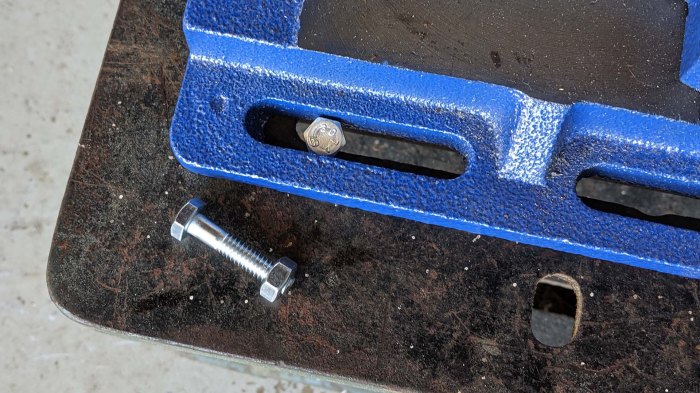
The next step is to bolt this vise onto the drill press table. I saw mounting slots on both the table and the vise, and their slots were in the same pattern. I naively thought this was a standard form factor and they will easily line up.

When I put my vise on the table, I found that they did not.

Vise and drill press table slots do not align

Fortunately even though they did not actually line up, they left enough room for me to use a smaller bolt to try to make things work. In this case, my stockpile of 1/4″-20 bolts.

Vise and table has room for quarter inch-20

The slots are too wide for the typical 1/4″-20 washers I had on hand for this bolt, but again I could turn to my 3D printer for custom solutions that help me bolt the vise to the drill press at the location I needed.

Drill jig for 0.5 inch tube

It took some adjustment to bolt the vise exactly where it needs to be. (Tip: double check to make sure the drill press table isn’t itself moving!) But once everything was tightened down, the jig made drilling the holes I needed very simple.

Public Onshape CAD file for this project are available here.