Sawppy Field Repair Kit: Backup Electronics

About a month ago Mars rover Curiosity’s computer system had a hiccup and reset itself, causing its management team here on Earth to switch to its alternate computer. These two computers – referred to as Side-A and Side-B, allow Curiosity to run on one while mission team diagnoses the other. Initial reports indicate a problem with Curiosity computer’s on board data storage systems.

My rover Sawppy is modeled after Curiosity, and it’s only be a matter of time before Sawppy emulates its big brother with a data storage problem too – the microSD card on a Raspberry Pi 3 computer is a notorious point of failure. But Sawppy doesn’t have a redundant computer system on board that can be switched remotely. Since I’m typically not far away, I can walk up to my rover and perform replacement manually.

But I could only walk up and replace it if I had a replacement handy! This is growing in importance as Sawppy started getting booked for public appearances. When it’s just a hobbyist project it’s not a big deal if Sawppy encounters a problem, I just pack it up until I can get home to my workbench. But if we’re starting to get into situations where Sawppy is actually a featured item, we need to know how to make sure The Show Must Go On.

Thus the latest addition to Sawppy’s field repair (“first aid”) kit: Highest priority is a copy of Sawppy’s microSD card already configured with all necessary software. A microSD card is very small and light, so there’s no excuse not to have one always on hand.

Lower priority, for times when there’s space to spare, is a backup Raspberry Pi 3.

And lowest priority is a LewanSoul servo USB to half-duplex translation board required to operate LewanSoul servos. And while I’m at it, pack a replacement servo as well!
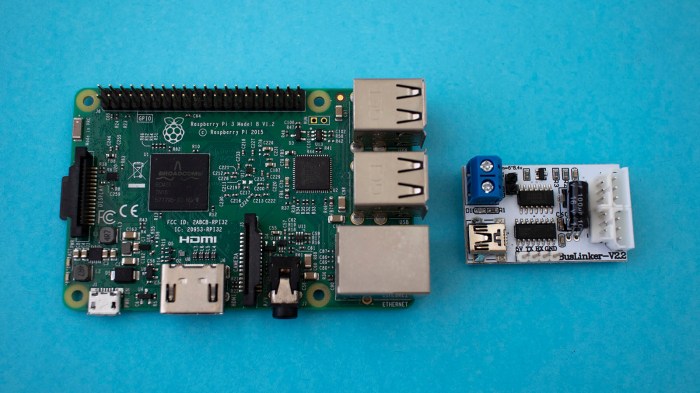
Sawppy backup electronics

Sawppy Flag Pole Now Mounted Magnetically

One of the problems I didn’t foresee in designing Sawppy was that some children might see a fun challenge in doing running jumps over my rover. I first saw this unwelcome behavior when I brought Sawppy to Long Beach, and I knew it’d only be a matter of time before a child would misjudge their jump and smash Sawppy into a pile of broken rover pieces.

Clearly I need to find some way to discourage this behavior, but I also can’t do anything that physically harms misbehaving children. This eliminates straightforward solutions such as a Samurai blade pointing straight up. I would also like this countermeasure to be stealthy and not call attention to its anti-jump purpose otherwise some would see it as a challenge.

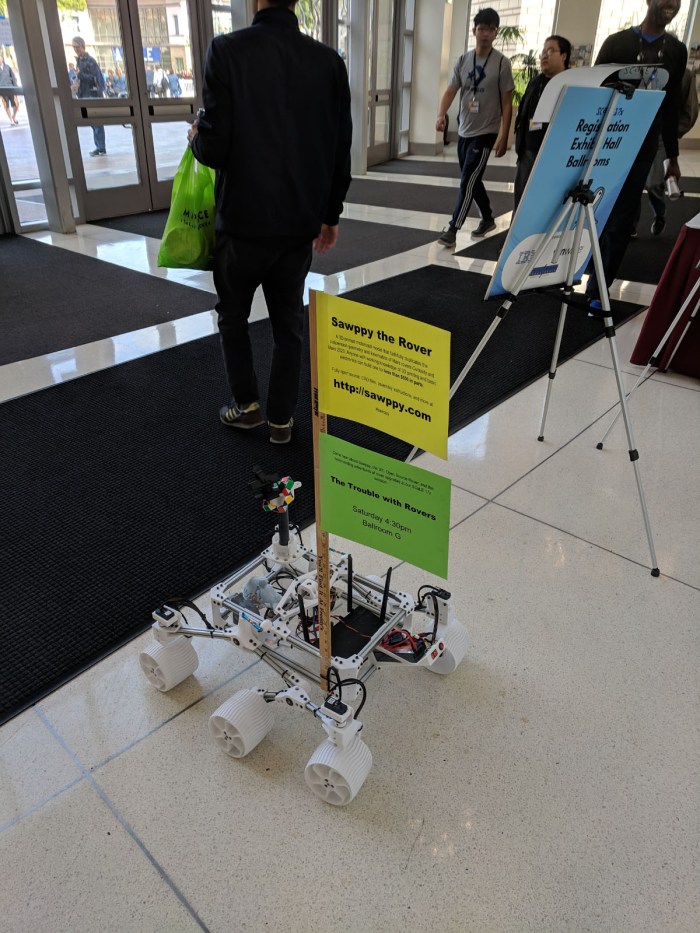
The answer came while preparing for this year’s Southern California Linux Expo (SCaLE 17x). I was scheduled to host the Hackaday x Tindie Birds of a Feather meetup, and I was also slated to co-present a talk with Lan Dang. For publicity purposes I decided Sawppy can be a rolling billboard, as SCaLE is exactly the right audience of people who would pay attention to a 3D-printed rover running about. I pulled out a yardstick I had on hand and started planning how to use it as a flag pole, and I immediately knew I had my anti-jumpover countermeasure as well. Two birds, one stone.

Sawppy Scale 17x Sat 1 - Roving billboard

As previously mentioned, I didn’t want this flag pole to be too rigidly attached. If someone bumps my sign, or if someone decides to try jumping over my rover anyway, the flag pole must break away cleanly without damaging the person or the rover. For SCaLE I used a zip tie that was arranged so there is tension holding the yardstick flag pole in place, but pops free when stressed.

This mostly worked, but as it was built on a balance of opposing forces, it was finicky to reinstall. At Caltech Science for March, a curious toddler yanked off the flag pole and the toddler’s supervising elderly adult tried to reinstall the pole. But grandpa had no idea what he was doing, blindly stabbing inside Sawppy’s equipment bay with the yardstick applying more force as he grew more agitated. After two attempts at saying “Don’t worry, I’ll put it back myself” while I watched in horror at Sawppy electronics getting pummeled, I forcibly grabbed the yardstick from his hands in order to save Sawppy from being stabbed to death.

A better solution must be found.

In preparation for Sawppy’s appearance at Yuri’s Night, I decided to try a magnetic mounting system. Originally rejected because I thought it wouldn’t be strong enough, I thought it was worth a second look. I had a stack of these powerful little magnets and a single pair wasn’t able to hold the pole. But four pairs of them might be strong enough for the task.

For this test, four magnets were held on to chassis beam via packing tape. Two on upper beam, two lower.

Sawppy magnetic flag mount

Matching sets were held to yard stick flag pole with more tape.

Sawppy magnetic flag mount with pole

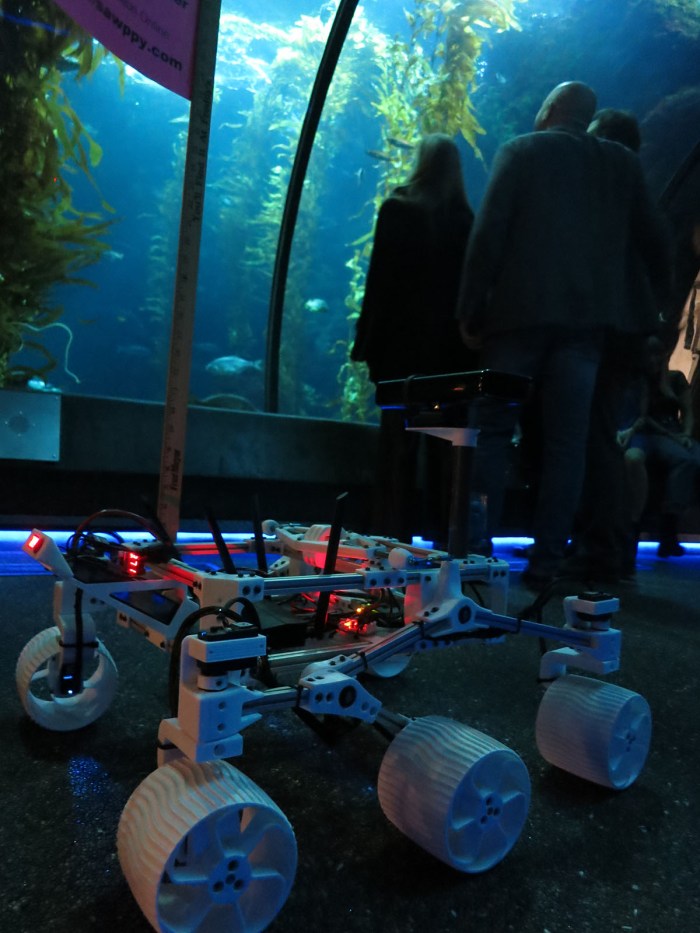
With updated camera mast and flag pole mount, Sawppy was ready for its next public appearance at Yuri’s Night Los Angeles! That event got crowded at times and there were a few accidental bumps that triggered a clean separation followed by quick re-installation. And while this adult-focused event had few children about, there were plenty of drunken misbehaving adults. The flagpole did not discourage all misguided behavior, but it has worked well enough to become a permanent fixture of my future Sawppy public appearances.
Sawppy with new camera and flag pole

(Cross-posted to Hackaday.io)

Sawppy Mount For Kinect V1

When Sawppy first started running around, I wanted something to sit atop a camera mast where the real rover has a camera and sensor array. It is the anthropomorphic head of the rover and it looks slightly wrong without one. (Like a chicken running around without its head.) The first iteration of camera mast sensor array enlisted a standard USB webcam sitting alongside a Google AIY Vision kit. It was mostly for appearance because there wasn’t much software behind it.

The webcam was fun for entertaining children and occasional longer distance driving, but not immediately useful for autonomy. The AIY Vision box is optimized for classification tasks. I thought there might exist code useful for robotic visual localization but if it’s out there I have yet to find it.

The most promising tool at hand for rover localization is my Kinect sensor bar running RTAB-Map or some similar software. So Sawppy will inch towards autonomy by getting a camera mast upgrade to my Kinect V1 sensor bar and see if we can integrate that into rover systems in a useful way.

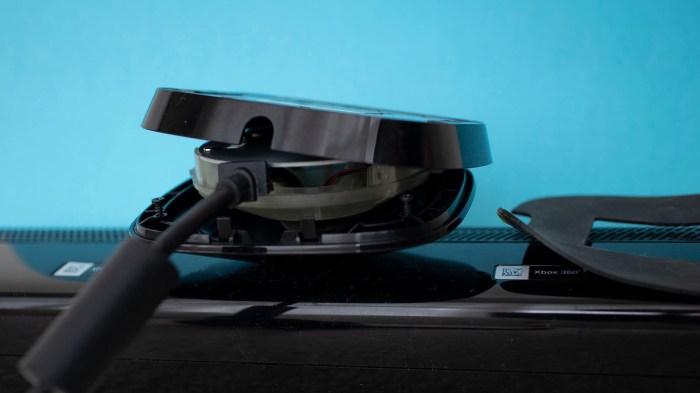
I went looking for a good way to mount a Kinect bar to Sawppy. I disassembled its base looking for a good mounting mechanism, but there weren’t convenient existing fasteners for me to use and there weren’t good places for me to drill and tap new ones. It was surprisingly crowded in there! I knew there was a motor for up/down tilt but I underestimated size of the motor gearbox inside.

Kinect v1 base disassembled

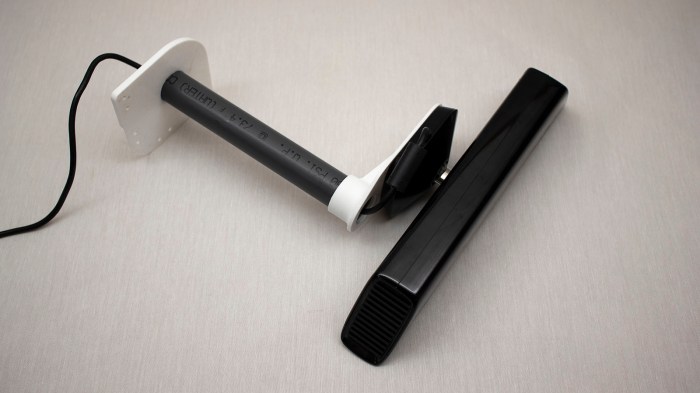
I then reassembled the base and went with plan B: a simple flat platform for attaching my Kinect sensor bar with double-sided foam tape.

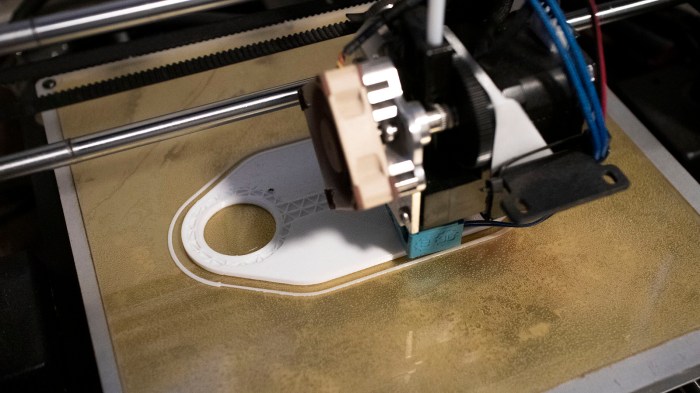
Printing Sawppy Kinect v1 platform

Kinect sits slightly offset camera mast center for two reasons.

  1. The Kinect sensor bar is very wide and if mounted centrally it overhangs to the right. I worry about it hitting obstacles so I wanted to bring it closer to the middle.
  2. By offsetting sideways, I could expose the top of the pipe used as camera mast and run Kinect’s wire down the middle for cleaner wire management.

Sawppy Kinect v1 installed on platform

At the moment this Kinect is no more functional for autonomy than the previous configuration… in fact, for its first public appearance at Yuri’s Night 2019 it is not even electrically connected to anything. It’s just a matter of taking one step at a time.

(Cross-posted to Hackaday.io)

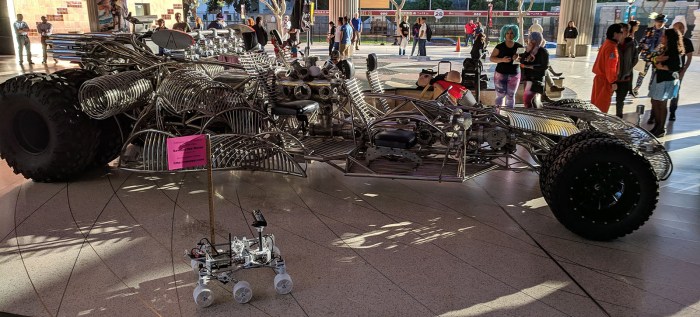
Sawppy at Yuri’s Night LA 2019

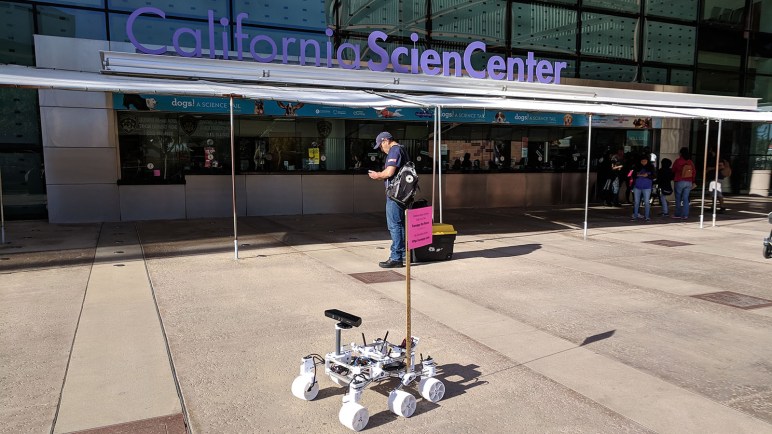
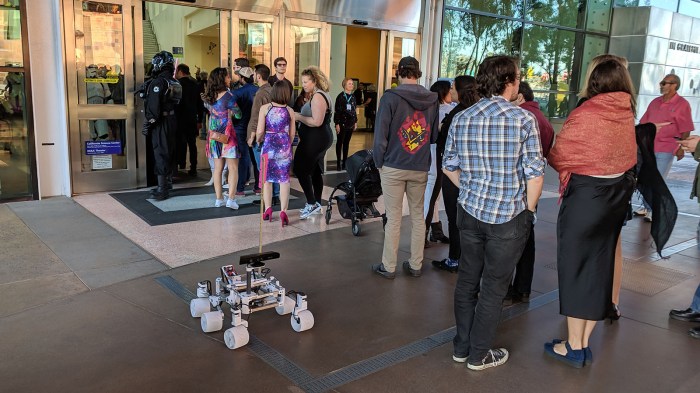
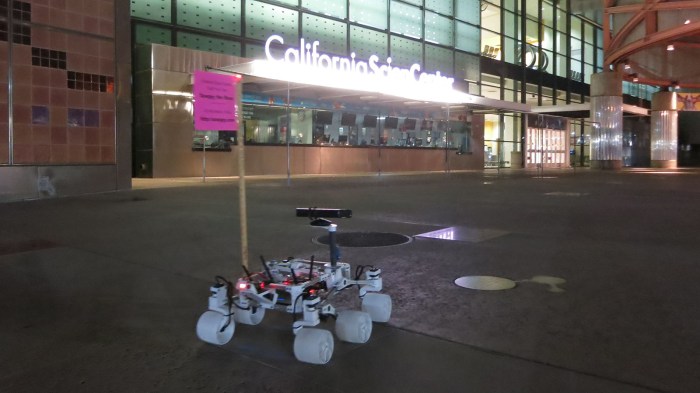
Yesterday Sawppy attended Yuri’s Night Los Angeles 2019 as a roaming exhibit to help entertain the audience who all have an enthusiasm for space and science. As part of the volunteer event staff, we had to arrive at event venue California Science Center an hour ahead to get checked in. I noticed the signs and logos actually combined the second and third words into “California ScienCenter” but it’s not clear if this is just a bit of artistic license in graphic design or if they’re actually working to rename themselves. Once checked-in, Sawppy’s assignment was to roam and entertain guests waiting in line to enter.

Yuris Night 2019 02 - Sawppy mingles with entrance line

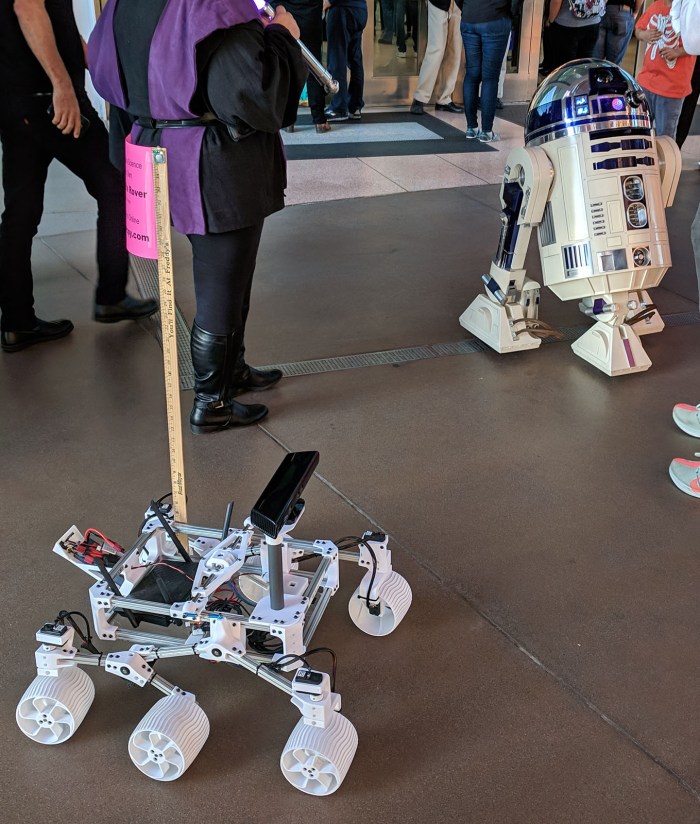
Sawppy was not the only robotic entertainment present.

Yuris Night 2019 03 - Sawppy and R2-D2

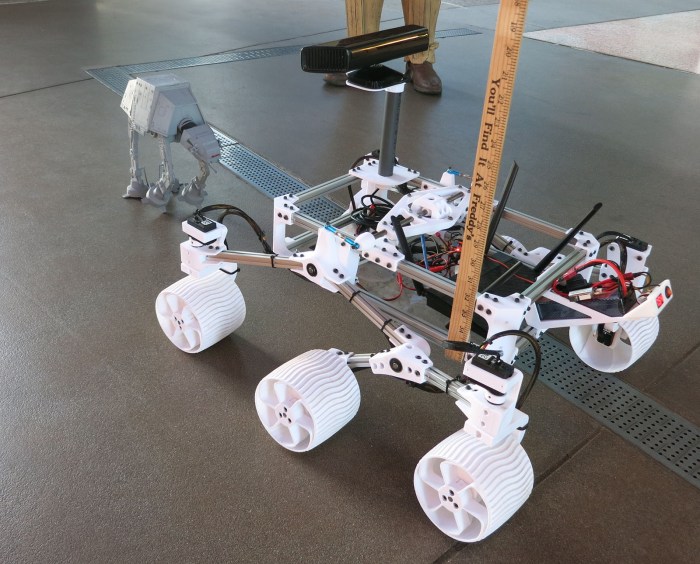
Sawppy was occasionally stopped in its tracks when challenged by an Imperial AT-AT.

Yuris Night 2019 04 - Sawppy and AT-AT

I was surprised to learn this was sold as a popcorn bucket sold at Disneyland. The owner gave it additional surface treatment and added LEDs, but he said almost all of the physical detail (including legs that could be posed) were part of the original bucket. Sadly, it was not motorized and did not walk.

Once people in line got in and the front entrance crowd thinned out, Sawppy went visiting other front entrance displays. Largest by far was Mister Fusion, which I first saw on TV in the first episode opening of Amazon’s The Grand Tour(*). There, and also on its web page, it was advertising for iHeartRadio. It is now advertisement for a mixed-use development project in Las Vegas called Area 15. The sales pitch for this “experiential retail and entertainment complex” sounded interesting, once it opens it might be worth a stop on my next Vegas visit.

Yuris Night 2019 05 - Sawppy and Mister Fusion

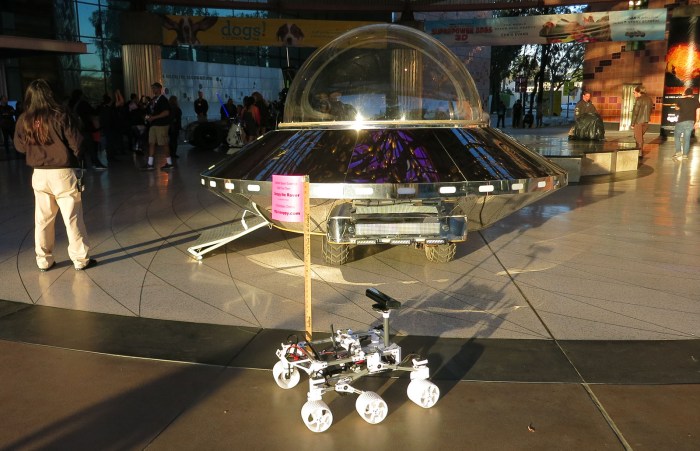
Model of real Earth probe sent to space meets model of fictional Martian probe sent to Earth: Sawppy and a very shiny UFO.

Yuris Night 2019 06 - Sawppy and UFO

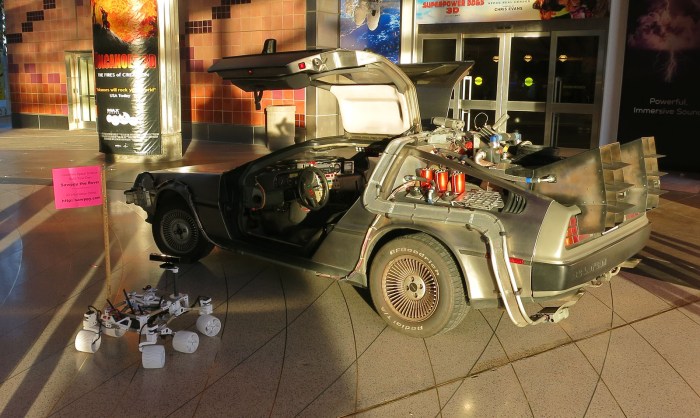
At one point there was discussion of a display of Star Wars cars, which was the context of how I originally got involved with my RXBB8. That was removed from the plan at some point, but Sci-Fi cars still had representation with one of the Back to the Future DeLorean replicas.

Yuris Night 2019 07 - Sawppy and DeLorean

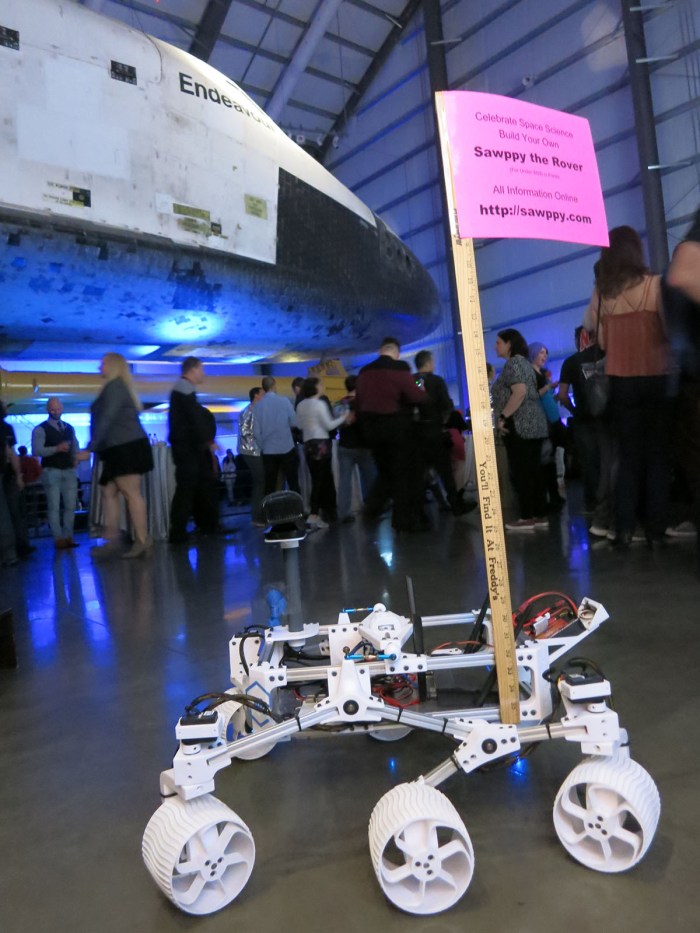
Main space for this event was in the Space Shuttle Endeavour room, where photography was difficult but I wanted a picture of Sawppy with a real spacecraft.

Yuris Night 2019 08 - Sawppy and Endeavour

Lots of people loved Sawppy and asked many interesting questions about Mars rovers. The event had everyone from “I don’t know much about the Mars rovers but I want to hear about them” to JPL engineers who are actively working on building the Mars 2020 rover. My discussion topics with people fluctuated wildly to suit.

At the end of the night, guests for the event were directed through the kelp forest tunnel to exit.

Yuris Night 2019 09 - Sawppy in Kelp Forest

After a full night hanging out with other space fans, Sawppy headed home.

Yuris Night 2019 10 - Sawppy Heads Home


(*) Disclosure: As an Amazon Associate I earn from qualifying purchases.

I2C on PIC: Microchip Foundation Services Library Is Less Beginner-Friendly

About a year and a half ago I poked my head into the world of I²C programming with my PIC16F18345 chip. I was pleasantly surprised the MCC boilerplate code actually included an example implementation emulating an I²C EEPROM. That turned out to be a great way for me to get started.

Now that I have another PIC project in mind, I retraced my steps and saw this:

I2C driver will be removed soon

In file included from mcc_generated_files/mcc.h:55:
mcc_generated_files/i2c1.h:55:2: warning: "This version of the I2C driver will be removed soon and the correct driver to use is the Foundation Services driver" [-W#warnings]
#warning "This version of the I2C driver will be removed soon and the correct driver to use is the Foundation Services driver"

Looks like what I had used before is on its way out.

Since this is a new project, I thought I might as well check out what the new shiny object has to offer. Reading around the web, I found complaints that the previous MCC I²C code would work when conditions are ideal, but it was not very good at letting developers write code to handle error conditions. This might not be important in hobbyist projects like mine, but it was of great importance to people trying to engineer real products.

I added the Foundation Services Library module for my PIC’s MSSP. After code generation was complete, I went into the generated header files and saw a lot more functions declared than previous boilerplate code. There were a few related to overflow and bus collision errors, which I assume were there to address complaints about error handling capability.

Unfortunately, there is no longer a friendly example implementation to reference. There are a lot of declarations but no information on how to use those functions. Microchip’s claim that the Foundation Services Library code is self-documenting has been wholeheartedly laughed at by other forum users. But the forums did point me to Microchip’s  MikroElektronika Click Library which interfaces between those nifty little Click modules to a PIC using Foundation Services Library. The trick is finding one that most closely matches what I’m trying to do. Many Click modules are I²C slaves controlled by a PIC acting as master, I wanted my PIC to act as I²C slave accepting commands. A first pass through the Click library found only the USB-I2C Click module, so I installed sample code corresponding to that module and tried to build it.

unknown type name interruptHandler

In file included from mcc_generated_files/USBI2C_example.c:36:
mcc_generated_files/drivers/i2c_slave.h:54:34: error: unknown type name 'interruptHandler'
void i2c_slave_setReadIntHandler(interruptHandler handler);

Sample code that fails to compile is… not the height of beginner friendliness.

After 30 minutes of hunting around, I failed to find a solution to this problem and decided to return to the old deprecated I²C driver. It may not be the newest and shiniest thing, but it does compile and run.

Dusting off Past PIC LED Driver Projects For Potential VFD Driver

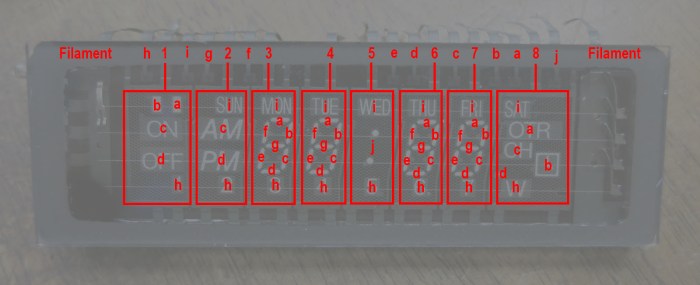
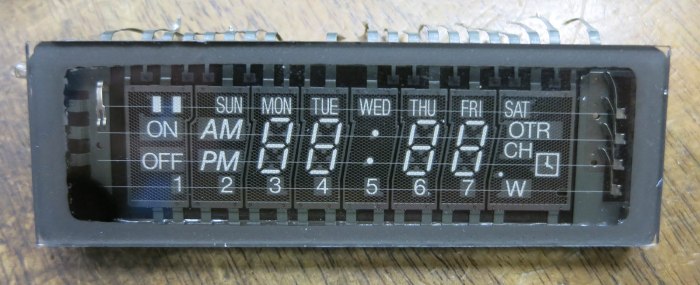
While the VFD salvaged from a VHS timer/tuner unit was designed to run on voltages unfamiliar to me, once we probed the control pinout I found it much less intimidating. The entire array can be treated as a matrix with its eight grids along one axis and ten elements along another axis. The array is only partially filled: there aren’t actually 80 elements on the VFD. A driver chip will energize one grid at a time, and energize the desired elements within that grid. After some time, the driver will move on to the next grid and its corresponding elements. When the switching happens quickly enough, our human eye sees only a completely illuminated display and would not notice that grid-to-grid cycling.

NEC VSL0010-A VFD Annotated

This general principle is identical to how I drove a LTC-4627JR 7-segment LED array in an earlier PIC project. The only real difference is that the transistors I had used earlier is only good for the +5V used by that LED array and not suitable for +30V for this VFD, but that can be addressed by substituting some switching components.

IMG_5272

In the previous project, I was interested in learning KiCAD and the process of ordering custom PCBs for a device for potential low-volume production. Many lessons were learned, most of which discouraged me from pursuing the thought further. This time around there is no fantasy of volume production, this will be an one-off project for a single salvaged VFD.

But now that I know the concept of a display matrix is generically applicable across multiple units, this time around I’m more inclined to keep the PIC side very simple and move more display-specific logic into driving logic which usually runs on a more programmer-friendly device like an Arduino or Raspberry Pi. (Or maybe even a ESP32!) So this time around I’m not going to decode ASCII characters or anything along those lines: I’m going to create a PIC driver that listens for commands over I2C specifically about cycling through and toggling pins. The idea is to avoid unnecessary PIC code churn that uselessly reinvent the wheel from one LED display to another, instead moving that to the Arduino/Pi/ESP32/etc side.

IMG_5238

Original NEC VSL0010-A VFD Power Source

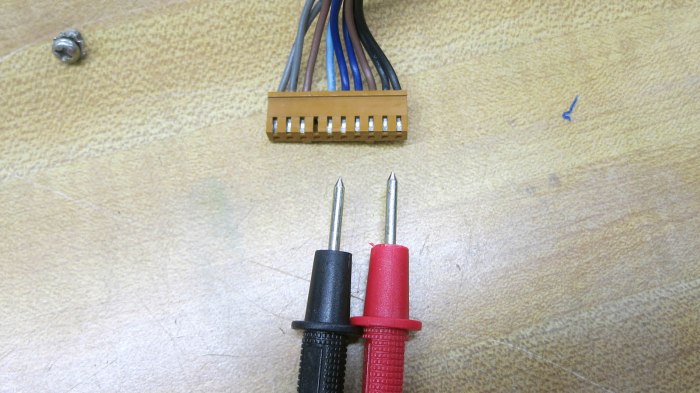
Now that we have a better understanding of how a NEC VSL0010-A vacuum fluorescent display (VFD) works, figuring out its control pinout with the help of an inkjet power supply, we returned to the carcass we salvaged that VFD out of. Now that we knew each pins’ function, we picked those that supplied 2.5V AC for filament power to track. We expect they are least likely to pass through or be shared by other devices. We traced through multiple circuit boards back to the main power transformer output plug. We think it’s the two gray wires on the left side of this picture, but our volt meter probes are too big to reach these visible contact points. And the potential risk of high voltage made us wary of poking bare wires into that connector as we did for the inkjet power supply.

NEC VSL0010-A VFD Power Supply - Probes Too Fat

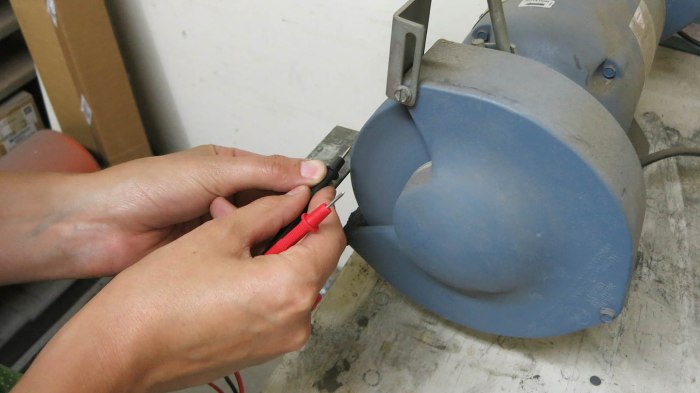
Our solution came as a side benefit of decision made earlier for other reasons. Since we were new to VFD technology, our curiosity-fueled exploratory session was undertaken with an inexpensive Harbor Freight meter instead of the nice Fluke in the shop. Originally the motivation was to reduce risk: we won’t cry if we fry the Harbor Freight meter, but now we see a secondary benefit: With such an expensive device, we also feel free to modify these probes to our project at hand. Off we go to the bench grinder!

NEC VSL0010-A VFD Power Supply - Probes Meet Grinder

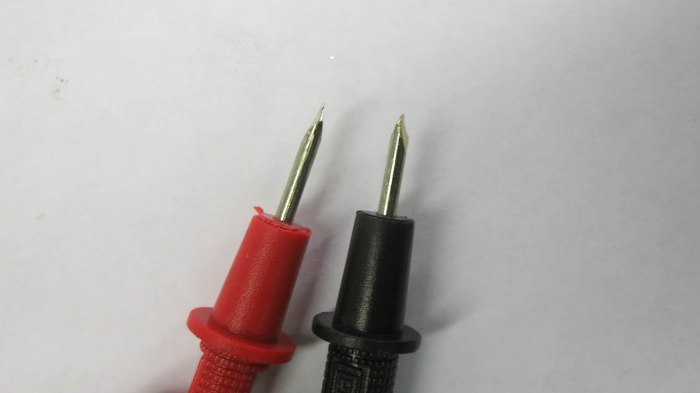
A few taps on the grinding wheel, and we have much slimmer probes that could reach in towards those contacts.

NEC VSL0010-A VFD Power Supply - Probes Now Thin

Suitably modified, we could get to work.

NEC VSL0010-A VFD Power Supply - Probes At Work

We were able to confirm the leftmost pair of wires, with gray insulation, is our 2.5VAC for VFD filament. The full set of output wires from this transformer, listed by color of their insulation, are:

  • Gray pair (leftmost in picture): 2.6V AC
  • Brown pair (spanning left and right sides): 41V AC
  • Dark blue pair: (center in picture) 17.2V AC
  • Black pair (rightmost in picture): 26.6V AC

There was also a single light-blue wire adjacent to the pair of dark blue wires. Probing with volt meter indicated it was a center tap between the dark blue pair.

NEC VSL0010-A VFD Power Supply Transformer

Once determined, we extracted the transformer as a single usable unit: there was a fuse holder and an extra power plug between it and the device’s AC power cord. We’re optimistic this assembly will find a role in whatever project that VFD will eventually end up in. 2.6V AC can warm filament, rectified 26.6V AC should work well for VFD grid and segments. And with proper rectification and filtering, a microcontroller can run off one of these rails. It’ll be more complex than driving a LED display unit, but it’ll be worth it for that distinctive VFD glow.

HP Inkjet Printer Power Supply For NEC VSL0010-A VFD

One of the reasons LED has overtaken VFD in electronics is reduced power requirements. Not just in raw wattage of power consumed, but also the varying voltage levels required to drive a VFD. The NEC VSL0010-A VFD whose pinout we just probed ran on 2.5V AC and ~30V DC. In contrast, most LED can run at the same 5V or 3.3V DC power plane as their digital drive logic, vastly simplifying design.

We didn’t have a low voltage AC source handy for probing, so we used 2.5V DC. We expected this to have only cosmetic effects. One side of our VFD will be brighter than the other, since one side will have a filament-to-grid/element voltage difference of 30V but the other will only have 27.5V.

But putting 2.5V DC on the filament occupied our only bench power supply available at the time. What will we use for our 30V DC power source? The answer came from our parts pile of previously disassembled electronics, in this case a retired HP inkjet printer’s power supply module labeled with the number CM751-60190.

HP CM751-60190 AC Power Adapter

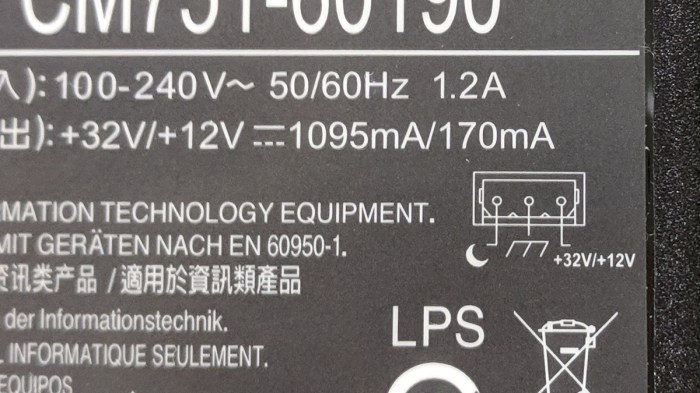
According to the label, this module could deliver DC at 32V and 12V. Looking at its three-conductor output plug, it was easy to come to the conclusion we have one wire for ground, one wire for 32V, and one wire for 12V. But that easy conclusion would be wrong. Look closer at the label…

HP CM751-60190 AC Power Adapter pinout

We do indeed have a ground wire in the center, but there is only one power supply wire labelled +32V/+12V. It actually delivers “32 or 12” volts, not “32 and 12” volts. That last pin on the left has an icon. What did that mean? Our hint comes from power output specifications: +32V 1095mA or +12V 170mA. We deduced this meant the icon is a moon, indicating a way to toggle low-power sleep mode where the power supply only delivers 12V * 170mA = 2 watts vs. full 32V * 1095mA = 35 W.

With that hypothesis in hand, it’s time to hook up some wires and test its behavior.

HP CM751-60190 AC Power Adapter test

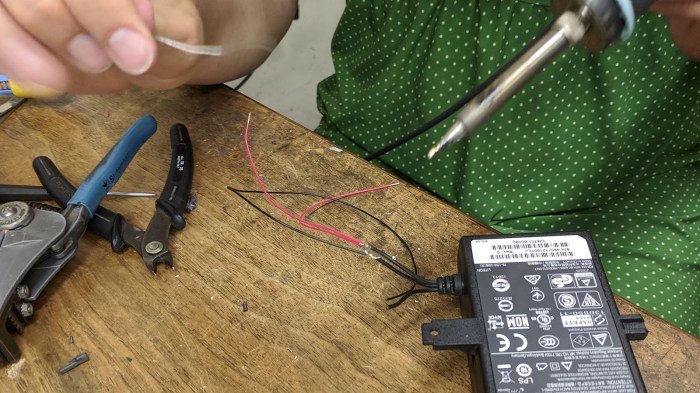
When “sleep mode” pin is left floating, voltage output is 32VDC. When that pin is grounded, voltage output drops to 12VDC. Since we’re looking for 32VDC to drive our VFD grid and elements, it’s easy enough to leave sleep wire unconnected and solder wires to the remaining two wires to obtain 32V DC for our VFD adventures.

HP CM751-60190 AC Power Adapter new wires

Sleuthing NEC VSL0010-A VFD Control Pinout

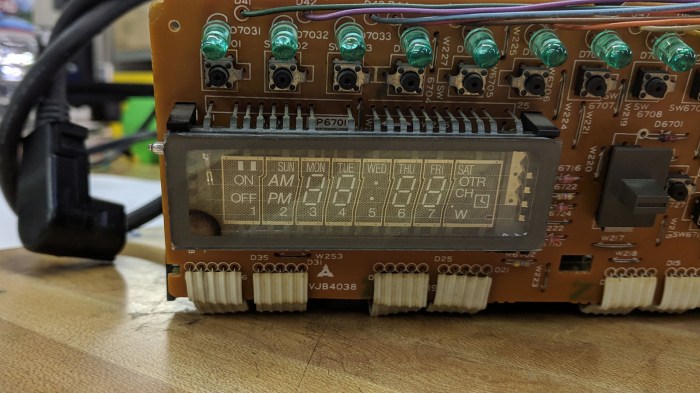
Vacuum Fluorescent Display (VFD) technology used to be the dominant form of electronics display. But once LEDs became cheap and bright enough, they’ve displaced VFDs across much of the electronics industry. Now a VFD is associated with vintage technology, and its distinctive glow has become a novelty in and of itself. Our star attraction today served as display for a timer and tuner unit that plugs into the tape handling unit of a Canon VC-10 camera to turn it into a VCR. A VFD is very age-appropriate for a device that tunes into now-obsolete NTSC video broadcast for recording to now-obsolete VHS magnetic tape.

Obviously, in this age of on-demand internet streaming video, there’s little point in bringing the whole system back to life. But the VFD appears to be in good shape, so in pursuit of that VFD glow, salvage operation began at a SGVHAK meetup.

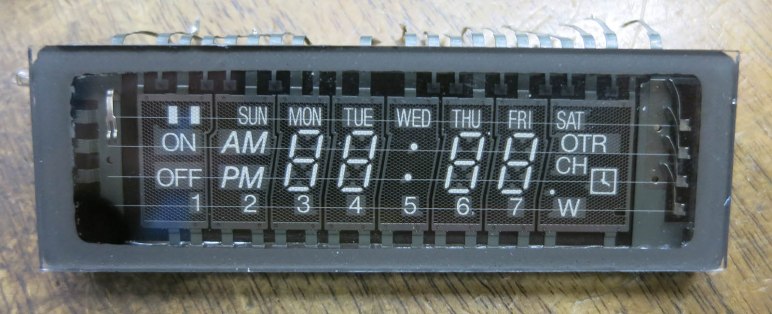
NEC VSL0010-A VFD Before

We have the luxury of probing it while running, aided by the fact we can see much of its implementation inside the vacuum chamber through clear glass. The far right and left pins are visibly connected to filament wires, probing those pins saw approximately 2.5V AC. We can also see eight grids, each with a visible connection to its corresponding pin. That leaves ten pins to control elements within a grid. Probing the grid and element pins indicate they are being driven by roughly 30V DC. (It was hard to be sure because we didn’t have a constant-on element to probe…. like all VCRs, it was blinking 12:00)

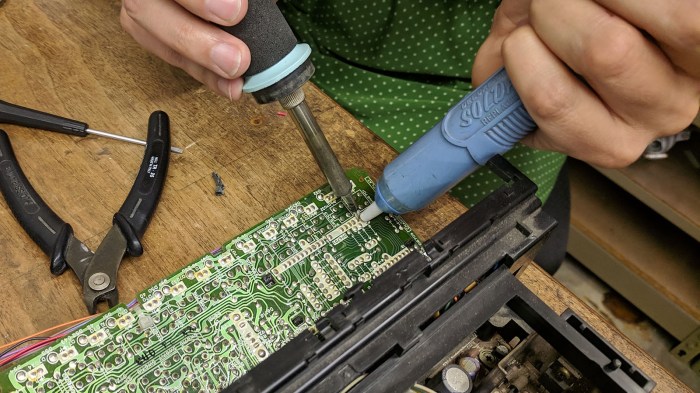
This was enough of a preliminary scouting report for us to proceed with desoldering.

NEC VSL0010-A VFD Unsoldering

Predating RoHS solder that can be finicky, it was quickly freed.

NEC VSL0010-A VFD Freed

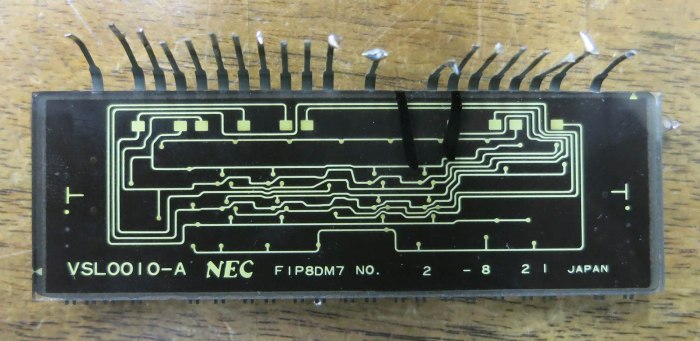
Now we can see its back side and, more importantly, its part number which immediately went into a web search on how to control it.

NEC VSL0010-A VFD Rear

The top hit on this query is this StackExchange thread, started by someone who has also salvaged one of these displays and wanted to get it up and running with an Arduino. Sadly the answers were unhelpful and not at all supportive, discouraging the effort with “don’t bother with it”.

We shrugged, undeterred, and continued working to figure it out by ourselves.

NEC VSL0010-A VFD Front

If presented with an unknown VFD in isolation, the biggest unknown would have been what voltage levels to use. But since we have that information from probing earlier, we could proceed with confidence we won’t burn up our VFD. We powered up the filament, then powered up one of the pins visibly connected to a grid and touched each of the remaining ten non-grid pins to see what lights up. For this part of the experiment, we got our 32V DC from the power supply unit of a HP inkjet printer.

We then repeated the ten element probe for each grid, writing down what we’ve found along the way.

NEC VSL0010-A VFD Annotated

We hope to make use of this newfound knowledge in a future project, and we hope this blog post will be found by someone in the future and help them return a VFD to its former glowing glory.

Making Neato Robot ROS Package More Generally Usable

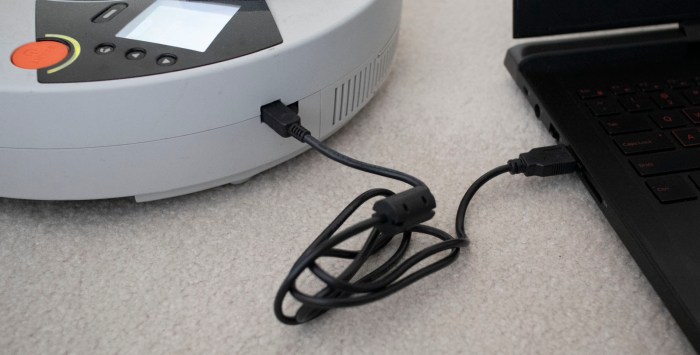
Neato mini USB cable connection to laptopNow that I have some idea of what happens inside ROS package neato_robot, and modified it to (mostly) run on my Neato vacuum, I thought I’d look in its Github repository’s list of issues to see if I understand what people have said about it. I didn’t have to look very far: top of its open issues list is “Robot compatibility.”

The author agrees this is a good idea but it has to be done by someone with access to other Neato units, pull requests are welcome. This comment was dated four years ago but my experience indicates no pull requests to improve compatibility were ever merged into this code.

But even though modifications were never merged back into this branch, they are still available. I just had to be pointed to know where to look. That comment thread referenced this particular commit which eliminates those problematic fixed arrays of expected response strings. Now it will read a Neato’s responses without trying to match it up against a preset list. Of course, if a specific response is still required (like LeftWheel_PositionInMM and RightWheel_PositionInMM) all it could do is ensure code will not hang, it is not capable of inferring requested data from other robot responses.

But possibly more interesting than code changes is this comment block:

This driver reads responses until it receives a control-z. Neato Robotics has
documented that all responses have a control-Z (^Z) at the end of the
response string: http://www.neatorobotics.com.au/programmer-s-manual
CTRL_Z = chr(26)

That URL implies it was a link to some type of a programmer’s reference manual, but unfortunately that link is now dead. Still, this claim of control-Z termination (if true) gives me ideas on how I would approach talking to a Neato with my own code.