Landline Answering System Handset LCD (CL84209)

For years I’ve been salvaging LCD from electronics I took apart for fun, and I’m finally getting around to playing with them. The first example was too much of a mystery for this beginner to tackle, so I set it aside and dug up another unit from my salvage pile.

This LCD is still attached to its circuit board, which gives me more information to work with. Most everything else are gone, but I can see clear indications of a keypad underneath the screen. Two large metal contacts at the bottom hint at a rechargeable device.

A sticker on the back side gave me definitive information of “Model#: CL84209”. That quickly led to a long-discontinued product: a landline phone system that has an answering machine built-in the base station and supports multiple remote wireless handsets we can place elsewhere in the house.

Amusingly, the best picture I found was from an eBay listing of its product box. The circuit board on hand is consistent with wireless handsets visible in that picture. Since I was on eBay, the “related items” list included some replacement batteries for this handset. It appears to be two NiMH AAA-sized battery cells in series, which preemptively answered what would have been my next question for powering it up.

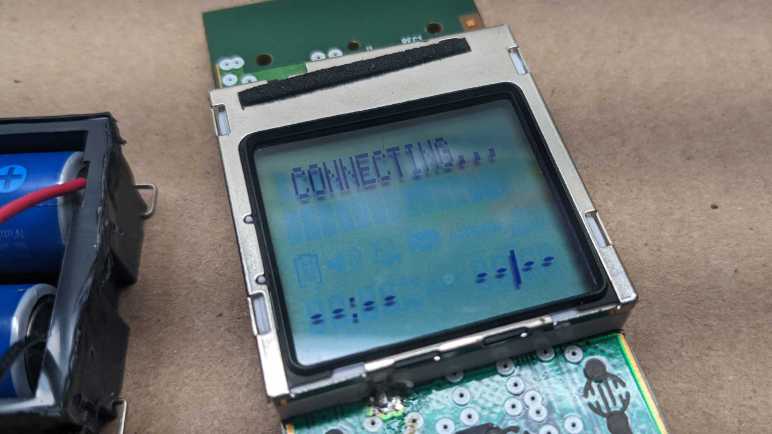
I connected two rechargeable NiMH AA cells in series and wired that to the handset’s battery terminals. After a few seconds for system startup, I’m rewarded with an active and running LCD displaying “CONNECTING…” as this handset makes its futile attempt to connect to its base station. This is a pretty good starting point. Leaving the phone running, I probed the nine pins exposed above the display. Lacking official documentation, I arbitrarily numbered them left to right:

Their voltage readings relative to battery negative were:

  1. 3.33V rock solid.
  2. 3.1 – 3.3 V, jumps around at semi regular intervals.
  3. 2.9 – 3.3 V, also jumping around.
  4. 0V
  5. 3.2 – 3.3 V
  6. 6.55 V
  7. 4.92 – 4.94 V
  8. 1.66 V
  9. 5.59 V

From this information I inferred that there are boost converters on this circuit board to deliver these voltages from the 2.4V nominal power of a pair of NiMH batteries. Pin 4 is the only candidate for GND pin. The steady 3.33V of pin 1 makes it the best candidate for Vcc, with the runner-up candidate of pin 5 which is also 3.33V but not as steady. Pins 6 and 9 were unexpected, I hadn’t considered the possibility a LCD might need to be fed multiple voltage planes, but it sure looks that way right now.

I then switched to my cheapo single-channel oscilloscope, which is no longer reliable in voltage ranges but still useful for visualizing waveforms. Pins 2 and 3 receive bursts of square waves that indicate data pins, explaining their voltage variation. Pins 7 and 8 have regular square waves that are consistent with clock pins, but since I have just a single channel oscilloscope, I don’t know how the two signals relate to each other. It is weird to me that they show up as two very different voltage ranges on the voltmeter. The rest of the pins didn’t look very interesting under an oscilloscope in the ~millisecond range, though it’s possible they are changing either much slower or faster than that time range or need other conditions to change.

I guess the next thing to do is to connect at least pins 2 and 3 to a logic analyzer to dump the raw data, but I have no confidence I can make heads or tails of the raw bit stream. I see no identifying markers on this particular LCD, either. It’s possible some information is blocked by the circuit board, but I’m not yet ready to risk destruction of this LCD pulling it off this circuit board. Bouncing ideas off Emily Velasco, she called attention to the fact that both this LCD (on a circuit board) and the earlier LCD (without a circuit board) both had nine interface pins. Maybe there is a popular common LCD controller with nine interface pins? Time for a bit of research.
Mystery Desk Phone LCD

After learning some basics of driving small segmented LCD units from Joey Castillo’s Remoticon talk, I started digging through my pile for LCDs I had salvaged in past teardowns because I thought I would play with them later. “Later” is now.

I chose this as the first candidate because it had metal pins for connectivity instead of the elastomeric “zebra strip” commonly used for LCDs. (Like the LCD in a food thermometer I recently took apart.) I hoped metal pins meant it would be easier to work with. I vaguely remember salvaging this unit from a landline office desk phone using my paint-stripping heat gun. I have little memory of the rest of the device, but I clearly remembered this screen had a LED backlight whose plastic bits melted out of shape when I tried to salvage it. Rendered useless by my mistake, I discarded the backlight. I have better tools and skills to remove that sort of stuff now, but that’s history so moving on.

Like I said I wasn’t terribly meticulous when salvaging this LCD, so I’m missing a lot of information about it. I didn’t write down the make and model of the phone or noted any information about the circuit board. (Useful for determining ground pins and such.) And now I’m faced with essentially a black box as there were minimal markings on the LCD.

One corner had a logo with “LCD” in the middle. Could it be the logo of a manufacturer who believes that the fact they make LCDs is more important than their own name? Seems odd but stranger things have happened. (U.S. Robotics made no robots but was named because founders were fans of Issac Asmiov.) Next to that logo is a number 6334 that might be a model number but that is too generic for me to find anything online.

Another corner had information etched into the glass. I read them as:

A200910072(R)
0944851649

The nature of this information implies something that changes rapidly instead of a make and model. 20091007 conceivably stands for a production date of October 7th, 2009. The second row may be a serial number. None of which, sadly, helped me find more information about it.

Below the etched layer, I think I see “1B” which is likely on the same layer as “LCD 6334” earlier.

I then decided to probe these pins with an “AC” signal as per Joey Castillo’s talk. I thought it would be helpful to solder them to a set of 0.1″ pitch breadboard compatible header pins. With nine pins, I had hoped this was a very simple segmented LCD status indicator. Maybe a few phone-appropriate icons like “on hold”.

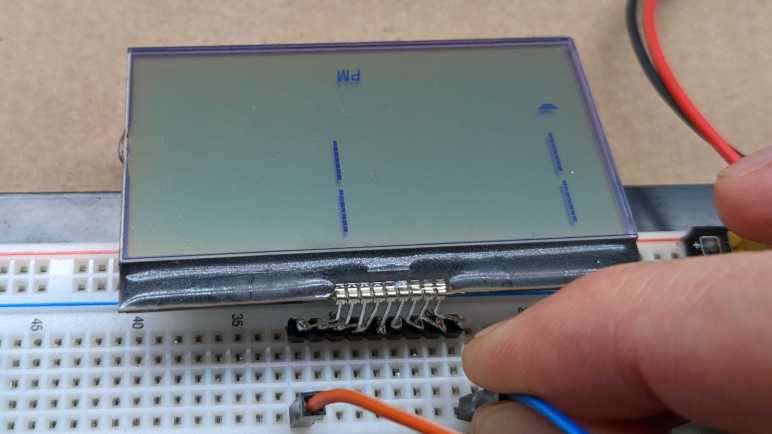
Probing various combinations of pins, the most response I could get out of the device is captured in this photo, and only for a few seconds before it faded out. I see a “PM” that would be appropriate for a clock, and a single trapezoid that could be a 7-segment numerical display to go with that clock. But more significantly, I see hints of a large dot matrix display with four separate lines of seven segments each. The information visible here implies a far more complex display than what could be multiplexed with just nine pins. This is not a bare LCD with pins for an external driver, there must be a controller chip under the black blob of epoxy.

But if that is a controller chip, how did I manage to darken a few elements by probing with AC? A wild guess is one of these two pins (leftmost or rightmost) is a data clock pin. Absent actual connection to VCC or GND, the chip was running on the minimal power flowing on those two pins. After a few seconds in the absence of an actual ground, some internal element became saturated and stopped working. If I wait a few minutes for that condition to fade, I can reapply these pins and light up the same elements again. So the good news is that I don’t think I broke the LCD, but I certainly wasn’t running it under any semblance of control.

I don’t think I can do much more with this LCD right now. More skilled hardware hackers have techniques to tease out roles for these nine pins, but that is beyond my skill at the moment. I thought reverse engineering might be easier if I could probe the associated circuit board, so I pulled out an LCD still attached to its board.

Inspired by Joey Castillo’s Introduction to Segmented LCD

When I have a laptop LCD display panel less than full HD (1920×1080) resolution I have resorted salvaging just their LED backlights and discarding the rest. I considered these panels in an awkward zone where the data signal requirements are too high to be practical for me to drive with my own electronics projects, and their resolution too low to justify spending money to buy a driver board.

But computer screens aren’t the only liquid-crystal displays, we are surrounded by numerous smaller and simpler LCD used in household electronics. For many years I had the intent to learn how to reuse them, but I never got around to putting any effort into it. Until I watched Joey Castillo’s talk at Hackaday Remoticon 2021. The topic of this talk: repurposing segmented LCD of wristwatches like the classic Casio F-91W, which covers some general information on LCD in general.

Most importantly, it covered some of the basics from an electronics hobbyist perspective, which was missing from the general Wikipedia page for LCD. I was encouraged to see that the wiring multiplex scheme usually resembles what I’m already familiar from common-anode/common-cathode LED arrays. I was initially dismayed to learn that dedicated segment LCD driver modules apply alternating voltage on several voltage planes, which is a hassle to do with microcontroller general purpose IO pins. But good news! For the purpose of probing and experimentation, we can use two microcontroller GPIO pins and alternatively raising one pin while lowering the other. This, I can do.

After watching the video, I went online looking for more information on the topic. I found things like this Electronics StackExchange thread “How does a microcontroller drive an LCD?” and “Found an old LCD in an old radio, how to test it?” I also found things like this Atmel application note AVR241 “Direct driving of LCD display using general IO” for directly driving a simple segment LCD without a dedicated peripheral. They all line up with the broad strokes of Joey’s Remoticon talk, making me feel encouraged enough to start digging up some salvaged LCD to see if I can make anything happen.

Hard Drive Brushless Motor as Generator

Some time ago I had a broken hobby servo that I traced to a burned-out control board. Since the motor itself and its geartrain are still good, I thought I could use it as a gearmotor but I didn’t have an immediate project. What I did have immediately on hand was a few LEDs on the workbench, so I reversed the power flow: I connected the LED to the motor and spun the servo shaft. The former output shaft is now where I input my mechanical energy, and the former motor power input pins have become electrical output pins of a very simple and crude power generator. Making the LED glow a dull red was fun for a few minutes before some gears failed. Clearly, there is room for improvement.

I think of that experience every time I take apart a failed hard disk drive, which I do for a few reasons: first, because I wanted the powerful magnets within a hard drive. Second, because disassembling the data platters make my data very difficult to steal. And third, because all that precision machining is very pretty to look at! The typical finish line for this activity is a hard drive chassis with a brushless motor that formerly spun the platters.

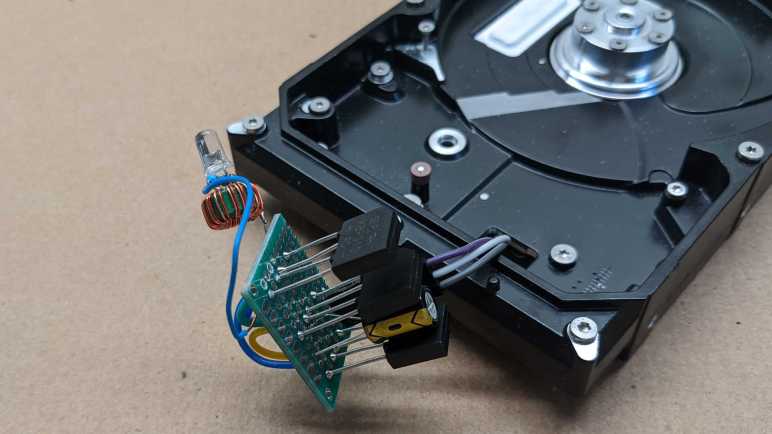
I’ve wanted to try turning such a motor into a generator as well, a more complex project that I had put off until now. I started by soldering wires to the motor’s three input pins.

From here I could connect any two of these three wires to my cheap oscilloscope. When I spin the motor by hand, I can see a small sinusoidal AC signal. There should be three sets of these waveforms, one between each pair of wire. (1-2, 2-3, and 1-3.) In order to convert this to DC power suitable for lighting up a LED, I will need rectifiers to turn that AC power into DC. I have a motley collection of rectifiers salvaged from various electronics teardowns, but I don’t know if it is important that I use three matching units. Since they are cheap, I decided to buy a pack of twenty rectifiers(*) just so I have three identical units for this experiment.

Rectifiers in hand, I picked two out of the three wires from my motor and wire them up to the two pins labeled “AC”. Repeat for two more rectifiers each for one of the other two wire pairings, then connect all three “+” and “-” together in parallel with a capacitor. I then put my DC voltmeter across them and started playing with the motor spindle. Unsurprisingly, there’s some kind of startup barrier. If I just casually spin the motor about the same speed I turn the volume knob on audio equipment, nothing happens. But if I give it a fast twist like I’m spinning a top, I can see the capacitor voltage jump to about 1V.

A single volt is not enough to directly illuminate a LED, but I have built lots of little “Joule thief” boost converters that can light LEDs from tired alkaline batteries. They only need about 0.4V to do their thing, but I don’t know if there’s enough current. I soldered one of them to this circuit and gave the motor a good twist. I was rewarded by a brief blink of LED. I count that as success!

The next step in this exploration is to build something so that motor can spin faster and more consistently than what I can accomplish with a flick of the wrist. What form of mechanical energy should I try to harness for power generation?


(*) Disclosure: As an Amazon Associate I earn from qualifying purchases.

FabGL Experimental Color Composite Video Output

I don’t fully understand the magic of ESP_8_BIT color composite video generation code, but I understood enough to extract just the video display portion to render a frame buffer. Since that was a bit too low-level, for my ESP_8_BIT_Composite Arduino library I added an implementation of Adafruit GFX library. Before I committed to Adafruit GFX, I window-shopped FabGL as an alternate candidate. I decided against FabGL because unlike Adafruit GFX, it was not designed for others to extend to different video output devices. The only practical way for FabGL to gain color composite video output support is if the author tackles the challenge directly.

And this, apparently, is happening! I learned of this via a post to my Arduino library’s discussion forum on GitHub. This is very exciting, because FabGL author’s show-and-tell thread shows they are tackling this problem with far more resources than I had invested in my library. They start out with an advantage in knowledge built over time, as FabGL has been under development for several years. They also have an advantage in equipment, as this effort is aided by a Tektronix VM700 instrument to analyze the results and find problems. I didn’t even have a decent oscilloscope to tell me what happened when things went wrong!

I like the potential here, so I installed FabGL via Arduino Library Manager to take a look. This was a mistake, as the composite video feature is an experimental work in progress and not part of the most recent official release v1.0.6. I deleted that library and cloned the FabGL repository directly into my Arduino Libraries folder, and this time I could build and run the basic composite video test.

FabGL author said they’re not happy with the results yet and there are lots more work to be done, but what already exists today looks very promising. Visual contents look as stable as can be reasonably expected of analog composite video. However, the color capability isn’t quite there yet. On my TV, the red test block fades to pink in its horizontal center. The blue test block has difficulty transitioning from the adjacent green test block. As the beam scans horizontally from green to blue, it makes an initial transition to blue and then overshoots (?) to purple before returning back to blue. None of this is visible in the demo YouTube video (embedded below) so perhaps this is a problem with my hardware.

I’m curious if any existing FabGL features would prove to be incompatible with color composite video output. I suspect the sound output feature might go, as color composite video generation uses several of the same ESP32 peripherals and outputs to the same pin GPIO 25. (Similar to ESP_8_BIT.) Regardless of the tradeoffs that FabGL users may have to make, I hope this experiment will eventually succeed and become a part of a future official FabGL release.


Not a Fan of Bonded Touch Screens

After replacing the touchscreen module of a Pixel 3a phone, I’ve decided I’m not a fan of a modern evolution in their design. A touchscreen module has two major components: an output module to show information to the user (display) and input module to detect location of user’s fingers (digitizer). While they are both advanced glass technologies, they are made with very different manufacturing processes. Thus they are built on two separate pieces of glass, and assembled together into a touchscreen module. The straightforward way to do this is to place one on top of the other, like this Amazon Fire tablet I took apart. In that case, I found the display was intact and it was only the digitizer glass that had cracked.

There were some downsides to this approach. Aesthetically, it means it’s possible for dust and dirt to get between the layers, where it is very difficult to clean. These surfaces also mean there’s more chance for reflections, and two separate pieces of glass meant the user’s finger is a few millimeters away from the visual interface they are interacting with. Mechanically, as separate pieces they are each on their own resisting mechanical stresses.
To address these problems, many newer touchscreen devices use an optically clear adhesive (usually a resin formulated for the task) to bond the touch digitizer to the display. Once bonded, there’s no way for dust and dirt to get in between those layers. The resin eliminates reflections between the two layers and visually connect the two layers. This help build the illusion that the user is directly manipulating onscreen objects with their finger by putting the display closer to the fingertip. And finally, bonding them together makes the module mechanically stronger as both layers work together to resist mechanical stresses. This is especially useful for phones using OLED displays, which are thinner (and more fragile) than backlit LCD displays.

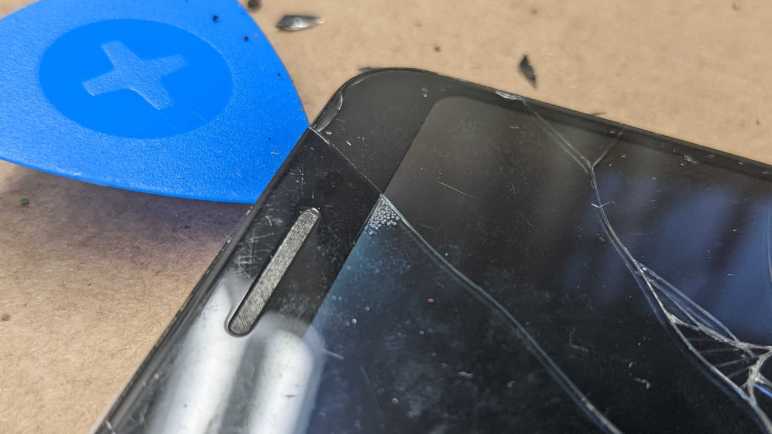
But stronger touchscreens still have a limit and once exceeded, we’re back to the problem of a cracked screen. In the case of the Pixel 3a I just worked on, only the digitizer layer is cracked. The display layer is still intact and functioning. Unfortunately, due to the fact they are bonded, there’s no practical way to replace just the digitizer portion. So, the entire module has to be replaced. Trying to pull the digitizer glass away from the display glass stretches the resin and once released, we see bubbles between the two layers ruining optical clarity.

As expensive and wasteful as it is, the perfectly functional OLED display can only be thrown away. In comparison, cracked digitizer on a device without a bonded screen could be replaced independent of the display unit. One such high-volume repair is replacing Apple iPad touch digitizers. Amazon vendors sell digitizers for $20-$50 USD, depending on iPad generation. In comparison, as of this writing replacement Pixel 3a modules start at double that cost. This difference is even more stark when considering the fact an iPad has a much larger screen.

The bonded touchscreen module of a Pixel 3a is so expensive that, as of this writing, it actually isn’t economically sensible to replace the screen even at the lowest bidder unknown vendor option of $85. Because if we browse eBay we can find secondhand Pixel 3a for sale for as low as $50. If this keeps up, there’s a business opportunity for a phone chop shop: buy these secondhand Pixel 3a, disassemble them, and sell the components piecemeal. I don’t see any used/salvaged Pixel 3a touchscreen modules for sale at the moment, but maybe it’s a matter of time before they start popping up. But still, I hated throwing away this OLED screen

I understand the reasons why bonded touchscreen modules exist, but since they make repairs difficult, wasteful, and less economical, I am not a fan of this feature.

Pixel 3a Screen Replacement

I was very impressed by iFixit’s Pixel 3a Screen Replacement kit, but naturally I bought it for a reason. I have a Pixel 3a with a shattered screen I wanted to fix by following their instructions.

Well, “shattered” might be going a bit too far but it was definitely broken well beyond just “cracked”. Amazingly enough, the phone still ran in this state. As we can see here, the display works just fine. However, touch responsiveness isn’t great on account of all the cracks running throughout the screen. There are several scattered dead spots. Inconveniently, a few dead spots were where the keyboard would live which makes it a challenge to put in WiFi passwords and such. (* one workaround below)

I turned the screen off and chose a camera angle so my workbench light could highlight the damage.

Near the bottom of the screen, small bits are missing allowing us to see the phone internals within. Given this damage, I was amazed touch input still worked at all. My first order of business was to remove this impressively damaged screen. A suction cup was included in the iFixit kit to grab onto glass, but it could not get a good seal on this screen: too many cracks let in air and ruin the suction.

Backup plan: use tweezers to pick at little pieces of glass.

That was enough to open up an entry point for the Wankel rotor-shaped pick.

At certain locations, putting too much stress would damage the optically clear resin bonding the touch digitizer glass to the OLED screen. Bubbles would form, and the bonding is no longer optically clear. This would be a concern if I wanted to reuse this screen, but due to that same resin I could not.

It took me roughly half an hour of painstaking work to free the old screen from the adhesive holding it down all around the phone. Occasionally the “pain” is literal as small shards of glass stabbed into my hand. Fortunately, no blood was drawn.

Once removed and laid down as per iFixit guide, I could compare the original module with the new replacement. This is necessary because there may be small components that need transferring, and the list is not definitive because little accessories vary depending on supplier whim. In similar repairs, we frequently need to replace the speaker mesh. Fortunately my replacement module already has a mesh in place so I was spared that task. However, there’s a light gray piece of plastic surrounding the front-facing camera that I would have to transfer over.

After doing that comparison, I unplugged the old screen and plugged in the new one. I wanted to be sure the new screen will work before I roll up my sleeve for the tedious work of cleaning up.

If the new screen didn’t work, I didn’t want to waste my time on annoying tasks. Cleaning up remaining shards of glass, wipe up dirt, and my least favorite part of working with modern electronics: scraping off gummy bits of adhesive.

Once most of the adhesive was cleaned up (as much as I had patience for) I transferred this light gray piece of plastic camera surround. Then I followed the iFixit guide for applying custom-cut piece of new adhesive and installed the new screen in its home.

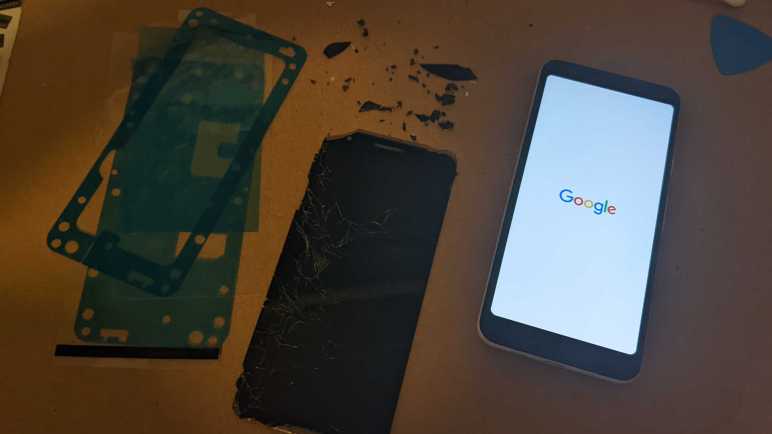
Left: a stack of plastic backings to protect adhesives and glass surfaces. Center: the old screen in one large and many small pieces. Right: the repaired phone with its shiny new intact screen!

I shall celebrate with a sticker from the iFixit repair kit. As much as I loved this success, I wished it didn’t have to be expensive as it was. I blame the design decision to bond touch digitizer and OLED display.


(*) One way to get an Android phone on WiFi when the touchscreen is too erratic to let us enter a WiFi password:

  1. Take another Android phone on the same WiFi network we want to get on.
  2. Tap its WiFi connection to reach “Network Details” screen.
  3. Tap “Share” to generate a QR code.
  4. Scan QR code from erratic phone.

iFixit Pixel 3a Screen Replacement Kit

Today’s post is an iFixit fan post. It is not paid or sponsored by iFixit, I’m just really really impressed by my latest purchase: the iFixit Pixel 3a screen replacement kit. I’ve been given a Google Pixel 3a cell phone with a shattered screen, and I thought I would try my hand at replacing its screen. iFixit’s replacement kit should mesh well with their screen replacement guide, which I will be using.

This is not my first phone repair. I’ve bought replacement parts from several Amazon & eBay vendors. I decided to upgrade for this project and I’m glad I did. None of those prior repair kits come anywhere close to the iFixit kit in quality and completeness.

My positive impressions started with the shipping box.

As soon as we open the box, we get an encouraging “You got this” on the first flap we see. I love it.

Inside the box are several smaller boxes. Two labeled “Repair Tools” and one “Repair Part”.

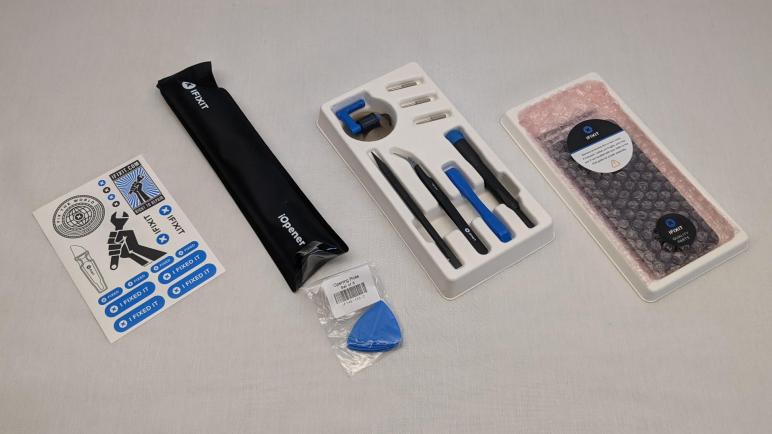
Inside these boxes are the replacement screen plus all the tools we’d need to replace it. Starting from the sticker pack on the left, we have:

And finally, the replacement screen module itself along with a custom cut sheet of adhesive. The latter is a premium luxury not always found in other products. Many Amazon/eBay vendors sell replacement screen modules with generic rectangular strips of adhesive we would have to cut to shape ourselves. Some didn’t include the adhesive at all! (If that should happen to you, iFixit can still help as they sell the custom-cut adhesive separately.)

At the time of this writing, iFixit charges a $7 premium for the full kit over just the screen module by itself., which is in turn only a few dollars more expensive than lowest bidder of the day. I decided to go for the full kit and I’m glad I did, these tools are well worth the price difference and gave me confidence I have everything I needed to tackle my screen replacement project.

Unity Without OpenGL ES 2.0 Is All Pink on Fire TV Stick

I dug up my disassembled Fire TV Stick (second generation) and it is now back up and running again. This was an entertaining diversion in its own right, but during the update and Android Studio onboarding process, I kept thinking: why might I want to do this beyond “to see if I could”? This was the same question I asked myself when I investigated the Roku Independent Developer’s Kit just before taking apart some Roku devices. For a home tinkerer, what advantage did they have over a roughly comparable Raspberry Pi Zero? I didn’t have a good answer for Roku, but I have a good answer for Fire TV: because it is an Android device, and Android is a target platform for Unity. Raspberry Pi and Roku IDK, in comparison, are not.

I don’t know if this will be useful for me personally, but at the very least I could try installing my existing Unity project Bouncy Bouncy Lights on the device. Loading up Unity Hub, I saw that Unity had recently released 2021 LTS so I thought I might as well upgrade my project before installing Unity Android target platform tools. Since Bouncy Bouncy Lights was a very simple Unity project, there were no problems upgrading. Then I could build my *.apk file which I could install on my Fire TV just like introductory Android Studio projects. There were no error messages upon installation, but upon launch I got a warning: “Your device does not match the hardware requirements of this application.” What’s the requirement? I didn’t know yet, but I got a hint when I chose to continue anyway: everything on screen rendered a uniform shade of pink.

Going online for answers, I found many different problems and solutions for Unity rendering all pink. I understand pink-ness is a symptom of something going wrong in the Unity graphics rendering pipeline, and it is a symptom that can have many different causes. Without a single solution, further experiment and diagnosis is required.

Most of the problems (and solutions) are in the Unity “Edit”/”Project Settings…”/”Player”/”Other Settings” menu. This Unity forum thread with the same “hardware requirements” error message suggests checking to ensure “Auto Graphics API” is checked (it was) and “Rendering Path” to Linear (no effect). This person’s blog post was also dealing with a Fire TV and their solution was checking “Auto Graphics API” which I am already doing. But what if I uncheck that box? What does this menu option do (or not do?)

Unchecking that box unveils a list of two Graphics APIs: Vulkan and OpenGLES3. Hmm, I think I see the problem here. Fire TV Stick second generation hardware specification page says it only supported OpenGL ES 2.0. Digging further into Unity documentation found that OpenGL ES 2.0 support is deprecated and not included by default, but we could add it to a project if we need it. Clicking the plus sign allowed us to add it as a graphics API for use in our Unity app:

Once OpenGL ES 2.0 is included in the project as a fallback graphics API, I could rebuild the *.apk file and install the updated version.

I got colors back! It is no longer all pink, and cubes that are pink look like they’re supposed to be pink. So the cubes look fine, but all color has disappeared from the platform. It was supposed to have splotches of color cast by randomly colored lights attached to each block.

Instead of showing different colors, it has apparently averaged to a uniform gray. I guess this is where an older graphics API gets tripped up and why we want newer APIs for best results. But at least it is better than a screen full of pink, even if the solution in my case was to uncheck “Auto Graphics API”. The opposite of what other people have said online! Ah well.

Reviving Previously Disassembled Fire TV Stick

Before I took apart a pair of Roku streaming devices, I did a quick investigation to see if there’s anything interesting I might be able to do with them via software realm. I found that while Roku did release an Independent Developers Kit, those old Roku were not compatible. Even if they were compatible with the IDK, though, I’m not sure they would have been compelling when I could play with a Raspberry Pi zero or Android-based hardware like Amazon’s Fire TV.

That train of thought reminded me that I have a Fire TV device, or at least I used to. My first HD digital flat-screen TV was before the age of internet connectivity features, so I tried plugging in a Chromecast. Dissatisfied, I tried a Fire TV streaming stick. I eventually ended up buying a new TV for its UHD resolution, along with bonus benefit of built-in Roku software. (Which is also incompatible with Roku IDK, but that was not a shopping requirement.) After my UHD upgrade both the Chromecast and the Fire TV sat unused a drawer until I brought them to the inaugural Disassembly Academy during Pasadena Connect Week. One of the participants took up my invitation to take things apart.

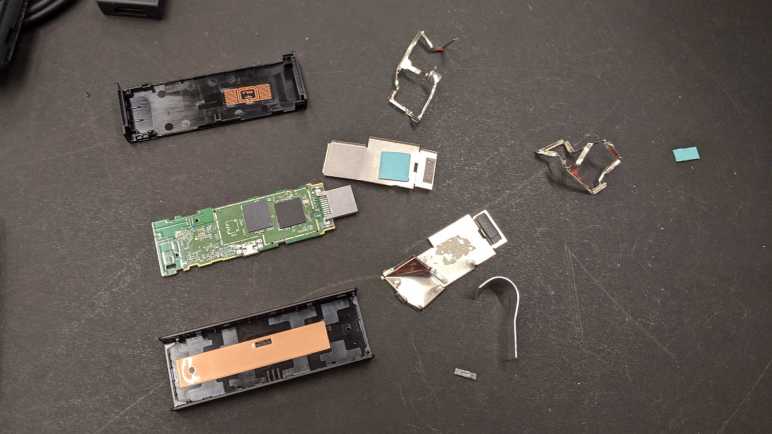
The whole thing was a single circuit board inside the plastic enclosure. There were no user controls at all, not even the single reset button or status LED of the Roku streaming stick. In a plastic bag I found the circuit board and the plastic enclosure, but the misshapen metal RF shields and attached heat dissipation pads visible in this picture are now gone. If I plug it in, I’m optimistic it will run unless overheating and/or RF interference causes problems.

I plugged it in and watch a successful boot sequence on screen, which led to the next problem: its corresponding remote-control unit was superficially intact, but the violence of enclosure disassembly meant nothing fit anymore. Specifically, the keypad no longer fit in the front faceplate, which also lost its fit so it could no longer press the circuit board against battery contact points.

I tried a few different ways to make it work again, eventually ignoring the faceplate and using my thumb to press circuit board directly against battery tray contacts. If I end up using this for more than a trivial test, I’ll solder a battery tray to the circuit board instead. For now, I just got it back up and running on the latest Fire TV software release. The “About” screen called itself a second-generation Fire TV stick, which is enough information for me to look up its specifications. It’s pretty close to the Roku equivalent streaming stick, with two major differences: I have a functional (if annoying) remote control, and I have the Android software development platform. I installed Android Studio and deployed a few “Hello World” type Android apps to the Fire TV stick just to prove the tooling pipeline worked. Then I tried installing something I built in Unity… and saw everything was pink.

Clothes Iron Assistant for Hot Air Rework Station

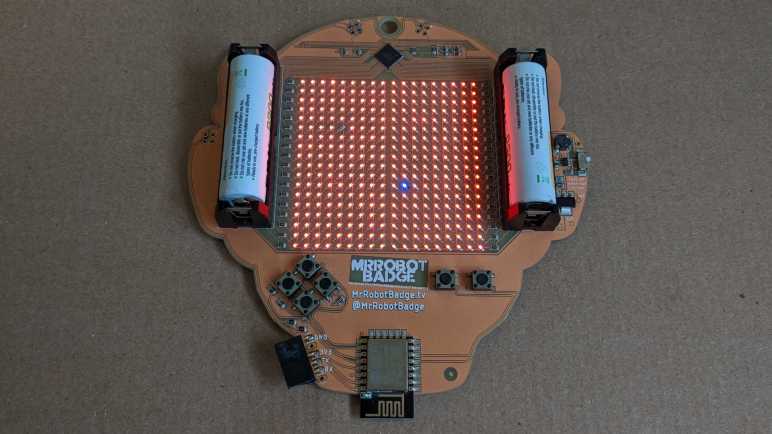
I’ve been gradually building up my skills and tools working with surface-mount technology components. After the most recent episode of frustration trying to rework components without a hot-air rework station, I went ahead and bought a simple starter unit on Amazon. (*) This is quite similar to the hot-air rework station I got to play with earlier, and I’m operating under the assumption that something simple is far better than nothing at all. It is certainly less destructive than the blunt hammer of a paint removal heat gun. Using my new hot air rework station, I was able to salvage more red LEDs from my pile of salvaged electronics and install them on the Mr. Robot Badge. The job is a lot easier once I had the right tool! The result is not quite perfect, because my salvaged LEDs are slightly different shade of red and a touch dimmer, but it is running and it’s all red.

Then I saw this on Twitter:

Hey, I have one of those “SMT stations” too! In my pile of household appliances awaiting teardown is a retired clothes iron. Something is wrong with its temperature regulation circuit. It would heat up to the requested temperature then turn its heater off. But then it would cool far more than acceptable before it would start heating back up again, and it never heats all the way back up to the requested temperature before turning off again. In short, it was no longer useful as a clothes iron and I thought I’d take it apart eventually. Due to my confusion when looking at a simple coffee maker circuit, I’m not optimistic I could fix the iron, it was just to see if I could learn anything.

But now I have something else I can do with it instead of taking it apart. Reading the rest of the above Twitter thread, I confirmed my understanding that unmodified clothes irons do not get hot enough to melt solder by themselves. What they can do is assist the hot air gun by keeping the working area warm. This helps the hot air rework station work better by reducing the amount of heat dissipated away uselessly.

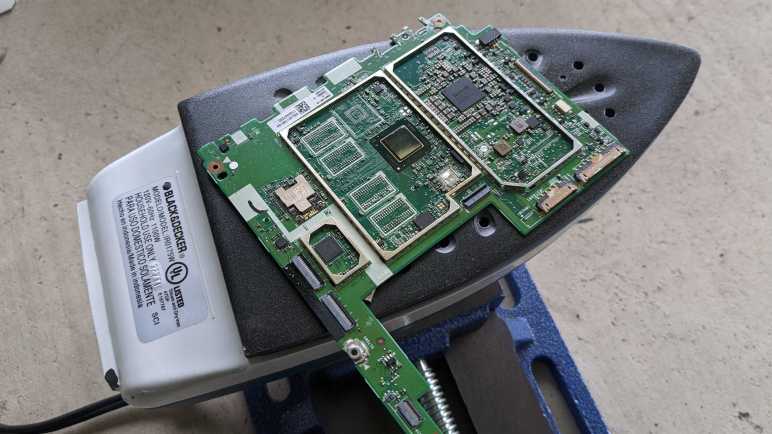
So I set up my own “SMT station” and placed upon it the mainboard from an old retired Roomba Red. The proprietary CPU (or at least customized enough to have an iRobot logo on it) was too big for me to remove with the hot air station alone, but with the iron keeping the entire circuit board warm, I was able to melt the solder and remove the chip intact. There’s a small chance this chip is still usable, not that I plan to do anything with it.

Also, the same temperature regulation problem that made me retire this iron also made it bad at maintaining circuit board temperature. I can work around it by unplugging the iron and plugging it back in to reactivate that initial heating period. Far from ideal, but good enough for today’s learning exercise.

Then I revisited my previous hot air experiment failure: the CPU from the mainboard of an Acer Aspire convertible Windows tablet. This time I was successful! Sort of.

It was far more difficult to remove than the Roomba CPU. I damaged a corner of the module with my tweezers by yanking too hard, it’s been bent upwards so definitely destroyed. But this was great practice and I’ll keep at it as I do my teardowns. Eventually I’d like to reach a point where I can salvage and reuse something more complex than a LED.

Cen-Tech 12 Volt Battery Charger/Maintainer (99857)

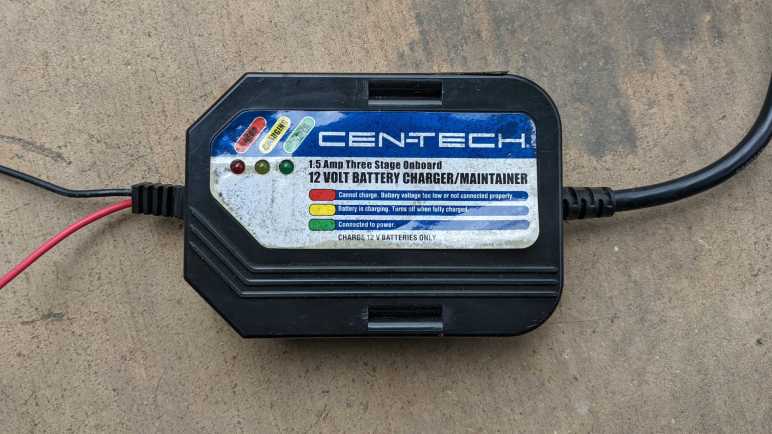
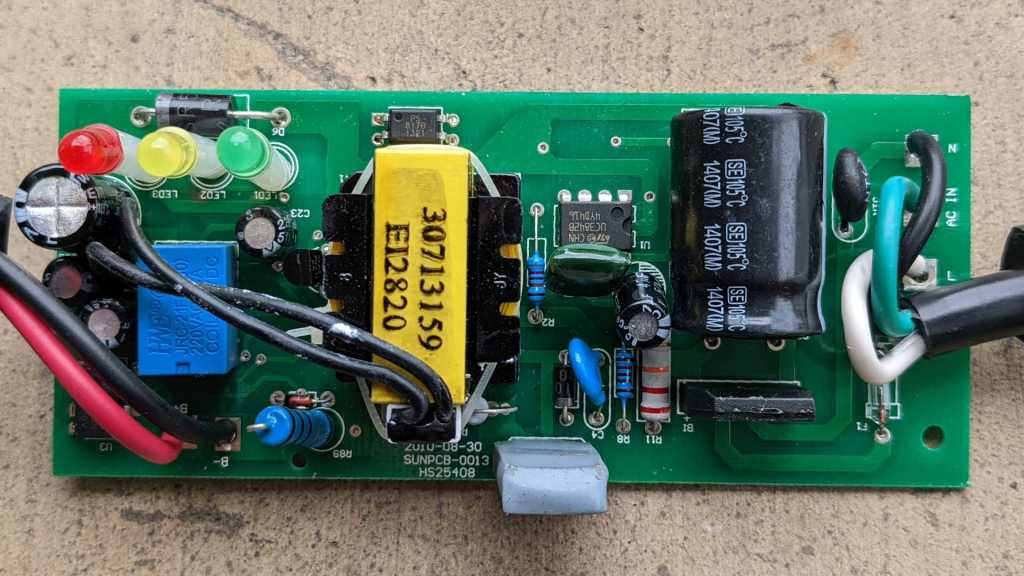
I don’t know why this particular battery charger/maintainer was discarded, but I wasn’t going to hook it up to a real battery to find out. I got it from a discard pile just to take apart and look inside. It was designed to be permanently mounted under the hood of a car. When we want to charge/maintain the battery, we plug an extension cord into its stubby power cord.

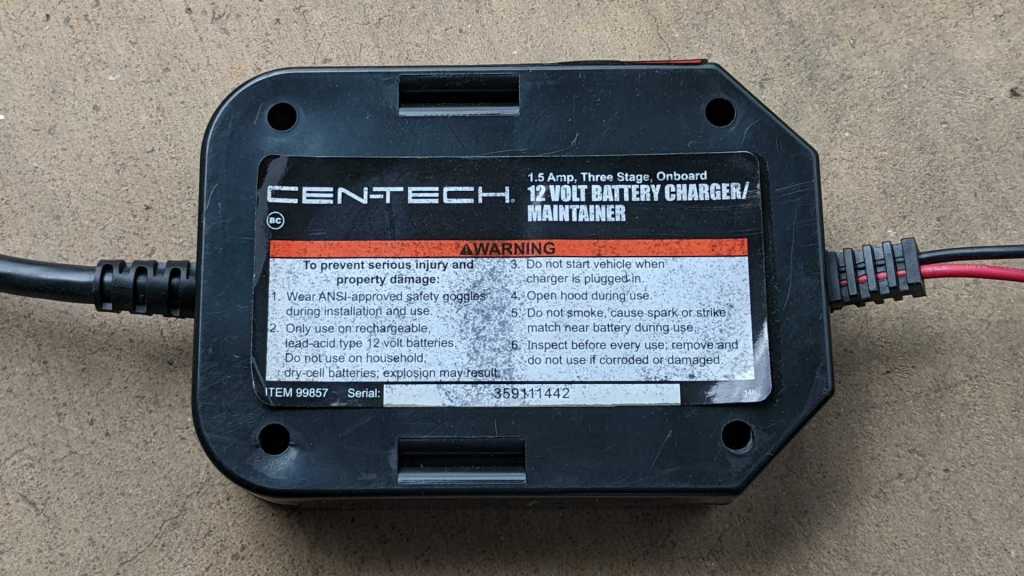
Harbor Freight no longer lists item number 99857 on their site. I also note that this label (and all the warnings) would not be visible when the device is mounted.

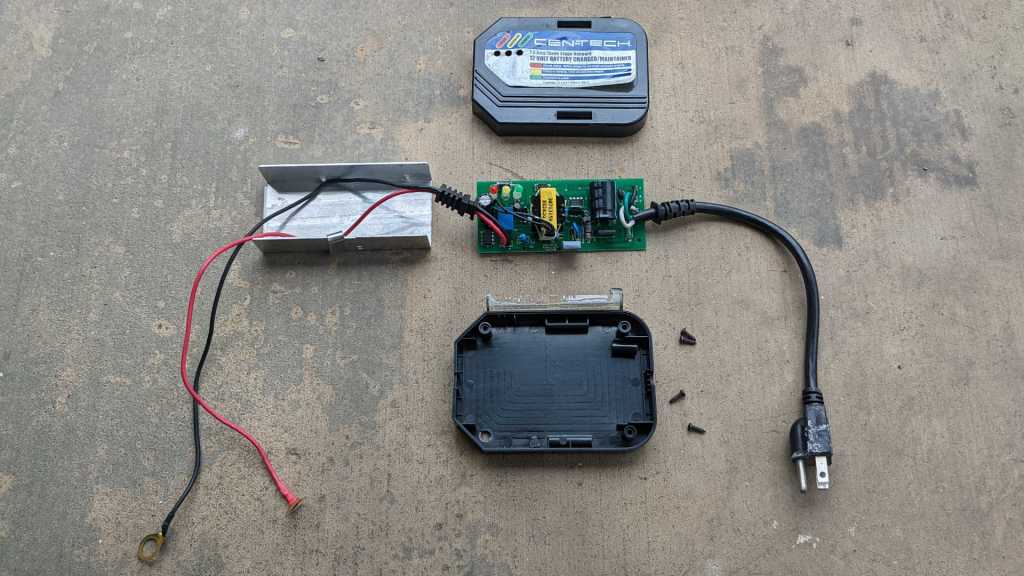
Disassembly was straightforward with only four screws to remove.

It’s almost refreshingly retro to see a circuit board with only through-hole components. It also meant I could easily follow circuit board traces to see how much I understand. My first impression (and assumption) was that the big coil in the middle was the transformer, and I had thought it was used to step the voltage down from household 110V AC to something lower, then passed into a rectifier to obtain DC voltage somewhere near the 14.4V maximum for lead-acid battery. But I realized I was wrong when I followed the copper trace for the line voltage. (White wire.) It first goes through a nonreplaceable fuse (better than no fuse I guess) and then immediately into the rectifier. The DC output — which I guess would be above 100V DC — is buffered by a big capacitor, and I don’t understand very much beyond that. I understand a little more every time I do a teardown, so hopefully I will be able to decipher more if I return to this device in the future.

Install Other OS on Toshiba Chromebook 2 (CB35-B3340)

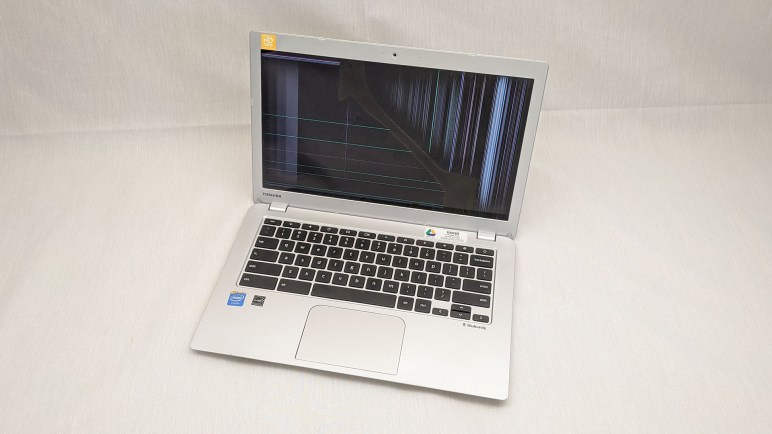
When I received a broken Chromebook to play with, I had assumed it was long out of support and my thoughts went to how I might install some operating system other than ChromeOS on it. Then I found that it actually still had some supported lifespan left so I decided to keep it as a Chromebook for occasional use. That supported life ended in September 2021, now it very bluntly tells me to buy a newer model: there will be no more Chrome OS after 92.

Time again to revisit the “install other OS” issue, starting with the very popular reference Mr. Chromebox. Where I learned newer (~2015 and later) Chromebooks are very difficult to get working with other operating systems. I guess this 2014 vintage Chromebook is accidentally close to optimal for this project. Following instructions, I determined this machine has the codename identifier “Swanky” and I have the option to replace default firmware with an implementation of UEFI, in theory allowing me to install any operating system that runs on this x86-64 chip and can boot off UEFI. But first, I had to figure out how to deactivate a physical write protect switch on this machine.

The line “Fw WP: Enabled” is what I need to change to proceed. Documentation on Mr. Chromebox site said I should look for a screw that grounds a special trace on the circuit board. Severing that connection would disable write protect. I found this guide on iFixit, but it is for a slightly different model of Toshiba Chromebook with different hardware. That is a CB35-C3300 and I have a CB35-B3340. The most visible difference is that CPU has active cooling with a heat pipe and fan, but the machine in front of me is passively cooled.

So I will need to find the switch on my own. Starting with looking up my old notes on how to open up this machine and get back to the point where I could see the metal shield protecting the mainboard.

With the bottom cover removed, I have a candidate front and center.

This screw has a two-part pad that could be grounding a trace, though there is an unpopulated provision for a component connected to that pad. This may or may not be the one. I’ll keep looking for other candidates under the metal shield.

A second candidate was visible once the metal shield was removed. And this one has a little resistor soldered to half of the pad.

I decided to try this one first.

I took a thin sheet of plastic (some random product packaging) and cut out a piece that would sit between the split pad and the metal shield with screw.

That was the correct choice, as firmware write-protection is now disabled. I suspect candidate #1 could be used for chassis intrusion protection (a.k.a. “has the lid been removed”) but at this point I have neither the knowledge or the motivation to investigate. I have what I want, the ability to install UEFI (Full ROM) Firmware.

What happens now? I contemplated the following options:

  1. Install Gallium OS. This is a Linux distribution based on Ubuntu and optimized for running on a Chromebook.
  2. I could go straight to the source and install Ubuntu directly. Supposedly system responsiveness and battery life won’t be as good, and I might have more hardware issues to deal with, but I’ll be on the latest LTS.
  3. Or I can stay with the world of Chrome and install a Chromium OS distribution like Neverware CloudReady.

Looking at Gallium, I see it purports to add hardware driver support missing from mainline Ubuntu and stripping things down to better suit a Chromebook’s (usually limited) hardware. There were some complaints that some of Ubuntu’s user-friendliness was trimmed along with the fat, but the bigger concern is that Gallium OS is based on Ubuntu 18 LTS and has yet to update to Ubuntu 20 LTS. This is very concerning as Ubuntu 22 LTS is expected to arrive soon. [UPDATE: Ubuntu 22 LTS “Jammy Jellyfish” has been officially released.] Has the Gallium project been abandoned? I decided to skip Gallium for now, maybe later I’ll decide it’s worth a try.

I already had an installation USB drive for Ubuntu 20.04 LTS, so I tried installing that. After about fifteen minutes of playing around I found a major annoyance: keyboard support. A Chromebook has a different keyboard layout than standard PC laptops. The Chromebook keys across the top of the keyboard mostly worked fine as function keys, but there are only ten keys between “Escape” and “Power” so I didn’t have F11 or F12. There is no “Fn” key for me to activate their non-F-key functions, such as adjusting screen brightness from the keyboard. Perhaps in time I could learn to navigate Ubuntu with a Chromebook keyboard, but I’ve already learned that I have muscle memory around these keys that I didn’t know I had until this moment. It was also missing support for this machine’s audio device, though that could be worked around with an external USB audio device like my Logitech H390 headset. (*) It is also possible to fix the audio issue within Ubuntu, work that Gallium OS supposedly has already done, but instead of putting in the work to figure it out I decided on the third option.

It’s nice to have access to the entire Ubuntu ecosystem and not restricted to the sandbox of a Chrome OS device, but I already have Ubuntu laptops for that. This machine was built to be a small light Chromebook and maybe it’s best to keep it in that world. I created an installation USB drive for Neverware CloudReady and returned this machine to the world of Chrome OS. Unlike Ubuntu, the keyboard works in the Chrome OS way. But like Ubuntu, there’s no sound. Darn. Oh well, I usually use my H390 headset when I wanted sound anyway, so that is no great hardship. And more importantly, it puts me back on the train of Chromium OS updates. Now it has Chromium OS 96, and there should be more to come. Not bad for a Chromebook that spent several years dumped in a cabinet because of a broken screen.


(*) Disclosure: As an Amazon Associate I earn from qualifying purchases.

Sony Cyber-shot DSC-U20 Digital Camera

Twenty years ago, photography’s film-to-digital transition was well underway. Designers and engineers were pushing the limits of what they could do when freed from the constraint of a roll of film. The landmark iPhone wouldn’t be released for another five years, ushering in the age of everyone having a touchscreen cell phone (and an attached camera) in their pocket. This was the golden age for small digital point-and-shoot cameras, as it was between the age of film and era of ubiquitous phone cameras. In this environment Sony announced an ultra-tiny digital photo camera, the DSC-U20. Some reviewers claimed it was smaller and better than the best film cameras ever made for clandestine espionage, which sounded great but how they could possibly know?

Anyway, when I learned of it I was blown away by how small it was. I remember thinking if I took a canister for 35mm film and made it 150% as long, it would be approximately the same size as a DSC-U20. Enchanted, I had to have one despite its expense, and my income at the time allowed such frivolous purchases. It was small enough to carry every day, a handy camera years before everyone’s cell phones had a little camera.

If we looked at this device today without that historical context, one could be forgiven to think Sony just packed a cell phone camera into a case with battery and called it a day. That would be very, very wrong. It was a marvel of engineering and packaging, with electronics crammed into every available nook and cranny connected by flexible printed circuit boards. Flex PCB is something easily accessible to the electronics hobbyist today, but not twenty years ago.

The sun had since set for compact point-and-shoot digital cameras. Some people still have them and list them on eBay as “rare vintage digital camera” asking hundreds of dollars for them. Feh! Taking one apart is more fun. I brought it to the January 2020 session of Disassembly Academy at Supplyframe Designlab and a team went to work. I was running around as a co-host of the event (taking a few pictures along the way) and as much as I enjoyed sharing my love of taking things apart to see what made them tick, I was a little sad I couldn’t see every minute of this teardown.

The tiny camera took up more and more of the table as it slowly disintegrated through the night.

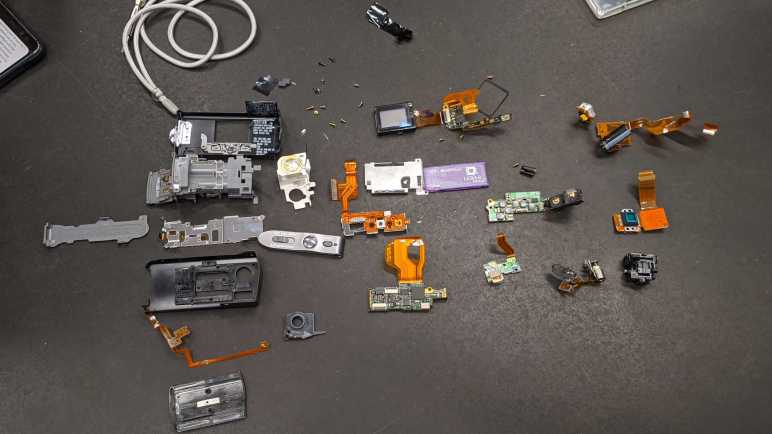
I took this picture at the end of the night, showing all the major subassemblies. To this day, this is my favorite picture out of all Disassembly Academy projects.

Two of the participants wanted to take a souvenir home each, a request I happily granted.

One participant took home the rear user control subassembly including the display unit. (Top red rectangle.) I had the impression that this tiny screen was one of Sony’s first attempts at a commercial OLED display, but what we saw was consistent with an LCD. Either my memory is faulty, or we have no idea what an early OLED should look like.

Another participant took home the CCD imaging sensor. (Right red rectangle.) Unlike modern cell phones with their CMOS imaging sensors, this camera had a much bulkier and power-hungry CCD as a tradeoff for better image quality.

I took home the rest, planning to take a closer look at the components later. This is the day.

This camera’s component packaging is even more impressive when taking into account of the fact that more than half of the interior volume were consumed by the battery tray (a pair of NiMH AAA recommended to sustain current draw) and a slot for Sony’s proprietary Memory Stick.

The battery terminals are connected to a power control board with many inductors, capacitors, diodes, and transistors visible. A high density BGA IC is in charge of this department.

Significantly more electronic brainpower lives on this main board, with connections to nearly every other flex PCB on the device. The largest chip has a Sony logo and, based on my past experience tearing down Sony products and encountering plenty of their proprietary components, I didn’t bother wasting time trying to look up that chip’s designation of CXD3159 304A38.

Today, white LEDs are bright enough to add light to the scene. They’re not a true flash but they consume far less power and space. This camera predated such high-powered LEDs, so it had a real Xenon flash with capacitor and its own power control board taking up precious volume for the sake of making a bright flash of light.

Here’s the tiny lens assembly, with a lens that can slide on tiny linear guides. Early cell phone cameras had fixed lenses and all the limitations that imposed. More recent cell phone cameras had lens elements that are moved with voice coils.

Not this camera! Four electrical contacts each imply this is a pair of tiny stepper motors for controlling aperture and focus.

One of the two aperture control flaps has been lost.

Focus control motor shaft has a cam for lens position, working alongside an optical end-stop sensor for lens position.

It might be fun to get these motors to run again, but I’m confident the stepper controllers I have on hand for NEMA17 sized stepper motors would instantly burn these little guys up. Even at their lowest current limited setting. I’ll wait until I get my hands on something that can enforce a lower power limit before I try moving these motors.

Partial Home Assistant Control of Mr. Robot Badge Mk. 2

Once I had Mr Robot Badge Mk. 2 up and running on Arduino, I thought: what about Home Assistant? After all, ESPHome is built on compiling ESP8266 Arduino Core code using PlatformIO command-line tools. The challenging part of ESPHome is always that initial firmware flash, which I’m already set up to do, and after that I could do updates wirelessly.

I started easy: getting badge buttons to be recognized as binary sensors in Home Assistant.

binary_sensor:
  - platform: gpio
    pin:
      number: 0
      mode:
        input: true
        pullup: true
      inverted: true
    name: "Left"
    filters:
      - delayed_on_off: 20ms
  - platform: gpio
    pin:
      number: 16
      mode:
        input: true
      inverted: true
    name: "Down"
    filters:
      - delayed_on_off: 20ms
  - platform: gpio
    pin:
      number: 15
      mode:
        input: true
        pullup: true
    name: "Right"
    filters:
      - delayed_on_off: 20ms
  - platform: gpio
    pin:
      number: 13
      mode:
        input: true
        pullup: true
      inverted: true
    name: "Up"
    filters:
      - delayed_on_off: 20ms
  - platform: gpio
    pin:
      number: 12
      mode:
        input: true
        pullup: true
      inverted: true
    name: "A"
    filters:
      - delayed_on_off: 20ms
  - platform: gpio
    pin:
      number: 14
      mode:
        input: true
        pullup: true
      inverted: true
    name: "B"
    filters:
      - delayed_on_off: 20ms

Piece of cake! Now on to the more interesting (and more challenging) part: using the LEDs. I followed ESPHome examples to create a custom component. This exposed a single custom output that treated the entire array as a single color (monochromatic) dimmable light.

C header file with custom class declaration:

#include "esphome.h"
#include "Adafruit_IS31FL3741.h"
using namespace esphome;

class MrRobotBadgeFloatOutput : public Component, public FloatOutput
{
    Adafruit_IS31FL3741 ledArray;

    public:
        void setup() override
        {
            ledArray.begin();
            ledArray.setLEDscaling(0x3F); // 25% of max
            ledArray.setGlobalCurrent(0x3F); // 25% of max
            ledArray.enable(true);  // bring out of shutdown
        }

        void write_state(float state) override
        {
            int8_t value = state * 128; // 50% of max
            ledArray.fill(value);
        }
};

YAML:

output:
  - platform: custom
    type: float
    lambda: |-
      auto badge_float = new MrRobotBadgeFloatOutput();
      App.register_component(badge_float);
      return {badge_float};
    outputs:
      id: badge_float

light:
  - platform: monochromatic
    name: "Badge Lights"
    output: badge_float

Tada! I’m back at the same test I had using Arduino, lighting up all the pixels to highlight problematic LEDs.

The next step in this progression is to expose the entire 18×18 array as individually addressable pixels. Doing so would allow using ESPHome’s display rendering engine to draw text and graphics, much as Adafruit GFX does. I found the Addressable Light base class but I got stuck trying to make it happen. I’ve had no luck finding examples on how to implement a custom addressable light, and didn’t get much of anywhere bumping my head in the dark. Digging through existing Addressable Light implementations on GitHub, I’ve found many object classes that may or may not be required to implement my own addressable light.

I imagine there’s an architecture diagram somewhere that describes how these components interact, but my search has come up empty so far and there’s not much in the way of code comments. Most of the online discussions about addressable LED pixels in Home Assistant are centered around WLED, which as of this writing does not support the IS31LF3741 control chip. I’m going to put further exploration on hold until I have more experience with ESPHome custom components to understand their object hierarchy.

Programming Mr Robot Badge Mk. 2 with Arduino

This particular Mr. Robot Badge Mk. 2 was deemed a defective unit with several dark LEDs. I used it as a practice subject for working with surface-mounted electronic devices, bringing two LEDs back into running order though one of them is the wrong color. Is the badge fully repaired? I couldn’t quite tell. The default firmware is big on blinking and flashing patterns, making it difficult to determine if a specific LED is functioning or not. What I needed was a test pattern, something as simple as illuminate all of the LEDs to see if they come up. Fortunately, there was a URL right on the badge that took me to a GitHub repository with sample code and instructions. It used Arduino framework to generate code for this ESP8266, and that’s something I’ve worked with. I think we’re in business.

On the hardware side, I soldered sockets to the unpopulated programmer header and then created a programming cable to connect to my FTDI serial adapter (*). For the software, I cloned the “Starter Pack” repository, followed installation directions, and encountered a build failure:

Arduino\libraries\Brzo_I2C\src\brzo_i2c.c: In function 'brzo_i2c_write':
Arduino\libraries\Brzo_I2C\src\brzo_i2c.c:72:2: error: cannot find a register in class 'RL_REGS' while reloading 'asm'
   72 |  asm volatile (
      |  ^~~
Arduino\libraries\Brzo_I2C\src\brzo_i2c.c:72:2: error: 'asm' operand has impossible constraints
exit status 1
Error compiling for board Generic ESP8266 Module.

This looks like issue #44 in the Brzo library, unfixed at time of this writing. Hmm, this is a problem. Reading the code some more, I learned Brzo is used to create I2C communication routines with the IS31FL3741 driver chip controlling the LED array. Aha, there’s a relatively easy solution. Since the time the badge was created, Adafruit has released a product using the same LED driver chip and corresponding software libraries to go with it. I could remove this custom I2C communication code using Brzo and replace it with Adafruit’s library.

Most of the conversion was straightforward except for the LED pixel coordinate lookup. The IS31Fl3741 chip treats the LEDs as a linear array, and something had to translate the linear index to their X,Y coordinates. The badge example code has a lookup table mapping linear index to X,Y coordinates. To use Adafruit library’s frame buffer, I needed the reverse: a table that converts X,Y coordinates to linear index. I started typing it up by hand before deciding that was stupid: this is the kind of task we use computers for. So I wrote this piece of quick-and-dirty code to cycle through the existing lookup table and print the information back out organized by X,Y coordinates.


      for(uint8_t x = 0; x < 18; x++)
      {
        for(uint8_t y = 0; y < 18; y++)
        {
          reverseLookup[x][y]=-1;
        }
      }
      for(uint8_t i = 0; i < PAGE_0_SZ; i++)
      {
        reverseLookup[page0LUT[i].x][page0LUT[i].y] = i;
      }
      for(uint16_t i = 0; i < PAGE_1_SZ; i++)
      {
        // Unused locations were marked with (-1, -1) but x and y are
        // declared as unsigned which means -1 is actually 0xFF so
        // instead of checking for >0 we check for <18
        if(page1LUT[i].x < 18 && page1LUT[i].y < 18)
        {
          reverseLookup[page1LUT[i].x][page1LUT[i].y] = i+PAGE_0_SZ;
        }
      }
      for(uint8_t y = 0; y < 18; y++)
      {
        Serial.print("{");
        for(uint8_t x = 0; x < 18; x++)
        {
          Serial.print(reverseLookup[x][y]);
          if (x<17)
          {
            Serial.print(",");
          }
        }
        if (y<17)
        {
          Serial.println("},");
        }
        else
        {
          Serial.println("}");
        }
      }

This gave me the numbers I needed in Arduino serial monitor, and I could copy it from there. Some spacing adjustment to make things a little more readable, and we have this:

const uint16_t Lookup[ARRAY_HEIGHT][ARRAY_WIDTH] = {
  {  17,  47,  77, 107, 137, 167, 197, 227, 257,  18,  48,  78, 108, 138, 168, 198, 228, 258},
  {  16,  46,  76, 106, 136, 166, 196, 226, 256,  19,  49,  79, 109, 139, 169, 199, 229, 259},
  {  15,  45,  75, 105, 135, 165, 195, 225, 255,  20,  50,  80, 110, 140, 170, 200, 230, 260},
  {  14,  44,  74, 104, 134, 164, 194, 224, 254,  21,  51,  81, 111, 141, 171, 201, 231, 261},
  {  13,  43,  73, 103, 133, 163, 193, 223, 253,  22,  52,  82, 112, 142, 172, 202, 232, 262},
  {  12,  42,  72, 102, 132, 162, 192, 222, 252,  23,  53,  83, 113, 143, 173, 203, 233, 263},
  {  11,  41,  71, 101, 131, 161, 191, 221, 251,  24,  54,  84, 114, 144, 174, 204, 234, 264},
  {  10,  40,  70, 100, 130, 160, 190, 220, 250,  25,  55,  85, 115, 145, 175, 205, 235, 265},
  {   9,  39,  69,  99, 129, 159, 189, 219, 249,  26,  56,  86, 116, 146, 176, 206, 236, 266},
  {   8,  38,  68,  98, 128, 158, 188, 218, 248,  27,  57,  87, 117, 147, 177, 207, 237, 267},
  {   7,  37,  67,  97, 127, 157, 187, 217, 247,  28,  58,  88, 118, 148, 178, 208, 238, 268},
  {   6,  36,  66,  96, 126, 156, 186, 216, 246,  29,  59,  89, 119, 149, 179, 209, 239, 269},
  {   5,  35,  65,  95, 125, 155, 185, 215, 245, 270, 279, 288, 297, 306, 315, 324, 333, 342},
  {   4,  34,  64,  94, 124, 154, 184, 214, 244, 271, 280, 289, 298, 307, 316, 325, 334, 343},
  {   3,  33,  63,  93, 123, 153, 183, 213, 243, 272, 281, 290, 299, 308, 317, 326, 335, 344},
  {   2,  32,  62,  92, 122, 152, 182, 212, 242, 273, 282, 291, 300, 309, 318, 327, 336, 345},
  {   1,  31,  61,  91, 121, 151, 181, 211, 241, 274, 283, 292, 301, 310, 319, 328, 337, 346},
  {   0,  30,  60,  90, 120, 150, 180, 210, 240, 275, 284, 293, 302, 311, 320, 329, 338, 347}
};

This lookup table got Mr. Robot Badge Mk. 2 up and running without Brzo library! I could write that simple “turn on all LED” test I wanted.

The test exposed two more problematic LEDs. One of them was intermittent: I tapped it and it illuminated for this picture. If it starts flickering again, I’ll give it a dab of solder to see if that helps. The other one is dark and stayed dark through (unscientific) tapping and (scientific) LED test equipment. It looks like I need to find two more surface-mount red LEDs to fully repair this array.

In case anybody else wants to play with Mr. Robot Badge and runs into the same problem, I have collected my changes and updated the README installation instructions in pull request #3 of the badge code sample repository. If that PR rejected, clone my fork directly.


(*) Disclosure: As an Amazon Associate I earn from qualifying purchases.

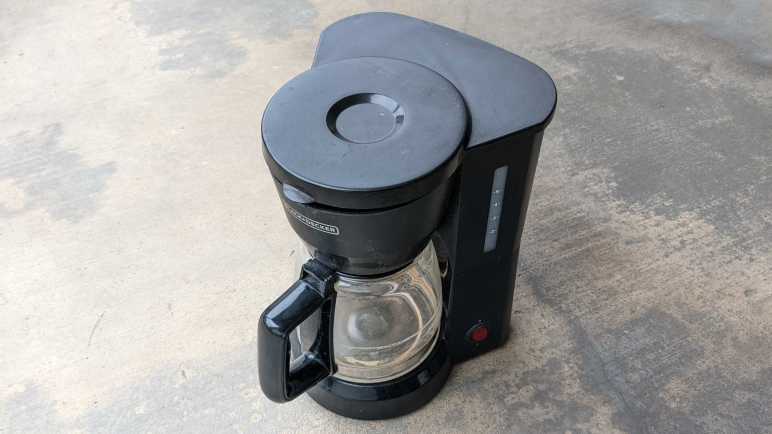
Black and Decker 5-Cup Coffee Maker

A coffee machine for the home kitchen can get very fancy, but not this one. This was the lowest-end, simplest, least expensive model DCM600B available at the store that day many years ago. I’m curious how simple a coffee maker can be inside. As the entry-level product, every expense would have been spared, and I hope to see some engineering creativity to reach that cost-optimized goal.

From the top, there is only one visible fastener. A Philips-head screw in the water reservoir.

With it removed, we can see majority of the path for boiling hot water.

  1. Hot water is pumped up through this pipe.
  2. Which then makes it through this bend in the lid.
  3. Exits here to dribble onto coffee grounds.
  4. Held inside a coffee filter sitting in this cup. Water filters through the coffee grounds, through the filter, out through the hole in the center of this cup.
  5. Which drips into the carafe.

Bottom view with model number DCM600B visible. The power cord was cut some time ago. I no longer remember the reason why, but it is quite apparent past me wanted to ensure there would be no further use.

Two fasteners are visible from the bottom. The first surprise was that nonstandard fasteners were used, I had expected generic screws in the interest of cost.

My screwdriver bit that matched this screw was labeled CR-V 6.

The second surprise was that no screws were hidden under rubber feet. Once the two visible nonstandard screws were removed, the bottom cover flipped open. There were some grates in that bottom cover to release any liquid that might enter this enclosure. There was also a dam that protected electric wire from such liquid.

Judging by residue and this corroded screw, that seepage draining provision came in handy.

I would not have been surprised if the power switch merely wired power directly to a heating element. The machine is actually slightly more sophisticated than that, but not by much.

Removing a few things allowed some untangling of the wire. One end of the power cable is connected to a black wire, presumably ground, connected to one end of the horseshoe-shaped heating element. The other end is connected to a red wire that led to the power switch, which connects it to a blue wire connected to the other end of the heating element via three components. I don’t know what these components are, but the first of these three in series is clamped to the heating tube. Functionally, I infer they sense temperature and would open the circuit when things get too hot, and close the circuit once things cooled down. Such a circuit would implement the “keep coffee warm” feature.

The item clamped to the heating tube is presumably a temperature sensor. It has the following markings:

1504
T3/33
125V10A
150

There is very low resistance across the two terminals at room temperature. I heated it up with the most convenient heat source, which was my heat shrink tube hot air gun. The measured resistance did not appreciably rise as I heated it up, nor did it go open circuit. But I doubt this hot air gun pushed the device to water boiling temperature, so the results are inconclusive. I don’t have the equipment to test electronics behavior at different temperatures, the only thermometers I have are for measuring human fevers and for kitchen baking.

While brewing coffee, water from the reservoir would keep the heating element from getting too hot. Hot water would boil and expand. How did the machine ensure that such water would be sent through coffee grounds instead of back to the reservoir? This cheap and simple ball check valve is the answer. It would not have been a perfect seal, allowing some water back into the reservoir, but it’s good enough for the job.

Disassembled components from the bottom.

I admire the simplistic efficiency of this machine’s design. Here’s a final example: this machine has capacity for five cups of water. How do we prevent the user from overfilling? I would have guessed float sensors and maybe an overflow valve. The design team didn’t need any of that complexity, they cut two holes in the water reservoir to drain excess water out to the kitchen countertop. Problem solved!

BlueAnt Q3 Bluetooth Headset

I’m making slow progress learning to work with surface mount electronics, but I still have a long way to go. This retired BlueAnt Q3 Bluetooth headset is a marvel of miniaturization and a reminder of how far behind the state of the art I am. Even more when considering that, judging by this product review I found online, this device is getting close to ten years old! Since that time BlueAnt seems to have stopped making this product category, with nothing similar currently listed on their page.

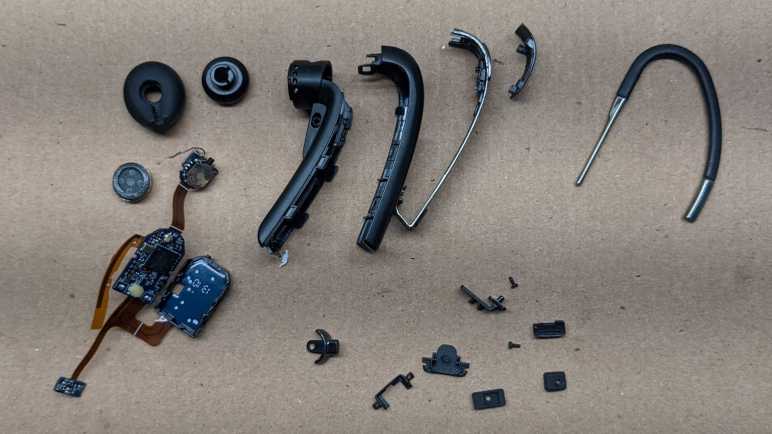
This particular unit came to me already disassembled by someone else, but I think its battery was the only notable item missing. The mechanical design is very impressively intricate, integrating several controls that had to be big enough for a human figure to manipulate. But it’s the electronics that really shine.

  1. This is a micro-USB port for charging. It also gives a scale perspective on how tiny everything is.
  2. Speaker
  3. Push button
  4. Dual LED module with a white LED and red LED sharing a single package. I would have expected such a thing to share either a common anode or a common cathode but that’s not the case here. This little yellow rectangle has four pads. One anode and one cathode for each of the two LEDs.
  5. MIC1 and MIC2 are the two microphones used for noise cancellation and other nifty features.
  6. Three-position toggle switch. It is the same size as the power switch used on Mr. Robot Badge. What’s tiny on that circuit board takes a significant percentage of real estate on this one.
  7. I think this curved piece might be an antenna?

Between 6 and 7 we see several unpopulated pads. I don’t know if there are different lines to the BlueAnt Q3 for additional features, or if they represented features that they’ve cut from the product.

Flipping over, we see the following:

  1. IC that runs the show.
  2. Debug headers.
  3. BT1 and BT2 are good candidates for battery terminals. I’m a bit annoyed they didn’t mark them BT+ and BT-. If I were trying to repair this device, I risk reversing battery polarity and damaging the device.
  4. This is a really cool control I hadn’t seen before. The nub sticking out to the right is a switch that can be moved above or below the center position, and a spring-loaded mechanism pulls it back to center once released. In addition to that, the cream-colored center circle might be a push button. It certainly gives the tactile “click” appropriate for a button when pushed. Together they are a completely self-contained unit for up/down/select menu control. I would love to play with it some more, except for the fact that it is tiny. That center circle is only 2mm in diameter, and this device has at least 13 little soldering points holding it on the circuit board. With my current skill level, I would destroy the device trying to remove it from the board. But since this is tiny, I can keep the board and try later once I have better tools. Perhaps a hot plate can simultaneously melt all the solder without damaging the plastic?

Made by Design Ultrasonic Oil Diffuser (120mL)

I’ve seen these oil diffusers from more and more vendors recently, evolving from a novelty item to a mass-produced commodity. Cheap enough that someone may buy one, try it for a while, and decided against it sometime after the store return period. Which was the case for this unit, which was given to me not because I wanted a diffuser (I didn’t) but for me to take apart.

This particular unit has the Target logo and “Made by Design” stamped on the bottom. I recently read an entertaining article about Costco’s “Kirkland Signature” brand, and motivated by that knowledge I went and researched Target’s (much longer) list of brands. Indeed, “Made By Design” was one of them. Not that it matters too much right now (unless I want to buy another) the fact it is available from a house brand just confirms the commodity status of such products.

I put a bit of water in the device, plugged it in, and turned it on without the lid. The water started bubbling (making a mess of my workbench) and some of it dispersed into fine fog.

It’s much neater with the lid on, where only the mist exited a dedicated vent in a soft breeze.

We can see all major airflow elements in this picture.

  1. The circular fan intakes air from the bottom….
  2. That air exits a rectangular chimney in the side of the base. This air circulates around the space between the base and the lid until…
  3. Air enters the fogging area, picking up some aerosolized liquids, then…
  4. Exits out to the room.

Each of the three foam feet hid a Philips-head screw.

Once removed, the base came apart easily exposing its main circuit board. Eight LED modules are visible, as is an IC that appears to run this particular show.

The power socket slid from its position easily, far easier than a recent power socket recovery.

The button board was also easily removed, sliding out from its slot without any fasteners or glue in the way.

Only two buttons are present on this device, with provision for a third. And we can see how the control board can read up to three buttons with just two wires. When pressed, each of these buttons bridge a resistor, so the control board can read the resistance and decipher which button (or combination of buttons) are pressed.

Two more screws allowed me to remove the control board, and I was pleasantly surprised by what I saw: every peripheral is connected to the control board by a JST-XH (or compatible) polarized connector. But even more than that, each peripheral has a color-coded connector. Wow! I did not expect to see that. Color coding makes sense to ease assembly and visual inspection, but stocking separate color connectors usually add cost that manufacturers skimp on.

IR1 appears to be an unused provision for infrared remote control. The heat sink is screwed onto what appears to be a power MOSFET, but the screw is inaccessible while the MOSFET is soldered in place on the board. Unsoldering the MOSFET would be a challenge, because it would be dissipating heat out of that heat sink we could not remove while MOSFET is soldered in place. A curious circular puzzle making it difficult to disassemble, I wonder how it was assembled.

In the bottom corner we see a name “asiamist” and a URL “www.fogger.cn” leading to a company that manufacturers such devices for many different house brands.

The single generic fan serves double duty: a cooling fan for that big heat sink and moving air to disperse the fog. It isn’t driven very quickly, which helps keep the noise down and probably also helps extends its service lifespan.

Finally, the star of the attraction. I know nothing of how ultrasonic devices work and I look forward to taking this apart. I might see interesting and fascinating mechanisms of mystery, or I might find something that physically looks unremarkable and give no sign to how it works.

And it is… option B. The heart of the machine is a little metal disc with the following markings

AM1911
2.45M

and otherwise completely unremarkable. If I didn’t already know it was an ultrasonic transducer I would not have guessed its purpose. I was a little disappointed, but its simplicity also implies I didn’t break anything taking it apart. Would it work if I plug everything back in again?

Yes it does! I stopped this experiment very quickly because splattering water and electronics do not make for a happy mix.

Now I have a problem: I can’t think of a reason why I’d want a fogger, but it is still working and I’d hate to just destroy it. But I also didn’t want to store the device intact as it is bulky and consumes a lot of space. As a tradeoff, I’ll cut out and keep just the “business end” of the diffuser with my new toy the Wondercutter S. It was pretty slow going through the plastic, but much neater than if I had used a Dremel and much safer than manual cutting with an X-Acto knife.

Now the heart of the machine can be stored away in a fraction of the space consumed by the full device, leaving the option to reuse this in a future project.

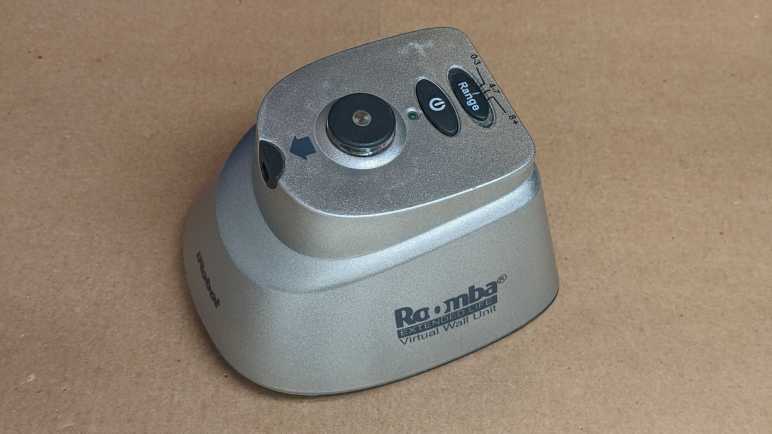
iRobot Roomba Virtual Wall

An old Roomba retired due to worn batteries had an accompanying virtual wall unit for the user to limit its range of motion. Today I take it apart to see what’s inside. I understand it is functionally similar to an infrared remote control, so I expected to find not much beyond a circuit board with an infrared emitter. There are two user controls: an on/off power switch and a sliding switch to select from one of three distance ranges. The push on/off power switch felt like it had two detents, like how a camera shutter button has an initial detent for focus before pushing all the way to take a picture. This particular virtual wall unit also has something rattling around inside and I’m curious to find out the cause.

Looking at the diagram at the base of the unit, I noticed the zone is drawn as a narrow cone plus a small circular area. This implies two emitters: one directional and one not. Examining the unit we can see where they would be: the directional beam would come out of the small gray “nose” and the omnidirectional beam is cast from the circular protrusion up top.

These beams are invisible to the human eye, but my cell phone camera could pick up a glow from the directional emitter. This glow is stronger when we increase the range of the device via slider up top. My camera didn’t pick up anything from the omnidirectional cylinder. The faint green glow visible in this picture is from the human-visible green LED that indicates the unit is turned on.

Most of the volume and heft came from the pair of D-cell alkaline batteries that are all but extinct in modern electronics.

Fasteners are hidden under each of the four rubber feet.

Here’s the mystery of rattling noise: plastic spacers around two of the screws have broken loose. (Intact at left, broken at right.) At a guess, they broke from the impact of this unit getting dropped on the floor sometime in its life.

At least two circuit boards are visible inside, held by screws.

The most unusual component visible here is a chip hidden under a black blob mounted on a small white circuit board, which is then connected to the large board at a right angle. It is accompanied by several through-hole components.

Flipping it over, we can see the narrow circuit board is just a carrier for the sliding switch that controls the LED power and thus range of the virtual wall. The large board has a series of unremarkable surface mount components. The green power LED and directional infrared LED are mounted directly to this board, and the omnidirectional LED assembly is attached with a pair of wires. We can also see here the ten-conductor connection point for that odd-looking vertical white board with the chip under a blob.

Here’s an explanation for why the power switch felt like it had two detents: it pushes on two separate switches each with their rubber dome. So we felt one, then the other, rubber domes make contact. Looking at the trace, these switches (Labeled SW1 and SW2) are wired in parallel. It seems like a lot of work just for the sake of redundancy, but I can’t think of another reason why it might be designed this way.

The omnidirectional LED seems to be held down by hot glue.

I was skeptical when I was told that isopropyl alcohol helps release hot glue, but I have to admit it seemed to have worked well here. But when the glue was removed, I saw the LED is also held in place by a circular piece of plastic that has been welded/glued in place. Why did they feel the hot glue was necessary? If I wanted to replace the LED, I would have to break this piece of plastic, so I’ll hold off for now. I’m going to save this little omnidirectional LED assembly. I might find a use in the future, and that use might be infrared!