Lithium Iron Phosphate Battery in Commodity Sealed Lead Acid Battery Form Factor

It was instructive to take apart a broken light switch to see why it failed. An unexpected side bonus of replacing this switch is I also learned the sealed-lead acid (SLA) batteries in my uninterruptible power supply (UPS) units are no good. I had shut down electricity to the entire house to swap the switch, a project I expected to take 15-20 minutes. This is well under the estimated run time of my UPS. However, less than ten minutes into my project, I started hearing low battery alarms followed by UPS going dark.

I suspected these batteries might be weak, as the usual recommendation is to replace them every two or three years and some of these are coming up on four years old. Doing the switch swap project has confirmed those batteries are long gone. They are still good enough to handle brief flickering blinks of power outage (common when a neighbor’s air conditioning kicks in) but not for an extended outage.

The last time I needed new UPS batteries, I bought APC-branded replacement battery cartridges and then took apart the old cartridges. Finding it was built around two SLA batteries in a commodity form factor, I thought next time I should try replacing the batteries with generics instead of buying a whole APC-branded cartridge. Now I will put that idea into practice.

I went online to shop for generic “7AH” SLA batteries. They’re not necessarily all seven amp-hours in capacity, but that is typical and it became a way to refer to the form factor as well. Dictating a compatible enclosure size as well as the location and shape of positive and negative terminals. Among listings for “7AH” SLA batteries, I saw some lithium-iron phosphate (or LFP or LiFePO4) batteries packaged into the same form factor and advertised to be drop-in replacements. Hmm, interesting.

On paper, lithium iron phosphate batteries will have a longer useful life. They have lower energy density than the NMC types of lithium-ion batteries popular in our portable electronics. So in electronics context LFP batteries usually meant bigger and heavier battery packs. But in the lead-acid replacement scenario, LFP batteries are smaller and lighter than equivalent lead-acid. 7AH (or 9AH, or 10AH, or 12AH) worth of LFP cells fit comfortably within a commodity 7AH SLA shape, with plenty of room left inside to integrate a battery management system to guard against battery abuse.

Four LFP cells in series have almost the same 12-ish to 14-ish voltage operating range as six lead-acid cells in series, close enough the integrated BMS should prevent any major issues. The biggest disclaimer I saw repeated from several vendors was about battery capacity. While these batteries are compatible with systems designed for lead-acid batteries, a LFP-aware charger is required to access their full capacity. Lead-acid systems typically maintain a standby voltage of 13.8V, and that would only keep these LFP batteries at about 75%-80% full.

I saw that “only 75%-80% full” warning and thought: that’s not a bug, that’s a feature! Limiting lithium chemistry battery state of charge to about 80% significantly prolongs their useful life relative to keeping them at 100%. And longevity is what I want for UPS batteries. I can accept only getting ~5AH out of 7AH capacity as a tradeoff if it means I still have 5AH after four or more years. I would have to pay a premium for LFP batteries over SLA batteries, but their price difference is much smaller than they used to be. And that’s before considering the fact if I don’t have to replace them as frequently, I might even come out ahead! This all sounds interesting enough I will give them a try.

Household Double Switch

Staying on the theme of lights and switches, I have a sequel to my previous household light switch teardown: a double switch! This unit was retired and replaced by a new unit once one of the two switches (the lower one) could no longer stay off.

On the left, both switches are in their “On” position, and this is fine. On the right, top switch is in the proper “Off” position, but the lower switch could not do the same. If I flip the lever to “Off”, it doesn’t stay there but would move back a bit. Sometimes that’s still electrically off, which is fine. Sometimes it springs back to electrically on and I have to try again, which is annoying. But the real problem is the rare case when it stops in an unfortunate middle ground, and I can hear a lot of popping noises consistent with sparks/arcing inside the switch. Very bad! I replaced it promptly to avoid risk of permanent electrical damage. After it was replaced, I want to see exactly how the switch mechanism failed.

On the back side of this unit is a rivet-like structure, surrounded by text PAT PEND (patent pending?) and SPEC GRADE. I have no idea what spec it met the grade for, but I know this rivet has to go.

After drilling it out, its front facade was still held by four plastic clips. When I pried that face open, it was a sudden release and everything flew apart. Several pieces of metal landed at various places on my workbench. I think I found them all, but where did they used to live, and what were their function?

Two large pieces remained inside. They look like they carried power, with a rounded contact pad at the end. Two of the metal pieces that fell out have matching contact pads and wiring screw terminals, they must make up the rest of the power-carrying circuit. The lower pads are more charred-looking than the top, consistent with suffering a few arcing episodes, but other than that both sets look identical and would not explain the problem.

My hint came from looking at the lever’s back side. There are actually two levers sticking out. The shorter wider portion pushed on the large electrical bar, and the longer narrower portion pushed on something else. Process of elimination says it must be the two remaining pieces of metal that fell out.

Those narrow pieces of metal must have mounted to the side of the enclosure on their flat ends and acted as springs that held the lever in one position or another. When holding their flat ends together on the tabletop, one of them is visibly more tired. The weaker spring could no longer hold the switch lever in the off position.

So the switch was electrically fine, it was just a worn out lever spring. Would it have resumed working if I could manually bend the spring back and reassemble the switch? Maybe, but this double-switch was not designed to be repaired. After I drilled out the center rivet there was no secure way to put it back together safely enough for use.

It’s fine, it served its purpose over many years. And amusing enough, its replacement served one final purpose: letting me know my UPS batteries are no good and I need to buy replacements.

Notes on Salvaged LED Light Pod

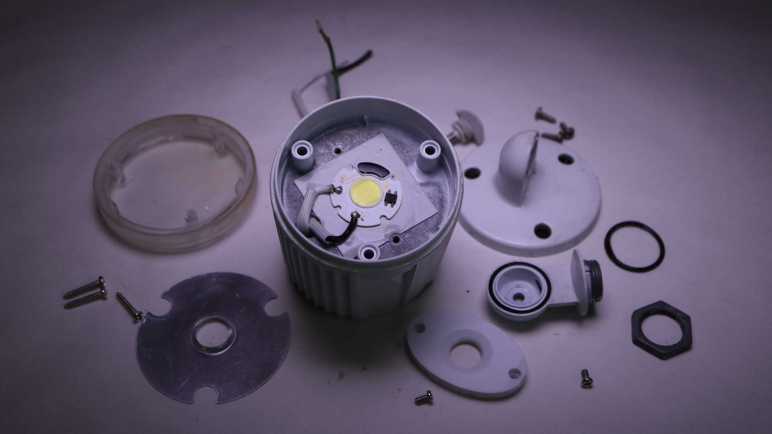
I took apart one of two LED light pods from an Aurum motion sensing light fixture (AEC-326KA2-AC14W) and found it was a big heat sink and waterproof enclosure for a small LED COB (chip on board) module. While the motion sensing brain has gone mad, turning the lights on and off at unpredictable times, the two light pods seem OK and are now available for another project. I don’t know what I’ll do with them yet, but I will jot down some initial notes here.

120V AC Power On/Off

Given that the LED COB takes 120V AC directly and turns it into light, portable battery-powered project ideas are out. Sure, I can probably rig up a battery-powered AC inverter, but that seems like an overly complicated and roundabout approach when I have many other LED modules already happy to work on DC power. It makes more sense to use these light pods for projects powered by household AC.

Another power related constraint is the fact a motion sensing light was only an on/off switch. The light was not designed to be modulated so I doubt it would cooperate with a dimmer module. Like the original usage scenario, the light is all or nothing.

I connected one pod to a power cord and plugged it in. A Kill-a-Watt power meter indicates a single light pod consumes roughly 14 watts of power as it shone brightly.

Concentrated Light

Not only is it bright, all that light energy is concentrated. The entire array of 42 LEDs are packed within a little less than one square centimeter of area. Very different from LED display backlights which distribute light evenly over a large area. Where might a concentrated light source be advantageous?

Thermal Management

I found the small LED COB attached to the large metal enclosure/heat sink via a big square thermally conductive pad of tenacious adhesive. I think it makes the most sense to leave it attached because trying to peel it off the pad risks damaging the circuit board. If I ever need active cooling, I might be tempted to peel it off so I could transfer it to something like a salvaged heat sink + fan module, but a better idea is to rig up a fan to blow over the already-attached heat sink enclosure.

The passive heat sink is probably fine. After running it for a few minutes, I can feel the metal starting to get warm but not uncomfortable. A motion sensing light fixture is designed to light up for a few minutes at a stretch. I probably wouldn’t have to worry about active cooling unless I use these light pods in an application that shines continuously for much longer.

Waterproof

The pod was built to be waterproof. Unlike the sensor pod, I saw no evidence of failure on any of its water barriers. They should still be good to survive outdoors, so I could conceivably use it in a project that is exposed to the elements, powered by 120V AC, and need a source of concentrated light. What might that be?

Mounting Provisions Front and Back

But if I don’t care about weatherproofing, the front and back of the pod are both held by easily accessible fasteners. I can replace one or both of those pieces while still leaving the large center heat sink + LED COB assembly intact. For the back, I could bolt it to my own mounting mechanism tailored for the needs of the project. For the front, I could put something in front of the LED instead of the current piece of weathered and yellowed clear plastic. Perhaps a lens assembly to focus the beam?

I know there’s a project idea for this capability floating somewhere within these constraints, but nothing is coming immediately to mind. I’ll add these two LED light pods into the archive of salvaged parts and move on to understand how a light switch has failed.

Aurum Motion Sensing Light LED Pod (AEC-326KA2-AC14W)

I am taking apart an Aurum motion sensing light fixture because its sensor and control circuitry has been damaged by water and no longer performs correctly. The pair of lighting modules still light up on command, though, so I’m hopeful I can find another use for them elsewhere. Let’s see what’s inside.

Based on my understanding of the sensor circuit, each of these two pods are capable of functioning as standalone 120V AC lights. White wire for neutral, black wire for live, and green wire for ground.

Supplying power lights up this little yellow circle of bright white LEDs, roughly one centimeter in diameter. It’s such a small surface area for a bright light source, especially relative to the volume of the rest of this pod. What is all that volume used for?

Like the sensor pod, a single fastener holds the elbow joint together and is easily disassembled.

Next is a trio of fasteners, easy enough to remove to let us see what’s inside the cylinder.

The answer: mostly air.

I had expected to see some AC to DC power conversion circuitry and was surprised to see such emptiness. The ground wire screws to the metal enclosure, but the live and neutral wires kept going to the front of the pod. There’s nothing else except access to three more screws.

Loosening those three screws released the front of the pod.

The plastic front was originally clear, but now yellowed and clouded with age. Moving it out of the way gives us a clear look at the LED array.

Cranking my lens to “Super Macro” mode enabled this picture, showing an array of 6 * 7 = 42 LEDs all wired in series. That would require north of 120V DC to drive, a pretty close match for rectified 120V AC. But I haven’t seen that rectifier yet.

Removing the oval plastic cover revealed this LED module in COB (chip on board) form factor. Made by Paragon LED, this compact circuit board accepts 120V AC power directly on its pads labeled L (line) and N (neutral). From there it takes care of everything else necessary to convert that power to light.

The second-biggest module (after the LED array itself) is this BT10S rectifier from HY Electronics, converting 120V AC power to DC and sending it onward to the LED driver somewhere under a black blob.

The Paragon LED module is fastened to the metal can with a gray square of soft sticky material. This must be a thermally conductive adhesive pad. And thus I have my answer to why we need a big metal can to support less than one square centimeter of LED: the COB needs a hefty heat sink.

Now that I have my answer, the next question is… what do I do with it? I don’t know yet, but I can write down some notes about the constraints involved.

Aurum Motion Sensing Light Circuit Boards (AEC-326KA2-AC14W)

I took apart a retired motion sensing light and found far more electronics components than I had expected to see inside the sensor pod. The complexity places it beyond my ability to trace through and draw up a KiCad schematic, but I still want to take a look to see what I can decipher.

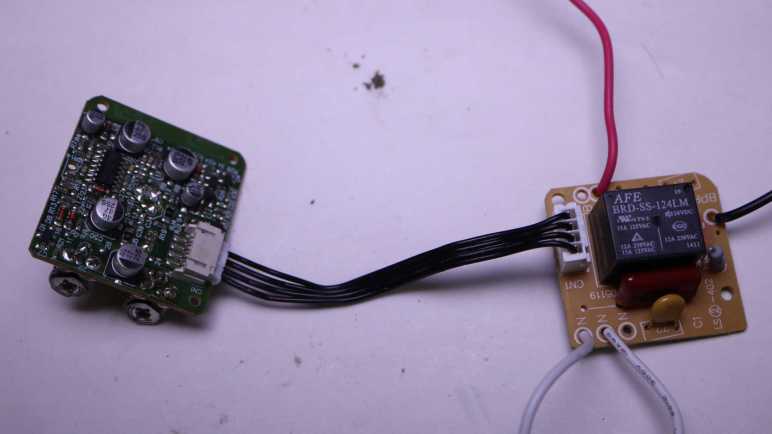
At a high level, it looks like one board handles the 120V AC power with a relay and the other board handles sensing and sensor logic. Four wires connect between them.

Looking at the front of the power board, the black wire is incoming 120V AC line, red wire goes out to light pods. The two white wires, one incoming and one outgoing, are 120V AC neutral. This confirms the sensor pod only switches AC power. Converting AC power to DC voltage to drive LEDs are handled elsewhere inside the light pods. There are only a few components on this side, dominated by an AFE BRD-SS-124LM relay. Surrounding the relay are what appears to be a resistor, two capacitors, and a 4-position connector to the logic board.

Looking at the back of the power board, I can see both neutral wires are wired together. Looking at AFE Relay’s product information for BRD series footprint, I can see the relay will connect/disconnect between the black and red wire for 120V AC line power. This is the business end of the sensor pod and determines whether the light pods receive 120V AC power or not

Beyond that, I’m lost. I had expected to see a transformer to turn 120V AC into a lower voltage, followed by a rectifier to turn AC into DC suitable for a digital logic board. I definitely don’t see a transformer here, and I don’t see a rectifier module. These small red things labeled with D are probably diodes, do they implement a diode bridge? If there’s no voltage reduction, does it mean 120V go all the way to the sensor logic board? Maybe looking there would help me understand what’s going on.

Here’s the sensor logic board with the actual sensor itself front and center. U2 is a status LED. Potentiometer LUX SR1 adjusts level of light sensitivity, TIME SR2 adjusts how long the light should stay on after motion detection threshold has been triggered. The brown tint on the potentiometers are rust, result of rainwater intrusion. They would have been the closest components immediately below the broken sensor view window. Such exposure wouldn’t have done their electrical behavior any good.

In front of the sensor is a shiny bracket, dividing its field of view into thirds: left, front, and center. Here’s an oblique side view of the arrangement. I had hoped to read markings on this sensor so I could go look for a datasheet, but I saw nothing. Maybe it’s hidden by the shiny bracket? It might be plastic with a shiny coating, which I can cut away. If it is metal I doubt I could remove it without destroying the sensor module.

And now, the star attraction: the unexpectedly complex sensor logic board. It’s a single layer board, so I noticed multiple zero ohm resistors used as an overpass over other traces. Lots of other nonzero resistors, capacitors, and diodes. I see three components labeled BR 34 and two labeled FR 33, short enough of an alphanumeric designation a search returned a lot of hits but none I recognized as relevant. The silkscreen designation for those components start with Q. Wikipedia page Reference Designator says Q are transistors.

Since it’s a single layer board with few components on the opposite side, there’s no need for side light trickery. Shining a light from behind is enough to highlight majority of copper traces on this board.

One way I try to orient myself on the nature of a circuit board is to look for the big brain in charge of the operation. If I can find a datasheet for the microcontroller, there’s usually a section about the intended market for the device, the peripherals it has to support that market, and have sample application schematics. The biggest chip on this board has a ST Microelectronics logo and markings 324 GZ17334. A search led me to LM324 series of quad op-amps. Not a microcontroller, and I see no other obvious candidates for one.

The lack of a microcontroller combined with the largest chip containing a set of op-amps imply this circuit board runs on analog logic. A field I know even less about, and marks the end of the road of what I can decipher about this circuit board today. I set it aside to focus on the LED lighting pods this circuit board formerly controlled.

Aurum Motion Sensing Light Sensor Pod (AEC-326KA2-AC14W)

I retired a motion sensing light because water got in the motion sensor pod and it stopped sensing motion like it’s supposed to. Now I’m taking it apart. This post focuses on the motion-sensing sensor section.

I cleaned everything before the teardown, so sun damaged caused the discoloration visible here. We can really see where this sensor pod was shaded by adjacent light pods and where it gets hit with sunlight. The mounting thread is pristine, as it was safely shaded by the sheet metal base.

A single screw holds the elbow joint together and is easily removed for disassembly.

The wrist joint is a different story. I see no visible fasteners and, to make things more complicated, it blocks one of two screws holding the sensor pod together. I’ll look at other parts of the sensor pod and come back to this headache later.

There are two adjustment knobs on the bottom of the sensor pod. Looking through the damaged sensor window, I can see they’re connected to rusty potentiometers inside. No fasteners or retention mechanism visible from here, so I’ll try giving it a hard yank.

Brute force pulls them out after overcoming a retention clip mechanism I couldn’t see before. There’s also a small soft translucent rubber band to mitigate water intrusion.

One of the sensor pod screws came out easily, but the other one is still blocked by the wrist joint I couldn’t open. I have no good ideas on how to access that screw, but looking inside the sensor window I could see where the screw threads into. I could use my Wondercutter to cut that off at the base. It should be able to cut this plastic but it can’t cut metal, so I referenced the removed screw length to know where to cut in order to avoid the still-installed screw.

Once cut, the pod opened to reveal far more electronics than I had expected. I thought this was one of those products where component count is squeezed to an absolute minimum. So I expected to see a single circuit board with a half dozen components. There are actually two boards separated by a piece of clear plastic, connected by a 4-wire cable, and I estimate several dozen components across both boards.

Two rusty screws held the front board in place, two more held the rear board in place, before everything came apart.

Now that I can look at the wrist joint from the inside, I can see there was no elegant way to remove it. I would either have to pull on it hard enough to overcome these one-way clips, or cut something. I guess I had accidentally stumbled into the least-cutting way to open this sensor pod.

The inside of the sensor window showed a series of ridges characteristic of a Fresnel lens, a feature I didn’t notice until I could see these pieces from their back.

I had hoped to find a simple circuit board I could understand. The unexpected complexity meant it was beyond my current skill level to decipher how everything worked, but I could still give it a try to see how much I could pick up.

Aurum Motion Sensing Light Components (AEC-326KA2-AC14W)

After looking inside an unreliable power supply, I moved on to another piece of retired electrical equipment. This motion-sensing light (Aurum Electronics model number AEC-326KA2-AC14W) overlooked my back yard for several years, installed under eaves facing west. The roof shielded it from direct sunlight from morning to noon, but it would be under punishing Southern California sunshine in the afternoon until sunset.

Sun damage eventually cracked the motion sensor window, letting rain into the sensor pod. The damaged unit would illuminate when nothing is in the yard, or stay dark when there actually is something moving. (Usually me, frantically waving.) I’ve installed a new unit so this one is getting the teardown treatment.

First step is to clean up years of outdoor exposure. More than just dust, there are also carcasses of dead insects and streaks of bird poop.

Inside the base is fairly straightforward. Mechanically, we can see two identical metal nuts attaching each light pod. The third smaller plastic nut holds the sensor pod. The two light pods are made of metal, the sensor pod plastic.

Electrically, green ground wire is screwed to the base, then a green ground wire enters each of two light pods. Curiously no ground wire enters the sensor pod. 120V AC power wires neutral (white) and live (black) wires go into the sensor pod. Two other wires (white and red) come back out, which are crimped to wires going into each light pod.

I can think of two ways to implement this:

  1. 120V AC power enters the sensor pod and is converted to DC power. The white and red wires coming out are DC power to run LEDs in each light pod.
  2. 120V AC power enters the sensor pod and is switched there. The white and red wires coming out are still 120V AC. Conversion to DC to run LEDs are done inside each light pod.

Which of these two guesses was correct, or perhaps it was yet another way I hadn’t thought of? I know of one way to find out.

Since each attachment point is fastened by a large hex nut, turning them counterclockwise was enough to disassemble this motion sensing light into its component modules: two light pods, one sensor pod, and the base which is now just an empty metal shell. I’ll look at the sensor pod first.

Thermaltake Smart BM2 750W Power Supply (SP-750AH3CCB-B)

I’ve just disposed of two salvaged cooling fans, and now I’m going to pick up a bigger one.

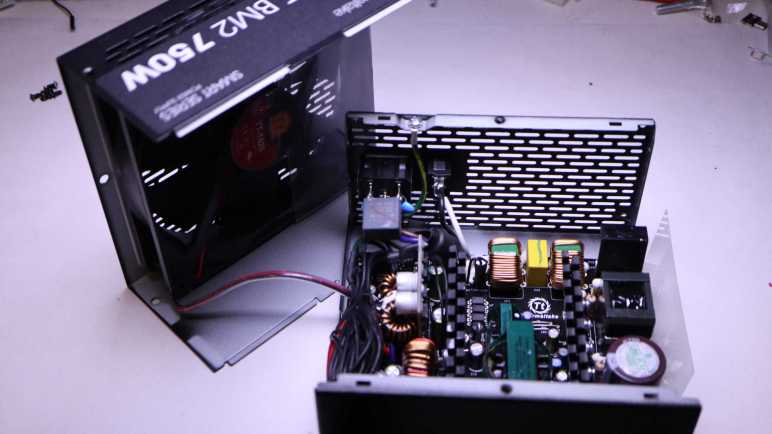
This Thermaltake power supply unit (PSU) was retired because it would turn on and run for only a short time (less than ten minutes, sometimes only a few seconds) then the computer would shut down. The fan turns, so it’s probably not simple overheating. Since it turns on, it’s not as simple as a blown fuse. But at least it didn’t fill my room with smoke, so that’s good.

It’s a shame this PSU died because it’s got nice specs, along with the convenience feature of modular connectors reducing wiring clutter inside the case.

Six screws held two halves of the enclosure together. Once removed I could slide them apart.

The 140mm fan is connected via a commodity JST-XH header, making it easy to repurpose.

This 140mm fan is larger than the 120mm fan I had just worked with, which on paper moves more air even as the fan turns at a slower (and thus quieter) speed. I’m curious to see if it is true, but I have to find a place for it first. This will be my first 140mm fan and I’m not sure what I’ll do with it just yet.

Here’s an inside view of those modular connectors, implemented as a collection of circuit board connectors. The power wires leading to this connector board is very hefty. Lettering on the insulation says 12AWG.
There were no obviously failed components inside this PSU.

And I see no obviously burned traces on the back of the circuit board. It’s a shame a high-spec PSU had to be retired, but I don’t like to take the risk of unreliable power. Bad power could damage far more expensive components (CPU, GPU, SSD) plus the annoyance factor of a computer that randomly shuts down. It’s just not worth it.

Two Broken 120mm 12VDC PC Cooling Fans

After I installed a working fan in a power supply, I had two broken 120mm 12VDC fans on my hands. One with a bad bearing which needed replacing, and another one which was going to be the replacement until my clumsiness destroyed it. I’ve taken apart similar fans before so I didn’t expect any surprises, but it’s always interesting to see how different companies solve similar problems.

The fan with growling bearing is by Yate Loon Electronics. It’s very hard to read very much more detail out of the label because its center has been distorted into a faded shiny bubble. I presume this is result of friction heat generated by the failing bearing.

Back of the label is consistent with heat damage. I had expected to see the motor shaft at this point but there’s a soft red rubber seal I had to remove first.

There’s plenty of lubricant visible, too bad none of this was in the right place to do much good.

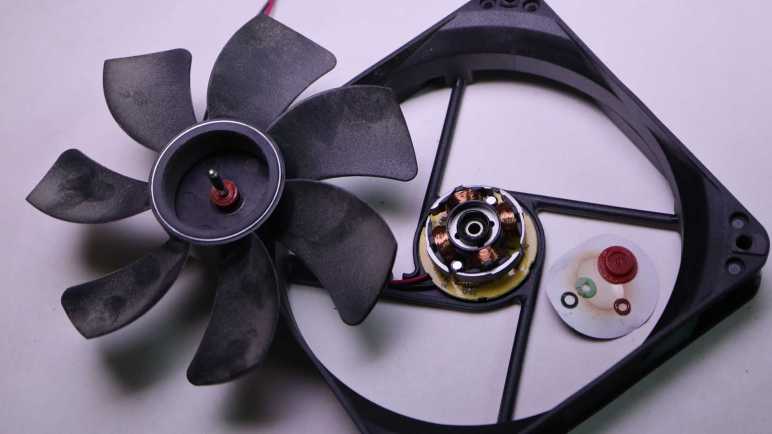
Popping off the white plastic split ring allowed the fan to come apart. I saw no visible wear to explain the noise this fan had been generating. At some point in the future I hope to have the knowledge to know what to look for, which may require magnification equipment.

A closer view of the core of the fan. It is securely fastened to the plastic base.

I found no fasteners or clips to release, so I went with brute force: using large pliers to rip the core off the base to see the back of the circuit board.


The other fan was functionally fine until I accidentally broke a fan blade. It was made by Poweryear and they have no fault for this. It was entirely my clumsiness.

Under the label was a hard plastic seal. I was surprised to see this, it meant I could not access the plastic split ring (or functional equivalent) to disassemble the fan.

I went straight to ripping the core assembly off the chassis, unintentionally breaking another fan blade in the process. I still couldn’t get to the back side of this fan’s axle. Teardown foiled!

No matter, sleeve bearings fail and I’m sure I’ll have more dead 120mm cooling fans in the future. For now I can harvest my first 140mm fan from a misbehaving power supply.

PC Power Supply Fan Replacement (CWT GPS650S)

While learning electronics by reverse-engineering board schematics, one of my computers started making an intermittent growling noise. I suspect a failing fan bearing. Probably not a big deal, as mechanical things wear, and failure is inevitable. I traced the sound to a Channel Well Technology GPS650S power supply’s internal fan. This computer has a 9th gen Core i7 CPU, which launched in 2019 so this power supply has been running for roughly four years. This is on the short end of PC cooling fan lifespan, but hopefully just bad luck of being on the short end of the bell curve.

Looking on the bright side, I know how to replace a failing fan. So given a choice I prefer this failure mode versus blowing a non-user replaceable fuse or burning up.

Getting past a few “no user serviceable parts inside” and “warranty void if removed” stickers opened up the enclosure to access the 120mm 12VDC fan.

Something’s definitely wrong with the fan, as the label isn’t supposed to get puffy and shiny in the middle like that. This is consistent with friction heat generated by a failing bearing.

Fortunately, the fan seems to be plugged in to the power supply control board with a commodity JST-XH 2-position connector.

Sitting on my shelf are multiple 120mm 12VDC cooling fans that can serve as suitable replacement. One of them even has a JST-XH connector already installed. Judging by the sheet of airflow control plastic on this fan, it was salvaged from another power supply. Probably the the one that blew an inaccessible fuse.

Unfortunately it was not that easy, but that was my own fault. I connected it up to my bench power supply dialed up to 12V DC for a test. It spun up nicely and when I reached over to disconnect power I knocked the fan grill into the fan. The fan, spinning at full speed, dealt with the sudden stop by snapping off a blade. Rendering the fan useless. D’oh!

But I had other fans to spare, including one with an Antec sticker that probably meant it came from the power supply that went up in smoke. It should work just as well, merely a bit less convenient for me because I had to cut off its existing connector and crimp my own JST-XH compatible connector. This time I was more careful with the spin-up test and did not break a blade.

The power supply is now back in action, running quietly with a replacement salvaged fan. And now I have two broken fans on hand: one with a bad bearing and another with a broken blade.

Voltage Step-Down (Buck) Converter Module Schematic (AELH)

As a KiCad practice exercise and for a better understanding of modules I use in my projects, I wanted to trace through circuitry of this voltage step-down converter (a.k.a. buck converter) module. Unfortunately, it packed its components too tightly for me to easily see copper traces on this circuit board.

Then I figured out I could light up the circuit board substrate from the side, making all opaque copper traces clearly visible.

Now I could trace through all the paths, taking notes as I went.

I learned a new lesson about markings on surface-mount resistors. When the third character is a letter, it is an EIA-96 code and I need a decoder like this one on DigiKey to decipher their nominal resistance.

There’s no room for component labels on this tightly-packed module, so I assigned my own.

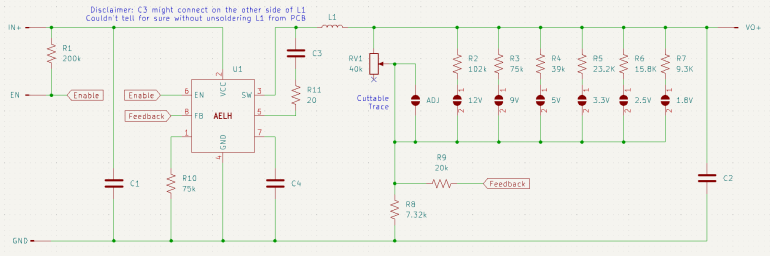
And here’s the KiCad schematic I generated from my tracing notes. Aside from the row of voltage pre-select resistors, it is superficially similar to the MP1584 module which is no surprise given they serve the same purpose. The most curious difference for me is the lack of a diode in this module. I had thought that was a required part of voltage conversion. Either I misunderstand or an equivalent is built in to this unidentified AELH chip.

Another surprise was the potentiometer only go up to 40k Ohms. Judging by the row of pre-select resistors, this implied the potentiometer is only be good for up to a little over 5V. If we want to go any higher, we’d need to use the pre-populated resistors for 9V or 12V, or figure out something on our own.


This KiCad learning project is publicly available on GitHub

Side Lit Circuit Board Highlights Copper Traces

After a brief detour playing with AI-powered image generators, I returned to the challenge of deciphering the workings of voltage step-down converter (a.k.a. buck converter) modules I bought off Amazon(*), built around a chip I can only identify by its marking “AELH”. Not only is the identity of the chip is still a mystery for now, tracing through the surrounding circuitry is really hard due to the fact whoever laid out this circuit board was very efficient at packing everything into a small space and left very little room for me to tease out circuit traces.

It’s possible to see a difference between areas with and without copper, but it’s not a very clear difference. I tried polarizing filters but they didn’t help in this case. I also tried playing with contrast settings in a photo editor, which has partial success but still not clear enough.

The difference is much more visible on the back side (flipped here so all the vias line up between these two pictures) where it lacks shadows cast by various components. One defining characteristic of copper traces on a circuit board is that it is completely opaque, relative to partially translucent areas where we have just green solder mask over circuit board substrate without copper. Because the backside is generously covered with copper, shining light from the back won’t help me see traces on the front because the light will be blocked.

So I thought I would try shining light into the circuit board substrate from the edges. Looking in my pile of parts for a sharply focused light source, I dug up my pack of red LEDs with a tight beam pattern. (*) These were intended for use as “laser” pointers while being much cheaper than real lasers, and I bought them for my Lissajous curve project.

The results showed promise but clearly not enough. The advantage of these modules is their tight focus, not their power output. Once I shine that light into a circuit board, their light energy scattered as expected. Unfortunately it just didn’t pump in enough light to bring out much detail. I turned off all the room lights and turned up camera sensitivity, but it was not enough.

If raw power is more important than precise direction, maybe all I need is a bright LED. The easiest one to try is the “flashlight” feature on my phone sitting close by. I already had the AELH buck converter module in my Stickvise (*), sitting on a breadboard to bring it up to the right height for my camera lens. By coincidence, this was also the right height to line it up with my phone LED making the experiment easy.

We have a winner! The white LED set the circuit board substrate aglow, showing all copper traces as clearly visible dark paths. The effect is most pronounced on the left side and contrast quickly falls off towards the right, but for this module I only needed help on the left. If I need to apply this technique on a larger circuit board in the future I will probably need to build a rig to shine white LEDs from multiple directions, but for today my phone LED illumination was enough to trace through this circuit and draw up a schematic.


(*) Disclosure: As an Amazon Associate I earn from qualifying purchases.

AI Generated Rover Mascot Has Room for Improvement

In the short time we’ve had usable generative AI systems, they’ve quickly evolved from “obviously nonsense but there is an outline of an idea” to “superficially fine but nonsense beyond the surface”. Asking an image generator to design a rover has improved from a jumble of pixels to something that looks superficially like a machine but upon closer inspection couldn’t possibly work. These systems are evolving rapidly, so I’ll check back in a few months to see what progress they’ve made.

In the meantime, today’s systems may be usable if I ignore mechanical functionality and focus on appearance. For this second round, I’m asking Microsoft Bing Image Creator (powered by OpenAI DALL-E) to design a cute mascot for the Sawppy project, hoping for something like the mascot for the Mars 2020 rover naming contest. I gave it the prompt:

Mars rover with a rectangular smiling head and six wheels holding a sign that says “Build Your Own Rover!” in hand-drawn cartoon style on a white background.

And here are the results:

Contestant #1 comes across as a little creepy because it seems to have two faces: one in front of the body and another on top of the mast. It’s got only four wheels instead of the six I asked for.

Contestant #2 at least has only a single face, and a friendlier-looking one, but again it has only four wheels and the suspension linkages are missing entirely leaving the body to float in midair. Mars has gravity so this won’t work. The sign also skipped the word “own” for some reason, though if that was the only flaw, it’s something easily fixable in a photo editor.

Contestant #3 has a single face and a sign with all the words. Still only four wheels, but at least they’re connected with mechanical-looking linkages instead of a cartoon arc or missing entirely.

The good news with contestant #4 is that it has more than four wheels. The bad news is that it has five. I guess the AI judged this to be a fair compromise between four and six wheels? Only three of these wheels have visible suspension linkages, and they’re connected to the outside of the wheel instead of the center. Perhaps the AI had landing struts and pads in mind, and mistakenly thought replacing the pads with wheels would work equally well. An additional data point is that “five wheels” and “attached to tires” problems also came up for another rover design drawn as a result of Quinn Morley’s prompt. (See yesterday’s post.) This is not an accident… something in DALL-E is intentionally doing this, but why?

I was going to critique this entry for lacking a smile, until I noticed there are little arcs on the front of the body. That’s the wrong distance from the eyes on top of the mast to be a smiling face, but I guess it was satisfactory for an AI “does it have a smiling mouth Yes/No” checklist.


Looking at these as a group, I noticed they’re all drawn at the same three-quarter view angle in an orthographic projection with almost no perspective distortion. (Head of #3 and maybe #1 had perspective sides.) That was not part of my prompt and I’m curious if that is typical of “hand-drawn cartoon style”.

I like telling the generative engine to draw in cartoon style because it reduces a lot of visual noise and mitigates the uncanny valley effect of generators getting little details wrong. I think I’ll start with “cartoon style” for my image generator sessions unless I have a reason otherwise.

I also noticed all of these rovers have a boxy body on top of wheels and a boxy head on top of a mast, so it understood that much of the robots sent to Mars. But its training set must be dominated by vehicles on Earth, or at least that’s my hypothesis for its obsession with four wheels instead of the six I asked for.

None of these images are good enough to be the new Sawppy project mascot, but they’re very close. I’ll try again later. Bing beat Google to the punch on this one, but Google is working on an answer. Adobe also has a limited free tier for their Adobe Firefly product. I’m confident there will be more options in a few months. This was a fun distraction and good enough to let my brain think up a solution to my recent circuit board analysis problem.

AI Generated Rovers Not Mechanically Sound (Yet)

Taking a break from exploring electronics, I went to the to-do list and picked off the item “look into generative AI”. This particular story started several years ago when GitHub user @johndpope opened a GitHub issue on my Sawppy repository advocating for a Lexan body shell. Aesthetics is not my focus for Sawppy but I’m glad to see others are thinking about cosmetic enhancements. In a recent update, @johndpope added a large number of images generated by Stable Diffusion. They’re really… something. If there’s potential here, I really have to squint to see them. For the most part these images generated by Stable Diffusion were not mechanically sound. Or even mechanically feasible. Or even sane. It’s a patchwork of bits I recognize, assembled into a surrealistic dream that reminds me of Salvador Dali paintings.

(Image credit: Stable Diffusion from @johndpope prompt)

What’s going on here? An Ars Technica article about Stable Diffusion running on Apple Silicon had put a note in the back of my mind, and after seeing @johndpope updates I thought I would look into it further. I do own an Apple MacBook Air with a M1 Apple Silicon processor appropriate for the links in that Ars Technica article, but it is my understanding my gaming PC’s NVIDIA RTX 2070 GPU would be faster still. So I followed instructions on this @AUTOMATIC1111 GitHub repository to run Stable Diffusion locally on my machine.

My experiment results were no better than what @johndpope had posted. Jumbles of things, nothing very coherent, and the occasional misshapen nightmare fuel. Other tools like Midjourney and OpenAI’s DALL-E were supposed to be better, but they were commercial offerings not available for running locally and I didn’t feel like this experiment was worth handing over my credit card. Then I read Microsoft had licensed DALL-E for Bing Image Creator. No credit card necessary, just a Microsoft account. Well, I have that!

To see if things have gotten better, I headed over and here’s the most sane result from the prompt: “mechanical diagram of a six-wheel mars rover in blueprint style

(Image credit: Bing Image Creator from my prompt)

This is better looking than what I got out of local Stable Diffusion. (And ironically less Dali-like, given the DALL-E name.) But it is clearly weak on sound mechanical design concepts starting with the fact I asked for six wheels and got only four. Symmetry is not a well understood concept, either, as these four wheels are visibly misaligned relative to each other along orthographic axes. And there are random parts scattered around, what’s up with that? And finally, it seemed to have ignored the “Mars” part of my prompt as this creation shows no indication of adaptations for a Martian operating environment.

I tried a few variations on my prompt and my impression of this tool is to lean into its tendency for mechanical nonsense and get designs packed with greeble, because it’s certainly got plenty of visual noise. But I certainly can’t use it for anything that can function mechanically. To be fair, mechanical design is not the focus of such image generators. Plus, this field is still evolving rapidly so in a few months things might be very different. But at least for today, image generation AI pose no threat to mechanical engineering jobs.

A short while later I got another idea: instead of trying to make it do something mechanical, how about an abstract cartoon rover mascot?


[UPDATE]: In the comments, Quinn Morley got an interesting looking rover from the prompt “SAWPPY the rover, with six wheels and a body made of glass instead of metal, on Mars.

(Image credit: Bing Image Creator from Quinn Morley’s prompt)

At first glance, this looks really good!

But upon closer inspection, I noticed the suspension linkages are attached to tires instead of hubs, and there seem to be only five wheels instead of the six specified. Something about this particular combination of flaws is appealing to DALL-E’s inscrutable brain because it also showed up in my cartoon mascot experiment.

Voltage Step-Down (Buck) Converter Module With Mystery AELH Chip

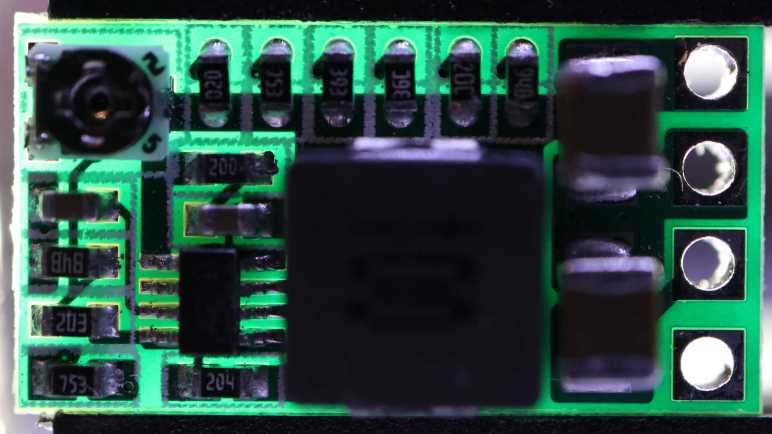
I’ve used a commodity voltage step-down converter (a.k.a. buck converter) module built around a MP1584 chip for many projects and it has worked well. Tracing the MP1584 module out to a KiCad schematic gave me a better understanding of that black box. It didn’t expose the enable pin, though, and there was one project where I wanted that capability so I tried a different buck converter module because it had an exposed enable pin. Here are pictures of the module, with the backside image flipped so all the traces and vias would line up as I try to follow them from one layer to another.

It had a row of resistors on board for voltage presets, and I could use them by cutting the trace to the adjustable potentiometer and soldering a bridge across the desired position. Despite the space dedicated to these preset resistors, this module was only about 60% of the size of the MP1584 module I had been using. Here they are side-by-side, with the MP1584 module to the left and this module to the right.

I thought it might be fun to decipher the magic behind this compact and capable module, but there were two significant problems.

The first was that I still couldn’t find any information on the chip at the heart of this module. I can read the marking AELH easily enough, but I only found one chip with that marking and it’s the wrong chip: the MAX6514UKP115, part of Analog Devices MAX6514 line of temperature switch chips. A temperature switch is not a voltage converter, plus I have 8 pins here and a MAX6514 has just 5-pins.

The second problem was the fact this module has a very tightly packed layout. The copper wiring on this circuit board are hard to see as they snake between tight gaps in components and underneath them in many cases. To trace through this module, I would have to somehow make copper paths show up clearly against non-copper areas of this circuit board.

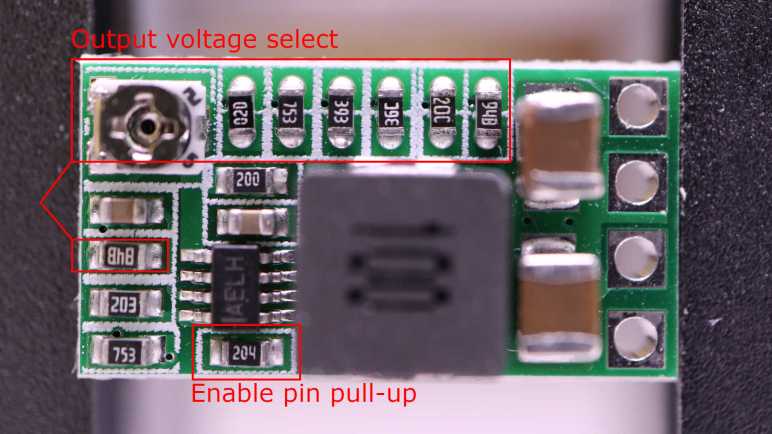
As a consolation prize I have at least obtained some practical data points on this module by probing with a continuity meter to see which pads are connected. Aligned with the voltage select solder bridge pads are a row of resistors lined up with the potentiometer. These form half of the voltage divider providing feedback to the AELH chip. I also found the resistor acting as the bottom half of the voltage divider.

An earlier project using this module had problem controlling the enable pin on this module because it would be enabled by default via a pull-up resistor. When my microcontroller went to sleep I wanted the boost converter to be disabled as well, but the pull-up resistor foiled that plan. Not wanting to deal with tiny surface mount components at the time, I decided to wire in an external pull-down resistor to fight that pull-up resistor. In the future, if I have a similar need, I have now located the pull-up resistor I need to remove.

For the moment, poor visual contrast of copper and its tight layout foiled my goal of tracing through this board to generate a schematic. As a change of pace, I took a break and went to play with AI image generators.

Voltage Step-Down (Buck) Converter Module Schematic (MP1584)

Drawing a KiCad schematic for a 4056 battery management system (BMS) module was an educational exercise. I’ve only recently added that BMS module to my repertoire of tools, and now have a better understanding of what that module could and could not do. My next KiCad practice will look at an old friend. I’ve been using MP1584-based voltage step-down converter (a.k.a. buck converter) for years, ever since I found it worked well to supply a steady 5V DC (up to 3A) to a Raspberry Pi from a battery pack’s varying voltage levels.

For the 4056 schematic exercise, I started on my own then checked my answer against others I found online. I’ll go a different route this time, because the components on this module are not labeled. It’s a minor thing but I want consistent component labels (R1, R2, etc) between my exercise and the answer key, so I’ll start by comparing the module against “typical application” schematic in the datasheet and label matching components with the same name.

I flipped the back side image so traces and vias would line up as I compare these two pictures.

I knew there would be some differences between this module and the “typical application” circuit, because it has a potentiometer to adjust the output voltage whereas the datasheet sample schematic had no such adjustment provision.

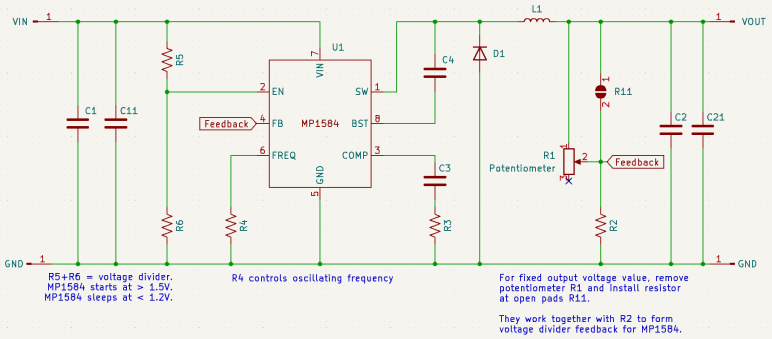
Here’s what I came up with. The potentiometer replaced resistor R1 in the datasheet schematic, acting as the upper half of a voltage divider that provides a feedback signal for the MP1584. Interestingly, this module preserved an option for fixed output by with open pads ready for a small surface-mount resistor. I labeled this pad R11. To convert this module to fixed output, we can unsolder the potentiometer and solder something in R11.

Resistors R5 and R6 formed another voltage divider, whose output level will dictate whether the MP1584 is enabled and running (>1.5V) or go to low power sleep (<1.2V) I found these earlier in an attempt to raise the enable voltage level. This schematic exercise confirmed my earlier understanding was correct and provided context relative to the rest of the module.

Capacitor C6 in the datasheet schematic was part of the COMP (control loop frequency compensation) circuit, but it was omitted on this module leaving just its friends C3 and R3 to do the job. I don’t understand enough to know why this is OK. Or if it’s not OK, what the consequences might be.

It’s probably not dropping capacitors for the sake of reducing component count, because the module actually added two capacitors not on the datasheet sample schematic: one each to help buffer input and output voltage. The small C11 is electrically parallel to the larger C1 buffering between VIN and GND. And a small C21 is electrically parallel to the larger C2 between VOUT and GND. It’s possible these capacitors needed to be close to something. If not, using different capacitors help smooth out response across the frequency range. In the intended use where MP1584 is part of a known circuit, specific frequency response can be planned for. But since this is a module that may be connected to different circuits, compatibility across a broader range makes sense.

One detail I found interesting was the BST (bootstrap) pin, which the datasheet explained is part of the power supply circuit for the high-side MOSFET driver. That seems reasonable except it is supposed to be connected to SW (switch) via a capacitor. SW is the output signal for the high-side switch. How is that high-side MOSFET powered by its own output? There must be something interesting going on with the startup behavior of this pin. Is it typical of buck converters? I can look at another one to compare.


This KiCad learning project is publicly available on GitHub

Single Cell Lithium-Ion Battery Management Module (4056) Schematic

After drawing up schematics of circuit boards salvaged from hair clippers for KiCad schematic practice, I decided to increase the difficulty with a single cell lithium-ion battery management system (BMS) module built around a 4056 chip. Since this is a popular module made by many vendors, I know publicly available schematics already exist. I don’t see my KiCad exercise as duplicate effort. I see those existing schematics as an answer key for me to check against!

In my earlier look, I found many chips from different vendors under the 4056 designation, all of which seem to be mostly compatible with each other. Since then, I’ve come across several pointers to NanJing Top Power’s TP4056. Either they were the first or they have been the most successful vendor of this solution. The modules I have on hand are not genuine TP4056, but one of the competitors marked 4056H.

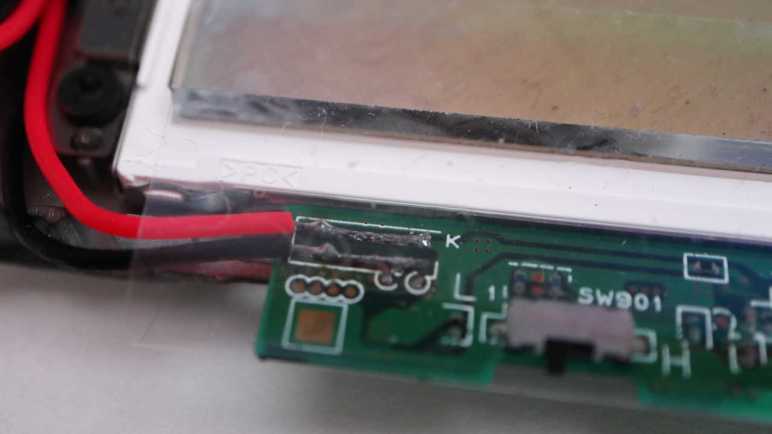
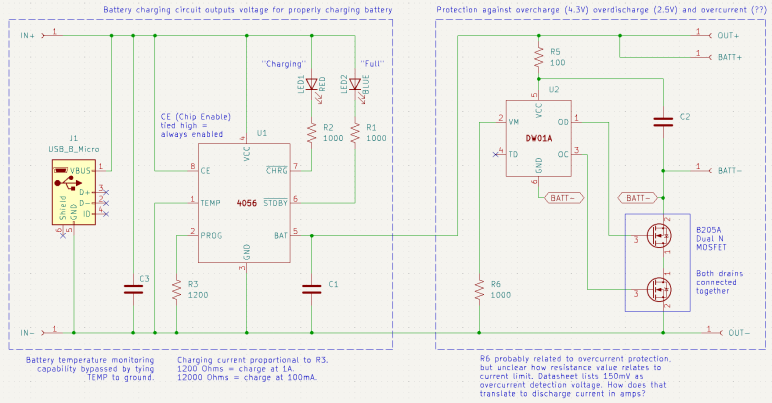
I was also unable to read any markings on component marked U2 before. Thanks to my new polarized light macro photography solution, I could now make out its faint markings as DW01A. This is a battery protection chip that guards against over-charging (cut off at 4.3V), over-discharge (cut off at 2.5V) and over-current (150mV? That doesn’t make sense.)

Armed with this information, I drew up my own schematic symbols for the 4056 chip and the DW01A. They’re probably available in a KiCad part library somewhere, but I wanted the practice with KiCad symbol editor. It took me a while to figure out how to label inverted pins. Eventually I found this KiCad forum thread telling me to put the name inside curly brackets and prefixed by tilde. So for the inverted STDBY pin I had to type in ~{STDBY}.

I ran into an ambiguity with surface-mount resistors on this board. There were several labeled with 102 (meaning 1K Ohm) or if I should read them upside-down as 201 (meaning 200 Ohm). In this case I was able to measure them at 1K Ohm but I won’t always have that luxury. How to I figure out which way is up?

I drew my schematic with dotted lines marking the two major feature areas: to the left is the battery-charging circuit driven by the 4056 chip, to the right is the battery-protection circuit under control of the DW01A chip. I traced through most of the 4056 side earlier, because I was looking to adjust charging rate and found I could do so by replacing R3 with resistor of a different value. This time I was more curious about the over-current protection side of the module. Looking at my schematic, I thought R6 would be a promising lead for current control, but at 1000 Ohms its resistance was far too high to be a current-sensing shunt resistor. Plus, it wasn’t in line with the load path. I didn’t understand how it could work or how it related to the 150mV current-sensing value listed in the DW01A data sheet.

Thinking I probably made a mistake in my schematic, I went online to check against others and it seems to match. One of those schematics was attached to this Electronics StackExchange thread, which also explained how over current protection works in this design. The details are a bit over my head, but supposedly works through the dual N-channel MOSFETs already present to handle over-charging and over-discharging. Sounds like the engineers behind DW01A were clever enough to get over-current protection without using a current-sensing shunt resistor, and that’s why I couldn’t find one. This is very interesting and I wished I was familiar enough with these components to fully understand how it works. Maybe I can come return to this topic later after I’ve learned more electronics.

What is clear to me, though, is that I wouldn’t be able to change the over-current limit by changing a resistor. I would have to find a dual N-channel MOSFET with different characteristics to trigger protection at a different limit. And if I want to do it on this board, I would have to find one with a footprint compatible with the 8205A chip used here. That would be a project well beyond the scope of today’s KiCad exercise so I set the idea aside and moved on.


This KiCad learning project is publicly available on GitHub

Conair Hair Clipper (HC318R) Schematic

Deciphering the circuit board from a Remington hair clipper was a relatively simple exercise in understanding how a circuit worked, so I followed it up with the circuit board from a Conair hair clipper teardown.

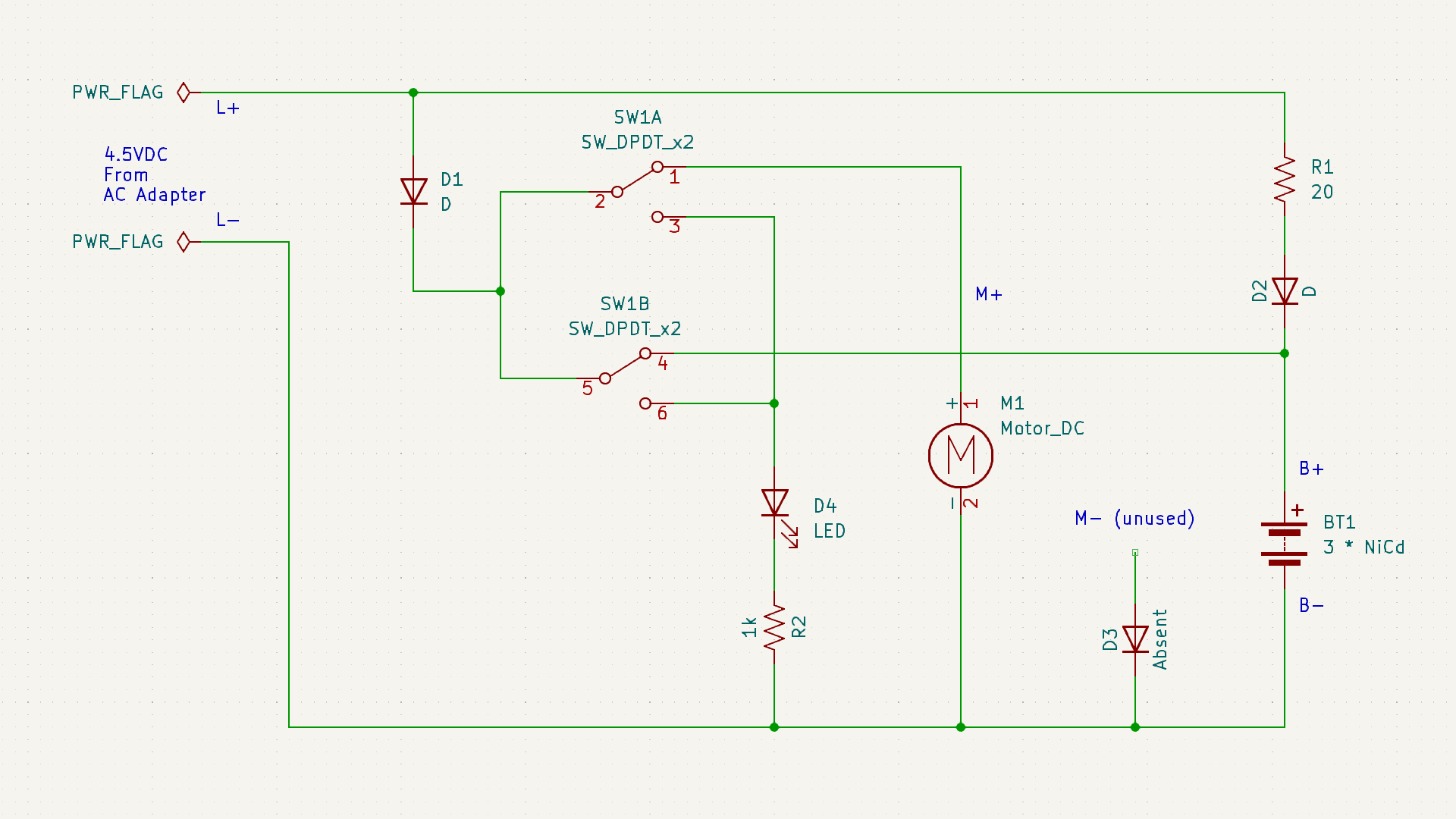
The functional requirements would have been the same: When the switch is on, use power from a set of nickel cadmium batteries to power a motor. When the switch is off, accept power from a DC charging adapter to charge nickel cadmium batteries, plus a red LED to show charging is in progress.

The execution, though, turned out to be very different. What caught my attention about this board during the teardown earlier was the absence of diode D3, and the motor’s negative terminal was connected directly to the battery negative terminal via a wire instead of the designated “M-” connection point on this circuit board. Probing component connections, I came up with this schematic:

The absent diode D3 is directly connected to the unused M- terminal. My best guess was an intent to prevent the motor from sending reversing voltage into the battery pack, but that doesn’t seem like a very likely scenario in a hair clipper. Maybe they thought it was when they designed the circuit board, and then decided it was not a problem?

20 Ohm resistor R1 is in line with diode D2, leading to battery positive. This pair would only come into play when the device is charging. So D2 would be in charge of making sure the battery doesn’t feed back into charging port terminals L+/L-, and R1 performs some sort of voltage or current regulation for charging. The Remington clipper circuit board had a provision for such a resistor, but absent from my unit. Presumably they decided it was not necessary.

While D2 is in charge of making sure the batter doesn’t feed back into charging terminals while the switch is set to charge, D1 exists to do the same job when the switch is set to run motor. I found it interesting they decided against consolidating those two diodes into a single diode as Remington did. The difference between those two paths is R1, so the absence of its counterpart in Remington would be related in some way.

Charging indicator LED is in series with a current-limiting resistor R2. 1k Ohm would keep that LED pretty dim, but it doesn’t need to be particularly bright. The Remington clipper circuit board had a resistor in parallel with the LED whose purpose mystified me. There is no counterpart resistor here so it must not be intrinsic to hair clippers.

The most surprising detail was the path from battery positive to motor positive. Obviously that would be routed through the switch, but I didn’t expect to find that it was routed back through the switch a second time. This series path would double the electrical resistance added by the switch. In contrast, the Remington board runs motor power through the switch in parallel, halving the switch resistance. Why did Conair do it this way? The Remington approach made more sense given my level of knowledge.

Due to the relatively simple appearance of these two hair clipper control boards, I thought it would be easy to fully understand what they do once I captured their schematic. But as it turned out, they each have their own mysteries. I hope to eventually understand such things as I continue learning electronics design by reverse-engineering more circuit boards.


This KiCad learning project is publicly available on GitHub

Remington Hair Clipper (HC-920) Schematic

After completing an upgrade for my workbench lighting solution, I went back to my most recently learned skill: drawing electronic schematics in KiCad. I’ve learned that skill once and lost it. I don’t want it to atrophy again after this second round. I want to practice with a few simple things and the top of my electronics waste pile is the circuit board from my Remington hair clipper (HC-920) teardown. Great, I’ll start with that!

When I looked over this board briefly, the absence of resistor R1 drew my attention. Instead of an actual resistor, this part of the circuit has a solder bridge on the back turning R1 into a zero Ohm resistor. How did this circuit work, and what role would a non-zero R1 have played?

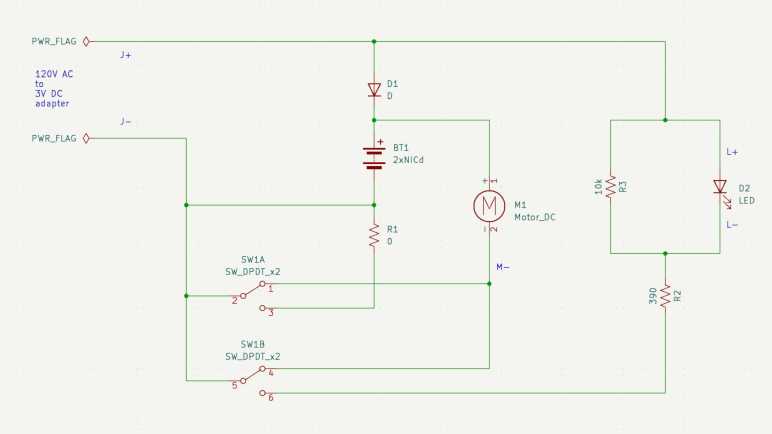
After tracing through how the components are interconnected and drawing them out in a schematic, I’m no closer to an answer. (The dual-pole dual-throw switch is drawn in the “motor running” position.)

The easiest part to understand concern the red LED that indicates charging is underway. When the switch is in the non-running position, the LED receives power from the charging power adapter. R2 is a 390 Ohm current limiting resistor for the LED, which I expected. R3 is a 10K Ohm resistor parallel with the LED, which was a surprise. Why is R3 here? Drawing a bit of power away from the LED would have made it a bit dimmer, but if that’s the objective, it seems easier to increase resistance of R2 instead of adding another component to the board. I assume this design has been optimized to squeeze every penny out of production cost, so if R3 survived that process it must have some importance I don’t understand.

Terminals J+/J- provide 3V DC from the charging adapter. In parallel with the red LED, it passes through diode D1 to the battery. The diode makes sense to ensure battery power doesn’t feed back out to to the charging port or wasted on the red LED.

When the switch is in the running position, as shown in the schematic, the motor positive and negative terminals have continuity with battery positive and negative. It also has continuity with terminals J+/J-. Interesting, as this implies I could run the motor directly off the charging adapter if it was plugged in, turning this cordless hair clipper into a wired hair clipper. This would have been an option to run the clipper if the batteries had died. I don’t think I was aware of this capability and it didn’t even occur to me to try!

That leaves the mystery resistor R1, which runs between the batter negative terminal and J- terminal when the switch is in the non-running position. This implies R1 is involved in limiting charging voltage or current on the battery charging circuit. However, there was a black wire directly connecting battery negative to J-, which would have bypassed this resistor on the circuit board. And if we cut that wire the motor would have no way to receive battery power. Maybe I’ve made a mistake in my schematic, though I couldn’t find it if so. But if not, R1 makes no sense in this wiring arrangement. It must have been designed to support a different physical wiring arrangement. So given what we have here, it makes sense R1 is missing and bridged with a blob of solder.

I had fun with this, so naturally I wanted to do a compare-and-contrast with the circuit board from a Conair hair clipper I had also taken apart.


This KiCad learning project is publicly available on GitHub

Laptop Backlight External Power and Optional Polarizer

I have a salvaged LED backlight module that I intend to turn into my workbench light. The LCD pixel array itself is gone, I’m working with the backlight LED strip, associated light diffuser, the polarization film, and metal frame. I have the display circuit board as well, but I’ve chosen against interfacing with its onboard backlight LED controller and voltage boost converter in favor of the simpler solution of providing external power for the LEDs. My LED tester says I need to find about 32.2V DC to drive these LEDs at 20mA.

I rummaged through my bin of salvaged power supplies. I found this HP inkjet printer power supply CM751-60190 who previously helped with vacuum fluorescent display adventures. I measured its open-circuit output voltage at 31.8V DC. Perfect! This eliminates the need for a boost/buck voltage converter, and would drive the LEDs at a little under 20mA. Giving me a bit of safety margin because I’m not monitoring current draw as the real backlight controller does, and hopefully driving these LEDs at slightly under 20mA would extend their service life as well.

All six strings are wired in parallel to this power source, and it lights up quite nicely. Despite being a smaller panel drawing a tiny fraction of the power, it illuminates my workbench almost as brightly as the large Monoprice monitor thanks to the fact it isn’t working through multiple layers of LCD infrastructure: this was just the backlight.

I considered the effect of applying power directly to these pads. What would that do to the rest of the circuit board? The 31.8V DC would be applied to the output of the onboard boost converter circuit. It would definitely power up the output buffer capacitor of the boost converter, which is fine and possibly even helpful. Beyond that capacitor would be a diode blocking the 31.8V from going any further, leaving the rest of this circuit board alone. This setup suits my purpose just fine so no further modifications are required.

After the power situation was settled, I want the polarization layer available for optional use. To each corner I taped small magnets extracted from an iPad case. I did the same for each corner of the polarization filter acrylic. Once done, I can attach the filter magnetically when I want to take photos with polarized light. The rest of the time, I could remove that filter for brighter illumination. I also taped four magnets under the table so I have someplace to store the polarization filter when I don’t need it.

Later I realized this used 12 magnets when I only really needed 4 on the filter. The backlight corner and storage locations could have been plain steel for those 4 filter magnets to stick to. But I already had plenty of little magnets available, and using them saved me the effort of trying to find and cut small steel pieces. If I ever run short on small magnets I can come back. In the meantime I’ll leave it as-is.

So far this workbench lighting solution is better than using the big Monoprice monitor. No obvious problems surfaced within the first hour of use, so I’ll keep using it until I find a reason to tinker with it again. I’ve got more electronics learning to do!