Monoprice Mini Deluxe SLA Arrives

When I was given a FormLabs Form 1+ resin 3D printer, I had dreams of high detail resin printing. Alas, I eventually found that printer to be broken beyond the point of practical repair. It was free and worth every penny as I enjoyed taking it apart. But it put the thought of resin printing in my mind. So, when Monoprice cleared out one of their resin printers (item number 30994) I grabbed one. I could never resist a clearance on something I wished for, like what I did earlier for a graphic drawing display.

As far as support is concerned, I understand this device to be a rebranded Wanhao Duplicator 7 Plus. There are a few changes, such as the lack of orange acrylic windows into the print volume. For the price, I can probably deal with it.

The product was shipped directly in its brown product box. At least it didn’t have fancy graphics, which reduced its attraction to thieves.

At the top of the box is the manual (good), FEP film (eh?) and a “please don’t make us restock” flyer.

Under them is a handle. Should I lift it? Looks very tempting.

I decided not to lift the handle and pulled out top foam block instead.

As it turned out, lifting the handle probably would have been fine. Because now the handle is all I have to pull on.

It appears to the print volume lid, with a red strip around its base. Later I determined the red strip was not packing material, it is intended to seal against light.

Once that lid was lifted, I had no obvious handles to pull on.

I carefully set the box on its side and slide out whatever’s in the bag.

The bag contained everything else, as there was only a block of packing foam left in the box once the bag was removed.

Everything else is packed within what will eventually be the print volume.

They were held by these very beefy zip ties.

At the top of the stack is the build plate. Looks like there is a bit of manufacturing residue that I have to clean off before I use it.

A plastic bag held a few large accessories.

A cardboard held some of the remaining accessories.

Contents of the box. I see a small bottle of starter resin, a container (for leftover resin?) A few gloves, fasteners, and a USB flash drive presumably holding software.

Under that cardboard box is the resin build tank.

A sheet of FEP film was already installed in the frame. The bag at the top of the box is apparently an extra sheet.

Initially I was not sure if tape around the screen is intended to be peeled off. I left it on and that was a good thing. Later research found that it holds the screen in place and is a factory-applied version of what some early Duplicator 7 owners did manually to resolve a design flaw.

The manual hints that the box used to include additional accessories. Playing with image contrast, I can read them to be “HDMI Cable” (why would there be one?) “USB Cable” (I have plenty) and “Print removal tool” (But there is a spatula?)

Icon for slicing operation is a slice of cake. Looking almost exactly like the icon in Portal. I hope this is not a lie.

Here’s everything in the box laid out on the floor.

Here’s a closeup of the base of Z-axis. It uses an ACME leadscrew and optical endstop as the Form 1+ did, but here we see a shaft coupler between the motor and leadscrew. The Form 1+ had a motor whose output shaft is the leadscrew, eliminating issues introduced by a shaft coupler at higher manufacturing cost. This printer also used the precision ground shafts for guidance instead of a linear bearing carriage as used by Form 1+. Another tradeoff for increased precision at higher cost.

Plugged it in and turned it on: It lives!

Here is the machine status screen. Looks like the printer itself is up and running, but this is just the beginning. A resin printer needs more supporting equipment before I can start printing (good) parts.
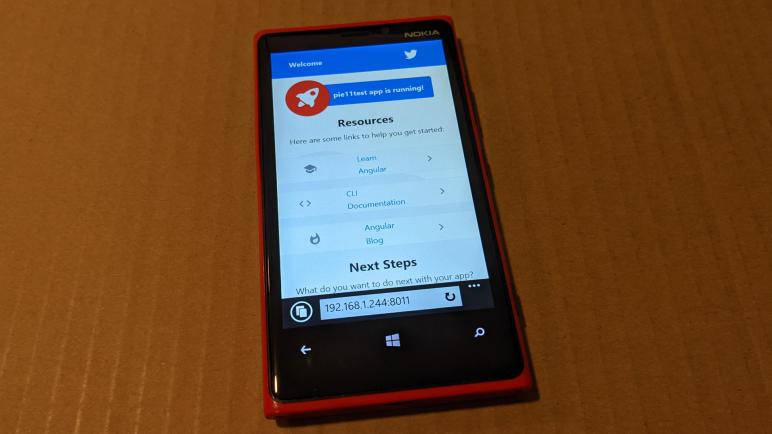
Angular on Window Phone 8.1

One of the reasons learning CSS was on my to-do list was because I didn’t know enough to bring an earlier investigation to conclusion. Two years ago, I ran through tutorials for Angular web application framework. The experience taught me I needed to learn more about JavaScript before using Angular, which uses TypeScript which is a derivative(?) of JavaScript. I also needed to learn more about CSS in order to productively utilize the Material style component libraries that I had wanted to use.

One side experiment of my Angular adventure was to test the backwards compatibility claims for the framework. By default, Angular does not build support for older browsers, but it could be configured to do so. Looking through the referenced browserlist project, I see an option of “ie_mob” for Microsoft Internet Explorer on “Other Mobile” devices a.k.a. the stock web browser for Windows Phone.

I added ie_mob 11 to the list of browser targets in an Angular project. This backwards compatibility mode is not handled by the Angular development server (ng serve) so I had to run a full build (ng build) and spin up an nginx container to serve the entire /dist project subdirectory.

Well now, it appeared to work! Or at least, more of this test app showed up on screen than if I hadn’t listed ie_mob on the list of browser targets.

However, scrolling down unveiled some problems with elements that did not get rendered, below the “Next Steps” section. Examing the generated HTML, it didn’t look very different from the rest of the page. However, these elements did use different CSS rules not used by the rest of the page.

Hypothesis: The HTML is fine, the TypeScript has been transpiled to Windows Phone friendly dialects, but the page used CSS rules that were not supported by Windows Phone. Lacking CSS knowledge, that’s where my investigation had to stop. Microsoft has long since removed debugging tools for Windows Phone so I couldn’t diagnose it further except by code review or trial and error.

Another interesting observation on this backwards-compatible build is vendor-es5.js. This polyfill performing JavaScript compatibility magic is over 2.5 MB all by itself (2,679,414 bytes) and it has to sit parallel with the newer and slightly smaller vendor-es2015.js (2,202,719 bytes). While a few megabytes are fairly trivial for modern computers, this combination of the two would not fit in the 4MB flash on an ESP32.


Initial Chunk Files | Names                |      Size
vendor-es5.js       | vendor               |   2.56 MB
vendor-es2015.js    | vendor               |   2.10 MB
polyfills-es5.js    | polyfills-es5        | 632.14 kB
polyfills-es2015.js | polyfills            | 128.75 kB
main-es5.js         | main                 |  57.17 kB
main-es2015.js      | main                 |  53.70 kB
runtime-es2015.js   | runtime              |   6.16 kB
runtime-es5.js      | runtime              |   6.16 kB
styles.css          | styles               | 116 bytes

                    | Initial ES5 Total    |   3.23 MB
                    | Initial ES2015 Total |   2.28 MB

For such limited scenarios, we have to run the production build. After doing so (ng build --prod) we see much smaller file sizes:

node ➜ /workspaces/pie11/pie11test (master ✗) $ ng build --prod
✔ Browser application bundle generation complete.
✔ ES5 bundle generation complete.
✔ Copying assets complete.
✔ Index html generation complete.

Initial Chunk Files                      | Names                |      Size
main-es5.19cb3571e14c54f33bbf.js         | main                 | 152.89 kB
main-es2015.19cb3571e14c54f33bbf.js      | main                 | 134.28 kB
polyfills-es5.ea28eaaa5a4162f498ba.js    | polyfills-es5        | 131.97 kB
polyfills-es2015.1ca0a42e128600892efa.js | polyfills            |  36.11 kB
runtime-es2015.a4dadbc03350107420a4.js   | runtime              |   1.45 kB
runtime-es5.a4dadbc03350107420a4.js      | runtime              |   1.45 kB
styles.163db93c04f59a1ed41f.css          | styles               |   0 bytes

                                         | Initial ES5 Total    | 286.31 kB
                                         | Initial ES2015 Total | 171.84 kB

Notes on Codecademy “Learn CSS”

After going through Codecademy courses on HTML and JavaScript, the next obvious step for me was to visit the third pillar of the modern web: CSS. There’s a bit of weirdness with the class listing, though. It seems Codecademy is reorganizing offerings in this area. I took the “Learn CSS” class listed at the top of their HTML/CSS section and afterwards, I discovered it was actually a repackaging of several smaller CSS courses.

Either that, or the reverse: Learn CSS course is being split up into these multiple smaller courses. I’m not sure which direction it is going, but I expect this is a temporary “pardon our dust while we reorganize” situation. The good news is that their backend tracks our progress through this material, so we get credit for completing them no matter which course was taken.

Anyway, onward to the material. CSS determines how things look and lets us make our pages look better even if we don’t have professional design skills. My first nitpick had nothing to do with appearance at all: in the very first introductory example, they presented a chunk of HTML with DIV tags for header, content, and footer. My first thought: Hey, they didn’t use semantic HTML and they should!

Most of the introductory material was vaguely familiar from my earlier attempts to learn CSS. I hadn’t known (or had forgotten) that attribute selectors had such a wide range of capabilities, almost verging on regular expressions. The fancier pattern matching ones seem like they could become a runtime performance concern. Selector chaining (h1.destination covers all H1 tags with class=”destination”) is new to me, as was descendant combinator (.description h5 covers all H5 tags under something (not the H5) with class=”description”). I foresee lots of mistakes practice keeping them straight alongside multiple selectors (.description,h5 covers H5 tags and tags with class=”description” equally, without requiring any relation between them.)

In the realm of box model and layout, I have never found the default HTML content box model to be intuitive to my brain. I always thought of the border and padding as part of the element, so I expect I’ll have better luck using box-sizing: border-box; instead for my own layouts. What I don’t expect to have a luck with is positioning. I’ve played with this before and relative/absolute/fixed/sticky always felt like voodo magic I didn’t fully understand. It’ll take a lot more practice. And a lot more examining of behavior in browser development tools. And if that fails, there’s always the fallback layout debug tool of putting a border around everything:

* { border: 1px solid red !important; }

And finally, I need more practice to get an intuitive grasp of how to specify values in CSS. Most of this course used pixels, but it would be nice to design style sheets that dynamically adjust to content using other units like em or rem. (Unrelated: this URL is in the MDN “Guides” section which have other helpful-looking resources.) I also want to make layouts dynamic to the viewport. We have a few tools to obtain such values: vw is viewport width, vh is viewport height, vmin is the smaller of the two, vmax is the larger of the two. On paper vmin+vmax can tell me if the screen is portrait or landscape, but I haven’t figured out the logic for a portrait layout vs. landscape layout. Perhaps that is yet to come in later Codecademy CSS courses.

Digital Ink and the Far Side Afterlife

A few weeks ago I picked up a graphical drawing display to play with. I am confident in my skills with software and knowledge of electronics, but I was also fully aware none of that would help me actually draw. That will take dedication and practice, which I am still working on. Very different from myself are those who come at this from the other side: they have the artistic skills, but maybe not in the context of digital art. Earlier I mentioned The Line King documentary (*) showed Al Hirschfeld playing with a digital tablet climbing the rather steep learning curve to transfer his decades of art skills to digital tools. I just learned of another example: Gary Larson.

Like Al Hirschfeld, Gar Larson is an artist I admired but in an entirely different context. Larson is the author of The Far Side, a comic that was published in newspapers via syndication. If you don’t already know The Far Side it can be hard to explain, but words like strange, weird, bizarre, and surreal would be appropriate. I’ve bought several Far Side compilations, my favorite being The PreHistory of The Far Side (*) which included behind-the-scenes stories from Gary Larson to go with selected work.

With that background, I was obviously delighted to find that the official Far Side website has a “New Stuff” section, headlined by a story from Larson about new digital tools. After retirement, Larson would still drag out his old tools every year to draw a Christmas card. A routine that has apparently been an ordeal dealing with dried ink on infrequently used pen. One year instead of struggling with cleaning a clogged pen, Larson bought a digital drawing tablet and rediscovered the joy of artistic creation. I loved hearing that story and even though only a few comics have been published under that “New Stuff” section, I’m very happy that an artist I admired has found joy in art again.

As for myself, I’m having fun with my graphical drawing display. The novelty has not yet worn off, but neither have I produced any masterpieces. The future of my path is still unknown.


(*) Disclosure: As an Amazon Associate I earn from qualifying purchases.

Notes on Codecademy “Learn Intermediate JavaScript”

After going through Codecademy’s “Learn JavaScript” course, the obvious follow-up was their “Learn Intermediate JavaScript” course, so I did and I liked it. It had a lot of very useful information for actually using JavaScript for projects. The first course covered the fundamentals of JavaScript but such knowledge sort of floated in an abstract space. It wasn’t really applicable until this intermediate course covered the two most common JavaScript runtime environments: browser on the client end, and Node.js for the server end. Which, of course, added their own ways of doing things and their own problems.

Before we got into that, though, we expanded the first class’s information on objects in general to classes in particular. Now I’m getting into an objected-oriented world that’s more familiar to my brain. This was helped by the absence of multiple different shorthand for doing the same thing. I don’t know if the course just didn’t cover them (possible) or the language has matured enough we no longer have people dogpiling ridiculous ideas just to save a few characters (I hope so.)

Not that we’re completely freed from inscrutable shorthand, though. After the excitement of seeing how JavaScript can be deployed in actual settings, I got angry at the language again when I learned of ES6 “Default Exports and Imports”.

// This will work...
import resources from 'module.js'
const { valueA, valueB } = resources;
 
// This will not work...
import { valueA, valueB } from 'module.js'

This is so stupid. It makes sense in hindsight after they explained the shorthand and why it breaks down, but just looking at this example makes me grumpy. JavaScript modules is so messed up this course didn’t try to cover everything, just pointing us to Mozilla.org documentation to sort it out on our own.

After modules, we covered asynchronous programming. Another very valuable and useful aspect of actually using JavaScript on the web. Starting with JavaScript Promises, then async/await which is an ES8 syntax for writing more readable code but still using Promises under the hood. My criticism here is JavaScript’s lack of strong typing, making it easy to make mistakes that wouldn’t fall apart until runtime. This is so bad we even have an “Avoiding Common Mistakes” section in this course, which seems like a good idea in every lesson but apparently only important enough here.

Once async/await had been covered, we finally had enough background to build browser apps that interact with web APIs using browser’s fetch() API. The example project “Film Finder” felt a lot more relevant and realistic than every other Codecademy class project I’ve seen to date. It also introduces me to The Movie Database project, which at first glance looks like a great alternative to IMDB which has become overly commercialized.

After the Film Finder project, this course goes into errors and error handling mechanisms, along with debugging JavaScript. I can see why it’s placed here: none of this would make sense unless we knew something about JavaScript code, but a lot of these lessons would have been very helpful for people struggling with earlier exercises. I’m sad to think of the possibility that there might exist people who would benefit from this information, but never got this far because they got stuck in an earlier section because they needed help debugging.

The best part of this final section is a walkthrough of browser developer tools to profile memory and CPU usage. There are a lot of knobs and levers in these tools that would easily overwhelm a beginner. It is very useful to have a walkthrough that focused just on a few very common problems, and how to find them. Once we know a few places to start, it gives a starting point for exploring the rest of developer tools. This was fantastic, my only regret is that only applies to browser-side JavaScript. We’d have to learn an entirely different set of tools for server-side Node.js code.

But that’s enough JavaScript fun for now, onward to the third pillar of web development: CSS.

Notes on Codecademy “Introduction to Javascript”

After reviewing HTML on Codecademy, I proceeded to review JavaScript with their Introduction to Javascript course (also titled Learn Javascript in some places, I’m using their URL as the definitive name.) I personally never cared for JavaScript but it is indisputably ubiquitous in the modern world. I must have a certain level of competency in order to execute many project ideas.

The history of JavaScript is far messier than other programming languages. It evolved organically, addressing the immediate need of the next new browser version from whoever believes they had some innovation to offer. It was the wild west until all major players agreed to standardize JavaScript in the form of ECMAScript 6. (ES6) While the language has continued to evolve, ES6 is the starting point for this course.

A standard is nice, but not as nice as it might look at first glance. In the interest of acceptance, it was not practical for ES6 to break from all the history that proceeded it. This, I felt, was the foundation of all of my dissatisfaction with JavaScript. Because it had to maintain compatibility, it has to accept all the different ways somebody thought to do something. I’m sure they thought they were being clever, but I see it as unnecessary confusion. Several instances came up in this course:

  • Somebody thought it was a good idea for comparison to perform automatic type conversion before performing the comparison. It probably solved somebody’s immediate problem, but the long-term effect is that “==” operator became unpredictable. The situation is so broken that this course teaches beginners to use the “===” operator and never mentions “==”.
  • The whole concept of “truthy” and “falsy” evaluations makes code hard to understand except for those who have memorized all of the rules involved. I don’t object a beginner course covering such material “this is a bad idea but it’s out there so you need to know.” However, this course makes it sound like a good thing “Truthy and falsy evaluations open a world of short-hand possibilities!” and I strongly object to this approach. Don’t teach beginners to write hard-to-understand code!
  • JavaScript didn’t start with functions, but the concept was so useful different people each hacked their own ways to declare functions. Which means we now have function declaration (function say(text) {}) function expression (const say = function(text) {}) arrow function (const say = (text) => {}) and the concise body arrow function (const say = text => {}). I consider the latter inscrutable, sacrificing readability for the sake of saving a few characters. A curse inflicted upon everyone who had to learn JavaScript since. (An anger made worse when I learned arrow functions implicitly bind to global context. Gah!)

These were just the three that I thought worth ranting about. Did I mention I didn’t care for JavaScript? But it isn’t all bad. JavaScript did give the web a very useful tool in the form of the JavaScript Object Notation (JSON) which became a de facto standard for transmitting structured data in a much less verbose way than XML which originally promised to do exactly that.

JSON has the advantage it was the native way for JavaScript to represent objects, so it was easy to go from working with a JavaScript object to transmitting it over the network and back to working object. In fact, I originally thought JSON was the data transmission serialization format for JavaScript. It took a while for me to understand that no, JSON is not the serialization format, JSON is THE format. JSON looks like a data structure for key-value pairs because JavaScript objects are a structure for key-value pairs.

Once “every object is a collection of key-value pairs” got through my head, many other JavaScript traits made sense. It was wild to me that I can attach arbitrary properties to a JavaScript function, but once I understood functions to be objects in their own right + objects are key-value pairs = it made sense I could add a property (key) and its value to a function. Weird, but made sense in its own way. Object properties are reduced to a list of key-value pairs, and object methods are special cases where the value is a function object. Deleting an entry from the list of key-value pairs allows deleting properties and methods and accessing them via brackets seem no weirder than accessing a hash table entry. It also made sense why we don’t strictly need a class constructor for objects. Any code (“factory function”) that returns a chunk of JSON has constructed an object. That’s not too weird, but the property value shorthand made me grumpy at JavaScript again. As did destructuring assignment: at first glance I hated it, after reading some examples of how it can be useful, I merely dislike it.

In an attempt to end this on a positive note, I’ll say I look forward to exploring some of the built-in utilities for JavaScript classes. This Codecademy course introduced us to:

  • Array methods .push() .pop() .shift() .unshift() .slice() .splice() etc.
  • Iterators are not just limited to .forEach(). We have .map() .filter() .reduce() .every() and more.
  • And of course stuff on object. Unlike other languages that need an entire feature area for runtime type information, JavaScript’s approach means listing everything on an object is as easy as .keys().

Following this introduction, we can proceed to Intermediate JavaScript.

Notes on Codecademy “Learn HTML”

Almost seven years ago, I went through several Codecademy courses on web-related topics including their Learn HTML & CSS course, long since retired. The knowledge I learned back then were enough for me to build rudimentary web UI for projects including Sawppy Rover, but I was always aware they were very crude and basic. And my skill level was not enough to pull off many other project ideas I’ve had since. Web development being what they are, seven years is long enough for several generations of technologies to rise in prominence then fade into obscurity. Now I want to take another pass. Reviewing what I still remember and learn something new. And the most obvious place to start is their current Learn HTML course.

As the name made clear, this course focuses on HTML. Coverage of CSS has been split off to its own separate course, which I plan to take later, but first things first. I’m glad to see that basics of HTML haven’t changed very much. Basic HTML elements and how to structure them are still fundamental. The course then moves on to tables, which I had learned for their original purpose and also as a way to hack page layout in HTML. Thankfully, there are now better ways to perform page layout with CSS so <table> can revert to its intended purpose of showing tabulated data. Forms is another beneficiary of such evolution. I had learned them for their original purpose and also as a way to hack client/server communication. (Sawppy rover web UI is actually a form that repeatedly and rapidly submits information to the server.) And again, technologies like web sockets now exist for client/server communication and <form> can go back to just being forms for user-entered data.

The final section “Semantic HTML” had no old course counterpart that I could remember. HTML tags like <article> and <figure> are new to me. They add semantic information to information on the page, which is helpful for machine parsing of data and especially useful for web accessibility. This course covers a few elements, the full list can be found at other resources like W3Schools. I’m not sure my own projects would benefit much from sematic HTML but it’s something I want to make a natural habit. Learning about semantic HTML was a fun new addition to my review of HTML basics. I had originally planned to proceed to a review of CSS, but I put that on hold in favor of reviewing JavaScript.

Hobbyist Level CNC Tool Change Support (M6)

In our experiments so far, the project CNC machine used Bart Dring’s ESP32 port of Grbl to translate G-code into stepper motor step+direction control pulses. It offers a lot of neat upgrades over standard Grbl running on an Arduino, and both are fantastically affordable way to get into CNC. The main issue with Grbl running on microcontrollers is the fact they are always limited by the number of input/output pins available. Some of Bart Dring’s ESP32 enhancements were only possible because the ESP32 had more pins than an ATmega328.

But like all tinkerers, we crave more. Grbl (& derivatives) are understandably lacking support for features that are absent from majority of hobbyist grade CNC. The wish list items in the local maker group mostly center around the capability to use multiple tools in a single program.

Tool change is the most obvious one. Grbl recognizes just enough to support a manual tool change operation: stop the spindle, move to a preset tool change position, and wait before proceeding. Automated tool changing is out of scope.

Which explains the next gap in functionality: tool length offset. Not all tools are of the same length and the controller needs to know each tool length to interpret G-code correctly. Grbl doesn’t seem to have a tool length table to track this information. It is a critically important feature to make automated tool change useful, but the lack of latter means the lack of former is not surprising.

And following the cascade of features, we’d also love to have cutter radius compensation for individual tools. Typically used in industrial machinery to gradually adjust for tool wear, it usually doesn’t matter in the type of tolerances involved in the context of hobbyist machines. But it is useful and nice to have if multiple tools come into the picture, each with their own individual idiosyncracies.

These capabilities get into the domain of industrial controllers well beyond a hobbyist budget. Or at least, they used to be. People are experimenting with hardware builds to implement their own automatic tool changing solutions. And on the software side, Grbl derivatives like GrblHAL have added support for the M6 (automatic tool change) code allowing multiple tools in a single CNC program. Is it a practical short-term goal for my project? Heck no! I can’t even cut anything reliably yet. But it’s nice to know the ecosystem is coming together to make hobbyist level tool-changing CNC practical. It’d be useful for a wide variety of CNC tasks, including routing vs. drilling operations for milling circuit boards.

MageGee Wireless Keyboard (TS92)

In the interest of improving ergonomics, I’ve been experimenting with different keyboard placements. I have some ideas about attaching keyboard to my chair instead of my desk, and a wireless keyboard would eliminate concerns about routing wires. Especially wires that could get pinched or rolled over when I move my chair. Since this is just a starting point for experimentation, I wanted something I could feel free to modify as ideas may strike. I looked for the cheapest and smallest wireless keyboard and found the MageGee TS92 Wireless Keyboard (Pink). (*)

This is a “60% keyboard” which is a phrase I’ve seen used two different ways. The first refers to physical size of individual keys, if they were smaller than those on a standard keyboard. The second way refers to the overall keyboard with fewer keys than the standard keyboard, but individual keys are still the same size as those on a standard keyboard. This is the latter: elimination of numeric keypad, arrow keys, etc. means this keyboard only has 61 keys, roughly 60% of standard keyboards which typically have 101 keys. But each key is still the normal size.

The lettering on these keys are… sufficient. Edges are blurry and not very crisp, and consistency varies. But the labels are readable so it’s fine. The length of travel on these keys are pretty good, much longer than a typical laptop keyboard, but the tactile feedback is poor. Consistent with cheap membrane keyboards, which of course this is.

Back side of the keyboard shows a nice touch: a slot to store the wireless USB dongle so it doesn’t get lost. There is also an on/off switch and, next to it, a USB Type-C port (not visible in picture, facing away from camera) for charging the onboard battery.

Looks pretty simple and straightforward, let’s open it up to see what’s inside.

I peeled off everything held with adhesives expecting some fasteners to be hidden underneath. I was surprised to find nothing. Is this thing glued together? Or held with clips?

I found my answer when I discovered that this thing had RGB LEDs. I did not intend to buy a light-up keyboard, but I have one now. The illumination showed screws hiding under keys.

There are six Philips-head self-tapping plastic screws hidden under keys distributed around the keyboard.

Once they were removed, keys assembly easily lifted away to expose the membrane underneath.

Underneath the membrane is the light-up subassembly. Looks like a row of LEDs across the top that shines onto a clear plastic sheet acting to diffuse and direct their light.

I count five LEDs, and the bumps molded into clear plastic sheet worked well to direct light where the keys are.

I had expected to see a single data wire consistent with NeoPixel a.k.a. WS2812 style of individually addressable RGB LEDs. But label of SCL and SDA implies this LED strip is controlled via I2C. If it were a larger array I would be interested in digging deeper with a logic analyzer, but a strip of just five LEDs isn’t interesting enough to me so I moved on.

Underneath the LED we see the battery, connected to a power control board (which has both the on/off switch and the Type-C charging port) feeding power to the mainboard.

Single cell lithium-polymer battery with claimed 2000mAh capacity.

The power control board is fascinating, because somebody managed to lay everything out on a single layer. Of course, they’re helped by the fact that this particular Type-C connector doesn’t break out all of the pins. Probably just a simple voltage divider requesting 5V, or maybe not even that! I hope that little chip at U1 labeled B5TE (or 85TE) is a real lithium-ion battery manage system (BMS) because I don’t see any other candidates and I don’t want a fiery battery.

The main board has fewer components but more traces, most of which led to the keyboard membrane. There appears to be two chips under blobs of epoxy, and a PCB antenna similar to others I’ve seen designed to work on 2.4GHz.

With easy disassembly and modular construction, I think it’ll be easy to modify this keyboard if ideas should strike. Or if I decide I don’t need a keyboard after all, that power subsystem would be easy (and useful!) for other projects.


(*) Disclosure: As an Amazon Associate I earn from qualifying purchases.

Google AIY Vision Bonnet & Accessories

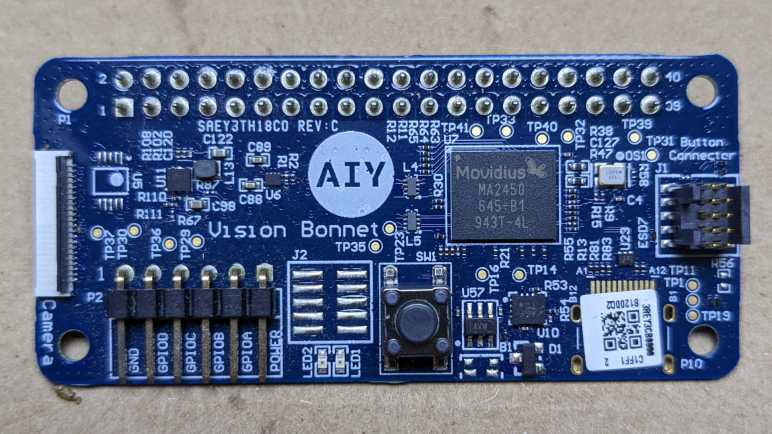
The key component of a Google AIY Vision kit is the “Vision Bonnet”, a small circuit board to sit atop the Raspberry Pi Zero WH bundled in the kit. In addition to all the data interface available via the standard Raspberry Pi GPIO pins, this peripheral also gets “first dibs” on raw camera data. The camera itself is a standard Raspberry Pi Camera V2.1 but instead of connecting directly to the Raspbery Pi Zero, the camera cable connects directly to the vision bonnet. There is then a second cable connecting from vision bonnet to the Raspberry Pi camera connector, for the bonnet to forward camera data to the Pi after Vision Bonnet is done processing it. This architecture ensures the Vision Bonnet will never be constrained by data interface limitations onboard the Pi. It can get raw camera feed and do its magic before camera data even gets into a Pi.

The vision coprocessor on this Vision Bonnet circuit board is a Movidius Myriad MA2450, launched in 2016 and discontinued in 2020. Based on its application here, I infer the chip can accelerate inference operations for vision-based convolutional neural networks that fit within constraints outlined in the AIY Vision documentation. I don’t know enough about the field of machine vision to judge whether these constraints are typical or if they pose an unreasonable burden. What I do know is that, now that everything has been discontinued, I probably shouldn’t spend much more time studying this hardware.

My interest in commercially available vision coprocessors has since shifted to Luxonis OAK-D and related products. In addition to a camera array (two monochrome cameras for stereoscopic vision and one color camera for object detailed) it is built around Luxonis OAK SoM (System on Module) built around the newer Movidius Myriad MA2485 chip. Luxonis has also provided far more software support and product documentation on their OAK modules than Google ever did for their AIY Vision Bonnet.

I didn’t notice much of interest on the back side of AIY Vision Bonnet. The most prominent chip is marked U2, an Atmel (now Microchip) SAM-D.

The remainder of hardware consists of a large clear button with three LEDs embedded within. (Red, green, and blue.) That button hosts a small circuit board that connects to the vision bonnet via a small ribbon cable. It also hosts connectors for the piezo buzzer and the camera activity (“privacy”) LED. The button module appears identical to the counterpart in AIY Voice kit (right side of picture for comparison) but since voice kit lacked piezo buzzer or LED, it lacked the additional circuit board.

Google AIY Vision Kit

A few years ago, I tried out the Google AIY “Voice” and “Vision” kits. They featured very novel hardware but that alone was not enough. Speaking as someone not already well-versed in AI software of the time, there was not enough documentation support to get people like me onboard to do interesting things with that novel hardware. People like me could load the default demo programs, we could make minor modifications to it, but using that hardware for something new required climbing a steep learning curve.

At one point I mounted the box to my Sawppy rover’s instrument mast, indicating my aspirations to use it for rover vision, but I never got much of anywhere.

The software stack also left something to be desired, as it built on top of Raspberry Pi OS but was fragile and easily broken by Raspberry Pi updates. Reviewing my notes, I realized I published my notes on AIY Voice but the information on AIY Vision was still sitting in my “Drafts” section. Oops! Here it is for posterity before I move on.

Google AIY Vision Kit

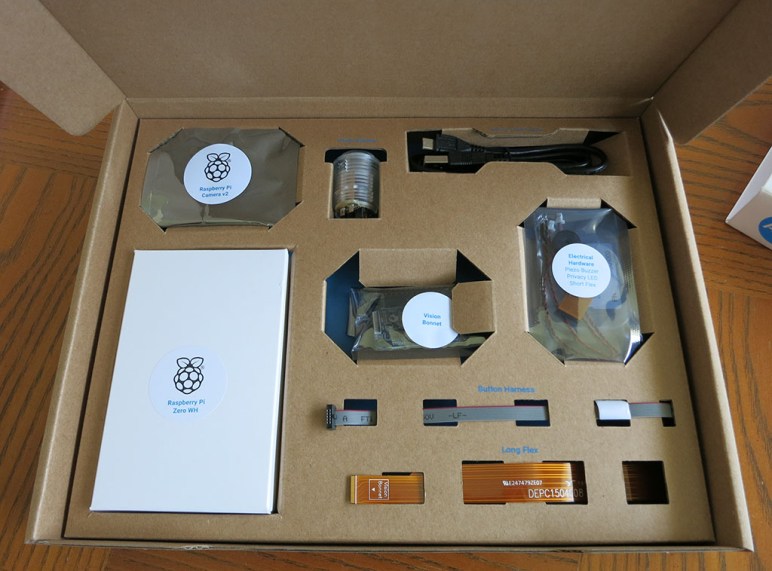
The product packaging is wonderful. This was from the era of Google building retail products from easily recycled cardboard. All parts were laid out and neatly labeled in a cardboard box.

Google AIY online instructions.jpg

There was no instruction booklet in the box, just a pointer to assembly instructions online. While fairly easy to follow, note that instructions were written for people who already know how to handle bare electronic circuit boards. Handle the circuit boards by the edges and avoid touching components (especially electrical contacts) and such. Complete beginners unaware of basics might ruin their AIY kit.

Google AIY Vision Kit major components

From a hardware architecture perspective, the key is the AIY Vision bonnet that sat on top of a Raspberry Pi Zero WH. (W = WiFi, H = with presoldered header pins.) In addition to connection with all Pi Zero GPIO pins, it also connects to the Pi camera connector for direct access to camera feed. (Normal data path: Camera –> Pi Zero. AIY Vision data path: Camera –> Vision Bonnet –> Pi.) In addition to the camera, there is a piezo buzzer for auditory feedback, a standalone green LED to indicate camera is live (“Privacy LED”), and a big arcade-style button with embedded LEDs.

Once assembled, we could install and run several visual processing models posted online. If we want to go beyond that, there are instructions on how to compile trained TensorFlow models for hardware accelerated inference by the AIY Vision Bonnet. And if those words don’t mean anything (it didn’t to me when I played with the AIY Vision) then we’re up a creek. That was bad back then, and now that a few years have gone by, things have gotten worse.

  1. The official Google AIY system images for Raspberry Pi hasn’t been updated since April 2021. And we can’t just take it and pick up more recent updates, because that breaks bonnet functionality.
  2. The vision bonnet model compiler is only tested to work on Ubuntu 14.04, whose maintenance updates ended in 2019.
  3. Example Python code is in Python 2, whose support ended January 1st, 2020.
  4. Example TensorFlow information are for the now-obsolete TensorFlow 1. TensorFlow 2 was a huge breaking change, and it takes a lot of work — not to mention expertise — to migrate from TF1.x to TF2.

All of these factors together tell me the Google AIY Vision bonnet has been left to the dusty paths of history. My unit has only ever ran the default “Joy Detection” demo, and I expect this AIY Vision Bonnet will never run anything else. Thankfully, the rest of the hardware (Raspberry Pi Zero WH, camera, etc.) should have better prospects of finding another use in the future.

Creality Ender-3 Motion Axis Rollers

After resolving an initial issue with Z-axis movement, my Creality Ender-3 V2 enters my 3D printing pool. I mainly got it because it was becoming a hassle to switch my MatterHackers Pulse XE between PLA and PETG printing. My intent is to leave the Ender-3 V2 loaded with PLA and the Pulse XE loaded with PETG. I’m sure that’ll only last for as long as it takes for one of these printers to develop a problem, but I’ll figure out how to cross that bridge when I come to it.

The best news is that the extra cost for V2 was worthwhile: this printer operates without the whiny buzz of older stepper motor drivers. It’s not completely silent, though. Several cooling fans on the machine have a constant whir, and there are still some noises as a function of movement. Part of that are the belts against motor pulley, and part of that are roller wheels against aluminum.

These rollers are the biggest mechanical design difference between Creality’s Ender line and all of my prior 3D printers. Every previous printer constrained movement on each axis via cylindrical bearings traversing over precision-ground metal rods. One set for X-axis, one set for Y-axis, and one set for Z-axis. To do the same job, the Ender design replaces them with hard plastic rollers traversing over aluminum extrusion beams.

The first and most obvious advantage to this design is cost. Precision ground metal rods are more expensive to produce than aluminum extrusions, and we need them in pairs (or more) to constrain motion along an axis. In contrast, Ender’s design manages to constrain motion by using rollers on multiple surfaces of a single beam. In addition to lower parts cost, I guess the assembly cost is also lower. Getting multiple linear bearings properly lined up seems more finicky than bolting on several hard plastic rollers.

Rollers should also be easier to maintain, as they roll on ball bearings that keep their lubrication sealed within. Unlike the metal guide rods that require occasional cleaning and oiling. The cleaning is required because those rods are exposed and thus collect dust, which then stick because of the oil, and then the resulting goop is shoved to either end of range of travel. Fresh oil then needs to be applied to keep up with this migration.

But using rollers also means accepting some downsides. Such a design is theoretically less accurate, as hard plastic rollers on aluminum allow more flex than linear bearings on precision rods. Would lower theoretical accuracy actually translate to less accurate prints? Or would that flex be completely negligible for the purpose of 3D printing? That is yet to be determined.

And finally, I worry about wear and tear on these roller wheels. Well-lubricated metal on metal have very minimal wear, but hard plastic on aluminum immediately started grinding out visible particles within days of use. I expect the reduced theoretical accuracy is minimal when the printer is new but will become more impactful as the wheels wear down. Would it affect proper fit of my 3D printed parts? That is also yet to be determined. But to end on a good note: even if worn wheels cause problems, they should be pretty easy to replace.

Creality Ender-3 V2 Z-Axis Alignment

The first test print on my assembled Creality Ender-3 V2 showed some artifacts. General symptoms are that some layers look squished and overall height is lower than it should be.

These two parts were the same 3D file on two separate print jobs. The piece on the right was printed before my modification, showing many problematic layers and the overall height is lower than it should be. Hypothesis: my Z-axis is binding, occasionally failing to move the specified layer height. Verification: With motor powered off, it is very hard to turn the Z-axis leadscrew by hand.

This put the Z-axis motor mount under scrutiny.

Looking closer, I saw it was not sitting square. There is an uneven gap forced by the motor that is slightly fatter around the black midsection than its silvery ends. This means when the motor mounting block is tightened against the vertical Z-axis extrusion beam, that motor rotates and output shaft tilts off vertical.

A tiny gap would not have caused a problem, because the shaft coupler could translate motion through a small twist. However, this gap is larger than the shaft coupler could compensate for, causing it to bind up. I saw two ways to reduce this gap. (1) Grind the side of Z-axis stepper motor to eliminate the bulge, or (2) insert a spacing shim into the motor mount. I don’t have a precision machining grinder to do #1, but I do have other 3D printers to do #2. I printed some shims of different thicknesses on my MatterHackers Pulse 3D XE.

I tried each of those to find the one that allowed smoothest Z-axis leadscrew turning by hand.

After this modification, the print visual quality and Z-axis dimensional accuracy improved tremendously. The piece on the left was printed after this modification.

So that’s my first problem solved, and I think this printer will work well for the immediate future. However, looking at how it was built, I do have some concerns about long-term accuracy.

Creality Ender-3 V2 Assembly

From what I can tell, Creality’s Ender-3 is now the go-to beginner 3D printer. It works sufficiently well in stock form out of the box. And if anyone wants to go beyond stock, the Ender 3 has a large ecosystem of accessories and enhancements. These are exactly the same reasons I bought the Monoprice Select V2 several years ago. So when Creality held one of their frequent sales, I picked up an Ender-3 V2. The key feature I wanted in V2 is Creality’s new controller board, which uses silent stepper motor drivers. A nice luxury that previously required printer mainboard replacement.

When the box arrived, I opened it to find all components came snugly packaged in blocks of foam.

The manual I shall classify as “sufficient”. It has most of the information I wanted from a manual, and the information that exists is accurate. However, it is missing some information that would be nice, such as a recommended unpack order.

And this is why: the Ender-3 came in many pre-assembled components, and when they are all tightly encased in foam it’s not clear which ones were already attached to each other. Such as the fact the printhead was already connected to the base. I’m glad I didn’t yank too hard on this!

That minor issue aside, it didn’t take long before all pieces were removed from the box laid out.

The Z-axis leadscrew is something to be careful with, vulnerable to damage in the sense that the slightest problem would cause Z-layer issues in the print. It was cleverly packed inside a bundle of aluminum extrusion beams, protected by a tube of what looks and feels like shrink wrap tubing.

All fasteners are bagged separately by type and labeled. This is very nice.

As far as I can tell, all of the tools required for assembly are bundled in the box. The stamped-steel crescent wrenches weren’t great, so I used real wrenches out of my toolbox. In contrast the hex keys were a pleasant surprise, as they had ball-ends for ease of use. I considered that a premium feature absent from most hex keys.

I was initially annoyed at the instructions for the filament holder spool, because it looked like the channel was already blocked by some bolts.

But then I realized the nuts are not perfectly rectangular. Their shape gives them the ability to be inserted into the slot directly, without having to slide in from the ends of the beams. As the fastener is tightened, they will rotate into place within the channel. These are “post-assembly nuts” because they allow pieces to be added to an extrusion beam after the ends have been assembled. These are more expensive than generic extrusion beam nuts and a nice touch for convenience.

Here is the first test print. It’s pretty good for a first print! But not perfect. Uneven vertical wall indicates issues with Z-axis movement.

Non-Photorealistic Rendering

Artists explore where the mainstream is not. That’s been true for as long as we’ve had artists exploring. Early art worked to develop techniques that capture reality the way we see them with our eyes. And once tools and techniques were perfected for realistic renditions, artists like Picasso and Dali went off to explore art that has no ambition to be realistic.

This evergreen cycle is happening in computer graphics. Early computer graphics were primitive cartoony blocks but eventually evolved into realistic-looking visuals. We’re now to the point where computer generated visual effects can be seamlessly integrated into camera footage and the audience couldn’t tell what was real and what was not. But now that every CGI film looks photorealistic, how does one stand out? The answer is to move away from photorealism and develop novel non-photorealistic rendering techniques.

I saw this in Spider-Man: Into the Spider-Verse, and again in The Mitchells vs. the Machines. I was not surprised that some of the same people were behind both films. Each of these films had their own look, distinct from each other and far from other computer animated films. I remember thinking “this might be interesting to learn more about” and put it in the back of my mind. So when this clip came up as recommended by YouTube, I had to click play and watch it. I’m glad I did.

From this video I learned that the Spider-Verse people weren’t even sure if audience would accept or reject their non-conformity to standards set by computer animation pioneer Pixar. That is, until the first teaser trailer was released and received positively to boost their confidence in their work.

I also learned that they were created via rendering pipelines that have additional stylization passes tacked on to the end of existing photorealistic rendering. However, I don’t know if that’s necessarily a requirement for future exploration in this field, it seems like there’d be room for exploring pipelines that skip some of the photorealistic aspects, but I don’t really know enough to make educated guesses. This is a complex melding of technology and art. It takes some unique talent and experience to pull off. Which is why it made sense (in hindsight) that entire companies exist to consult for non-realistic rendering, with Lollipop Shaders the representative in this video.

As I’m no aspiring filmmaker, I doubt I’ll get anywhere near there, but what about video game engines like Unity 3D? I was curious if anyone has explored applying similar techniques to the Unity rendering pipeline. I looked on Unity’s Asset Store under the category of VFX / Shaders / Fullscreen & Camera Effects. And indeed, there were several offerings. In the vein of Spider-Verse I found a comic book shader. Painterly is more like Mitchells but not in the same way. Shader programmer flockaroo has several art styles on offer, from “notebook drawings” to “Van Gogh”. If I’m ever interested in doing something in Unity and want to avoid the look of default shaders, I have options to buy versus developing my own.

Miniware Mini Hot Plate (MHP30)

The latest addition to my toolkit is a mini hot plate designed for electronics work at a small scale. This is the Miniware MHP30, purchased from Adafruit as their product #4948. Emphasis of this product is on “small”, as the actual heating area is a square only 30cm (approx. 1 1/4″) on a side. The hot plate unit itself is dwarfed by its power supply that came in the same box. This is a USB-C supply that, through the magic of USB Power Delivery protocol, can deliver up to 65 Watts. (20V @ 3.25A)

I believe MHP30 was designed for reworking surface mount electronics, focusing energy just on the portion of the board that needed fixing. I’ve wished for this kind of capability in the past, for example when I wanted to remove a voltage-divider resistor. I bought a hot-air rework station which was useful, but I was sometimes stymied by boards with a large heat dissipating ground plane. I found that I could help my hot air gun by heating up circuit boards with an old broken clothes iron. That experiment represented a bluntly crude version of what this little focused heating plate promises to do.

The first test run was to remove an already-ruined LED module from a dead LED bulb. I tried to remove this LED with a hot-air gun. Not the small electronics hot-air rework station kind of hot-air gun, one of those big units sold for paint stripping. Now armed with the proper tools, I could successfully remove what remained of this LED module.

The next test was more challenging. I wanted to see if this hot plate could heat up multiple legs of a through-hole part allowing me to pull it from a circuit board and do so without damaging the more heat-sensitive plastic portions. The test subject was a DC power barrel jack from a dead Ethernet switch.

One reason this is difficult is due to the air gap caused by the through-hole legs, which would let heat escape instead of melting solder. I declared this test a failure when the black plastic started melting before the solder did. I have other means to salvage through-hole parts, but I had hoped this would make things easier. Oh well.

Returning to surface-mount components, I wanted to try removing the CPU on this dead Ethernet switch. This would have been difficult with the hot-air gun alone, because most of the heat would be absorbed and quickly dissipated by the black heat sink glued to the chip.

The bottom of the chip is connected to the ground plane of this circuit board, which is a layer of copper occupying nearly the entire circuit board. If I only used hot air gun from above, heat would never get past the glued-on heat sink to this area.

But if I heat from below with the mini hot plate, things heat up enough for the heat sink glue to degrade. Once the heat sink was pulled off, things moved much more quickly.

The mini hot plate sends heat directly into the large heat conducting pad in the middle of the chip, melting the relatively large square of solder in addition to all little pads around chip perimeter. I don’t think I could have done this without the mini hot plate. This test was successful, but we had the advantage of a singled-sided board with no components on the bottom. If there were, then the air gap problem would return. It isn’t a complete answer, but I’m happy to have added the little hot plate to my toolbox.

Old Xbox One Boots Up in… čeština?

As a longtime Xbox fan, I would have an Xbox Series X by now if it weren’t for the global semiconductor supply chain in disarray. In the meantime, I continue to play on my Xbox One X which was 4K UHD capable variation that launched in 2017. It replaced my first-generation Xbox One, which has been collecting dust on a shelf. (Along with its bundled Kinect V2.) But unlike my Xbox 360, that old Xbox One is still part of the current Xbox ecosystem. I should still be able play my Xbox One game library, though I’d be limited to digital titles because its optical drive is broken. (One of the reasons I retired it.)

I thought I would test that hypothesis by plugging it in and downloading updates, I’m sure there have been many major updates over the past five years. But there was a problem. When I powered it up, it showed me this screen in a language I can’t read.

Typing this text into Google Translate website, language auto-detection told me this is in Czech and it is a menu to start an update. Interesting… why Czech? It can’t be a geographical setting in the hardware, because it is a US-spec Xbox purchased in the state of Washington. It can’t be a geolocation based on IP address, either, as I’m connected online via a US-based ISP. And if there was some sort of system reset problem, I would have expected the default to be either English or at least something at the start of an alphabetical list like Albanian or Arabic or something along those lines. Why Czech?

Navigating the next few menus (which involved lots of typing into Google Translate) I finally completed required update process and reached the system menu where I could switch language to English. Here I saw the language was set to “čeština” which was at the top of this list. Aha! My Xbox had some sort of problem and reset everything. Including language setting to the top of the list of languages it had installed. I don’t know what the root problem was, but at least that explains how I ended up with Czech.

After I went through all of this typing, I learned I was an idiot. I should have used the Google Translate app on my Android phone instead of the website. I thought using the website on my computer was faster because I had a full-sized keyboard for typing where my phone did not. But the phone has a camera, and the app can translate visually with no typing at all. Here I’m running it on the screen capture I made of the initial bootup screen shown above.

Nice! It looks like the app runs optical character recognition on the original text, determine the language was Czech, perform the translation, and superimposes translated English text on top of original text. The more I thought about what is required to make this work, the more impressed I am. Such as the fact display coordinate transforms had to be tracked between language representations so the translated text can be superimposed at the correct location. I don’t know how much of this work is running on my phone and how much is running on a Google server. Regardless of workload split, it’s pretty amazing this option was just sitting in my pocket.

What was I doing? Oh, right: my old Xbox One. It is up and running with latest system update, capable of downloading and running my digitally purchased titles. In US-English, even. But by then I no longer cared about Xbox games, the translation app is much more interesting to play with.

Old OCZ SSD Reawakened and Benchmarked

In the interest of adding 3.5″ HDD bays to a tower case, along with cleaning up wiring to power them, I installed a Rosewill quad hard drive cage where a trio of 5.25″ drive bays currently sit open and unused. It mostly fit. To verify that all drive cage cable connections worked with my SATA expansion PCIe card (*) I grabbed four drives from my shelf of standby hardware. When installing them in the drive cage, I realized I made a mistake: one of the drives was an old OCZ Core Series V2 120GB SSD that had stopped responding to its SATA input. I continued installation anyway because I thought it would be interesting to see how the SATA expansion card handled a nonresponsive drive.

Obviously, because today intent was to see an unresponsive drive, Murphy’s Law stepped in and foiled the plan: when I turned on the computer, that old SSD responded just fine. Figures! I don’t know if there was something helpful in the drive cage, or the SATA card, or if something was wrong with the computer that refused to work with this SSD years ago. Whatever the reason, it’s alive now. What can I do with it? Well, I can fire up the Ubuntu disk utility and get some non-exhaustive benchmark numbers.

Average read rate 143.2 MB/s, write 80.3 MB/s, and seek of 0.22 ms. This is far faster than what I observed by using the USB2 interface, so I was wrong earlier about the performance bottleneck. Actual performance is probably lower than this, though. Looking at the red line representing write performance, we can see it started out strong but degraded at around 60% of the way through the test and kept getting worse, probably the onboard cache filling up. If this test ran longer, we might get more and more of the bottom end write performance of 17 MB/s.

How do these numbers compare to some contemporaries? Digging through my pile of hardware, I found a Samsung ST750LM022. This is a spinning-platter laptop hard drive with 750GB capacity.

Average read 85.7 MB/s, write 71.2 MB/s, and seek of 16.77 ms. Looking at that graph, we can clearly see degradation in read and write performance as the test ran. We’d need to run this test for longer before seeing a bottom taper, which may or may not be worse than the OCZ SSD. But even with this short test, we can see the read performance of a SSD does not degrade over time, and that SSD has a much more consistent and far faster seek time.

That was interesting, how about another SSD? I have an 120GB SSD from the famed Intel X25-M series of roughly similar vintage.

Average read 261.2 MB/s, write 106.5 MB/s, seek 0.15 ms. Like the OCZ SSD, performance took a dip right around the 60% mark. But after it did whatever housekeeping it needed to do, performance level resumed at roughly same level as earlier. Unlike the OCZ, we don’t see as much of a degradation after 60%.

I didn’t expect this simple benchmark test to uncover the full picture, as confirmed after seeing this graph. By these numbers, the Intel was around 30% better than the OCZ. But my memory says otherwise. In actual use as a laptop system drive, the Intel was a pleasure and the OCZ was a torture. I’m sure these graphs are missing some important aspects of their relative performance.

Since I had everything set up anyway, I plugged in a SanDisk SSD that had the advantage of a few years of evolution. In practical use, I didn’t notice much of a difference between this newer SanDisk and the old Intel. How do things look on this benchmark tool?

Average read 478.6 MB/s, write 203.4 MB/s, seek 0.05 ms. By these benchmarks, the younger SanDisk absolutely kicked butt of an older Intel with at least double the performance. But that was not borne out by user experience as a laptop drive, it didn’t feel much faster.

Given that the SanDisk benchmarked so much faster than the Intel (but didn’t feel that way in use) and OCZ benchmarked only slightly worse than the Intel (but absolutely felt far worse in use) I think the only conclusion I can draw here is: Ubuntu Disk Utility built-in benchmarking tool does not reflect actual usage. If I really wanted to measure performance details of these drives, I need to find a better disk drive benchmarking tool. Fortunately, today’s objective was not to measure drive performance, it was only to verify all four bays of my Rosewill drive cage were functional. It was a success on that front, and I’ll call it good for today.


(*) Disclosure: As an Amazon Associate I earn from qualifying purchases.

Rosewill Hard Disk Drive Cage (RSV-SATA-Cage-34)

Immediately after my TrueNAS CORE server power supply caught fire, I replaced it with a spare power supply I had on hand. This replacement had one annoyance: it had fewer SATA power connectors. As a short-term fix, I dug up some adapters from the older CD-ROM style power connectors to feed my SATA drives, but I wanted a more elegant solution.

The ATX tower case I used for my homebuilt server had another issue: it had only five 3.5″ hard drive bays for my six-drive array. At the moment it isn’t a problem, because the case had two additional 2.5″ laptop sized hard drive mount points and one drive in my six-drive array was a smaller drive salvaged from an external USB drive which fits in one bay. The other 2.5″ bay held the SSD boot drive for my TrueNAS CORE server. I did not want to be constrained to using a laptop drive forever, so I wanted a more elegant solution to this problem as well.

I found my elegant solution for both problems in a Rosewill RSV-SATA-Cage-34 hard drive cage. It fits four 3.5″ drives into the volume of a trio of 5.25″ drive bays, which is present on my ATX tower case and currently unused. This would solve my 3.5″ bay problem quite nicely. It will also solve my power connector problem, as the cage used a pair of CD-ROM style connectors for power. A circuit board inside this cage redistributes that power to four SATA power connectors.

First order of business was to knock out the blank faceplates covering the trio of 5.25″ bays.

Quick test fit exposed a problem: the drive cage is much longer than a CD-ROM drive. For the case to sit at the recommended mounting location for 5.25″ peripherals, drive cage cooling fan would bump up against the ATX motherboard power connector. This leaves very little room for the four SATA data cables and two CD-ROM power connectors to connect. One option is to disconnect and remove the cooling fan to give me more space, but I wanted to maintain cooling airflow, so I proceeded with the fan in place.

Given the cramped quarters, there would be no room to connect wiring once the cage was in place. I pulled the cage out and connected wires while it was outside the case, then slid it back in.

It is a really tight fit in there! Despite my best effort routing cables, I could not slide the drive cage all the way back to its intended position. This was as hard as I was willing to shove, leaving the drive cage several millimeters forward of its intended position.

As a result, the drive cage juts out beyond case facade by a few millimeters. Eh, good enough.


[UPDATE: I learn there exist products with a similar concept for small 2.5″ (laptop) form factor drives. Athena Power BP-15827SAC packs a whopping eight 2.5″ SATA drives into the volume of a single 5.25″ CD-ROM drive bay. All eight must be thin 7mm drives, though. To accommodate thicker drives, Athena Power also has six-bay and four-bay versions of the same idea, and naturally there are other vendors offering similar executions.]

Up and Running on Monoprice Creator 22

After unpacking a Monoprice Creator 22 graphical pen display and installing its driver software, Windows 10 detected a pen input device and activated a few inking tools. One example was a digital sticky note I could use to jot things down. These tools were enough for me to verify that position and pressure information is getting into the system. I also noticed that whenever there is pen activity, one CPU core is completely consumed with kernel-level tasks. This is a hint the Bosto driver is spinning a CPU polling for input data whenever the pen is active. It is certainly a valid way to maximize pen input responsiveness, but not the most efficient. On the upside, we’re now living in era of multicore processors. So I guess it doesn’t matter too much if a CPU core is entirely occupied with pen input.

Sticky notes are fun, but I wanted to use a more powerful tool. Since I’m unwilling to spend significant money until I have more experience, I will start with the free option: GNU Image Manipulation Program (GIMP). Loading up the current public stable release (2.10.32 as of this writing) I found it did not respond to my pen. Rummaging around the internet eventually found that GIMP only added support for Windows Ink compatible pen input devices about a year ago, in development version 2.99.8. Uninstalling the stable release and installing the development release (2.99.12 of this writing) allowed me to select Windows Ink as GIMP’s input API and draw using my new graphic display.

GIMP is a lot more powerful than a digital sticky note, and its user interface is infamously hostile to beginners. There are official documentation and online forums, of course, but I think a guided tour might be a good idea as well. I considered The Book of GIMP (*) by Lecarme and Delvare, but it was written almost ten years ago in 2013 for GIMP 2.8 so many details will be outdated. I might still skim through this book for the major strokes, or I might find a different book.

Last but not least, I need to put some effort into learning to draw. I’ve been doodling random things since I was old enough to hold a crayon, but I’ve never put any rigorous effort into developing the skill. I’m starting with The Fundamentals of Drawing (*) by Barber. Not because the book is great (I don’t know enough to judge yet) but because Amazon’s “Look Inside” feature got far enough for the first exercise: practice hand control by drawing basic shapes. Can I stay focused enough to practice these drills and get good at them, so I could contemplate actually buying the book for the rest of it? Time will tell.


(*) Disclosure: As an Amazon Associate I earn from qualifying purchases.