The first error was not following sematic versioning rules. Adding support for setRotation() is an implementation of missing functionality, it did not involve any change in API surface area. The way I read versioning rules, the setRotation() update should have been an increase in patch version number from v1.2.0 to v1.2.1, not an increase in minor version from v1.2.0 to v1.3.0. I guess I thought it deserved the minor version change because I changed behavior… but by that rule every bug fix is a change in behavior. If every bug fix is a minor version change, then when would we ever increase the patch number? (Never, as far as I can tell.)
Unfortunately, since I’ve already made that mistake, I can’t go back. Because that would violate another versioning rule: the numbers always increase and never decrease.
The next mistake was with a file library.properties in the repository, which describes my library for the Arduino Library Manager. I tagged and released v1.3.0 on GitHub but I didn’t update the version number in library.properties to match. With this oversight, the automated tools for Arduino library update didn’t pick up v1.3.0. To fix this, I updated library.properties to v1.3.1 and re-tagged and re-released everything as v1.3.1 on GitHub. Now v1.3.1 shows up as an updated version in a way v1.3.0 did not.
I’ve had my head buried in modern LED-illuminated digital panels, so it was a good change of pace to switch gears to old school CRTs for a bit. Several months have passed since I added animated GIF support to my ESP_8_BIT_Composite video out Arduino library for ESP32 microcontrollers. I opened up the discussion forum option for my GitHub repository and a few items have been raised, sadly I haven’t been able to fulfill the requests ranging from NTSC-J support (I don’t have a corresponding TV) to higher resolutions (I don’t know how). But one has just dropped in my lap, and it was something I can do.
Issue #21 was a request for the library to implement Adafruit GFX capability to rotate display orientation. When I first looked at rotation, I had naively thought Adafruit GFX would handle that above drawPixel() level and I won’t need to write any logic for it. This turned out to be wrong: my code was expected to check rotation and alter coordinate space accordingly. I looked at the big CRT TV I had sitting on my workbench and decided I wasn’t going to sit that beast on its side, and then promptly forgot about it until now. Whoops.
Looking into Adafruit’s generic implementation of drawPixel(), I saw a code fragment that I could copy:
  int16_t t;
  switch (rotation) {
  case 1:
    t = x;
    x = WIDTH - 1 - y;
    y = t;
    break;
  case 2:
    x = WIDTH - 1 - x;
    y = HEIGHT - 1 - y;
    break;
  case 3:
    t = x;
    x = y;
    y = HEIGHT - 1 - t;
    break;
  }
Putting this into my own drawPixel() was a pretty straightforward way to handle rotated orientations. But I had overridden several other methods for the sake of performance, and they needed to be adapted as well. I had drawFastVLine, drawFastHLine, and fillRect, each optimized for their specific scenario with minimal overhead. But now the meaning of a vertical or horizontal line has become ambiguous.
Looking over at what it would take to generalize the vertical or horizontal line drawing code, I realized they have become much like fillRect(). So instead of three different functions, I only need to make fillRect() rotation aware. Then my “fast vertical line” routine can call into fillRect() with a width of one, and similarly my “fast horizontal line” routine calls into fillRect() with a height of one. This invokes some extra computing overhead relative to before, but now the library is rotation aware and I have less code to maintain. A tradeoff I’m willing to make.
While testing behavior of this new code, I found that Adafruit GFX library uses different calls when rendering text. Text size of one uses drawPixel() for single-pixel manipulation. For text sizes larger than one, they switch to using fillRect() to draw more of the screen at a time. I wrote a program to print text at all four orientations, each at three different sizes, to exercise both code paths. It has been added to the collection of code examples as GFX_RotatedText.
If I wanted to use this tablet as portable electronics as originally intended, this is annoying but workable. But there’s not much this old tablet could do that my phone (which has grown nearly as large…) can’t do, so I wanted to use it as a display. But if it can’t charge while running, and it can’t run without its battery, then it’s not going to be useful as an always-on display. After poking around its internals, I set the tablet aside in case I have ideas later.
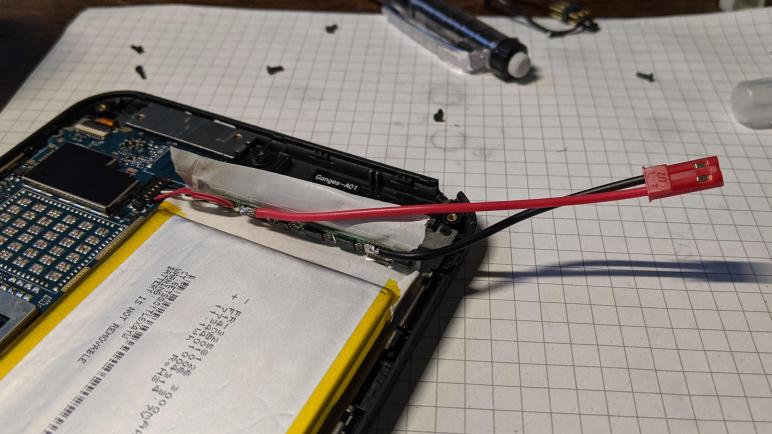
It is now later! And here is the idea: if I can’t convince the tablet to charge its battery while running, perhaps I can do the charging myself. I peeled back some protective plastic to expose the battery management circuit board, and soldered a JST-RCY compatible power connector(*) in parallel with the lithium-polymer battery cell.
Putting this idea to the test, I first ran the tablet until the battery voltage dropped to 3.7V, the nominal voltage for a LiPo battery cell. I then connected my benchtop power supply to this newly soldered connector. The power supply was adjusted to deliver a steady 3.7V. In theory this means the battery would drain no further, and all power for the tablet would be supplied by my bench power supply.
To test longevity, I turned off all power-saving functions so the tablet would not turn off the screen or try to go to sleep. The tablet was content to run in this condition for many hours, and after the first day I was optimistic it would be happy to run indefinitely. Unfortunately, this budget tablet was smart enough to notice something was wrong. I’m not sure how it knew, but it definitely refused to believe the illusion its battery is an endless source of energy. Despite the fact that battery voltage was held steady at 3.7V, on-screen battery percentage started dropping after about forty hours. Eventually the indicated charge dropped below 10% and entered battery-saver mode, followed by shutting itself down. Despite the fact its battery voltage was held at 3.7V, this tablet acted as if the battery has been depleted.
I tried and failed to salvage the polarizer film of a Chunghwa CLAA133UA01 display panel, but that wasn’t the primary objective anyway. I turned to the real goal of salvaging its LED backlight and the first step is to remove the perimeter protective film. Most of my prior salvaged panels were held together with thin black plastic tape, this panel is slightly different in its use of shiny metallic foil tape. I was surprised to see it, as I thought foil would short-circuit the components underneath. Perhaps it is some sort of metallized plastic instead of metal foil. This stuff rips more easily than others but at least its adhesive still came off cleanly.
Once the foil was removed, I could see three important-looking chips on the circuit board.
Closest to the cable connector is a chip marked MST7337F-A AQ2T842B 1049B. A web search found Kynix Semiconductor MST7337 which is a chip for NTSC/PAL/SECAM automotive TV applications. I don’t think this is the right chip, but the correct answer eludes me. I might have better luck if I knew the logo, which is distinctive but not one I recognize. I didn’t see that logo on the Kynix Semiconductor page.
The next chip was marked AAT11771 A2U274 1052. A web search found a hit: Advanced Analog Technology AAT11771 is a controller for driving TFT LCD displays.
The third important-looking chip was marked A706B A38T 66040. Its proximity to the LED backlight connector makes it a prime candidate for the LED driver, it’s even next to the inductor + capacitor pairing consistent with a boost converter to raise voltage high enough to drive strings of LEDs. A search for A706B found that A706 is a standardized grade of steel bars for concrete reinforcement, but I saw nothing about a LED driver chip.
Pulling up the backlight connector for a look, I can see there are five thin conductors, one per contact point plus one thick conductor using three contact points. Remaining contact points between them are apparently unused. Based on what I’ve seen on other panels, I guessed the thick conductor is a common source for five current sinks for five parallel strings of LEDs.
This hypothesis was quickly and easily tested with a LED tester, so if I never manage to find information on that LED driver chip I should at least be able to drive these strings directly via copious test points visible in that area of the circuit board.
Until I find need for another diffused LED light source, this is a good stopping point. I put the LED backlight back into storage and pulled a non-dead panel out of my hardware archives. This one is still attached to a nominally working HP Stream 7 tablet.
After verifying I could illuminate LED strings of a LG LPP133WH2(TL)(M2) salvaged from a Dell laptop, I set it aside to work on the final panel in my stack of LCD laptop panels. This was salvaged from a Sony VAIO laptop whose model number I no longer know.
The original owner had spilled some cola on it. Good news: the spill did not immediately kill the machine so data could be pulled off averting any loss of data. Bad news: the computer started failing intermittently in strange ways as corrosion took hold, and eventually died a few weeks after the initial spill.
Removing the panel I see a label with designation Chunghwa CLAA133UA01. (Along with some dried coke residue.) Web lookup indicated this is a LED-backlit panel with 1600×900 resolution. Better than the 1366×768 resolution we see on baseline laptops today, but still short of full 1920×1080 resolution. Like the rest of my stack of panels, I decided it was not interesting enough to revive as a display.
My first task was removing the polarizer film in the front of the display, something I have yet to perfect through several past experiments. So far I’ve been able to remove the film in one piece but failed to clean off adhesive residue. For this panel, I didn’t even get that far. This panel used glue that was very strong, apparently stronger than the tensile strength of the polarizer film! Roughly a quarter of the way through peeling, the film tore apart and I decided to abandon polarizer retrieval.
Looking at the tear was mildly interesting. It was a zig-zag pattern instead of a straight line. This material is weakest at plus or minus 45 degrees relative to screen viewing orientation. Does that have any relation to polarization angle, or is it indicative of something else? I don’t have any tools to probe that question so I will set it aside for now and move on to the LED backlight.
I’m pulling apart some retired laptop LCD panels. For the latest panel, I decided to work on the polarizer film first and I was encouraged by those results. I’ll probably try the polarizer first for future panels. But before I move on to the next panel, I want to get a closer look at the LED backlight from this panel I pulled from a retired Dell laptop. The label says it is a LG Display LP133WH2 (TL)(M2) module. A quick internet search says its pixel resolution is 1366×768, which is pretty low by today’s standards and not worth the effort to bring back online as a computer display.
Like many previous modules, it had tape all around. Unlike some previous modules, there are several different types of tape involved.
Peeling back the tape, I could see the backlight connector in the center. The previous few panels had them to the side. I’m not sure what design tradeoffs are involved in the different placements.
The chip footprint closest to the backlight connector is unpopulated. This is usually a sign there’s another version of the device with enhanced features, but I’m not sure how that works for a display module like this. Whatever it may be, the absent chip is certainly not the backlight LED controller.
The other chip on this side of the circuit board is labeled LG SW0641A. I’m amused that my not-helpful search results included a LG clothes washer with that model number. I’m not sure what this is, but it is definitely not a clothes washer. It is probably the main display controller that talks to the rest of the laptop.
Flipping the panel over, high density data connectors for the LCD array are visible as well as two chips.
Searching for information on a SiW SW5024, I came across vendors willing to sell them but not much else.
While the chip can drive up to eight strings, it appears we only have four on this panel. I see a VOUT_LED test point that fans out to four conductors on this connector. And I also see test points corresponding to four strings. FB1 is to the left, below VOUT_LED. FB2, FB3, and FB4 are to the right. If it follows convention of other panels, VOUT_LED would be the current source and FB1 through FB4 are sinks for each of four parallel strings of LEDs.
Probing those points with a LED tester confirmed the hypothesis, and highlighted another difference on this panel. Previous panels with parallel strings of LEDs would interleave them across the bottom. With an interleaved design a single failed string would still leave most of the display illuminated. But in this panel, each of these four strings are assigned a quarter of the panel area. So if one string failed, one quarter of the display would be darkened and difficult to read. My guess is this method is easier (and cheaper) to wire as a tradeoff for fault tolerance.
With the LED strings verified to illuminate, I set this aside and started working on the final disembodied laptop display panels currently in my possession: a Chunghwa CLAA133UA01 from a Sony VAIO laptop.
I’ve been interested in salvaging the polarizer film from a LCD panel but I’ve had problems removing the glue without destroying the film. I had the idea to leave the glue in place but transfer it to something else that is clear, like a sheet of acrylic. I wouldn’t call my first experiment a success, but it was encouraging enough for me to start with the film for my next salvaged laptop LCD panel.
There were two advantage I hoped to gain by pulling that sheet while the LCD module is still intact. First is physical strength, as the glass still has all of its reinforcements and I hope it will be less likely to break as I pull on the polarizer film. Second is thermal inertia, I’ve learned that a thin sheet of glass cools too quickly. By leaving the module intact I hoped it would stay hot longer.
The next LCD panel was salvaged from a Dell laptop whose model number I no longer remember. (Possibly a Vostro 3350?) It had a lovely bronze surface finish so I also kept the mounting frame for this panel.
Just like before, I left it out in the Southern California summer sun to soften the glue.
A razor blade got me started in a corner.
A ruler was used to give me a flat edge to hold against the glass, which along with keeping the module intact meant I didn’t break this LCD glass during polarizer film removal.
And just my luck, the glue for this particular sheet isn’t particularly tenacious and didn’t want to stick to the acrylic. And where it did stick, it wasn’t as optically clear as previous films.
A little bit of mineral spirits helped the glue settle against the acrylic. Still not optically clear, but I’m pleased with my progress on reducing surface imperfections.
I’ve got a collection of old LCD panels that I want to turn into LED lights by salvaging their backlight. In the course of doing so, I also get some auxiliary pieces like a rigid metal frame. Another common piece that I’ve been working to salvage is the polarizer film. A sheet of polarizer film is a part of every LCD panel, interacting with the liquid crystals within to block or allow light as needed to create the picture on screen. Because it is directly on the optical path, it’s important for it to be held against the screen in a way that minimizes optical distortion.
In practice this means a very thin layer of very tough clear glue that keeps the film flat against the glass. I’ve been struggling with how to best salvage the polarizer film. While I could peel it off the glass, that leaves a layer of glue that I have yet to figure out how to remove. I worked my way from isopropyl alcohol to mineral spirits up to acetone. I found that acetone would dissolve these glues very well, but using enough to dissolve the glue also damages the film. I have yet to successfully clean off a sheet of polarizer film.
As an experiment, I want to see if I can sidestep the problem of removing the glue. Instead of trying to clean it off, keep the glue and instead transfer the polarizer film along with its glue onto something more durable and clear than the glass layers of a LCD panel. I decided to start with a sheet of acrylic I had bought for laser cutting. The pandemic cut me off from the laser cutter I had planned to use with it, so it is now fair game for use in this project.
As I did before, I left the LCD assembly in the hot Southern California summer sun to soften the glue. It didn’t take much heating, two thin layers of glass and a sheet of plastic film had very little thermal inertia. So little, in fact, that the glue solidified and cooled within a few minutes after being taken into the shade. This is disappointing, because it meant I need to move back outdoors and perform this work under the sun.
I’m still learning to work with such fragile sheets of glass, so it wasn’t a surprise when I cracked it (further) making this polarizer film project difficult. Annoying, but not a surprise.
Thankfully a LCD panel had multiple edges, so rather than give up I turned the panel 180 degrees and started peeling the other side for practice.
I was able to peel the remainder without further cracking glass, and transferred to my acrylic sheet for a quick test.
There are a lot of air bubbles in there so the result is pretty bad, but there are portions where the glue happily sucked back down to the sheet of acrylic leaving an optically clear path. If I can figure out how to increase the percentage of area that shows this clear path, I think this approach can work. This particular example, however, is pretty screwed. Any attempt to make that adhere optically clear will be continually foiled by tiny bits of broken glass.
But even though I think it’s doomed to failure, I see a learning and practicing opportunity before me so I pulled out a razor blade and started trying to remove the broken glass pieces. This is a terrible idea. I’m dealing using a sharp piece of steel to deal with with sharp pieces of glass. Not only does the blade scratch and damage the film surface, it can’t get all the little glass pieces. I have not set myself up for success with this test, but at least I managed to avoid cutting myself open in this exercise.
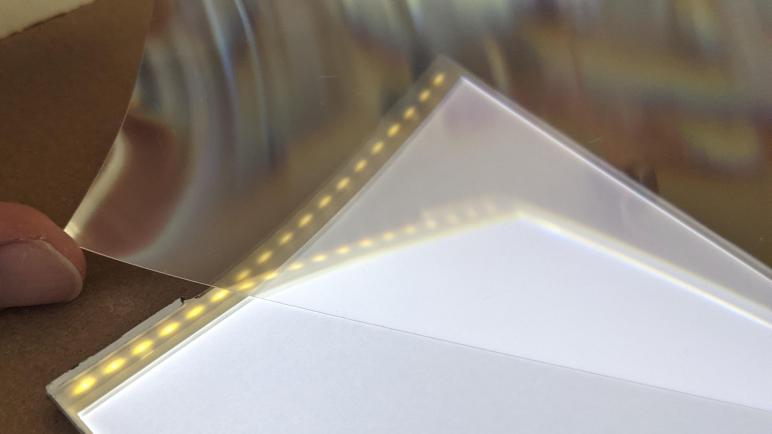
The results were completely unusable. That said, it actually turned out far better than I had expected. In this picture the glass shards I had removed are sitting on the keyboard beyond the polarizer film and acrylic sheet. They are several centimeters away and there’s enough clarity for us to see them. I think there is promise in this transfer approach and I intend to practice it on the next few panel salvage projects. In fact, the very next panel salvage started with the polarizer.
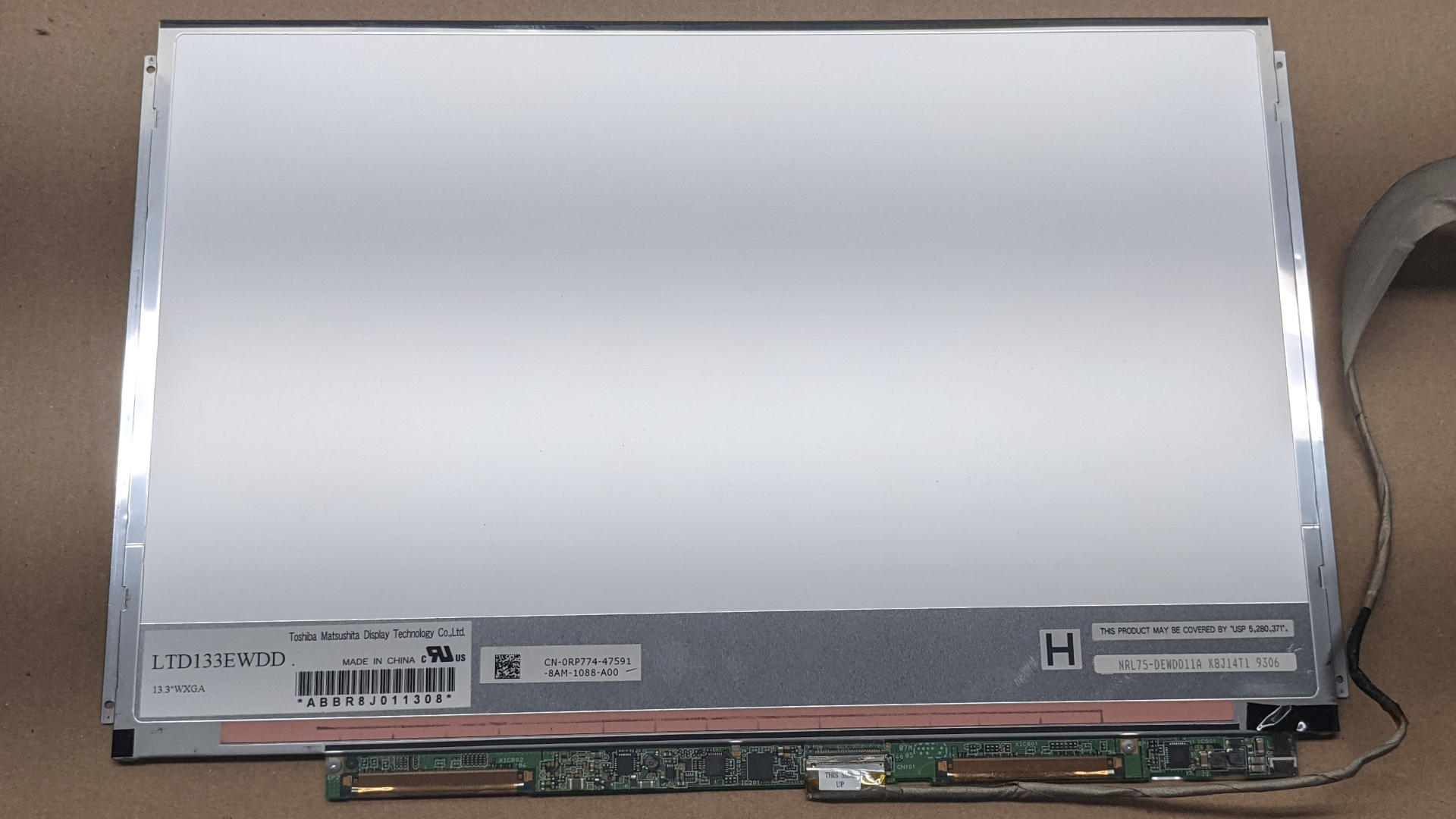
I think I’m going to have a lot of fun repurposing LED backlight modules salvaged from obsolete LCD panels. I just verified I had successfully salvaged a backlight from the Toshiba LTD133EWDD panel of a Dell XPS M1330 laptop. But the airy thin nature of these backlights also have a downside: there’s very little to hold them in place. For my first experiment I had a bulky cardboard contraption, but I know I want to do better for future projects.
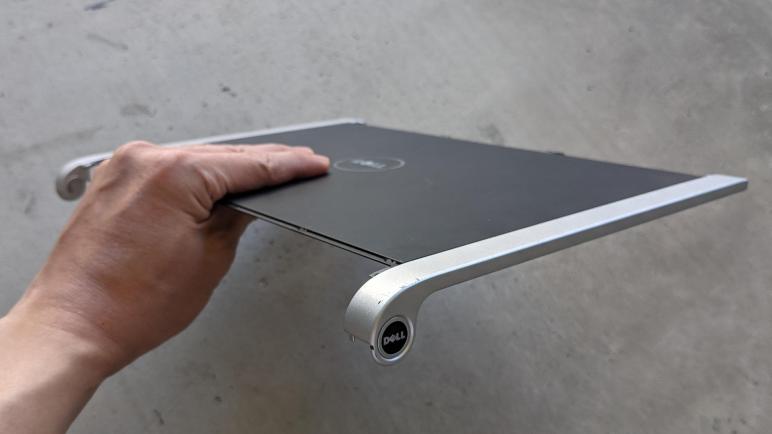
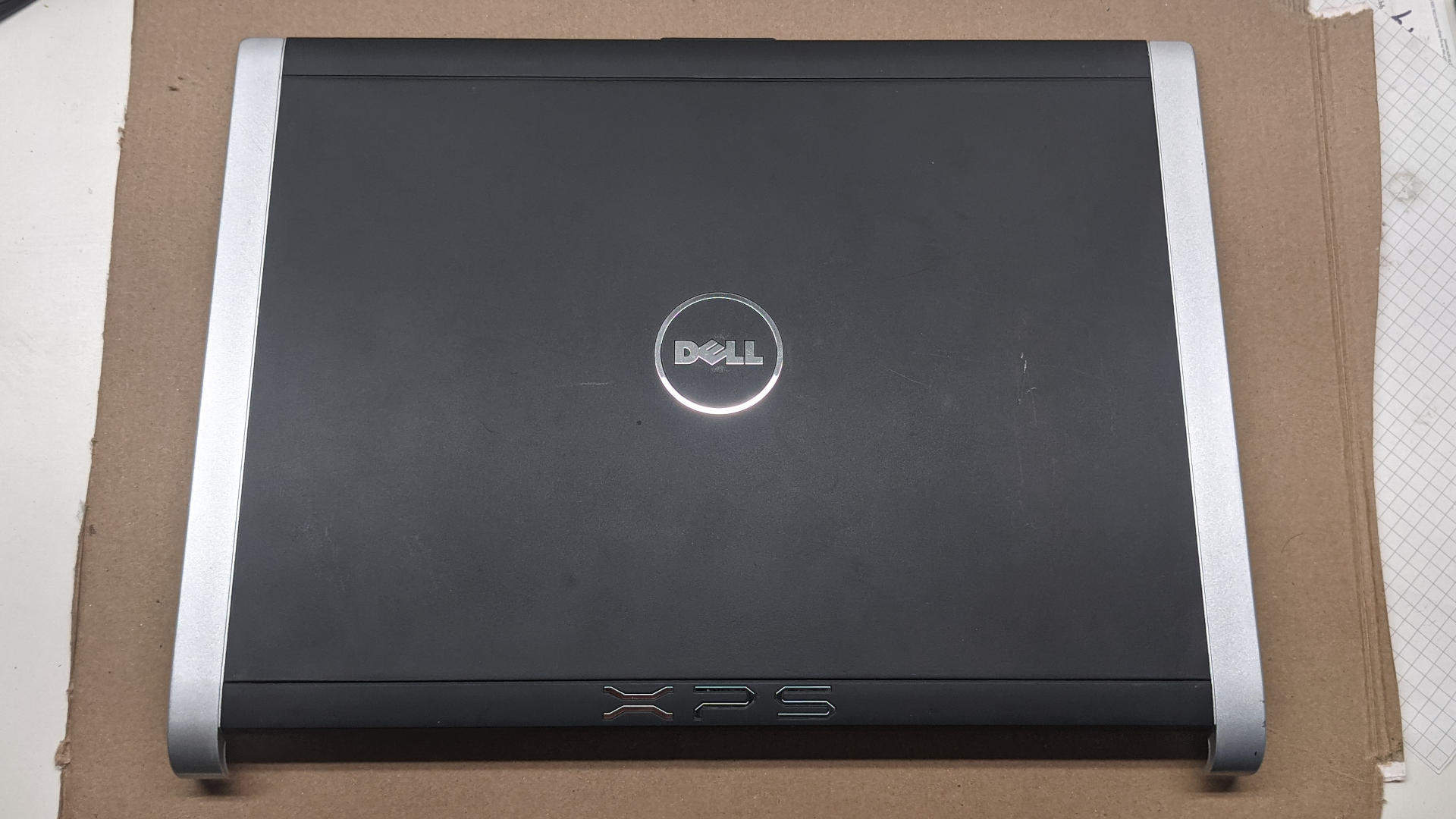
For this backlight module I pulled from a Dell laptop screen, I had the foresight to also keep the laptop lid and all the mounting hardware to fasten this screen to the lid. This gave me a ready-made metal frame I could drill mounting holes into. I don’t know enough metallurgy to identify the metal used to make this lid, but it is darker than what I associate with aluminum. Perhaps magnesium is involved? Whatever the metal, it was cast into shape then machined and surface finished for this application.
The cast included metal covers for what used to be this laptop’s hinge. The graceful arc added a styling flair to this laptop, but I don’t foresee this arc being very useful for my future endeavors. Furthermore, the arc has proven to be annoying because its presence meant I couldn’t stack this lid flat with other flat salvaged components. In preparation for this module’s return to storage (awaiting appropriate project idea) I’m going to remove the arched portion of this laptop lid for better flat stacking.
I was able to cut this pretty cleanly with a Dremel cutting wheel. Some gummy materials would leave melted edges abound, but this one was cooperative and easy to cut. I hope I don’t regret cutting these off later, but in the meantime at least they will stack well.
Next on the panel auxiliary items list is its polarizer film, and I want to try a different tactic than my past efforts.
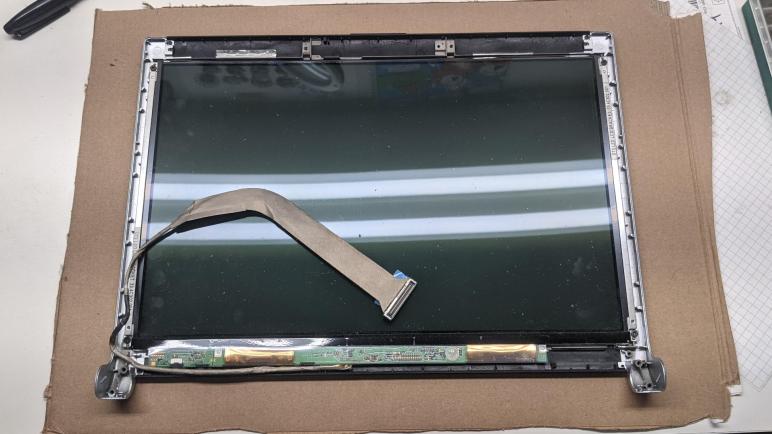
Examining the integrated control board on a Toshiba LTD133EWDD panel I had pulled out of a Dell XPS M1330 laptop, I found no information on communicating with its integrated LED driver chip so I’m going ahead with the backup plan of seeing if I could drive the LEDs directly. [NOTE: This was written before Randy commented with a link to the datasheet.] First order of business was to remove the LCD pixel array in front of the backlight. A marvel of miniaturization in its day, now I am no longer interested in its 1280×800 pixel resolution.
A thin strip of black tape around all four edges held the glass sheets in the frame. I admire how it precisely mated up against the edge of the polarizer film. It was either applied by a machine or hands of great skill.
Once the tape was removed, the glass LCD array was held only by the high density data connectors. Before I peeled them off, I noticed one item of interest: I see alignment marks that I don’t recall seeing on previous LCD arrays I had peeled off in this way.
While peeling off the high density pixel data connectors, I was reminded that glass is fragile and easily crack when abused.
Once the LCD pixel array was removed, I returned to examining the LED backlight connection. I see an eight-conductor connector, but only seven wires in the flexible cable. One of which is thicker than the rest. Based on the experience so far, my first guess are six LED strings in parallel sharing a common current supply but with six individual current sinks.
Flipping the circuit board over, I found several sets of six pads on the board. The circular pads look like they were designed for pogo pins on a test rig. The rectangular pads look like they are provisions for decoupling capacitors that were never installed. We could see the top row of six are all connected, consistent with a common supply. The bottom six each correspond to the six current sinks on the connector.
One interesting novelty was that while the leftmost four connectors are strictly in order, the fifth and six conductors were swapped. So if we count the small vias connecting to the connector on the other side in left-to-right order as 1,2,3,4,5,6. The rectangular pads are in the order of 1,2,3,4,6,5. Perhaps this was merely done to make PCB routing easier, but I’m curious if there’s a more profound reason.
Another interesting item of note is the surface mounted switch immediately to the right and below these pads. This switch would not have been user-accessible in the laptop. Even a servicing technician would have to peel off a plastic protective layer before this switch could be flipped. What does it do, and why is it important enough to take the hit of manufacturing parts cost and complexity? I can smell a story here but not enough interest to chase it down.
In my past LED backlight salvage operations, my next step would be to solder some wires to these points and determine the electrical properties of this string. But now I am armed with a dedicated LED backlight tester, and I could put it to work and probe these points directly. There are indeed six parallel strings of 10 LEDs per string. They each drop approximately 32V at 20mA. This is information I could have determined without the dedicated tester, but having the right tool made the job quick and easy.
Once I had these backlight details identified, I could store it away for future project. But it also had some auxiliary items I should take care of first, like a nice metal frame.
My detour into laundry machine repair pushed back my LED backlight adventures for a bit, but I’m back on the topic now armed with my new dedicated backlight tester. The next backlight I shall attempt to salvage came from a Dell XPS M1330. This particular Dell product line offered an optional NVIDIA GPU packed into its lightweight chassis. Some engineering tradeoffs had to be made and history has deemed those tradeoffs to be poor as these laptops had a short life expectancy. In the absence of an official story from Dell, the internet consensus is that heat management was insufficient and these laptops cooked themselves after a few years. I was given one such failed unit which I tore down some years ago. I kept its screen and the laptop’s metal lid in case I wanted a rigid metal framework to go with the screen.
The display module itself was a Toshiba LTD133EWDD which had a native resolution of 1280×800 pixels. Not terribly interesting in today’s 1080p world. Certainly not enough motivation for me to buy an adapter to turn it into an external monitor, and hence a good candidate for backlight extraction.
Unlike the previous LCD modules I’ve taken apart, this one doesn’t cover its integrated control board in opaque black tape. Clear plastic is used instead, and I could immediately pick out the characteristic connection to the rest of the display. At the bottom are two of those high density data connections for the LCD pixel array, and towards the right is an 8-conductor connector for the LED backlight. The IC in closest proximity is my candidate for LED backlight controller.
Despite being clear plastic, it was still a little difficult to read the fine print on that chip. But after the plastic was removed I could clearly read “TOKO 61224 A33X” which failed to return any relevant results in a web search. [UPDATE: Randy has better search Kung Fu than I do, and found a datasheet.] Absent documentation I’m not optimistic I could drive the chip as I could a Texas Instruments TPS 61187. So I’ll probably end up trying to power the LEDs in the backlight directly.
After verifying my clothes dryer’s motor couldn’t even turn its own shaft in the absence of load, I was confident replacing the motor assembly will restore my dryer to working condition. I started looking online for this motor part number and came up empty, and soon realized this was due to an obfuscated ecosystem of appliance repair parts. There is a wide variety of part numbers, and certain ones are supposed to replace certain other parts. I’m not in favor or such an opaque system and realized I need some kind of help to navigate it.
That’s when I snapped out of my online shopping indoctrination and started searching for a local resource. After all, washers and dryers have been around (and been failing) long before the advent of online shopping, surely I could find a local vendor of appliance parts. I expect them to mostly cater to local repair experts as they do their house calls, but a subset of these vendors should also be willing to sell at retail to DIY consumers like myself. I found Coast Appliance Parts Co. with a location near me and decided to visit them first.
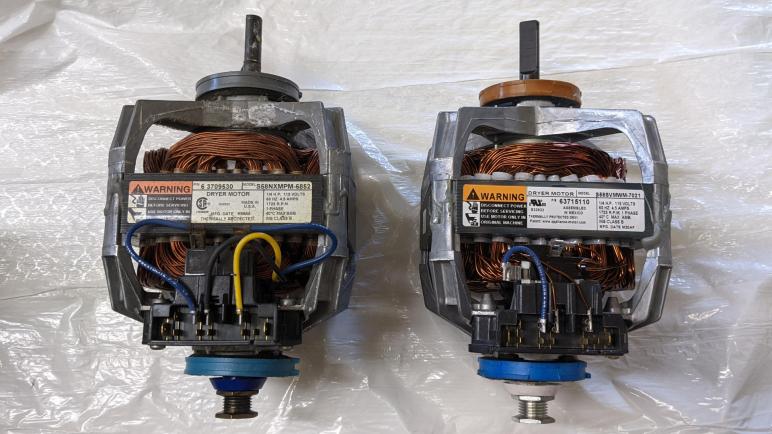
At the service counter, I gave my dryer model number MDG9206AWA and the store employee was able to put that into their computer system to retrieve some part numbers as replacements. Thankfully they were in stock so I bought a replacement motor assembly plus a replacement belt. Neither of which had a model number that matched the original item on my dryer, even though they were packaged in a way consistent with official replacement parts. Why appliance manufacturers use such a convoluted system I don’t know, but at least I have a way to deal with it.
Fortunately, mismatching part number aside, both the motor and the belt seem to be straightforward replacements for their original counterparts. Once I installed the motor by itself I verified it could at least spin itself in the absence of a load, confirming the old motor assembly was indeed faulty. From there I could put everything back together in the reverse order of assembly, and my dryer was back up and running!
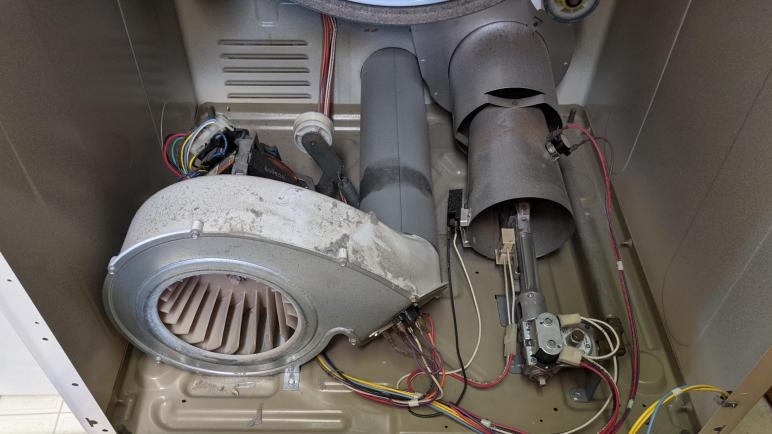
I’m trying to fix my broken clothes dryer and I’ve successfully opened up the sheet metal enclosure. Once I removed the dryer drum, I could access all of the mechanical core mounted on its base. The right half of the base is occupied by natural gas ignition and combustion equipment. Since my hypothesis is that motor capacitor(s) have failed, I’ll start by ignoring that half of the base and focus on the left half.
My first test is to try to spin up this motor by itself, without the dryer drum. It failed to start rotating with the same awful buzzing noise even without the dryer drum or drive belt, thus confirming that the root failure has nothing to do with mechanical obstruction with the dryer drum.
More convinced now that the motor capacitor(s) are at fault, I was dismayed to find that they are integrated into the motor assembly and could not be replaced separately. I have to replace the entire motor assembly. This is possibly intentional. If the motor capacitor have failed due to age, it can be argued that other parts of the motor assembly are nearing the end of their life as well. If this is true, it makes sense to replace everything together, so I’ll optimistically (naively?) believe that hypothesis.
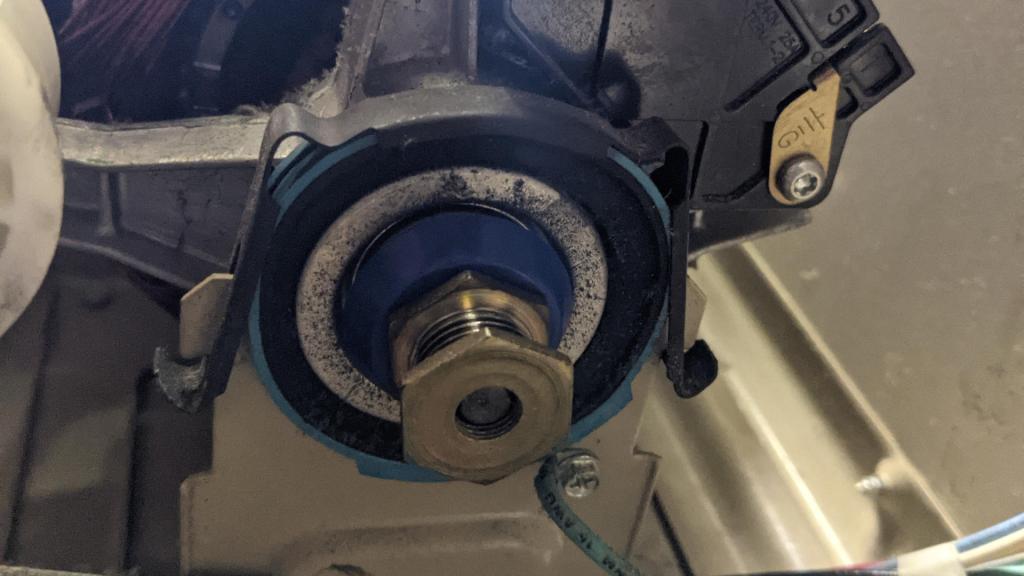
But that also meant I have to figure out how to remove the motor assembly. The motor shaft is connected on both ends. On the shaft facing me, it is connected to the air blower fan via a few retaining rings.
Retaining rings are a wonderful invention, holding tightly when installed and easily manipulated with the right tools. My problem? I don’t have a set of retaining ring pliers. That’s a tool I’ll have to buy for this project, which is fine as I always look forward to adding tools to my toolbox in both metaphorical and literal senses.
The far end of the motor shaft hosts the pulley which will turn the driver belt to spin the drum. Mounting this motor to the base plate are two sheet metal brackets. One just behind this pulley and the other one just behind the blower fan. Typically I could decipher how to install or remove a bracket by examining its shape, but I don’t recognize this particular bracket design.
I struggled with this bracket for some time, trying to figure out the magic touch to gently persuade it to release its grip on the motor. After some time of continuously failing I decided to seek help and found this YouTube video by RepairClinic.com. This video demonstrated no magic touch for gentle persuasion: I merely had to apply FAR more brute force than I had been willing to use. (“Be aware this may require some effort.“) I shrugged, applied a big whack as demonstrated in the video, and the bracket came loose. That works. Good enough for me to proceed with motor assembly replacement.
I’ve got a malfunctioning clothes dryer at home and I’ve decided to take a stab at fixing it myself. If I couldn’t fix it, I will have to hire a professional repair person. And if that should fail, I might have to replace the entire machine. But I am optimistic. Based on symptoms, I have a guess that the motor capacitors have failed. If that is true, it is a common age-related failure of motor appliances and thus I expected replacement parts to be available. But before that, I need to get inside the machine to validate my hypothesis.
Making my way to the dryer motor was an educational course in how Maytag engineers designed with sheet metal. I saw several signs that this machine was designed to be easy to service but without adding a lot of manufacturing cost to do so. My first lesson was that I wasted effort sliding the dryer out of its usual spot. All the parts I need to reach for this project was actually accessible from the front without moving the machine!
First I had to remove the door, whose fasteners held the lower front metal façade in place. Once that was removed I could access the assembly holding the front of the dryer drum, and the lint filter portion, of the air path. I noticed that several different fasteners were used and originally thought they served different purposes. But they were all used for fastening sheet metal together, which is fairly accommodating of loose tolerances. (Both a plus and a minus.) I eventually decided that the different screws were there to demarcate different stages of disassembly: it helps us see that only a subset was needed to remove a particular part. This way we don’t accidentally remove too many fasteners and have the machine completely fall apart on us.
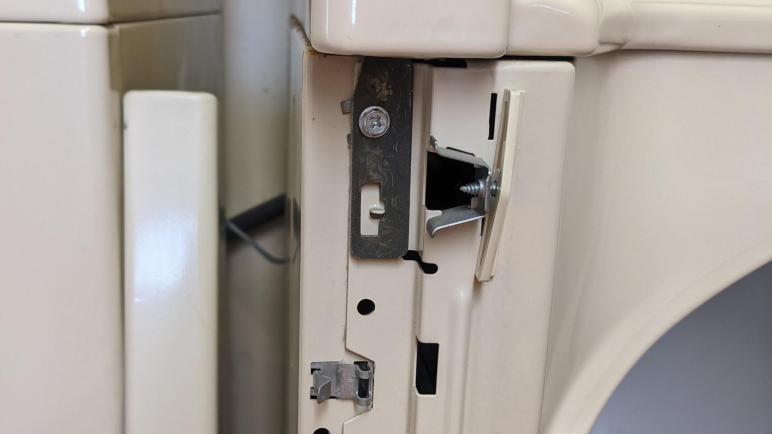
In addition to self-tapping sheet metal screws, there were also a few stamped sheet metal hooks (dark metal in title image) that were used to hold large sections of sheet metal together. I was impressed at how much this design could accommodate loose tolerances yet still allow us to fasten top front corners of the machine together so it makes for a solid cube.
I had to remove the dryer drum on my way to access the motor, which also involved removing the belt that rotated the dryer drum. I took a close look at this decades-old belt and saw it was cracked with age with a fraying substrate. The belt is another common age-related failure. While it hasn’t failed yet, I plan to go ahead and replace it as well. It’s something I had to remove anyway on my way to the mechanical components of this machine.
I had made plans to pull LED backlights out of old LCD screens, and even bought a dedicated LED backlight tester to aid in my adventure. But before I could embark, daily life interrupted in the form of a clothes dryer that would no longer spin up. Since this problem has a very immediate effect on my life, it has priority over salvaging LED backlights. While I am not an experienced appliance repairperson, this is not my first time poking into my laundry machine. A few years ago I dug into the washing machine that paired with this dryer.
Symptom
When I press the Start button, I hear an electrical buzz that I associate with the dryer motor startup sequence. Typically this buzz would only last about one to two seconds before it fades and sounds transition to mechanical noises of the dryer drum spinning up. Once the drum starts spinning up, I could release the Start button and let the machine execute its selected drying cycle.
But now the buzz continues for as long as I hold down the start button, and the dryer does not transition to mechanical spinup noises. This is intermittent. Occasionally the drum would start as normal, but most of the time it would just buzz for as long as I hold the start button.
Process of Elimination
Electrical Power: since the dryer would occasionally spin up, I decided this was not a power failure issue. One of the more common reasons for the dryer to not start is a thermal fuse. But if that thermal fuse has blown, I would expect no buzzing noise and certainly no occasional spin-up.
Electrical Control: Due to the occasional spin-up, I also decided the control system is probably OK.
Mechanical: One hypothesis is that I have a mechanical obstruction somewhere, and depending on the position of the drum relative to the obstruction, the motor would have a harder time starting up. I spun the dryer drum by hand and detected no such obstruction.
Natural Gas: The heat source for the dryer is natural gas, but since the machine never makes as far as flame ignition I doubt that subsystem had anything to do with my problem.
Electromechanical: That left the motor as the prime candidate for this problem. Specifically, I suspect one or more of the motor capacitors have failed with age. They are critical to the motor startup sequence. The buzzing noise and inability to spin up hints at the starting capacitor.
I like the starting capacitor hypothesis, a target to look for as I open up this machine.
I have successfully salvaged LED backlight diffuser assemblies from three different LCD screens. It gave me the confidence to attempt pulling the backlight out of other LCD screens in my pile of less-used and broken electronics, in the expectation that diffuse white light sources will be more useful than low resolution displays. But before I start merrily tear more panels apart, I wanted to address one particular pain point: deciphering mystery LED strings.
Only one of the three examples so far gave me an easy time, where the LED backlight power planes were clearly marked with + and -. The other two had multi-conductor cables that required a little decoding to find a common anode and cathodes for individual strings, and sometimes a few conductors remained mysterious. I had been doing this work by spending a lot of time probing with a multimeter, then soldering wires to test points, and cautiously putting power on those lines with a bench power supply. This has worked so far, but I knew there was room to make this process faster for future panels.
Enter the dedicated LED backlight tester.
I wanted something that could put current-limited power over a set of probes. This would let me probe LED strings directly in a single-step versus my current multi-step workflow of multimeter, then soldered wires, then bench power supply. I considered buying a set of probes that I can connect directly to my bench power supply, but a quick search for dedicated LED testers found them quite affordable and I made the jump to try one.
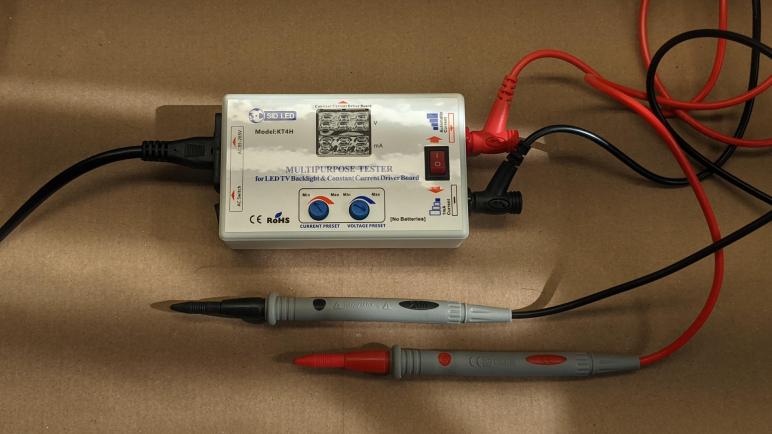
Looking over several options on Amazon, I decided to try a SID LED KT4H(*) because it advertised a few extra features I thought might be useful enough to worth the extra cost. It has household AC input so I don’t have to worry about a separate power supply or batteries. Separate numerical displays for voltage and amperage allows me to read both metrics simultaneously. Simple dials for current and voltage limits make the user interface simpler than designs that use infuriating combinations of unintuitive button presses. There’s a switch to toggle between two current limits: the one set by the dial, and 1mA for testing purposes. This is much better than turning the current limit knob back and forth. And finally, it can also test the other side of the system: whether the device’s constant current supply is putting out any power at all.
The package also included a convenient carrying case, in the form of a generic First Aid Kit zippered fabric bag. Not the fanciest branding, it gave me a chuckle, but it should be quite sufficient.
The probes had sharp tips more than precise enough to hit the kind of test points I had been probing with my meter.
For a quick familiarization run, I used this tester on a single 5mm through-hole LED and saw it light up dimly in the 1mA test mode and brightly with current limit set at 20mA. Then I moved on to illuminate the recently-liberated backlight from an AU Optronics B101EAN01.5. A nice feature is that the current limit ramps up gradually: there is a slow (2-4 seconds) ramp-up as the device seeks the correct voltage level to deliver 20mA. In comparison to my bench power supply which will snap to a voltage almost instantly. I’m optimistic the slower ramp-up will prove valuable.
Before I could put this tester to work, though, life threw me a curveball and I had a broken clothes dryer to fix. The LED backlights will have to wait a bit.
(*) Disclosure: As an Amazon Associate I earn from qualifying purchases.
There’s a small market in LCD panel controller boards. When we salvage a panel from a retired laptop, we can enter its model number into eBay. If the panel is used in a high-volume laptop (for example, one of Dell’s consumer Inspiron laptops. Or most Apple MacBooks) then someone is likely selling a driver board that accepts HDMI input and translates it into the signal to control a panel’s integrated electronics.
I had salvaged the panel from one of my old Dell Inspiron laptops and, buying one of these adapter boards for $50, converted it to an external monitor. Eventually it became the onboard screen for Luggable PC Mark I. (Mark II used a commercially available monitor, and stories on both are available here.) A few months after that adventure, I received another retired Inspiron laptop and used its screen for the Portable External Monitor project.
I have several more LCD panels salvaged from retired laptops, but I don’t need very many external monitors. Furthermore, resolutions on these panels were lower than 1920×1080 limiting their utility. It’s hard to justify spending $50 for a circuit board to hack-up converted laptop screens when a Full HD 1920×1080 desktop monitor can be had for about $100.
I had thought it might be interesting to build my own LCD interface boards, but there are several obstacles. One is the requirement to build connectors to carry high-speed raw pixel information, which is tricky to do correctly given the high bandwidth translating to low tolerance for sloppy work. The LVDS (low voltage differential signaling) system doesn’t connect directly to typical microcontroller output pins, but translator chips are available and some task-specific microcontrollers have integrated LVDS output.
But the biggest hurdle against building my own boards is documentation. The protocol carrying that high-speed raw pixel information is a mystery. Counter to popular electronics convention, datasheets for panels aren’t distributed freely online. Many of them are proprietary and difficult to get, others lie behind paywalls. It makes sense to pay if I’m designing a device using millions of panels, but it doesn’t make sense if I’m fiddling with a single panel.
So those salvaged LCD panels have sat in my workshop, gathering dust waiting for a new purpose in life. Now that I’ve successfully extracted and illuminated the backlight module from three different LCD panels, I believe I have found that new purpose. Utility of extra monitors quickly pass a point of diminishing returns, but gentle diffuse white light sources are far more useful in wider variety of settings. No need to buy $50 driver board makes this a lower cost project, combined with higher utility of diffuse white light sources means the great backlight liberation begins.
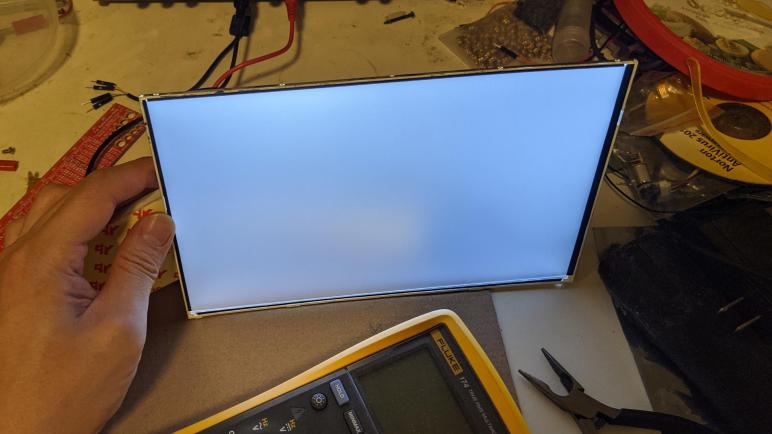
I’ve pulled the LED backlight illumination panel out of an AU Optronics B101EAN01.5 LCD panel, which was in turn salvaged from an Acer Aspire Switch 10 (SW5-012) tablet/laptop convertible. I want to see if I can get it to light up. Using my multimeter I found test points corresponding to all six control lines on the backlight, and soldered wires to all of them. The next task is to determine what these wires are.
The other end of those wires were crimped and assembled into a six-pin connector with 0.1″ spacing. I first arranged them in whatever happened to be convenient, but then I changed my mind and rearranged them to be in the same order as that on the backlight cable. From top to bottom: Power, ground, FB1, FB2, FB3, and FB4.
This gave me something suitable for breadboard exploration. I have two hypothesis about what the FB connectors are. Since power and ground were already identified, I thought maybe these are control lines (gates) for MOSFETs in line with each string, which implies I could turn on a LED string by pulling its signal high. But if I look at precedence set by the LG LP133WF2(SP)(A1) panel I took apart earlier, these could be four current sinks for four LED strings.
To test both concepts simultaneously, my breadboard exploration wired one string to a pull-up resistor in case FB is a MOSFET gate, and another string to a pull-down resistor in case it is LED current sink.
I started seeing a dim glow when I turned the power supply up to 17V. To determine which hypothesis was correct, I removed the pull-down resistor and it went dark. So FB1 through FB4 are current sinks for four strings. As a double-check, I calculated voltage drop across the pull-down resistor and calculated the current flow to be 1.4mA. This is far too high for a MOSFET gate but completely consistent with current-limiting resistor for a dimly lit LED.
Hooking up a current-limiting resistor to each of FB1 through FB4, the backlight has dim but usable illumination starting at about a 15.6V drop across an individual LED string. Whenever I find a project for this light, I will need to either solder more permanent current-limiting resistors, or find an intelligent LED controller with a more efficient current-limiting control scheme.
There is one remaining mystery: If the VOUT wire is voltage source, and FB1 through FB4 are current sinks, why is there a line connected to the ground plane on the control circuit board? It feels like there’s another aspect of this backlight I have yet to discover. Or possibly destroyed by clumsy overvoltage on my part. Either way, it doesn’t seem to be critical for illuminating this backlight, so I’ll leave that mystery for another day.
I have a broken Acer Aspire Switch 10 (SW5-012) that I have taken apart. Among the pieces I salvaged was the screen, an AU Optronics B101EAN01.5 whose 1280×800 resolution is not terribly interesting in this era when even cell phones have higher resolution displays. So I decided the most interesting thing to do is to liberate its LED backlight for potential future projects.
The backlight connector has six visible conductors. Two conductors are wider than the rest, which imply power and ground to me. There is a test point labeled VOUT adjacent to this connector, and my meter confirms it corresponds to the topmost wide conductor. The meter also confirmed the second wide conductor has continuity to the ground plane of this circuit board, so power and ground confirmed.
What does that mean for the four remaining thin conductors? Looking around the backlight control IC, I looked for a likely group of four test points and found FB1, FB2, FB3 and FB4. Meter confirms they correspond to the remaining four conductors on the backlight cable. “FB” probably doesn’t mean Facebook in this context, but I’m not sure what it would represent. I’m just glad they were numbered.
As for the backlight control IC itself, the large AUO letters say it is something AU Optronics produced for internal consumption. The earlier LG panel project found a TI TPS61187 chip with publicly available documentation, but here I found no documentation for an AUO L10716 controller. Since the chip is so tiny it’s pretty probable I’ve misread the numbers, but no search hits on the variations I could think of either: LI0718, L10216, etc. If I had found a test point labeled PWM I would be tempted to see if I can get it running with an Arduino PWM signal, but I saw test points labeled SCL and SDA telling me this is an I2C peripheral and my skill level today isn’t good enough to reverse engineer it without official documentation of its I2C protocol.
So instead of trying to interface with the existing backlight control chip as I did on the LG backlight, here I will interface with the backlight LEDs directly. I found test points corresponding to all six wires on the backlight connector and soldered wires to all of them. Then I used hot glue to help hold them down and relieve strain, as I don’t want to lift a pad again!
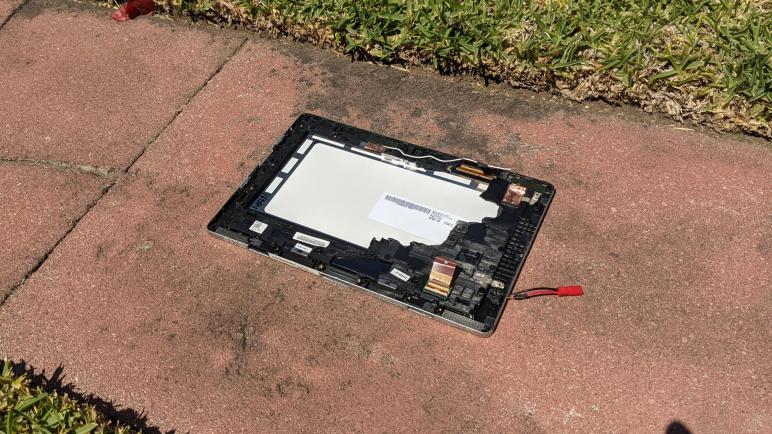
While I took apart the base unit of this dead Acer Aspire Switch 10 (SW5-012) tablet/laptop convertible, the main display had been left under the punishing direct heat of southern California summer sun. I don’t like fighting glue, but heat at least helps reduce their tenacious grip. I pulled out my prying tools from iFixit and plunged into the seam between gray and black plastic surrounds holding its AU Optronics B101EAN01.5 screen in place.
The double-sided adhesive foam tape was thickest around the left and right sides, gripping tightly enough that I broke the frame on both sides trying to peel them off. There were slightly less of it across the top, and surprisingly little across the bottom.
I had hoped the LCD module would pop free once the touchscreen digitizer glass had been freed from its frame, similar to how an Amazon Fire tablet was put together. But no such luck, there appears to be more adhesive involved.
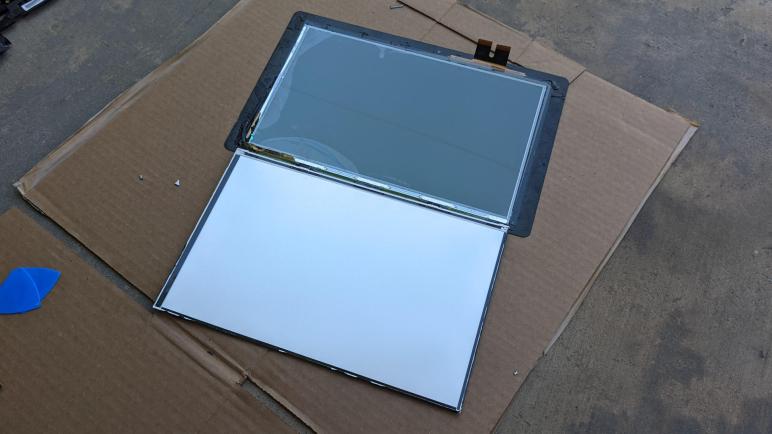
Once I pushed a pick into the gap between the digitizer glass and the LCD polarizer, I realized the bad news: they have been glued together across the entire visible front surface of the screen. It’s going to take a lot of effort to separate them and I don’t see how it could possibly be worth the effort.
My objective here is the LED backlight, so just as I did for the Chromebook cracked screen and the Amazon Fire screen, I peeled back the black tape holding the LED backlight to the LCD. Starting with the bottom section to expose the integrated driver board.
I am starting to recognize the signs of a LED backlight power connection: a few connectors separate from the high-density connectors used for controlling LCD pixel data. An inductor and a diode for voltage boost conversion, and an IC controlling it all.
The black tape holding this display module together is much more difficult to remove than those encountered on previous screen backlight salvage projects. The glossy substrate is weaker than the adhesive, causing it to easily stretch and break. Now that I’ve identified the portion I cared about for my project, I pulled out a blade and cut the rest of the tape allowing me to open up this display module.
Once the backlight folded away from the LCD pixel array, I can see I’ve already cracked at least one LCD glass layer in my effort to pry it from the front digitizer glass. I’m not even going to try to salvage the polarizer filter from this one, so my blade continued its work cutting all pixel data lines to free the backlight for further examination.















 New Screwdriver