Windows Shopping LINX: Connecting LabVIEW To Maker Hardware

When I looked over LabVIEW earlier with the eyes of a maker, my biggest stumbling block was trying to connect to the kind of hardware a maker would play with. LabVIEW has a huge library of hardware interface components for sophisticated professional level electronics instrumentation. But I found nothing for simple one-off projects like the kind I have on my workbench. I got as far as finding a reference to a mystical “Direct I/O” mechanism, but no details.

In hindsight, that was perfectly reasonable. I was browsing LabVIEW information presented on their primary site targeted to electronics professionals. I thought the lack of maker-friendly information meant National Instruments didn’t care about makers, but I was wrong. It actually meant I was not looking at the right place. LabVIEW’s maker-friendly face is on an entirely different site, the LabVIEW MakerHub.

Here I learned about LINX, an architecture to interface with maker level hardware starting with the ubiquitous Arduino, Raspberry Pi, and extensible to others. From the LINX FAQ and the How LINX Works page I got the impression it allows individual LabVIEW VI (virtual instrument) to correspond to individual pieces of functionality on an Arduino. But very importantly, it implies that representation is distinct from the physical transport layer, where there’s only one serial (or WiFi, or Ethernet) connection between the computer running LabVIEW and the microcontroller.

If my interpretation is true this is a very powerful mechanism. It allows the bulk of LabVIEW program to be set up without worrying about underlying implementation. Here’s one example that came to mind: A project can start small with a single Arduino handling all hardware interface. Then as the project grows, and the serial link becomes saturated, functions can be split off into separate Arduinos with their own serial link plugged in to the computer. Yet doing so would not change the LabVIEW program.

That design makes LabVIEW much more interesting. What dampens my enthusiasm is the lack of evidence of active maintenance on LabVIEW MakerHub. I see support for BeagleBone Black, but not any of the newer BeagleBone boards (Pocket is the obvious candidate.) The list of supported devices list Raspberry Pi only up to 2, Teensy only up to 3.1, Espressif ESP8266 but not the ESP32, etc. Balancing that discouraging sight is that the code is on Github, and we see more recent traffic there as well as the MakerHub forums. So it’s probably not dead?

LINX looks very useful when the intent is to interface with LabVIEW on the computer side. But when we want something on the computer other than LabVIEW, we can use Firmata which is another implementation of the concept.

UPDATE: And just after I found it (a few years after it launched) NI is killing MakerHub with big bold red text across the top of the site: “This site will be deprecated on August 1, 2020″
Communicating With 3D Printer Added A Twist

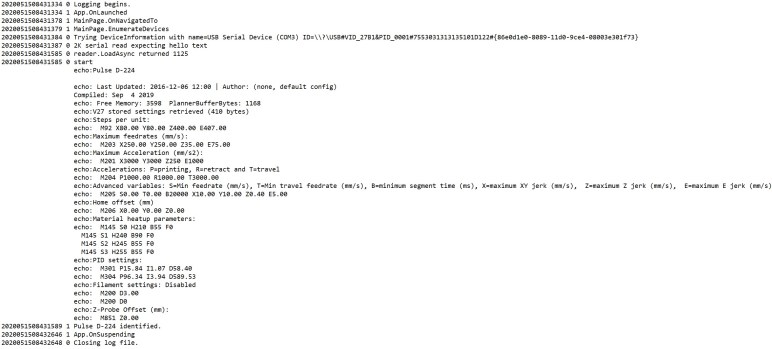
I chose to experiment with UWP serial device communication with my 3D printer because (1) it sends out a sequence of text immediately upon connection and (2) it was already sitting on the table. Just trying to read that text was an educational exercise, including a side trip through the world of logging.

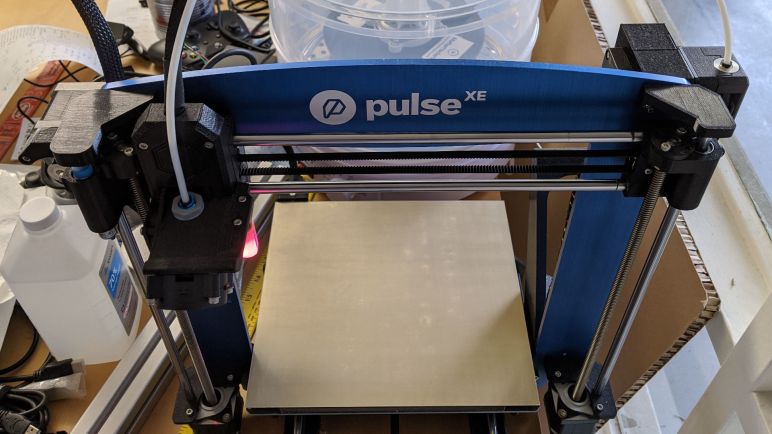
The next obvious step was to send a command and read the printer’s response. This is where I learned 3D printers like this MatterHackers Pulse XE behaves a little differently from serial devices I’ve worked with before. RoboClaw motor controllers or serial bus servos like the Dynamixel AX-12 or LewanSoul/Hiwonder LX-16A have one behavior in common: They listen for a command in a known format, then they send a response also in a known format. This isn’t what my 3D printer control board does.

It wasn’t obvious to me until in hindsight, but I should have known as soon as I saw it send out information upon connection before receiving any commands. That’s not the only time the printer would send out unprompted information. Sometimes it sends text about SD card status, or to indicate it is busy processing the previous command. Without a 1:1 mapping between command and response, the logic to read and interpret printer response to commands has to be a little more sophisticated than what I’ve needed to write for earlier projects.

Which is a great opportunity to learn how to structure my code to solve problems with the async/await pattern. When I had a strict command/response pattern, it was easy to write code that assumes the information I read is in direct response to the command I sent. Now that data may arrive unprompted, the read and write operations have to be separated into their own asynchronous processing loops. When the read loop receives data, it needs to be able to interpret that possibly in the absence of a corresponding command. But if there is a corresponding command, it needs to pair up the response with the command sent. Which meant I needed a queue of commands awaiting responses and logic to decide when to dequeue them and send a response back to their caller.

Looking at code behavior I can see another potential: that of commands that do not expect a corresponding response. Thankfully I haven’t had to deal with that combination just yet, what I have on hand is adding enough challenge for this beginner. Certainly getting confusing enough I was motivated to extended my logging mechanism to help understand the flow.

[The crude result of this exercise is available publicly on GitHub]

Simple Logging To Text File

Even though I aborted my adventures into Windows ETW logging, I still wanted a logging mechanism to support future experimentation into Universal Windows Platform. This turned into an educational project in itself, learning about other system interfaces of this platform.

Where do I put this log file?

UWP applications are not allowed arbitrary access to the file system, so if I wanted to write out a log file without explicit user interaction, there are only a few select locations available. I found the KnownFolders enumeration but those were all user data folders, I didn’t want these log files clogging up “My Documents” and such. I ended up putting the log file in ApplicationData.TemporaryFolder. This folder is subject to occasional cleanup by the operating system, which is fine for a log file.

When do I open and close this log file?

This required a trip into the world of UWP application lifecycle. I check if the log file existed and, if not, create and open the log file from three places: OnLaunched, OnActivated, and OnResuming. In practice it looks like I mostly see OnLaunched. The flipside is OnSuspending, where the application template has already set up a suspension deferral buying me time to write out and close the log file.

How do I write data out to this log file?

There is a helpful Getting Started with file input/output document. In it, the standard recommendation is to use the FileIO class. It links to a section in the UWP developer’s guide titled Files, folders, and libraries. The page Create, write, and read a file was helpful for me to see how these differ from classic C file I/O API.

These FileIO classes promise to take care of all the complicated parts, including async/await methods so the application is not blocked on file access. This way the user interface doesn’t freeze until the load or save operation completes, instead remaining responsive while file access was in process.

But when I used the FileIO API naively, writing upon every line of the log file, I received a constant stream of exceptions. Digging into the call stack of the exception (actually several levels deep in the chain) told me there was a file access collision problem. It was the page Best practices for writing to files that cleared things up for me: these async FileIO libraries create temporary files for each asynchronous action and copy over the original file upon success. When I was writing once per line, too many operations were happening in too short of a time resulting in the temporary files colliding with each other.

The solution was to write less frequently, buffer up a set of log messages so I write a larger set of them with each FileIO access, rather than calling once per log entry. Reducing the frequency of write operations resolved my collision issue.

[This simple text file logging class is available on GitHub.]

Complexity Of ETW Leaves A Beginner Lost

When experimenting with something new in programming, it’s always useful to step through the code in a debugger the first time to see what it does. An unfortunate side effect is far slower than normal execution speed, which interferes with timing-sensitive operations. An alternative is to have a logging mechanism that doesn’t slow things down (as much) so we can read the logs afterwards to understand the sequence of events.

Windows has something called Event Tracing for Windows (ETW) that has evolved over the decades. This mechanism is implemented in the Windows kernel and offers dynamic control of what events to log. The mechanism itself was built to be lean, impacting system performance as little as possible while logging. The goal is that it is so fast and efficient that it barely affects timing-sensitive operations. Because one of the primary purposes of ETW is to diagnose system performance issues, and obviously it can’t be useful it if running ETW itself causes severe slowdowns.

ETW infrastructure is exposed to Universal Windows Platform applications via the Windows.Foundation.Diagnostics namespace, with utility classes that sounded simple enough at first glance: we create a logging session, we establish one or more channels within that session, and we log individual activities to a channel.

Trying to see how it works, though, can be overwhelming to the beginner. All I wanted is a timestamp and a text message, and optionally an indicator of importance of the message. The timestamp is automatic in ETW. The text message can be done with LogEvent, and I can pass in a LoggingLevel to signify if it is verbose chatter, informative message, warning, error, or a critical event.

In the UWP sample library there is a logging sample application showcasing use of these logging APIs. The source code looks straightforward, and I was able to compile and run it. The problem came when trying to read this log: as part of its low-overhead goal and powerful complexity, the output of ETW is not a simple log file I can browse through. It is a task-specific ETL file format that requires its own applications to read. Such tools are part of the Windows Performance Toolkit, but fortunately I didn’t have to download and install the whole thing. The Windows Performance Analyzer can be installed by itself from the Windows store.

I opened up the ETL file generated by the sample app and… got no further. I could get a timeline of the application, and I can unfold a long list of events. But while I could get a timestamp for each event, I can’t figure out how to retrieve messages. The sample application called LogEvent with a chunk of “Lorem ipsum” text, and I could not figure out how to retrieve it.

Long term I would love to know how to leverage the ETW infrastructure for my own application development and diagnosis. But after spending too much time unable to perform a very basic logging task, I shelved ETW for later and wrote my own simple logger that outputs to a plain text file.

What To Do When Await Waits Too Long

I had originally planned to defer learning about how to cancel out of an asynchronous operation, but the unexpected “timeout doesn’t time out” behavior of asynchronous serial port read gave me the… opportunity… to learn about cancellation now.

My first approach was hilariously clunky in hindsight: I found Task.WhenAny first, which will complete the await operation if any of the given list of Task objects completed. So I built a new Task object whose only job is to wait through a short time and complete. I packed it and the serial read operation task together into an array, and when the await operation completed I could see whether the read or the timeout Task completed first.

It seemed to work, but I was unsatisfied. I felt this must be a common enough operation that there would be other options, and I was right: digging through the documentation revealed there’s a very similar-sounding Task.WaitAny which has an overload that accepts a TimeSpan as one of the parameters. This is a shorter version of what I did earlier, but I still had to pack the read operation into a Task array of a single element.

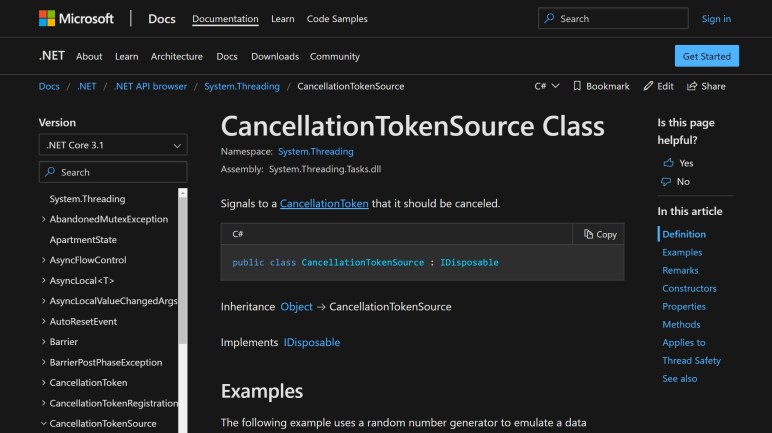
Two other overloads of Task.WaitAny accepted a CancellationToken instead, and I initially dismissed them. Creating a CancellationTokenSource is the most flexible way to give me control over when to trigger a cancellation, but I thought that was for times when I had more sophisticated logic deciding when to cancel. Spinning up a whole separate timer callback to call Cancel() felt like overkill.

Except it didn’t have to be that bad: CancellationTokenSource has a constructor that accepts a count of milliseconds before canceling, so that timer mechanism was already built-in to the class. Furthermore, by using CancellationTokenSource, I still retain the flexibility of canceling earlier than the timeout if I should choose. This felt like the best choice when I only have a single Task at hand. I can reserve Task.WhenAny or Task.WaitAny for times when I have multiple Task objects to coordinate. Which is also something I hope to defer until later, as I’m having a hard enough time understanding all the nuances of a single Task in practice. Maybe some logging can help?

[This Hello3DP programming exercise is publicly available on GitHub]

Unexpected Behavior: Serial Device Read Timeout Only Applies When There’s Data

After playing with the Custom Serial Device Access demonstration application to read a 3D printer’s greeting message, I created a blank C# application from the Universal Windows Platform application template in Visual Studio and copy/pasted the minimum bits of code to read that same printer greeting message and send it to text on screen.

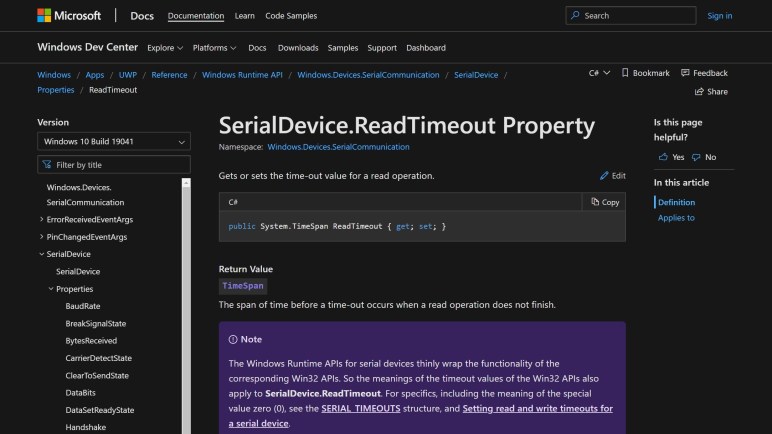
The sample application only showed a small selection of text, but I wanted to read the entire message in my test application. This is where I ran into an unexpected behavior. I had set the SerialDevice.ReadTimeout property to various TimeSpan on the scale of a few seconds. Sometimes I would get the timeout behavior I expected, returning with some amount of data less than buffer size. But other times my read operation hangs indefinitely past the timeout period.

I thought I did something wrong with the async/await pattern causing me to await forever, but I cut the code way back to the minimum while still following the precedence of the sample app, and it was still happening unpredictably. Examining the data that was returned, it looked like the same greeting message I saw when I connected via PuTTY serial terminal, nothing to indicate a problem.

Eventually I figured out the factor wasn’t anything in the data I have read, but the data I have not yet read. Specifically, the hanging behavior occurs when there is no further data at all from the serial port waiting to be read. If there was even just one byte, everything is fine: the platform will pull that byte from the serial port, put it in my allocated buffer (I experimented with 1 kilobyte size buffer, 2 KB, 4KB, it didn’t matter) and return to me after the timeout period. But if there are no bytes at all, it hangs waiting.

I suppose this makes some sort of sense, it’s just not what I had expected. The documentation for ReadTimeout mentions that there’s an underlying Win32 data structure SERIAL_TIMEOUTS dictating underlying behavior. A quick glance through that page failed to find anything that corresponds to what I think is happening, which worries me somewhat. Fortunately, there are ways to break out of an await that has waited longer than desired.

[This Hello3DP programming exercise is publicly available on GitHub]

3D Printer as Serial Communication Test Device

Reading about novel programming patterns and contemplating unexpected hardware platform potential are great… but none of it is real until I sit down and make some code run. Since my motivation centered around controlling external peripherals via serial port, I’ll need a piece of hardware to experiment against. In the interest of reducing variables, I didn’t want to start with one of my own past projects. I expect to run into enough headaches debugging what went wrong, I don’t need to wonder if the problem is my code or my project hardware.

So what do I have sitting around at home that are serial controlled hardware? The easy answer is the brains of a 3D printer. And the most easily accessible item is my MatterHackers Pulse XE printer, which is conveniently sitting on the same table as the computer.

In order to get an idea of what I’m getting into, I connected to the printer via serial port terminal of PuTTY. I saw that a greeting message is sent out via serial as soon as I connected. This is great, because it meant I have some data to read immediately upon connect, no need to worry about sending a command before getting a response.

Moving to the development platform, I loaded up the UWP example program Custom Serial Device Access. After reading the source code to get a rough feel of what the application did, I compiled and ran it. It was able to enumerate the USB serial connection, but when I connect, I did not see the greeting message. Even though the parameters I used for PuTTY (250000 N 8 1) were also used here.

As tempting as it might have been to blame the example program and say it is wrong, I thought it was more likely that one of the other parameters of SerialDevice had to be changed from their default value. Flipping settings one by one to see if they change behavior, I eventually figured out that I needed to set IsDataTerminalReadyEnabled to true in order to receive data from a Pulse XE. I’m lucky it was only a single boolean value I had to change because if I had to change multiple values to a specific combination, there would have been too many possibilities to find by trial and error.

It’s always good to start as simple as possible because I never know what seemingly basic issue would crop up. IsDataTerminalReadyEnabled wasn’t even the only surprise I found, ReadTimeout behavior was also unexpected.

Xbox One Is Part Of Universal Windows Platform

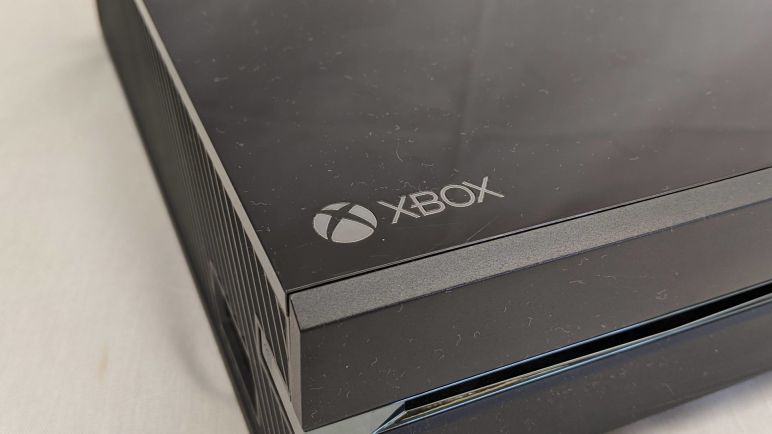
Independent of my interest in learning a new pattern for asynchronous programming, I started reading about Microsoft’s Universal Windows Platform (UWP) because I wanted to see their latest take on dynamic layout concepts. This is something that web designers are familiar with, since their users might be using anything from a small touchscreen phone to a tablet to a laptop to a desktop computer. But I found that UWP had ambitions to scale across an even wider spectrum. On the low end, they wanted to cover IoT devices with small (or even no) screen. On the high end, the ambition surpasses desktop computers with the big screen TV in a living room connected to a Xbox One.

I’m intrigued by the possibility of writing code to run on my Xbox One game console. At the moment I have no idea what I would do with that potential, but just the possibility adds to my motivation to continue exploring UWP. The part that I haven’t figured out is how much of UWP I’m reading on the documentation site is real, what is still coming, and what might have been aspirations fallen by the wayside. The now-defunct Windows Phone was supposed to be part of this spectrum, placing “UWP on phones” in the “fallen by the wayside” category.

There’s more hand-waving than I would like about the design guidelines for scaling UI all the way up to TV sizes. A website spanning the range of phones to computers has a hard enough time reconciling user input via touchscreens versus keyboard and mouse. The UWP range of IoT devices (with possibly no UI) up to an Xbox running UWP on the living room TV (with an Xbox game controller) is a very wide range to cover, and I didn’t find as much guidelines as I had hoped.

Still, it’s a possibility. The most likely way for me to put my UWP education to use is to create some prototypes of interfacing with electronics hardware. I started looking at platforms like UWP from the perspective of machine control. Does that path make sense for a Xbox? Other than the Nintendo R.O.B. there hasn’t been a lot of console-controlled peripherals. Maybe I can have Sawppy join me in a game?

I looked over the UWP Limitations on Xbox page, and I didn’t see USB and serial APIs explicitly listed in the “Doesn’t Work” list. It’s not on the explicit “Does Work” list, either, so investigating this gray limbo zone might be a fun future exercise. For now, though, it’s time to start running hardware I know works.

The Very Informative C# Programming Guide for Asynchronous Programming

The problem when looking at a list of “Other Resources” links is that it’s hard to know how useful they are until I actually go in and read them. I started my C# async/await journey on this page, which was only a short conceptual overview. At the bottom is a link to a page titled Asynchronous programming with async and await (C#) which sounded just like the page I was already on. A quick look to confirm it’s indeed a different URL, and I opened it up in a new tab to visit later.

I read several different pages sections before I got around to revisiting that opened tab. I had expected a short page with a lot of redundant information, but I quickly realized I had been neglecting a gold mine of information. This page explained the async/await model to me better than any other pages by using one of my favorite mechanisms for teaching: an analogy. The process to prepare a big breakfast was rephrased into asynchronous operations and that’s where it finally clicked.

The most useful clarification was that async doesn’t necessarily mean parallel. In the breakfast analogy it means multiple parts of the breakfast can be cooked but it’s possible to have just one chef in the kitchen doing it all. This broke me out of my previous mental mold, which was preventing some concepts from sinking in because it didn’t make sense in a parallel processing context. This section finally made me understand asynchronous processing is a concept that is frequently related to, but at the root is independent of, parallel processing.

One goal of the async/await pattern was to make it easy for developers to reason about logic flow, but under the hood it actually involves a lot of complexity to make a computer do what a human would hopefully find more intuitive. And like all programming magic, if things should break down the developer needs to know implementation details to debug it. Such detail was summarized in the “What happens in an async method” chart with simple code annotated with a lot of arrows. It was intimating at first, but once past the hump it is very helpful. I later came across an expanded version of this diagram explanation on this page with more details.

Once I had that understanding, I had a much easier time understanding what to do if something fails to go as planned. Cancelling and managing end of tasks is its own section.

I expected to find some example programs to look at, and I did, but looking at source code is only seeing the destination. It was very helpful for me to see the journey to destinations in an example taking a synchronous application and convert it step-by-step to asynchronous operation.

And finally, I return to the asynchronous programming section of UWP documentation. These topics now make a lot more sense than they did before I sat down to learn TAP. And some of the promise of UWP hold intriguing possibilities.

First Steps Learning Task-based Asynchronous Pattern (TAP)

The upside of choosing to learn a Microsoft-backed technology via their developer documentation site is that there’ll be a lot of information. The downside is that it quickly becomes a flood of too much information, especially for things with a lot of surface area touching a lot of products. We end up with a section from each division, each introducing the concepts from their own perspectives. Resulting in a lot of redundant information though, thankfully in this case, I found nothing contradictory.

I started from the C# language side via the async keyword, which led me to a quick conceptual overview with a few short examples. Blitzing through this page got me oriented on the general direction, but it wasn’t detailed enough for me to feel I understood. As a starting point it wasn’t bad, but I needed to keep reading.

Next item I found was from the .NET side, and I was prepared for a long read with the title “Async in depth“. It was indeed more in depth than the previous page, but it was not quite as in depth as I had hoped. Still, it corrected a few misconceptions in my head, such as the fact async behavior does not necessarily mean multiple threads. In I/O bound operations, there may be no dedicated waiting thread at all. It meant in certain situations, this mechanism is better than old-school multithreaded techniques I had known. For example this avoids the situation of building up large numbers of threads sitting around blocked and waiting.

I got more details — and more detailed code walkthroughs — when I broadened my focus from the async keyword itself to TAP or Task-based Asynchronous Pattern, the umbrella under which Microsoft designated not just the async/await pattern itself but also a bunch of other related mechanisms. This section also has a comparison of .NET asynchronous programming patterns, and TAP can interoperate with them. Which is not relevant to me personally but it’s good to see Microsoft’s habit for backwards compatibility is alive and well. This will be useful if I get into TAP and then something even newer and shinier comes along and I need to switch. I hope there aren’t too many more of those, though, as the interop chart will get a lot more complicated and confusing very quickly.

These sections were informative, and I probably could have figured it out from there if I needed to get rolling on a short schedule. But I didn’t have to. I had the luxury of time, and I found the gold mine that is the C# Programming Guide for Asynchronous Programming.

Async/Await For Responsive Universal Windows Platform Applications

I have decided to sit down and put in the time to learn how to write software for asynchronous events using the relatively new (and certainly new to me) async/await pattern. I had several options for which language/platform to use as my first hands-on experience, and I chose Microsoft’s C#/UWP for multiple reasons. It was something I looked at briefly, there’s a free Community Edition of the Visual Studio software tool to explore (and debug) them, and most importantly, I saw lots of documentation available on Microsoft’s documentation site (formerly MSDN.) While I have no problem learning little things via reading posts on Stack Overflow, for something bigger I wanted a structured approach and I was familiar with Microsoft’s style.

Before I dove in, I was curious why Microsoft saw an incentive to invest in this pattern. This is a significant effort: it meant adding support the .NET platform, adding support in related languages like C#, adding support in tools like Visual Studio. Accompanied by tutorials, documentation, code libraries, and examples. And from what I can tell, their motivation is that using async/await pattern in UWP applications will keep the user interfaces responsive.

Responsive user interfaces have been a desire ever since there were user interfaces, because we want the user to get feedback for their actions. But it’s hard to keep everything running when the code is waiting on something to finish, which is why every user has the experience of clicking a button and watching the entire application freeze up until some mysterious thing is done. On the web the problem is both better and worse: better because the web browser itself usually stays responsive so the user can still click on things, worse because the web developer no longer has control and has to do silly things like warn the user not to click “refresh” or “back” buttons on their browser.

Back to the desktop: application platforms have the concept of an “UI thread” where all the user interaction happens, including events handlers for user actions. It is tempting to do all the work inside the event handler, but that is running on the UI thread. If the work takes time the UI thread is unable to handle other events, leaving the user with no feedback and unable to interact with the application. They are left staring at an hourglass (or spinning “beach ball”, etc) wondering what’s going on.

Until async/await came along the most common recommendation is to split up the work. Keep UI thread event handlers light doing as little as possible. Offload the time-consuming work to somewhere else, commonly another thread. Once the work is done, that worker is supposed to report its results back to the UI. But orchestrating such communications is time consuming to design, hard to get right in code, and even harder to debug when things go wrong. Between lazy developers who don’t bother, and honest mistakes by those who try, we still have a lot of users facing unresponsive frozen apps.

This is where async/await helps UWP and other application platforms: it is a way to design the platform interfaces so that they can tell app developers: “You know what, fine. Go ahead and run your code on the UI thread. But use async/await so we can handle the complicated parts for you.” By encouraging the pattern, UWP could potentially offer both a better developer experience and a better end-user experience. Success would lead to increased revenue, thus the incentive to release bountiful documentation for async/await under their umbrella of Task-based Asynchronous Pattern. (TAP)

New (To Me) Programming Toy: Async/Await Pattern

Several different motivating factors have aligned for me to dust off something long on my to-do list of software development skill-building: learning then getting hands on with the async/await programming pattern. In this world of multitasking, multithreading, and multicore CPUs communicating with each other over the network, asynchronous programming is required everywhere. However, historically my programming projects have either (1) not dealt with asynchronous behavior, as it was handled elsewhere or (2) had to be written explicitly and unable to use syntactic niceties like async/await.

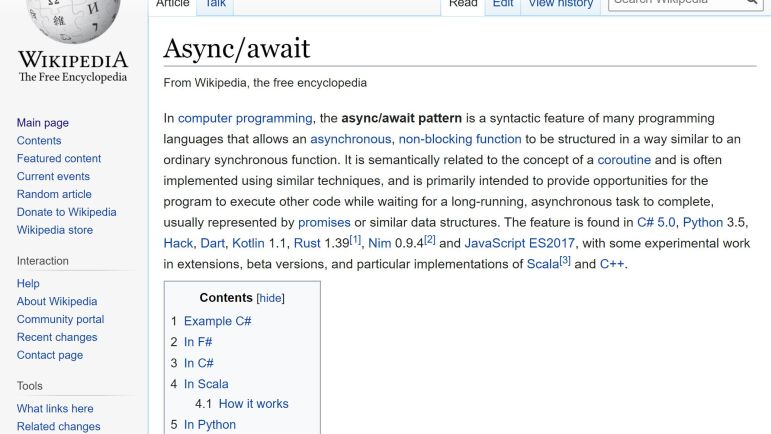
I knew experience structuring code for async/await is a gap in my toolbox, but I never had enough of a motivation to sit down and patch that gap until now. And like every new area of knowledge, it helped to get some more background on this development in programming languages before I dove in. Contributors to Wikipedia credited futures and promises as the theoretical research foundation where this work began, but it has since evolved through several forms until there was consensus async/await pattern was the way to go.

I don’t know which programming languages first put the theory into practice, but I personally first learned of this evolution from JavaScript introducing futures and promises some years ago. It sounded interested but I was not impressed by how it was implemented at the time, and apparently enough people agreed that JavaScript has now adapted them to the newer async await pattern. Available to the web development world both on the server side via Node.JS and on the client side via modern browsers.

I haven’t played with JavaScript as much as I’ve wanted, it’s still on the to-do list. I’ve been spending more time on the other modern language darling: Python. I had never used async/await with Python, but it is there so I’ll be able to use it in Python once I learn enough to make it a part of my programming toolbox.

One concern with novel programming techniques is that people may get bored and move on to the next shiny object. It is definitely a worry with ideas under rapid evolution, so how does a grumpy old programmer know something has sufficiently stabilized? By seeing if it’s in the latest version of C++, of course. And while the answer is a “no” today, it appears to be more of a “not yet” which gives me confidence in stability. It may still evolve, but I am unlikely to get whiplash from future developments.

Confident that it’s not going to disappear tomorrow, I surveyed the field of options and decided to start with C# as my first exploration into this programming pattern. Also called TAP or Task-based Asynchronous Pattern in Microsoft’s documentation. Part of this decision was informed by learning why Microsoft was motivated to recommend it.

Notes on Exploring Curio ROS: ros_control

When learning something new, I always find it useful to find a part that I could use as a foundation. Something I can use to build my new information on top of. I had trouble finding such a foundation for ROS as it was such a big system. So it was a great gift to have the chance to look at Rhys Mainwaring’s ROS stack for Curio rover, a sibling of my Sawppy rover. This meant the rover I designed and built was my foundation for learning Curio’s ROS software stack.

Such a foundation was less critical when I had explored Curio’s interaction between Arduino Mega and Raspberry Pi. But it was very useful when I explored how command messages were sent around inside the system. This was built using ros_control, a set of ROS packages that help abstract the concepts of robot motor control from the actual details of motor controller commands.

The promise here is allowing a robot builder to swap around different motor controllers without changing the logic about how a robot would use those motors. Conveniently, Sawppy has both of the basic categories: “Joints” specify a position, and that fits Sawppy’s four corner steering servos. Whereas “Transmission’ specify rotational motion like Sawppy’s six wheel motors.

The idea of abstracting motor control from implementation is common, I even had a primitive form of it inside SGVHAK_Rover software allowing us to hack a servo into a RoboClaw placeholder, and later adapted to Sawppy’s LX-16A serial bus servos. The power of such abstraction comes when it becomes open and flexible enough for software modules implementing either side of the abstraction to be reusable beyond its original author’s use. That certainly was not going to happen with a homebrew pack of servo software, but a convention in ROS is a different story.

Which is why I was puzzled to learn ros_control does not appear to be in the works for ROS 2. It is absent from the index, and I found only a discussion thread with no commitment and this page with a dead link. I thought ros_control would be a fundamental part of the platform, but it is not. Its absence tells me there’s an important gap between my expectation and ROS community’s actual priorities, but I don’t know what it is just yet. I’ll need to find its successor in the ROS2 ecosystem before I understand why ros_control is being left behind.

Notes on Exploring Curio ROS: Arduino Mega

I was very excited when I learned Rhys Mainwaring created ROS software for Curio rover, a sibling of my Sawppy rover. An autonomous Sawppy on ROS has always been the long-term goal but I have yet to invest the time necessary to climb the learning curve. Rhys has far more ROS experience, and I appreciated the opportunity to learn from looking over the Curio Github repository. Here are some of my notes. written with the imperfect accuracy and completeness of a ROS beginner learning as I go.

The most novel part of Curio is obtaining odometry data from LX-16A’s position sensor with the use of a filter that recognizes when we’re in the dead zone of that position sensor and rejects bad data. I believe Rhys has ambition to extrapolate position data while within the dead zone but I didn’t find the code to make it happen. Either I missed it or that is still yet to come.

I love the goal of odometry calculation without requiring additional hardware, but Rhys ran into problems with bandwidth and a little extra hardware was brought in to help as (hopefully?) a short term workaround. While Sawppy didn’t need to communicate with the servos very frequently, Curio needed to also poll servo positions far more frequently for the odometry filter. Rhys found that the LewanSoul BusLinker board’s serial to USB bridge could not sustain the data rate necessary for the filter to obtain good data.

As a workaround, Curio makes use of an Arduino Mega 2560 to communicate with BusLinker via its 5V UART TX/RX pins, and then translating that to USB serial for the Raspberry Pi. The Arduino Mega is necessary for this role because it has multiple hardware UART necessary to communicate with both BusLinker and Raspberry Pi at high speed. I only have Arduino Nano on hand, with a single UART, and thus unsuitable for the purpose.

Curio’s Arduino Mega also has a second job: that of interpreting PWM commands from a remote control receiver, relaying user commands from a remote control transmitter. This is an alternative to my HTML-based control scheme over WiFi.

Curio’s Arduino communicates with its Pi over USB serial, using the rosserial_arduino library. Rhys has set up Curio’s Arduino firmware code such that its two jobs can easily be separated. If a rover builder only wants one or the other function, it should be as easy as changing the values of ENABLE_ARDUINO_LX16A_DRIVER  or ENABLE_RADIO_CONTROL_DECODER to trigger the right #ifdef to make it happen.

Ubuntu and ROS on Raspberry Pi

Since I just discovered that I can replace Ubunto with lighter-weight Raspbian on old 32-bit PCs, I thought it would be a good time to quickly jot down some notes about going the other way: replacing Raspbian with Ubuntu on Raspberry Pi.

When I started building Sawppy in early 2018, I was already thinking ahead to turning Sawppy from a remote-controlled toy to an autonomous robot. Which meant a quick survey to the state of ROS. At the time, ROS Kinetic was the latest LTS release, targeted for Ubuntu 16.

Unfortunately the official release of Ubuntu 16 did not include an armhf build suitable for running on a Raspberry Pi. Some people would build their own ROS from source code to make it run on Raspbian, I took one attempt and the build errors took more time to understand and resolve than I wanted to spend. I then chose the less difficult path of finding a derived released of Ubuntu 16 that ran on the platform: Ubuntu Mate 16. An afternoon’s worth of testing verified basic ROS Kinetic capability, and I set it aside for revisiting later.

Later on in 2018, Ubuntu 18 was released, followed by ROS Melodic matching that platform. By then support for running Debian (& deriviatives) on armhf had migrated to Ubuntu, and they released both the snap-based Ubuntu Core and Ubuntu ‘classic’ for Raspberry Pi. These are minimalist server images, but desktop UI components can be installed if needed. Information to do so can be found on Ubuntu wiki but obviously UI is not a priority when I’m looking at robot brains. Besides, if I wanted an UI, Ubuntu Mate 18 is still available as well. For Ubuntu 20 released this year, the same choices continue to be offered, which should match well with ROS Noetic.

I don’t know how relevant this is yet for ROS on a Raspberry Pi, but I noticed not only are 32-bit armhf binaries available, so are 64-bit arm64 binaries. Raspberry Pi 3 and 4 have CPU capable of running arm64 code, but Raspbian has remained 32-bit for compatibility with existing Pi software and with low-end devices like the Raspberry Pi Zero incapable of arm64. More than just an ability to address more memory, moving to arm64 instruction set was also a chance to break from some inconvenient bits of architectural legacy which in turn allowed better arm64 performance. Though the performances increase are minor as applied to a Raspberry Pi, ROS releases include precompiled arm64 binaries so the biggest barrier to entry has already been removed and might be worth a look.

[UPDATE I found a good reason to go for arm64: ROS2]

Debian with Raspberry Pi Desktop on HP Mini (110-1134CL) and Dell Latitude X1

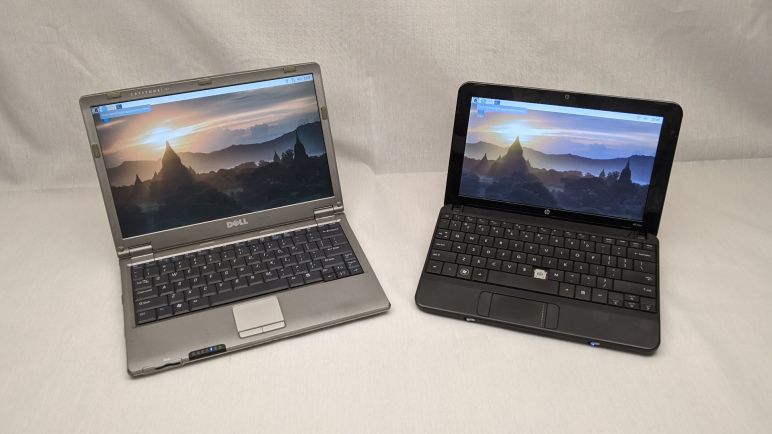
I went hunting for a lightweight Linux distribution for old computers. With a CPU running at about 1 GHz and 1GB of RAM, the HP Mini (110-1134CL) I had on hand was the approximate league of a modern Raspberry Pi. I wished for something like Debian-based Raspbian and was delighted to find that the Raspberry Pi foundation does release a Debian distribution for x86 that is a counterpart to Raspbian. This meant much of my knowledge about working with Raspbian on a Raspberry Pi could be applied.

Obviously all the work specific to Pi hardware are absent, such as video playback hardware acceleration and the GPIO pins. Still, I think I’m in better shape here than in many other lightweight Linux distributions, because I believe the Debian roots meant I can draw from the extensive library of drivers.

Installing on the HP Mini (110-1134CL) the installer reminded me of this fact by informing me I would need ucode15.fw. I thought I would have to install it manually but by the time installation completed and I got to Raspberry Pi desktop, WiFi was working. I guess installation was taken care of for me! A huge plus in favor of beginner friendliness of this distribution.

Generally speaking, it worked well on this HP Mini, feeling more responsive than Ubuntu Mate on the same machine. It is still no speed demon, but at least it is no longer an exercise in frustration. My general impression of user experience is on par with a Raspberry Pi 3 but with the notable exception of video playback: lacking the specially tailored hardware accelerated video engine, it can only consistently play YouTube videos at 480p. Trying to run 720p (most closely matching the screen resolution) dropped a lot of frames. This is a downside as so many instructional videos are online now, but 480p should still be enough to get the point across.

Encouraged by this result, I prepared to install on my Dell Latitude X1. Before I erased Ubuntu Mate, though, I wanted to get some objective numbers. I measured Ubuntu Mate boot on the Latitude X1, and the time from power button to desktop ready for user interaction was 2 minutes 37 seconds.

Installing on the Latitude X1 encountered similar driver issues, this time with ipw2200-bss.fw. Again, after informing me, the installer took care of installing it and setting it up without requiring any action from me. And once it was up and running I measured it took only 1 minute 26 seconds. This operating system is ready for user input in almost half the time of Ubuntu Mate.

Repeating the measurement, I found that the younger HP Mini had the performance edge, taking just 58 seconds to go from power button to desktop ready. Both of these numbers are impressive considering both are running mechanical hard drives and not modern flash storage.

With these impressive results, Debian with Raspberry Pi desktop has now become my go-to operating system for computers with old 32-bit Intel CPUs.

Debian with Raspberry Pi Desktop Promising For Old Computers

During my first pass evaluation of a HP Mini (110-1134CL) I tried a few modern graphical operating system options and failed to find anything satisfactory. Ubuntu Mate is designed to be a lighter weight alternative to mainline Ubuntu, but it still felt sluggish. Chrome OS (available as Neverware CloudReady) now only supports 64-bit CPUs, which excluded old 32-bit machines.

It works fine as a text-only command line machine, but that seems like a shame as it has a perfectly operable screen and video subsystem. All it needs is a Linux distribution even lighter weight than Ubuntu Mate. I’m sure there are many options out there — historically there has never been a shortage of options for Linux distributions, and websites like this one help sort through options.

But I’d rather not learn yet another Linux distribution. I’m already juggling through more than I strictly wanted, plus some time in FreeBSD as part of my FreeNAS explorations. If only there was a Linux variant that I’m already familiar with, optimized for minimalist low end hardware.

The poster child for minimalist low end hardware is the Raspberry Pi, which is so minimalist it doesn’t even have a power switch. Raspbian, their Debian-derived Linux distribution, has been cut down so it runs on Pi hardware less powerful than the cell phones we’re carrying around nowadays. What if someone took that work and put it in a distribution I can run on old x86 computers? At 1GB of RAM and 1GHz CPU, the hardware spec of a HP Mini is quite similar to a Raspberry Pi.

An online search quickly found that such a thing exists. Not only had “someone” done the work, that “someone” is Raspberry Pi foundation itself. This was the result of someone at the foundation thinking of the exact same “What if….?”question, but they thought of it a few years earlier and had the resources to make it happen.

Thus old computers with 32-bit Intel CPU have the option of running what they’re currently calling Debian with Raspberry Pi Desktop. A beginner-friendly super lightweight variant of Debian with almost all of the software packages that come pre-installed on Raspbian. Only Wolfram Mathematica and Minecraft are missing due to licensing. It all sounds very promising. Time to try it on some old 32-bit machines and see how they run.

Samsung 500T Now Runs On Solar Power

I wanted to have a screen in my house displaying current location of the international space station. I love ISS-Above but didn’t want to dedicate a Raspberry Pi and screen, I wanted to use something in my pile of retired electronics instead. I found ESA’s HTML-based ISS tracker, tested it on various devices from my pile, and decided the Samsung 500T would be the best one to use for this project.

One of the first device I tried was a HP Mini (110-1134CL) and I measured its power consumption while running ESA’s tracker. I calculated my electric bill impact to keep such a display going 24×7 would be between one and two dollars a month. This was acceptable and a tablet would cost even less, but what if I could drop the electric bill impact all the way to zero?

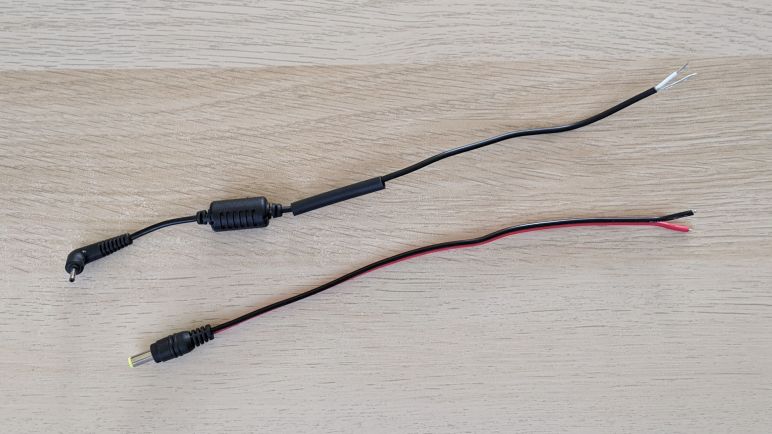
Reading the label on Samsung 500T’s AC power adapter I saw its output is listed at 12V DC. The hardware is unlikely to run on 12V directly, since it also has to run on batteries when not plugged in. It is very likely to have internal voltage regulators which should tolerate some variation of voltage levels around 12V. The proper way to test this hypothesis would be to find a plug that matches the AC adapter and try powering the tablet from my bench power supply. But I chose the more expedient path of beheading the AC adapter instead and rewiring the severed plug.

A quick test confirmed the tablet does not immediately go up in flames when given input voltage up to 14.4V, the maximum for lead-acid batteries. Whether this is bad for the device long term I will find out via experience, as the tablet is now wired up to my solar powered battery array.

This simple arrangement is constantly keeping tablet batteries full by pulling from solar battery. This is not quite optimal, so a future project to come will be to modify the system so it charges from solar during the day and runs on its own internal battery at night. But for now I have an around-the-clock display of current ISS location, and doing so without consuming any electricity from the power grid

ESA ISS Tracker on Nexus 5

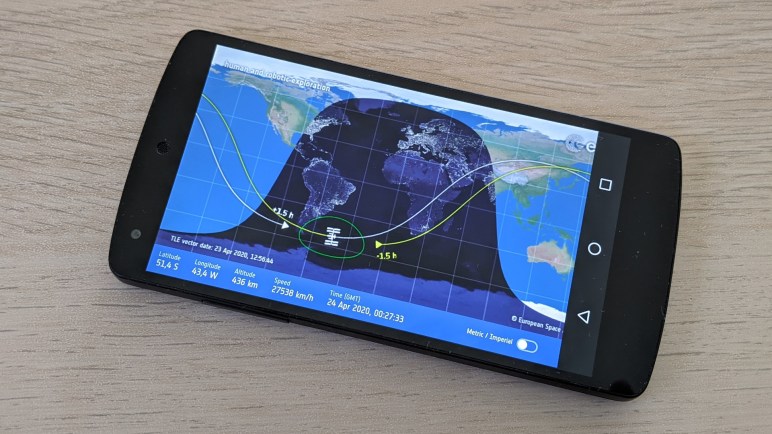
When I tried a Nokia Lumia 520 to see if I could use it as ESA ISS Tracker display, I found its screen couldn’t quite manage. Displaying the entire map in a clear and legible way requires more than the 800×480 resolution of a Lumia 520’s screen. Which led to the next experiment: dust off an old Nexus 5.

Nexus 5 Android support was discontinued several releases ago, but when new it was quite a compelling device. One of the signature features was a full HD 1920×1080 resolution screen packed into just five inches of diagonal length. And given Google’s track record of mobile Chrome browser, I was confident it would be capable of rendering ESA’s HTML ISS tracker.

Unfortunately it proved to be even less suitable than the Lumia 520, due to the lack of hardware navigation buttons. This meant the Android navigation bar is always on screen, obscuring part of the map. This was similar to how a Kindle behaves, except the Kindle bar is across the bottom while the phone is over on the right.

Nexus 5 sleep timeouts

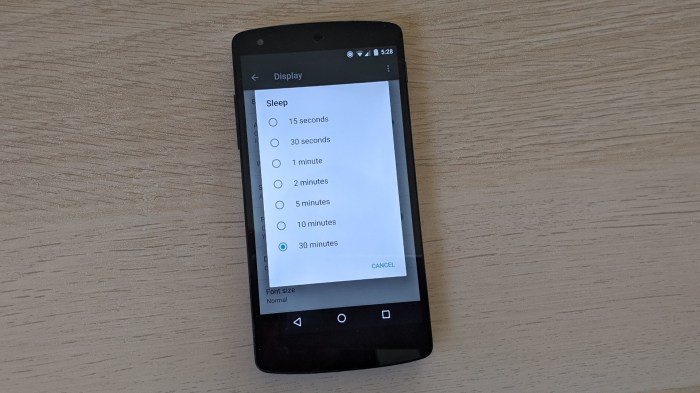
Another problem shared with the Kindle was the inability to keep the screen on. Screen inactivity sleep timeout could be set anywhere from 15 seconds to 30 minutes, but there isn’t a “Never” option like there is on Windows tablets or Windows Phone. It seems to be a persistent trend in Android devices, which is reasonable for portable personal electronics but annoying when I want to repurpose one as an around-the-clock status display. Android being Android, there’s probably a way around that limitation, but that’s not a very interesting project right now when I already have more cooperative devices at my disposal.

ESA ISS Tracker on Nokia Lumia 520

While the unfortunate Samsung 500T will be dropped from Windows 10 support in 2023, I don’t need to wait that long for a Microsoft end-of-life product. I have several old Windows Phone 8 devices on hand, and they’ve already ventured beyond the bounds of supported systems which is bad for security if I wanted use these devices for general internet activities. But if I have only a specific web property in mind that I trust to be safe, then all I care about is if it works. ESA’s online HTML ISS Tracker fits this bill.

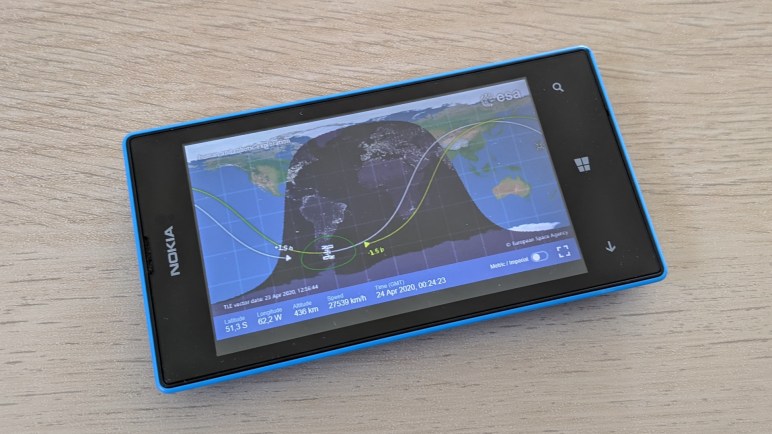
The version of Internet Explorer built into Windows Phone 8 is far more compatible with web than IE of old, though it still had enough incomplete/missing features to make its web experience a little bumpy. It’s fine for most sites and a quick test on a Nokia Lumia 520 proved that the ESA tracker is one of them.

Since this phone had hardware navigation buttons, there was no need to keep a navigation bar on screen as the Amazon Kindle did. This allowed the ISS tracker to actually have the full screen as intended. The is one cosmetic problem: the map occupied top part of the screen leaving a little black bar at the bottom instead of vertically centered. But that’s a tiny nit to pick.

I could tell this the phone never to turn off the screen even after some period of inactivity, better than I could with my Kindle. The phone should be able to run indefinitely on USB power making it suitable for an around-the-clock display. The only thing I can gripe about is screen resolution. The 800×480 screen of this Windows Phone is just a little too low resolution for all the ISS tracking details to be clearly legible. I think a HTML-based status display will be a promising way to reuse obsolete Windows Phone hardware, but maybe a different project preferably with lower information density. This shortcoming of the Lumia 520 motivated me to repeat the same experiment on a Google Nexus 5, another phone that has fallen out of support.