Window Shopping LabWindows/CVI

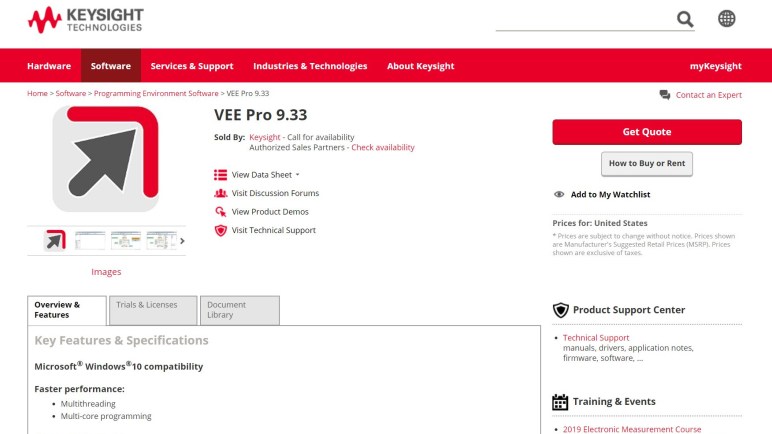
I’ve taken a quick look over Keysight VEE and LabVIEW, both tools that present software development in a format that resembles physical components and wires: software modules are virtual instruments, data flow are virtual wires. This is very powerful for expressing certain problem domains and naturally imposes a structure. From a software perspective, explicit description of data flow also makes it easier to take advantage of parallel execution possible on modern multicore processors.

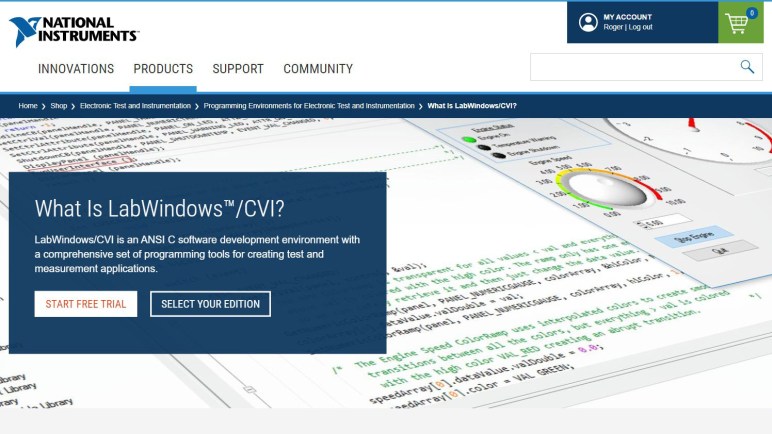
But imposing certain structures also make it hard to venture off the beaten path, which is why attention now turns to LabVIEW’s stablemate, LabWindows/CVI. They both offer access to industry standard communication protocols plus data analysis and visualization tools, but the data flow and program structure is entirely different. Instead of LabVIEW’s visual “G” language, LabWindows/CVI uses ANSI C to connect all its components and control flow of data and execution. I am optimistic it will be more aligned with my software experience.

Like LabVIEW, the program help files for LabWindows/CVI is also available for download and perusal. Things look fairly promising at first glance.

I found a serial communication API that can read and write raw bytes under:

  • Library Reference
    • RS-232 Library
      • function tree

For user display, I found something that resembles LabVIEW’s “2D Picture Control” here called a “Canvas Control”. An overview of drawing with Canvas Control’s basic drawing primitives can be found under:

  • Library Reference
    • User Interface Library
      • Controls
        • Control Types
          • Canvas Controls
            • Programming with Canvas Controls

I’m encouraged by what I found looking through LabWindows/CVI help files, enough to download the actual development tool and get hands-on with it.

Window Shopping: LabVIEW 2019

After taking a quick look over Keysight VEE, I switched focus to LabVIEW by National Instruments. I don’t know how directly these two products compete in the broader market, but I do know they have some overlap relating to instrument control. I had some exposure to LabVIEW many years ago thanks to LEGO Mindstorms, which had used a version of LabVIEW for programming the NXT brick. Back then the Mindstorm-specific version was very closely guarded and, when I lost track of my CD-ROM, I was out of luck because neither NI nor LEGO made it available for download. Thankfully that has since changed and the Mindstorm flavor of LabVIEW is available for download.

But I’m not focused on LEGO right now, today’s aim is to see how I might fulfill my general computer control goals with this tool. For that information I was thankful National Instruments made help files for LabVIEW available for download so I can investigate without a full download and installation of the full tool suite. It took a bit of hunting around to find them, though, and the download page was titled LabVIEW 2018 but it has a download link for the 2019 help files.

I found a help page “Serial Port Communication” under the section:

  • Controlling Instruments
    • Types of Instruments

And it assumes the user would only be controlling devices that can communicate to VISA protocol, not general serial communication. There were more serial communication information in the section:

  • VISA Resource
    • I/O Session
      • Serial Instr

There’s also an online tutorial for instrument communication. This page has a flowchart that implied there’s a “Direct I/O” that we can fallback to if all else fails, but I found no mention for performing this direct I/O in the help files.

The graphics rendering side was more straightforward. There’s no mention of ActiveX control here, but under:

  • Fundamentals
    • Graphs and Charts
      • Graphics and Sound VIs

There are multiple pages of information for a “2D Picture Control” with drawing primitives like points, lines, arcs, etc. Details on this drawing API are found under:

  • VI and Function Reference
    • Programming VIs and Functions
      • Graphics & Sound VIs
        • Picture Plot VIs

However, it’s not clear this functionality scales to complex drawings with thousands (or more) of primitives. It certainly wouldn’t be the first time I used an API that stumbled as the data size grew.

So the drawing side looks workable pending a question mark on how well it scales, but the serial communication side is blocked. Until I find a way to perform that mystical direct I/O, I’m going to set LabVIEW aside and look at its sibling LabWindows/CVI.

[UPDATE: I’ve since found LabVIEW MakerHub and LINX, which allows LabVIEW to communicate with maker level hardware over serial.]

Window Shopping: Keysight VEE Custom Data Display

Looking over Keysight VEE’s support for device communication, I found there is only support for a limited subset of USB serial communication patterns. And even for the supported transaction model, it seems to be quite labor intensive to craft. It left me with the impression venturing outside VEE’s supported list of equipment is something to be avoided.

Attention then turn to VEE’s support for arbitrary display or data. Like its competitors in the space of test instrumentation software, there is an extensive library for data analysis common for the problem domain. This is useful for their paying customers, but again quite restrictive if we want to venture outside their supported list.

As far as I can tell by just reading their Advanced Techniques PDF, the method to add a custom data visualization component is to create an ActiveX control. This is a technology I haven’t thought about in years! I first learned of it in the context of Microsoft Visual Basic decades ago, where people could drag and drop UI components to build their application. Each of these visual components were built with technology that eventually became named ActiveX controls. This technology is so old not even Microsoft is investing in it now. They have moved on, giving stewardship to an open standards body.

The fact ActiveX is the state-of-the-art technology for extending VEE is telling. Looking over the recent history of VEE software releases, it has all the signs of a piece of software living on continuing life support. They are still releasing new versions on a regular basis, but the advances between releases are mostly in the form of new instrument support (GPIB and otherwise) and certification it will run on latest edition of Windows. I have seen very little in the way of new feature development or general evolution.

VEE seems to be perfectly suited to their target market: electronics engineers trying to automate a collection of instruments, every one of which support industry standard protocols. (Especially those made by Keysight.) Then, perform analysis of that data as typically needed by electrical engineers. But since my goal is to control arbitrary equipment communicating over USB serial, then process and display that data in ways unrelated to electrical engineering, I should set VEE aside and look at other options.

Window Shopping: Keysight VEE Serial Communication

When I was learning about industry standards for electronics test and measurement equipment automation, I quickly came across GPIB which has its roots in something Hewlett-Packard developed for their equipment. It made sense, then, that they would have a software suite to run on a PC and talk to these instruments via GPIB. This turned out to be something called VEE, but it is no longer a HP product. It has had multiple custodians. From HP it moved to Agilent, and now it is in the hands of Keysight Technologies.

So it was no surprise the focus would be on professional equipment with GPIB or the closely related USB-based successor USBTMC. There is also built-in support for a few other instrument standards, all packaged together in the IO Libraries Suite of a full VEE installation. However, I had a hard time finding any mention of how to communicate with custom-built equipment outside of supported protocols. It certainly wasn’t covered in their Quick Start Guide (PDF), so I moved on to Advanced Techniques (PDF).

I thought perhaps I would have to create what they call a “panel driver” for installation into VEE in order to support custom equipment, but a search for “How to write a VEE Panel Driver” failed to retrieve useful links. How do instrument manufacturers create and release VEE Panel Driver for their equipment? So far that is still a mystery.

In the absence of a custom panel driver, the next option is to specify a custom communication protocol directly in VEE, and such a thing can be built from their Transaction I/O mechanism. Suitable at least for query/response types of interaction. The exact commands being sent out and expected to be received are crafted step by step using VEE GUI. This seems very labor intensive but has the advantage of avoiding annoying and common byte processing bugs typical when such serial byte stream processing are written in C.

It’s not obvious from reading the document what happens if the VEE transaction specification is wrong and incoming serial data doesn’t match. This is not encouraging, neither were there any mechanisms to help support development of transaction I/O. There’s just trial and error. Seriously. This is a direct quote from the manual:

Many times the best way to develop the transactions you need is by using trial and error

(Chapter 4: Using Transaction I/O / Creating and Reading Transactions / Editing the Data Field / Suggestions for Developing Transactions)

I didn’t find any mention of how to deal with continuous data stream from devices that do not perform transaction-based communication. For example a thermometer that continuously reports temperature without prompting, or the Neato LIDAR. VEE does have a data polling feature, but that seems to be restricted to devices on specific subset of supported protocols and not arbitrary serial communication.

From this brief survey, it appears VEE support for arbitrary USB serial communication is quite limited. The next step is to look at how VEE support displaying arbitrary data.

New Project: Computer Control via USB Serial

Since I’ve started this blog I’ve explored several problem domains with a common thread: equipment automation by computer control. Most recently my CNC project running GRBL needed a computer G-code sender. 3D printers are similar, though most modern printers can run independently using G-code stored on a memory card. And finally the aborted thermoforming machine project that had ambition to use a Raspberry Pi as its brain.

In all of these cases, we had a piece of equipment that could communicate with a PC via a USB serial adapter, so we can let the hardware focus on low level tasks and the PC could perform higher level tasks. It would be useful to dig deeper into this world and get a better feel of the tools available for solving problems.

For this initial pass my focus will be on PC software that interfaces with arbitrary pieces of equipment that communicate via USB serial, and the primary motivation for PC involvement would be its ability to display data on a full sized computer monitor. These two considerations will be my “North Star” for prioritization.

As a starting point, I thought I’d look over a few examples from an existing ecosystem: that of computer controlled hardware for electronics measurement and testing automation. I didn’t think they would be directly applicable, but I didn’t know how to articulate why until I learned a little more.

As of this writing, my understanding is that such software’s value to professional engineers are in two areas that are near, but not quite, my own priorities for this investigation:

  • They are built around the IEEE-488 standard, a formalized version of GPIB interface that started as a proprietary solution (HP-IB) for Hewlett-Packard equipment but has grown into a de facto standard in this industry. This standard encompasses the physical connector, electrical interface, and software protocol. Recently, the popularity of USB meant USB has taken over the physical and electrical portions. But the GPIB communication protocol lives on as USB488, which I understand to be a part of USB TMC. This is different from USB serial adapters, which usually identify as USB CDC and/or ACM.
  • They offer an extensive collection of data analysis and visualization tools specialized to the field of electronics test and measurement. This does not necessarily mean they support custom rendering of arbitrarily large data sets.

As a first example of how those differences manifest in practice, let’s do a quick window-shopping pass of Keysight VEE.

Old School Engraving With Gravoply

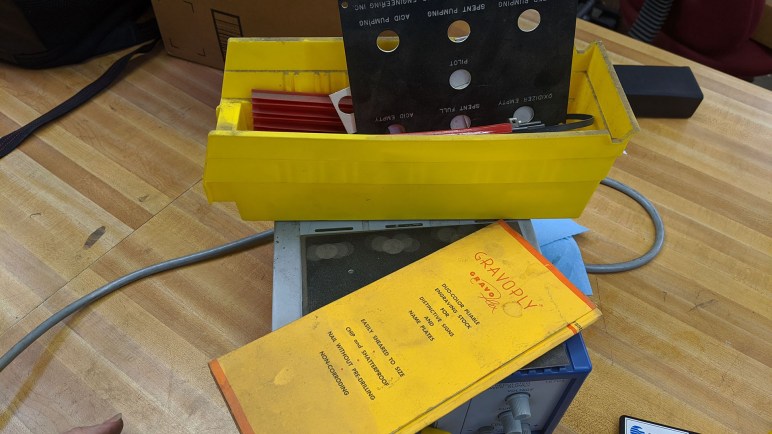
There’s a certain aesthetic I associate with older labels, signs, and equipment control panels. They have two contrasting colors and a three dimensional feel. It has mostly faded away by now, replaced by crisp flat printing with multiple solid colors or even full color halftone. I hadn’t thought much about those old panels until I had the opportunity to look over some dusty retired equipment for making them.

This particular material was “Gravoply” and it is still available for order. We can specify from a wide selection of colors, though the core (rear) color selection is a little more limited than selection for surface (front) color. The dimensional feel is a function of how they are used to create signage: a rotary engraving tool cuts away the surface layer and expose the core layer to produce a display with two contrasting colors.

This rotary tool was held in a pantograph to trace templates on Gravoply. Laying out a particular design meant working with individual letter templates in a simplified version of how past typesetters did their jobs. While in concept a pantograph could allow arbitrary scaling, it appears scaling is limited in this particular implementation. Otherwise there wouldn’t need to be multiple sizes of letter templates.

Gravoply Templates

This technique is unforgiving of mistakes. If the rotary tool went off track, it would cut portions of surface material that was not intended to be cut away. When this happens, the user has no choice but to start over. Which was the explanation for why these pieces haven’t been used in years: they moved away from this system as soon as a cost effective and less frustrating alternative was available.

Visiting the web site of Gravograph today, I see their products on the front page are computer motion controlled machines,. Though they still make pantographs for doing things the old fashioned way, materials for mechanical removal like Gravoply are typically cut with small CNC vertical mills. Plus they also have material designed for engraving by laser. Technology has moved on, and the company behind Gravoply has evolved with it.

I found the pantograph an interesting mechanism and I might ask to use it in the future for the sake of getting some hands on time with a mechanical anachronism. But I’m not likely to actually create something significant using a pantograph, at least not as long as I have a CNC engraver at my disposal.

Preparing Retired Laptops For Computing Beginners

I’ve just finished looking over several old laptop computers with an eye for using them as robot brains running ROS, a research project made possible by NUCC. Independent of my primary focus, the exercise also gave me some ideas about old laptops used for another common purpose: as cheap “starter” computers for people getting their feet wet in the world of computers. This intent involves a different set of requirements and constraints than robot building.

In this arena, ease of use becomes paramount which means most distributions of Linux are excluded. Even Raspbian, the distribution intended for people to learn in a simplified environment on a Raspberry Pi, can get intimidating for complete beginners. If someone who receives a hand-me-down computer knows and prefers Linux, it’s a fair assumption they know how to install it themselves as I had done with my refurbished Dell Latitude E6230.

Next, a hand-me-down laptop usually includes personal data from its previous owner. Ideally it is inaccessible and hidden behind password protection, but even if not, the safest way to protect against disclosure is to completely erase the storage device and reinstall the operating system from scratch.

Historically for Windows laptops such cleaning also meant the loss of the Windows license since the license key has almost certainly been separated from the computer in its lifespan. Fortunately, starting from Windows 8 there is a Windows license key embedded in the hardware, so a clean install will still activate and function properly. For these Windows laptops and MacOS machines, it is best to preserve that value and run its original operating system. This was the case for the HP Split X2 I examined.

If a Windows or MacOS license is not available, the most beginner-friendly operating system is Chrome OS. It is available for individuals to install as Neverware CloudReady: Home Edition. Putting this on a system before giving it to a beginner will allow them to explore much of modern computing while also sparing them much of the headaches. And if they dig themselves into a hole, it is easy to restart from scratch with a “Powerwash”. This was what I had done with the Toshiba Chromebook 2 I examined.

But modern computing has left 32-bit CPUs behind, limiting options for older computers lacking support for 64-bit x86_64 instruction set. It meant Neverware CloudReady is not an option for them either. It is possible the user can be served by a machine that is a stateless web kiosk machine, in which case we can install Ubuntu Core with the basics of web kiosk.

And if we have exhausted all of those options, as was the case for the HP Mini netbook I examined, I believe that means the machine is not suitable as a hand-me-down starter computer for a beginner. Computers unable to meet minimum requirements for all of the above would only be suitable for basic command-line based usage. And whether computing veterans like it or not, current convention wisdom says a command line is not the recommended starting point for today’s computing beginners.

So in order of preference, the options for a beginner-friendly laptop after wiping a disk of old data are:

  1. Windows (if license is in hardware) or MacOS (for Apple products)
  2. Either original Chromebook/Chromebox or Chrome OS via Neverware CloudReady.
  3. Ubuntu Snappy Core in Web Kiosk mode.
  4. Sorry, it is not beginner friendly.

[UPDATE: Since the time I wrote this up, I have discovered a lightweight Debian distribution suitable for old x86 computers made by the Raspberry Pi foundation. I put it on the HP Mini as well as an even older Dell Latitude X1 and it appears to be a valid option between steps 3 and 4 above.]

A Tale of Three Laptops

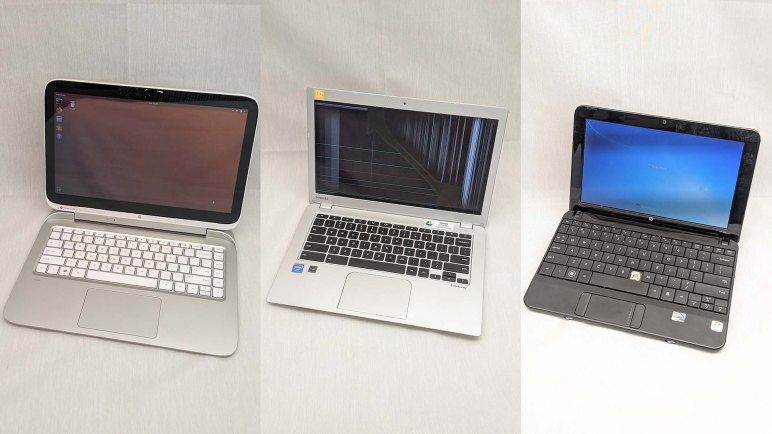
This is a summary of my research project enabled by the National Upcycling Computing Collective (NUCC). Who allowed me to examine three retired laptop computers of unknown condition, evaluating them as potential robot brain for running Robot Operating System (ROS).

For all three machines, I found a way to charge their flat batteries and get them up and running to evaluate their condition. I also took them apart to understand how I might mechanically integrate them into a robot chassis. Each of them got a short first-pass evaluation report, and all three are likely to feature in future projects both robotic and otherwise.

In the order they were examined, the machines were:

  1. HP Split X2 (13-r010dx): This was a tablet/laptop convertible designed for running Windows 8, an operating system that was also designed for such a dual-use life. Out of the three machines, this one had the longest feature list including the most modern and powerful Intel Core i3 CPU. But as a tradeoff, it was also the bulkiest of the bunch. Thus while the machine will have no problem running ROS, the mechanical integration will be a challenge. Its first pass evaluation report is here. For full details query tag of 13-r010dx for all posts relating to this machine, including future projects.
  2. Toshiba Chromebook 2 (CB35-B3340): This machine was roughly the same age as the HP, but as a Chromebook it had a far less ambitious feature list but that also gave it a correspondingly lighter and slimmer profile. It is possible to run a form of Ubuntu (and therefore ROS) inside a Chromebook, but there are various limitations of doing so. Its suitability as a robot brain is still unknown. In the meantime, the first pass evaluation report is here, and all related posts (past and future) tagged with CB35-B3340.
  3. HP Mini (110-1134CL): This was a ~10 year old netbook, making it the oldest and least capable machine of the bunch. A netbook was a simple modest machine when new, and the age meant this hardware lacks enough processing power to handle modern software. While technically capable of running ROS Kinetic, the low power processor could only run the simplest of robots and unable to take advantage of the more powerful aspects of ROS. The first pass evaluation report is here, and all related posts tagged with 110-1134CL.

While not the focus of my research project, looking over four old laptops in rapid succession (these three from NUCC plus the refurbished Dell Latitude E6230 I bought) also gave me a perspective on preparing old laptops for computing beginners.

HP Mini (110-1134CL): First Pass Evaluation

This HP Mini netbook was the oldest of three laptops in this NUCC-sponsored research project. As a netbook, it was a very limited and basic machine even when new, and that was around ten years ago. A lot has changed in the computing world since then.

Today, its 32-bit only CPU limits robot brain applications, as only the older ROS Kinetic LTS released prebuilt 32-bit binaries. Outside of robot brain applications, any modern graphical user interface is sluggish on this machine. From Chrome OS up through Windows 10 and everything in between. When running Ubuntu Mate, it actually felt worse than a Raspberry Pi running the same operating system, which came as a surprise. Both had ~1GHz CPUs and 1GB of RAM. And even though a 10-year old Atom could outperform a modern ARM CPU, the 10-year old Intel integrated graphics processor has fallen well behind a modern ARM’s graphics core.

So it appears the best position for this machine is in running command line computing or data processing tasks that work well on old low-end Intel 32-bit chips. It would be a decent contender for the type of projects that today we would think of running on a Raspberry Pi. With the caveat of weaker graphics effects, it offers the following advantages over a Raspberry Pi:

  • Intel x86 (32-bit) instruction set.
  • Higher resolution screen than the standard Raspberry Pi touchscreen.
  • Keyboard (minus the N key in this particular example)
  • Touchpad
  • Battery for portable use
  • Actual data storage device in the form of a SATA drive, not a microSD card.

It is also the only one of the three NUCC machines to have a hard wire Ethernet port. As someone who’s been burned by wireless communication issues more than once, this is a pretty significant advantage over the rest of the machines in my book.


HP Mini (110-1134CL): Command Line Adept

So far I’ve determined a ~10 year old netbooks lack the computing power for a modern desktop graphical user interface, even those considered lightweight by today’s standards. Was it always sluggish even in its prime? It’s a little hard to tell from here, because even though computers have undoubtedly gotten faster, our expectations have risen as well.

But there’s more to a computer’s capability than pushing pixels around, so we fall back to the next round of experiments with command line interface systems. And since we’ve already established that a solid state drive was not a great performance booster on this platform, I put the original spinning platter hard drive back in for the next round.

This time instead of Ubuntu Desktop, I installed Ubuntu server edition instead. This minimalist distribution lacks the user friendliness of a graphical user interface, but it also lacks the graphics processing workload of displaying one as well. As a result this machine is quite snappy and responsive. I found it quite usable, especially now that I’ve learned about virtual consoles and use the Alt key plus F1 through F6 to switch between up to six different sessions. Simple tasks like running Python scripts and running a basic server were done easily and quickly.

I started experimenting with Ubuntu 16, because Ubuntu did not release prebuilt installation binaries for 32-bit Ubuntu 18. However, once Ubuntu 16 server was and and running, I was able to rundo-release-upgrade to move up to Ubuntu 18. From minor tinkering I didn’t notice any significant difference between them.

Then I remembered I had played with an even more minimalist Ubuntu earlier, on an even older machine. Ubuntu 18 Snappy Core is available for 32-bit i386 processors, and it installed successfully on this laptop. Now I have one more incentive to learn how to build my own snaps to install on such a system. I just have to remember to that I can only connect to an Ubuntu Snap machine via SSH, and the list of valid keys associated with an account do not auto-update. I typically generate a SSH key every time I reset a machine, and I no longer have the keys to access my previous snappy core experiment. I ended up reinstalling snappy core to pick up the current set of SSH keys.

HP Mini (110-1134CL): Ubuntu Mate and Chrome OS Slow Even With SSD

After a ~10 year old netbook was upgraded with a solid state drive, we can now confirm the hard drive is not the only thing holding back performance. The following experiments indicate the old Atom CPU at the heart of this machine lacks the power to run any modern operating system graphical user interface.

First up at bat was Ubuntu Desktop 16.04 i386. It ran sluggishly when loading from this machine’s original spinning platter hard drive, and it was not significantly better when loading from the upgraded solid state drive. Watching the HDD activity light earlier, I thought this might be the case, but wanted to verify firsthand, which I have.

Next candidate was Ubuntu Mate, which has a 32-bit installer for 18.04. (Mainline Ubuntu stopped supporting 32-bit in 18.) Even though Ubuntu Mate advertised itself as a lighter-weight alternative to mainline Ubuntu, it was unfortunately still far from pleasant to use. But if needed, one reason to run Ubuntu Mate 18.04 is for the longer supported timeframe of Ubuntu 18. According to Ubuntu releases list, 18 is supported until April 2023.

I then tried an even more constrained operating system: install Chrome OS and make a faux Chromebook out of this thing. I had known Neverware CloudReady as a build of Chrome OS that anyone can install on an old laptop to turn it into a Chromebook. I had trouble making it work before on an old machine before, and wanted to try again.

I noticed the minimum recommended amount of RAM has increased as I remembered it was 1GB, now it is up to 2GB. But that was just a recommendation and I was able to load CloudReady on this netbook with just 1GB RAM. Once launched and running, CloudReady proved to be about as sluggish as Ubuntu Mate 18.

But that’s not the biggest problem:

CloudReady 32-bit EOL

CloudReady, originally advertised to help give old machines new life, has been forced to leave 32-bit CPUs behind. After seeing this notification I went online to find their announcement, as well as confirmation that Chrome OS v76 was about the right vintage for this to happen.

For interactive graphical desktop use, it really doesn’t get any more lightweight than Chrome OS and this machine still struggles. It looks like we need to fall back to a text-based server edition of operating system software.

[UPDATE: I found an even lighter weight distribution of Linux for old 32-bit x86 machines that would be familiar to users of the Raspberry Pi.]

Sewing Machine at CRASHspace Wearables Wednesdays

I brought a “naked” sewing machine to the February 2020 edition of Wearables Wednesdays. Wearables Wednesdays is a regularly occurring monthly meetup at CRASHspace LA, a makerspace in Culver City whose membership includes a lot of people I love to chat and hack with. But Culver City is a nontrivial drive from my usual range. So as much as I would love to frequently drop by and hang out, in reality I only visit at most once a month.

The sewing machine belongs to Emily who received it as a gift from its previous owner. That owner retired the machine due to malfunction and didn’t care to have it repaired. At our most recent Disassembly Academy, one of the teams worked through the puzzle of nondestructively removing its outer plastic enclosure. There were several very deviously hidden fasteners holding large plastic pieces in place.

Puzzling through all the interlocked mechanisms consumed most of the evening. Towards the end, Emily soldered a power cable (liberated from another appliance present at the event) to run its motor, which was the state I brought in to Wearables Wednesdays.

This event was focused on wearables, so everyone has some level of experience with a sewing machine. And it is also an audience who have experience and interest in mechanical design, so it was a perfect crowd for poking around a sewing machine’s guts.

When the outer enclosure was removed, a broken-off partial gear fell out. The rest of the gear was found to be part of the mechanism for selecting a sewing pattern. At the end of Disassembly Academy, our hypothesis for machine retirement was because of its inability to change patterns due to this broken gear.

Further exploration at CRASHspace has updated the hypothesis: there is indeed a problem in pattern selection, but probably not because of this broken gear. We can see the large mechanical cam mechanism that serves as read-only memory for patterns, and we can see the follower mechanism that can read one of several patterns encoded on that cam. However, pushing on the internal parts of the mechanism, we couldn’t get the follower to move to a different track.

New hypothesis: There is a problem in the pattern mechanism but it’s not the gear. The pattern selection knob was turned forcefully to try to push past the problem, but that force broke the little gear. It was a victim and not the root cause.

Exploratory adventures of this sewing machine will continue at some future point. In the meantime, we have a comparison reference from a friend who owns a sewing machine that predated fancy pattern features.

HP Mini (110-1134CL): SSD Upgrade

Installing Ubuntu Desktop 16.04 LTS on this ~10 year old netbook resulted in a very sluggish computing experience. Since it was not a speed demon even when new ten years ago, I doubt its performance was only held back by its old school spinner platter hard drive. As a quick experiment, I’ll perform a SSD upgrade and see how much of an performance improvement it would result.

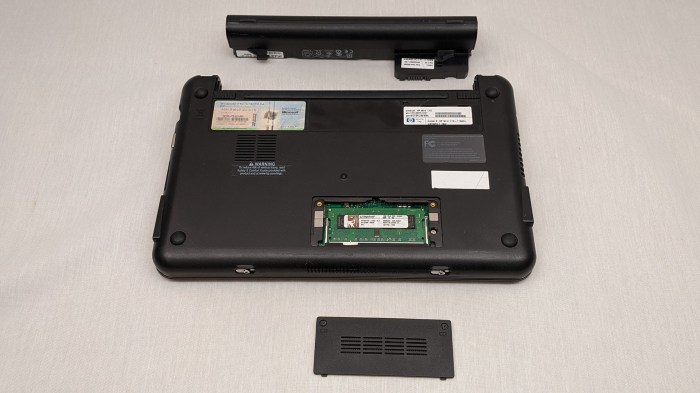
Opening the door at the bottom revealed a memory module as expected. It appears to be a DDR2 memory module with a capacity of 1 GB. Unfortunately I don’t have any DDR2 laptop memory modules to attempt a memory upgrade, so I left it alone and continued trying to open the laptop.

HP Mini 110-1134CL remove easy stuff

There are clips around the perimeter. Trying to open them up, I find resistance at the corners due to screws hidden underneath each rubber feet.

HP Mini 110-1134CL screws hiding under feet

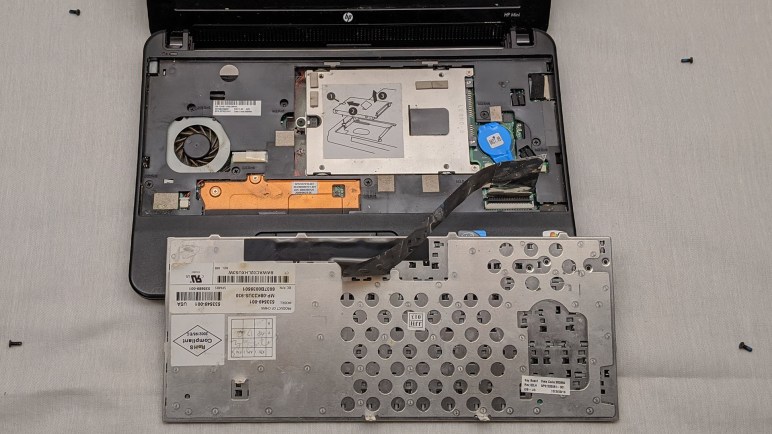
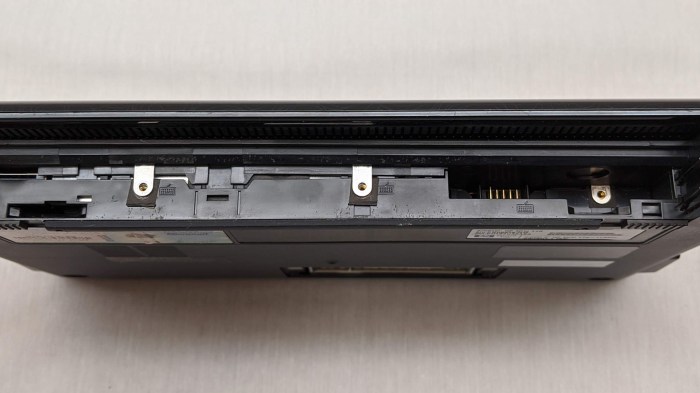
Removing them did not help release the top and bottom halves of the machine, so there are even more fasteners I have yet to see. Looking for what I might have missed, I found three screws with a keyboard icon inside the battery compartment.

HP Mini 110-1134CL keyboard retention screws

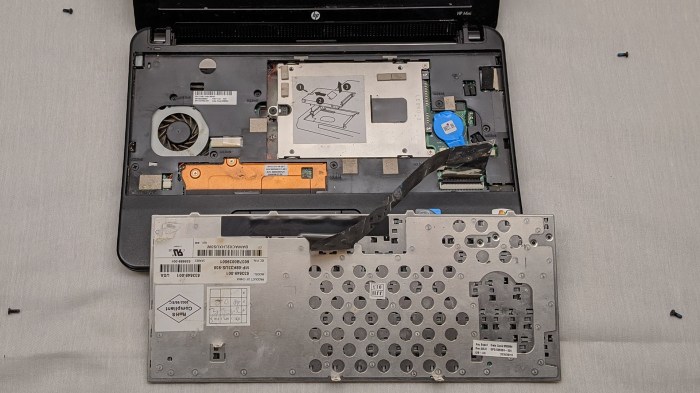
Removing those screws allowed the keyboard to be popped open, exposing the hard drive plus additional fasteners holding the laptop together. The focus at the moment is the SSD upgrade, so I’ll hold off on further disassembly for now.

HP Mini 110-1134CL keyboard removed

The bright piece of metal had the right shape and size for a hard drive cage, and it was also conveniently labeled with an instructional diagram. I thought that was great — it’s going to be as easy as 1, 2, 3! Except it wasn’t. For reasons I don’t understand, they neglected to mention two more screws that had to be removed before I could proceed with steps 2 and 3.

HP Mini 110-1134CL hard drive removal

Once removed, the stock hard drive was held to this cage with four standard mounting screws. From there it was straightforward to install a 2.5″ SATA SSD for further adventures in netbook computing.

Learning About Airflow From Three Years Of Dust

Three years ago I started this custom computer case project to build something tailored to run FreeNAS. The primary purpose was to get some hands-on time working with laser-cut acrylic, and I learned a lot building it. Now that I’ve decided to upgrade my home server to a different configuration, there will be too much hardware to fit in this box. I’ll start with a commodity PC tower case but I might build another custom case later. Either way, this little acrylic box will be retired.

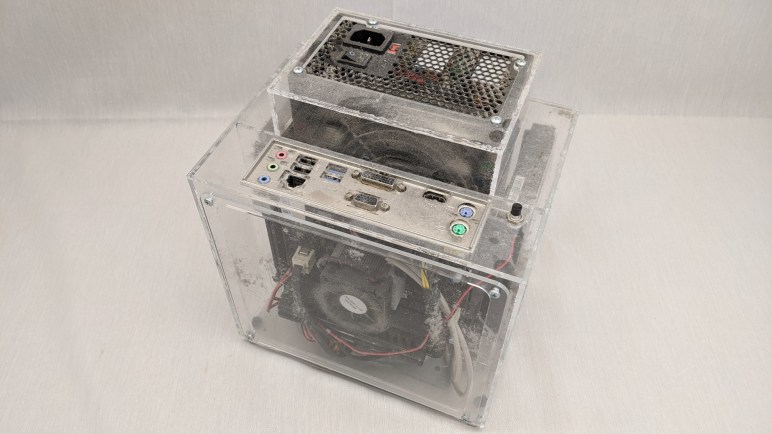
Since the computer has been sitting in a corner unobtrusively serving up files for my home network, it has also collected three years of dust. The top layer is not particularly interesting, as they were deposited by gravity. The remainder, though, serve as indicator for airflow through the system and serves as a record of comparison against my intended airflow design for the box.

The biggest lesson for me was that convection played a much smaller role than I had expected. Most of the dust indicating flow was proportional to the size of their air channels, there’s no visible sign of convection altering the flow. The most visible example is the ring of dust near the CPU fan on my front panel. I had expected it to be slightly teardrop-shaped to reflect heat rising, but it is almost a perfect circle.

The most unexpected cluster of dust is on the auxiliary CPU power cable, running to the right side of the CPU fan alongside the USB wires. It appears most of the dust there were carried by air drawn in through the front panel gap. I hypothesize that, since it is a very narrow gap, airflow through that route is slowed and thus more likely to deposit dust on that cable bundle.

There were a few minor smudgest of dust whose origins are a mystery. Two up top near the PSU fan, and one on the bottom at the rear end of the PSU. I’m curious what they were, but their fine dust particle size implies they were not a significant factor, so I’m content to leave them as mysteries for now. Maybe they’ll make sense for me in the future once I learn more about designing for airflow. In order to preserve this information (all this dust will be disturbed and cleaned up when I disassemble this box) I shot a video for future reference:

(Cross-posted to Hackaday.io)

FreeNAS Box Decommissioned After Three Years

I’ve decided to retire my current home server running FreeNAS. It has worked well for three trouble-free years and will likely continue working for a few more. But I have enough motivations for an upgrade beyond its current capabilities.

First, I learned that FreeNAS has been making more and more use of its boot drive in its recent releases. At one point all the SATA ports on a FreeNAS box could be dedicated to storage devices, because FreeNAS itself is happy to boot from a USB flash drive, load to RAM, and run from there. Thus the boot drive is touched very little, minimizing wear on flash memory. However, FreeNAS documentation explained this has not been the case for several years. I have yet to run into any problems with the USB flash drives I’ve been using as mirrored boot volumes, but after three years of service I decided not to wait until problems crop up.

When looking at a boot drive for a modern operating system, my default choice is to use a solid state drive. SSDs were still an expensive luxury when I first started playing with FreeNAS, but they are now quite affordable and there’s been enough hardware churn for a few of my own SSDs to drop out of circulation and thus available for use. My first two Intel X25-M SSDs still report over 85% of wear life remaining. Their modest 80GB capacity is pretty cramped for modern desktop use, but quite spacious for a FreeNAS system drive. That capacity also means a lot of elbow room for flash wear-leveling.

The downside, of course, is that I need a SATA port on the motherboard to connect to my old but still functional X-25M. In order to have a X-25M as my FreeNAS system drive, I had to upgrade beyond this MSI AM1I motherboard with only two SATA ports.

Another motivation was an interest in hosting more functionality on the home server. While code with FreeBSD support can run in a jail, I needed virtual machines to run non-FreeBSD code such as ROS. When I started looking at FreeNAS, virtual machine support via bhyve was an experimental new feature. It has since grown to be a mature part of the feature set. With virtualization I can use the same physical box to host other software projects.

But a virtual machine also locks out a portion of system memory as any RAM allocated to the virtual machine is not available to the rest of FreeNAS. I have many 8GB DDR3 memory modules, but there were only two memory slots on an AM1I motherboard for 16GB. Moving to a motherboard with 4 memory slots will double the available memory to 32GB, plenty of room for playing with VMs.

With these points in mind, I powered off my homebuilt FreeNAS box built of laser-cut acrylic. The two storage drives will be moved to a commodity PC tower case. But before I take it all apart, I wanted to make note of a few observations from this computer’s three years of sitting on a shelf quietly running FreeNAS.

HP Mini (110-1134CL): Slow At Ubuntu 16 Desktop

A quick hardware orientation tour of this retired netbook found that we should be able to run ROS Kinetic Kame on this computer. Getting a simple ROS Kinetic environment running would be a baseline test to see how it might perform as a robot brain. And for that, we’ll have to erase the Windows 7 Starter Edition on this hard drive with Ubuntu 16.04 “Xenial Xerus”.

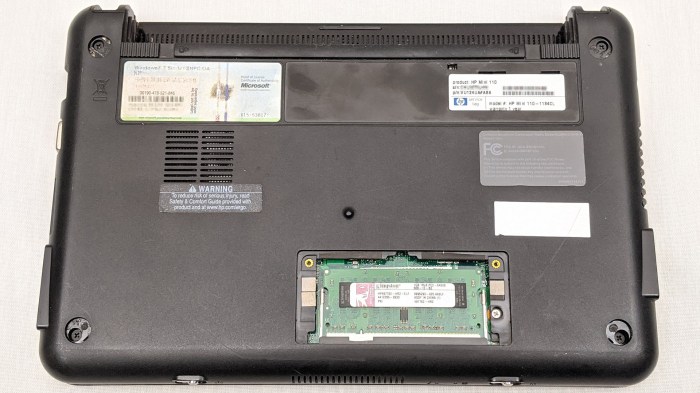
A sticker at the bottom of the machine identified the default operating system as Windows 7 Starter Edition. Since this machine predated Windows 8 mechanism for embedded licenses, we know this hardware would not have an embedded license for Windows and erasing this drive would mean the loss of a Windows license. I decided a Starter Edition license was no great loss and proceeded to install Ubuntu Desktop 16.04 LTS, i386 (32-bit CPU) edition.

Installation was successful on this netbook, but it was annoyingly slow to use. Every action required a few seconds, starting from activating the logon screen to every single interaction after that. I don’t know if running Windows 7 Starter Edition was any more responsive on this computer, but I wouldn’t have wanted to run an end-of-life OS even if it was faster.

What was the bottleneck here? Was it the CPU? Was it the RAM? Was it the hard drive? Or perhaps a combination of the above, like a lack of RAM triggering virtual memory activity that is hampered by a slow hard drive? For diagnosis I appreciated the fact this little netbook had a hard drive activity light, a feature that has been dropped from most modern machine. Judging by the lack of activity on that light, I suspect the problem is a slow CPU and upgrading the drive to a SSD would have limited benefit.

Even with this pessimistic view, I wanted to give it a try. I had a spare SATA SSD already on hand so it shouldn’t take a lot of time to test.

HP Mini (110-1134CL): Hardware Specifications

After a quick check to make sure this machine comes to life after charging, I started researching its hardware specifications. A sticker below the machine identified itself as a HP Mini 110-1134CL.

Based on reviews online for the HP Mini 110 product line, this is roughly ten years old powered by an Atom N270 processor. This is a big strike against using this computer as a robot brain running ROS, as the N270 is limited to 32-bit software. The latest longer-term support distribution of ROS “Melodic Morenia” only officially supports 64-bit Intel/AMD chips. If this machine is to run ROS, it would be limited to the previous LTS of ROS “Kinetic Kame” which is not ideal, but at least it will be supported until April 2021.

According to BIOS readout, there is 1GB of RAM installed on this computer. An access door with a memory module icon is visible on the underside of the machine, so a RAM upgrade is probably possible. But I don’t have any old memory modules on hand and I’m not inclined to spend money upgrading a ten year old computer. A single gigabyte is expected to be very limiting, but it is possible to get a very basic ROS installation running on a Raspberry Pi 3, which also only has 1GB. It might get annoying but is probably not going to be a deal breaker.

The BIOS hardware list also describes the hard drive as an old school spinning platter type, which was as expected. Thankfully the Fujitsu MJA2160BH G2. A 2.5″ 160GB 5400 RPM is at least a standard SATA drive and not the compact variant that stumped me earlier. This means I have the option to try upgrading it with one of the SATA SSD drive I already have on hand.

Now that I’m oriented, it’s time to take on the first experiment: see if it can run Ubuntu 16, the basis for ROS Kinetic Kame.

MatterHackers 3D Printing And Space Event

Even though Santa Monica is technically in the same greater LA metropolitan area as my usual cruising range, the infamous LA traffic requires a pretty significant effort for me to attend events in that area. One such event worth the effort was the “3D Printing and Space” event hosted by MatterHackers, Ultimaker, and Spaceport LA.

Like the previous MatterHackers event I attended, there is a nominal main event that is only part of the picture. Just as interesting and valuable is the time to mingle and chat with people and learn about their novel applications of 3D printing. Sometimes there is a show-and-tell area for people to bring in their projects, but it wasn’t clear from event publicity materials if there would be one at this event. I decided to traveled to Santa Monica via public transit, which meant Sawppy couldn’t come with me, which was just as well since the exhibit area was minimal and mostly occupied by items brought by members of the speaking panel.

I started off on the wrong foot by mistaking Matthew Napoli of Made in Space for someone else. Thankfully he was gracious and I learned his company built and operates the 3D printer on board the international space station. It was tremendously novel news a few years ago, and the company has continued to evolve technology and widen applications. Just for novelty’s sake I tried printing that wrench on my Monoprice Mini some time ago, with very poor results. Fortunately the Made in Space printer on board ISS is a significantly more precise printer, and Matthew Napolo brought a ground-printed counterpart for us to play with. It was, indeed, far superior to what I had printed at home. A question he had to answer several times throughout the night is whether FDM 3D printing in space still require support materials, which we use to hold melted filament up against gravity. The answer is that (1) their testing found that even though there’s no gravity, extruded filament nozzle has momentum that needs to be accounted for, and (2) Made in Space design their “production” parts to not require support material when printed either on earth or in space.

On an adjacent table were several 3D printed mounting brackets brought by Christine Gebara. Each of them had identical mounting points, but they had drastically different structural members connecting them. Their shape appeared to have been dictated by numerical evolution algorithms becoming available under several names. Autodesk calls theirs “generative design“. Learning how to best take advantage of such structures is something Christine Gebara confirmed was under active development at JPL.

Kevin Zagorski of Virgin Orbit brought something I didn’t recognize beyond the fact it had bolt patterns and fittings to connect to other things. During the discussion he explained it was part of a test rocket engine. While the auxiliary connecting pieces are either commodity parts or conventionally machined, the center somewhat tubular structure was 3D printed by a metal sintering(?) printer. 3D printing allowed them to fabricate a precise interior profile for the structure, and the carbon deposits inside a testament to the fact this piece was test-fired. He also described a development I was previously unaware of: they are using machines that has both additive and subtractive tooling. This meant they can build parts of a metal structure, move in with cutters or grinders to obtain a desired surface finish on the interior of that structure, before proceeding to build remaining parts. This allows them to get the best of both worlds: geometries that would be difficult to make by machining alone, but with interior surface finishes that would be difficult to make with 3D printing alone. Sadly he believes these machines satisfy a very narrow and demanding niche, so this capability is unlikely to propagate to consumer machines.

I didn’t know about Spaceport L.A. until this event, but I had been dimly aware of a cluster of “New Space” companies in the area. Southern California has been a hotbed of aerospace engineering for as long as that has been a field of engineering, though there have been some painful periods of transition such as severe industry downsizing at the end of the Cold War following collapse of the Soviet Union. But with SpaceX serving as the poster child for a new generation of space companies, a new community is forming and Spaceport L.A. wants to be the community hub for everyone in the area.

But even though some portray “Old Space” companies as dinosaurs doomed to extinction, in reality they are full of smart engineers who have no intention of being left behind. Representative of that was Andrew Kwas from Northrup Grumman and the entourage he brought with him. He said several times that the young Northrup Grumman engineers in his group will take the company into the future. It was fun to speak with a few of them as they had set up shop at one of the tables presenting pieces from their 3D printing test and research. One of them (I wish I remembered her name) gave me my first insight into support materials for laser sintering metal 3D printing. I thought that, since these parts were formed out of a bed of metal powder, it would not need support materials. It turns out I was wrong, and support materials are still required for mechanical hold and also for thermal dissipation. I don’t know if I’ll ever have the chance to design for laser sintering printing, but that was a valuable first lesson.

And last but not least, I got to talk to Kitty Yeung about her projects that express love of space through 3D printing. It’s a little different from the other speakers present as she’s not dealing with space flight hardware, but they are an important part of the greater community for space enthusiasm. In between esoteric space hardware, it’s great to see projects that are immediately relatable to hobbyists present.

I look forward to the next MatterHackers public event.
HP Mini (110-1134CL): Relic of the Netbook Era

After I had completed my first pass at the Toshiba Chromebook 2, I moved on to the third and final machine in this research project made possible by NUCC: the HP Mini 110-1134CL. It is an example from “netbook” era, a category of computers launched by the Asus Eee PC. Netbooks were an early attempt to build minimalist computers for basic internet activity, years before Chromebooks defined their own product category.

Like Chromebooks, the first netbooks ran a custom operating system that offered a web browser and very few other basic applications. But unlike Chromebooks, netbooks quickly abandoned custom OS and started running a special “Starter Edition” of Windows. Was it due to customer demand? Manufacturer preference? Microsoft offering carrot and stick? I have nothing useful to contribute here.

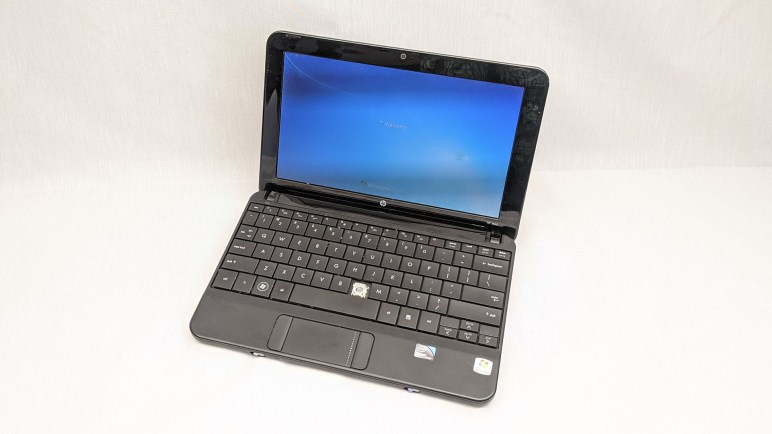
Like the other two machines, when I received this machine the battery was flat. Nothing happened when I first pushed the power switch. Fortunately it could be charged with the “type I” tip for my Targus universal laptop AC power adapter, same as the Toshiba Chromebook 2 I looked at earlier.

While it was charging I looked over its physical condition. There is a missing “N” key on the keyboard, but nothing else was outwardly wrong. Once the battery was charged, I turned it on to take a quick look at its condition. I saw what I recognized as the Windows 7 boot up sequence, but after some time staring at “Welcome…” I never got to the login screen. It threw up an error of “failed to start” without any error codes I could investigate, and suggested “rerun installation” which I don’t particularly care to do as we’ve long passed the end of life for Windows 7.

That’s a problem to be looked at later. For now, I’m glad the machine showed signs of life making it worthwhile to spend some time looking over its specifications.

Mars-Bound Rover Perseverance

NASA has just announced the winner of their Name the Rover Contest: Perseverance. The contest invites K-12 students within the United States to submit names for the Mars 2020 rover along with an essay explaining why it is the best name. Sadly, not one of them suggested naming Mars 2020 rover “Sawppy” but I’ll just have to get past that personal disappointment somehow.

I’ve already seen a few people calling it “Persie”, “Percy”, and variants thereof. The official Twitter handle is @NASAPersevere and judging by the first few tweets, this account will follow the trailblazing Phoenix PR effort and tweet from the first person. I’m doing the same for Sawppy, and @SawppyRover has followed @NASAPersevere for future updates. If all goes well, Perseverance wouldn’t even be the only Mars-bound robotic explorer: the European Space Agency has designed one of their own. ExoMars 2020 is an interesting engineering marvel in and of itself, but that’s for another blog post.

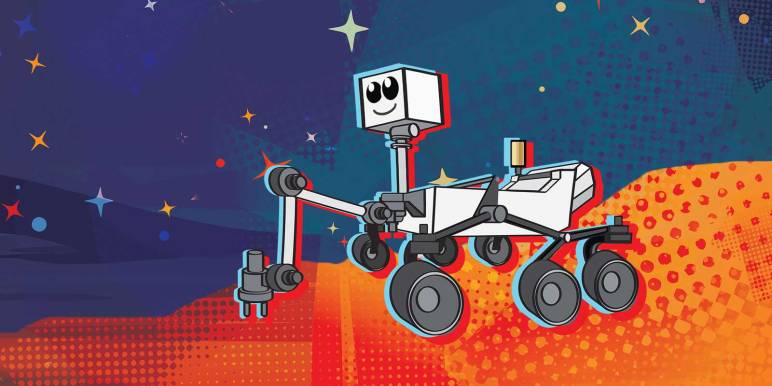
Back to the naming contest: I really like the cartoony rover they used. I’ve spent a lot of time analyzing photos, videos, and CAD models of Curiosity and Mars 2020 Perseverance when building Sawppy. I see a lot of technical accuracy represented in the illustration. From the robot arm joints to the rocker-bogie suspension components, I’m very impressed at how well it blends technical details with classic cartoon techniques for appealing character animation. I’m definitely keeping this guy in mind for my future rover work. (UPDATE: A few peeks have been posted to @SawppyRover.)

In the meantime I have to get on various parts of Sawppy’s online documentation and update mentions of Mars 2020 to Perseverance. I’ll definitely update greeting pages, but I probably won’t bother to update every past project log. The rule of thumb: If it has a date, people can tell it was written before the announcement, so I will probably let it slide. If it doesn’t have a date, I should probably fix it.