Notes on OpenCV Installation Guide by PyImageSearch

Once I decided to try PyImageSearch’s Getting Started guide, the obvious step #1 is about installing OpenCV. Like many popular open source projects, there are two ways to get it on a computer system: (1) use a package manager, or (2) build from source code. Since the focus here is using OpenCV from Python, the package manager of choice is pip.

Packages that can be installed via pip are not necessarily done by the original authors of a project. If it’s popular enough, someone will take on the task of building from open source code and make those built binaries available to others, and PyImageSearch pip install opencv guide says that is indeed the case here for OpenCV.

I appreciated the explanation of differences between the four different packages, a result of two different yes/no options: headless or not, and contrib modules or not. The headless option is appropriate for machines used strictly for processing and do not need to display any visual interface, and contrib describes a set of modules that were contributed by people outside of core OpenCV team. These have grown popular enough to be offered as a packaged bundle.

What’s even more useful was an explanation of what was not in any of these packages available via pip: modules that implement patented algorithms. These “non-free” components are commonly treated as part of OpenCV, but are not distributed in compiled binary form. We may build them from source code for exploration, but any binary distribution (for example, use in commercial software product) requires dealing with lawyers representing owners of those patents.

Which brings us to the less easy part of the OpenCV installation guide: building from source code. PyImageSearch offers instructions to do so on macOS, Ubuntu, and Raspbian for a Raspberry Pi. The author specifically does not support Windows as a platform for learning OpenCV. If I want to work in Windows, I’m on my own.

Since I’m just starting out, I’m going to choose the easy method of using pre-built binaries. Like most Python tutorials, PyImageSearch highly recommends a Python environment manager and includes instructions for virtualenv. My Windows machine already had Anaconda installed, so I used that instead to install opencv-contrib-python in an environment created for this first phase of OpenCV exploration.
Trying OpenCV Getting Started Guide By PyImageSearch

I am happy that I made some headway in writing desktop computer applications controlling hardware peripheral over serial port, in the form of a test program that can perform a few simple operations with a 3D printer. But how will I put this idea to work doing something useful? I have a few potential project ideas that leverage the computing power of a desktop computer, several of them in the form of machine vision.

Which meant it was time to fill another gap in my toolbox of solving problems with software: get a basic understanding of what I can and can’t do with machine vision. There are two meanings to “can” in that sentence, both of them apply: “is this even theoretically possible” sense and also the “is this within the reach of my abilities” sense. The latter will obviously be more limiting, and the limit is something I can devote the time to learn and fix. But getting an idea of the former is also useful so I don’t go off on a doomed project trying to build something impossible.

Which meant it was time to learn about OpenCV, the canonical computer vision library. I came across OpenCV in various contexts but it’s just been a label on a black box. I never devoted the time to sit down and learn more about this box and how I might be able to leverage it in my own projects. Given my interest in robotics, I knew OpenCV was on my path but didn’t know when. I guess now is the time.

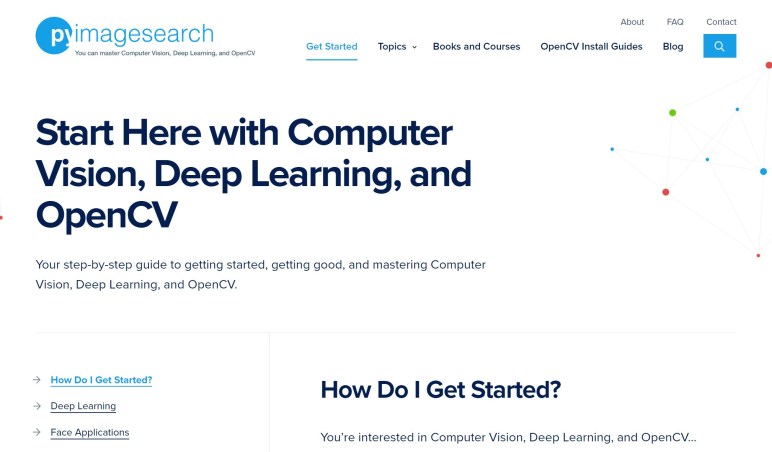
Given that OpenCV is the starting point for a lot of computer vision algorithms and education, there are many tutorials to choose from and I will probably go through several different ones before I will feel comfortable with OpenCV. Still, I need to pick a starting point. Upon this recommendation from Evan who I met at Superconference, I’ll try Getting Started guide by PyImageSearch. First step: installing OpenCV.

Simple Logging To Text File

Even though I aborted my adventures into Windows ETW logging, I still wanted a logging mechanism to support future experimentation into Universal Windows Platform. This turned into an educational project in itself, learning about other system interfaces of this platform.

Where do I put this log file?

UWP applications are not allowed arbitrary access to the file system, so if I wanted to write out a log file without explicit user interaction, there are only a few select locations available. I found the KnownFolders enumeration but those were all user data folders, I didn’t want these log files clogging up “My Documents” and such. I ended up putting the log file in ApplicationData.TemporaryFolder. This folder is subject to occasional cleanup by the operating system, which is fine for a log file.

When do I open and close this log file?

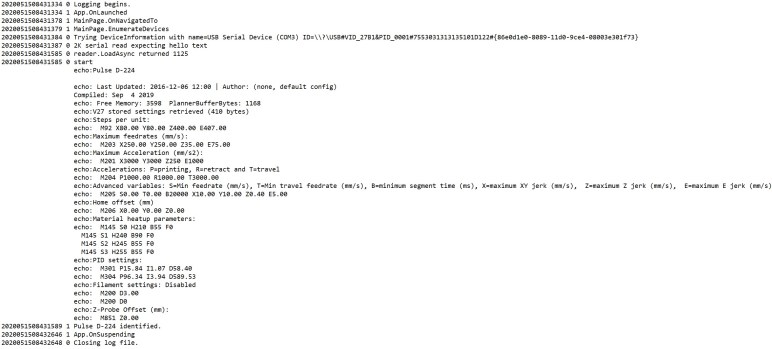
This required a trip into the world of UWP application lifecycle. I check if the log file existed and, if not, create and open the log file from three places: OnLaunched, OnActivated, and OnResuming. In practice it looks like I mostly see OnLaunched. The flipside is OnSuspending, where the application template has already set up a suspension deferral buying me time to write out and close the log file.

How do I write data out to this log file?

There is a helpful Getting Started with file input/output document. In it, the standard recommendation is to use the FileIO class. It links to a section in the UWP developer’s guide titled Files, folders, and libraries. The page Create, write, and read a file was helpful for me to see how these differ from classic C file I/O API.

These FileIO classes promise to take care of all the complicated parts, including async/await methods so the application is not blocked on file access. This way the user interface doesn’t freeze until the load or save operation completes, instead remaining responsive while file access was in process.

But when I used the FileIO API naively, writing upon every line of the log file, I received a constant stream of exceptions. Digging into the call stack of the exception (actually several levels deep in the chain) told me there was a file access collision problem. It was the page Best practices for writing to files that cleared things up for me: these async FileIO libraries create temporary files for each asynchronous action and copy over the original file upon success. When I was writing once per line, too many operations were happening in too short of a time resulting in the temporary files colliding with each other.

The solution was to write less frequently, buffer up a set of log messages so I write a larger set of them with each FileIO access, rather than calling once per log entry. Reducing the frequency of write operations resolved my collision issue.

[This simple text file logging class is available on GitHub.]

Complexity Of ETW Leaves A Beginner Lost

When experimenting with something new in programming, it’s always useful to step through the code in a debugger the first time to see what it does. An unfortunate side effect is far slower than normal execution speed, which interferes with timing-sensitive operations. An alternative is to have a logging mechanism that doesn’t slow things down (as much) so we can read the logs afterwards to understand the sequence of events.

Windows has something called Event Tracing for Windows (ETW) that has evolved over the decades. This mechanism is implemented in the Windows kernel and offers dynamic control of what events to log. The mechanism itself was built to be lean, impacting system performance as little as possible while logging. The goal is that it is so fast and efficient that it barely affects timing-sensitive operations. Because one of the primary purposes of ETW is to diagnose system performance issues, and obviously it can’t be useful it if running ETW itself causes severe slowdowns.

ETW infrastructure is exposed to Universal Windows Platform applications via the Windows.Foundation.Diagnostics namespace, with utility classes that sounded simple enough at first glance: we create a logging session, we establish one or more channels within that session, and we log individual activities to a channel.

Trying to see how it works, though, can be overwhelming to the beginner. All I wanted is a timestamp and a text message, and optionally an indicator of importance of the message. The timestamp is automatic in ETW. The text message can be done with LogEvent, and I can pass in a LoggingLevel to signify if it is verbose chatter, informative message, warning, error, or a critical event.

In the UWP sample library there is a logging sample application showcasing use of these logging APIs. The source code looks straightforward, and I was able to compile and run it. The problem came when trying to read this log: as part of its low-overhead goal and powerful complexity, the output of ETW is not a simple log file I can browse through. It is a task-specific ETL file format that requires its own applications to read. Such tools are part of the Windows Performance Toolkit, but fortunately I didn’t have to download and install the whole thing. The Windows Performance Analyzer can be installed by itself from the Windows store.

I opened up the ETL file generated by the sample app and… got no further. I could get a timeline of the application, and I can unfold a long list of events. But while I could get a timestamp for each event, I can’t figure out how to retrieve messages. The sample application called LogEvent with a chunk of “Lorem ipsum” text, and I could not figure out how to retrieve it.

Long term I would love to know how to leverage the ETW infrastructure for my own application development and diagnosis. But after spending too much time unable to perform a very basic logging task, I shelved ETW for later and wrote my own simple logger that outputs to a plain text file.

Ubuntu and ROS on Raspberry Pi

Since I just discovered that I can replace Ubunto with lighter-weight Raspbian on old 32-bit PCs, I thought it would be a good time to quickly jot down some notes about going the other way: replacing Raspbian with Ubuntu on Raspberry Pi.

When I started building Sawppy in early 2018, I was already thinking ahead to turning Sawppy from a remote-controlled toy to an autonomous robot. Which meant a quick survey to the state of ROS. At the time, ROS Kinetic was the latest LTS release, targeted for Ubuntu 16.

Unfortunately the official release of Ubuntu 16 did not include an armhf build suitable for running on a Raspberry Pi. Some people would build their own ROS from source code to make it run on Raspbian, I took one attempt and the build errors took more time to understand and resolve than I wanted to spend. I then chose the less difficult path of finding a derived released of Ubuntu 16 that ran on the platform: Ubuntu Mate 16. An afternoon’s worth of testing verified basic ROS Kinetic capability, and I set it aside for revisiting later.

Later on in 2018, Ubuntu 18 was released, followed by ROS Melodic matching that platform. By then support for running Debian (& deriviatives) on armhf had migrated to Ubuntu, and they released both the snap-based Ubuntu Core and Ubuntu ‘classic’ for Raspberry Pi. These are minimalist server images, but desktop UI components can be installed if needed. Information to do so can be found on Ubuntu wiki but obviously UI is not a priority when I’m looking at robot brains. Besides, if I wanted an UI, Ubuntu Mate 18 is still available as well. For Ubuntu 20 released this year, the same choices continue to be offered, which should match well with ROS Noetic.

I don’t know how relevant this is yet for ROS on a Raspberry Pi, but I noticed not only are 32-bit armhf binaries available, so are 64-bit arm64 binaries. Raspberry Pi 3 and 4 have CPU capable of running arm64 code, but Raspbian has remained 32-bit for compatibility with existing Pi software and with low-end devices like the Raspberry Pi Zero incapable of arm64. More than just an ability to address more memory, moving to arm64 instruction set was also a chance to break from some inconvenient bits of architectural legacy which in turn allowed better arm64 performance. Though the performances increase are minor as applied to a Raspberry Pi, ROS releases include precompiled arm64 binaries so the biggest barrier to entry has already been removed and might be worth a look.

[UPDATE I found a good reason to go for arm64: ROS2]

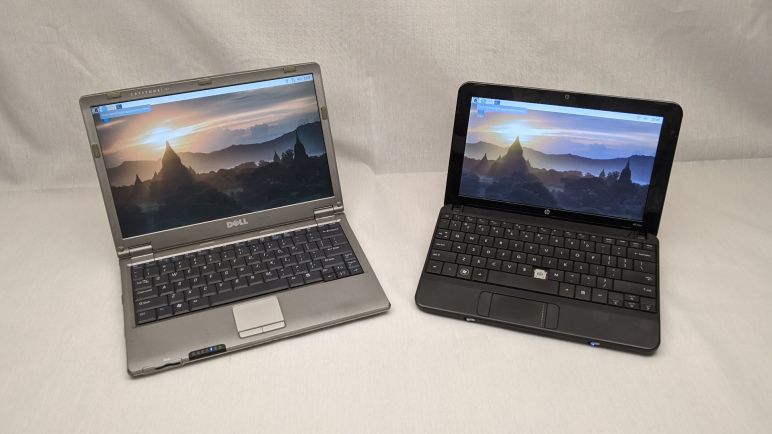
Debian with Raspberry Pi Desktop on HP Mini (110-1134CL) and Dell Latitude X1

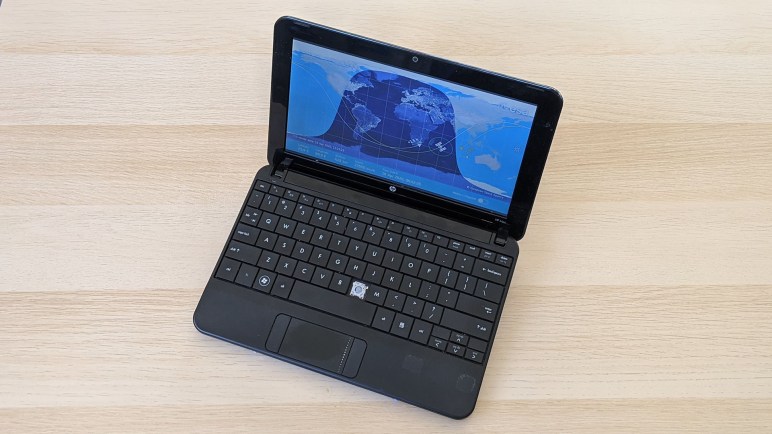
I went hunting for a lightweight Linux distribution for old computers. With a CPU running at about 1 GHz and 1GB of RAM, the HP Mini (110-1134CL) I had on hand was the approximate league of a modern Raspberry Pi. I wished for something like Debian-based Raspbian and was delighted to find that the Raspberry Pi foundation does release a Debian distribution for x86 that is a counterpart to Raspbian. This meant much of my knowledge about working with Raspbian on a Raspberry Pi could be applied.

Obviously all the work specific to Pi hardware are absent, such as video playback hardware acceleration and the GPIO pins. Still, I think I’m in better shape here than in many other lightweight Linux distributions, because I believe the Debian roots meant I can draw from the extensive library of drivers.

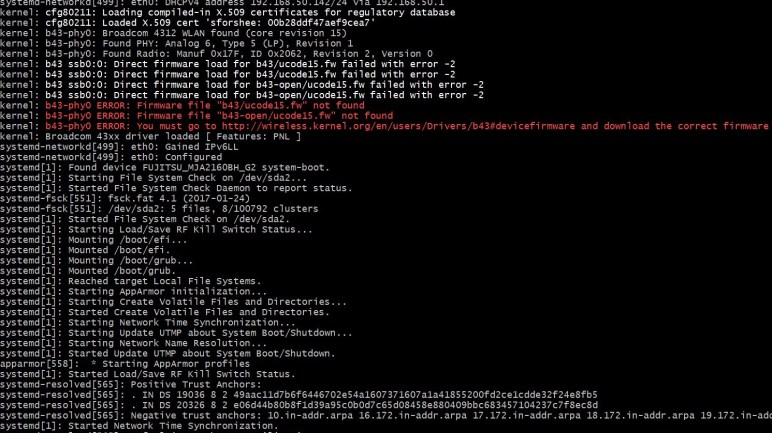
Installing on the HP Mini (110-1134CL) the installer reminded me of this fact by informing me I would need ucode15.fw. I thought I would have to install it manually but by the time installation completed and I got to Raspberry Pi desktop, WiFi was working. I guess installation was taken care of for me! A huge plus in favor of beginner friendliness of this distribution.

Generally speaking, it worked well on this HP Mini, feeling more responsive than Ubuntu Mate on the same machine. It is still no speed demon, but at least it is no longer an exercise in frustration. My general impression of user experience is on par with a Raspberry Pi 3 but with the notable exception of video playback: lacking the specially tailored hardware accelerated video engine, it can only consistently play YouTube videos at 480p. Trying to run 720p (most closely matching the screen resolution) dropped a lot of frames. This is a downside as so many instructional videos are online now, but 480p should still be enough to get the point across.

Encouraged by this result, I prepared to install on my Dell Latitude X1. Before I erased Ubuntu Mate, though, I wanted to get some objective numbers. I measured Ubuntu Mate boot on the Latitude X1, and the time from power button to desktop ready for user interaction was 2 minutes 37 seconds.

Installing on the Latitude X1 encountered similar driver issues, this time with ipw2200-bss.fw. Again, after informing me, the installer took care of installing it and setting it up without requiring any action from me. And once it was up and running I measured it took only 1 minute 26 seconds. This operating system is ready for user input in almost half the time of Ubuntu Mate.

Repeating the measurement, I found that the younger HP Mini had the performance edge, taking just 58 seconds to go from power button to desktop ready. Both of these numbers are impressive considering both are running mechanical hard drives and not modern flash storage.

With these impressive results, Debian with Raspberry Pi desktop has now become my go-to operating system for computers with old 32-bit Intel CPUs.

Debian with Raspberry Pi Desktop Promising For Old Computers

During my first pass evaluation of a HP Mini (110-1134CL) I tried a few modern graphical operating system options and failed to find anything satisfactory. Ubuntu Mate is designed to be a lighter weight alternative to mainline Ubuntu, but it still felt sluggish. Chrome OS (available as Neverware CloudReady) now only supports 64-bit CPUs, which excluded old 32-bit machines.

It works fine as a text-only command line machine, but that seems like a shame as it has a perfectly operable screen and video subsystem. All it needs is a Linux distribution even lighter weight than Ubuntu Mate. I’m sure there are many options out there — historically there has never been a shortage of options for Linux distributions, and websites like this one help sort through options.

But I’d rather not learn yet another Linux distribution. I’m already juggling through more than I strictly wanted, plus some time in FreeBSD as part of my FreeNAS explorations. If only there was a Linux variant that I’m already familiar with, optimized for minimalist low end hardware.

The poster child for minimalist low end hardware is the Raspberry Pi, which is so minimalist it doesn’t even have a power switch. Raspbian, their Debian-derived Linux distribution, has been cut down so it runs on Pi hardware less powerful than the cell phones we’re carrying around nowadays. What if someone took that work and put it in a distribution I can run on old x86 computers? At 1GB of RAM and 1GHz CPU, the hardware spec of a HP Mini is quite similar to a Raspberry Pi.

An online search quickly found that such a thing exists. Not only had “someone” done the work, that “someone” is Raspberry Pi foundation itself. This was the result of someone at the foundation thinking of the exact same “What if….?”question, but they thought of it a few years earlier and had the resources to make it happen.

Thus old computers with 32-bit Intel CPU have the option of running what they’re currently calling Debian with Raspberry Pi Desktop. A beginner-friendly super lightweight variant of Debian with almost all of the software packages that come pre-installed on Raspbian. Only Wolfram Mathematica and Minecraft are missing due to licensing. It all sounds very promising. Time to try it on some old 32-bit machines and see how they run.

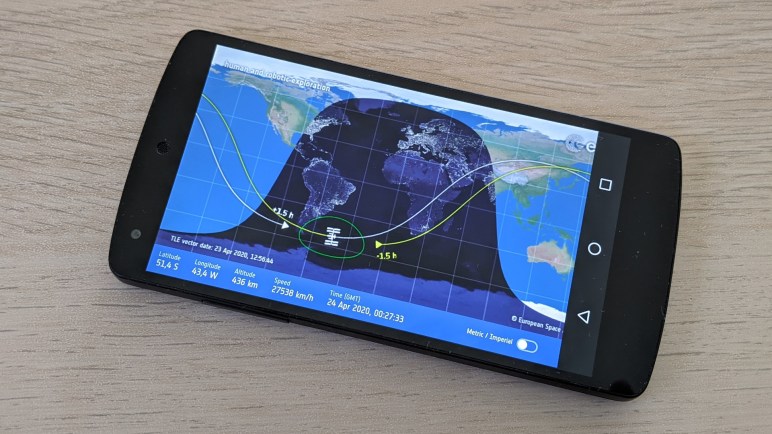
ESA ISS Tracker on Nexus 5

When I tried a Nokia Lumia 520 to see if I could use it as ESA ISS Tracker display, I found its screen couldn’t quite manage. Displaying the entire map in a clear and legible way requires more than the 800×480 resolution of a Lumia 520’s screen. Which led to the next experiment: dust off an old Nexus 5.

Nexus 5 Android support was discontinued several releases ago, but when new it was quite a compelling device. One of the signature features was a full HD 1920×1080 resolution screen packed into just five inches of diagonal length. And given Google’s track record of mobile Chrome browser, I was confident it would be capable of rendering ESA’s HTML ISS tracker.

Unfortunately it proved to be even less suitable than the Lumia 520, due to the lack of hardware navigation buttons. This meant the Android navigation bar is always on screen, obscuring part of the map. This was similar to how a Kindle behaves, except the Kindle bar is across the bottom while the phone is over on the right.

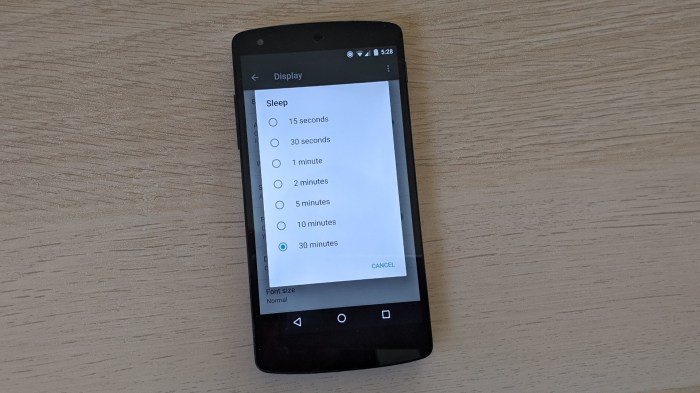
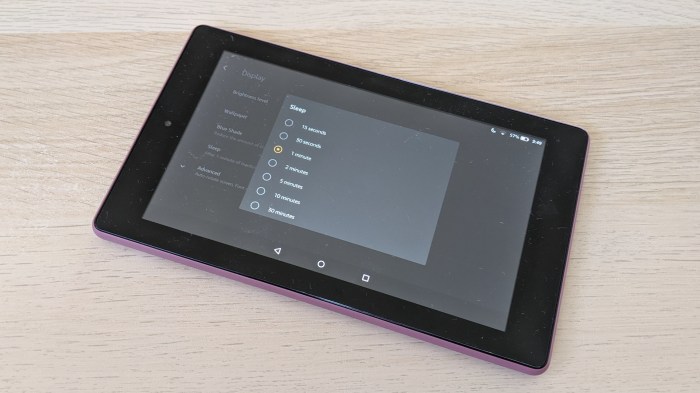
Nexus 5 sleep timeouts

Another problem shared with the Kindle was the inability to keep the screen on. Screen inactivity sleep timeout could be set anywhere from 15 seconds to 30 minutes, but there isn’t a “Never” option like there is on Windows tablets or Windows Phone. It seems to be a persistent trend in Android devices, which is reasonable for portable personal electronics but annoying when I want to repurpose one as an around-the-clock status display. Android being Android, there’s probably a way around that limitation, but that’s not a very interesting project right now when I already have more cooperative devices at my disposal.

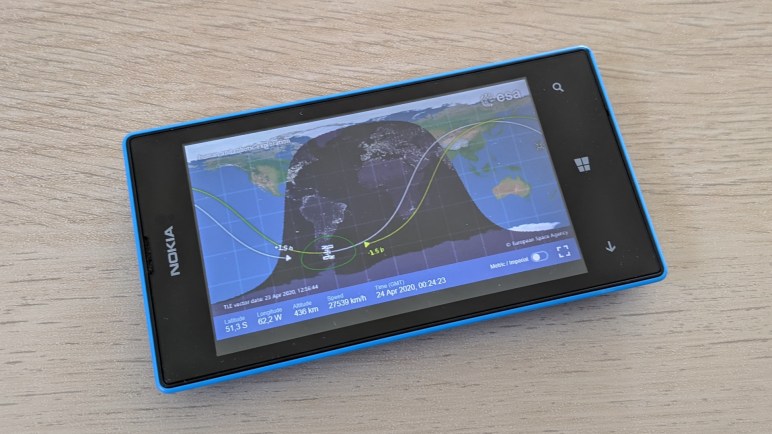
ESA ISS Tracker on Nokia Lumia 520

While the unfortunate Samsung 500T will be dropped from Windows 10 support in 2023, I don’t need to wait that long for a Microsoft end-of-life product. I have several old Windows Phone 8 devices on hand, and they’ve already ventured beyond the bounds of supported systems which is bad for security if I wanted use these devices for general internet activities. But if I have only a specific web property in mind that I trust to be safe, then all I care about is if it works. ESA’s online HTML ISS Tracker fits this bill.

The version of Internet Explorer built into Windows Phone 8 is far more compatible with web than IE of old, though it still had enough incomplete/missing features to make its web experience a little bumpy. It’s fine for most sites and a quick test on a Nokia Lumia 520 proved that the ESA tracker is one of them.

Since this phone had hardware navigation buttons, there was no need to keep a navigation bar on screen as the Amazon Kindle did. This allowed the ISS tracker to actually have the full screen as intended. The is one cosmetic problem: the map occupied top part of the screen leaving a little black bar at the bottom instead of vertically centered. But that’s a tiny nit to pick.

I could tell this the phone never to turn off the screen even after some period of inactivity, better than I could with my Kindle. The phone should be able to run indefinitely on USB power making it suitable for an around-the-clock display. The only thing I can gripe about is screen resolution. The 800×480 screen of this Windows Phone is just a little too low resolution for all the ISS tracking details to be clearly legible. I think a HTML-based status display will be a promising way to reuse obsolete Windows Phone hardware, but maybe a different project preferably with lower information density. This shortcoming of the Lumia 520 motivated me to repeat the same experiment on a Google Nexus 5, another phone that has fallen out of support.

ESA ISS Tracker on Samsung 500T

Setting aside the HP Stream 7 as unsuitable for my current project, we reach the final piece of x86 Windows hardware in my pile of unused devices: the Samsung 500T. I guess 500T was a shorthand for its full designation XE500T1C, though I don’t think it made the name roll off the tongue much easier.

This device has a 11.6 inch diagonal touchscreen. It was designed for Windows 8 and launched at around the same time. Its primary focus is on tablet workloads, but can become a convertible tablet/laptop like the HP Split X2 with purchase of an optional keyboard base. Since the keyboard is optional, the 500T has more peripherals packed along its edges. Not just the microSD expansion slot like the HP but also a full-size type A USB and micro HDMI connectors. HP delegated the latter tasks to its included base, which has two type A USB ports and a full sized HDMI connector.

As a piece of Windows 8 hardware like HP Split X2 and HP Stream 7, the 500T has a Windows license in embedded hardware. Thus I was also able to install Windows 10 erasing the existing installation of Windows 8 which was protected by a password I no longer remember. Once device drivers were installed, all features functioned as expected including the ability to run on plug-in power and charge its battery.

That capability was inexplicably nonfunctional in my HP Stream 7. Which meant unlike the HP Stream 7, I could run this display continuously on wired power around the clock. And showing the ESA HTML live space station tracker might be the best way to make use of this hardware. It would be a better end than collecting dust, as my past experience of this tablet has failed to live up to its potential and generally soured me on buying any more computers from Samsung.

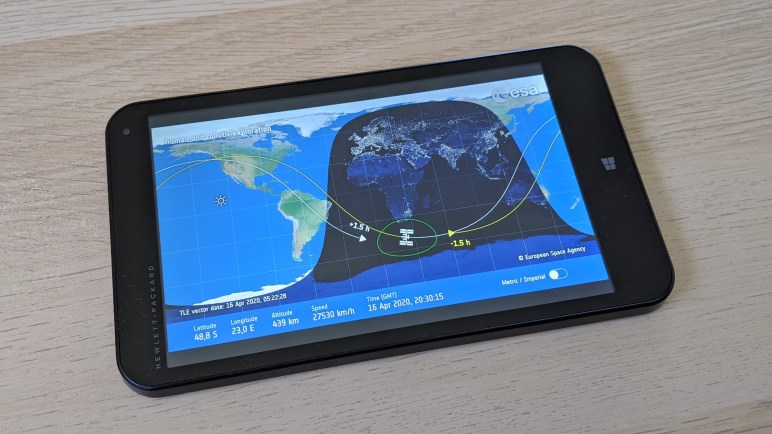
ESA ISS Tracker on HP Stream 7

After I found that Amazon Fire HD 7 tablet was unsuitable for an always-on screen to display ESA’s HTML live tracker for the International Space Station, I moved on to the next piece of hardware in my inactive pile: a HP Stream 7. This tablet was an effort by Microsoft to prove that they would not cede the entry-level tablet market to Android. In hindsight we now know that effort did not pan out.

But at the time, it was an intriguing product as it ran Windows 10 on an Intel Atom processor. This overcame the lack of x86 application compatibility of the previous entry level Windows tablet, which ran Windows RT on an ARM processor. It was difficult to see how an expensive device with a from-scratch application ecosystem could compete with Android tablets, and indeed Windows RT was eventually withdrawn.

Back to this x86-based tablet: small and compact, with a screen measuring 7″ diagonally that gave it its name, it launched at $120 which was unheard of for Windows machines. Discounts down to $80 (when I bought it) made it cheaper than a standalone license of Windows software. Buying it meant I got a Windows license and basic hardware to run it.

But while nobody expected it to be a speed demon, its performance was nevertheless disappointing. At best, it was merely on par with similarly priced Android tablets. Sure we could run standard x86 Windows applications… but would we want to? Trying to run Windows apps not designed with a tablet in mind was a pretty miserable experience, worse than an entry level PC. Though to be fair, it is impossible to buy an entry level PC for $120 never mind $80.

The best I can say about this tablet was that it performed better than the far more expensive Samsung 500T (more on that later.) And with a Windows license embedded in hardware, I was able to erase its original Windows 8 operating system (locked with a password I no longer recall) and clean install Windows 10. It had no problems updating itself to the current version (1909) of Windows 10. The built-in Edge browser easily rendered ESA ISS tracker, and unlike the Kindle I could set screen timeout to “never”.

That’s great news, but then I ran into some problems with power management components that would interfere with around-the-clock operation.

ESA ISS Tracker on Kindle Fire HD 7 (9th Gen)

I wanted to play with old PCs and that’s why I tried ESA’s ISS Tracker on a HP Mini and Dell Latitude X1. But if I’m being honest, the job of a dedicated display is better suited to devices like tablets. They are designed for information consumption and are not hampered by the overhead of input devices like keyboards. I was not willing to dedicate my iPad to this task: it is too useful for other things. But I do have a pile of older devices that haven’t lived up to their promise.

Top of this pile (meaning most recent) is an Amazon Kindle Fire HD 7 tablet 9th generation (*) purchased during holiday sale for a significant discount. If there isn’t a sale today, wait a few weeks and another will be along shortly. I ended up paying roughly 20% of what I paid for my iPad, and I had been curious how it would perform. The verdict was that it had too many annoyances to be useful and I ended up not leaving it collecting dust. At 20% of the price with 0% of utility, it was not a win.

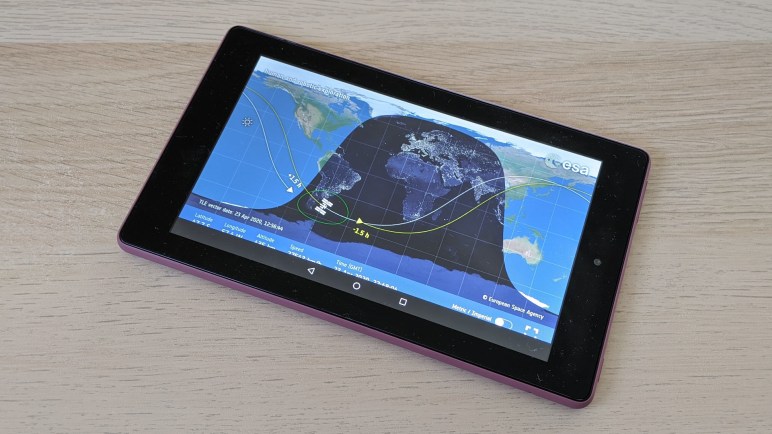
But maybe I could dedicate its screen for a live ISS tracker? I brought up Silk web browser and launched the ESA site. Switching to full screen mode unveiled a problem: Kindle never removes its device navigation buttons from the bottom of the screen. The triangle/circle/square obscures part of ISS tracker’s display.

I wondered if this behavior applied to native Kindle apps as it did full screen web pages, so I searched through the Amazon Kindle app store for an ISS tracker and found ISSLive (*) for experimentation. The answer: yes, the navigation bar is overlaid on top of native applications just as it did on web pages.

Kindle Fire HD 7 running ISSLive

But that was only visually annoying and not an outright deal breaker. That would be Kindle’s sleep behavior. There is no option to keep the screen display active. The user can choose from one of several time duration for the tablet to wait before it turns off the display and goes to sleep, but there is no “Never go to sleep” option.

Kindle Fire HD 7 Always Sleeps

The Kindle Fire HD 7 will not be suitable as a dedicated ISS tracker screen, so I’m moving on to the next device in the unused pile for investigation: a HP Stream 7.


(*) Disclosure: As an Amazon Associate I earn from qualifying purchases.

ESA ISS Tracker on Dell Latitude X1

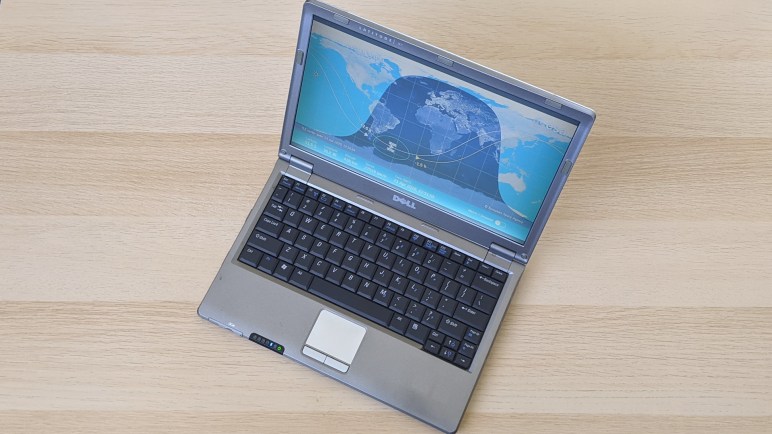
My failed effort at an ISS Tracker web kiosk reminded me of my previous failure trying to get Ubuntu Core web kiosk up and running on old hardware. That computer, a Dell Latitude X1, was also very sluggish running modern Ubuntu Mate interactively when I had tried it. I was curious how it would compare with the HP Mini.

The HP Mini has the advantage of age: it is roughly ten years old, whereas the X1 is around fifteen years old. When it comes to computers, an age difference of five years is a huge gulf spanning multiple hardware generations. However, the X1 launched as a top of the line premium machine for people who were willing to pay for a thin and light machine. Hence it was designed under very different criteria than the HP Mini despite similarity in form factor.

As one example: the HP Mini housed a commodity 2.5″ laptop hard drive, but the Dell Latitude X1 used a much smaller form factor hard drive that I have not seen before or since. Given its smaller market and lower volume, I think it is fair to assume the smaller hard drive comes at a significant price premium in exchange for reduction of a few cubic centimeters in volume and grams of weight.

Installing Ubuntu Mate 18.04 on the X1, I confirmed it is still quite sluggish by modern standards. However, this is a comparison test and the Dell X1 surprised me by feeling more responsive than the five years younger HP Mini. Given that they both use spinning platter hard drives and had 1GB of RAM, I thought the difference is probably due to their CPU. The Latitude X1 had an ULV (ultra low voltage) Pentium M 744 processor, which was a premium product showcasing the most processing power Intel can deliver while sipping gently on battery power. In comparison the HP Mini had an Atom processor, an entry-level product optimized for cost. Looking at their spec sheet comparison shows how closely an entry level CPU matches up to a premium CPU from five years earlier, but the Atom had only one quarter of the CPU cache and I think that was a decisive difference.

Despite its constrained cache, the Atom had two cores and thermal design power (TDP) of just 2.5W. In contrast the Pentium M 733 ULV had only a single core and TDP of 5W. Twice the cores, half the electrical power, the younger CPU far more power efficient. And it’s not just the CPU, either, it’s the whole machine. Whereas the HP Mini 110 only needed 7.5W to display ESA ISS Tracker, the Latitude X1 reports drawing more than double that. A little over 17W, according to upower. An aged battery, which has degraded to 43% of its original capacity, could only support that for about 40 minutes.

Device: /org/freedesktop/UPower/devices/battery_BAT0
native-path: BAT0
vendor: Sanyo
model: DELL T61376
serial: 161
power supply: yes
updated: Thu 23 Apr 2020 06:19:06 PM PDT (69 seconds ago)
has history: yes
has statistics: yes
battery
present: yes
rechargeable: yes
state: discharging
warning-level: none
energy: 11.4663 Wh
energy-empty: 0 Wh
energy-full: 11.4663 Wh
energy-full-design: 26.64 Wh
energy-rate: 17.2605 W
voltage: 12.474 V
time to empty: 39.9 minutes
percentage: 100%
capacity: 43.0417%
technology: lithium-ion
icon-name: 'battery-full-symbolic'
History (rate):
1587691145 17.261 discharging

Putting a computer to work showing the ESA tracker is only using its display. It doesn’t involve the keyboard. Such information consumption tasks are performed just as well by touchscreen devices, and I have a few to try. Starting with an Amazon Kindle Fire HD 7.

Aborted Ubuntu Core Web Kiosk Adventure with HP Mini (110-1134CL)

I haven’t figured out how to get WiFi working on this HP Mini (110-1134CL) under Ubuntu Core 18, but that’s not the main objective of my current investigation so I’m moving on with wired Ethernet. What I wanted to do was to build an Ubuntu Core powered web kiosk appliance to show the ESA Live ISS Tracker web page. I thought this would be a pretty easy exercise, all I had to do is follow the steps I did earlier to build an kiosk appliance running on a Dell Inspiron 11 3180.

Nope! The tutorial I followed earlier is gone, its URL https://tutorials.ubuntu.com/tutorial/ubuntu-web-kiosk now forwards to https://ubuntu.com/tutorials/electron-kiosk which is a tutorial to build an ElectronJS application into a snap. I don’t have the ESA ISS Tracker in an ElectronJS app (yet) so I poked around trying to figure out what happened to the tutorial.

Both the earlier Chromium tutorial and the current Electron tutorial are built on top of the Mir Kiosk shell. I found a good collection of information on this page proclaiming itself “Configuring Mir Kiosk, a Masterclass.” That thread did mention the chromium-mir-kiosk snap used in the now-gone tutorial, but that no longer seems to run. I only get a blank screen instead of the earlier basic web kiosk.

Apparently that snap was always intended to be a short term tech demo and there was no effort to maintain it to keep it updated with latest versions of systems. This thread claimed replacement is wpe-webkit-mir-kiosk, but there’s a problem for my situation: there’s no 32-bit (i386) snap that would run on this old HP Mini’s CPU. They only had pre-built binaries for 64-bit (amd64) processors

It appears if I want to put the ESA ISS Tracker on this HP Mini as an Ubuntu Core appliance, I will need to learn how to build it into an ElectronJS application and compile a binary that would run on i386 architecture. I’m not sure how much work that will be yet, but if I put it up on Snap store I’m sure there are people who would appreciate it.

Which occurred to me… what if it is up there already? I had forgotten to check the easy thing first. I searched on the store and unfortunately didn’t see anyone who has done the work I specifically had in mind. I did find a snap termtrack that tracks ISS as well as other satellites, but there were two problems: First, it is a terminal (text mode) application so isn’t as graphically interesting. And second, it doesn’t have an i386 binary available, either. Darn.

$ snap install termtrack
error: snap "termtrack" is not available on stable for this architecture (i386) but exists on other architectures (amd64).

Oh well, so much for a low effort ESA HTML ISS tracker built on Ubuntu Core. Which reminded me to look at how it works on my other Ubuntu Core kiosk failure: the Dell Latitude X1.

Ubuntu Core WiFi Woes on HP Mini (110-1134CL)

Last time I played with Ubuntu Core, I followed through their tutorial for building a simple minimalist web kiosk whose state is wiped clean upon every reboot. At the time I had no idea why I would ever want to build such a thing, but now I have my answer: build an “appliance” for displaying ESA’s HTML Live International Space Station Tracker.

I had put Ubuntu Server and Ubuntu Core on this HP Mini (110-1134CL) earlier for a quick look to verify it works well for command line based usage. One thing I didn’t notice earlier was the fact Ubuntu Core only recognized the wired Ethernet port and not the WiFi hardware. It’s nice to have WiFi if I’m want to set up an ISS display away from my wired networking infrastructure.

I saw some red text flash by quickly upon boot. I had to retrieve the message after startup with the journalctl command to see what it complained about.

b43-phy0: Broadcom 4312 WLAN found (core revision 15)
b43-phy0: Found PHY: Analog 6, Type 5 (LP), Revision 1
b43-phy0: Found Radio: Manuf 0x17F, ID 0x2062, Revision 2, Version 0
b43 ssb0:0: Direct firmware load for b43/ucode15.fw failed with error -2
b43 ssb0:0: Direct firmware load for b43-open/ucode15.fw failed with error -2
b43-phy0 ERROR: Firmware file "b43/ucode15.fw" not found
b43-phy0 ERROR: Firmware file "b43-open/ucode15.fw" not found
b43-phy0 ERROR: You must go to http://wireless.kernel.org/en/users/Drivers/b43#devicefirmware and download the correct firmware for this driver version. Please carefully read all instructions on this website.

I like error messages that point me to instructions telling me what to do. Unfortunately http://wireless.kernel.org/en/users/Drivers/b43#devicefirmware is no longer a valid URL and returns a HTTP 404 error. Searching the web for combinations of “Broadcom WiFi b43 Linux driver” led me to this forum post by someone asking for help. A helpful response pointed to this Debian support page, and from there to Linux kernel information. Apparently there is a licensing issue, requiring extra steps to install these driver packages. Those extra steps are where I got stuck with Ubuntu Core as it only accepts software modules in the form of snaps.

First we need to identify the exact hardware to see if it is in the b43 or b43legacy package. The command is lspci -nn -d 14e4: but lspci is not part of Ubuntu Core. Flailing, I tried to snap find lspci and came up empty.

If I had been able to determine which hardware I had, I could look it up on this chart which determines if I should sudo apt install firmware-b43-installer or its legacy counterpart sudo apt install firmware-b43legacy-installer. But again Ubuntu Core does not allow installation of software via apt, only via snap.

For the moment I’m stuck on getting WiFi for Ubuntu Core on this HP Mini, but that is not the biggest obstacle: my showstopper is that the tutorial kiosk has gone away.

ESA ISS Tracker on HP Mini (110-1134CL)

I thought it might be fun to turn an obsolete computer into an International Space Station tracking monitor running full time somewhere in the house. I didn’t want to write the software myself from scratch, and a search for something that I could put on various hardware found a web-based HTML live ISS tracker published by the European Space Agency.

My first test platform is a HP Mini (110-1134CL) from my NUCC trio of machines looking for projects. As the least capable machine in the bunch, I thought it was the best candidate. I reinstalled Ubuntu Mate 18.04 on this machine for the first round of experimentation. Earlier I established Ubuntu Mate was unusable slow on this machine for interactive usage, but maybe it will be enough for passive ISS tracking display.

With Ubuntu Mate installed, putting the site on screen was straightforward. Firefox (which comes installed as part of standard Ubuntu) can be launched with a full screen --kiosk option. That command line is what I used for a systemd service, similar to how Google prescribed launching AIY Voice apps on startup. I had to modify the AIY executable with the Firefox command line, and that was enough for the ISS tracker to be automatically launched on boot. I still had to manually click the full screen button for now, one of the to-do items I might investigate fixing later.

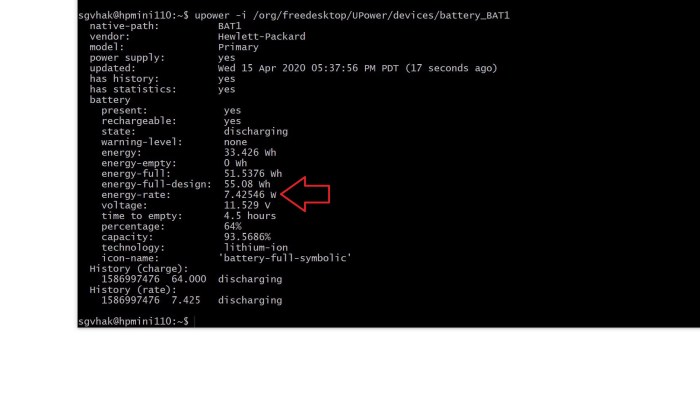
I was not sure if a modern web application might be too much for this old piece of hardware to handle, but once up and running the ISS tracker is pretty lightweight on processor demands according to htop. To double check, I researched how to retrieve a laptop’s power consumption under Linux and found this page listing several options. I chose upower to tell me how much power the laptop believes it is drawing from its battery pack.


UPower says HP Mini 110 only needs 7.5 watts

Looks like running ISS tracker takes about seven and a half watts. That’s not bad, on par with a digital picture frame. Using this to calculate the cost of energy consumption: (7.5 Watts) * (24 hours) * (30 days) = 5.4 kilowatt-hours per month. I’m being billed roughly $0.25 per kilowatt-hour on my electrical bill, so running this laptop as ISS tracker 24×7 would cost me about $1.35 a month in electric power.

I’m willing to entertain that amount as-is, but I was curious if I could drop that even further. What if I could replace Ubuntu Mate with an even simpler operating system? Would that further drop power consumption? I played with the web kiosk demo for Ubuntu Core before, so I thought I’d revisit the experiment with this HP Mini 110-1134CL.

HTML Live ISS Tracker by ESA

While looking for a web-based space station tracker as alternative to the Raspberry Pi-based ISS-Above, I found NASA’s Spot the Station and embedded on that page is a live ISS Tracker by ESA. I’ve found this ESA component embedded in several other ISS-related web sites. It is the “ISS Tracker” tab of the High Definition Earth Viewing Experiment page on UStream.tv. And the ESA has a “Where is the International Space Station?” page that also has this tracker embedded. This tracker is nifty and popular enough for a closer look.

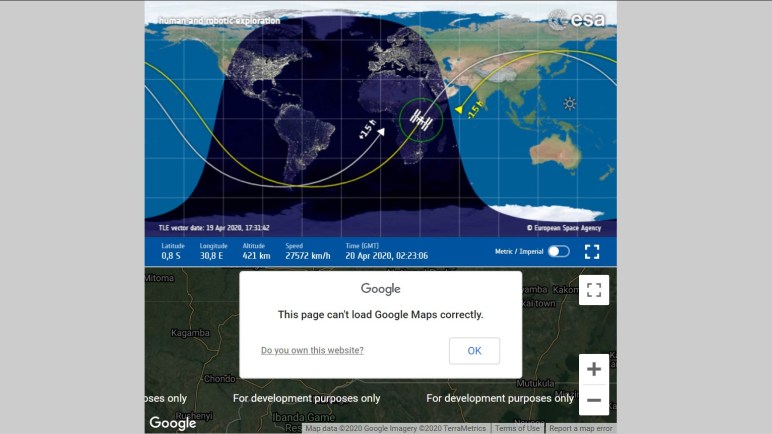
Most of the embeds show two parts to this tracking component. The top part has an ISS track overlaid on top of a global view, and the bottom part is a Google Maps component showing the “For development purposes only” text that is shown when there’s a problem with the API key. I originally thought these were two separate items because I only saw the ISS track embedded on the ESA “Where is the ISS” page and I saw the Google error on a different ISS tracker web site. But bringing the ESA tracker up on its own web site showed they are both part of the same thing. I would like to understand how the “Where is the ISS” page managed to embed the global view component without the Google Maps part.

The default view is also quite tiny, but it doesn’t have to stay that way. We get the best view when we press the full screen icon just to the right of the Metric / Imperial switch. This drops the problematic Google Maps portion and fills the screen with global view. Despite the tiny default low resolution view, the graphics scale quite well and look pretty good even full screen on an 4K display.

I would like to know how to jump straight to this screen without user input, but there are deliberate barriers against public web sites going full screen without user input. Such a mechanism is too easy to be abused by malicious people creating spoofs. If I want to display HTML content fullscreen, I’ll have to find some other way to present it. One possibility is to use ElectronJS turning it into a native app (which doesn’t have the same restrictions as a browser for public sites) and create a window with fullscreen set to true.

These programming details will need to be sorted out if I want to make a project out of it. In the immediate future, I can experiment by manually pushing the full screen button to see how the site behaves on obsolete PC hardware.

Searching For Web-Based ISS Tracker

When NASA and SpaceX announced a target date of May 27th 2020 for Crew Dragon’s second demonstration mission, it was a big deal for space fans especially those in the United States. If successful, this would be the first crewed flight launching from US since retirement of NASA’s space shuttle. I count myself as a space fan, and the announcement got my mind thinking about space again.

The destination for this planned test flight is the International Space Station (ISS) flying over our heads. An object of fascination for space fans, there’s plenty of merchandise available including a LEGO set (#21321) that I had the pleasure to participate putting together at a gathering before we all went into isolation.

There’s no shortage of ISS information available online, either. My personal favorite way to have a screen dedicated to ISS in my home is ISS-Above. I have a license that I run on-and-off depending on whether I have a Raspberry Pi and screen to spare at the moment. Given the flexibility of Raspberry Pi hardware for use in other projects, availability is thin.

What’s more commonly available in my house are obsolete computers. Unfortunately ISS-Above is tied to the Raspberry Pi so I must look elsewhere for a PC-friendly solution. Some of my old machines are running Windows 10 of some variant. The rest have lost their Windows licenses and are running Linux. The easiest common denominator for all of these platforms is a web browser.

Searching online for a web-based ISS tracking counterpart to ISS-Above, I found NASA’s “Spot the Station” website. It has a few interesting resources but not exactly what I’m looking for. One part of the site is a “Live ISS Tracking Map” which replicates my favorite subset of ISS-Above functionality and thus a good place to start. Looking at its HTML, I quickly realized it was an embedding of another page hosted by the European Space Agency (ESA) and available at its own URL. This is an excellent starting point for more exploration.

Attainable(ish) Humanoid(ish) Robots

There are lots of people who are interested in robotics software but lack the resources or the interest to build their own robot from scratch. There is no shortage of robot hardware platforms that love software attention, but most of them are focused on mechanical functionality and thus are shaped like tools. The field is much smaller when we want robots with at least a vaguely humanoid appearance.

Hobbyists need not apply for NASA’s R5 Valkyrie robot, with its several million dollar value. Most of Valkyrie’s fellow competitors in the 2013 DARPA Robotics Challenge are similarly custom built for the competition and unavailable to anyone else. One of the exceptions is the ThorMang chassis, built by the same people behind Dynamixel AX-12A serial bus servos. Naturally, the motors of a ThorMang are their highest end components on the opposite side of their entry level AX-12A. Not surprisingly, it is into the “please call for a quote” category of pricing, but hey, at least it’s theoretically possible to buy one.

The junior member of that team are their OP2 and OP3 robots, which appear to be roughly the size of a toddler and uses smaller and more affordable motors. Handling computation inside the chest is an Intel NUC, which might be the closest we get to a powerful commodity robot brain computer. Still, “affordable” here is still a five-digit proposition at $11,000 USD or so.

There are multiple offerings at this price level, using servos that are similar to the AX-12A. However they all appear roughly equally crude. For something more refined, we’d have to step up to something like a NAO robot. It seems like a modern-day QRIO but actually available for purchase for around $16,000.

A large part of the cost is the difficulty of building a self-balancing, self-contained, two-legged robot. It’s a big part of a humanoid appearance, but it is out of proportion with the parts that lend a robot well to human interaction. Giving up the legged locomotion for a wheeled platform allows something far cheaper but still have an expressive head and face plus two arms.

The people who make the NAO also makes the Pepper. Roughly the size of a human choid, it still has fully expressive head and arms but uses a wheeled base platform. The company seems to be trying to find niches outside of education and development, but they all seem rather far-fetched to me. Or at least, I don’t see enough to justify the cost of ownership at roughly $30,000.

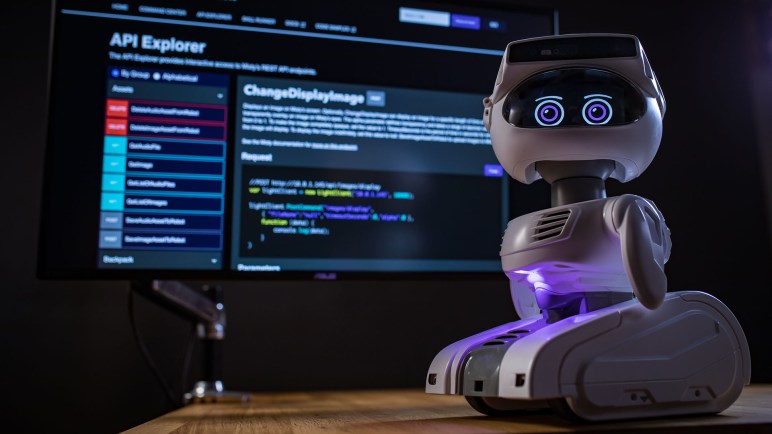
Simplifying further, we can have smaller robots on wheels that still have an expressive head but limited arms. Out of the offerings in this arena, Misty II is the most developer-friendly platform I’m aware of. Since my first introduction to Misty II, the company has launched several variants including a cost-reduced basic version that lacks the 3D depth camera. (Similar to a Microsoft Kinect.) Misty is still not cheap at a starting price of $2,000, but not so bad in the context of all these other robots.

(Image source: Misty Robotics)

VGA Signal Generation with PIC Feasible

Trying to turn a flawed computer monitor into an adjustable color lighting panel, I started investigating ways to generate a VGA signal. I’ve experimented with Arduino and tried to build a Teensy solution, without success so far. If I wanted full white maybe augmented by a fixed set of patterns, Emily suggested the solution of getting a VGA monitor tester.

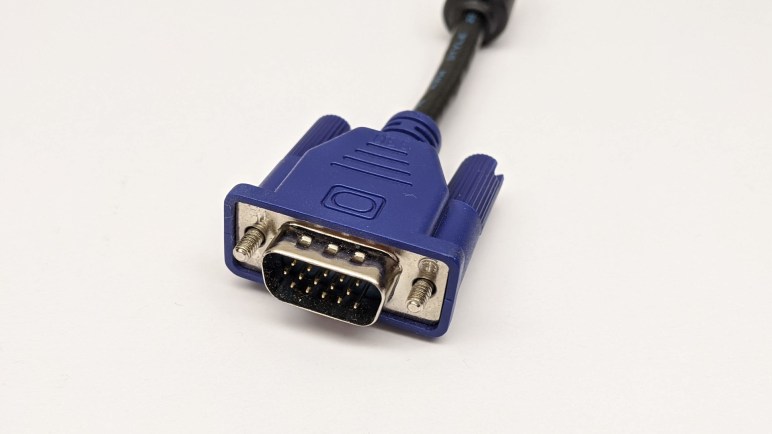
They are available really cheaply on Amazon. (*) And even cheaper on eBay. If I just wanted full white this would be easy, fast, and cheap. But I am enchanted with the idea of adjustable color, and I also want to learn, so this whole concept is going to stay on the project to-do list somewhere. Probably not the top, but I wanted to do a bit more research before I set it aside.

One thing Emily and I noticed was that when we zoomed in on some of these VGA monitor testers, we can tell they are built around a PIC microcontroller. My first thought was “How can they do that? a PIC doesn’t have enough memory for a frame buffer.” But then i remembered that these test patterns don’t need a full frame buffer, and furthermore, neither do I for my needs. This is why I thought I could chop out the DMA code in the Teensy uVGA library to make it run on a LC, keeping only the HSYNC & VSYNC signal generation.

But if I can get the same kind of thing on a PIC, that might be even simpler. Looking up VGA timing signal requirements, I found that the official source is a specification called Generalized Timing Formula (GTF) which is available from the Video Electronics Standards Association (VESA) for $350 USD.

I didn’t want to spend that kind of money, so I turned to less official sources. I found a web site dedicated to VGA microcontroller projects and it has tables listing timing for popular VGA resolutions. I thought I should focus first on the lowest common denominator, 640×480 @ 60Hz.

The PIC16F18345 I’ve been playing with has an internal oscillator that can be configured to run at up to 32 MHz. This translates to 0.03125 microseconds per clock, which should be capable of meeting timing requirements for 640×480.

I thought about leaving the PIC out of the color signal generation entirely, have a separate circuit generate the RGB values constantly. But I learned this would confuse some computer monitors who try not to lose data. So we need to pull RGB values down to zero (black) when not actively transmitting screen data. It would be more complex than just focusing on HSYNC/VSYNC but not a deal breaker.

[UPDATE: I continued this project with an ESP32.]


(*) Disclosure: As an Amazon Associate I earn from qualifying purchases.