ESP32 FreeRTOS Practice Project Controls L298

After deciding I should learn to use FreeRTOS as part of my ESP32 projects toolbox, I read through the free e-Book PDF. I don’t understand all of it yet, but it built a foundation. Enough for me to start a practice project using some basic FreeRTOS features. What’s the first thing I did? What we always do in embedded hardware: blink a LED!

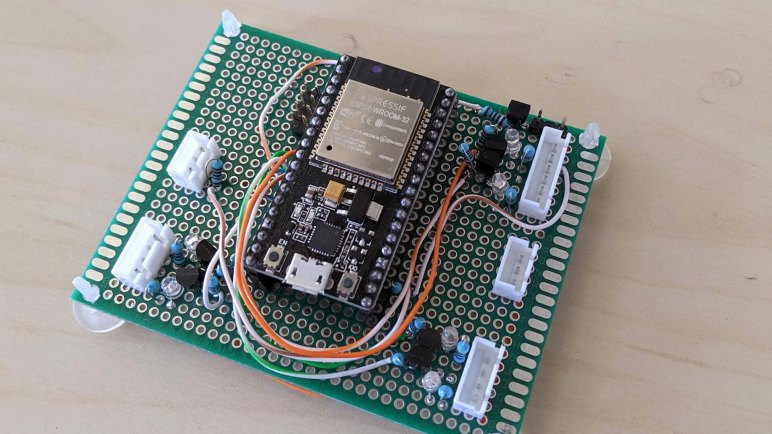
I’ve used this particular ESP32, mounted on this pink breadboard, for several projects. I had a few external LEDs configured on this pink breadboard for experimentation, and that was because I somehow never noticed that there was a second LED available for direct use on my ESP32 dev module. I knew there was a red one to indicate power, but I didn’t notice the blue one until this project. Apparently this particular ESP32 development board (*) is not a direct clone of Espressif’s official ESP32 DevKitC, because that had only one red LED to indicate power. I have no idea how popular this particular two-LED layout is among ESP32 development boards, I’ll have to keep an eye out as I buy more.

Anyway, this board has a blue LED wired to GPIO2, who still got routed to the same pin as the Espressif module. The LED is wired in parallel and should not interfere with using that pin as output. Though it might affect the signal if I use it as input. I spun up a FreeRTOS task purely for the task of blinking the LED at regular intervals, just to verify I could. My first effort put the ESP32 in an infinite reset loop, and I eventually figured out it was caused by insufficient memory allocated to task stack. I was very surprised that a simple LED blinker needed more than one kilobyte of stack, but it’s not the most important thing right now so I’ll look into it later.

After I successfully created a FreeRTOS task and see it running blinking the onboard blue LED, I proceeded to set up my first message queue. Queues are the simplest way for FreeRTOS tasks to pass data to each other. I copied code from my earlier ADC experiment to read position of an analog joystick, and queued the joystick position message for retrieval by another task. First run of the reader task simply dequeued the joystick position and printed to serial terminal, but that was enough to verify I had the queue running correctly.

With those basic pieces established, I then wrote two more tasks. One reads the joystick position and puts motor control commands into yet another queue, and finally a task that reads motor control commands and adjusts MCPWM control signal for the L298N motor driver accordingly.

This exercise was a good test run to verify I could get the advantages I hoped to get by adopting FreeRTOS.

  • By writing individual subareas as tasks, I could test them individually. In this case, I could smoke test the ADC task by writing another task to read the data it queued.
  • Each task could be in charge of its own ESP32 configuration. ADC configuration is handled by the joystick reading task, separate from the other tasks. And likewise MCPWM configuration is handled by the L298N output task.
  • Tasks are run independently from each other, and more importantly, can be modified independently. I found the blue LED was obnoxiously bright and went into my LED blinking task to reduce the on time to a brief flash and extend the time between flashes, and doing so did not affect timing of other tasks. Reading the joystick and sending motor control signals do not necessarily have to run in sync, I could update motor speed more often than reading the joystick, which would be useful if I wanted to add motor acceleration logic.

That last item is especially important. If I learn enough to design my interfaces (FreeRTOS queues) right, I could swap out FreeRTOS tasks without worrying that I would interfere with other tasks. I want this design to scale from micro Sawppy to regular size Sawppy V2 by swapping out different modules written for different motor controllers. By similar token, it should be easier to do quick hacks like swap out a single steering motor as SGVHAK rover had to do. I also want different control input options, from simple wired joystick to web UI to ROS messages, each of which would be a different task module but they could all use the same message queue format to communicate with the rest of the rover.

Knowing how to set up FreeRTOS tasks and queues aren’t nearly the whole picture of using FreeRTOS, but it gave me a good introduction and built confidence for continuing forward. And as a side effect of this software project, I also made a valuable non-software discovery: cardboard backing for electronics prototypes.

[Source code for this project is publicly available on GitHub]


(*) Disclosure: As an Amazon Associate I earn from qualifying purchases.

Juggling ESP32 Tasks With FreeRTOS

The reason I was motivated to set up better ESP32 debugging support is that I expect my projects to become more complex in the near future. Sawppy V1 had two software control options: a very simple hard-wired joystick control option running on an Arduino Nano, and a more complex wireless system using a Raspberry Pi to serve web pages that display rover driving controls. I had many debugging resources at my disposal working on a Raspberry Pi, but for the Arduino I was reduced to diagnostic text sent over serial and working through the math on paper. That was primitive and I’d rather not be limited to pen & paper when debugging my inevitable ESP32 problems.

One of the tools available in the toolbox of an aspiring ESP32 programmer like myself is FreeRTOS. RTOS here stands for real-time operating system, though it’s far smaller and simpler than what we usually think of as an “operating system” nowadays. And the “real-time” guarantees would meet some needs but not others. I understand FreeRTOS is part of ESP32 runtime by default, used by ESP-IDF to implement some of the APIs exposed to us. On an Arduino the software is completely under our control, and we are directly talking to hardware peripherals in the ATmega328. In contrast running on an ESP32 is a mix, some of the peripheral APIs are implemented in software components before handing off to the underlying hardware.

FreeRTOS allows software projects divide up all the work in a particular product into individual FreeRTOS tasks. Then FreeRTOS will handle cycling through what needs to be done while respecting their relative priorities. This is not absolutely required to implement complex functionality. Teensy’s software framework, for example, was written and optimized to run without a similar RTOS layer. It’s just another tool and Espressif decided it was the right tool for this job.

ESP-IDF makes use of FreeRTOS features and made it available to ESP32 developers as well. There’s a section of Espressif documentation talking about FreeRTOS, including how it is configured to run on an ESP32 as well as the modifications Espressif have made to the base implementation. But the majority of FreeRTOS runs on ESP32 unmodified and I can learn from the source. There’s a free eBook (PDF) that walks through major FreeRTOS feature areas. It is several versions out of date and thus does not cover new features, but it enough to get me get up and running on fundamental concepts.

Once I had a passing familiarity with basic functionality of FreeRTOS, I am better informed as I comb through ESP32 documentation. Things I had previously thought were duplicate functionality (example: FreeRTOS Event Groups versus ESP-IDF Event Library) now made more sense as I understand how they are tools for solving different problems.

Certain projects aim to stay within core FreeRTOS to make things portable across different processor architectures, I believe micro-ROS is one of these projects. At the moment architectural portability is not a concern, especially since I’m focused on the ESP32-specific MCPWM peripheral, giving me freedom to use both generic FreeRTOS and platform-specific ESP-IDF functionality. I might want to separate them out to different architectural layers later, but right now it’s all one big mixing bowl for my first ESP32 motor control project.

PlatformIO JTAG Debug Adventure on ESP32

After I established that I can create a simple project for ESP32 using PlatformIO’s modified version of ESP-IDF, I wanted to see if I can get PlatformIO’s source code level debugging up and running. This is a luxury I lacked in my previous microcontroller development adventures. For Arduino and a few other bits of hardware, my only debugging tool was printing diagnostic text to serial terminal. For other hardware like PIC16F18345, I didn’t even have that much. In theory my PICkit 3 had some limited debugging support but I never managed to get MPLAB X debugging running.

So the promise of debugging support on the ESP32 was pretty enticing. The debugger communication protocol is built on an industry standard called JTAG, and I need to have an adapter supported by OpenOCD to talk JTAG on behalf of PlatformIO. There are quite a few options, but looking over the list I realized I already had one of them: JTAG was also used to debug the Hackaday Supercon 2019 FPGA badge, and as a member of the pre-conference development team, I had bought a Segger J-Link. Since I was not doing any commercial work, I qualified for the licensing terms for the EDU edition. (Item #1369 from Adafruit.) So I went back to my box of Superconference stuff and dug out the J-Link I had bought.

The hardware connections were fairly straightforward, using some jumper wires to connect my J-Link to my ESP32 plugged in to a breadboard. Espressif has documentation on setting up JTAG debugging for an ESP32, and PlatformIO has their own page on the topic. I was sad to see that JTAG debugging would consume several of the already-precious pins that could otherwise be used for GPIO. Cross-referencing with the GPIO pin chart compiled by Random Nerd Tutorials, we see the price we have to pay for debugger support are three “OK with caveat” pins and one unencumbered “OK” pin.

The software connection side proved to be more challenging than the hardware. I didn’t expect it to work right off the bat but I didn’t expect to run into this many problems, either. My first obstacle was an error message LIBUSB_ERROR_NOT_SUPPORTED. A little web searching found that this is the message if there are no drivers installed for the JTAG adapter. I went to Segger’s web site to download and install their software suite, but that made no difference. Further web searching found that it actually wanted the more generic WinUSB driver, which I could install using the Zadig utility. Once installed, OpenOCD could communicate to J-Link, but J-Link could not talk to ESP32.

More reading of various forum posts followed, where I learned a common diagnostics step is to try connecting at a lower speed. This mitigates problems caused by poor connections, which is highly likely in my case as I’m connected using jumper wires and breadboards. I would not be a surprised if it couldn’t sustain the 20MHz connection speed. Looking in the debug output, I see the applicable configuration file is boards/esp-wroom-32.cfg and I found the adapter_khz parameter to reduce the default speed down to 5MHz. But when I ran that configuration, I saw the output was set to 5MHz (yay!) and immediately overridden to 20MHz again (Boo!)

Open On-Chip Debugger  v0.10.0-esp32-20201202 (2020-12-02-17:38)
Licensed under GNU GPL v2
For bug reports, read
	http://openocd.org/doc/doxygen/bugs.html
WARNING: boards/esp-wroom-32.cfg is deprecated, and may be removed in a future release.
2
Info : FreeRTOS creation
adapter speed: 5000 kHz

adapter speed: 20000 kHz

Info : tcl server disabled
Info : telnet server disabled
Info : J-Link V10 compiled Jan  4 2021 16:15:44
Info : Hardware version: 10.10
Info : VTarget = 3.241 V
2
Info : Reduced speed from 20000 kHz to 15000 kHz (maximum).
Info : clock speed 20000 kHz
Info : JTAG tap: esp32.cpu0 tap/device found: 0x120034e5 (mfg: 0x272 (Tensilica), part: 0x2003, ver: 0x1)
Info : JTAG tap: esp32.cpu1 tap/device found: 0x120034e5 (mfg: 0x272 (Tensilica), part: 0x2003, ver: 0x1)
Info : accepting 'gdb' connection from pipe
Warn : No symbols for FreeRTOS!
Error: Target not examined yet
Error executing event gdb-attach on target esp32.cpu0:

Error: Target not halted
Error: auto_probe failed

Examining all the debugger configuration files I could find applicable to ESP32, I eventually found the culprit in the PlatformIO configuration file platform.py for espressif32 platform. It would override speed to 20MHz no matter what the specified adapter_khz value is. Editing that file directly on my computer, reducing to 5 MHz, allowed PlatformIO debugger to connect to my ESP32 running my code. I could set breakpoints! I could see variable values! I could walk the call stack! I could step through source code! This is amazing. I went back to PlatformIO to file a bug, but found that someone had already filed issue #459 and a fix is on its way.

One thing this debugger doesn’t seem to do is to catch fatal issues. I had hoped it would automatically break into debugger if one is attached, but the chip just resets. I was mildly disappointed but I’m happy with what I already have. Besides, it looks like a fatal crash stack decoder is on its way as well. At the moment I’m content because this is far better than debugging from serial port. Or worse, doing it blind. I’m going to need good debugging tools as I start increasing project complexity.

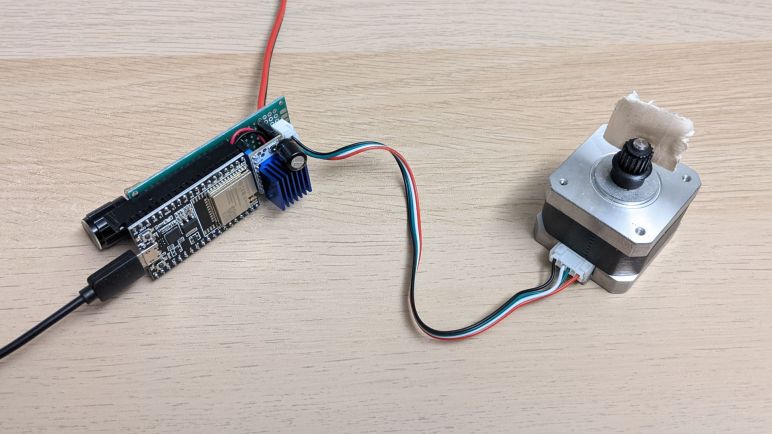
ESP32 Exercise: Stepper Motor Pulses With LEDC PWM

After successfully installing PlatformIO’s ESP-IDF support (and a sigh of relief nothing else seems broken on my computer) I resumed practicing writing code for ESP32. The next exercise was motivated by Emily’s optical audio decoder project where we traded a few e-mail about generating stepper motor signals. For her project she used an Arduino and the AccelStepper library, but it has a maximum speed of roughly four thousand steps per second on classic Arduinos. I was confident the ESP32 can do far better than that, and decided to try it myself.

It was also an opportunity to play with a Trinamic TMC2208 breakout board sometimes called the SilentStepStick. I think this board might be a Trinamic original design, but there’s a slight chance they just hosted materials on their website since it was such a popular use of their chip. Either way, there are a lot of Amazon vendors selling these in affordable multi-packs(*) targeting the 3D printer market. Mostly for people who are unhappy with the high-pitched whine of many inexpensive 3D printers, because TMC2208 is a good choice for helping a printer run much silently than they would on the very popular A4988 driver chip that helped start the current wave consumer 3D printers. My own 3D printers had A4988 drivers soldered on the board so I couldn’t use these modules to upgrade, but I foresee these modules becoming useful in other projects.

In the current Sawppy rover context, these drivers may become useful if I investigate using stepper motors in a future rover iteration. I’ve already received requests to drive and steer Sawppy wheels with NEMA17 style stepper motors commonly used in 3D printers, and there’s always that mythical robot arm that my rover is still patiently waiting for. Commodity NEMA17 motors typically have far less torque than LX-16A serial bus servos, but I’m not sure it is a critical difference for a rover and the best way to find out would be to build one.

But for now I’m just looking at the stepper motor driver, which is commanded by two signal pins: one signifying direction, and another that signals a step for the stepper motor. Direction pin is fairly trivial, it’s the step pin that presents a challenge. Generic portable code like AccelStepper couldn’t reliable pulse the step pin at high speeds, that requires coding to the hardware as GRBL did for the ATmega328.

For the ESP32, my experiment used the ADC peripheral to read the position of a potentiometer and the LED control hardware PWM module to generate step pulses. This module is optimized for dynamic adjustment of pulse width duty cycle during application execution, but stepper motor control is a bit of a off-label use where I left the duty cycle at 50% and changed the PWM frequency at runtime in response to knob position.

According to LEDC peripheral documentation, it is theoretically capable of up to 40MHz pulses at 50% duty cycle. However, for any given configuration, the ESP32 is constrained to a subset of the total range of speed possible. I’m not sure how feasible it is to reconfigure the LEDC peripheral at runtime, but such tricks will be required for anyone with ambition to generate a wider range of pulse frequencies. In my exercise it is limited to a range of 32 Hz to 32.5kHz, which is plenty for today as proof we can surpass the 4kHz limit of AccelStepper on a ATmega328. A stepper motor’s torque diminishes as the speed rises, so I expect the stepper motors will run into mechanical problems well before becoming limited by ESP32 PWM frequency range up to 40MHz.

Once I got this exercise up and running, I started eyeing a desirable luxury advertised by PlatformIO: source-level JTAG debugging.

Code and schematic for this practice exercise is publicly available on GitHub.


(*) Disclosure: As an Amazon Associate I earn from qualifying purchases.
Using PlatformIO For ESP-IDF Development

Based on my limited experience, the installation script for ESP-IDF (Espressif IoT Development Framework) made some assumptions about an ESP-IDF developer’s computer, including the all-too-common assumption that nothing else will be on the computer. This is problematic for several reasons, but the one that made me pull back was Python. Python is infamous for its problems keeping track of different version and their associated code libraries. It’s such a common problem there are tools made specifically to help developers keep Python ancillaries organized. I’ve had first experience with venv and conda and I understand there are many others. In the absence of such isolation in the default installation script, I went online looking for others who have taken a stab at keeping ESP-IDF from messing up the rest of my computer.

I found a few blog posts and GitHub repos, but what made me happy was a reminder that I already have experience with one solution to this problem: PlatformIO has support for ESP-IDF development. I encountered PlatformIO earlier in the context of HX711 strain gauges interface with an Arduino Nano, so my computer already had PlatformIO on board configured for Arduino on classic ATmega328. I can switch it to Arduino on ESP32, but right now I’m more interested in PlatformIO’s promise to make ESP-IDF easy to install, isolate, and eventually uninstall.

There are a few downsides to this approach. First is the fact I’m no longer using ESP-IDF directly, and thereby adding the possibility that a problem might be caused by PlatformIO instead of Espressif or myself. I would also have to switch over to PlatformIO project structure which is not the same as the ESP-IDF application template. This had greater repercussion than I initially thought, because it’s not just a matter of where the source files were placed. While those source files are still calling the ESP-IDF API I can read in Espressif documentation, the portions of documentation about project configuration may or may not apply. When working directly in ESP-IDF, a lot of project configuration is done by running idf.py menuconfig and that’s not necessarily the case anymore. The people who work on PlatformIO ESP32 support recently added some sort of compatibility in response to user requests, so that’s something I’ll have to look into later.

I’m willing to accept some limitations in exchange for PlatformIO’s ability to keep ESP-IDF Python separate from anybody else’s Python on my computer. As long as I can figure out how to do what I want to do on an ESP32… which means it’s time for more ESP32 programming exercises!

ESP-IDF Up And Running on Ubuntu

Since I decided to learn to write code for ESP32 using Espressif’s own tool ESP-IDF for the sake of following official instructions, I went straight to the official directions for installing ESP-IDF and saw it was the “run this one script to install everything” type of instruction. This is not itself a problem, but when I saw that ESP-IDF had a lot of Python scripts, that made me suck air through my teeth. Automated scripts doing unknown things to Python (without mentioning any kind of environment isolation like venv or conda) sets off many alarms. Hesitant to run ESP-IDF installation script on my main computer, I tentatively dipped in my toes by using a computer running Ubuntu I could dedicate to this experiment. A long but uneventful installation process enabled me to compile the ESP-IDF project template and I proceeded to do a few introductory projects on this test machine.

After the trivial blinking light exercise, I moved on to the ADC (analog-to-digital converter) peripheral. When I built a wired handheld controller for Sawppy V1 with an Arduino Nano, its joystick position was read using an ADC and I expect I’ll need something similar again for micro Sawppy running on ESP32. The unexpected twist I had to learn was the attenuation parameter for ESP32 ADC input. Most microcontrollers ADC can read the range from zero volts to input voltage level. (For an Arduino Nano, 0V to 5V.) So I expected the ESP32 to read from 0V to 3.3V. But by default it only reads up to a much lower level and, even with maximum configurable attenuation, it only reads from 0V to roughly 2.6V. Meaning the joystick potentiometer’s center point will not map to the middle of the allowable range of values. But I was able to take Espressif’s sample ADC project and simplifying it for my needs. I removed all the parts that dealt with calibration and conversion to an accurate voltage reading. Such efforts are largely wasted on a low-quality joystick anyway, they drift far more than the ESP32 will.

The next exercise was to take that ADC data and do something with it. I expect to use ESP32 MCPWM peripheral to control micro Sawppy’s six rolling wheels, so I started learning how to use the LEDC peripheral to generate control signals for micro Sawppy’s four corner steering servos. When an Arduino ESP32 project implements the servo() command, they usually turn to LEDC and I decided to follow suit. Generating a one-to-two millisecond signal every twenty milliseconds is well within the capabilities of the LEDC peripheral, and at the end I had a simple ESP32 servo tester generating servo control signals based on the position of a potentiometer.

So far so good. Out of all operating systems at my disposal, Ubuntu was the least problematic one and I’m glad it passed the first few tests. But this was a test computer, with nothing else on it to break. Certainly no other critical Python dependencies. In contrast, Apple Mac OS X is infamously temperamental about its integrated Python and woe to anyone who messes with it.

Windows lies somewhere in between, with no hard system dependencies to fatally break, but still a complicated relationship with Python. Still wary, I whipped up a Windows test computer and ran the ESP-IDF installer. According to ESP-IDF Windows setup page, it was supposed to install associated dependencies including Python 3.7. But when I launched idf.py I got a Python 2.7 error.

error while loading shared libraries: libpython2.7.so.1.0: cannot open shared object file: No such file or directory

Ugh, what a mess. Now I’m very glad I had used test computers for these experiments. I shall proceed to wipe them clean and consider alternate options.

[Practice projects described in this post are publicly available on GitHub]

Evaluating My Options for ESP32 Development

Once I decided I could use ESP32 as a micro Sawppy rover brain, the next decision is how I intend to write my code to run on an ESP32. Since it’s such a popular microcontroller, I have many options that I’ve narrowed down to top three candidates: ESP-IDF, Arduino, and MicroPython.

The lowest level option is ESP-IDF: Espressif IoT Development Framework. This is the software development kit released by the same people who made the ESP32 hardware. All sample code in Espressif documentation will be targeted to ESP-IDF, so this is the best option if I’m working from the official reference sources. This is important when working with less-popular features like the MCPWM module designed for motor control: I can be confident the feature will be supported.

The mid-level option is Arduino adapted for the ESP32 hardware. Setting up the Arduino IDE for ESP32 development is a very simple process compared to the setup procedures for ESP-IDF. It also allows access to the huge catalog of Arduino libraries that exist out there. Or at least the subset that don’t have hardware dependencies. Code that is hard-coded for ATmega328P won’t run on an ESP32, but that problem is shared with other non-AVR Arduino compatibles like Teensy or even the newer Arduino boards. Architecturally this is a translation layer on top of ESP-IDF, so non-ATmega328P features like MCPWM can be accessible as long as the proper header declarations are in place. Which, in the case of MCPWM, they appear to be.

The high-level option is MicroPython for ESP32. Where the user doesn’t even really need to install anything on their computer: anything that can open a serial terminal will do. The Python language itself is much more beginner friendly than the C language used by Arduino and ESP-IDF. However, a search for MCPWM support found that it is currently a work-in-progress, eliminating it from consideration for this project.

With that elimination my choices are between using ESP-IDF directly versus the Arduino translation layer, I favor direct usage because I saw it as eliminating a variable. When my code doesn’t work, I won’t have to wonder if it’s a bug in my code or in ESP32 Arduino core. While not a huge concern in the well-trodden paths, it is a worry when I venture to less popular sections like MCPWM. And since I’m using an ESP32-specific peripheral, this code won’t run on any other Arduino-compatible boards anyway. Might as well go straight to the source.

Micro Rover ESP32 Brain Is Feasible

I was a little disappointed when I learned that the ESP32 can only use a tiny fraction of its vast peripheral interface capabilities due to the fact there are only a few physical I/O pins to be allocated among them. But to be honest, roughly 20 is a fair number in terms of controllers in this price range. It’s only “few” when compared to literally hundreds of possible uses for those pins. It also makes sense when we think about the target market for the ESP32: it was derived from the ESP8266, and they are both intended to act as a WiFi interface to some device, not to be in charge of a large complex thing. So does my little rover qualify as a small focused-purpose device that needs a WiFi interface? I think so, but it’s a tight fit.

I originally intended to drive L298N by digitally setting the direction on its two input pins and put a PWM signal on the enable pin to control velocity. The straightforward implementation of this would require 3 pins per wheel. Six wheels mean 18 pins, and I still need four more. One for each of the four corner steering servos. I don’t think I can get 22 output pins on the ESP32 dev board I have. Fortunately it isn’t quite that bad, because all three wheels on one side of the rover are always rotating in the same direction, so they can share the same direction control pins. Two pins to control all left wheels, two more to control all right wheels, and one pin for each of the six wheels for PWM add up to ten pins, plus four more for corner steering servos add up to fourteen pins. This will work.

Alternatively, I can implement the control scheme used by Espressif’s sample program for controlling a L298N motor controller using ESP32 MCPWM peripheral. I’m skeptical of this one, though. It wants the enable pin to be tied high, and controls speed by using PWM signal on the direction pins. As per my understanding of L298 data sheet, this toggles between powered state and brake state. Which sounds like an extremely inefficient way to control velocity. Nevertheless, doing this would require 2 PWM pins for each of the six wheels. Plus the four corner steering pins for sixteen output pins. Even though there are only fifteen easy to use output pins, I can probably make one of the caveat-encumbered pins work for the sixteenth.

The final consideration: what would happen if I decide I don’t want to use the L298, and want to use a different motor controller instead? I haven’t studied them as much as I’ve studied the L298, but the few I’ve glanced at appear to use one of the two above control schemes. Perhaps the L298 is established enough that most newer DC motor controller offer drop-in compatibility with L298 control signals? Even if not, I believe a mini rover using another DC motor controller would still be feasible to implement on an ESP32. And the best way to know for sure is to start writing some code.

Notes on ESP32 Input Output Pins

As I combed through ESP32 documentation for information on its PWM capabilities, I realized there was something missing from what I expected to see: information on which physical pins are associated with these PWM peripherals. This was something I saw and learned to expect from reading documentation for other microcontrollers like the PIC16F18345. When I read about a peripheral, it is always accompanied by a chart showing which physical pins are wired to that peripheral. But not the ESP32.

The reason became obvious as I started browsing ESP32 peripherals, a list that just kept going on and on and on. There are so many features on this chip for doing so many different things, how can we possibly use them all? Well, sadly, we can’t. Only a small fraction of this chip’s internal capabilities can be routed to the limited number of external pins. So this chip can do many interesting things, but it can’t do them all at the same time.

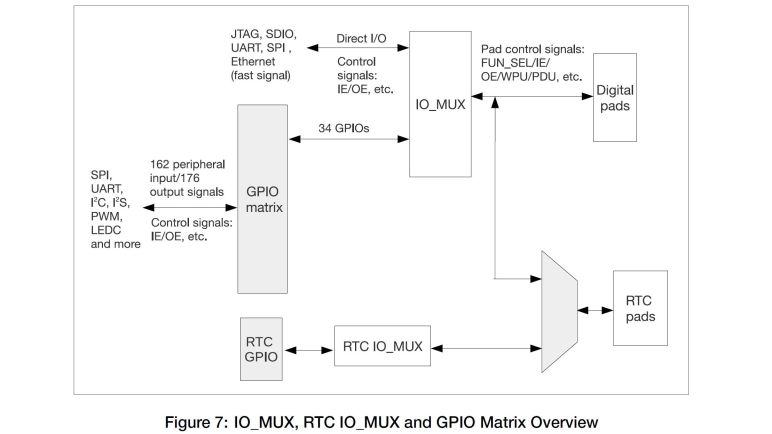
The key documentation here is the ESP32 Technical Reference Manual. (PDF) Section 5 talks about the GPIO matrix, which is what we configure when we write an ESP32 application using GPIO peripherals. According to this document, all the ESP32 peripheral inputs added up to 162 potential signals, and all the outputs added up to 176 output signals. The GPIO matrix is how we control which of those 338 (!!) pins are routed to the 34 physical pins actually available on an ESP32. I found it amazing that, by definition, we could only use ~10% of an ESP32’s input/output capabilities.

And in reality, we are even more constrained than that. Especially when working with a ESP32 DevKit module as I am. The physical appearance of 38 pins are a little misleading, because there are multiple ground pins (all tied together, at least on my board) and both input and output voltage of the onboard 3.3V regulator. Six pins are tied to onboard flash memory and thus not available for use, and given the fact they are unusable I’m puzzled why they even broke them out on the dev kit. The UART for uploading programs are also exposed, meaning a few more pins unavailable for projects. Then there are pins involved in the boot and firmware upload process, and those involved in JTAG debugging.

I found it all very confusing, but thankfully I found an ESP32 GPIO reference chart by Random Nerd Tutorials which I consider a great resource for navigating this particular jungle. According to this chart, there are only 15 GPIO pins that an be used without caveats. Four more are limited to input-only and lack internal pull-up or pull-down resistors. Roughly 4-6 more pins are available depending on my appetite for adventure and confidence, followed by their associated restrictions. The rest might as well have been marked “HERE BE DRAGONS” and I’m staying away from them for my micro Sawppy brain project.

Notes on ESP32 PWM Peripherals

Now that we’ve celebrated the success of Perseverance rover’s arrival on Mars, I resume working on my little rovers. I was happy to discover that I’m less intimidated by the ESP32 than I was over two years ago. I now have a basic understanding of its capabilities and the ecosystem that has grown up around it. Enough to figure out where to start if I have a problem to solve. And the problem of the day is to determine if micro Sawppy can use an ESP32 as its brain.

The reason I started looking at the ESP32 is because of its WiFi capability and its low cost. I liked the idea of web browser-based UI like what I wrote for SGVHAK rover and adapted for Sawppy. But that ran on a Raspberry Pi which, even in its lowest-cost Pi Zero form, is far more expensive than an ESP32. My experience with other ESP32 projects like Ben Hencke’s Pixelblaze and Bart Dring’s Grbl port taught me the ESP32 is quite capable of serving up HTML user interfaces. So the next thing to do is to verify an ESP32 can generate all the control signals for a Sawppy rover, which means investigating its PWM capabilities.

PWM (Pulse Width Modulation) is a tool that can be used to solve many problems in a microcontroller. For micro Sawppy I need PWM capability to control four steering micro servos and the six wheel drive motors. It doesn’t matter if they are micro servos modified for continuous rotation or a real DC motor driver like the L298N, they all need PWM signals. And what I found was that no only can ESP32 generate PWM signals, it has separate interfaces dedicated to specific problem someone might want to solve with PWM.

First up is LEDC, the Light Emitting Diode Control module. I bring this up first because our first project with any new piece of electronics is to blink a LED, and in many tutorials the next step is learning how to vary the brightness of a LED via PWM. LEDC is designed with the intent of controlling intensity of up to 16 LEDs via PWM.

Another problem commonly solved with PWM is to convert a digital signal into an analog one. This is sort of like controlling the brightness level of a LED, but some applications are sensitive to the sharp pulse transitions of a PWM signal. One example is for generating sounds, which needs a smoother output. And here the ESP32 delivers a dedicated DAC (digital-analog converter) peripheral. Anticipating that this would be used for audio, Espressif provisioned it to interface with I2S which is popular with audio applications. This may be fun to look at later, but it is not critical for driving a little rover.

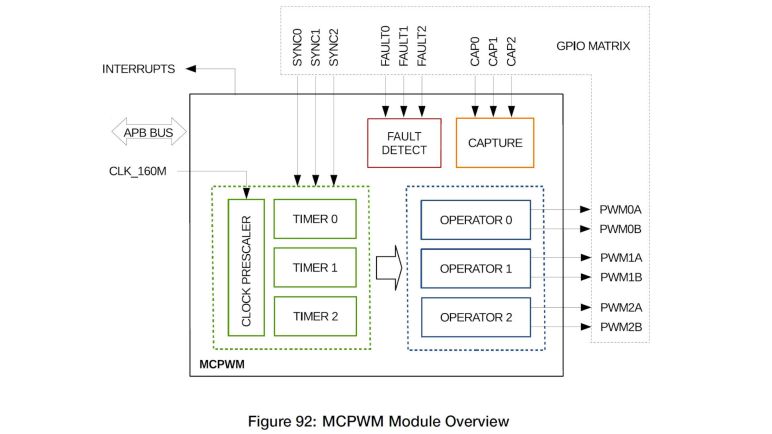
And finally, I was surprised to find there is a dedicated Motor Control PWM module for generating PWM signals sent to motor driver modules like the L298N. It included many motor-specific features absent from LEDC, but they are mostly aimed at controlling brushless motors which usually have three coils each requiring independent control. ESP32’s MCPWM is set up to control two brushless motors, which means controlling six coils. But it is not required to control brushless motors, each of those coil control an be used to control a single DC brushed motor.

So the ESP32 MCPWM peripherals can control six brushed DC motors, which is a perfect fit for a six-wheel-drive little rover. I should be able to use four channels of LEDC to generate PWM to control four steering servos. This first pass over the spec sheet supports the idea of using ESP32 as little rover brain, though there is a potential problem in assigning control signals.

Mars 2020 Perseverance Surface Operations Begin

I’m interrupting my story of micro Sawppy evolution today to send congratulations to the Mars 2020 entry/descent/landing (EDL) team on successful mission completion! As I type this, telemetry confirms the rover is on the surface and the first image from a hazard camera has been received showing the surface of Mars.

Personally, I was most nervous about the components which are new for this rover, specifically the Terrain Relative Navigation (TRN) system. Not that the rest of the EDL was guaranteed to work, but at least many of the systems were proven to work once with Curiosity EDL. As I read about the various systems, TRN stood out to be a high-risk and high-reward step forward for autonomous robotic exploration.

When choosing Mars landing sites, past missions had to pick areas that are relatively flat with minimal obstacles to crash into. Unfortunately those properties also make for a geologically uninteresting area for exploration. Curiosity rover spent a lot of time driving away from its landing zone towards scientifically informative landscapes. This was necessary because the landing site is dictated by a lot of factor beyond the mission’s control, adding uncertainty to where the actual landing site will be.

TRN allows Perseverance to explore areas previously off-limits by turning landing from a passive into an active process by adding an element of control. Instead of just accepting a vague location dictated by unknown Martian winds and other elements of uncertainty, TRN has cameras that will look at the terrain and can maneuver the rover to a safe location avoiding the nastier (though probably interesting!) parts of the landscape. While it has a set of satellite pictures for reference, they were taken at much higher altitude than what it will see through its own cameras. Would it get confused? Would it be unable to make up its mind? Would it confidently choose a bad landing site? There are so many ways TRN can go wrong, but the rewards of TRN success means a far more scientifically productive mission making the risk worthwhile. And once it works, TRN successors will let future missions go places they couldn’t have previously explored. It is a really big deal.

Listening to the mission coverage, I was hugely relieved to hear “TRN has landing solution.” For me that was almost as exciting as hearing the rover is on the ground and seeing an image from one of the navigation hazard cameras. The journey is at an end, the adventure is just beginning.

[UPDATE: Video footage of Perseverance landing has shown another way my Sawppy rovers successfully emulated behavior of real Mars exploration rovers.]

“Surface operations begin” signals transition to the main mission on the surface of another planet. A lot of scientists are gearing up to get to work, and I return to my little rovers.

ESP32 Feels Less Disorienting This Time

Seeing all the interesting projects built with an ESP32 has made me interested in learning more about the popular platform, but it wouldn’t be real until I dedicate the time and focus to build some projects of my own. My micro Sawppy project might be the motivation I needed to get down to business.

Querying in this blog’s history, I was embarrassed to realize that it’s been over two years since I first thought I would build something with an ESP32. My first exposure to the fire hose of information online was overwhelming. But I returned occasionally to pick off little bite-sized pieces to digest. Reading documentation on some specific aspect on the ESP32 at a time, usually in response to seeing someone’s project making cool use of that particular aspect. I wanted to see how it was done!

During this incremental learning, I picked up on the fact something is coordinating the works to keep all the plates up in the air. Eventually learning that the default ESP32 runtime environment includes a minimalist operating system for embedded hardware: FreeRTOS. Which was a world onto itself! There is a tutorial e-Book to help get people up to speed but again, it is a lot of information that I had to digest a little bit at a time. I’ll write more about FreeRTOS later.

And though I hadn’t reached the point of writing my own ESP32 code, I did start getting a bit of hands-on experience working with an ESP32 developer board. Which was more full featured than the minimalist mesh networking Supercon hack that was my first introduction to the hardware. Even though I was only running other people’s code (like Bart Dring’s ESP32 Grbl port) and not my own code, it was valuable familiarization of the ESP32 landscape.

All of these individual pieces built up a comfort level that was absent from my first time facing the avalanche of information available for ESP32 over two years ago. Now I can look at the page like ESP32.net and have a much better understanding why things are organized the way they were, and which pieces of information are relevant to others. This knowledge map is important as I do some basic due diligence to see if it’s feasible to build a micro Sawppy brain from an ESP32. Before I get any further on my little rovers, though, there’s a big event for a big rover.

Thoughts on Micro Sawppy Brain

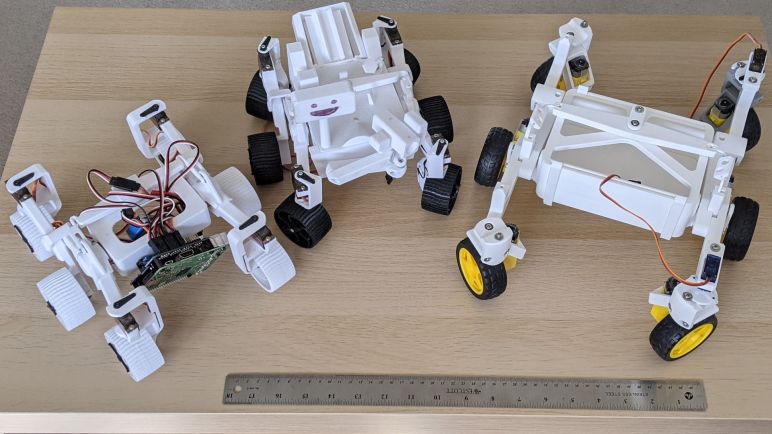
My diversion to learn a bit of Unity 3D was a good change of pace, but now I will set that aside and return to rover work. My latest little rover Micro Sawppy Beta 3 (MSB3) had a few interesting features that I reviewed before taking this Unity break, most recently a few notes on MSB3’s living hinge differential link. MSB3 was built around the TT gearbox, which requires DC motor drivers commanded by some kind of rover brain.

I have the option of using the same brain I used for MSB1 and MSB2, which was adapted from Sawppy V1 and allowed me to control everything with servo PWM control signals. This worked for MSB1 and MSB2 because they were all micro servos. Four in their original form for steering, and six modified to continuous rotation to drive the wheels. But now that I’ve converted rover locomotion to DC gear motors, I’ll have to switch to something else.

My current generation of rover software was originally written for SGVHAK rover, which had DC motors in its wheels and used RoboClaw motor controllers. Those are nice, but far too expensive for my micro Sawppy price target. Or I could continue controlling via PWM by using forward/reverse brushed DC motor controllers(*) from the world of remote control hobbies. These are far less expensive than RoboClaw controllers but also less capable. Unfortunately they are still too expensive to meet my price target. Motivation to find a cheap commodity was why I investigated commodity L298N driver boards earlier.

But I’ve always known I couldn’t keep using a Raspberry Pi. In order to meet my price target, I have to swap it out for something more affordable. For MSB1 I chose to use the Pi as a known quantity, because the rest of the rover was all new and I wanted to reduce the number of unknowns for the first prototype. After several revisions I’m at MSB3 and I’ve decided it’s fine if a baseline micro Sawppy didn’t have the computing power of a Raspberry Pi as long as there are provisions for people to upgrade if they wish. So any microcontroller capable of generating the required PWM control signals (for servos and for L298N motor drivers) would suffice. The classic Arduino is always the first candidate I consider for a project, but ATmega328P based Arduinos only have 6 PWM channels. That’s not enough here so I have to move upscale.

Classic ATmega328P-based Arduino are also missing another very important feature: WiFi. SGVHAK rover’s Raspberry Pi based brain served up a web browser-based rover control interface. Controlling Sawppy from my touchscreen phone was very useful. Not just because of convenience but also because I didn’t need to worry about building a separate device to act as handheld controller. Which, in a bit of cheat, also meant I did not counted the cost of controller phone in micro Sawppy budget. I justified this by saying many people today have old web-capable touchscreen phone or two sitting around collecting dust. Maybe a stretch, but I’m going with it!

If I want something more powerful than a classic ATmega328P-based Arduino, but more affordable than a Raspberry Pi, and can handle web-based network traffic over WiFi, the top candidate is pretty obvious: ESP32, we meet again.


(*) Disclosure: As an Amazon Associate I earn from qualifying purchases.
Remaining To-Do For My Next Unity 3D Adventure

I enjoyed my Unity 3D adventure this time around, starting from the LEGO microgame tutorials through to the Essentials pathway and finally venturing out and learning pieces at my own pace in my own order. My result for this Unity 3D session was Bouncy Bouncy Lights and while I acknowledge it is a beginner effort, it was more than I had accomplished on any of my past adventures in Unity 3D. Unfortunately, once again I find myself at a pause point, without a specific motivation to do more with Unity. But there are a few items still on the list of things that might be interesting to explore for the future.

The biggest gap I see in my Unity skill is creating my own unique assets. Unity supports 2D and 3D creations, but I don’t have art skills in either field. I’ve dabbled in Inkscape enough that I might be able to build some rudimentary things if I need to, and for 3D meshes I could import STL so I could apply my 3D printing design CAD skills. But the real answer is Blender or similar 3D geometry creation software, and that’s an entirely different learning curve to climb.

Combing through Unity documentation, I learned of a “world building” tool called ProBuilder. I’m not entirely sure exactly where it fits in the greater scheme of things, but I can see it has tools to manipulate meshes and even create them from scratch. It doesn’t claim to be a good tool for doing so, but supposedly it’s a good tool for whipping up quick mockups and placeholders. Most of the information about ProBuilder is focused on UV mapping, but I didn’t know it at the start. All ProBuilder documentation assume I already knew what UV meant, and all I could tell is that UV didn’t mean ultraviolet in this context. Fortunately searching for UV in context of 3D graphics gives me this Wikipedia article on UV mapping. There is a dearth of written documentation for ProBuilder, what little I found all point to a YouTube playlist. Maybe I’ll find the time to sit through them later.

I skimmed through the Unity Essentials sections on audio because Bouncy Bouncy Lights was to be silent, so audio is still on the to-do list. And like 2D/3D asset creation, I’m neither a musician nor a sound engineer. But if I ever come across motivation to climb this learning curve I know where to go to pick up where I left off. I know I have a lot to learn since meager audio experimentation already produced one lesson: AudioSource.Play would stop any prior occurrences of the sound. If I want the same sound to overlap each other I have to use AudioSource.PlayOneShot.

Incorporating video is an interesting way to make Unity scenes more dynamic, without adding complexity to the scene or overloading the physics or animation engine. There’s a Unity Learn tutorial about this topic, but I found that video assets are not incorporated in WebGL builds. The documentation said video files must be hosted independently for playback by WebGL, which adds to the hosting complications if I want to go down that route.

WebGL
The Video Clip Importer is not used for WebGL game builds. You must use the Video Player component’s URL option.

And finally, I should set aside time to learn about shaders. Unity’s default shader is effective, but it has become quite recognizable and there are jokes about the “Unity Look” of games that never modified default shader properties. I personally have no problem with this, as long as the gameplay is good. (I highly recommend Overcooked game series, built in Unity and have the look.) But I am curious about how to make a game look distinctive, and shaders are the best tool to do so. I found a short Unity Learn tutorial but it doesn’t cover very much before dumping readers into the Writing Shaders section of the manual. I was also dismayed to learn that we don’t have IntelliSense or similar helpfulness in Visual Studio when writing shader files. This is going to be a course of study all on its own, and again I await good motivation for me to go climb that learning curve.

I enjoyed this session of Unity 3D adventure, and I really loved that I got far enough this time to build my own thing. I’ve summarized this adventure in my talk to ART.HAPPENS, hoping that others might find my experience informative in video form in addition to written form on this blog. I’ve only barely scratched the surface of Unity. There’s a lot more to learn, but that’ll be left to future Unity adventures because I’m returning to rover work.

Venturing Beyond Unity Essentials Pathway

To help beginners learn how to create something simple from scratch, Unity Learn set up the Essentials pathway which I followed. Building from an empty scene taught me a lot of basic tasks that were already done for us in the LEGO microgame tutorial template. Enough that I felt confident enough to start building my own project for ART.HAPPENS. It was a learning exercise, running into one barrier after another, but I felt confident I knew the vocabulary to search for answers on my own.

Exercises in the Essentials pathway got me started on the Unity 3D physics engine, with information about setting up colliders and physics materials. Building off the rolling ball exercise, I created a big plane for balls to bounce around in and increased the bounciness for both ball and plane. The first draft was a disaster, because unlike real life it is trivial to build a perfectly flat plane in a digital world, so the balls keep bouncing in the same place forever. I had to introduce a tilt to make the bounces more interesting.

But while bouncing balls look fun (title image) they weren’t quite good enough. I thought adding a light source might help but that still wasn’t interesting enough. Switching from ball to cube gave me a clearly illuminated surface with falloff in brightness, which I thought looked more interesting than a highlight point on a ball. However, cubes don’t roll and would stop on the plane. For a while I was torn: cubes look better but spheres move better. Which way should I go? Then a stroke of realization: this is a digital world and I can change the rules if I want. So I used a cube model for visuals, but attached a sphere model for physics collisions. Now I have objects that look like cubes but bounce like balls. Something nearly impossible in the real world but trivial in the digital world.

To make these lights show up better, I wanted a dark environment. This was a multi-step procedure. First I did the obvious: delete the default light source that came with the 3D project template. Then I had to look up environment settings to turn off the “Skybox”. That still wasn’t dark, until I edited camera settings to change default color to black. Once everything went black I noticed the cubes weren’t immediately discernable as cubes anymore so I turned the lights back up… but decided it was more fun to start dark and turned the lights back off.

I wanted to add user interactivity but realized the LEGO microgame used an entirely different input system than standard Unity and nothing on the Essentials path taught me about user input. Searching around on Unity Learn I got very confused with contradictory information until I eventually figured out there are two Unity user input systems. There’s the “Input Manager” which is the legacy system and its candidate replacement “Input System Package” which is intended to solve problems with the old system. Since I had no investment in the old system, I decided to try the new one. Unfortunately even tthough there’s a Unity Learn session, I still found it frustrating as did others. I got far enough to add interactivity to Bouncy Bouncy Lights but it wasn’t fun. I’m not even sure I should be using it yet, seeing how none of the microgames did. Now that I know enough to know what to look for, I could see that the LEGO microgame used the old input system. Either way, there’s more climbing of the learning curve ahead. [UPDATE: After I wrote this post, but before I published it, Unity released another tutorial for the new Input Manager. Judging by this demo, Bouncy Bouncy Lights is using input manager incorrectly.]

The next to-do item was to add the title and interactivity instructions. After frustration with exploring a new input system, I went back to LEGO microgame and looked up exactly how they presented their text. I learned it was a system called TextMesh Pro and thankfully it had a Unity Learn section and a PDF manual was installed as part of the asset download. Following those instructions it was straightforward to put up some text using the default font. After my input system frustration, I didn’t want to get much more adventurous than that.

I had debated when to present the interactivity instructions. Ideally I would present them just as the audience got oriented and recognizes the default setup. Possibly start getting bored and ready to move on, so I can give them interactivity to keep their attention. But I have no idea when that would be. When I read the requirement that the title of the piece should be in the presentation, I added that as a title card before showing the bouncing lights. And once I added a title card, it was easy to add another card with the instructions to be shown before the bouncing lights. The final twist was the realization I shouldn’t present them as static cards that fade out: since I already had all these physical interactions in place, they are presented as falling bouncing objects in their own right.

The art submission instructions said to put in my name and a way for people to reach me, so I put my name and newscrewdriver.com at the bottom of the screen using TextMesh Pro. Then it occurred to me the URL should be a clickable link, which led me down the path of finding out how an Unity WebGL title can interact with the web browser. There seemed to be several different deprecated ways to do it, but they all point to the current recommended approach and now my URL is clickable! For fun, I added a little spotlight effect when the mouse cursor is over the URL.

The final touch is to modify the presentation HTML to suit the Gather virtual space used by ART.HAPPENS. By default Unity WebGL build generates an index.html file that puts the project inside a fixed-size box. Outside that box is the title and a button to go full screen. I didn’t want the full screen option for presenting this work in Gather, but I wanted to fill my <iframe> instead of a little box within it. My CSS layout skills are still pretty weak and I couldn’t figure it out on my own, but I found this forum thread which taught me to replace the <body> tag with the following:

  <body>
      <div class="webgl-content" style="width:100%; height:100%">
        <div id="unityContainer" style="width:100%; height:100%">
        </div>
      </div>
  </body>

I don’t understand why we need to put 100% styles on two elements before it works, but hopefully I will understand whenever I get around to my long-overdue study session on CSS layout. The final results of my project can be viewed at my GitHub Pages hosting location. Which is a satisfying result but there are a lot more to Unity to learn.

Notes on Unity Essentials Pathway

As far as Unity 3D creations go, my Bouncy Bouncy Lights project is pretty simple, as expected of a beginner’s learning project. My Unity (re)learning session started with their LEGO microgame tutorial, but I didn’t want to submit a LEGO-derived Unity project for ART.HAPPENS. (And it might not have been legal under the LEGO EULA anyway.) So after completing the LEGO microgame tutorial and its suggested Creative Mods exercises, I still had more to learn.

The good news is that Unity Learn has no shortage of instruction materials, the bad news is a beginner gets lost on where to start. To help with this, they’ve recently (or at least since the last time I investigated Unity) rolled out the concept of “Pathways” which organize a set of lessons targeted for a particular audience. People looking for something after completing their microgame tutorial is sent towards the Unity Essentials Pathway.

Before throwing people into the deep pool that is Unity Editor, the Essentials Pathway starts by setting us up with a lot of background information in the form of video interview clips with industry professionals using Unity. I preferred to read instead of watching videos, but I wanted to hear these words of wisdom so I sat through them. I loved that they allocated time to assure beginners that they’re not alone if they found Unity Editor intimidating at first glance. The best part was the person who claimed their first experience was taking one look and said “Um, no.” Closed Unity, and didn’t return for several weeks.

Other interviews covered the history of Unity, and how it enabled creation of real-time interactive content, and the tool evolved alongside the industry. There were also information for people who are interested in building a new career using Unity. Introducing terminology and even common job titles that can be used to query on sites like LinkedIn. I felt this section offered more applicable advise for this job field more than I ever received in college for my job field. I was mildly amused and surprised to see Unity classes ended with a quiz to make sure I understood everything.

After this background we are finally set loose on Unity Editor starting from scratch. Well, an empty 3D project template which is as close to scratch as I cared to get. The template has a camera and a light source but not much else. Unlike the microgames which are already filled with assets and code. This is what I wanted to see: how do I start from geometry primitives and work my way up, pulling from Unity Asset store as needed to for useful prebuilt pieces. One of the exercises was to make a ball roll down a contraption of our design (title image) and I paid special attention to this interaction. The Unity physics engine was the main reason I chose to study Unity instead of three.js or A-Frame and it became the core for Bouncy Bouncy Lights.

I’ve had a lot of experience writing in C# code, so I was able to quickly breeze through C# scripting portions of Unity Essentials. But I’m not sure this is enough to get a non-coder up and running on Unity scripting. Perhaps Unity decided they’re not a coding boot camp and didn’t bother to start at the beginning. People who have never coded before will need to go elsewhere before coming back to Unity scripting, and a few pointers might be nice.

I skimmed through a few sections that I decided was unimportant for my ART.HAPPENS project. Sound was one of them: very important for an immersive gaming experience, but my project will be silent because the Gather virtual space have a video chatting component and I didn’t want my sounds to interfere with people talking. Another area I quickly skimmed through were using Unity for 2D games, which is not my goal this time but perhaps I’ll return later.

And finally, there were information pointing us to Unity Connect and setting up a profile. At first glance it looked like Unity tried to set up a social network for Unity users, but it is shutting down with portions redistributed to other parts of the Unity network. I had no investment here so I was unaffected, but it made me curious how often Unity shuts things down. Hopefully not as often as Google who have become infamous for doing so.

I now have a basic grasp on this incredibly capable tool, and it’s time to start venturing beyond guided paths.

Bouncy Bouncy Lights

My motivation for going through Unity’s LEGO microgame tutorial (plus associated exercises) was to learn Unity Editor in the hopes of building something for ART.HAPPENS, a community virtual art show. I didn’t expect to build anything significant with my meager skills, but I made something with the skill I have. It definitely fit with the theme of everyone sharing works that they had fun with, and learned from. I arrived at something I felt was a visually interesting interactive experience which I titled Bouncy Bouncy Lights and, if selected, should be part of the exhibition opening today. If it was not selected, or if the show has concluded and its site taken down, my project will remain available at my own GitHub Pages hosting location.

There are still a few traces of my original idea, which was to build a follow-up to Glow Flow. Something colorful with Pixelblaze-controlled LED lights. But I decided to move from the physical to digital domain so now I have random brightly colored lights in a dark room each reflecting off an associated cube. But by default there isn’t enough for the viewer to immediately see the whole cube, just the illuminated face. I want them to observe the colorful lights moving around for a bit before they recognized what’s happening, prompting the delight of discovery.

Interactivity comes in two forms: arrow keys will change the angle of the platform, which will change the direction of the bouncing cubes. There is a default time interval for new falling cubes. I chose it so that there’ll always be a few lights on screen, but not so many to make the cubes obvious. The user can also press space bar to add lights faster than the default interval. If the space bar is held down, the extra lights will add enough illumination to make the cubes obvious and they’ll frequently collide with each other. I limited it to a certain rate because the aesthetics change if too many lights all jump in. Thankfully I don’t have to worry about things like ensuring sufficient voltage supply for lights when working in the digital world, but too many lights in the digital world add up to white washing out the individual colors to a pastel shade. And too many cubes interfere with bouncing, and we get an avalanche of cubes trying to get out of each other’s way. It’s not the look I want for the project, but I left in a way to do it as an Easter egg. Maybe people would enjoy bringing it up once in a while for laughs.

I’m happy with how Bouncy Bouncy Lights turned out, but I’m even happier with it as a motivation for my journey learning how to work with a blank Unity canvas.

Notes on Unity LEGO Microgame Creative Mods

Once a Unity 3D beginner completed a tightly-scripted microgame tutorial, we are directed towards a collection of “Creative Mods”. These suggested exercises build on top of what we created in the scripted tutorial. Except now individual tasks are more loosely described, and we are encouraged to introduce our own variations. We are also allowed to experiment freely, as the Unity Editor is no longer partially locked down to keep us from going astray. The upside of complete freedom is balanced by the downside of easily shooting ourselves in the foot. But now we know enough to not do that, or know how to fix it if we do. (In theory.)

Each of the Unity introductory microgames have their own list of suggested modifications, and since I just completed the LEGO microgame I went through the LEGO list. I was mildly surprised to see this list grow while I was in the middle of doing it — as of this writing, new suggested activities are still being added. Some of these weren’t actually activities at all, such as one entirely focused on a PDF (apparently created from PowerPoint) serving as a manual for the list of available LEGO Behaviour Bricks. But most of the others introduce something new and interesting.

In addition to the LEGO themed Unity assets from the initial microgame tutorial, others exist for us to import and use in our LEGO microgame projects. There was a Christmas-themed set with Santa Claus (causing me to run through Visual Studio 2019 installer again from Unity Hub to get Unity integration), a set resembling LEGO City except it’s on a tropical island, a set for LEGO Castles, and my personal favorite: LEGO Space. Most of my personal LEGO collection were from their space theme and I was happy to see a lot of my old friends available for play in the digital world.

When I noticed the list of activities grew while I was working on them, it gave me a feeling this was a work-in-progress. That feeling continued when I imported some of these asset collections and fired up their example scene. Not all of them worked correctly, mostly centered around how LEGO pieces attached to each other especially the Behaviour Bricks. Models detach and break apart at unexpected points. Sometimes I could fix it by using the Unity Editor to detach and re-attach bricks, but not always. This brick attachment system was not a standard Unity Editor but an extension built for the LEGO microgame theme, and I guess there are still some bugs to be ironed out.

The most exciting part of the tutorial was an opportunity to go beyond the LEGO prefab assets they gave us and build our own LEGO creations for use in Unity games. A separate “Build your own Enemy” tutorial gave us instructions on how to build with LEGO piece by piece within Unity Editor, but that’s cumbersome compared to using dedicated LEGO design software like BrickLink Studio and exporting the results to Unity. We don’t get to use arbitrary LEGO pieces, we have to stay within a prescribed parts palette, but it’s still a lot of freedom. I immediately built myself a little LEGO spaceship because old habits die hard.

I knew software like BrickLink Studio existed but this was the first time I sat down and tried to use one. The parts palette was disorienting, because it was completely unlike how I work with LEGO in the real world. I’m used to pawing through my bin of parts looking for the one I want, not selecting parts from a menu organized under an unfamiliar taxonomy. I wanted my little spaceship to have maneuvering thrusters, something I add to almost all of my LEGO space creations, but it seems to be absent from the approved list. (UPDATE: A few days later I found it listed under “3963 Brick, Modified 1 x 1 with 3 Loudspeakers / Space Positioning Rockets”) The strangest omission seem to be wheels. I see a lot of parts for automobiles, including car doors and windshields and even fender arches. But the only wheels I found in the approved list are steering wheels. I doubt they would include so many different fender arches without wheels to put under them, but I can’t find a single ground vehicle wheel in the palette! Oversight, puzzling intentional choice, or my own blindness? I lean towards the last but for now it’s just one more reason for me to stick with spaceships.

My little LEGO spaceship, alongside many other LEGO microgame Creative Mods exercises (but not all since the list is still growing) was integrated into my variant of the LEGO microgame and uploaded as “Desert Dusk Demo“. The first time I uploaded, I closed the window and panicked because I didn’t copy down the URL and I didn’t know how to find it again. Eventually I figured out that everything I uploaded to Unity Play is visible at https://play.unity.com/discover/mygames.

But since the legal terms of LEGO microgame assets are restricted to that site, I have to do something else for my learn-and-share creation for ART.HAPPENS. There were a few more steps I had to take there before I had my exhibit Bouncy Bouncy Lights.

Notes on Unity LEGO Microgame Tutorial

To help Unity beginners get their bearings inside a tremendously complex and powerful tool, Unity published small tutorials called microgames. Each of them represent a particular game genre, with the recently released LEGO microgame as the default option. Since I love LEGO, I saw no reason to deviate from this default. These microgame tutorials are implemented as Unity project templates that we can launch from Unity’s Hub launcher, they’re just filled out with far more content than the typical Unity empty project template.

Once a Unity project was created with the LEGO microgame template (and after we accepted all the legal conditions of using these LEGO digital assets) we see the complex Unity interface. Well aware of how intimidating it may look to a beginner, the tutorial darkened majority of options and highlighted just the one we need for that step in the tutorial. Which got me wondering: the presence of these tutorial microgames imply the Unity Editor UI itself can be scripted and controlled, how is that done? But that’s not my goal today so I set that observation aside.

The LEGO microgame starts with the basics: how to save our progress and how to play test the game in its current state. The very first change is adjusting a single variable, our character’s movement speed, and test its results. We are completely on rails at this point: the Unity Editor is locked off so I couldn’t change any other character variable, and I couldn’t even proceed unless I changed the character speed to exactly the prescribed value. This is a good way to make sure beginners don’t inadvertently change something, since we’d have no idea how to fix it yet!

Following chapters of the tutorial gradually open up the editor, allowing us to use more and more editor options and giving us gradually more latitude to change the microgame as we liked. We are introduced to the concept of “assets” which are pieces we use to assemble our game. In an ideal world they snap together like LEGO pieces, and in the case of building this microgame occasionally they actually do represent LEGO pieces.

Aside from in-game objects, the LEGO minigame also allows us to define and change in-game behavior using “Behaviour Bricks”: Assets that look just like another LEGO block in game, except they are linked to Unity code behind the scenes giving them more functionality than just a static plastic brick. I appreciated how it makes game development super easy, as the most literal implementation of “object-oriented programming” I have ever seen. However, I was conscious of the fact these behavior bricks are limited to the LEGO microgame environment. Anyone who wishes to venture beyond would have to learn entirely different ways to implement Unity behavior and these training wheels will be of limited help.

The final chapter of this LEGO microgame tutorial ended with walking us through how to build and publish our project to Unity Play, their hosting service for people to upload their Unity projects. I followed those steps to publish my own LEGO microgame, but what’s online now isn’t just the tutorial. It also included what they called “Creative Mods” for a microgame.

Unity Tutorial LEGO Microgame

Once I made the decision to try learning Unity again, it was time to revisit Unity’s learning resources. This was one aspect that I appreciated about Unity: they have continuously worked to lower their barrier to entry. Complete beginners are started on tutorials that walk us through building microgames, which are prebuilt Unity projects that show many of the basic elements of a game. Several different microgames are available, each representing a different game genre, so a beginner can choose whichever one that appeals to them.

But first an ambitious Unity student had to install Unity itself. Right now Unity releases are named by year much like other software like Ubuntu. Today, the microgame tutorials tell beginners to install version 2019.4 but did not explain why. I was curious why they tell people to install a version that is approaching two years old so I did a little digging. The answer is that Unity designates specific versions as LTS (Long Term Support) releases. Unity LTS is intended to be a stable and reliable version, with the best library compatibility and the most complete product documentation. More recent releases may have shiny new features, but a beginner wouldn’t need them and it makes sense to start with the latest LTS. Which, as of this writing, is 2019.4.

I vaguely recall running through one of these microgame exercises on an earlier attempt at Unity. I chose the karting microgame because I had always liked driving games. Gran Turismo on Sony PlayStation (the originals in both cases, before either got numbers) was what drew me into console gaming. But I ran out of steam on the karting microgame and those lessons did not stick. Since I’m effectively starting from scratch, I might as well start with a new microgame, and the newest hotness released just a few months ago is the LEGO microgame. Representing third-person view games like Tomb Raider and, well, the LEGO video games we can buy right now!

I don’t know what kind of business arrangement behind the scenes made it possible to have digital LEGO resources in our Unity projects, but I am thankful it exists. And since Unity doesn’t own the rights to these assets, the EULA for starting a LEGO microgame is far longer than for the other microgames using generic game assets. I was not surprised to find clauses forbidding use of these assets in commercial projects, but I was mildly surprised that we are only allowed to host them on Unity’s project hosting site. We can’t even host them on our own sites elsewhere. But the most unexpected clause in the EULA is that all LEGO creations depicted in our minigames must be creatable with real LEGO bricks. We are not allowed to invent LEGO bricks that do not exist in real life. I don’t find that restriction onerous, just surprising but made sense in hindsight. I’m not planning to invent an implausible LEGO brick in my own tutorial run so I should be fine.