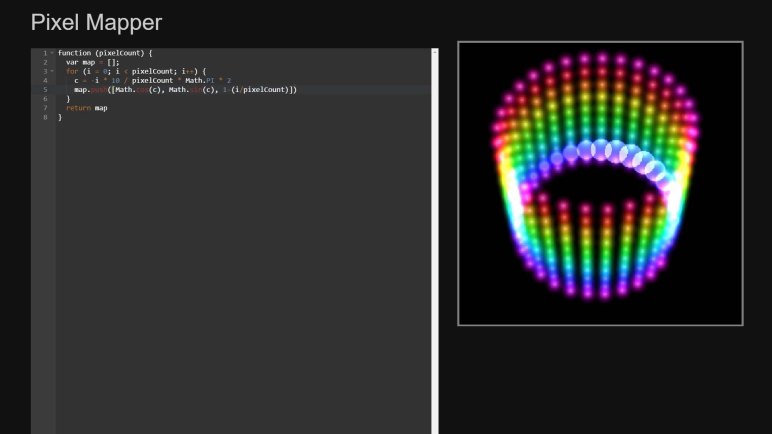
Pixelblaze Pixel Map For LED Helix

Completing first draft of a LED helix mechanical chassis means everything is in place to dig into Pixelblaze and start playing with the software end of things. There are a selection of built-in patterns on the default firmware, and they were used to verify all the electrical bits are connected correctly.

But I thought the Pixel Mapper would be the fun part, so I dove in to details on how to enter a map to represent my helical LED strip. There are two options: enter an explicit array of XYZ coordinates, or write a piece of JavaScript that generates the array programmatically. The former is useful for arrangements of LEDs that are irregularly spaced, building a shape in 3D space. But since a helix is a straightforward mathematical concept (part of why I chose it) a short bit of JavaScript should work.

There are two examples of JavaScript generating 3D maps, both represented cubes. There was a program to generate a 2D map representing a ring. My script to generate a helical map started with the “Ring” example with following modifications:

  • Ring example involved a single revolution. My helix has 30 LEDs per revolution around the cylinder, making 10 loops on this 300 LED strip. So I multiplied the pixel angular step by ten.
  • I’ve installed the strip starting from the top of the cylinder and winds downwards, so Z axis is decremented as we go. Hence the Z axis math is reversed from that for the cube examples.

We end with the pixel map script as follows.

function (pixelCount) {
  var map = [];
  for (i = 0; i < pixelCount; i++) {
    c = -i * 10 / pixelCount * Math.PI * 2
    map.push([Math.cos(c), Math.sin(c), 1-(i/pixelCount)])
  }
  return map
}

Tip: remember to hit “Save” before leaving the map editor! Once saved, we could run the basic render3D() pattern from Pixel Mapper documentation.

export function render3D(index, x, y) {
  hsv(x, y, z)
}

And once we see a volume in HSV color space drawn by this basic program, the next step is writing my own test program to verify coordinate axis.

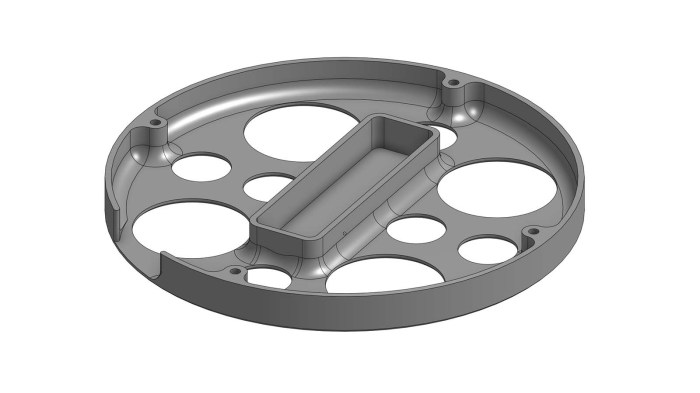
3D Printed End Pieces Complete LED Helix Chassis

My LED helix core has been tested and working, but it needs additional pieces top and bottom for a fully self-contained package. I expect that eventually I’ll pack the interior of my cylinder with batteries, but for now it just needs to hold the USB power bank I’ve been using.

LED helix USB power bank base

The footprint for that power bank defined the center of my bottom piece, surrounded by four mounting screws to fasten this end piece to my just-completed core. A slot was cut in the side for me to tuck in the bottom end of the LED strip. Since this project is still developing, I expect to need to reach inside to fix things from time to time, so I cut a bunch of big holes to allow access, ventilation, and it’ll also print faster than a solid bottom plate.

LED helix top with handle and Pixelblaze mount

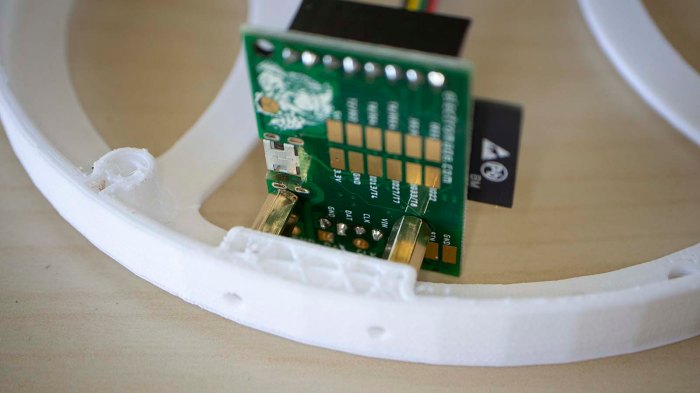
My cylinder’s top piece is designed to meet slightly different objectives. It shares the four mounting points, the outer diameter, and a slot for me to tuck in the top end of my LED strip. There were a few extra holes cut in the top, in case I needed an anchor point for zip-ties to hold down wires. I also added two segments curving towards the center to function as rudimentary handles for transporting this assembly. The final feature are two horizontal holes which will house M2.5 standoffs to mechanically mount the Pixelblaze board.

Pixelblaze V3 and M2.5 standoffs

Unfortunately there was a miscalculation and the top piece ran out of filament during printing, ending up shorter than I had planned for it to be. Rather than throw away the failed print, I decided it was close enough for use. I just had to drill my two holes for Pixelblaze mounting standoffs a little higher than planned, and now a few components poked above the enclosure by a few millimeters, but it’s good enough for completing the mechanical portion to support Pixelblaze experimentation.

Next step: configure Pixel Mapper to correspond to this LED helix geometry.

LED Helix Core Assembly

It was a deliberate design choice to build the top and bottom pieces of my LED helix separately, because I wanted to be able to iterate through different end piece designs. The core cylinder hosting most of my LED strip should stay fairly consistent and keeping the same core also meant I wouldn’t have to peel and weaken the adhesive backing for the strip. That said, we need to get this central core set up and running, dangling ends and all, before proceeding further.

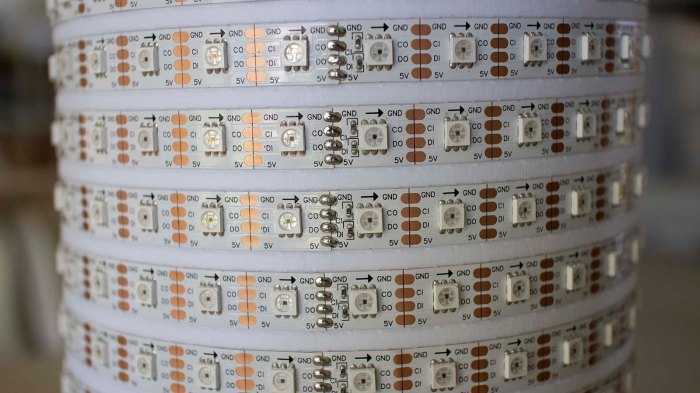
LED strip helix soldered joints

Unwinding the LED strip from its spool onto this cylinder, I found one annoyance: this is not actually a single continuous 5 meter strip, but rather 10 segments, 0.5 meters each, soldered together. The solder joints look pretty good and I have no doubts about their functionality, but this seemed to affect LED spacing. The lengths varied just a tiny bit from segment to segment, enough to make it difficult to keep LEDs precisely aligned vertically.

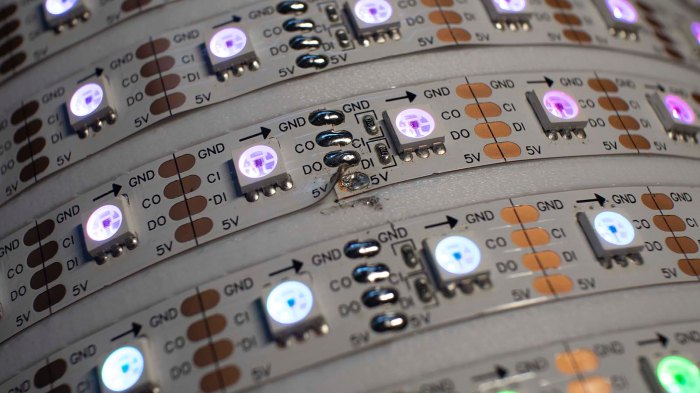
LED strip helix 5V disconnect

Once held on to the cylinder with its adhesive backing, I cut the power supply line halfway through the strip by desoldering one of the 5V joints. (Leaving data, ground, and clock connected.) In the near future I will be powering this project with a USB power bank that has two USB output ports, one rated for 1A and other for 2A. Half of the LED strip will run from the 1A port, and the 2A port will run the remaining half plus the Pixelblaze controller.

Each end of the LED strip was then plugged into my USB power bank, dangling awkwardly, so I could verify all the LEDs appear to be illuminated and operating from a Pixelblaze test pattern.

Next task: design and print top and bottom end pieces. A bottom end piece to manage the dangling wires and hold that USB power bank inside the cylinder, and a top piece to mount the Pixelblaze.

3D Printed Cylinder For LED Helix

Translating the calculated dimensions for my LED helix into Onshape CAD was a relatively straightforward affair. This 5 meter long LED strip comes with an adhesive backing, so a thin-walled cylinder should be sufficient to wrap the strip around outside of cylinder. This cylinder will have a shallow helical channel as a guide to keep the LED strip on track.

That’s all fairly simple, but the top and bottom ends of this cylinder were question marks. I wasn’t sure how I wanted to handle the two ends of my LED strip, since wire routing would depend on the rest of the project. A large hollow cylinder is generic but the ends are task specific. I didn’t want to lock into any particular arrangement just yet.

Another concern is that an >18cm cylinder would be pushing the vertical limits of my 3D printer. Mechanically it should be fine, but it’s getting into the range where some wires would rub against structural members and filament would have to take sharp bends to enter the print head.

To address both of those concerns, I limited the central cylinder to 16cm in height. This would be sufficient to support all but the topmost and bottom most windings in my helix.  This cylinder will have mounting brackets at either end, allowing top and bottom parts of the strip to be handled by separate bolt-on end pieces. They should be much simpler (and faster to print) allowing me to swap them around testing ideas while reusing the center section.

Since this would be a very large print, I first printed a partial barrel in PLA to ensure the diameter and pitch looks correct with the LED strip actually winding around the plastic. PLA is probably not the best idea for this project, though, as bright LEDs can get rather warm and PLA softens under heat. My actual main helical barrel will be printed in PETG.

It was a long print (approximately 26 hours) and a long time to wait to see if it looks any good with my LED strip wound around it. (Spoiler: it looks great.)

LED Helix Parameters: Diameter and Pitch

A helix has been chosen as the geometry of my Pixelblaze LED project due to its straightforward simplicity: it turns a single line (the LED strip) into a three-dimensional cylindrical space. No cutting or soldering of LED strip pieces required.

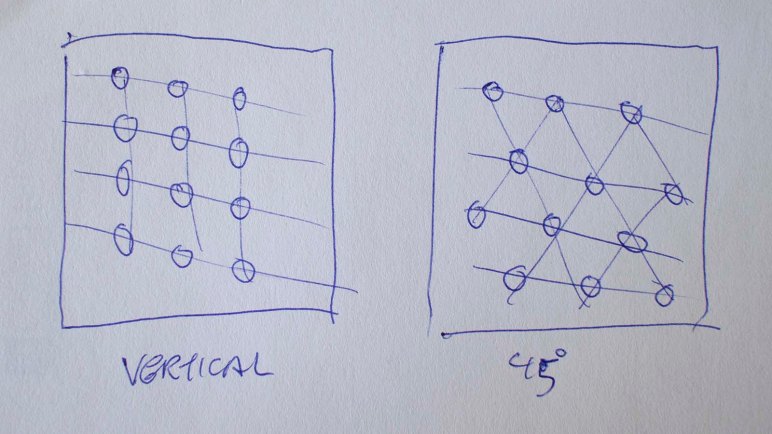
The next step in the design process is to decide exactly what shape this helix will be. A helix has two parameters: the diameter of the cylinder it circles around, and the pitch or distance between each loop in the helix. I wanted my LEDs to be evenly distributed on my cylinder, so there were two options to build this grid: Make LEDs align vertically as they wind around the cylinder, or turn that grid 45 degrees for an alternating-winds alignment. The each have merits, I decided on vertical alignment. If I play with displaying marquee text on this cylinder, I thought it will give us crisper edges to individual letters. Horizontal alignment won’t be as crisp, due to helical shape, but we’ll see what happens when we get there. (In contrast: 45 degree alignment would be better at masking the overall helical shape, at sacrifice of inability to make a clean edge horizontally or vertically. That might be preferable in certain future projects.)

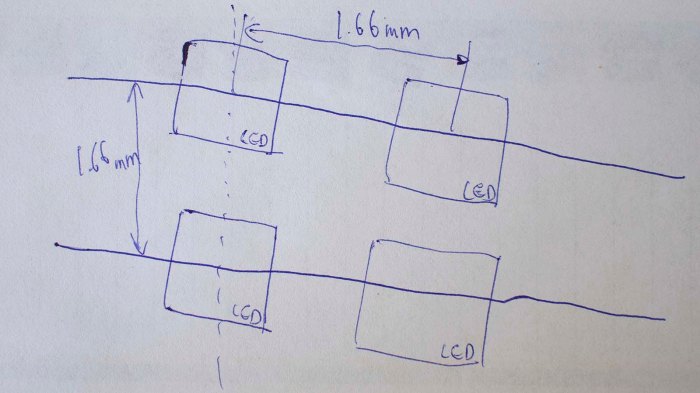
Vertical grid alignment for LED helix

With that decision made, we could calculate helical diameter and pitch based around space between each LED on my strip. 60 LEDs per meter is 1/60 = 0.0167 meter or 1.67 cm between each pair of LEDs on this strip. Maintaining an even grid means 1.67cm will also be the pitch of my helix. The desire to align LEDs vertically mean the cylinder circumference must be a multiple of 1.67cm.

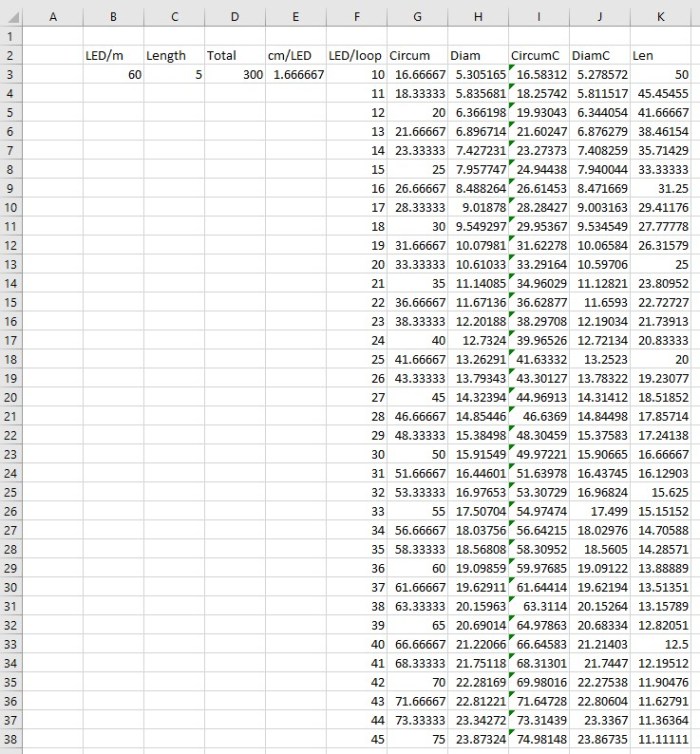
LED cylinder parameters in Excel spreadsheet

I want to use the entirety of my 5 meter LED strip. So a smaller circumference would result in a longer cylinder, and a larger circumference a squat cylinder. I decided to find the size where the cylinder length is closest to its diameter, making it a cylinder that would fit well within a cube. A little math in Excel determined the closest match is to use 31 LEDs around the circumference, which results in a diameter of 16.4cm and length of 16.1cm. But for the sake of dealing with nice even numbers, I chose the adjacent solution of 30 LEDs around the circumference. resulting in the following:

  • 5 meter LED strip @ 60 LEDs per meter = 1.67 cm pitch both horizontally and vertically.
  • 30 LEDs around circumference = 15.9 cm diameter
  • 10 helical revolutions = 16.7 cm length

Next step: turn these calculations into 3D printable geometry.

Choosing a Shape For Pixelblaze LED Project

I’d like my Pixelblaze LED project to be portable. A quick math session has determined while the maximum possible power draw is quite high, a battery powered design should be possible in a more realistic scenario. With that concern settled, the next decision is on choosing a physical shape for this light show.

I want a three dimensional shape because I wanted to play with a cool feature in Pixelblaze: the Pixel Mapper. This feature allows me to specify a mapping from pixel order to their physical location. Then I can write my LED pattern in terms of physical position either in 2D (x,y) or 3D (x,y,z) coordinates, and let the Pixel Mapper figure out how individual LEDs will correspond to my pattern. This allows me to decouple a pattern’s logical behavior from a specific rig’s physical layout, allowing fun tricks like creating a pattern works equally well on 300 or 10,000 LEDs, just by changing over to a new mapping in Pixel Mapper. This would be an extremely powerful creative tool if I could get it to work for me!

Backing off from big dreams, I return to my 5 meter spool of 300 LEDs on a single strip. To support projects like mine, these strips were designed to be cut apart and rearranged. Solder pads are exposed so we could electrically connect them back into a single chain, no matter their physical arrangement. This sent me into analysis paralysis for a while trying to decide how to cut them up and how to rearrange them. Eventually I decided to do the easiest thing: I’ll use the strip in a single segment, no cuts.

The most basic way to create a 3D geometry from a single line is to curve it into a helix. In addition to not requiring any cuts or resoldering work, it also avoids sharp bends which these strips have only a limited tolerance for. A cylindrical shape is an easy introduction into the 3D space of pixel mapping, a “Hello World” before I tackle future projects with more sophisticated geometry.

Next step: designing a chassis for my helical LED strip.

Power Consideration for Pixelblaze LED Project

I now have a SK9822 300-LED strip up and running under command of a Pixelblaze, and since I configured the Pixelblaze to run the strip at 10% of maximum brightness, I was able to run everything on a USB power bank. This is fine for a quick test, but we should have a better understanding of power requirements for what lies ahead.

The standard rule-of-thumb for LED power budget has been 20mA per LED, and this appears to still hold true for RGB modules like the SK9822. With three LEDs per module, the popular recommendation is to budget a maximum of 3 * 20mA = 60mA per module. I thought the integrated control chip would add to this power requirement but I found no mention of such. With a 5 meter strip of 60 modules per meter, for a total of 5 * 60 = 300 modules, my strip may draw up to a maximum of 300 * 60 mA = 18,000 mA or 18 amps. Running at 5 volts, that is 5 * 18 = 90 Watts of power.

Yikes.

The good news is that, for these types of LED strips, the task of supplying power can be easily parallelized. While they must share a common ground and clock+data lines must run through them all, the voltage supply lines may be separated. So I can, for example, cut the voltage supply line every 50 LED modules and put a power supply on just that segment. 50 * 60 mA = 3,000 mA or 3 amps, which matches the maximum rating for the MP1584 chip I have been using to power my Raspberry Pi projects. I’d just need six of them in parallel to run this strip. I also recently found voltage converters built on the XL4015E1 chip (*), which can deliver up to 5 amps. This would allow driving the strip at max power with fewer modules in parallel.

These are all considerations to keep in mind as the project progresses, but those are not necessarily what will end up in the final product. Mainly because those numbers are worst case scenarios with every module illuminated at maximum brightness, and that’s boring and not flashy at all. In reality I expect to end with only some fraction of LEDs illuminated, and only at a fraction of their maximum power.

So that covers the LEDs, but how much power does a Pixelblaze consume? Since V3 is still under development, precise specifications are not yet available. But it is built around a ESP32 module and I could research from that side. According to this forum thread, ESP32 power consumption is fairly low at roughly 100mA. However, it will occasionally spikes up to as much as 0.6A for brief periods of time. In a LED project with hundreds to thousands of modules, a Pixelblaze’s power consumption is a negligible rounding error.

In the immediate future, I’ll proceed with the project running the strip at 10% brightness and only fraction of 300 modules illuminated. This will allow me to continue using my USB power bank to iterate on ideas and postpone finalizing power supply requirements until there’s a better idea of what the LEDs will do. And an important part of that will be deciding their layout.


(*) Disclosure: As an Amazon Associate I earn from qualifying purchases.

Connecting LED Strip to Pixelblaze

Once our Pixelblaze is configured for a local WiFi network and type of LED strip, the next step is to actually make that electrical connection. It is also time to unplug the Pixelblaze from our computer, because once our LED strip is connected we will need more power than what a computer USB port can safely deliver.

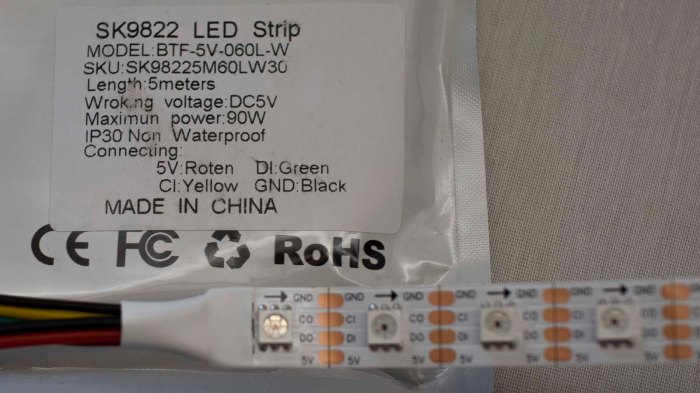
SK9822 5m60 LED strip package

For this particular project, my Pixelblaze will be controlling one of these (*) built from SK9822 LED modules, they are signal compatible with APA102 which is one of the control data types supported by Pixelblaze. This strip is 5 meters long with 60 LED modules per meter for a total of 300 pixels. That’s more LEDs than what I can track in my head, but well within a Pixelblaze’s ability as it could drive thousands of LEDs.

SK9822 5m60 LED strip wires

This particular package had a label which described the role of each wire. Not all of them have this information presented, and we have to determine 5V and GND rails using a meter. But even when we have a convenient label this time around, it is still worthwhile to double check. Not every LED strip vendor follows wiring convention: the red wire is not always 5V and the black wire is not always GND. Getting it wrong could destroy both our LED strip and our Pixelblaze. [UPDATE: Good news! Pixelblaze V3 features reverse polarity protection so it would gracefully tolerate reversed +5V / GND without damage, until we realize our mistake and rewire it correctly.]

Thankfully these strips were designed to be cut to length, with solderable pads for each of the four lines. This means we have conveniently accessible pads to check for continuity between a GND pad and (what we believe to be) GND wire, and 5V pad to 5V wire.

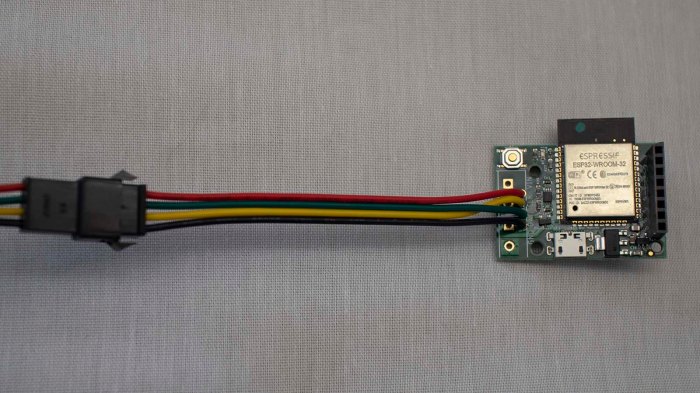
SK9822 5m60 LED strip connector on PixelblazeV3Thankfully it is less critical to get data and clock lines right. A mixup would mean nonsensical patterns or no patterns at all, but no permanent damage. For this particular strip, the data and clock lines were inverted from the order on Pixelblaze circuit board hence the yellow/green crossover visible in this picture.
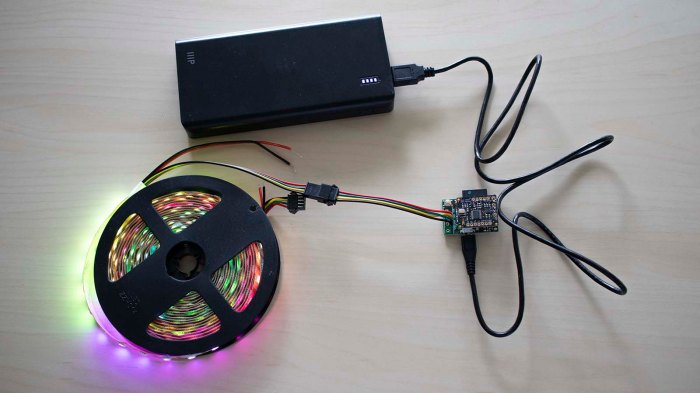
The row of headers visible on the right is an expansion bus, capable of hosting the optional sensor expansion board which I plan to incorporate into this project down the line.

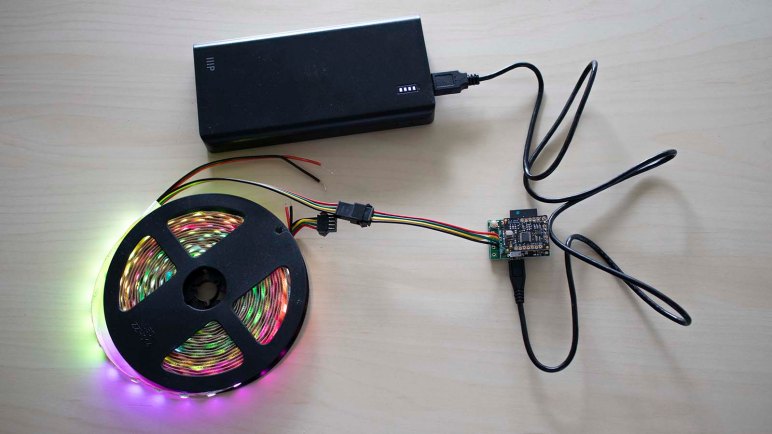
Because I had configured my strip settings to be at low (10%) brightness, I could power this entire rig with a portable USB power bank advertised to deliver up to 2A. This was enough to verify I could run prebuilt patterns on my newly connected LED strip. But how much more power might this setup draw? Time to do some math and figure it out.

SK9822 5m60 LED strip with PixelblazeV3 on USB power bank


(*) Disclosure: As an Amazon Associate I earn from qualifying purchases.

Pixelblaze Project Begins With Initial Setup

A Pixelblaze is a small board who generates data signals for a color LED strip to display interesting dynamic patterns. These patterns are described via a program written in a web-based editor running on the Pixelblaze itself. It is a nifty little self-contained unit for projects that involve a large number of individually addressable LEDs. I have a prototype Pixelblaze V3 on hand for a candidate project. I’ll be using my blog here to publish a first draft of Pixelblaze general setup and configuration information, as well as documenting my work to apply a Pixelblaze to a specific LED project.

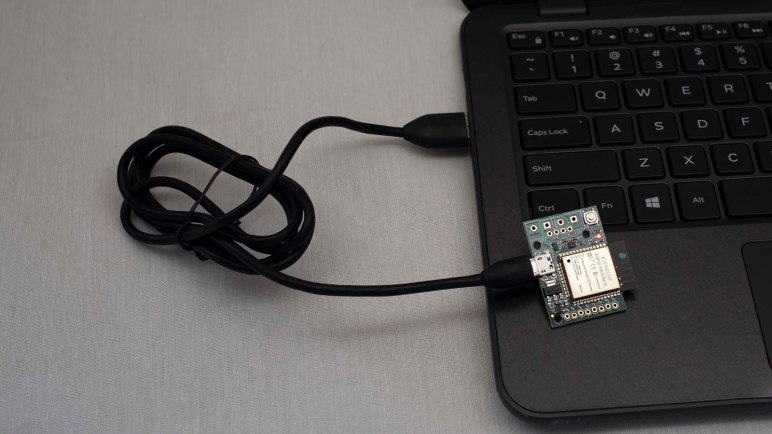
The first thing to do with a freshly unpacked Pixelblaze is to connect it directly to a computer’s USB port. A standard computer USB port will not provide enough power to drive a large LED strip, but it is a stable and known power source. It is useful for verifying a Pixelblaze was undamaged in shipping and for performing initial setup.

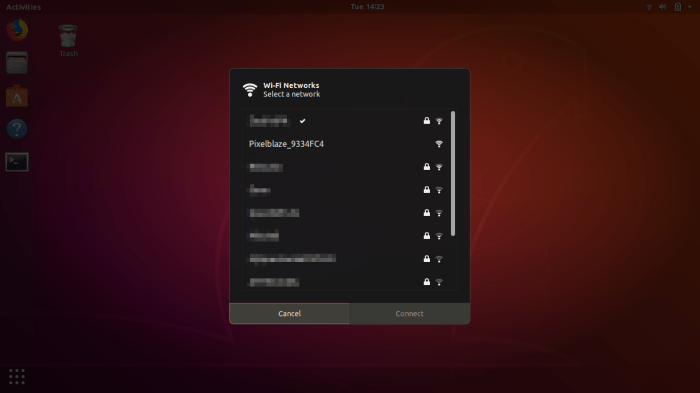
Ubuntu WiFi selection

Less than a minute after being plugged in, a new Pixelblaze would show itself as an open WiFi access point our device could connect to.

Pixelblaze network connect

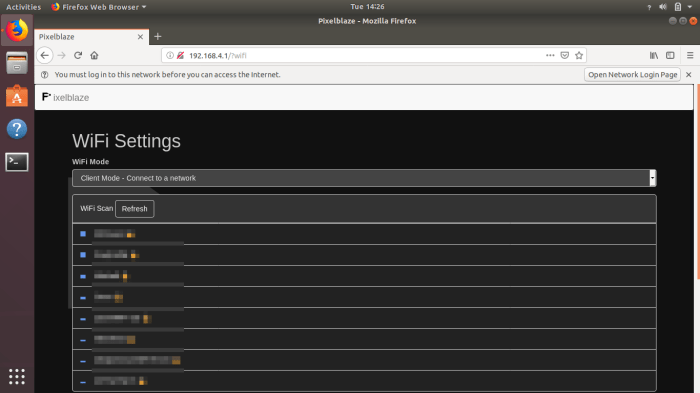
Once connected, open a web browser and try to load any URL, we will be redirected to Pixelblaze WiFi Settings menu. The browser will complain there’s no internet access but this is expected: we’re just using this to connect to an actual WiFi access point. Select the network we want to use and login.

Optional: check the discovery service box. Because after this step is complete, Pixelblaze will not longer be an open access point: it would have joined the new network. To reconnect to Pixelblaze and resume setup, we will need to know its IP address. If this is not possible (or just inconvenient) check the discovery service box. This is an optional feature to let a Pixelblaze announce its address on a network.

Pixelblaze discovery

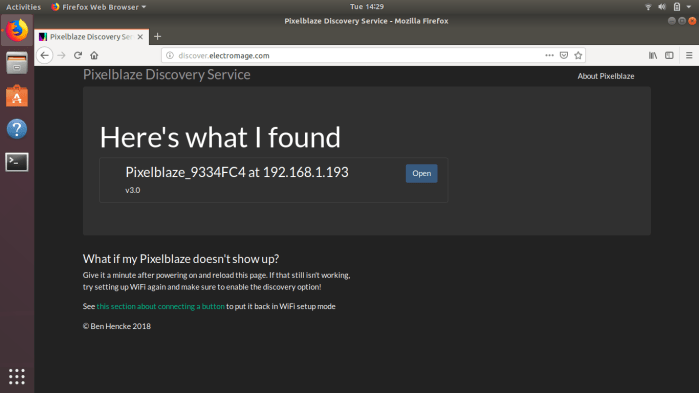
Once Pixelblaze’s own WiFi access point disappears, our device can rejoin the original network and visit http://discover.electromage.com to see addresses for discovery-enabled Pixelblaze on the same network.

Pixelblaze connected

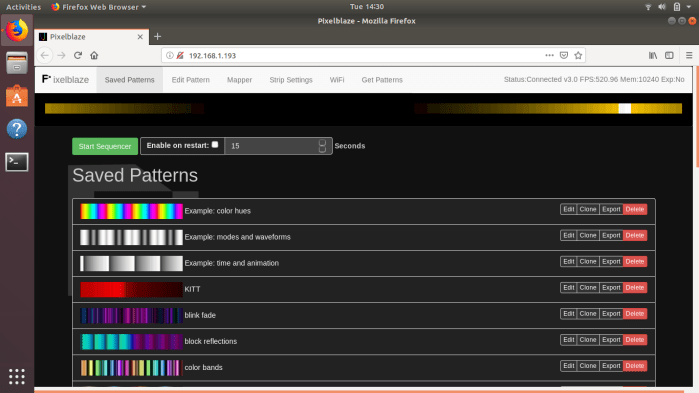
If discovery is not enabled and the Pixelblaze IP address is known, we can point our web browser to that address. Or if discovery is enabled, we can clicking “Open” from the Pixelblaze Discovery Service list. Once a Pixelblaze is configured for a WiFi network, the “Saved Patterns” menu is where it will start.

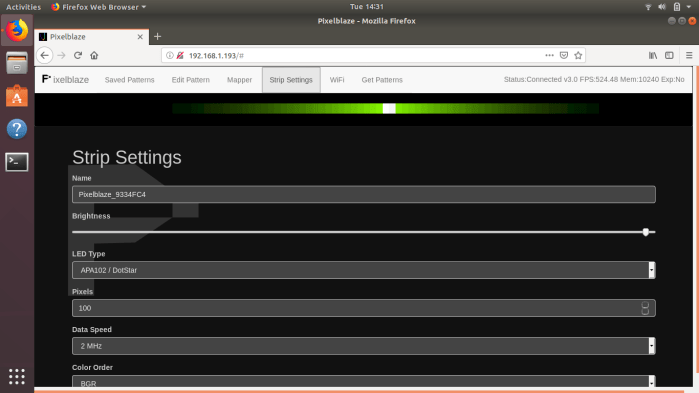
Change to Strip Settings menu to configure our Pixelblaze for our LED strip.

Pixelblaze Strip Settings

Name: This will show a Pixelblaze default name, we can optionally replace it with a friendlier one.

Brightness: This is a slider bar that defaults to 100% brightness. In the case of most LED strips, this will be a blindingly bright setting that consumes a lot of power. For our initial test and experimentation, we don’t need to blind ourselves or burn that much power. Move that slider lower: somewhere in the 10-20% range will still be easily visible.

LED Type: Change this to match the communication protocol used by the LED strip that the Pixelblaze will be driving. If the modules on a LED strip is not on the list, check online to see which of the listed modules are compatible and select that. Example: SK9822 LEDs are compatible with APA102, so we can select APA102 for LED strips that use SK9822 modules.

Pixels: Change this to match the number of modules on the LED display that the Pixelblaze will be driving. Example: a 5 meter long strip with 60 LEDs per meter will have a total of 5 * 60 = 300 pixels.

Data Speed: Leave this setting alone for now.

Color Order: Leave this setting alone for now.

Once the Strip Settings have been updated to match our intended LED output device, we shift our focus to hardware. Unplug the Pixelblaze from our computer, and warm up our soldering iron, it’s time to connect LED strip to Pixelblaze.

Curiosity Rover 3D Resources

Prompted by a question on the JPL Open Source Rover web forum, I compiled all the 3D resources I had collected on Mars rover Curiosity. This reference data helped Sawppy match Curiosity’s overall proportions and suspension geometry, which was my goal of making a mechanically faithful motorized model. I stopped there, but others rover builders like Laura McKeegan are working to improve accuracy in appearance so I thought I’d share these resources to help such efforts.

3D web sites

My starting point was JPL’s official open source rover web site whose opening animation has a 3D model of Curiosity cruising on a simulated Mars surface. I tried to extract that 3D mesh without success.

On a similar front, we could see a 3D model of Curiosity in the “Experience Curiosity” web site. It’s possible this is using the exact same data set as the OSR, but again I’m not enough of a web developer to pull out the 3D data.

Finally we have a 3D model visible on Curiosity’s mission site. Again it may or may not be the exact same one used in above two sites, but the difference here is that we have a “Download” button. Clicking that button results in a file named Curiosity_static.glb. My laptop running Windows 10 has a 3D Viewer app installed by default, which was able to view this file. I don’t know what viewer software would be required for other platforms.

3D printing

A web search for “Curiosity 3D Model” and similar keywords would repeatedly lead me to a 3D-printable static model. Unfortunately, for my purposes this model is not useful. The geometry of this model were modified to be friendly to 3D printing and is not a faithful representation of Curiosity.

3D animation

However, on the same NASA 3D website, there are two Curiosity models for the free open source 3D animation program Blender. As far as I can tell, these two models have the same 3D data but with different textures. “Clean” is factory fresh Curiosity, and “Dirty” represents Curiosity after cruising on Mars for a while.

The advantage of these files is that suspension parts are separate elements that can be animated to show suspension articulation. I believe these files formed the basis for Gazebo simulation described in this forum thread. It also means we can split parts apart for a closer look. However, this file only has enough detail for animated graphics, it does not have enough detail for CNC machining: much of the surface detail are represented by bitmap textures instead of 3D mesh data.

While there is not enough detail for building a high fidelity model, these files were the best resource I had to measure component sizes and their relative layouts. I was able to bring them up in Blender, switch to orthographic projection view, and get images of Curiosity free of perspective distortion. In case that’s useful to anyone, and you don’t want to install & run Blender just to obtain those images, here they are:


(Cross-posted to Hackaday.io)

Death Clock User Input Integration

After our brief orientation on a capacitive touch input sensor, Emily and I started looking into how we would integrate it into our Death Clock project. During the course of this research we also learned that according to Microchip our PIC microcontroller is supposedly capable of touch input as well, without needing a separate sensor peripheral. We’re going to file that information away for another day since already got this touch board in hand and we’ve learned enough to try using it.

Since our Death Clock state machine will be running on our Raspberry Pi, it made the most sense to interface this touch board to our Pi via one of its available GPIO pins. I had previously soldered an extra pair of pins and at the time it was merely for the purpose of mechanical support. Looking on a Raspberry Pi GPIO reference chart, though, we see these two pins (#39 and 40 on the pinout chart) are GPIO21 and GND and coincidentally perfect for our use. Our touch sensor board signals detection by pulling its output signal line to ground, so once we’ve configured GPIO21 for digital input with internal pull-up, we can easily test (without sensor board) by grounding GPIO21 to its adjacent GND pin with a piece of conductive metal like a paperclip or a coin.

Raspberry Pi GPIO pins can tolerate a maximum of 3.3 volts, so for the actual sensor board we’ll have to tap power from 3.3V pin on Pi header instead of the 5V we’re using for our PIC. Ground and GPIO21 already have headers, and those three points are all we need to wire up our touch sensor to our Pi. After that the sensor board requires just one more wire – the touch sense input wire – but that will lead elsewhere in the Death Clock enclosure and not to the Raspberry Pi.

Examining Adafruit AT42QT1070 Capacitive Touch Sensor Breakout

The Death Clock logic is built around user action to trigger its little show for amusement. While we could easily incorporate a micro switch or some such simple mechanical input, Emily felt it would make more sense to have a capacitive touch sensor. This fits into the theme of the clock, sensing and reading a person’s body instead of merely detecting a mechanical movement. So we’ll need something to perform this touch sensing and she procured an Adafruit #1362, AT42QT1070 5-Pad Capacitive Touch Sensor Breakout Board for use. Inside the package was a set of leads for breadboard experimentation, so we soldered them on, put the works on a breadboard, and started playing with it.

Initially the board worked mostly as advertised on Adafruit product page, but it is a lot more finicky than we had anticipated. We encountered frequent false positives (signaled touch when we haven’t touched the contact) and false negatives (did not signal touch when we have touched the contact.) Generally the unpredictability got worse as we used larger pieces of conductive material. Either in the form of longer wires, or in the form of large metal blocks we could touch.

Digging into the datasheet linked from Adafruit’s site, we learned that the sensor runs through a self calibration routine upon powerup, and about a “guard” that can be connected to something not intended as touch contact in order to form a reference for intended touch contacts. The calibration routine explains why we got wild readings as we experimented with different touch pads – we should have power cycled the chip with each new arrangement to let it recalibrate.

After we started power-cycling the chip, we got slightly better results, but we still needed to keep conductive material to a minimum for reliable operation. We played with the guard key and failed to discern noticeable improvement in touch sense reliability, perhaps we’re not using it right?

For Death Clock implementation we will try to keep the sensor board as close to the touch point as we can, and minimize wire length and electrical connections. Hopefully that’ll give us enough reliability.

Death Clock Code Organization

When we established our set of display states for the Death Clock project, we knew there would need to be a state machine somewhere in its logic to manage those display states. And when we designated different zones that can be composited together for a single frame in our display animation, we knew there would need to be some kind of animation engine in charge of corresponding work. These requirements formed our starting point for designing and organizing code for Death Clock.

The state machine was implemented as an infinite loop running an if/elif/else loop checking for our state value. Each clause corresponds to a display state and has (1) calls to code handling that display and (2) conditions to transition to another state. The state machine resides in a single class deathclock which also owns the reference to Pi GPIO library for display. It may make sense to split the I2C communication to another class but there’s no need to do so just yet.

Different display states require different operations to assemble their animation frame. An attempt to create a master animation engine capable of all operations became unnecessarily complex and was eventually abandoned. Instead, we’ll have multiple classes (nyancat, thinkingface, and deathtime) each of which will stay focused on the type of operations required for a single display state. This keeps the simple animations simple, and allows us to experiment with more complex animations without fear of damaging unrelated display states. This will result in some code duplication that we can come back to refactor later, but keeping each display state animation code separate lets us iterate ideas faster.

Code discussed in this blog post is available on Github.

Raspberry Pi GPIO Library Gracefully Degrades When Not On Pi

Our custom drive board for our vacuum fluorescent display (VFD) is built around a PIC which accepts commands via I2C. We tested this setup using a Raspberry Pi and we plan to continue doing so in the Death Clock project. An easy way to perform I2C communication on Raspberry Pi is the pigpio library which was what our test programs have used so far.

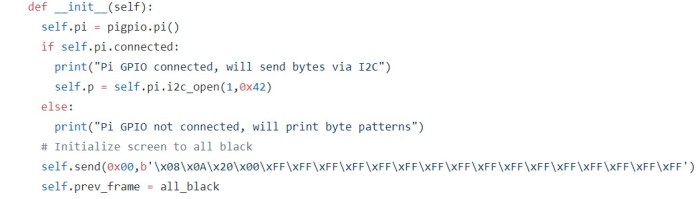
While Emily continues working on hardware work items, I wanted to get started on Death Clock software. But it does mean I’d have to work on software in absence of the actual hardware. This isn’t a big problem, because the pigpio library degrades gracefully when not running on a Pi. So it’ll be easy for my program to switch between two modes: one when running on the Pi with the driver board, and one without.

The key is the pigpio library’s feature to remotely communicate with a Pi. The module that actually interfaces with Pi hardware is called the pigpio daemon, and it can be configured to accept commands from the local network, which may or may not be generated by another Pi. Which is why the pigpio library could be installed and imported on a non-Pi like my desktop.

pigpiod fallback

For development purposes, then, I could act as if my desktop wants to communicate with a pigpio daemon over the network and, when it fails to connect, fall back to the mode without a Pi. In practice this means trying to open a Pi’s GPIO pins by calling pigpio.pi() and then checking its connected property. If true, we are running on a Pi. And if not, we go with the fallback path.

This is a very straightforward and graceful fallback to make it simple for me to develop Death Clock code on my desktop machine without our actual VFD hardware. I can get the basic logic up and running, though I won’t know how it will actually look. I might be able to rig up something to visualize my results, but basic logic comes first.

Code discussed in this blog post are visible on Github.

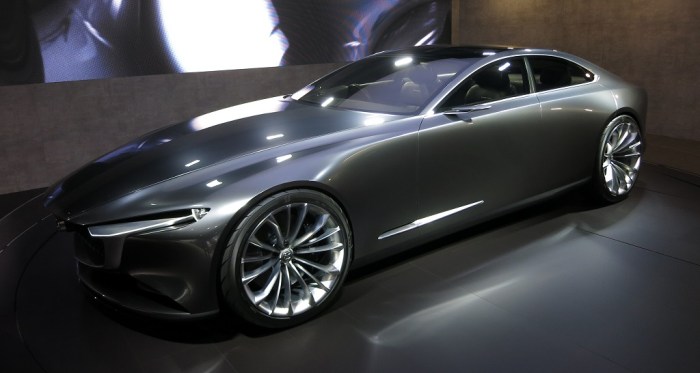
Concept to Production: Mazda Vision to 2019 Mazda3

A year and a half ago I went to the LA Auto Show to look at Mazda’s Vision Coupe concept car. It was a design exercise by Mazda to guide their future showroom cars, and more interesting to me, they stated a deliberate intention to explore ideas that do not necessarily photograph well. They believed making these sculpted curves look interesting in motion and in person would be worthwhile even if they don’t look as good in pictures. I thought they did an admirable job, enough that I felt guilty documenting my observations on this blog where I could only post pictures.

So, with the caveat that these pictures don’t look as good as the real thing in person, I examine the first implementation. See how the wild ideas on a concept car survived translation to a production car on the dealership floor: the 2019 Mazda3 Sedan. These started trickling in to dealerships a few months ago, and a search of online inventory indicated a few were in stock at nearby Puente Hills Mazda. I stopped by to find a silver sedan in front for comparison against the concept car.

Front three quarter2019 Mazda3 sedan front-three-quarters

There were a few elements that were never going to make it into production: those gigantic wheels and tiny rearview mirrors being the first to go. However I was a little sad at some of the other changes. A few of Vision’s clean long lines have been broken up in the production car. One significant line traced from leading edge of hood, met base of windshield, and became bottom edge of the windows. On the production car, that hood crease climbed up on pillar, no longer lining up with bottom window edge. A separate line on the concept car started at headlights, curved over front wheels, stayed parallel to bottom edge of windows, and blended into tail lights. On the production car this line started up front but dropped off on driver’s door and faded away into nothing. Another line started from base of rear window and led to top edge of trunk. I would have liked to see those characters survive but the car still looks pretty good in their absence.

As expected, Vision’s dramatic LED headlights and surrounding visuals did not make it to production. Only the vaguest of hints are still present.

The tail lights fared a little better in translation, but only in comparison to the headlights. It did pick up central LED elements and added a few more, and the rocket nozzle kind of survived in the form of embossed grill shape and not a ring of LEDs. Big dramatic horizontal line mostly disappeared but a few segments of horizontal styling are still there.

As expected, Vision’s multi-layered three dimensional nose was sadly flattened to comply with pedestrian protection and crash safety laws.

Mazda is making an effort to move upstream, elevate themselves above the Toyota / Honda / Nissan product line but maybe not quite up to their Lexus / Acura / Infiniti luxury counterparts. Mazda has yet to earn my money in this effort, but their exterior styling team is certainly doing their part and doing it well.

Display Zones of Vacuum Fluorescent Display

Now that we have a set of states for what to display on our vacuum fluorescent display (VFD) we’ll need to start dividing up the zones we’ll composite together to create the display at any given point in time.

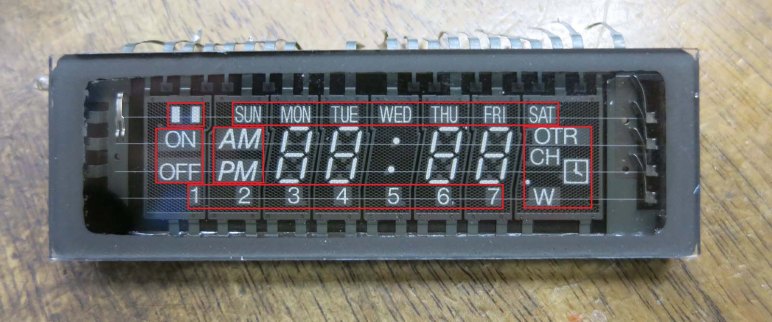
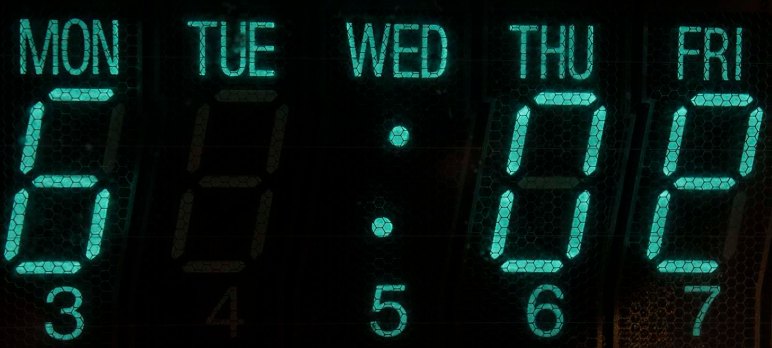
The easiest part are digits at the center: core functionality is to display a time of day on four digits and the colon at their center. We might do something non-digital with them in other animated states, but we know we’ll show numbers appropriate for a time of day at some point.

To the left of those digits are the AM/PM elements, which will be part of time display. And as long as we’re display a time of day, we know only one of those two will be illuminated. They will never be both illuminated, nor both dark.

Above them are the days of week, and we know we’ll illuminate one and only one when showing our death prediction. Not more than one, and not zero.

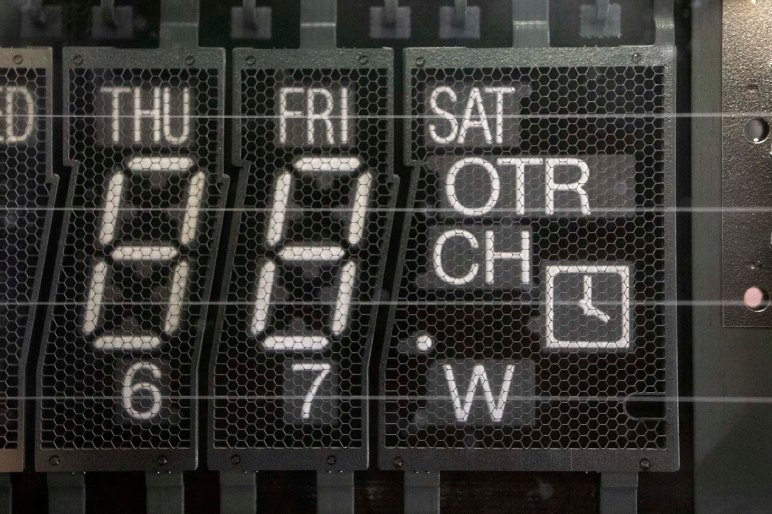
Beyond these known zones, things get a little fuzzier. The ON/OFF elements are tentatively marked into their own zone, and the two rectangles above them in their own zone. The numbers 1 through 7 at the bottom will probably be their own zone, and finally off to the far right we have the “miscellaneous” section with OTR, CH, W, a clock face, and a dot. We have no plans to use any of them at the moment, but that could change.

Using Adobe Photoshop Perspective Warp To Get Top View On Large Chalk Drawings

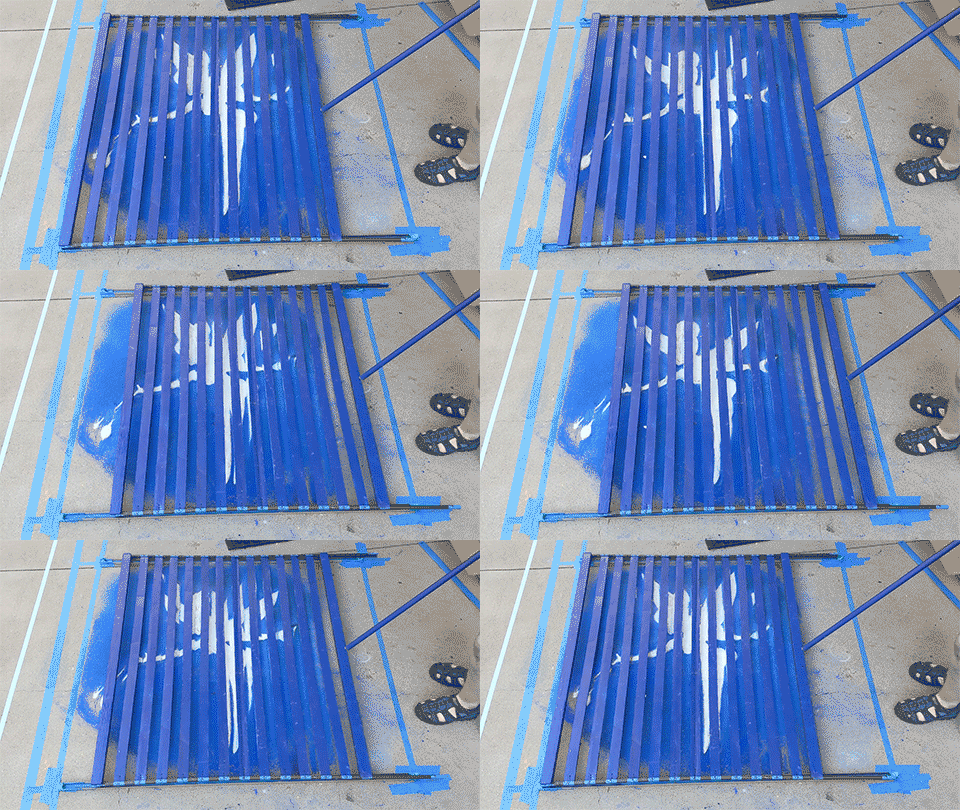
And now, my own little behind-the-scenes feature for yesterday’s post about Pasadena Chalk Festival 2019. When organizing my photos from the event, I realized it might be difficult to see progression from one picture to the next due to changing viewing angles. When I revisit a specific piece, I could never take another picture from the same perspective. Most of the time it was due to someone else in the crowd blocking my view, though occasionally it’s the artist himself/herself.

Since these chalk drawings were large, we could only take pictures from an oblique angle making the problem even worse. So for yesterday’s post I decided it was time to learn the Perspective Warp tool in Adobe Photoshop and present a consistent view across shots. There are plenty of tutorials on how to do this online, and now we have one more:

Perspective correct 10

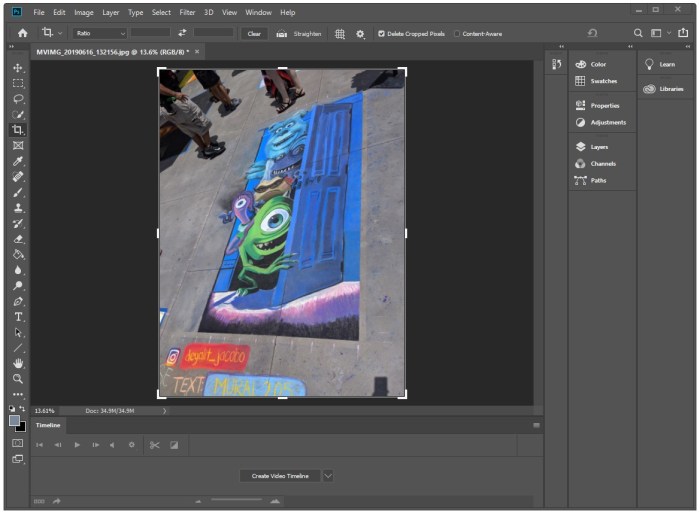
Step 1: Load original image

Optional: Use “Image Rotation…” under “Image” menu to rotate it most closely approximating the final orientation. In this specific example, the camera was held in landscape mode (see top) and so the image had to be rotated 90 degrees counterclockwise. Photoshop doesn’t particular care about orientation of your subject, but it’s easier for our human brains to pick up problems as we go when it’s properly oriented.


Perspective correct 20

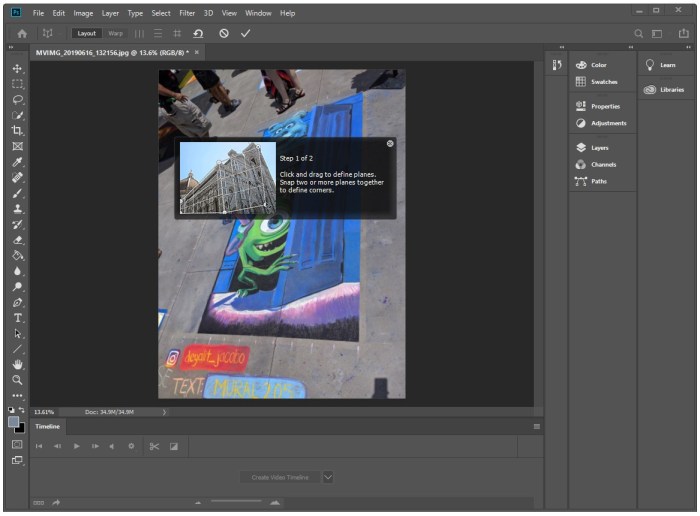
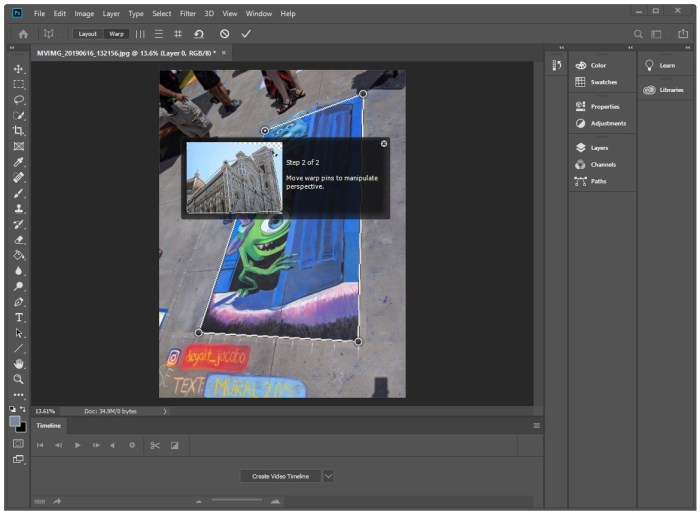
Step 2: Under the “Edit” menu, select “Perspective Warp”


Perspective correct 30

Step 3: Enter Layout Mode

Once “Perspective War” has been selected, we should automatically enter layout mode. If not, explicit select “Layout” from the top toolbar.


Perspective correct 40

Step 4: Create Plane

Draw and create a single rectangle. There are provisions for multiple planes in layout mode, but we only need one to correspond to the chalk drawing.


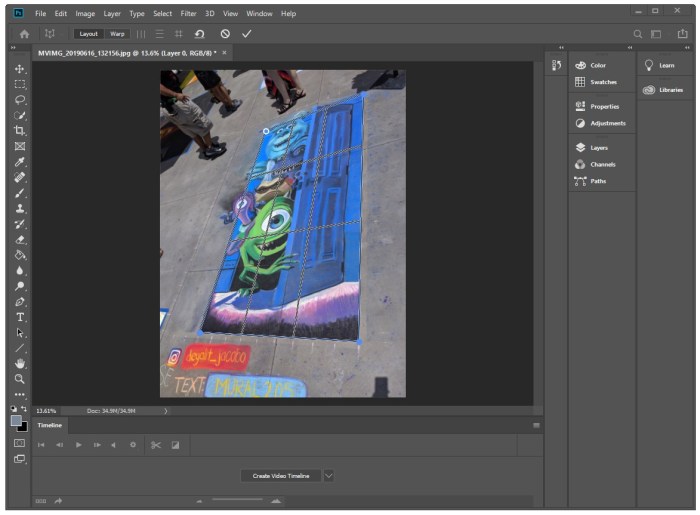
Perspective correct 50

Step 5: Adjust Plane Corners

Drag corners of perspective plane to match intended surface. Most chalk drawings are conveniently rectangles and have distinct corners we could use for the task.


Perspective correct 60

Step 6: Enter Warp Mode

Once the trapezoid is representative of the rectangle we want in the final image, click “Warp” on the top toolbar.


Perspective correct 70

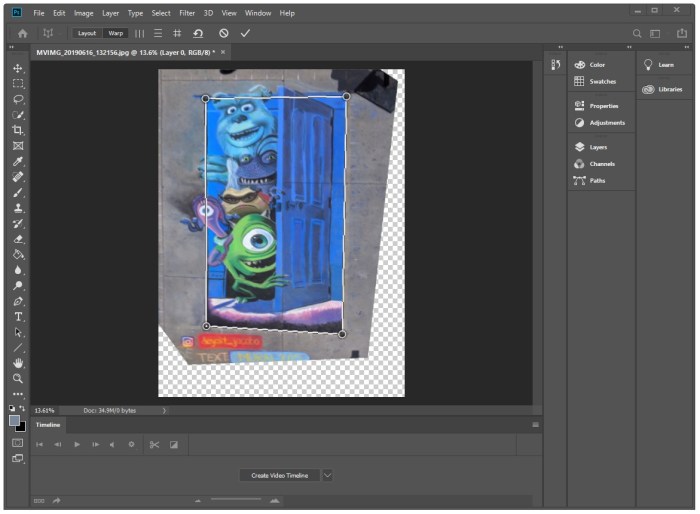
Step 7: Warp to desired rectangle

Drag the corners again, this time back into a rectangle in the shape we want. Photoshop has provided tools to help align edges to vertical and horizontal. (See tools to the right of “Warp”) But establishing the proper aspect ratio is up to the operator.


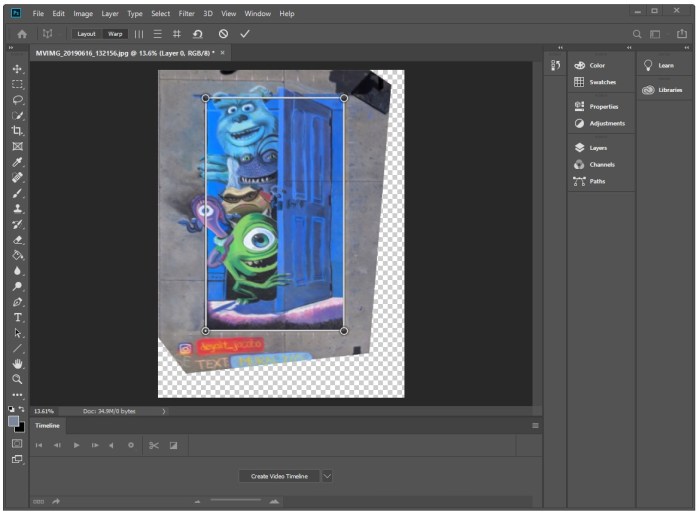
Perspective correct 80

Step 8: Perspective Warp Complete

Once perspective correction is done, click the checkbox (far right of top toolbar) to complete the process. At this point we have a good rectangle of chalk art, but the image around it is a distorted trapezoid. Use standard crop tool to trim excess and obtain the desired rectangular chalk art from its center.


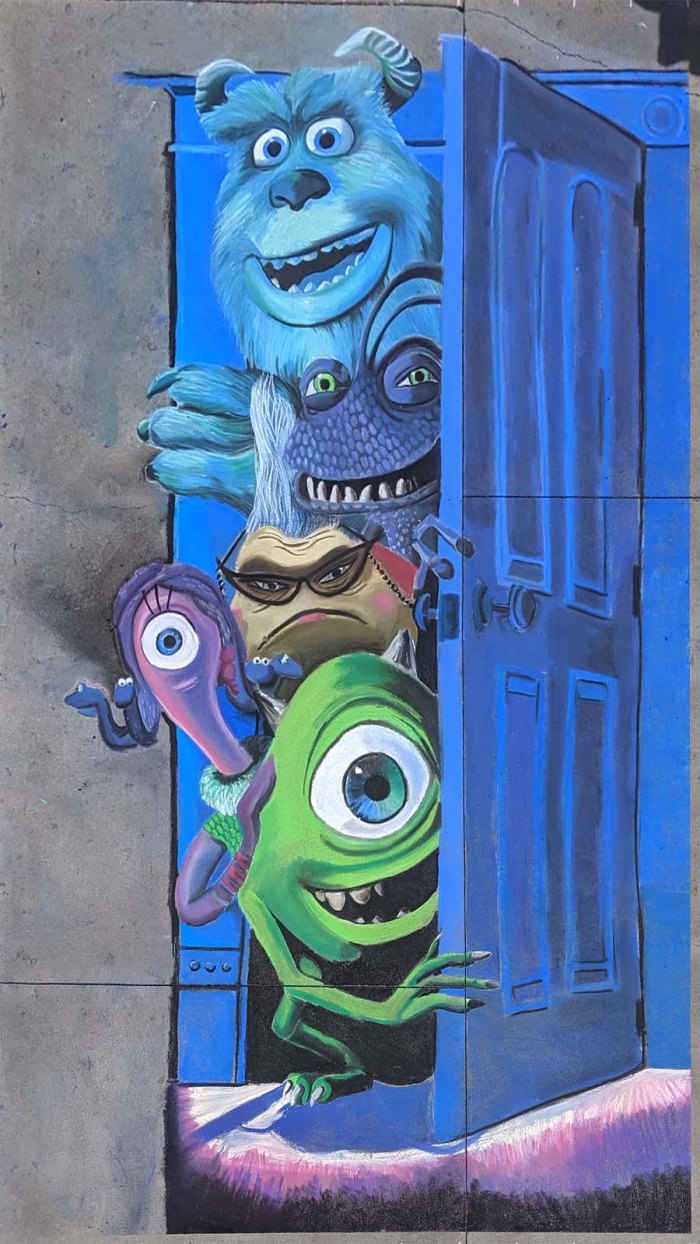
Chalk festival Monsters Inc 20

Art by Jazlyn Jacobo (Instgram deyalit_jacobo)

Padadena Chalk Festival 2019

This past weekend was spent looking over artists working intently at Paseo Colorado for Pasadena Chalk Festival 2019. I feel it is to chalk artists what badge hacking at Supercon are for electronics people. Since I never graduated beyond the kindergarten stage of chalk art, I learned about surprising variety of tools and techniques for applying chalk to concrete. As someone who loves to learn about behind-the-scenes of every creation, it’s fun to revisit certain favorite pieces to see them progress through the weekend.

There were many original works, but most of my attention were focused on recreations of animated characters and scenes I’ve already seen. A notable departure from this pattern was a large mural depicting space exploration including my favorite Mars rover Curiosity:

Monsters, Inc. characters by Jazlyn Jacobo:

Kiki’s Delivery Service:

Aladdin’s Genie and Carpet play a game of chess. Drawn by Jen:

A scene from Toy Story 4 teaser, drawn in front of the theater which will be playing the movie next weekend. Drawn by Gus Moran:

Lion Kings Simba and Mufasa by Kathleen Sanders. This was quite fitting since it was also Father’s day:

Grandfather and grandson from Coco feature in this highly detailed composition by Patty Gonzalez:

Other works I liked:

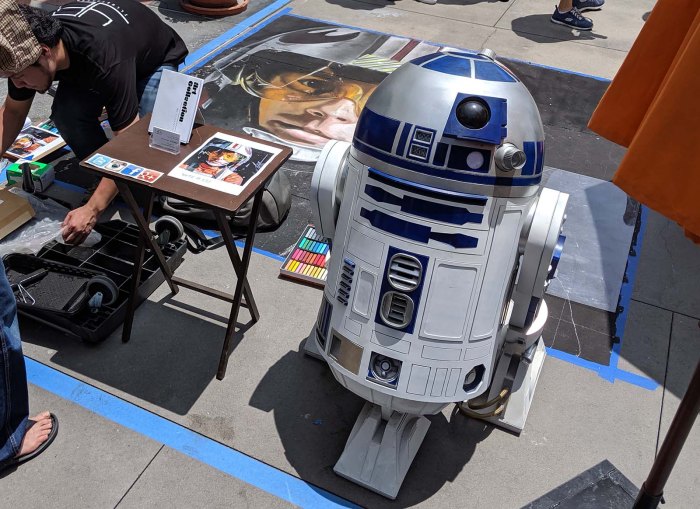
This artist, who is drawing a chalk portrait of Luke Skywalker as X-Wing pilot, brought along a 3D prop in the form of a full-sized R2-D2.

Chalk festival R2D2

The most novel piece was by C.Nick in the Animation Alley. Here I expected to find artists working with animated characters… I was delighted to find an actual animated chalk drawing.

Chalk festival C Nick tinkerbell

Chalk-Tinkerbell


Bit Operations For Death Clock Display

The way we’ve wired up our VFD (vacuum fluorescent display) control board, each segment on a VFD is a bit we can manipulate from the driver program. It can be anything that communicates via I2C and right now that is a Python script running on a Raspberry Pi. VFD pattern data in Python will be represented in the form of byte literals as outlined in PEP #3112. This is something we’ve already started using in existing Python test scripts. The ‘b‘ in front is how we designate this string as a byte literal. Each byte within is described with a leading backslash ‘\‘ and two hexadecimal digits. Each digit represents half (4 bits) of a byte.

Our VFD hardware board is wired so setting a bit high will ground the corresponding element, turning it dark. Setting a bit low will allow pull-up resistors to raise voltage of the element, illuminating it. This particular VFD unit has 8 pins for grids and 11 pins for elements. However, not all combinations are valid for illuminating a specific segment. There’s room blocked out for bits in our control pattern corresponding to these combinations, but they will have no effect on VFD output. For more details, see the VFD pattern spreadsheet where bits without a corresponding physical segment had their checkboxes deleted.

So far so good, and for Death Clock we will take the next step beyond showing a fixed set of static patterns. We’ll have to start changing bits around during runtime to do things like displaying the day of week and time of day. Manipulating our VFD pattern byte literals with Python bitwise operators allow us to take multiple bit patterns, each representing one subset of what we want to show, and combine them together into the pattern we send to the PIC for display. This is conceptually similar to compositing in video production, but at a much simpler scale.

Death Clock Display States

At this point we have decided on what the Death Clock project will do, established priorities of how we’ll go about it, and the hardware we’ll use for our first iteration. Now it is time to sit down and get into the details of what code we’ll write. This will be more sophisticated than just looping a single list of animation frames. Here are the candidate states in the sequence they are likely to run:

  • Initial power-on: As soon as the Python script starts running, we want to send a VFD pattern to establish the Pi is communicating with the PIC. This pattern doesn’t have to be fancy, its main purpose is to visually show our Python code has at least started running. So all it really needs to be is to be different from the PIC’s power-on default pattern.
  • Waiting to start: We might want a pattern to be displayed after the Python script has started running, but before we can act like a Death Clock. At the moment we don’t know of anything that require such a delay, so we’ll skip over this one for now.
  • Attraction loop: An animation sequence inviting people to touch the capacitive sensor button. Any text will have to be shown as a scrolling marquee of text using the four 7-segment digit displays. Might want to superimpose animations using remaining segments. This can start simple and get fancier as we go.
  • Thinking and processing loop: Once touched, we might want to do a little show for the sake of presentation. There’s no practical reason to need this as a Pi can generate a random time effectively instantaneously. But where’s the suspense in that? We don’t have to do this in the first test run, this can be added later.
  • Oracle speaks: Present the randomly chosen day of week and time of day. May or may not do anything with the remaining segments. This is the core functionality so we’ll need to look at this one first.
  • Thank you come again: Animation sequence transitioning from “Oracle speaks” display to “attraction loop”. This is again for presentation and can be skipped for the first test run and added later.