Old AMD GPU for Folding@Home: Ubuntu Struggles, Windows Win

The ex-Luggable Mark II is up and running Folding@Home, chewing through work units quickly mostly thanks to its RTX 2070 GPU. An old Windows 8 convertible tablet/laptop is also up and running as fast as it can, though its best speed is far slower than the ex-Luggable. The next recruit for my folding army is Luggable PC Mark I, pulled out of the closet where it had been gathering dust.

My old AMD Radeon HD 7950 GPU was installed in Luggable PC Mark I. It is quite old now and AMD stopped releasing Ubuntu drivers after Ubuntu 14. Given its age I’m not sure if it even works for GPU folding workloads. It was designed and released near the dawn of the age when GPUs started finding work beyond rendering game screens, and its GCN1 architecture probably had problems typical of first versions of any technology.

Fortunately I also have an AMD Radeon R9 380 available. It was formerly in Luggable PC Mark II but during the luggable chassis decommissioning I retired it in favor of a NVIDIA RTX 2070. The R9 380 is a few years younger than the HD 7950, I know it supports OpenCL, and AMD has drivers for Ubuntu 18.

A few minutes of wrenching removed the HD 7950 from Luggable Mark I, putting the R9 380 in its place, and I started working out how to install those AMD Ubuntu drivers. According to this page, the “All-Open stack” is recommended for consumer products, which I mean to include my consumer-level R9 380 card. So the first pass started by running amdgpu-install. To verify OpenCL is up and running, I installed clinfo to verify GPU is visible as OpenCL device.

Number of platforms 0

Hmm. That didn’t work. On advice of this page on Folding@Home forums, I also ran sudo apt install ocl-icd-opencl-dev That had no effect, so I went back to reread the instructions. This time I noticed the feature breakdown chart between “All-Open” and “Pro” and OpenCL is listed as a “Pro” only feature.

So I uninstalled “All-Open” and installed “Pro” stack. Once installed and rebooted, clinfo still showed zero platforms. Returning to the manual, on a different page I found the fine print saying OpenCL is an optional component of the Pro stack. So I reinstalled yet again, this time with --opencl=pal,legacy flag.

Running clinfo now returns:

Number of platforms 1
Platform Name AMD Accelerated Parallel Processing
Platform Vendor Advanced Micro Devices, Inc.
Platform Version OpenCL 2.1 AMD-APP (3004.6)
Platform Profile FULL_PROFILE
Platform Extensions cl_khr_icd cl_amd_event_callback cl_amd_offline_devices
Platform Host timer resolution 1ns
Platform Extensions function suffix AMD

Platform Name AMD Accelerated Parallel Processing
Number of devices 0

NULL platform behavior
clGetPlatformInfo(NULL, CL_PLATFORM_NAME, ...) No platform
clGetDeviceIDs(NULL, CL_DEVICE_TYPE_ALL, ...) No platform
clCreateContext(NULL, ...) [default] No platform
clCreateContext(NULL, ...) [other] <error: no devices in non-default plaforms>
clCreateContextFromType(NULL, CL_DEVICE_TYPE_DEFAULT) No devices found in platform
clCreateContextFromType(NULL, CL_DEVICE_TYPE_CPU) No devices found in platform
clCreateContextFromType(NULL, CL_DEVICE_TYPE_GPU) No devices found in platform
clCreateContextFromType(NULL, CL_DEVICE_TYPE_ACCELERATOR) No devices found in platform
clCreateContextFromType(NULL, CL_DEVICE_TYPE_CUSTOM) No devices found in platform
clCreateContextFromType(NULL, CL_DEVICE_TYPE_ALL) No devices found in platform

Finally, some progress. This is better than before, but zero devices is not good. Back to the overview page which says their PAL OpenCL stack supported their Vega 10 and later GPUs. My R9 380 is from their Tonga GCN 3 line, which is quite a bit older than Vega, which is GCN 5. So I’ll reinstall with --opencl=legacy to see if it makes a difference.

It did not. clinfo still reports zero OpenCL devices. AMD’s GPU compute initiative is called ROCm or RadeonOpenCompute but it is restricted to hardware newer than what I have on hand. Getting OpenCL up and running, on Ubuntu, on hardware this old, is out of scope for attention from AMD.

This was the point where I decided I was tired of this Ubuntu driver dance. I wiped the system drive to replace Ubuntu with Windows 10 along with AMD Windows drivers. Folding@Home saw the R9 380 as a GPU compute slot, and I was up and running simulating protein folding. The Windows driver also claimed to support my older 7950, so one potential future project would be to put both of these AMD GPUs in a single system. See if the driver support extends to GPU compute for multi GPU folding.

For today I’m content to have just my R9 380 running on Windows. Ubuntu may have struck out on this particular GPU compute project, but it works well for CPU compute, especially virtual machines.
Naked HP Split X2 (13-r010dx) Sitting In A Breeze Runs Faster

Mobile computer processors must operate within tighter constraints than their desktop counterparts. They sip power to prolong battery life, and that power also eventually ends up as heat that must be dissipated. Unfortunately both heat management mechanisms and batteries are heavy and take up space, so finding the proper balance is always a difficult challenge. It is typical for laptop computers to give up its ability to run sustained workloads at full speed. But if we’re not worried about voiding warranties or otherwise rendering a mobile computer immobile, we can lift some of those constraints limiting full performance: run on an AC adapter to provide power, and get creative on ways to enhance heat dissipation.

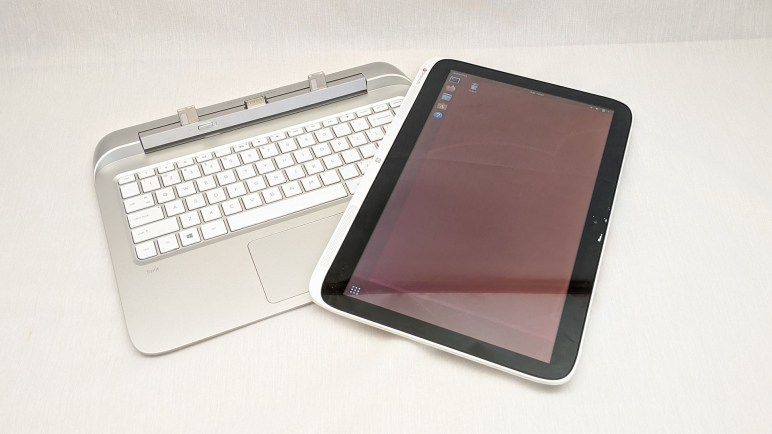
For this experiment I pulled out the most powerful computer from my NUCC trio of research project machines, the HP Split X2 (13-r010dx). The goal is to see if I can add it to my Folding@Home pool. Looking over the technical specifications published by Intel for Core i3-4012Y CPU, one detail caught my eye: it lists two separate power consumption numbers where most processors only have one. The typically quoted “Thermal Design Power” figure is at 11.5W, but this chip has an additional “Scenario Design Power” of 4.5W. This tells us the processor is designed for computers that only expect to run in short bursts. So even if TDP is 11.5W, it valid to design a system with only 4.5W of heat dissipation.

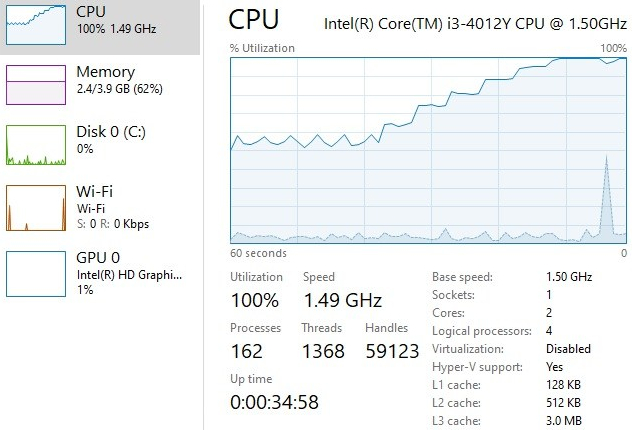
Which is likely the case here, as I found no active cooling on this HP Split X2. The outer case is entirely plastic meaning it doesn’t even have great thermal conduction to the environment. If I put a sustained workload on this computer, I expect it to run for a while and then start slowing itself down to keep the heat manageable. Which is indeed what happened: after a few minutes of Folding@Home, the CPU clock cycle pulled back to roughly half, and utilization was pulled back half again meaning the processor is chugging along at only about a quarter of its maximum capability.

HP Split X2 13-r010dx thermal throttling

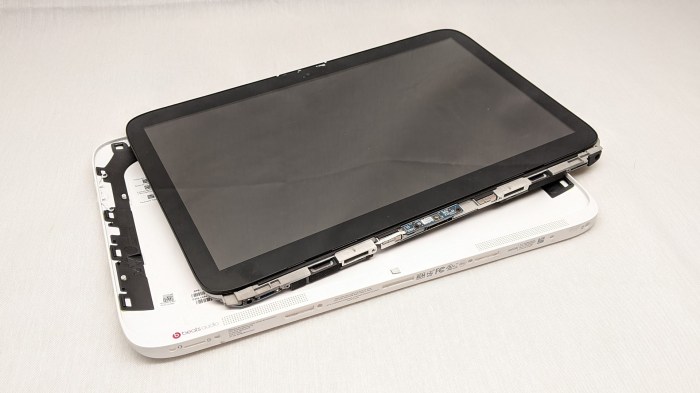
For more performance, let’s help that heat escape. Just as I did earlier, I pulled the core out of its white plastic case. This time for better ventilation rather than just curiosity.

HP Split X2 13-r010dx tablet internals removed from case

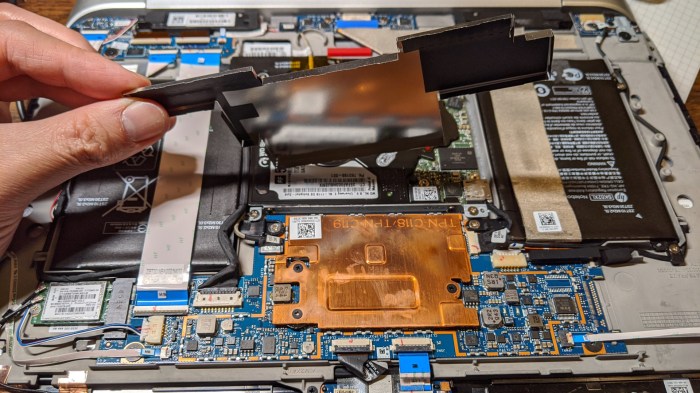
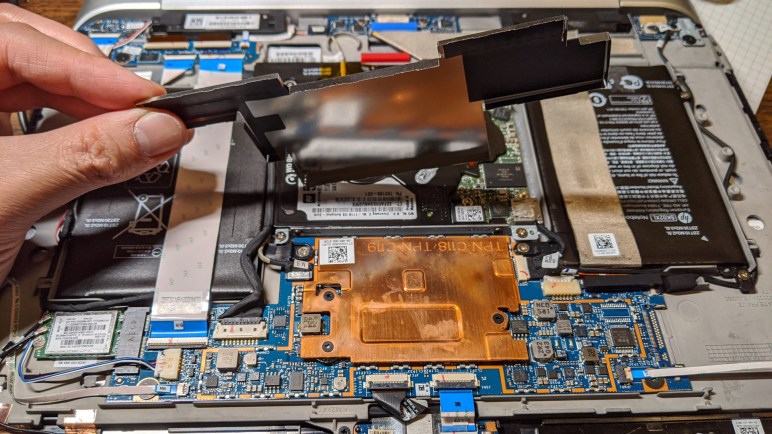
Removing it from its plastic enclosure helped only a tiny bit. Most of the generated heat are still trapped inside, so I pulled the metal shield off its main processor board. This exposed the slab of copper acting as CPU heat sink.

HP Split X2 13-r010dx CPU heat sink under shield

Exposing that heat sink to ambient air helped a lot more, but passive convection cooling is still not quite enough. The final push was to introduce some active airflow. I was contemplating several different ideas on how to jury-rig an active cooling fan, but this low power processor didn’t actually need very much. All I had to do is to set the computer down in the exhaust fan airflow from a PC tower case. That was enough for it to quickly climb back up to full 1.5 GHz clock speed with 100% utilization, and sustain running at that rate.HP Split X2 13-r010dx receiving cooling

It’s not much, but it is contributing. I can leave it simulating folding proteins and move on to another computer: my Luggable PC Mark I.

Desktop PC Component Advantage: Sustained Performance

A few weeks ago I decommissioned Luggable PC Mark II and the components were installed into a standard desktop tower case. Heeding Hackaday’s call for donating computing power to Folding@Home, I enlisted my machines into the effort and set up my own little folding farm. This activity highlighted a big difference between desktop and laptop components: their ability to sustain peak performance.

My direct comparison is between my ex-Luggable PC Mark II and the Dell laptop that replaced it for my mobile computing needs. Working all out folding proteins, both of those computers heated up. Cooling fans of my ex-Luggable sped up to a mild whir, the volume and pitch of the sound roughly analogous to my microwave oven. The laptop fans, however, spun up to a piercing screech whose volume and pitch is roughly analogous to a handheld vacuum cleaner. The resemblance is probably not a coincidence, as both move a lot of air through a small space.

The reasoning is quite obvious when we compare the cooling solution of a desktop Intel processor against one for a mobile Intel processor. (Since my active-duty machines are busy working, I pulled out some old dead parts for the comparison picture above.) Laptop engineers are very clever with their use of heat pipes and other tricks of heat management, but at the end of the day we’re dealing with the laws of physics. We need surface area to transfer heat to air, and a desktop processor HSF (heat sink + fan) has tremendously more of it. When workload is light, laptops keep their fans off for silent operation whereas desktop fans tend to run even when lightly loaded. However, when the going gets rough, the smaller physical volume and surface area of laptop cooling solutions struggle.

This is also the reason why different laptop computers with nearly identical technical specifications can perform wildly differently. When I bought my Inspiron 7577, I noticed that there was a close relative in Dell’s Alienware line that has the same CPU and GPU. I decided against it as it cost a lot more money. Some of that is branding, I’m sure, but I expect part of it goes to more effective heat removal designs.

Since I didn’t buy the Alienware, I will never know if it would have been quieter running Folding@Home. To the credit of this Inspiron, that noisy cooling did keep its i5-7300HQ CPU at a consistent 3.08GHz with all four cores running full tilt. I had expected thermal throttling to force the CPU to drop to a lower speed, as is typical of laptops, so the fact this machine can sustain such performance was a pleasant surprise. I appreciate the capability but that noise got to be too much… when I’m working on my computer I need to be able to hear myself think! So while the ex-Luggable continued to crunch through protein simulations, the 7577 had to drop out. I switched my laptop to the “Finish” option where it completed the given work unit overnight (when I’m not sitting next to it) and fetched no more work.

This experience taught me one point in favor of a potential future Luggable PC Mark III: the ability to run high performance workloads on a sustained basis without punishing hearing of everyone nearby. But this doesn’t mean mobile oriented processors are hopeless. They are actually a lot of fun to hack, especially if an old retired laptop doesn’t need to be mobile anymore.

Preparing Retired Laptops For Computing Beginners

I’ve just finished looking over several old laptop computers with an eye for using them as robot brains running ROS, a research project made possible by NUCC. Independent of my primary focus, the exercise also gave me some ideas about old laptops used for another common purpose: as cheap “starter” computers for people getting their feet wet in the world of computers. This intent involves a different set of requirements and constraints than robot building.

In this arena, ease of use becomes paramount which means most distributions of Linux are excluded. Even Raspbian, the distribution intended for people to learn in a simplified environment on a Raspberry Pi, can get intimidating for complete beginners. If someone who receives a hand-me-down computer knows and prefers Linux, it’s a fair assumption they know how to install it themselves as I had done with my refurbished Dell Latitude E6230.

Next, a hand-me-down laptop usually includes personal data from its previous owner. Ideally it is inaccessible and hidden behind password protection, but even if not, the safest way to protect against disclosure is to completely erase the storage device and reinstall the operating system from scratch.

Historically for Windows laptops such cleaning also meant the loss of the Windows license since the license key has almost certainly been separated from the computer in its lifespan. Fortunately, starting from Windows 8 there is a Windows license key embedded in the hardware, so a clean install will still activate and function properly. For these Windows laptops and MacOS machines, it is best to preserve that value and run its original operating system. This was the case for the HP Split X2 I examined.

If a Windows or MacOS license is not available, the most beginner-friendly operating system is Chrome OS. It is available for individuals to install as Neverware CloudReady: Home Edition. Putting this on a system before giving it to a beginner will allow them to explore much of modern computing while also sparing them much of the headaches. And if they dig themselves into a hole, it is easy to restart from scratch with a “Powerwash”. This was what I had done with the Toshiba Chromebook 2 I examined.

But modern computing has left 32-bit CPUs behind, limiting options for older computers lacking support for 64-bit x86_64 instruction set. It meant Neverware CloudReady is not an option for them either. It is possible the user can be served by a machine that is a stateless web kiosk machine, in which case we can install Ubuntu Core with the basics of web kiosk.

And if we have exhausted all of those options, as was the case for the HP Mini netbook I examined, I believe that means the machine is not suitable as a hand-me-down starter computer for a beginner. Computers unable to meet minimum requirements for all of the above would only be suitable for basic command-line based usage. And whether computing veterans like it or not, current convention wisdom says a command line is not the recommended starting point for today’s computing beginners.

So in order of preference, the options for a beginner-friendly laptop after wiping a disk of old data are:

  1. Windows (if license is in hardware) or MacOS (for Apple products)
  2. Either original Chromebook/Chromebox or Chrome OS via Neverware CloudReady.
  3. Ubuntu Snappy Core in Web Kiosk mode.
  4. Sorry, it is not beginner friendly.

[UPDATE: Since the time I wrote this up, I have discovered a lightweight Debian distribution suitable for old x86 computers made by the Raspberry Pi foundation. I put it on the HP Mini as well as an even older Dell Latitude X1 and it appears to be a valid option between steps 3 and 4 above.]

A Tale of Three Laptops

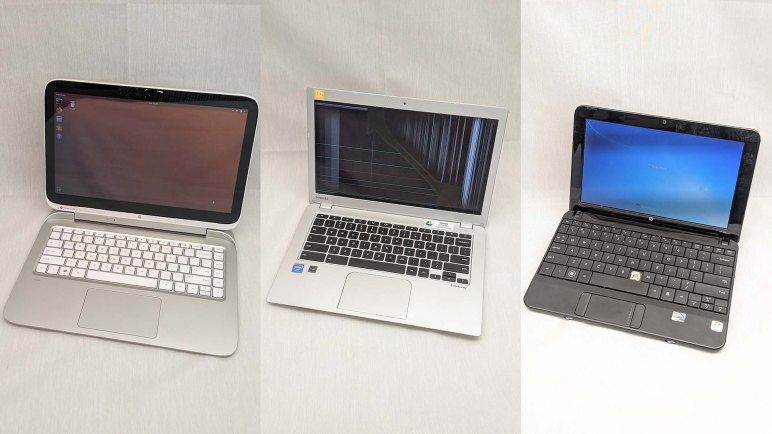
This is a summary of my research project enabled by the National Upcycling Computing Collective (NUCC). Who allowed me to examine three retired laptop computers of unknown condition, evaluating them as potential robot brain for running Robot Operating System (ROS).

For all three machines, I found a way to charge their flat batteries and get them up and running to evaluate their condition. I also took them apart to understand how I might mechanically integrate them into a robot chassis. Each of them got a short first-pass evaluation report, and all three are likely to feature in future projects both robotic and otherwise.

In the order they were examined, the machines were:

  1. HP Split X2 (13-r010dx): This was a tablet/laptop convertible designed for running Windows 8, an operating system that was also designed for such a dual-use life. Out of the three machines, this one had the longest feature list including the most modern and powerful Intel Core i3 CPU. But as a tradeoff, it was also the bulkiest of the bunch. Thus while the machine will have no problem running ROS, the mechanical integration will be a challenge. Its first pass evaluation report is here. For full details query tag of 13-r010dx for all posts relating to this machine, including future projects.
  2. Toshiba Chromebook 2 (CB35-B3340): This machine was roughly the same age as the HP, but as a Chromebook it had a far less ambitious feature list but that also gave it a correspondingly lighter and slimmer profile. It is possible to run a form of Ubuntu (and therefore ROS) inside a Chromebook, but there are various limitations of doing so. Its suitability as a robot brain is still unknown. In the meantime, the first pass evaluation report is here, and all related posts (past and future) tagged with CB35-B3340.
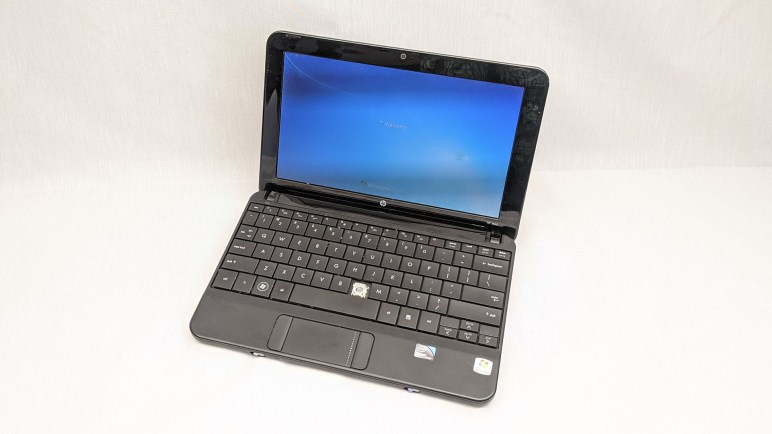
  3. HP Mini (110-1134CL): This was a ~10 year old netbook, making it the oldest and least capable machine of the bunch. A netbook was a simple modest machine when new, and the age meant this hardware lacks enough processing power to handle modern software. While technically capable of running ROS Kinetic, the low power processor could only run the simplest of robots and unable to take advantage of the more powerful aspects of ROS. The first pass evaluation report is here, and all related posts tagged with 110-1134CL.

While not the focus of my research project, looking over four old laptops in rapid succession (these three from NUCC plus the refurbished Dell Latitude E6230 I bought) also gave me a perspective on preparing old laptops for computing beginners.

HP Mini (110-1134CL): First Pass Evaluation

This HP Mini netbook was the oldest of three laptops in this NUCC-sponsored research project. As a netbook, it was a very limited and basic machine even when new, and that was around ten years ago. A lot has changed in the computing world since then.

Today, its 32-bit only CPU limits robot brain applications, as only the older ROS Kinetic LTS released prebuilt 32-bit binaries. Outside of robot brain applications, any modern graphical user interface is sluggish on this machine. From Chrome OS up through Windows 10 and everything in between. When running Ubuntu Mate, it actually felt worse than a Raspberry Pi running the same operating system, which came as a surprise. Both had ~1GHz CPUs and 1GB of RAM. And even though a 10-year old Atom could outperform a modern ARM CPU, the 10-year old Intel integrated graphics processor has fallen well behind a modern ARM’s graphics core.

So it appears the best position for this machine is in running command line computing or data processing tasks that work well on old low-end Intel 32-bit chips. It would be a decent contender for the type of projects that today we would think of running on a Raspberry Pi. With the caveat of weaker graphics effects, it offers the following advantages over a Raspberry Pi:

  • Intel x86 (32-bit) instruction set.
  • Higher resolution screen than the standard Raspberry Pi touchscreen.
  • Keyboard (minus the N key in this particular example)
  • Touchpad
  • Battery for portable use
  • Actual data storage device in the form of a SATA drive, not a microSD card.

It is also the only one of the three NUCC machines to have a hard wire Ethernet port. As someone who’s been burned by wireless communication issues more than once, this is a pretty significant advantage over the rest of the machines in my book.


HP Mini (110-1134CL): Command Line Adept

So far I’ve determined a ~10 year old netbooks lack the computing power for a modern desktop graphical user interface, even those considered lightweight by today’s standards. Was it always sluggish even in its prime? It’s a little hard to tell from here, because even though computers have undoubtedly gotten faster, our expectations have risen as well.

But there’s more to a computer’s capability than pushing pixels around, so we fall back to the next round of experiments with command line interface systems. And since we’ve already established that a solid state drive was not a great performance booster on this platform, I put the original spinning platter hard drive back in for the next round.

This time instead of Ubuntu Desktop, I installed Ubuntu server edition instead. This minimalist distribution lacks the user friendliness of a graphical user interface, but it also lacks the graphics processing workload of displaying one as well. As a result this machine is quite snappy and responsive. I found it quite usable, especially now that I’ve learned about virtual consoles and use the Alt key plus F1 through F6 to switch between up to six different sessions. Simple tasks like running Python scripts and running a basic server were done easily and quickly.

I started experimenting with Ubuntu 16, because Ubuntu did not release prebuilt installation binaries for 32-bit Ubuntu 18. However, once Ubuntu 16 server was and and running, I was able to rundo-release-upgrade to move up to Ubuntu 18. From minor tinkering I didn’t notice any significant difference between them.

Then I remembered I had played with an even more minimalist Ubuntu earlier, on an even older machine. Ubuntu 18 Snappy Core is available for 32-bit i386 processors, and it installed successfully on this laptop. Now I have one more incentive to learn how to build my own snaps to install on such a system. I just have to remember to that I can only connect to an Ubuntu Snap machine via SSH, and the list of valid keys associated with an account do not auto-update. I typically generate a SSH key every time I reset a machine, and I no longer have the keys to access my previous snappy core experiment. I ended up reinstalling snappy core to pick up the current set of SSH keys.

HP Mini (110-1134CL): Ubuntu Mate and Chrome OS Slow Even With SSD

After a ~10 year old netbook was upgraded with a solid state drive, we can now confirm the hard drive is not the only thing holding back performance. The following experiments indicate the old Atom CPU at the heart of this machine lacks the power to run any modern operating system graphical user interface.

First up at bat was Ubuntu Desktop 16.04 i386. It ran sluggishly when loading from this machine’s original spinning platter hard drive, and it was not significantly better when loading from the upgraded solid state drive. Watching the HDD activity light earlier, I thought this might be the case, but wanted to verify firsthand, which I have.

Next candidate was Ubuntu Mate, which has a 32-bit installer for 18.04. (Mainline Ubuntu stopped supporting 32-bit in 18.) Even though Ubuntu Mate advertised itself as a lighter-weight alternative to mainline Ubuntu, it was unfortunately still far from pleasant to use. But if needed, one reason to run Ubuntu Mate 18.04 is for the longer supported timeframe of Ubuntu 18. According to Ubuntu releases list, 18 is supported until April 2023.

I then tried an even more constrained operating system: install Chrome OS and make a faux Chromebook out of this thing. I had known Neverware CloudReady as a build of Chrome OS that anyone can install on an old laptop to turn it into a Chromebook. I had trouble making it work before on an old machine before, and wanted to try again.

I noticed the minimum recommended amount of RAM has increased as I remembered it was 1GB, now it is up to 2GB. But that was just a recommendation and I was able to load CloudReady on this netbook with just 1GB RAM. Once launched and running, CloudReady proved to be about as sluggish as Ubuntu Mate 18.

But that’s not the biggest problem:

CloudReady 32-bit EOL

CloudReady, originally advertised to help give old machines new life, has been forced to leave 32-bit CPUs behind. After seeing this notification I went online to find their announcement, as well as confirmation that Chrome OS v76 was about the right vintage for this to happen.

For interactive graphical desktop use, it really doesn’t get any more lightweight than Chrome OS and this machine still struggles. It looks like we need to fall back to a text-based server edition of operating system software.

[UPDATE: I found an even lighter weight distribution of Linux for old 32-bit x86 machines that would be familiar to users of the Raspberry Pi.]

HP Mini (110-1134CL): SSD Upgrade

Installing Ubuntu Desktop 16.04 LTS on this ~10 year old netbook resulted in a very sluggish computing experience. Since it was not a speed demon even when new ten years ago, I doubt its performance was only held back by its old school spinner platter hard drive. As a quick experiment, I’ll perform a SSD upgrade and see how much of an performance improvement it would result.

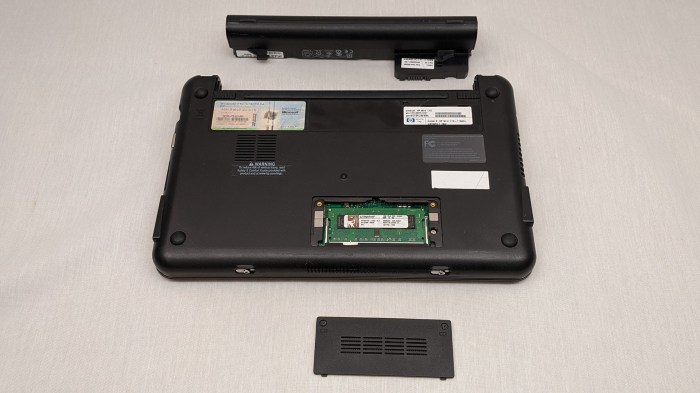
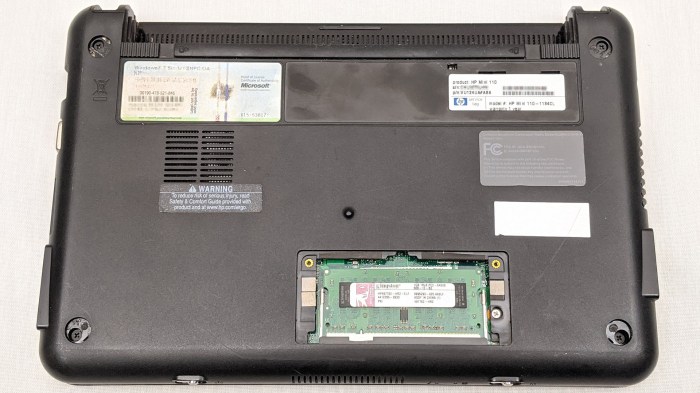
Opening the door at the bottom revealed a memory module as expected. It appears to be a DDR2 memory module with a capacity of 1 GB. Unfortunately I don’t have any DDR2 laptop memory modules to attempt a memory upgrade, so I left it alone and continued trying to open the laptop.

HP Mini 110-1134CL remove easy stuff

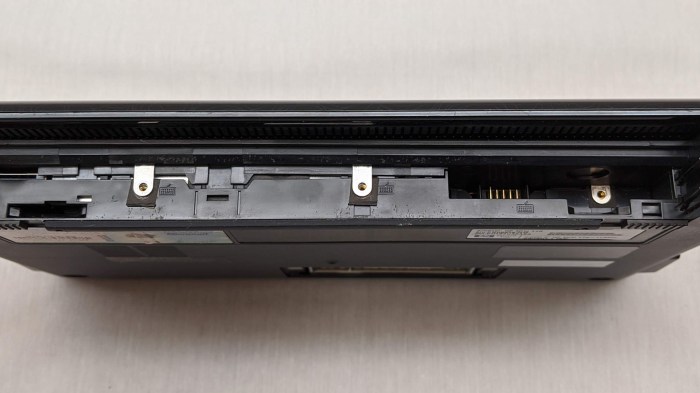
There are clips around the perimeter. Trying to open them up, I find resistance at the corners due to screws hidden underneath each rubber feet.

HP Mini 110-1134CL screws hiding under feet

Removing them did not help release the top and bottom halves of the machine, so there are even more fasteners I have yet to see. Looking for what I might have missed, I found three screws with a keyboard icon inside the battery compartment.

HP Mini 110-1134CL keyboard retention screws

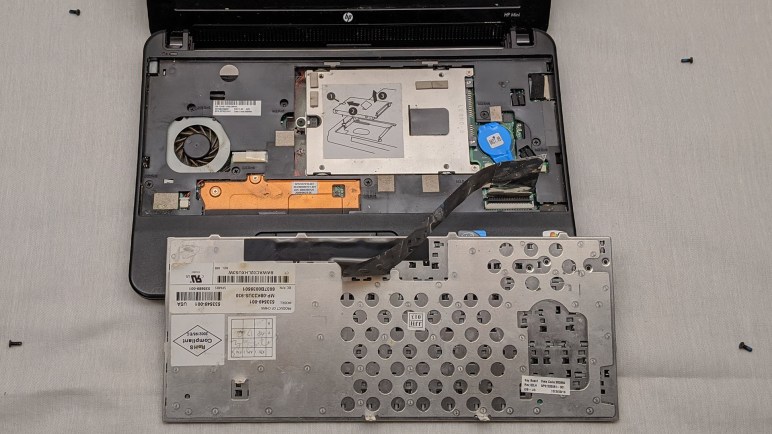
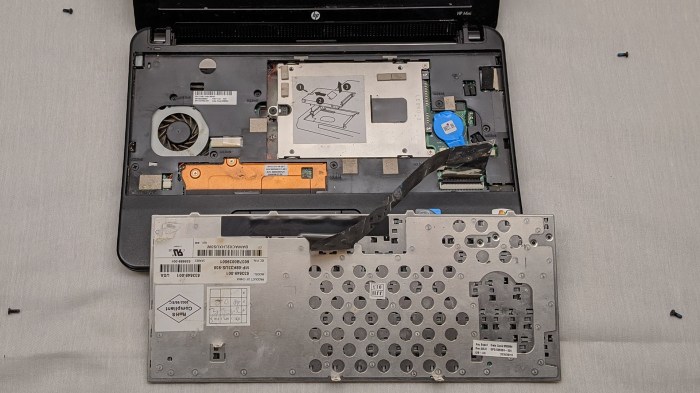
Removing those screws allowed the keyboard to be popped open, exposing the hard drive plus additional fasteners holding the laptop together. The focus at the moment is the SSD upgrade, so I’ll hold off on further disassembly for now.

HP Mini 110-1134CL keyboard removed

The bright piece of metal had the right shape and size for a hard drive cage, and it was also conveniently labeled with an instructional diagram. I thought that was great — it’s going to be as easy as 1, 2, 3! Except it wasn’t. For reasons I don’t understand, they neglected to mention two more screws that had to be removed before I could proceed with steps 2 and 3.

HP Mini 110-1134CL hard drive removal

Once removed, the stock hard drive was held to this cage with four standard mounting screws. From there it was straightforward to install a 2.5″ SATA SSD for further adventures in netbook computing.

HP Mini (110-1134CL): Slow At Ubuntu 16 Desktop

A quick hardware orientation tour of this retired netbook found that we should be able to run ROS Kinetic Kame on this computer. Getting a simple ROS Kinetic environment running would be a baseline test to see how it might perform as a robot brain. And for that, we’ll have to erase the Windows 7 Starter Edition on this hard drive with Ubuntu 16.04 “Xenial Xerus”.

A sticker at the bottom of the machine identified the default operating system as Windows 7 Starter Edition. Since this machine predated Windows 8 mechanism for embedded licenses, we know this hardware would not have an embedded license for Windows and erasing this drive would mean the loss of a Windows license. I decided a Starter Edition license was no great loss and proceeded to install Ubuntu Desktop 16.04 LTS, i386 (32-bit CPU) edition.

Installation was successful on this netbook, but it was annoyingly slow to use. Every action required a few seconds, starting from activating the logon screen to every single interaction after that. I don’t know if running Windows 7 Starter Edition was any more responsive on this computer, but I wouldn’t have wanted to run an end-of-life OS even if it was faster.

What was the bottleneck here? Was it the CPU? Was it the RAM? Was it the hard drive? Or perhaps a combination of the above, like a lack of RAM triggering virtual memory activity that is hampered by a slow hard drive? For diagnosis I appreciated the fact this little netbook had a hard drive activity light, a feature that has been dropped from most modern machine. Judging by the lack of activity on that light, I suspect the problem is a slow CPU and upgrading the drive to a SSD would have limited benefit.

Even with this pessimistic view, I wanted to give it a try. I had a spare SATA SSD already on hand so it shouldn’t take a lot of time to test.

HP Mini (110-1134CL): Hardware Specifications

After a quick check to make sure this machine comes to life after charging, I started researching its hardware specifications. A sticker below the machine identified itself as a HP Mini 110-1134CL.

Based on reviews online for the HP Mini 110 product line, this is roughly ten years old powered by an Atom N270 processor. This is a big strike against using this computer as a robot brain running ROS, as the N270 is limited to 32-bit software. The latest longer-term support distribution of ROS “Melodic Morenia” only officially supports 64-bit Intel/AMD chips. If this machine is to run ROS, it would be limited to the previous LTS of ROS “Kinetic Kame” which is not ideal, but at least it will be supported until April 2021.

According to BIOS readout, there is 1GB of RAM installed on this computer. An access door with a memory module icon is visible on the underside of the machine, so a RAM upgrade is probably possible. But I don’t have any old memory modules on hand and I’m not inclined to spend money upgrading a ten year old computer. A single gigabyte is expected to be very limiting, but it is possible to get a very basic ROS installation running on a Raspberry Pi 3, which also only has 1GB. It might get annoying but is probably not going to be a deal breaker.

The BIOS hardware list also describes the hard drive as an old school spinning platter type, which was as expected. Thankfully the Fujitsu MJA2160BH G2. A 2.5″ 160GB 5400 RPM is at least a standard SATA drive and not the compact variant that stumped me earlier. This means I have the option to try upgrading it with one of the SATA SSD drive I already have on hand.

Now that I’m oriented, it’s time to take on the first experiment: see if it can run Ubuntu 16, the basis for ROS Kinetic Kame.

HP Mini (110-1134CL): Relic of the Netbook Era

After I had completed my first pass at the Toshiba Chromebook 2, I moved on to the third and final machine in this research project made possible by NUCC: the HP Mini 110-1134CL. It is an example from “netbook” era, a category of computers launched by the Asus Eee PC. Netbooks were an early attempt to build minimalist computers for basic internet activity, years before Chromebooks defined their own product category.

Like Chromebooks, the first netbooks ran a custom operating system that offered a web browser and very few other basic applications. But unlike Chromebooks, netbooks quickly abandoned custom OS and started running a special “Starter Edition” of Windows. Was it due to customer demand? Manufacturer preference? Microsoft offering carrot and stick? I have nothing useful to contribute here.

Like the other two machines, when I received this machine the battery was flat. Nothing happened when I first pushed the power switch. Fortunately it could be charged with the “type I” tip for my Targus universal laptop AC power adapter, same as the Toshiba Chromebook 2 I looked at earlier.

While it was charging I looked over its physical condition. There is a missing “N” key on the keyboard, but nothing else was outwardly wrong. Once the battery was charged, I turned it on to take a quick look at its condition. I saw what I recognized as the Windows 7 boot up sequence, but after some time staring at “Welcome…” I never got to the login screen. It threw up an error of “failed to start” without any error codes I could investigate, and suggested “rerun installation” which I don’t particularly care to do as we’ve long passed the end of life for Windows 7.

That’s a problem to be looked at later. For now, I’m glad the machine showed signs of life making it worthwhile to spend some time looking over its specifications.

Toshiba Chromebook 2 (CB35-B3340): First Pass Evaluation

Taking apart this Chromebook immediately after taking apart the HP Split was a very instructive contrast in varied approaches taken when building a laptop. Even though the two devices were only 2-3 years apart, they ended up at very different destinations reflecting the philosophy of the software they were designed to run.

HP Split was built for Windows 8, together they positioned themselves to be all things to all people including ability to convert between tablet and laptop modes. And as a result the overall package is big and bulky. It tries to do everything, but it’s not especially great at any single task.

A Chromebook runs Chrome OS, which is a thin shell built around the Chrome web browser. It does not try to be anything else, and its simplicity in software was also reflected in a thin lightweight laptop built for a singular purpose and doing just that one thing well.

Windows 2-in-1 machines have evolved a lot since the first generation of devices like the HP Split, and while the penalty for compromises have been greatly reduced, they still exist in the form of weight, space, cost, or some trade off between them. In contrast, Chromebooks have remain thin and light machines in terms of software, hardware, and price tag.

If I wanted to turn this Chromebook into a robot brain computer, though, I need to break out of the Chrome OS sandbox and put it into developer mode. Unfortunately that menu is only visible on the primary display, which is broken. I could spend money on a replacement screen, but it seems wasteful just to use it to toggle the developer mode switch. A robot brain computer would not need a screen! So if I am to buy the screen, I should probably use it as a Chromebook laptop. The cost/benefit for that isn’t great, because Chrome OS may drop support for this hardware platform pretty quickly. When that happens,  security upgrades stop coming. [UPDATE: I returned to this machine and found a pleasant surprise on Chrome OS support.]

I will set this machine aside while I debate what to do. In the immediate future I have the third and final machine to examine in this research project.

Toshiba Chromebook 2 (CB35-B3340): Replacement Screen Shopping

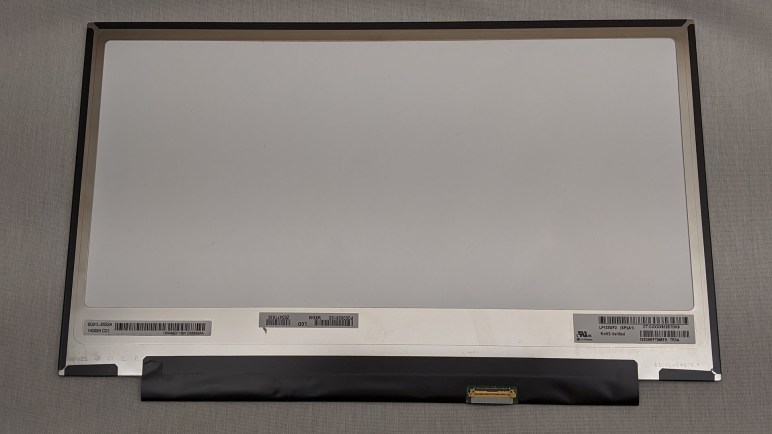
I have an old Chromebook that was pretty obviously retired due to a broken screen and I freed the damaged module for a closer look. I had no expectation that I could repair the display module, as there’s a visible crack. Interestingly the crack is inside the glass and not present at the outer-most surface. There’s also discoloration surrounding the crack hinting at more severe damage underneath. I could probably go online and find information on the display module used in this particular Chromebook, but getting the make and model is only a secondary objective. Before I contemplate a replacement, I wanted to first make sure I could install the replacement with low risk of damage. Hence the removal exercise to verify the lack of an impenetrable wall of glue or similar impediments.

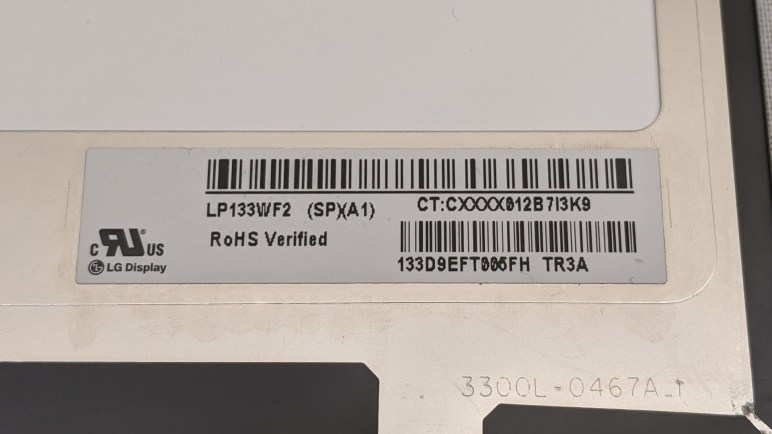
It turned out getting to the actual module label was useful because this device was apparently sold in multiple configurations. There’s at least one variant with a minimal 1366×768 low resolution panel, and this device was an upscale version with a 1920×1080 panel. A search on Amazon marketplace found replacement new LP133WF2(SP)(A1) available for roughly $75 (*) and eBay sellers in a similar price range.

The price was the last piece of information I needed, now I need to make a decision about this project. $75 isn’t a terrible price to pay to bring a laptop computer back up and running, but it doesn’t compare very favorably to what else that money can be spent on. Even if we limit ourselves within the Chrome OS ecosystem.

New Chromebooks can be had for a little over $100 with the occasional sale, though at that price point we’re limited to 1366×768 resolution displays. I’ve seen 1920×1080 resolution Chromebooks at around $150 on sale, or roughly double the cost of a replacement panel. A new Chromebook would have access to newer developer features like Crostini that this Chromebook does not. A new Chromebook will also receive Chrome OS updates for at least five years, where support for this 2014 vintage ‘swanky’ Chromebook would end considerably sooner. Even if I put Ubuntu on this machine via Crouton, it is still dependent on Chrome OS for Linux kernel security updates.

At $75 for a new replacement panel, the economics is a tough call. I may contemplate buying salvaged panels which are available for less. (As of this writing, as low as $47.) I’ll keep thinking about this for a while. In the meantime, I want to look at the rest of this Chromebook out of curiosity.


(*) Disclosure: As an Amazon Associate I earn from qualifying purchases.

Toshiba Chromebook 2 (CB35-B3340): Screen Removal

If I wanted to turn this Toshiba Chromebook 2 into a robot brain, I need to put it into developer mode to install software outside of Chrome OS. Unfortunately the menu to put it into developer mode is only visible on the primary display which is damaged and illegible. Time to explore what it would take to bring the screen back.

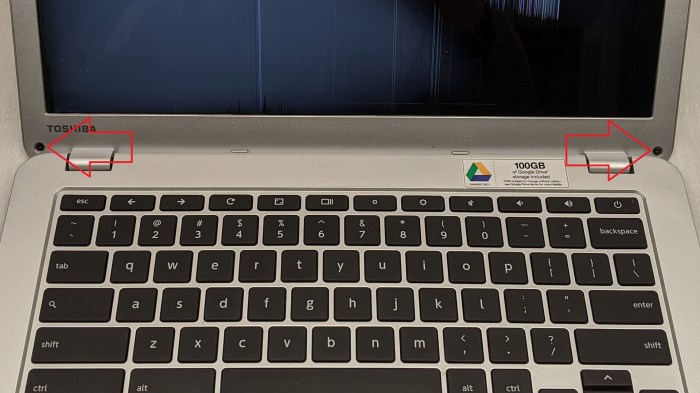
The screen bezel are held in place by two screws and a lot of plastic clips. Once the screws were removed, I could go around the perimeter and pop loose all the plastic clips.

Toshiba Chromebook 2 CB35-B3340 screen bezel screws

After the bezel was removed, I noticed a small magnet held inside. This allows the base to detect if the lid is open or closed via a Hall effect sensor. If we end up going without the screen and need to spoof lid state, this is where we would place a magnet.

Toshiba Chromebook 2 CB35-B3340 screen bezel magnet

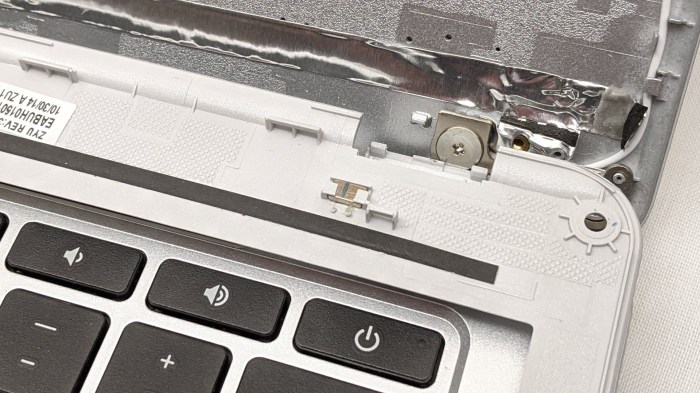
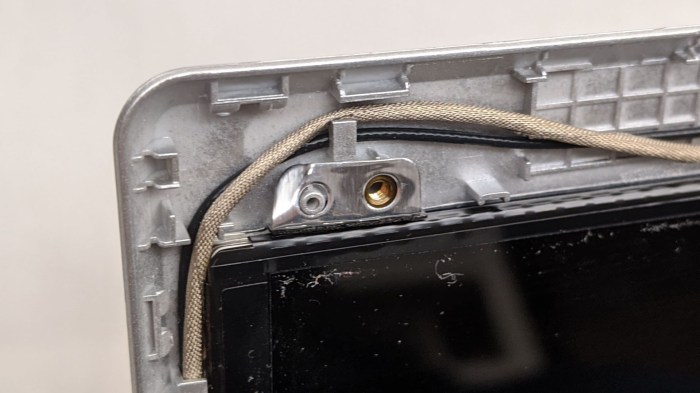
The lid had heat-set inserts that looked like they could be used to help fasten the screen in place, but no fasteners. I thought maybe someone had investigated screen replacement before me and just didn’t put the screws back, but as it turns out, screws wouldn’t have done anything.

Toshiba Chromebook 2 CB35-B3340 heat set insert but no fastener

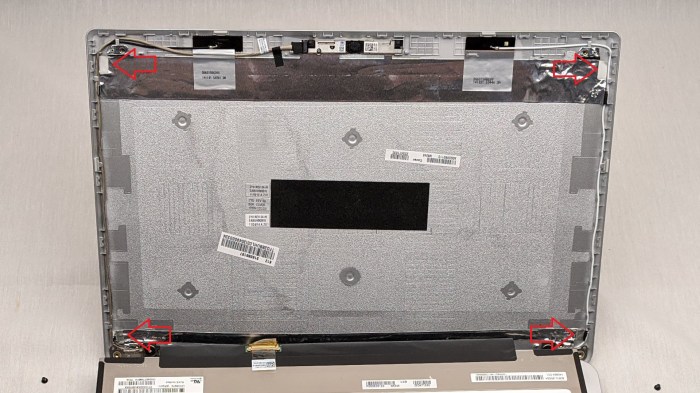
This screen is held by four adhesive pads, one at each corner. Perhaps a different model used a different screen with metal brackets that would have been held using screws, but this screen was held by sticky pads.

Toshiba Chromebook 2 CB35-B3340 screen freed from adhesive pads

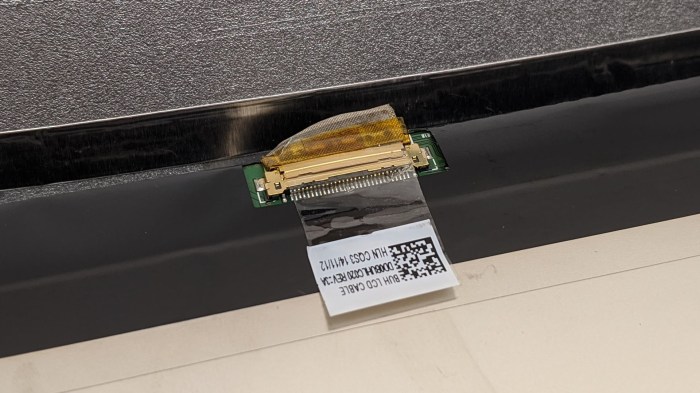
Once freed from the four pads, the final point of attachment was the electrical connector. The plastic tag is actually adhesive tape, helping to keep two sides of the connector together together. Once plastic is peeled away from metal, it was easy to unplug the connector.

Toshiba Chromebook 2 CB35-B3340 screen cable

Disconnecting that connector freed the screen, and we can take a closer look.

Toshiba Chromebook 2 (CB35-B3340): Developer Mode

The upside of a Chromebook is that the user never has to worry about hardware specifications, applications minimum requirements, or any of the typical headaches of computer ownership. It’s all handled through the Chrome browser. The downside of a Chromebook is that the user is not allowed to install traditional computer applications. Or at least, not by default. Under the hood, Chrome OS runs a Linux kernel, and it’s possible to use that as a foundation to extend computing experience outside the walled garden of Chrome OS. I started learning about Crouton, a project using chroot capability of Linux kernel to allow a variant of Ubuntu or Debian to run on Chromebooks.

Documentation for Crouton referenced the Crostini project, a way to get a Linux shell and container support without putting a Chromebook into developer mode. It sounds like a great thing to try first! But unfortunately this particular Chromebook is not supported. More specifically, this Chromebook hardware generation with the code name ‘Swanky’ does not meet the hardware virtualization support required for Crostini.

Especially frustrating is the explanation that, while the Intel spec sheet says the Celeron N2840 has the required hardware virtualization support, ‘swanky’ Chromebooks actually use a special variant of the chip without such support. I guess it saved them some money at the time? Keeping in mind the original intent of Chromebooks, it made sense to cut out virtualization support. But that decision now cuts this laptop off from Crostini.

So no Crostini for this machine, back to looking at Crouton. And the next critical step is to switch this Chromebook into Developer Mode. Holding down ESC + Refesh then pressing power, I can see the broken display is illuminated but the external monitor is not. It appears the recovery/developer mode menu is shown only on the built-in display, which I can’t read. And unlike the power wash menu earlier, the screen mirror key combination has no effect on the developer mode menu.

I searched online for a complete procedure to put this Chromebook into developer mode. Unfortunately all I found were”press control-D from recovery screen and follow menus” which isn’t helpful when I can’t read the screen!

It appears if I want to venture outside the Chrome OS sandbox, I have to look into screen replacement and the first step is investigating its removal.

Toshiba Chromebook 2 (CB35-B3340): Hardware Specifications

The old Chromebook retired due to cracked screen has been updated to latest Chrome OS, so I started searching for its technical specifications. I stumbled right out of the gate, failing to find anything on toshiba.com. Eventually I learned Toshiba sold a majority share its laptop business to Sharp and the new company (does that make it a joint venture?) is called Dynabook.

This would explain why every single product support page for the CB35-B3340 I found was under the Dynabook domain. There is not a lot of detail here, as a Chromebook is supposed to be low maintenance and they carried that concept through to reduced number of things a user has to worry about. A Chrome OS user shouldn’t ever have to worry about gigahertz or gigabytes.

But I did get some useful information implying this machine meets requirements for running robot operating system (ROS). The Intel Celeron N2840 processor is 64-bit capable. The maximum clock speed is up to a very respectable 2.58GHz. But it is constrained to run under 7.5 Watts, so it’s still an open question whether it has enough processing power in practice. Typical web browsing only need CPU power in short bursts: render a web page, then wait for the user to read the page, before rendering the next page. But robot intelligence puts a consistent high workload and if the machine needs to stay under 7.5 Watts it might have trouble sustaining maximum clock speed.

Its 4GB of memory and 16GB of flash storage meet bare minimums for even contemplating an Ubuntu installation. I’m not sure if 16GB storage is enough for the full suite of ROS nodes, but it can certainly run the subset necessary to operate a particular robot. And just like how CPU operating pattern differs between Chrome OS and ROS, the storage I/O pattern will be very different between typical Chrome OS and ROS. There’s a risk the flash storage will wear prematurely, a concern to keep in mind.

But first, we have to get this system to a point where we can install ROS, because ROS doesn’t install on bare Chrome OS.

Toshiba Chromebook 2 (CB35-B3340): Reset and Restart

I have a Chromebook with a damaged screen. Fortunately I could connect an external monitor via HDMI and mirror the primary display. It makes the machine usable, which is an improvement, but I have to command display mirroring every time there is a change in state. I have to press the magic key combination after every boot-up, every user log-in, and every user log-out. It is rather less than ideal but at least I can proceed.

The first order of business is to erase the system. The Chrome OS login screen showed the image of someone’s Google profile. I don’t know who it is, and I don’t care. This person’s data is none of my business and, since it is a Chromebook, I know all their data is still available online with Google.

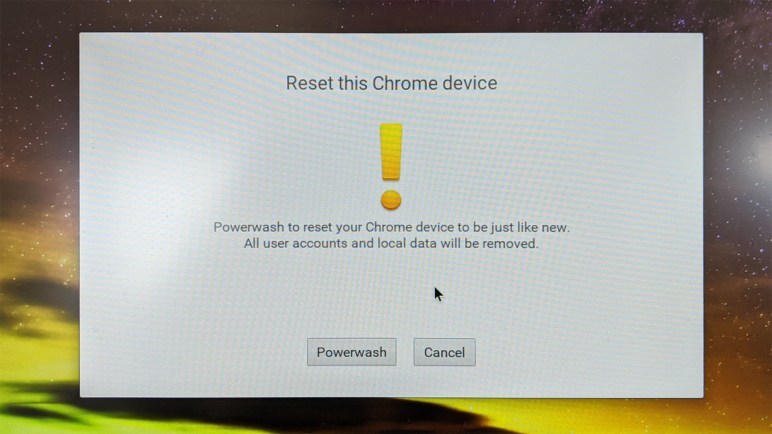
Chrome OS has a “Log in as Guest” option, which allowed me to access the system settings menu. I thought this was where a system reset could be commanded, but after coming up empty handed I went online for more research and learned a Chrome OS reset is actually triggered by a particular key combination upon power-up. I was worried the reset process would be restricted to the primary monitor, fortunately I could mirror that display to initiate the reset process which someone at Google decided to call a powerwash. Cute.

Once up and running on a blank slate, the next order of business is to update the system. There’s no telling how long it has been since this machine received a security update.

Chromebook 44.0.2403.156

This model Chromebook launched in 2014. Chrome OS 44.0.2403.156 was released August 19, 2015. Since Chrome OS auto-updates itself, it appears this particular machine lasted less than two years in use, possibly far less, before its screen was damaged. This makes me feel bad for the original owner.

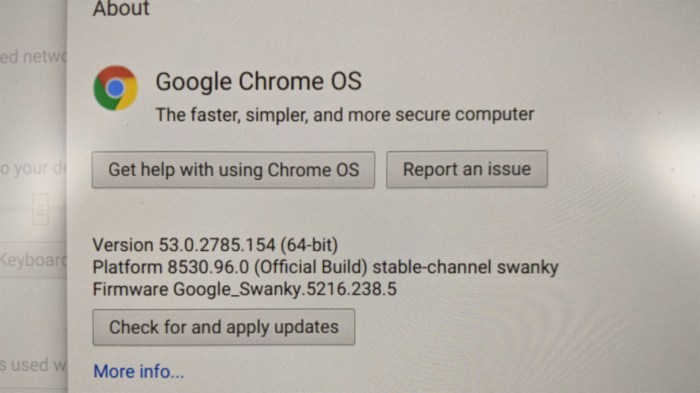
Chromebook 53.0.2785.154

Update was a multi-stage process, I assume due to its age. I’m not familiar with Chrome OS development history but each of these steps probably transition across large architectural changes. The first round of update only took it to 53.0.2785.154 (October 2016).

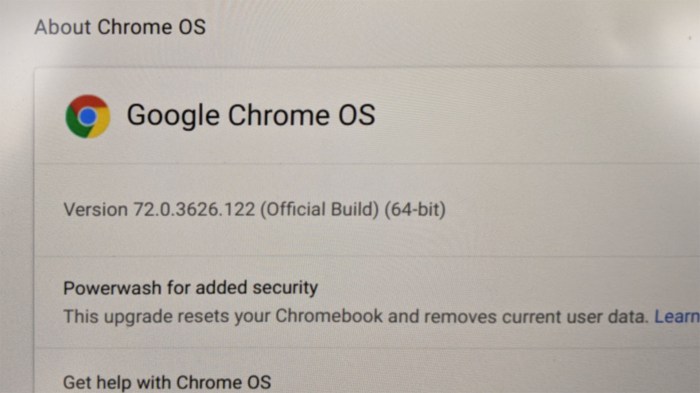
Chromebook 72.0.3626.122

Another round brought it to 72.0.3626.122 (March 2019) This update resulted in a very different looking user interface and many items were moved around.

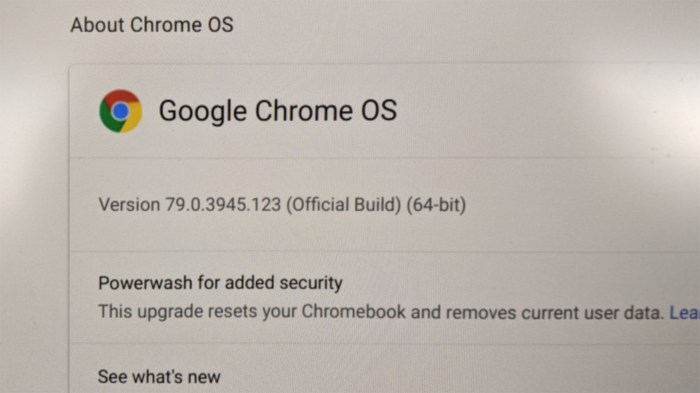
Chromebook 79.0.3945.123

Yet another round of updates brought it to 79.0.3945.123 (Jaunary 2020) which is the latest available. This is a pleasant surprise, as I had not expected this device to still be supported but it looks OK on the Developer Information For Chrome OS Devices page. This model launched in 2014, and Google only guarantees Chrome OS support for 5 years, so this device is probably living on borrowed time.

We’ll worry about that later. Now that we are up and running with latest Chrome OS, time to start looking at technical information.

Toshiba Chromebook 2 (CB35-B3340): Cracked Screen

By the time I wrapped up investigation of the HP Split tablet/laptop convertible, the Targus type I adapter arrived. I needed it to charge the battery in the remaining two machines of my research assignment from NUCC. I set aside the HP Split and started charging the Toshiba Chromebook. Once the charge LED turned from orange to white, I turned it on and the answer to “why was this machine retired?” was immediately apparent.

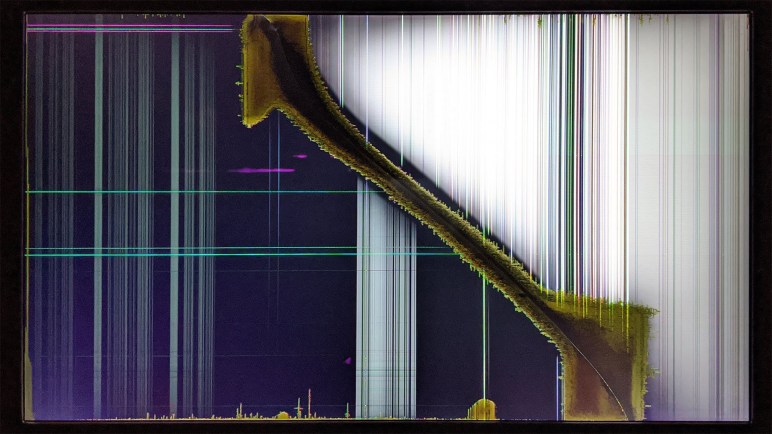
Toshiba Chromebook 2 CB35-B3340 screen detail

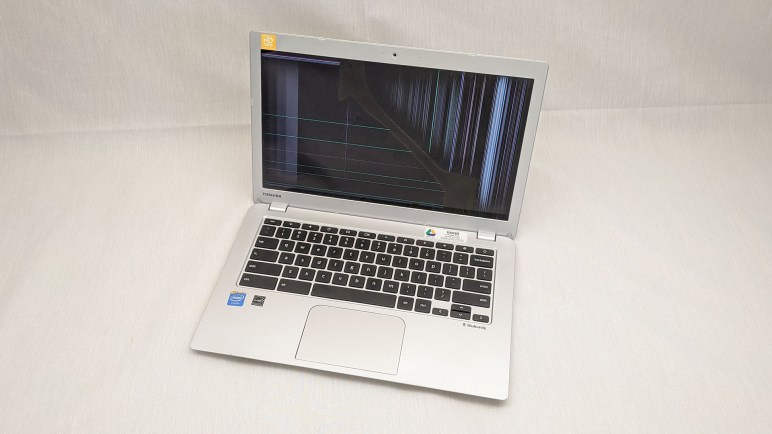
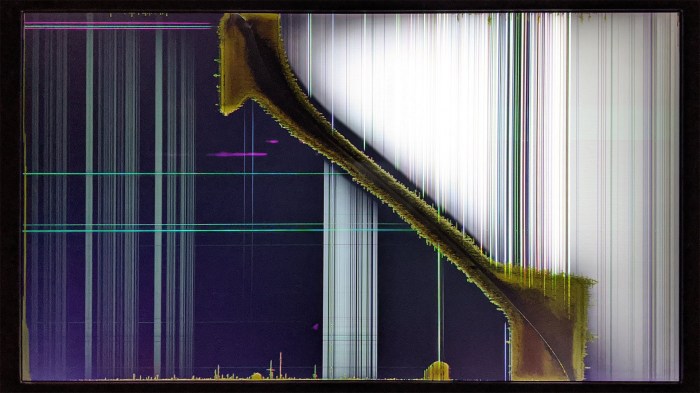
There is a large diagonal crack across the middle of the screen. Sometimes when a screen is damaged we could still read the content around the crack, but not here. The entire screen is illegible. Turning the machine on and off a few times, I saw the content is not consistent between runs. Either Chrome OS is booting to a dynamic splash screen every time, or what’s visible just have no correlation with the intended content.

Fortunately, this Chromebook has a HDMI video output port. Plugging it into a monitor, I see a very pretty picture of a night time landscape. This is probably a background picture, but without any controls, it is merely the secondary screen. The login prompt is still on the primary display I can’t read.

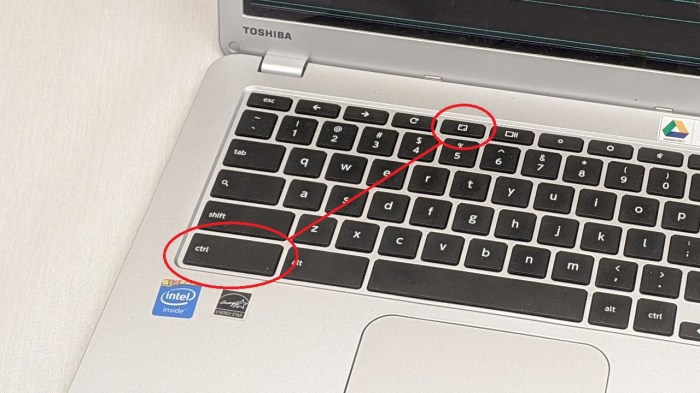
Since this was my first Chromebook, I didn’t know if there was a key combination I could press to toggle from this “extended” mode to “mirrored” mode where the login screen is sent to both displays. A little bit of research implied that there was, and a few minutes of fumbling found the magic keystroke: control plus an icon that might be maximizing a window or possibly going full screen.

Chromebook keyboard closeup

I’m not sure if it’s common to all Chromebooks or specific to this model, but at the moment it doesn’t matter. I can see the ChromeOS login screen on my external monitor, time to get down to business.

HP Split X2 (13-r010dx): First Pass Evaluation

After I had my fun looking inside this retired tablet/laptop convertible, I put it all back together and verified everything still worked. As far as I could tell there’s no functional problem with this machine, no deviation from original designed performance. It’s even capable of running the latest release of Windows 10.

Why it was retired by its original owner? My personal opinion points to the nature of a tablet/laptop convertible. When this class of devices were introduced alongside Windows 8, they were advertised to be machines that combine the best of both worlds. But Windows 8 failed to deliver its promised revolution in touch-centric tablet computing. So machines that made design compromises instead found themselves saddled with the problems of both worlds.

Even though it offered bigger screen real estate than the standard iPad, it had inferior resolution and responsiveness is sluggish. It is also significantly heavier on account of having all the hardware of a PC inside the case, including the hard drive I failed to replace. For normal web browsing and content consumption, it isn’t any better than an iPad. Sure, it can be docked into the base to do things an iPad can’t, but that just brings in a different set of problems.

The laptop mode dock had to support the weight of a full PC inside the tablet module, whereas normal laptops only had to support the weight of the screen. This class of hardware became inherently top-heavy and required a lot of design work to keep from toppling over. Up to and including unfortunate additions of counterweights. The hinge and docking mechanism adds parts weight and cost, resulting in a laptop that is bulkier and more expensive than non-convertible counterparts. This machine is nominally a 13″ laptop but it is almost double the physical volume and weight of a 13″ Macbook Air from the same era.

The computer market of 2020 have some pretty compelling 2-in-1 machines, built with the advantage of several years of hardware advancement. High resolution screens, flash storage, and power-efficient CPUs that can run on smaller lighter batteries. They incurred a much smaller penalty for the compromises of a convertible design. Technology moved on, and first generation convertibles like this model were left behind.

But even if it is no longer desirable as either a tablet or a laptop, this machine is still capable of running latest generation of software. Including latest releases of Windows 10, Ubuntu, and both ROS 1 and 2. Despite being saddled by the performance of a hybrid hard drive, I’m confident some interesting use for this machine will be possible. I’ll set this promising machine aside for now to examine the next unit in line.